






Still downloading templates?
There’s an easier way. Try a free AI Agent in ClickUp that actually does the work for you—set up in minutes, save hours every week.
Sorry, there were no results found for “”
Sorry, there were no results found for “”
Sorry, there were no results found for “”

You’ve got your project plan in mind, but when setting it up, you realize it’s not as straightforward as you thought.
Instead of manually creating the same steps for every project, why not save yourself the hassle and create a template in ClickUp? It’s a simple way to build processes you can reuse, customize, and refine.
Let’s break down how to create a template in ClickUp to make project management more efficient and consistent.⚒️
ClickUp offers pre-built and custom templates for marketing, HR and recruiting, engineering and product, creative and design, and finance and accounting. They keep your workflows structured, consistent, and adaptable so your team stays aligned, productive, and ready to tackle any task.
In project management, consistency is crucial—and that’s precisely where ClickUp templates shine. You can set up structured, repeatable processes to save time, improve team alignment, and ensure you don’t overlook every detail.
Let’s explore why ClickUp workflow templates are necessary in your project management toolkit. 🧰
🧠 Fun Fact: The word ‘template’ comes from the French word templet, a small gauge or pattern used by builders and craftsmen.
ClickUp offers a range of templates to fit any project type, making it easier than ever to standardize your processes. Here, we’ll look at different project schedule templates you can create in ClickUp for various use cases. 📝
These are perfect for anything marketing-related, from creating brand identities to outlining campaigns and reporting results. You’ll find everything from campaign briefs to brand books and style guides.
📌 Example: The ClickUp Weekly Content Calendar is perfect for creating engaging content that resonates with your audience. It enhances your digital marketing strategy and simplifies planning for future campaigns, promotions, and events.
📖 Also Read: 10 Free Microsoft Word Project Management Templates
If you’re in HR, these templates can help streamline everything from employee performance reviews to goal-setting. Examples include job proposals, 1-on-1 meeting agendas, and shift change reports.
📌 Example: The ClickUp Job Description Template makes it easy to create job postings that stand out. It helps you highlight responsibilities, qualifications, and perks in a way that grabs attention and attracts the right candidates.
For software developers and product managers, engineering templates cover everything from sprint planning to creating app scope outlines and managing releases.
📌 Example: The ClickUp User Persona Whiteboard Template helps you create detailed customer profiles, organize research data, and visualize scenarios to understand target audience needs, goals, and behaviors.
Designers can use these templates for building brand identities, writing content, and developing creative briefs.
📌 Example: The ClickUp Design Brief Whiteboard Template helps you outline project goals, visualize your design journey, and identify optimization opportunities. This whiteboard template ensures a balanced approach to creative vision, technical know-how, and business objectives for successful design projects.
ClickUp also offers templates to make finance and accounting tasks more manageable. There’s even a template for accounting firms to manage their marketing efforts.
📌Example: Stressed about the tax season? The ClickUp Tax Preparation Template helps you manage all relevant financial data in one secure place, organize all documents by category, and schedule reminders for deadlines and other essential tasks.
⚙️ Bonus: Get your hands on design document templates to streamline your creative process and organize projects effortlessly.
Let’s break down the steps to create ClickUp Templates so you can save time and improve consistency immediately. 📄
First, head to the workspace item you want to turn into a template. This could be anything from a Task, List, Folder, or even a whole Space.
Essentially, open whatever you want to reuse as a template.
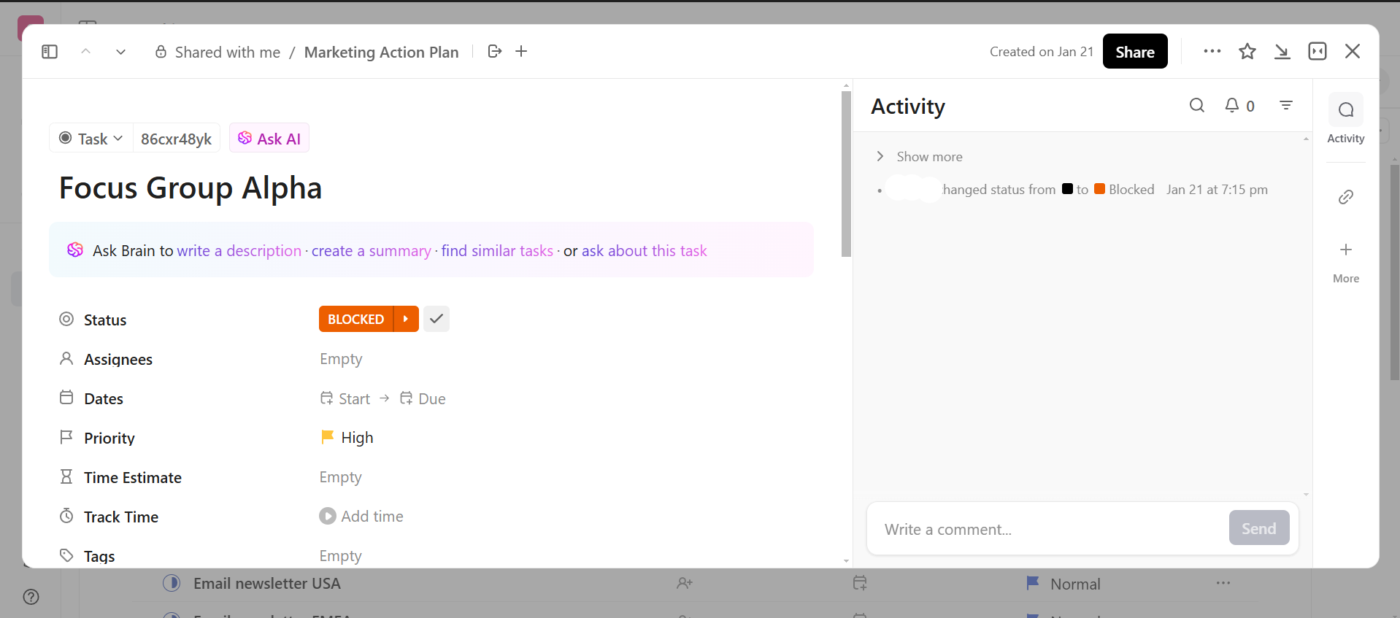
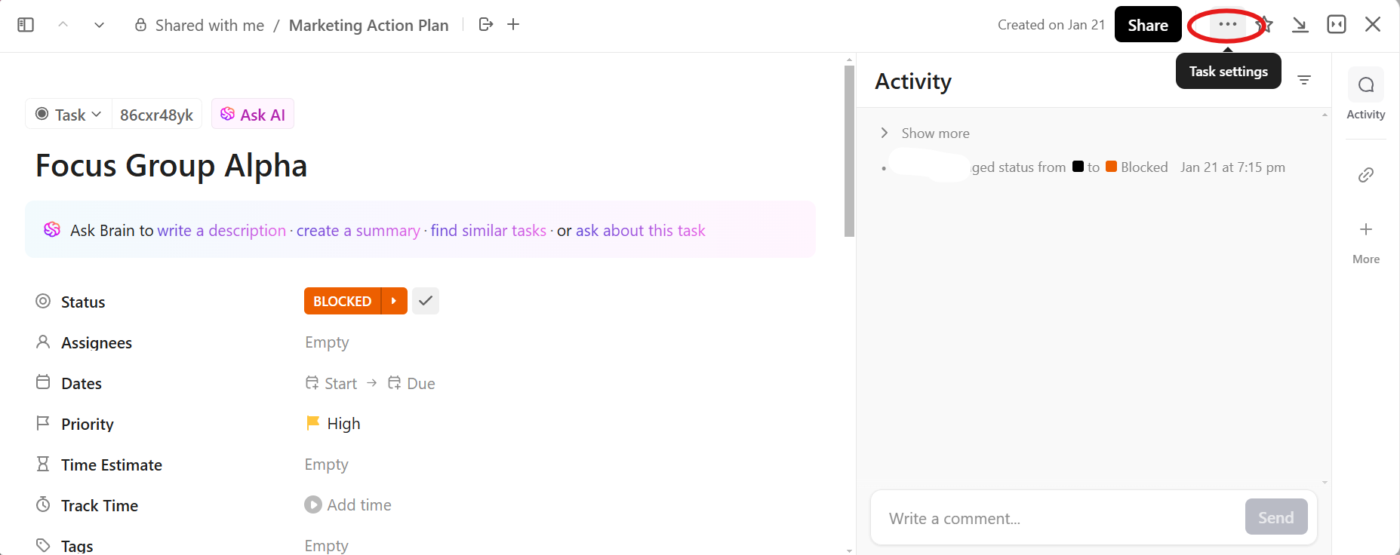
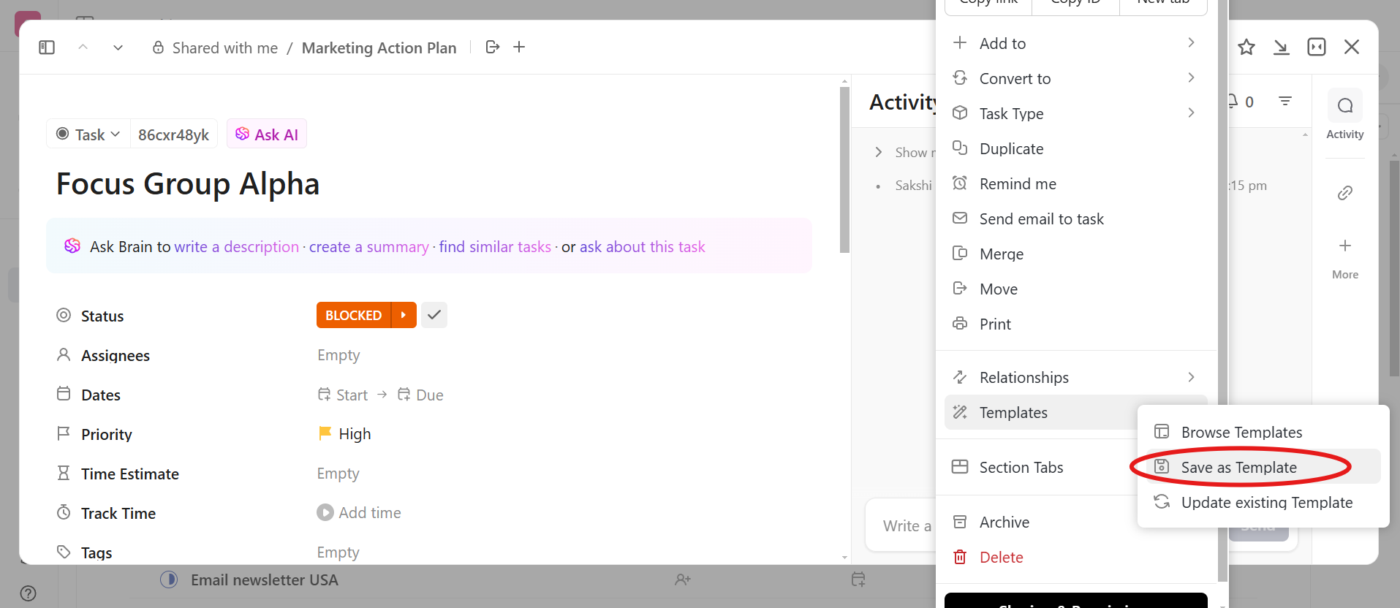
Once you have your item open, look for the ellipsis icon (those three dots) in the top right corner. Click on that to bring up the settings menu.
🧠 Fun Fact: Every LEGO brick is produced using a mold template with a precision tolerance of just 0.005mm, ensuring compatibility across generations of sets.
In the dropdown menu, you’ll see an option for Templates. Go ahead and select that; it’ll take you to all the template options for that specific item.
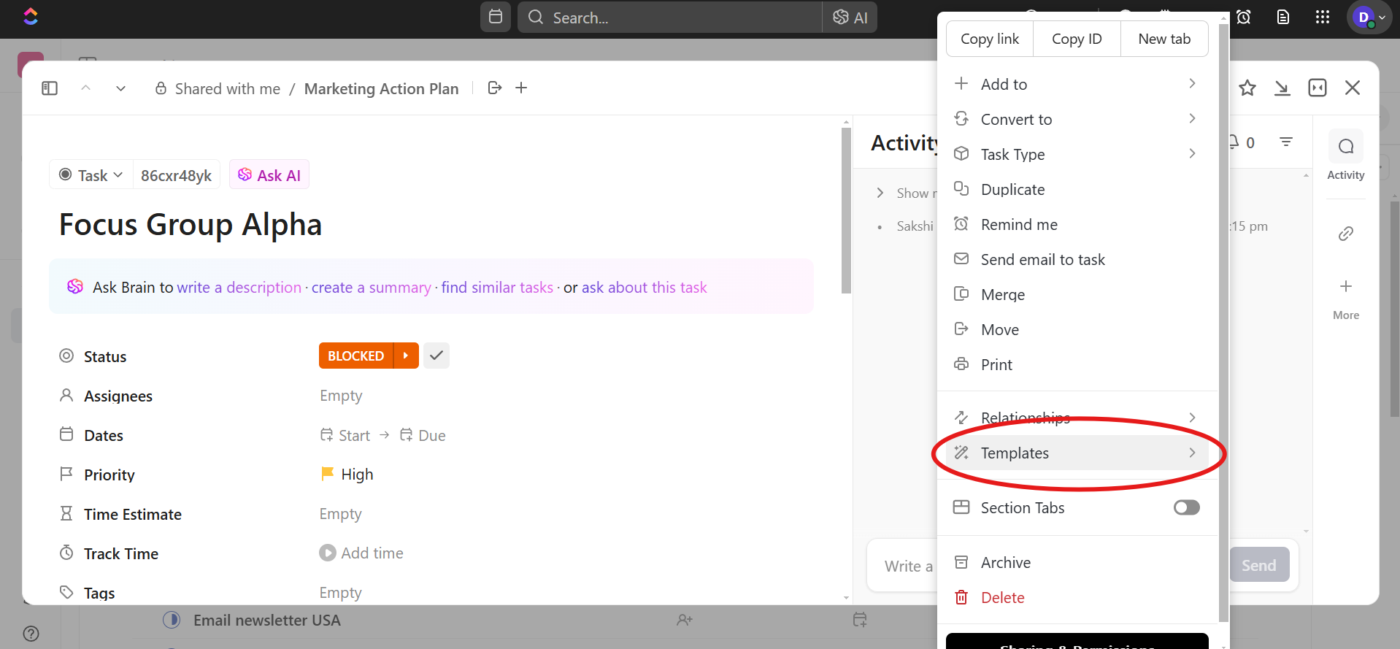
Now, click on Save as Template. This is where you’ll turn your current item into a reusable project management template for future projects. You can also browse through the different templates.
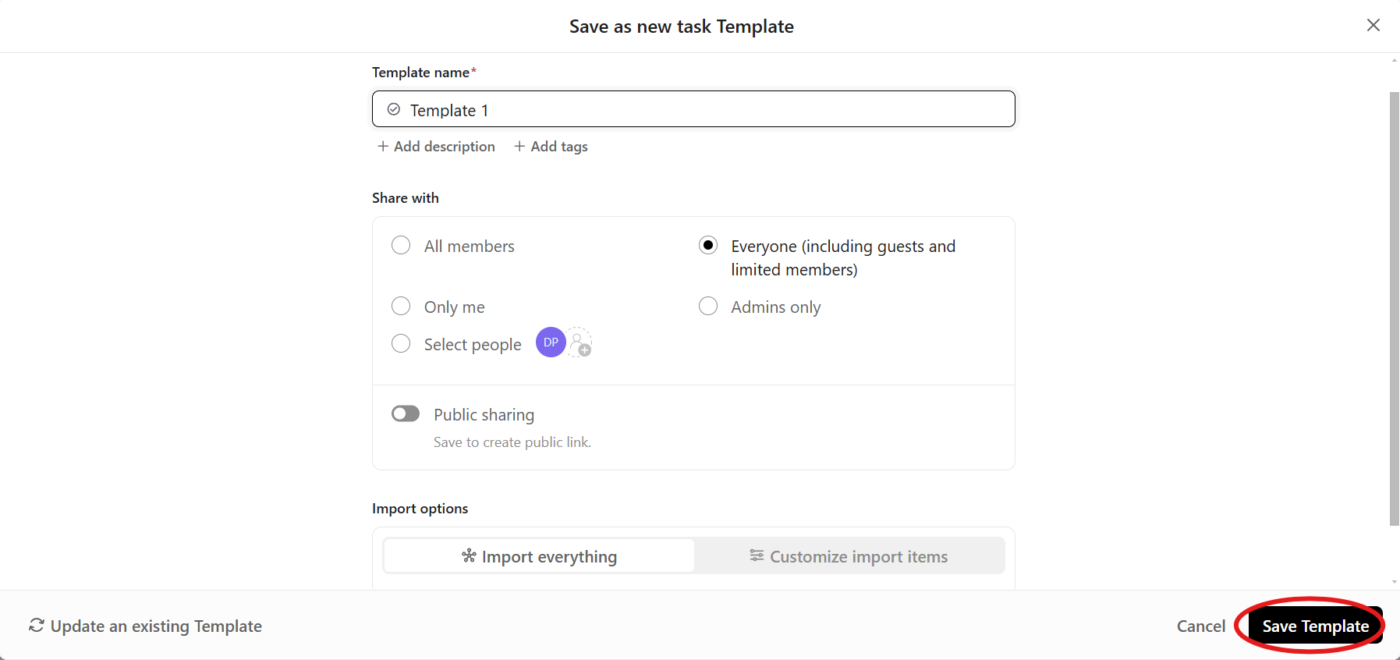
A pop-up will appear, asking you to name your new template. Make sure to give it a name that’s easy to recognize and describes its purpose so you can find it later without a hitch. Click Save Template.
Here are some customizations you can add:
And that’s it! You’ve created your very own template.
🧠 Fun Fact: When the internet was young, each website was coded from scratch. However, in 1994, the World Wide Web Consortium (W3C) introduced HTML and CSS guidelines as the first web design templates, making websites more straightforward to create and standardize.
You can also create templates with ClickUp Docs. The collaboration tool helps teams create, edit, and collaborate on documents directly within ClickUp. It facilitates real-time collaboration, where team members can edit documents simultaneously, add comments, and convert text into actionable tasks, ensuring seamless communication and efficient workflow management.
Let’s break down the steps to create effective document templates in ClickUp Docs. ⚓
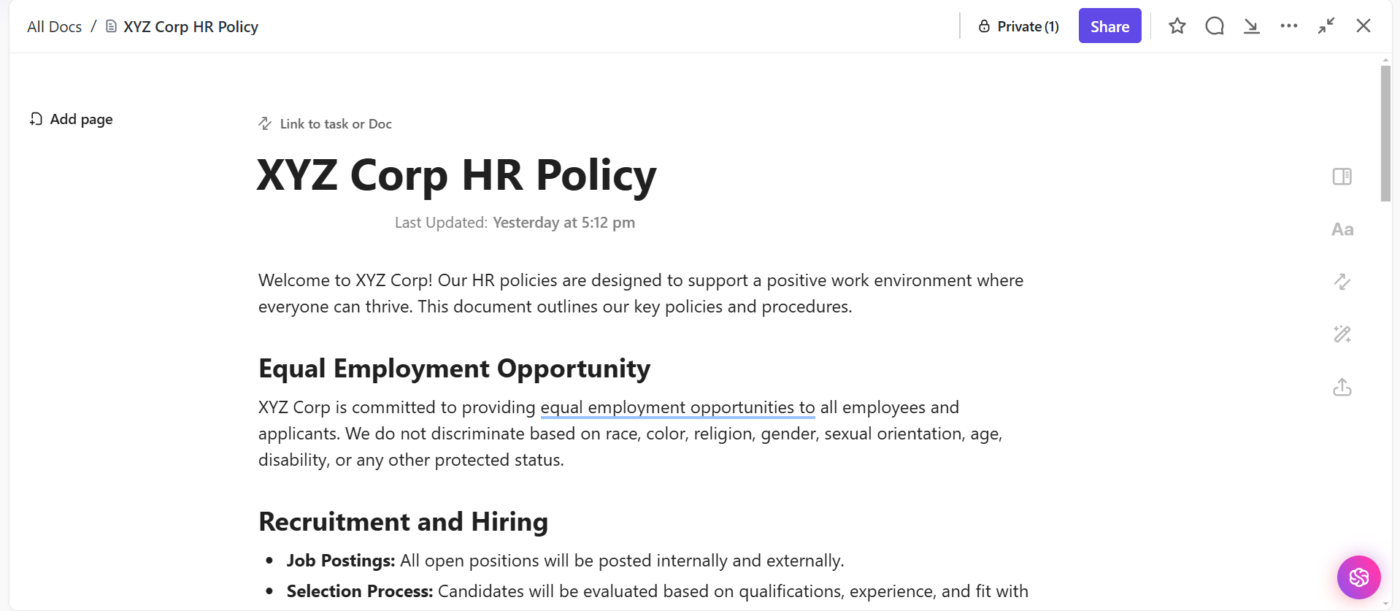
You can find the Docs Hub pinned in the sidebar, or you can head to More and select Docs. You can start a new Document or open an existing one you want to use as your template.
⚙️ Bonus: Explore this list of the best ClickUp templates to find the perfect one for your workflow and make work more effortless.
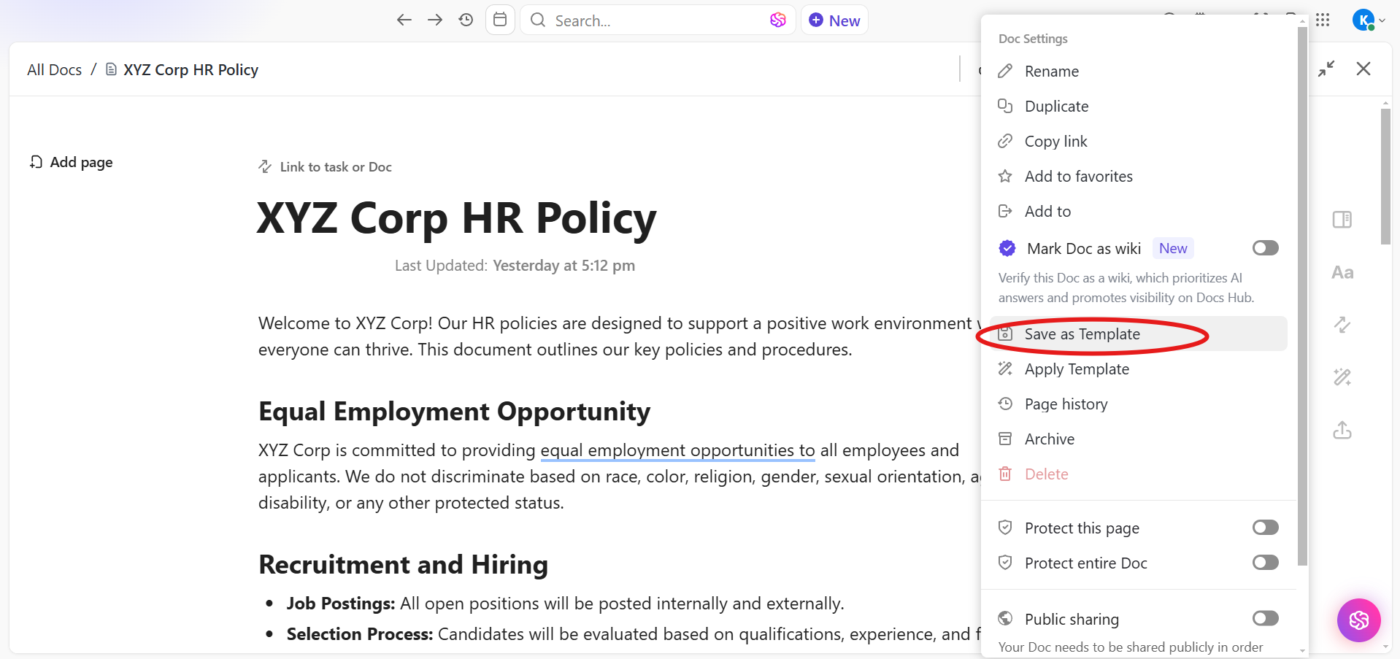
Click on the ellipsis (…) menu in the top-right corner of the document. Select Save as Template from the dropdown to save the current document as a reusable template.
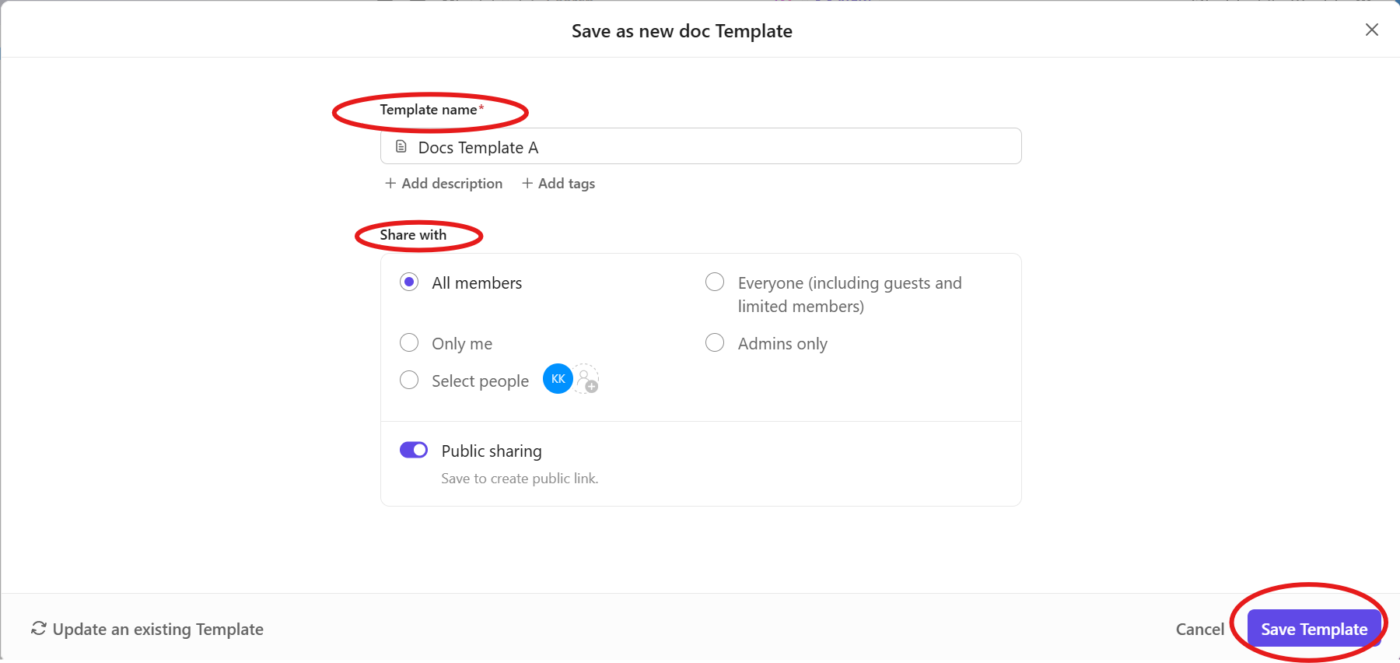
Give your template a name in the Save as New Doc Template window.
Configure the sharing options to decide who in your Workspace can access the template. You can keep it open for everyone or restrict access to specific users.
Hit Save Template, and your custom template will be saved in the Template Center.
⚙️ Bonus: Try out free scope-of-work templates to clearly define project goals, deliverables, and timelines.
If you don’t want to create a template from the current document, you can apply an existing template to a new one instead. Select Apply Template when you click the ellipsis button. This will open the Template Center. Browse through it and pick one.
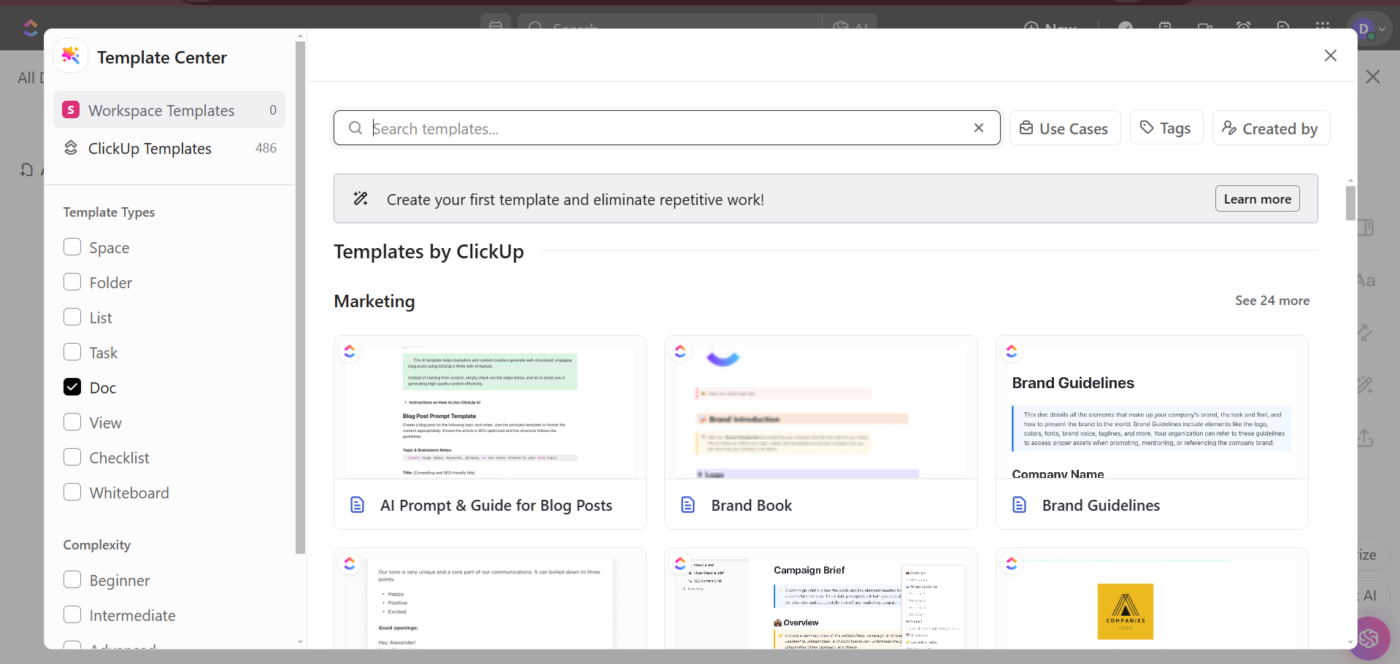
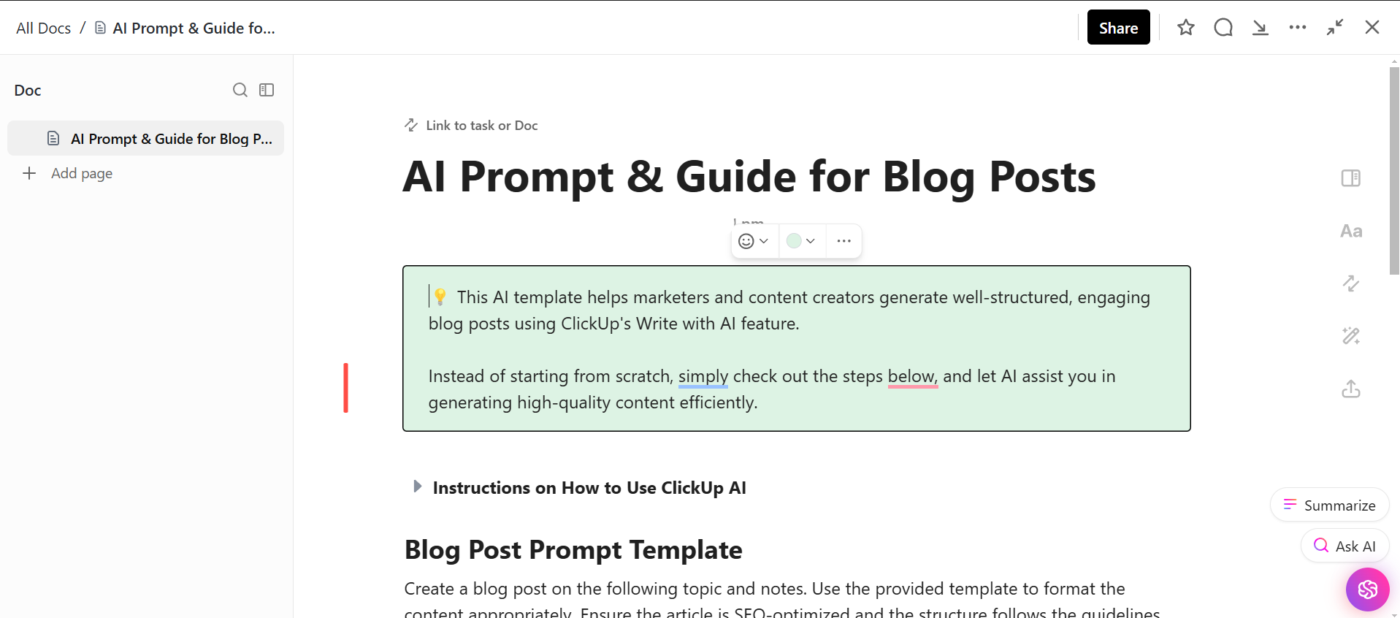
Open the template you need and click Use Template. This will add the template to your Doc in the selected template. In this example, we’ll use the ClickUp AI Prompt & Guide for Blog Posts Template.
We use ClickUp as a fancy to-do list, basically. It’s especially helpful for multi-step processes that we do repeatedly that involve multiple different people. We create a template for that process, which helps ensure we don’t miss anything and it easily communicates (automatically) between people when they’re able to do their tasks.
ClickUp, the everything app for work, has templates for getting things done with your team.
Here’s how they simplify collaboration and keep your team working together effortlessly.
🔍 Did You Know? Graffiti artists like Banksy use stencils to spray intricate designs in seconds, but they follow a tradition dating back to prehistoric cave paintings. Early humans blew pigment over their hands on rock walls, creating one of the earliest forms of stenciling.
📖 Also Read: 10 IT Templates For Technology Managers & IT Teams
With integrated ClickUp Brain, you can smooth your workflow further. AI can break down tasks instantly, summarize missed discussions, and provide quick answers to keep your work moving smoothly.
ClickUp Brain Max brings talk-to-text directly to the desktop so you can document processes and save them as templates without typing everything out. Instead of spending time writing down every step, just speak, and Brain Max instantly turns your voice into reusable workflows, ready to save as templates for future projects.
ClickUp AI Agents can run behind the scenes to keep your templates working smoothly. From assigning subtasks when a template is applied, to sending reminders or surfacing overdue items, AI Agents ensure your standardized workflows stay consistent—without the manual follow-up.

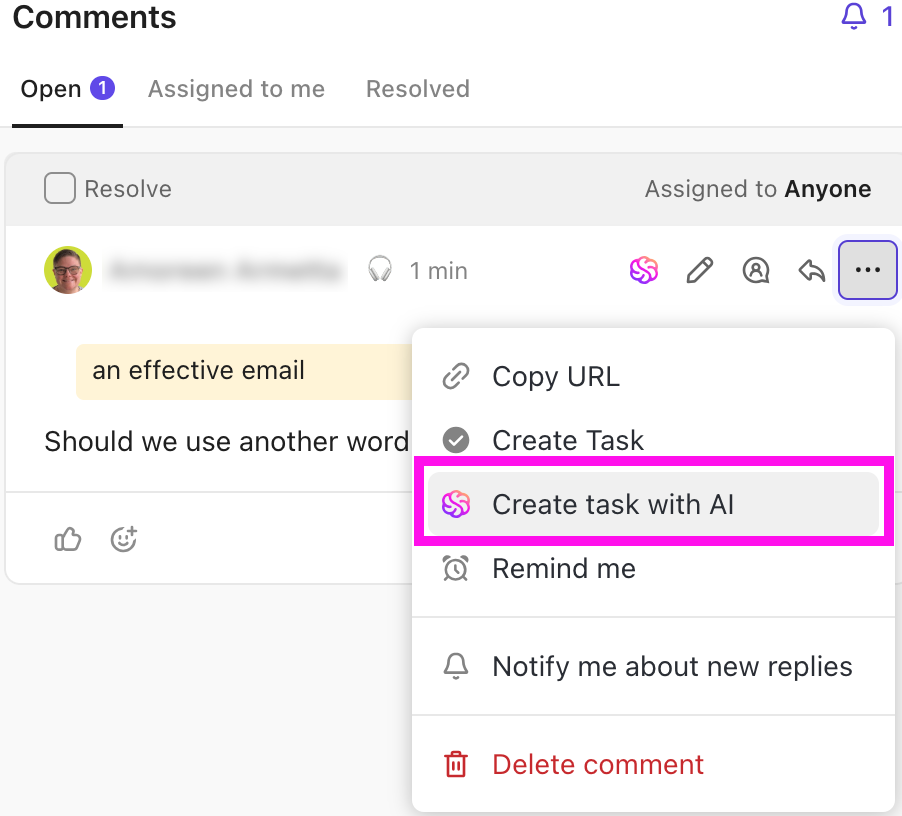
ClickUp Assign Comments turns casual mentions into clear, actionable tasks.
A task doesn’t have to get lost in a long chat thread or buried in an email—you can assign a comment directly to a teammate. That person receives notification; the comment is now a task with a due date.
Even better? Once they complete the task, they can mark the comment resolved, keeping the workflow clean and organized.
📮 ClickUp Insight: Daily message volume can vary drastically across teams, with 20% of team members sending as many as 50 messages daily to locate essential information.
ClickUp brings all communication channels together in one place, so your team can stay on top of tasks without the chaos.
While templates can save time and keep things consistent, using them effectively requires some strategy.
Let’s cover some best practices to help you get the most out of your ClickUp templates. 💁
🔍 Did You Know? The first spreadsheet software, VisiCalc (1979), was designed to act as a digital ledger template for accountants, transforming financial planning.
Creating a ClickUp template is a small step that makes a big difference. No more starting from scratch every time you kick off a project—just apply a template, tweak the details, and get to work.
The best part? ClickUp doesn’t just stop at templates. With its powerful task management, automation, and collaboration features, you can run your entire team’s workflow in one place.
Sign up for ClickUp for free today! ✅

© 2026 ClickUp

There’s an easier way. Try a free AI Agent in ClickUp that actually does the work for you—set up in minutes, save hours every week.