








Still downloading templates?
There’s an easier way. Try a free AI Agent in ClickUp that actually does the work for you—set up in minutes, save hours every week.
Sorry, there were no results found for “”
Sorry, there were no results found for “”
Sorry, there were no results found for “”
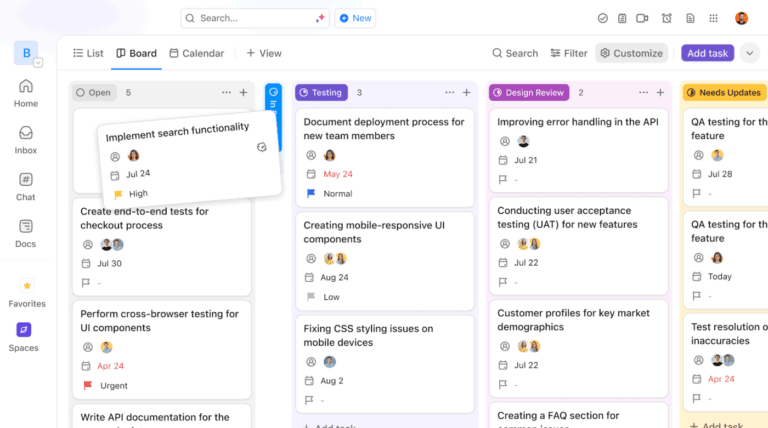
About 77% of high-performing teams use a project or task planning system to manage and plan work.
But most planning tools still expect you to do the hardest part yourself: turning fuzzy ideas into clear, structured work.
A GPT planning board changes things. Instead of starting from a blank board, you start with intent. The system helps generate ideas and shape the plan.
In this guide, we’ll break down what a GPT planning board actually is, how it works in practice, where it genuinely helps, and where it doesn’t. Our goal? Make it easier for you to decide if it belongs in your workflow.
A GPT planning board is a visual or digital workspace that uses GPT-powered AI to help you plan tasks, goals, and projects more intelligently. Instead of manually defining every task and dependency, you describe the outcome you want. The AI helps generate structure—tasks, subtasks, timelines, and summaries—based on that context.
You get to choose between:
👀 Did You Know? GPT stands for Generative Pre-trained Transformer. Generative means the model can create new content. Pre-trained means it’s already trained on large amounts of text, so it understands language patterns. Transformer refers to the underlying neural network architecture that helps the model understand context, relationships, and meaning across long pieces of text
We know what you’re thinking.
How are GPT planning boards better? Here’s a quick comparison with traditional planning boards for perspective:
| Traditional planning boards | GPT planning boards |
| You manually decide and write every task | You describe the outcome, and tasks are auto-generated |
| The scope is defined upfront and is hard to change | The scope can be reshaped quickly with prompts |
| Dependencies are added manually, if at all | Dependencies are suggested based on context |
| Replanning means rewriting tasks and project timelines | Replanning happens by adjusting inputs |
| Planning happens before work starts | Planning continues as work evolves |
| Tools organize what you already know | Tools help surface what you may have missed |
To put it simply, traditional project management software can be reactive and manual. A GPT planning board is proactive.
📚 Also Read: How to Use AI for Project Management
Think of GPT planning boards as an intelligent planning layer on top of standard project views. There’s a lot they can help with, including:
They don’t automate project planning for the sake of automation. Instead, they add value by clarifying plans and making them actionable.
🧠 Fun Fact: According to the book, The Busy Person’s Guide to the Done List, 41% of to-do list items never get completed!
Ever felt tired from thinking too much? Planning too much? And then having to change plans as the project needs shifted?
We all have.
Which is why a GPT-based planning board can feel like…relief. AI takes over the strenuous parts of planning. So, you no longer have to carry the full mental load of structuring work before anything can move forward.
GPT helps you go from “what are we trying to do?” to “here’s a workable plan” much faster.
For task management specifically, this means:
Used well, GPT doesn’t replace judgment—it supports it. The result? Planning becomes a collaborative, adaptive process instead of a bottleneck.
📚 Also Read: Task Management Software
Okay, you’re convinced. You do need to try out a GPT planning board. But where do you start?
Even before you sign up for a tool, there’s the confusing question of picking the right AI model.
Here’s a quick comparison to help you decide:
| Model | Strengths | Weaknesses | Best use cases |
| GPT-3.5 | Fast, cost-efficient; good for simple breakdowns | Smaller context window, weaker reasoning | Lightweight task generation; basic summaries |
| GPT-4 | Better planning reasoning; more nuanced outputs | Still limited context compared to latest models | Mid-sized planning boards; complex task structuring |
| GPT-4o (and newer) | Largest context; stronger coherence; multimodal potential | Higher compute cost | Complex multi-phase roadmaps; dynamic, evolving plans |
| Fine-tuned/Custom GPTs | Domain-specific outputs; aligns to internal workflows | Requires training data and setup | Industry-specific planning (legal, engineering, etc.) |
If you’re doing complex, high-stakes planning with lots of moving parts, newer models like GPT-4o give clearer and more reliable plans.
Older versions like GPT-3.5 are more suitable for simple task lists. They struggle with deeper planning and long-range context.
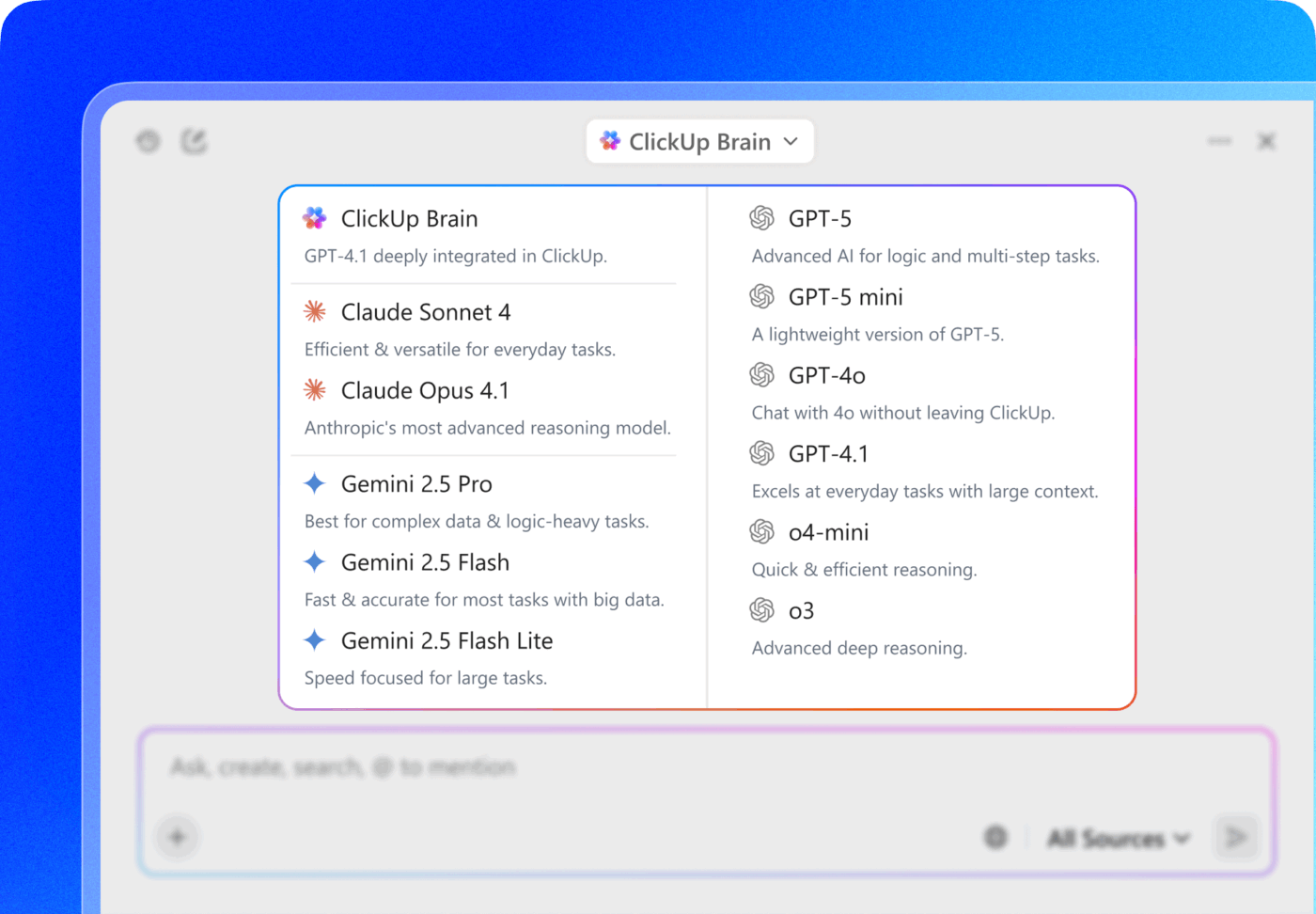
💡 Pro Tip: Why pay more to access different models in one tool? ClickUp Brain, ClickUp’s native AI, gives you access to multiple AI models, allowing you to choose the right level of reasoning for the task at hand.
Use faster models for quick task breakdowns or summaries, and more advanced models when you need deeper analysis for complex plans or long-range roadmaps—without leaving ClickUp.
A GPT planning board only works if you design it around real decisions, real constraints, and real execution. Here’s a practical way to set one up.
We’re using ClickUp as the system of record to do so.
Why?
Because as the world’s first Converged AI Workspace, ClickUp is the only tool to offer built-in, context-aware AI that knows, understands, and can access all of your work!
This makes it 10x more powerful and efficient than a generic GPT.
Let’s get started with setting up your high-performing GPT board in ClickUp’s project management platform:
Before you build any board, write down the outcome you want in plain language.
You should be able to answer: What am I trying to achieve?
Not “plan better”, but something specific like: “Plan a six-week product launch with clear owners, deadlines, and risk checkpoints.”
This sentence becomes your core prompt. And it gives your GPT the context it needs to dig deeper and generate structured outputs.
Paste this prompt inside ClickUp Brain, ClickUp’s Contextual AI assistant. Ask it to draft an outline for your project plan: phases, tasks, major milestones, and assumptions. Because ClickUp Brain works with context from your workspace, the plan will tie back to your existing teams and Spaces in ClickUp.
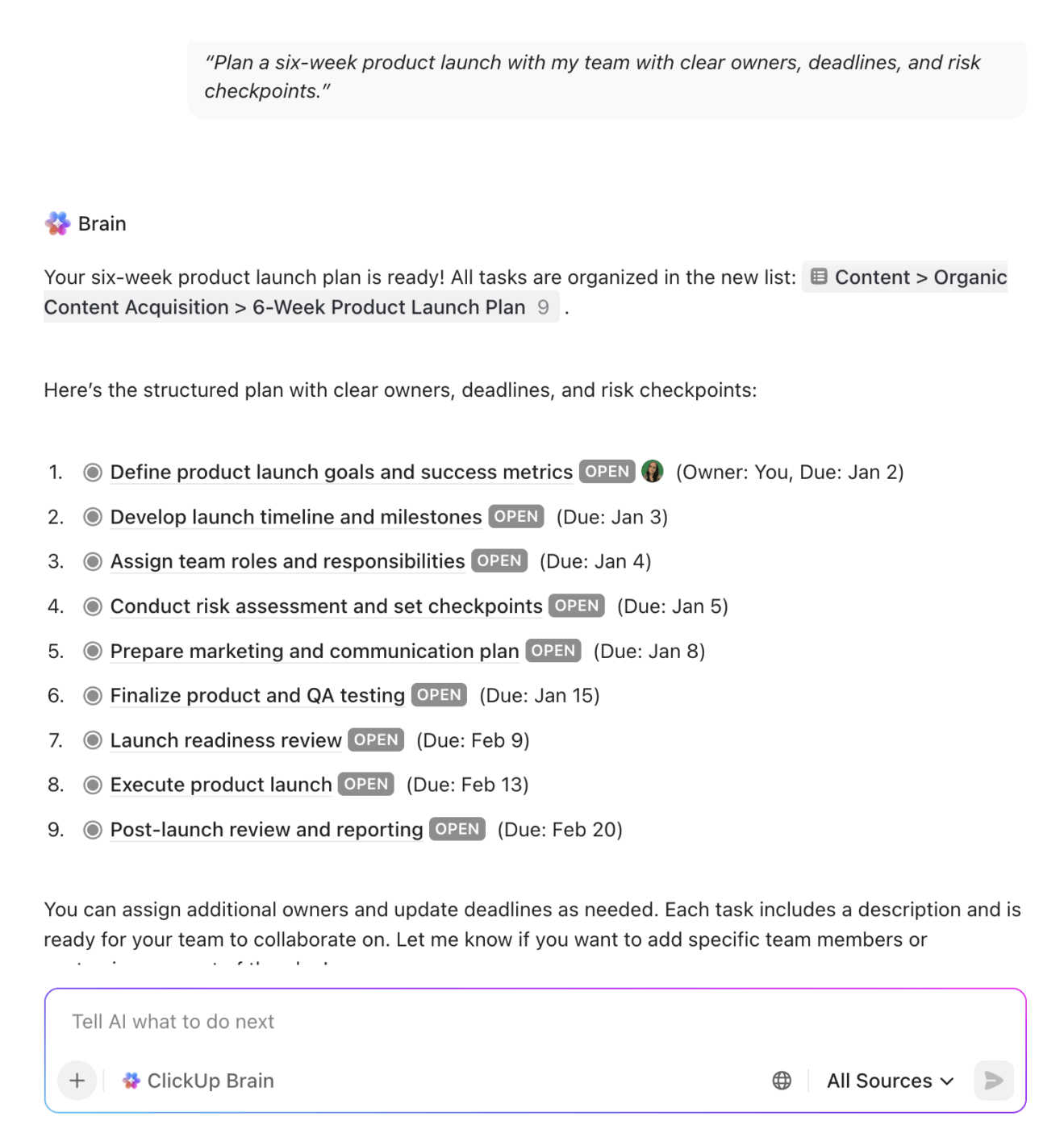
This step alone gives you a meaningful plan draft to start from, rather than a blank board.
Decide whether your planning board will be Kanban, timeline, table, or hybrid. This depends on the nature of your work (workflow vs. schedule vs. roadmap).
A quick rule of thumb is to use a:
In ClickUp, you don’t have to choose just one.
Get 15+ ClickUp Views on the same underlying tasks. GPT-generated tasks will automatically appear across all views, giving you flexibility without duplication.
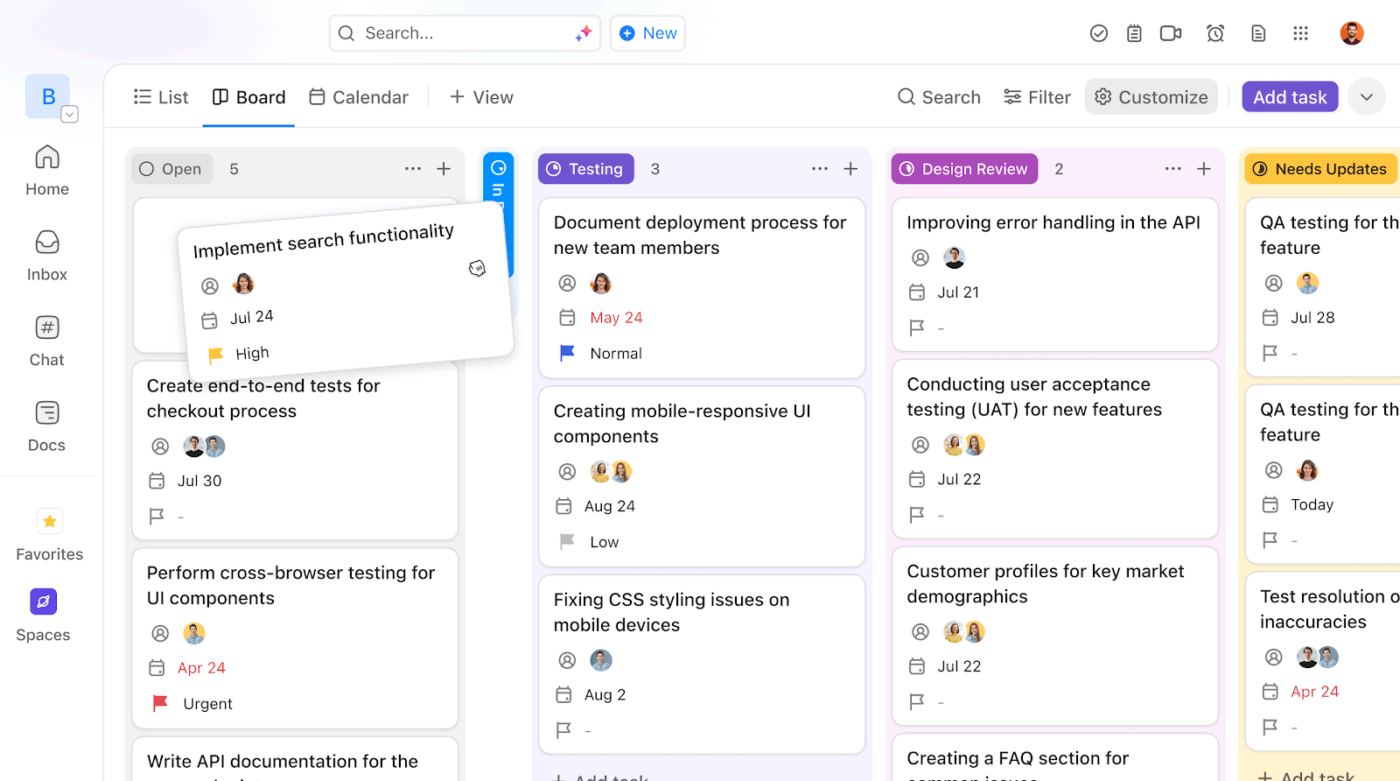
💡 Pro Tip: Ask ClickUp Brain to suggest the best view for your project type. For example, a content calendar often benefits from Board + Calendar views, while a product launch leans heavily on Gantt.
Now, this step is where GPT planning boards start to feel different.
Feed your high-level goals into the GPT tool. Ask it to break those into tasks, subtasks, milestones, and deliverables—using explicit fields like owners and timelines.
Inside ClickUp, you can prompt Brain directly from a Doc or task with instructions like:
“Break this plan into tasks and subtasks with owners, estimated effort, and deadlines over the next 30 days.”
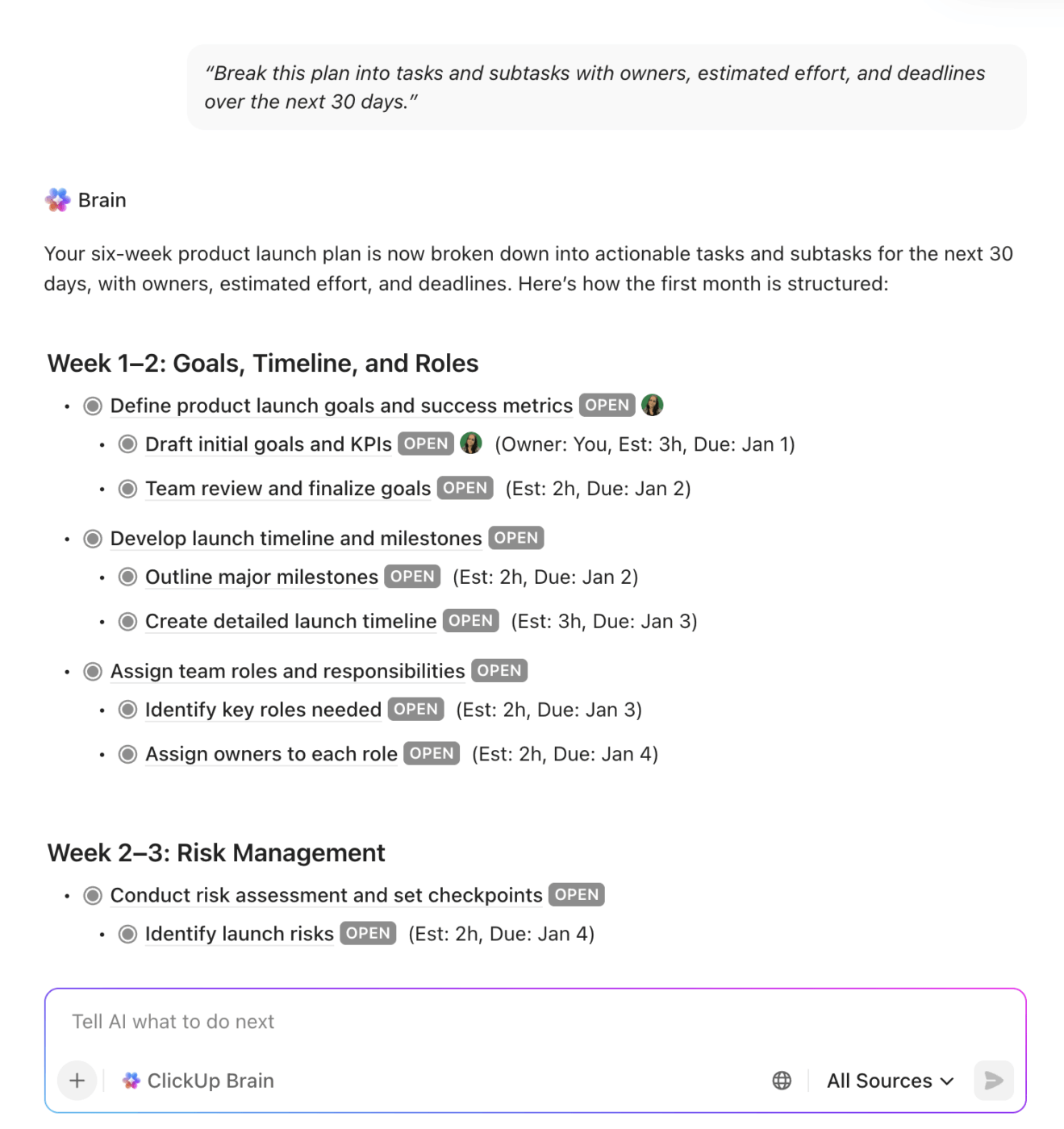
ClickUp Brain will:
📌 In a marketing campaign board, for example, Brain can turn a high-level goal like “launch email series” into tasks for copy, design, scheduling, and review.
Another advantage of doing this in ClickUp? The output isn’t static text—it becomes live, editable work items within a ClickUp Doc tied to your workspace.
Dependencies define the order of work. What must happen first, what can run in parallel, and what will block progress. In a GPT-powered planning board, this step makes those relationships explicit early. This way, timelines stay realistic, and handoffs don’t stall execution.

ClickUp supports Task Dependencies (e.g., “blocks,” “waiting on”) so teams know what comes next. Once you have tasks, ask Brain to identify logical dependencies or add them yourself in ClickUp’s Gantt Chart View. This tightens sequencing without guesswork.
Good plans respect reality. Once the first draft exists, refine it with follow-up prompts that account for contingencies:
ClickUp Brain can summarize task groups, surface risks, and rewrite plans without losing context—because it understands the tasks, Docs, and relationships inside your workspace.
Planning doesn’t stop once tasks are created. Status updates, recurring work, and progress reviews eat time.
Using ClickUp Automations, you can:
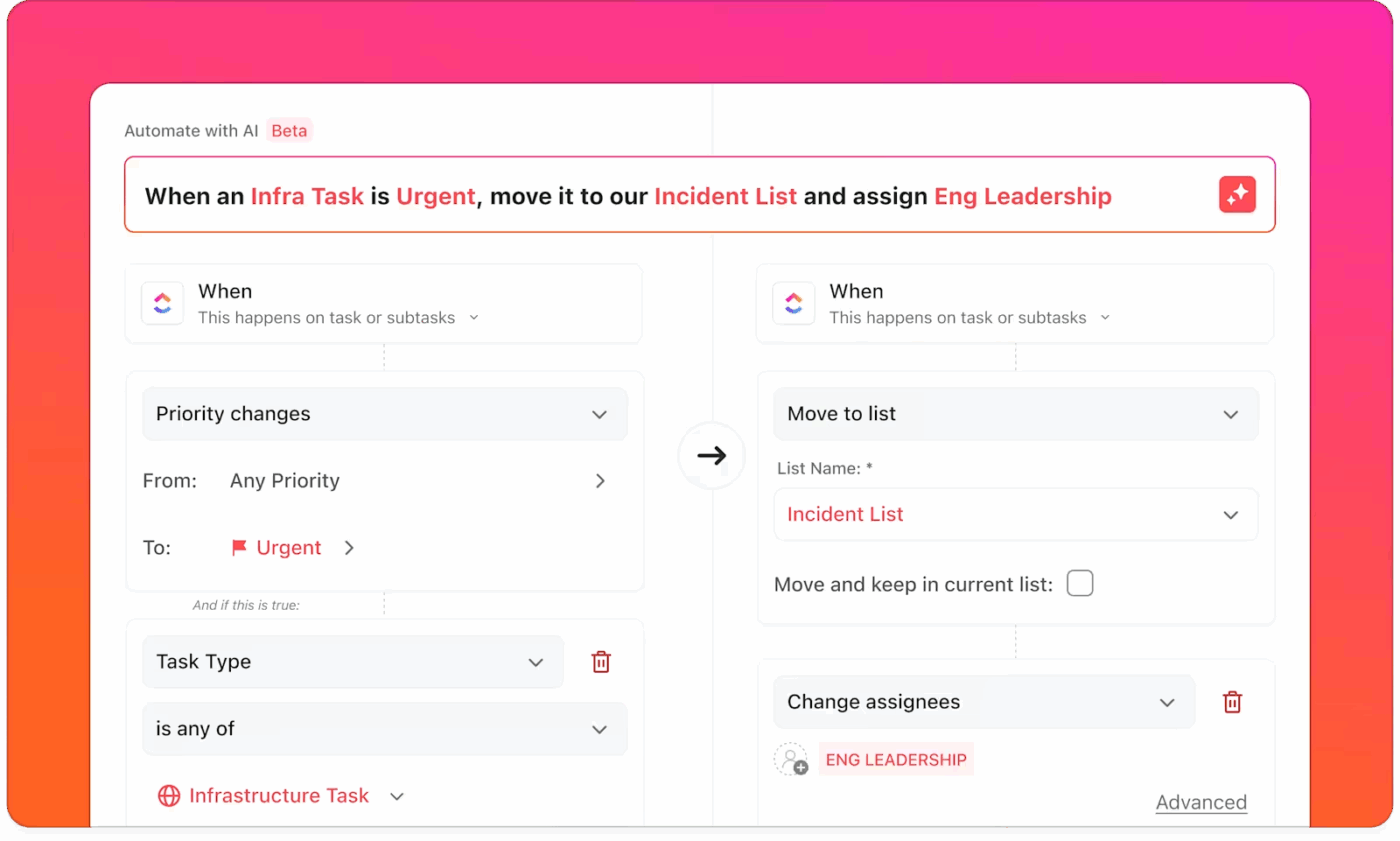
Because GPT features are native to ClickUp, you don’t need plugins or external tools. Your board evolves as your work does.
Planning isn’t static. It evolves.
At regular cadences (weekly/monthly), have your GPT reassess progress and suggest next steps based on actual updates.
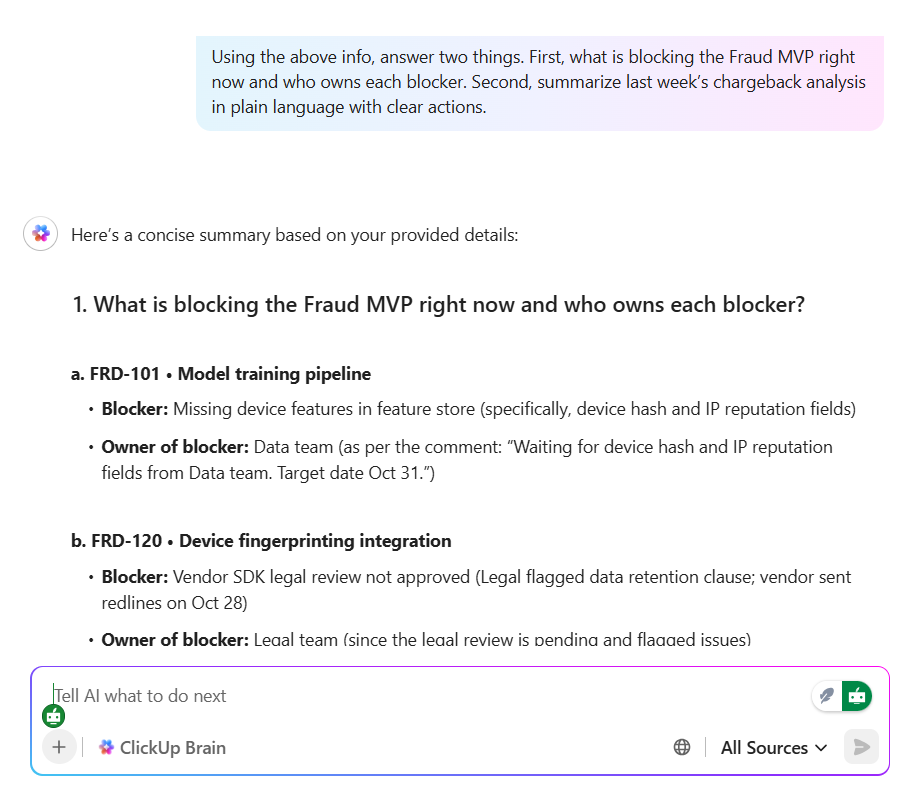
It’s super simple in ClickUp. Instead of manually writing status reports each time something changes, let Brain:
These summaries can live right in ClickUp Docs or task descriptions so everyone stays aligned without extra effort.
💡 Pro Tip: Use AI Fields to automatically surface summaries or insights in task lists. Here’s a video explaining how it works.
As work progresses, ClickUp AI Super Agents also become useful.
Super Agents are your AI teammates you can @mention, assign, or message directly. They can independently monitor task status, deadlines, or changes, then take action—24/7. They can compile status updates, flag delays, or move work to the next stage based on the rules you define.
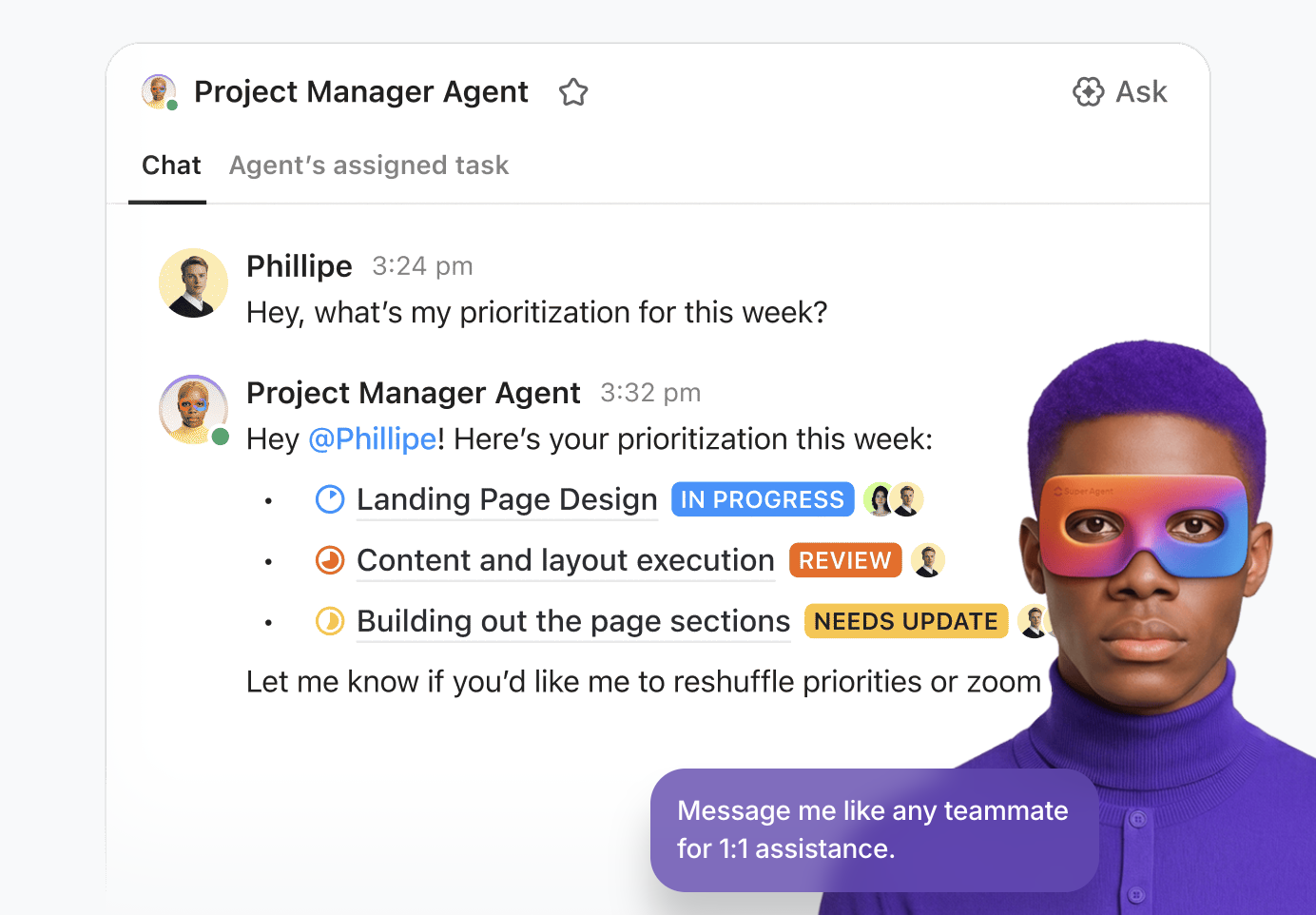
For example, assign a Super Agent to:
📮 ClickUp Insight: 59% of our survey respondents say they do not have a weekly reset or review system in place.
When updates live across tasks, comments, docs, and messages, pulling everything together can feel like a project of its own. By the time you gather information on what changed, what slipped, and what needs attention, the energy to actually plan the week ahead is already gone.
What if an agent can take over this for you? ClickUp’s AI Agents can automatically compile activity across tasks and summarize what needs follow-up.
Instead of spending time reconstructing the past, you get to make clearer decisions about what comes next.
📚 Also Read: AI Agents for Project Management
AI accelerates planning—but teams still choose priorities and commitments. Before execution:
ClickUp’s strength here is convergence: tasks, Docs, discussions, and AI live in the same place, so planning doesn’t fracture across tools.

When priorities change—as they always do—you don’t start over. With a GPT board in place, you simply prompt again.
Example prompt:
“Re-plan this board for a two-week delay and summarize what changes.”
ClickUp Brain can adjust tasks, regenerate summaries, and help you communicate changes clearly. And you won’t need to rebuild the board manually.
What this looks like in practice
Prompt: “Plan a content calendar for next month with owners, deadlines, and deliverables.”
→ ClickUp Brain auto-generates tasks + subtasks with owners, ties them to calendar dates, suggests dependencies, and lays them out in Board and Calendar views—all within your workspace.
📚 Also Read: How to Create a High-Level Project Plan
Here’s a quick video explainer on creating a high-level project plan that you may find useful:
Need template recommendations you can immediately use as GPT planning boards? Here are some project plan templates from ClickUp:
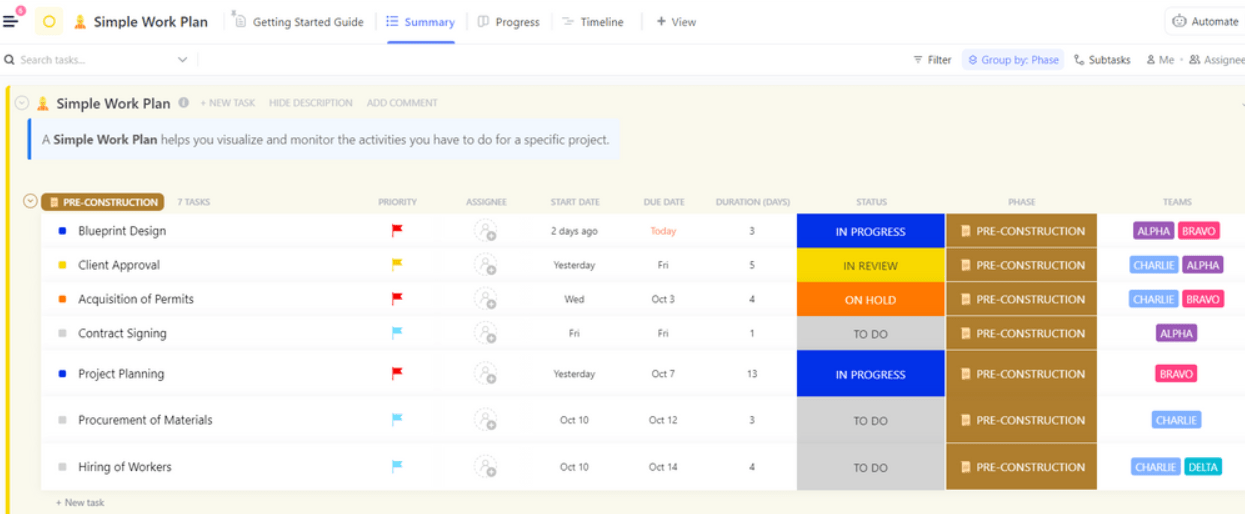
The ClickUp Simple Work Plan Template helps you organize tasks, set deadlines, assign priorities, and align on weekly execution. It’s ideal as a baseline GPT planning board where you can feed weekly goals and let ClickUp Brain expand tasks, identify blockers, and suggest priorities.
🔑 Ideal for: Routine operational planning with clear start/end dates and responsibilities.
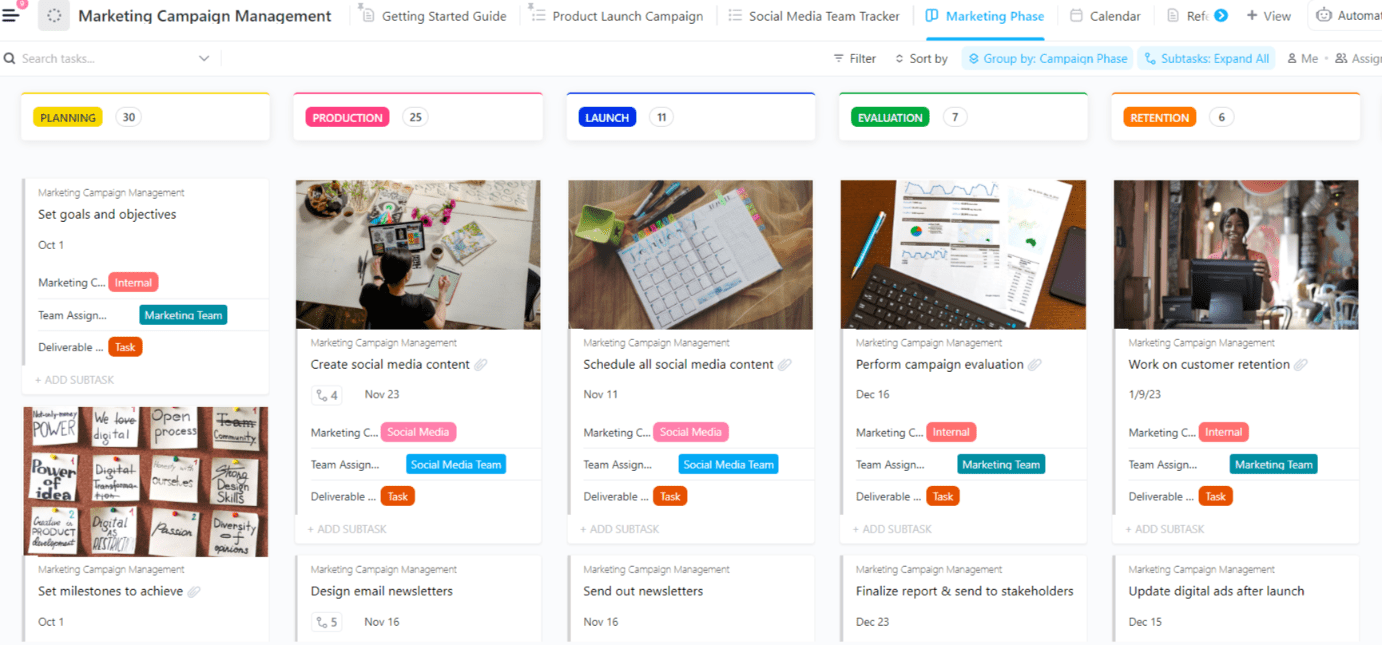
The ClickUp Marketing Campaign Management Template is designed to plan, track, and manage marketing campaigns from concept to execution. It includes timelines, tasks, and clear milestone tracking. It’s a logical starting point for ClickUp Brain’s GPT to generate campaign plans, suggested content calendars, and resource assignments.
🔑 Ideal for: Coordinating multi-channel campaigns with integrated task lists and status tracking
The ClickUp Product Launch Checklist Template covers the key phases of a product launch—from initial market analysis to execution and post-launch review. Paired with ClickUp Brain, it helps you break down launch phases into actionable steps. You can also identify dependencies and suggest launch sequences.
🔑 Ideal for: Structured planning for product releases with visual views like Gantt and Board built into the workflow
While ClickUp has a variety of goal-alignment and OKR templates, the ClickUp OKRs Template helps individuals or teams map objectives to measurable key results. ClickUp Brain’s GPT can ingest your project goals and share suggested key results, action items, and check-ins.
🔑 Ideal for: Aligning personal or team priorities with measurable outcomes and regular progress checks
By starting with these real, ready-to-use templates, you get both structure and speed. Then, Contextual AI fills in the nuance and intelligence.
GPT planning boards are powerful, but they’re not magic.
Our advice? Don’t rely on them blindly.
Keep these limitations in mind:
💡 Pro Tip: Use the Workload View in ClickUp to identify which team members are over-capacity and who can do more. You can also pair it with Brain to allocate work smartly.
The key is to let GPT become a strong planning partner rather than a source of false confidence.
GPT works best in Agile when it saves time without taking control away from the team. These practices help you get real value:
Ask GPT to prepare a first draft of stories and tasks before the sprint meeting. That way, the team spends planning time deciding what to commit to.
When you prompt GPT, ask for user stories with clear acceptance criteria. This leads to better estimates and fewer back-and-forth questions.
GPT can suggest complexity, but people should size the work. Engineers and designers know what’s hard, what’s risky, and what will take longer than it looks.
Prompt GPT to flag work that depends on other teams, systems, or approvals. Catching these early prevents stalled tickets halfway through the sprint.
If things change mid-sprint, give GPT real numbers: days left, people available, blocked tasks, etc. Your team will thank you.
After a sprint, ask GPT to summarize what shipped, what didn’t, and common issues. Use that summary to guide the retro—and improve future sprints.
Want to keep output consistent and help new team members ramp up faster? Make it a habit to document prompts. You can keep a shared ClickUp Doc with your team or save private used prompts directly in ClickUp Brain.
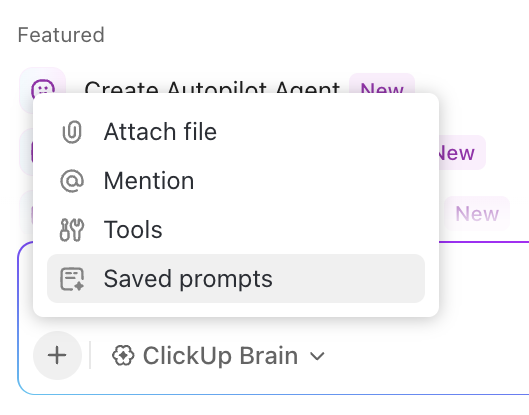
The bottom line: Let AI handle structure and summaries. Let people handle trade-offs and ownership.
📚 Also Read: How to Create an Agile Project Plan
Planning has always been less about tools and more about clarity. GPT planning boards don’t change that. They just remove the friction between an idea and a workable plan.
When used well, they help teams think faster, adapt plans sooner, and spend less time translating intent into structure.
The real advantage comes when planning, execution, and AI live in the same place. That’s where ClickUp fits naturally. With ClickUp Brain built on top of your tasks, Docs, and views, planning doesn’t stop at “what should we do?” It flows straight into “who’s doing what, and by when”—without switching tools or losing context.
Unlock the real value of a GPT planning board for your team. Sign up for ClickUp today. It’s free!

© 2026 ClickUp

There’s an easier way. Try a free AI Agent in ClickUp that actually does the work for you—set up in minutes, save hours every week.