

Sorry, there were no results found for “”
Sorry, there were no results found for “”
Sorry, there were no results found for “”
You’ve used Google Forms. You’ve probably used Microsoft Forms too. They’re simple, free, and do exactly what they say: collect responses.
But that’s kind of the problem. They collect data, but they don’t let you act on it within their interface. Once a submission comes in, someone still has to move that data somewhere, create and track tasks, and figure out what happens next. Every single time.
App-switching alone costs employees 32 days a year, according to Deloitte. Every manual step between form submission and action adds to that number.
So, which form builder is actually worth using? And is there something better? This guide compares Google Forms vs. Microsoft Forms on features, integrations, and workflow fit. As a bonus, we’ll also show you where ClickUp Forms come in to close the gap left open by both form builders.
Our editorial team follows a transparent, research-backed, and vendor-neutral process, so you can trust that our recommendations are based on real product value.
Here’s a detailed rundown of how we review software at ClickUp.
Your decision comes down to your team’s current software ecosystem and whether you need a simple tool or one with deeper corporate integration and security.
This quick comparison shows which one fits your needs the best.
| Feature / Category | Google Forms | Microsoft Forms | 🌟 Bonus: ClickUp Forms |
| Best for | Individuals, educators, and small teams that need quick, free surveys with Google Workspace integration | Corporate teams requiring advanced security, analytics, and deep Microsoft 365 integration | Teams of all sizes that need to turn data into immediate, trackable action |
| Team size | Individuals to small teams; scales with Google Workspace plans | Small to enterprise teams already using Microsoft 365 | Individuals to enterprises |
| Ecosystem | Google Workspace (Sheets, Drive, Gmail) | Microsoft 365 (Excel, Teams, SharePoint, Power BI) | ClickUp’s unified digital workspace (Tasks, Docs, Chat, ClickUp Brain) |
| Question types | 12+ types, including file upload, date/time, and multiple choice grids | Eight types, including NPS, ranking, and Likert scales | Multiple Custom Field types that adapt to your needs |
| Customization | Basic themes, colors, and header images; limited branding | Professional themes and organization branding via admin settings | Fully customizable with brand colors and themes |
| Conditional logic | Section-based branching | Question-level show/hide branching | Advanced multi-condition logic (Show/Hide/Require) |
| Collaboration | Real-time co-editing with any Google account | Collaboration within Microsoft 365 accounts | Collaboration within ClickUp |
| Analytics | Google Sheets integration and basic charts | Built-in analytics, Excel export, and Power BI integration | Advanced analytics with ClickUp Dashboards and AI |
| Access | Google account required | Microsoft 365 subscription required | Free ClickUp account required |
| AI capabilities | Gemini: Help me create a form; summary of open-ended text | Copilot: Automated flow suggestions; multi-lingual drafting | ClickUp Brain: Instant form generation and automatic data analysis |
| Task creation | Manual (or via Zapier/Gemini scripts) | Manual or requires Power Automate setup | Native and automatic; submissions become actionable tasks |
| External files | Native support (saves to Drive) | Supports external uploads (requires specific OneDrive config) | Native support (attachments live within the specific ClickUp Task) |
📚 Also Read: Google Workspace vs. Microsoft 365 Comparison
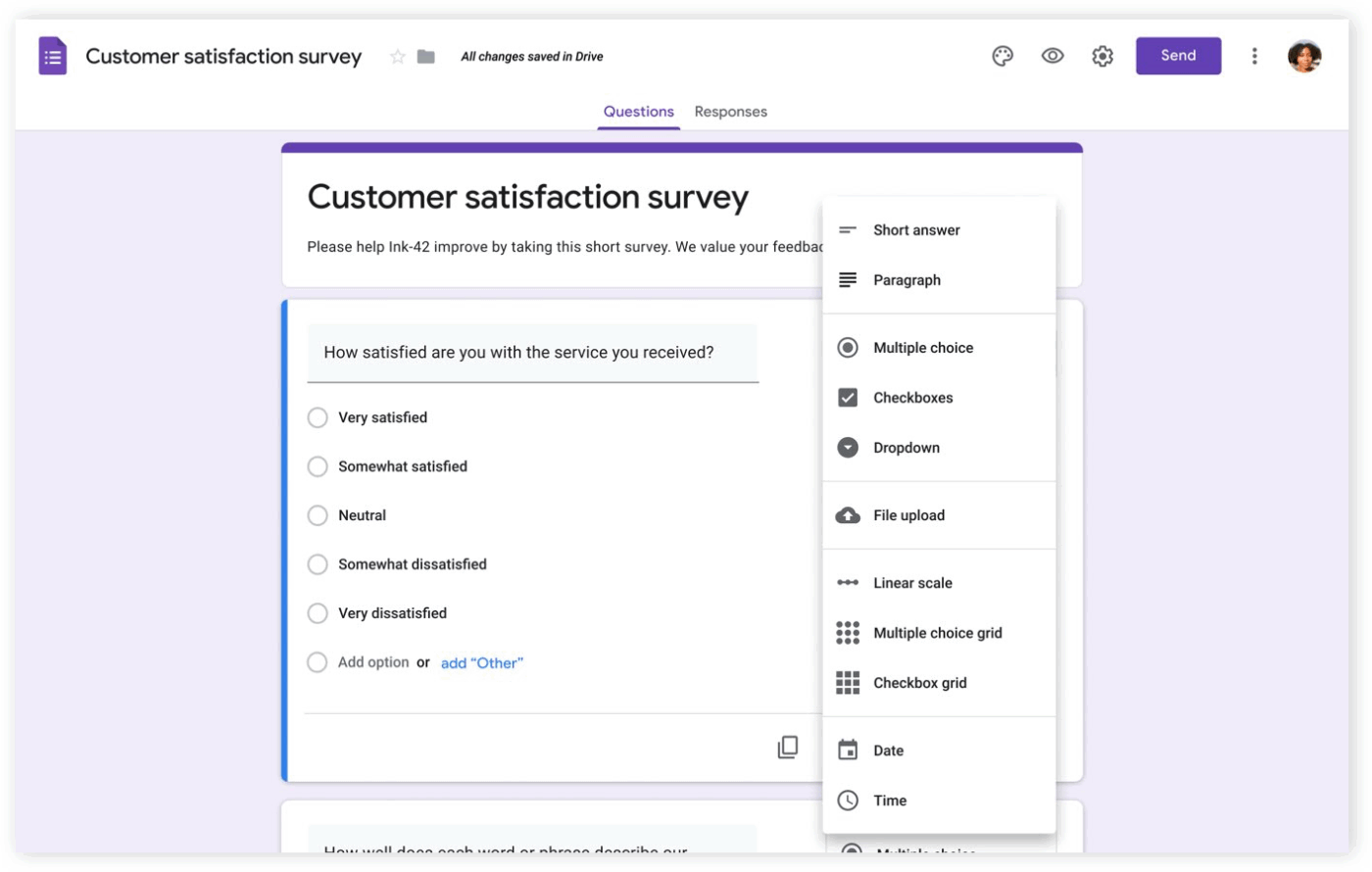
Need to create a survey, but don’t have a budget or time for a complex tool? Google Forms is ideal for this scenario. It’s easy to access through your Google account and is designed for simplicity and speed.
Because it’s part of the Google Workspace ecosystem, it feels like a natural extension for teams that already use Sheets, Drive, and Gmail.
Pros:
Cons:
📮 ClickUp Insight: 44% of teams fix issues immediately without any formal triage process.
Acting fast on a fix feels productive, but urgency can easily override the team’s ability to deliver an effective fix.
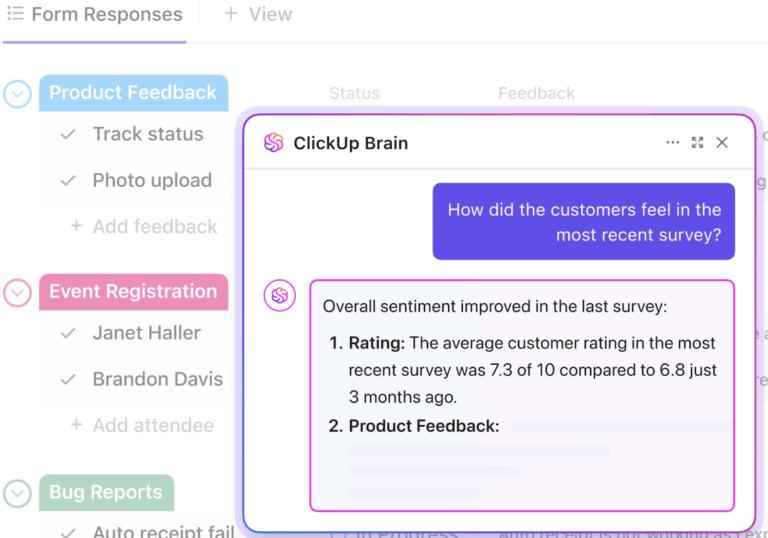
What you need is a system to route incoming issues through a structured intake process. ClickUp Forms can capture the necessary context upfront, while a Super Agent can triage submissions, assess severity, and route the request to the right owner or queue before work begins.
💡 Pro Tip: Every extra step between form submission and action adds friction for analysis. Use ClickUp—the world’s first Converged AI Workspace to build, analyze, and follow up on forms within a single platform.
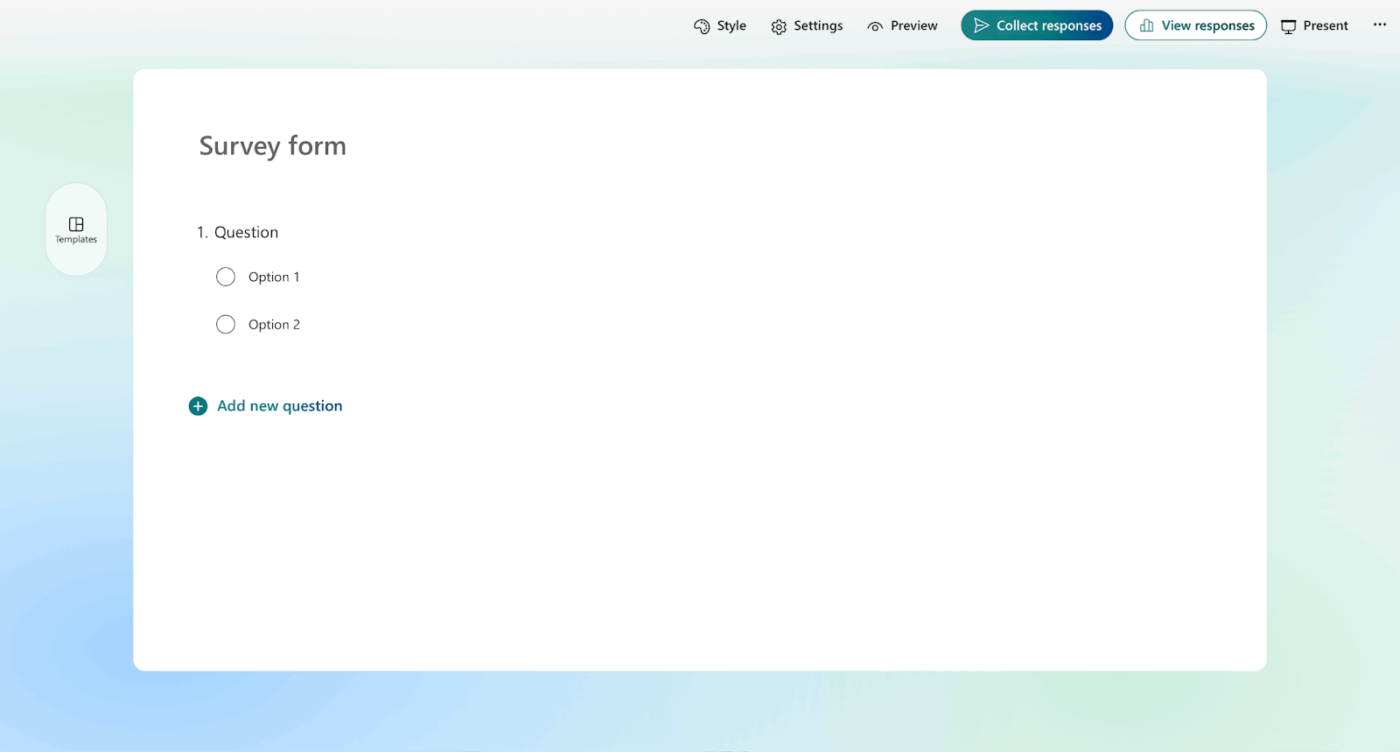
Microsoft Forms is a good choice when:
It prioritizes security, compliance, and deep integration with tools your team already uses, like Teams, SharePoint, and Power BI. While it requires a subscription, it’s already included in most Microsoft 365 business plans.
Pros:
Cons:
Both tools can create a basic “contact us” form, but their differences become clear when you start building more complex surveys. Or trying to fit them into how your team manages workflows.
A clunky interface can turn a five-minute task into a 30-minute headache. That’s why you should always prioritize a smooth user experience.
Google Forms is incredibly intuitive. Its interface is clean and minimal, and most people can build their first form without needing instructions. The drag-and-drop editor feels natural, and the preview mode instantly shows your respondents what they’ll see.
Microsoft Forms has a modern, polished look, but it can feel a bit busy for new users. More options are visible at once, which is powerful but can also be overwhelming. If you’re used to other Microsoft 365 apps, you’ll feel right at home, but the learning curve is steeper if you’re migrating from another ecosystem.
🏆 The verdict: Google Forms wins. It’s faster to learn, cleaner to navigate, and gets you building in minutes. No prior experience needed.
Guess what determines the quality of data your form can collect? That’s right! The types of questions you can ask.
A simple text field won’t work when you need a ranked list or a rating scale.
Google Forms offers 12+ question types:
The file upload option is a major advantage, letting you collect resumes, images, or project files directly.
Microsoft Forms offers eight business-focused question types.
The built-in NPS and Likert scale options are huge time-savers for anyone doing customer or employee feedback surveys. The ranking question is a useful feature that Google Forms lacks.
Now, Google Forms also offers templates useful for RSVPs, polls, and feedback gathering. They’re easier to customize from scratch and integrate naturally with Sheets and Drive.
Microsoft Forms, on the other hand, provides richer, role-specific templates (HR, quizzes, approvals, onboarding) that are deeply integrated with Teams, SharePoint, and Excel.
🏆 The verdict: It’s a tie, depending on your use case. Google Forms offers more question variety; Microsoft Forms counters with question types like NPS and ranking that serious survey builders will appreciate.
📚 Also Read: The tool handles the question format. But you still need the right questions. If you’re building customer or product feedback surveys, this list of 60+ product survey questions is worth bookmarking.
Your form’s appearance can affect response rates and how professionally your brand is perceived. Unfortunately, this is an area where both tools are fairly limited.
With Google Forms, you can pick from a theme gallery, choose custom colors, and add a header image. You can get it to match your brand’s color palette, but it will always look like a Google Form. There’s no option for custom CSS or advanced layout changes.
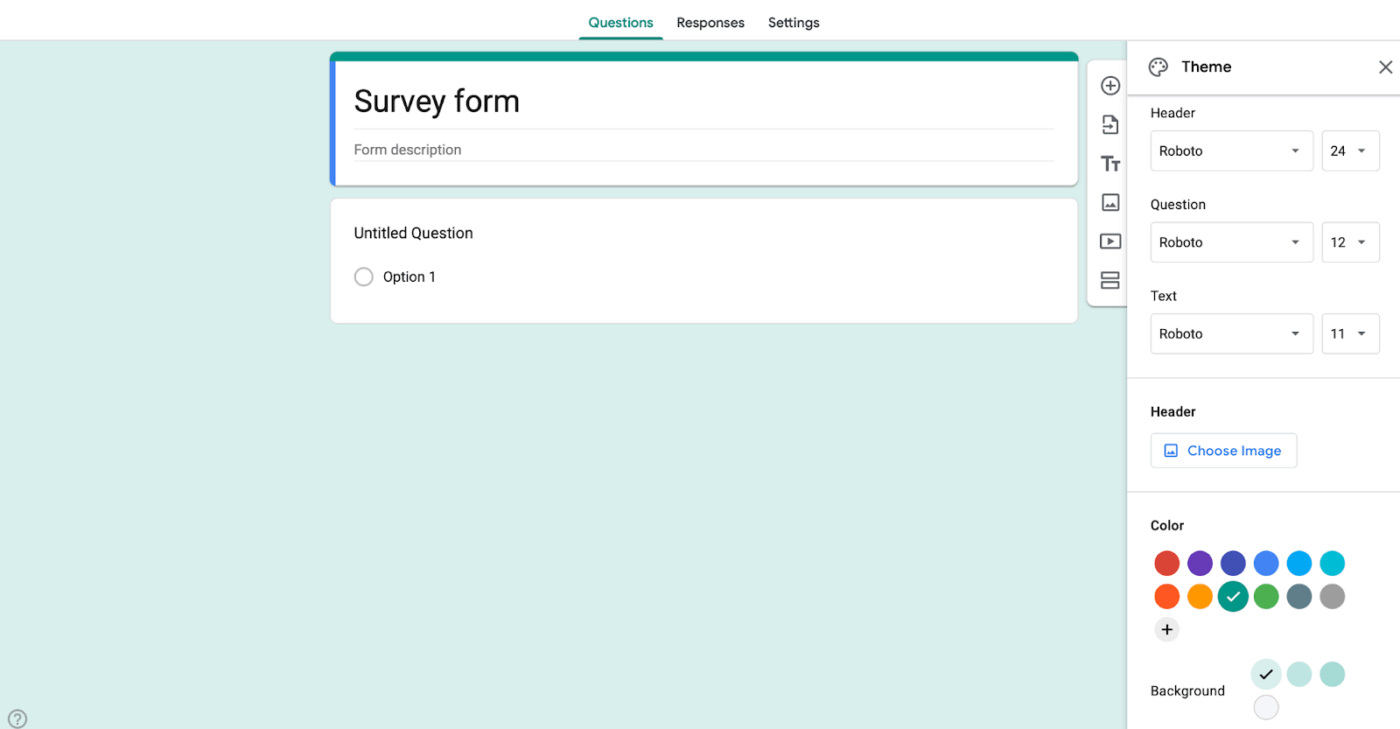
On the flip side, Microsoft Forms supports organization-wide branding through its admin settings. This means an IT admin can set a default theme that ensures all forms created in the company have a consistent, professional look. However, individual customization is even more limited than in Google Forms.
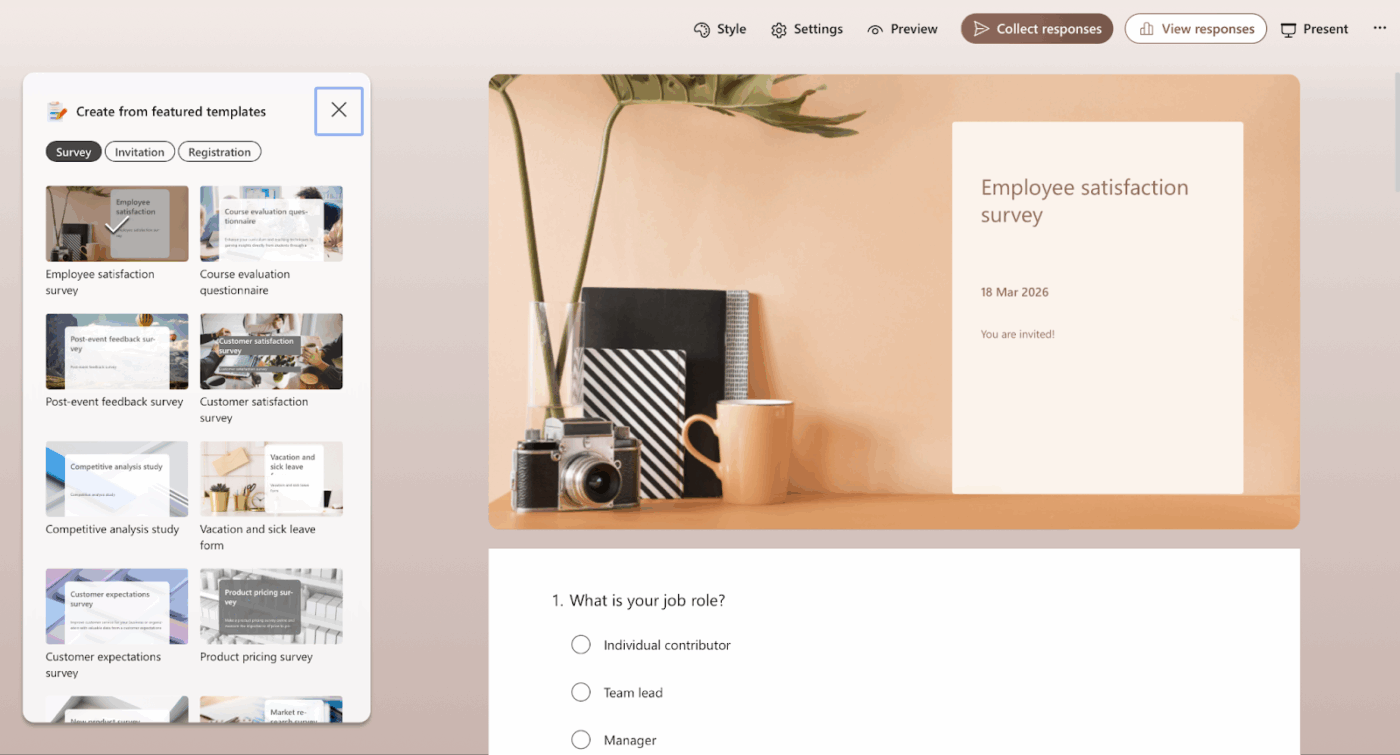
🏆 The verdict: Google Forms wins by a thin margin. Neither tool offers true brand flexibility, but Google gives individual users more control without involving an IT admin.
📚 Read More: Google Sheets vs Excel
A form builder is only as good as its ability to connect with the other tools you use. If your form data is stuck in a silo, it’s not very useful.
Google Forms integrates well with the Google Workspace. Responses flow directly into Google Sheets, you can embed forms in Google Sites, and sharing is managed through Google Drive permissions. For everything else, there’s Zapier, which connects Google Forms to over 8,000 other apps.
Microsoft Forms is built for deep integration within the Microsoft 365 ecosystem. You can embed forms in Teams channels, automate complex workflows with Power Automate, and build dashboards in Power BI. The integration is comprehensive, but it works best if you stay within the Microsoft ecosystem.
For real-time collaboration, Google Forms offers more flexibility. Anyone with a Google account can be invited to co-edit a form, which is ideal for working with external partners or freelancers.
🏆 The verdict: Depends on your ecosystem. Google Forms is the better pick for cross-team, external collaboration. Microsoft Forms is the clear choice if you’re already using Teams, SharePoint, and Power Automate.
📚 Also Read: Top Connected Workflow Benefits for Modern Teams
Collecting data is the first step. You also need to understand it. Both tools offer ways to analyze your responses, but they take different approaches.
Google Forms provides a basic summary of responses, with simple charts built into the tool. For any real analysis, you’ll want to use the “View responses in Sheets” feature. This creates a live-updating spreadsheet where you can use formulas, create pivot tables, and build custom charts to visualize data.
Microsoft Forms provides more robust built-in analytics. You can see charts, summary statistics, and response distributions without ever leaving the Forms interface. For deeper analysis, you can export to Excel or connect directly to Power BI to create project reports.
Google Forms is better suited for accessibility, working together with teammates, and teams already using Google Workspace. Microsoft Forms is better suited for enterprise security, advanced survey question types, and organizations standardized on Microsoft 365.
🏆 The verdict: Microsoft Forms wins. Its built-in analytics are more polished out of the box, and the Power BI connection makes it far more capable for teams that need real reporting.
🔎 Did You Know? Better reporting only matters if it drives action. Gartner found just 8% of employees fully capture productivity gains from the tools they already use. The right form tool helps, but only if the data is actually used meaningfully!
Use this framework to guide your decision.
Choose Google Forms if:
Choose Microsoft Forms if:
Consider alternatives if:
🎥 Bonus: Looking for better alternatives to Google Forms? This video has you covered
If you’re exploring form builder options beyond Google Forms and Microsoft Forms, this video breaks down several powerful alternatives that might better fit your workflow needs.
The biggest issue with both Google Forms and Microsoft Forms is the gap they create between data collection and action. Your form data lives in one place, and your work lives in another.
The disconnect leads to what we call Work Sprawl: the fragmentation of work activities across disconnected tools and systems.
ClickUp Forms fix this by living where your work already happens. Every submission automatically becomes a task—with all the context intact, assigned to the right person, and ready to act on.
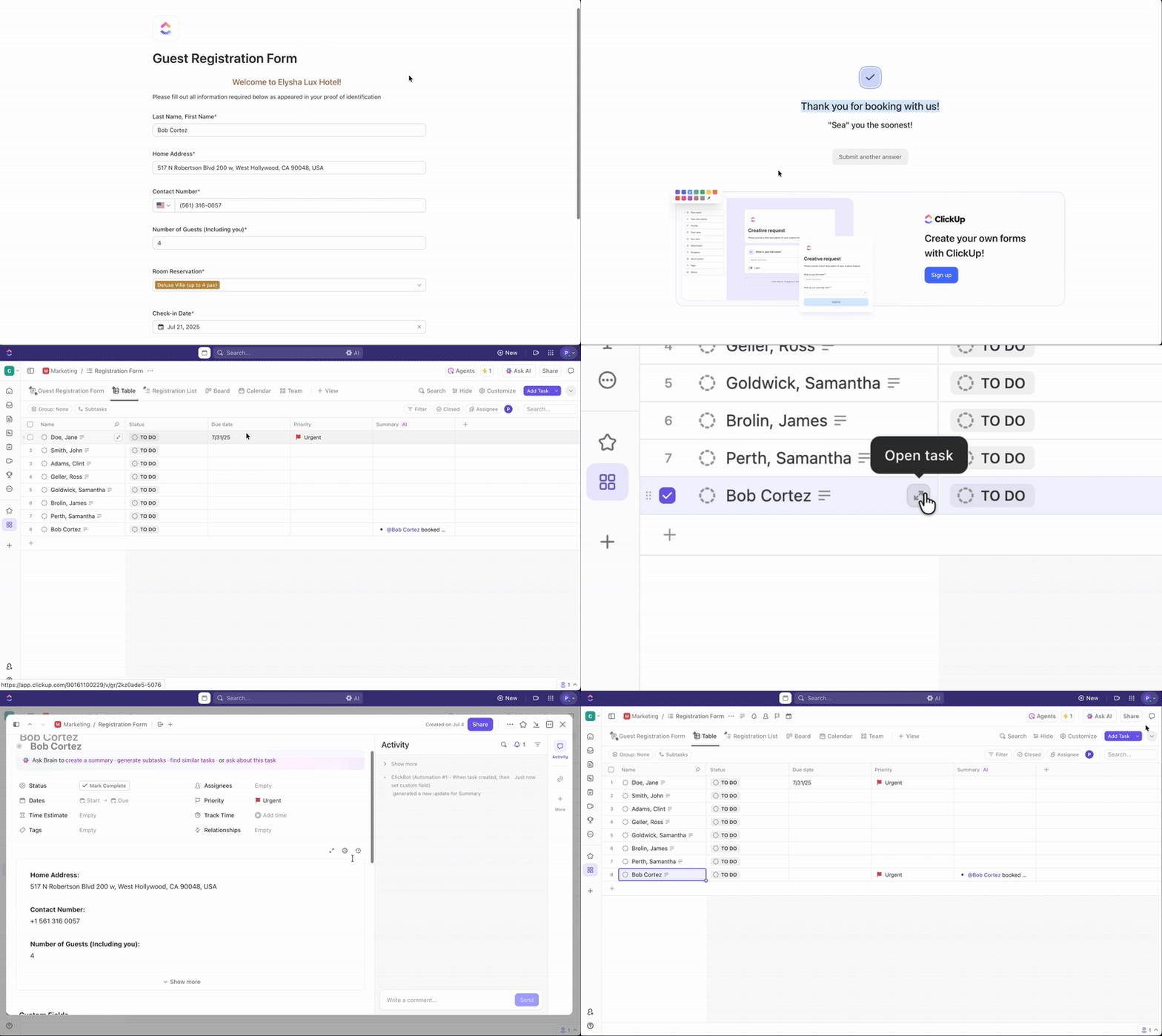
With ClickUp Forms, you get:
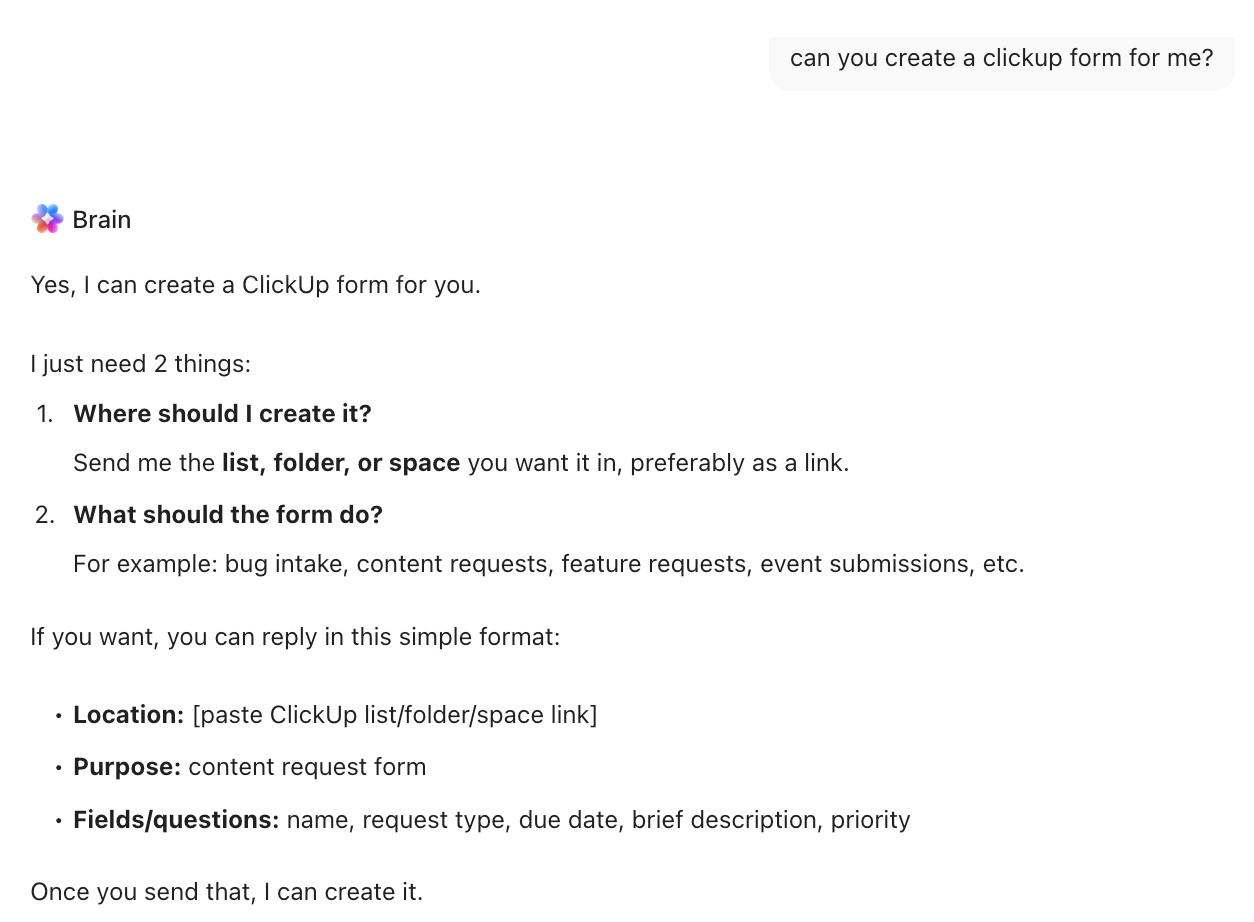
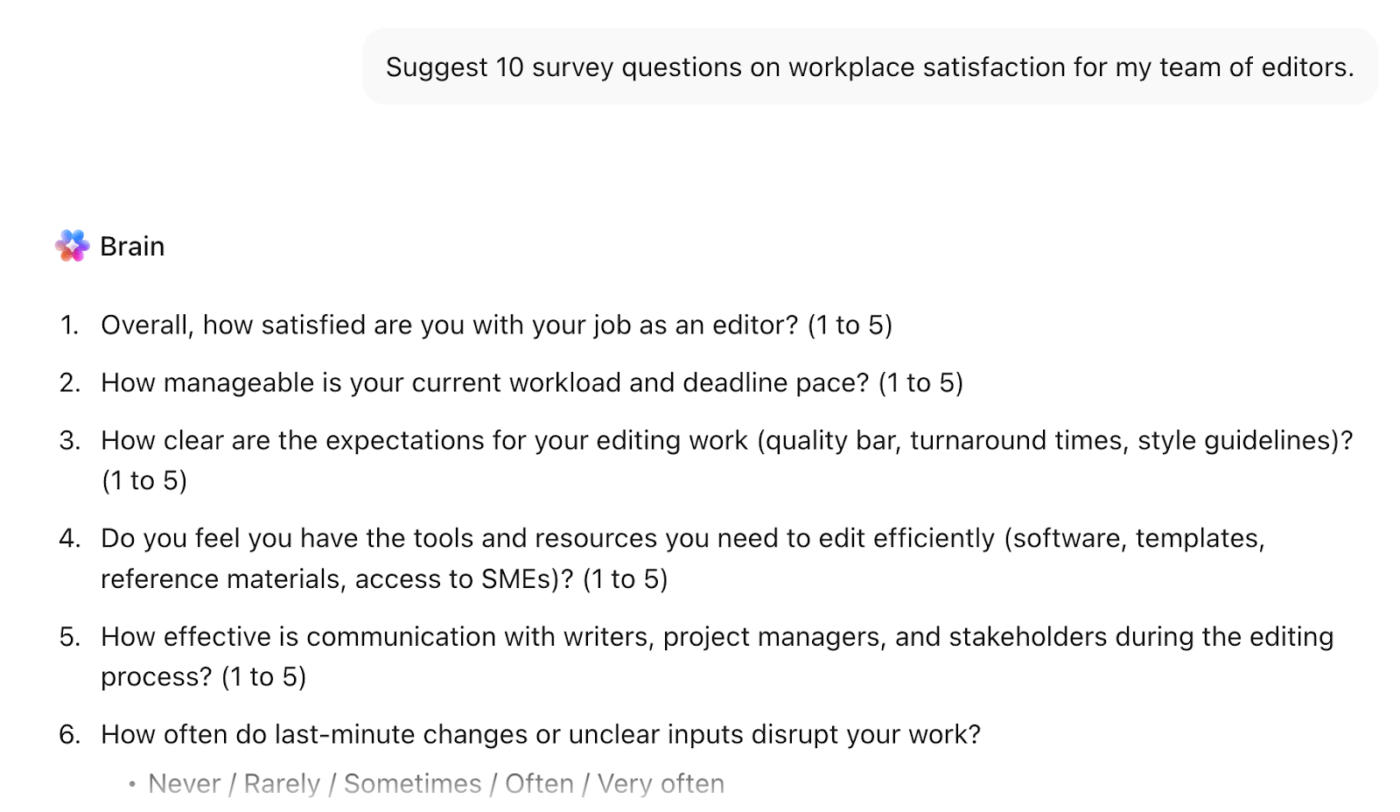
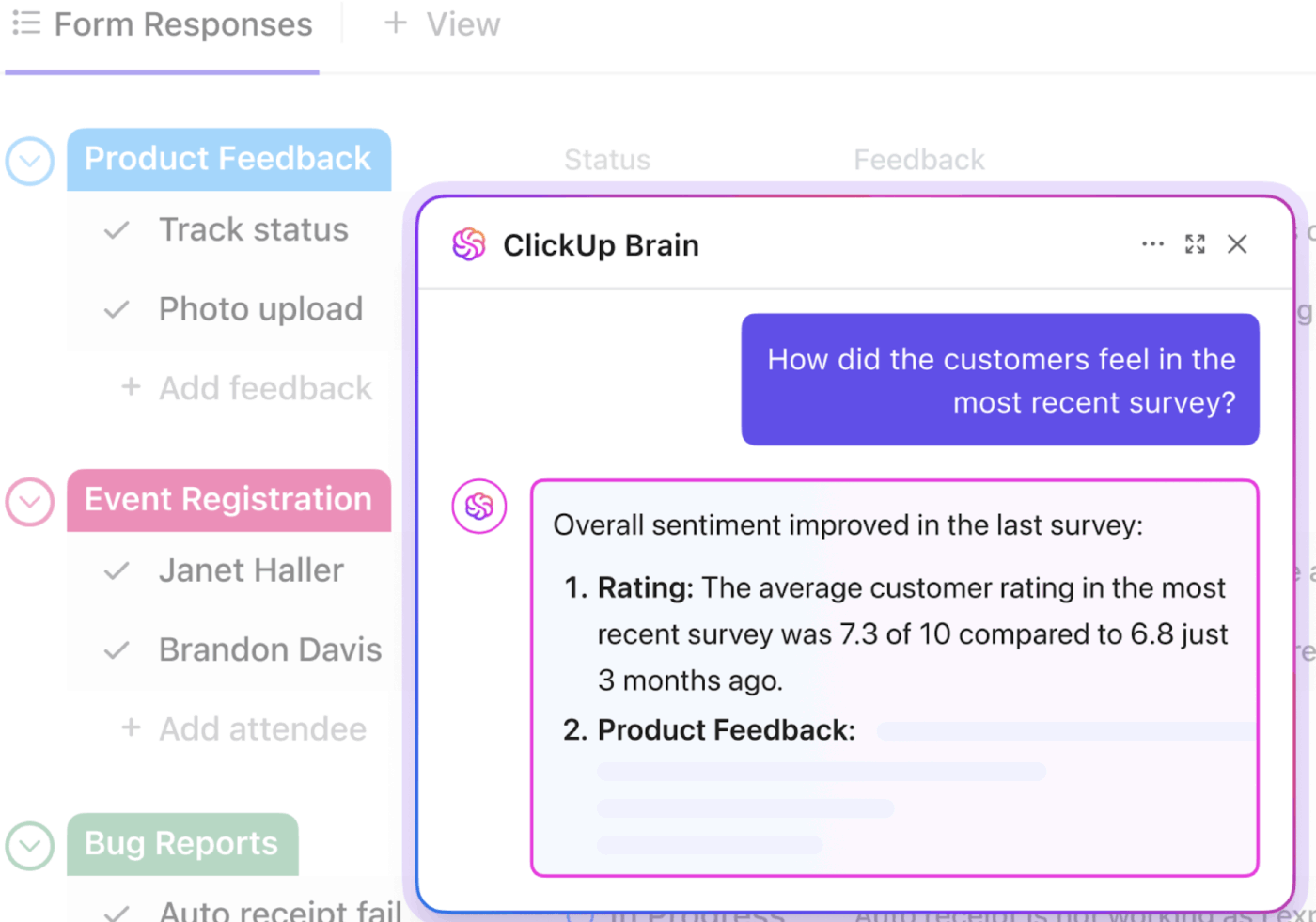
💡 Pro Tip: Don’t let data sit in a spreadsheet. Connect form responses directly to ClickUp Dashboards to visualize trends instantly via AI Cards. Use ClickUp Brain to query your data in plain English—ask “What are the top three complaints from this month’s feedback forms?”—and get an instant summary, or let AI automatically surface sentiment analysis and key themes across thousands of submissions.
And guess what, real-life users love the convenience of using ClickUp. A G2 user says:
I really like that ClickUp is more improved compared to a few years ago. The time tracking feature and the agents are really helpful, even for new users who don’t know how to use it, because these agents help them learn faster. I also like the forms feature, which gathers information and adds it as a task in a specific dashboard, meeting people’s needs for what’s next. I’m amazed at how well thought through ClickUp’s features are. As someone with a medium to advanced understanding, I find everything seamless with the improvements made so far. ClickUp is my favorite tool of all.
The hidden expense of free form builders isn’t the subscription price; it’s the “work about work.” Every minute spent manually copying a Google Form response into a project tracker is a minute of lost billable time or creative energy.
Your form shouldn’t just be a digital piece of paper anymore. It should be a project starter.
And if your form workflow requires immediate follow-up (like IT tickets, lead intake, or creative requests), a tool like ClickUp Forms, which converts responses into tasks natively, is the only way to eliminate the app-switching tax.
Ready to stop managing form responses manually? Try ClickUp for free and connect your forms directly to your workflow.
No, they are different tools from different companies. Microsoft Forms is part of the Microsoft 365 suite and focuses on enterprise features, while Google Forms is a free tool within the Google Workspace ecosystem.
You can use a limited version of Microsoft Forms with a personal Microsoft account. However, for business use, full functionality and security features require a paid Microsoft 365 subscription.
Microsoft Forms has more granular, question-level branching logic. Google Forms only supports section-based branching, which is less flexible for complex surveys.
Yes, Google Forms has a file upload question type. This allows respondents to upload documents, images, or other files, which are then stored in your Google Drive.
Yes, ClickUp Forms are designed to do exactly that. Submissions can automatically create new tasks in your ClickUp projects, complete with assignees, due dates, and all the information from the form.

Manasi Nair
Max 26min read
Manasi Nair
Max 26min read
Manasi Nair
Max 20min read

© 2026 ClickUp




