






Still downloading templates?
There’s an easier way. Try a free AI Agent in ClickUp that actually does the work for you—set up in minutes, save hours every week.
Sorry, there were no results found for “”
Sorry, there were no results found for “”
Sorry, there were no results found for “”
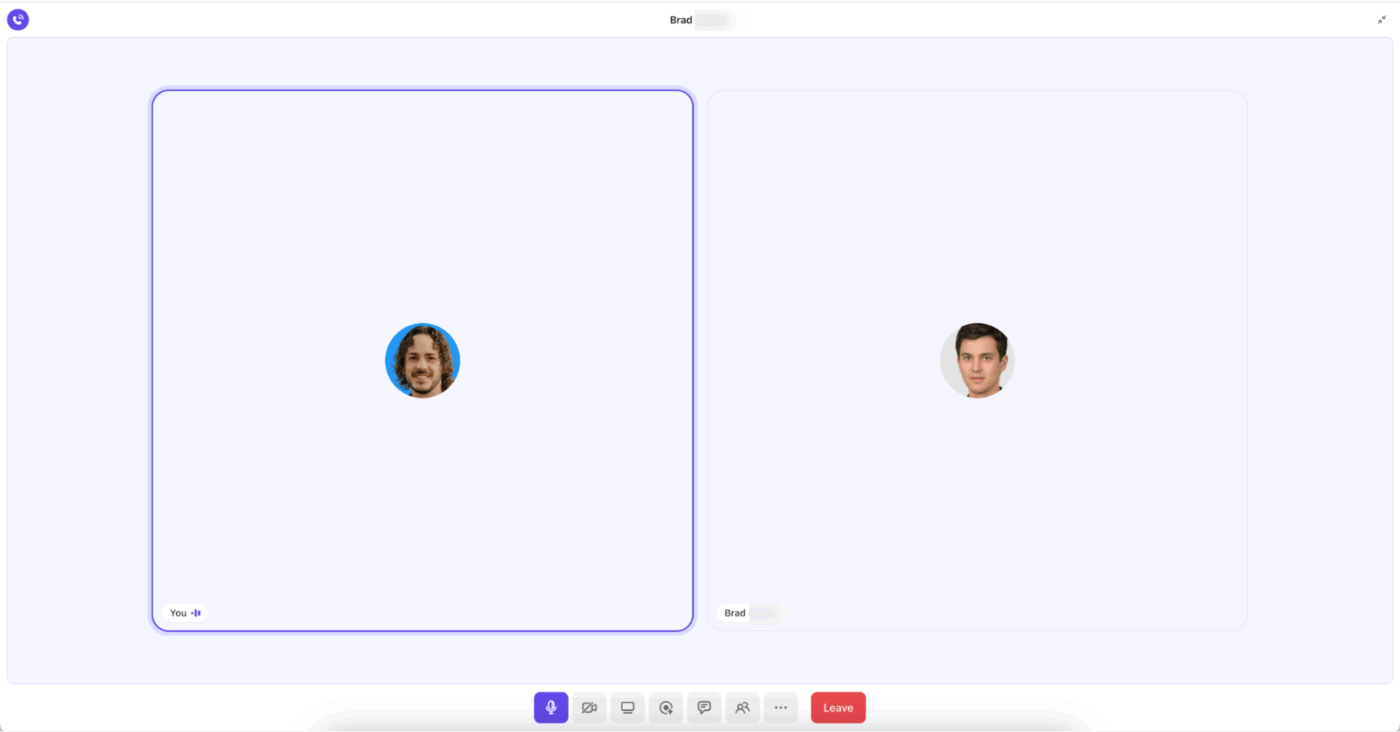

It’s 9:47 a.m. on a Tuesday, and you’re already on your third video call of the morning. A Priority 1 ticket came in overnight: the mobile app is crashing for users in the APAC region.
Once everyone agrees on the next steps (which takes forever!), you volunteer to summarize everything in a follow-up message. However, by the time you get back to your queue, you’ve got nine new tickets and three more escalations flagged urgent. 🚩
For internal support and operations teams, escalation triage comes in two frustrating ways: synchronous meetings that take half your day or email back-and-forth.
In this blog post, we’ll explore how internal support teams can use ClickUp SyncUps for escalation triage and a more predictable response workflow. ⚒️
🔍 Did You Know? The word ‘triage‘ comes from the French verb ‘trier,’ meaning ‘to sort.’ It was originally used in battlefield medicine.
Escalation triage calls are intended to expedite issue resolution, but they often have the opposite effect.
Let’s understand exactly why this happens. 👇
When an incident escalates, your team’s default reaction might often be to schedule another meeting rather than solve the issue.
Every participant spends the first several minutes gathering context, such as who’s affected, what has already been tried, and what’s next. This repeated information exchange, often across several calls, creates the ‘telephone game’ effect.
🤝 Friendly Reminder: For complex or high-impact cases, assign one person as the escalation communicator to manage updates and internal chatter. Their role is to ensure consistent, noise-free communication, preventing information silos.
When your internal communication strategy is split across tools, critical details get lost. One team might update the chat, another logs notes in a ticket, while a third tracks issues in a separate doc. Teams waste time searching for who said what and where the latest update lives, delaying both decisions and follow-ups.
Here’s what a real-life user has to say about eliminating work sprawl:
Suppose a critical bug has already hit production, and while Support is still waiting for IT to identify the root cause, IT has actually resolved it. However, Ops hasn’t been informed to deploy the fix.
This is what happens when there’s no shared visibility; handoffs stall, ownership blurs, and issues linger far longer than they should.
🔍 Did You Know? Humans naturally assume that ‘someone else must be working on it.’ It’s a cognitive shortcut known as diffusion of responsibility. This is why handoffs break down in support teams unless ownership is explicitly visible.
In many teams, escalation still depends on real-time syncs or managerial approval rather than asynchronous communication. This reactive rhythm prevents teams from learning patterns early, automating next steps, or empowering frontline agents to resolve issues independently.
Escalations that should be routine start feeling like emergencies, stretching both response time and team capacity.
📮 ClickUp Insight: 27% of our survey respondents believe weekly updates could be replaced with asynchronous alternatives, while 25% say the same for daily standups. However, this may involve juggling multiple specialized tools, creating scattered information, and incurring additional costs.
ClickUp revolutionizes teamwork by centralizing discussions via comment threads, enabling quick recorded updates through ClickUp Clips, and more—all within one platform.
💫 Real Results: Teams like Trinetrix have reduced unnecessary meetings by 50% with ClickUp!

ClickUp SyncUp is a built-in video and voice collaboration tool within your workspace that allows you to launch live meetings, record them, and link them directly to ClickUp Tasks.
Instead of relying on live sync calls, teams can quickly communicate status, context, and next steps using visual walk-throughs that stay attached to the work.
With ClickUp SyncUps, support agents and leads can record quick clips during audio or video calls to summarize triage progress, incident causes, or customer updates. These clips can be watched by anyone with access, allowing others to respond, comment, or follow up asynchronously.
🧠 Fun Fact: Early telephone operators in the 1900s were essentially the first ‘level-1 support teams.’ Escalations happened when they manually routed calls to specialists who handled complex service requests like telegram issues, billing errors, and transatlantic connections.
They were often called ‘Hello girls’ since they were the first human voice a caller would reach!
Every ClickUp SyncUp recording can be linked right next to the related ticket, checklist, or escalation Task. This contextual visibility means that when an escalation hits:
Not every stakeholder is available when an issue breaks out, but with SyncUp, they don’t have to be. Escalations move continuously through time zones, reducing idle hours and ensuring that critical fixes aren’t gated by someone’s calendar.
This means:
🔍 Did You Know? During high-stress situations, the brain experiences a spike in cognitive load, which reduces working memory. This makes your team forget small details or send incomplete updates, even if they know the process well, during quick escalation.
Every ClickUp SyncUp recording is stored inside the platform called Clips Hub (with options to transcribe for transcripts and summaries).

This lets you:
When a major customer reports a system outage or a security vulnerability surfaces, teams need to assess the issue quickly, assign owners, and communicate resolution plans. However, teams waste precious minutes switching between Slack for discussions, ticketing systems for tracking, and separate video calls for assessments.
This context-switching delays response times and creates confusion during high-pressure situations. Enter ClickUp!
ClickUp is the world’s first Converged AI Workspace, bringing together all work apps, data, and workflows.
ClickUp SyncUps combine asynchronous video updates with real-time collaboration. Escalation teams can quickly assess issues, delegate response tasks, and keep stakeholders informed without endless emergency meetings.
Thus, ClickUp eliminates all forms of Work Sprawl to provide 100% context. Your escalation protocols connect directly to customer tickets, engineering tasks, incident documentation, and communication threads.
Everyone sees the full picture of what happened, who’s working on it, and what the impact is, without having to deal with unnecessary tool sprawl.
Let’s explore how ClickUp SyncUps help. 🎯
Start by setting up a clear home for all escalation tickets so everyone knows exactly where to log and review issues. ClickUp’s Project Hierarchy helps you break your work down into:
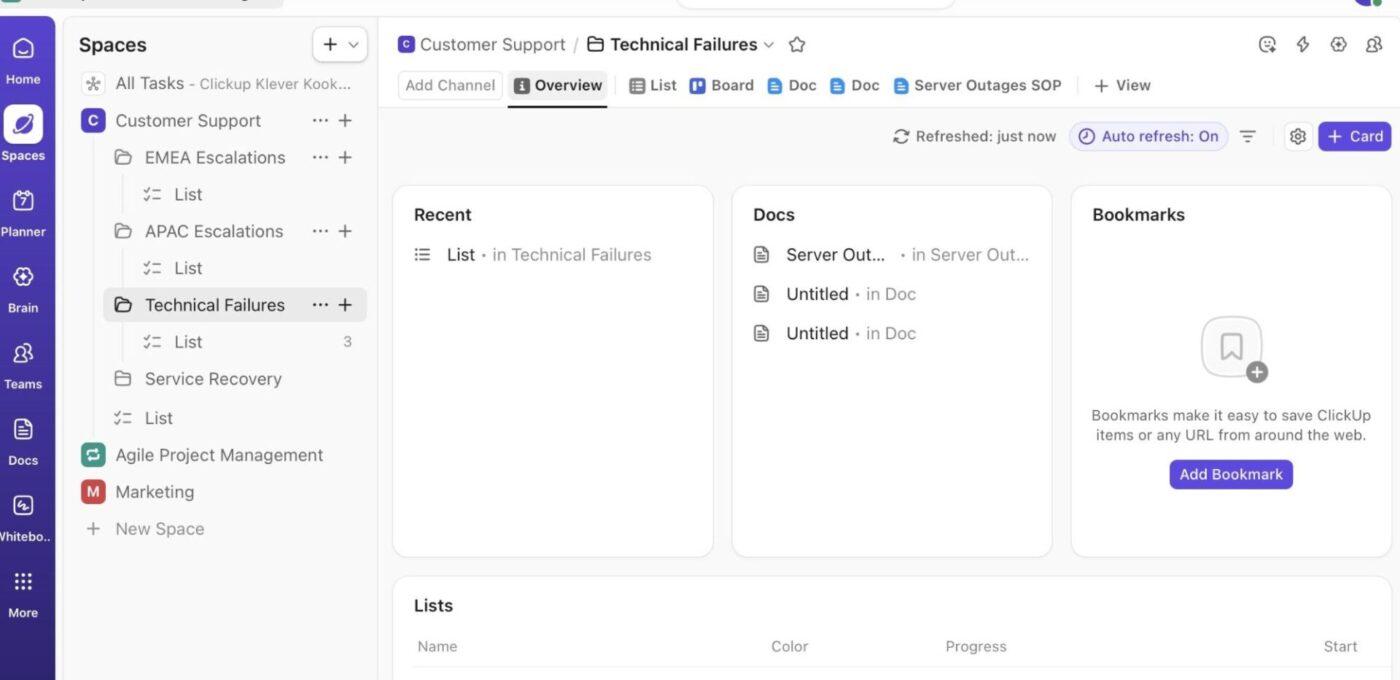
This structure keeps your support workflow scalable, organized, and easy to navigate as your organization grows.
Here’s a step-by-step run-through to set up your Space or Folder:
💡 Pro Tip: Keep your escalation playbook alive and accessible by storing it in a ClickUp Doc. You can structure pages for triage steps, escalation matrices, and contact windows using headings, tables, and checklists, and link the Doc directly to your escalation List for quick access.
When an incident is identified, record a short SyncUp meeting (1-3 minutes) with yourself or your other team members for stakeholders on the situation.
You can cover:
One recorded update replaces repeated re-explanations and lets specialists gauge the exact context without joining live meetings. This becomes the first authoritative update that other teams rely on.
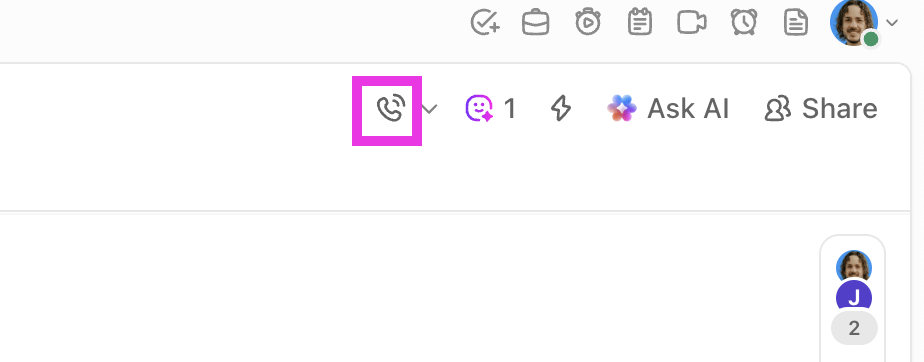
You can start a SyncUp from any ClickUp Chat Channel, Direct Message, Space, Folder, or List. Open the location and click the SyncUps icon in the upper-right corner. The call starts instantly, and a join link is posted for others to join.
To record the SyncUp:

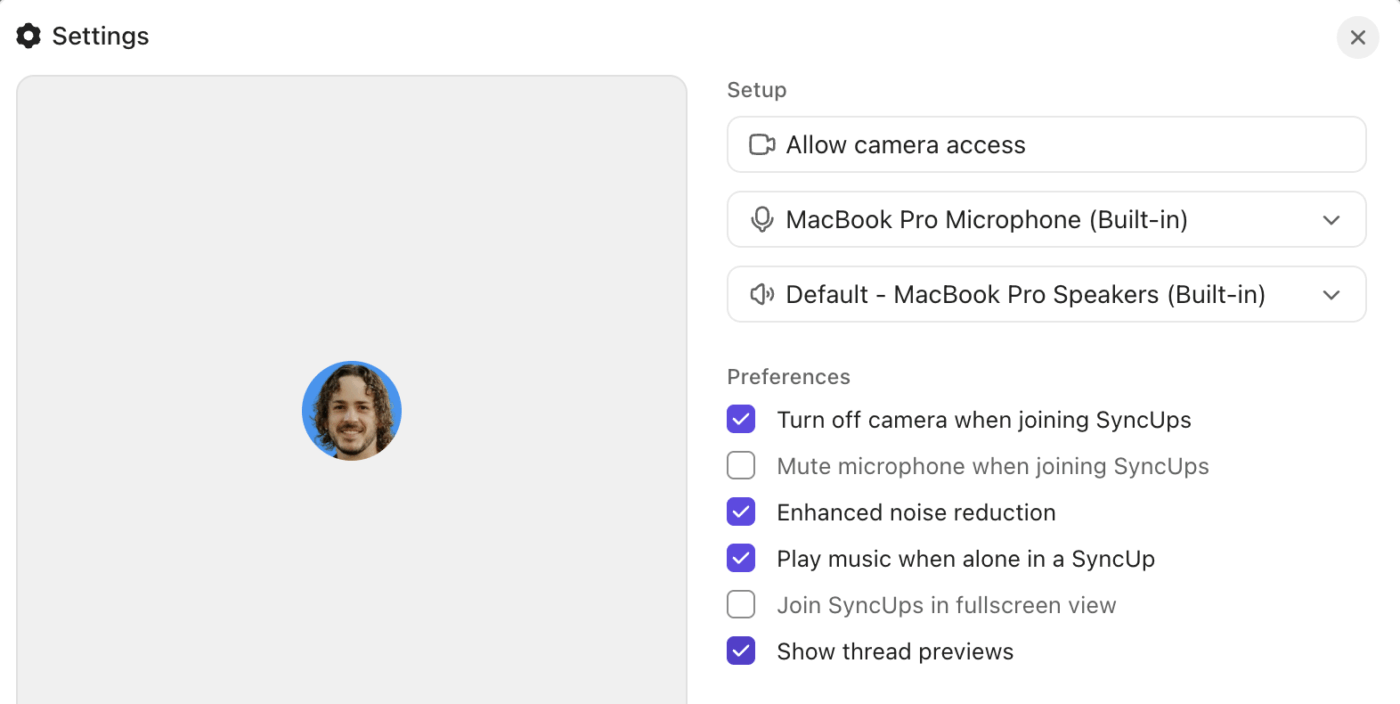
💡 Pro Tip: Before you record your first escalation update, take 30 seconds to adjust your SyncUp settings. Features like auto-camera off, auto-mute, and enhanced noise reduction act as a buffer, especially if you’re joining from a noisy environment.
Turn on ‘Play music when alone in a SyncUp’ to help you instantly know whether you’re the first one in the room. ‘
Once your SyncUp wraps up, ClickUp automatically generates a shareable link to the recording. The key now is getting that video update to the right stakeholders quickly, without creating confusion or spawning parallel email threads.
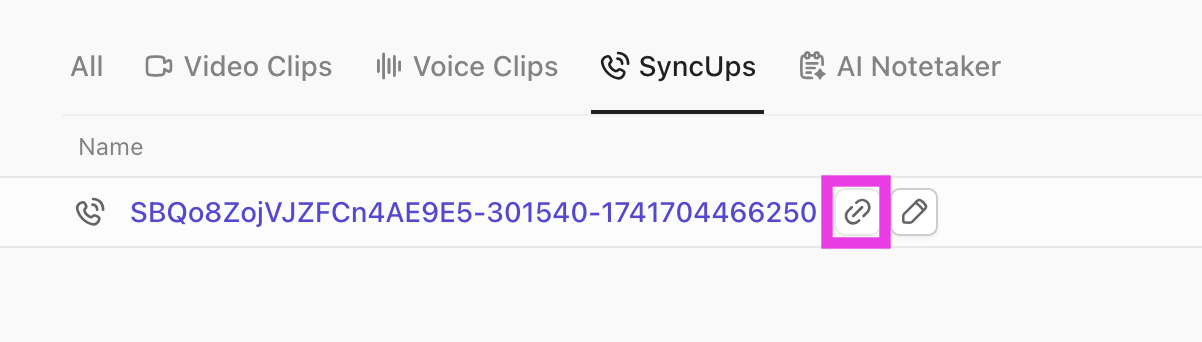
Here’s how to route it effectively using ClickUp Chat:
🔍 Quick Hack? ClickUp’s AI Agents are built to streamline your support workflow, resolve tickets faster, and deliver a better customer experience—without adding to your team’s workload.
These AI-powered agents can handle everything from answering common questions to triaging complex issues, freeing up your human agents to focus on high-value interactions.
Here are the types of Customer Support Agents you can set up:
This video covers the best AI agents for customer service, and how to deploy them so they actually help your team:
Once you inform stakeholders in Chat, turn escalation tickets into ClickUp Tasks. These can serve as a single source of truth for that issue, encompassing all comments, attachments, and status updates.
To avoid context gaps, connect these Tasks to the recorded SyncUp so anyone reviewing it later can see the discussion, decisions, and next steps in context.

Here’s how to do it:
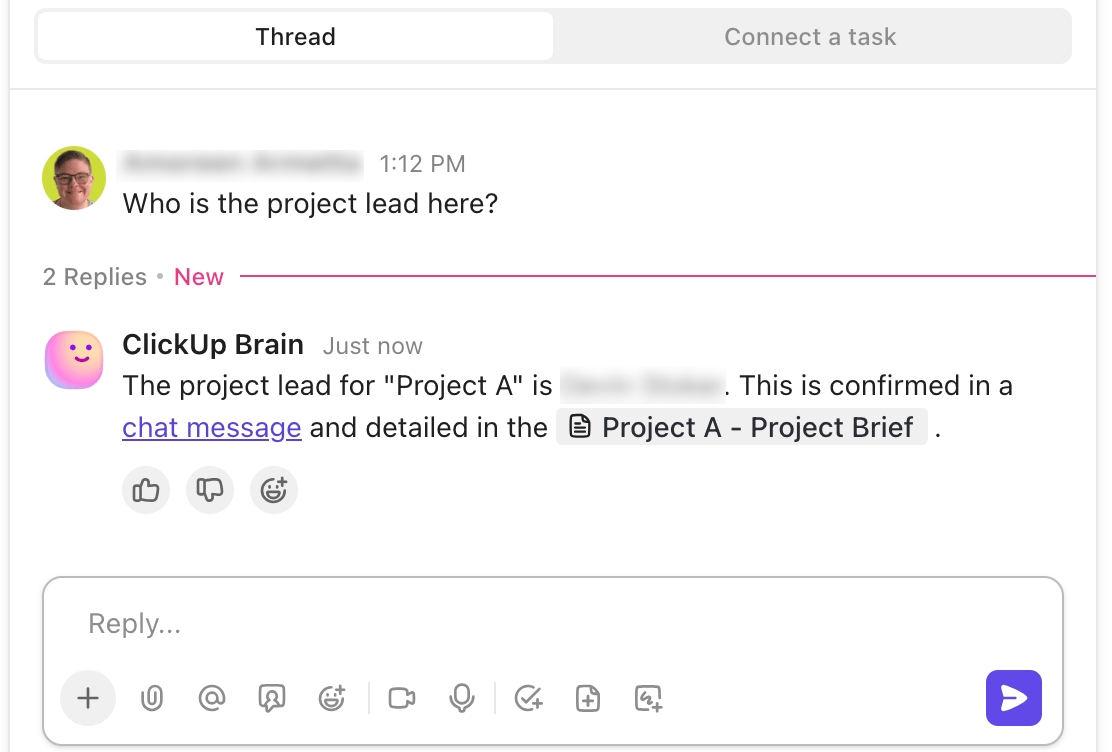
🚀 ClickUp Advantage: After your updates are shared and linked, turn all the context (recordings, comments, and ticket notes) into actionable insights with ClickUp Brain, the platform’s AI assistant.

Click the Brain icon or use Ask AI directly within your Task and prompt it with natural language prompts like:
Once escalations are documented and routed, the next step is to track their progress toward resolution. However, internal customer service teams often lose visibility once an issue is assigned.
To ensure that doesn’t happen, pull real-time data from your escalation Lists and visualize them through customizable Cards using ClickUp Dashboards.
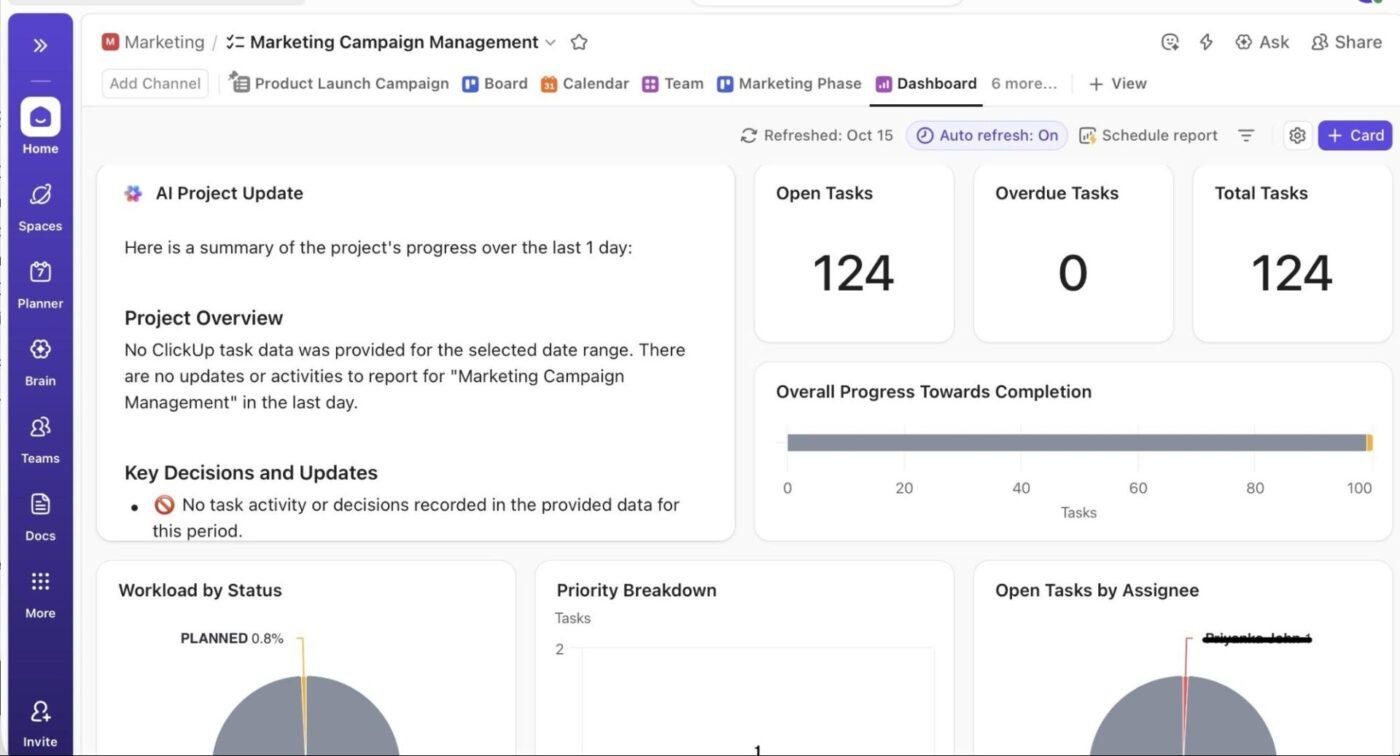
These living Dashboards provide a real-time update of the various aspects you want to track. You can add Custom Cards, such as:
ClickUp Brain works within Dashboards through AI Cards that summarize escalation updates, flag overdue issues, or generate action items.
Once you set up your Dashboard for visibility, create custom ClickUp Automations to eliminate routine escalation tasks. Based on simple ‘if this, then do that’ rules, you can pick from 100+ prebuilt structures or create your own custom workflows tailored to your incident response process.
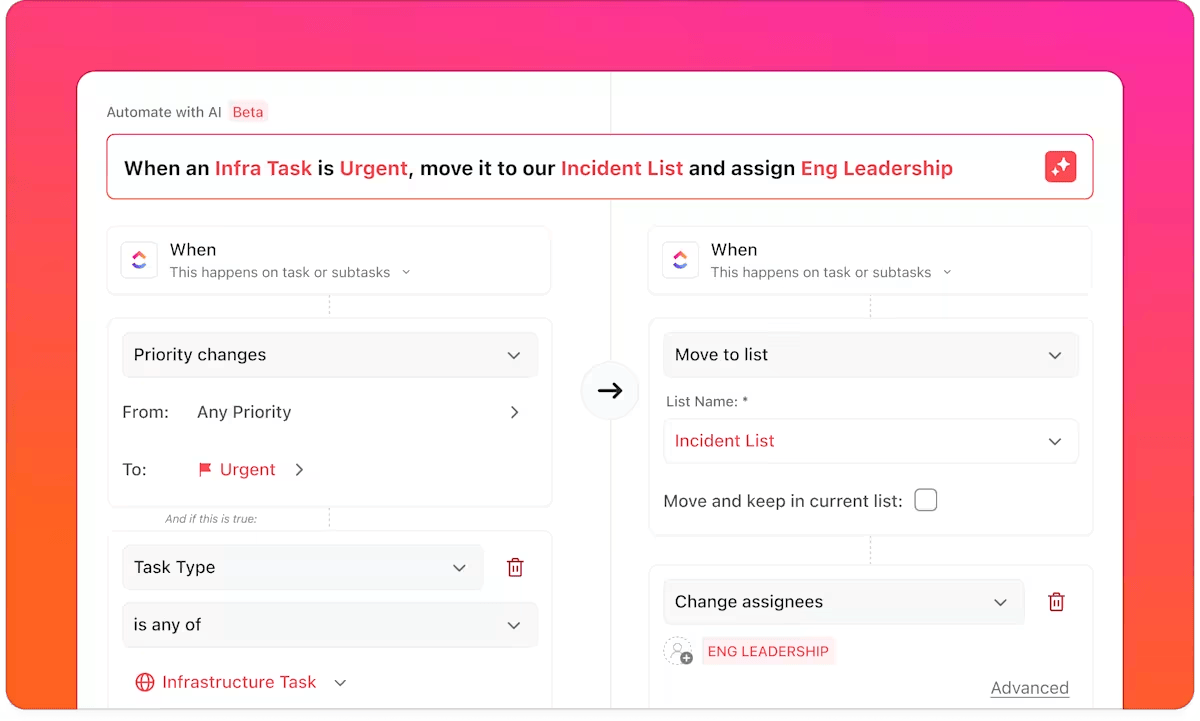
For instance, if your goal is to route high-severity incidents to on-call owners and create visibility instantly:
🔴 Trigger: When a task is created in the Escalations List, add a condition: Severity field = P0 or Critical
🟢 Actions:
Here’s how using ClickUp SyncUp for escalations with multiple teams, tools, and handoffs helps:
Suppose a customer reports a critical checkout failure. Support escalates it, Engineering jumps in to diagnose, and QA is ready to test a fix.
These teams don’t have to update each other in different spaces. Everyone can just hop onto a quick SyncUp, where Engineering confirms, ‘Fix is coded, testing needed in five minutes.’ QA replies, ‘Ready. Send it over.’ And Support instantly drafts the customer update based on the live call.
🚀 ClickUp Advantage: Turn messy escalation notes into clear, actionable updates in seconds with ClickUp Brain’s writing capabilities.
For instance, after a fast-paced triage call, an agent can drop rough bullet points into a ClickUp Doc and get a clean, accurate escalation summary ready to share with Engineering or send to the customer.
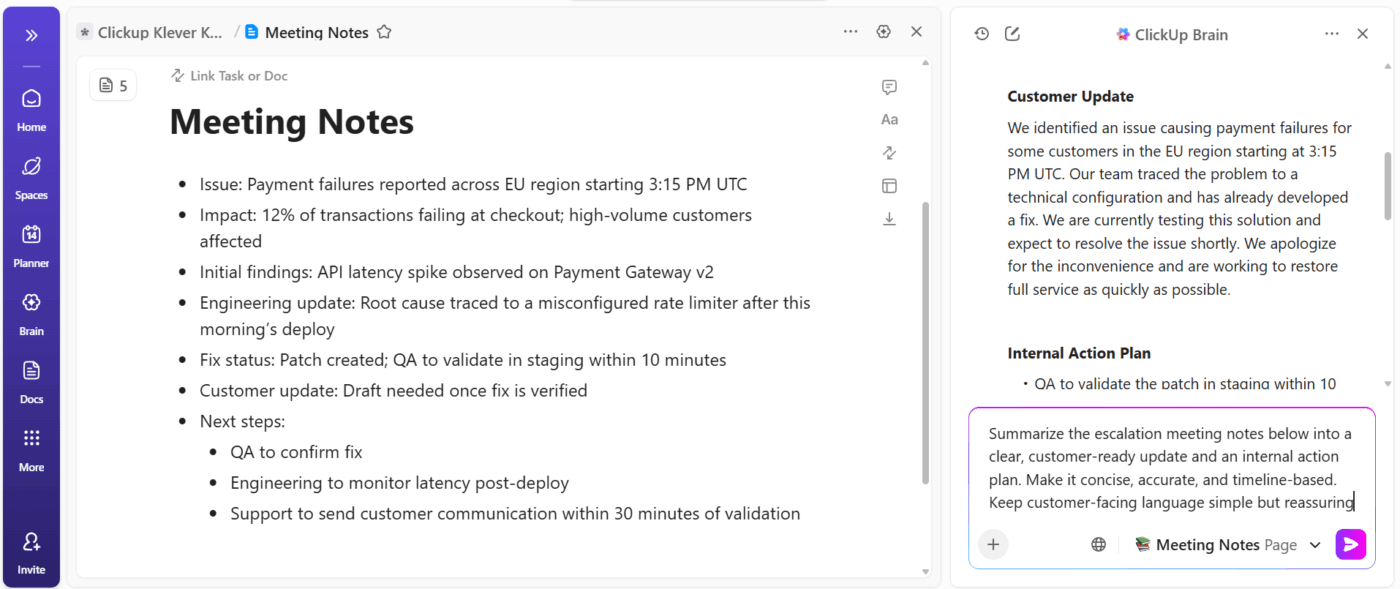
Each SyncUp keeps the escalation Task alive with evolving updates, giving responders a running narrative of progress. Teams spend less time re-explaining issues and more time resolving them. This continuity directly reduces mean time to resolution (MTTR) across high-impact incidents.
🚀 ClickUp Advantage: Record quick, high-context video updates instead of typing long explanations during an escalation with ClickUp Clips.
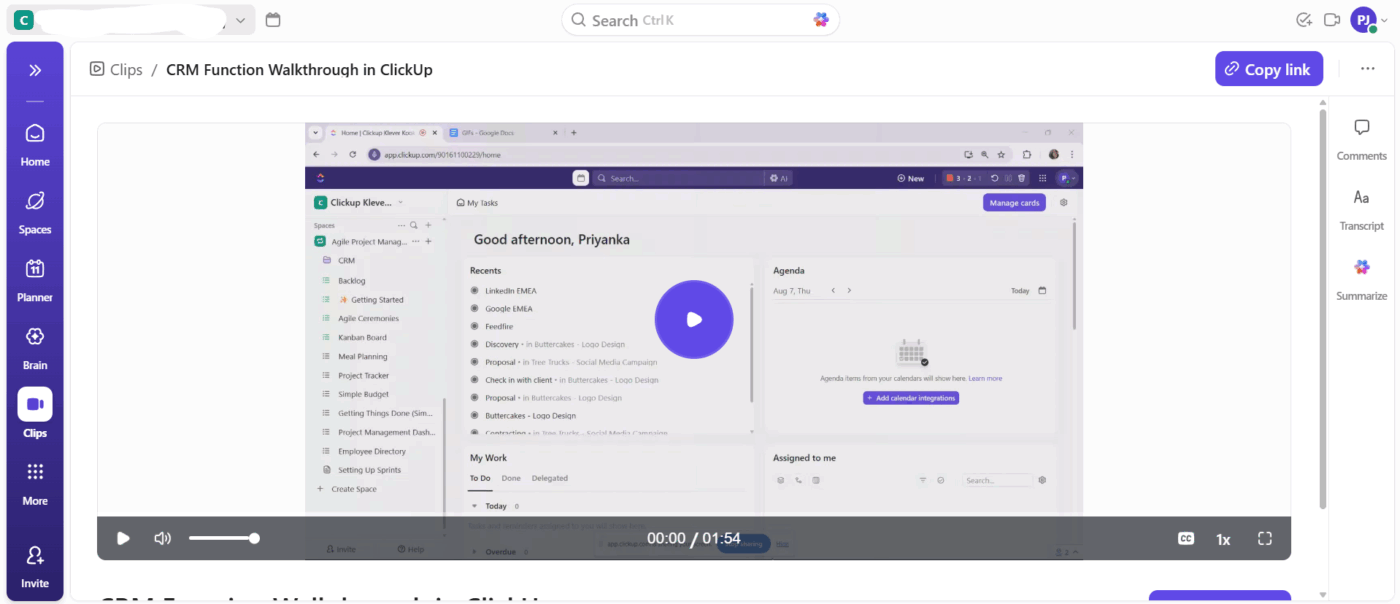
Just hit Record, walk through the problem, show the exact steps taken, and hand it off. This is especially powerful in triage moments where speed matters. Clips capture tone, urgency, and on-screen context in seconds. You can store all these clips in the Clips Hub to ensure access whenever necessary.
For managers overseeing multiple escalations, SyncUps provide a clear operational pulse while feeding into your internal knowledge base for future reference. Live and recorded updates become input for reporting dashboards, giving leadership a unified view of ongoing incidents and team capacity.
Here’s what Samantha Dengate, Sr. Project Manager at Diggs has to say about ClickUp:
Before ClickUp, meetings, and back-and-forth email communications led to a black hole where items were left unseen and unattended. Due to this, tasks were not being reviewed on time, and no one knew how the creative development was going.
Now, everyone on the team can clearly see when action items are due, chat and collaborate within the tasks.
Since every escalation update is tied to a specific ClickUp Task, ownership transitions are traceable, and expectations are explicit. This makes performance tracking easier, and accountability is built into the workflow, rather than being enforced through additional documentation.
🚀 ClickUp Advantage: Equip yourself with ClickUp BrainGPT, a unified, real-time knowledge engine and desktop work AI superapp that brings alignment and speed to your escalation workflow.
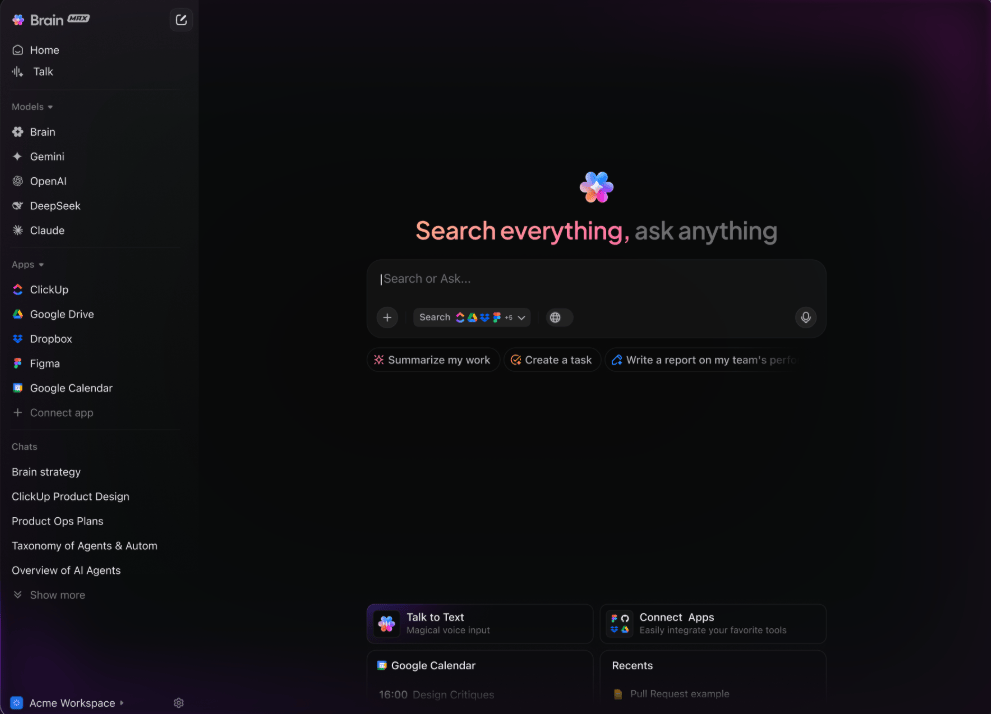
Here’s how ClickUp BrainGPT elevates your escalation workflow:
ClickUp SyncUps help teams evolve by removing the dependency on manual debriefs. Patterns in response time, communication gaps, or workload can be analyzed to refine the triage process itself.
Over time, your escalation management becomes a closed feedback loop where every incident teaches the system how to respond better next time.
🔍 Did You Know? NASA used ‘voice loops‘ during Apollo missions. These were continuous, real-time multi-channel audio where different teams listened to overlapping conversations. It was one of the earliest forms of synchronous coordination across disciplines.
In escalation management, where every minute counts, ClickUp SyncUp brings structure and speed to updates.
Here’s how real-life teams apply it across critical use cases to reduce delays and improve response accuracy. 📝
When a critical incident strikes, such as a regional service outage or system failure, customer support teams face immediate pressure. Live conference calls are scheduled, and valuable time is lost while waiting for a sync that could include dozens of people.
✅ Try this:
🔍 Did You Know? Over a three-year period, organizations using ClickUp achieved an estimated 384% return on investment (ROI), according to Forrester Research. These organizations generated about US $3.9 million in incremental revenue through projects enabled or improved by ClickUp.
In complex escalations (P0s, multi-team incidents), updates often get buried in emails, chats, or meeting notes, making it difficult for oversight teams to understand the status at a glance.
✅ Try this:
Support teams often rely on separate tools for weekly briefings, training content, and knowledge updates, leading to fragmented access, version drift, and inconsistent messaging.
✅ Try this:
In 24/7 support operations (common in public-sector services), shift changes cause context switching. Live calls are missed, critical tickets aren’t handed over, and incidents pause while teams regroup.
✅ Try this:
This makes transitions seamless, boosts productivity, and ensures escalation momentum continues even during shift changes.
Even with the right tools, incident management can slow down if SyncUps aren’t used intentionally. Here are common mistakes teams make and how to fix them. 🪢
| Common issues ❌ | Solutions ✅ |
| Escalations lack prioritization and categorization, causing delays | Use ClickUp Brain to automatically categorize and prioritize escalation tasks, ensuring urgent issues are addressed first |
| Unstructured escalation meetings waste time and reduce clarity | Use SyncUps for one-click calls combined with AI-generated summaries to keep discussions focused, document decisions, and assign action items immediately |
| Inconsistent updates and missing documentation of escalation status | Enforce mandatory status updates and logging in task workflows within ClickUp Docs, with automated reminders to ensure information is current and accessible |
| Inviting too many or irrelevant participants to escalation calls | Restrict SyncUp call participation to essential decision-makers and involved team members using ClickUp permissions |
| Escalation workflows are not standardized, causing inconsistent handling | Implement standardized workflows with automation rules and AI prompts to ensure a consistent escalation process |
| No tracking for post-escalation follow-ups | Use ClickUp Automations to set reminders and track completion of action items from SyncUp meetings, ensuring follow-through |
Managing critical incidents is simpler when every update, task, and follow-up lives in one place. ClickUp SyncUp lets support and operations teams record, share, and link updates directly to tickets, keeping context intact and decisions clear.
With ClickUp Brain, you can automatically summarize discussions, extract action items, and generate post-incident recaps in seconds. Dashboards give you a live view of open escalations, SLA compliance, and team workload, while Automations handle notifications, task routing, and overdue reminders.
Together, these tools give leadership and frontline teams full visibility and control across every stage of escalation management.
Sign up to ClickUp for free today! ✅
ClickUp SyncUp lets support, IT, and operations teams launch video or audio calls directly inside their ClickUp app when incidents hit. Instead of waiting for a scheduled call or digging through chat threads, you start a live SyncUp, record it, and attach it to the relevant escalation Task to ensure everyone gets the same context at the right time.
Yes, you can connect a SyncUp to one or more ClickUp Tasks or tickets. In the public Channel or DM where the call was started, click the ellipsis (…) on the SyncUp message, select ‘Add relationship,’ and search/select the support ticket.
Async updates (recorded or shared later) allow responders to review incident context on their own time instead of waiting for a full meeting, ensuring clear communication. This reduces delay, accelerates decision‑making, and ensures task management without losing urgency.
Absolutely! SyncUps are recorded, summarized, and linked directly into escalation ClickUp Tasks. Meaning, managers can view the latest update, watch the clip, review action‑items or comments, and see who’s assigned what without hosting or joining a live call.
Yes. ClickUp holds SOC 2, ISO 27001, ISO 42001, and other certifications, uses end‑to‑end encryption, and gives admins control over permissions. SyncUp recordings follow the same permission rules as tasks and channels, so only authorized users can view them.

© 2026 ClickUp

There’s an easier way. Try a free AI Agent in ClickUp that actually does the work for you—set up in minutes, save hours every week.