

Sorry, there were no results found for “”
Sorry, there were no results found for “”
Sorry, there were no results found for “”
Remember the way we used to browse the internet?
A sea of tabs, bookmarks you swore you’d organize someday, and that constant shuffle between your browser and project management tools. It felt like half your day went into just keeping up with information instead of using it.
But AI browsers are changing things fast.
They read what’s on your screen, give you quick summaries, help you compare info, draft responses, and surface what’s important.
So in this blog post, we’ll look at the best AI browsers that can remember context and guide you to answers faster than ever. 🦾
👀 Spoiler alert: We also explore how ClickUp brings AI, tasks, docs, reminders, and app integrations into one place to eliminate work sprawl.
Let’s get started!
Here’s a quick comparison of the best AI browsers. 📊
| Tool | Best for | Best features | Pricing* |
| Comet | AI-powered research, deep web exploration with verified sources for students, analysts, and research-driven teams | AI summaries of multiple webpages, voice-based queries, and intelligent tab session management | Free |
| ChatGPT Atlas | Context-aware browsing for knowledge workers, lifelong learners, and educators | In-browser AI chat with page-aware context, persistent memory across sessions and smart content generation | Free |
| Brave | Privacy-first browsing with content protection for security-conscious users and web professionals | Built-in AI summarization and translation, on-the-fly page explanations, and cleanups via commands | Free; Paid plans start at $14.99/month for five users |
| Microsoft Edge | Enterprise-ready browsing with Microsoft ecosystem access and productivity tools for corporate teams, IT departments, and Windows users | Cross-tab analysis, AI-assisted writing and coding, voice and image input support | Free |
| Sigma AI Browser | Focused browsing with distraction control, deep search, and contextual workspaces for professionals and digital minimalists | Automated form-filling and checkout flows, data extraction from receipts or tables into spreadsheets | Free |
| Arc | Creative browsing with visual tabs for designers, product teams, and creative professionals | Sidebar-first tab organization with split-screen browsing for multitasking, contextual workspaces | Free |
| Dia | AI-assisted browsing optimized for speed, lightweight performance for students, everyday users, and fast-paced workflows | Multi-tab content comparison, inline task creation from content, and unified web search results | Free; Paid plans start at $20/month per user |
| Opera | Browsing with integrated messaging and modular sidebars for social users, gamers, and content explorers | Instant sidebar AI chat or command-line access, translation, and prompt-based image generation | Free |
🔍 Did You Know? The first web browser, named WorldWideWeb (later renamed ‘Nexus’), was developed by Tim Berners‑Lee at CERN on a NeXT computer in 1990.
Here are some AI capabilities to prioritize in a web browser:
🔍 Did You Know? The browser Mosaic (released in 1993) is credited with sparking the internet boom because it was one of the first graphical browsers to display text and images inline, making the web much more user-friendly.
Here are the best browsers that leverage AI to turn everyday browsing into a smart, efficient workflow.
Our editorial team follows a transparent, research-backed, and vendor-neutral process, so you can trust that our recommendations are based on real product value.
Here’s a detailed rundown of how we review software at ClickUp.

Comet is an AI-powered command center that seamlessly blends Chrome’s familiar interface with an intelligent assistant capable of contextual reasoning. It uses AI for productivity by anticipating your next steps, helping you cross-reference multiple sources, and exploring nuanced perspectives.
Plus, the AI browser adapts to your unique workflow, learning how you explore content and surf the web. This context allows it to suggest next steps, shortcuts, and workflow optimization tailored to your habits.
Here’s what a Reddit user had to share:
So I used Comet Browser today. My quick take – it is good, but not something exceptional for me yet. I tried using it to transfer my YouTube Music playlists to Spotify to create a duplicate playlist there, but it could not do it. It also lagged a lot when I tried higher-end tasks. […]
🧠 Fun Fact: The small site icon you see in your browser tab, called a favicon, was first supported by Internet Explorer 5 back in March 1999. It was originally used in the browser’s ‘Favorites’ menu and helped estimate how many people had bookmarked a page.

ChatGPT Atlas reimagines the browser as an active thinking partner. It brings ChatGPT directly into the browsing experience through a persistent sidebar that understands what you’re looking at and why.
As you move across pages, it interprets content in real time, summarizing long articles, comparing product specs, unpacking data-heavy reports, and answering complex questions without interrupting your flow.
With privacy controls built directly into the interface, you choose what the browser sees, remembers, or clears, making Atlas a polished option for professionals who want intelligent support woven discreetly into their workflow.
A user shared their experience:
I’ve played around with AI browsers for a while now. On first impressions, Atlas actually feels more natural to use. I am probably sticking with it for a while.
I LOVE the fact that it is super minimal, elegant and feels more natural to use. […] It is an ultimate battery hogger. Not RAM, I am talking energy–RAM usage so far is comparable to Chrome.
📮ClickUp Insight: 44% of our survey respondents stick to 1-5 tabs when browsing, but 8% live in “chaos mode” with 31+ tabs.
While not always intentional, it happens to the best of us: a Miro board for brainstorming, a Google Doc for SOP, a project management tab, and then ChatGPT for extra support. 👀
But every switch between apps or windows adds toggle tax, aka a hidden mental toll that chips away at your mental bandwidth and leaves you feeling scattered.
With ClickUp, you can centralize all your tools: think whiteboards, docs, tasks, web search, AI models like ChatGPT, Gemini, and Claude, and more under one Converged AI Workspace. Time to ban context switching and close those extra tabs down for good!

Brave takes a fundamentally different approach to AI integration by prioritizing privacy from the ground up.
Its AI assistant, Leo, operates inside Brave’s privacy-focused ecosystem, where an account, login, or training is required. It acts like an invisible layer on top of every webpage, ready to interpret text, summarize long documents, or generate new content without exposing your activity.
Leo becomes useful in its ability to work with actual on-page materials such as PDFs, Google Docs, Sheets, and even images, pulling insights instantly without forcing you to upload files or switch tools. As you browse, you can ask it to clarify complex ideas, translate text, extract key points, or build entirely new content in context.
In the words of a G2 review:
What I like best about Brave is its strong focus on privacy and security. It automatically blocks trackers and intrusive ads, which makes browsing feel much cleaner and faster. [..] The main downside is that some websites don’t always work perfectly with Brave’s strict ad and tracker blocking, requiring me to disable shields occasionally.
🔍 Did You Know? There are ultra-lightweight browsers like Dillo, launched in 1999, that were built to run even on very old hardware and dial-up connections, ignoring heavy scripts for the sake of speed and accessibility.

Microsoft Edge helps you surf the net, work, and research more efficiently directly inside the browser. The multi-tab awareness helps you understand the context and respond instantly without pulling you away from your workflow.
Copilot mode also supports voice, vision, and file uploads, letting you talk through problems, generate images, summarize documents, and even get help writing code or handling work files.
Personalized daily briefings, built-in privacy controls, and seamless integration with Microsoft 365 make Edge suited for users managing heavy research loads and enterprise-grade tasks.
As one reviewer noted:
The subtle colour use creates a tranquil polish atmosphere, giving the browser that feel of premium quality. […] Navigation may feel less clean on smaller screens as well because of how the sidebar cuts across the screen.
📖 Also Read: Chrome Extensions for Productivity

Sigma AI Browser acts as a private, on-device agent that can log in, navigate, and complete web tasks on your behalf, positioning itself as an autonomous action engine.
You describe what you want, like checking out a hotel, exporting data from a dashboard, or cleaning your inbox, and the agent handles each click, form fill, and filter selection directly inside the relevant websites.
This execution-first approach makes Sigma particularly appealing for users who are tired of manual web workflows and repetitive tasks. It performs multi-step actions with memory, context, and browser automation tools.
Here’s how one user felt:
I like the idea of SigmaOS, but it’s not right for me. […] SigmaOS wants you to have all your work in one window, and you switch profiles with different workspaces. For me, context-switching this way breaks my flow.
🧠 Fun Fact: A browser called SlipKnot was released in November 1994 for Windows, and it effectively offered a graphical web experience before some of the major, well-known browsers by tricking a Unix remote terminal into rendering pages and then sending them to the PC.

Arc is a Chromium-based AI browser that’s built around your habits, routines, and projects. It shifts everything into a sidebar that behaves more like a command center.
Spaces and Profiles make it easy to separate work, school, hobbies, and personal browsing without managing windows. Split View lets you review two sites or tools side-by-side, while Themes create visual moods that fit your workflow.
You can choose to activate all or selected AI features from Arc Max to leverage its productivity-enhancing capabilities.
When you compare Arc Browser vs. Brave, Arc enhances your browsing with cleaner tab names, smarter file naming, and an intuitive command bar that ties everything together.
A Redditor summed it up like this:
I actually really like it. I like how all-in they’re going on the vertical tabs and the workflow feels good. It’s buggy for me on Windows though and missing some basic functionality that is annoying (although I presume it will be added).
📖 Also Read: Best Neural Network Software

Dia browser reads your open tabs, remembers context from earlier sessions, and can move between search, chat, and task execution without forcing you to switch modes.
You can create ‘skills’ to automate repetitive tasks, shape the AI’s tone and writing style, and build small workflows that match how you browse.
The assistant can scan multiple tabs at once, generate reports, or analyze docs and sheets in a single thread. And because it’s built on Chromium, you still get all the extensions and compatibility you’re used to.
As one reviewer shared:
Finally, the wait is over. Dia is here, and it’s gorgeous, useful, and faster than Arc. I miss the pins and vertical tabs so much that I can’t set it as my default browser, but honestly, the performance boost—especially with vertical tabs—almost makes the switch worth it. […] It feels more like a niche browser for users who are deeply focused on productivity.

Aria turns Opera into a browser that’s ready to help the moment you highlight text, open a tab, or press a shortcut. It responds with real-time web answers, generates images, translates content, and even performs tab-level actions, without requiring an account.
It also understands uploaded images, reads answers aloud, and provides deeper explanations when you select any piece of text.
Messengers such as WhatsApp, Slack, and Facebook Messenger are integrated. What’s more, it lets you organize tabs automatically by grouping, closing, pinning, or saving them through typed commands.
Here’s what a Capterra reviewer shared:
Opera offers a fast, lightweight browsing experience with a built-in VPN and ad blocker for enhanced privacy. […] Some websites don’t render properly on Opera compared to other browsers, leading to compatibility issues. Additionally, occasional crashes or slowdowns can occur with heavy tab usage.
🧠 Fun Fact: The ability of browsers to reveal whether you’ve visited a link (link colour change phenomenon) was used for a tracking exploit called history sniffing. Early versions of major browsers allowed code to check link colours and infer your browsing history.
You’ve seen how AI browsers like Arc, Comet, and Opera pack in clever features. But at the end of the day, they’re still just web browsers. You can search faster or summarize pages, but you still need separate tools for tasks, docs, project management, team communication, and automation.
That’s where work sprawl creeps in.
ClickUp, the everything app for work, combines project management, knowledge management, and chat—all powered by AI that helps you work faster and smarter.
And because it works across your browser, desktop, and mobile, you stay focused without bouncing between 10 different apps.
Let’s see how. 🤩
ClickUp’s Chrome Extension makes browsing productive without switching tools.
For example, when you find something important online, you can instantly create a ClickUp Task with the webpage link so nothing gets lost.
You can also capture screenshots, mark them up with notes, and attach them to tasks for quick context. If you work from your inbox, you can attach full emails to tasks or even convert them into new tasks with a click, making follow-ups easier to manage. The extension includes ClickUp Project Time Tracking too.

Christian Gonzalez, Administrative Coordinator at Cámara Nacional de Comercio, Servicios y Turismo de Guadalajara, shares their experience with using ClickUp:
We simplify all the processes of our departments by integrating business intelligence platforms, mailing tools with automation, and storing KPIs, forms, process documents and dependencies in one app (ClickUp).
ClickUp Automations help you handle the busywork inside your workspace, so tasks move forward without constant manual updates. You can set simple if this, then that rules where you choose the trigger, set the action, and ClickUp takes care of the rest.

The best part is that Automations help you stay connected with other tools in your workflow.
You can send webhooks to Zapier, Make, or other integrations to push data into thousands of apps automatically. That means if something updates in ClickUp, you can trigger an action elsewhere without switching tabs.
The AI Chrome Extension becomes a powerful starting point here. Once tasks land in ClickUp, you can set up automation to organize them, notify teammates, or update fields automatically, keeping everything moving while you keep browsing.
Let’s say your QA tester spots a bug while reviewing a web app. They capture a screenshot and create a task using the Chrome Extension.
From there, Automations instantly:
Learn more about it here:
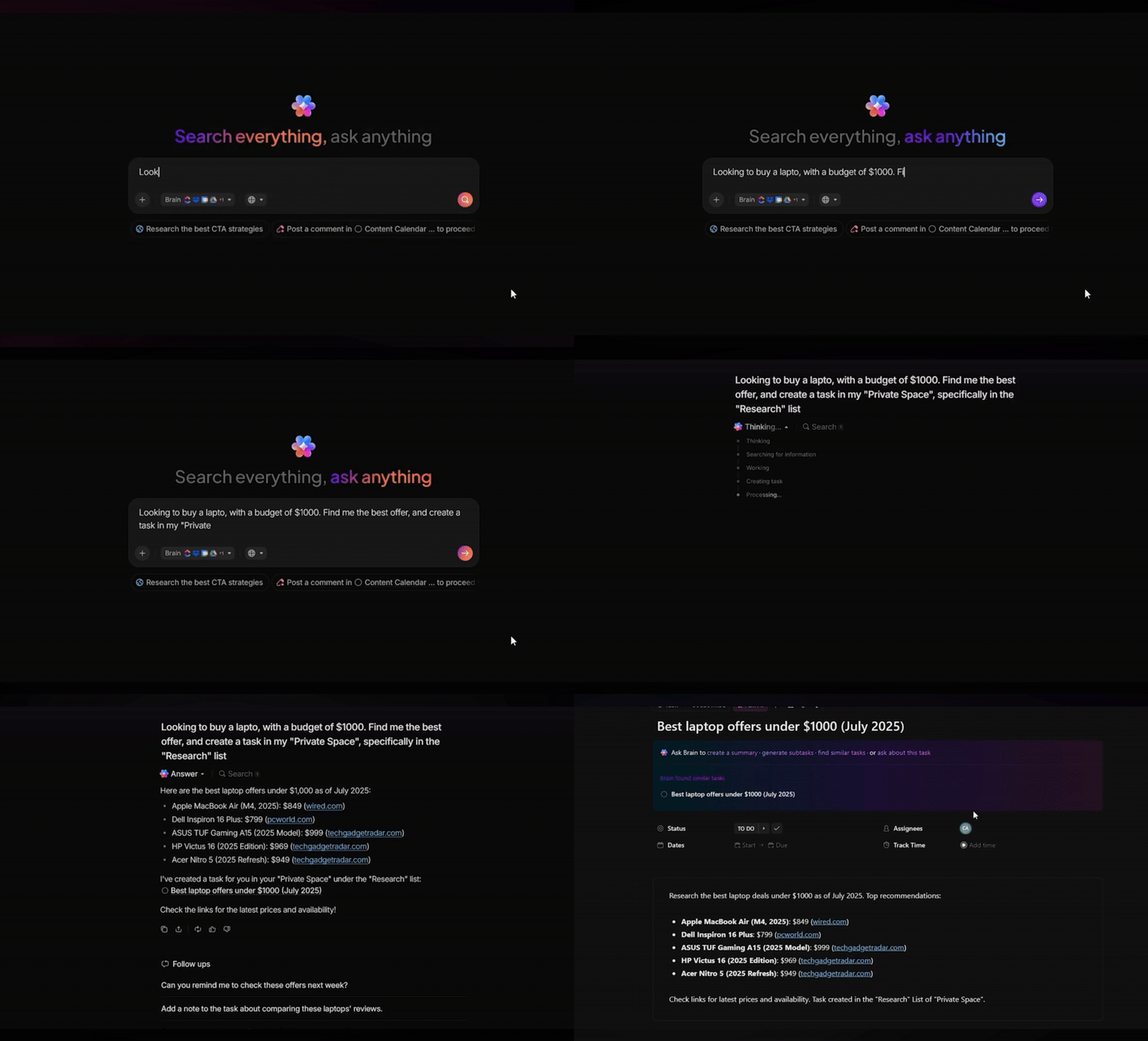
ClickUp Brain is an integrated AI-powered assistant designed to help you work smarter and faster.
This connected AI understands the context of your tasks, docs, and conversations, so you can instantly get answers, summaries, or action items without digging through tabs or files.
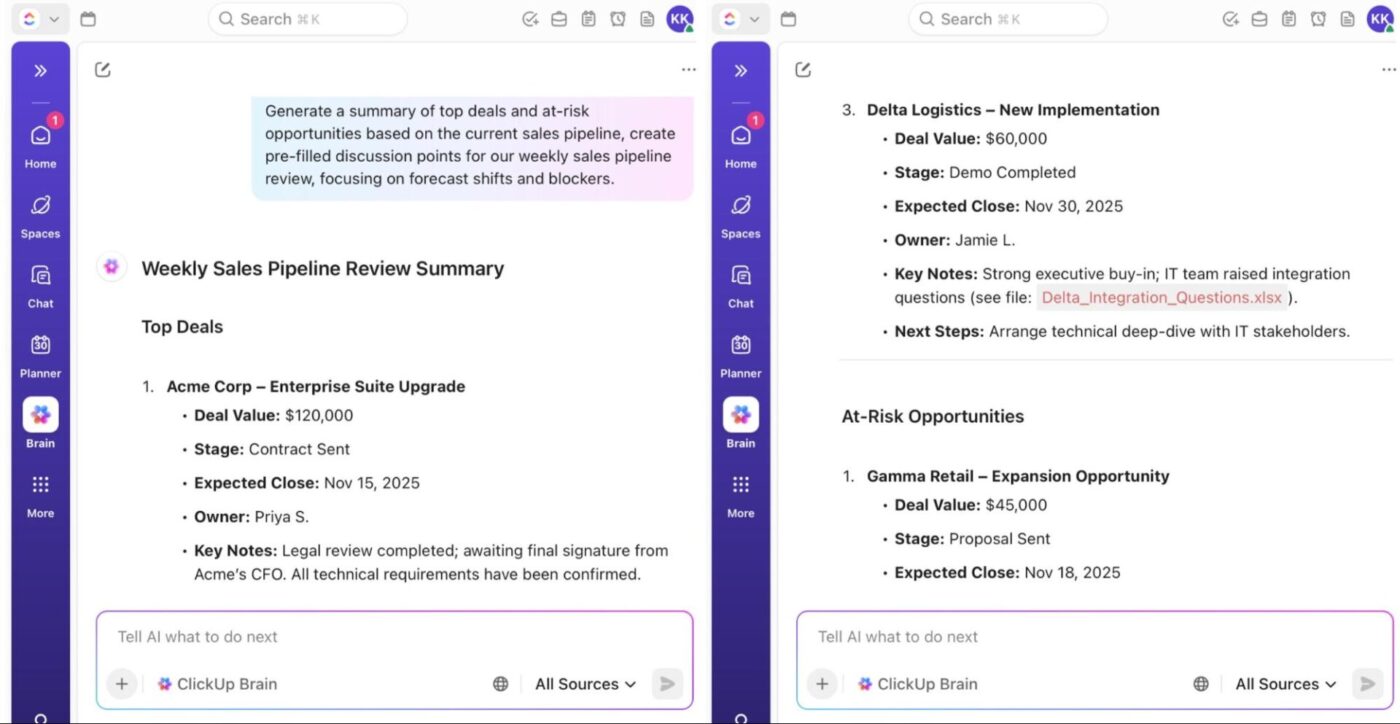
ClickUp Brain’s Enterprise Search works across the tools you rely on daily, such as Google Drive, GitHub, Figma, and more. So when you need the latest spec doc or a version history, results come back directly in ClickUp.
Watch this video to learn more about Enterprise Search:
And when your work moves beyond the ClickUp app, ClickUp Brain MAX goes with you. It lives in your browser or desktop as a universal AI desktop companion to summarize any webpage, transcribe voice notes, and pull answers from across your digital footprint.
You can even switch between leading AI models in real time. Brain MAX includes ChatGPT, Claude, and Gemini, so you can get the best output for the task at hand, whether that’s creative writing, technical explanations, or code generation.
And when typing slows you down, Talk to Text in ClickUp Brain MAX lets you speak naturally to search, create tasks, or draft content hands-free. Brain MAX transcribes accurately, understands the context of what you’re saying, and recommends the next best action while you stay in the flow.
📮 ClickUp Insight: 20% of our survey respondents confess they’ve kept up to 15 tabs open for weeks! Yes, weeks!
These “zombie tabs” 🧟 eat memory and mental space, quietly draining focus even when ignored. It’s a classic attention residue where unfinished items pull energy in the background.
With ClickUp’s AI-powered Enterprise Search, you can safely let go of those browser graveyards. Anything important is instantly searchable across your workspace and integrated third-party tools.
You can even ask ClickUp’s AI what was discussed in last Friday’s meeting, and it will fetch the notes for you!
The best AI browsers summarize content, cut down tab overload, automate small tasks, and keep you moving.
But even with the smartest browsing experience, your work still lives across projects, tasks, messages, and documents. And that’s where the gap begins.
To truly close the loop, you need a converged AI workspace that keeps your tasks organized, syncs information across your team, and centralizes everything you act on once the browsing ends.
That’s what ClickUp does.
Pair any of these AI browsers with ClickUp for a smarter, faster, and more effortless workspace. Capture ideas in a click with the ClickUp Chrome Extension, let ClickUp Automations handle repetitive work, and use ClickUp Brain + Brain MAX to turn information into organized tasks, docs, and knowledge.
Sign up to ClickUp for free today! ✅
An AI browser integrates artificial intelligence directly into the core browsing experience. Rather than just loading web pages, it can read and interpret content, summarize long articles, answer questions, or even execute commands based on your prompts.
Yes, some AI browsers like Comet or ChatGPT Atlas claim the ability to navigate sites, fill forms, and complete multi-step workflows on behalf of the user. But the extent and reliability of that automation can vary significantly depending on the site, user permissions, and the specific browser’s design.
They can be, but not always. Most AI browsers ask for broader permissions than traditional ones (access to browsing history, cookies, login credentials, etc.) to enable smart features. Because of this access, there are real risks: some point to vulnerabilities where malicious actors could trick the AI assistant into leaking data or executing unintended tasks.
Both Comet and ChatGPT Atlas are built on AI and Chromium fundamentals, but their approach and feature sets differ. Comet (from Perplexity) emphasizes research, context-aware browsing, summarization, and tab/session organization. ChatGPT Atlas (from OpenAI) focuses on deeply integrated AI assistance with a chatbot built into the search bar.
Most AI browsers rely on newer or experimental features, which makes them less mature than established browsers. For many users, traditional browsers (or AI-enhanced versions of them) may remain sufficient, especially if privacy and robustness matter more than automation.

Sean Hardy
Max 26min read

Manasi Nair
Max 19min read
Manasi Nair
Max 19min read

© 2026 ClickUp




