






Still downloading templates?
There’s an easier way. Try a free AI Agent in ClickUp that actually does the work for you—set up in minutes, save hours every week.
Sorry, there were no results found for “”
Sorry, there were no results found for “”
Sorry, there were no results found for “”

Say you’re working on a product launch and have compiled the customer information, order details, supplier contacts, task owners, and timelines across different tabs and spreadsheets.
VLOOKUP formulas fetch customer details from one sheet, match them with product orders in another, and calculate expected delivery dates for you. But here’s the catch: now you have to add an additional column, and you’re worried the compiled data will fall apart.
To avoid this, you can either turn to more flexible VLOOKUP alternatives or abandon traditional spreadsheets and use ClickUp, an all-in-one workflow management software.
Let’s check it out together.
VLOOKUP, short for ‘Vertical Lookup,’ is an Excel function designed to search for a specific value in the first column of a table and return a corresponding value from another column in the same row.
It’s commonly used for tasks like matching product IDs to prices or retrieving an employee code based on their names.
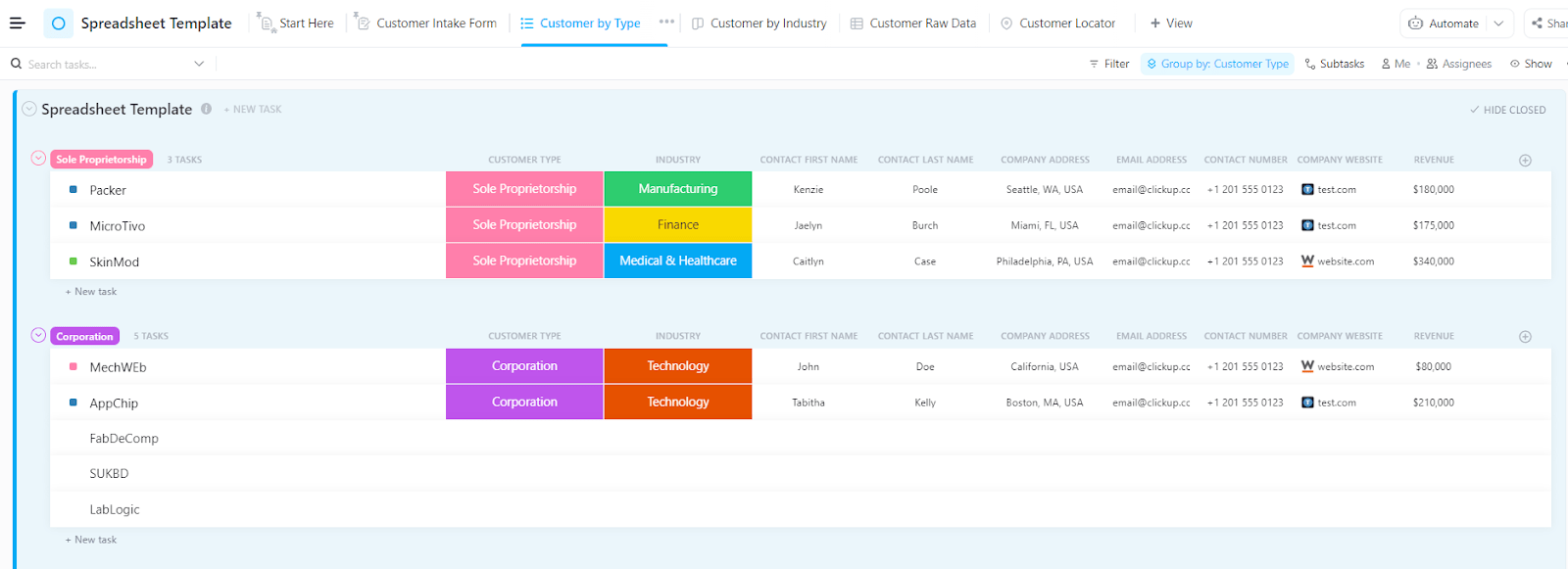
The ClickUp Spreadsheet Template offers a flexible way to organize, filter, and analyze data—making it a powerful alternative to traditional VLOOKUP functions. With built-in collaboration and automation features, it streamlines complex data management without the need for advanced formulas.
Wondering when you should use VLOOKUP? Here are the most common use cases where you can quickly connect information across table templates:
While the VLOOKUP formula works as a one-function tool for basic, table-based lookups, its simplicity has some critical drawbacks. Here are a few of them:
🧠 Fun Fact: 1 in 10 people consider themselves beginner Excel users.
Excel offers many replacements for VLOOKUP for everyone who wants to simplify their data management process. Here are a few of them!
The INDEX MATCH function is a solid replacement for VLOOKUP due to its flexibility and precision. Unlike VLOOKUP, which can only search from the leftmost column to the right, INDEX MATCH allows you to perform lookups in any direction—left, right, up, or down.
The MATCH function locates a lookup value’s position or row number in a range, while the INDEX function returns the value at that position in a separate range.
This decoupling of lookup and return columns makes the formula less rigid; you can insert or delete columns without breaking them.
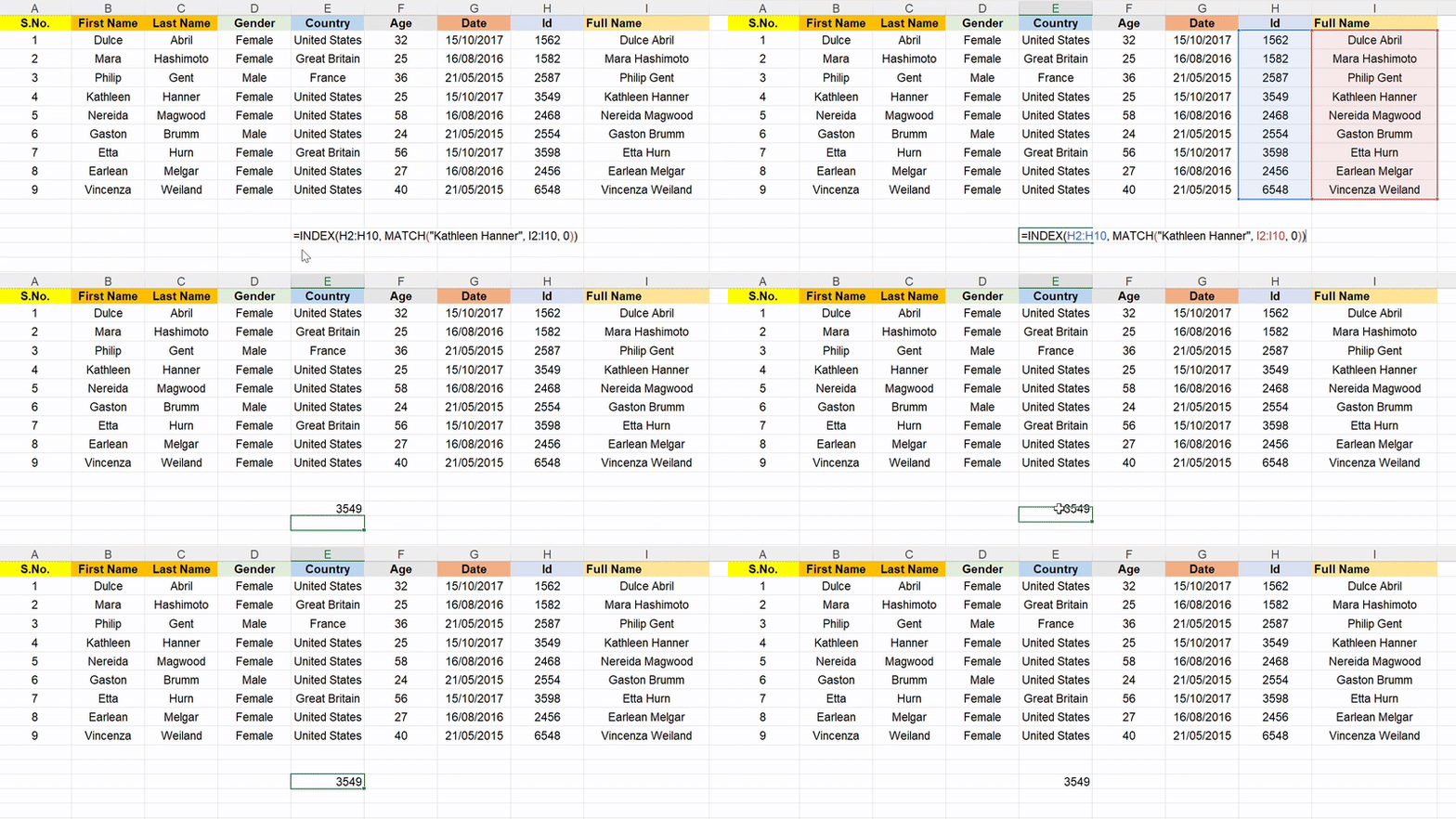
Let’s find the ID of ‘Kathleen Hanner’ using the ‘full name column’ (Column I).
The formula mentioned is: =INDEX(return_range, MATCH(lookup_value, lookup_range, 0))
This is what the Index Match functions mean here:
Hence, the final formula for the INDEX MATCH combination: =INDEX(H2:H10, MATCH(“Kathleen Hanner”, I2:I10, 0))
✅ Final output: 3549
While the INDEX MATCH formula splits the task across two functions, the Excel XLOOKUP function combines lookup and return logic into a more intuitive formula. It is Excel’s modern answer to VLOOKUP’s limitations and works seamlessly across well-structured source data.
It requires three main inputs: the lookup value, the lookup array (where to search), and the return array (what to return once found), to search lookups in every direction.
XLOOKUP also handles exact matches by default, supports search modes (e.g., reverse search), and returns custom values when no match is found, eliminating the need for IFERROR.
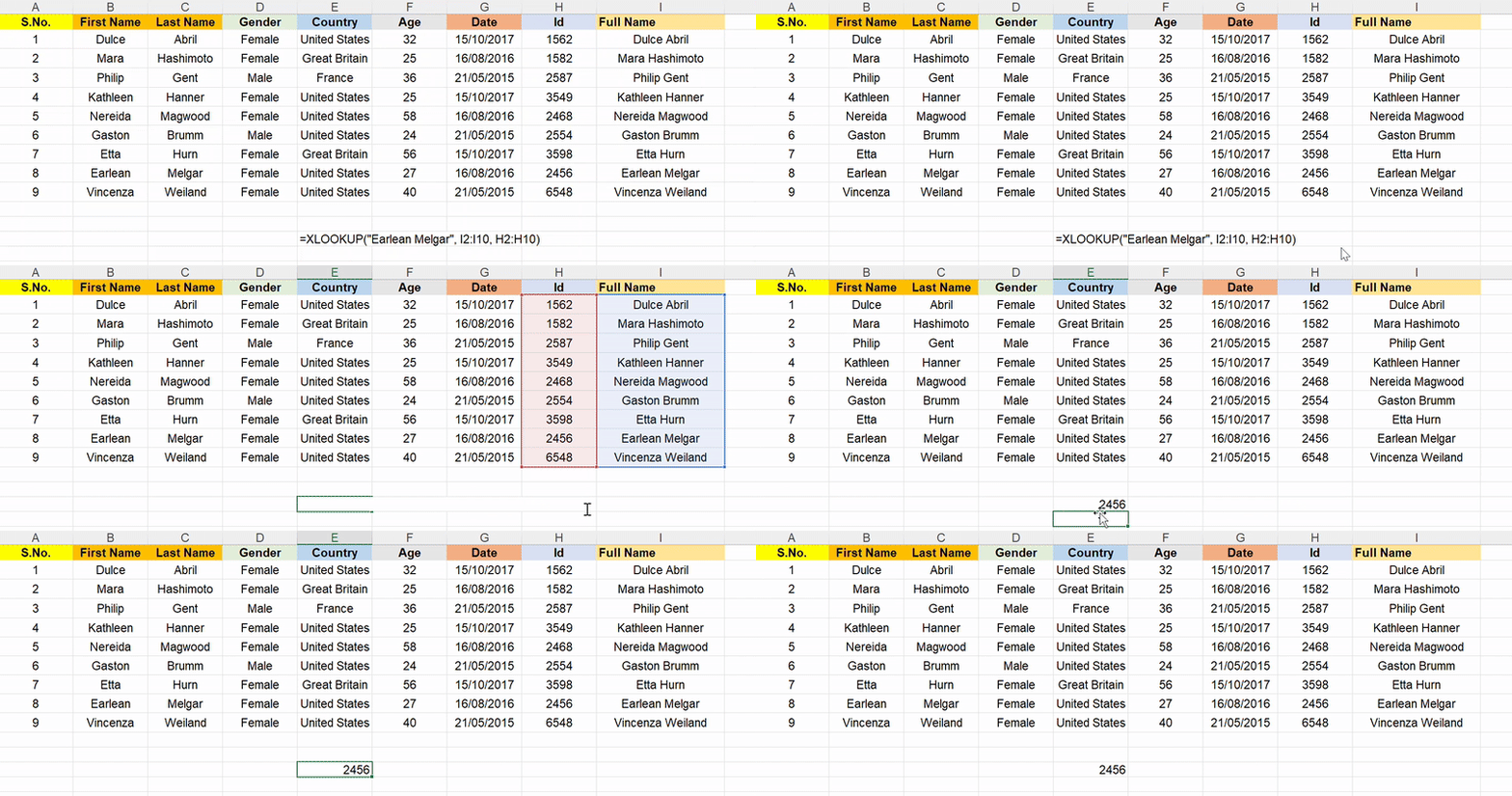
Let’s focus on the ID of ‘Earlean Melgar’ in column I:
The formula mentioned is: =XLOOKUP(lookup_value, lookup_range, return_range)
Check out this breakdown of the Excel XLOOKUP function:
Hence, the formula: =XLOOKUP(“Earlean Melgar”, I2:I10, H2:H10)
✅ Final output: 2456
📌Unlike MATCH, XLOOKUP performs an exact match by default, so you don’t need to specify 0.
🧠 Friendly reminder: XLOOKUP quickly pulls matching data from another table with a simple formula. Press F4 to lock ranges, then double-click the fill handle to apply it down the column.
📮 ClickUp Insight: 92% of workers use inconsistent methods to track action items, which results in missed decisions and delayed execution. Whether you’re sending follow-up notes or using spreadsheets, the process is often scattered and inefficient.
ClickUp’s Task Management Solution ensures seamless conversion of conversations into tasks—so your team can act fast and stay aligned.
The FILTER function is a Google Sheets-only alternative that returns all matching values, not just the first one. It auto-pulls rows or columns based on conditions you define, making it ideal for extracting entire datasets that meet specific criteria, something the VLOOKUP function can’t do without an array formula or helper column.
FILTER is also array-native, meaning it automatically spills results without needing Ctrl+Shift+Enter. It suits dashboards, reports, or flexible, multi-row lookups.
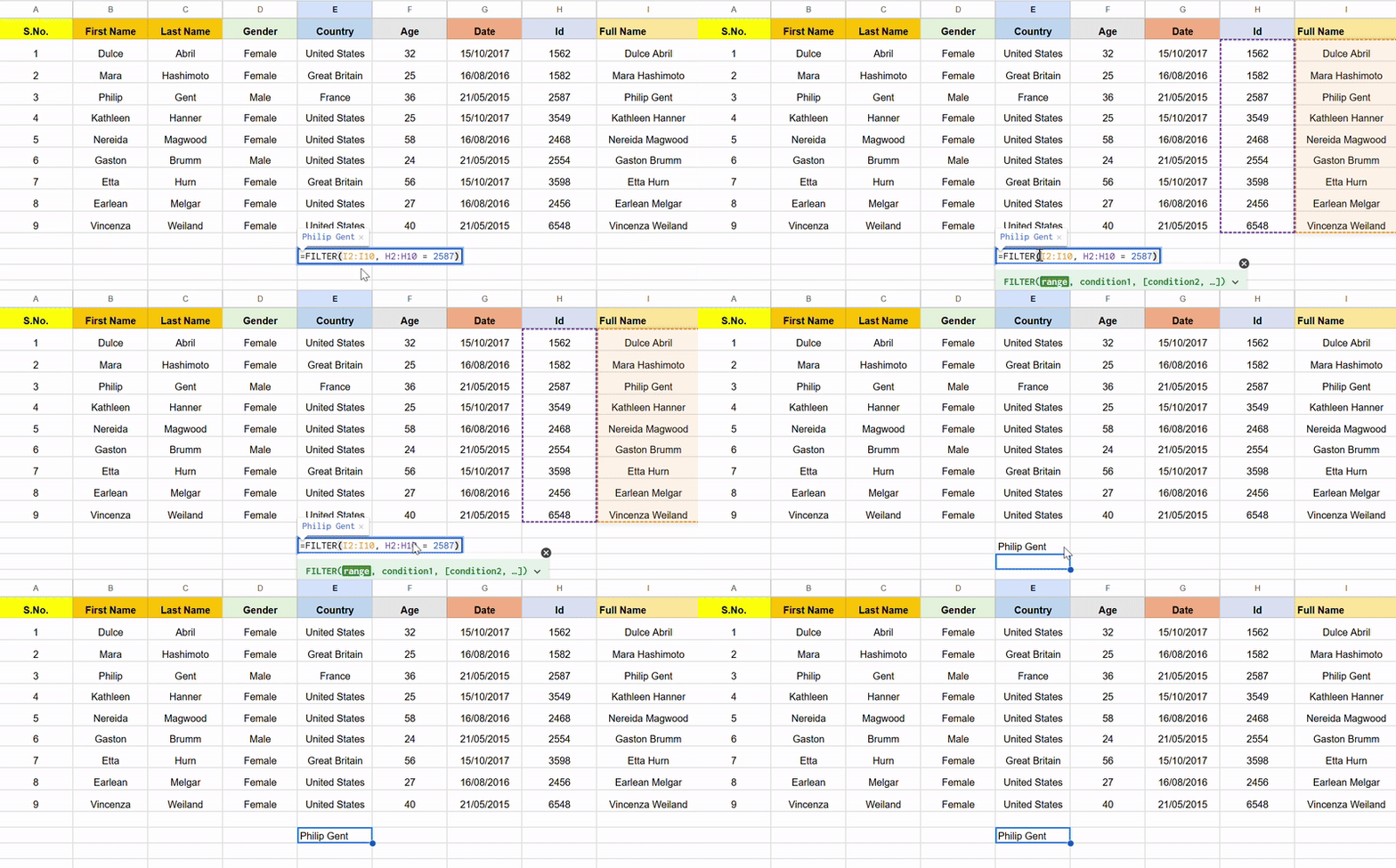
Let Google Sheets scan column H to find out the employee’s name with ID 2587!
The formula mentioned is: =FILTER(return_range, condition_range = lookup_value)
This is the breakdown:
Hence, the Google Sheets formula: =FILTER(I2:I10, H2:H10 = 2587)
✅ Final output: Philip Gent
QUERY turns your spreadsheet into a database by allowing you to use SQL-like commands (e.g., SELECT, WHERE, ORDER BY) directly on your data. It’s more readable for complex lookups and data manipulations, such as returning multiple rows that meet a bunch of conditions.
Unlike VLOOKUP, QUERY doesn’t require your lookup column to be in the first position. It references columns by label or position in any order. It’s especially useful for reporting, filtering, grouping, or summarizing data without writing multiple nested formulas.
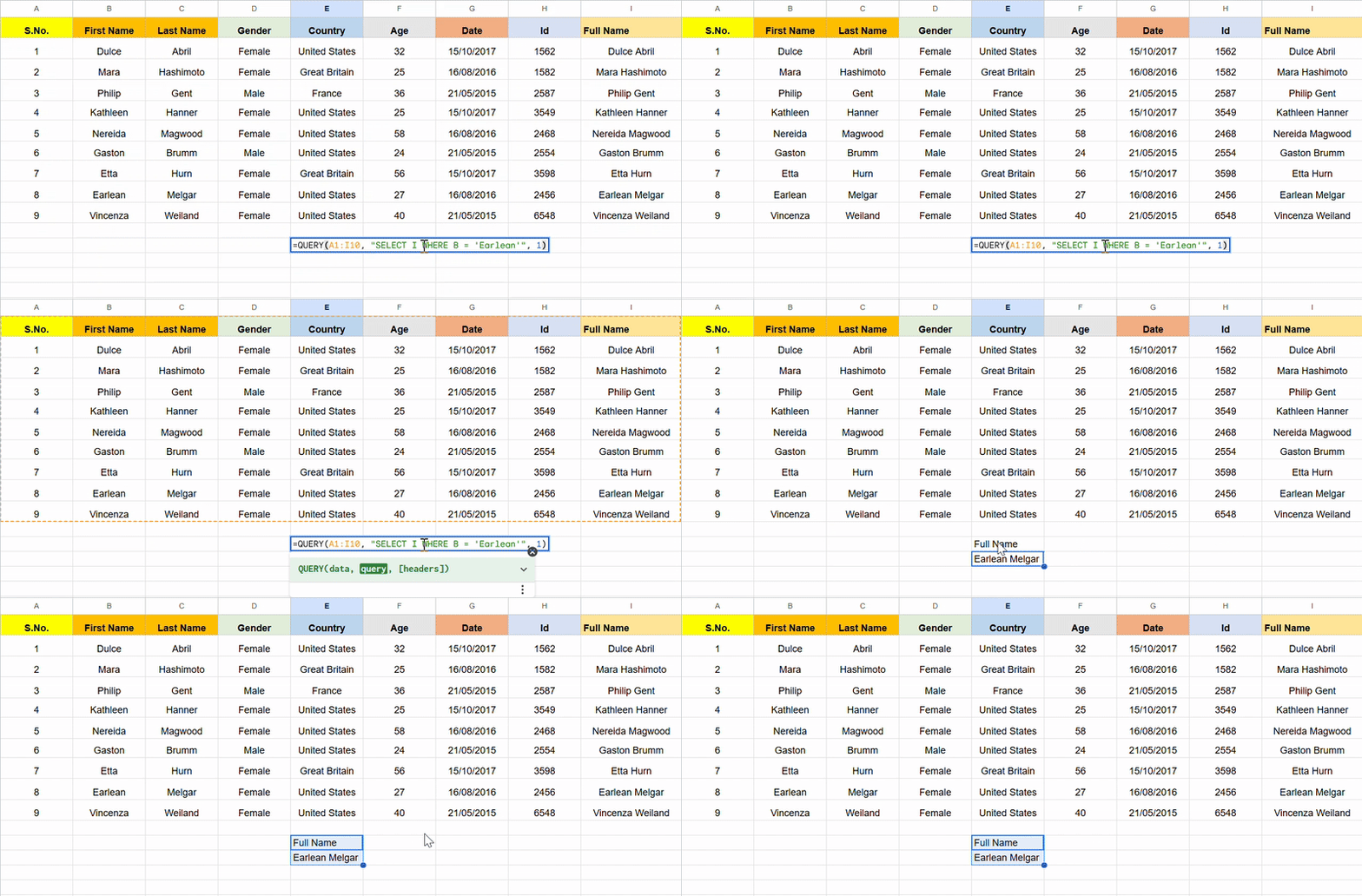
Here, Google Sheets reads the formula as ‘From the range A1 to I10, return the value in column I where column B has the value ‘Earlean’’.
The formula mentioned is: =QUERY(data_range, “SELECT return_column WHERE condition_column = ‘lookup_value'”, headers)
Here’s the breakdown:
Hence, the formula: =QUERY(A1:I10, “SELECT I WHERE B = ‘Earlean'”, 1)
✅ Final output: Earlean Melgar
📌 This QUERY formula is SQL-style and returns values from column I where column B equals ‘Earlean’.
👀 Quick Hack: Need to copy a value or extend a number sequence? Here’s a quick Excel hack: use the fill handle, the small square at the corner of a selected cell, to click and drag across rows or columns. You can also double-click the fill handle, and Excel will auto-fill the column down to match the length of your adjacent data.
The LOOKUP function searches vertically and horizontally, but only when the lookup range is sorted in ascending order. When working across different data shapes, it’s more forgiving than the VLOOKUP function because it doesn’t restrict you to left-to-right lookups.
However, its reliance on sorted data and lack of error handling make it less practical in modern workflows. Still, it can be handy for quick, approximate matches or when working with legacy files where other functions aren’t available.
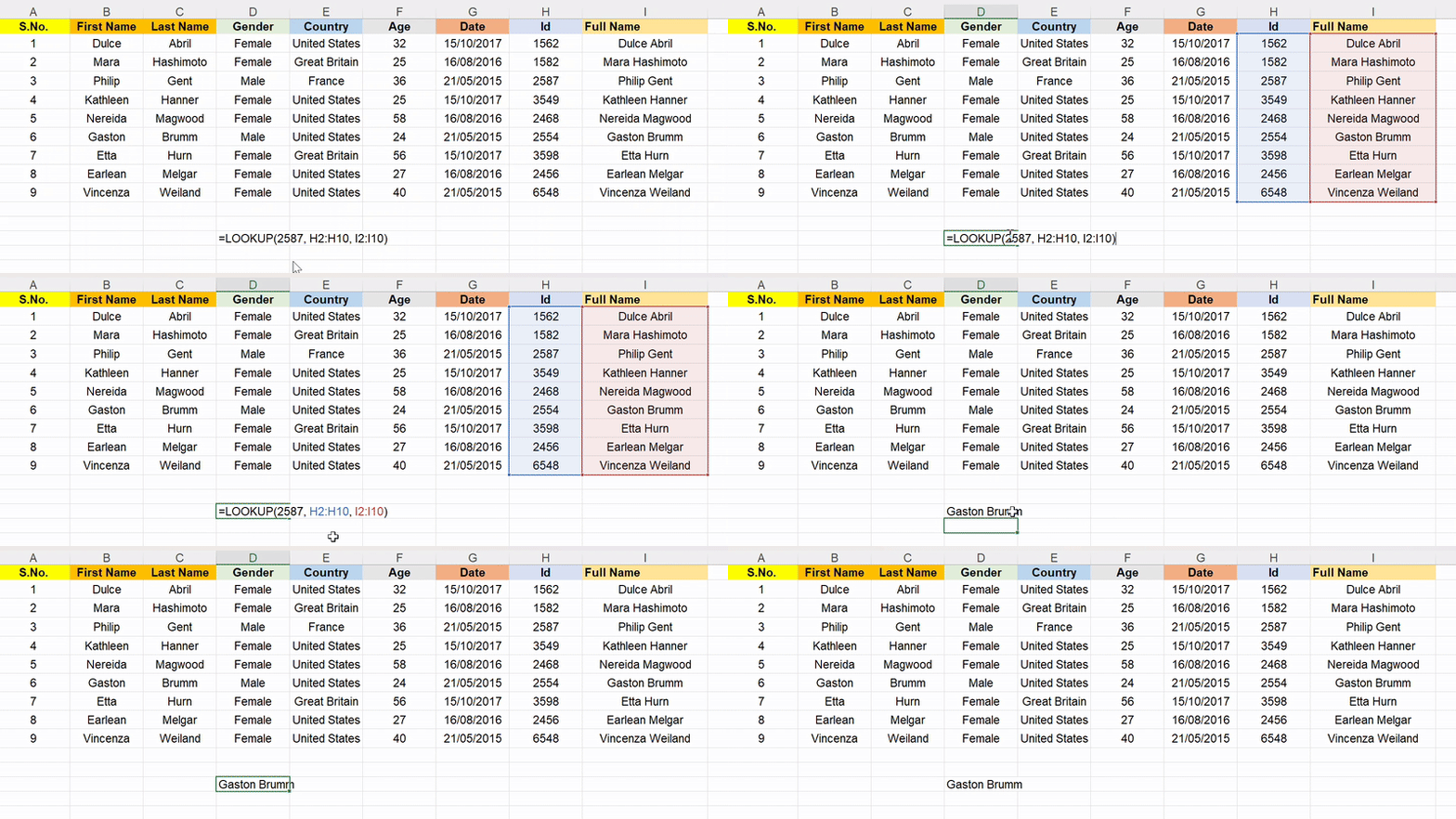
Excel scans down column H, finds the closest match ≤ 2587, and returns the corresponding name from column I.
The formula mentioned is: =LOOKUP(lookup_value, lookup_range, return_range)
Here’s the breakdown:
Hence, the formula: =LOOKUP(2587, H2:H10, I2:I10)
✅ Final output: Gaston Brumm
📖 Also Read: How to Use Excel for Project Management
The OFFSET + MATCH combination offers lookups by returning a cell reference based on a starting point, row/column offsets, and a match condition. It’s useful when your lookup values don’t fall into a fixed structure or your data range shifts over time.
MATCH locates the relative position, and OFFSET uses that to find the return cell. This formula is highly flexible for dynamic ranges, shifting data tables, or extracting values based on variable positions.
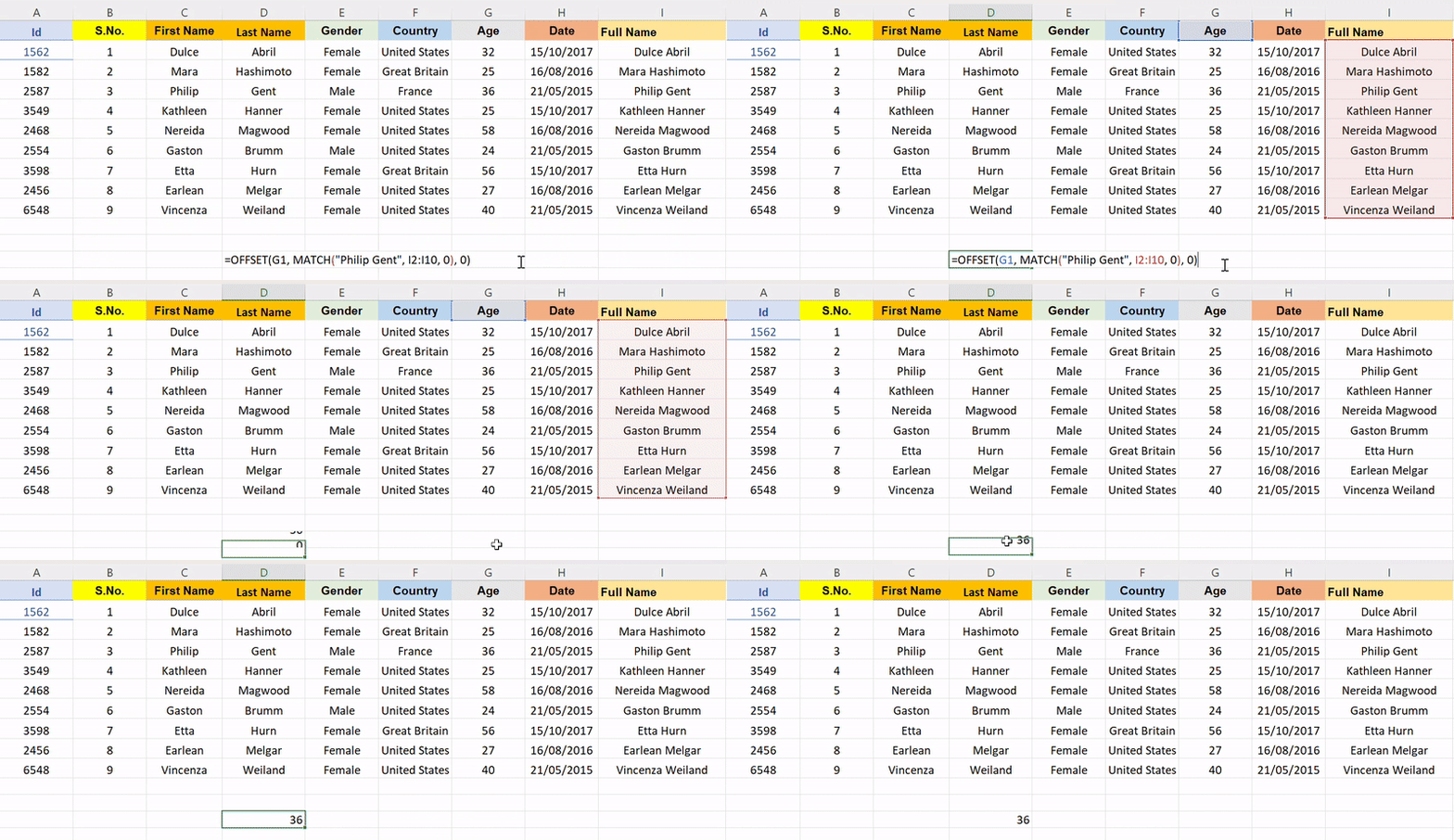
Let’s find out the age of Philip Gent in the data below!
The formula mentioned is: =OFFSET(reference_cell, MATCH(lookup_value, lookup_range, 0), column_offset)
Here’s how the breakdown would look:
Hence, the formula: =OFFSET(G1, MATCH(“Philip Gent”, I2:I10, 0), 0)
✅ Final output: 36
This trio leverages INDIRECT and ADDRESS to build cell references, and MATCH finds the target row or column. It’s particularly useful when the worksheet or cell reference needs to change based on input values, something VLOOKUP can’t handle.
For example, you can build formulas that look up data across multiple sheets or change table structures. However, INDIRECT is volatile, meaning it recalculates frequently and may slow down large files.
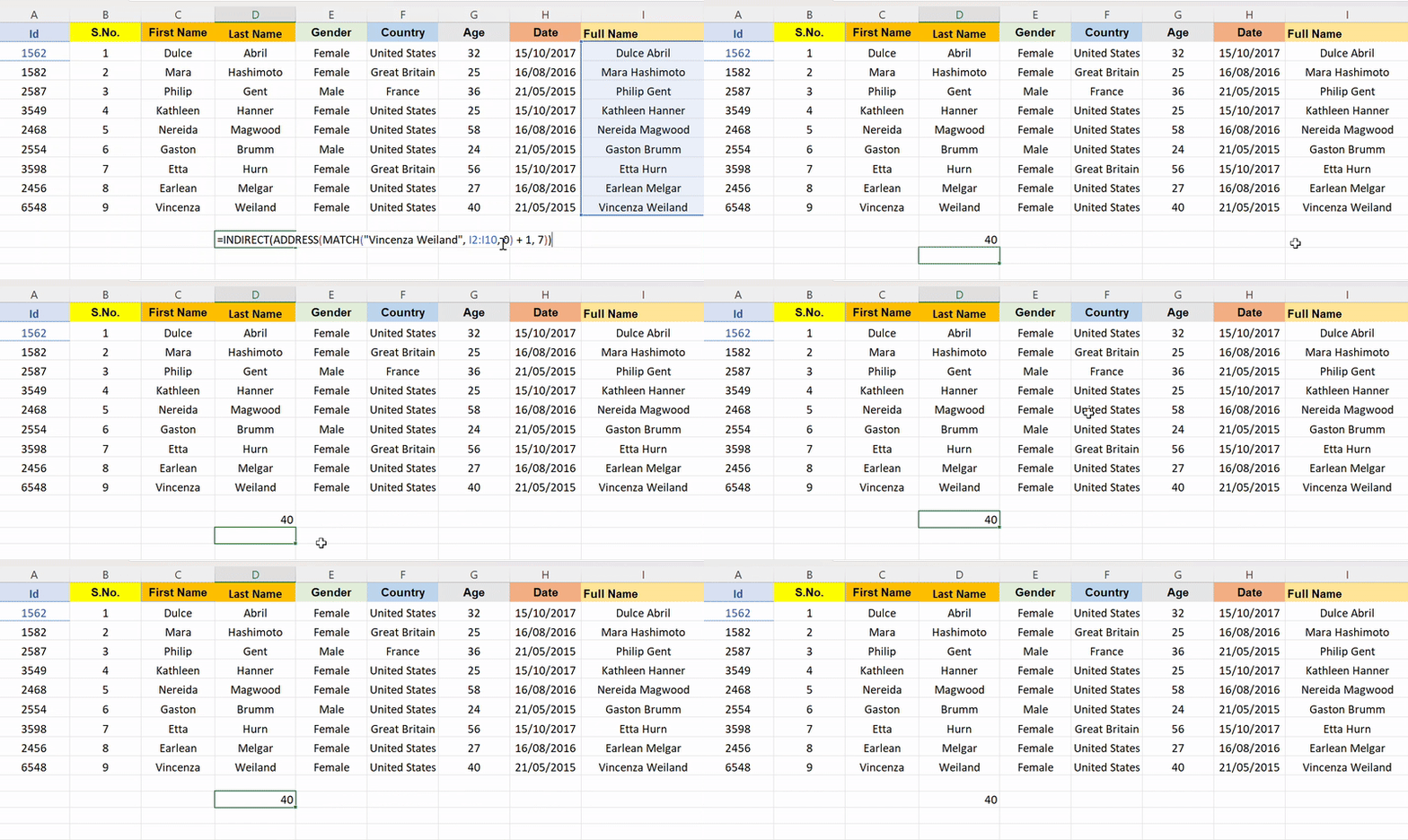
Let’s find the age of Vincenza Weiland!
The formula mentioned is: =INDIRECT(ADDRESS(MATCH(lookup_value, lookup_range, 0) + row_offset, column_number))
Hence, the formula: =INDIRECT(ADDRESS(MATCH(“Vincenza Weiland”, I2:I10, 0) + 1, 7))
✅ Final output: 40
👀 Did You Know? A staggering 61% of employees’ time is spent updating, searching, and managing information across scattered systems.
Not all lookup functions are created equal.
Whether you need to extract multiple values, perform lookups in reverse order, or manage heavy datasets across multiple columns, this comparison will help you choose the best VLOOKUP alternative for your workflow.
| VLOOKUP alternative | Best for | Why It’s better than VLOOKUP | Limitations |
| INDEX + MATCH | Users who want flexible lookups across multiple columns | Supports lookups in any direction, works with unsorted data, and is backward compatible with older Excel versions | Requires nesting two functions; not ideal for beginners |
| XLOOKUP(Excel only) | Excel 365 users who need an all-in-one, backwards-compatible function | Handles exact matches by default, works left/right, supports descending order | Only available in newer versions of Excel |
| FILTER(Google Sheets) | Users needing to extract multiple values matching a condition | Returns multiple rows, works dynamically with array-native logic, no helper columns needed | Doesn’t support an approximate match |
| QUERY(Google Sheets) | Power users who are comfortable with SQL-style filtering over multiple columns | Suitable for reporting, grouping, and filtering; readable and flexible | Requires SQL syntax knowledge |
| LOOKUP | Quick, simple, approximate match lookups in sorted data | Works both vertically and horizontally with minimal syntax | Requires ascending sort order, no error handling |
| OFFSET + MATCH | Scenarios with shifting ranges or dynamic rows/columns | Great for referencing numerical values relative to a starting point | Complex to build and audit, especially for new users |
| INDIRECT + ADDRESS + MATCH | Advanced users working across multiple sheets with variable structures | Dynamically builds references across sheet names or column positions | Volatile, slow in large files, fragile if sheet names change |
| ClickUp | Individuals, teams, or professionals managing live, relational data across multiple columns and use cases | No formulas needed, supports multiple values, numerical fields, filters, approximate matches, and real-time dashboards | A slight learning curve, but can easily be overcome with regular use and ClickUp University modules |
ClickUp, the everything app for work, creates an automated workflow for your data and business. You can compile information, put automations in place for real-time data updates, and generate visual reports.
Let’s break down this excellent Excel alternative!
If you’re managing a product launch across multiple regions, you’d likely have one tab for tasks, another for deadlines, and a third for team responsibilities in Excel. And everything would be handled with VLOOKUP.
But one wrong reference, and #N/A errors will flood everything.
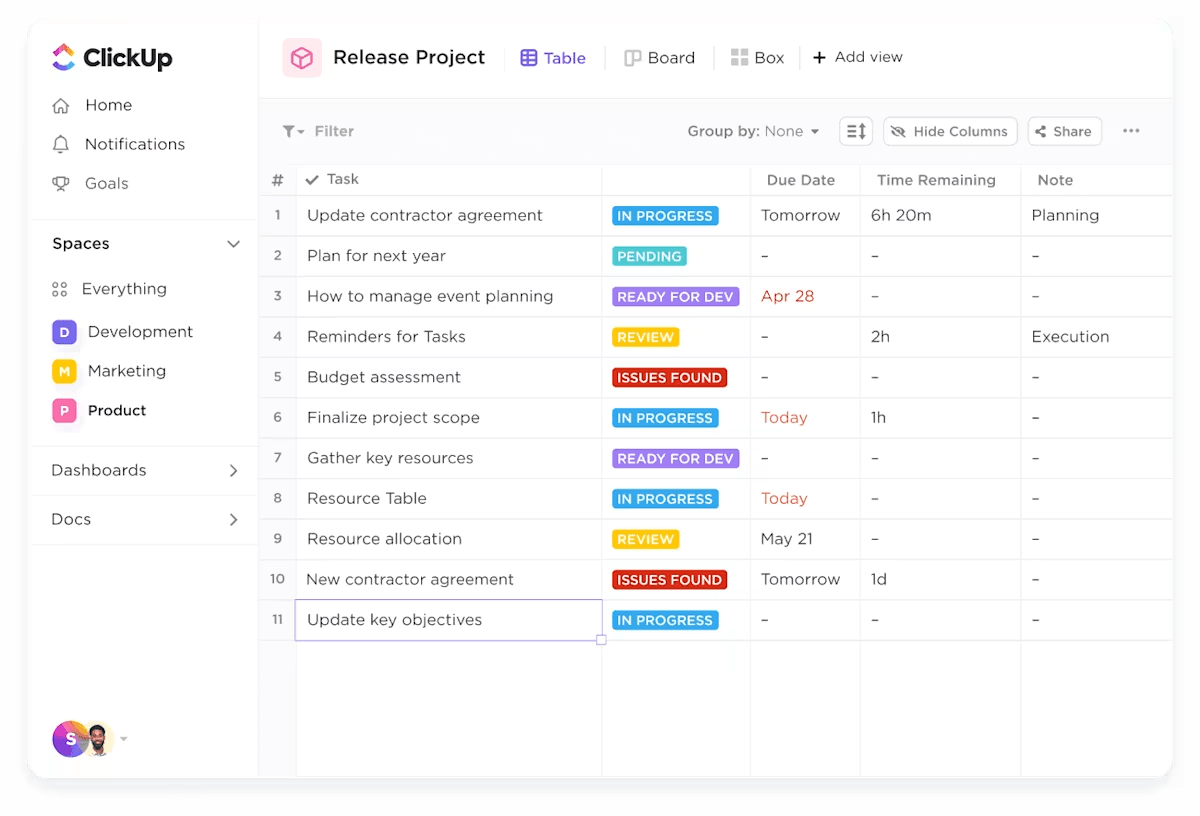
However, in the ClickUp Table View, each table-based row is a task or record, and you can sort, group, and filter your information just like Excel, but better.
The best part? Everything stays connected. You can link a customer row to their associated invoice, delivery timeline, and support ticket without cramming complex formulas.
Here’s why the ClickUp Table View is 10x better than spreadsheet software:
And because Table View works in sync with other views, you’re not locked into a single way of working.
The List View lets you switch from grid to checklist in seconds. Whether you’re managing a project or tracking research, it provides a clean vertical layout where each task acts like a card, complete with assignees, due dates, dependencies, comments, and attachments.
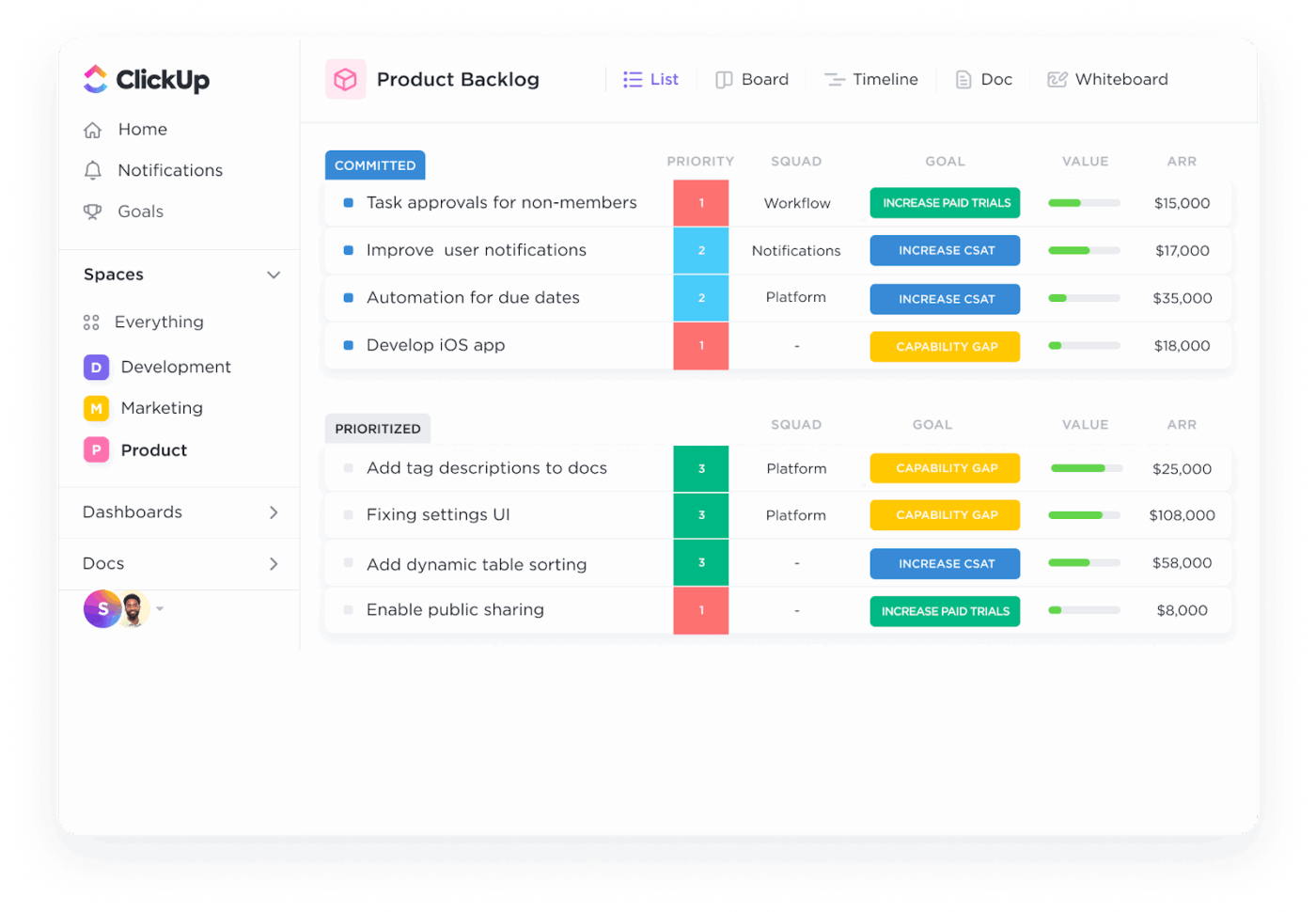
Depending on your focus, you can flip between Table and List Views: structured data or action items.
But wait, because here’s where ClickUp gets even more refreshing!
Instead of building multiple complex spreadsheets to track relationships between people, projects, or assets, you can simply link them using ClickUp Relationships.
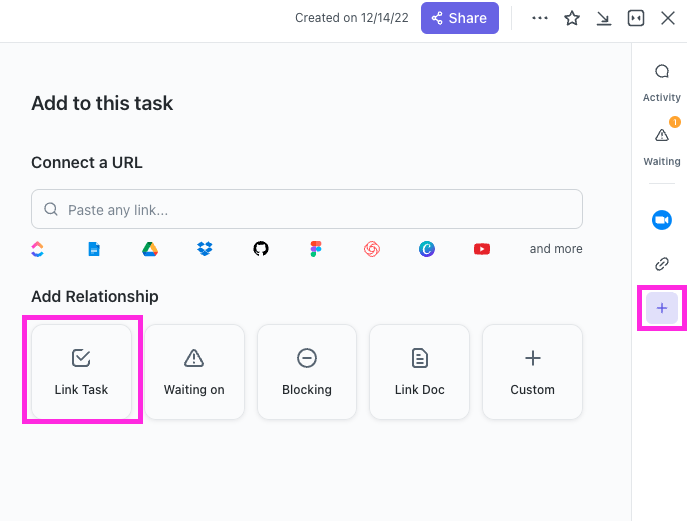
With it, you can:
💡 Pro Tip: Leverage ClickUp Automations to handle routine actions and reduce manual work. For instance, you can set up automation that assigns tasks to team members based on their roles or moves tasks to different statuses when certain conditions are met.
If you need heavier datasets or data filtering, you can also try ClickUp Custom Fields.
You can create as many Custom Fields (new columns) as you want—dropdowns, dates, checkboxes, ratings, currencies, or even formulas. Just create a new field. And once your fields are in place, you can filter, group, or sort your data for your desired result.
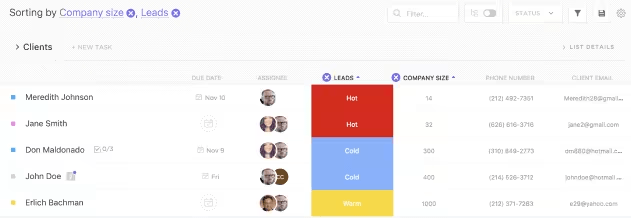
Here’s why Custom Fields is a great support:
After processing your data, ClickUp will also combine it using visual ClickUp Dashboards.
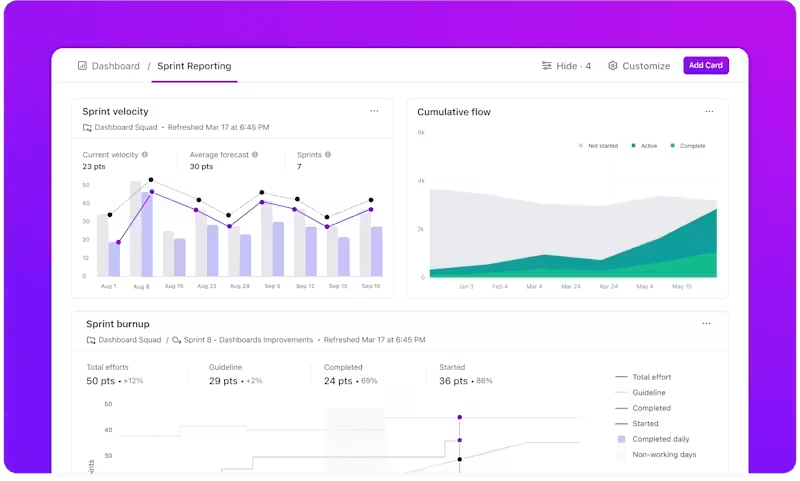
In other words, instead of exporting rows of VLOOKUP’d data to create charts elsewhere, you can build real-time dashboards with 50+ widgets here.
With ClickUp Dashboards, you can:
🎥 Watch: Here’s a quick primer on the best practices of using ClickUp Dashboards:
To explain this progress to a client or stakeholder, use ClickUp Docs.
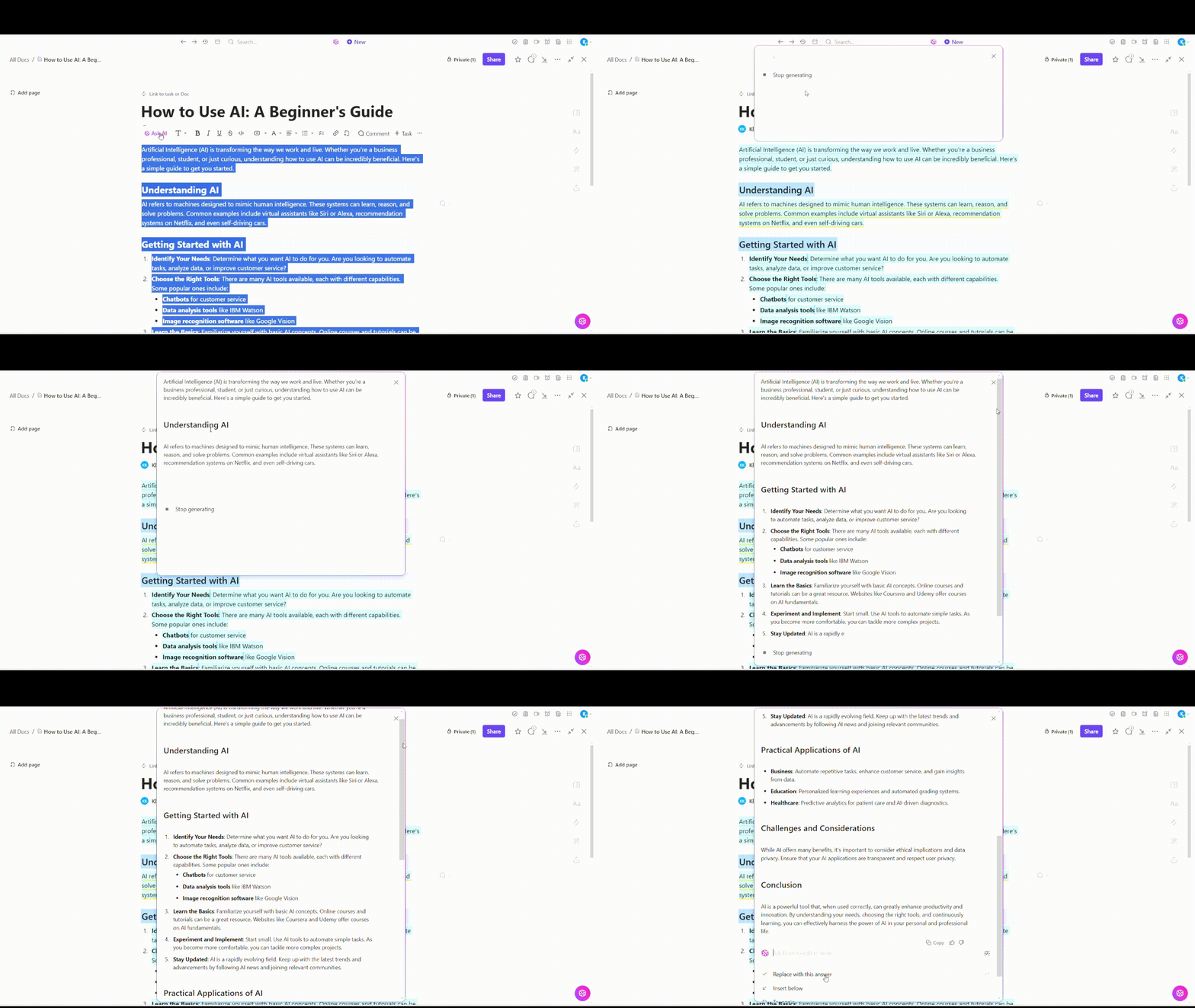
Each document can link directly to relevant tasks, people, or assets. You and your team can also collaborate in real time on these documents to fix errors, relay information, and improve context.
ClickUp Docs allows you to:
💡 Pro Tip: Working within the ClickUp ecosystem empowers your team to access engaging how-to guides and master essential tools. Use ClickUp University to save time and train your employees.
However, if you want a faster solution and something better than VLOOKUP, try the ClickUp Spreadsheet Template.
It is ideal for users who want to organize, access, and relate data without formulas. Instead of relying on static rows and columns, this template uses Custom Fields, Linked Tasks, and Table View to replicate and surpass traditional spreadsheet lookups.
You can create customer databases, internal tracking systems, or any workflow that needs flexible, filterable data access without formula maintenance.
With this template, you can:
📣 Customer voice: Dayana Mileva, an account director at Pontica Solutions, reviewed ClickUp:
The innovative minds within our organization always strive to be better and constantly look for ways in which we can save another minute or another hour, or sometimes even a whole day. ClickUp solved a lot of issues for us that, looking back at it, we were trying to handle using unscalable tools such as Excel tables and Word documents.
VLOOKUP serves us well, but its directionality, flexibility, and error-handling limitations have made it less suited for modern data workflows.
Smarter alternatives like INDEX MATCH, XLOOKUP, FILTER, and QUERY offer more power, accuracy, and control over your data.
But if you’re spending too much time fixing broken formulas or managing complex spreadsheets across multiple teams, it may be time to consider a more scalable solution.
With ClickUp, you can organize and act on your data without relying on formulas. From Custom Fields to Table Views to Dashboards, ClickUp turns your data-heavy spreadsheets into a connected, visual, and collaborative workspace.
Sign up for ClickUp for free today and see how much easier data management can be!

© 2026 ClickUp

There’s an easier way. Try a free AI Agent in ClickUp that actually does the work for you—set up in minutes, save hours every week.