


Sorry, there were no results found for “”
Sorry, there were no results found for “”
Sorry, there were no results found for “”
Constructive feedback fast-tracks progress, but only if it’s delivered correctly.
A vague comment buried in a long email? Easily misinterpreted. A text-based revision request? Lacks clarity. The result? More back-and-forth, wasted time, and avoidable mistakes.
This is where video feedback changes everything. In fact, viewers retain 95% of a message when they watch it in a video, compared to just 10% when reading it in text.
Today, we’ll explore effective video feedback examples and how to provide video feedback effectively.
Before we show you examples of video feedback, let’s understand why it actually matters:
Written feedback has its limitations—tone gets lost, and context can be misinterpreted. But a short video removes the guesswork. Your team can understand exactly what you mean, see what needs to be changed, and learn the next steps instantly.
💡Pro Tip: Keep feedback sessions short. A 30 to 60-second video is all you need to make your point. Anything longer, and you might lose your audience.
Ever read an email and immediately forgotten what it said? That’s because text alone isn’t always effective. People remember 65% of visual content three days later, compared to just 10-20% of text-based instructions.
Feedback delivered through video actually sticks. No more repeating yourself or following up because someone forgot what you said. A quick screen recording can replace multiple rounds of clarification.
Video feedback ensures that your projects are not stuck in limbo because written feedback wasn’t clear enough. When team members can hear your tone and see exactly what you mean, revisions happen faster, and work moves forward without bottlenecks.
The data agrees: 67% of employees complete tasks more accurately when instructions include video instead of just text.
Below are some of the best ways to provide visual feedback and avoid endless revision loops:
Imagine you’re reviewing a website mockup. Some icons need to be changed, the text spacing is inconsistent in some places, and there are a few spelling errors. You could take a screenshot and add arrows to highlight each issue. Or, you could write long comments like “On the home page, the icon in the second block is not aligned.”
But there’s a better way to give design feedback—just record a quick video. In a minute or two, you can point out everything, making it much easier for the designer to understand and fix the issues.
You can try a simple video feedback tool, such as Loom, to explain the design changes.
But if you need the best video feedback software that helps you create and share videos directly from the project workspace, ClickUp Clips can make all the difference. You can annotate images, videos, or PDFs, and record Clips directly from the comment section.
Performance reviews are a critical part of growth, but they often lack a personal touch when delivered through text. A written review can feel cold, unclear, or even discouraging if the tone isn’t right. Plus, long paragraphs of feedback can be overwhelming.
By recording quick videos, you can give personalized feedback to your team members, highlighting their strengths, addressing improvement areas, and ensuring your message lands exactly as intended. They get clear, actionable feedback, not just another email to skim through.
Plus, the team members can understand your tone and facial expressions, making the feedback feel more genuine.
📖 Read More: How to Make a Training Video at Work
📮ClickUp Insight: 50% of our survey respondents report Friday as their most productive day. This could be a phenomenon unique to modern work. Fridays tend to have fewer meetings, and this, combined with the context accumulated from the workweek, could mean fewer disruptions and more time for deep, focused work.
Want to retain Friday-level productivity all week long?
Embrace async communication practices with ClickUp, the everything app for work! Record your screen with ClickUp Clips, get instant transcriptions through ClickUp Brain, or ask ClickUp’s AI Notetaker to step in and summarize meeting highlights for you!
Detailed customer feedback is essential for identifying pain points, improving interactions, and tailoring experiences to meet customer needs. However, when feedback comes in through text-based surveys or support tickets, some information always gets lost.
A short “The checkout process was confusing” statement doesn’t tell you why it was confusing. Was it the payment option? The form fields? The confirmation page? Without proper context, teams are left making assumptions.
That’s why video feedback is a better way to capture customer insights. It helps you see and hear exactly what frustrates or delights your users.
📌 You can add simple prompts in feedback form templates to request customer feedback, such as:
Remember to organize all customer feedback videos into categories to spot trends and common issues.
🎬 Examples of using video feedback for understanding customer experience:
💡Pro Tip: Ask your customers to install the Clip Chrome extension or any other screen recorder chrome extension to record quick videos of their onboarding experience or website bug.
Sharing clear and actionable feedback is one of the toughest challenges for any educational instructor. According to a study, students struggle to implement feedback because it’s not personalized, is too authoritative, or doesn’t understand the terminology used in the assessment feedback.
As an educational instructor, you don’t have to rely on long text-based comments that lack nuance and personal connection. Videos work way better to share effective feedback.
With a short video, you can review assignments explaining student’s actual performance, highlight strengths, and address areas for improvement. Screen recordings let you pinpoint specific sections, ensuring students know exactly what to focus on. You can also share pre-recorded explanations or training materials, giving students on-demand access to detailed insights.
This is what recording a video while reviewing an assignment can look like:

🎬 Examples of using video feedback for students:
🧠 Did you know? Multimodal video feedback improves student comprehension and engagement, making it a powerful tool in digital learning environments.
Marketing campaign videos need to be flawless. A single mistake in messaging or visuals can weaken the campaign and might impact the brand’s reputation, too. Video feedback makes it easier to provide structured guidance to your marketing team.
You can comment directly on the video to enable faster and more accurate revisions. Record your screen as you pause, annotate, and explain changes in real time. It also becomes easier to instruct your team to adjust the pacing of an intro, refine an overlay image, or tweak the CTA placement.
🎬 Examples of using video feedback for marketing campaigns:
🧠 Did you know? 48% of employees say video messages are the most engaging form of communication compared to text or email.
Written bug reports can often slow things down as developers struggle to understand the problem from text alone. A vague report like “The drop-down isn’t working” doesn’t explain when, where, or why it happens.
With video feedback, quality assurance (QA) teams can record the issue in real time, showing exactly how to fix the bug and highlighting the expected vs. actual behavior. No misinterpretations, no wasted time.
Screen recording a software bug also helps developers analyze whether the user is following the process correctly and the potential factors that might be causing the bug.
This is how BetterBugs, a bug-reporting software, enables users to record screen videos.

🎬 Examples of using video feedback for bug reporting:
📖 Read More: How to Record Yourself Presenting a Powerpoint
Project managers often struggle to effectively communicate complex progress updates to stakeholders and team members. Written status reports can feel dry and fail to capture the dynamic nature of ongoing work.
With video feedback, project managers can create visual walkthroughs that showcase completed milestones, demonstrate blockers, and highlight upcoming priorities. By recording their screen while navigating through project management software, they can provide contextual updates that stakeholders can understand at a glance.
🎬 Examples of using video feedback for project progress walkthroughs:
This approach transforms static project updates into engaging visual stories that keep everyone aligned and informed.
As helpful as video feedback is, the process of recording, saving, and sharing the video can be a hassle. This is where ClickUp saves you so much time and effort. It is the everything app for work that enables quick screen recording for smooth team collaboration.
Let’s see how you can use ClickUp’s screen recorder for video feedback.
With ClickUp Clips, you can screen record any part of your work, be it a video, document, or project dashboard—and instantly share it with your team. It also enables you to send audio notes to provide detailed feedback.
Simply click the video icon on the top menu bar and start recording a Clip.

You can even provide audio feedback using ClickUp Clips. Want to provide contextual feedback? ClickUp enables you to record a clip directly from the Task Comments, Docs, and Chat.
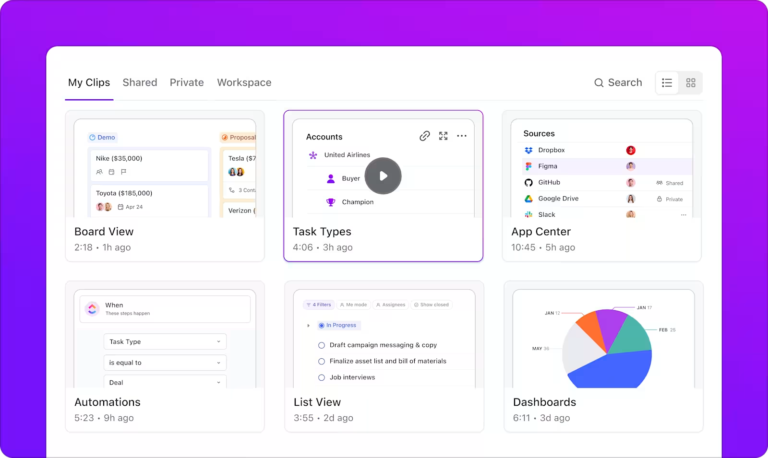
Plus, you can manage all your Clips in the Clips Hub, located on your left-side panel.
Let’s say you record a video sharing the feedback. Your team member has some follow-up questions. Now, you’ll have to go back to the video to check what they are asking about.
ClickUp takes care of this, too. It’s easy to click anywhere in a Clip and add a time-stamped Comment. This reduces back-and-forth.

Another challenge with video feedback is that users need to go through the video multiple times to get relevant information. Not with ClickUp Brain, though!
ClickUp Brain, ClickUp’s powerful AI assistant, can transcribe the Clips and create summaries so you can quickly get the whole context.
The best part? ClickUp Brain generates action items from any Clip and converts them into Tasks for accountability.

Need to refer to feedback shared in a clip but can’t find it? Ask ClickUp Brain! It searches the clips to get you the exact information you need.

If you don’t want to record a video but still give clear and actionable feedback, you can use ClickUp’s Proofing features. It allows you to annotate images, videos, and PDFs in just a few clicks.
Open the attachments shared in the Task and go to Add Comment. Now, you can click anywhere on the visual to add detailed comments.

With the Proofing tool, you can:
If you want to collaborate face-to-face or via audio without leaving ClickUp, you can use SyncUps in ClickUp Chat. It allows you to start instant video or audio calls directly from any Chat channel or direct message.

Open a Channel or direct message in Chat and tap the SyncUp icon in the upper-right corner. You can start or join a SyncUp instantly. While in a SyncUp, you can share your screen, connect tasks, and even record the session if enabled. The call window can be minimized so you can keep working in ClickUp.
Already using video feedback software like Loom, Zoom, or Vimeo? ClickUp integrates seamlessly with these tools, allowing you to attach video feedback directly to Tasks, Docs, and Comments. This way, you do not have to search through email threads or cloud storage, and all feedback stays connected to your workflow.
Video feedback makes collaboration clearer, faster, and more effective, but only when done right. Here are five best practices to make sure your feedback is helpful and actionable:
Long-winded explanations defeat the purpose of video feedback. Stick to explaining the issue, and suggesting a fix. If your feedback requires multiple points, break it into separate clips so teammates can address each change individually without having to rewatch an entire video.
🧠 Did you know? Forrester Research reported that employees are 75% more likely to watch a video than to read documents, emails, or web articles.
Recording feedback allows you to pinpoint exactly where a change is needed. While recording, pause at the right moment, hover over the area that needs adjustments, and verbalize the exact fix.
📖 Read More: How to Conduct Post Training Feedback Surveys
Describe necessary changes while keeping a supportive tone to give quality feedback. This not only makes feedback constructive but also keeps morale high.
Rather than saying, “This doesn’t work,” clarify the problem and offer a solution. For example, “This section feels rushed. Let’s extend the transition by a second for a smoother flow.” This makes it easier for the recipient to understand and act on your feedback.
Scattered feedback across emails and project management tools leads to confusion and missed revisions. Store video feedback directly within project management tools like ClickUp, attaching Clips to Tasks or adding them to Docs for reference. This way, feedback stays tied to the project, making it easy to revisit and act on.
📖 Read More: Project Management for Video Production
Video feedback is only effective when it’s organized, actionable, and easy to access—and that’s exactly where ClickUp makes a difference.
With ClickUp Clips, you can screen record directly within tasks, Docs, and Chat, keeping feedback contextual and clear. Plus, with task proofing and comments, teams can leave time-stamped notes, ensuring feedback is precise and easy to act on.
Whether you’re reviewing designs, reporting bugs, or onboarding new hires, ClickUp brings video feedback, collaboration, and task management into one simplified workspace. Ready to simplify your workflow? Sign up for ClickUp today and see how easy video feedback can be.

Manasi Nair
Max 20min read

Praburam Srinivasan
Max 14min read
Manasi Nair
Max 32min read

© 2026 ClickUp




