






Still downloading templates?
There’s an easier way. Try a free AI Agent in ClickUp that actually does the work for you—set up in minutes, save hours every week.
Sorry, there were no results found for “”
Sorry, there were no results found for “”
Sorry, there were no results found for “”
75% of knowledge workers are already using generative AI on the job. But they treat AI only like a sidekick.
You open AI assistants like Claude, ask a question, copy the answer, and paste it into a doc, task, or chat. Then you do it again. And again.
Claude is great for thinking, writing, and problem-solving. But, when it’s used this way, its outputs stay isolated. The ideas don’t automatically connect to your tasks, projects, or team workflows. That means more manual steps, more context switching, and less follow-through.
Using Claude for productivity is most effective when you integrate it into your everyday workflow. This guide will show you how to do that.
And, if you need more powerful, Contextual AI tools where AI can live directly inside your work, not just alongside it, read on till the end because…we’ll introduce you to ClickUp!
Your day is a constant shuffle. You’re jumping between your project plan, a spreadsheet, your email, and a dozen other tabs. This context switching drains your focus.
Small, repetitive tasks make it worse. Formatting reports. Cleaning up notes. Writing the same updates again and again. These jobs don’t feel hard, but they quietly consume the time and energy meant for deeper, strategic work.
This Work Sprawl is the biggest blocker to productivity today. The workload isn’t the problem; the cognitive load is. Every tool, tab, and handoff asks your brain to reset. Over time, that mental tax slows down decisions, reduces clarity, and drains momentum.
👀 Did You Know? 42% of disruptions at work come from juggling platforms, managing emails, and jumping between meetings.
Claude is built to reduce that mental overhead. Developed by Anthropic, Claude is a large language model (LLM) that works through natural conversation. It can help you think, write, summarize, and analyze without needing rigid commands or technical prompts.
Unlike simpler models, Claude can:
Used well, Claude becomes less of a chatbot—and more of a thinking partner.
💡 Pro Tip: Adding yet another AI tool to your stack, even a smart one, can lead to AI Sprawl. This unplanned proliferation of AI tools with no oversight leads to wasted money and higher security risks.
ClickUp’s Converged AI Workspace offers a single platform where projects, documents, conversations, and AI intelligence work together. Inside ClickUp, context-aware AI knows and understands your work. So, you spend less time copy-pasting and more time moving work forward.
If you’re curious about AI but feel like you’re mostly playing around, you’re not alone. Many people use Claude the way they’d use a search engine—ask a question, skim the answer, move on. That’s useful, but it rarely saves real time.
The shift happens when you stop treating Claude like a lookup tool and start treating it like a teammate. A teammate needs context. Clear instructions. And a shared understanding of what “good” looks like.
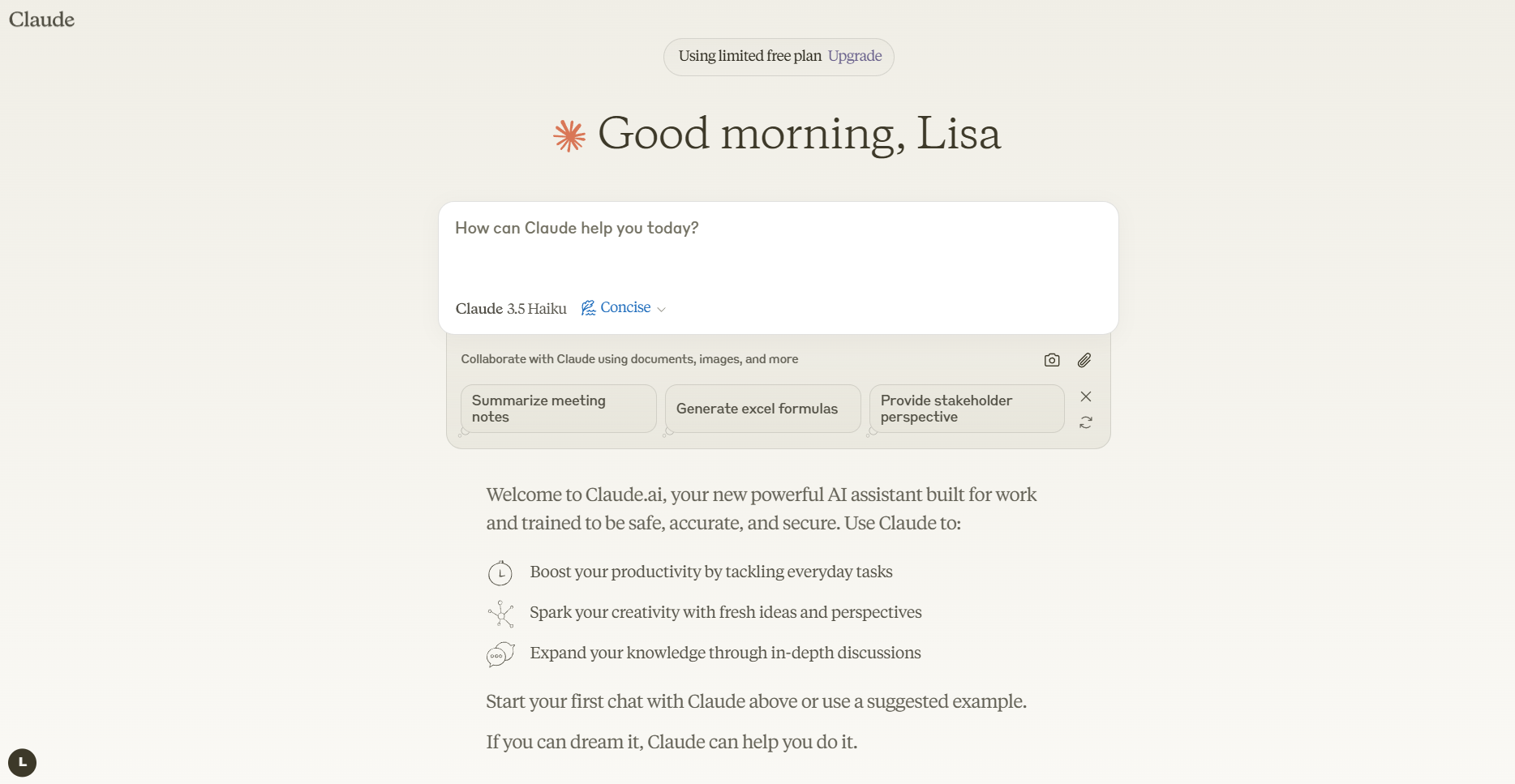
Head to claude.ai and set up your account to get started.
Once you’re in, the most important feature to understand is ‘Projects.’ A project is a dedicated folder where Claude remembers key context for all conversations within that project. This can include style guides, background documents, or user personas.
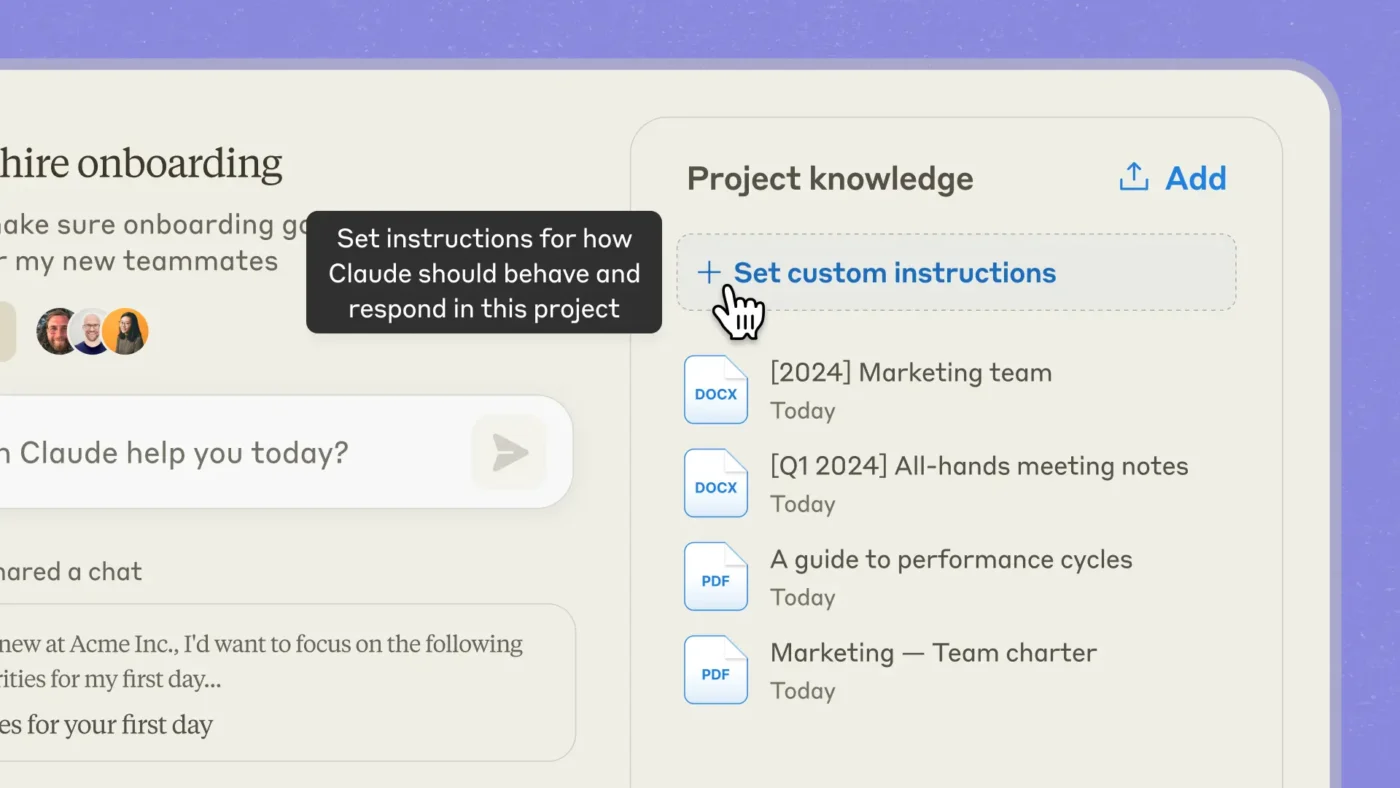
Projects are what turn Claude from a one-off helper into a consistent productivity tool. They reduce repetition, improve output quality, and make each new prompt faster than the last.
To make your first session productive, follow these steps:
Using Claude right comes down to effective prompt engineering. Vague requests get you generic results. Adding context makes the output much more impactful.
Curious if the free version is enough for you? Here’s a quick comparison between Claude’s Free and Pro versions to guide you:
Capability Claude Free Claude Pro Usage limits Lower daily/session message quotas; session resets every ~5 hrs; may hit caps relatively quickly Substantially higher usage limits (~5× free); more messages and extended quotas File uploads Supported but limited (smaller files, restricted total per day) Larger and more extensive upload capacity and handling Projects / context memory Not available for persistent context across sessions Supports Projects/Knowledge Bases for ongoing context API access API access is separate and not tied to Free API access is separate and not tied to Pro
📮ClickUp Insight: 62% of our respondents rely on conversational AI tools like ChatGPT and Claude. Their familiar chatbot interface and versatile abilities—to generate content, analyze data, and more—could be why they’re so popular across diverse roles and industries.
However, if a user has to switch to another tab to ask the AI a question every time, the associated toggle tax and context-switching costs add up over time.
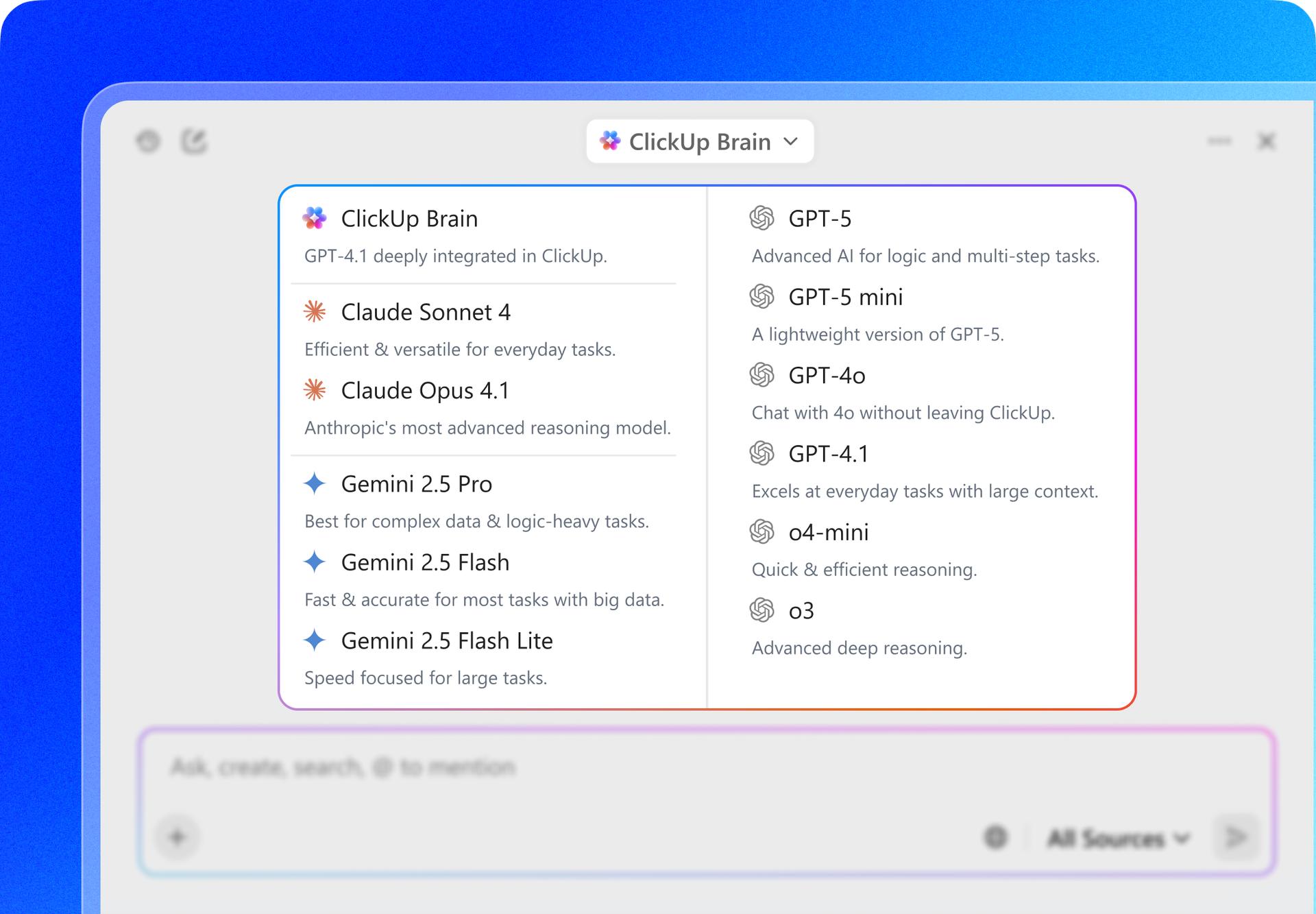
Not with ClickUp Brain, though. It lives right in your Workspace, knows what you’re working on, can understand plain text prompts, and gives you answers that are highly relevant to your tasks! Experience 2x improvement in productivity with ClickUp!
Anthropic analyzed ~100,000 real Claude conversations. They estimate that tasks taking about 90 minutes without AI are completed in ~18 minutes with Claude. This results in approximately 80 % time savings per task.
Want to use Claude to improve your team productivity? We’ve got just the tips for you!
We’ve picked processes that consume hours of human time but follow a pattern that AI can automate and accelerate.
Your team spends hours wrestling with spreadsheets. Cleaning data, writing formulas, and trying to pull out key insights can be a major time sink. You know the answers are in the data, but getting to them can be slow and error-prone.
Upload a CSV file to Claude and ask it to analyze it in plain English. It can generate complex formulas, clean up messy data, or even write SQL queries for you.
💬 Here are a few prompts to try:
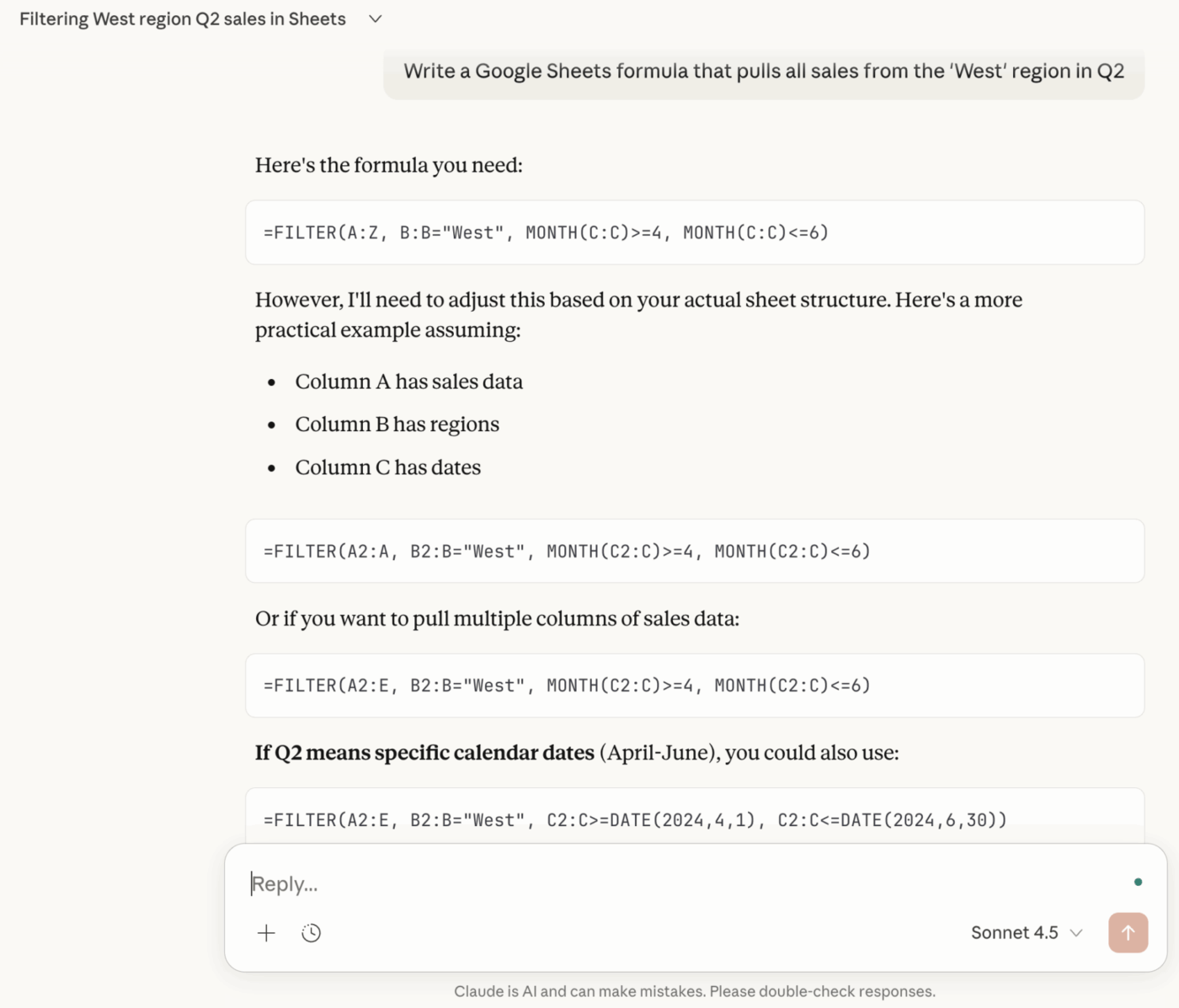
You still have to copy the formula or the cleaned data and paste it back into your spreadsheet.
💡 Pro Tip: With ClickUp Brain, you can skip this step entirely. Ask questions about any spreadsheet data in plain language and get answers instantly.
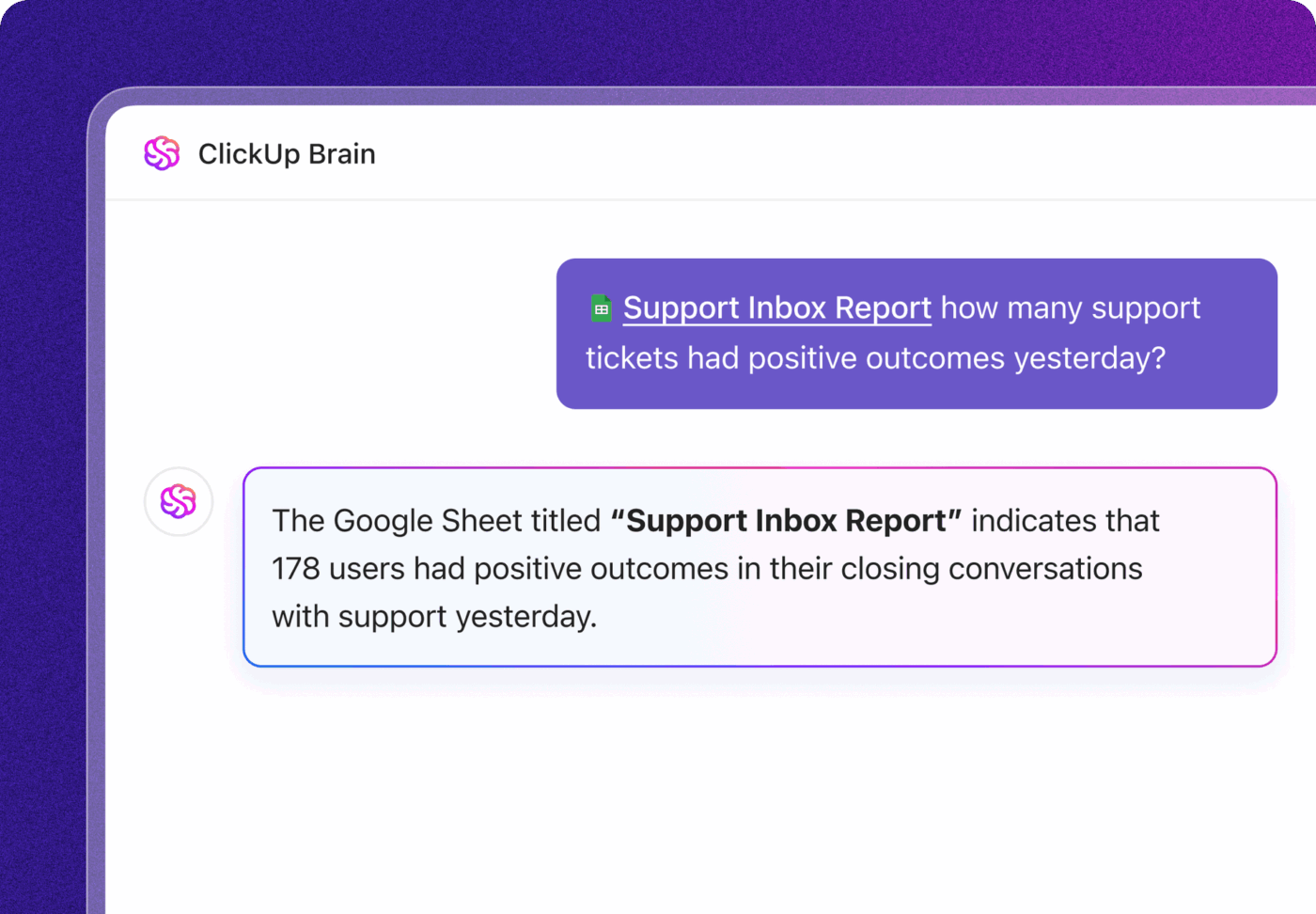
Instead of building formulas or exporting cleaned data, you can ask things like “Show me all West region sales from Q2” and move straight from insight to action, without leaving your workspace.
Need a chart for a presentation? Don’t have the time to fight with a complex charting tool…or the design skills to make it look good?
Claude’s Artifact feature can help! Use it to generate charts and diagrams directly in the chat window. Just provide your data, specify the type of visualization you want, and Claude will create an interactive preview.
💬 This is great for creating:
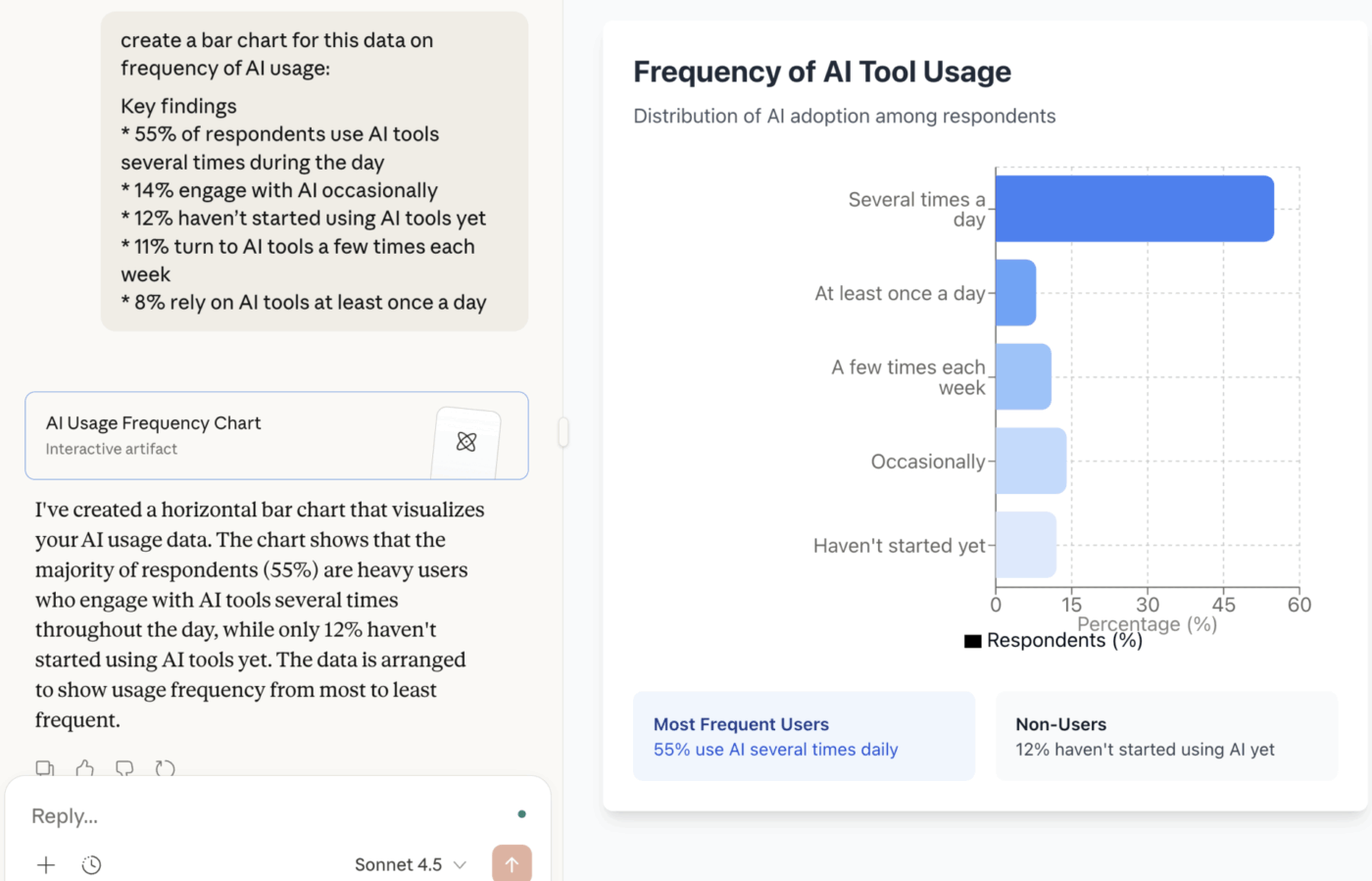
These images may be perfect for quick internal drafts. But you’ll need to refine them for polished, client-facing presentations.
💡 Pro Tip: If you need project charts and reports that auto-update with live data, try ClickUp Dashboards. Dashboards pull real-time data from tasks, lists, and docs so your numbers stay current.
With AI Cards, dashboards go a step further. Rather than just showing static charts, AI Cards let you ask questions about your data and get instant insights. You can surface trends, summaries, blockers, or progress updates in plain language. You don’t need to manually filter or calculate anything.t
Here’s a familiar scenario. A great idea for a new feature is stuck in a document. Why? Because your non-technical team members can’t build a working version to test it. You’re waiting for engineering resources. This slows down innovation and makes it hard to get stakeholder buy-in.
With Claude, you can generate working code artifacts. Without writing a single line of code. This allows anyone to quickly build and test ideas.
💬 Try creating:
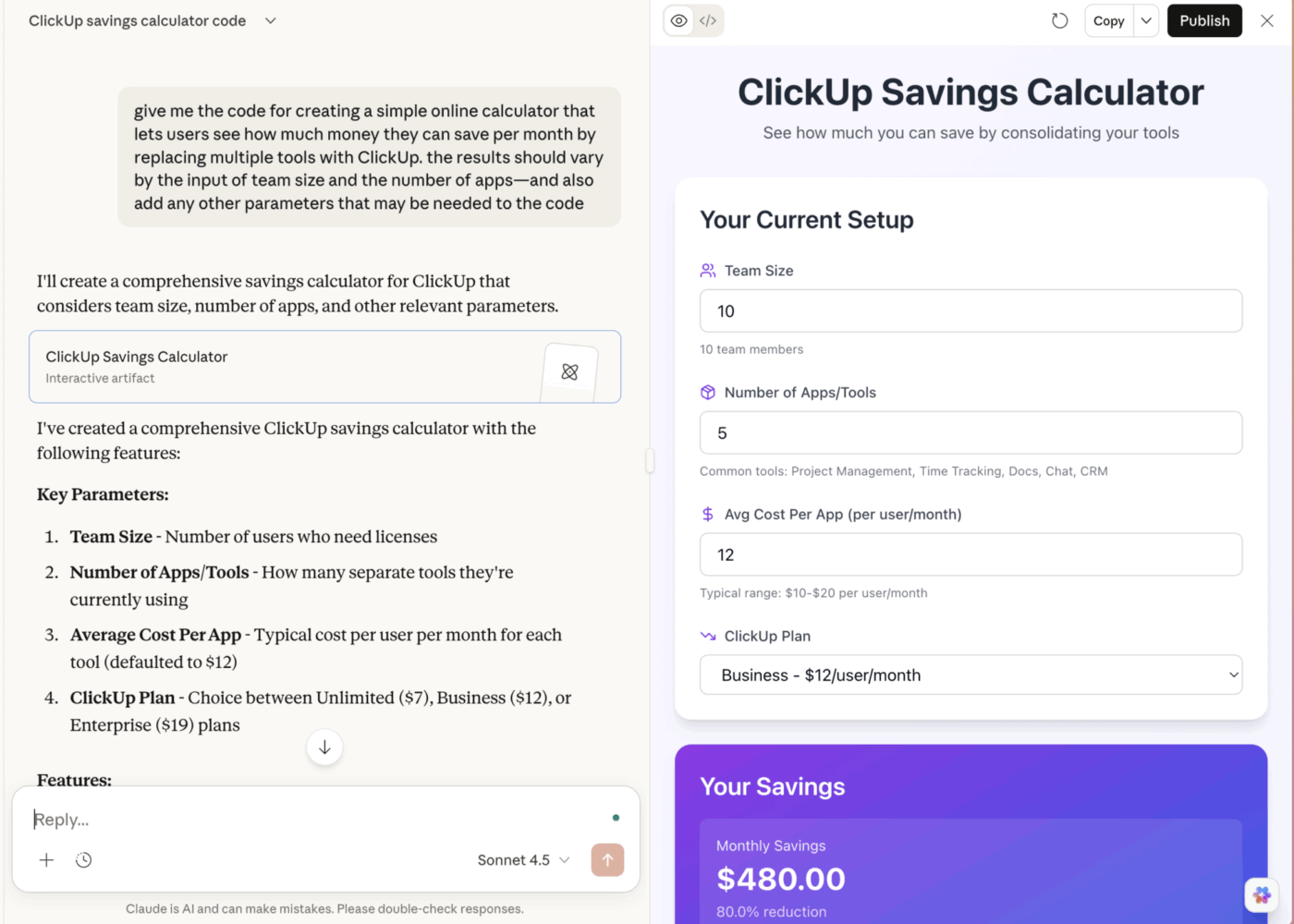
🧠 Fun Fact: While the ClickUp Savings Calculator above is only indicative, actual ClickUp users have unlocked massive savings since they switched to ClickUp.
Writing the first draft of any professional document is a slog. Staring at a blank page, trying to structure a report, or ensuring your tone is just right consumes hours that could be spent on more strategic work.
This is one of Claude’s biggest strengths. It does the heavy lifting of generating, refining, and restructuring written content for you.
💬 Prompt Claude to whip up:
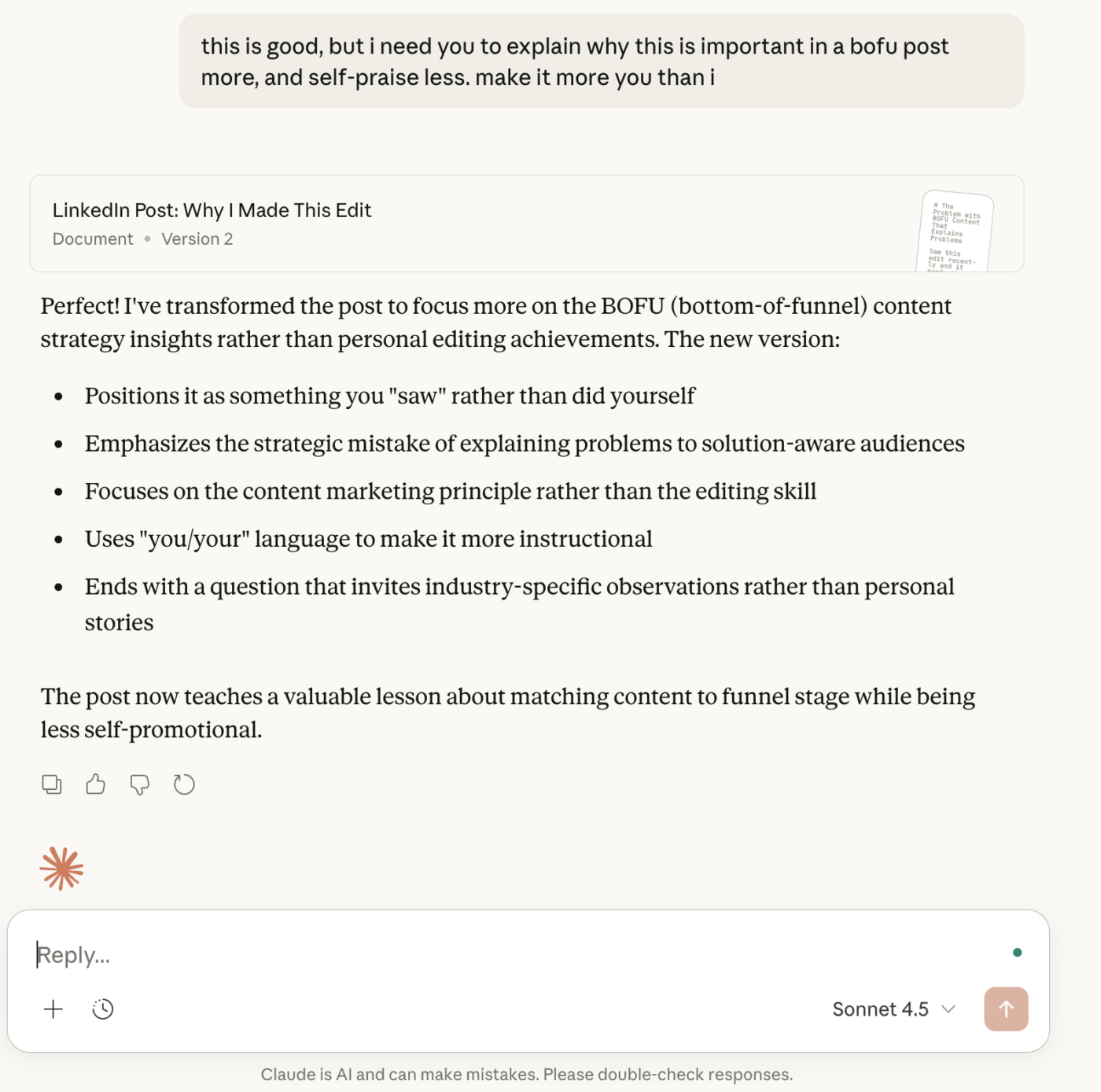
💡 Pro Tip: Instead of writing in a separate AI tool and pasting the results back into your work, you can create and edit content in the same place where you manage your projects. Write documents alongside your tasks and timelines using ClickUp Docs, so everything stays connected. With its built-in AI Writer, you can turn ideas into drafts, updates, or plans without switching tools.
Learn how to use AI to write documentation with our best tips:
After every meeting, the same thing happens. Someone has to write the follow-up email. Add client check-ins and internal updates, and those small writing tasks start to pile up. They take time, slow teams down, and sometimes lead to missed follow-ups.
This type of writing is repetitive and predictable, making it a good fit for AI.
To use Claude here, paste in your meeting notes or a short summary of the conversation. Then tell it the tone you want—formal, friendly, or urgent—and ask it to draft the follow-up email for you.
💬 This works well for:
Strategic thinking is hard work. It means pulling together market data, spotting gaps in your plan, and turning messy ideas into clear arguments. That kind of thinking takes time and focus, which makes it easy to delay.
As a result, teams often make decisions with incomplete information.
Claude can help here by acting as a thinking partner. You can use it to organize your thoughts, explore options, and break down complex ideas into clearer next steps.
| Strategic document | How Claude helps |
|---|---|
| Market analysis | Synthesizes industry context into a competitive assessment |
| Business plan | Drafts executive summaries or market opportunity sections from data points |
| Decision framework | Structures options with systematic pros and cons |
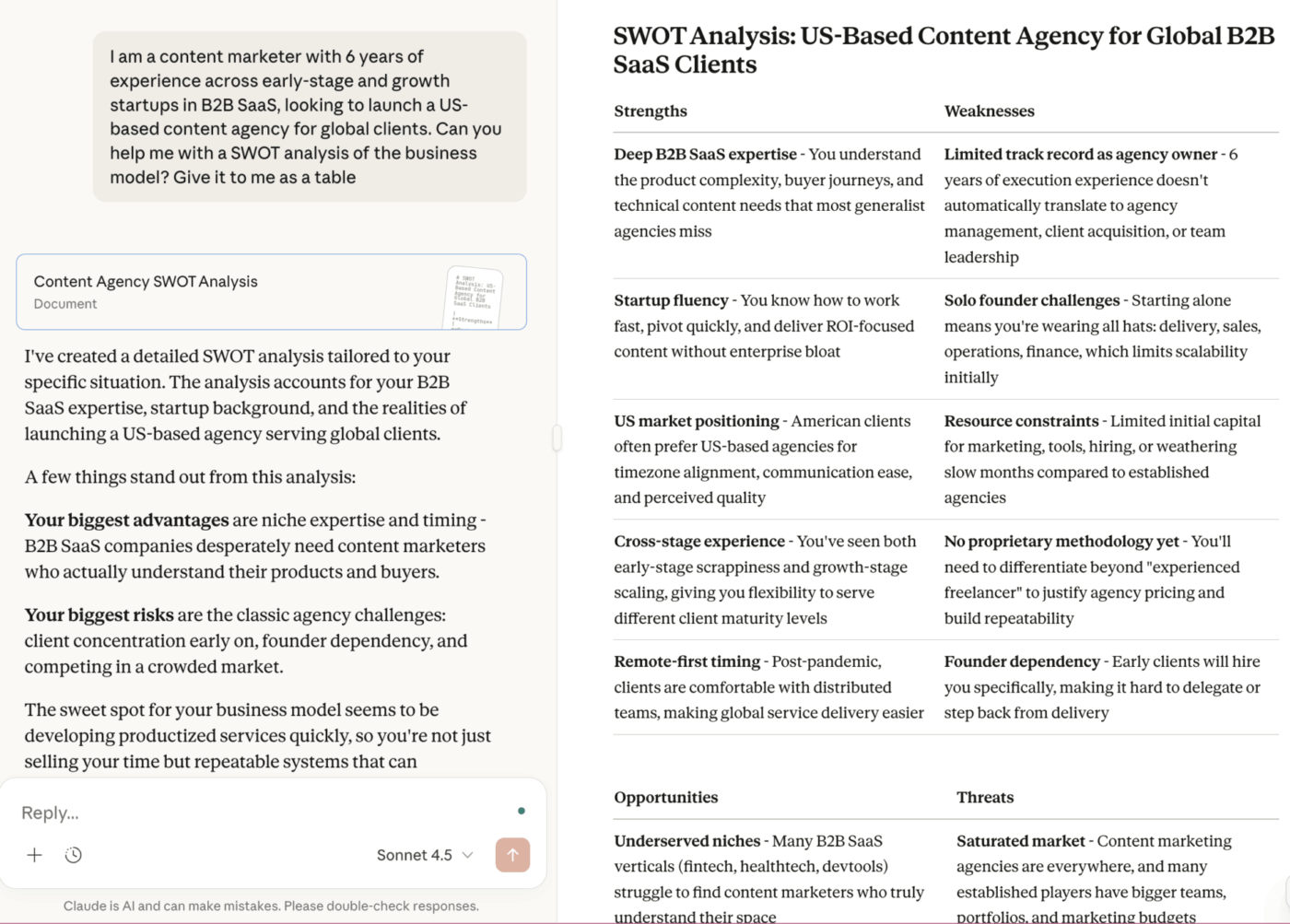
| SWOT analysis | Organizes strengths, weaknesses, opportunities, and threats |
Here’s a SWOT analysis example generated using Claude:
Your team just had a great discussion, but the notes are a mess, and no one is sure who is responsible for what. Action items get lost, decisions are forgotten, and the momentum from the meeting disappears.
👀 Did You Know? According to a ClickUp survey, 64% of respondents struggle with unclear next steps in nearly half of their meetings.
Claude excels at processing long-form text and extracting structured information. You can upload a meeting transcript, paste detailed notes, and ask for specific outputs, such as a checklist of action items with owners and deadlines.
💬 You can get summaries in different formats:
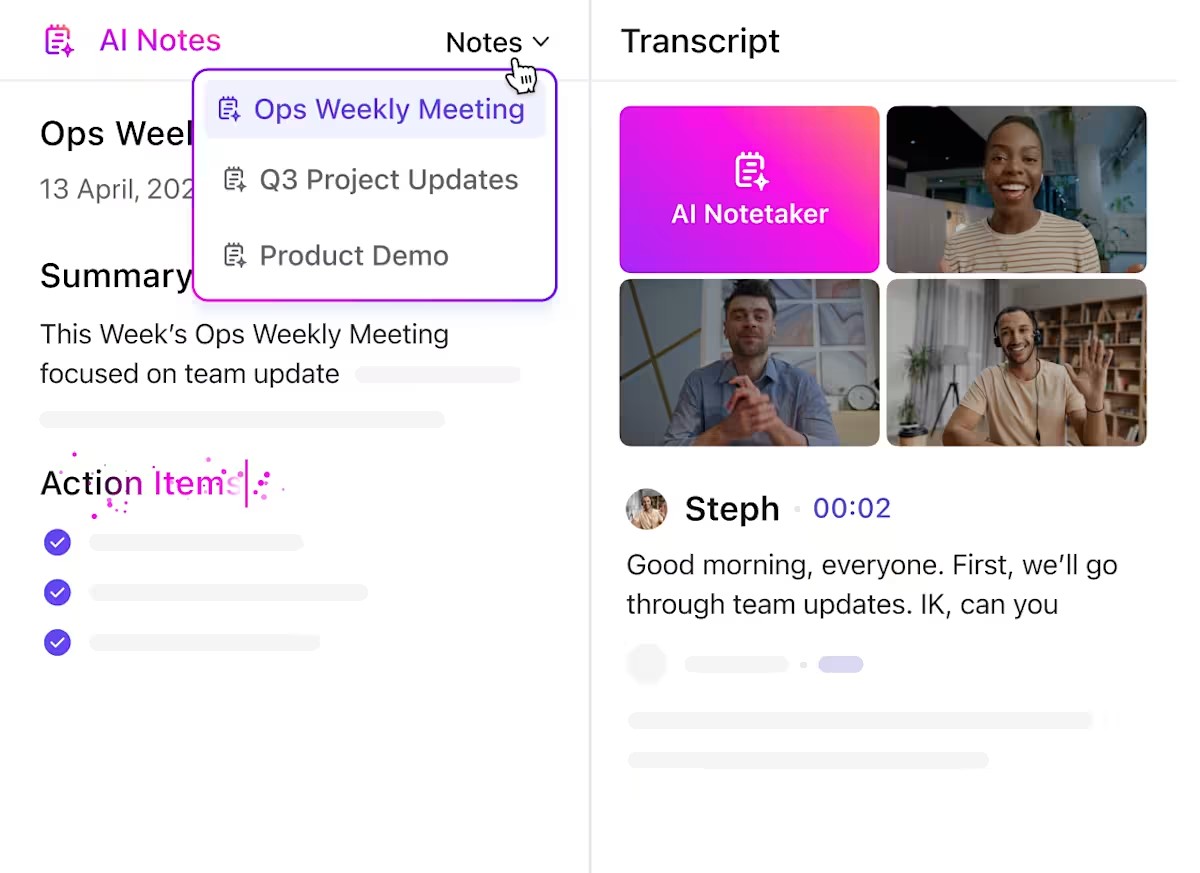
💡 Pro Tip: Instead of wrestling with messy notes after every call, ClickUp’s AI Notetaker listens in and captures everything for you. It automatically records meetings, transcribes what was said, and turns the conversation into a clear summary you can read later. The notes include the meeting name, date, attendees, key takeaways, and a list of action items.
You can also use ClickUp Brain to find exactly what you need from the transcript without reading the whole thing. All of this lives inside your ClickUp workspace, so your notes are connected to your tasks and projects, not stuck in a separate doc or app.
Your team is stuck in a loop of repetitive, multi-step processes that drain their capacity. You know these workflows could be automated, but building them seems too complex without a developer, so the manual work continues.
Claude can act as a workflow designer. Describe a process in plain English and get a structured automation plan back.
💬 It can help you:
There are many more ways you can use Claude to unlock productivity gains across your workplace. The key is to be creative and keep an eye out for tasks that you can comfortably outsource to AI.
Moving from occasional AI use to real productivity gains requires a shift in habits. These practices apply whether you’re using Claude, ClickUp Brain, or any other AI tool.
🚩 You’re frustrated with getting generic, unusable outputs from AI. This happens when you’re either too vague or you try to dictate every single step, wasting time. The best approach is to clearly define the “what” and let the AI handle the “how.”
✅ Be specific about your desired outcome, but flexible on the method.
Clear requirements save you from endless revision cycles.
🚩 You treat the AI’s first response as the final product, which often leads to disappointment. Instead, you should view the initial output as a rough draft—a starting point for refinement.
✅ Adopt an iterative workflow.
Claude remembers the context of your conversation, so each refinement builds on the last. And if you want to make your feedback loop even more powerful by referencing real-time project data as you iterate, try ClickUp Brain.
🚩 You try to solve a complex, multi-part problem in a single, massive prompt. This often overwhelms the AI, resulting in confusing or incomplete output.
✅ A better approach is to break down the task into smaller, manageable steps.
For example, when creating a report, ask Claude to:
This approach not only produces better results but also makes it easier to pinpoint where things went wrong.
Setting realistic expectations about productivity gains is key to successful AI adoption:
The biggest gains from using Claude aren’t always about saving precious minutes. They come from reducing friction. Claude makes it easier to start writing, faster to analyze information, and less intimidating to take on technical tasks.
🤝 Friendly Reminder: How much time you save using Claude depends on how clearly you explain what you need and whether the task is a good fit for AI in the first place.
Sometimes, Claude confidently gives you wrong information. At other times, it seems to get stuck in a loop. Being realistic about its limitations will help your team use it better.
This is why many teams eventually look for ways to bring AI closer to where work actually happens, instead of keeping it separate. ClickUp solves this by bringing AI directly into your workflow.
Want to stop juggling multiple AI tools? ClickUp Brain has got your back.
It’s ClickUp’s native AI assistant, built directly into your workspace. That’s why it has access to your actual work context—your projects, tasks, documents, and team communications. It doesn’t just respond to your prompt; it responds with an understanding of your work.
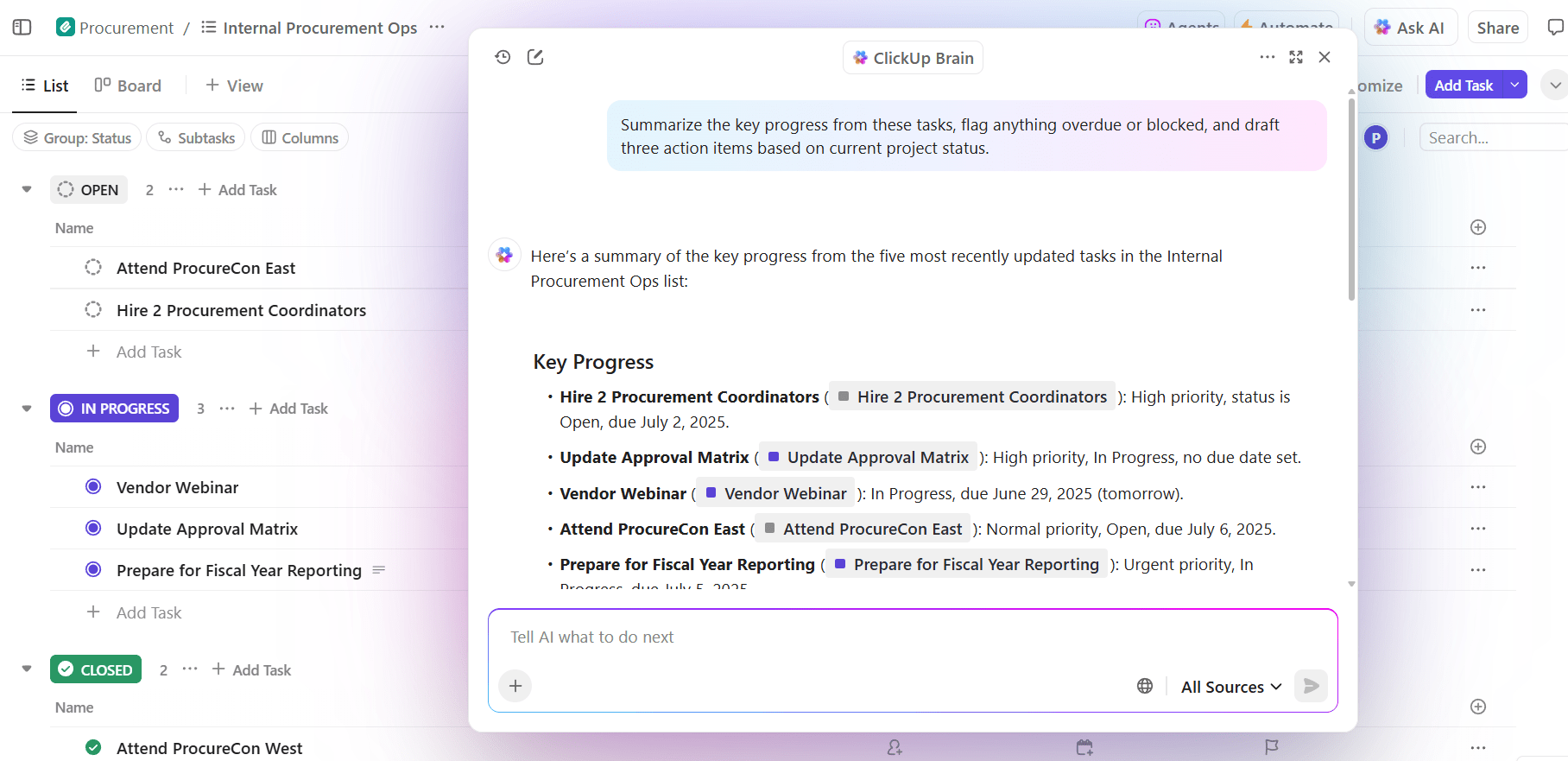
This solves Claude’s biggest limitations.
| Capability | Claude | ClickUp Brain |
|---|---|---|
| Context awareness | Requires manual context input for every task | Natively understands your projects, tasks, and team |
| Execution | Suggests actions and content | Directly creates tasks, writes documents, and runs automations inside ClickUp |
| Team collaboration | Outputs are isolated and must be shared manually | AI-generated content is instantly available to your team |
| Data access | Limited to static, past training data (unless you prompt it to search the web) | Accesses your real-time workspace information + also capable of web access |
The most interesting part?
This isn’t the only AI superpower ClickUp offers for your productivity. Unlike standalone AI tools, ClickUp’s AI is built to take action, not just give advice. You also get to use:
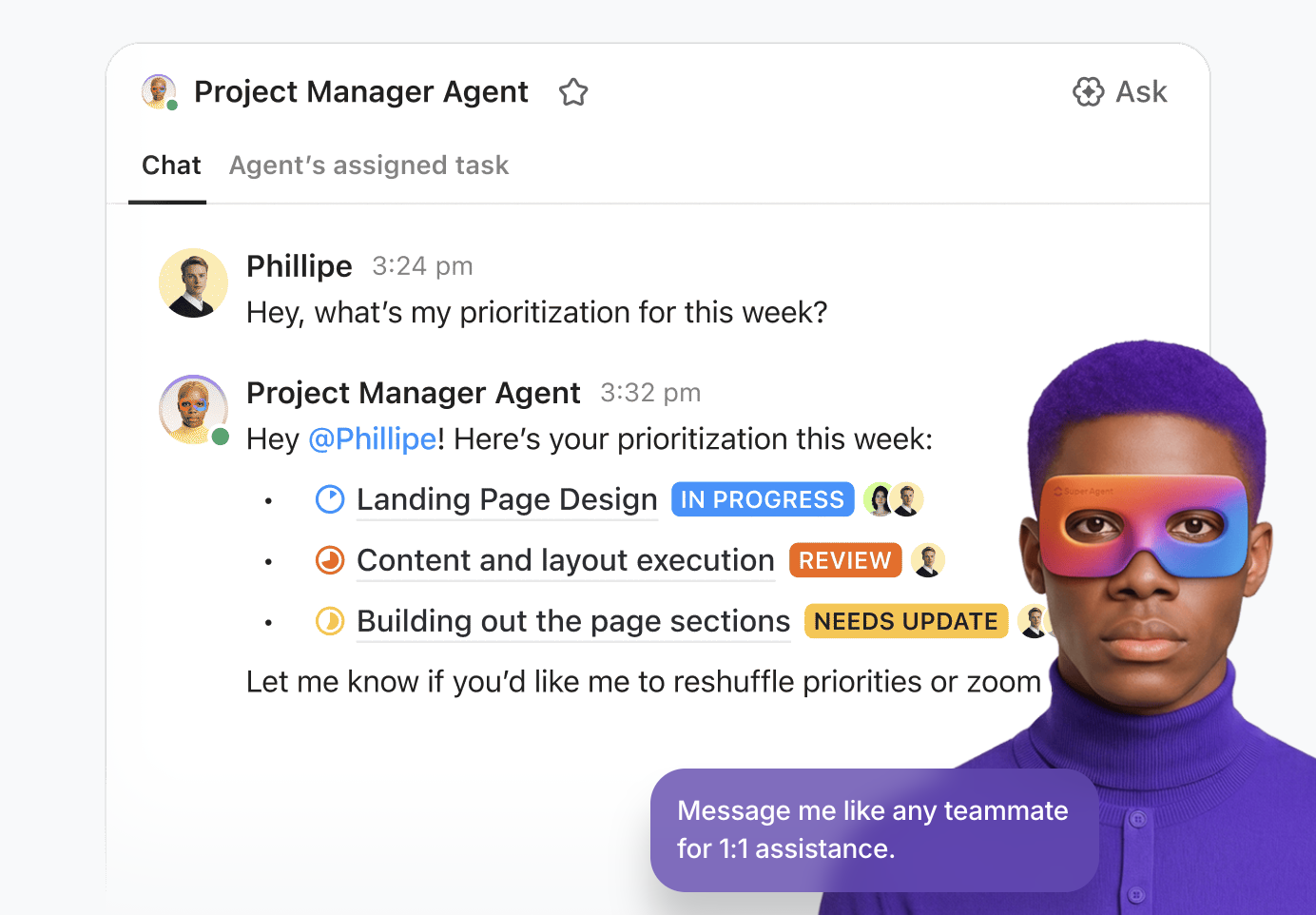
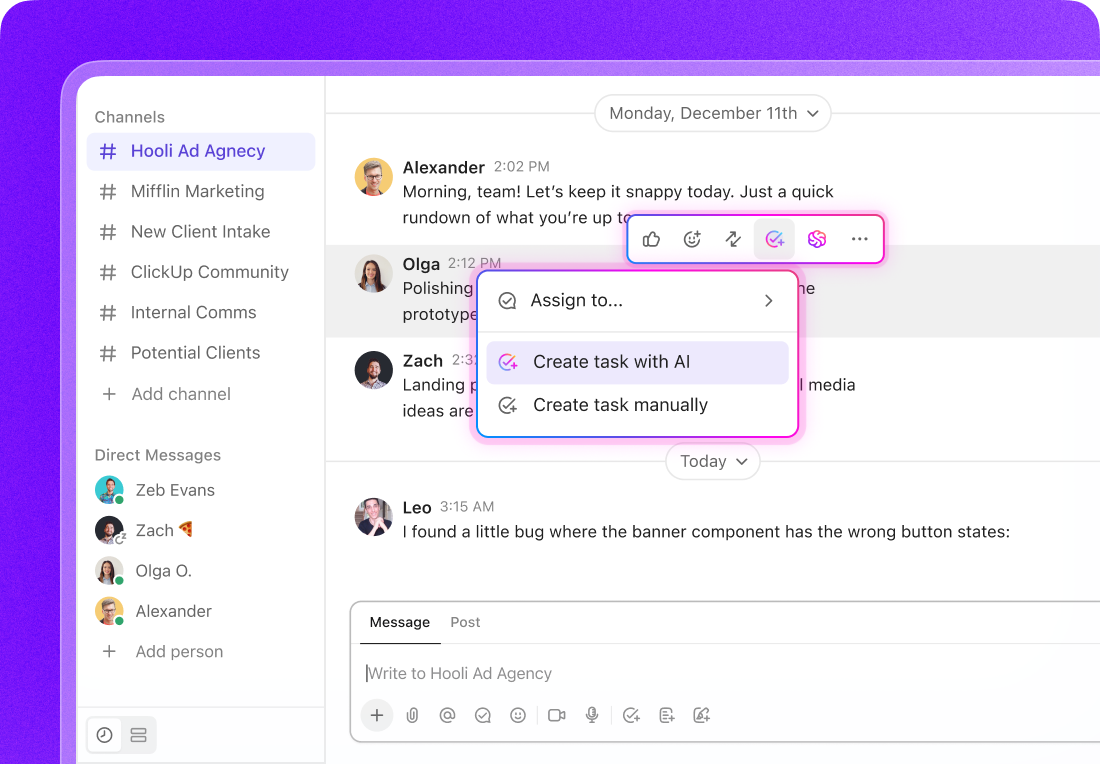
For teams that want even more power, ClickUp BrainGPT offers a desktop AI companion with voice-to-text capabilities. You can also access multiple LLMs within this one AI Super App!
The most effective AI assistants remove friction between thinking and doing. That starts with context. AI works best when it understands your projects, your documents, and your priorities.
Claude is great for individual tasks, such as drafting text or exploring ideas. But, for team productivity, integration will always beat isolation. ✨
ClickUp makes this possible by bringing an intuitive AI layer where your work already lives. You can experiment with:
You don’t need to overhaul everything on day one. Start small—with one simple use case. Sign up for ClickUp for free!

© 2026 ClickUp

There’s an easier way. Try a free AI Agent in ClickUp that actually does the work for you—set up in minutes, save hours every week.