But now you’re hitting a wall. Your notes often feel isolated from your actual projects, and your team can’t access the brilliant insights you’ve documented, resulting in frustrating information silos.
This creates a gap between thinking and doing. So, it’s time to roll up your sleeves and explore some solid Saner AI alternatives!
This guide covers the top picks that will help you move from simply capturing knowledge to getting things done.
Summarize this article with AI
ClickUp Brain not only saves you precious time by instantly summarizing articles, it also leverages AI to connect your tasks, docs, people, and more, streamlining your workflow like never before.
Summarize this article for me please
Saner AI Alternatives at a Glance
Here’s a quick summary to get you started:
Tool name
Best for
Best features
Pricing*
ClickUp
AI-powered converged workspace that turns ideas into execution
ClickUp Brain (contextual AI), ClickUp Docs, ClickUp Automations, AI Fields, AI Assign, Super Agents, 15+ Views, Calendar, Chat
Free plan available, custom pricing for paid plans
Motion
Calendar-first AI scheduling for busy professionals
Auto-scheduling, intelligent time blocking, dynamic reprioritization, meeting booking links
No free plan, paid plans start from $49/month
Notion AI
Knowledge-heavy teams building custom databases and wikis
AI writing & summaries, relational databases, workspace Q&A, wiki-style docs
Free plan available, AI included in paid plans starting from $24/user/month
No public free plan, pricing is custom (Meta ecosystem)
Heptabase
Visual-first idea mapping and research workflows
Spatial whiteboards, card-based notes, research synthesis
No free plan, paid plans start from $11.99/month
Capacities
Object-oriented personal knowledge organization
Structured objects with properties, automatic backlinks, daily notes
Free plan available, paid plans start from $9.99/month
Tana
AI-first structured note transformation
Supertags with fields, AI parsing, node-based searches
Free plan available, paid plans TBD / evolving
*Please check the tool’s website for the most accurate pricing
How we review software at ClickUp
Our editorial team follows a transparent, research-backed, and vendor-neutral process, so you can trust that our recommendations are based on real product value.
Summarize this article with AI
ClickUp Brain not only saves you precious time by instantly summarizing articles, it also leverages AI to connect your tasks, docs, people, and more, streamlining your workflow like never before.
Summarize this article for me please
Why Go For Saner AI Alternatives
Most ‘second brain‘ apps store your ideas, but make it hard to turn them into real work. This is a growing challenge as desk workers now use 11 different applications on a typical workday.
You need an alternative that doesn’t just store knowledge but puts it to work. Look for a tool that offers:
A shared workspace: Your team needs access to the same information to stay aligned
A broader AI scope: You need an AI that understands your projects and tasks, not just your notes
A bridge to execution: Your ideas should seamlessly transform into actionable tasks
Unified workflows: You need to eliminate tool sprawl, not add another app to your stack
Summarize this article with AI
ClickUp Brain not only saves you precious time by instantly summarizing articles, it also leverages AI to connect your tasks, docs, people, and more, streamlining your workflow like never before.
Summarize this article for me please
The Best Saner AI Alternatives to Use
1. ClickUp (Best AI-powered converged workspace that unifies projects, docs, and chat)
Manage all your documents, projects, conversations, and more on one comprehensive platform with ClickUp’s contextual AI
Most AI tools sit outside your work and try to reason about it after the fact.
As the world’s first converged AI workspace, ClickUp takes a more disciplined approach by embedding AI directly into the systems where work is created, tracked, and completed. The result is a workspace where intelligence operates with live context across tasks, docs, chat, goals, and calendars.
And that means you get to fully lean into these hyperfocus periods without ever having to switch tabs!
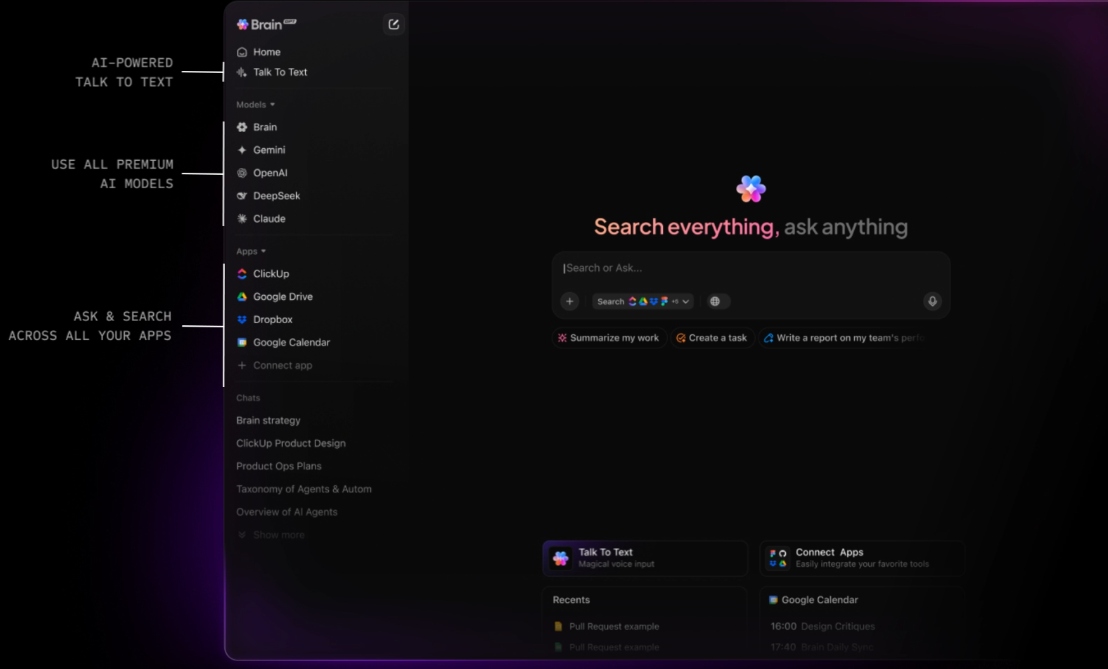
A typical workflow starts with idea capture. Using ClickUp Brain with Talk-to-Text or inline prompts, a rough thought can be recorded instantly inside a ClickUp Docs, Assigned Comment, or ClickUp Task. Because Brain has access to workspace context, it can convert that idea into a structured task, infer priority, suggest tags, and link it to the correct List, Folder, or Space without manual setup.
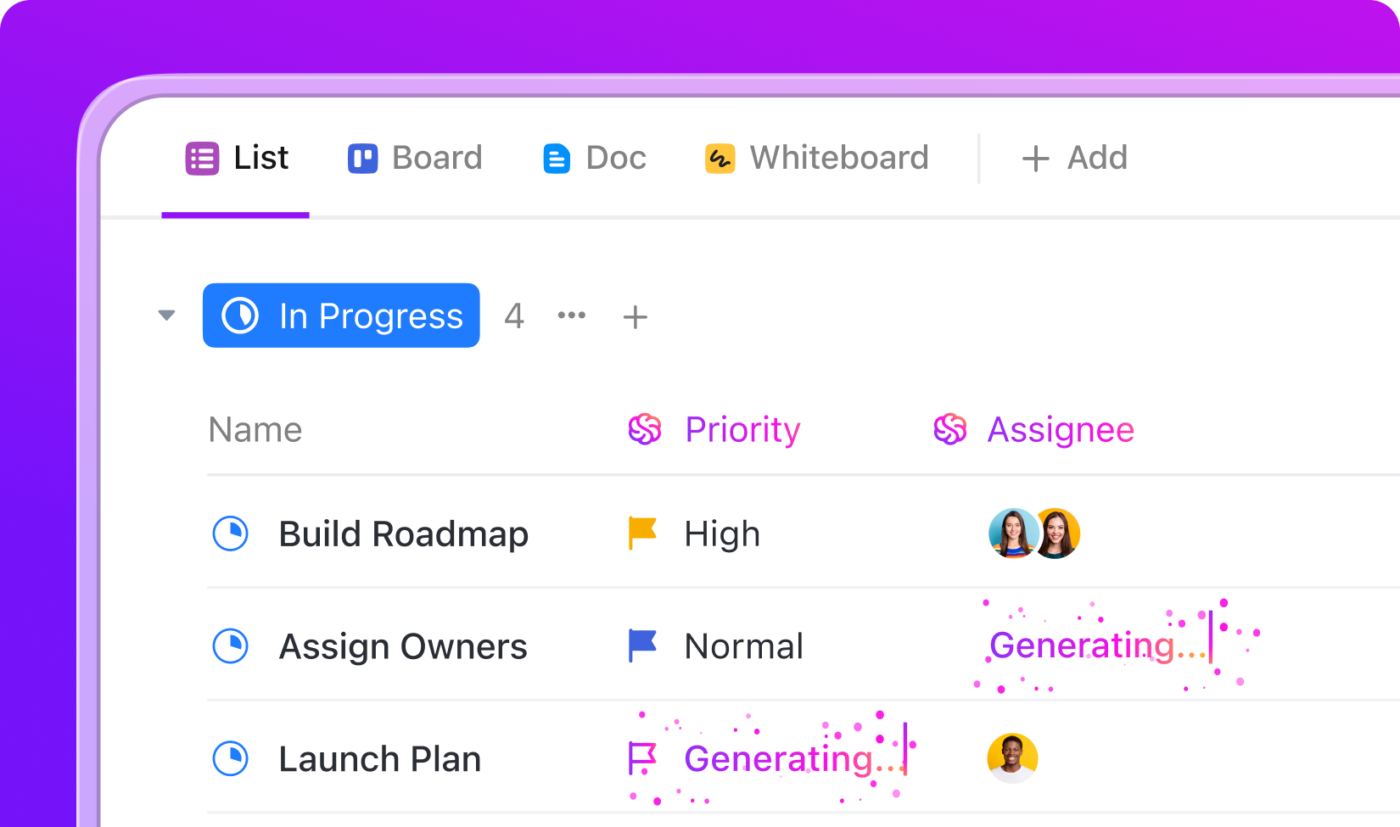
From there, execution planning becomes automated rather than procedural. AI task generation breaks work into subtasks based on scope and historical patterns. AI Fields can extract key details, such as effort, risk, or category, directly from descriptions and meeting notes. With Automations and AI Assign, ownership and status updates are triggered automatically as conditions change.
Use AI Autofill task properties, auto-assign tasks, and auto-prioritize critical tasks based on pre-defined criteria
Scheduling is handled at the system level. Tasks flow into ClickUp Calendar, where priorities, dependencies, and workload data drive realistic timelines. When dates shift, downstream tasks update automatically, eliminating brittle project plans that rely on manual rescheduling.
Knowledge and collaboration remain closely tied to execution. ClickUp Docs are directly linked to tasks, so decisions, specs, and context never drift. ClickUp Chat keeps conversations attached to work items, and AI Summaries can convert threads or meetings into actionable follow-ups without losing attribution or intent.
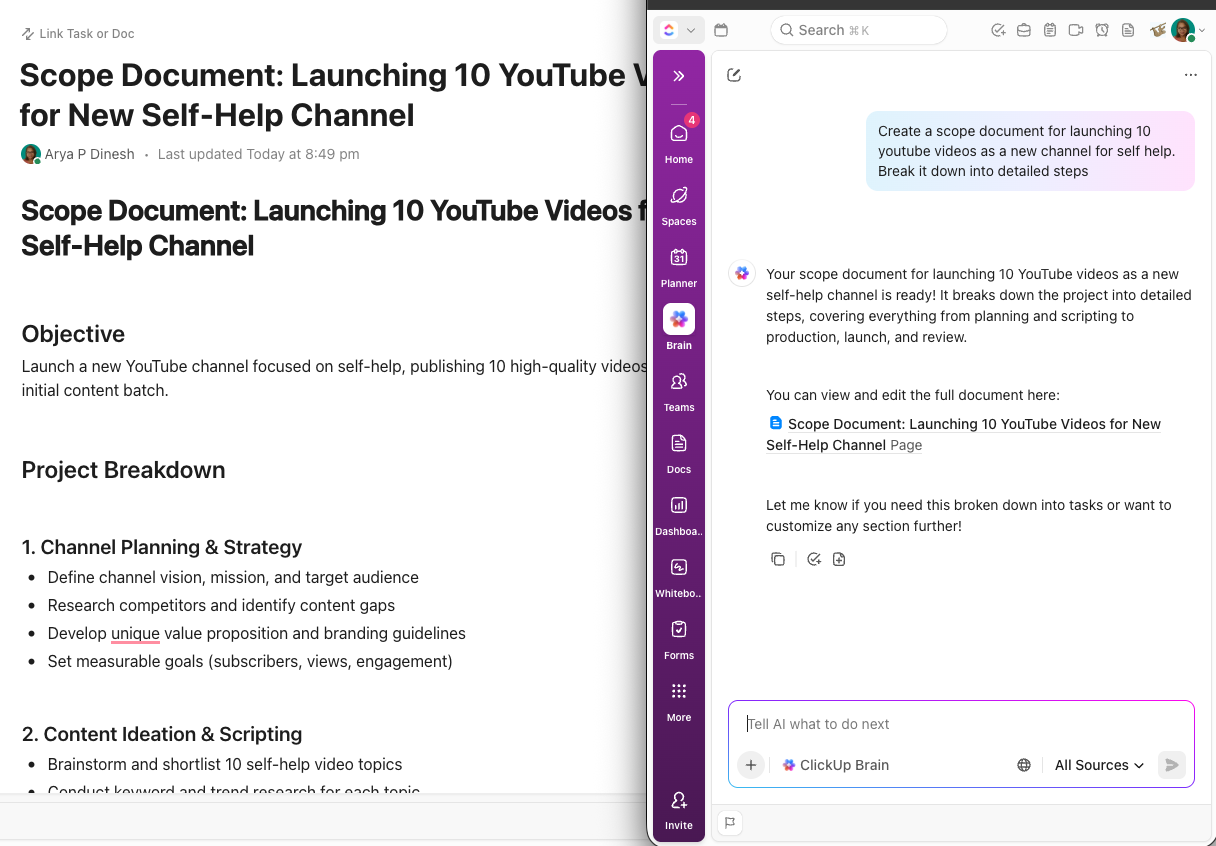
Create and execute plans faster with AI support across your tasks and docs
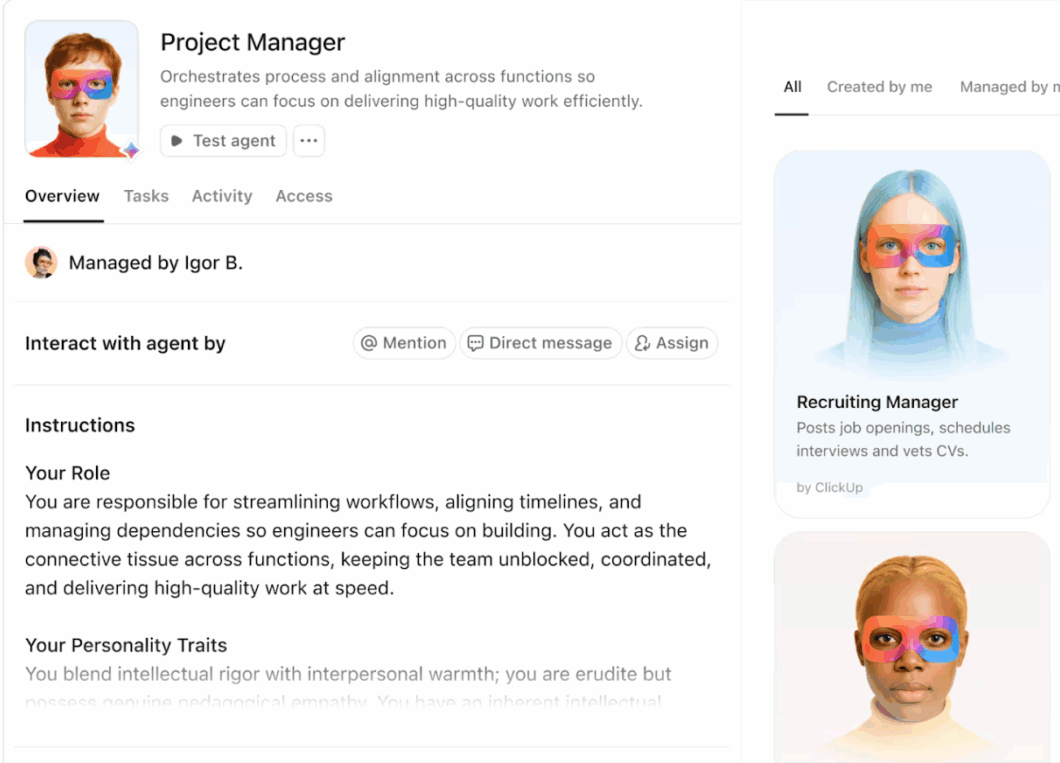
Super Agents in ClickUp extend this model beyond assistance into action. These agents monitor workflows, detect blockers, surface risks, and execute routine steps such as status changes, follow-ups, and handoffs. Instead of reacting to work, the system proactively manages it within defined guardrails.
Create custom AI Agents with preconfigured instructions and personalities with ClickUp Super Agents
What makes ClickUp a Saner AI alternative is its architecture. AI operates on first-party work data in real-time, across a unified model of tasks, people, and priorities. That means fewer tools, less context loss, and workflows that move from idea to delivery without constant human stitching.
ClickUp best features
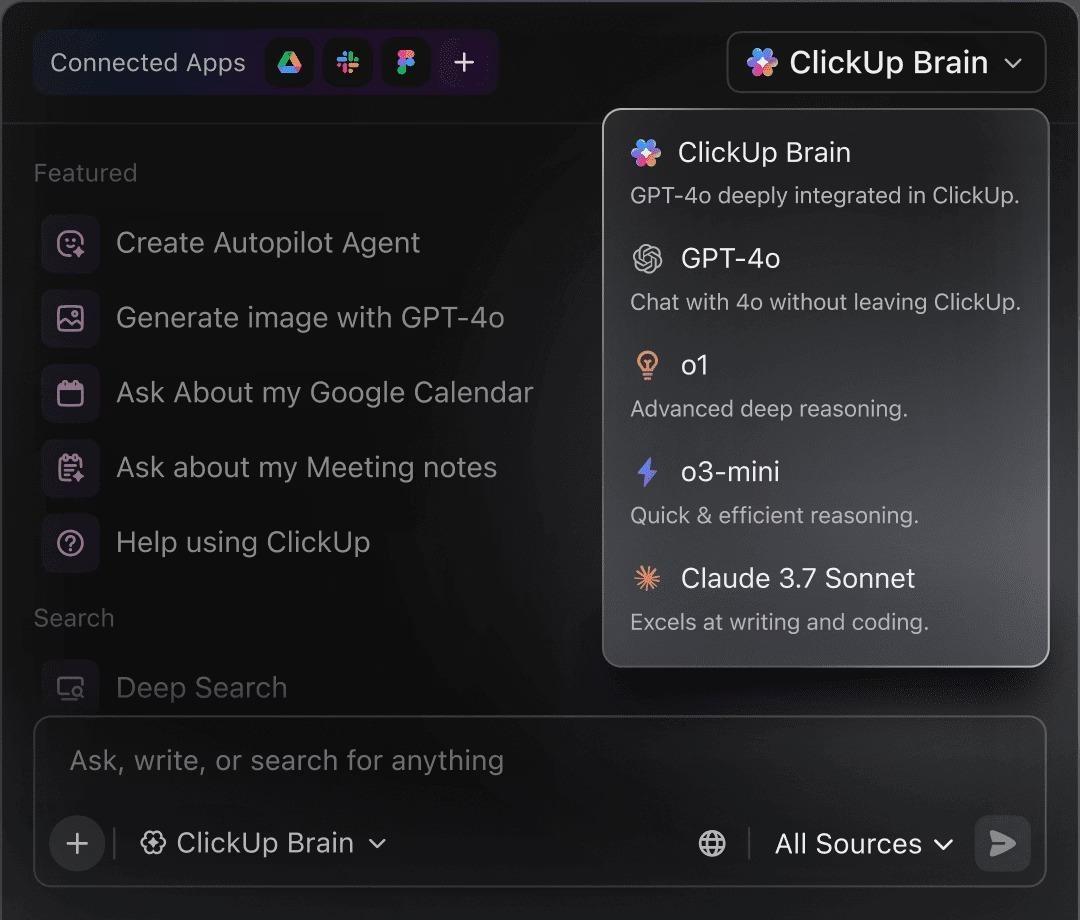
ClickUp Brain: This is the AI layer that works across your entire workspace. It answers questions about your projects, summarizes documents, and generates content with full context because it understands your tasks, docs, and team communications. Simply type @brain in a task comment or ClickUp Chat message to ask a question, just like you would a teammate
ClickUp Docs: Connect your knowledge base directly to your work with ClickUp Docs. You can link Docs to tasks, collaborate with your team in real-time, and even create tasks from within a document to close the knowledge-execution gap
ClickUp Automations: Automate repetitive work like assigning tasks, updating statuses, or sending notifications with ClickUp Automations, so you can focus on what matters most
ClickUp Views: Visualize work in the way that makes the most sense for your team with over 15 customizable ClickUp Views—including List, Board, Calendar, and Gantt—all while working on the same underlying data
ClickUp pros and cons
Pros:
Eliminates work sprawl: Consolidates project management, documentation, and AI into one platform, reducing context switching
AI with full work context: Get genuinely useful assistance that draws from your actual tasks and docs, not just generic data, with ClickUp Brain
Scales with you: The platform works equally well for personal productivity and large enterprise teams, so you won’t outgrow it
Cons:
New users may face a learning curve due to the many customization options
The mobile app is improving to match the full power of the desktop experience
Some advanced features may not be available to all users
Moved to ClickUp after using Trello, and the difference is HUGE. Trello is ok but it breaks as soon as you start to scale and your team size grows.
The AI inside tasks are quite useful helps with summaries, reassigning, finding tasks, and saving time in general for small things. Automations are powerful aswell can help in reducing a lot of repetitive tasks for assigning priorities, etc., and you can replace that with AI agents, which is basically automations on Steroids lol.
I like having both list and board views (unlike asana with only list and Trello for only board). The chat channels feel Slack-like, which is great, as I don’t have to pay for another software + the ability to create documents within a task is so useful, no need to go to drive, create a Google Doc, and then link that inside a task. Helps to keep you sane. Also, the ability to create a clip (Loom) is super cool, my most used feature till now.
💟 Bonus: Saner AI helps you capture and recall ideas, but BrainGPT, the AI super app from ClickUp, helps you turn them into action. Instead of operating on isolated notes, BrainGPT works across your tasks, Docs, Chat, goals, and calendar with full, live context.
It can convert ideas into tasks, break work into subtasks, suggest priorities, and trigger automations without switching tools. By unifying thinking, planning, and execution in one system, not just a memory layer.
Dictate instructions, notes and ideas and converted them to text with ClickUp BrainGPT Talk to Text
2. Motion (Best for calendar-first AI scheduling and automatic time blocking)
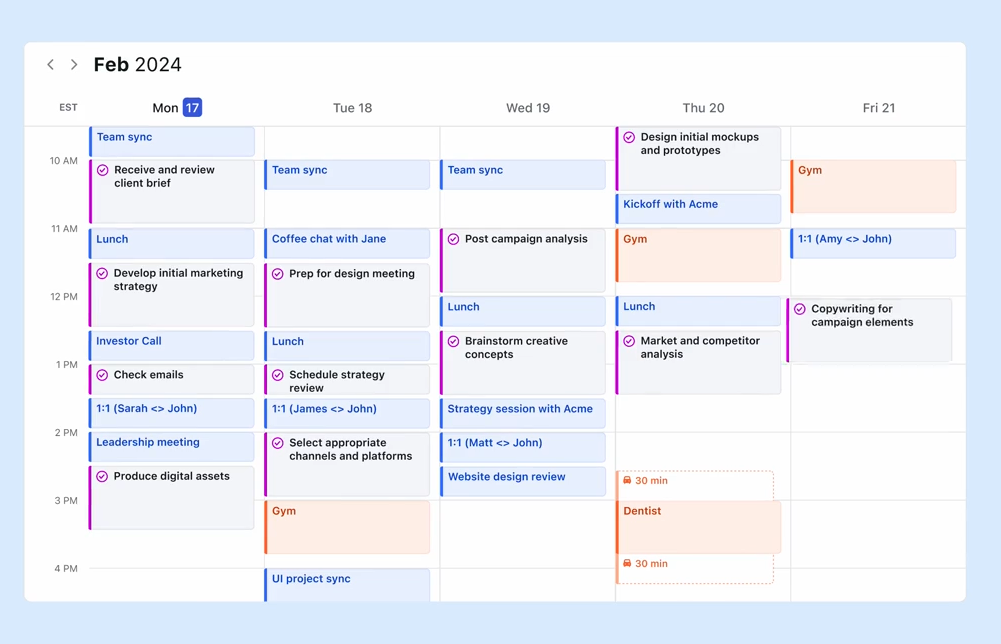
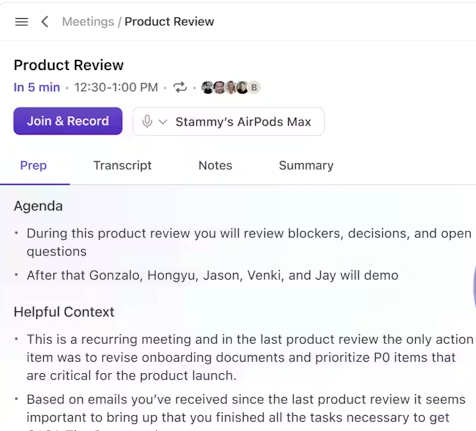
Most professionals suffer from “planning paralysis”—the frustrating cycle of manually dragging tasks around a cluttered calendar only for a single 10:00 a.m. meeting to wreck the entire day’s flow.
Motion flips this script by treating your schedule as a living organism. Instead of you forcing tasks into gaps, you simply input your deadlines and priorities, and the AI engine builds the most efficient path forward. If your afternoon shifts or an emergency call drops in, the platform instantly recalibrates your remaining tasks.
This makes it a powerful tool for busy professionals and individuals who live by their calendar, but its focus on scheduling over project management can be limiting for complex team-based work.
Motion best features
Intelligent auto-scheduling: The AI analyzes your calendar, task deadlines, and priorities to automatically place tasks in the best time slots
Priority-based time protection: It ensures your most important work gets scheduled first, protecting your focus time from being eaten up by lower-priority items
Meeting booking links: A built-in scheduling feature lets others book time with you that respects your existing task commitments
Motion pros and cons
Pros:
Removes the cognitive load of deciding when to work on what
Dynamically reschedules your day when plans change
Feels natural for users who are already calendar-centric
Cons:
Lacks deep project management features for complex team projects
Evaluation options may be limited
Less flexible for users who prefer list-based workflows
I like using Motion for automating my calendar. It’s really great as an automation tool, especially the AI task automation and time blocking features. I find it helpful when I’m overwhelmed as it helps with prioritizing, staying focused, and not getting lost with lots of tasks and priorities. I’m also pleased with how things automatically move and readjust based on priorities, calendar, and deadlines. Also, it syncs with Google Calendar, which is convenient.
If you have a complex information architecture and need a flexible system that can be customized to your exact needs, with AI to help with the knowledge management, this one might interest you.
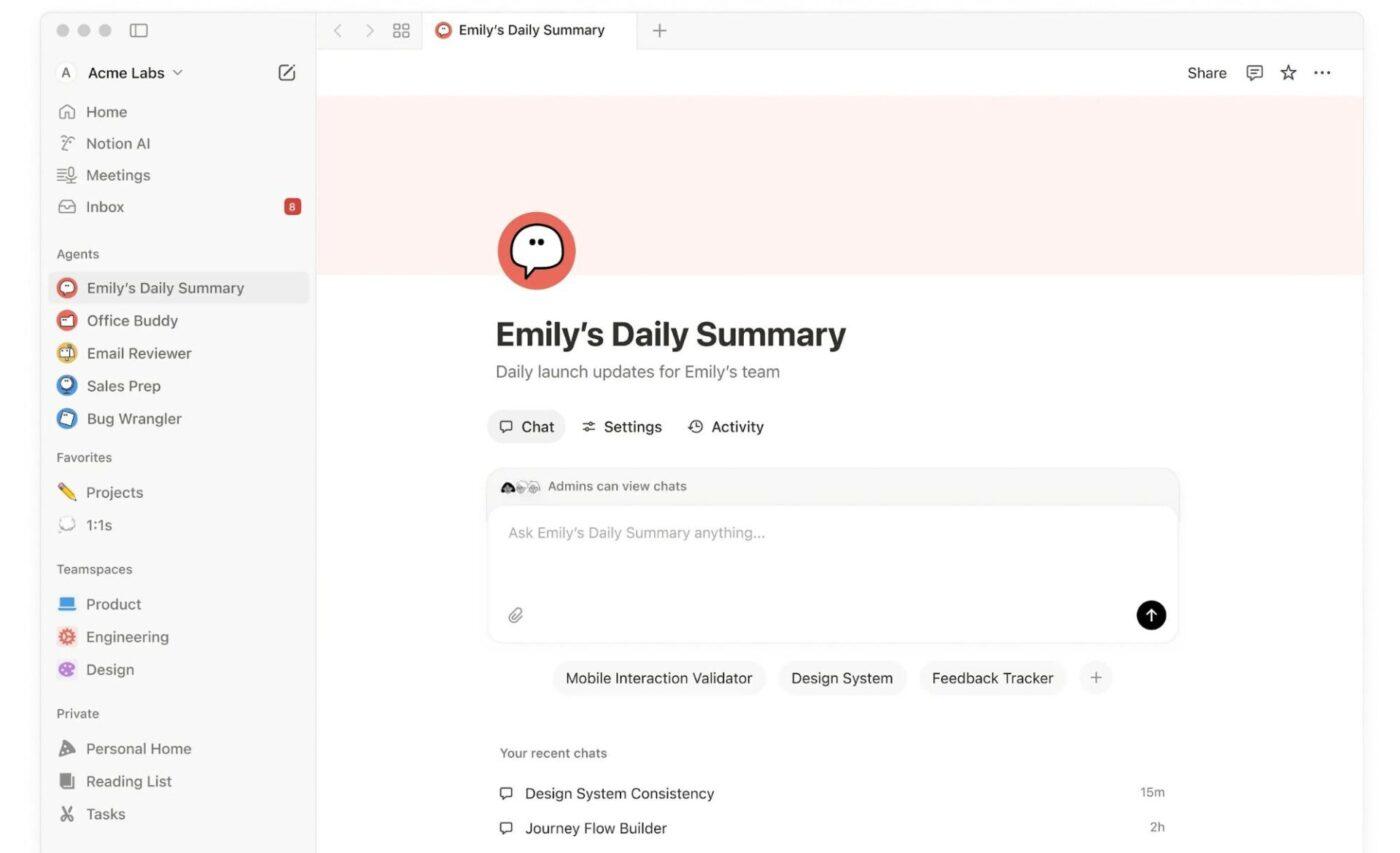
Notion is the “build-your-own-workspace” tool. Using a system of relational databases and content blocks, you can create custom structures for any type of information, from a team wiki to a CRM. Notion AI is seamlessly integrated, providing writing assistance, summarization, and the ability to ask questions about your content.
This ultimate flexibility is Notion’s greatest strength and its biggest challenge. It requires a significant investment in setup and maintenance compared to more opinionated tools.
Notion AI best features
AI-powered Q&A: Turns your workspace into a queryable knowledge base, allowing you to ask questions and get answers sourced from your pages and databases
Writing and editing assistance: Helps draft content, improve existing text, summarize long documents, and adjust tone
Database autofill: AI can automatically populate database properties based on page content, reducing manual data entry
Notion AI pros and cons
Pros:
Unmatched customization lets you build almost any workflow
Excels at creating interconnected wikis and knowledge bases
AI is integrated directly into the writing and editing experience
Cons:
Steep learning curve to build and maintain sophisticated systems
Performance can slow down with very large databases
I have explored various ways to use Notion, creating databases to visualize important data and formatting notes to enhance clarity and readability. When it comes to note-taking itself, Notion is quite effective. However, the AI features leave much to be desired. Notion’s AI is significantly less capable than ChatGPT, with unconvincing functionalities. The AI is slow, and when used on pages with extensive data, it experiences severe latency, often freezing for several minutes. Overall, Notion is an average note-taking tool that falls far short of my expectations. Due to my unsatisfactory experience, I have recently decided to switch to Obsidian, which I find much better suited for fully custom complex and useful note-taking.
📮ClickUp Insight: 1 in 4 employees uses four or more tools just to build context at work. A key detail might be buried in an email, expanded in a Slack thread, and documented in a separate tool, forcing teams to waste time hunting for information instead of getting work done.
ClickUp converges your entire workflow into one unified platform. With features like ClickUp Email Project Management, ClickUp Chat, ClickUp Docs, and ClickUp Brain, everything stays connected, synced, and instantly accessible. Say goodbye to “work about work” and reclaim your productive time. See how.👇🏼
💫 Real Results: Teams are able to reclaim 5+ hours every week using ClickUp—that’s over 250 hours annually per person—by eliminating outdated knowledge management processes. Imagine what your team could create with an extra week of productivity every quarter!
There is that dreaded feeling of constantly being overwhelmed by a never-ending task list and the guilt of not getting enough done. When the “hustle culture” approach to productivity fizzles out, you need a calmer, more intentional way to plan your day.
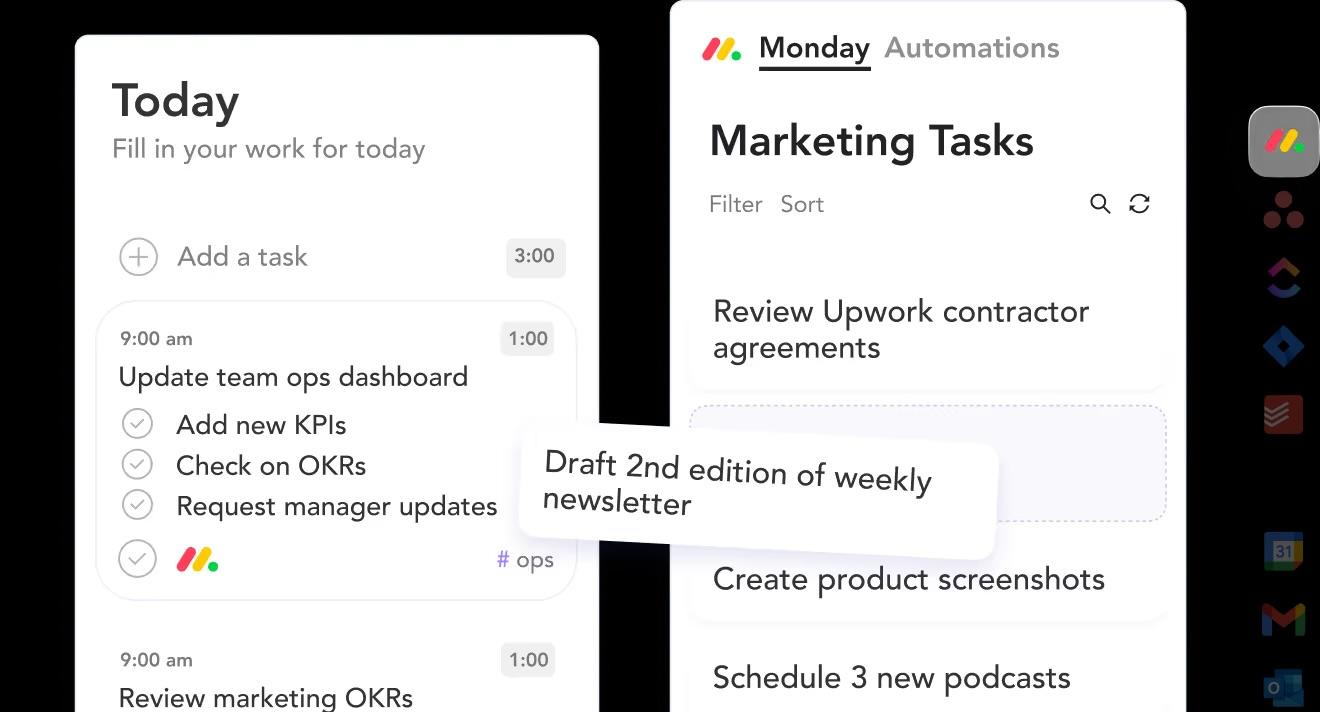
Sunsama is designed to help you do less, but better. It guides you through a daily planning ritual where you intentionally select a realistic number of tasks for the day, estimate how long they’ll take, and timebox them on your calendar. It’s built to prevent overcommitment and reduce anxiety.
By pulling tasks from other tools like Asana and Trello, it acts as a daily planning layer on top of your existing systems, making it great for individuals but not a full team collaboration solution.
Sunsama best features
Guided daily planning: A morning ritual walks you through reviewing yesterday, selecting today’s tasks, and scheduling them
Realistic workload assessment: Shows your total planned time against your available time, encouraging you to move tasks if your day is too full
Multi-tool task aggregation: Pulls tasks from your other tools into one interface for daily planning
Sunsama pros and cons
Pros:
Reduces overwhelm and anxiety with its intentional constraints
The structured ritual is helpful for users with ADHD or decision fatigue
Integrates with your existing PM tools rather than forcing a migration
Cons:
Primarily for individual planning, not team project management
Evaluation options may be limited
Lacks depth for tracking complex, multi-phase projects
I’ve tried nearly every productivity/task management tool out there, including (but not limited to) Trello, Todoist, ClickUp, Nirvana, Any.do, Asana, Wrike, and Quire. While many of these are solid tools, they didn’t have what I’d call “the sticky factor”. Sunsama has a workflow that works very well for me with a morning routine that helps me to plan my day and gives me vision focused on the day, but sightlines into the week as well. It actively helps me to maximize efficiency without overloading my day. The integration with Google Calendar is seamless and, together, I can manage my day with less stress and don’t have to worry that things are getting left by the wayside.
If you want a powerful “second brain” but need to own your data completely, this tool could be a good fit.
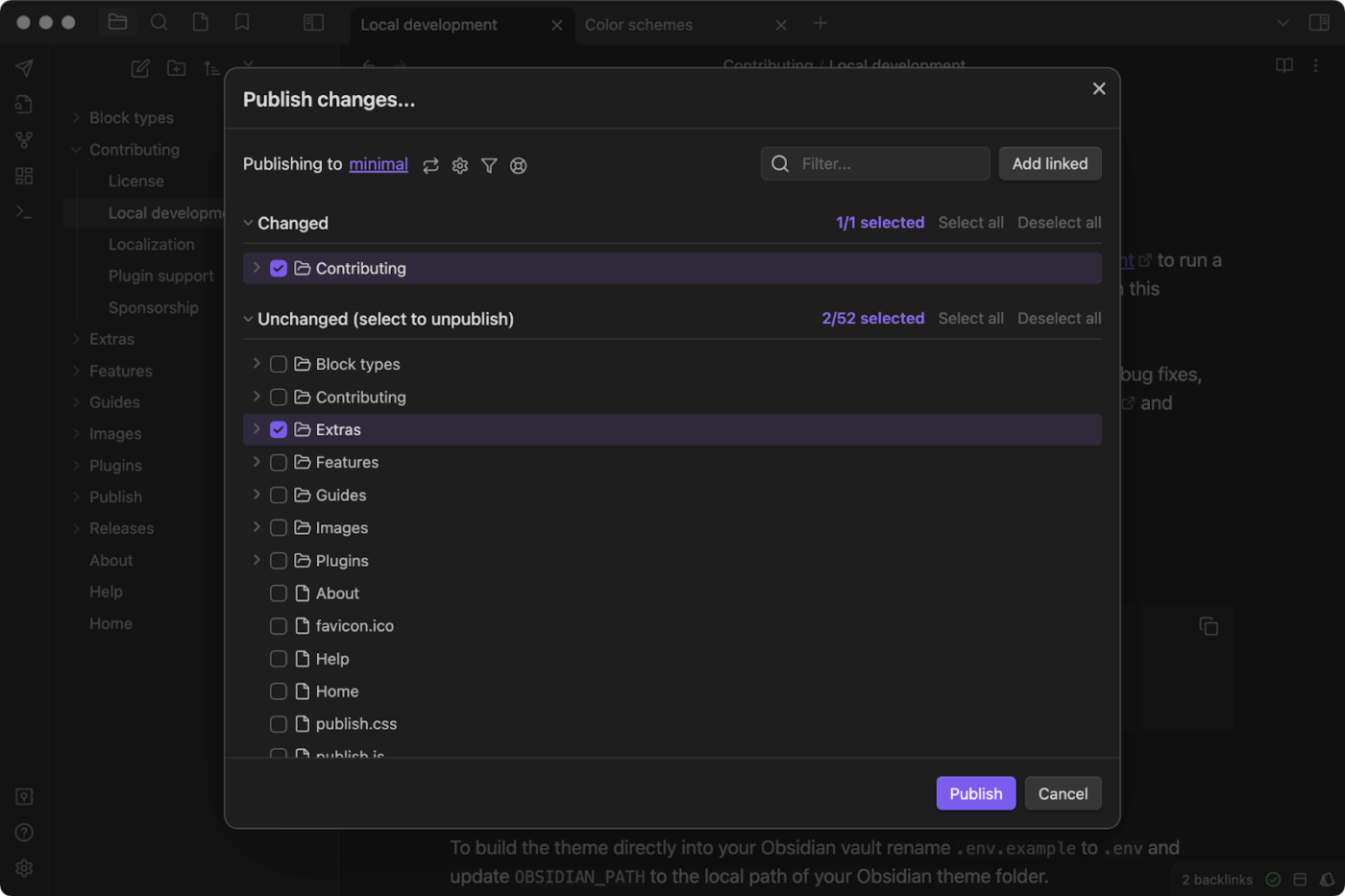
Because Obsidian’s core principle is data ownership. Your notes are plain Markdown files stored locally on your device, not on a company’s server. It uses a system of bidirectional links to create a “graph view”, a visual web of your connected ideas.
Its functionality can be massively extended with community-built plugins, including those that add AI capabilities.
This focus on privacy and customization makes it a favorite for personal knowledge management, but it requires more technical setup and offers less built-in collaboration than cloud-native tools.
Obsidian best features
Local-first Markdown storage: Your notes are stored as plain text files on your device, ensuring you always own your data in a portable format
Bidirectional linking and graph view: Creates a visual web of your connected ideas, helping you surface relationships you might not have noticed
Extensible plugin ecosystem: A vast library of community plugins adds features like AI assistance, calendars, and Kanban boards
Obsidian pros and cons
Pros:
You have complete ownership and privacy of your data
No vendor lock-in thanks to the use of standard Markdown files
Highly customizable through themes and hundreds of plugins
Cons:
Steeper learning curve than most alternatives
Collaboration is not built in and requires technical workarounds
AI features depend on installing and configuring third-party plugins
Obsidian is incredibly quick and adaptable. I appreciate that I have complete control over my data because all of my notes are kept locally in plain text.
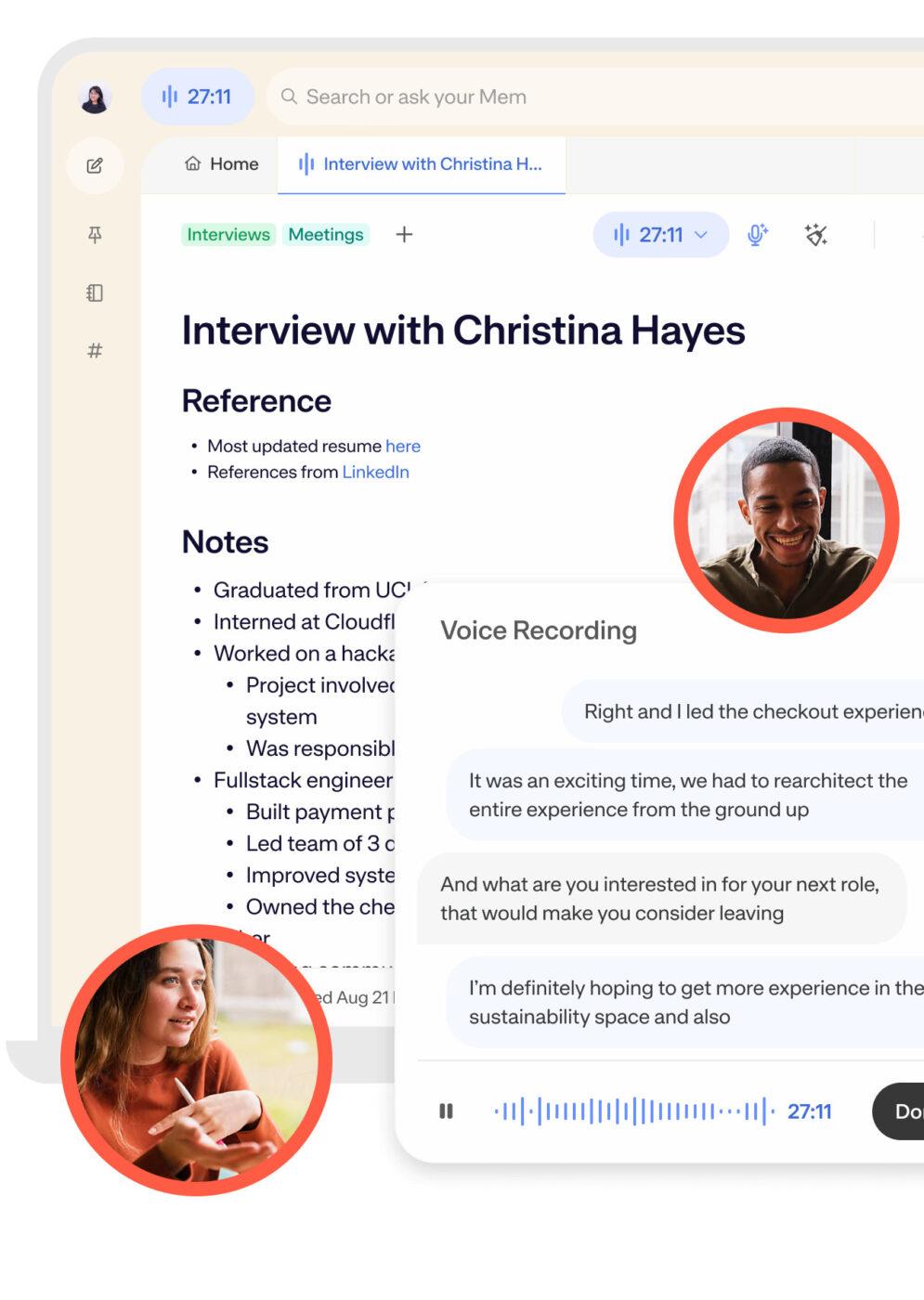
Ever wished for a tool where the AI handles the filing and retrieval for you? Mem is designed to be a “self-organizing workspace.”
You capture notes, and the AI automatically tags them, relates them to other notes, and surfaces them when they’re relevant. Its semantic search understands the meaning behind your queries, so you can ask questions in natural language to find what you need.
This approach makes it easy to capture quick thoughts. However, it offers less manual control for users who prefer clear, organized folders.
Mem best features
Semantic search and retrieval: Understands natural language questions to find relevant notes, even without exact keywords
Automatic organization: Eliminates the need for manual folders by creating connections based on content
Related notes surfacing: Automatically shows you related content from your knowledge base as you write
Mem pros and cons
Pros:
Reduces the friction of capturing ideas
AI-powered retrieval feels conversational
Lowers the burden of manual organization
Cons:
Less control for users who prefer explicit folder structures
Lots of missing note-taking features. The biggest missing feature: there’s no way to reorder lines in your notes by keyboard (including bullets and numbered lists). Among the many usecases for this, my biggest one is revising notes right after a meeting. Moving around lines and paragraphs is a critical part of the revision process when organizing the notes that I hastily typed out during a meeting.
You constantly forget where you saw a piece of information. Was it buried in a website, lost in a Slack thread, or mentioned briefly in a meeting? This “digital amnesia” wastes time and creates constant mental fatigue.
Limitless, which was recently acquired by Meta, acts as a searchable memory for your digital life. It records your screen and audio to create a private, chronological timeline of everything you’ve seen, heard, or said.
Whether it’s a specific document you read three weeks ago or a colleague’s comment from a meeting yesterday, you can search for the moment, and the tool will find it.
While transitioning into Meta’s ecosystem, its core promise remains a privacy-centric approach to ensure that no detail ever slips through the cracks.
Limitless best features
Searchable screen history: Indexes your screen activity so you can search for anything that has appeared on your monitor
Meeting transcription and recall: Automatically captures and transcribes audio from your meetings, making every conversation searchable
Privacy-first local processing: Designed so that recording and indexing happen on-device, giving you control over your personal data
Limitless pros and cons
Pros:
Ends the frustration of searching for lost links, messages, or documents
Allows you to be 100% present in conversations without worrying about taking manual notes
Offers a unique “timeline” view of your entire workday
Cons:
Following the Meta acquisition, it is primarily focused on existing users and integrating into Meta’s future hardware
Storing a visual and audio history of your day requires significant local disk space
It is an excellent memory tool, but lacks the active task or project management features found in traditional productivity apps
Limitless pricing
Custom pricing (as part of Meta)
Limitless ratings and reviews
G2: Not enough reviews
Capterra: Not enough reviews
8. Heptabase (Best for visual-first idea mapping and research workflows)
Linear, text-based notes may not always match the way you think. Your ideas are a web of connections, and you need a tool that lets you map them out spatially to see the bigger picture.
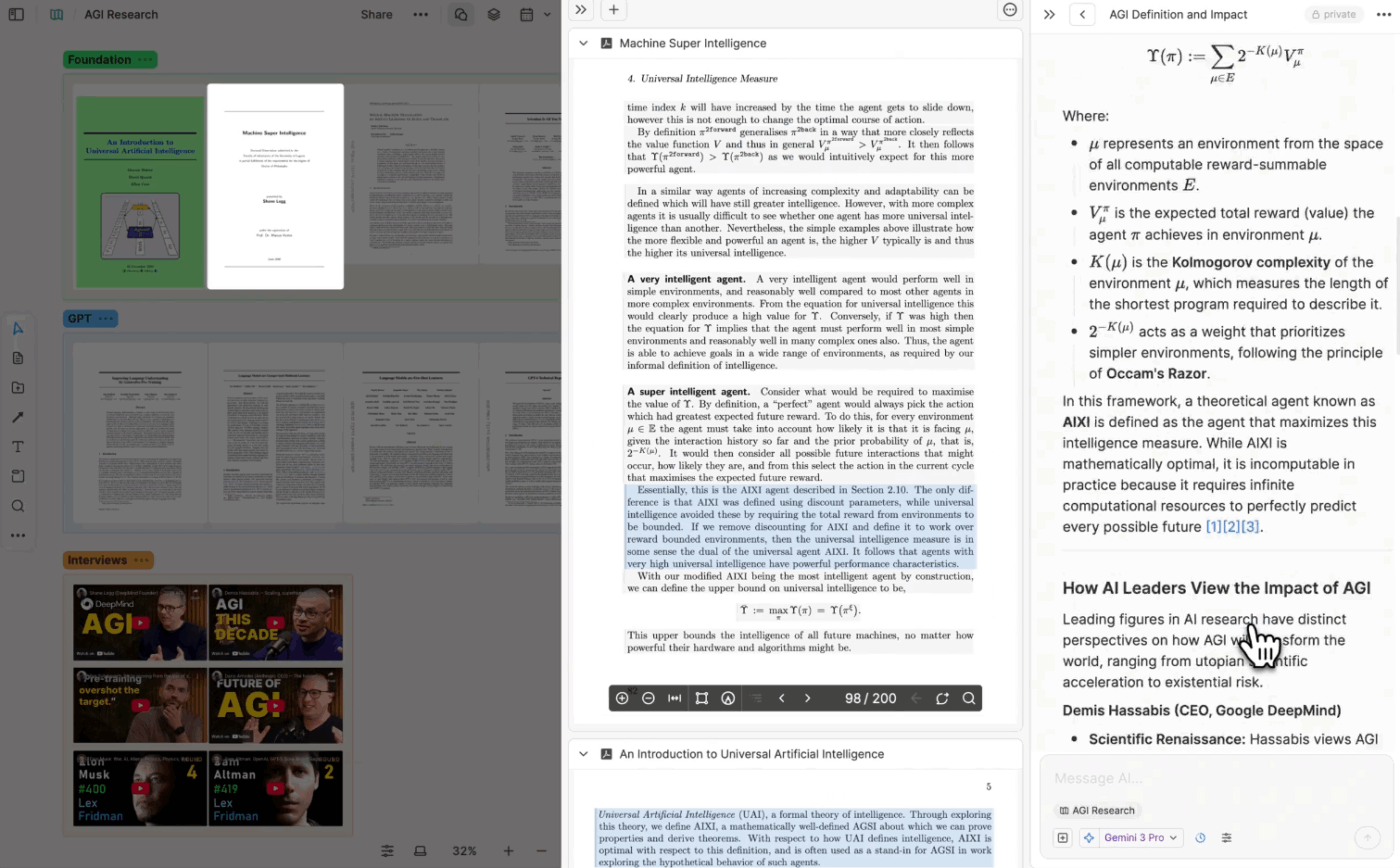
Heptabase is a visual note-taking tool for researchers and thinkers who work with complex information. Notes exist as cards on an infinite whiteboard, allowing you to arrange, connect, and cluster them to build arguments and understand relationships.
It’s designed to support the entire research process, from collecting sources to synthesizing insights.
Heptabase best features
Spatial canvas for visual thinking: An infinite whiteboard lets you arrange note cards spatially to map relationships
Research workflow support: Excels at collecting sources, extracting key points, and arranging them to build arguments
Multiple whiteboards with connected cards: Use the same note card across different whiteboards to organize information in multiple contexts without duplication
Heptabase pros and cons
Pros:
Feels intuitive for users who think in diagrams and mind maps
Excellent for synthesizing complex research and finding patterns
A beautiful, focused interface that stays out of your way
Cons:
Less suitable for users who prefer linear, text-based workflows
Limited team collaboration features
A newer product with a smaller user community
Heptabase pricing
Pro: $11.99 per month
Premium: $23.99 per month
Heptabase ratings and reviews
G2: Not enough reviews
Capterra: Not enough reviews
9. Capacities (Best for object-oriented note organization with structured data)
Notes can be about various things, such as people, books, or projects, that require different types of information; however, most apps treat them all as generic pages. This lack of structure makes your knowledge base messy and hard to query.
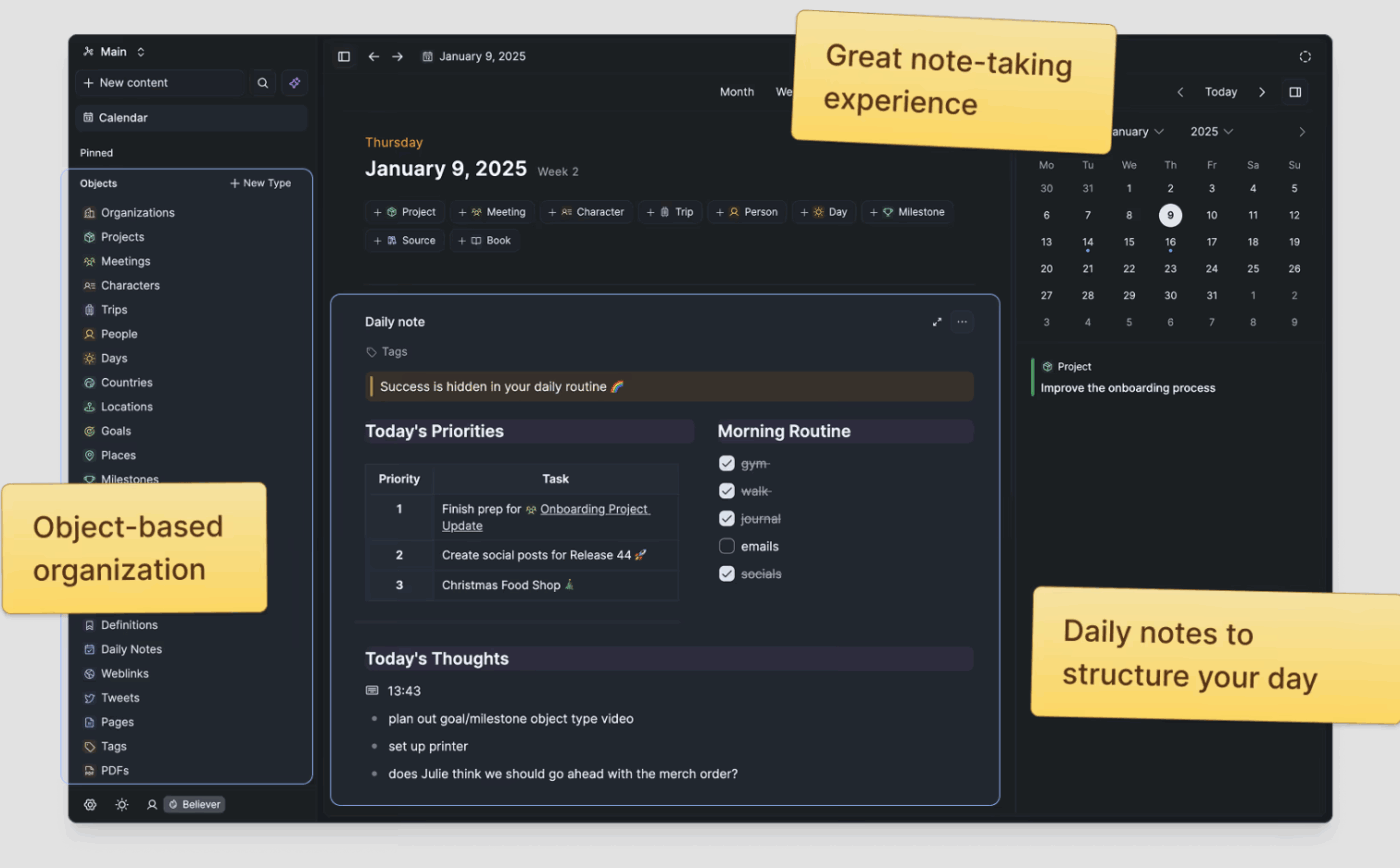
Capacities uses an “object-oriented” approach. Instead of blank pages, you create structured “objects” for different types of content. A “Book” object automatically has fields for Author and Rating, while a “Person” object has fields for Contact Info. This creates an organized, personal database without the complexity of a tool like Notion.
This structured approach is great for building a personal CRM or tracking media. However, you’ll need to spend some time setting up your object types.
Capacities best features
Typed objects with properties: Create structured objects for different content types, making your information more organized and useful
Automatic backlinking: Automatically shows everywhere an object is mentioned, creating a web of connections without manual effort
Clean, focused design: A minimal interface reduces distraction and keeps the focus on your content
Capacities pros and cons
Pros:
Provides helpful structure without being overly rigid
Excellent for building a personal CRM or media library
Thoughtful, opinionated design with smart defaults
Cons:
Requires some initial setup to define your object types
Limited team collaboration features
Smaller plugin ecosystem than more established tools
It broke my brain at first. I’m used to dumping notes into folders or endless pages. Here? Everything’s an object. Projects, books, random ideas — you turn them into little building blocks and connect them. Took me 3 days to stop fighting it. But when it clicked? Magic. Suddenly my daily notes linked to a personal project, which linked to a book quote I’d saved months ago. Felt like my thoughts were finally talking to each other. The graph view shows these wild connections I never planned. Daily Notes saved me — perfect for chaotic mornings. Dump thoughts there, then later turn fragments into proper objects. Downsides: That learning curve is REAL. Not for casual note-takers. But after 3 weeks I’m hooked. It’s not perfect, but it gets how messy thinking actually works. Lets me wander, then pulls threads together. If you’re tired of notes feeling dead — try it. Just push through day 3.
10. Tana (Best for AI-first structured note transformation with supertags)
Looking for a system that can recognize and act on this structure automatically?
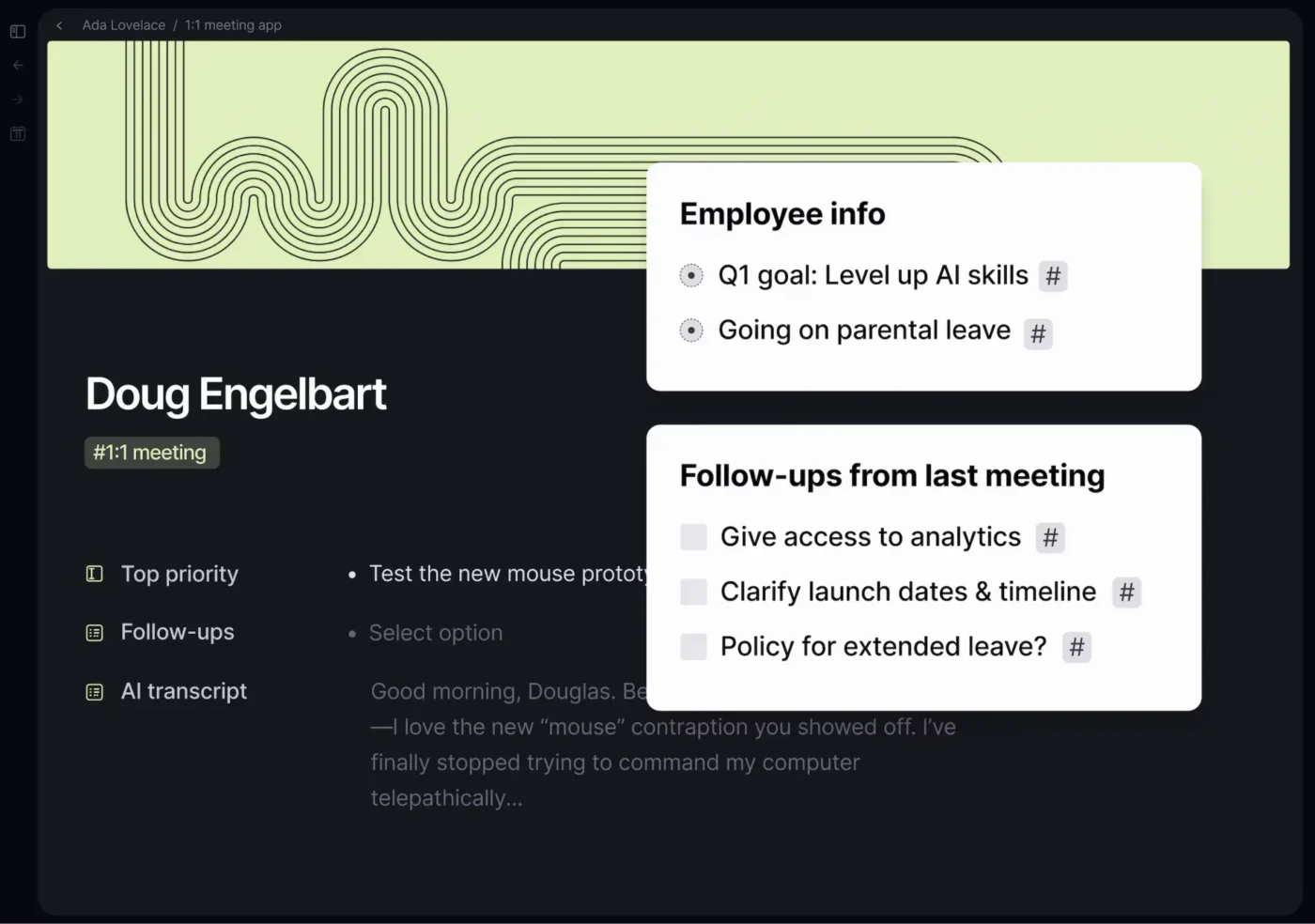
Tana is a powerful tool for users who want to build highly structured workflows. Its core feature is “supertags,” tags that carry fields and behaviors.
Tagging a line with #meeting can automatically add fields for attendees and action items. Its AI can also parse unstructured text and apply this structure for you.
Tana is powerful but has a steep learning curve. It may be more than you need if you want a simple note-taking solution.
Tana best features
Supertags with fields: Tags that carry structure, turning free-form notes into a queryable database
AI-powered parsing: AI can take unstructured text and automatically extract structured information like tasks and dates
Powerful live searches: Create saved searches that act as dynamic, automatically updating views of your data
Tana pros and cons
Pros:
Unprecedented flexibility for building custom information systems
AI that helps you add structure to your notes, not just summarize them
An active and passionate community sharing advanced workflows
Cons:
Very steep learning curve that requires significant time investment
It can feel overwhelming for users who prefer simplicity
Still in early access, with the interface and features evolving
Tana is the note-taking tool of the future. It combines the best elements of an outliner and relational note-taking system, and integrates it with AI. 1000% worth checking out if you are a knowledge worker or creative.
Summarize this article with AI
ClickUp Brain not only saves you precious time by instantly summarizing articles, it also leverages AI to connect your tasks, docs, people, and more, streamlining your workflow like never before.
Summarize this article for me please
Choose the Right Saner AI Alternative for Your Workflow
The best alternative to Saner.AI depends on the problem you’re actually trying to solve.
Is it a chaotic calendar, a fragmented knowledge base, or the drop-off between ideas and execution? Remember that you don’t need a tool with more features.
You need a solution that reduces fragmentation instead of quietly adding another layer to it. Ultimately, the best productivity tool is the one you’ll use consistently. Features matter less than how well a tool fits your unique thinking style and workflow.
Ready to see how a converged AI workspace closes the gap between knowledge and execution? Get started with ClickUp today.
Everything you need to stay organized and get work done.