






Still downloading templates?
There’s an easier way. Try a free AI Agent in ClickUp that actually does the work for you—set up in minutes, save hours every week.
Sorry, there were no results found for “”
Sorry, there were no results found for “”
Sorry, there were no results found for “”
Considering the amount of technology built to improve communication, cross-functional collaboration should be easier than ever.
But you see: all these tools are disconnected.
Your project managers are scrambling to make sense of conversations happening across multiple tools. No one has a single view on what was decided.
What if there was a way to bring meetings, decisions, and action items into one connected place—right where the work happens? Enter: ClickUp SyncUps, your time saver.
Below, we show you how project managers can use ClickUp SyncUp for cross-functional project syncs.
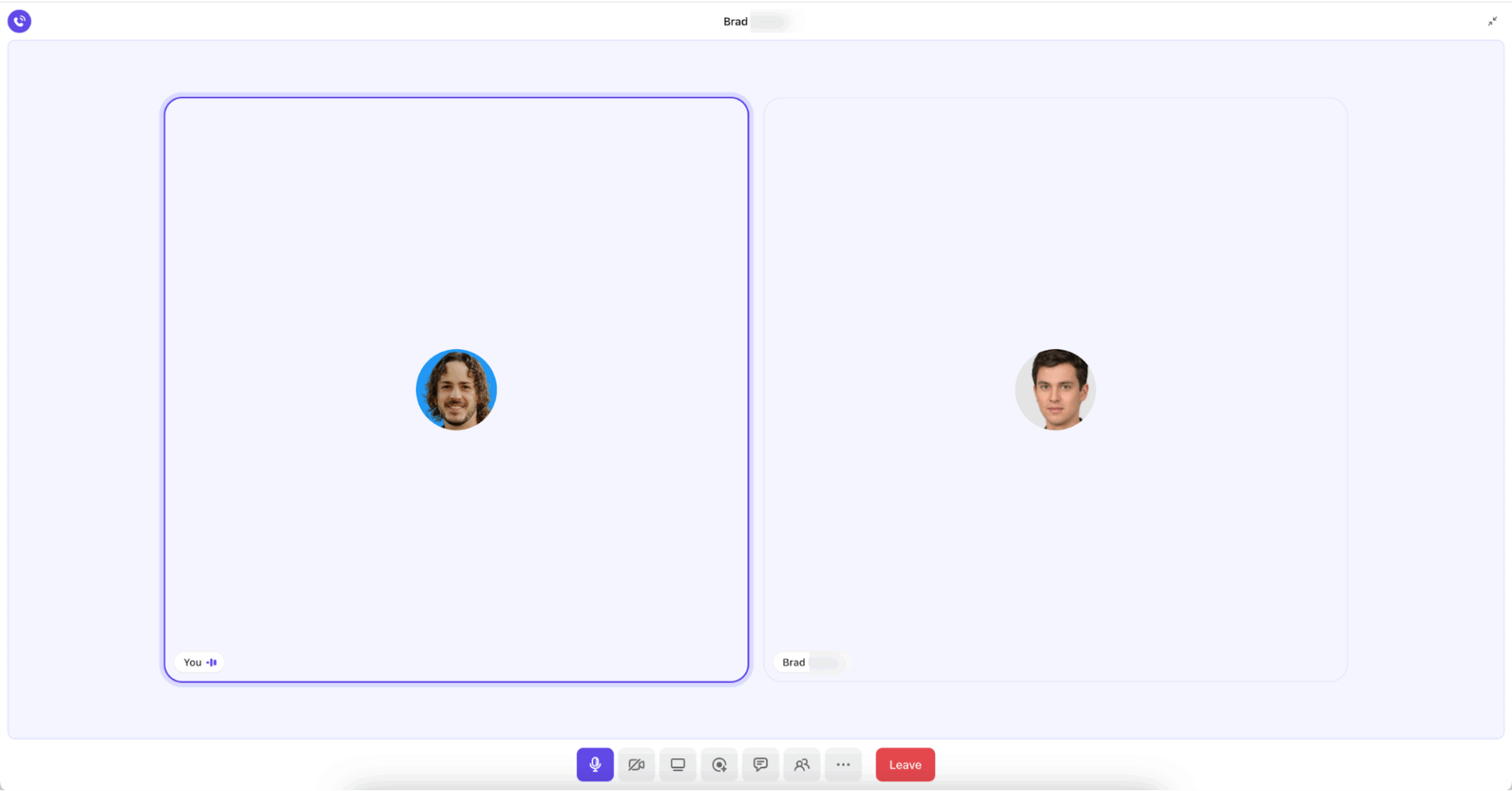
ClickUp SyncUp is a video and audio meeting feature built directly within your ClickUp workspace. It enables you to have one-on-one or group calls with your team and connect the discussions to actual tasks and Docs without losing context.
SyncUps are a part of ClickUp Chat and offer a full suite of features, including sharing your screen and recording calls, and AI-generated summaries after every recorded call.
For PMs seeking the right project management software to run aligned, traceable cross-functional syncs, SyncUp becomes the bridge between communication and execution.
So what makes SyncUps different from video conferencing and team communication apps like Zoom or Microsoft Teams? Why is direct workspace integration a boon for project managers? Let’s find out.
PMs can link SyncUp discussions to ClickUp Tasks in real time, making it easier to track progress and organize tasks.
Each discussion remains actionable, and the team members have a clearer understanding of what needs to be done. Anyone who has access to the Channel or ClickUp Chat (where the SyncUp was held) can see all these connected tasks by hovering over the SyncUp message.
❌ When the meetings and work are held on separate chat platforms, specific action items and follow-ups might get lost or delayed.
✅ With SyncUp, your work and meetings happen in the same place. Decisions turn into tasks immediately for smooth project execution.
🎥 Watch this video to see how to automate meeting notes + Tasks with ClickUp.
📮 ClickUp Insight: About 41% of professionals prefer instant messaging for team communication. Although it offers quick and efficient exchanges, messages are often spread across multiple channels, threads, or direct messages, making it harder to retrieve information later.
With an integrated solution like ClickUp Chat, your chat threads are mapped to specific projects and tasks, keeping your conversations in context and readily available.
Recorded SyncUps are stored in Clips Hub, and you can share the recording link with anyone for a quick overview.
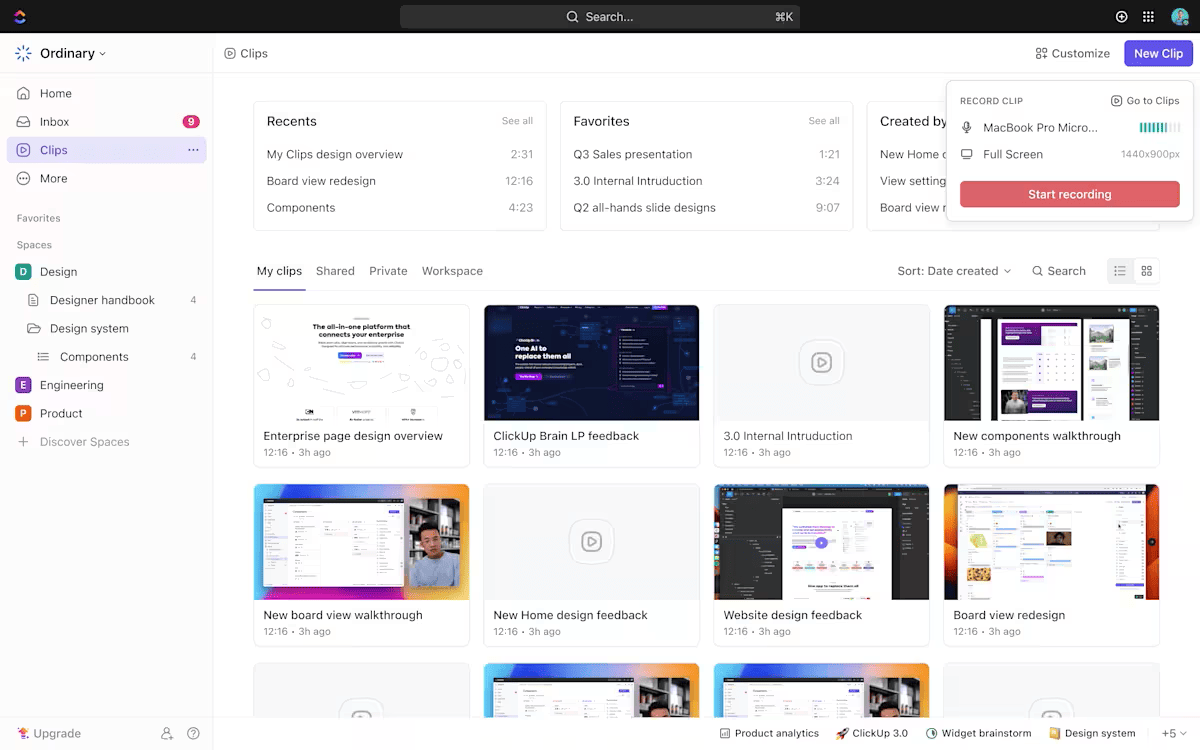
You get a comprehensive AI-generated summary that you can add to a Doc in one click.
Share the Doc with anyone who couldn’t attend the meeting, so they can get a quick overview of the key action items without having to watch an entire SyncUp.
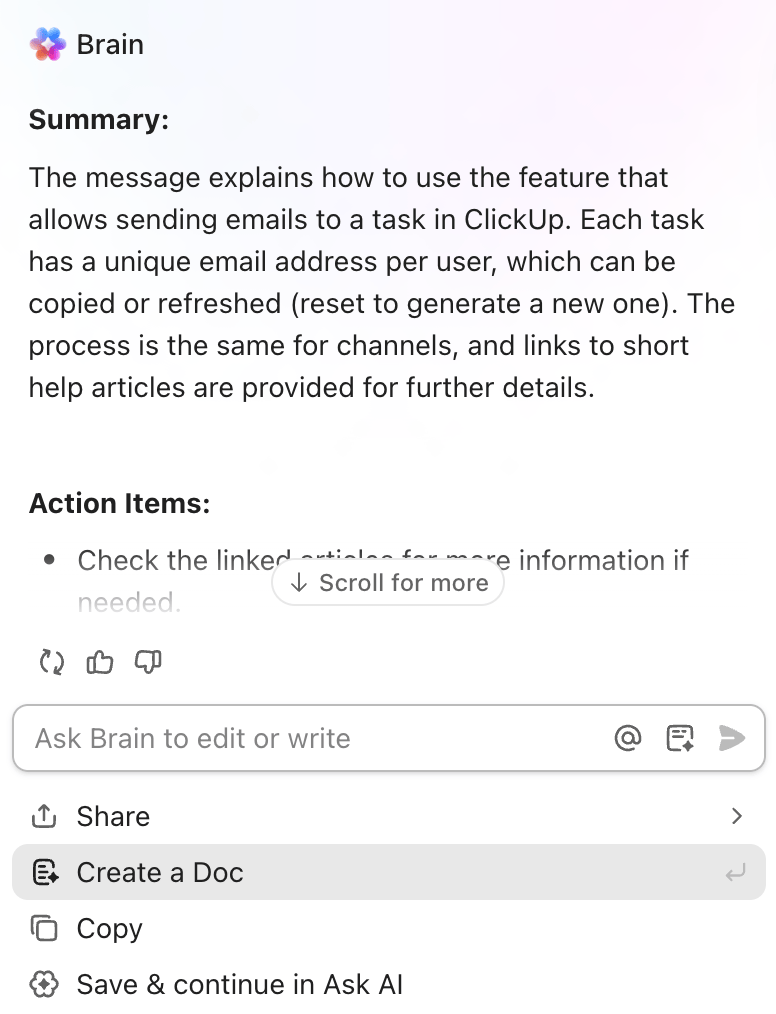
If you have a multilingual or globally dispersed team, using ClickUp Brain, anyone can translate those meeting notes into a language they understand without relying on someone else.
ClickUp Brain can also convert action items identified during the meeting into trackable tasks.
That is, if Tom were asked to finish the API documentation by Thursday, ClickUp Brain can create a task with that deadline and assign it to Tom automatically.
This is especially helpful for task management when you’re jumping from one meeting to another and can’t realistically document each one thoroughly.
Picture this: You’re hosting a cross-functional SyncUp. You pull up your launch roadmap, share your screen, and open the document for collaborative editing.
Every team involved in the SyncUp can jump in instantly. Marketing refines messaging notes, engineering highlights blockers directly in the doc, and design updates asset milestones in real time.
Post the meeting, you don’t need to collect feedback across different channels or teams. You walk out with an aligned plan.
📚 Read More: Best Screen Sharing Software for Remote Meetings
SyncUp is fully integrated with ClickUp’s workflow. The actionable items you discuss in these meetings are converted into tasks with deadlines (which improves performance tracking). You can then set trigger-based ClickUp Automations to send reminders when deadlines approach or post comments in tasks when statuses change.
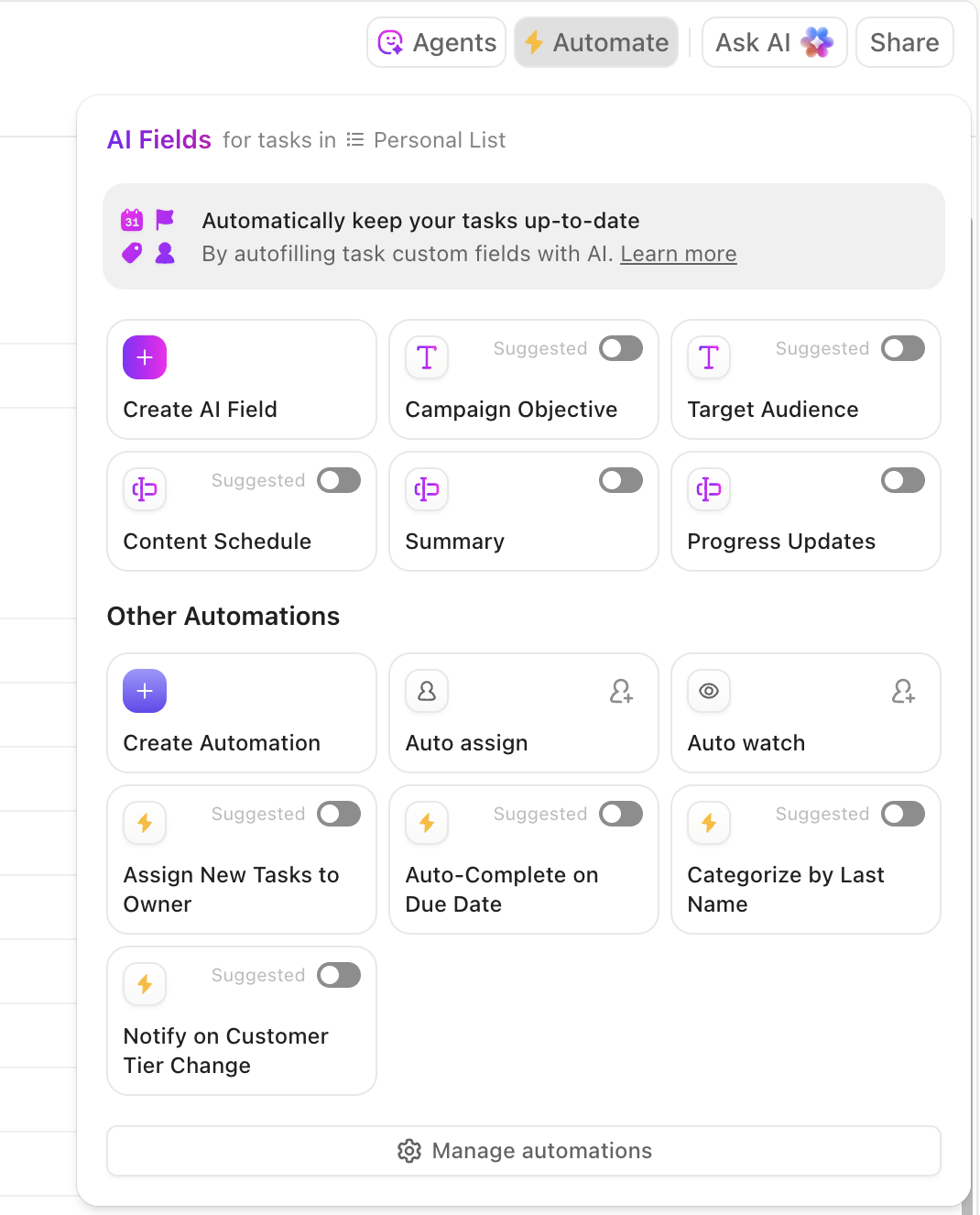
For instance, when the due date arrives → leave a comment for the Assignee.
💡 Pro Tip: Use ClickUp Super Agents to automate routine project management tasks like generating daily project reports, collating team standup updates, and instantly answering FAQs in chat channels.
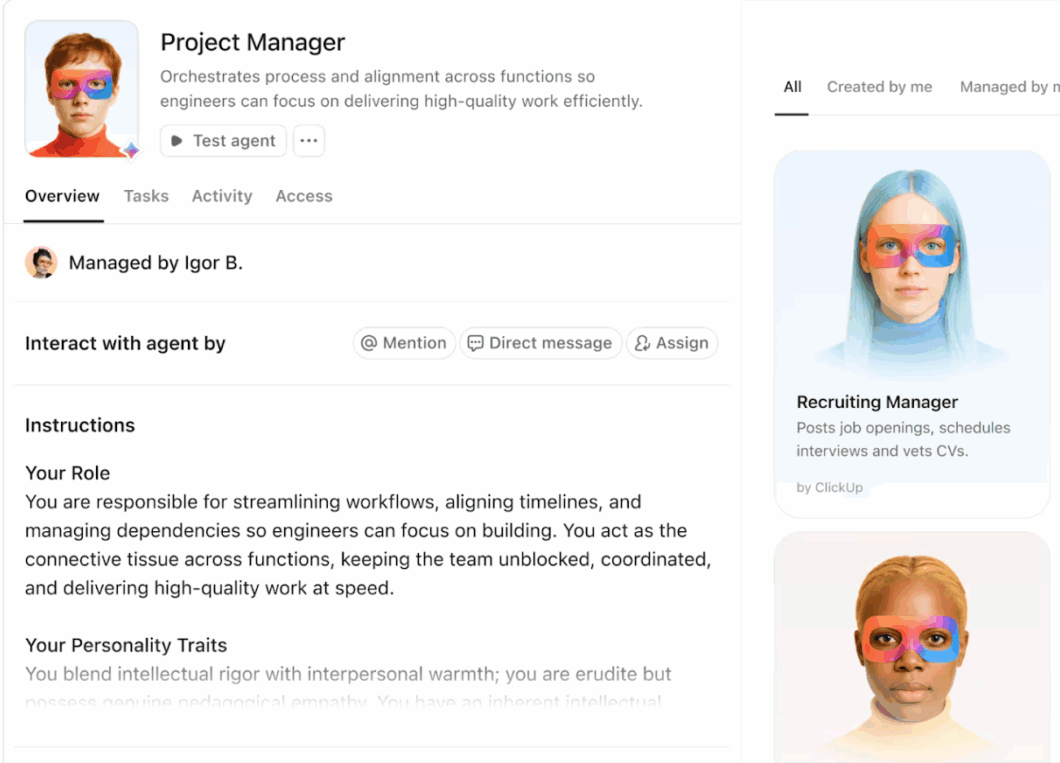
On that note, here are the top AI agents for meetings worth considering 👇
👀 Did You Know? According to ClickUp Research, 40% of professionals want to follow up on action items immediately after every meeting. But with communication channels split between email (42%) and instant messaging (41%), these action items are often scattered across the workplace.
Cross-functional collaboration is not challenge-free. If you’re ready to break them down, we have a solution for you.
Use ClickUp’s Project Management Platform to manage and organize communication, project data, documentation, tasks, and project outcomes in one place for seamless project execution.
Run meetings, link discussions to actual work, and convert decisions into trackable tasks. All this from one Workspace.
SyncUp sits inside this integrated workspace, so every cross-functional conversation remains connected to the project it’s meant to move forward.
Here’s how project managers can use ClickUp SyncUp for cross-functional project syncs and task management.
Before you schedule a cross-functional meeting, define what you need from the meeting. It could be:
Whatever the agenda, make sure to send it before the meeting.
A bonus tip: Give your team members the option to opt out of it if it’s unrelated to their work.
Use ClickUp Docs to write a meeting agenda. Include the discussion points and expected outcomes. Your team members can prepare their questions and queries beforehand.
If you’re short on time, combine Docs + ClickUp Brain to generate a structured meeting agenda instantly. ClickUp Brain can outline topics, propose questions, and help refine objectives so you walk into the meeting prepared.
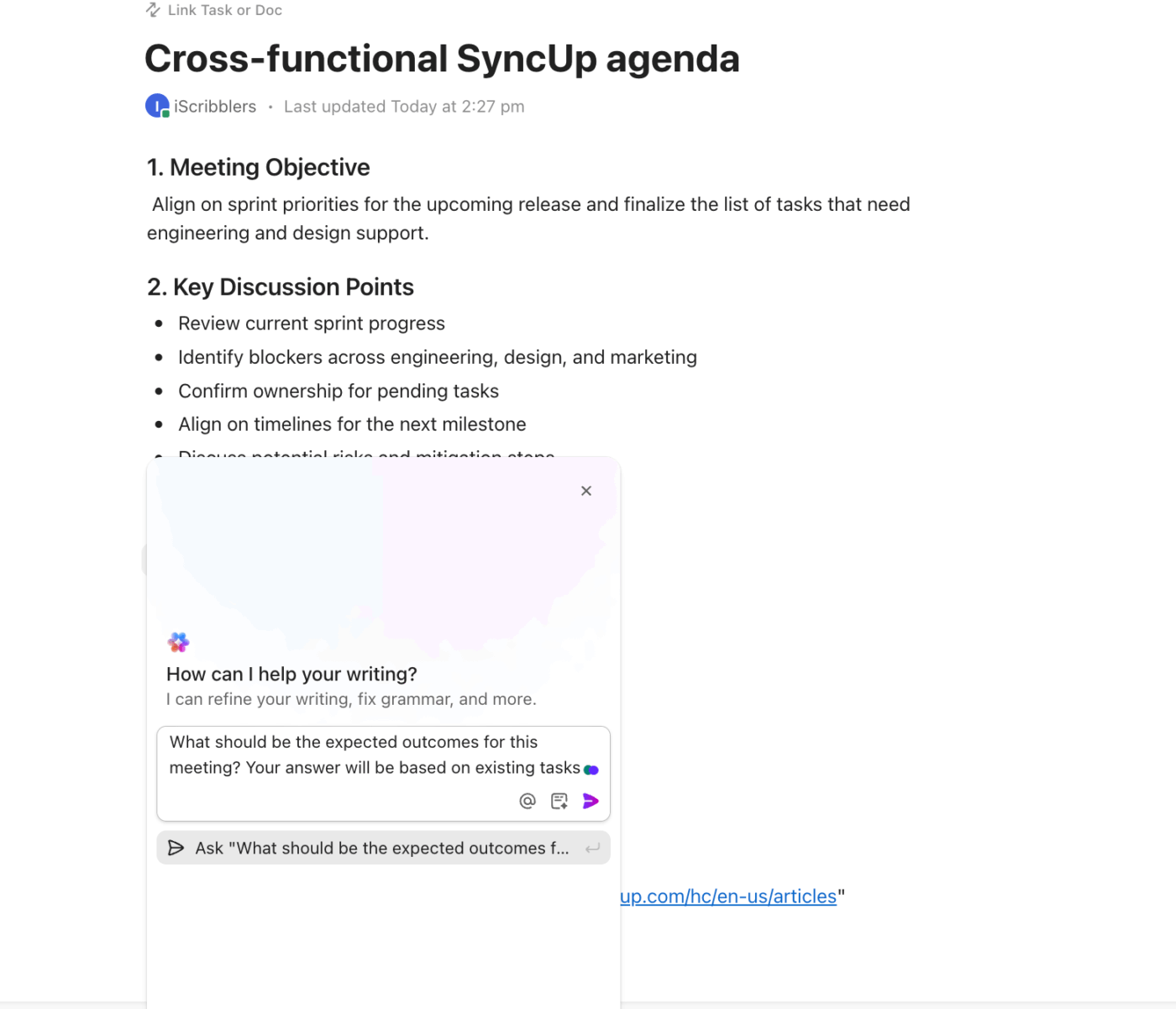
Because Docs are fully editable, you can embed tables, spreadsheets, dashboards, or reference links for added context. It gives attendees a clear starting point before the SyncUp begins.
⚡ Template Archive: Free Project Management Templates for All Types of Projects
ClickUp eliminates the need for multiple communication tools with ClickUp Chat. It is a unified platform that centralizes all your team communication in threads, channels, and DMs.
Note: SyncUp is a part of ClickUp Chat and can only be used when you activate Chat.
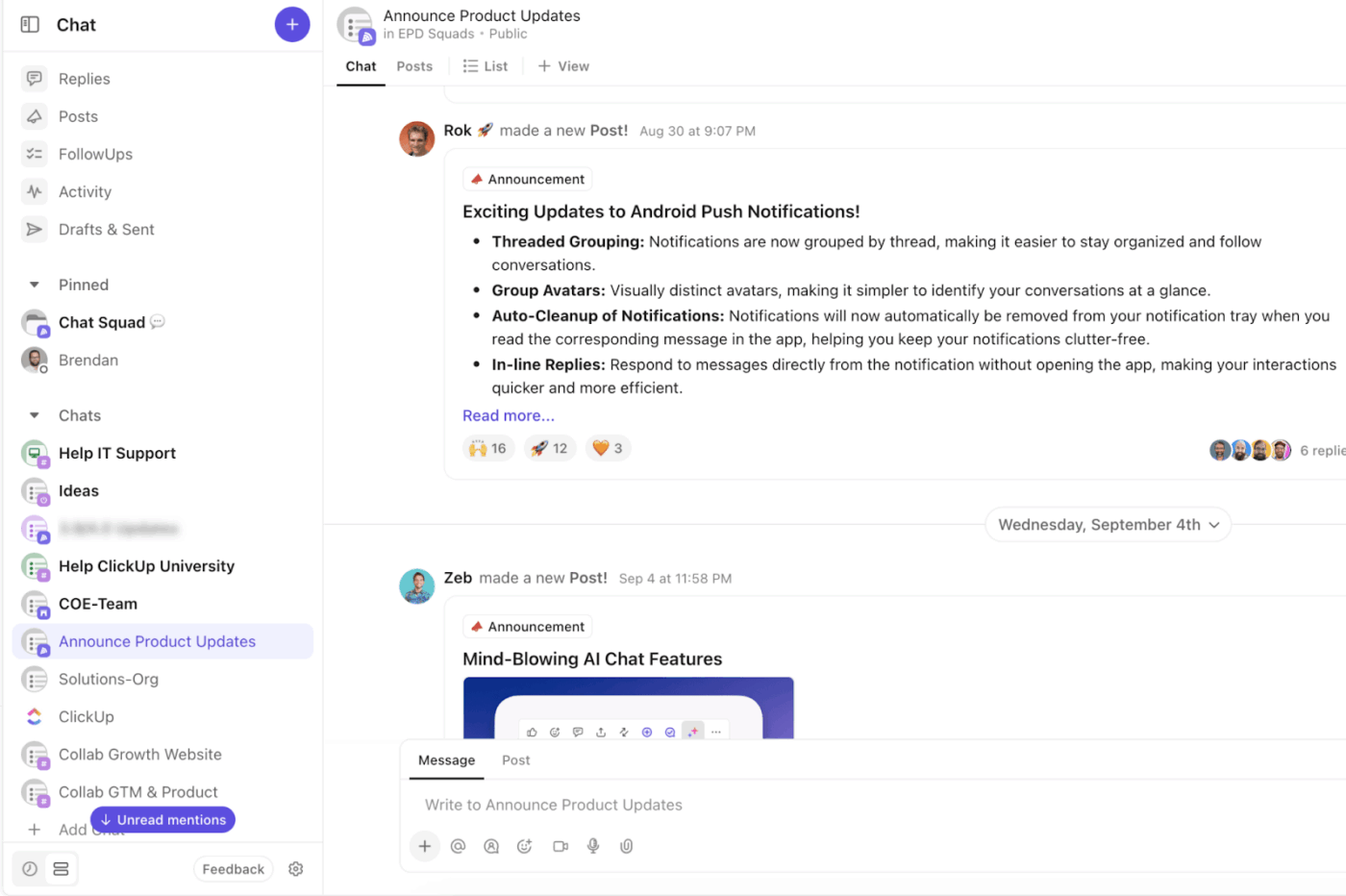
Then, create a specific channel in ClickUp Chat for your cross-functional project. This channel will serve as a central hub for team collaboration, keeping all team members informed and aligned with project-related discussions, tasks, files, documents, project timelines, and SyncUp calls.
What’s the benefit of this? It avoids context switching while attending the meeting.
You can also invite outside stakeholders to attend a SyncUp. Just make sure they have access to the chat channel.
👀 Did You Know? Nearly 84% of marketing leaders experience collaboration drag—too many meetings, unclear decisions, and delayed project requests that damage project health.
While there are many underlying reasons for this friction, centralizing team collaboration and work in one place could significantly reduce coordination overhead and keep teams moving forward without constant realignment.
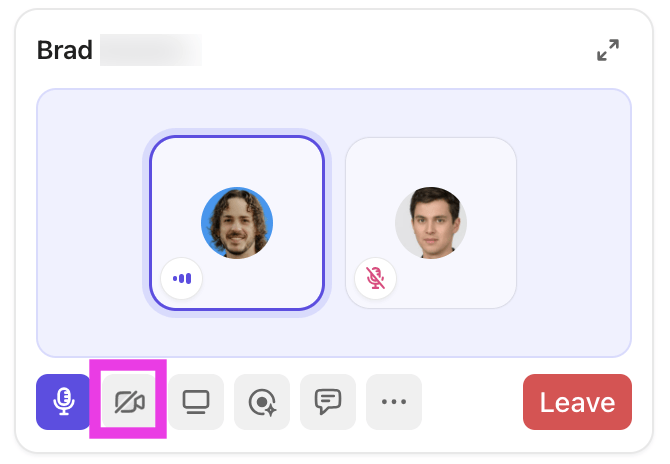
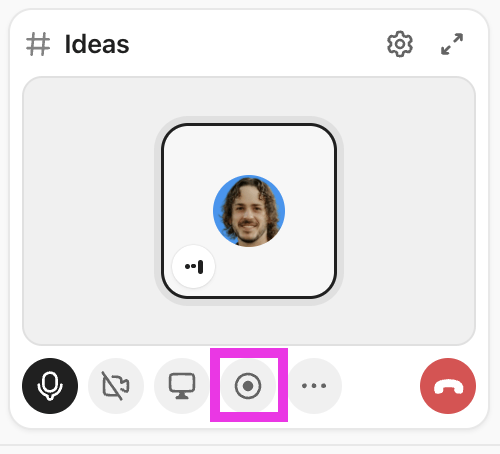
Click the phone icon in the upper-right corner of your Chat channel to launch a SyncUp. As soon as you launch a SyncUp, a message will be posted in the Channel allowing others to join. Toggle your mic and camera settings to prepare for the meeting.
You can even record the audio and video content for future reference.
📮 ClickUp Insight: More than half of respondents type into three or more tools daily, battling “app sprawl” and scattered workflows.
While it may feel productive and busy, your context is simply getting lost across apps, not to mention the energy drain from typing. ClickUpBrainGPT brings it all together: speak once, and your updates, tasks, and notes land exactly where they belong in ClickUp. No more toggling, no more chaos—just seamless, centralized productivity.
Share your screen (tab, window, or entire screen) during the SyncUp to review project documentation or demonstrate a specific workflow.
Screen sharing enables your team to collaborate in real time. It becomes easier to fill knowledge gaps and instill clarity, which are otherwise difficult to convey.
This facilitates workplace collaboration by providing a shared visual reference for all team members. Your colleagues will thank you for this—everyone walks away aligned, with action items and tasks assigned to them.
ClickUp Brain works as your dedicated AI workspace. It pulls context from your tasks, documents, Spaces, knowledge base, and connected apps.
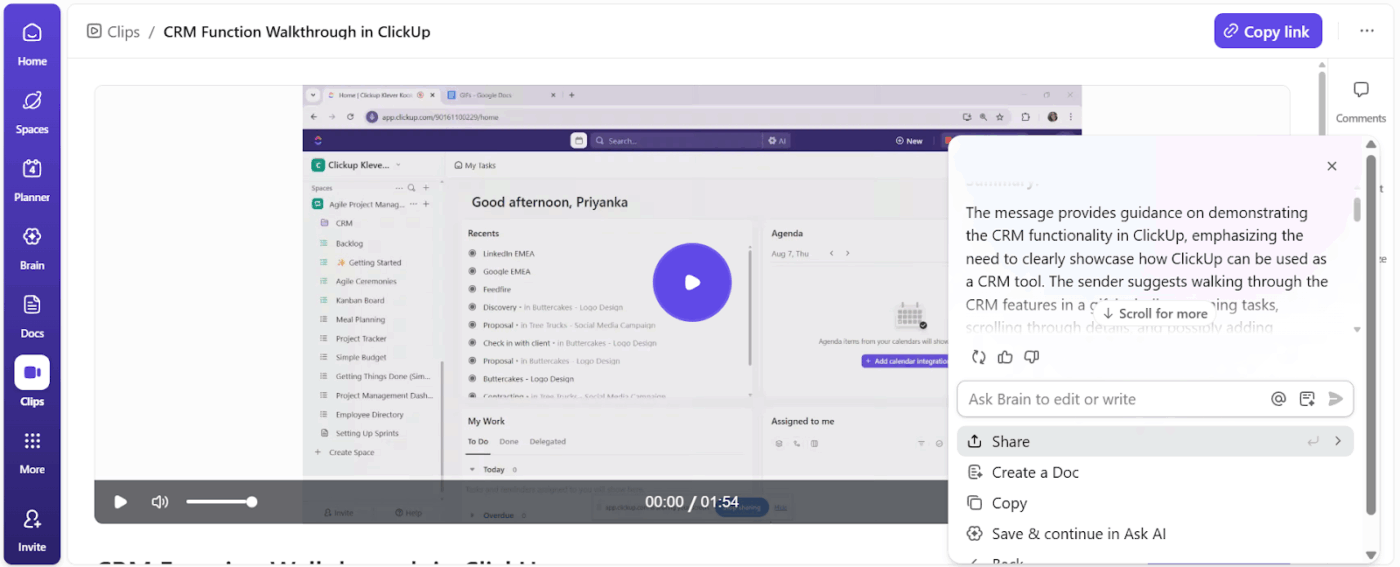
You’re not prompting an isolated AI tool. You’re working with contextual intelligence that understands your projects, your team, and your history.
You also choose the intelligence that fits the moment. For example, from the multiple AI models, use:
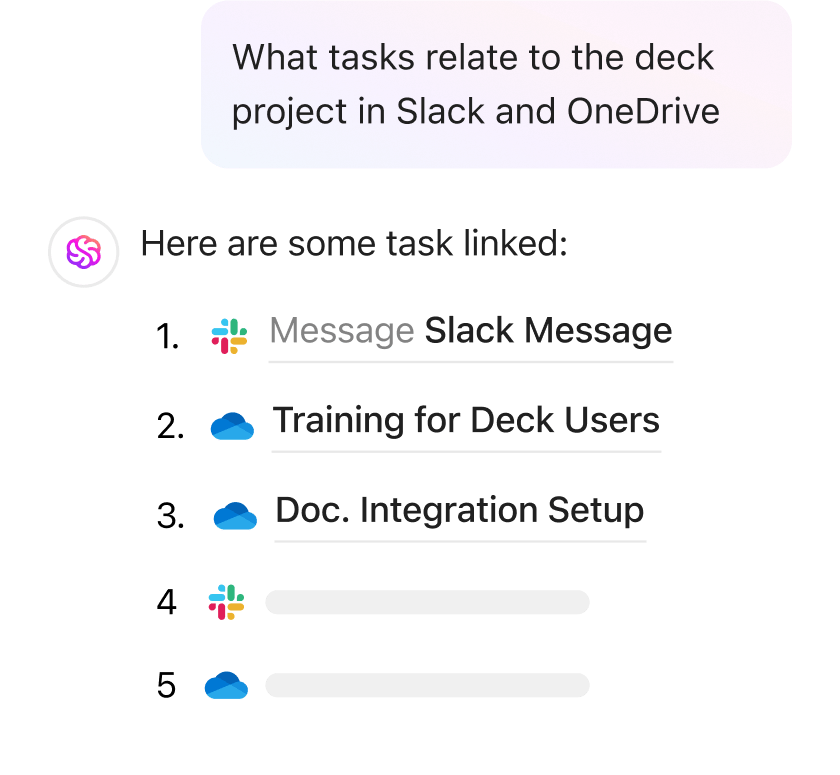
With advanced Enterprise Search, instantly pull information from anywhere in your workspace: tasks, docs, files, comments, recorded SyncUps, and even external sources like Google Drive, GitHub, SharePoint, and the broader web.
Need a dependency update from the last sprint? A design file referenced two weeks ago? A risk flagged in a conversation? ClickUp Brain surfaces it in seconds.
The built-in web search layer lets you gather market data, benchmark best practices, research emerging trends, or validate assumptions.
Instead of wrestling with AI sprawl, ClickUp Brain becomes the single AI layer across your entire project workflow.
⚡ Template Archive: Free Project Status Report Templates
The instantaneous nature of ClickUp SyncUp improves collaborative communication. That said, it has limitations you should be aware of. They include:
Challenge: ClickUp SyncUps support cross-functional collaboration for up to 200 participants in a single call, with 24 people speaking at once.
There are role-based restrictions about who can initiate a SyncUp in a channel. The maximum duration for a SyncUp is 10 hours, which shouldn’t be a limiting factor; if it is, you can always start a new SyncUp immediately.
✅ Workaround: For cross-functional meetings with more than 200 people, run parallel SyncUps for different departments and share the recordings afterward.
Challenge: Users sometimes do not receive immediate notifications for incoming SyncUp calls, leading to missed meetings.
✅ Workaround: Ask team members to enable desktop and mobile notifications for ClickUp Chat channels where important SyncUps are hosted. Post a quick reminder in the channel a few minutes before starting.
💡 Pro Tip: For teammates who rely on mobile, make sure the ClickUp app has notification, microphone, and camera permissions enabled. Mobile SyncUps let users join calls and follow discussions on the go.
Challenge: Some online meeting tools, such as Zoho Meetings, let you create breakout rooms to discuss specific topics separately before regrouping.
✅ Workaround: Start separate SyncUps in different Chat channels for sub-team discussions.
For example, if your product launch meeting needs engineering and design to hash out technical details separately, they can jump into their department channel for a quick SyncUp, then return to the main project channel.
Another option is to schedule those sub-discussions as distinct SyncUps before or after the main cross-functional meeting.
📚 Read More: Project Management Dashboard Examples and Templates
Challenge: Only recorded SyncUps are stored in Clips Hub and can be transcribed or summarized by ClickUp Brain. Remember to hit the recording button at the start of each meeting.
✅ Workaround: Make recording a default habit for all important cross-functional meetings. Assign someone (or yourself) to start the recording at the beginning of every SyncUp.
Challenge: Free plan users get limited storage for SyncUp recordings, which can fill up quickly if you’re running frequent cross-functional meetings.
✅ Workaround: Upgrade. If not, prioritize which meetings must be recorded and delete older recordings that are no longer relevant. You can also download important recordings to external storage and remove them from ClickUp to free up space.
👀 Did You Know? Nearly 83% of digitally advanced companies harness the power of cross-functional teams to stay “nimble” and “maintain a competitive edge.” But most of these companies struggle to tap into the right resources to make it happen.
Here are some practical tips that can help project managers make the most of SyncUps rather than turning them into just another chat platform:
Cross-functional projects require a collaborative environment where teams don’t have to chase updates and struggle to find common ground.
With so many moving parts across departments, it’s difficult for your project managers to keep track of progress and blockers.
Collaborative communication through SyncUps brings stakeholders together without the formalities of scheduling meetings or waiting for confirmation.
Since they are integrated directly into your project management software, you can turn each meeting into an actionable item and track it to the minute.
Ready to get started with SyncUps? Sign up on ClickUp for free.
No, ClickUp SyncUp is specifically built to conduct instant audio and video meetings within the ClickUp workspace. By keeping your meetings connected to tasks, docs, and your work, you eliminate context sprawl that would otherwise creep up.
Up to 200 people can join a SyncUp meeting, and 24 people can talk at a time.
Yes, external stakeholders with access to channels can join SyncUp with an invite link.
Not entirely. SyncUp works best for discussions that need real-time collaboration and decision-making. For routine status updates and overall project progress reports, emails or (even better) ClickUp Chat and task comments are more efficient.
ClickUp Brain can generate meeting summaries from your SyncUp recordings and turn action items into trackable tasks. The AI can assign the tasks to the right people and set deadlines as discussed in the meeting.

© 2026 ClickUp

There’s an easier way. Try a free AI Agent in ClickUp that actually does the work for you—set up in minutes, save hours every week.