
Sorry, there were no results found for “”
Sorry, there were no results found for “”
Sorry, there were no results found for “”
Obsidian is a powerhouse for organizing ideas, boosting productivity, and mastering note-taking workflows. But here’s the secret to using its maximum potential: shortcuts!
These incredible tools save precious time, allowing you to focus on your ideas instead of fumbling through menus and hundreds of buttons.
Whether you’re a beginner starting your Obsidian journey or a seasoned user looking to level up, knowing the right shortcuts saves you time and supercharges your efficiency. 💡
So, we’ve curated a list of essential shortcuts that will transform how you work in Obsidian. As a bonus, stick around until the end to see an alternative software that could make your note-taking process faster and more seamless. 🚀
🧠 Fun Fact: A study found that keyboard shortcuts can save up to 8 days yearly. Imagine what you could do with that extra time!
Obsidian keyboard shortcuts are like secret keys that enable faster, smoother workflows within the note-taking app. Instead of clicking through menus or using a mouse to perform tasks, these shortcuts let you work directly from your keyboard.
Think of them as quick hacks for your note-taking. Want to open a note instantly? Hit Ctrl + O (or Cmd + O on a Mac) and start typing the note’s name—it’ll pop up before you know it.
Need to format your text? With just a tap, Ctrl + B makes things bold, while Ctrl + I adds a stylish italic touch.
These are especially handy when you’re deep in thought and don’t want to break your rhythm. Instead of pausing to hunt for options, you can move, format, and edit your notes precisely, all without lifting your fingers off the keyboard. Much like Obsidian templates, they save time and energy.
What makes them even more powerful is their flexibility. Obsidian lets you customize these shortcuts to fit your workflow, so you’re always in control.
➡️ Read More: Obsidian vs. OneNote: What’s Better for Note-Taking?
Using Obsidian hotkeys saves time and transforms how you take and organize your notes. Here are the top benefits of mastering shortcuts in Obsidian:
🔍 Did You Know? Obsidian lets you remap almost every shortcut to make it fit your workflow perfectly.
Using shortcuts in Obsidian is simple and greatly speeds up your workflow. Here’s how to get started and maximize their effectiveness:
Obsidian comes with a set of pre-configured shortcuts for common actions. For example, press Ctrl + O to open a file, Ctrl + N to create a new note, and Ctrl + Shift + B to toggle the sidebar.
Look for existing hotkeys by clicking ‘Settings’ and then ‘Hotkeys.’ These shortcuts help you quickly navigate, edit, and manage your notes without reaching for the mouse.
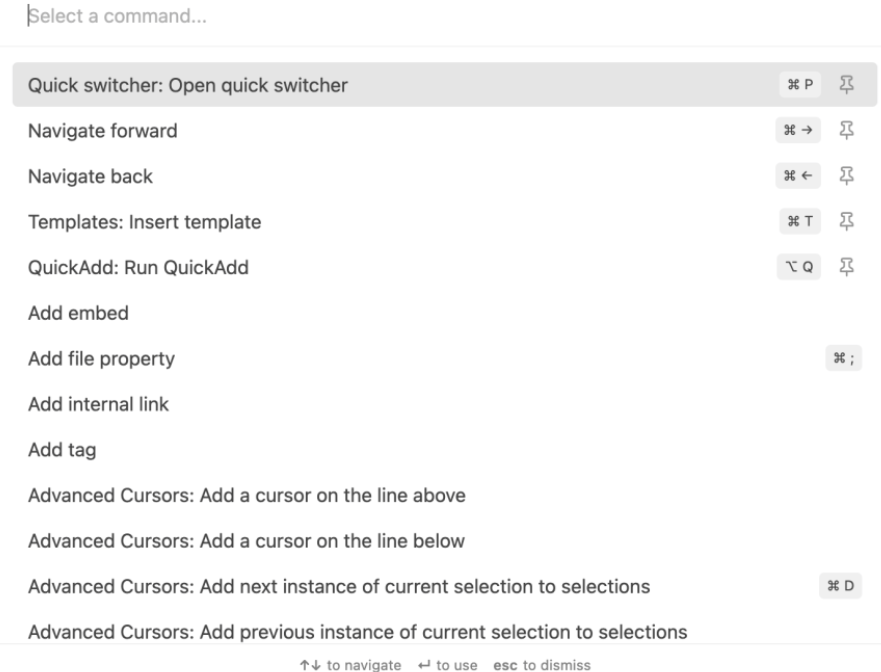
The Command Palette (Ctrl + P or Cmd + P) is a powerful tool in Obsidian. It lets you search for any action or command in Obsidian, and executing it is as simple as typing its name. Use this to discover new features and plugins or change settings.
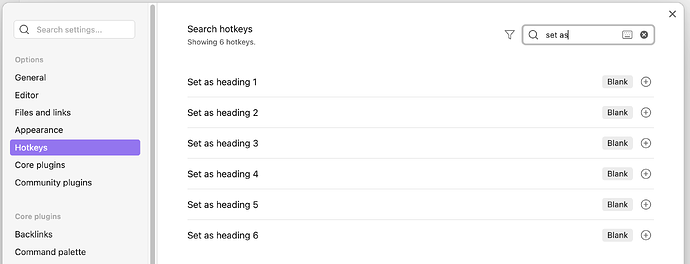
If the default shortcuts don’t suit your workflow, you can customize them!
This makes Obsidian incredibly adaptable to your working style.
🧠 Fun Fact: The very first keyboard shortcut was created in the 1970s at Xerox. It included cut, copy, and paste functions.
Here’s the cheat sheet containing the top 10+ Obsidian hotkeys to boost your productivity:
| Description | Windows Shortcuts | Mac Shortcuts |
|---|---|---|
| To copy text | Ctrl + C | Command + C |
| To cut text | Ctrl + X | Command + X |
| To paste text | Ctrl + V | Command + V |
| To paste text without formatting | Ctrl + Shift + V | Command + Shift + V |
| To undo your last action | Ctrl + Z | Command + Z |
| To redo | Ctrl + Shift + Z | Command + Shift + Z |
| Delete previous word | Ctrl + Backspace | Option + Backspace |
| Delete the next word | Ctrl + Delete | Option + Delete |
| Delete the current line | Ctrl + Shift + K | Command + Shift + K |
| Select entire text | Ctrl + A | Command + A |
| To bold text | Ctrl + B | Command + B |
| To italicize text | Ctrl + I | Command + I |
| Navigate back to previous note | Alt + Left Arrow | Alt + Left Arrow |
| Navigate back to the previous note | Ctrl + Alt + Right Arrow | Command + Alt + Right Arrow |
| Description | Windows Shortcuts | Mac Shortcuts |
|---|---|---|
| To make a new note | Ctrl + N | Command + N |
| To save current note | Ctrl + S | Command + S |
| To create a new note in a new pane | Ctrl + Shift + N | Command + Shift + N |
| To open quick switcher | Ctrl + O | Command + O |
| To toggle edit/preview mode | Ctrl + E | Command + E |
| To search within a note | Ctrl + F | Command + F |
| To search in all notes | Ctrl + Shift + F | Command + Shift + F |
| Description | Windows Shortcuts | Mac Shortcuts |
|---|---|---|
| To open the command palette (access commands and plugins) | Ctrl + G | Command + G |
| Toggle Sidebar | Ctrl + P | Command + P |
| Toggle sidebar | Ctrl + Shift + B | Command + Shift + B |
| Toggle checklist item | Ctrl + Enter | Command + Enter |
While Obsidian is a great tool for note-taking and personal knowledge management, it has limitations. Here are some challenges you might encounter when using Obsidian:
As promised, it is time to discover the app that overcomes Obsidian’s limitations, offers multiple note-taking methods, and offers advanced collaboration features.
Meet ClickUp—the everything app for work that combines collaboration, task management, document creation, and productivity in one seamless platform.

ClickUp’s Knowledge Management offers features to centralize knowledge, build wikis, get AI-powered answers, and share resources easily. It lets you import knowledge into ClickUp securely and collaborate with others to create useful docs.
It also integrates with 1,000+ platforms, ensuring you can easily connect your favorite apps and sync all your work. Additionally, it offers a vast repository of templates, including templates for more efficient note-taking and templates for tools like Obsidian.
💡 Pro Tip: Read our comprehensive take on ClickUp vs. Obsidian to learn how the two tools measure against each other to make a well-informed decision!
Take a look at ClickUp’s features that make it a perfect Obsidian alternative:

ClickUp Docs has features that speed up and improve your writing process. Create user guides, SOPs, and knowledge bases and link them with projects to improve workflow.
Use nested pages up to five levels to create comprehensive documents and keep all relevant info in one place.
Customize your documents by embedding bookmarks, screenshots, and PDFs for reference. Add custom covers, images, emojis, and content outlines to make them easier to identify and search. Use Slash Commands to access quick shortcuts and format your notes effectively.
Moreover, you can Share Docs as a private or public link. Choose among four permission levels: view, comment, edit, and full. Use the collaborative editing features to collaborate with your team on important notes.

ClickUp Notepad is a free online notepad perfect for rapidly capturing your thoughts, creating checklists, and organizing tasks. Add formatting to your notes with lists, headings, font size, type, and color.
Convert your lists into trackable tasks and assign them to team members from within the Notepad. Moreover, access your notes from any device with ClickUp’s Chrome extension and mobile app.
Hear what Nora Kaminski, Heartland School Solutions, has to say about ClickUp:
I have been more productive because I’m able to keep my notes all in one place.
Note-taking becomes 10X more powerful with ClickUp’s AI Notetaker—a tool built to turn the mess after meetings into clear, actionable insights.

ClickUp offers high customization to ensure a perfect note-taking experience. This includes letting you add images, videos, PDFs, and GIFs to add context to your notes. If you want to visualize your notes, use ClickUp Mindmaps. This feature lets you draw connections between ideas, break down complex notes, and organize them more clearly.
Use ClickUp Connected Search to search your notes within the ClickUp ecosystem. This powerful feature also searches your entire workspace and integrated apps.
📮 ClickUp Insight: According to our study, 67% of users primarily use AI for tasks like content creation (37%) and research (30%), and 33% of people want AI to help them with more advanced use cases like skill development.
As the everything app for work, ClickUp brings intelligent assistance to every corner of your workspace with a contextually aware AI. From notes to content creation to summarizing, ClickUp has it all under one roof.

Looking to use AI for note-taking? Don’t look further than ClickUp Brain. 🧠
Brain is the perfect writing assistant that writes, edits, and proofreads your content in the desired tone. ClickUp Brain does everything from generating emails to translating content and summarizing it!
Are you out of new ideas? Brainstorm with ClickUp Brain to spark your creativity. Preparing for an important meeting? Ask Brain to come up with possible scenarios and practice managing them.
💡 Pro Tip: Manual note-taking can take time and make all your information disorganized. Power up your note-taking with AI technology such as speech recognition, Natural language processing (NLP), and machine learning!

One of the best practices to use ClickUp is to use the plethora of shortcuts and hotkeys it offers for navigation. Here are the ClickUp shortcuts for you to use in Docs:
| Description | Windows Shortcuts | Mac Shortcuts |
|---|---|---|
| To create a comment from selected text | Ctrl + Shift + M | Command + Shift + M |
| To create a task from selected text | Ctrl + Alt + T | Command + Option + T |
| To align text to the left or right | Ctrl + Shift + R | Command + Shift + R |
| To align text to the center | Ctrl + Shift + E | Command + Shift + E |
| To create a bulleted list | Ctrl + Shift + 9 | Command + Shift + 9 |
| To create a numbered list | Ctrl + Shift + 7 | Command + Shift + 7 |
| To create a checklist | Ctrl + Shift + 8 | Command + Shift + 8 |
| To highlight a selected text block | Ctrl + Shift + H | Command + Shift + H |
| To duplicate a text block | Ctrl + D | Command + D |
| To move one or more than one content blocks | Alt + Up or Down Arrow | Option + Up or Down Arrow |
| To use inline code | Ctrl + Shift + C | Command + Shift + C |
| To add an emoji | :nameOfEmoji | :nameOfEmoji |
Obsidian is a powerhouse for personal knowledge management. Its versatile shortcuts, markdown-based note-taking, and customizability empower users to create, organize, and connect ideas like never before.
But if you need a tool that goes beyond individual workflows to include efficient collaboration, task management, and integrated workflows, ClickUp is your answer. It streamlines your entire productivity system.
From real-time collaboration to built-in templates and advanced task tracking, ClickUp offers a seamless, all-in-one solution for individuals and teams.
Ready to take your productivity to the next level? Sign up for free today!

Manasi Nair
Max 32min read
Manasi Nair
Max 14min read

Arya P Dinesh
Max 21min read

© 2026 ClickUp





