


Sorry, there were no results found for “”
Sorry, there were no results found for “”
Sorry, there were no results found for “”
Sometimes, the timing of a message is just as important as its content.
Whether you want to ensure a message is seen first thing in the morning or delivered at a specific time for maximum impact, scheduling offers valuable control.
While Google Chat lacks a native scheduling feature, clever workarounds exist to help you achieve this.
This blog provides a comprehensive guide on how to schedule messages on Google Chat and introduces a smarter alternative for efficient and seamless communication.
1. Can you schedule messages directly in Google Chat?
Google Chat doesn’t offer built-in message scheduling, but you can schedule messages using Calendar reminders, Google Tasks, or third-party apps.
2. How do you schedule a message in Google Chat using workarounds?
Draft your message in Gmail, set a timed reminder through Google Calendar or Tasks, and send it when the notification arrives.
3. Why is message scheduling helpful in Google Chat?
It supports cross-time-zone communication, timely updates, automated reminders, and lets you plan messages without disturbing teammates after hours.
4. What limitations should you expect when scheduling messages on Google Chat?
It requires manual steps, lacks native scheduling, depends on external tools, and offers limited workflow integration.
5. How does ClickUp improve communication compared to Google Chat?
ClickUp Chat lets you connect conversations to tasks, use AI for instant summaries, set quick reminders, and manage polls and updates—all in one workspace.
Google Chat does not support built-in message scheduling, so users rely on Gmail drafts with Calendar or Tasks reminders, or third-party apps to send messages at the right time manually.
Scheduling messages on Google Chat requires a manual approach. Still, with some creativity, you can make it work. Before we dive into how, let’s get you set up. Here’s what you need to do:


Tired of copying messages from chat and creating tasks out of them? We heard you!
Here’s the solution. 👇🏼
Now that you’ve logged in, here are a few creative ways to schedule messages on this tool:
This is the easiest workaround that many prefer. Plus, it takes just three clicks and a bit of messaging.
Need to ping a teammate but don’t know what to say? Use the ClickUp Instant Message Template to write quick, thoughtful Google Chat messages without overthinking every word.
With the same Google ID, log into Gmail. Then select Compose and type up the message.

💡 Pro Tip: Do not add recipients in the To: section. This way, even if you accidentally press send, it won’t fly out of your inbox.
Next, open your Google Calendar and click on Create. You can choose either an event or a task.
On the pop up dialogue box, add the name of the event, set the date and specific time, paste the text you typed in the email draft, and click Save.

📝 Expert Advice: You may have multiple task lists if you use Google Tasks frequently. To keep your task organized, choose the right task list for your message (e.g., work list, project list, or even ‘draft messages’ list)
You can enable notifications using a browser or a mobile app. That way, you’ll get notifications when it’s time to act on your calendar events and tasks.
In this case, the app will notify you when you need to send your messages.

Another way of doing this is to use a task management tool to plan the message. While this doesn’t give you a view of your schedule, it’s another quick and simple workaround.
Here’s what you need to do:
Open Google Tasks on your mobile or web app. Then select Add a task

Add a task title and draft your message. You can also include the recipient’s email IDs.
Suppose you need to send important messages to executive management for this case. You’ll get the latest update by 3 pm, and you need to send it to management before their 3.30 pm call. Keep a draft ready with a space for the details to speed things up.

Finally, add the time you need to be reminded. In this case, it’s at 3:15 p.m. on the same day. Once that’s done, you can focus on other tasks or regular messages until it’s time.
➡️ Read More: Examples of Communication Strategies for the Workplace
Aside from manual workarounds, Google Chat allows you to add apps like Send it Later and even ClickUp as third-party tools. These apps help you schedule send and even set up recurring check-ins.
Here are a few steps to help you find and install them:
Once you’re back on your Google Chat homepage, click on Explore apps.

If you need a scheduling or management app, find it via the search bar. There’s a good chance the top apps are placed in the most popular section.

Select the app you need and click Install. In a couple of seconds, it will be available in your chat window.

Bonus step: If you’ve downloaded the Send it Later app, here’s how you can put it to use:


➡️ Read More: How to Use Google Chat for Effective Team Communication
Now that you know how to schedule messages on Google Chat, let’s understand when it’s best to schedule them.
Here are five key situations and applications:
Scheduling messages is a great communication feature. But, Google Chat has limitations that can complicate things, often requiring creative workarounds that not everyone is willing to deal with.
Here’s a rundown of the fine print:
ClickUp connects chat directly to tasks, uses AI for instant summaries, enables one-click reminders, supports Assigned Comments for action tracking, and removes the need for manual scheduling workarounds.
Google Chat’s lack of integrations and disconnect from task-oriented team communication often cause businesses to look for alternatives in the long run.
You won’t need to look out for long.
As the everything app for work, ClickUp takes care of your workflows, project management, communication, and everything in between.
ClickUp’s arsenal also packs tools to level up workplace collaboration, starting with its comprehensive messaging solution.
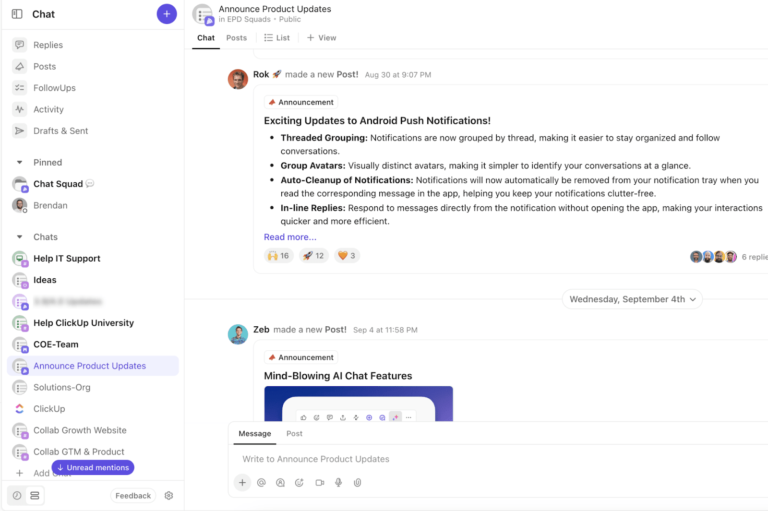
ClickUp Chat is the smarter way to connect with your team right where you work. The tool allows you to link chats directly to tasks or projects. This guarantees your conversations stay organized and vital details are always within reach.
Chat also allows you to triage messages. With just one click, its built-in AI summarizes key information instantly. This becomes a time-saver and keeps everyone on the same page, no matter how packed your inbox gets.
Another one-click wonder is the integrated reminder, making scheduling replies effortless. Topped off with email notification options, pass on information without losing momentum.
➡️ Read More: Chat Is Broken. We’re Fixing It.
If you’re looking to tag and communicate within documents, tasks, or chats, ClickUp has a neat feature to take care of that, too.
ClickUp Assign Comments helps you create action items instantly and assign them to others or yourself. The best part? Resolving or reassigning comments is possible within the comment itself. No more searching and no more lost comments.
Wondering how you’ll manage tasks through comments? Assigned comments are automatically organized and super easy to find. Plus, you can drop feedback anywhere you want.
➡️ Read More: Best Team Collaboration Software Tools
The written word often leads to confusion and is downright tedious when it comes to complex tasks. But before you schedule a video call, check how ClickUp offers a tool that records what you need to say and do.
ClickUp Clips is an all-in-one screen recording tool designed to visualize and simplify complex information. It offers easy ways to capture your screen and share your voice, and its customizable screen-sharing options make tutorial creation effortless.
Each Clip is AI-transcribed automatically, making key moments easy to identify and revisit. Its clickable timestamps allow you to navigate videos seamlessly. Plus, you can copy snippets and repurpose content anywhere.
Every video is also easy to embed in tasks, documents, and chats. In short, ClickUp Clips is perfect for communicating anything from detailed tutorials to quick feedback.
With this in your arsenal, your team won’t wonder what to write or say. That’s why ClickUp offers pre-designed templates to help with everything, from messaging to documenting workplace chat etiquette.
Here are a few excellent examples to get started with:
As good as these features look, is your team too settled into Google Chat to switch completely? Not to worry. ClickUp also features a Google Chat Integration to help manage messaging and keep it organized.
Adding ClickUp to your chats lets you automatically send task updates to your Google Hangouts Chat. It also delivers rich notifications from any Space, Project, or List into the same chat window.
📮ClickUp Insight: About 41% of professionals prefer instant messaging for team communication. Although it offers quick and efficient exchanges, messages are often spread across multiple channels, threads, or direct messages, making it harder to retrieve information later. With an integrated solution like ClickUp Chat, your chat threads are mapped to specific projects and tasks, keeping your conversations in context and readily available.
Scheduling messages is a game-changer for staying connected and managing tasks efficiently. While doing it on Google Chat is tedious, our creative workarounds help bridge the gap.
Scheduling optimizes everything from marketing to bottleneck management. Though Google Chat may fit the bill, its lack of integration with work management tools makes it cumbersome.
That’s where ClickUp excels.
Its AI-driven messaging, task management, and well-integrated collaboration make it smarter and more efficient. Plus, it features 1,000+ integrations (including Google Chat). Want to reshape how you schedule and manage communication? Sign up with ClickUp today!

Manasi Nair
Max 27min read
Manasi Nair
Max 32min read
Manasi Nair
Max 14min read

© 2026 ClickUp





