
Sorry, there were no results found for “”
Sorry, there were no results found for “”
Sorry, there were no results found for “”
It was December 1953. RCA Labs was busy tinkering with new technology, and soon, the first-ever color television would go live. This technological transition wasn’t just about beautifying things. It was about improving viewers’ engagement and making visual experiences on a television set more memorable.
Coincidentally, this same philosophy can be applied to work. Corporate workers are always looking for ways to cut unnecessary meetings, declutter schedules, and get work done.
And believe it or not, beautiful things make you more efficient. Learning how to make your Google Calendar more aesthetic helps you function better.
Still not convinced? Let’s explore how visually optimizing your Google Calendar can increase your productivity.
Here’s why making your Google Calendar aesthetic works well for you and your team:
McDonald’s golden arches are fun, kid-friendly, and instantly recognizable worldwide. Ever wondered why? Bright, sunny yellow demands attention. It’s linked to joy, energy, and even increased mental activity—perfect for making fast food feel like an exciting treat.
Meanwhile, true blue is a calming force. Studies show it lowers blood pressure and promotes trust, which is probably why brands like Ford use it to signal reliability and strength.
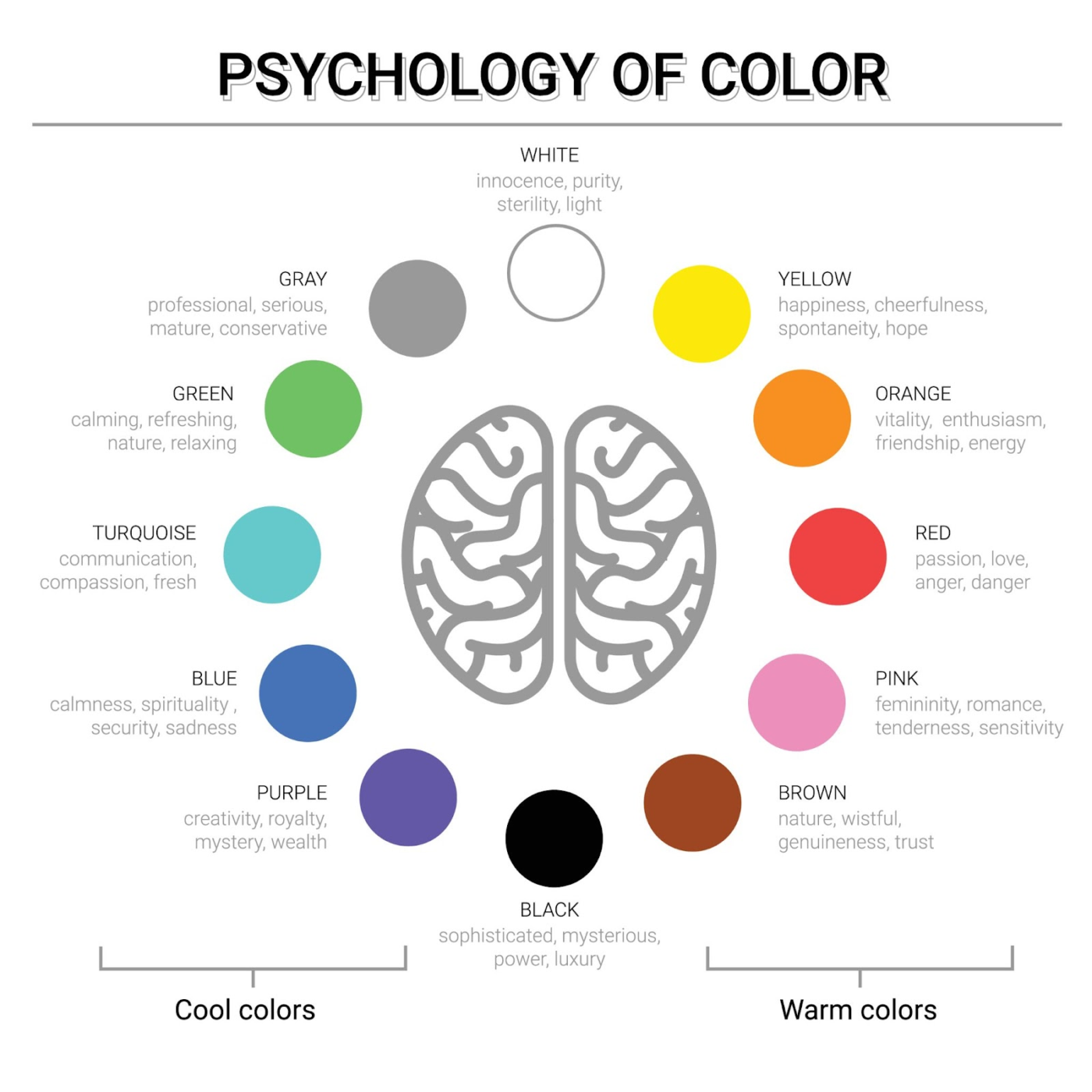
Different colors trigger different emotions—often without us even realizing it.
This is why when you try to make your Google Calendar aesthetic or color-code any of the calendars, they help categorize your day, reduce stress, and make prioritization effortless.
📌 Example: Imagine setting urgent meetings in bold red, blocking out deep-focus work sessions in calm blue, and marking gym time in motivating green. Suddenly, your calendar is a visually optimized guide to a more organized life.
Your goal behind making your Google Calendar aesthetic is to create a system that’s visually clear, easy to navigate, and optimized for productivity. Why?
We’ve all experienced stress, missed deadlines, and an overwhelming sense of doom. To avoid this, here are five Google Calendar hacks that can make your calendar more functional:
Random neon colors might seem fun, but they won’t do your Google Calendar aesthetic any favors.
Pick a color palette that makes sense for your Google Calendar color schemes—maybe calming blues for deep work, energizing oranges for meetings, and soft greens for personal time.
🧠 Did You Know: The human brain processes images in just 13 milliseconds, and 90% of the information we absorb is visual. All the more need to make our Google Calendars visually attractive!
Ever looked at a messy calendar and immediately closed the tab? Clear, well-labeled events make your schedule instantly more digestible. Customize your Google Calendar labels that reflect your priorities.
Cramming everything into one Google Calendar is like stuffing an entire suitcase with no compartments. Instead, use different calendars for separate areas of your life, like work, personal, health, and side projects.
Google Calendar lets you create multiple calendars so you can toggle them on/off when needed, keeping your schedule clean and distraction-free.
💡 Pro Tip: Ditch outdated scheduling methods and upgrade to a Google Sheets calendar for a more efficient way to manage your time.
Manually adding the same tasks every week? That wastes your precious time. Instead, use recurring tasks to reduce scheduling effort and prevent forgotten tasks. Plus, seeing a structured Google Calendar aesthetic can make your schedule feel more manageable.
Did you know Google Calendar has hotkeys that can cut your scheduling time in half? Instead of clicking around, use:
💡 Pro Tip: Learn how to create a Google Docs calendar, explore template options, and discover a smarter project management alternative.
📮 ClickUp Insight: 92% of workers can’t track action items and use disorganized methods to track action items, causing missed decisions and delays.
Syncing ClickUp with Google Calendar ensures updates in one platform instantly appear in the other, keeping schedules accurate and aligned. Additionally, with ClickUp’s Task Management Solution, conversations seamlessly turn into tasks.
We’ve already discussed the ‘whys’ behind how to make your Google Calendar aesthetic. Now, it’s time for the ‘how.’
Instead of default blues and grays, assign custom colors to each calendar.
Go to Settings > My Calendars, click the three dots next to a calendar, and select “Choose a custom color.” You can even enter hex codes for a more personalized color palette.
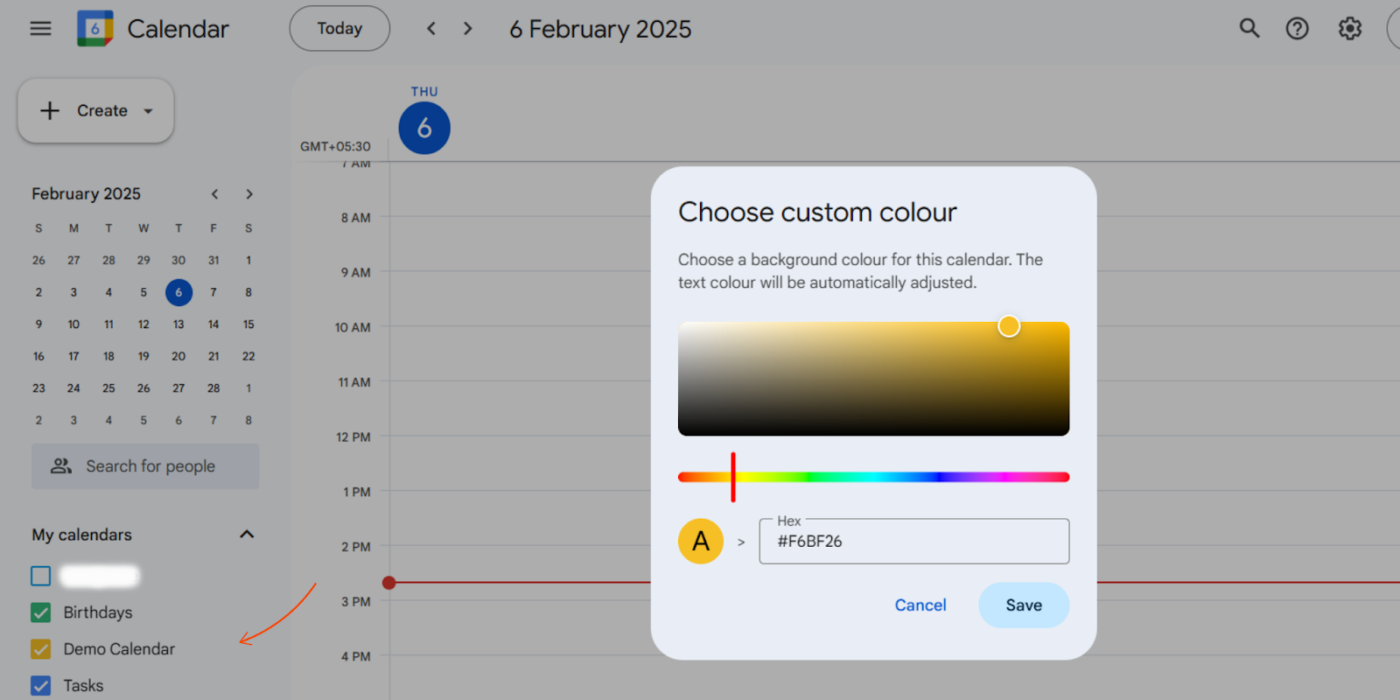
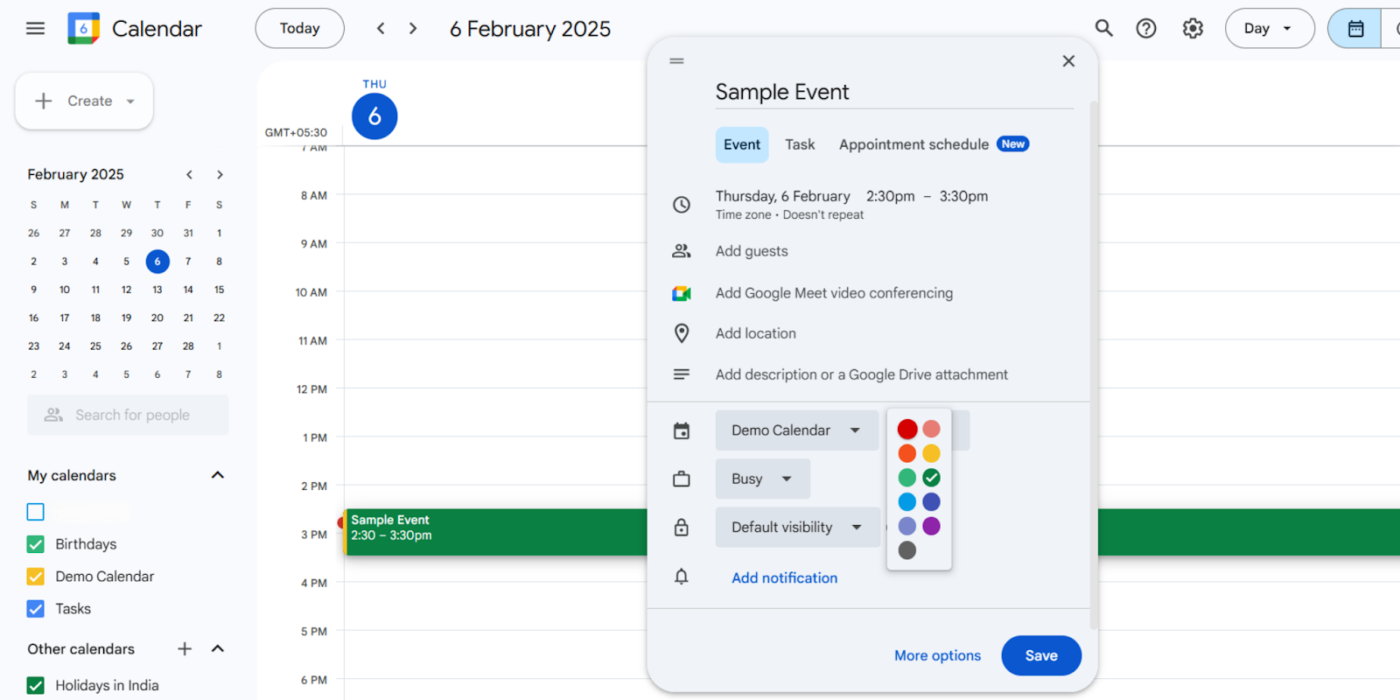
To make your schedule easy to scan, assign specific colors to meetings, deadlines, social plans, and workouts.
Here’s how to do it: When creating an event, click the color palette icon and select a shade that fits. You can even change the color of past events for better record-keeping.
📖 Also Read: Free Google Calendar Templates
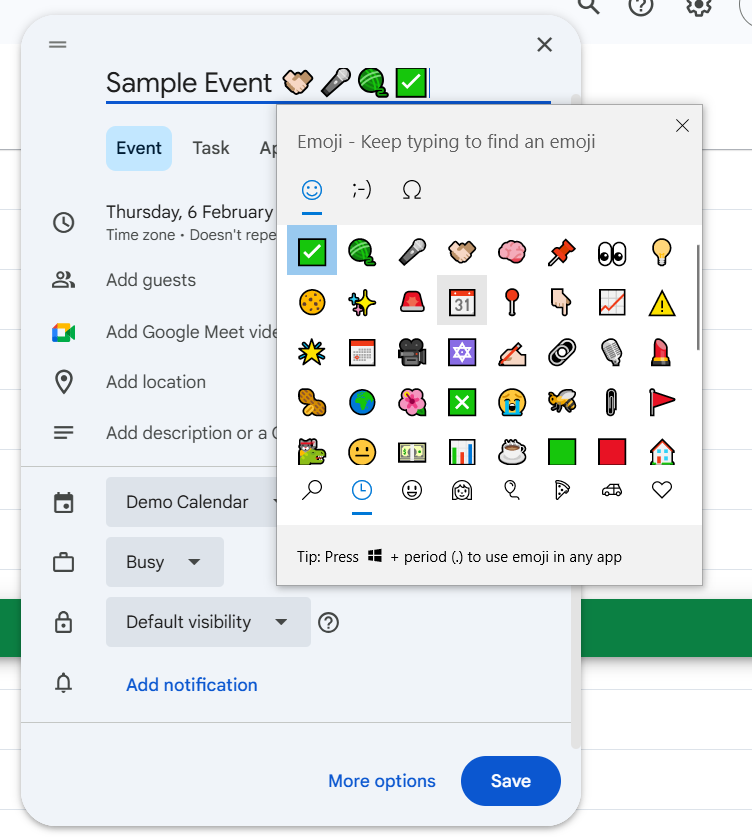
Icons and emojis make your calendar more visually appealing and help you spot events quickly. Instead of plain titles like “Weekly Team Meeting,” try “📅 Weekly Team Sync” or “🏋️ Gym Session.”
To add this feature, simply add an emoji before or after the text when typing your event title.
Make it easier for yourself to toggle between views and focus only on what matters now.
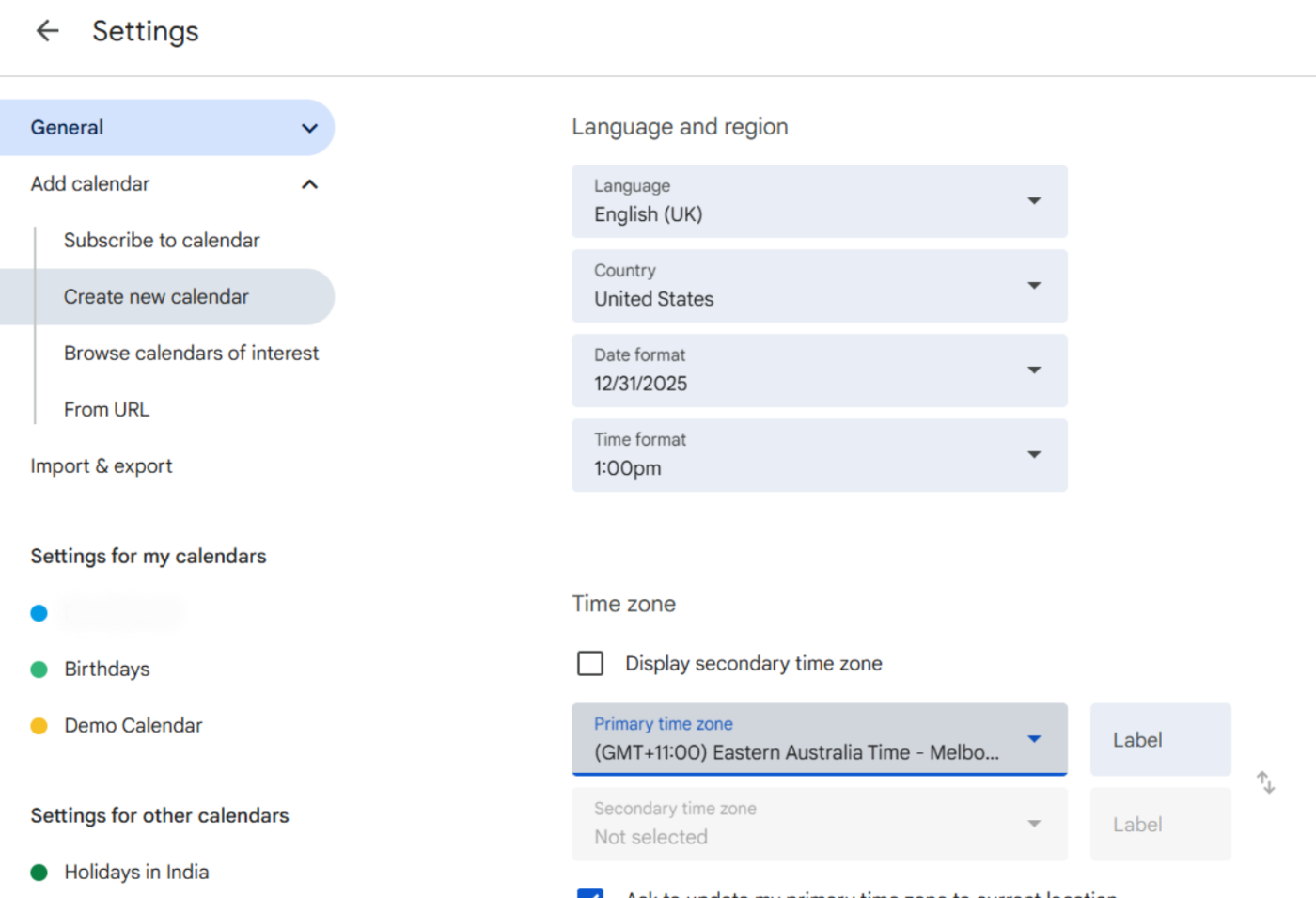
Here’s how to create different calendars on Google Calendar: Go to Settings > Add Calendar > Create New Calendar, name it, and assign a custom color.
📖 Also Read: How to Merge Two or More Google Calendars
Google Calendar has multiple layouts (Day, Week, Month, Schedule), but most people stick to one without exploring options. Adjust your calendar’s appearance based on how you plan.
How to do it: Click the view toggle in the top right and switch between Week, Month, or Schedule view to see what works best.
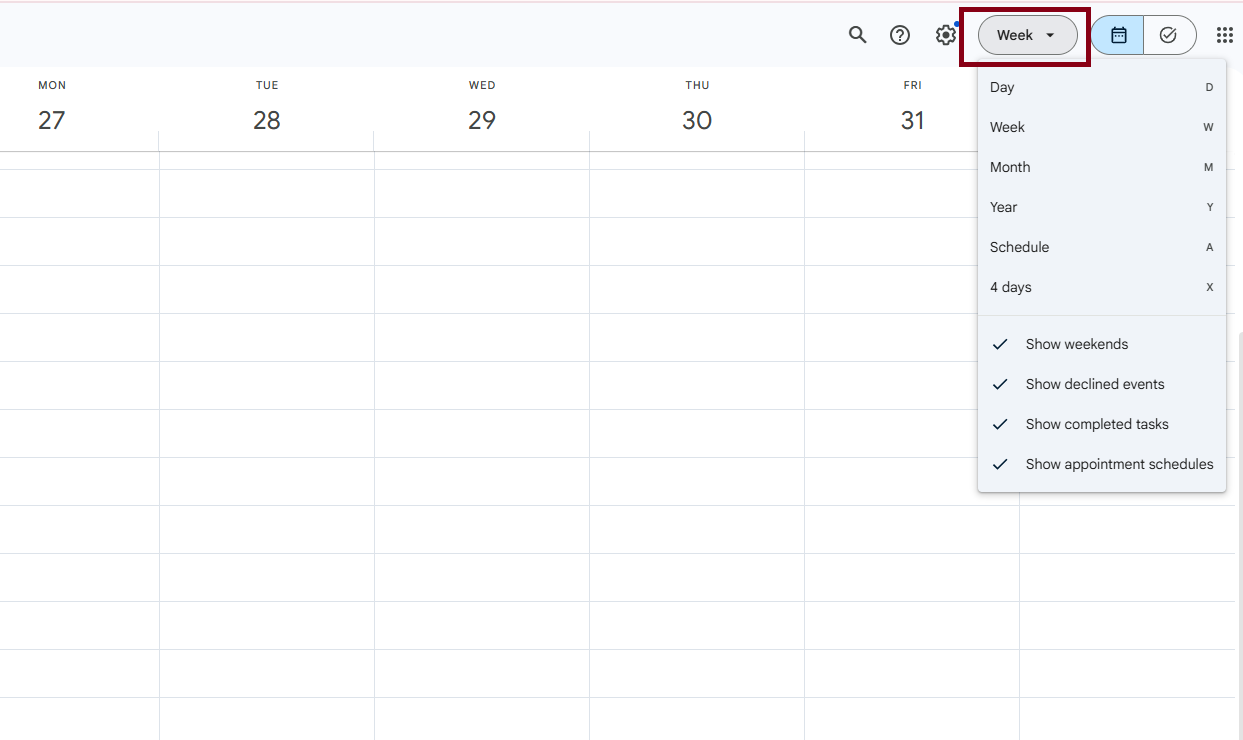
For a minimalistic look, hide weekends or declined events in Settings > View Options.
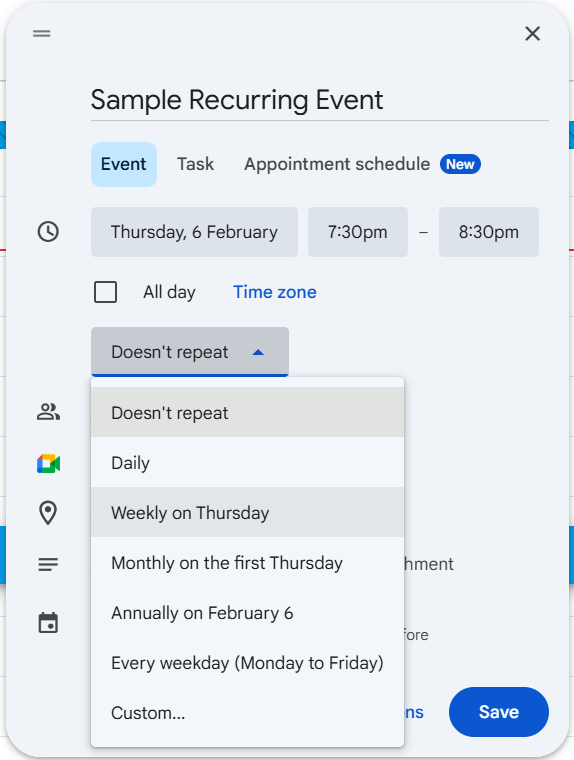
Automate your recurring tasks on Google Calendar. All you have to do is click “Doesn’t Repeat” and select how often you want it to recur—daily, weekly, or even custom patterns—when you are creating an event.
According to Google Calendar users on online forums, these are some of the challenges they face while using the platform.
💡 Quick Hack: Tired of Google Calendar’s limitations? These top Google Calendar extensions will help you customize, organize, and manage your schedule with ease.
📖 Also Read: How to Merge Two or More Google Calendars
From the limitations of Google Calendar, we can see some major challenges:
These challenges disappear when you switch to ClickUp.
ClickUp is the everything app for work, with dedicated project management, communication, and knowledge management features. It converges all features in one software: from Calendar and Email management to Task organization, Automations, Chat, and Whiteboards. Seems like magic? Well, it is!
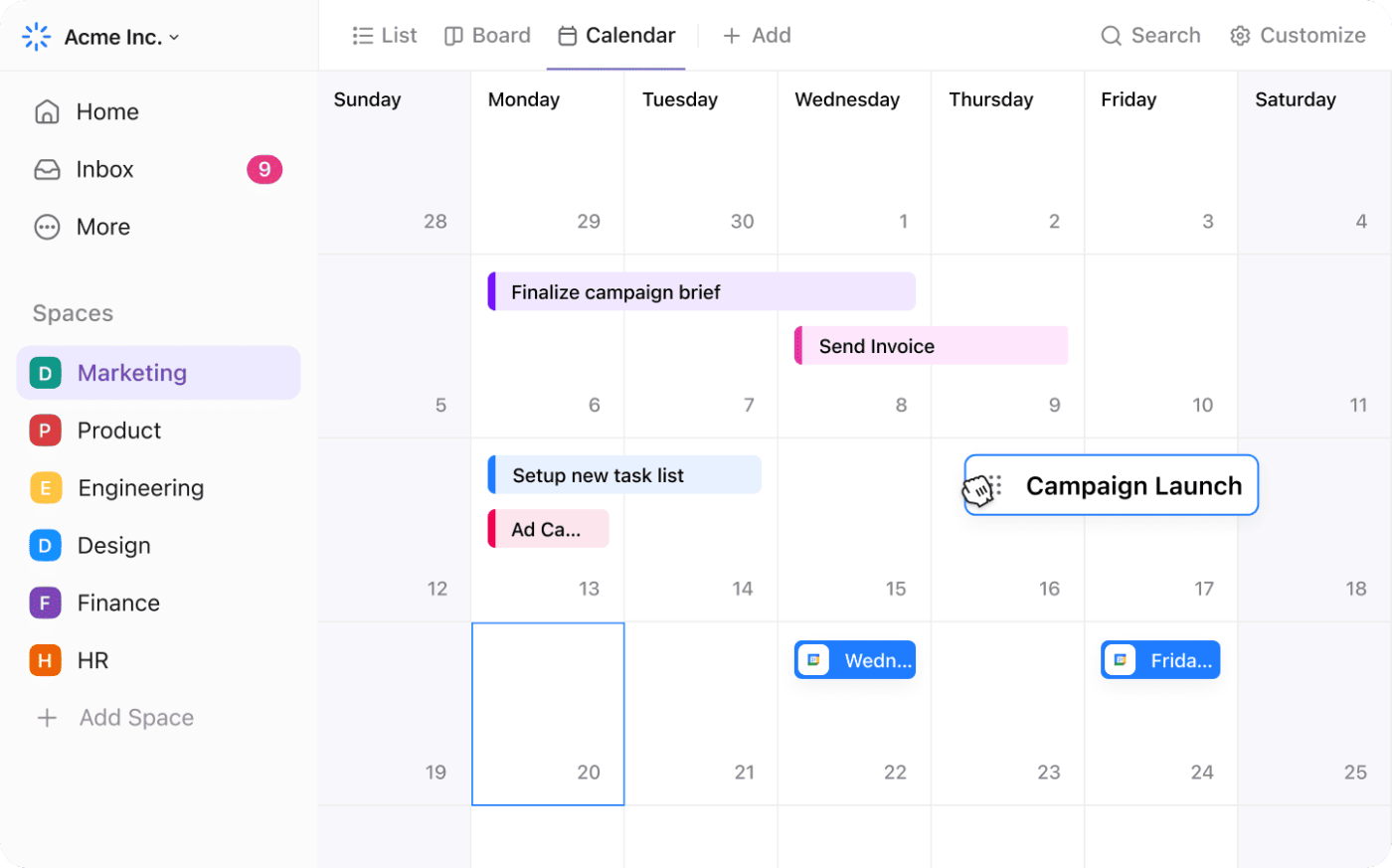
Struggling to manage multiple projects? ClickUp’s Calendar View offers a flexible, customizable, and highly functional scheduling solution for you and your team.
Unlike Notion or Google Calendar, ClickUp allows you to visualize your work in multiple layouts, adjust task durations with drag-and-drop functionality, and integrate project management directly into your calendar.
To make sure you always identify overlaps between tasks and events, check out this super useful best practices video on ClickUp’s Calendar View:
With ClickUp, you’re not just getting a calendar—you’re getting a full-fledged project and task management system.
This means you can easily:
🗓️ Visualize your schedule clearly: Customize your calendar with daily, weekly, or monthly views that adapt to your workflow.
🔗 Link tasks to deadlines: Add due dates and milestones directly into your calendar. Drag-and-drop tasks as schedules shift without manual updates.
💯 Set priorities and automate workflows: Highlight critical tasks, automate recurring events, and streamline planning to save time.
Here’s an overview of ClickUp’s extensive customization features to help you create a visually organized and highly productive workspace.
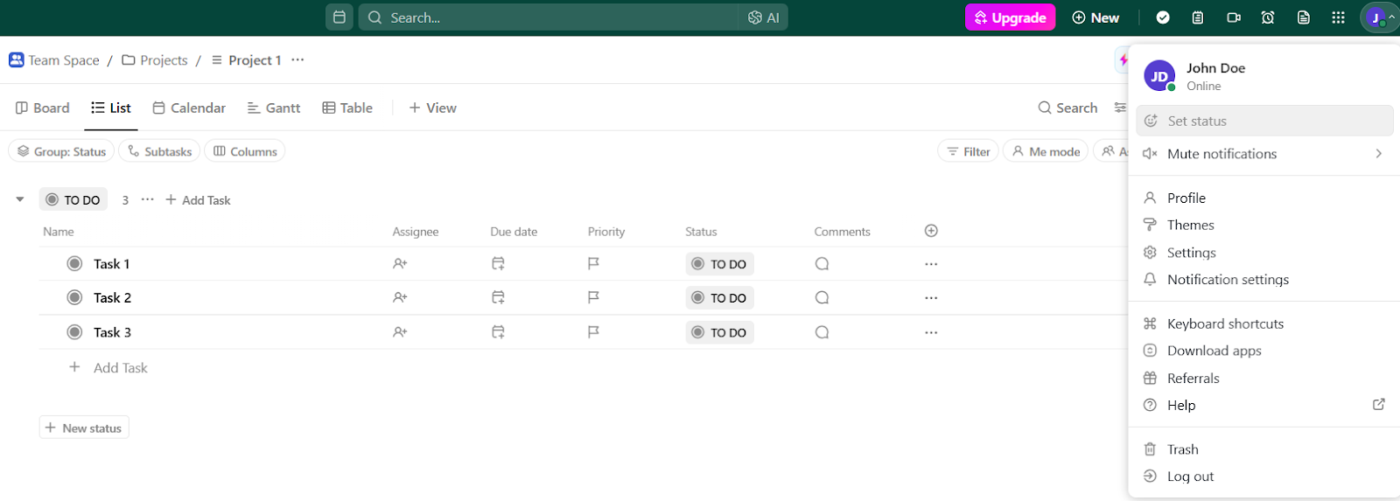
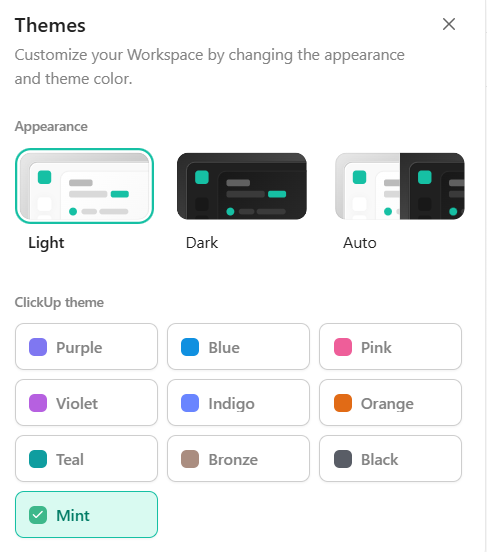
Give your ClickUp Workspace a fresh look or match your brand colors by selecting a custom color theme. This will apply across your entire Workspace, including buttons, links, and task highlights.
Here’s how you can change your Workspace color theme:
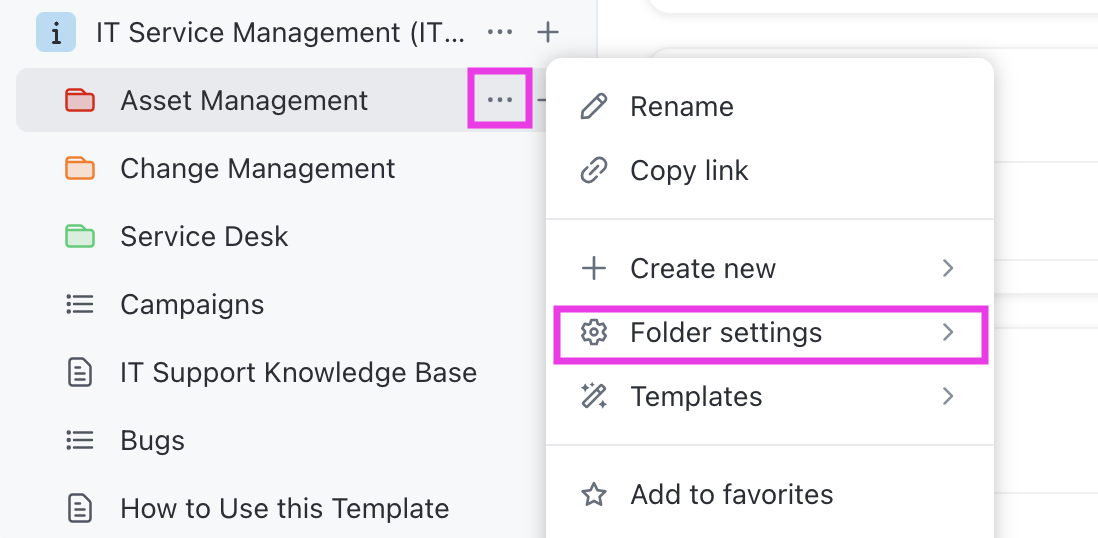
Folders help categorize projects and tasks, and assigning unique colors makes them visually distinguishable.
Steps to customize folder colors:
ClickUp’s Calendar View allows you to color-code tasks based on their Parent List, Status, or Dropdown Custom Fields, making it easier to scan your schedule.
Here’s how you can color-code:
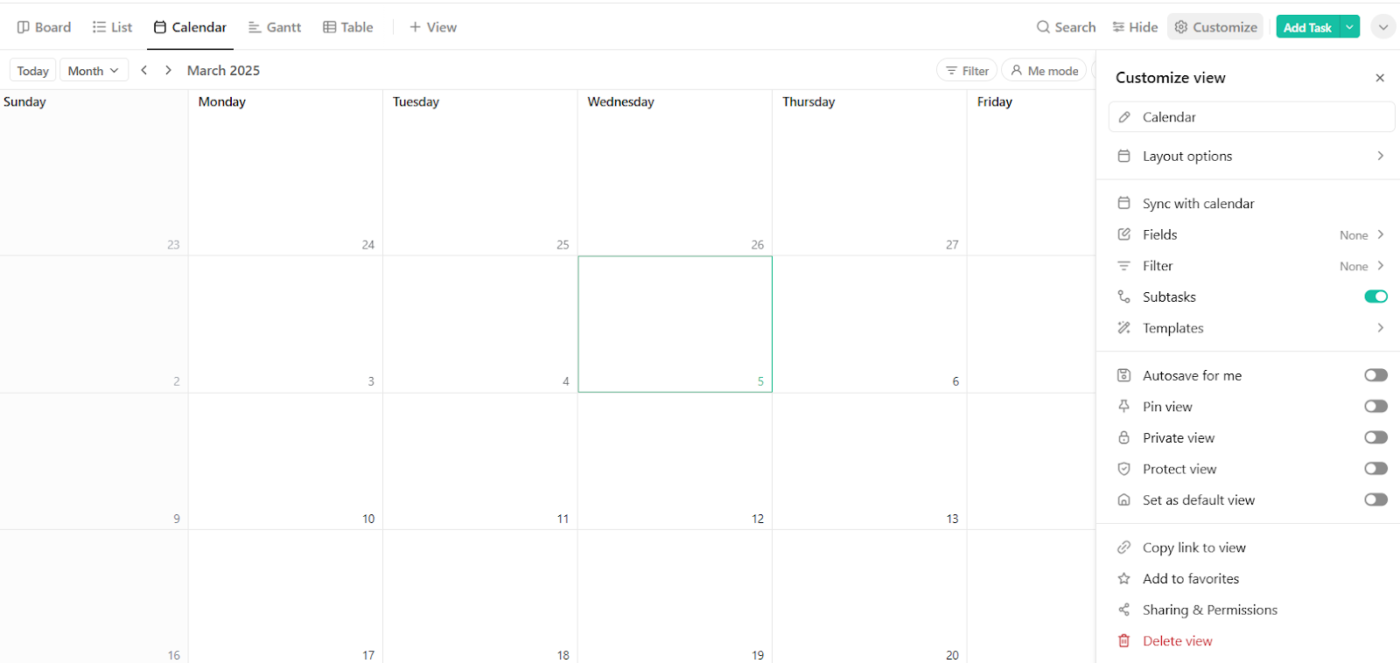
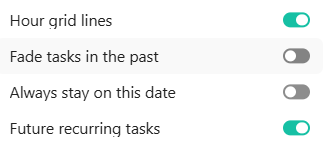
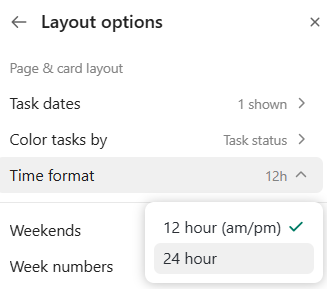
ClickUp’s Calendar View can be adjusted to minimize clutter and enhance readability.
These are the key customization options:
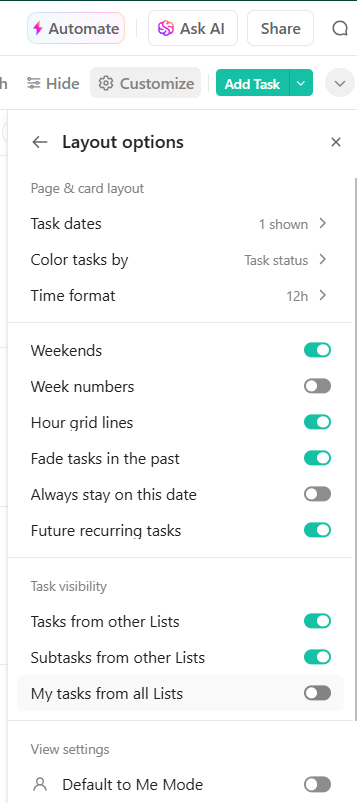
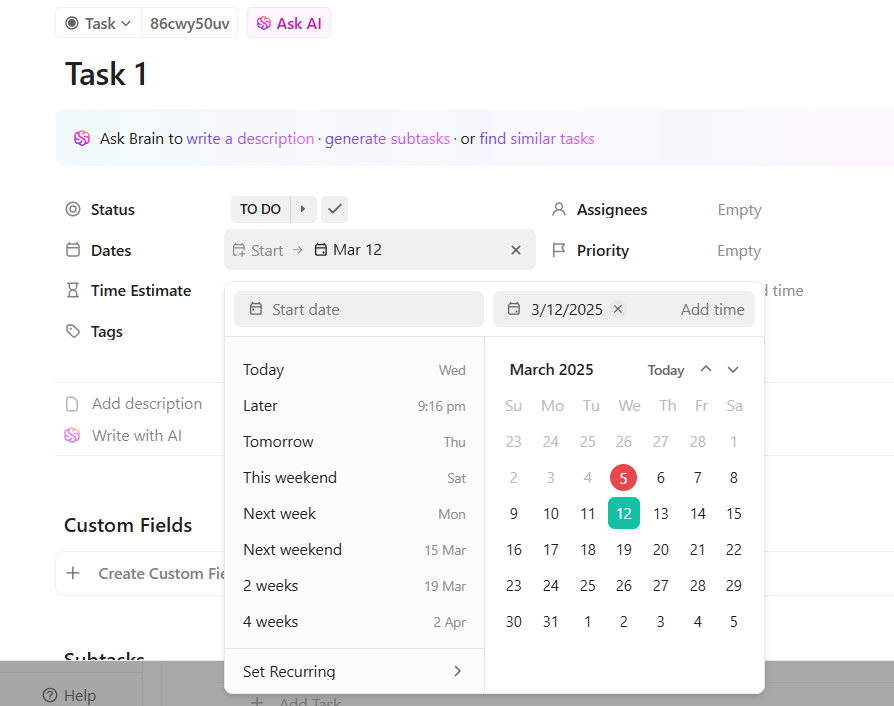
Instead of manually scheduling repetitive tasks, use ClickUp’s recurring task feature. Steps to set up recurring tasks:
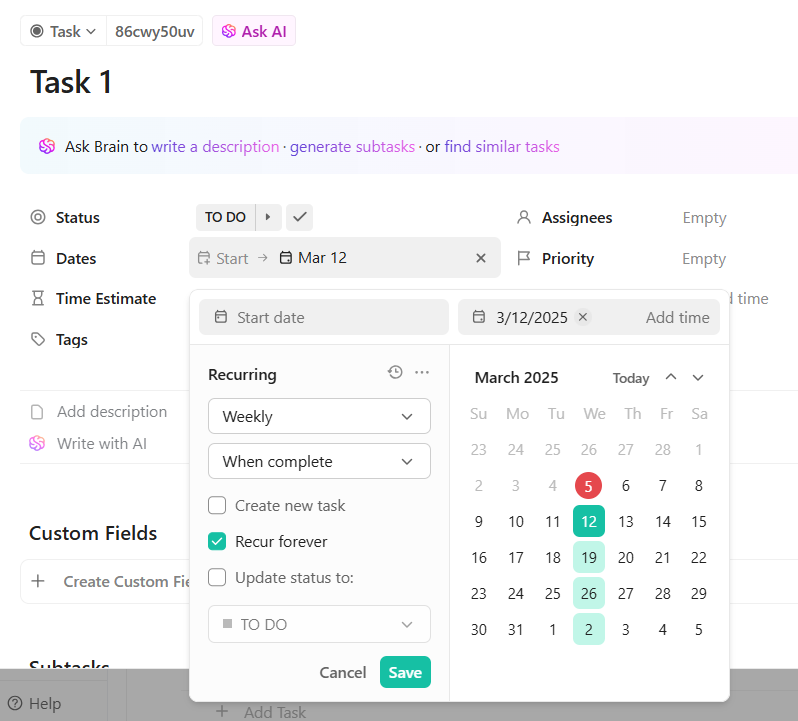
Put ClickUp’s AI to use and generate aesthetically pleasing color palettes for your Workspace.
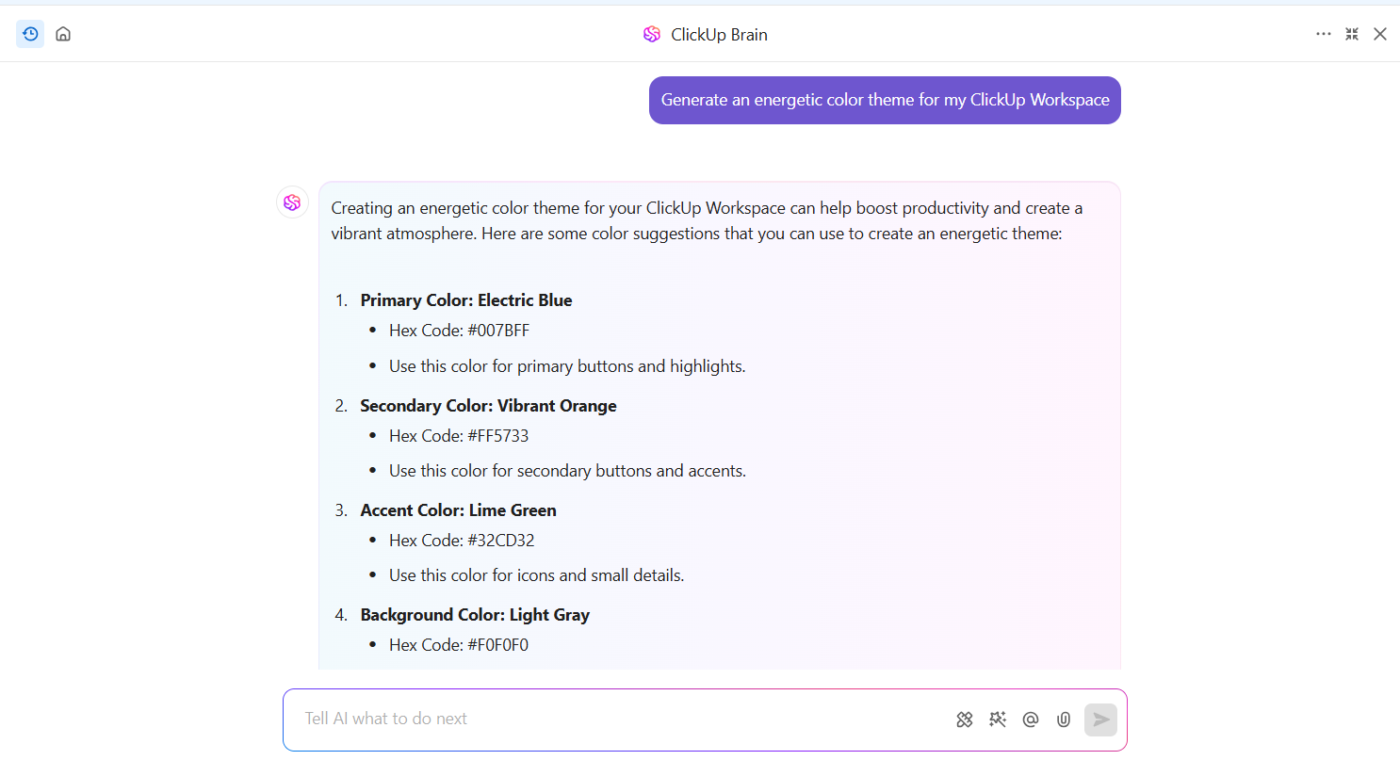
Here’s how you can achieve this:
Massachusetts-based BankGloucester’s Marketing Manager, Derek Clements, recently switched to ClickUp—and let’s just say, he’s not looking back. In his words:
I use the base features of ClickUp like spaces, folders, lists, and the Calendar View the most as they are the most versatile. However, if you find yourself needing a specific format or visualization, ClickUp has tons of more in-depth stuff like time tracking, task automation, dashboards, and more.
Here’s the thing—scheduling work is also work. And when it’s done poorly, it can throw off your entire month and derail your goals. Nobody wants to work overtime because of a messy calendar, so work smart.
ClickUp makes it effortless to color-code your calendar, integrate seamlessly with existing tools, automate tasks, track deadlines, and customize everything to match your workflow.
Sign up now on ClickUp and give your schedule the glow-up it deserves!

Arya P Dinesh
Max 15min read

Manasi Nair
Max 15min read
Manasi Nair
Max 19min read

© 2026 ClickUp