


Sorry, there were no results found for “”
Sorry, there were no results found for “”
Sorry, there were no results found for “”
Sharing ideas in a remote setting can be tricky. Sometimes, it takes 10 minutes of detailed verbal explanation, three screen shares, and a frustrated “Let me just send you an email instead.”
But there’s a solution!
Zoom’s whiteboard feature completely changes this dynamic. Built directly into your virtual meeting, it gives you the visual freedom you need.
This blog post dispels the confusion surrounding Zoom Whiteboards. From basic drawings to advanced workflow diagrams, learn how to energize your next remote brainstorming sessions.
If you want to skip over the ‘shared screen’ vs ‘share whiteboard’ chase in Zoom, we have a bonus tool to help you out. Read on!
Here’s how to draw on a Zoom Whiteboard:
Visual communication cuts through confusion when participating in meetings.
Team leaders can use it to map project flows in real time, teachers can solve equations step-by-step, and remote teams can brainstorm their next big breakthrough. And Zoom Whiteboards make it all easier.
You don’t need to be an artist or tech expert to use Zoom effectively. From simple flowcharts to creating workflow diagrams, Zoom meetings make every virtual collaboration clearer, faster, and more impactful.
Here’s a step-by-step guide for you to access and use Zoom’s whiteboard:
Locate the Zoom application on your computer and double-click to open it. Ensure you’re using the latest version of the app for optimal functionality.
There are two ways to start a Zoom session:

Once in the meeting, look at the bottom of your screen for the meeting controls. This toolbar typically includes options like mute/unmute, start/stop video, share screen, and more
You will see the Whiteboards option in the meeting controls. Click this option to proceed.

If you don’t find the Whiteboards option, click the three dots labeled More (…). This will open a menu with additional features
To start creating a whiteboard, you can:
If you have previously created whiteboards, they will be listed here. Here’s what you’ll see:

If you want to start fresh, create a new one. Click on it, and a blank whiteboard will open

👀 Did You Know? You can use Zoom Whiteboard in breakout rooms. It allows each breakout group to have its own collaborative space, making it perfect for smaller group activities or discussions during larger meetings.
Once your whiteboard is open, note the annotation tools on the left side of your screen. This toolbar includes various tools for drawing, adding text, and more

Visualizing ideas is easier with the whiteboard’s drawing tools. Whether sketching a concept, outlining a plan, or adding annotations, these tools help bring your thoughts to life.
Here’s how to go about it:
🧠 Fun Fact: During meetings, you can play games like tic-tac-toe or hangman directly on the Zoom Whiteboard. It’s a creative way to break the ice or add fun to a brainstorming session.
If you want other meeting participants to draw or annotate on the whiteboard, ensure that you enable annotation permissions. You can do this through meeting settings in the same menu where you accessed Whiteboards.

🧠 Fun Fact: You can add a smiley face, thumbs up, or even a party popper to your whiteboard. It’s a great way to add some personality and visual flair to your meetings!
The work you’re doing is saved automatically on the cloud. You can access your whiteboard anytime from your Zoom workspace.
If needed, you can easily export your whiteboard content in PDF, PNG, and CSV format.

You can unlock more actions from your whiteboard dashboard. Simply click those three dots (•••) next to any whiteboard, and you’ll see these options:
By following these detailed steps, you can effectively utilize Zoom’s Whiteboard feature during your meetings for collaboration and brainstorming sessions.
📮ClickUp Insight: A typical knowledge worker has to connect with 6 people on average to get their work done. This means reaching out to 6 core connections on a daily basis to gather essential context, align on priorities, and move projects forward.
The struggle is real—constant follow-ups, version confusion, and visibility black holes erode team productivity. A centralized platform like ClickUp, with Connected Search and AI Knowledge Manager, tackles this by making context instantly available at your fingertips.
➡️ Also Read: 10 Diagram Examples for Any Type of Project
Let us explore some inspiring examples of how people have utilized Zoom whiteboards. These techniques can help turn your virtual whiteboard into a powerful brainstorming tool.
Mind mapping is particularly beneficial for creative teams, marketing professionals, and product developers who must organize their thoughts visually.

Here are some tips for creating effective mind maps:
Creating process flows is essential for project managers, operations teams, and business analysts who need to clarify workflow steps.

Here’s how to start mapping out your process:
Project timelines keep professionals like event planners and software developers on track. They can visualize progress and deadlines.

Try these tips:
Teaching diagrams are essential for educators and trainers. They make complex ideas simple and memorable.

Here’s how to craft them:
💡Pro Tip: Organize your whiteboards into a categorized repository for future reference.
While Zoom is a versatile virtual meeting platform, understanding its constraints helps you plan your virtual collaboration more effectively. Here are the key limitations of Zoom:
Exploring Zoom alternatives might be worthwhile for teams requiring more robust diagram software tools, especially for complex diagramming needs or more collaborative sessions.
While Zoom Whiteboard is a handy tool for quick sketches and brainstorming, ClickUp offers a more robust solution.
As the everything app for work, it provides a comprehensive, connected workspace to visualize ideas, create diagrams, and turn plans into action.
Here’s how ClickUp stands out as a screen-sharing software:
ClickUp’s suite of visual tools gives your team the power to ideate, organize, and execute in one place.
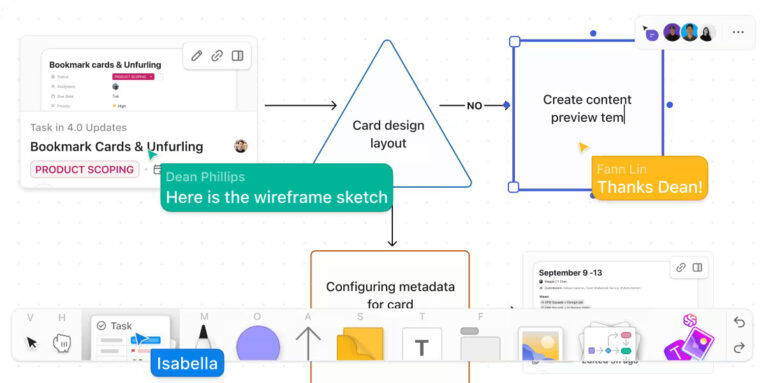
ClickUp Whiteboards are built for drawing and brainstorming. Unlike Zoom’s Whiteboard, ClickUp offers a fully-featured canvas that allows you to design professional-level diagrams and flowcharts.

With ClickUp Whiteboards, you can:
Bonus: If you’re looking for a good laugh, take a look at these Zoom memes!
Can’t wait to try ClickUp for your next brainstorming meeting? Start with these free whiteboard templates designed for various use cases.

When your visual ideas need structure, ClickUp Mind Maps transforms meeting discussions into organized action plans.

ClickUp Mind Maps allows for:
➡️ Also Read: The Ultimate Guide to Visual Project Management
ClickUp doesn’t just stop at visual tools. ClickUp’s Meetings feature offers powerful ways to manage your meetings, especially those tricky brainstorming sessions.
ClickUp takes your visual collaboration up a notch with these two new features:

Here’s what our customer, Briettny Curtner, Program Manager at Utah Valley University, says about using Whiteboards.
Lastly, the whiteboard feature? Obsessed. This tool was often used during team meetings to brainstorm ideas or elaborate on certain initiatives.
➡️ Also Read: Mind-Blowing Mind Map Examples
While Zoom Whiteboard helps visualize thoughts, ClickUp transforms every sketch into actionable workflows your team can implement immediately.
Whether you’re mapping out next quarter’s strategy, walking through a new design, or breaking down complex concepts, your drawings become part of a larger ecosystem where visual concepts seamlessly flow into tasks, timelines, and trackable progress.
Sign Up on ClickUp to collaborate and watch your team move forward.

Manasi Nair
Max 27min read
Manasi Nair
Max 32min read
Manasi Nair
Max 14min read

© 2026 ClickUp




