
Sorry, there were no results found for “”
Sorry, there were no results found for “”
Sorry, there were no results found for “”
Microsoft Word is the go-to for all things text. So, why would you draw in Microsoft Word when there are specialized alternatives?
A graphic designer on Reddit admitted to using MS Word for drawing because Adobe Illustrator was “too expensive.” Another Redditor, who was also using MS Word despite the discomfort, cited it as a “client requirement.”
Both cases emphasize accessibility and popularity. Worldwide, over 1 billion people use a Microsoft 365 product or service. So why not explore the tool’s drawing capabilities if it’s already on your desktop? 🖥️
Let’s see how you can draw in Word, step by step. We’ll then look at some of its limitations. As a bonus, we’ll introduce you to a smarter option to help you draw, write, and more. ✨
Drawing in a blank Microsoft Word document might sound unconventional, but with its robust drawing features, you can create everything from basic shapes to complex diagrams. From planning your next project to visualizing data for a report, Word’s drawing tools have a lot to offer.
Let’s show you how to draw in Word. 🎨
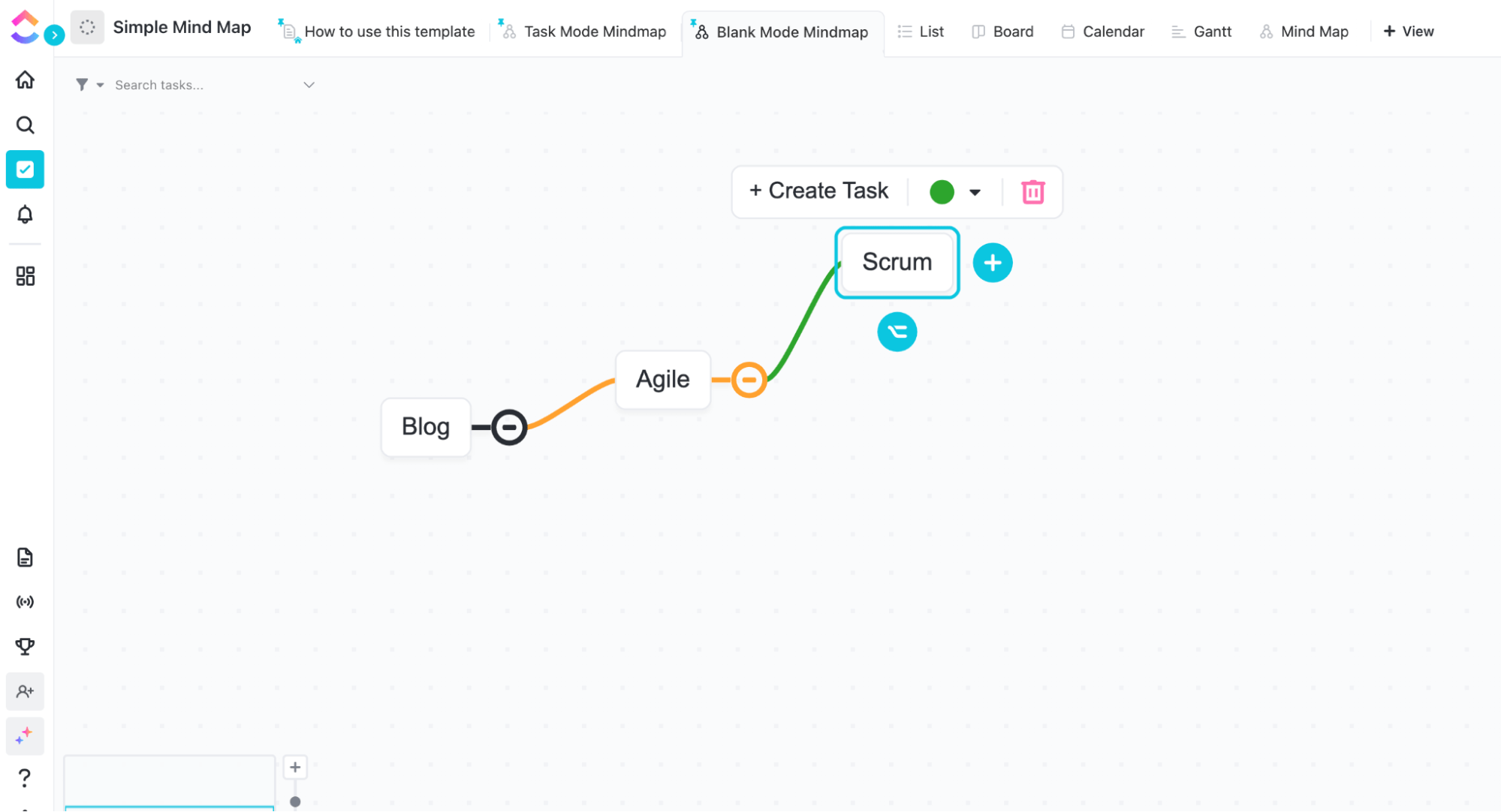
Looking for an easier way to create visuals? Get ClickUp’s free Simple Mind Map Template to organize ideas and bring them to life effortlessly. 🚀

Open a blank Word document, go to the Draw tab, and double-click on it.
Don’t see it? Head to File > Options > Customize Ribbon to enable it.

Alternatively, you can also use a drawing canvas in Word, which can be found under the Draw tab and sometimes under Insert > Shapes. The canvas is a container for your drawings in which you can group, move, or resize multiple elements simultaneously. 🖍️
The canvas is no longer necessary to draw common shapes in Word, but you may still use it as an organizational aid or to add connectors between shapes. 🔗

To add shapes, go to Insert, click on Shapes in the Illustrations group, and select one from the dropdown. Word offers a variety of shapes: lines, rectangles, circles, block arrows, equation shapes, flowchart symbols, stars and banners, and callouts.
You can also resize or rotate the shape you want by selecting it and dragging the anchor points while holding the left mouse button.
🏷️ For example: You could quickly throw together a process diagram for your next meeting. 📊

For a dynamic look, select the shape to open the Shape Format menu.
Here, to make your shapes pop, you can choose a fill color, adjust the top width and line thickness, or add shadow and 3D effects for a more dynamic look. 🌈
Word Tip: Create custom color palettes
Develop a custom color palette to ensure consistency in your drawings. This can help reinforce branding and make your documents visually cohesive.
Example: Use your company’s brand colors for all shapes and text to create a unified look throughout your document.

To know how to draw in Word freehand, select any tool in the Draw tab: pen, pencil, or highlighter. Choose one, hold down the left mouse button, and start drawing.
Made a mistake? No problem. Use the eraser tool to undo it. The selected tool’s dropdown lets you change the line thickness and color or add effects.
📌 Word Tip: Enable gridlines for precision
Turn on gridlines to assist in aligning your drawings accurately. This feature helps create neat and organized diagrams.
Example: Go to the View tab and check the Gridlines option to activate this helpful guide.

Need precision? The Ruler tool, located under the Draw tab, is used to draw straight lines and align shapes. 📏
While drawing any shape or line, hover your cursor at the ruler’s point to position it accurately over your drawing. To reposition it, simply click and drag as needed.
🏷️ For example: It’s a handy tool when you’re trying to create perfectly aligned diagrams or structure charts. 📐

Word’s most innovative drawing feature is the ability to convert your freehand drawings into clean, professional-looking shapes or mathematical equations.
With the Ink to Shape option under Draw > Convert, Word automatically detects your freehand drawing and changes it into an Office graphic shape.
As for Ink to Math, MS Word allows you to convert handwritten equations into typed symbols and numbers.
🏷️ For example, you could draw a quick sketch of a square, and Word will convert it into a perfect geometric shape. 🔳

Word also offers an Ink Replay feature that lets you replay your drawing step by step. It’s a great way to review your drawing process.

To move, edit, or style specific parts of your drawing, use the Lasso Select tool to circle the area you want to change. 🖌️
📌 Word Tip: Save frequently used drawings
If you create designs you often use, save them as templates. This will save time on future projects and ensure consistency.
Example: Save a flowchart layout or a set of icons you frequently use to streamline your workflow.

Under the Insert tab, MS Word lets you insert 3D Models, SmartArt, and Chart, which are great for visual project management and presentations.


You can also add Pictures via the Insert tab to provide visual context or break up large blocks of text. 🖼️
These can be stock images from MS Word or your own. Moreover, under Picture Format, you can adjust brightness, contrast, and transparency and use the artistic effects tool to apply filters like watercolor, pencil sketch, or blur for a unique look.

A well-chosen background can make your content stand out and add depth to your document.
Word offers various customization options, such as grid lines, rule lines, and page colors that can be applied to specific or all pages.
Go to the Draw tab, select Format Background in the lower right corner, and choose from various colors and textures to set the screen as the perfect backdrop for your drawings.
With these drawing features and tools at your fingertips, your Word documents can become creative masterpieces. Next, let’s see why MS Word may not be the right tool for drawing.
While Word offers fantastic tools for creating visual elements, it’s not exactly a substitute for specialized graphic design collaboration software.
One of the first limitations is the restricted functionality of the drawing toolbar.
While it’s suitable for basic shapes and lines, it lacks advanced features like high-resolution 3D art creation or generative shape fill found in dedicated drawing programs like Adobe Illustrator or PowerPoint.
If you’re trying to create intricate diagram examples or precise illustrations, Word’s drawing tools can feel clunky.
The alignment and snapping options (such as ruler and lasso tool) are not as intuitive, making it challenging to position elements exactly where you would want to draw them. It’s like trying to paint a masterpiece with a blunt pencil—you can do it, but it will take a lot more effort.
When you add multiple visual elements, such as shapes, text, and images, to your Word document, things can get messy fast.
Unlike dedicated diagram software that allows you to work with layers, Word piles everything onto one page, making it difficult to select and edit individual elements.
If you’ve ever wondered how to make a flowchart in Word, you know it’s possible—remember Shapes and SmartArt?
But it’s not easy; Word’s built-in shapes are limited, and customization requires several steps.
For example, changing the default shapes into something more unique, such as badges or clipart, can be a headache. Sure, you can tweak the size, color, and borders, but creating custom shapes or adding complex paths isn’t straightforward.
Another drawback of MS Word is that complex drawings or diagrams may not always be compatible with sharing with others.
Even with Microsoft Word hacks, they may not appear as-is on different devices or older versions of Word. This can be particularly problematic in professional settings where document fidelity is crucial.
You’re limited to formats like PDF or saving the document as an image file, which often lowers quality. This can be a bit of a letdown compared to specialized design software, Adobe Illustrator or Photoshop. In other words, you can’t separately save images as GIF, PNG, and other dynamic formats if you want to use your drawings outside of Word.
So, if you need high-quality images for your presentation or website, Word may fall short.
While Word’s drawing capabilities are fine for adding a quick freehand drawing or simple diagram examples to your document, it’s not built for complex or professional artwork.
📌 Imagine a marketing team at a fast-paced tech startup under pressure to launch a new software product within a tight deadline. The content writer begins drafting the marketing plan in Microsoft Word, using drawing tools to create flowcharts and diagrams that outline the strategy. The graphic designer adds visual elements directly into the Word document. 🪄
Multiple team members send back their edits, leading to several versions of the document circulating. It’s challenging to determine which one reflects the most up-to-date feedback.
Team members often ask, “Did you see my last comment?” 💬 or “Which version are we working on?” 👀
The back-and-forth leads to delays, and as launch day approaches, stress levels rise. The team realizes they spend more time managing communication than working on the project.
This is why, while Microsoft Word offers basic drawing capabilities, it struggles with efficient document management and sharing within teams. Its reliance on external tools complicates collaboration and hinders productivity.
This is where ClickUp comes in. A true game-changer for project management and collaboration, it consolidates everything—drawing, document creation, and seamless team coordination—under one roof. 🏠
ClickUp is a powerhouse for project management and team collaboration, allowing you to draw, create, and manage documents in one place.
So, why use ClickUp over MS Word for drawing and documents? Because ClickUp provides several benefits that are missing from MS Word.
Now that we’ve explored the benefits of using ClickUp let’s look at its standout tools: ClickUp Whiteboards for collaborative brainstorming, ClickUp Mind Maps for organizing your thoughts, and ClickUp Docs for creating powerful documents.
📮 ClickUp Insight: When a goal falls short, only 34% of our survey respondents revise their strategy and 33% just give up. 🫢
But failure isn’t the end; it’s feedback.
You can easily unpack what went wrong with ClickUp Mind Maps and Whiteboards, explore new ideas, and chart a smarter course forward. Think of it as your built-in bounce-back plan.
💫 Real Results: ClickUp users say they can take on ~10% more work because setting realistic goals means more wins and fewer meltdowns.
ClickUp Whiteboards, a Microsoft Word alternative, is a digital canvas for flexing your artistic skills. But it’s also a powerful collaboration, ideation, and project management tool.
Let’s say you’re working on a project proposal. Instead of typing everything in a Microsoft Word document, you can jump on a whiteboard in ClickUp, and everyone can start contributing their ideas instantly.

The real magic happens when you connect your ideas to your work, converting those shapes, sticky notes, or text into actionable tasks. This integration helps you sketch and simplify your flowcharts and turn your brainstorming techniques into tangible project plans.
What else can you do with this tool?

ClickUp Mind Maps is a visual representation of ideas, perfect for brainstorming, creating action-based flowcharts, and project planning.
Unlike traditional text-based methods like MS Word, the ClickUp mind mapping software offers users a more intuitive and collaborative approach. 🧠
How to create a Mind Map on ClickUp:
Also Read: Mind-Blowing Mind Map Examples

ClickUp Docs offers a fresh and innovative approach to writing and collaboration. It’s a versatile tool that seamlessly integrates with your tasks, making it easy to turn ideas into action. With ClickUp Docs, you can:
Word has its limitations. It’s not exactly built for complex illustrations, and organizing sophisticated visuals can feel clunky.
That’s where alternatives like ClickUp come into play.
While Word is great for basic visuals and text-heavy documents, ClickUp is an all-in-one solution for creating dynamic Docs, brainstorming with Whiteboards and Mind Maps, and managing tasks.
Sign up on ClickUp today! 🚀

Manasi Nair
Max 14min read

Arya P Dinesh
Max 21min read
Arya P Dinesh
Max 15min read

© 2026 ClickUp