Sorry, there were no results found for “”
Sorry, there were no results found for “”
Sorry, there were no results found for “”
Efficient data management is the backbone of any well-organized workflow. Whether you’re tracking business records, managing inventory, or organizing personal data, having a structured system makes all the difference.
Microsoft Access, aka MS Access, offers a user-friendly way to create and manage databases—even if you don’t have advanced technical skills. In this blog, we’ll walk you through setting up a database in Access and explore a more powerful alternative for those seeking greater flexibility and scalability.

Unlike Excel, which is primarily a spreadsheet tool, Access is designed for handling structured data with relationships between different tables.
Access lets you:
It’s ideal for small businesses, students, and anyone who needs to manage data without diving into complex coding.
🔎 Did you know? Access has been around for decades! Microsoft Access was first released in 1992, making it older than Google and even some of today’s most popular programming languages!
When working with structured data, you need a tool that is organized, efficient, and user-friendly. Microsoft Access meets all these criteria, streamlining your project management database creation, without having to juggle endless spreadsheets.
Here’s why Access is a solid choice:
💡 Pro Tip: When using free database software, make sure you consider its scalability, security, and integration capabilities to ensure it meets your long-term needs. This way, you can avoid outgrowing the tool too quickly and ensure seamless data management as your needs evolve.
Ready to create a database in Access? There are several ways of going about it. It primarily depends on whether you’re using a template or making it from scratch.
Here’s a quick overview:
If you have very specific or unique requirements, creating your own database is a great option.
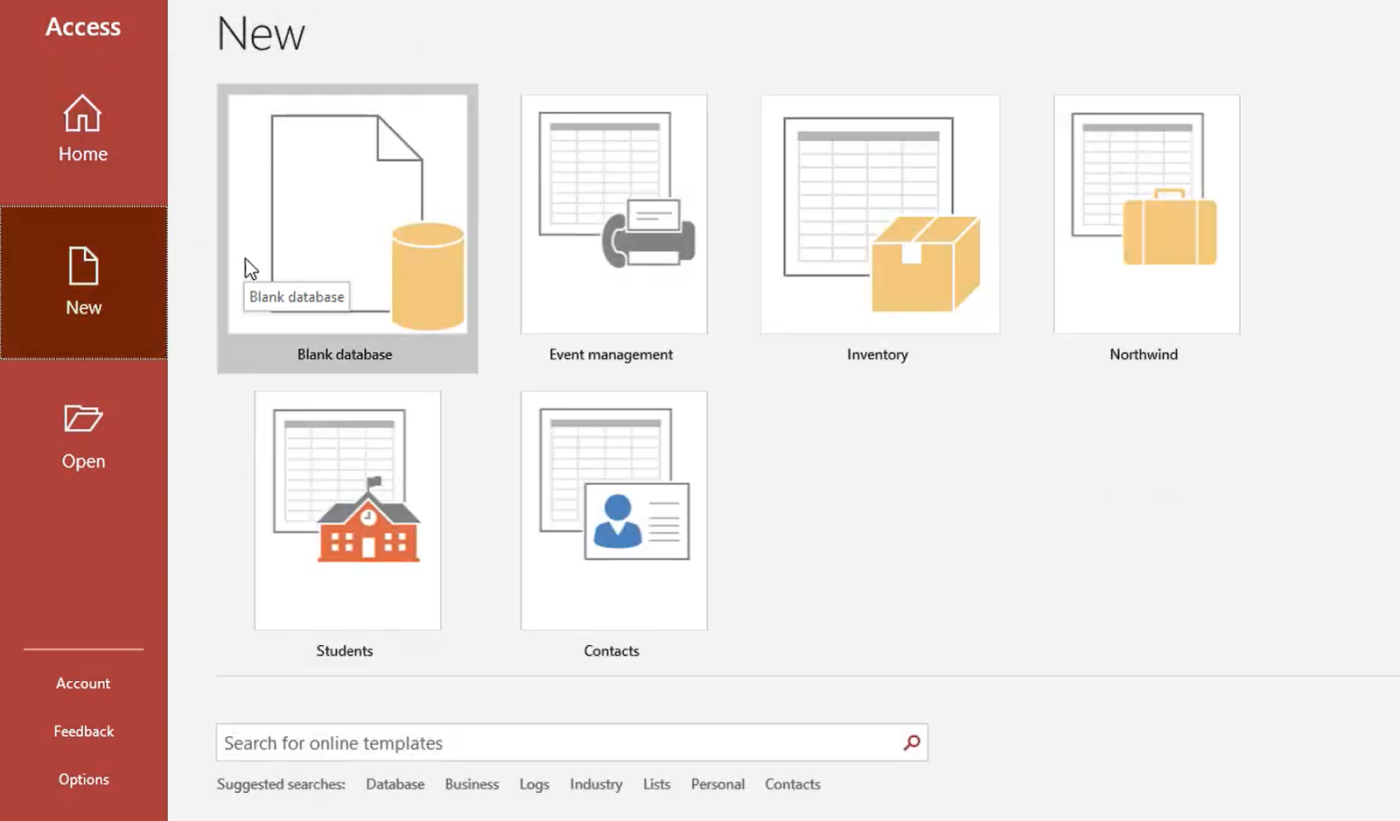
Here’s how to create a blank database:
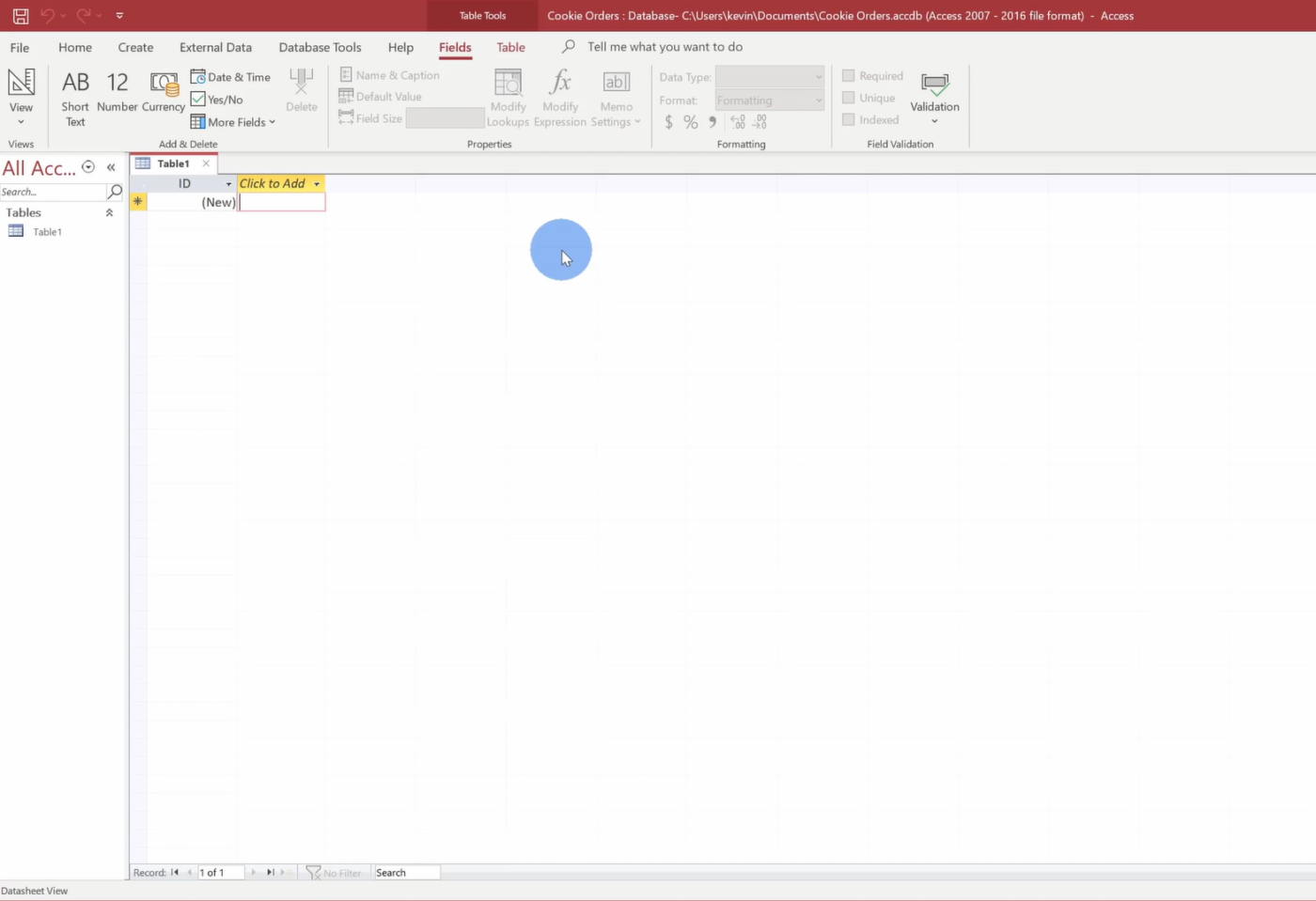
Access automatically creates a new database table named Table 1 and opens it in Datasheet View.
If you want to create a new database table, here’s what to do:
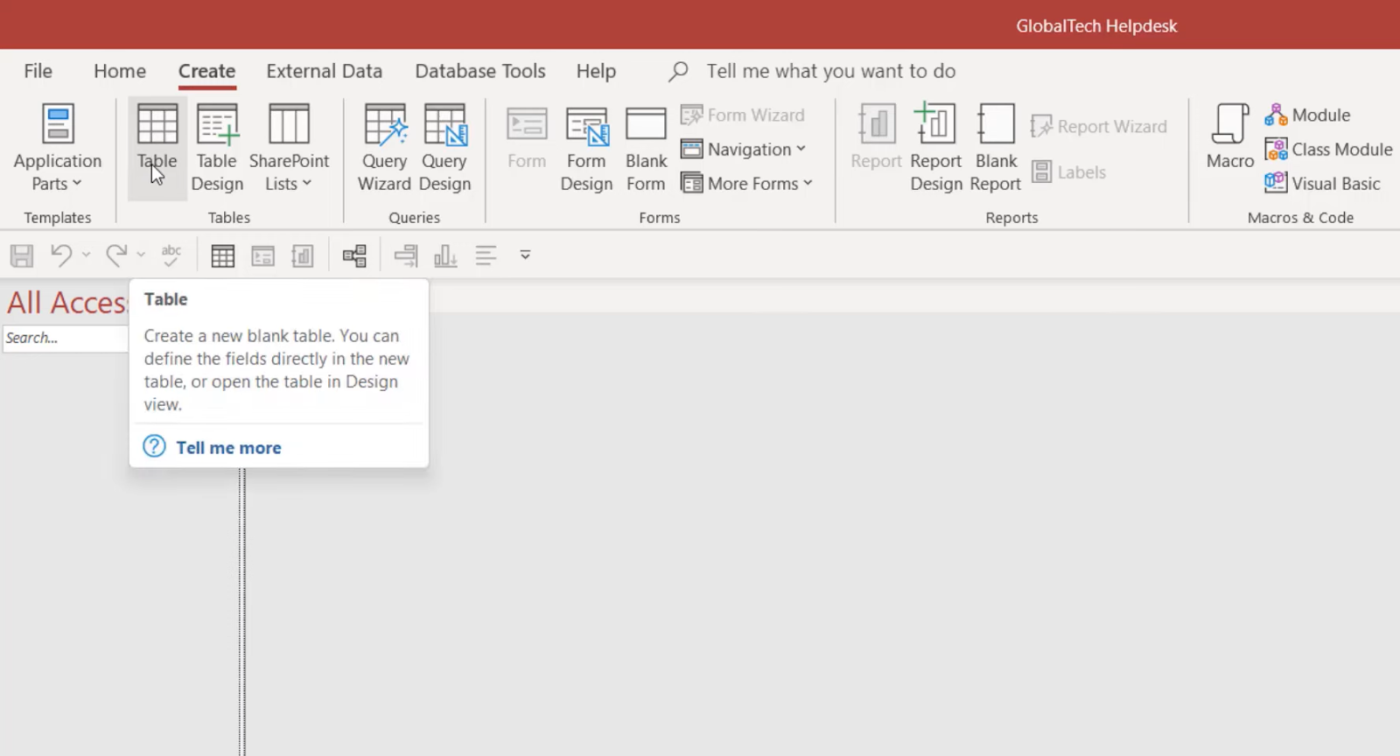
Remember, Access displays the columns as Fields and the rows as Records.
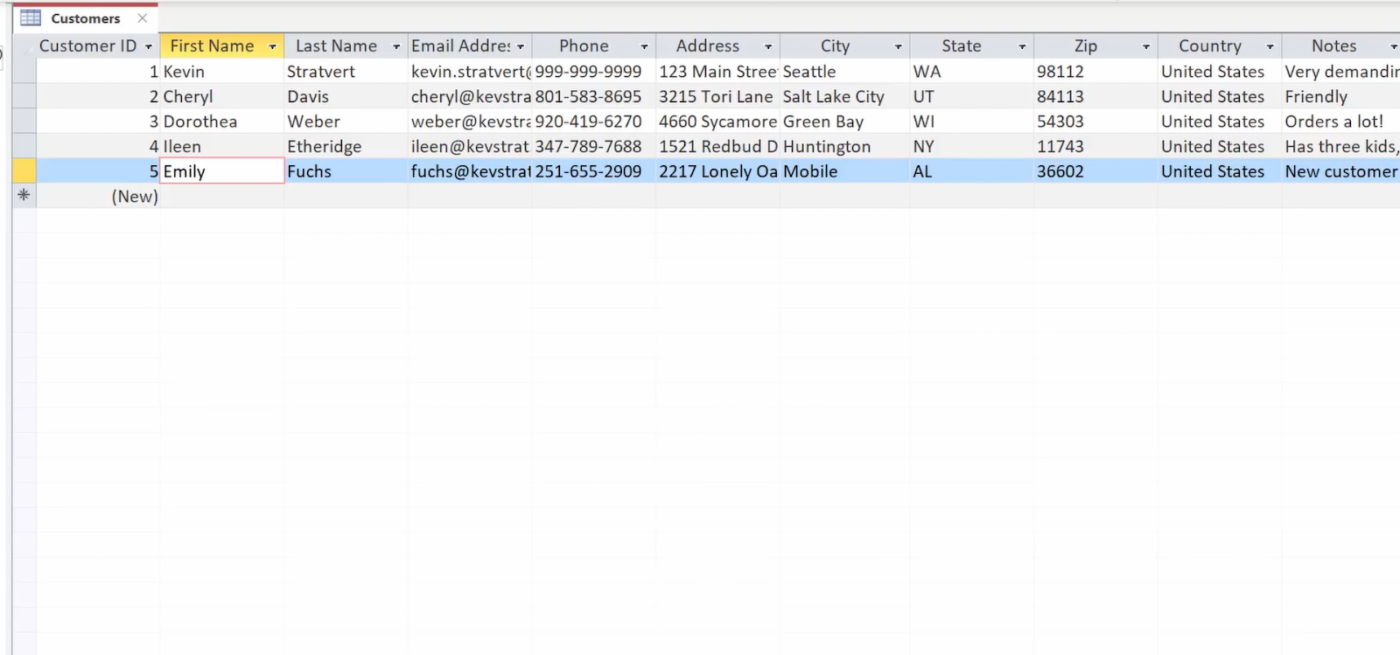
If you want to specify the type of data a column will hold, follow these steps:
If you already have an existing database (like an Excel spreadsheet or another database), you can easily import data or copy and paste it into Access. Follow these steps:
Access will automatically highlight any mismatched or invalid entries to help you check for errors.
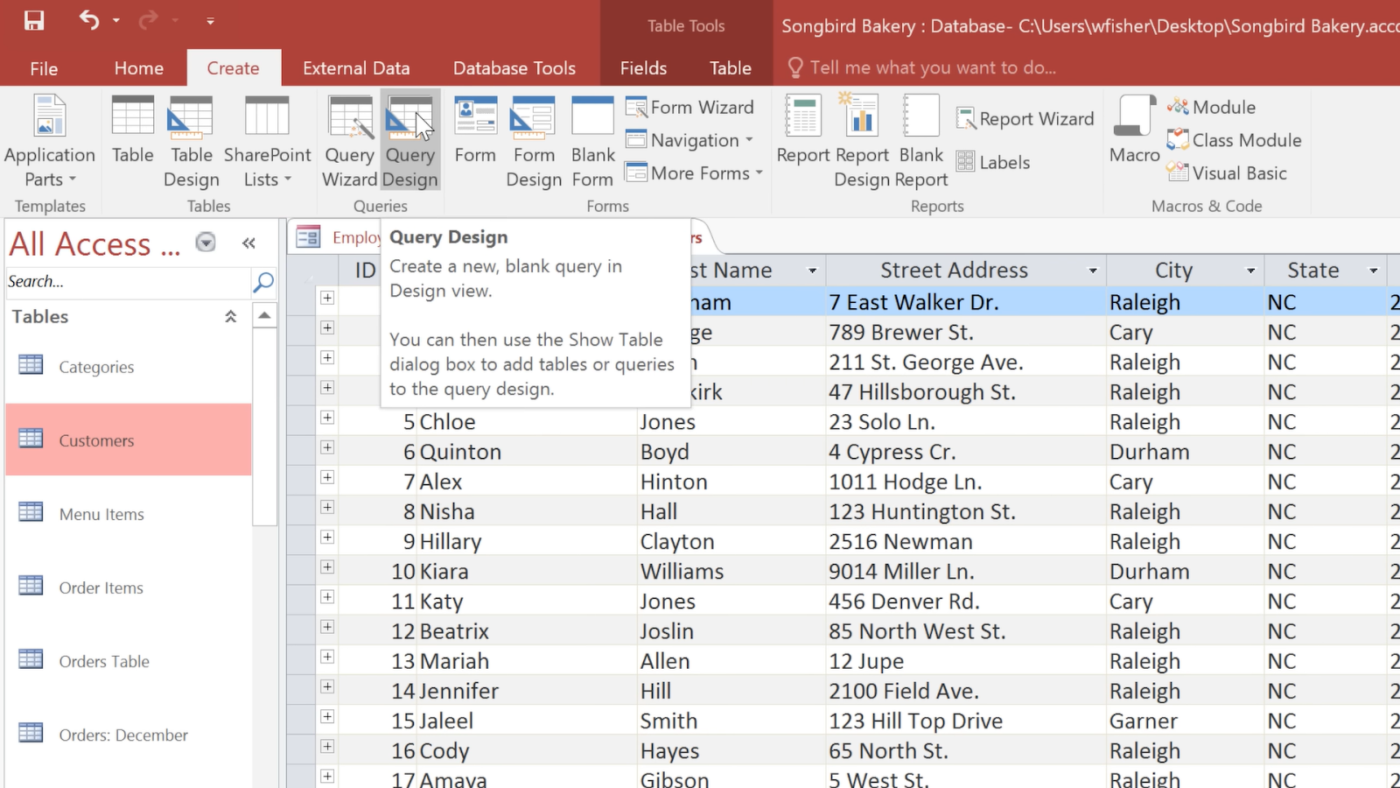
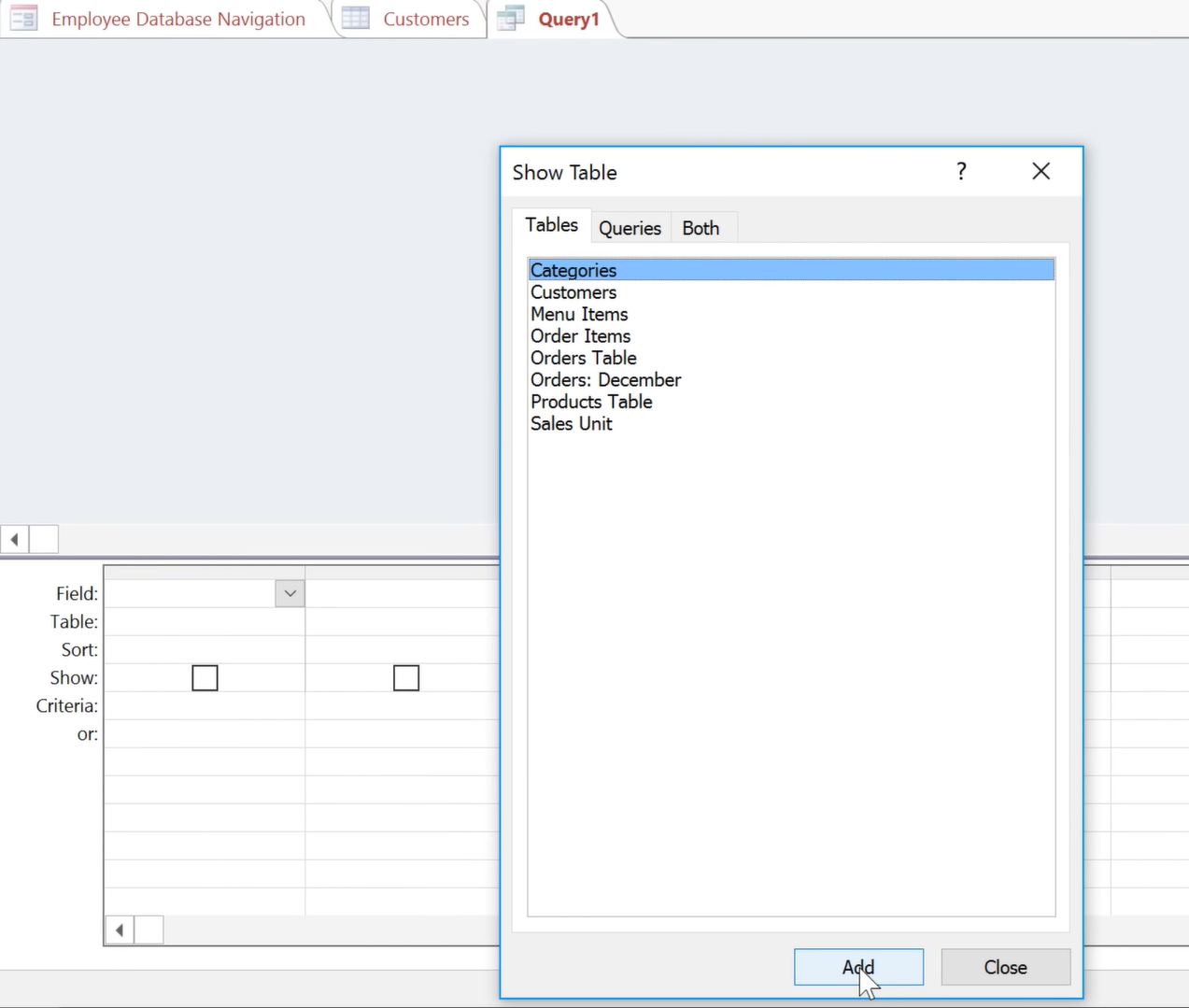
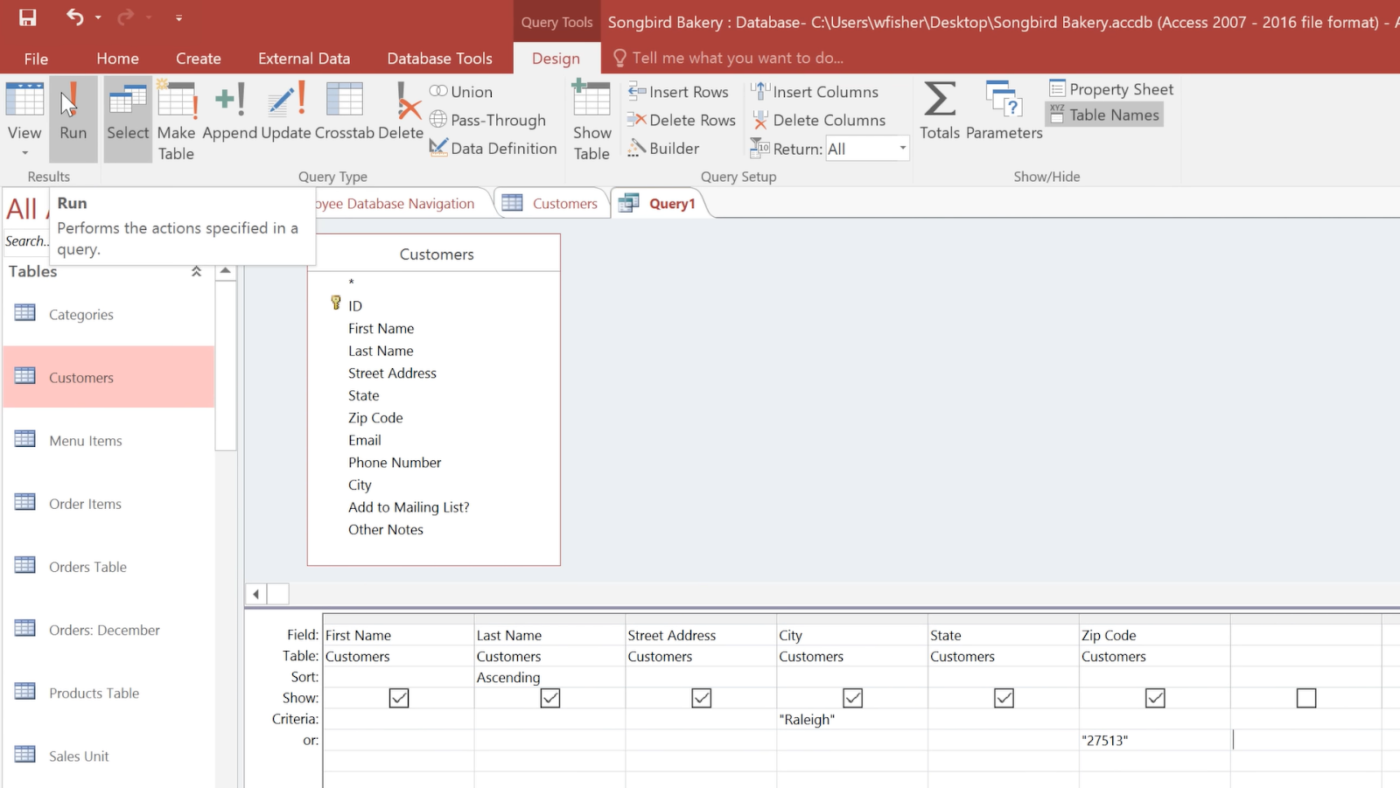
Queries help you filter, sort, and analyze data in Access. Follow these steps to create and run a query:
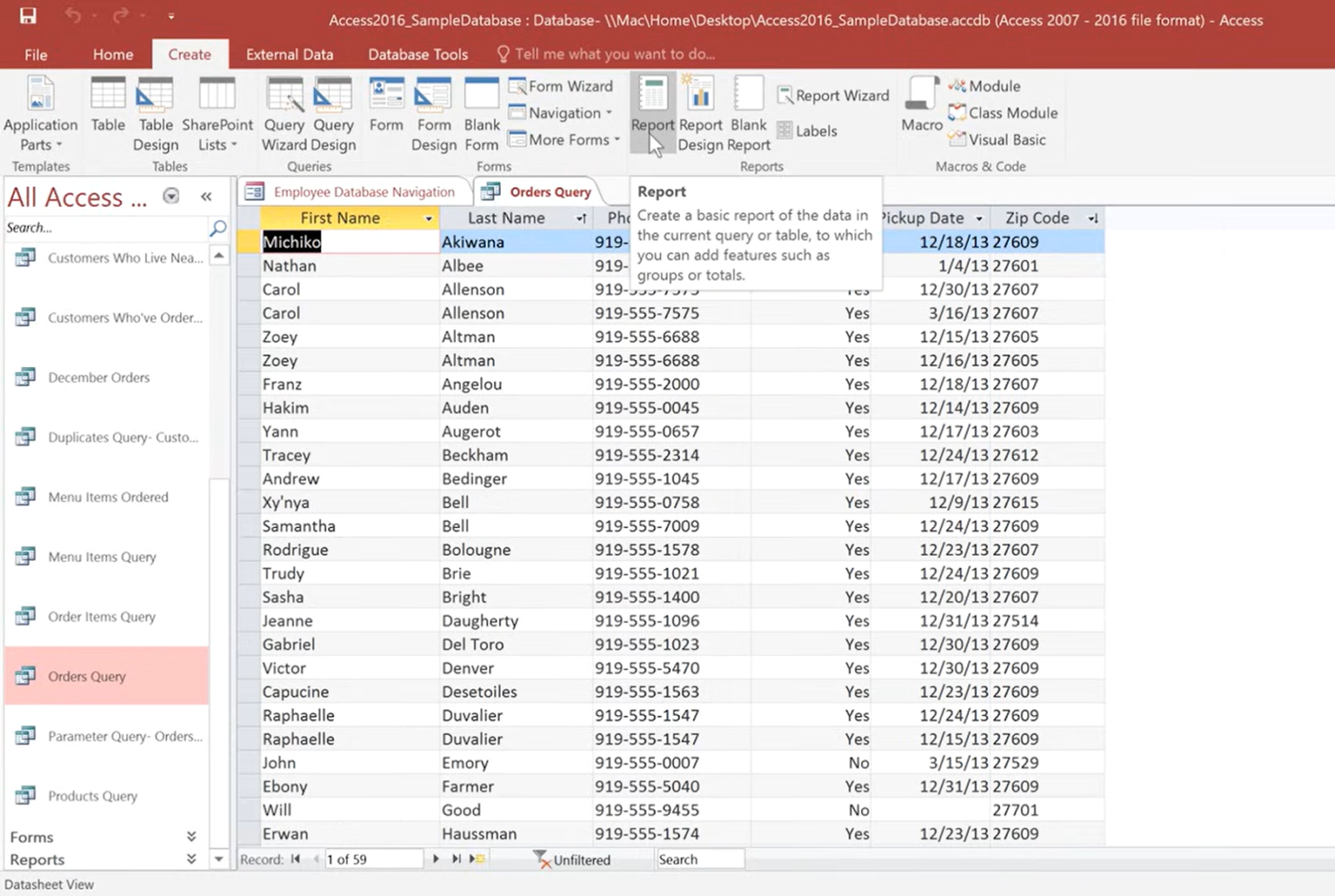
Reports help you present and print your data in a structured way. Here’s how to create one:
🔎 Did you know? The first database was created in the 1960s! The first modern database system, Integrated Data Store (IDS), was developed by Charles Bachman in 1964—way before personal computers became a thing!
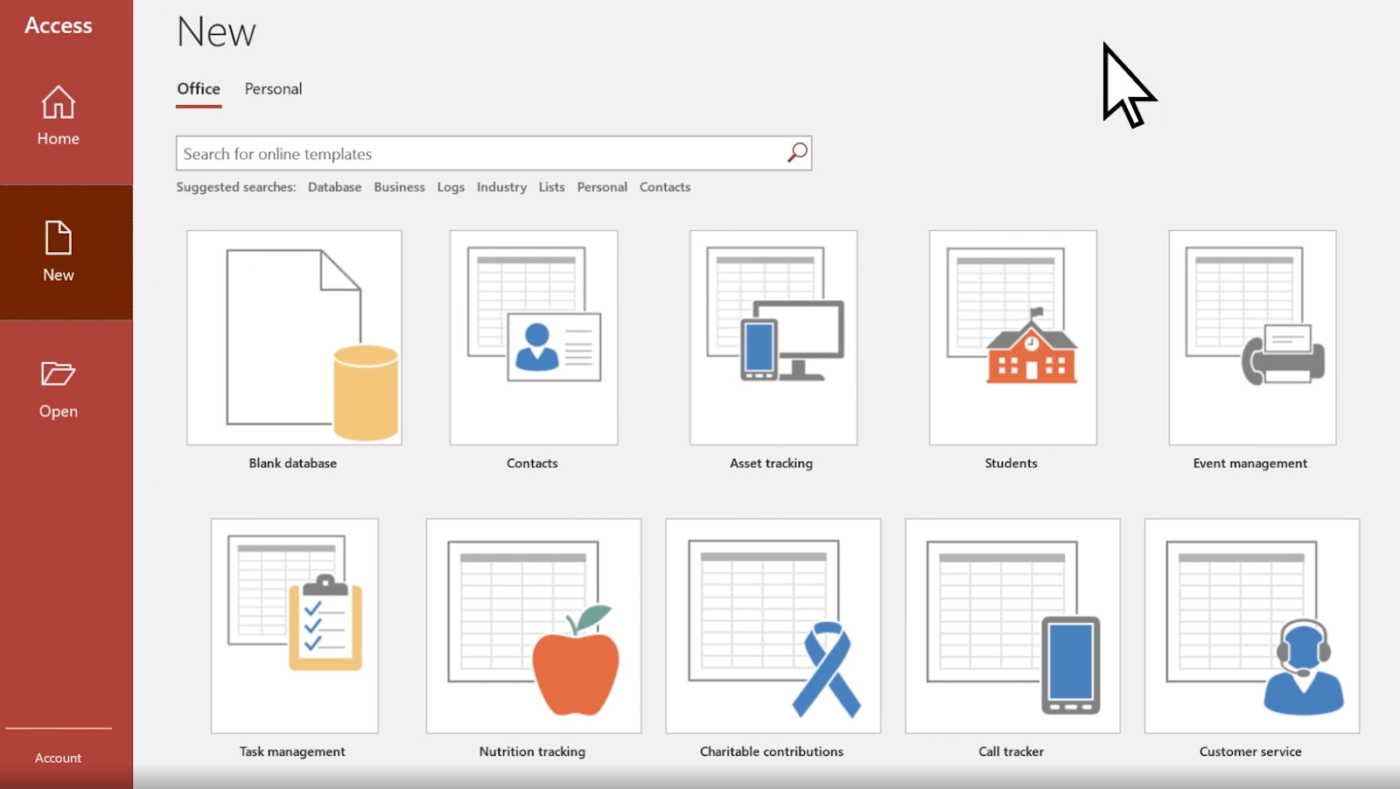
Creating a database in Microsoft Access using a database template is a quick and efficient way to get started.
Here’s how to do it:
Launch Microsoft Access on your computer.
📮 ClickUp Insight: 74% of employees use two or more tools just to find the information they need, while jumping between emails, chat, notes, project management tools, and documentation.
This constant context-switching wastes time and slows down productivity. As the everything app for work, ClickUp unifies all your work—email, chat, docs, databases, tasks, and notes—into a single, searchable workspace, so everything is exactly where you need it.
While Microsoft Access is great for small projects, it does come with some drawbacks, especially when dealing with larger, more complex databases.
Here’s why Access might not be the best choice for long-term database management:
➡️ Also Read: Best Workflow Program Software
Looking for a better alternative to Microsoft Access? ClickUp, the everything app for work, offers powerful database features to help you store, organize, and automate data effortlessly.
Whether you’re tracking projects, budgets, or customer information, ClickUp’s customizable views, automation features, and seamless integrations make database design and management effortless.
Features like ClickUp Dashboards and reports provide real-time insights into your database to help you make data-driven decisions. And integration with task management, automations, and reporting means your database is a dynamic part of your workflow.
Here’s how to build and manage a database in ClickUp:
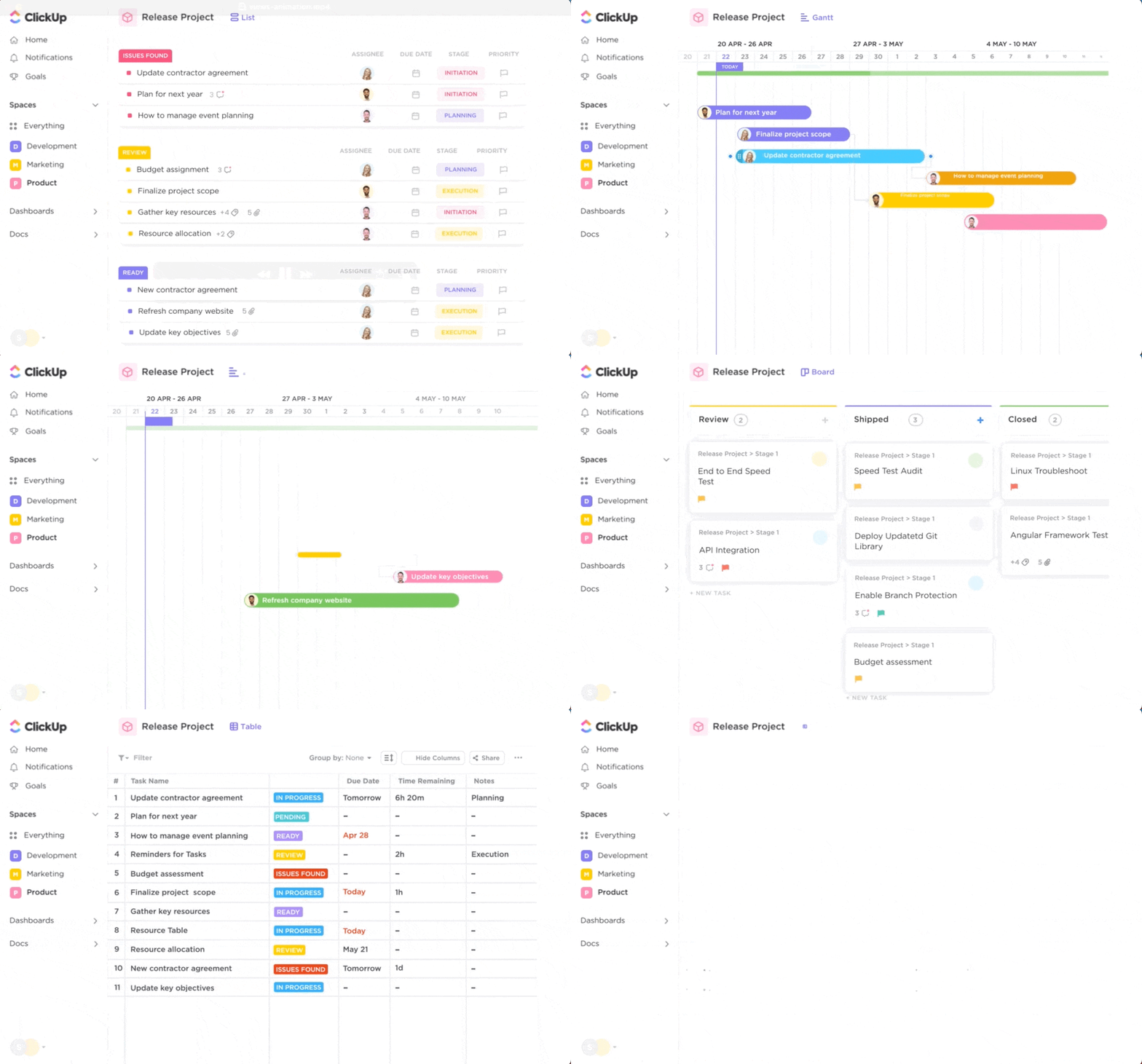
Custom Views in ClickUp are like your personal command center—designed to help you see exactly what you need, when you need it. Whether you’re a list lover, a visual planner, or someone who thrives on timelines, ClickUp lets you choose from views like List, Board, Calendar, Gantt, and more.
But it doesn’t stop there—you can filter, sort, group, and customize each view to match your unique workflow. Want to see only high-priority tasks due this week? No problem. Need a board view showing tasks assigned to each team member? Easy. These custom views help you cut through the noise and stay focused, and the best part? You can save and share them with your team so everyone’s on the same page. It’s flexibility and clarity, all in one workspace.
➡️ Also Read: Microsoft Access vs. Excel: Which One Should You Use?
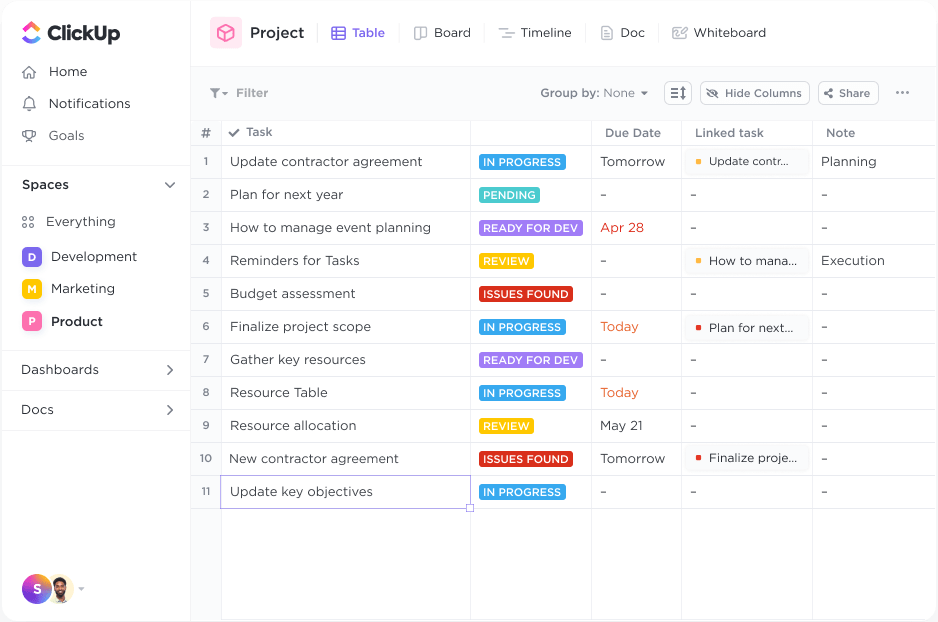
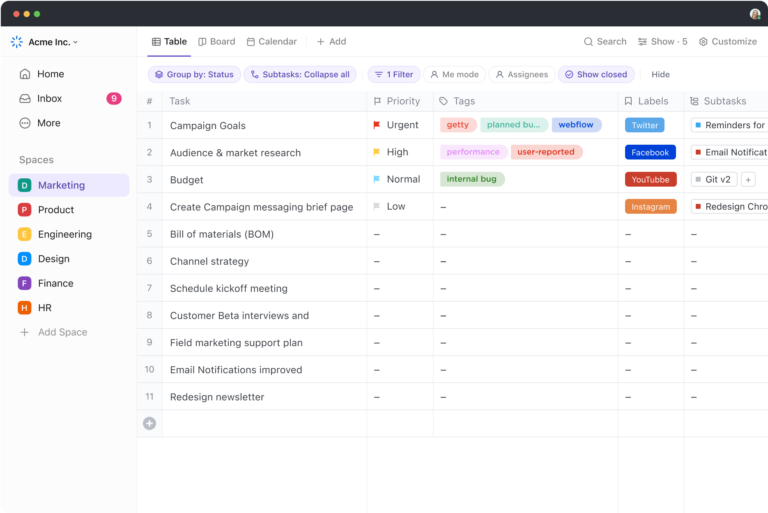
If you love working with spreadsheets but need something more powerful and collaborative, ClickUp’s Table View is the perfect solution. It offers a 100% no-code route to creating, managing, and customizing databases without the complexity of traditional database software.
Table View lets you:
Creating a database in ClickUp’s Table View takes just a few clicks:
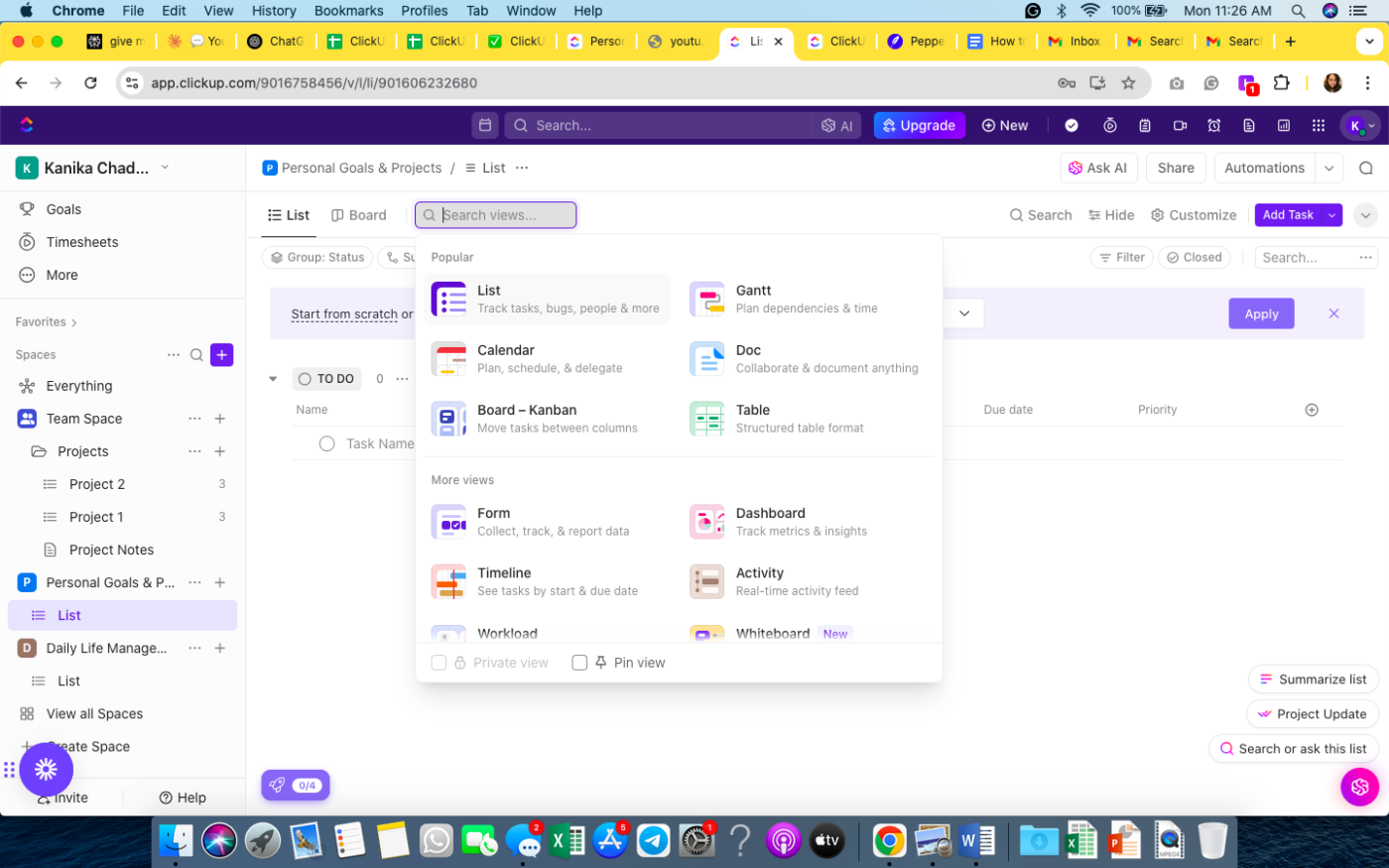
From here, it’s all about customizing your columns to match your data needs. Unlike static spreadsheets, ClickUp lets you structure your database exactly how you need it with Custom Fields.
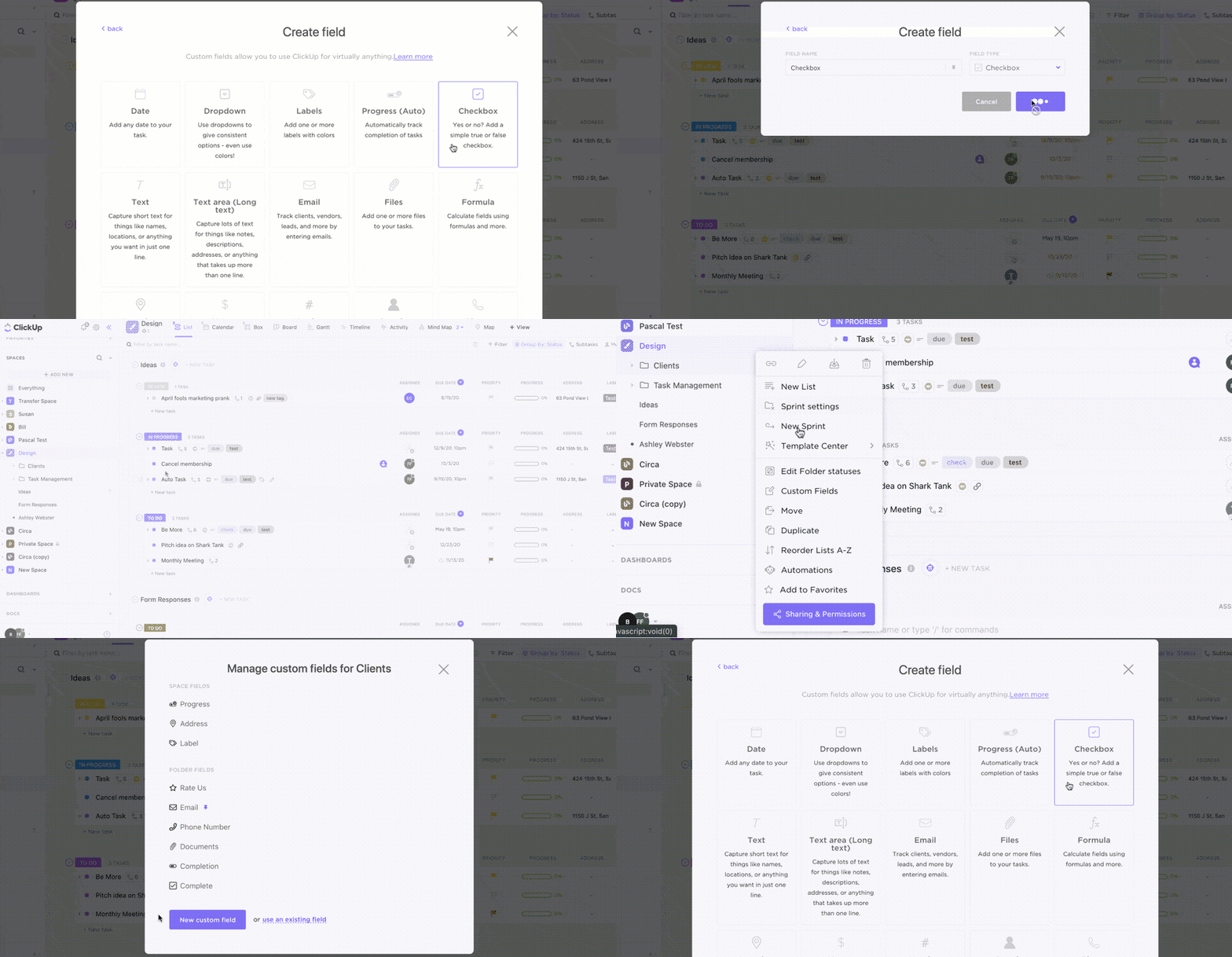
Whether managing contacts, budgets, inventory, or content, ensure accurate, well-organized data with field types like:
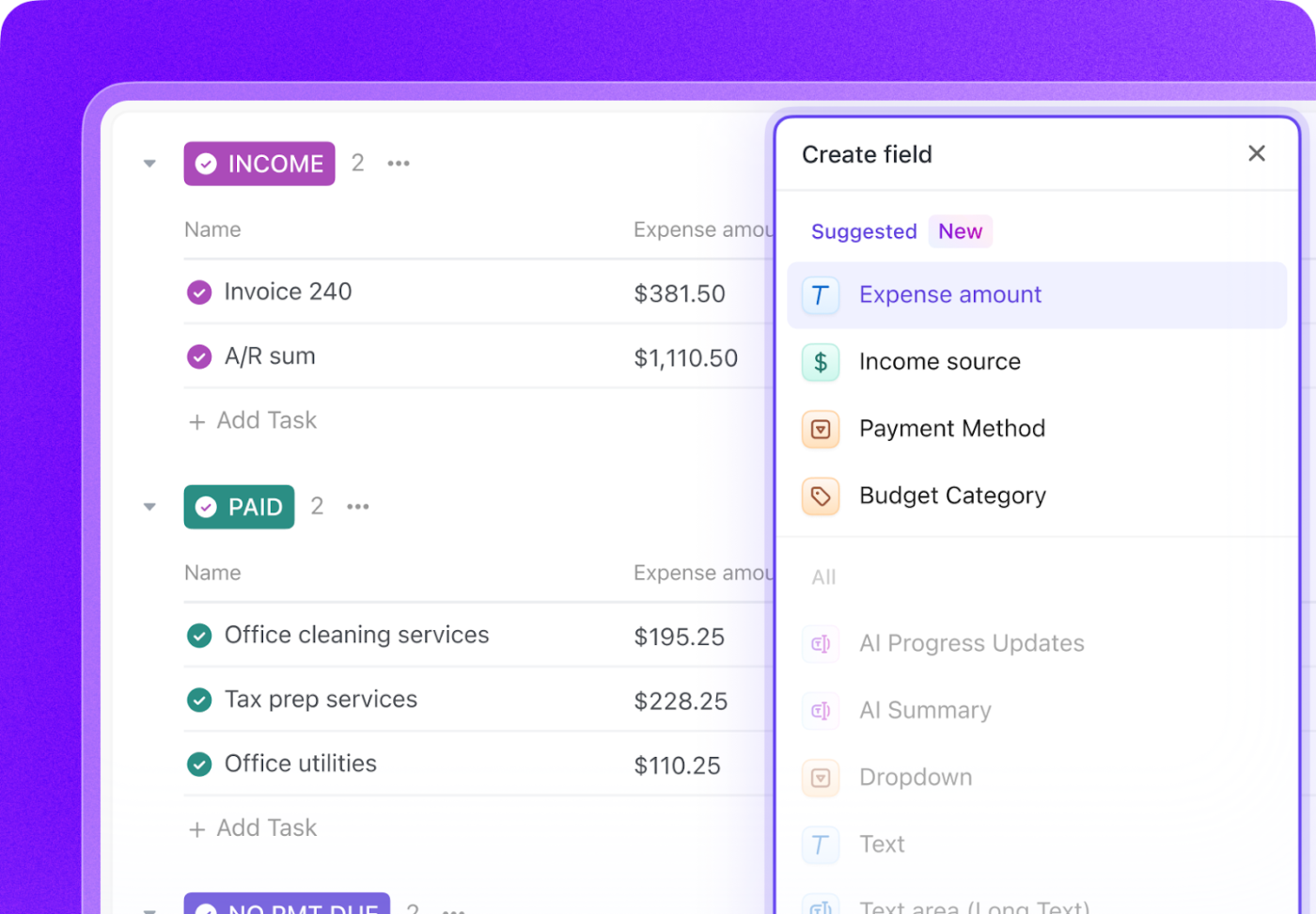
Want something else? Create your own Custom Fields Or Ask ClickUp’s AI to create them for you!
Use the Relationship Custom Field to connect entries across different Lists or Workspaces. It essentially creates a relational database without writing a single line of code! So, connect clients to projects and track their progress, link inventory items to supplier details, and manage content calendars with interconnected workflows.
No need to build your database from scratch! ClickUp offers ready-made database templates to help you set up your data system instantly. We recommend these two:
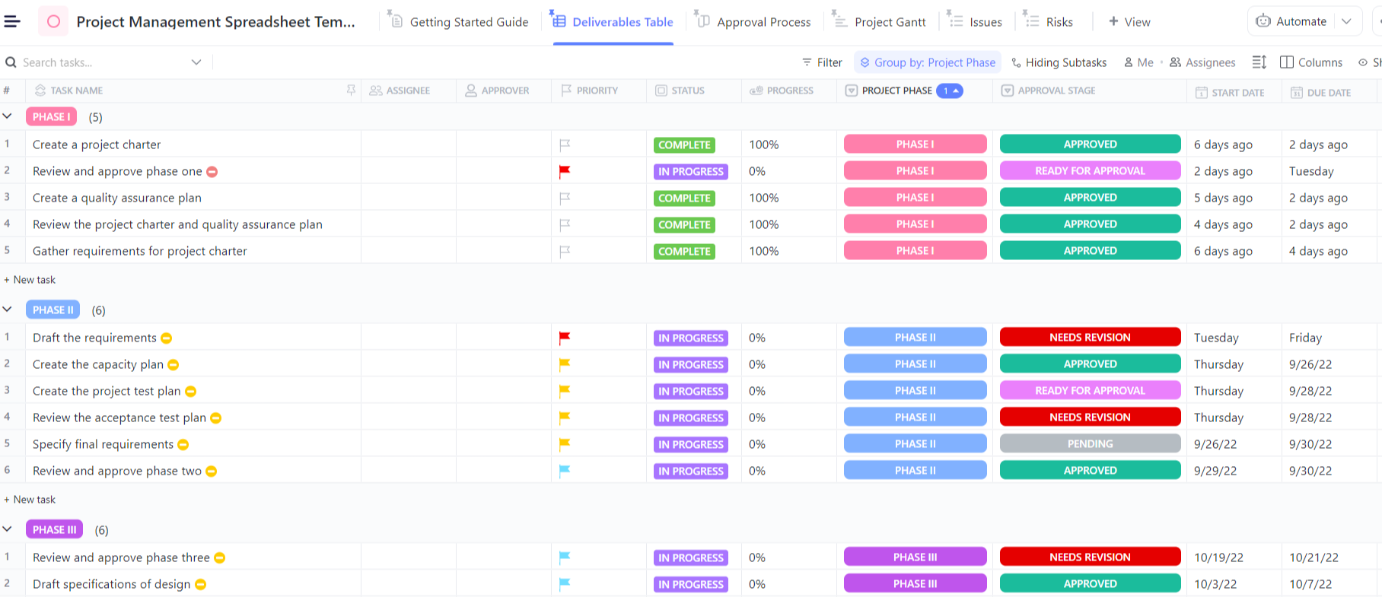
ClickUp’s Project Management Spreadsheet Template helps visualize timelines, track progress, and manage multiple projects together. It lets you keep all the project information in one place, update it regularly, and share changes with the stakeholders.
The template offers 5 custom fields and multiple custom views like Calendar View, Table View, and List View to help you visualize data in the best way.
Looking for something simple? ClickUp’s Spreadsheet Template is perfect for capturing essential information from your customers and keeping it handy from anywhere.
Hear what Shikha Chaturvedi, Business Analyst at Cedcoss Technologies Private Limited, has to say about ClickUp:
ClickUp helps us a lot to manage our client data in one place so I found it very useful for my workplace. And it also makes our work hassle free. We have full control of the accessibility of our tasks.
💡 Pro Tip: Managing customer relationships? ClickUp’s CRM tools let you track leads, sales pipelines, and interactions, all within a centralized database. This is great for businesses that need an all-in-one solution for both task and customer data management.
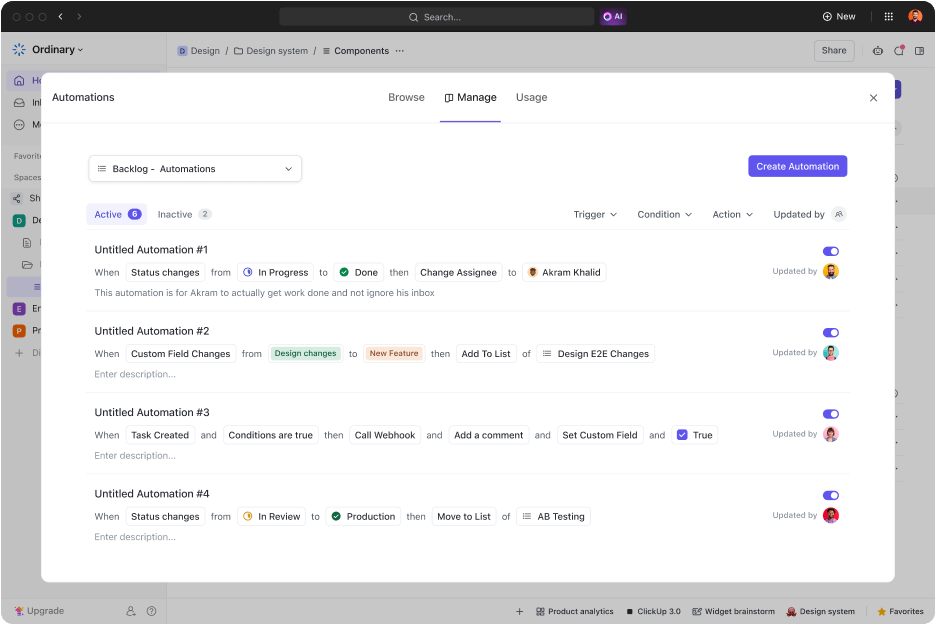
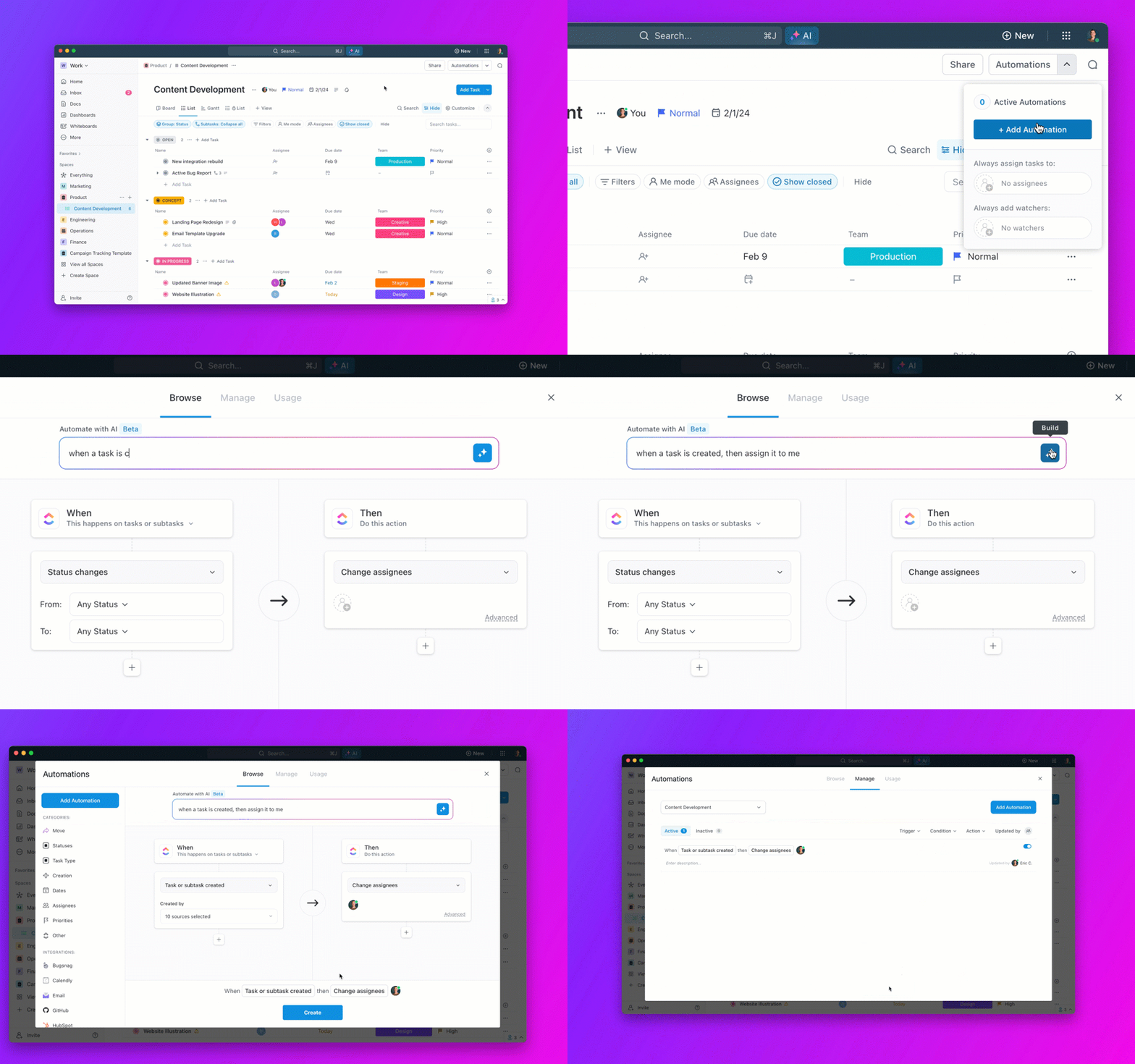
Why spend time on manual data entry when ClickUp can do the work for you? With ClickUp Automations, you can:
This means less admin work and more focus on what matters. While ClickUp offers 100+ automation templates, you can also create your own using ClickUp Brain—the AI assistant.
Microsoft Access provides basic database creation but falls short with scalability issues, an outdated UI, and no real-time collaboration—key for modern, flexible workflows.
If you’re looking for a modern, flexible, and more efficient way to manage your data, ClickUp is the answer.
With ClickUp Table View and seamless integrations, it transforms database management into a collaborative and intuitive experience. Additionally, it goes beyond traditional databases by offering real-time collaboration, customizable workflows, and powerful reporting tools—all in one place.
So why wait? Sign up on ClickUp and optimize your database management with a smarter, more collaborative approach today!

Manasi Nair
Max 26min read
Manasi Nair
Max 26min read
Manasi Nair
Max 20min read

© 2026 ClickUp