






Still downloading templates?
There’s an easier way. Try a free AI Agent in ClickUp that actually does the work for you—set up in minutes, save hours every week.
Sorry, there were no results found for “”
Sorry, there were no results found for “”
Sorry, there were no results found for “”
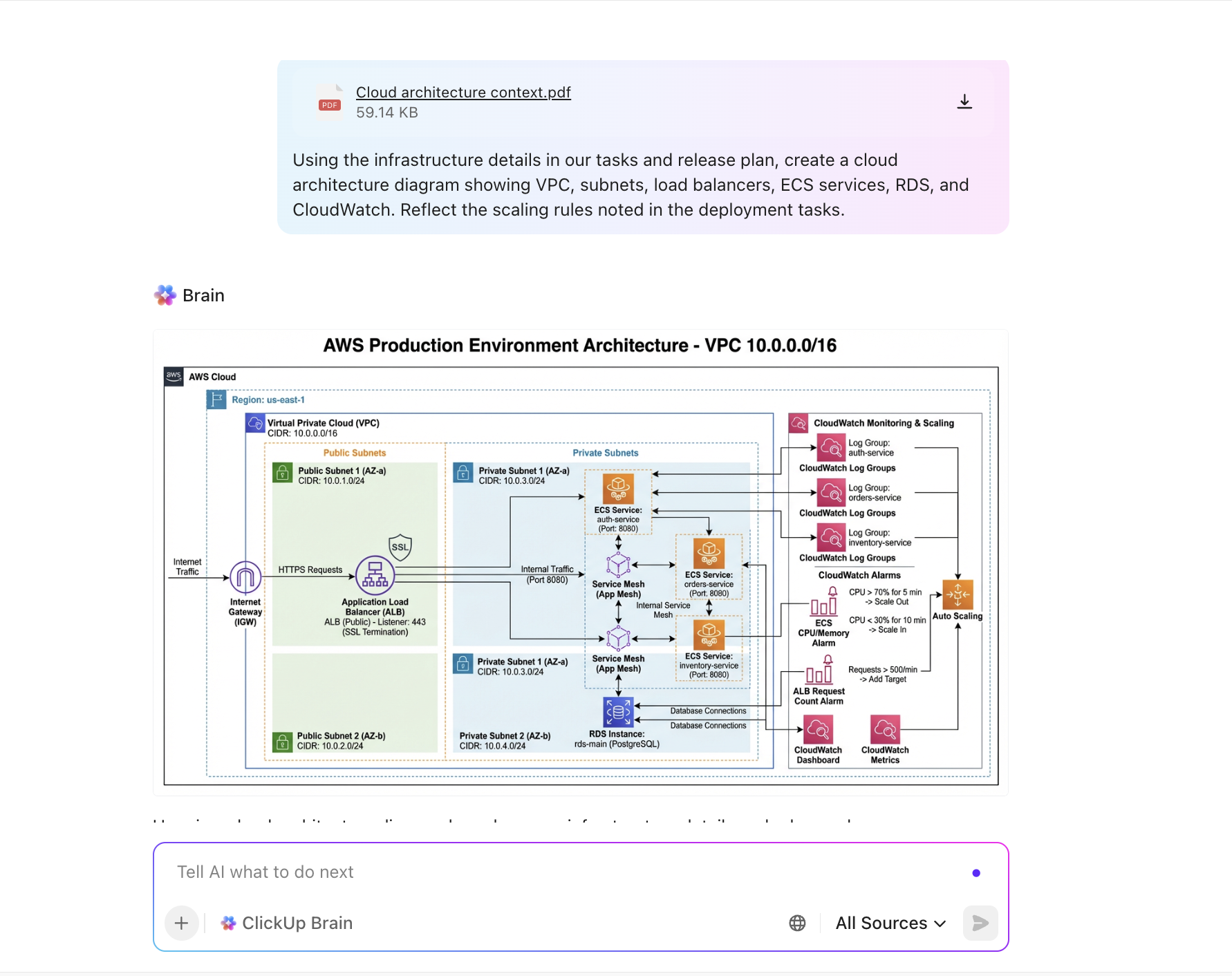

Architecture diagrams are the blueprints of any complex system, but keeping them updated every time something changes is a real pain.
Outdated diagrams slow teams down. They create confusion, which leads to miscommunication.
As a result, more teams are using GPT to automate diagram creation, saving hours of manual editing and reducing errors.
✅ Fact Check: As per Stack Overflow’s Developer Survey, over 84% of respondents are using or planning to use AI tools in their development process, an increase over last year (76%).
GPT models from OpenAI remain the most widely adopted, with nearly 8 out of 10 developers using them in the past year. Whereas Anthropic’s Claude Sonnet shows stronger traction among experienced developers (45%) than among learners (30%).
Ready to see how to automate software architecture diagrams with ChatGPT?
In fast-moving teams, changes happen in almost every sprint.
New features, API endpoints, or scaling decisions require updates to your diagrams. Keeping up with this pace without automation is time-consuming.
When you miss a single dependency, it can ripple through development, causing costly rework or delays. Also, mistakes are almost inevitable when teams rely on repetitive, manual edits.
That’s where automating architecture diagrams comes to your rescue.
Unlike humans, GPT excels at repeatable tasks, completing them faster and with greater consistency.
Describe system changes in plain English, and it creates or updates a diagram in seconds. No more dragging shapes around or starting from a blank canvas. Ask GPT to create architecture diagrams while you focus on accuracy and clarity.
The benefits are clear:
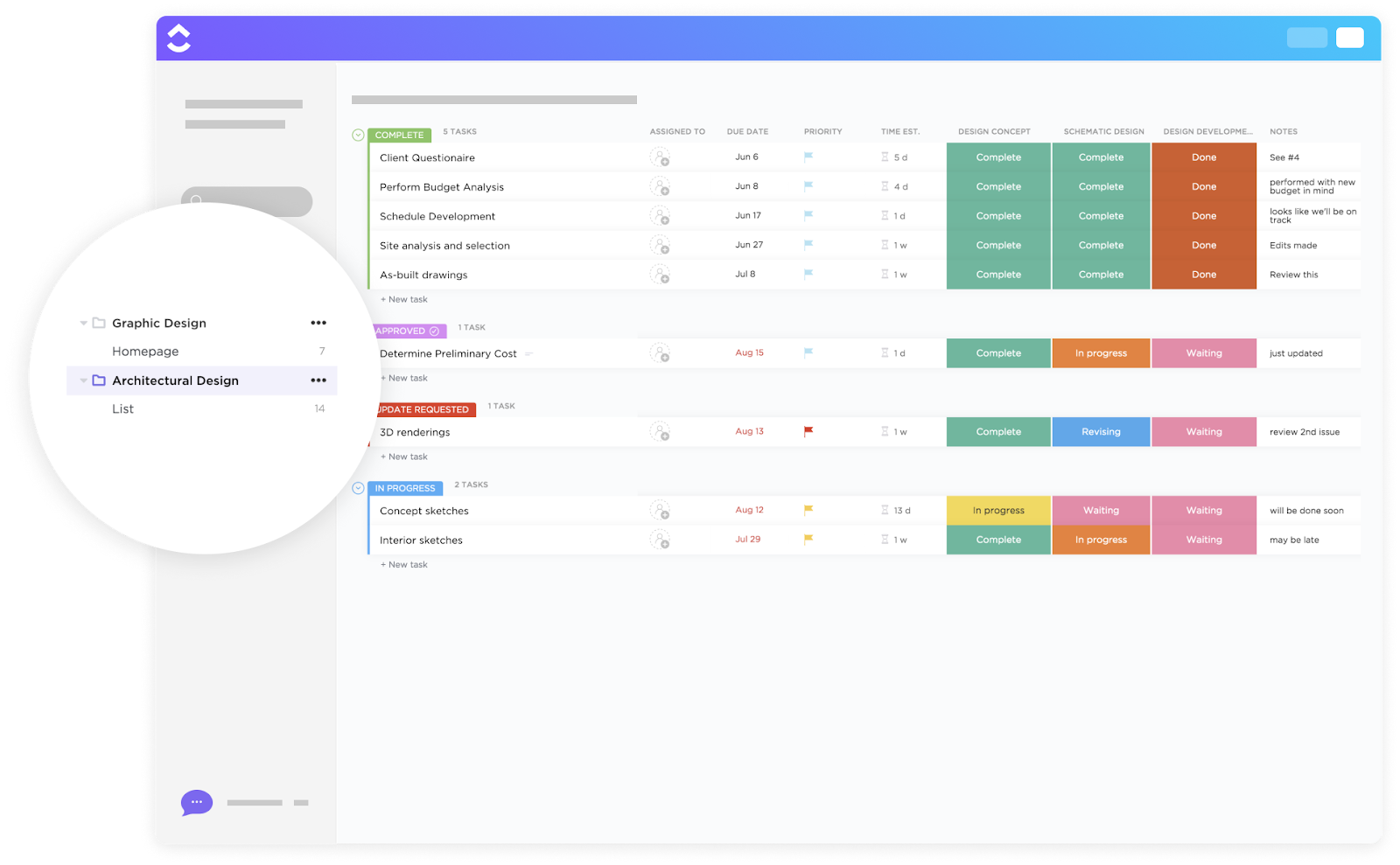
Struggling to keep architecture decisions, cloud architecture diagrams, and rationale aligned as your system evolves? ClickUp’s Architectural Design Template centralizes system flows, design choices, and integration points. Maintain clarity across teams by linking decisions to context and keeping every diagram and document review-ready as your system grows.
The setup is straightforward. If you know the basics of ChatGPT, you’re already prepared to start generating architecture diagrams.
Here’s what you’ll need:
Any LLM (such as ChatGPT or GPT-4) that can generate text is suitable. You can use it to generate code in diagramming formats (Mermaid and PlantUML) that can be rendered. Free versions handle the basics, but GPT-4 or enterprise models often produce cleaner and more accurate output.
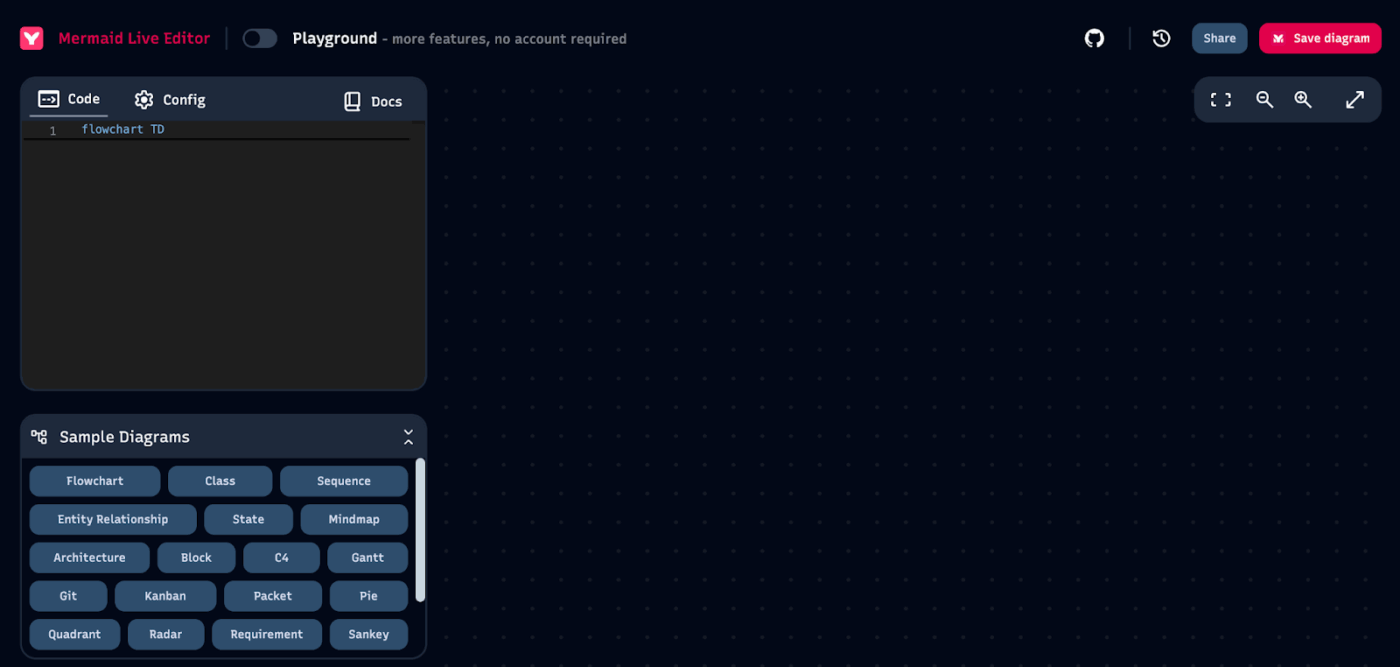
Once GPT gives you the code, you’ll need to paste it somewhere to visualize it:
👀 Did You Know? Mermaid was created to help documentation catch up with development. Its core goal is to solve doc-rot by making diagrams easy to write and update as code changes.
Your results are only as good as your input. Before prompting GPT for diagram creation, write down the components of your system and how they connect (boxes and arrows in plain English). This becomes the “source of truth” for your prompt.
📮 ClickUp Insight: 33% of our respondents point to skill development as one of the AI use cases they’re most interested in. For example, non-technical workers may want to learn to build code snippets for a web page using an AI tool.
In such cases, the more context the AI has about your work, the better its responses will be.
As the everything app for work, ClickUp’s AI excels at this. It knows which project you are working on and can recommend specific steps or even perform tasks like creating code snippets with ease.
📚 Read More: How to Generate Images using ChatGPT
Creating an architecture diagram with GPT may sound technical, but it’s surprisingly straightforward. By breaking the process into clear steps, you can go from a blank page to a working diagram in minutes. Let’s walk through it together.
Start simple. List down the core components of your system and how they connect. Think in terms of boxes and arrows. For example, an e-commerce checkout system looks like this:
The clearer you are upfront, the less editing you’ll need later.
GPT works best with text-based diagramming languages:
Both can be pasted into free online renderers to turn code into visuals. We’ll use Mermaid here because it’s easy and works instantly in the Mermaid Live Editor.
Now it’s time to ask GPT to generate the architecture diagram. Be explicit about the type of diagram, the tool (Mermaid/PlantUML), and the relationships. For example:
Here’s the exact prompt for our example:
Generate a Mermaid diagram for an e-commerce checkout flow.
Include these components and connections:
– User -> Web App (frontend)
– Web App -> API Gateway
– API Gateway -> Auth Service (JWT)
– API Gateway -> Orders Service -> Orders DB
– API Gateway -> Payments Service -> External Payment Provider
– Orders Service -> Email Service (order confirmation)
Use clear node labels. The layout should be left to right.
Return only Mermaid code.
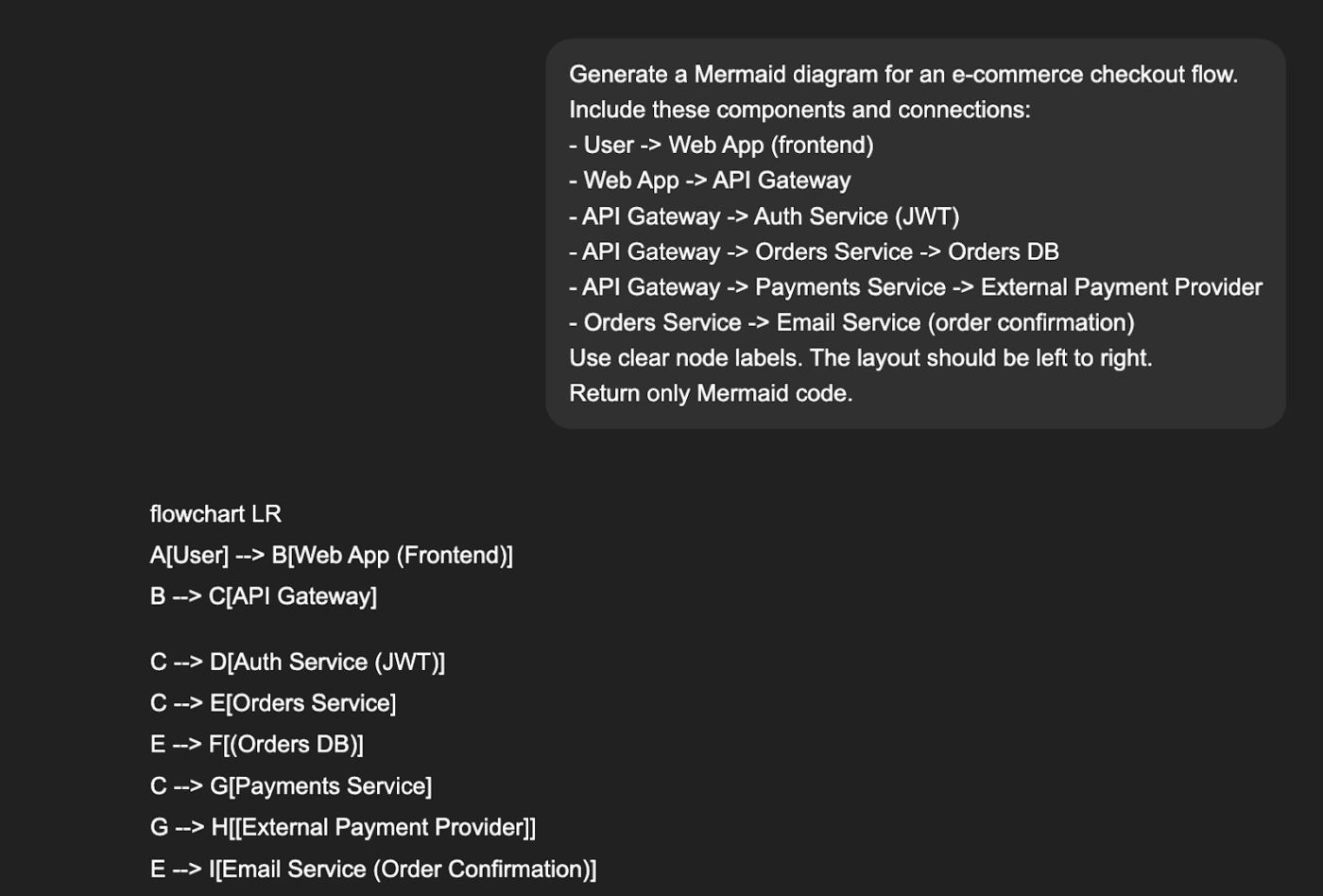
GPT will return something like this:
flowchart LR
U[User]
FE[Web App – Frontend]
APIGW[API Gateway]
AUTH[Auth Service – JWT]
ORD[Orders Service]
ORDDB[Orders Database]
PAY[Payments Service]
EXT[External Payment Provider]
EMAIL[Email Service – Order Confirmation]
U –> FE
FE –> APIGW
APIGW –> AUTH
APIGW –> ORD
ORD –> ORDDB
APIGW –> PAY
PAY –> EXT
ORD –> EMAIL
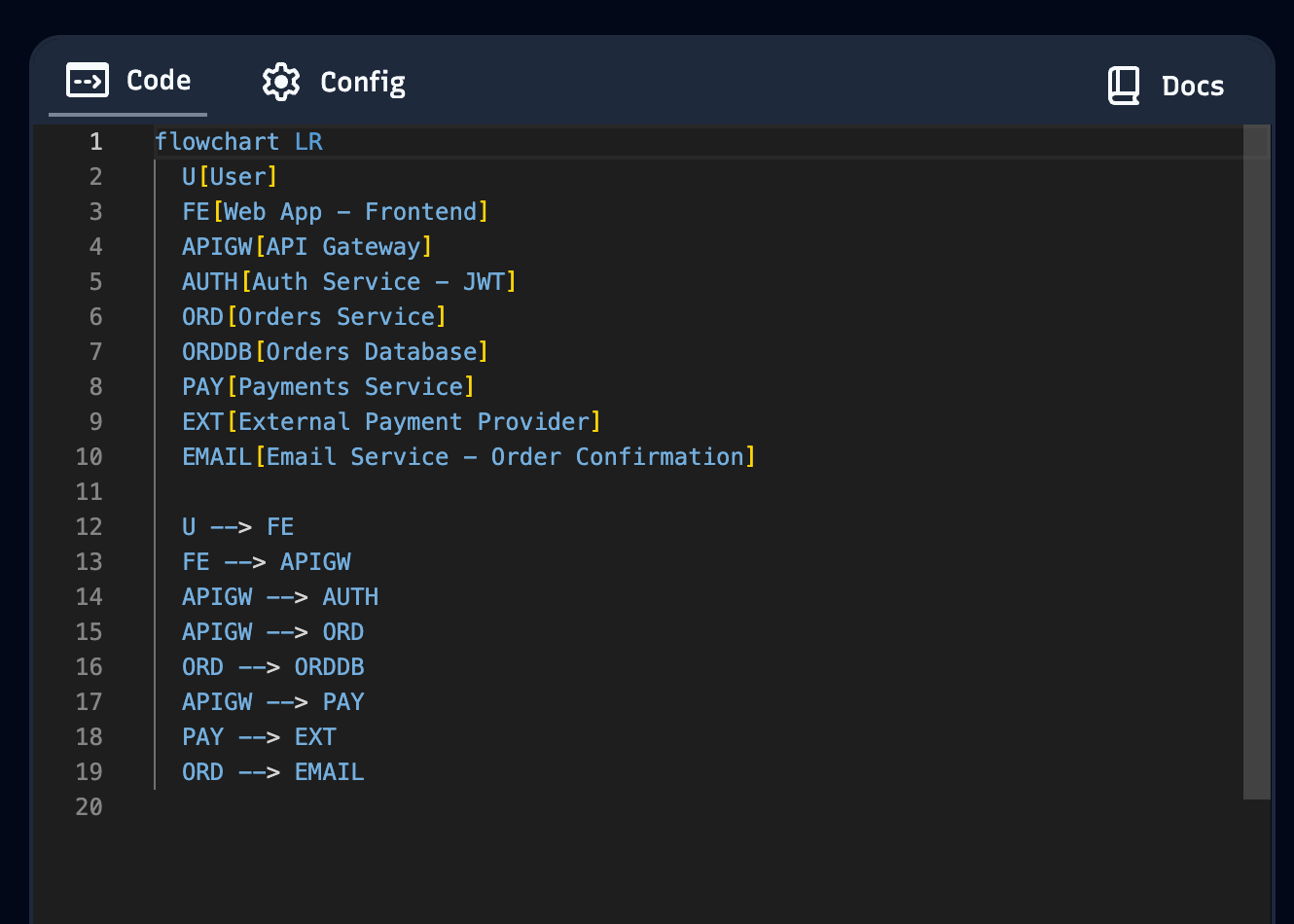
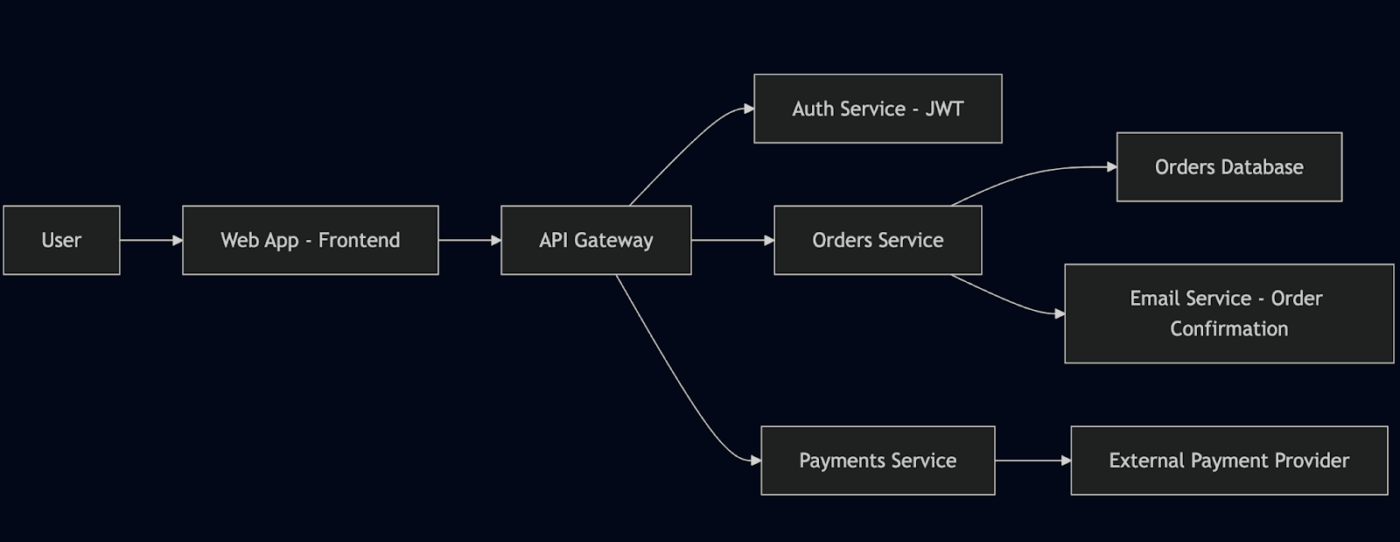
Paste this into Mermaid Live Editor, and you’ll instantly see a clean and editable diagram.
Sometimes the code from GPT can give you syntax errors in the Mermaid Editor. Either copy and paste the error into ChatGPT to troubleshoot in a few iterations. Or, use the ‘AI Repair’ option in Mermaid Editor.
⭐ Bonus: Brain MAX brings clarity to architecture diagramming in a world of AI sprawl.
It acts as your AI-powered desktop companion, cutting through AI sprawl by unifying context from every corner of your workflow. Brain MAX brings everything together—your system docs, Slack conversations, Jira tickets, design notes, and technical specs.
With Talk-to-Text, you can simply explain an architecture verbally/ “API Gateway calls Auth, Orders, and Payments…” and Brain MAX turns your voice input into a clean, structured diagram prompt.
Using Enterprise Search, you can retrieve relevant architecture details from anywhere across your workspace or connected apps, so every diagram reflects the truth of how your system actually works.
You can also tap into multiple AI models, choosing the right one for drafting system flows, refining Mermaid code, or validating component relationships. Brain MAX handles the orchestration, so you don’t need to think about which model does what.
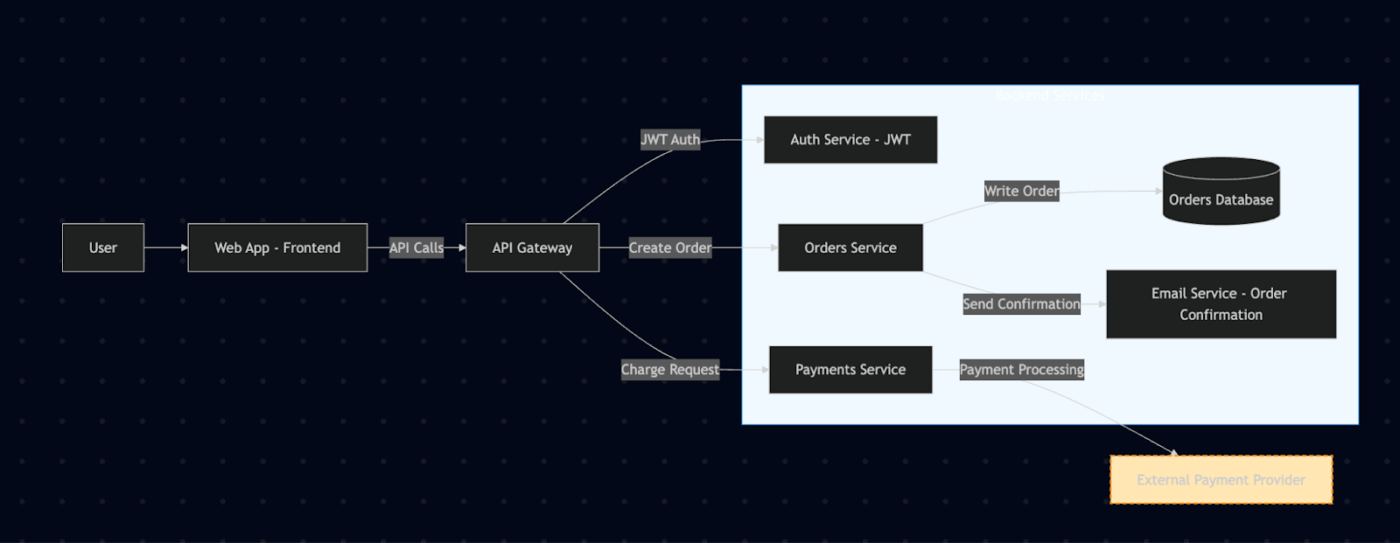
Review the output. The structure is usually correct, but layouts aren’t always perfect. You may want to:
Example refinement prompt:
Improve the previous Mermaid diagram:
– Group backend services into one box
– Add labels like “JWT Auth” or “Charge Request” to edges
– Style the external payment provider differently
Now paste the refined code from GPT into Mermaid Editor:
flowchart LR
U[User]
FE[Web App – Frontend]
APIGW[API Gateway]
subgraph Backend[Backend Services]
AUTH[Auth Service – JWT]
ORD[Orders Service]
ORDDB[(Orders Database)]
PAY[Payments Service]
EMAIL[Email Service – Order Confirmation]
end
U –> FE
FE –>|”API Calls”| APIGW
APIGW –>|”JWT Auth”| AUTH
APIGW –>|”Create Order”| ORD
ORD –>|”Write Order”| ORDDB
APIGW –>|”Charge Request”| PAY
PAY –>|”Payment Processing”| EXT[External Payment Provider]
ORD –>|”Send Confirmation”| EMAIL
%% Styling
style EXT fill:#FFE6B3,stroke:#FF8C00,stroke-width:2px,stroke-dasharray: 5 3
style Backend fill:#F0F9FF,stroke:#0077CC,stroke-width:1px
Here is the output:
⚒️ Quick Hack: If the diagram looks cluttered, drop it into ClickUp Whiteboards. You’ll get a drag-and-drop editor where you can fix layouts quickly and collaborate in real-time with teammates.
Don’t let your hard work disappear. Store your prompts and diagrams for later. When your system changes, you can tweak the prompt and regenerate instead of starting from scratch.
After following these six steps, you’ll have a working architecture diagram generated by GPT that is ready to use, share, and iterate on with your team.
📚 Read More: 50+ AI Prompts to Create Stunning Images
Now, let’s work with some example prompts. You can copy and paste them right away to create an architecture diagram.
This becomes your starter prompt library. Just tweak the names, services, or flows, and you’ll have production-ready diagrams in minutes.
Use this when you just need a simple system overview. It is great for onboarding teammates or documenting small projects.
Generate a Mermaid diagram for a simple web app.
Include:
– User → Web App (frontend)
– Web App → API
– API → Database
Layout should be left-to-right.
Return only Mermaid code.
This prompt shows you how different backend services work together. It helps make sense of complex systems, where each service has its own distinct role.
Generate a PlantUML component diagram for a microservices system.
Include:
– API Gateway
– Auth Service
– Orders Service → Orders DB
– Payments Service → External Payment Provider
– Notification Service (sends emails + SMS)
Group backend services together. Label edges clearly.
Return only PlantUML code.
Use this prompt when you rely on async communication (like Kafka, RabbitMQ, or AWS EventBridge). You can use it to highlight how events trigger different services. Or, try building a sequence diagram for more detailed interactions.
Generate a Mermaid diagram for an event-driven architecture.
Include:
– User Action → Event Bus
– Event Bus → Orders Service
– Event Bus → Inventory Service
– Event Bus → Notification Service
Show events as dashed arrows.
Return only Mermaid code.
Use this GPT prompt to visualize cloud infrastructure. It helps devs and stakeholders understand how traffic flows through AWS services.
Generate a Mermaid diagram for a system deployed on AWS.
Include:
– User → CloudFront → Application Load Balancer
– Load Balancer → EC2 instances (auto-scaling group)
– EC2 → RDS Database
– EC2 → S3 Bucket (for media uploads)
Style AWS services differently from custom services.
Return only Mermaid code.
This prompt is perfect for SaaS products that depend on third-party APIs. It shows what’s in your control (internal services) vs. what’s not (external).
For broader system overviews, you can also explore context diagram templates.
Generate a Mermaid diagram for a SaaS product that uses external APIs.
Include:
– User → Web App → API Gateway
– API Gateway → Internal Services (Auth, Orders, Reports)
– API Gateway → External Services (Payment Provider, Analytics)
Show external services in a separate cluster.
Return only Mermaid code.
Save these prompts in ClickUp Docs so that your team has a reusable library of diagram templates. Next time your system changes, just update the prompt instead of starting from the beginning.
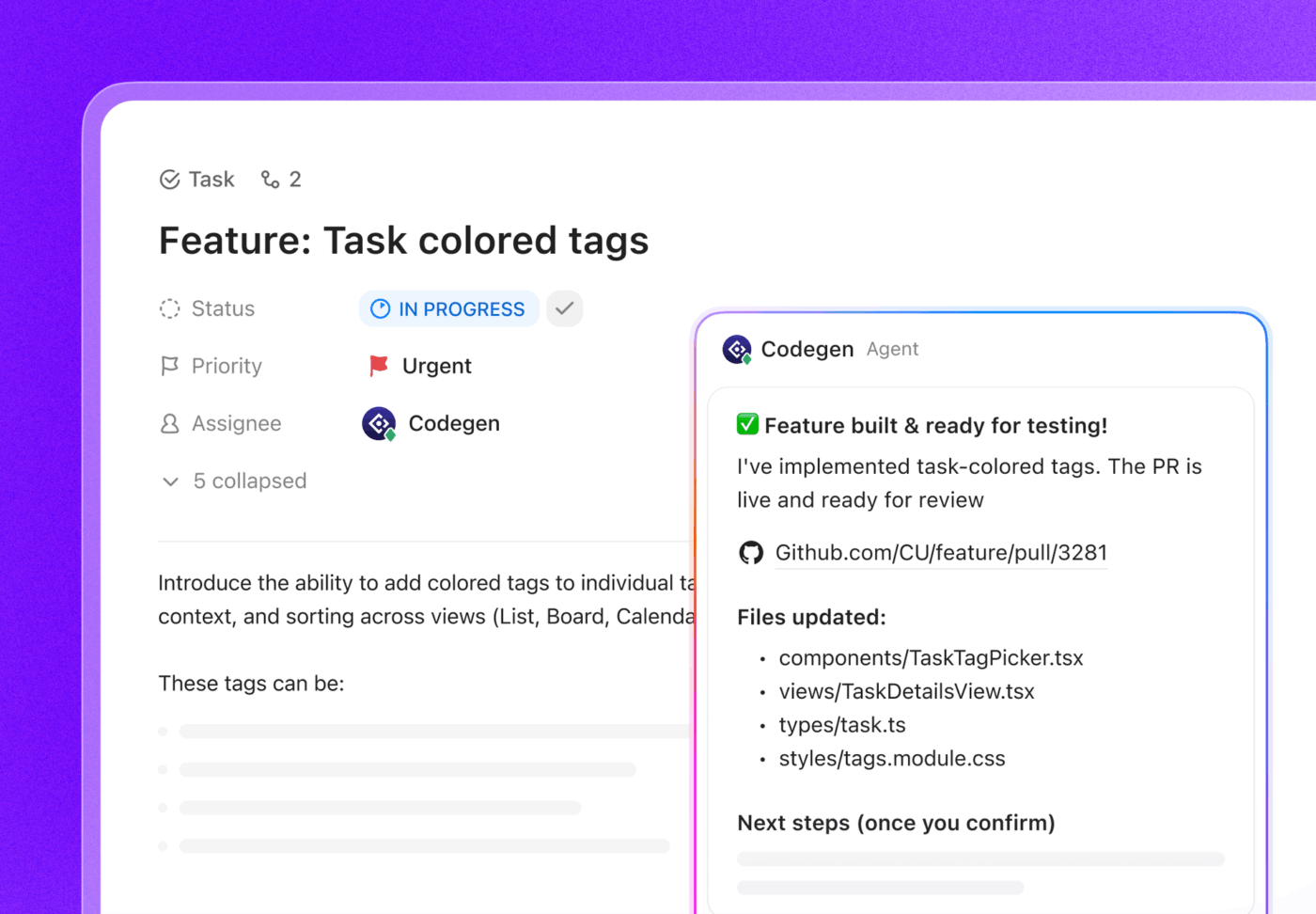
If you’re still writing code manually, do try the codegen agent from ClickUp!
Tag @Codegen or assign it to a task, and it will gather context, write code, and open a PR quickly. Empower everyone to fix bugs, build features, and update pages.
Relying on ChatGPT for managing creative briefs or even content creation comes with challenges:
GPT works only on the information you provide in a single prompt. It doesn’t automatically know your project history or past decisions.
📌 Example: If you ask GPT to “add an API Gateway” to yesterday’s architecture diagram, it won’t remember the original diagram unless you paste it again. Similarly, if you ask it to refine a campaign brief, it won’t know the client’s brand guidelines unless you re-feed them.
The same prompt can generate slightly different results. For projects that need consistency, this means extra editing.
📌 Example: Asking GPT twice for a ‘three-tier architecture diagram’ might yield two different layouts. In a creative brief, one version might overemphasize budget, while another might focus on messaging.
GPT produces outputs in isolation, but real work requires feedback loops.
📌 Example: A diagram generated in GPT can’t be annotated by your DevOps engineer. A creative brief can’t be commented on by your design team inside the same workspace. You need to copy outputs into another tool for collaboration.
Large systems or layered briefs often exceed GPT’s input limit.
📌 Example: A microservices diagram with 20+ components may get cut off or oversimplified. Likewise, a multi-channel marketing brief may lose details when the context is too long.
GPT’s outputs are raw text or code. To make them useful, you often need to reformat and integrate them into other tools.
📌 Example: Mermaid code has to be pasted into an editor before you see a diagram. A creative brief needs to be moved into a project management tool to assign tasks and track progress.
To overcome these challenges, you’ll need to explore ChatGPT alternatives. Below are some options worth considering.
📚 Read More: ChatGPT Examples that Make Your Life Easier
You already know how to use Mermaid Editor to generate automated diagrams with GPT.
Depending on your workflow, whether you’re a developer, project manager, or consultant, other tools offer more polish, collaboration, or automation. Let’s explore the best options:
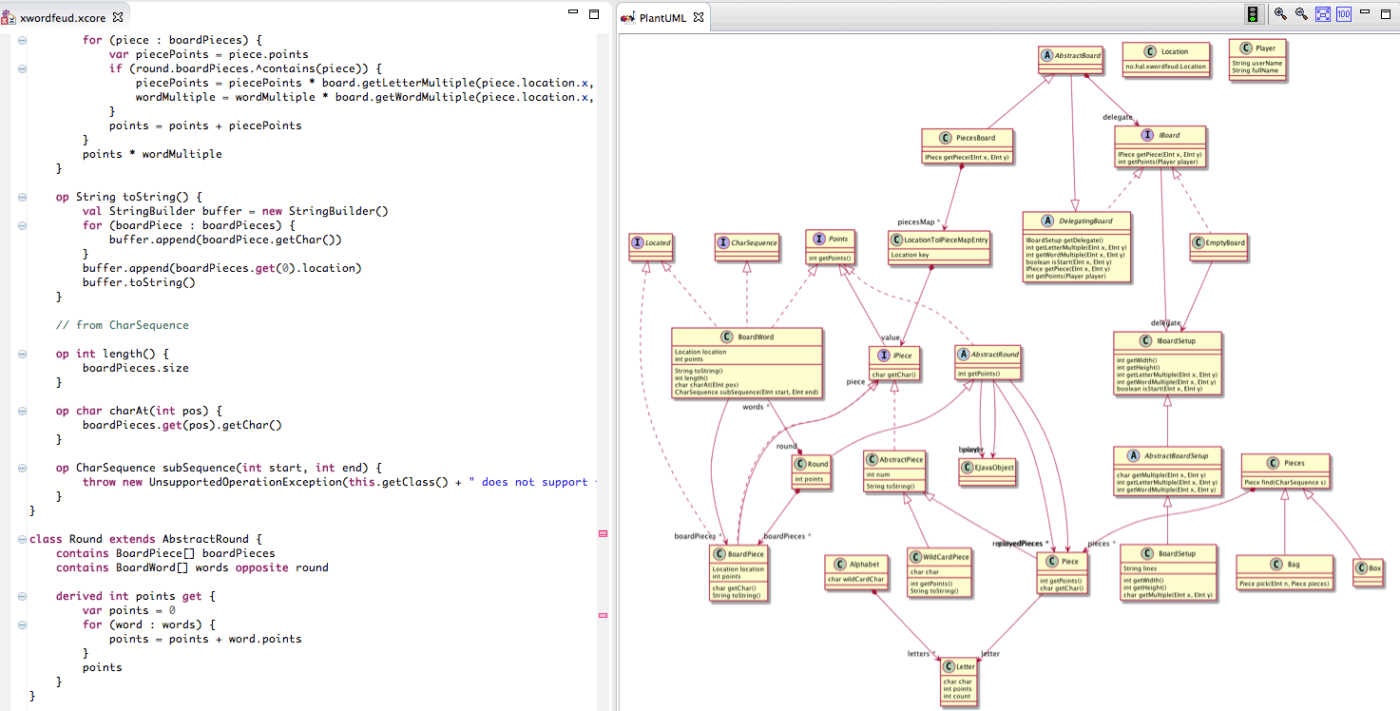
If you live inside an IDE (like VS Code, IntelliJ, or Eclipse), PlantUML is a helpful choice. GPT can output PlantUML syntax directly, and with IDE plugins, you can render and preview diagrams without leaving your coding environment.
Best for: Engineers and architects who want diagrams under version control alongside their software projects.
⚡ Template Archive: Free UML Diagram Templates for Processes, Systems, and Programs
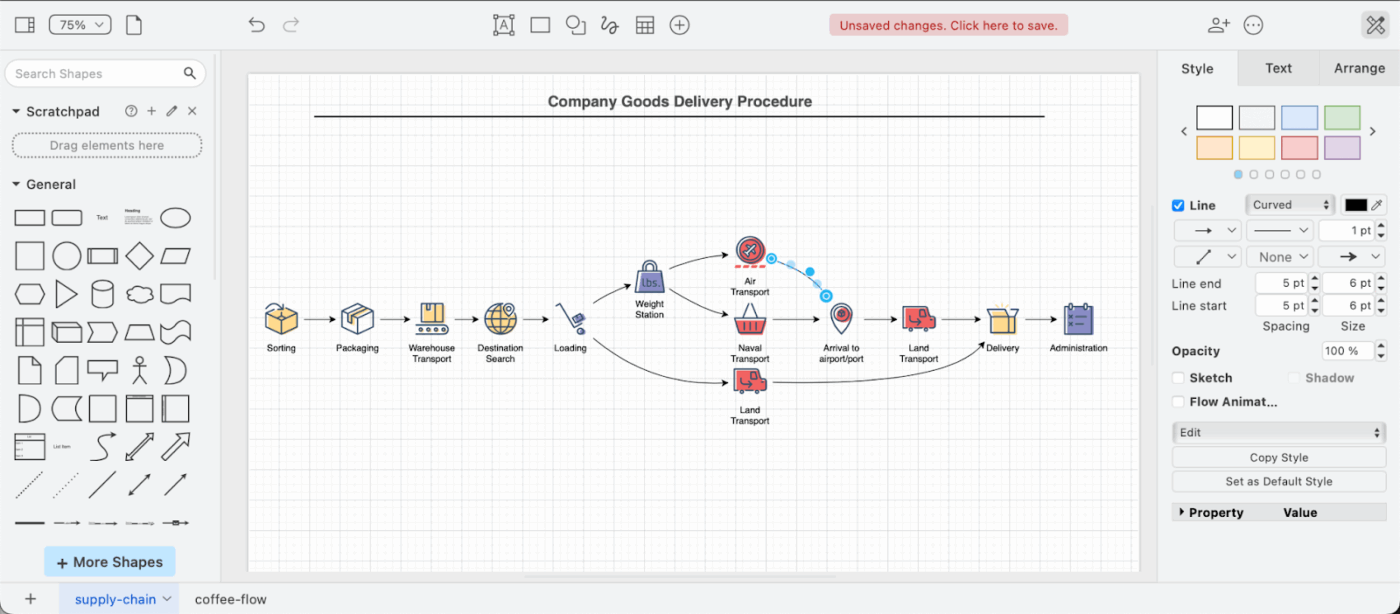
Draw.io (also known as diagrams.net) is a free, flexible diagramming tool that supports importing GPT-generated Mermaid or PlantUML code. Once imported, you can drag, drop, and restyle elements to make them presentation-ready.
A user review says:
What I appreciate most about Draw.io is its versatility combined with its open-source nature. On the one hand, the massive library of technical shapes—especially for cloud architecture like AWS or GCP—allows me to create precise, professional diagrams.
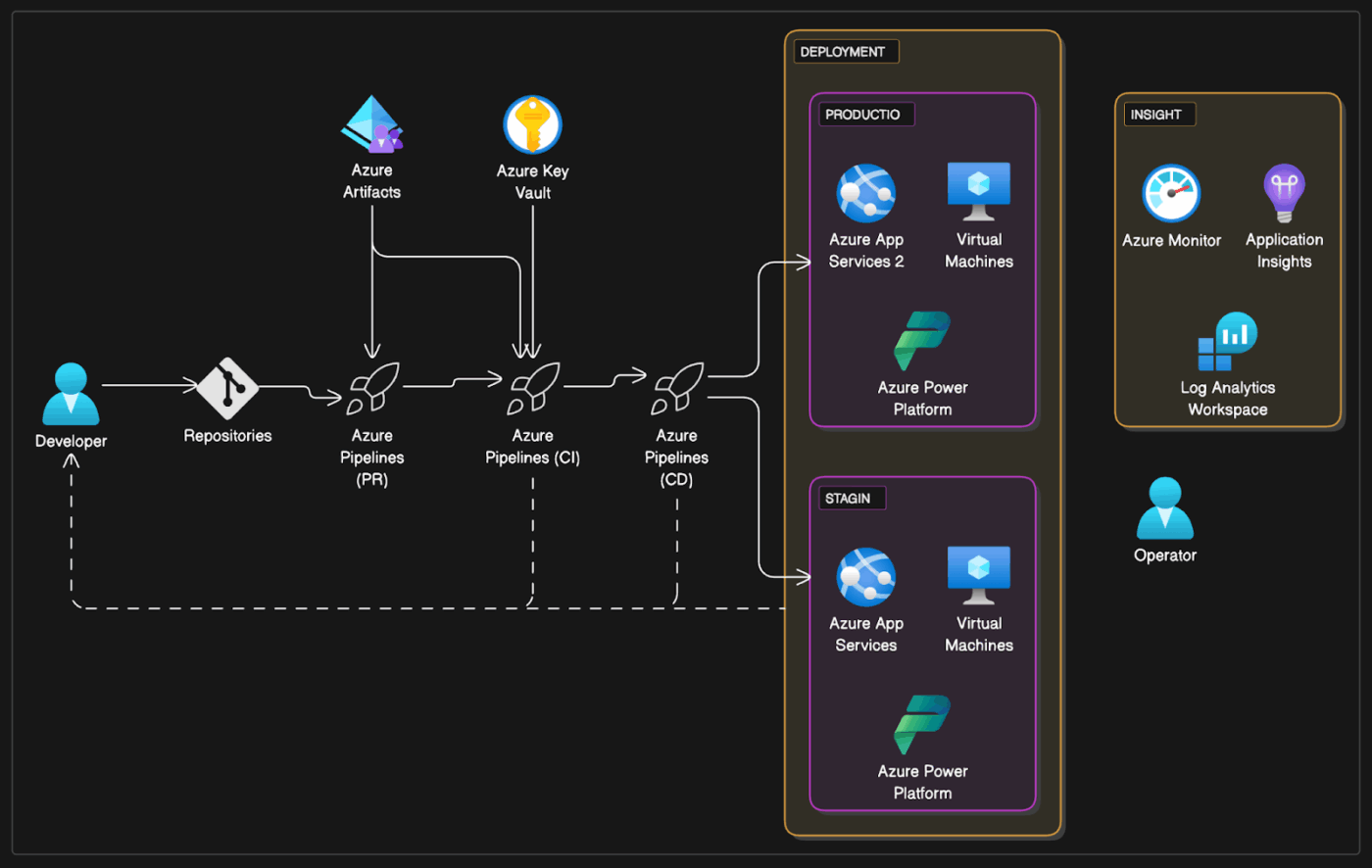
DiagramGPT (by Eraser.io) is more AI-native. You can enter your prompt in plain English (“create a microservice diagram with API Gateway, database, and auth service”), and it generates an editable diagram directly inside its workspace.
Best for: Teams on a budget or developers who need quick, customizable diagrams.
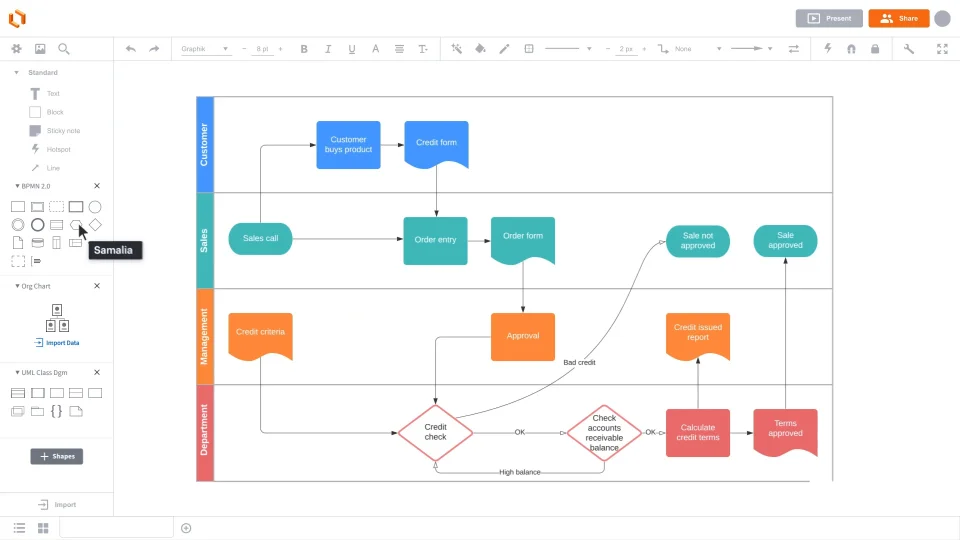
Lucidchart (with Lucid GPT) has AI-enhanced diagramming. You can paste prompts or structure data, and Lucid will automatically lay out flowcharts, ER diagrams, or org charts. The diagram maker integrates with several tools, including Google Workspace, Slack, and Atlassian tools.
Best for: Consultants, project managers, and cross-functional teams who need to present diagrams to clients or executives.
A user review says:
Lucid makes it incredibly easy to turn complex ideas into clear visuals: flowcharts, process maps, org charts, wireframes, journey maps, all in minutes. It’s especially good at helping teams align quickly around ideas that would be messy in text.
📚 Read More: A Step-Wise Guide to Creating a Workflow Diagram
Some tools go deep into specific niches. Draft1.ai is tailored for software architecture. Enter a system description (e.g., “microservices with API Gateway, Kafka, and PostgreSQL”), and it generates structured diagrams. It provides customization options after generation.
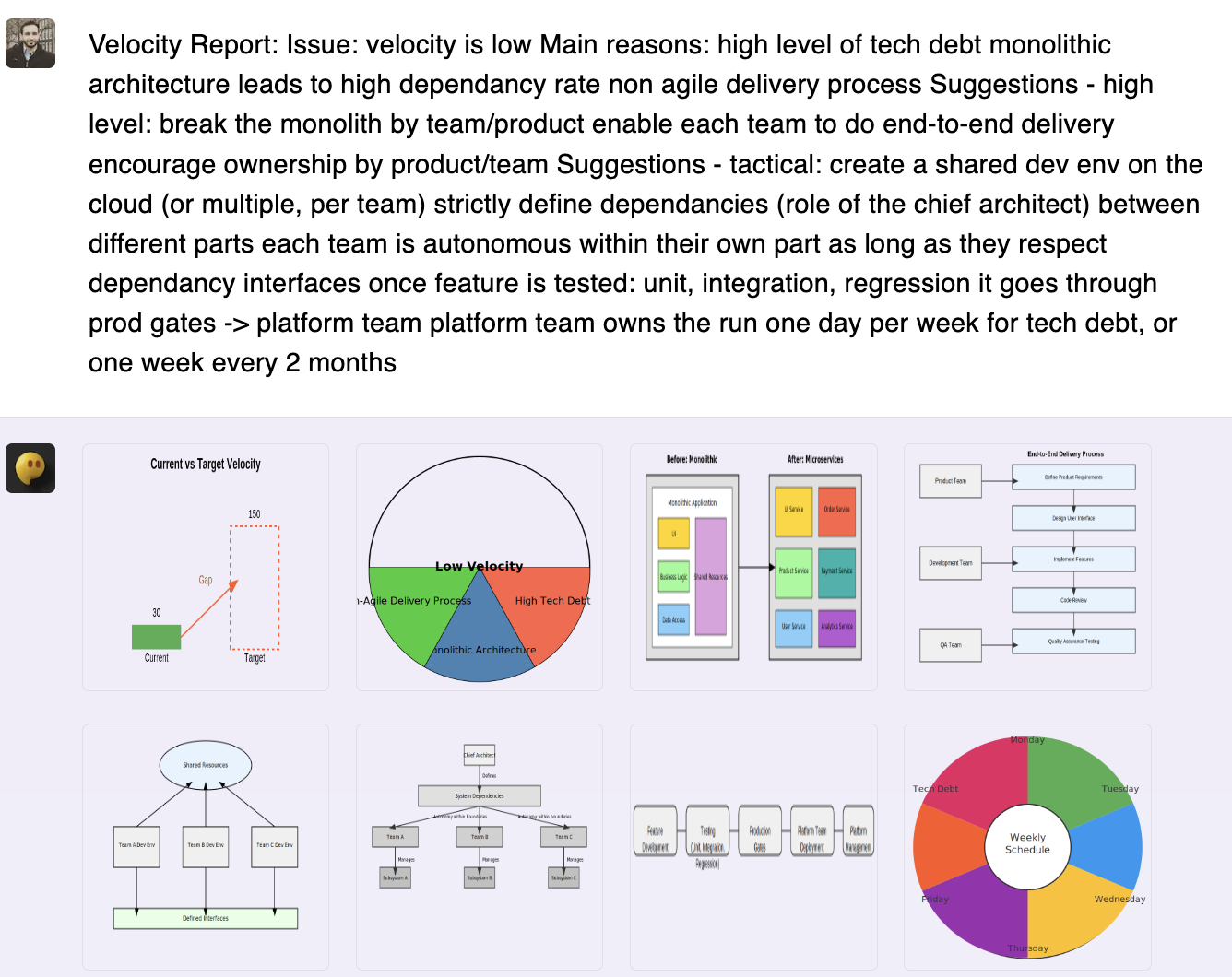
Best for: Platform teams who need architecture diagrams generated quickly from written system descriptions.
GPT can give you a starting point for diagrams or briefs, but it leaves gaps: no context, no collaboration, and no connection to your actual projects.
ClickUp, the world’s first converged AI workspace, fills this gap by turning static diagrams into living parts of your workflow. Here’s how:
One of the biggest gaps with ChatGPT is the lack of real project awareness.
How does ClickUp fill that gap?
ClickUp Docs + ClickUp Brain connect to your workspace, pulling relevant details from tasks, user stories, dependencies, release notes, and sprint plans.
When you describe a workflow or ask the AI to generate a diagram, it uses the actual naming conventions, component relationships, and constraints your team defined earlier.
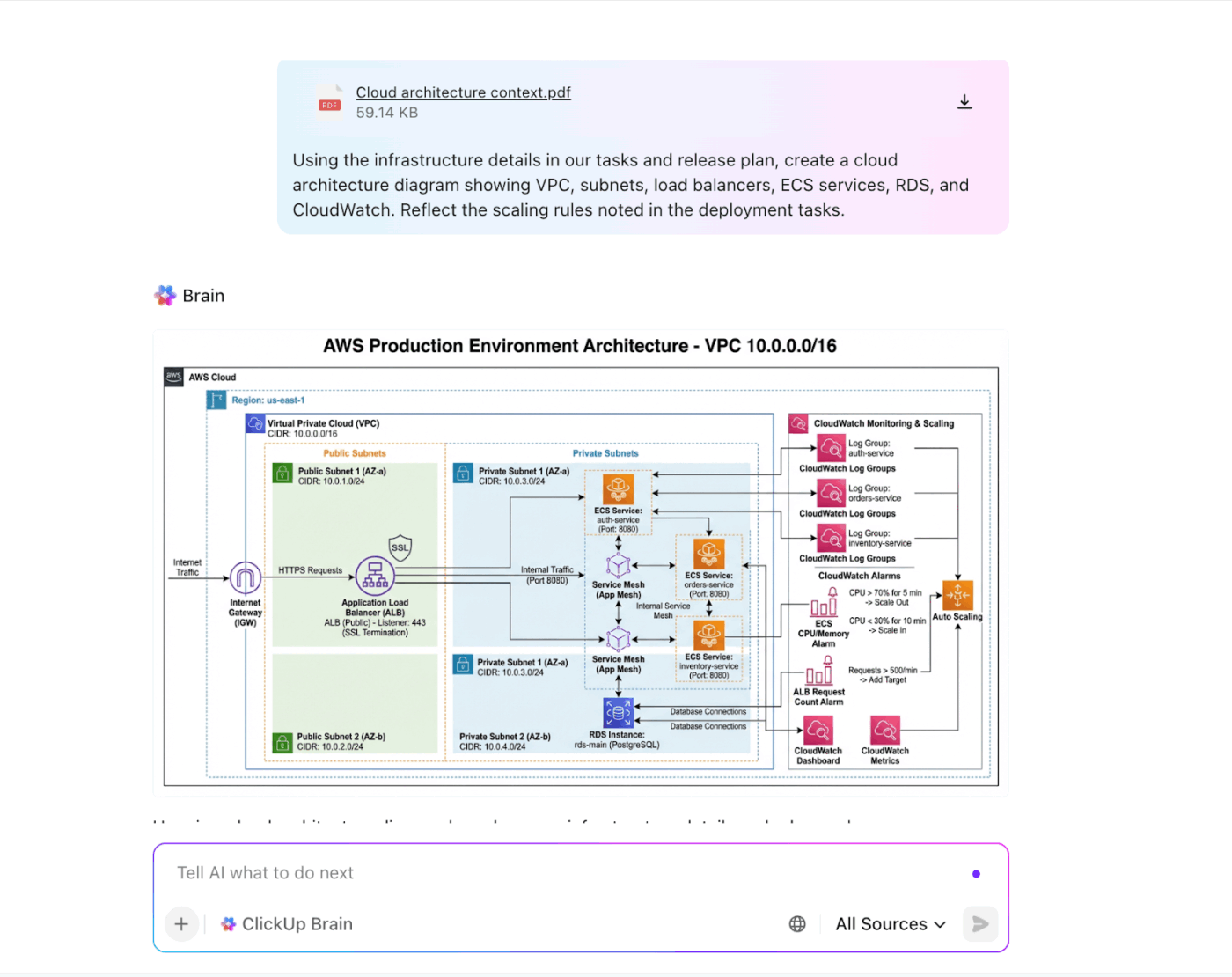
The context-aware AI works with the same context your engineering team uses, ensuring diagrams are accurate, consistent, and always up to date.
This AI assistant turns your system notes into draft diagrams, summarizes meeting discussions into requirements, and rewrites a creative brief for clarity. You can even store project requirements, notes, and system details inside ClickUp Docs—which is where you’re building your prompt library.
Your team can reference the Doc while refining the diagram, ensuring consistency without repeat work.

Drop GPT-generated diagrams into ClickUp Whiteboards. Your DevOps engineer can drag components around while your PM leaves comments directly on the diagram. It’s far easier than emailing screenshots back and forth.
Use the infinite canvas to draw diagrams and charts, Mind Maps, SWOT, circle diagrams, sequence diagrams, and anything else. Or ask the built AI to help you generate diagrams!

Bonus: Convert shapes into ClickUp Tasks and connect them to your workflow. Then draw connections between them to show the order of tasks.
ClickUp Tasks act as the execution layer for architecture workflows.
The ClickUp Brain + ClickUp Tasks combo lets you turn system diagrams into real, trackable work:
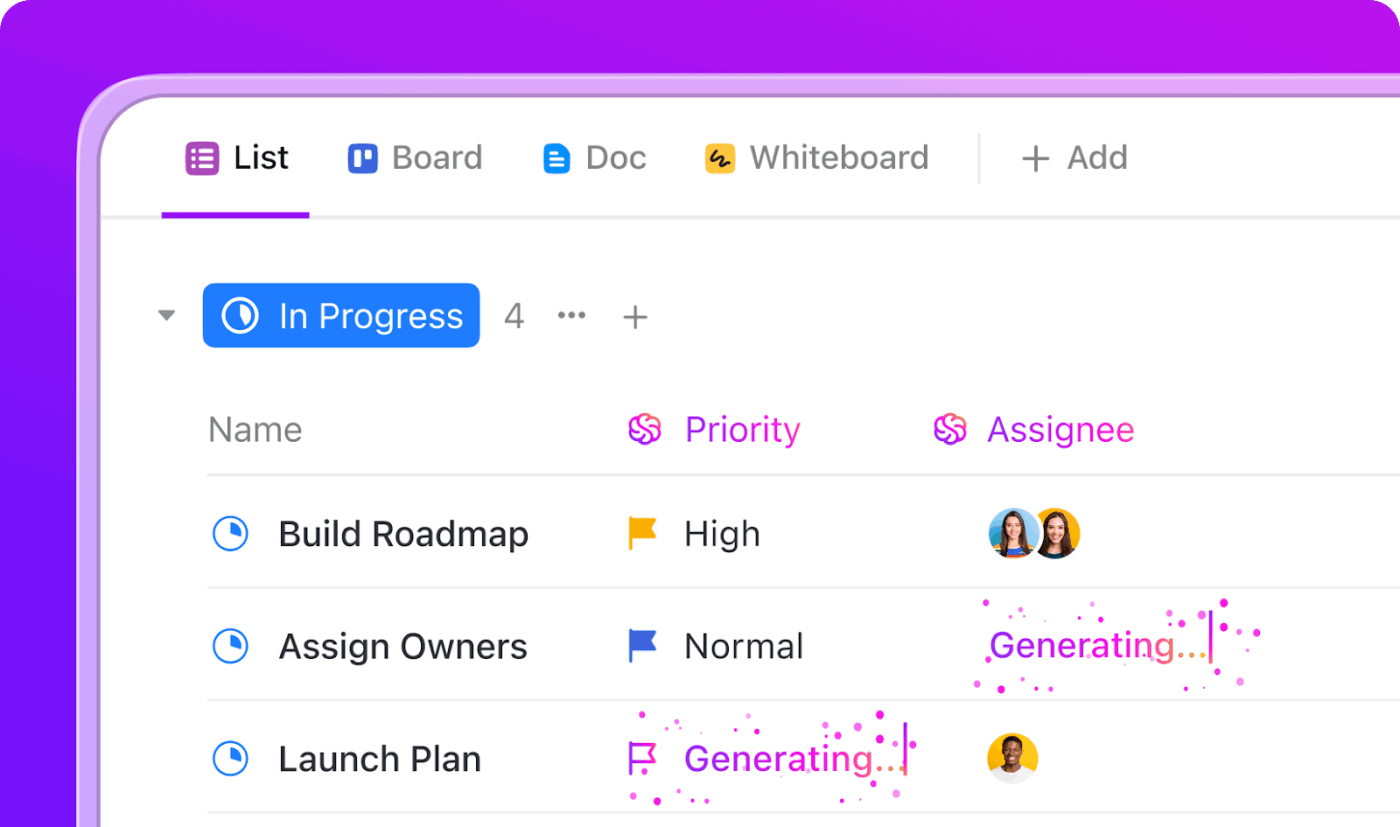
ClickUp Automations + AI Agents take the manual load off repetitive tasks, so your team can focus on system design, not admin work.
Using Triggers, Conditions, and Actions, you can create workflows that automatically:
You can also build custom AI Agents in ClickUp to handle intelligent task workflows. Say, an Agent can scan architecture notes and:
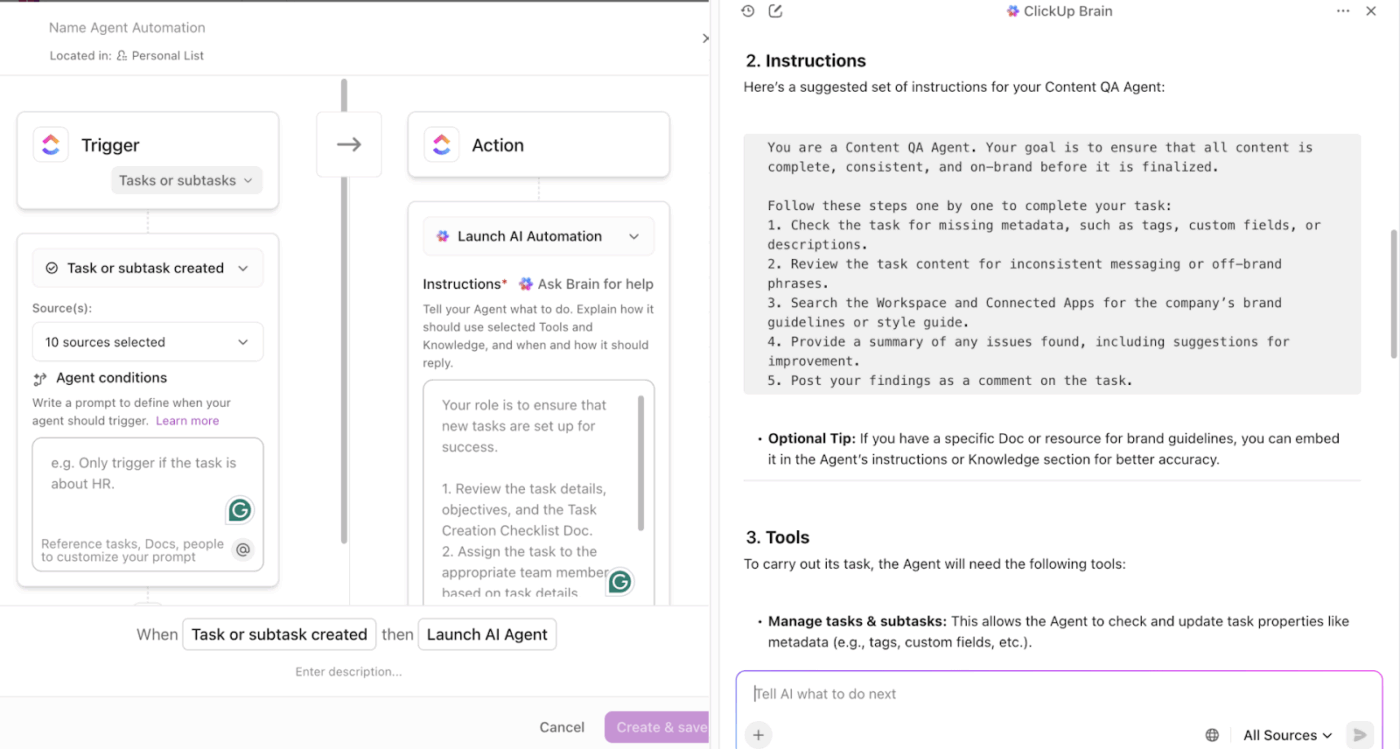
Want to see how it works? This video demonstrates how to set up your custom automation workflows.
📚 Read More: How to Use ChatGPT Tasks to Boost Productivity
When you build system diagrams, docs, or briefs, communication happens over Slack, email, design tools, and task trackers.
Fragmentation makes it hard to keep context, decisions, and follow-ups aligned. With ClickUp Chat, discussions live where the work lives.
ClickUp Chat offers channels and direct messages tied to your project structure. You can @mention teammates, start topic-specific discussions, and create or continue conversations without leaving ClickUp.
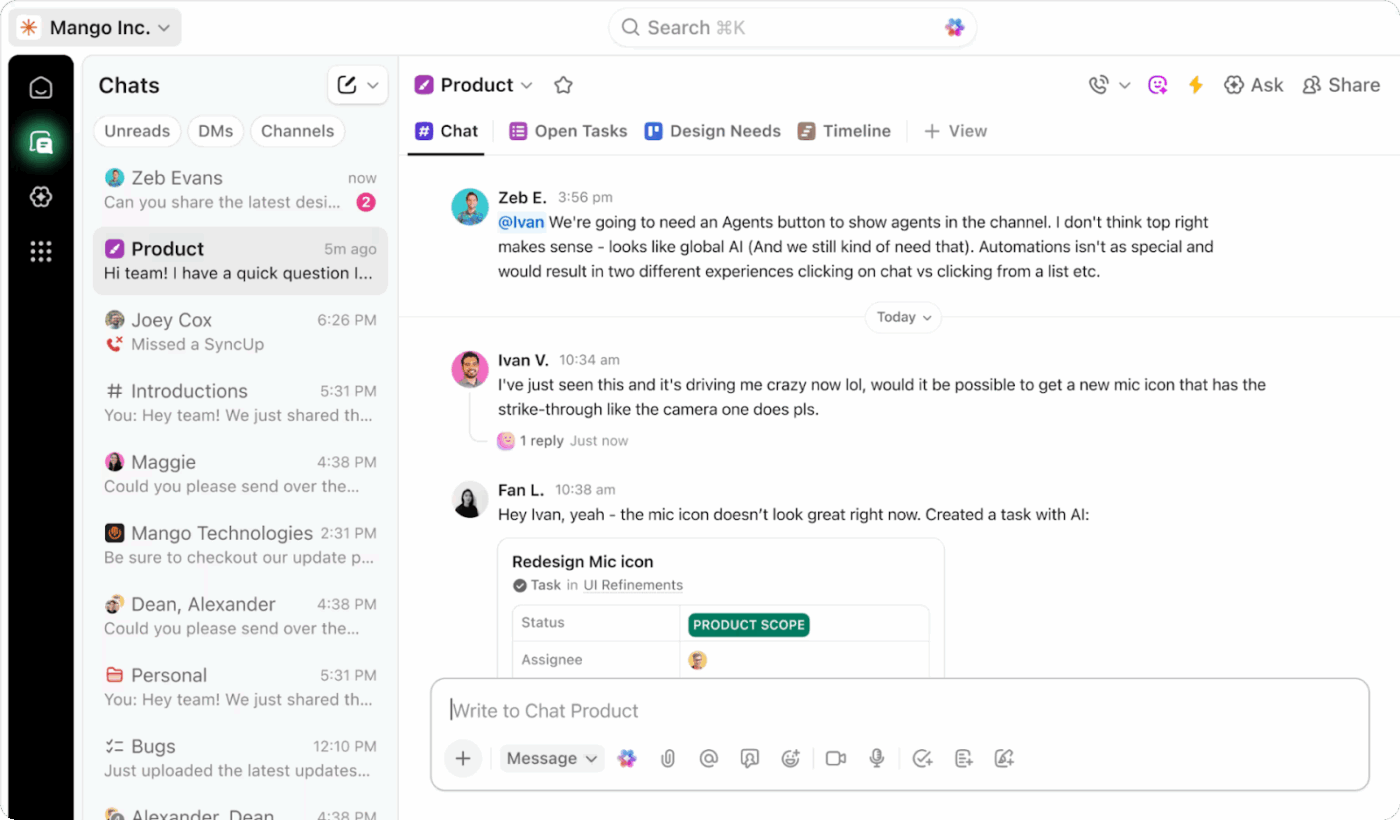
Because chat, docs, tasks, and Whiteboards all live in the same workspace, every piece of feedback stays connected.
Manually generating and updating architecture diagrams is time-consuming and error-prone. GPT allows you to generate diagrams in seconds. However, that’s just the starting point.
With ClickUp, you turn those diagrams into living, collaborative, and executable workflows.
Your diagrams stay connected to tasks, sprints, system requirements, and team discussions—ensuring accuracy, alignment, and visibility as your system evolves.
If you’re ready to accelerate diagramming, reduce rework, and tie architecture directly to execution, combine the speed of GPT with the power of ClickUp’s contextual AI.
✅ Try ClickUp for context-aware diagramming and system design.
Yes. ChatGPT can generate architecture diagrams in multiple ways. It can produce text-based diagram formats like Mermaid, PlantUML, or Graphviz. It can also create rendered, image-style diagrams if you describe the components, relationships, and style you want. Treat it like a blueprint whisperer: give it clarity, and it sketches structure.
GPT-4 can generate diagrams, but primarily as text-based formats (Mermaid, UML, ASCII, etc.). With the right tooling or integrations, those text formats can be rendered into visual diagrams. If you need an actual image-style diagram, GPT-4 can outline the structure, but you generally need another renderer or tool to convert it into a visual file.
Describe the system as if you’re walking someone through a virtual studio:
-List your components (apps, services, databases, APIs).
-Explain how they interact.
-Add any constraints or layout preferences.
Then ask the AI to produce a Mermaid or PlantUML diagram, or request a rendered image. Many people start with: “Generate a Mermaid architecture diagram showing X → Y → Z with these data flows.”
Yes. ChatGPT can generate UML in formats like Mermaid or PlantUML, including class diagrams, sequence diagrams, state machines, activity flows, and more. These can be pasted directly into a UML-compatible renderer, giving you an instant visual.

© 2026 ClickUp

There’s an easier way. Try a free AI Agent in ClickUp that actually does the work for you—set up in minutes, save hours every week.