






Still downloading templates?
There’s an easier way. Try a free AI Agent in ClickUp that actually does the work for you—set up in minutes, save hours every week.
Sorry, there were no results found for “”
Sorry, there were no results found for “”
Sorry, there were no results found for “”
You’re about to onboard a new contractor, and you pause because you can’t remember how you handled the last five. Who sent a contract? Who’s still waiting on payment?
So you do what most people do. You open Google Sheets, copy an old file, rename it ‘Contractors – Final v3,’ and tell yourself you’ll clean it up later.
This is exactly the moment a simple contractor tracker earns its keep. You need a clear, reliable sheet that shows who you’re working with, what they’re responsible for, and where things stand.
This blog post shows you how to build a functional contractor tracker in Google Sheets that stays organized. We’ll also explore what to do when you’ve outgrown it and need a system that scales with your team.
Spoiler alert: ClickUp’s the best alternative! 🤩
A contractor management tracker is a tool or single source of truth used to organize and monitor all contractor-related information in one place. It typically includes contact details, contract terms, payment schedules, project assignments, and performance records.
Instead of digging through emails, random docs, or sticky notes to find a W-9 or confirm payment terms, teams can use a contractor management tracker as a single source of truth for every contractor relationship.
Operations teams, HR departments, project managers, and small business owners often use these trackers to manage freelancers and external vendors more efficiently. A well-structured tracker helps prevent late payments, missed contract renewals, and compliance gaps, while making it easier to keep contractor information accurate, accessible, and up to date.
📮 ClickUp Insight: The average professional spends 30+ minutes a day searching for work-related information—that’s over 120 hours a year lost to digging through emails, Slack threads, and scattered files. An intelligent AI assistant embedded in your workspace can change that. Enter ClickUp Brain. It delivers instant insights and answers by surfacing the right documents, conversations, and task details in seconds—so you can stop searching and start working.
💫 Real Results: Teams like QubicaAMF reclaimed 5+ hours weekly using ClickUp—that’s over 250 hours annually per person—by eliminating outdated knowledge management processes. Imagine what your team could create with an extra week of productivity every quarter!
You need a tracker now, and Google Sheets is right there, free and familiar, so you jump in. But soon, you find yourself manually checking deadlines and worrying about who can see sensitive payment data.
So, can you track contractors in Google Sheets? Yes, and it’s a great starting point, especially for teams managing a small number of contractors. Sheets is free, instantly accessible, and flexible enough to customize, offering useful features that can get you started:
💡 Pro Tip: Create a compliance checklist so you’re not scrambling at tax time or onboarding. One quick scan tells you who’s missing a contract, tax form, NDA, or payment detail before it becomes a problem.
You’ve started a sheet, but it’s just a list of names and emails that’s not really tracking anything important, so you’re still missing deadlines and payments.
To be truly effective, your tracker needs specific data categories. Let’s look at some components that ensure nothing gets missed and give you a complete picture of each contractor relationship at a glance. ⚒️
This is the foundation of your tracker. You need a place for the basics: contractor name, company (if applicable), email, phone number, and address. It’s also wise to include their tax ID or W-9 status for compliance.
It’s recommended to create a unique contractor ID for each person. This simple identifier makes it easy to reference them across different tabs or documents without confusion.
Explore AI spreadsheet generators:
Tracking contract start dates, end dates, and renewal terms is critical for managing risk. An expired contract can create legal exposure, while a missed renewal can disrupt a project right in the middle of a workflow.
Your tracker should include the contract type (fixed-term, ongoing, or project-based). Add a hyperlink to the actual contract document stored in your drive. This gives you instant access to the fullscope-of-work template or agreement without hunting through folders.
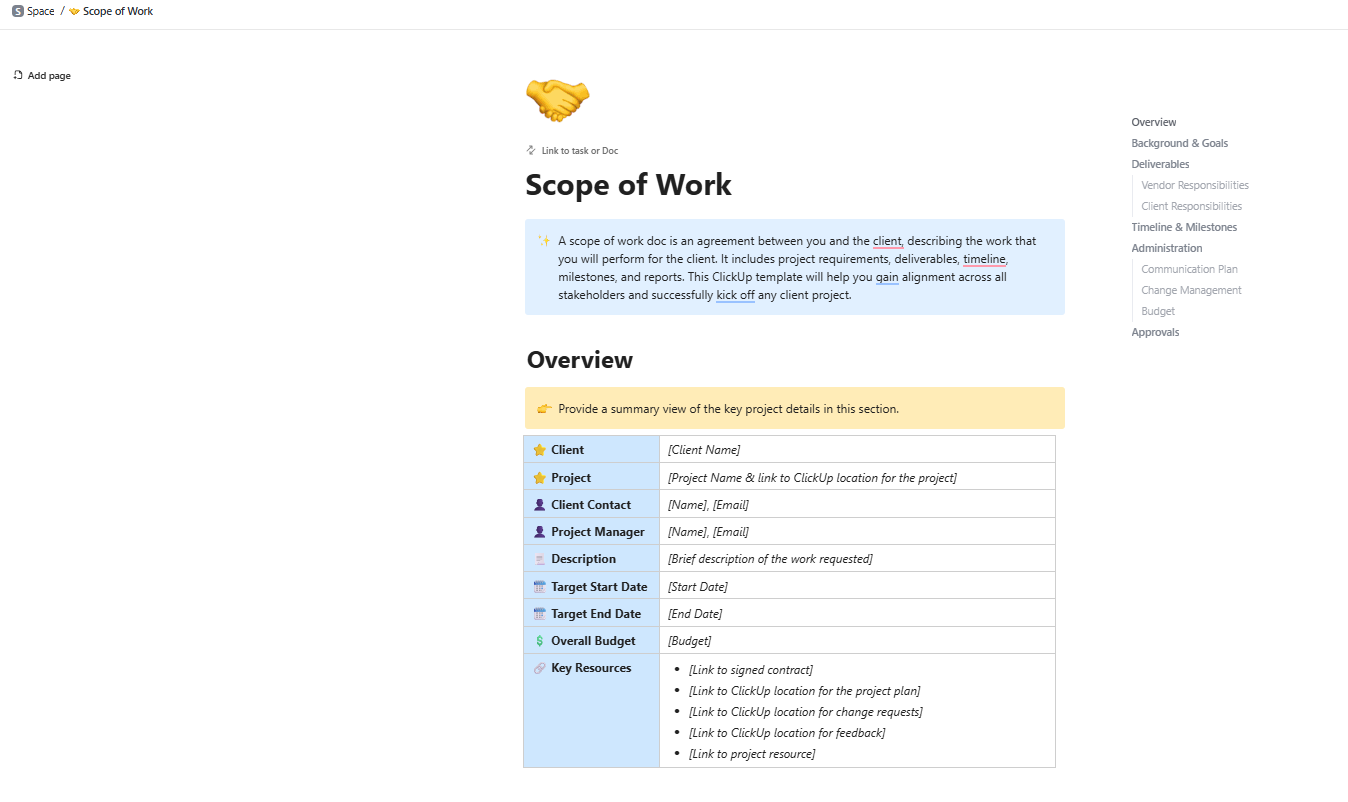
⚡ Template Archive: Use the ClickUp Scope of Work Template to clearly define deliverables, timelines, and payment terms upfront, so there’s less back-and-forth once work is underway.
Your tracker needs to clearly show payment agreement terms such as Net 15 or Net 30, the contractor’s hourly rate or project fee, and key dates. You should log the invoice submission dates, payment due dates, and payment statuses.
This visibility prevents late payments that can damage contractor relationships. It also gives your finance team a clear view of cash flow planning.
To connect your tracker to actual work, you need to logproject deliverables for each contractor. Include the project name, a brief description of the deliverable, its due date, and its completion status.
For contracts based on milestones, list each milestone and its associated payment trigger. This makes it easy to see who is responsible for what and whether they’re on track to meet their deadlines.
🧠 Fun Fact: The Code of Hammurabi (circa 1754 BCE) included detailed rules for builders, payment terms, penalties, and liability. If a house collapsed, the builder was responsible.
Your tracker should also capturehow well a contractor is performing. This doesn’t have to be complicated.
Include the contractor’s current status (active, on hold, or offboarded). Add columns for simple performance metrics like quality ratings or on-time delivery rates. A basic 1-5 rating scale and a notes field for project manager feedback are often enough; this historical data is invaluable for making future hiring decisions.
You know what to track, but you’re not a spreadsheet wizard. How do you actually build this thing so it works? If you spend hours fumbling with formulas, you might build something so clunky that your team won’t even use it.
Let’s walk through building a functional contractor tracker from scratch. Each step builds on the last, giving you a working Google Sheets project management template you can customize. 💁
First, create a new Google Sheet and give it a clear name like ‘Contractor Management Tracker.’ Organize it in a shared drive so your team can access it.

Next, set up separate tabs for different kinds of information. This keeps your tracker from becoming one massive, confusing sheet.
On each tab, freeze the header row by going to View > Freeze Panes > 1 row. This keeps your column titles visible as you scroll, which is a huge help.
🔍 Did You Know? When double-entry accounting emerged in 15th-century Italy, it made it possible to track who was paid, for what, and when. This was a breakthrough that enabled long-term contracting across multiple projects instead of one-off labor.
Now, on your ‘Contractors’ tab, create columns for the core data fields we covered earlier. These include:
To keep your data clean and consistent, use data validation. This lets you create dropdown menus for specific columns.

Select a column, go to Data > Data validation, and add your criteria. For the ‘Status’ column, you could add options like Active, On Hold, and Offboarded. For ‘Payment Terms,’ you might add Net 15, Net 30, and Upon Receipt. This simple step prevents typos and ensures everyone uses the same terminology.
Switch to your ‘Payments’ tab and add columns for:

Use the unique Contractor ID you created to link each payment back to the correct person in your main ‘Contractors’ tab.
For deadline tracking, go back to your ‘Contractors’ tab. Add columns for important dates like ‘Contract Renewal Date.’ You can then sort this column to see which contracts are coming up for renewal soon.
🧠 Fun Fact: VisiCalc was so powerful for budgeting and bookkeeping that it didn’t just change finance workflows—it helped sell the first Apple II computers. Many businesses bought the hardware only so they could run VisiCalc and instantly test ‘what-if’ scenarios instead of redoing ledger books by hand.
Formulas are what make your spreadsheet smart and save you from manual work. Here are a few useful ones to add:
Just replace the bracketed text with your actual cell ranges. Keep your formulas simple, especially in a shared document, since a complex formula is easier to break by accident.
Conditional formatting uses color to make important information pop. You can set up rules to automatically highlight cells based on their content.

To set this up, select the cells you want to format, then go to Format > Conditional formatting. This visual layer turns your wall of data into an actionable dashboard where problems are easy to spot.
📘 Also Read: How to Create a Client Payment Tracker
Your Google Sheet is working, but it’s becoming fragile. It’s getting slow, someone broke a formula again, and you’re constantly worried about the finance team accidentally seeing everyone’s pay rates.
This is the point where many teams realize they’ve hit the ceiling with spreadsheets. Here are the common limitations you’ll run into:
🔍 Did You Know? ‘Shadow systems‘ predate computers by centuries. Clerks, accountants, and site managers often kept private notebooks alongside official records because formal systems were too slow or rigid.
Your spreadsheet’s limitations are holding you back. You need a system that automates reminders, protects sensitive data, and connects contractor management to actual project work without creating more tool sprawl.
ClickUp is the world’s first Converged AI Workspace that brings contractor tracking into the same place where work actually happens. You can manage contracts, tasks, timelines, payments, and approvals in one system to eliminate work sprawl.
Let’s understand how. ✨
If Google Sheets is doing the job today, it’s usually because it lets you lay contractor data out exactly the way you want: rows, columns, filters, and quick edits.

ClickUp lets you look at the same contractor data in multiple ways using ClickUp Views. For tracking contractors, you can use:
💡 Pro Tip: Use ClickUp’s built-in granular permission controls to ensure that sensitive information is only visible to the right people.
Stop trying to force your data into generic spreadsheet columns. Keep your contractor information consistent and clean with ClickUp Custom Fields, which let you build a powerful, structured database.
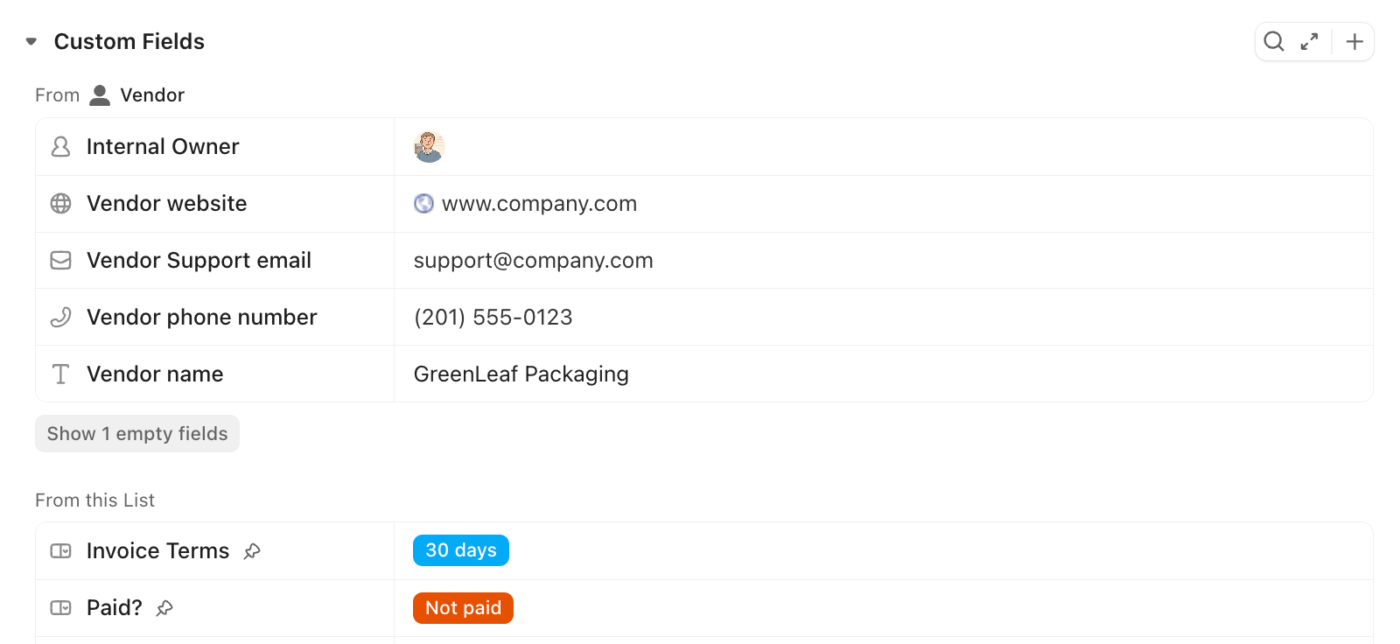
These fields are designed for specific data types, ensuring your information is always consistent and clean:
These fields stay consistent across tasks, views, and reports, which means you’ve successfully avoided accidental overwrites or broken formulas.
Insights into construction project management software:
Best Construction Project Management Software Tools (Tested & Ranked) | ClickUp
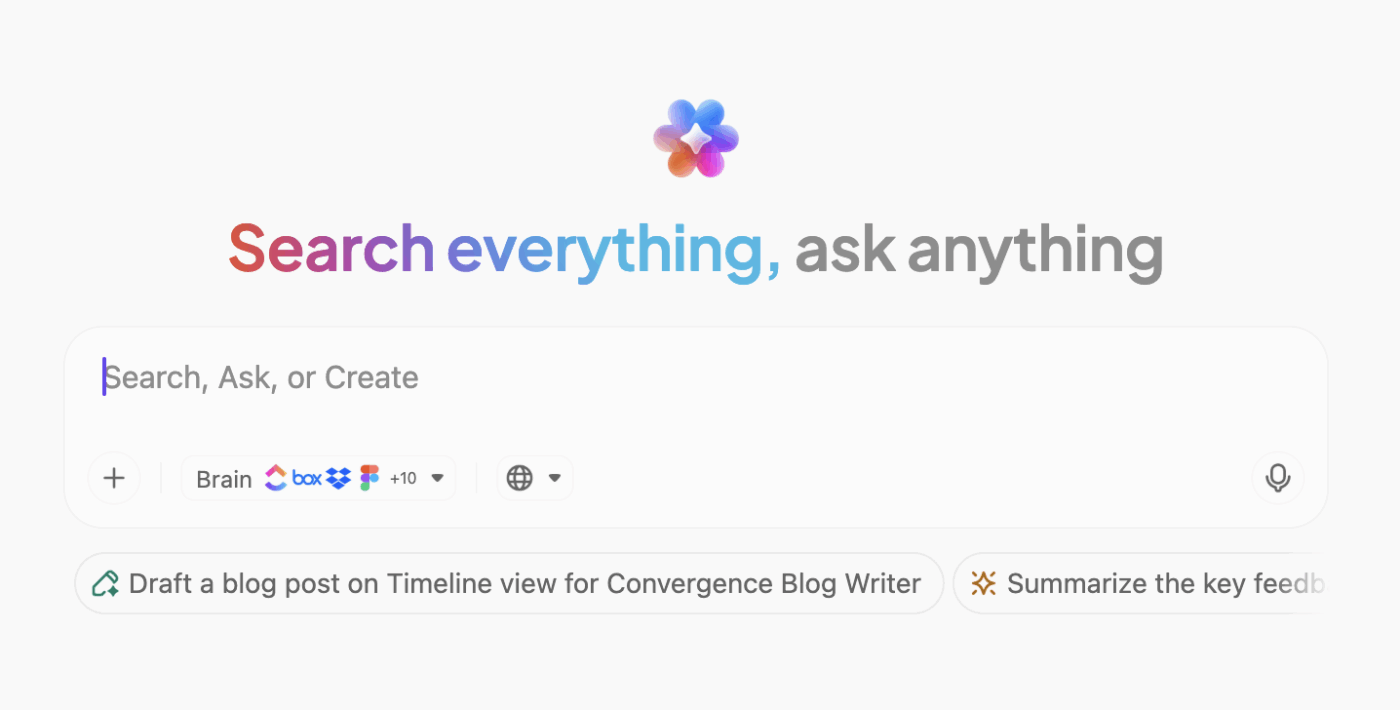
Once your contractor work lives inside ClickUp (tasks, fields, due dates, time logged), ClickUp Brain can help you make sense of it without manually scanning rows or filters.
It helps you by summarizing project status, drafting plans or task descriptions, finding information buried somewhere across your workspace and connected tools, and surfacing top blockers.

Instead of opening multiple views, just ask the contextual AI to:
🚀 ClickUp Advantage: Connect third-party tools, tasks, files, and context in one place with ClickUp Brain MAX, your standalone desktop AI companion.
It helps you by offering:
Tired of manually checking your sheet for upcoming deadlines? Automate deadline tracking and never miss a renewal again with ClickUp Automations. This feature lets you create rules that run in the background, so nothing ever gets missed.
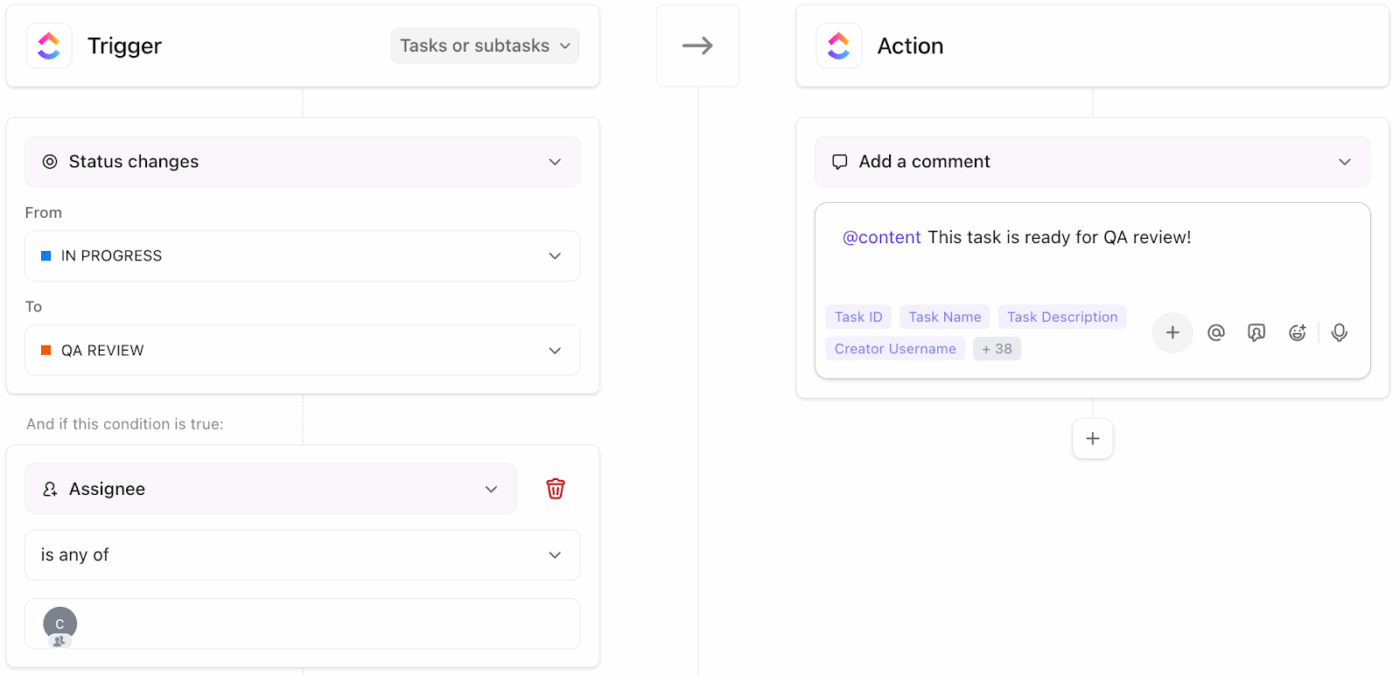
Automations are built on simple ‘When/Then’ logic. For example:
You can even use ClickUp Brain to draft reminder messages or summarize a contractor’s current workload on demand.
🚀 ClickUp Advantage: Track time right inside Tasks, either manually or with a built-in timer, and link those hours directly to the work done with ClickUp Time Tracking. This means you don’t need a separate spreadsheet tracker for hours logged.
Here are the top AI contractor management tools:
Manually creating reports from your spreadsheet is a time-consuming chore. Gain a live, high-level overview of your entire contractor program usingClickUp Dashboards.

Build a custom dashboard with cards that visualize your most important metrics.
Unlike pivot tables in Sheets that require a manual refresh, ClickUp Dashboards cards update in real time as the underlying data changes. This lets you spot issues before they become problems.
Hear from Alistair Wilson, a Digital Transformation Consultant at Compound:
We vetted multiple options and felt that overall ClickUp gave us the right combination of power and flexibility. We also needed to solve the time tracking issue to measure track and measure external contractors’ time logs without needing additional external apps and services. ClickUp’s native time tracking works seamlessly between mobile, tablet and desktop.
Google Sheets is a solid place to start – it helps you get clarity on who your contractors are, what they’re working on, and what’s been paid versus what hasn’t. For a small team or a short-term setup, that’s often enough.
But as soon as contractors overlap across projects, timelines shift, or hours need closer tracking, the spreadsheet starts asking more from you than it gives back.
ClickUp fits naturally here. You still get the structure you’re used to—tables, fields, filters—but now every row connects to real work, real timelines, and real updates.
Tasks update themselves. Time tracking stays attached to deliverables. Dashboards show you what matters without rebuilding reports each week. And tools like ClickUp Brain help you spot issues before they turn into follow-ups you didn’t plan for.
Sign up to ClickUp for free today! ✅
What should a contractor management tracker include?
A tracker should include contact information, contract terms, payment details, project assignments, and performance notes to give you a complete view of the relationship.
How is a contractor tracker different from a project tracker?
A project tracker focuses on tasks and timelines for a specific initiative, while a contractor tracker focuses on the ongoing relationship, like payments and contracts, across multiple projects.
Can I integrate Google Sheets with other contractor management tools?
Yes, you can use tools like Zapier to connect Sheets to other apps, but these integrations require setup and maintenance and may not offer real-time data sync.

© 2026 ClickUp

There’s an easier way. Try a free AI Agent in ClickUp that actually does the work for you—set up in minutes, save hours every week.