
Sorry, there were no results found for “”
Sorry, there were no results found for “”
Sorry, there were no results found for “”
Have you ever spent ages wrestling with data in Excel, only to end up with a static report that doesn’t tell the whole story? You’re not alone.
Getting lost in all those rows and columns is easy, leading to wasted time and missed critical insights.
Now, imagine generating clear and informative reports in a fraction of the time with Excel. ⌛
We’ve got a better way to use Excel for reports to identify trends, compare information, or spot patterns. It takes your raw data and turns it into an easier-to-understand format.
This guide will equip you with Excel hacks to create compelling and efficient reports while automating tedious tasks.
If you’re considering switching from Excel, ClickUp is here for you. Get free access to clear reports, easy tracking, and tool integrations—no complicated tech stuff. We will tell you all about it.
Let’s dive right into Excel Reporting first. 👇
Before we talk about the best ways you can make Excel reports, let’s first understand what makes Excel different from basic spreadsheets.
A Spreadsheet is a digital document that organizes data in rows and columns. It’s a computerized version of a paper ledger or worksheet that allows for basic data entry, calculations using formulas, and formatting for better presentation.
Many software programs, including Google Sheets, LibreOffice Calc, and WPS Spreadsheet, also offer spreadsheet functionality.
Microsoft Excel is a spreadsheet application developed by Microsoft with an advanced feature set.
Simple spreadsheet software works fine for basic data and calculations. But when things get complex, Excel’s advanced features help you dig into data, make reports, and save time.
Automated reporting saves time, improves accuracy, and boosts scalability by streamlining processes through software. It minimizes errors, lets you focus on analysis, and handles big data for instant teamwork and insights.
Here’s a quick comparison between manual and automated reporting:
| Aspect | Manual Reporting | Automated Reporting |
| Process | It involves human effort, from data collection and formatting to calculations, chart creation, and report assembly. It is time-consuming and prone to errors. | It uses software or tools to automate repetitive tasks. Data is often pulled directly from source systems, calculations are performed automatically, and reports are generated with minimal human intervention. |
| Time and Efficiency | It can be time-consuming, especially for complex reports or those requiring frequent updates. | It saves significant time by automating repetitive tasks. It frees up human resources for analysis, interpretation, and strategic decision-making based on the data. |
| Accuracy and Consistency | It is more prone to errors due to human data entry mistakes, formula inconsistencies, and formatting variations across reports. | It reduces errors by minimizing human intervention and ensuring consistent calculations and formatting based on pre-defined rules. |
| Scalability | It becomes increasingly difficult and time-consuming as data volume grows. | It can handle large datasets efficiently, making it ideal for growing businesses with increasing data needs. |
| Collaboration and Sharing | It often involves manual distribution (e.g., email attachments). It can be cumbersome and limit real-time access. | It can automatically share reports with stakeholders through cloud-based platforms, facilitating real-time collaboration and access to the latest data insights. |
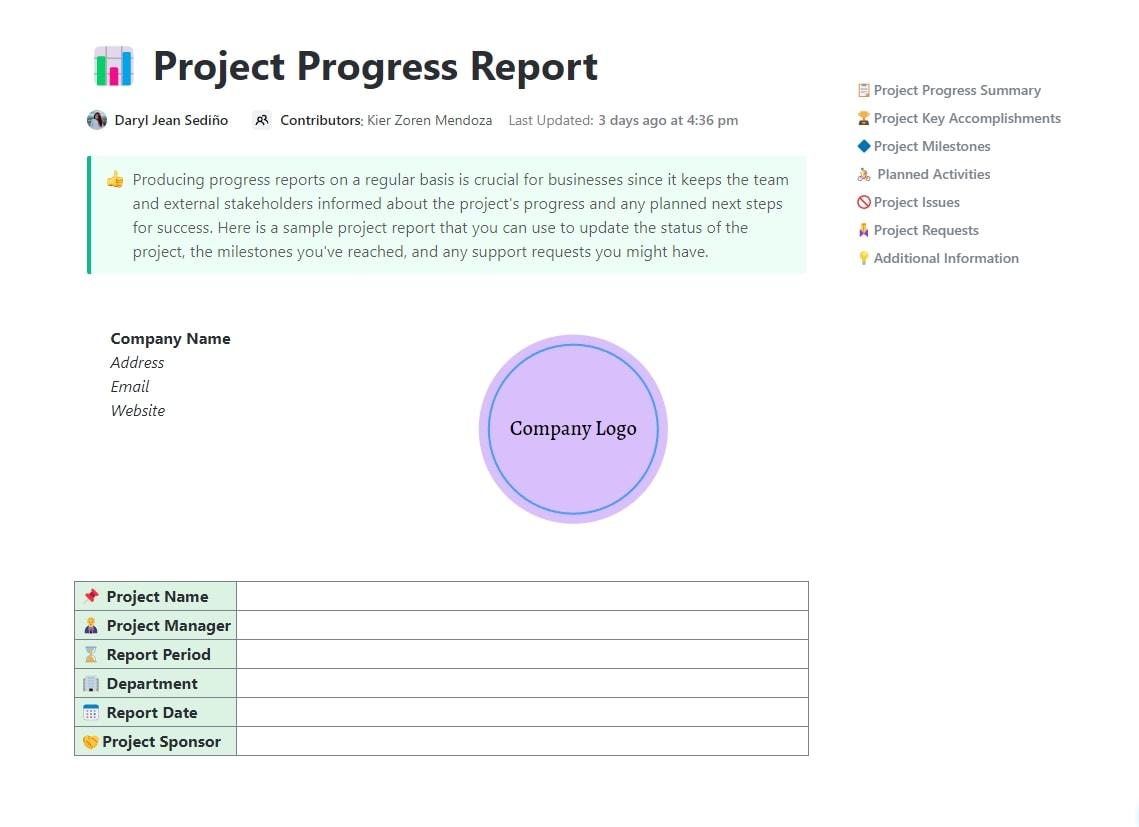
Instead of wrestling with Excel formulas and formatting, plug your updates into the ClickUp Project Progress Report Template to generate clean, shareable insights in minutes.
Creating an Excel report is quite simple if you understand the following:
Here’s how you can create a report well:
For smaller datasets, you can enter your data manually into individual cells or automatically import existing data from various sources such as CSV files, text files, or databases.

Here are some tips to make your entered data more user-friendly:

With a well-prepared foundation, you’re ready to move on to visualizing your business data now.
Using visuals with data helps you see patterns and trends more easily, which makes it simpler to make decisions and share information with your team.
Let’s explore two key visual elements: PivotTables and charts.
A PivotTable is a tool that allows you to rearrange and summarize selected columns and rows of data into a more manageable format without altering the original dataset.
With PivotTables, you can quickly analyze large data sets, identify patterns, and generate insightful reports by summarizing, grouping, filtering, and calculating data dynamically.
Here’s how you can generate a report from an Excel Spreadsheet using a PivotTable:

A chart visually displays information from an Excel spreadsheet, making it easier to understand trends, patterns, and relationships within the data.
Excel offers various charts, such as bar charts, line charts, pie charts, and scatter plots, each suitable for different data and analysis purposes.
Here’s how to create a basic chart:


Now that your data is prepped and visually compelling, it’s time to assemble and present your report:
Saving and sharing your Excel reports is straightforward:


Automated reporting eliminates the manual work of copying, pasting, and updating data by effortlessly handling repetitive tasks with software.
There are several ways to automate Excel reports, depending on the complexity of the data modeling.
Here’s a breakdown of the most common methods:


In the VBA Project window (opened in step 2), you’ll see a module (VBAProject > VBA Modules > Module1). This is where you’ll write your code.
You can either use the recorded macro as a base and edit the VBA code within the module or write the code from scratch.
Bonus: AI Excel Tools!
Excel reports are powerful for data analysis, but sometimes, they need to be integrated with other systems for better functionality.
Here’s how you can achieve that:
Integrating Excel reports with Dynamics allows you to leverage more informed decision-making for your data. Here’s a breakdown of how to achieve this:
Note: Specific steps might vary slightly depending on your Dynamics version. Refer to Microsoft’s official documentation for detailed instructions based on your setup.
You can extend your report’s reach by making it more web-friendly. Here’s how to do it:
Once you finish your Excel report, share your insights with your team. Use these methods to collaborate:
SharePoint lets you upload and share Excel reports with version controls, ensuring everyone works on the most recent version and prevents accidental overwrites.
Set up permissions to control who can view, edit, or comment on the report, maintaining data security by following these steps:
Check out these Sharepoint alternatives!
This method is quick and easy when your collaborators aren’t much.
Attach your Excel report to a new email and send it to your colleagues. Save your report to a shared folder on your network or cloud storage service (e.g., OneDrive) and grant access to those who need it.
This method uses a shared server environment where multiple users can access and edit the same Excel report simultaneously.
Some organizations may have dedicated collaboration servers with advanced features for working on Excel reports.
Microsoft offers tools like Excel Online (part of Microsoft 365) that enable real-time co-authoring on Excel reports stored on a shared server. This approach requires proper server infrastructure and may necessitate involvement from the IT department for setup and access control.
The best method for sharing and collaborating depends on your specific needs:
While Excel is a powerful and versatile tool, its limitations become apparent when dealing with complex data analysis or large-scale reporting needs:
Excel can slow down when handling huge datasets, making it difficult to open, work with, and analyze them.
It’s not the best for complex data with lots of interconnections between points, which can lead to errors and inefficiencies when managing it all.
Excel offers basic functionalities for sharing reports, but real-time collaboration and version control can be challenging, especially with multiple users editing the same report.
Sharing Excel reports requires careful user permissions management to avoid compromising data security and accidental edits to run reports by unauthorized users.
Excel’s data analysis capabilities are adequate for basic tasks but lack advanced features offered by dedicated Business Intelligence (BI) tools.
Complex calculations and statistical analysis can be cumbersome.
Automating complex reporting tasks within Excel often requires VBA scripting, which can be time-consuming to develop and maintain, especially for non-technical users.
Bonus: Excel project management templates!
ClickUp is an outstanding alternative to Excel. It is a versatile project management tool that lets you create insightful visual reports.
Take a look at why ClickUp outperforms all others for creating data reports: 👇
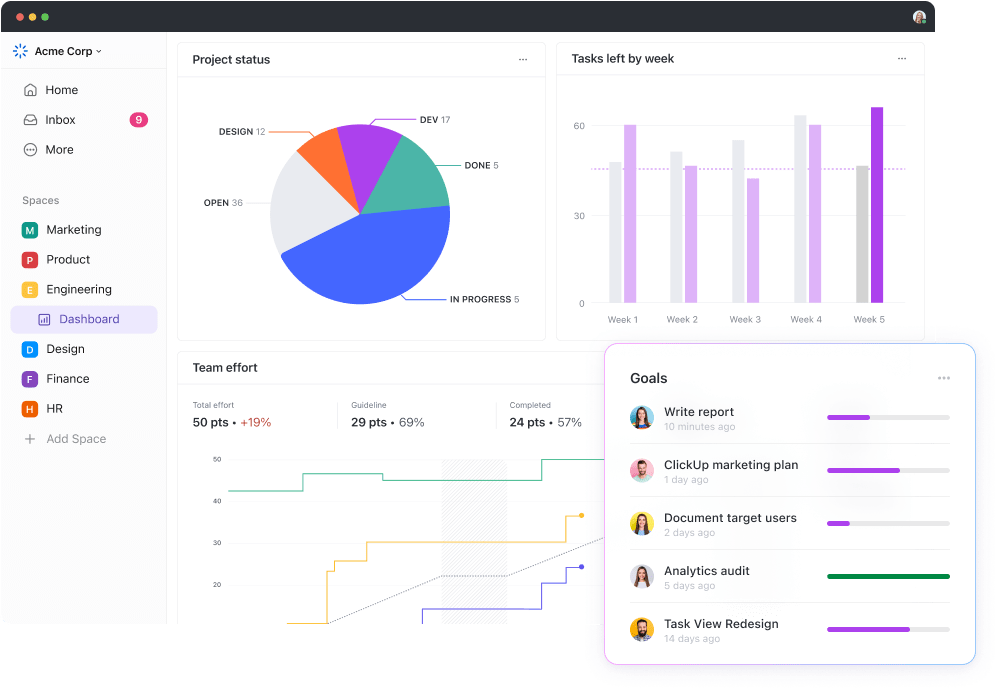
ClickUp Dashboard features a user-friendly interface. You can drag and drop various widgets to create customized reports tailored to your needs.
Go beyond plain text reports. ClickUp offers a wide range of widgets, such as progress bars, charts (bar, line, pie), workload charts, and Kanban boards.
The dashboard interface allows you to drag and drop various widgets to create a customized view of your project data. These widgets can display information in a variety of ways, including:
The beauty of ClickUp’s Dashboards lies in their versatility.
Whether managing marketing campaigns, software development sprints, or client projects, you can design reports that effectively track progress and key metrics relevant to your specific workflow.
ClickUp Dashboards don’t just provide high-level overviews. Many widgets allow you to drill down into the details behind the data. For instance, clicking on a progress bar might reveal a list of associated tasks.
You can easily share reports from ClickUp Dashboards with your team, stakeholders, and clients. It helps keep everyone in the loop and boosts transparency and communication.
ClickUp Dashboards aren’t just static displays. You can leave comments, assign tasks, or update info with certain widgets, promoting real-time collaboration.
ClickUp Table View is another valuable feature that complements its visual reporting capabilities. The Table view offers a spreadsheet-like interface, making it easy for users comfortable with Excel or other spreadsheets to transition seamlessly.

It allows you to create reports and manage multiple sources and data sets relevant to your project. Organize information using rows and columns, similar to a traditional spreadsheet.
The ClickUp Editable Spreadsheet Template also lets you define custom columns to capture specific data points crucial for your project.
ClickUp’s Editable Spreadsheet Template lets you easily manage your data:
It simplifies organizing your spreadsheets all in one place. The flexibility ensures the table layout reflects the information most valuable to your team.
ClickUp lets you tailor reports to your project, keep everyone in sync, and centralize everything.
ClickUp lets you tell the project’s story with stunning visuals, seamless collaboration, and all your data in one beautiful place.
Click on a chart and explore its details to analyze data more deeply. ClickUp’s Table view lets you manage data within the platform, saving you time from static spreadsheet limitations.
Try ClickUp today and start managing reports like a pro.
Yes, Excel can be a reporting tool, but with limitations.
Excel is familiar and flexible but struggles with large data sets and real-time collaboration. For complex needs and professional reports, consider dedicated reporting tools.
Yes, Excel can automate reports to a degree. It automatically handles calculations and data organization by offering features like formulas and pivot tables.
Conditional formatting lets you set up automatic formatting based on data values.
Excel’s reporting format is flexible, but common elements include organized tables, charts for trends, and formulas for calculations.
Conditional formatting highlights key data, while customization options like chart styles and page layout enhance the presentation.
Layouts can also range from basic grids to interactive pivot tables or chart-driven interactive reports. Ultimately, the format hinges on your data, audience, and desired visual impact.

Praburam Srinivasan
Max 23min read

Preethi Anchan
Max 16min read

Manasi Nair
Max 22min read

© 2026 ClickUp