![10 Best Windows Screen Recording Software in [year]](https://clickup.com/blog/wp-content/uploads/2025/03/ClickUp-Clips-1-1400x836.png)

Sorry, there were no results found for “”
Sorry, there were no results found for “”
Sorry, there were no results found for “”
Capturing your screen should be simple.
Maybe you’re recording a tutorial, saving a meeting for later, or showing off a clutch gaming moment. Whatever the case, the last thing you need is choppy footage, limited recording time, or clunky software slowing you down.
Some tools are basic, while others are loaded with editing features, overlays, and live-streaming options. Picking the right one depends on your needs.
To make things easier, here’s a rundown of the best Windows screen recording software options—what they do well, where they fall short, and which one fits your needs best. 🏆
Here’s a head-to-head comparison of the top screen recorders for Windows:
| Tool name | Best for (team size) | Best features | Pricing |
|---|---|---|---|
| ClickUp | Individuals, small businesses, mid-market companies, enterprises | Built-in screen recording with project/task integration, AI transcription and summaries, async video sharing | Free plan available; custom pricing for enterprises |
| OBS Studio | Individuals to mid-market companies | Automated workflows, advanced capture modes, built-in image editor, and custom naming conventions | Free (open source) |
| Loom | Individuals and small teams | Timestamped comments, viewer engagement analytics, basic editing and thumbnails | Free plan available; customized pricing for enterprises |
| Camtasia | Small businesses to enterprises | Interactive quizzes and clickable elements, royalty-free media, visual effects and transitions | Free trial available |
| ScreenPal | Individuals and educators | Automatic captions, text-to-speech voiceovers, integrated video trimming and overlays | Free plan available; customized pricing for enterprises |
| ShareX | Technical users and developers | Automatic captions, text-to-speech voiceovers, integrated video trimming, and overlays | Free |
| Snagit | Individuals and documentation teams | Text extraction from screenshots, sequential step capture, custom annotations and stamps | Free trial available; customized pricing for enterprises |
| Movavi Screen Recorder | Individuals and small businesses | Scheduled recording, on-screen drawing, dual audio capture with export presets | Free trial available; customized pricing for enterprises |
| Icecream Screen Recorder | Casual users and freelancers | Pixel-precise area selection, profile-based settings, duration caps for timed recordings | Free version available; customized pricing for enterprises |
| Bandicam | Customizable recording scenes, real-time audio mixing, lossless quality, and advanced encoding | Hardware-accelerated high-FPS capture, real-time compression, chroma key for webcam overlays | Free trial available; customized pricing for enterprises |
Our editorial team follows a transparent, research-backed, and vendor-neutral process, so you can trust that our recommendations are based on real product value.
Here’s a detailed rundown of how we review software at ClickUp.
When selecting Windows screen recording software, ensure it has these essentials:
🔍 Did You Know? The global screen recording software market was valued at $1.2 billion in 2023 and is expected to grow to $2.1 billion by 2031, at a CAGR of 6.5%. This rapid growth is driven by increasing demand for online learning, remote work, and gaming content.
Here’s our list of the best screen recording software for Windows. ✅
Recording your screen is just one part of the process. You also need a way to store, share, and collaborate on those recordings without juggling multiple apps. That’s where ClickUp stands out.
ClickUp is the everything app for work that combines project management, knowledge management, and chat—all powered by AI that helps you work faster and smarter. It also includes built-in screen recording, so you can capture and share videos without bouncing between tools.
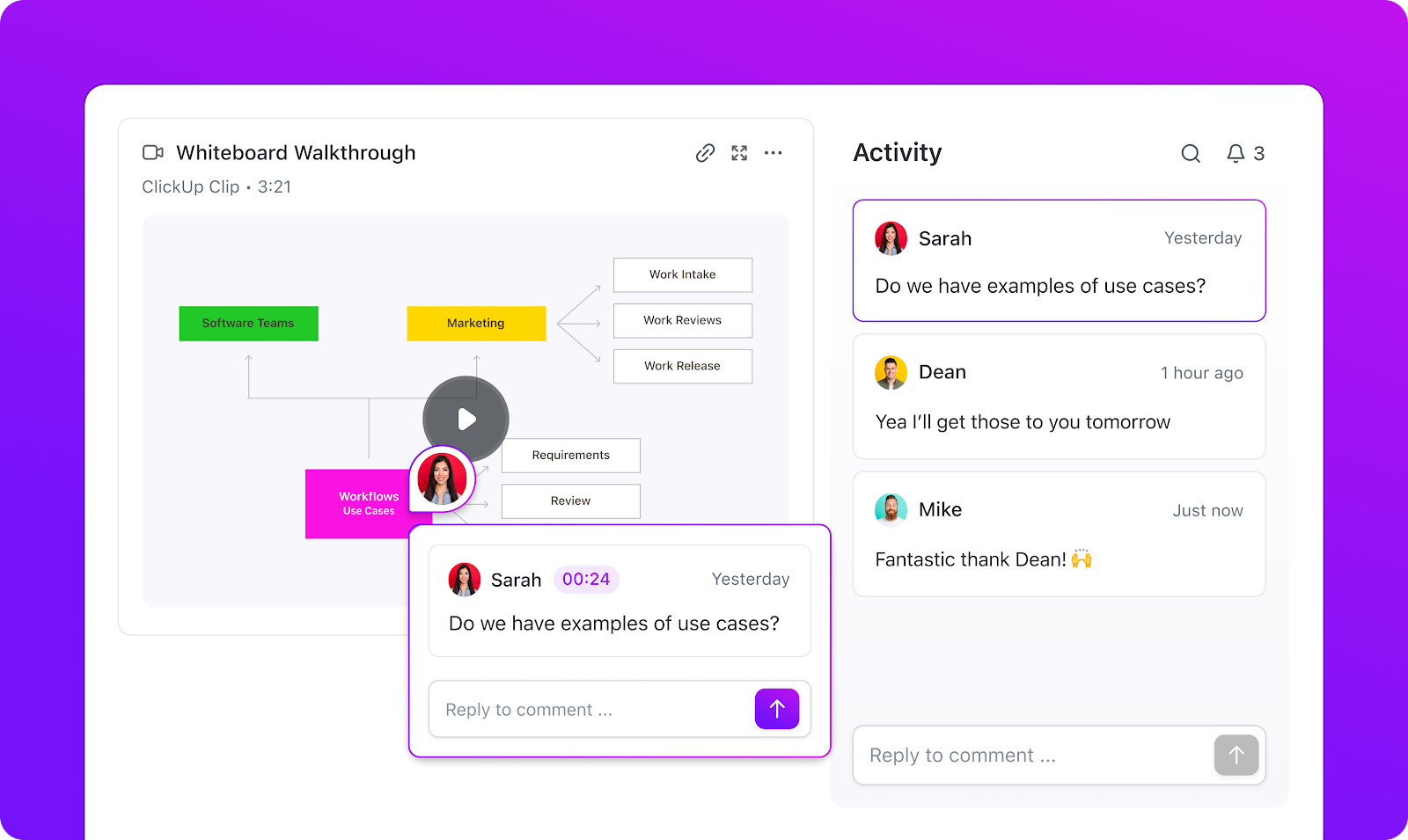
ClickUp Clips let you record both your screen and camera to create clear, detailed explanations without typing everything out. You can add a voiceover narration, too. Every Clip connects to your work, so ideas don’t get lost in endless messages or emails.
Suppose a product manager needs to walk the development team through a bug in the latest software release. They record a Clip, replicating the error step-by-step on their screen, and explaining the issue through the voiceover. This visual walkthrough ensures the team sees exactly what’s wrong, reducing miscommunication and accelerating the fix.
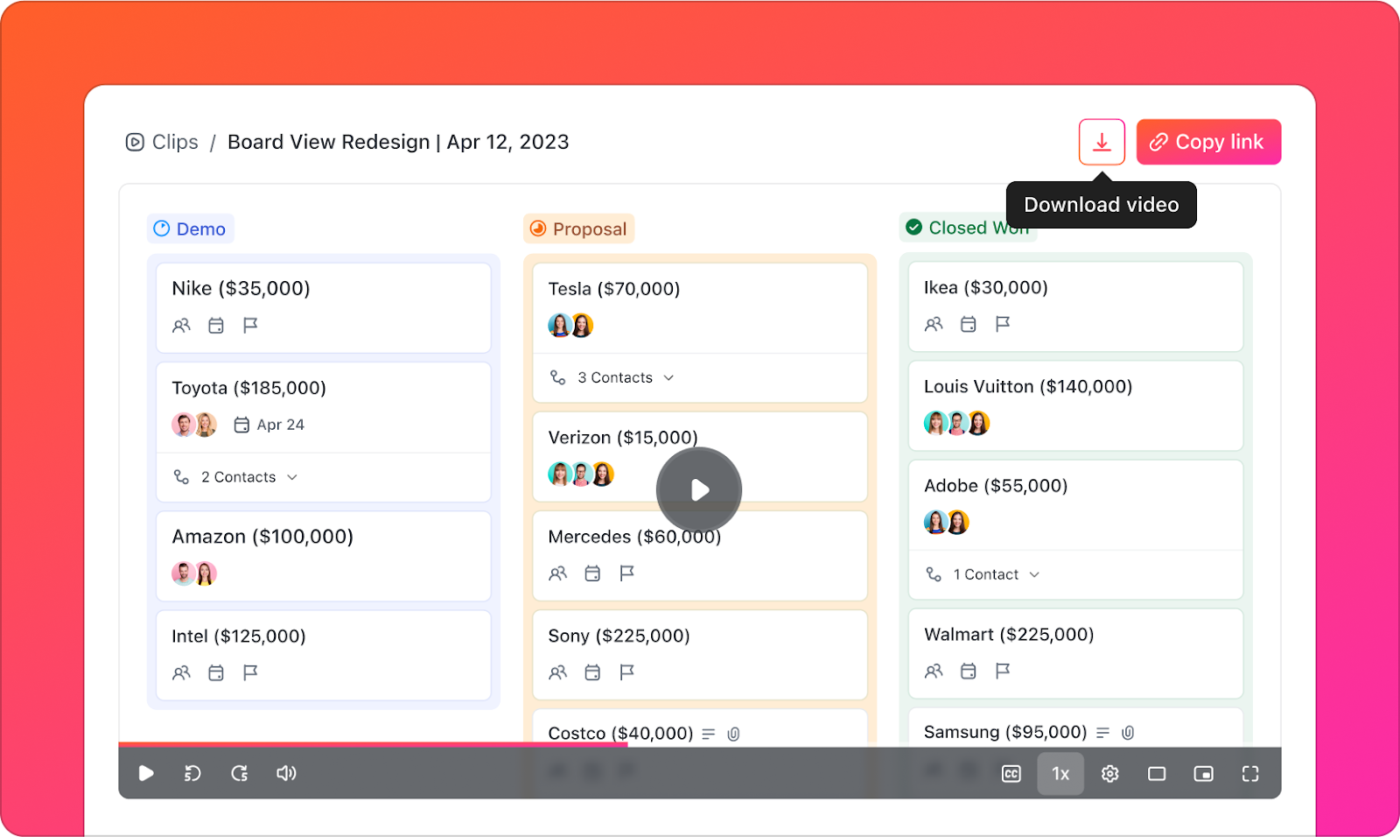
Recording the issue is just the first step—solving it comes next. With ClickUp Tasks, the product manager can attach the Clip directly to a task and assign it to the engineering team. This ensures they have all the details upfront, reducing back-and-forth questions and ensuring the bug is resolved asap.
Developers can comment on the task for more context, tag teammates, and update the progress statuses in real time, ensuring seamless collaboration.
But the value of async video communication with Clips doesn’t end here. It extends to documentation, training, and knowledge sharing.
Suppose a training coordinator is creating an onboarding guide for new hires. They embed screen recordings directly into ClickUp Docs, providing step-by-step visual instructions. New employees can watch real-time demonstrations on navigating internal systems, submitting expense reports, or accessing shared files—making the learning process faster and more intuitive.
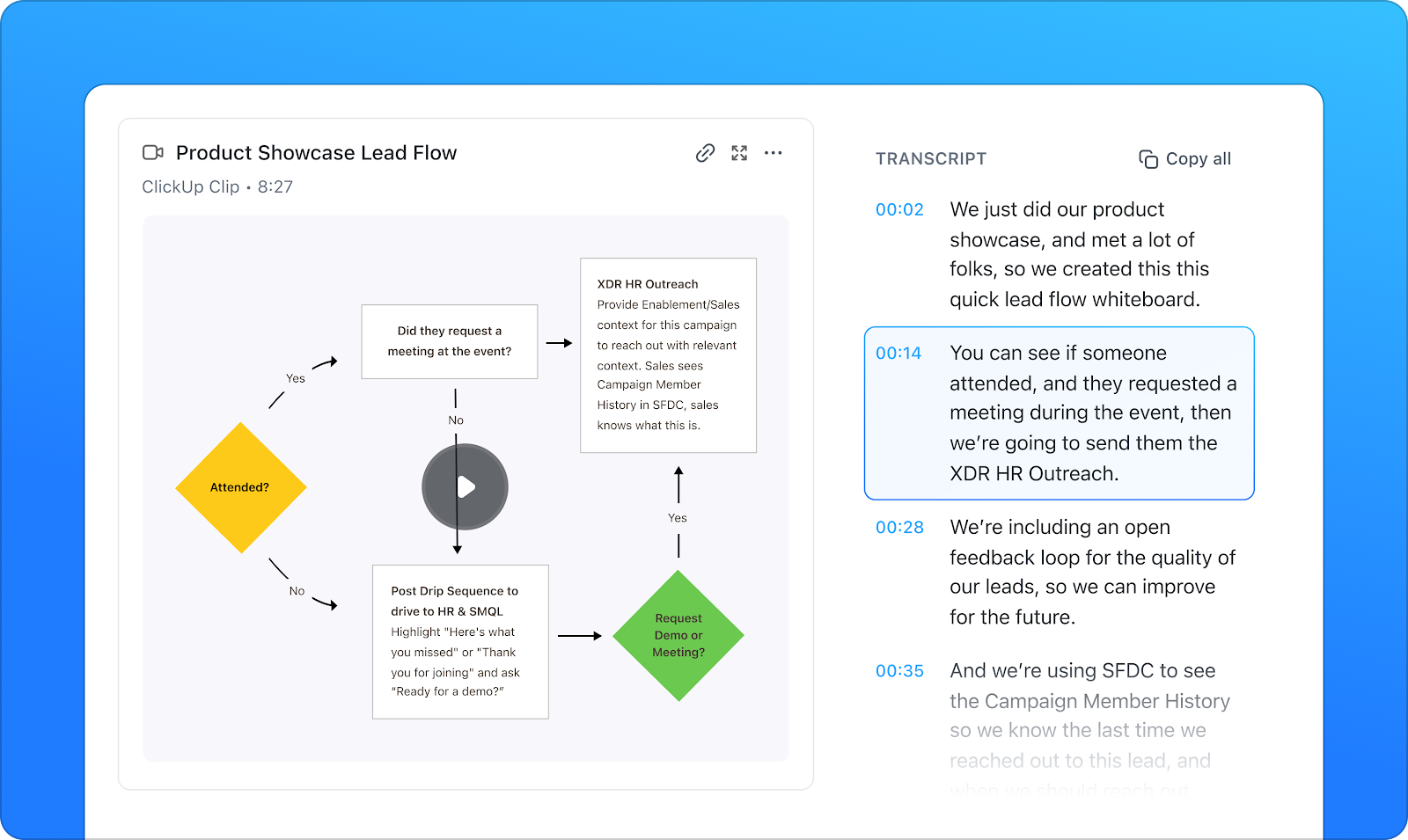
ClickUp Brain, the integrated AI assistant, makes screen recordings even more powerful by automatically transcribing them and turning insights into action.
For example, a project manager records a Clip explaining a shift in deadlines and priorities for the product launch. The AI screen recorder transcribes key points, highlights critical updates, and helps convert them into tasks where needed. The marketing team can instantly get an updated to-do list without needing to rewatch or manually take notes from videos.
Here’s how it works:

While Brain extracts action items, ClickUp AI Notetaker ensures that no insights from critical discussions get lost—whether it’s a brainstorming session, a game strategy review, or an online class.
It records entire discussions, transcribes every word, and highlights key takeaways—all without anyone lifting a finger. After a faculty meeting or lesson planning session, the transcript is attached to a ClickUp Task, providing a clear breakdown of action items, such as updating the syllabus, revising grading policies, or scheduling parent-teacher conferences.
Now, if you want to learn how ClickUp AI Notetaker turns meetings into instant action items, see it in action in this video!
I find myself using ClickUp Clips almost daily now—it’s just easier to show someone what I mean with a quick screen recording than trying to explain it in text. And since it transcribes everything, I can actually find what I need later without digging through folders. […] I was on the fence about ClickUp Brain at first, just seemed like another AI gimmick. But it’s saved me from some tedious writing tasks, especially when I need to summarize lengthy client emails or get a draft started. Not perfect, but helpful when I’m swamped. The AI notetaker feature was the real surprise. We used to lose so many action items after meetings, but now it catches everything and assigns tasks automatically. Follow-through has gotten noticeably better…
📖 Also Read: Announcing Clips 3.0: The Easiest Way to Communicate
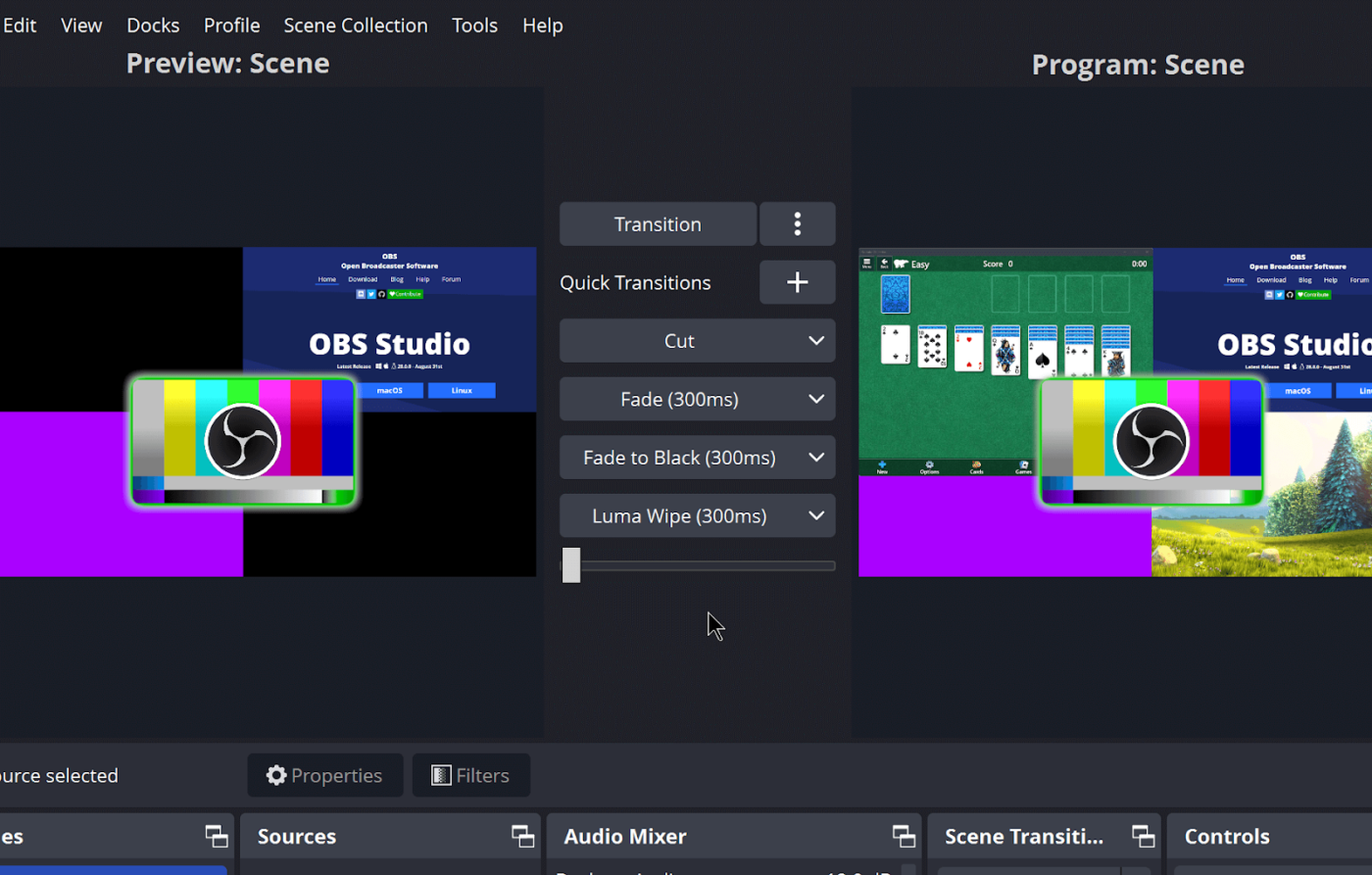
OBS Studio delivers powerful functionality through its open-source platform, designed for both recording and live streaming videos. This software appeals to content creators who need complete control over their recording environment.
You can configure multiple scenes, incorporate various input sources, and apply real-time transitions. The modular interface allows extensive customization through plugins and add-ons.
Despite its robust capabilities, OBS Studio maintains a lightweight footprint and performs smoothly even on modest hardware.
OBS studio is great! I have been using it since I started streaming. I have not had a reason to turn away from it now! Highly recommend!
🧠 Fun Fact: Screen recordings can improve the transparency and reproducibility of psychological experiments by providing a clear visual demonstration of procedures. While not a perfect solution, they help researchers understand and replicate studies more accurately!

Loom simplifies asynchronous video communication through its streamlined screen recording approach. The platform automatically uploads each recording to the cloud, instantly generating a shareable link.
It integrates directly with productivity tools like Slack, Gmail, and video production project management systems. Loom excels in business environments where teams need to communicate visually without scheduling meetings or using complex software.
📮 ClickUp Insight: 50% of our survey respondents report Friday as their most productive day. This could be a phenomenon unique to modern work. Fridays tend to have fewer meetings, and this, combined with the context accumulated from the workweek, could mean fewer disruptions and more time for deep, focused work.
Want to retain Friday-level productivity all week long? Embrace async communication practices with ClickUp, the everything app for work! Record your screen with ClickUp Clips, get instant transcriptions through ClickUp Brain, or ask ClickUp’s AI Notetaker to step in and summarize meeting highlights for you.
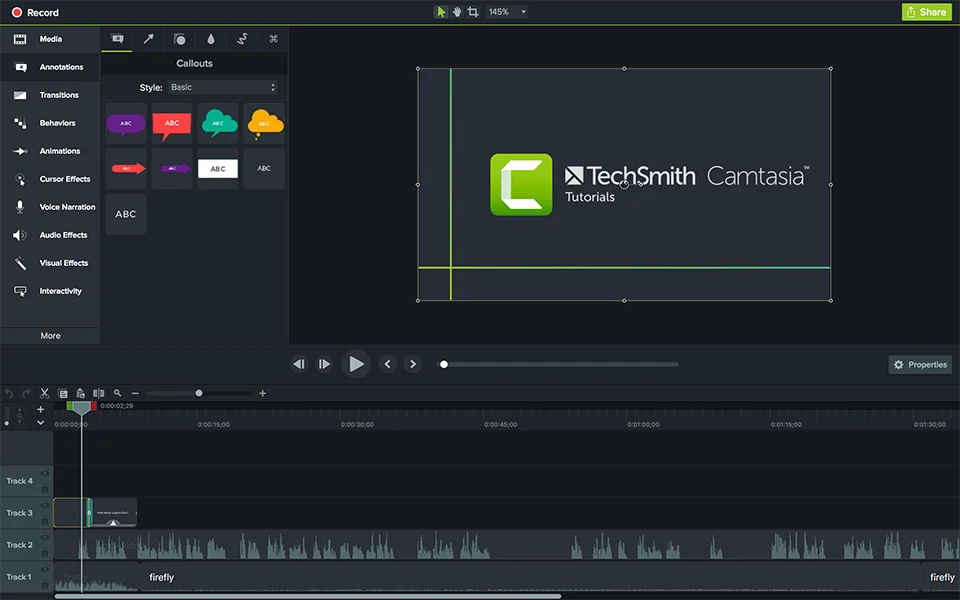
Camtasia is a comprehensive software suite developed by TechSmith, designed for creating and editing video tutorials and presentations through screencasting. It combines screen recording with robust editing capabilities in a single integrated package.
Built-in templates ensure consistent branding across corporate videos. Camtasia’s interface balances advanced functionality with ease of use, allowing users to produce professional-quality videos without extensive editing experience. It’s ideal for educators, trainers, and marketing professionals.
As far as general tips, Camtasia really is an easy platform to use. For the price, there is a lot there. I think the downside comes with it having limited assets to it (you need to have the Techsmith Assets package to add in all the fun call outs that they show in the program, which is an extra charge). […]
💡 Pro Tip: Recording in 4K resolution for long periods can slow down even high-end computers. Use separate capture cards to reduce the load on your PCs.
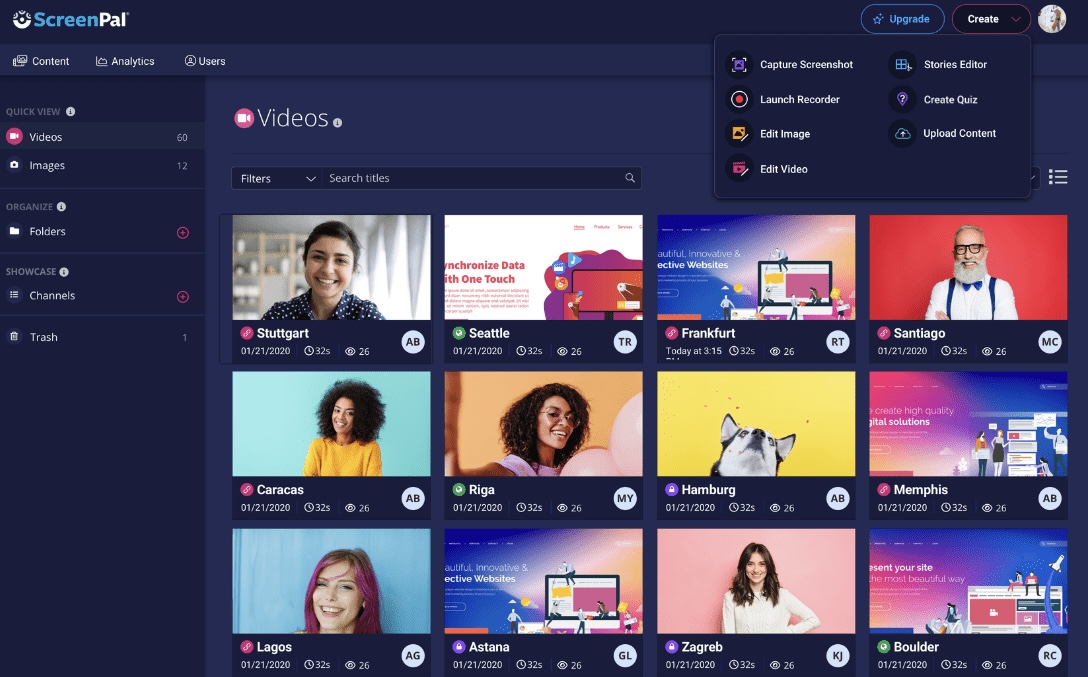
ScreenPal delivers an approachable screen recording experience focused on simplicity and speed. The software emphasizes quick setup and minimal configuration before recording begins.
You can capture your full screen, specific windows, or custom regions with automatic detection of active applications. ScreenPal also includes basic editing tools accessible immediately after recording completion.
As a Chrome screen recorder extension, it supports direct uploads to various hosting services, including YouTube and Google Drive. It even features text-to-speech capabilities and automated captions for accessibility.
There is a little bit of a learning curve, but once you understand the basics, many of the features work the same way. Sometimes it is hard to get an exact cut because it only lets you ‘zoom in’ on the track to a certain point, but for my use, it isn’t a big deal.
📖 Also Read: How to Video Record Yourself Presenting a PowerPoint

ShareX delivers exceptional flexibility through its comprehensive capture system and customizable workflows. This open-source tool extends beyond basic screen recording to include screenshot automation, image editing, and file conversion capabilities.
You can define automated actions that trigger after capturing content, including file renaming, format conversion, and direct uploads. ShareX supports over 80 destination services for content sharing.
The application appeals to technical users who value automation and integration rather than simplified interfaces.
💡 Pro Tip: Before you record your screen, turn off notifications, close unnecessary apps, and hide personal files from your desktop. On Windows, use Focus Assist to disable pop-ups automatically during recordings.
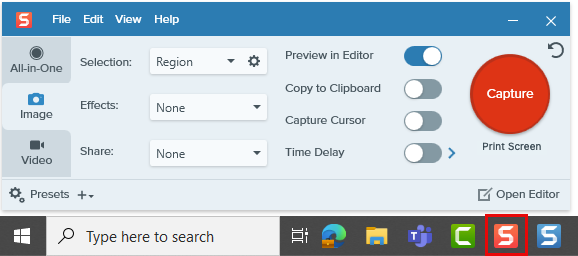
Snagit specializes in creating visually enhanced screen captures with its robust annotation and markup tools. The tutorial video software excels at producing instructional content through its combination of recording and editing capabilities.
It includes templates for common documentation formats like how-to guides and technical specifications. Additionally, the software features text extraction capabilities that can pull text directly from captured images.
🔍 Did You Know? The concept of online learning tutorials using screen recording began with Lynda.com in the late 1990s. It later became LinkedIn Learning.
Movavi Screen Recorder balances accessible controls with practical features for everyday recording needs. It prioritizes straightforward operation while maintaining essential functionality for quality captures.
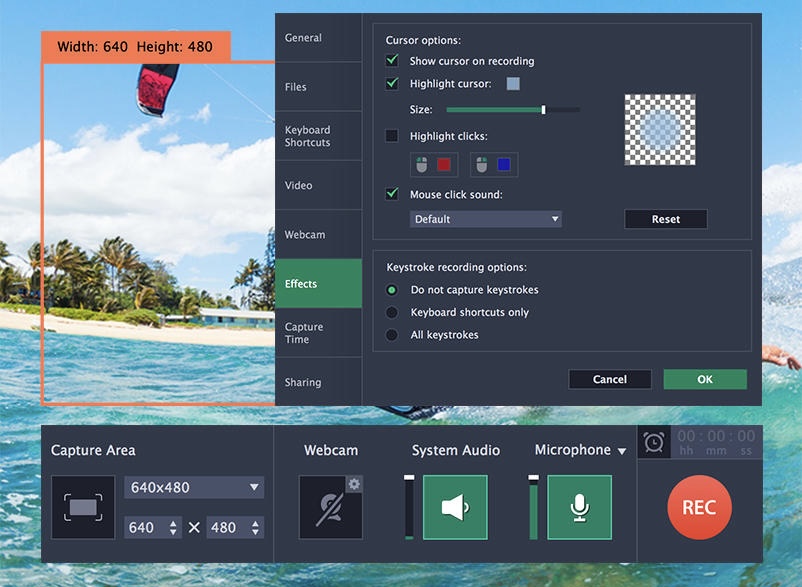
You can schedule recordings to begin and end at specific times without manual intervention. Movavi includes a simple editing interface for trimming unwanted sections and enhancing recorded content.
What’s more, it features hardware acceleration options to maintain performance during resource-intensive recordings.
🔍 Did You Know? Windows 10 and 11 have a hidden screen recorder. It’s called Xbox Game Bar, and you can activate it by pressing Win + G.
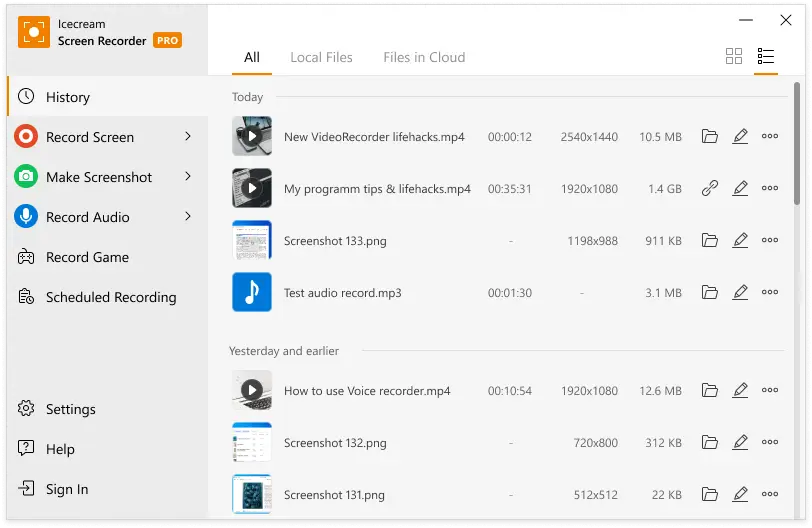
Icecream Screen Recorder focuses on accessibility for users who need straightforward recording capabilities. It features a minimalist interface that emphasizes essential controls while hiding advanced options in secondary menus.
The tool targets casual users who need occasional screen captures without investing time in learning complex software or configuring detailed settings.
There aren’t that many collaborative tools that you can use on the software. I can’t change my background when livestreaming which makes my setting look boring so that was a bummer. Lastly, I think the video quality when screen recording is good but could be much better.
📖 Also Read: Best Screen Recorder Software Apps for Mac
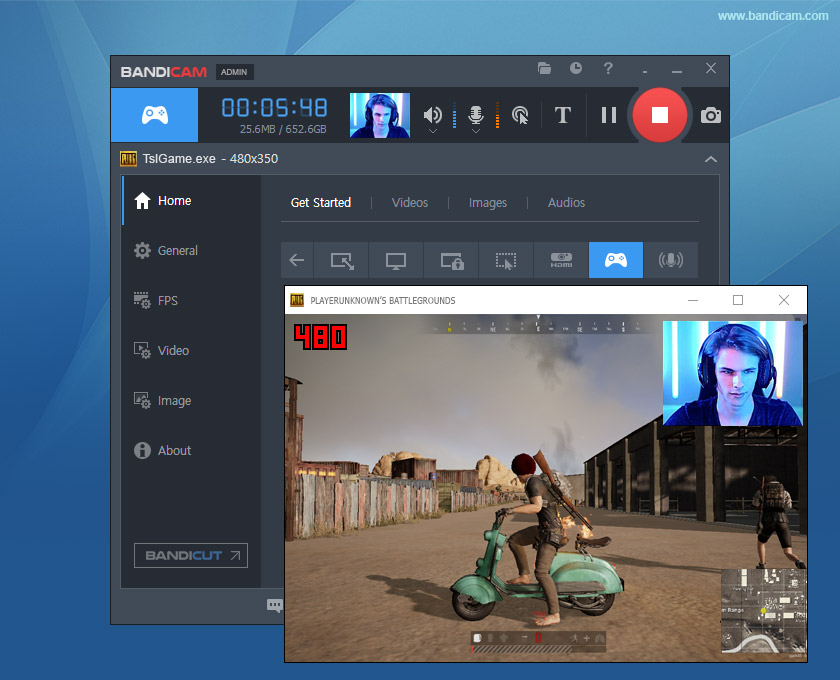
Bandicam specializes in high-performance recording for gaming and multimedia applications with minimal impact on system resources. It uses hardware acceleration technologies to maintain smooth frame rates during intensive recording sessions.
Even better? It features scheduled recording capabilities with automatic file splitting for long sessions. Bandicam serves content creators focused on gaming, software demonstrations, and multimedia tutorials requiring high-quality video with efficient file sizes.
The most notable thing is that it is easy to install compared to other programs that install additional drivers, for example, it is fast precisely because it is light, and consumes few resources, which allows, for example, to capture games or combinations of open programs on the screen.
💡 Pro Tip: If you’re recording gameplay or fast-moving content, set your screen recorder to at least 60 FPS to avoid choppy videos. For tutorials and presentations, 30 FPS is enough to save storage space.
Finding the right screen recording software for Windows doesn’t have to be a complex task.
The perfect tool depends on your specific needs—whether you’re creating tutorials, recording gameplay, hosting virtual meetings, or documenting processes. Each option we’ve covered offers unique capabilities to enhance your recording experience.
ClickUp stands out from the crowd by seamlessly integrating screen recording into your project management workflow.
ClickUp Clips let you capture, share, and collaborate on recordings without switching apps. Plus, AI Notetaker transcribes and turns recordings into tasks, keeping your team aligned effortlessly.
Sign up for ClickUp today!
The best free option depends on use case. OBS Studio works well for advanced recording and streaming, while tools like ClickUp offer free built-in screen recording paired with task management and collaboration for work-related use.
Yes. Many Windows screen recorders support 4K resolution, high frame rates, and multiple audio sources. Tools like Camtasia, OBS, and Bandicam are commonly used for professional tutorials, training videos, and gaming content.
They can if poorly optimized. Look for software with hardware acceleration, adjustable frame rates, and low CPU usage. High-resolution or long recordings without optimization may cause lag, even on powerful systems.
Tools designed for async collaboration work best. Screen recorders that auto-generate shareable links, allow comments, and integrate with work tools like ClickUp Clips or Loom reduce meetings and speed up feedback loops.
In many cases, yes. Async screen recordings let you explain context visually without scheduling meetings. When paired with transcription and summaries, they help teams retain information and act faster than rewatching full meeting recordings.

Manasi Nair
Max 26min read
Manasi Nair
Max 26min read
Manasi Nair
Max 20min read

© 2026 ClickUp