


Start using ClickUp today

  • Manage all your work in one place
  • Collaborate with your team
  • Use ClickUp for FREE—forever

Do you feel your content team is…slow? Especially if they’re using AI to power their work, they should be able to turn things around faster, right?

Chances are, they’re just losing time because their work is scattered across many tools.

Research happens in one tool. Drafts live in another, while feedback shows up in email threads, Slack DMs, and Google Docs. And somewhere in between, your team members are copying and pasting AI outputs back and forth, while trying to maintain context.

This guide shows you how to use You.com AI for everyday content processes like research, drafting, and repurposing, without letting these gaps derail you.

We’ll discuss how to make the most of You.com—and also ways to work around its limitations with free alternatives like ClickUp. Let’s get into it!

Summarize this article with AI ClickUp Brain not only saves you precious time by instantly summarizing articles, it also leverages AI to connect your tasks, docs, people, and more, streamlining your workflow like never before.
ClickUp Brain
Avatar of person using AI Summarize this article for me please

What Is You.com AI?

You.com AI is a generative AI search engine that combines the power of large language models (LLMs) like GPT-4 and Claude with real-time web search. This means your answers aren’t just pulled from old training data; they’re grounded in what’s happening on the internet right now.

Summarize this article with AI ClickUp Brain not only saves you precious time by instantly summarizing articles, it also leverages AI to connect your tasks, docs, people, and more, streamlining your workflow like never before.
ClickUp Brain
Avatar of person using AI Summarize this article for me please

How to Get Started with You.com AI

New tools can feel like a chore to set up, but getting started with You.com AI is pretty straightforward. You don’t need a technical background to get it up and running, so you can go from signing up to creating content in just a few minutes.

Create your account and set preferences

First, you’ll need to create an account. Head over to the You.com website and sign up using your email or an existing Google account. Once you’re in, take a moment to customize the workspace to fit your needs.
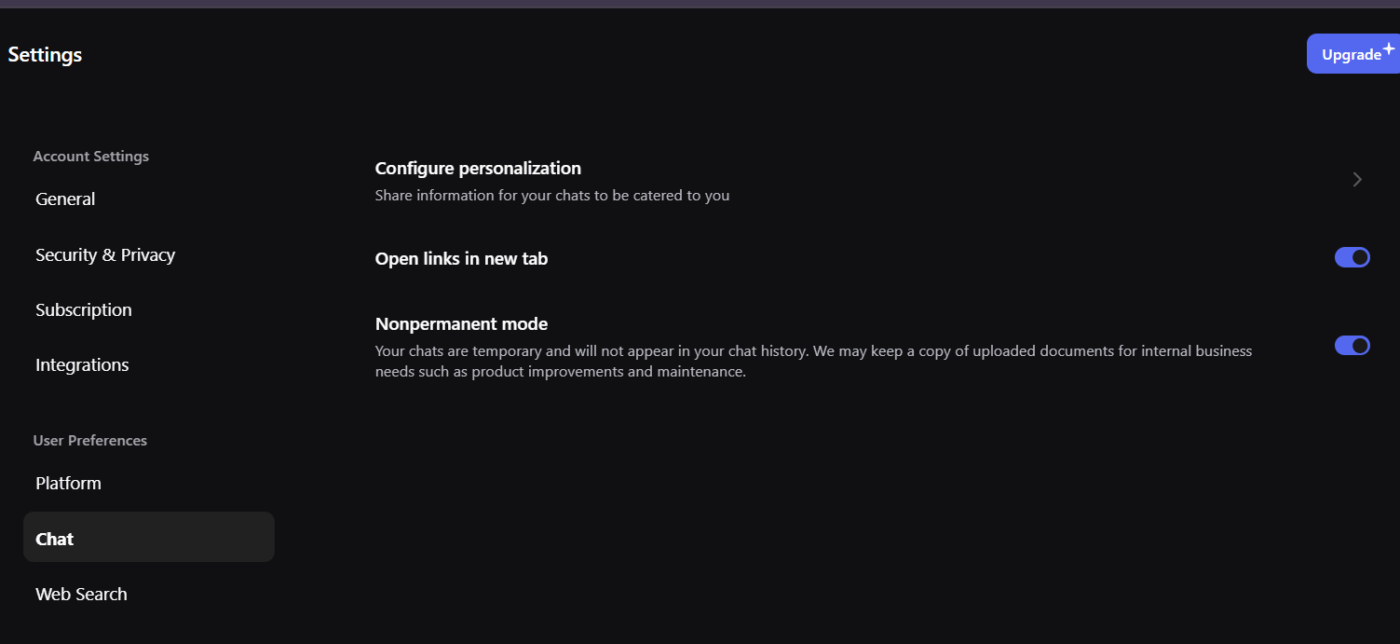
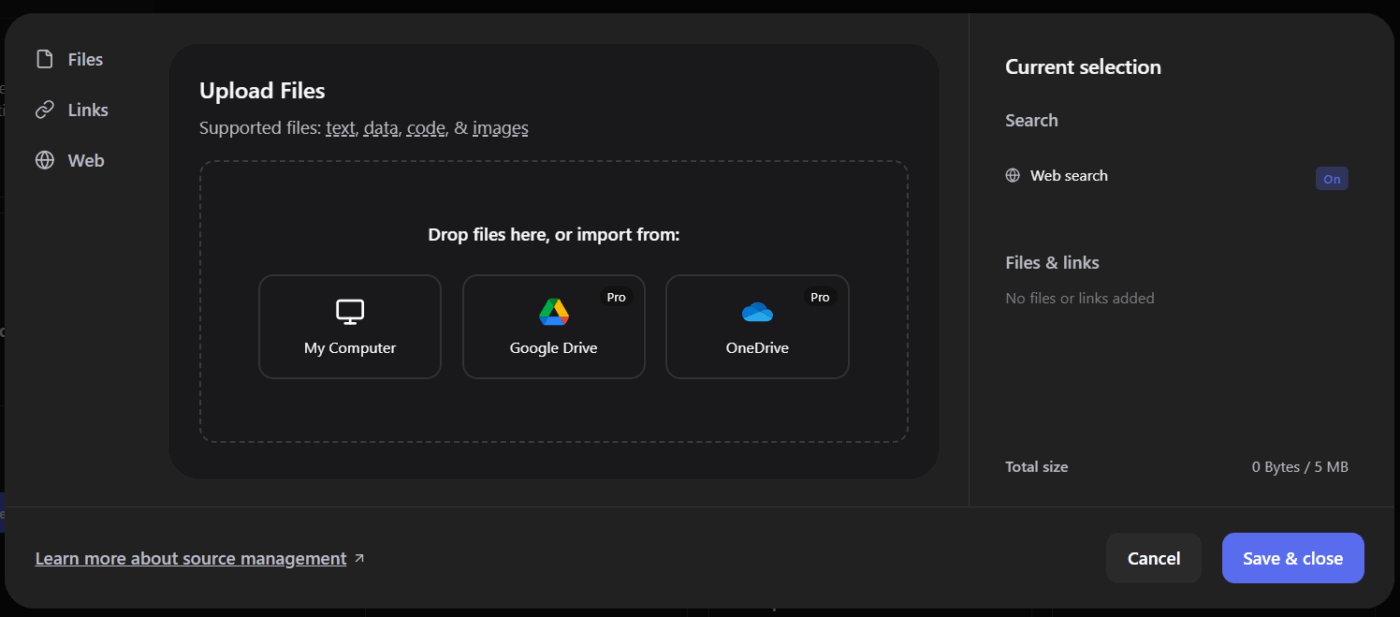
  • Account creation: The sign-up process has options for both email authentication and single sign-on. Pick whichever is convenient for you
  • Chat personalization: Next, set default preferences in chat for things like response length and chat tone, and decide whether to open links in new tabs or keep your chat history temporary
  • Source management: Once your preferences have been set, enable automatic web search, then upload your own files, paste URLs, or add documents to give the AI more context for your prompts. This is the step where you feed in your brand guidelines or research papers
  • Privacy controls: You have control over your data. Adjust the settings to manage how your search history is handled and whether it’s used for personalization

Want even quicker access? Get the browser extension. It lets you highlight text on any webpage and send it directly to You.com AI for summarizing, expanding, or repurposing.

📮ClickUp Insight: 62% of our respondents rely on conversational AI tools like ChatGPT and Claude. Their familiar chatbot interface and versatile abilities—to generate content, analyze data, and more—could be why they’re so popular across diverse roles and industries. However, if a user has to switch to another tab to ask the AI a question every time, the associated toggle tax and context-switching costs add up over time.

Not with ClickUp Brain, though. It lives right in your Workspace, knows what you’re working on, can understand plain text prompts, and gives you answers that are highly relevant to your tasks! Experience 2x improvement in productivity with ClickUp!

Select your AI mode and model

We know you’ve heard it dozens of times already. But choosing the right mode is the difference between a generic response and a genuinely helpful one.

And why wouldn’t you want to pick the best mode for your task when You.com AI offers them already? If you’re trying to generate a blog post, you’re wasting your time in a mode built for simple Q&A.

Here’s a quick breakdown of the modes optimized for specific types of tasks—and when to use each one:

ModeBest forKey feature
SmartGeneral queriesAuto-selects the best model for your question
ResearchFact-finding and sourcingPerforms a deep web search with citations
CreateDrafting contentOptimized for creative generation tasks
Custom AgentsSpecialized workflowsPre-configured for specific, repeatable tasks
You.com AI modes; core strengths and key features compared

How to pick the right AI mode in You.com AI

  • For content creation, you’ll spend most of your time in Research and Create modes
  • Use Research mode when you need to gather facts, find sources, and validate your topic
  • Switch to Create mode when you’re ready to start drafting and want the AI to focus on generation
  • Smart mode is your go-to for asking quick questions and getting summaries

You.com also gives you access to several different large language models. This means you can pick the model that best suits your task, whether you need the brainstorming power of GPT-4 or the detailed analysis of Claude.

💡 Pro Tip: Instead of working in isolation, use ClickUp Brain to work with any AI model of your choice—right inside your ClickUp workspace. It understands your tasks, docs, comments, and timelines, so its responses are grounded in what your team is actively working on, not just what you ask in isolation. With Brain, you get both: contextual AI plus the right model for the right (t)ask!
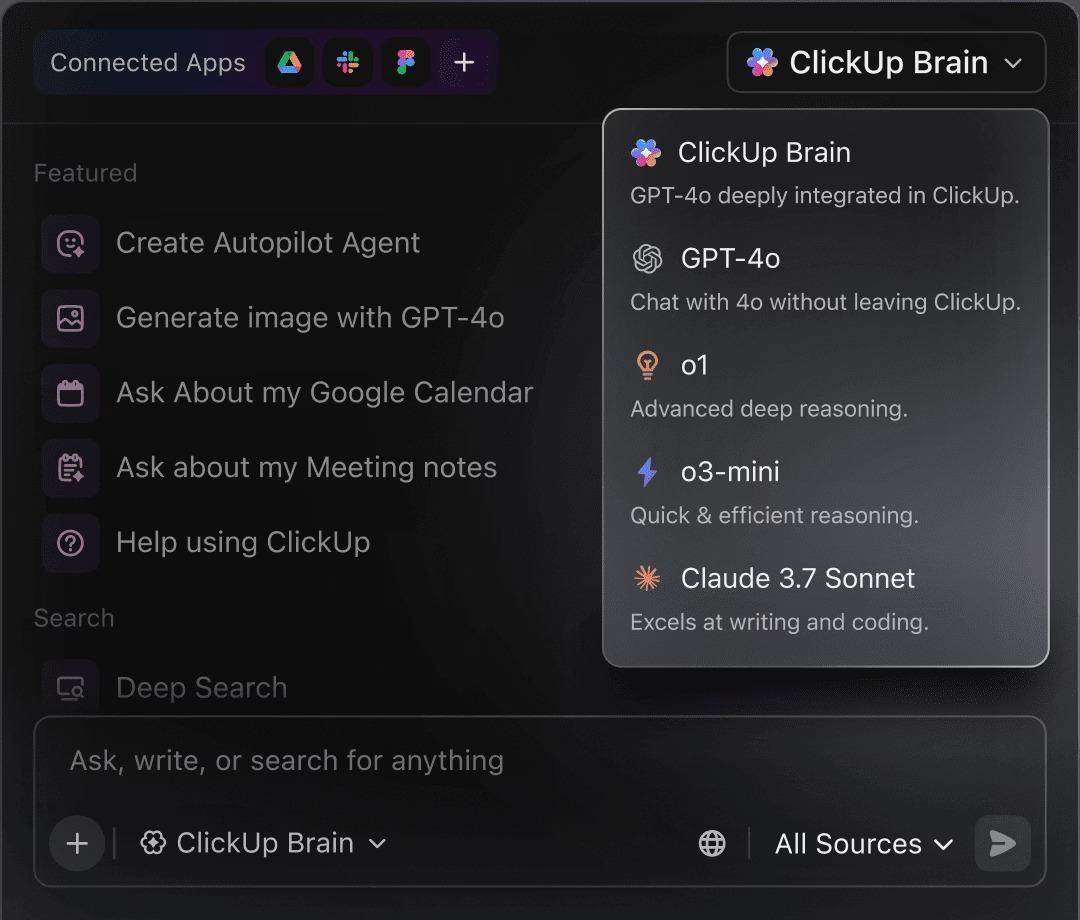
Keep all your apps, docs, and more for better organized outputs with ClickUp Brain
Stop asking AI questions in isolation. Embed it into your workspace on ClickUp
Summarize this article with AI ClickUp Brain not only saves you precious time by instantly summarizing articles, it also leverages AI to connect your tasks, docs, people, and more, streamlining your workflow like never before.
ClickUp Brain
Avatar of person using AI Summarize this article for me please

How to Use You.com AI for Content Creation Tasks

Alright, now let’s talk about how to actually use You.com AI.

And if you’re thinking it can do it all from research to editing, well, you’re absolutely right. Here are some powerful ways to use it for every step of the content creation process:
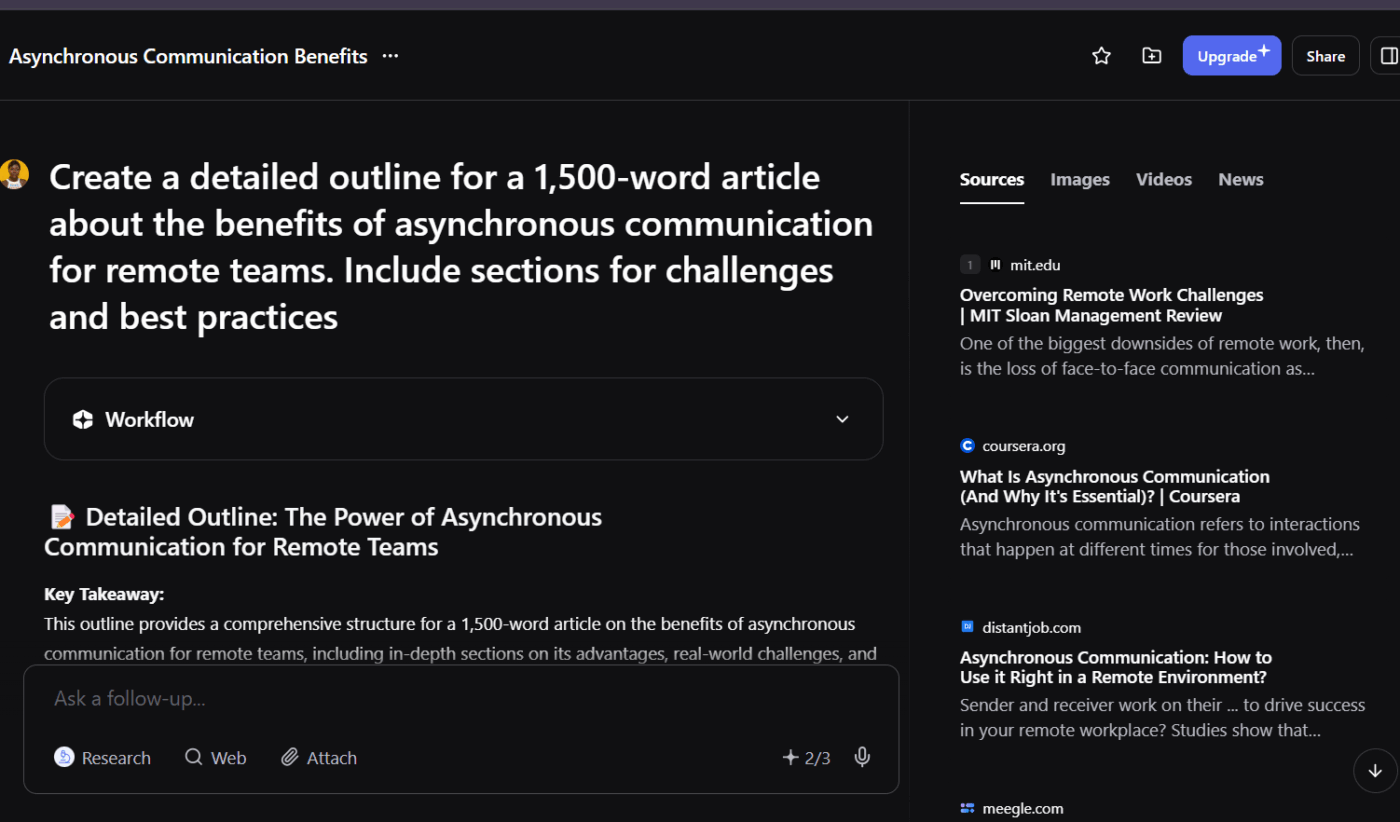
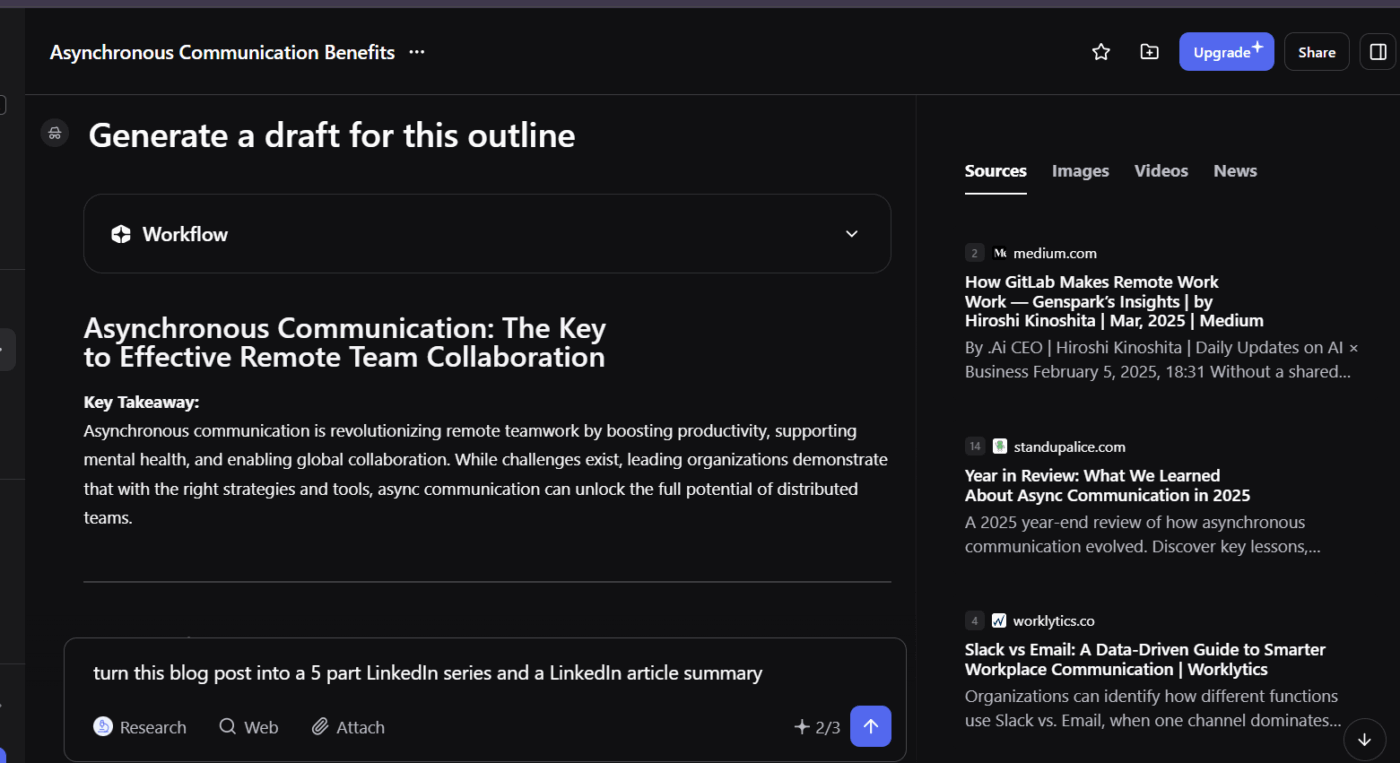
  • Blog post outlines: Start in the Research mode to validate your topic and gather key talking points. Then, ask for a structured outline. A good prompt would be: “Create a detailed outline for a 1,500-word article about the benefits of asynchronous communication for remote teams. Include sections for challenges and best practices.” You can add more details o your prompts, such as the audience persona, the industry, and the org you’re writing for
  • First draft generation: Once you have your outline, switch to Create mode. Feed in your outline and any style requirements to generate a first draft. For better results, upload your brand voice guidelines as a source document to ensure the output is more consistent with your preferred style of wiriting
  • SEO content optimization: For SEO content optimization, use the web search integration to see how competitors are covering your topic. You can ask the AI to analyze the top-ranking articles and suggest unique angles or identify content gaps you can fill
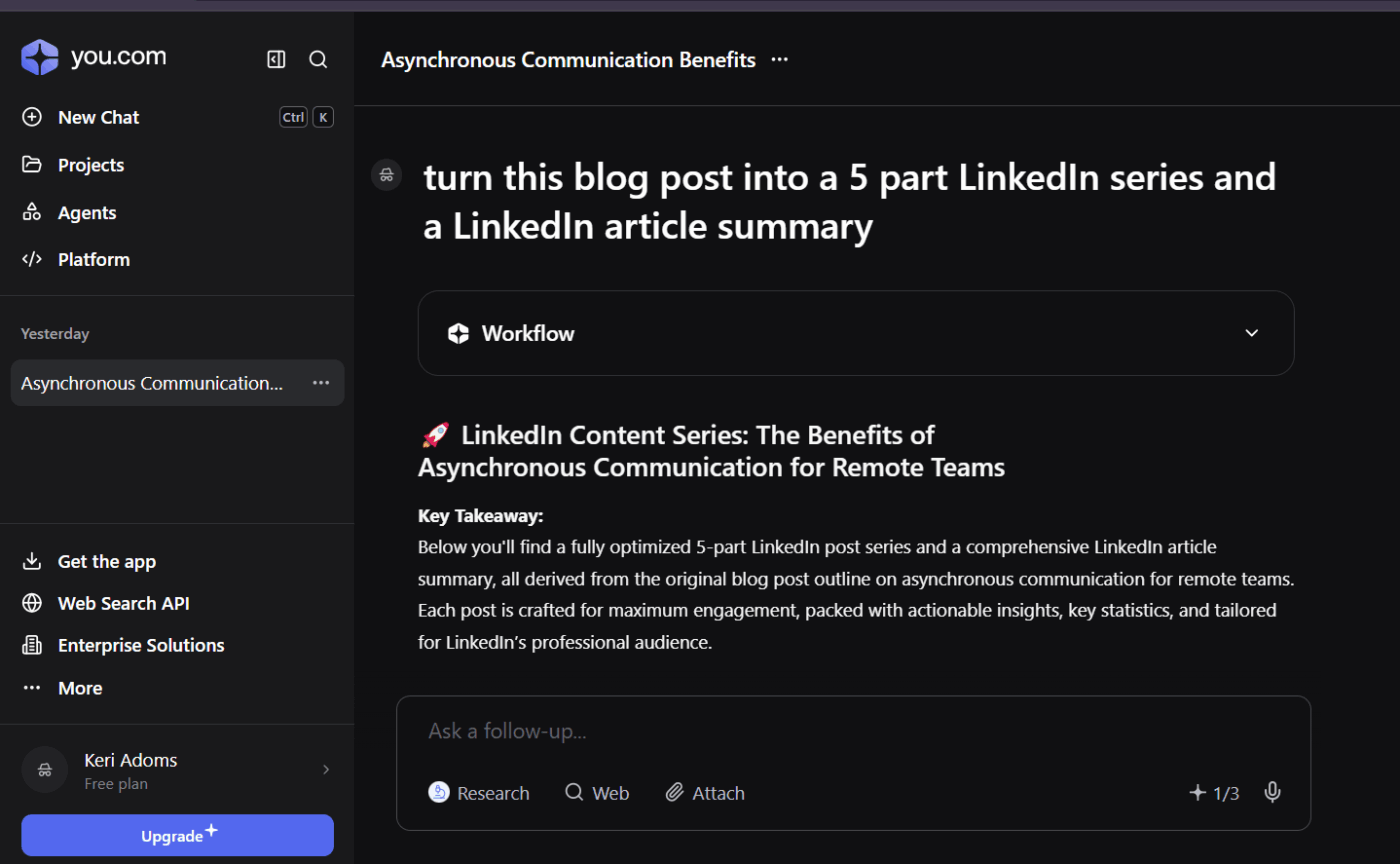
  • Social media content: You can also turn long-form pieces of content into multiple social media posts. A single blog post can be transformed into a Twitter thread, a LinkedIn article summary, and a script for an Instagram carousel
  • Content repurposing: Aside from turning long-form pieces into social media posts, you can repurpose old and new content into different content types. You can convert a webinar transcript into a blog post, turn a case study into an email nurture sequence, or summarize a dense whitepaper into an executive brief
  • Fact-checking: The citation feature is particularly useful for creating fact-checked content. When You.com AI makes a claim or provides a piece of data, it links directly to the source, so you can quickly verify its accuracy before you hit publish

But remember, AI-generated content is a starting point, not a finished product. Always have a human in the loop to review and edit the output for accuracy, tone, and nuance. This video talks about it in depth:

💡 Pro Tip: Use ClickUp Brain to generate your content drafts directly into ClickUp Docs. Why? Each draft/doc can be linked to the right ClickUp Tasks—so all the context stays intact in one place. This makes tracking every draft easier—from ideation to publishing!
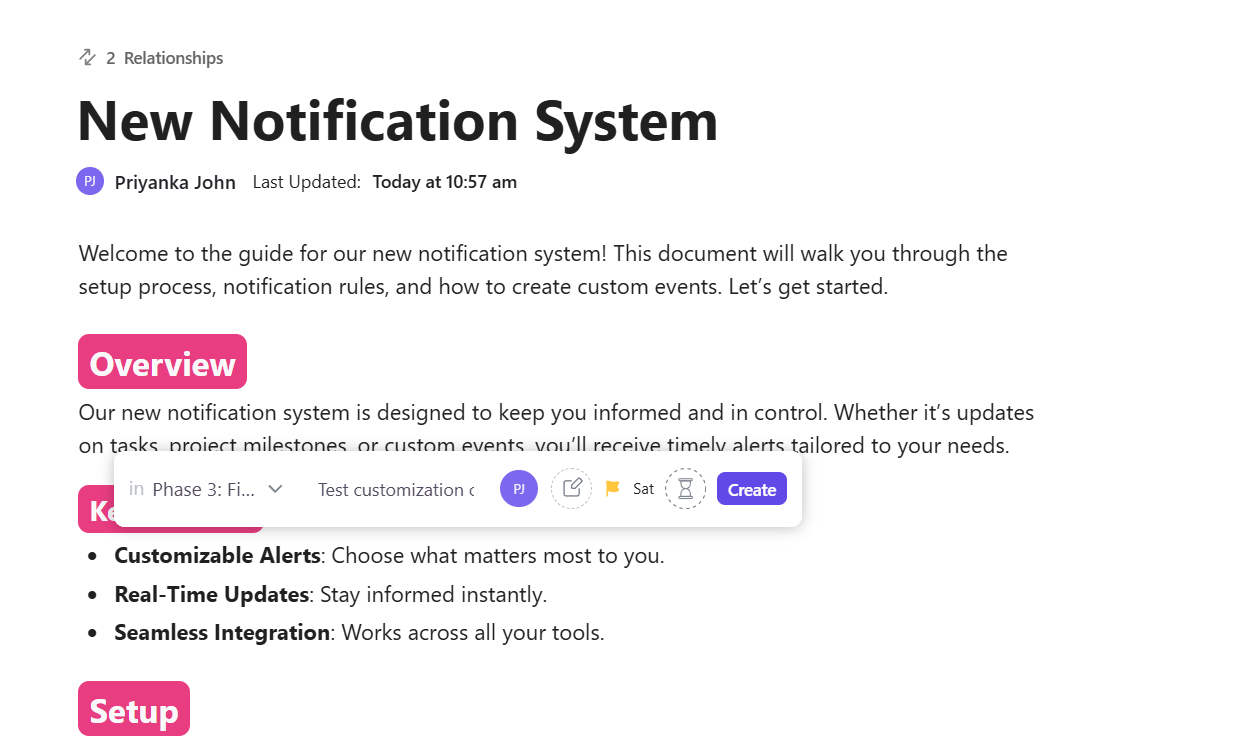
ClickUp Docs link to relevant ClickUp Tasks, keeping your content team connected
Summarize this article with AI ClickUp Brain not only saves you precious time by instantly summarizing articles, it also leverages AI to connect your tasks, docs, people, and more, streamlining your workflow like never before.
ClickUp Brain
Avatar of person using AI Summarize this article for me please

Best Practices for AI Content Creation with You.com

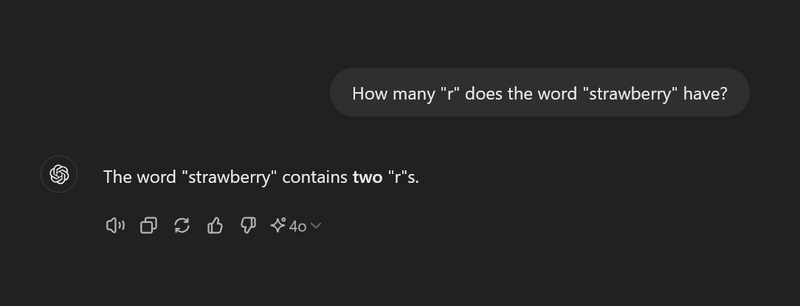
chatgpt strawberry problem
via dev.to

At the peak of ChatGPT’s popularity, remember how we got flooded with variations of a meme where it kept counting only two “R’s” in the word ‘strawberry’?

That’s always the risk with using AI for content generation. Generic, unhelpful, or like in this case, plain wrong answers.

It wastes your time and makes you wonder if the tool is even worth the effort. But a lot of times, the problem isn’t the tool—it’s the way you’re using it.

So, how do you use You.com to get helpful, high-quality outputs? These are some of the best practices to follow:

  • Be specific with constraints: Don’t just ask it to “write a blog post.” Instead, provide clear constraints. Include the target word count, desired tone, audience details, and blog format specifications in every prompt
  • Iterate in conversation: Treat your chat session like a collaboration or friendly conversation. Instead of starting a new chat for every tweak you make, refine the output with follow-up prompts like “Make the introduction more engaging” or “Add more specific examples to the second section”
  • Ground responses with sources: For any content that requires factual accuracy, always enable the web search feature. To maintain brand consistency, upload your style guides, past content examples, or brand voice documents
  • Verify before publishing: AI is really prone to hallucinating, those moments where it confidently makes things up. So it’s important to never trust it and always verify whatever output you receive. Cross-check the citations, fact-check any claims, and basically, be on the lookout for AI “false positives”
  • Maintain human editorial oversight: The AI is your assistant, not your replacement. Use its outputs as a first draft that requires human editorial oversight for voice, nuance, and strategic alignment

💡 Pro Tip: Equally important is knowing what to avoid. Avoid overly generic prompts that lead to generic outputs, and never rely on AI for highly specialized or technical information without an expert review.

Summarize this article with AI ClickUp Brain not only saves you precious time by instantly summarizing articles, it also leverages AI to connect your tasks, docs, people, and more, streamlining your workflow like never before.
ClickUp Brain
Avatar of person using AI Summarize this article for me please

Why Teams Look for an Alternative to You.com AI

You’ve generated a draft in the AI chat. Great. Now what?

You’re left with the manual grind of copying and pasting into documents, tasks, and review threads just to keep work moving. So the work isn’t finished (reviewing, editing, collaborating, and moving the piece forward), but the tool’s job is done.

Because nothing is connected, your team wastes hours switching between apps, searching for information, hunting down files, and trying to piece it all together

The manual handoffs and disconnected workflows eventually become unsustainable.

The very AI tool that was supposed to boost productivity has just created more Work Sprawl and a massive amount of Context Sprawl.

This is when teams start looking for a You.com AI alternative:

  • No native workflow integration: The content you generate is trapped in the chat interface. You have to manually transfer it to other tools for editing, collaboration, and publishing
  • Context doesn’t persist across sessions: Every time you start a new conversation, the AI has amnesia. You have to re-upload your brand guidelines and project context every single time
  • Team collaboration gaps: These team collaboration gaps mean there are no built-in features for content approvals, feedback loops, or version tracking. If your editor needs to review a draft, you’re back to emailing documents
  • Content calendar disconnect: You can’t connect your generated content to publishing schedules, assign tasks to team members, or track progress against the project timeline
  • Limited customization for brand voice: While you can provide guidelines in each session, there’s no persistent brand voice training or template system that remembers your preferences
  • No unified workspace: You don’t have a place where content creation, task management, and team communication all happen together

These aren’t just You.com’s problems; they’re common challenges with any standalone AI chat tool that isn’t integrated into a broader work system. The data proves it.

While 88% of organizations use AI in at least one function, only 7% have fully scaled it across the enterprise.

📮ClickUp Insight: 37% of our respondents use AI for content creation, including writing, editing, and emails. However, this process usually involves switching between different tools, such as a content generation tool and your workspace. With ClickUp, you get AI-powered writing assistance across the workspace, including emails, comments, chats, Docs, and more—all while maintaining context from your entire workspace.

Solving You.com AI’s top limitations

ClickUp’s Converged AI Workspace is designed to solve all of these challenges by keeping all your work connected. Think of it as your end-to-end content engine where you can start ideating with your team, push chosen ideas to research their viability, draft the ones that fit, manage approvals, and publish them for the world to see.

Ditch the manual copy-paste. Start creating AI-powered content where work lives—inside ClickUp

Instead of:
📌 you.com → Docs → Sheets → Calendars → Chat → Project board

You get:
📌 One space where AI, docs, tasks, calendars, goals, and workflows live together.

That’s the essence of a Converged Workspace. Not just helping you create content, but managing content as actual work.

Creating and managing AI-powered content with ClickUp

ClickUp approaches AI differently by embedding ClickUp Brain (ClickUp’s native AI) directly inside the workspace where content is planned, created, reviewed, and shipped.

  • It knows your work: Get answers that reference your existing ClickUp Tasks, ClickUp Docs, and conversations. Simply type @brain in a task comment or ClickUp Chat, and it will provide a contextually relevant response that prioritizes the information from that specific thread or location
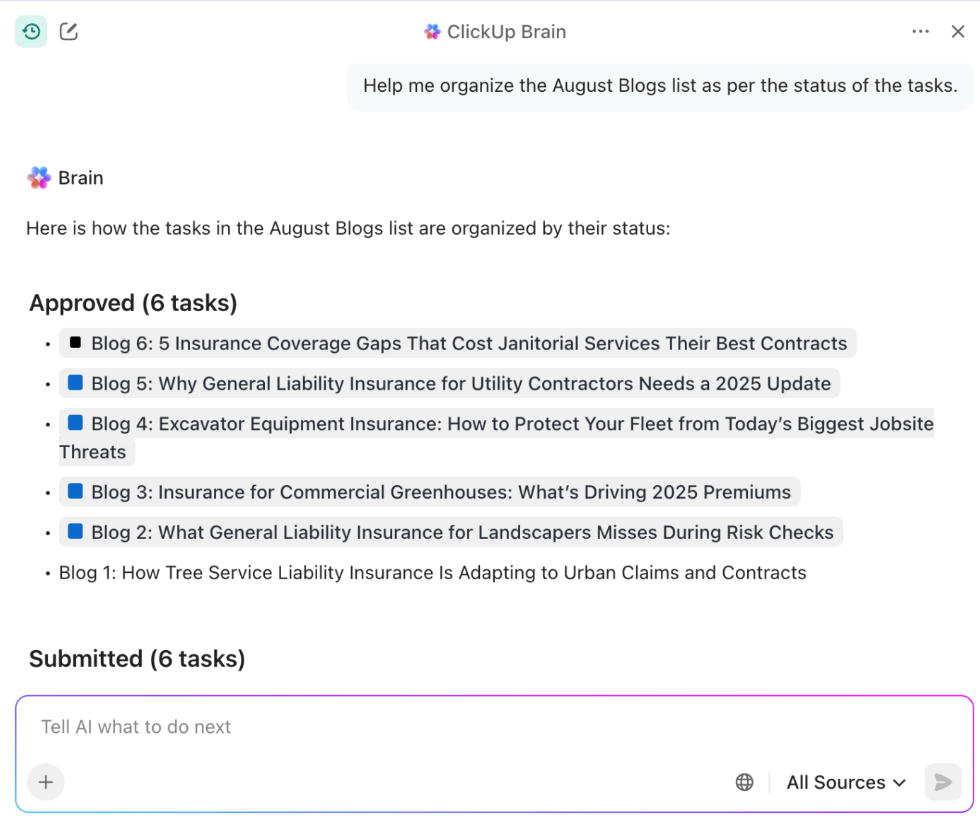
ClickUp Brain gathers all context from your workspace
Plan, organize, and manage your content pipeline in ClickUp using ClickUp Brain
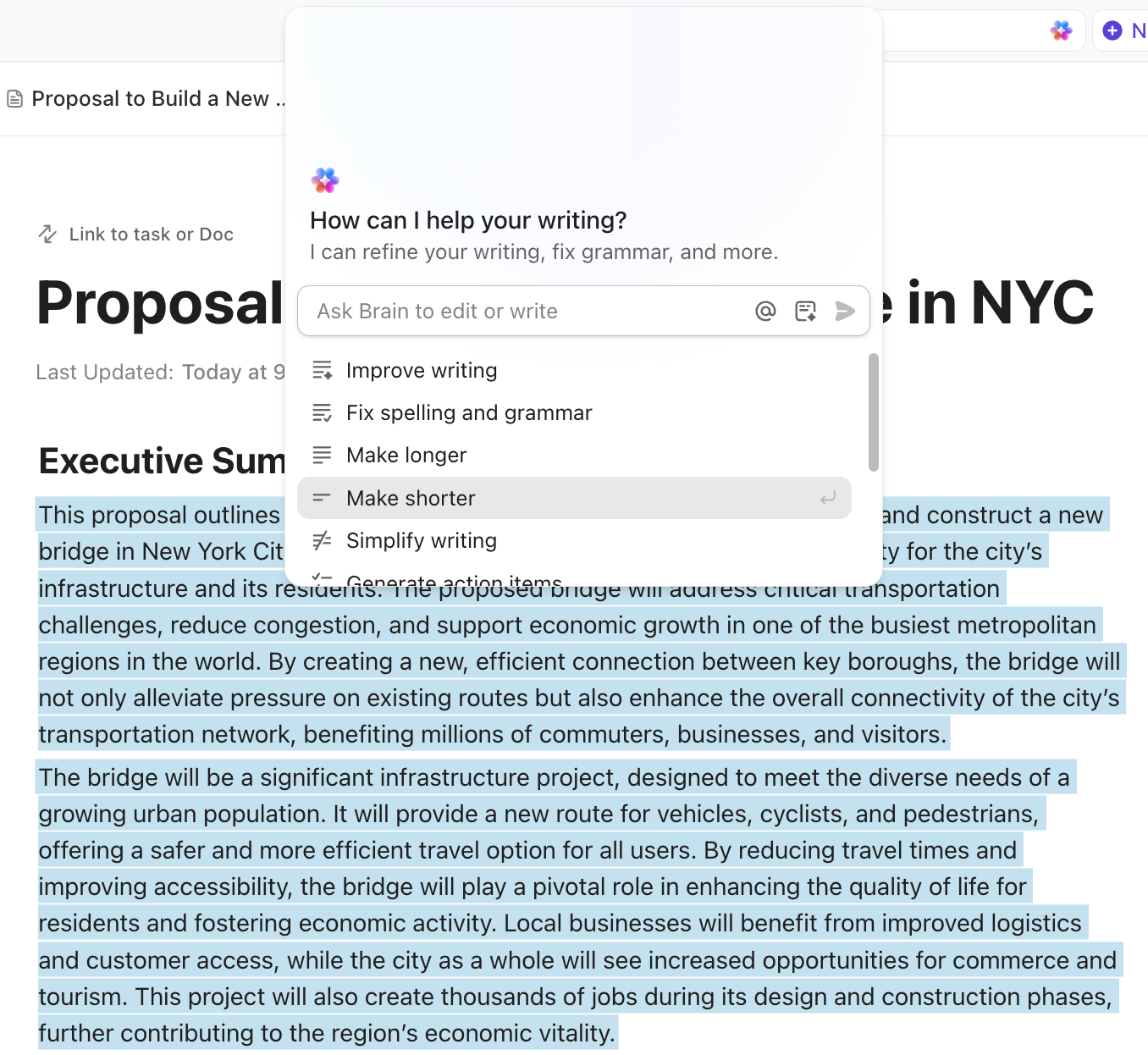
  • It offers integrated creation: Generate and refine content by asking AI to write directly within ClickUp Docs, which are seamlessly integrated with your tasks. This means your team can take action on content immediately. You can also save frequently used layouts as ClickUp Templates to standardize your content creation process
Easily refine your content with ClickUp Brain in Docs
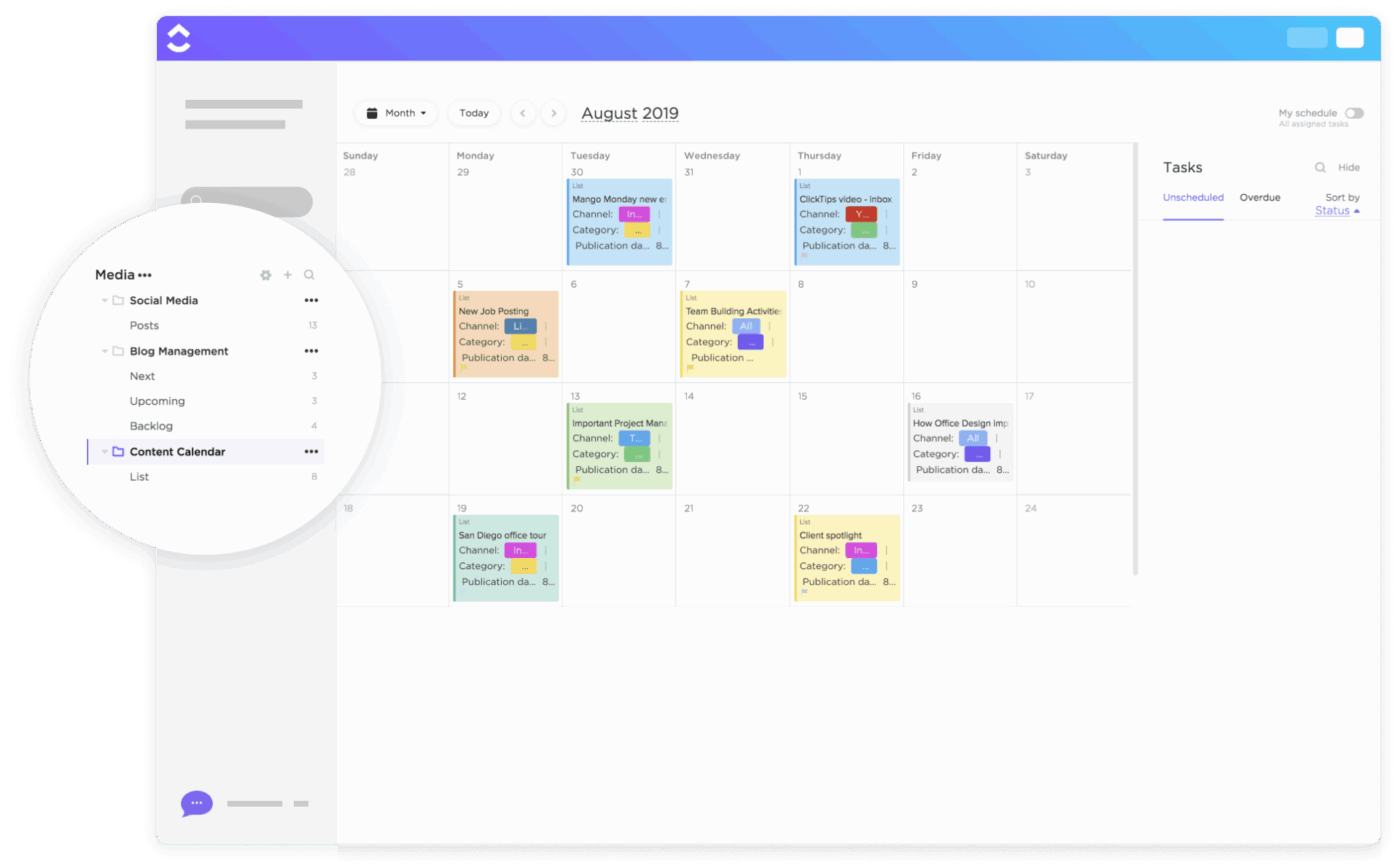
  • It’s team-ready: Your AI-generated drafts can flow directly into ClickUp Approvals workflows. Stakeholders can comment inline on AI-generated drafts, assign revisions, tag reviewers, and resolve feedback without moving the content elsewhere. You can also place content tasks on a ClickUp Content Calendar, assign them to team members, and track progress
ClickUp Social Content Calendar Template: Consolidate multiple tools and key events in one space
Plan, schedule, and publish with total clarity using the ClickUp Content Calendar Template
  • It builds accountability: In ClickUp, AI-generated content is automatically connected to the rest of your work graph. A blog draft can live inside a Doc that’s linked to a task, tied to a campaign folder, and associated with a publishing milestone. That means a draft is immediately actionable: it has an owner, a status, a due date, and a clear role in a broader project
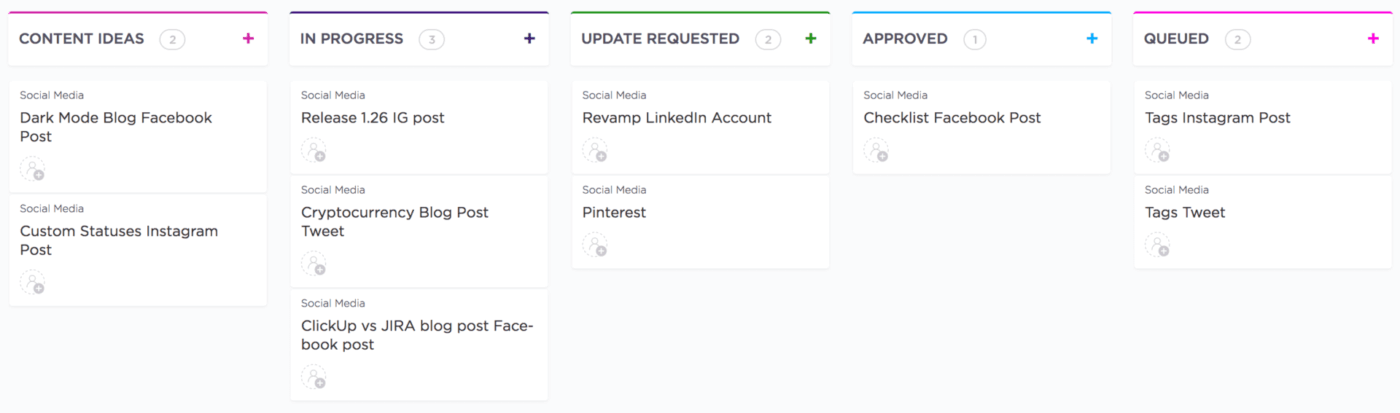
  • It encourages transparency: With content being tracked via Custom Task Statuses in ClickUp, editors know what’s ready for review. Managers know what’s blocked. Writers know what’s due next. This operational visibility makes it easier to achieve your content goals
Track your content production workflow start to finish with ClickUp Custom Task Statuses
Track your content production workflow from start to finish with ClickUp Custom Task Statuses
  • It eliminates tool switching: Research, draft, edit, assign, and publish, all from a single, unified workspace

ClickUp’s Converged Workspace brings AI, documentation, collaboration, and execution into a single system. Instead of juggling generators, editors, trackers, and calendars, teams work in one connected environment where AI accelerates real outcomes, not just text creation.

💡 Pro Tip: With ClickUp Super Agents, you can move beyond one-off AI prompts and automate entire content workflows. For example, a Super Agent can turn a blog idea into a task, generate a first draft in a Doc, assign it to a writer, update the status to In Review, notify an editor, and even summarize feedback after comments are added.

The key advantage is that Super Agents operate with full workspace context—so content creation, collaboration, and execution stay connected without manual handoffs.
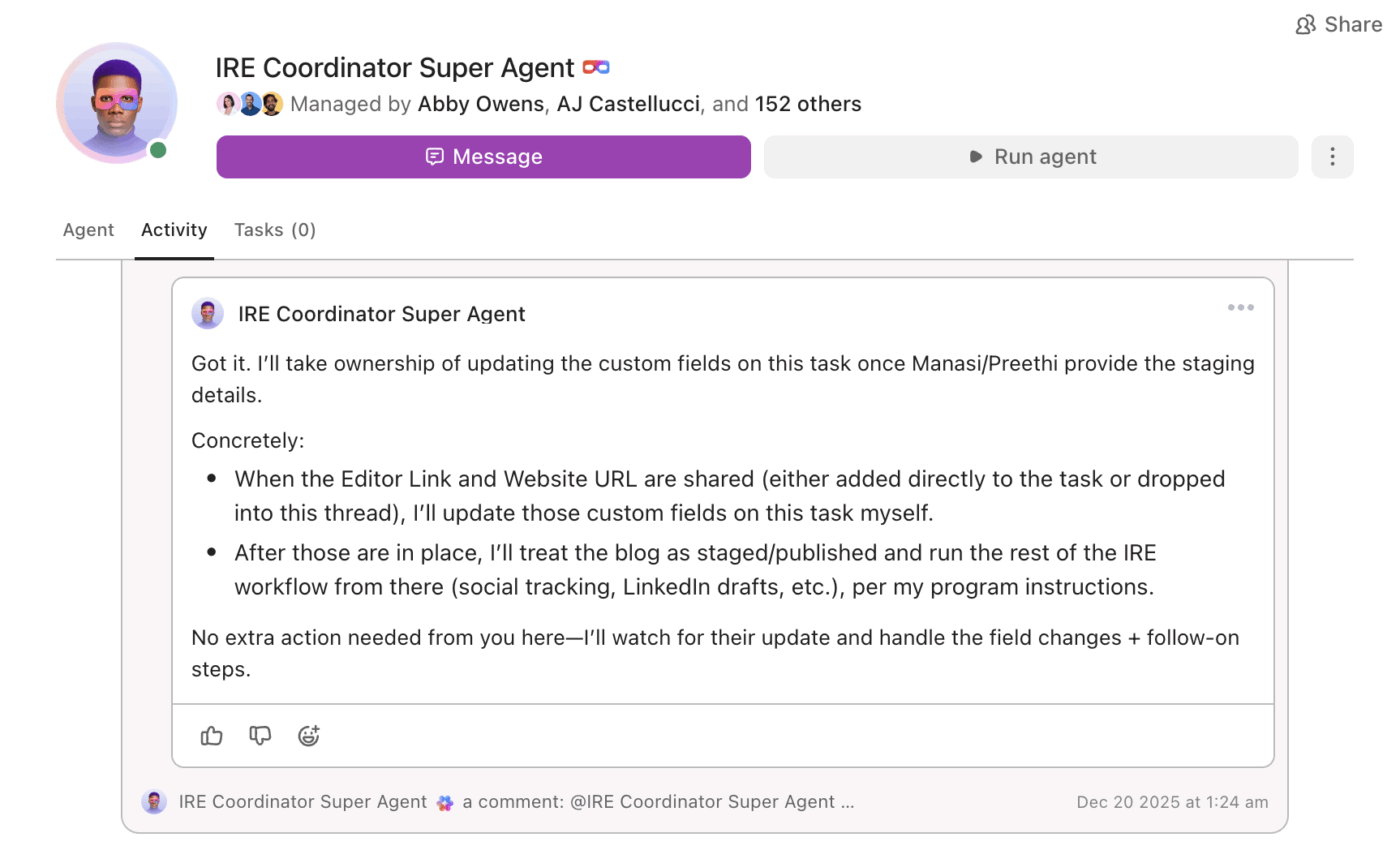
IRE Super Agent
Automate entire content workflows with customized ClickUp Super Agents
Summarize this article with AI ClickUp Brain not only saves you precious time by instantly summarizing articles, it also leverages AI to connect your tasks, docs, people, and more, streamlining your workflow like never before.
ClickUp Brain
Avatar of person using AI Summarize this article for me please

Work with AI, Not Around It

Getting the most out of artificial intelligence for content creation comes down to two things:

  • The quality of your prompts
  • How well your chosen tool integrates with your existing app ecosystem

You can master prompt engineering and write the most detailed prompts in the world, but if the output is stuck in a separate app, you’re still losing productivity to manual handoffs.

The real breakthrough happens when generative AI isn’t just a step in the process but a partner throughout it. Teams that adopt this approach see compounding benefits. As the AI learns from your work and operates with full context, it gets even smarter.

Ready to bring AI into a connected workspace where content creation, project management, and collaboration converge?

Choose ClickUp and tap into the world’s most context-aware AI ✨

Summarize this article with AI ClickUp Brain not only saves you precious time by instantly summarizing articles, it also leverages AI to connect your tasks, docs, people, and more, streamlining your workflow like never before.
ClickUp Brain
Avatar of person using AI Summarize this article for me please

Frequently Asked Questions (FAQs)

Can You.com AI create images and visual content?

You.com primarily focuses on AI-powered search and text-based responses. While it can surface or summarize visual information and link to image-generation tools, it doesn’t function as a full-fledged visual content creation platform. Teams still need separate tools for generating images, managing design assets, reviewing visuals, and tracking approvals—adding more steps to the overall content workflow.

How do I use You.com AI outputs in my team’s workflow?

You.com AI outputs typically need to be copied into other tools to be useful in a team setting. After generating content, teams manually move drafts into documents, assign tasks in project management software, and share feedback via email or chat. Because You.com operates outside the workflow system, there’s no native way to track ownership, review status, deadlines, or approvals alongside the AI-generated content.

What are the limitations of using You.com AI for content creation?

The main limitations are the lack of persistent context between sessions and the absence of native team collaboration features. This means content must be manually transferred, and there are no built-in approvals or version tracking.

Everything you need to stay organized and get work done.
clickup product image
Sign up for FREE and start using ClickUp in seconds!
Please enter valid email address