






Still downloading templates?
There’s an easier way. Try a free AI Agent in ClickUp that actually does the work for you—set up in minutes, save hours every week.
Sorry, there were no results found for “”
Sorry, there were no results found for “”
Sorry, there were no results found for “”
Still treating ChatGPT as just a 24/7 chatbot? You’re leaving money on the table!
Here is why your current approach is costing you:
ChatGPT plugins elevate the platform from a simple chat interface to a powerful command center. Scroll down to learn the latest buzz around ChatGPT plugins and how you can use them.
Bonus: We’ll also show you how to use the ClickUp Desktop App to replace this chaotic web of ChatGPT plugins. 🤩
ChatGPT plugins are add-ons that enable users to connect their AI chats with external services.
On its own, ChatGPT can think, explain, and suggest.
But with the right integrations, it can access and act on live data from external systems—think PDF documents, databases, project tools, or the live web.
🚨 Important Note: While the original ChatGPT “plugins” feature was retired in April 2024, you can still bring work directly inside your chats in two ways:
Both custom GPTs and official third-party apps significantly enhance ChatGPT’s capabilities. Here are some common areas where you can use them:
Need to back a proposal with verified data?
Choose a custom GPT for research (e.g., ScholarGPT). It connects directly to a massive library of over 200 million resources, providing accurate statistics, report summaries, and facts—all with formal citations.
Or, if you want to analyze massive Google Sheets within seconds, go for the Data Analyst GPT. Just share your file, tell the AI what you’re looking for, and it will generate report summaries and presentation-ready charts instantly.
Traditional ChatGPT can only take a developer so far. You often waste time re-explaining your tech stack or coding style at the start of each chat session.
Instead, use custom GPTs like Code Copilot and PythonGPT. They already understand modern development standards, deprecated libraries to avoid, and best practices.
Simply drop in your code, and they’ll help you refactor, generate unit tests, and automate your documentation.
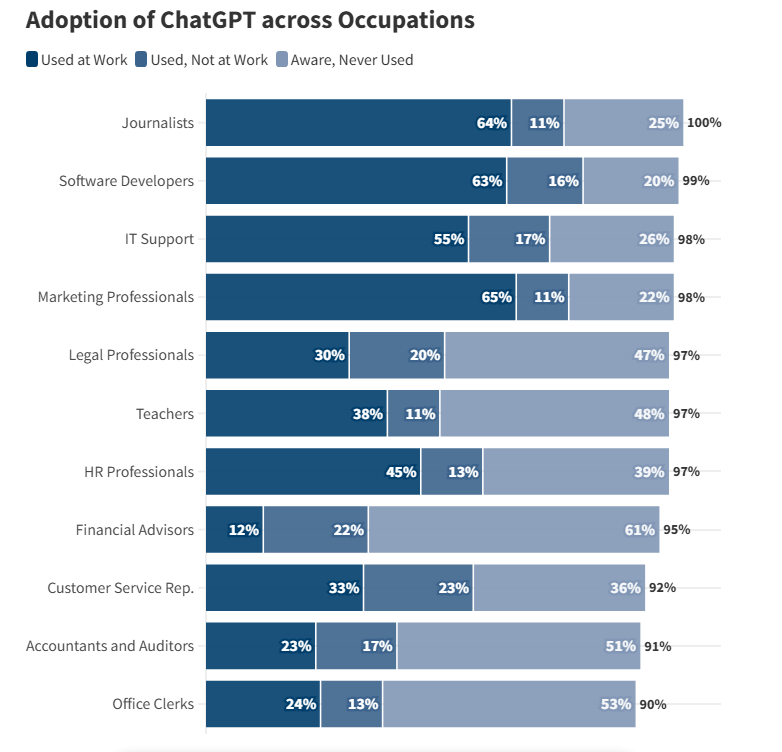
✅ Fact Check: Approximately 63% of software developers use ChatGPT specifically for work-related tasks (the third-highest among all surveyed professions).
If you use ChatGPT heavily for work, you know how much of a hassle it is to switch back and forth between your workspace (emails, calendars, chats, PM tools).
By connecting ChatGPT with your favorite apps, you can access and manage work directly from this interface. You can draft email replies, find open meeting slots in real-time, and update task statuses in your PM tools through the chat.
🎥 Check out this video to see how tab switching between ChatGPT and work tools is killing your team’s productivity.👇🏼
📚 Read More: Best Workflow Automation Tool Worth a Try
Using OpenAI plugins, you can pull content briefs stored in your Google Drive into ChatGPT. Then, instruct the AI to analyze those files and generate drafts, social copy, or images that align with your requirements.
Similarly, you can use official third-party content creation apps like Canva to go from a rough brief to a finished design without ever switching tabs.
📚 Read More: How to Build An AI Agent: Your Complete Guide
✅ Fact Check: As per a survey conducted by Exploding Topics, writing-related tasks account for 40% of all ChatGPT usage. In fact, most writing queries are focused on modifying or editing existing text rather than generating entirely new content from scratch.
AI technologies are only as powerful as your ability to leverage them.
For ChatGPT users, this means installing the right plugins to combine chat assistance with AI-powered action.
This offers multiple benefits:
📮 ClickUp Insight: Half of our respondents struggle with AI adoption; 23% just don’t know where to start, while 27% need more training to do anything advanced.
ClickUp solves this problem with a familiar chat interface that feels just like texting.
Teams can jump right in with simple questions and requests, then naturally discover more powerful automation features and workflows as they go, without the intimidating learning curve that holds so many people back.
Although ChatGPT plugins are sunset, you can still benefit from a similar functionality by using custom GPTs and official third-party apps inside ChatGPT.
Here is how to get started with both:
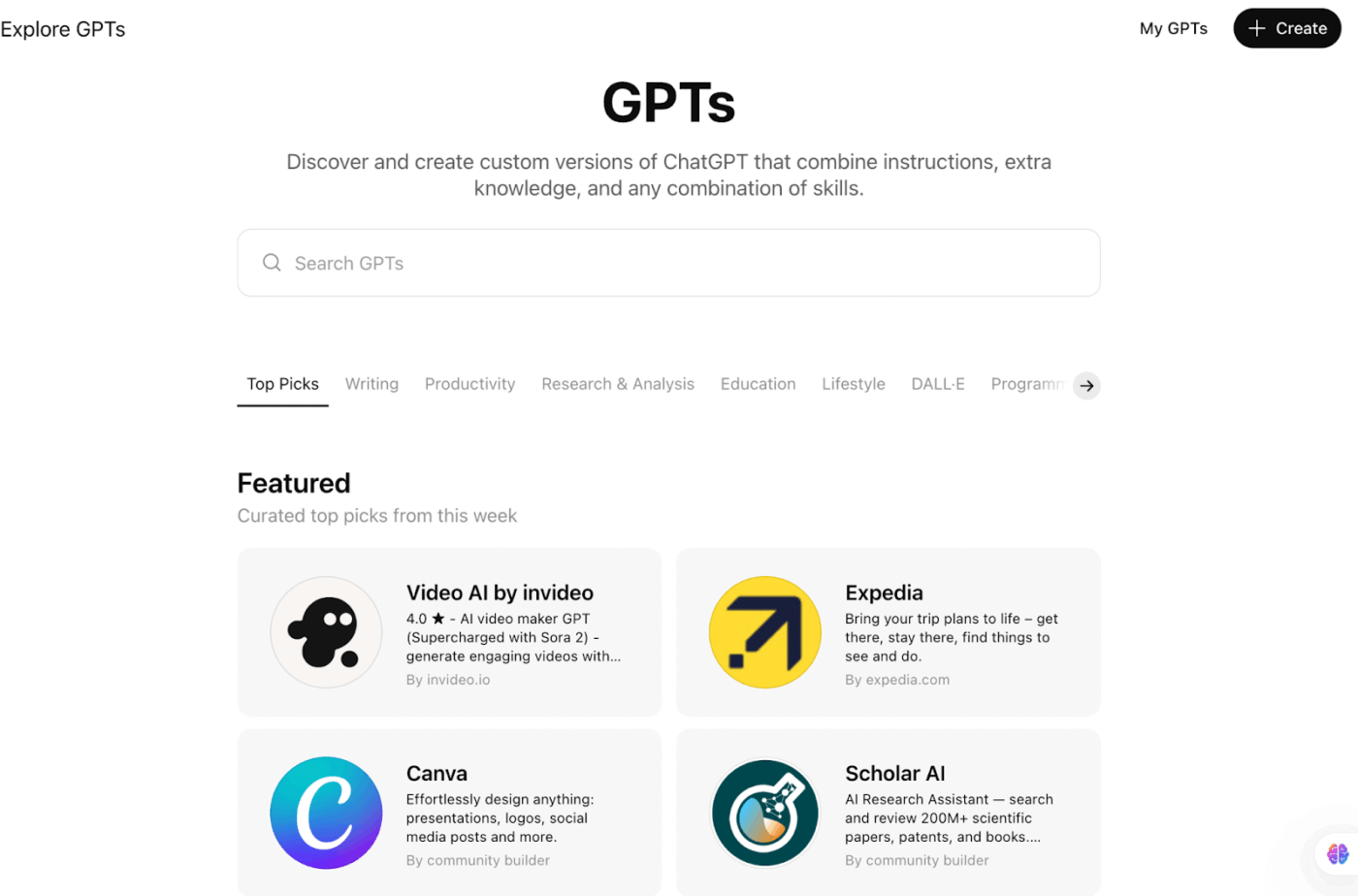
A custom GPT is a specialized version of ChatGPT designed for a specific task or use case. These are created by individual users, teams, or companies without using code.
While only paid users can create a custom GPT, anyone can use a publicly available one.
📌 Examples of popular custom GPTs:
Here, you can:
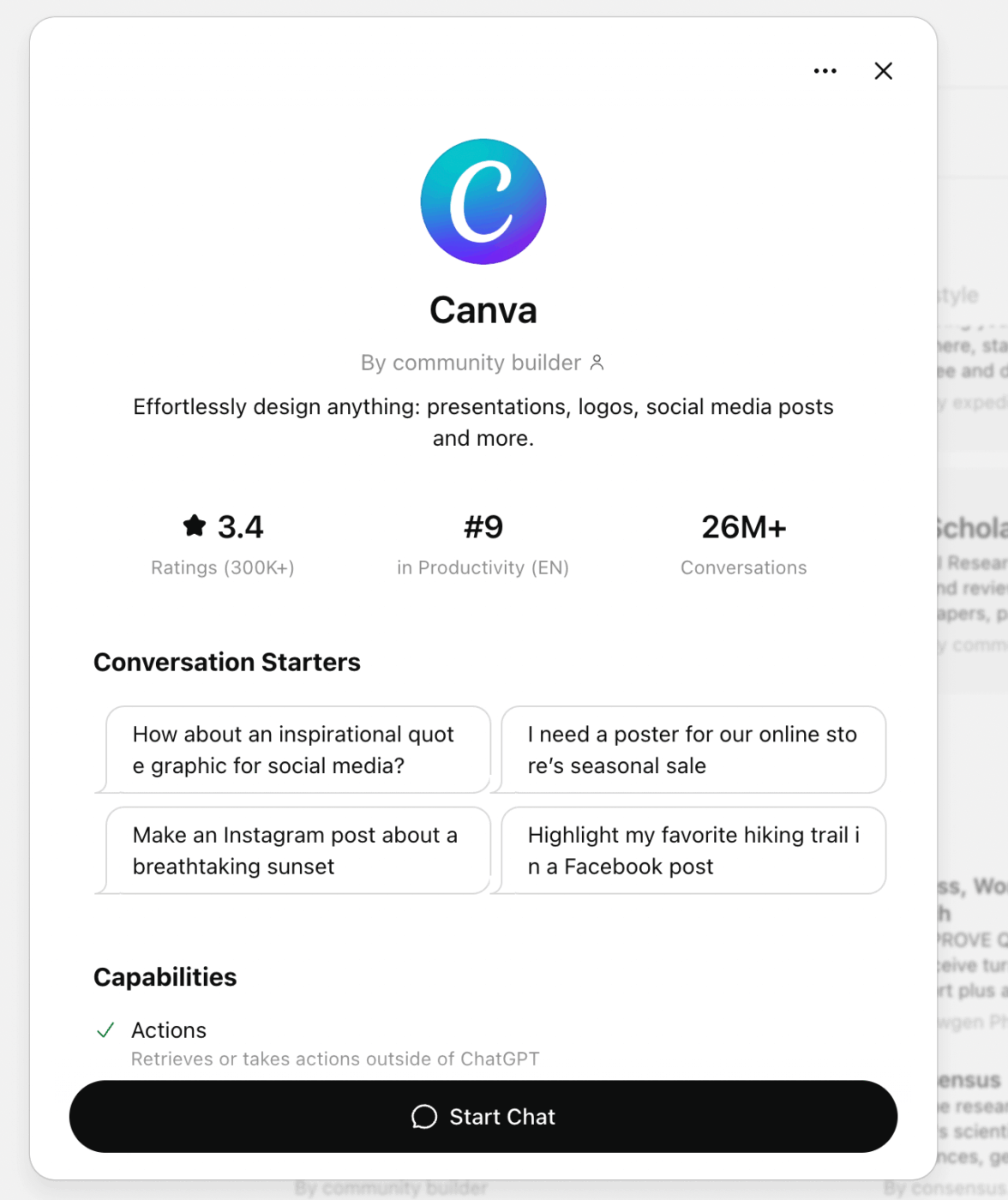
The right way to use ChatGPT plugins? Via Apps in ChatGPT.
These have replaced the legacy plugin system, offering a more stable and powerful experience.
To enable plugins or apps inside ChatGPT (as we call them today), follow the steps below:
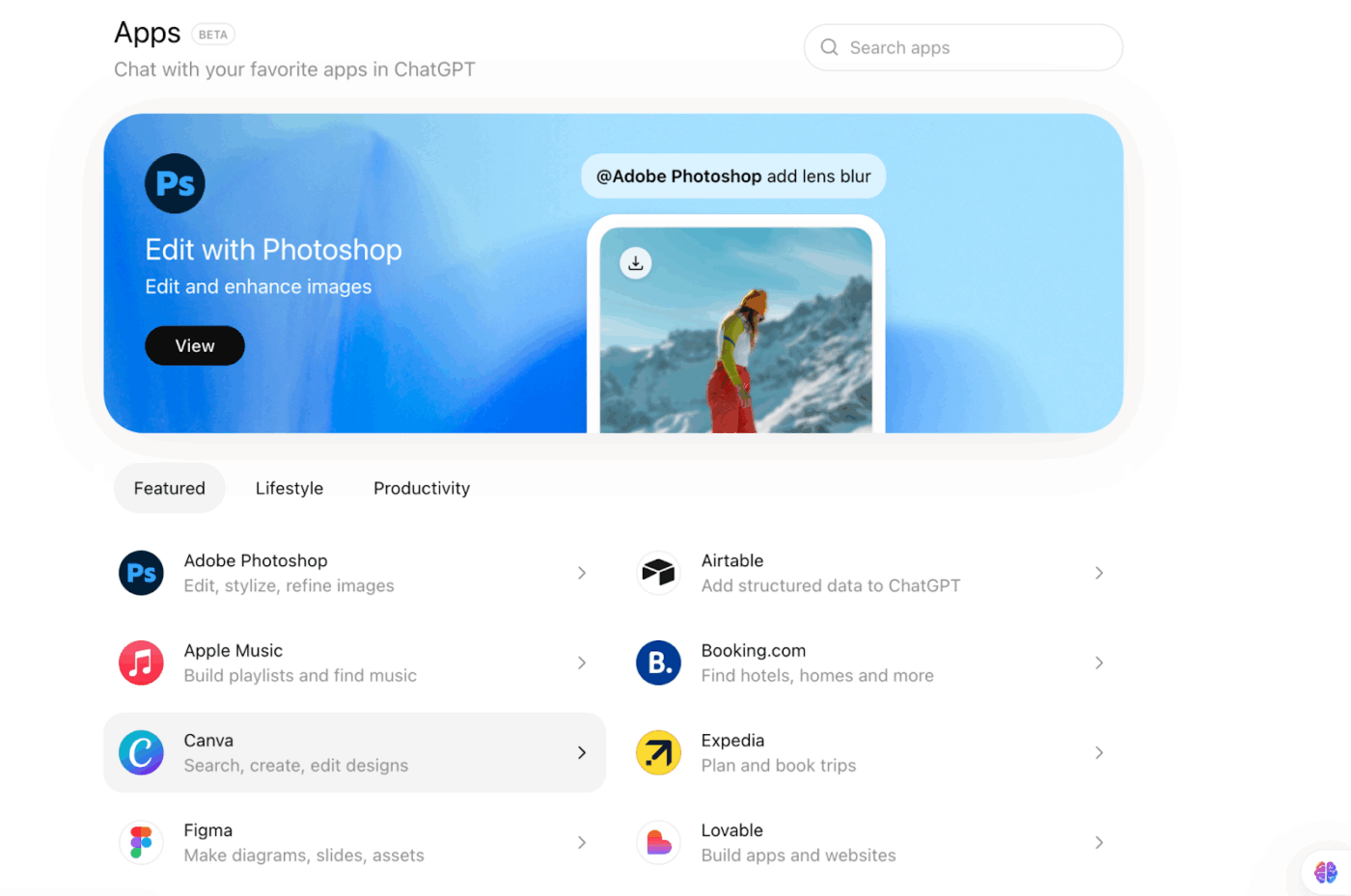
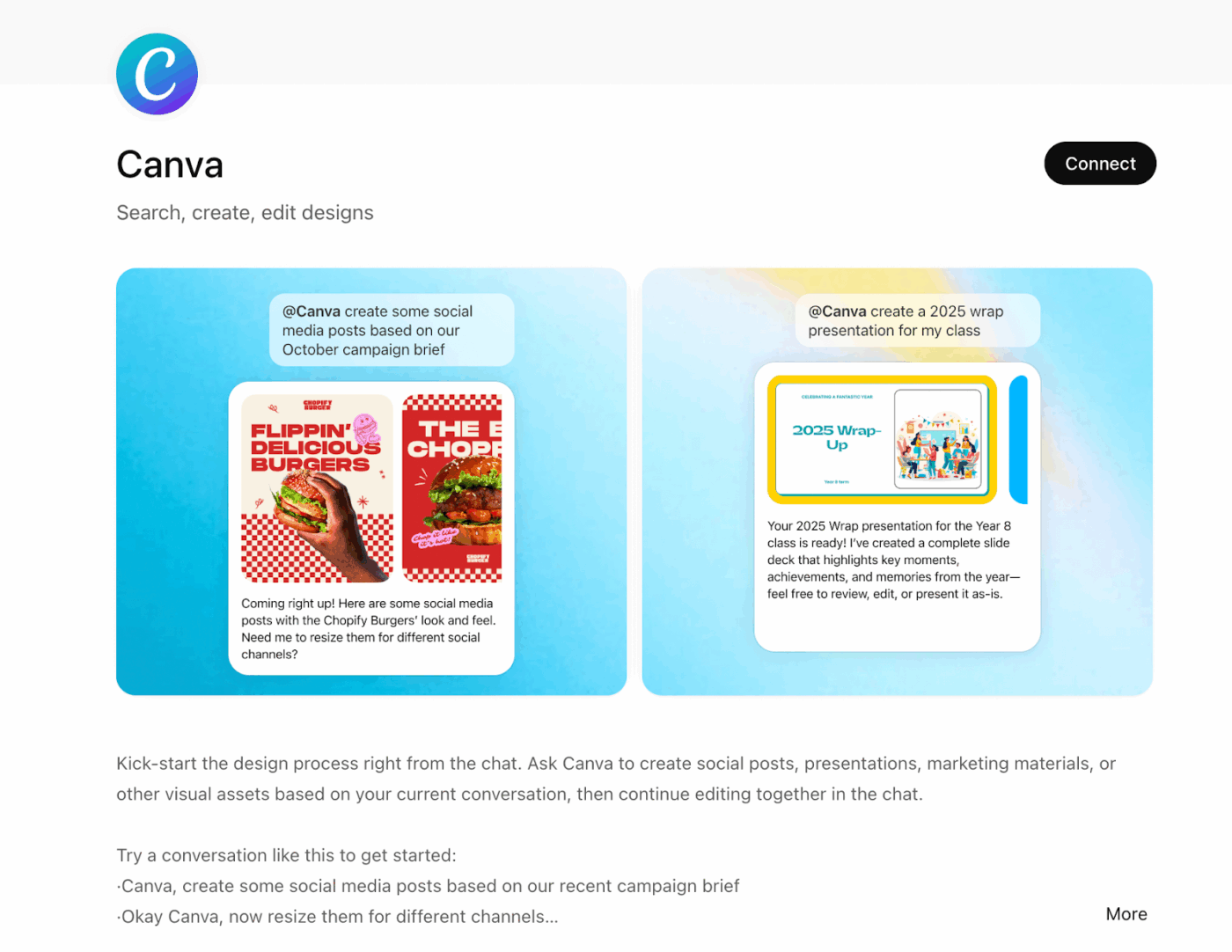
Here’s a quick look at the differences between custom GPTs and official third-party apps in ChatGPT: ⬇️
| Aspect | Custom GPTs | Official third-party apps |
| They are | Pre-configured versions of ChatGPT built for a specific task or role | Direct integrations between ChatGPT and external tools or services |
| Primary purpose | Specialized reasoning, workflows, or expertise within ChatGPT | Taking real actions inside external apps from ChatGPT |
| Who creates them | Individuals, teams, or companies (no code required) | Official partners approved and maintained by the tool provider |
| Setup effort | Instant to use if public; creation requires ChatGPT Plus or higher | One-time app connection with permission approvals |
| Access to live data | Limited to tools explicitly added by the creator | Native access to real-time data from the connected app |
| Ability to take action | Mostly advisory or logic-driven actions | Can create, edit, update, or fetch data directly in external tools |
| Context retention | Strong within the defined task or instruction set | Strong across your connected workspace data |
| Customization level | High control over instructions, tone, and behavior | Limited to what the app integration supports |
| Best for | Repetitive, role-based tasks like research, coding, or writing | Workflow execution like designing, scheduling, updating, or publishing |
| Examples | Research GPTs, coding assistants, brand-specific writing GPTs | Canva, data tools, productivity apps, design and video tools |
| Ideal user | Power users who want tailored AI behavior | Teams that want ChatGPT to do work, not just suggest |
🧠 Fun Fact: In a groundbreaking study, GPT-4.5 officially passed the Turing Test, a feat that has been the “Holy Grail” of AI since 1950. In blind tests, participants were unable to distinguish GPT-4 from a real person 73% of the time.
📚 Read More: Top Project Management Software in Australia
If you already have a specific tool in mind to plug into ChatGPT (like an AI task manager), awesome.
But if you’re new to all this and have no clue where to start, don’t sweat it.
We’ve picked out five popular plugins in ChatGPT that will make your daily grind a lot faster and less stressful
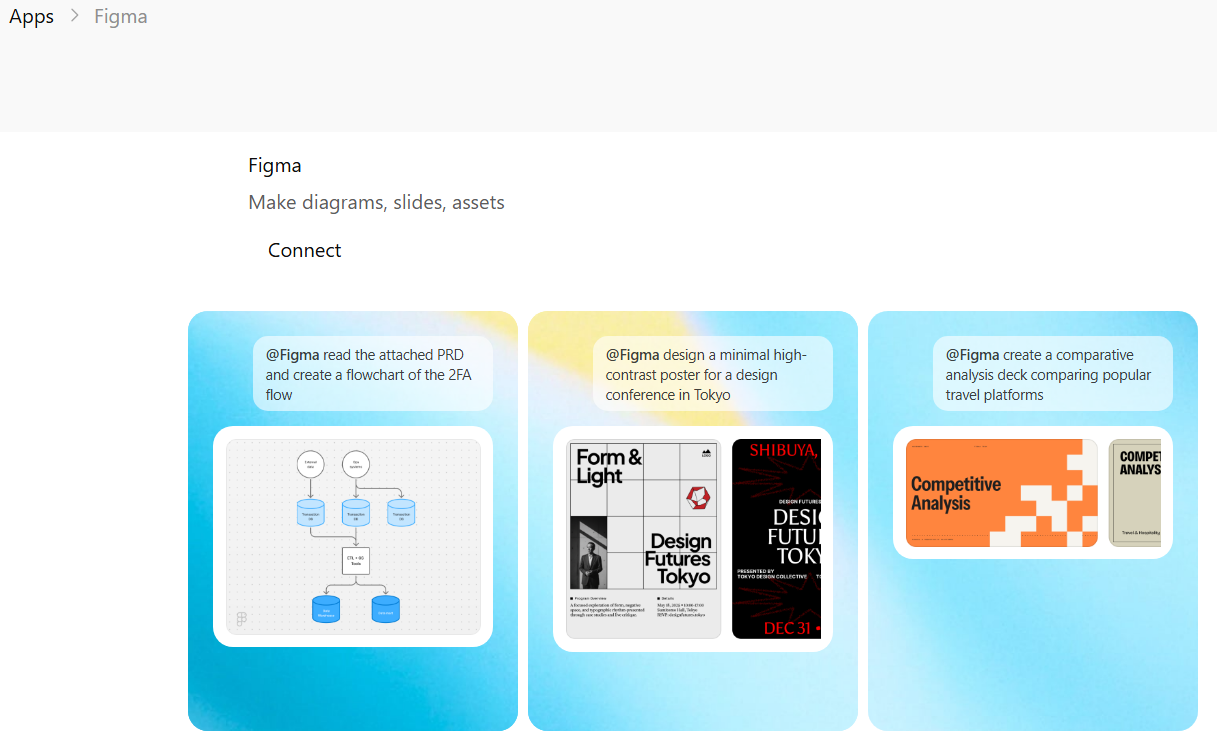
Most creators use ChatGPT to draft rough ideas or develop creative concepts. The conversational AI interface makes it easy to suggest corrections or enhancements.
But when you integrate the Figma App, ChatGPT leverages Figma’s design engine to bring your ideas to life. It generates images, diagrams, presentation slides, sitemaps, social media posts, illustrations, etc., within seconds.
Once done, you can move the file over to Figma for final pixel-perfect edits.
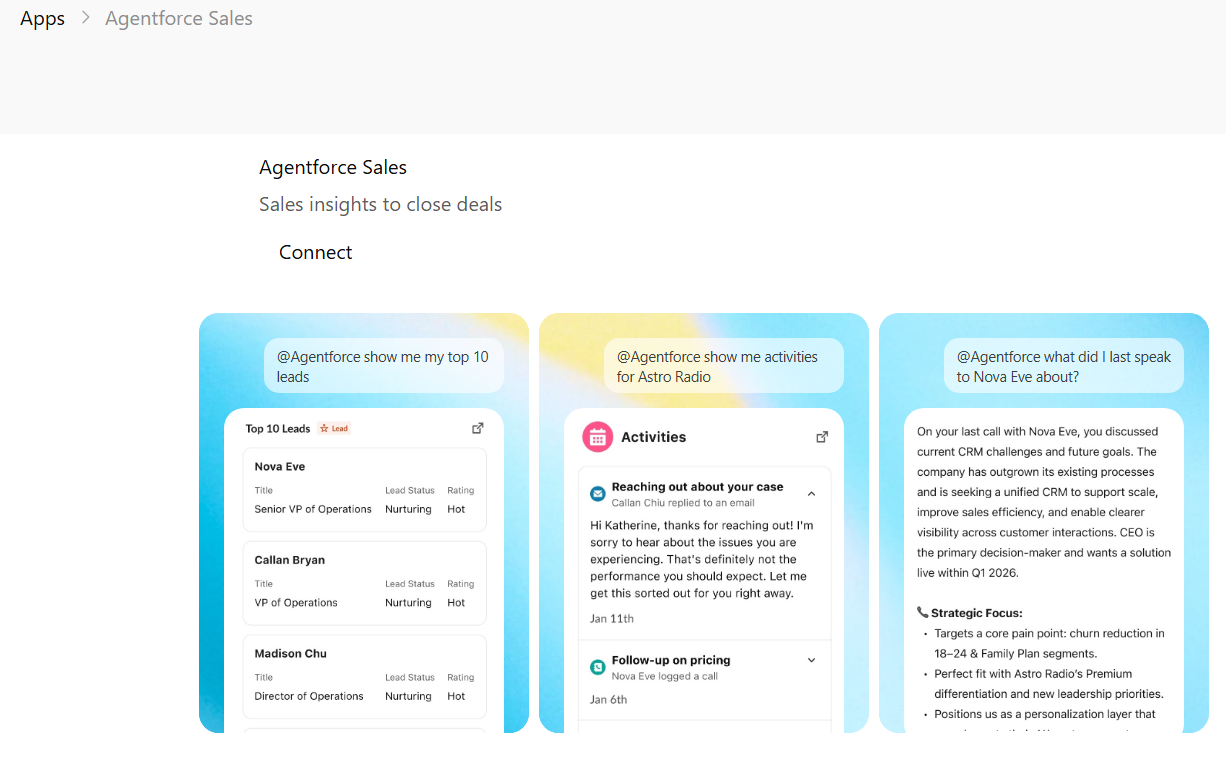
Manually digging through CRMs is time-consuming. Especially when your sales rep is on a call and needs data in seconds.
The ChatGPT + Salesforce integration solves this. Your team can “chat” with the CRM to pull lists of uncontacted leads or summarize a specific account’s history before a high-stakes meeting.
It’s also perfect for closing loops: you can simply type, “Update this opportunity to Closed-Won,” directly in the chat.
💟 Bonus: Best AI Apps to Optimize Workflows
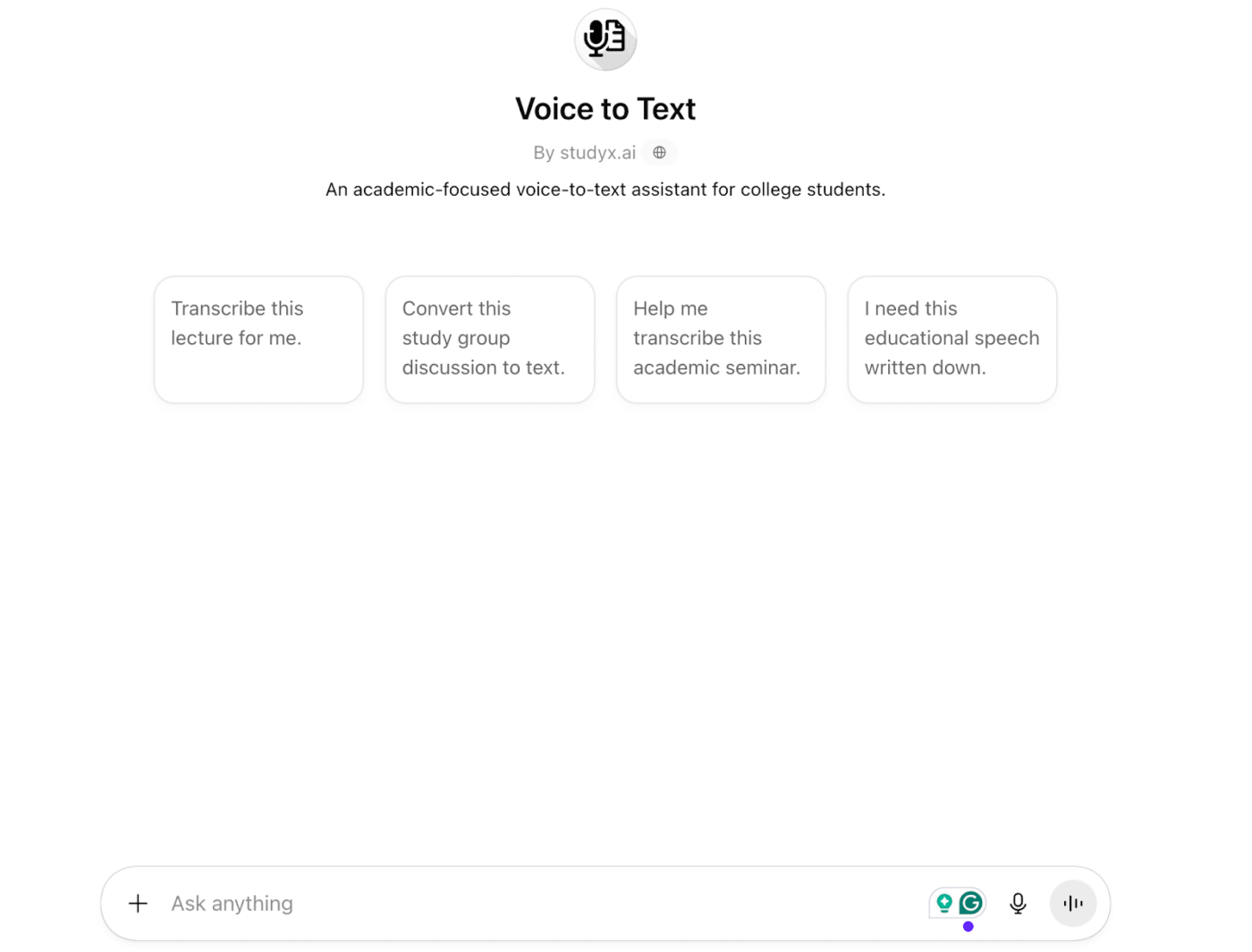
The custom GPT Voice-to-Text is configured to receive audio input (voice recordings or live speech), convert it into text, and then process, summarize, analyze, or act on that text within the same chat experience.
The best part is that it turns speech into usable text with context-aware outputs.
In other words, after a 15-minute meeting call, the voice-to-text GPT turns the same recording into a short meeting summary and gives a list of decisions made. You can even prompt it to generate action items with task owners and draft a follow-up email.
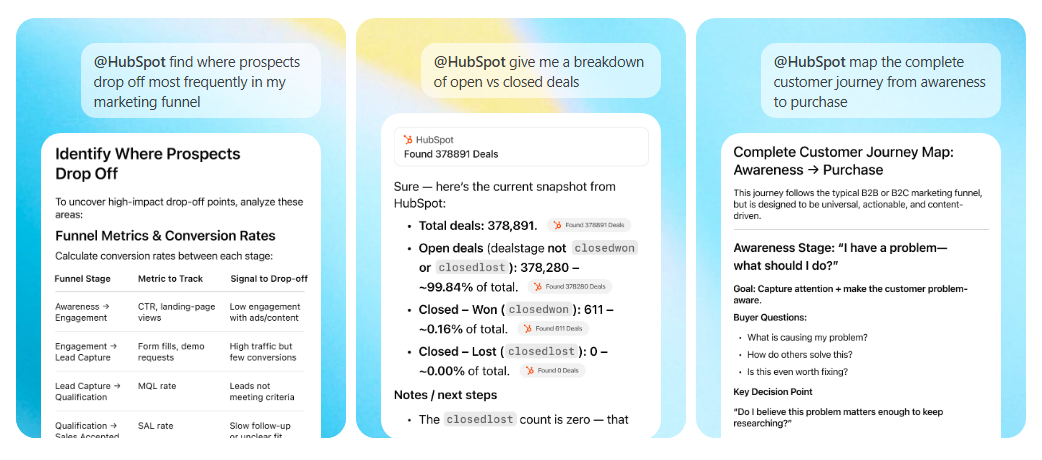
Still clicking through HubSpot’s tabs to find a lead’s status? That’s the old way of working.
Instead, just ask ChatGPT to pull up recent client interactions, summarize support tickets, or identify which marketing campaigns drive the most revenue.
You can also update deal stages inside HubSpot, generate reports based on real-time data analysis, or draft personalized emails directly using the ChatGPT interface.
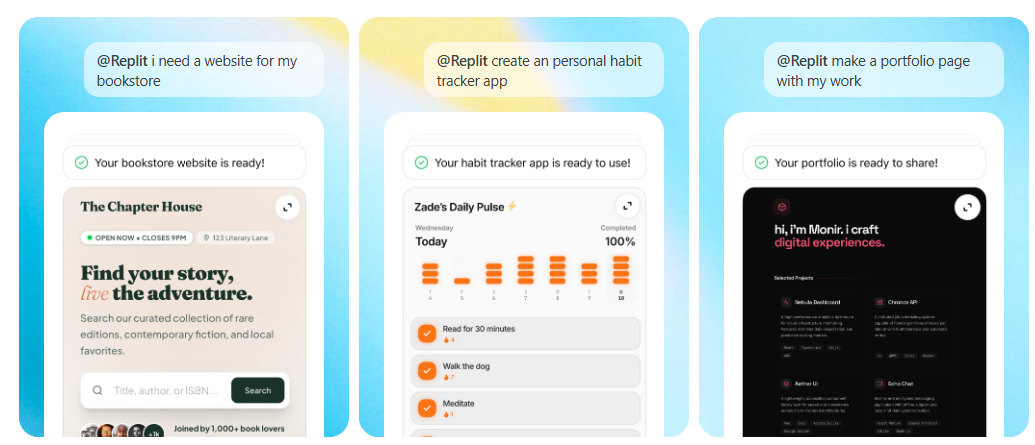
For web and app developers, ChatGPT is a great brainstorming partner. But the Replit integration turns it into a co-developer.
With the Replit x ChatGPT integration, you can now create entire websites, software, and apps inside ChatGPT. It’s an excellent solution for rapid prototyping.
Describe your idea (e.g., “Build a dashboard to track my team’s weekly goals”) and the Replit Agent kicks in to scaffold the project, write the code, and set up the live dashboard for you.
You can test, refine, and deploy your app directly through the plugin.
👀 Did You Know? In the 1940s, a pioneer named W. Grey Walter created the Tortoises. These were the world’s first electronic autonomous robots. They were so biological in their behavior that they would “hunger” for electricity and seek out their charging hutch when their power was low.
Here are some simple, practical tips to use custom GPTs and ChatGPT apps effectively:
👀 Did You Know? In a controlled study comparing humor, jokes generated by ChatGPT 3.5 were rated funnier than jokes created by human participants across multiple comedic tasks—and ChatGPT outperformed most humans in how amusing its responses were perceived to be.
The OG ChatGPT plugins were only available for Plus subscribers. Thankfully, anyone can use custom GPTs and third-party apps. (Yayy.)
But these aren’t perfect either. The limitations include 👇
ChatGPT plugins consolidate work to some extent, but they don’t reduce tool sprawl, or the number of tools you manage.
You still pay for and maintain your original accounts. In fact, the higher the number of GPTs pinned to your sidebar, the more time you spend trying to manage stitching everything together (aka work sprawl).
But the biggest hurdle is that ChatGPT can run only one major app action at a time.
📌 Example: You can’t ask @Canva to create a design and move it to Google Drive in one go. Instead, you must manually copy and paste the design text and image into ChatGPT. Then, call @GoogleDrive to create a doc and store that asset.
Also, most of these apps only give you a lite version of the real software.
So, you can check a lead’s status in HubSpot through ChatGPT. But if you need to build a complex workflow automation, you’ll have to leave ChatGPT and log in to the full HubSpot site.
📚 Read More: How to Optimize Project Management with Automation
When you connect an app like HubSpot or Canva, you grant ChatGPT access to that app’s data. While OpenAI has security measures in place, it might not provide the granular security controls that data security regulations across industries require.
And since custom GPTs are trained on diverse datasets, there’s always a possibility that your internal company info might be used as training data.
Public custom GPTs are created by different people with varying levels of expertise. Two GPTs with similar descriptions can produce wildly different results. There’s no guarantee of depth, accuracy, or rigor unless you test them yourself.
Custom GPTs do not share knowledge with one another. If you spend an hour teaching a “Marketing Strategist GPT” about your brand, that context is lost when you switch to a “Logo Creator GPT.”
Because these agents are isolated, you’ll often find yourself repeating context or re-uploading the same files.
The ChatGPT App Store is still in its early stages (it’s a beta feature). While major players like Salesforce are present, you’ll find that smaller tools and specialized software haven’t launched official apps yet.
Even on a paid Plus or Team plan, access to the most advanced models is not unlimited. If you use a resource-heavy custom GPT for several hours, you hit a message cap.
Once that happens, the AI downgrades to a mini model that’s not smart enough to run complex tools or follow the instructions your specialized GPT requires.
🧠 Fun Fact: A Canadian AI platform called BlueDot officially spotted the COVID-19 outbreak before the World Health Organization (WHO). On December 31, 2019, the AI identified a cluster of “unusual pneumonia” cases in Wuhan by analyzing airline ticketing data and news reports, predicting the virus’s path to Tokyo and Bangkok days before official warnings were issued.
If you use five different apps for your work every day, adding their respective ChatGPT plugins doesn’t fix the chaos.
Why? Because no two ChatGPT plugins sync with each other.
Your work is still broken. Your automation is limited. And you’re still manually moving information between tools. How do you solve it all without losing simplicity and functionality?
Enter ClickUp—the world’s first Converged AI workspace.
It combines AI knowledge management, communication, task execution, and project management into a single place. Let’s see how ClickUp’s built-in contextual AI replaces popular ChatGPT plugins and unifies work ⭐
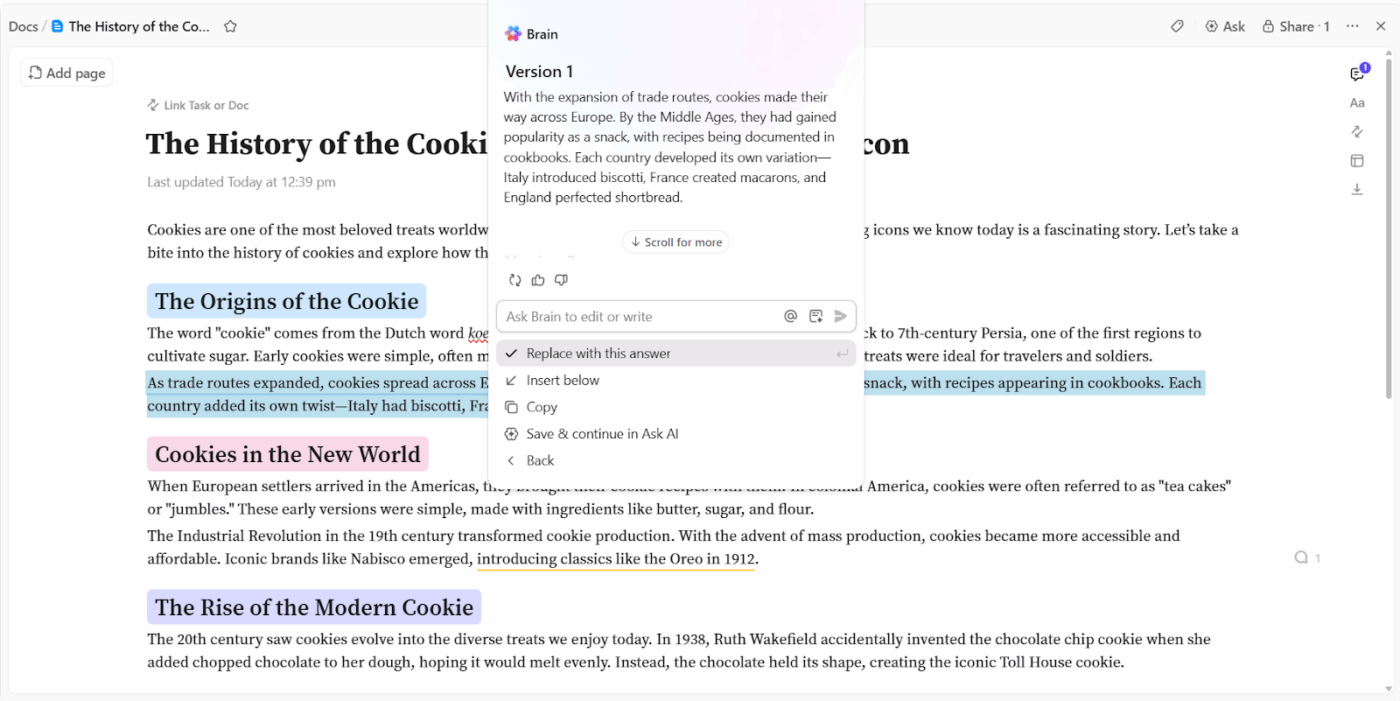
ClickUp Brain, the platform’s native AI, forms the core intelligence layer for your entire workspace. It powers multiple AI tools in ClickUp, so you can do almost everything with just one contextual AI.
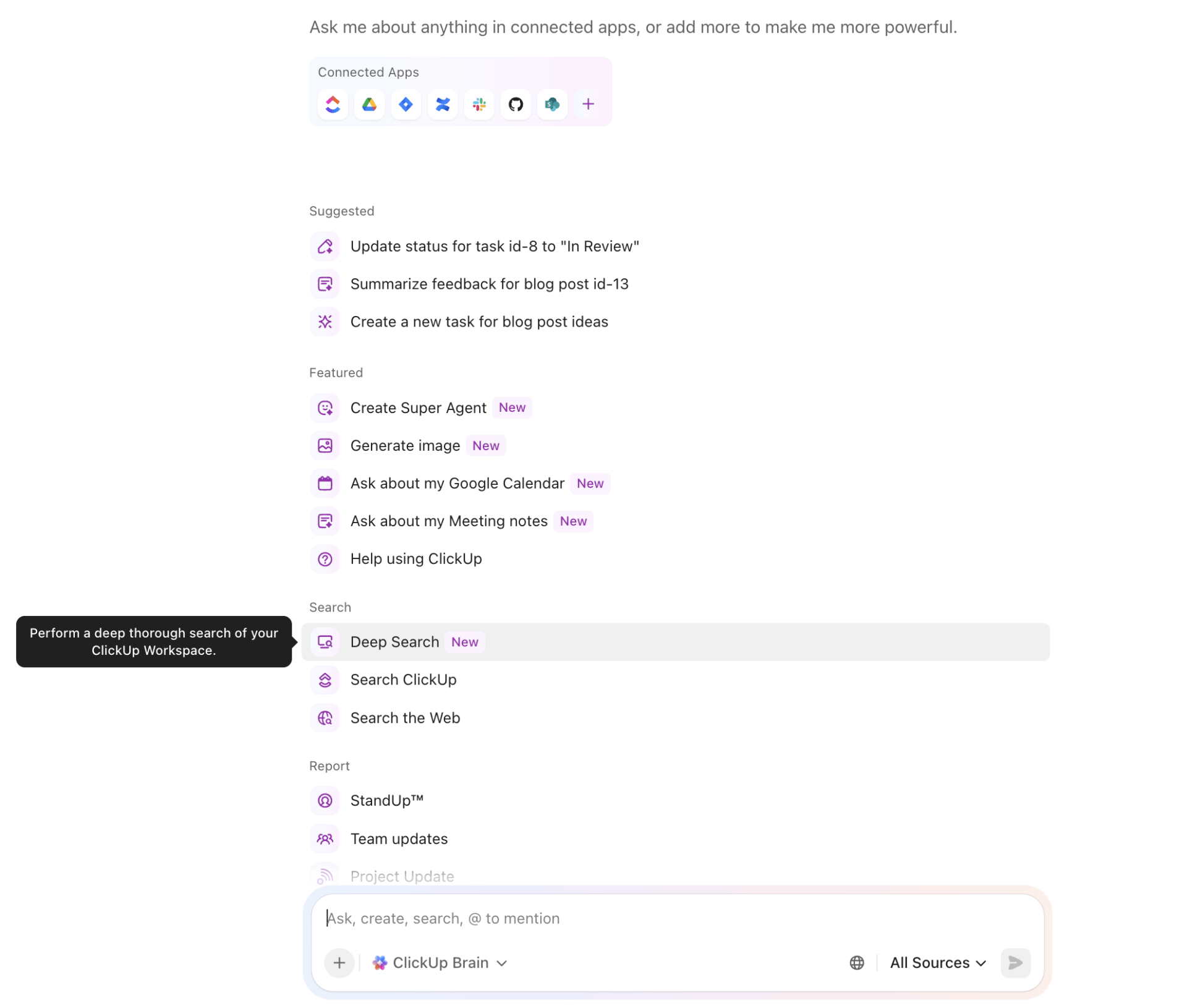
This AI assistant understands your tasks, documents, conversations, owners, deadlines, and priorities in real time. That’s why you don’t need separate GPTs for writing, summarizing, or analysis. The same AI works everywhere.
With ClickUp Brain, you can:
One of the biggest reasons teams rely on ChatGPT plugins is to find things. ClickUp replaces that need with Enterprise Search.
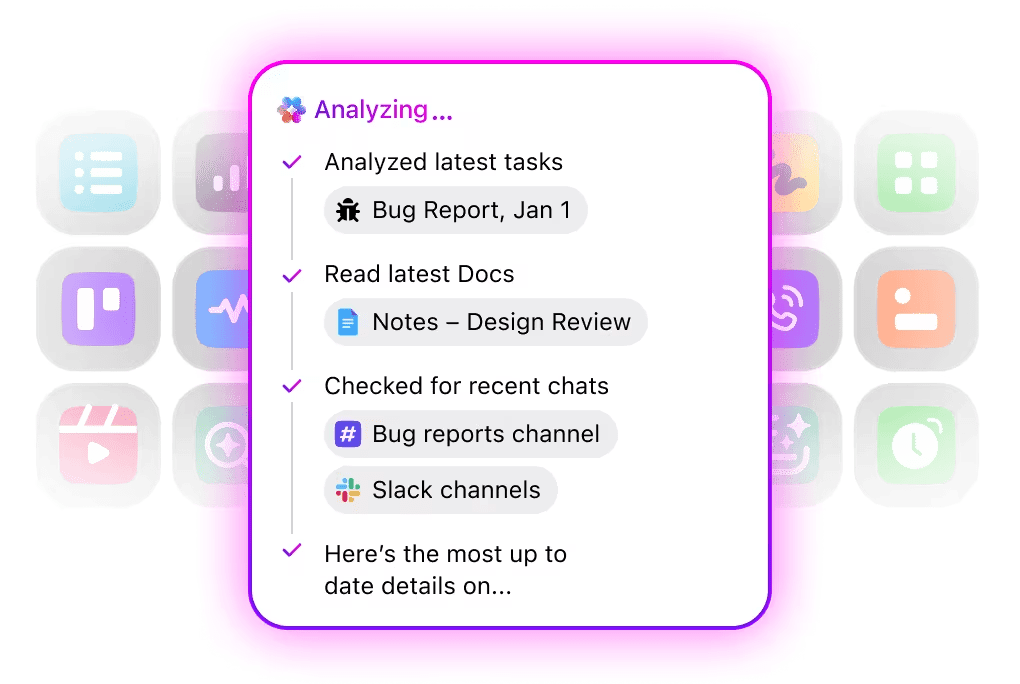
Ask natural language questions, and it sifts through external apps, ClickUp assets (tasks, Docs, Whiteboards, Dashboards, Chat, Spaces, Folders, Lists, and attachments), and third-party integration objects (documents, spreadsheets, slides, PDFs) to locate the relevant information.
ClickUp’s Talk to Text capability, powered by BrainGPT, the standalone desktop app, goes beyond typed prompts. Speak ideas, meeting notes, or task updates and instantly convert them into structured text, tasks, or Docs. BrainGPT can then refine, summarize, or turn that input into actionable next steps.
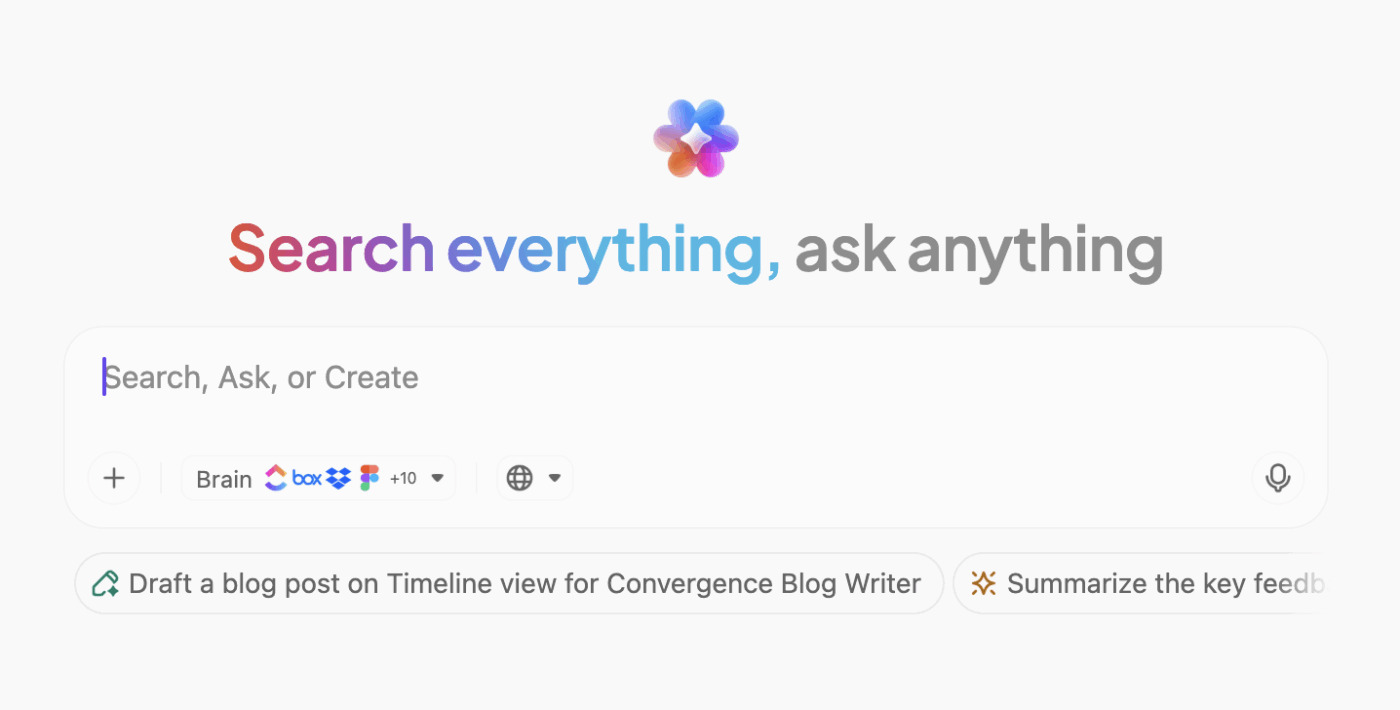
🎥: For a quick overview of how ChatGPT works and why ClickUp Brain is a step-up, watch this video.
ClickUp Brain supports multiple underlying AI models within a single workspace experience. The Brain acts as an orchestration layer, routing requests to different models while enforcing ClickUp’s permissions, security settings, and AI governance controls.
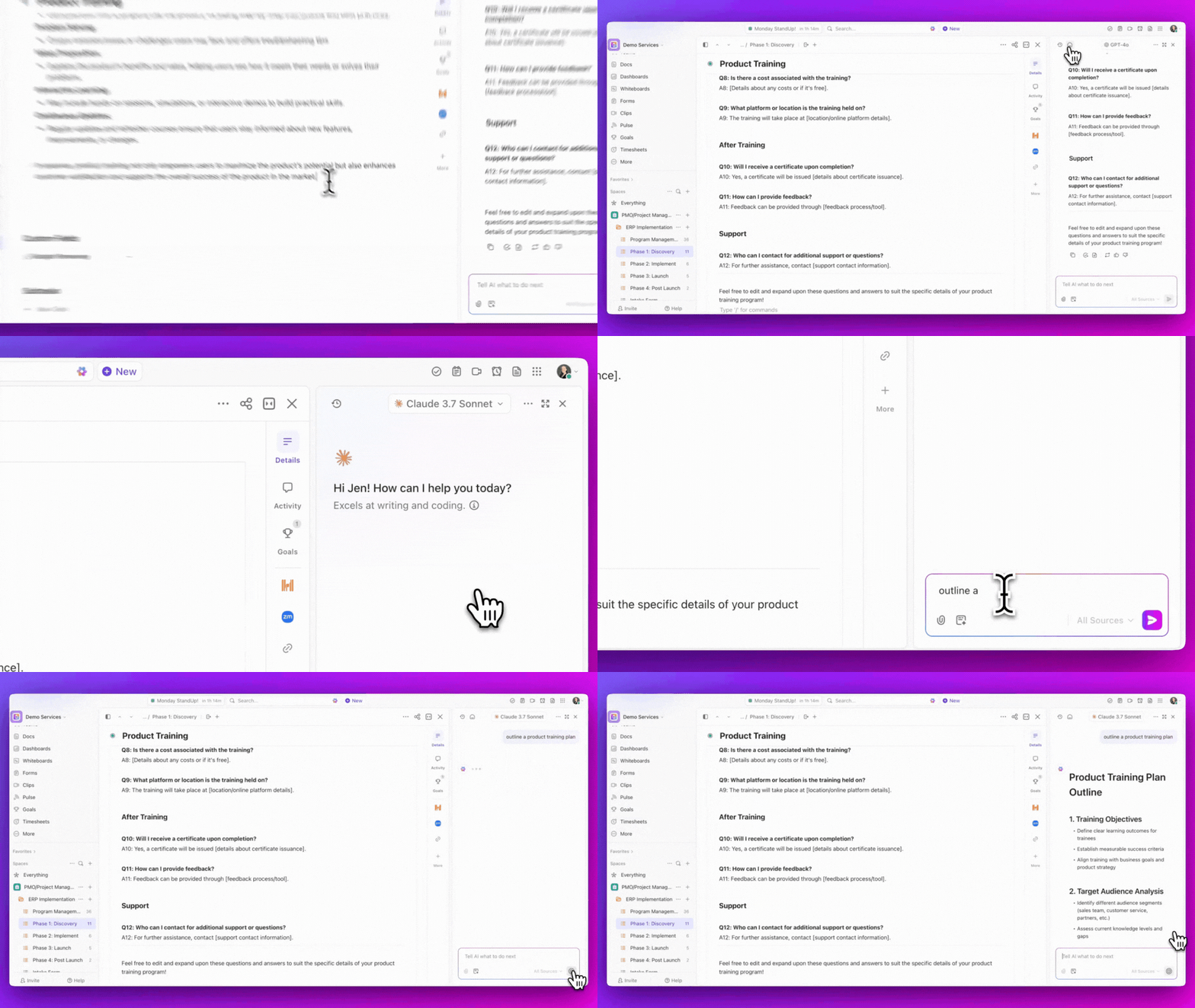
AI access is abstracted through Brain, meaning users interact with AI from tasks, Docs, comments, and other ClickUp surfaces without leaving the platform or managing separate AI subscriptions. Depending on the feature and surface, Brain may automatically select a model or allow users to choose one, while controlling what workspace content, if any, is passed into the prompt.
This design lets teams benefit from different model strengths without fragmenting workflows or exposing workspace data directly to external AI tools, while keeping AI usage centralized, auditable, and consistent with ClickUp’s data boundaries.
📌 Example: ChatGPT for daily-to-day execution work. Claude for long-form analysis and synthesis. Gemini for information-heavy and cross-referenced tasks.
With ClickUp AI Notetaker, your talk points don’t drop off mid-meeting. The conversation is captured as it unfolds, turning spoken updates, decisions, and next steps into structured notes inside ClickUp.
ClickUp Brain steps in next. It reads the meeting in context, understands what was decided, what needs to happen, and who’s involved. Action items don’t stay buried in paragraphs. They surface as real work.
From there, execution begins immediately. Tasks are created, owners are clear, deadlines exist, and every task links back to the exact moment it was discussed. If someone asks why a decision was made, the trail is already there.
Meetings then become the front door to execution, with Brain quietly carrying context forward so teams don’t have to.
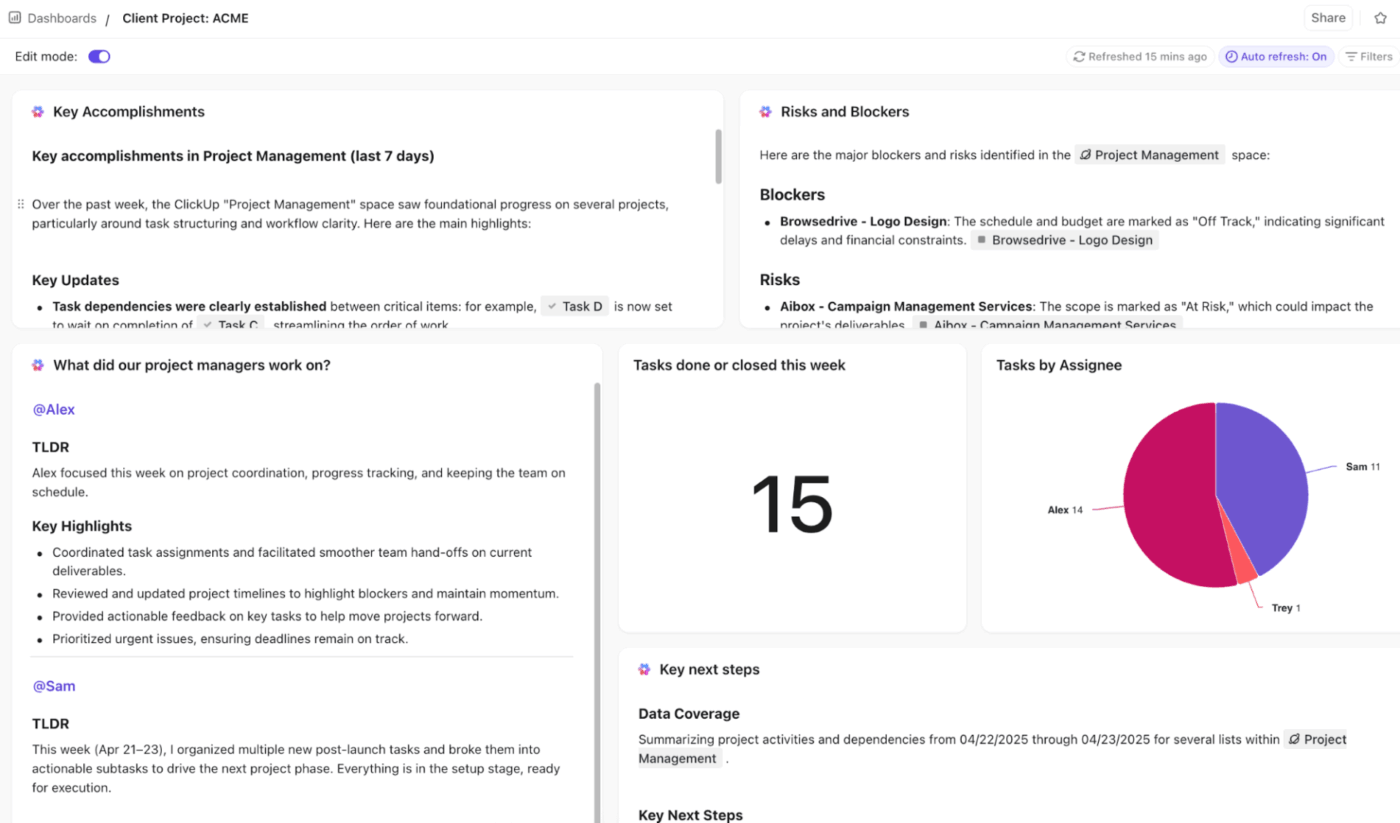
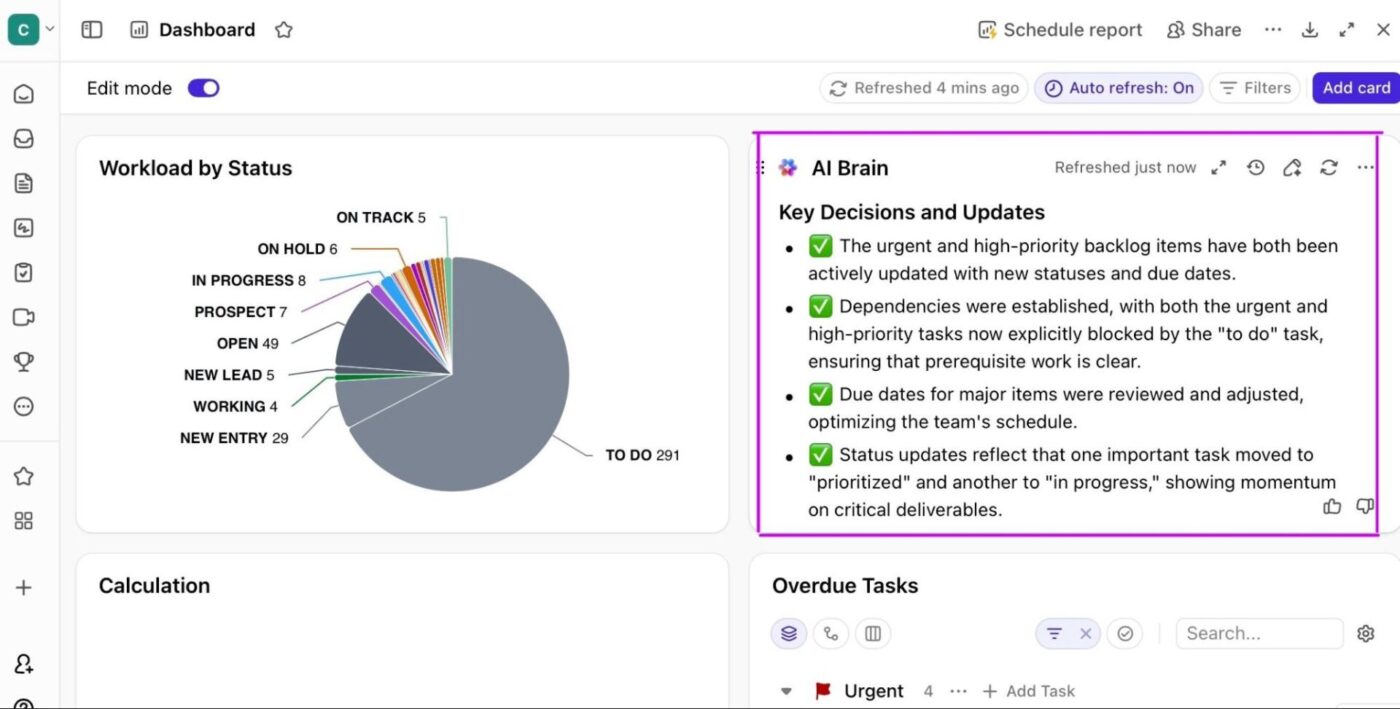
ClickUp turns static dashboard data into interactive insights using AI Cards. For example, place an executive summary AI card to automatically provide at a glance insights tailored for the C-suite stakeholders.
🚀 ClickUp Advantage: ClickUp offers 1000+ native integrations for robust cross-platform support. Just select which tools you want for work, toggle them on, and connect them to your ClickUp Workspace in a whiff.
No need to hire a developer or change legacy code in your old system.
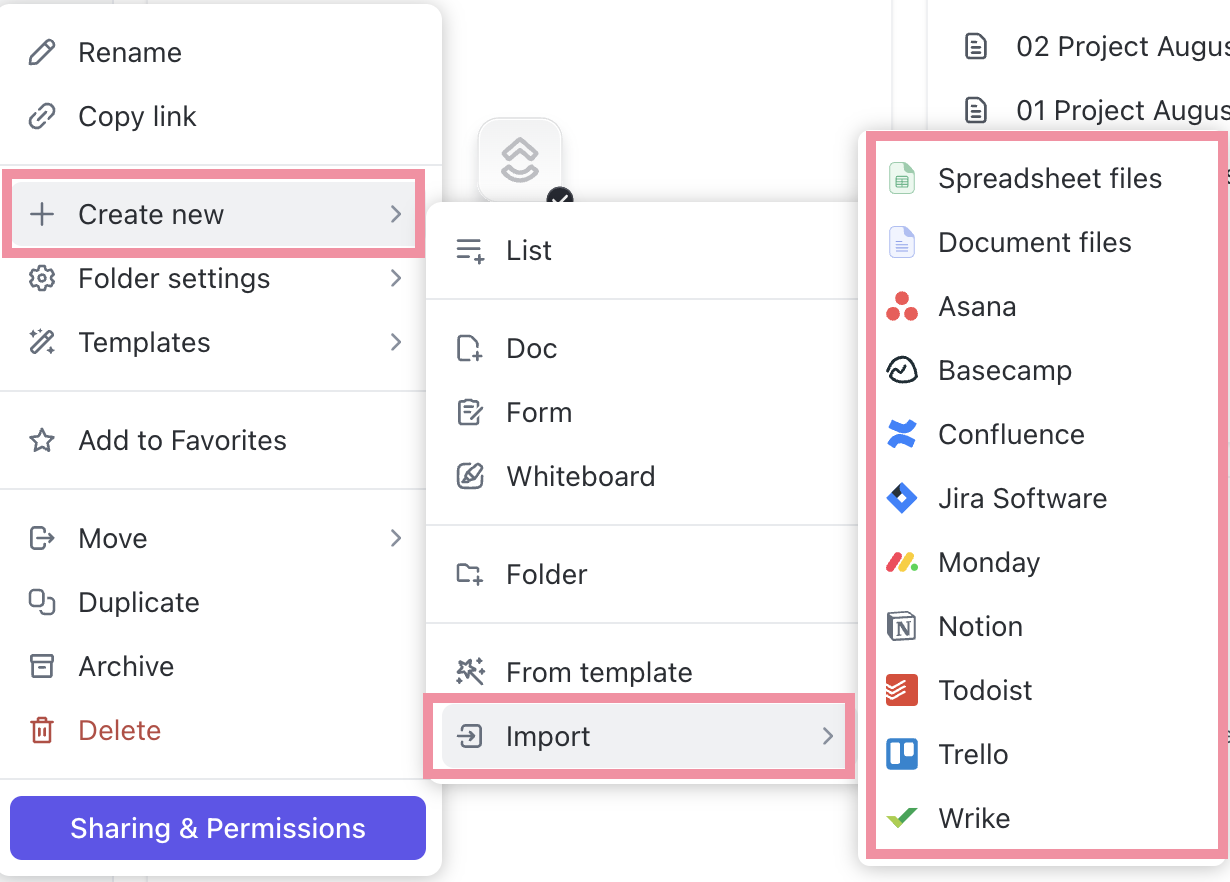
At best, ChatGPT integrations provide a one-and-done service. You tell the AI to create a task, and it does. You tell it to move a task, and it complies.
This automation is clumsy, incomplete, and still manual.
ClickUp Tasks are inherently dynamic and offer immense scope for no-code automation.
Start by breaking projects into tasks—add descriptions, due dates, assignees, QA checklists, custom statuses, subtasks, etc. Even better, tell Brain to create and assign them on your behalf. Think AI-powered task automation at your fingertips.
To stay on top of everything, visualize these Tasks using ClickUp Views, such as Lists, Kanban Boards, Calendars, Gantt Charts, and more.
Next, pair them with ClickUp Automations to trigger actions based on real changes, such as status updates, due date completions, or assignee changes.
For example, when a copywriter moves a task to “Complete,” update the status to “Pending Approval,” notify the editor, and set a new deadline for the review.
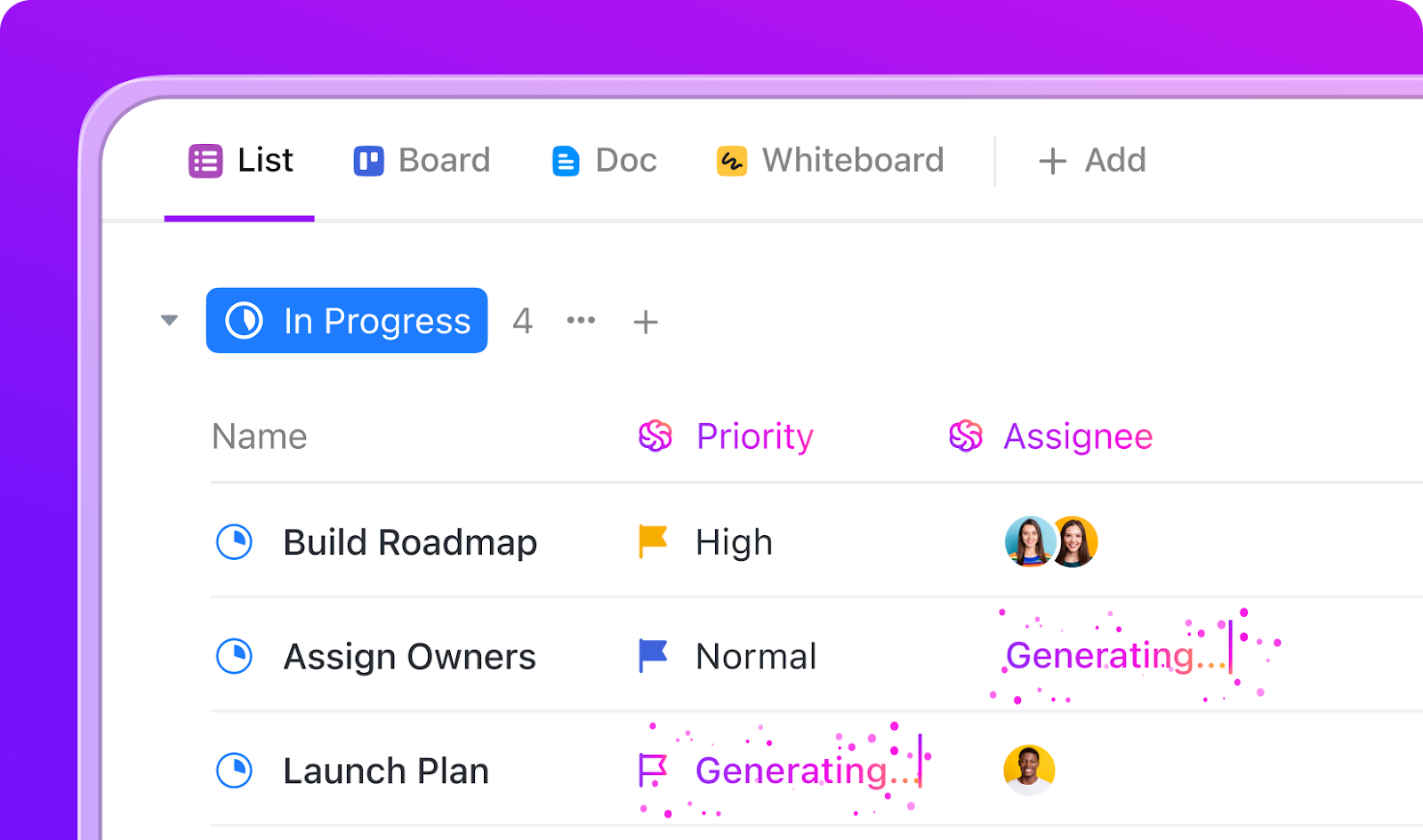
You can chain unlimited steps to automate entire workflows:
📚 Read More: How to Build an AI Agentic Workflow
🚀 ClickUp Advantage: While no-code automations react to triggers, ClickUp Super Agents proactively monitor your workspace and take action based on context, logic, and intent.
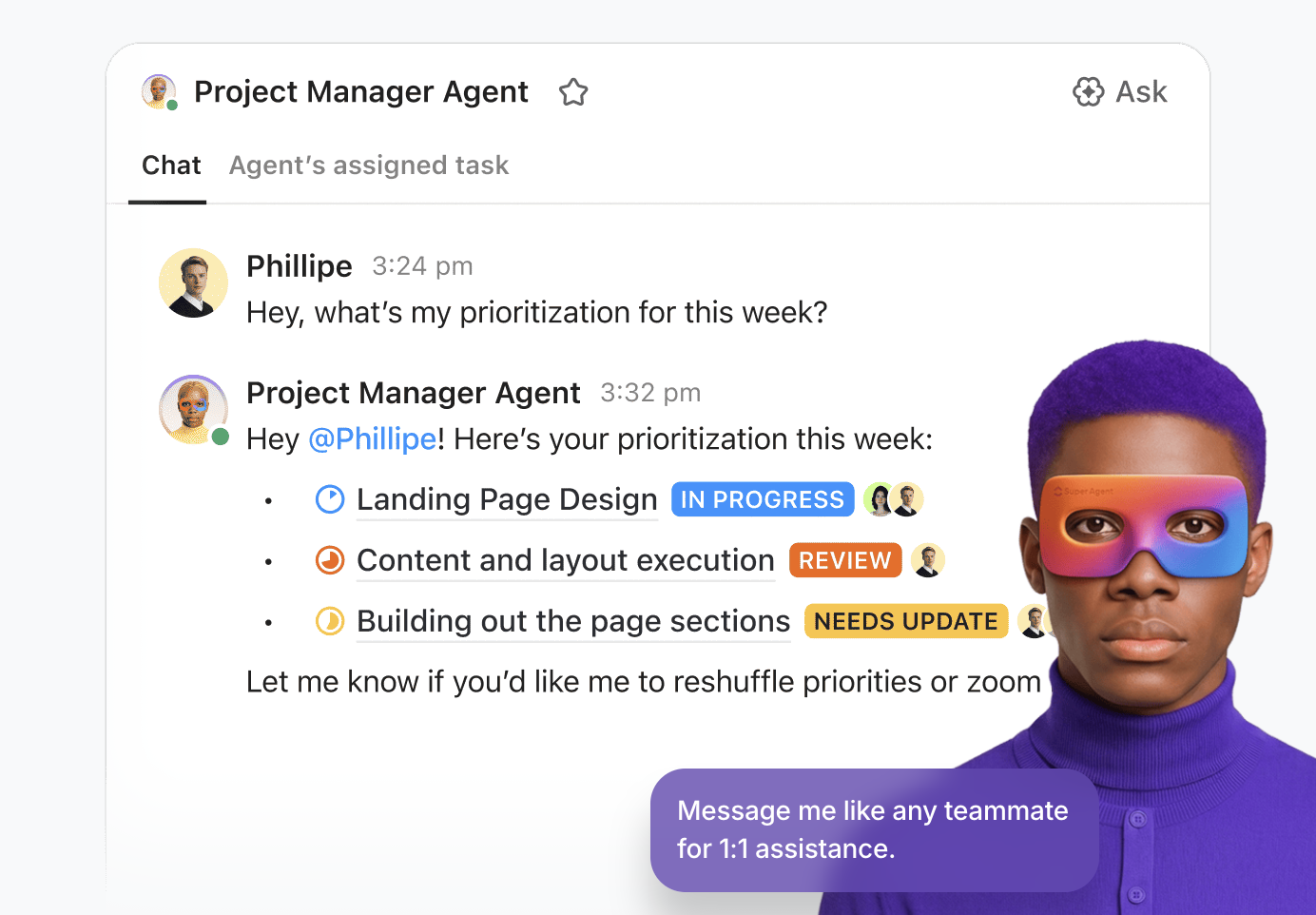
Think of them as always-on AI teammates that:
📌 Example of a Super Agent at work: It scans new tasks added to a “Blogs for Assigning” List, evaluates each task’s requirements, checks writer availability and expertise, and auto-assigns the work—no rules or manual triage needed.
To learn how to build an AI agent, watch this video:
📚 Read More: Best AI Agent Builders to Automate Workflows
ChatGPT plugins speed up work, no doubt. But if you work in a team, you know it’s virtually impossible to collaborate in real-time within a chat interface.
You can’t co-edit assets. There’s no room for group communication. Even though the reports are generated from real-time data, they are static.
ClickUp replaces all of that with shared communication, collaboration, and built-in analytics support. Here’s how:
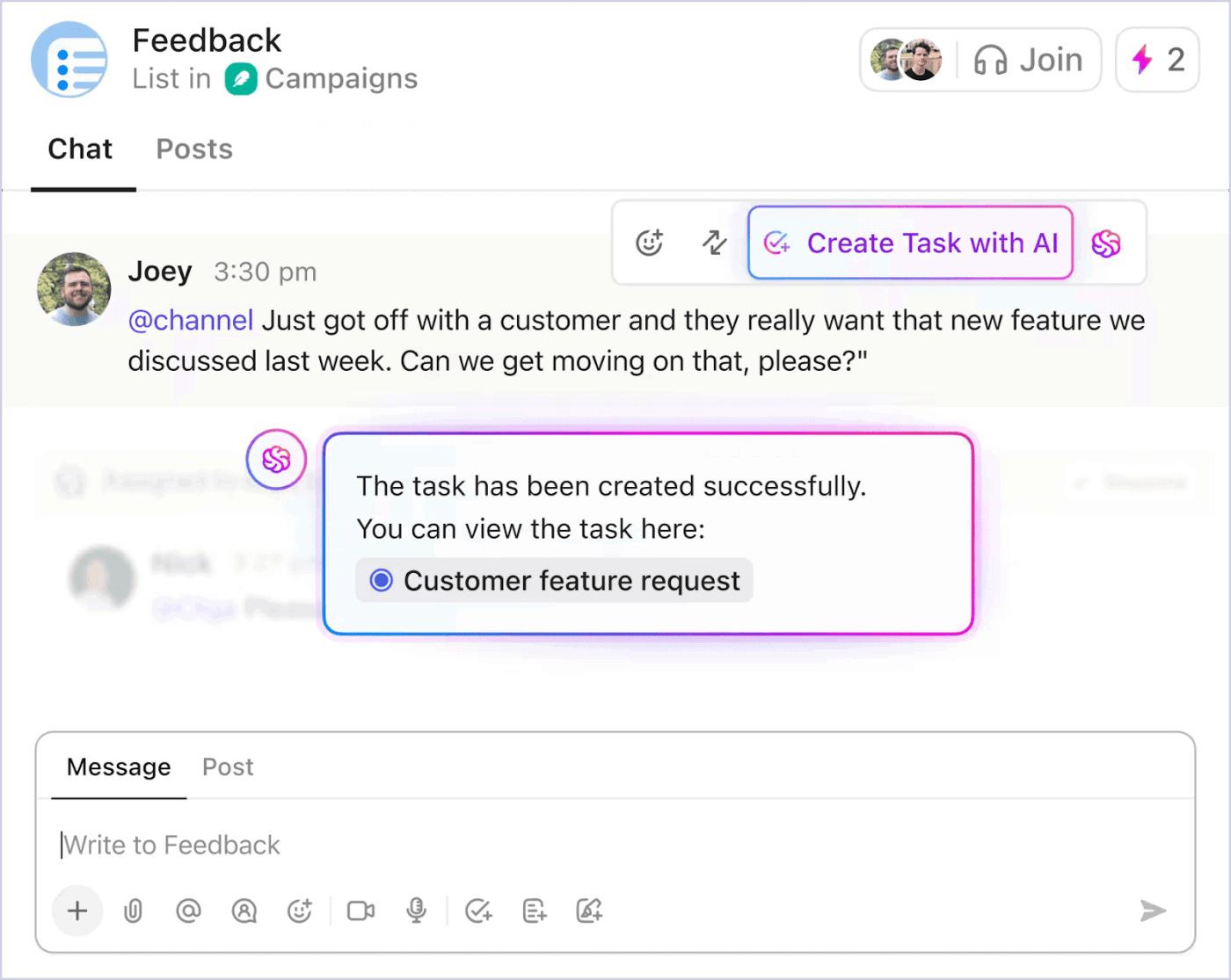
ChatGPT plugins are no longer available. While their alternatives (custom GPTs and third-party app integrations) get the job done, they don’t simplify your work life.
You still spend a major chunk of your time manually moving data between tools, managing multiple apps, and hopping between tabs.
By moving into a highly interconnected ecosystem like ClickUp, you can easily bring together AI, tasks, your team, and external tools into a single space. That too, without added costs or setup complexity.
Ready to see it in action? Sign up for ClickUp and see how much quieter your workday gets when everything lives in one place.
When ChatGPT plugins were available, the plugin store served as the central marketplace for browsing and installing them. Over time, it has evolved into the ChatGPT App Store, where you can find third-party plugins and app integrations today.
It depends on which plugin you want to use. ChatGPT Plus users get complete access to the App Store as well as custom GPTs. While Free users can interact with some custom GPTs and Apps, they face strict usage caps and lose access once their daily message limit is reached.
No. You can’t use multiple ChatGPT plugins at once. You can switch between different custom GPTs or apps, but you can’t use two or more plugins in the same turn.
Treat plugins like any other third-party software. Only install apps from verified, well-known developers and avoid sharing sensitive passwords, payment information, or company secrets in the chat. For maximum security, use Enterprise plans that exclude data from training models, and always review the “Permissions” pop-up before granting an app access to your external accounts.
The best productivity plugins are those that help you perform tasks at 2x or higher pace without adding much clutter to your existing tech stack. Example: ClickUp’s converged AI workspace combines multiple productivity tools, such as ClickUp Docs for writing and editing, ClickUp Brain for contextual AI, ClickUp Enterprise AI Search for quick information/file retrieval, and ClickUp AI Notetaker, which transcribes meetings and generates key action items.

© 2026 ClickUp

There’s an easier way. Try a free AI Agent in ClickUp that actually does the work for you—set up in minutes, save hours every week.