
Sorry, there were no results found for “”
Sorry, there were no results found for “”
Sorry, there were no results found for “”
Have you ever stared at a messy Google Sheet and wished the columns could disappear for a bit?
Whether analyzing sales or managing timelines, hiding spreadsheet columns lets you focus on what matters.
Gartner predicts that by 2025, 40% of CIOs will focus on strategic data management to stay ahead. That makes keeping your data under control more critical than ever.
As businesses lean into data-driven operations, keeping data organized is more critical than ever.
The funny thing is that many people overlook simple tricks, like hiding columns, that can make working with data much more effortless. Let’s fix that!
This article will look at various methods to hide columns in Google Sheets. Bonus: we’ll look at an alternative that can transform your spreadsheet management experience for good!
🧠 Fun Fact: October 17 is celebrated as spreadsheet day each year! Enthusiasts mark the occasion by celebrating the “joy and challenges of working with spreadsheets.”
Here’s a quick primer on how you can hide columns in Google Sheets:
When collaborating with your team or presenting data to stakeholders, the ability to hide columns is an essential tool in your spreadsheet arsenal.
Before we get into the specific methods, it’s helpful to know that Google Sheets gives you several ways to hide rows and columns. Whether you need to quickly hide a single column or multiple columns or manage a larger dataset with several hidden sections, there’s a method for every situation.
Understanding these options will help you pick the most efficient approach for your needs. Let’s explore how you can keep your spreadsheet neat and organized!
The right-click method is often considered the most beginner-friendly approach to hiding columns in Google Sheets. It’s beneficial when making quick visibility adjustments during meetings or presentations.

This method also works smoothly across different devices and operating systems, making it a reliable choice for teams using various platforms.
➡️ Also Read: Best Free Database Software [Features, Pricing]
Keyboard shortcuts can dramatically improve efficiency for professionals who regularly work with spreadsheets. These time-saving combinations reduce the need for constant mouse movement and dropdown menu navigation.
Once mastered, these shortcuts can become second nature and significantly speed up your spreadsheet management workflow. Here’s a cheat sheet:
This is one of many solid Google Sheets hacks that can improve productivity.
Hiding individual columns can be time-consuming when dealing with large datasets.
This method is especially valuable when preparing financial reports or analyzing extensive data sets where you need to temporarily hide several columns.

Understanding how to manage hiding columns in Google Sheets can save considerable time during data analysis and presentation preparation.
Beyond these native features, you can pick from a host of Google Sheets add-ons to provide additional column management capabilities for specialized needs.
➡️ Also Read: How to Merge Data from Multiple Google Sheets
Column groups offer a more organized approach to managing larger datasets. This feature for hiding columns in Google Sheets is handy when dealing with related data that you must regularly hide or reveal together.
Column groups also help maintain spreadsheet organization and make it easier for team members to understand the structure of your data.
Unused columns can create unnecessary clutter and make navigation more difficult when working with Google Sheets database structures.
This feature is handy for cleaning up imported data or working with templates that contain excess columns. Many users don’t realize there’s a quick way to hide all unused columns simultaneously.
📮ClickUp Insight: 92% of knowledge workers risk losing important decisions scattered across chat, email, and spreadsheets.
Without a unified system for capturing and tracking decisions, critical business insights get lost in the digital noise. With ClickUp’s Task Management capabilities, you never have to worry about this. Create tasks from chat, task comments, docs, and emails with a single click!
In addition to your desktop, managing multiple rows or columns on Google Sheets from your smartphone is crucial.
Whether making quick updates during meetings or reviewing data on the go, knowing how to hide multiple columns on mobile devices helps you stay productive even when you’re away from your desk.
The process is simple, though it differs slightly between iOS and Android devices.

On iOS devices:
On Android devices:
👀 Did You Know? VisiCalc, the first electronic spreadsheet software, offered a small spreadsheet of only 254 rows by 63 columns. In contrast, Google Sheets has a limit of 10 million cells, which can be any combination of rows and columns today.
Hidden columns can be tricky to find, especially when working with spreadsheets created by others. Knowing how to identify and unhide columns is just as important as knowing how to hide them.
This ensures you can always access your data when needed and helps prevent confusion when collaborating with team members.
While Google Sheets has some great features for essential spreadsheet management, it’s crucial to understand its limitations when handling complex data sets. These constraints often pop up as your team grows or your data management needs become more sophisticated.
Understanding these limitations will better equip you to make informed decisions about your spreadsheet software and data management tools.
While Google Sheets covers basic spreadsheet needs, ClickUp, the everything app for work, provides a wealth of features that completely transform how teams manage and visualize data.
Say hello to ClickUp’s Table View. It simplifies spreadsheet management like never before by blending powerful database features with easy-to-use task management tools—the best of both worlds!
Unlike basic spreadsheet tools, it also tackles common data-handling challenges and boosts collaboration, making it easier for teams to work together and stay on track.

The view is a familiar spreadsheet-like interface where you can manage, filter, and organize data with advanced features beyond traditional rows and columns.
With this Google Sheets alternative, you can save and reuse field templates across different views, making it easy to keep your data structure consistent across projects.
Here’s how ClickUp overcomes common spreadsheet limitations:
While basic spreadsheets struggle with version management, ClickUp maintains a complete history of all changes. Every modification is tracked with timestamps and user attribution. Teams can review previous versions of any data entry and restore earlier versions if needed.

Your team can see who made specific changes and when. You can add comments directly to data cells for context and receive notifications about significant changes.
Before ClickUp, our project tracking was scattered across various platforms. ClickUp centralized our processes, saving us invaluable time and significantly reducing miscommunication
ClickUp’s architecture efficiently handles large datasets, eliminating performance issues common in traditional spreadsheets.
The platform maintains speed and responsiveness even when managing thousands of rows of data or working with multiple team members simultaneously.
Complex filters, sorts, Custom Fields, formulas, and real-time calculations—the size of your dataset is no problem.
ClickUp offers granular access control through a vigorous security system, unlike basic spreadsheet permissions. Beyond standard role-based permissions at the space, folder, and list levels, ClickUp also provides sturdy view protection capabilities.
Administrators can protect specific views by locking crucial settings, including filters, sorting, columns, grouping, and view configurations. Protected views are marked, helping team members quickly identify secured layouts.

The view protection system allows administrators to include custom messages explaining protection status. As an administrator, you can restrict view modifications for sensitive information while enabling team members to work with the underlying data.
The platform also effectively handles guest access for external collaborators. Temporary changes to protected views automatically revert unless explicitly saved by authorized users.
💡Pro Tip: Do you have an existing Google Sheets document you can’t do without? Add it to ClickUp with just a few clicks. Use the +View button inside your project and select Google Sheets. Add the public link to your file and get going with two-way sync!
Are you still using spreadsheets to create complex databases? ClickUp is just what you need. Create relationships between different data sets and easily create Custom Fields with 15+ data types to maintain your database.

ClickUp also supports automated workflows based on data. Generate Custom Views for different team needs and enable formulas and dependencies across related items. It’s like a spreadsheet but much better!
ClickUp Collaboration Detection is the next best thing to having your whole team in the same room. With advanced collaboration detection, you’ll know exactly when teammates are typing, viewing a task, or adding comments—perfect for keeping everyone on the same page.
Need to co-edit a document or update a task description? You can do it in real time, watching changes unfold live.

And the best part? Everything updates instantly across all platforms, so you’re never out of sync, whether you’re on your laptop or phone. Say goodbye to back-and-forth emails and hello to teamwork!
Unlike standalone spreadsheets, ClickUp connects data directly to actionable tasks. Your team can instantly convert spreadsheet rows into tasks, set due dates and priorities, and track time spent on specific items.

The platform enables the creation of dependencies between related tasks and the real-time monitoring of project progress!
Break free from repetitive data management tasks with ClickUp Automations’ customizable workflows. The platform’s automation engine can trigger actions based on specific conditions, from updating field values to sending notifications.

Your team can set up complex automation rules with multiple triggers and actions to ensure consistent data handling. Automations keep data fresh by scheduling updates or cleanups, while cross-list automations sync data across different workspace areas.
These workflows reduce manual effort and maintain data accuracy and consistency.
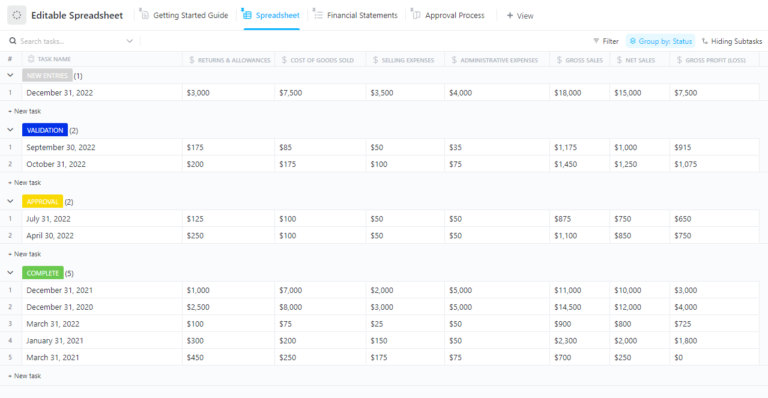
Transitioning from traditional spreadsheets? The ClickUp Editable Spreadsheet Template offers a structured starting point for teams like yours. It comes preconfigured with commonly used Custom Fields, automated workflows, and view settings.
Effectively managing spreadsheet visibility isn’t just about aesthetics—it’s about improving data accessibility and decision-making speed. Whether working with spreadsheet templates or creating custom solutions, mastering features like column hiding could significantly boost your productivity.
Though Google Sheets project management serves basic needs, modern work demands more sophisticated data management tools. ClickUp’s Table View is a comprehensive replacement that combines the familiarity of spreadsheets with powerful database features, enhanced collaboration tools, and robust security measures.
Ready to transform your spreadsheet experience? Sign up for ClickUp and change how you manage your data management workflow.

Manasi Nair
Max 24min read

Praburam Srinivasan
Max 22min read
Praburam Srinivasan
Max 13min read

© 2026 ClickUp





