






Still downloading templates?
There’s an easier way. Try a free AI Agent in ClickUp that actually does the work for you—set up in minutes, save hours every week.
Sorry, there were no results found for “”
Sorry, there were no results found for “”
Sorry, there were no results found for “”

You onboard a new hire and send them a few SOPs to get started. Ten minutes later, they’re back with questions: ‘Which version should I follow?’
To avoid this, this guide covers how to build a proper SOP management system in Google Docs, including templates, folder structure, and documentation best practices.
We’ll also look at where it falls short so you can decide when it’s time for something more like ClickUp, a true Converged AI Workspace! 🤩
Relying on tribal knowledge creates massive points of failure for growing teams. When the one person who knows a specific process is out sick or on vacation, work stalls completely. Handoffs between team members introduce drift, meaning the quality of work changes depending on who’s doing it.
Here’s why they matter:
Before you can manage SOPs, you need to build them. If you’re a Google Workspace user, Google Docs seems to be one of the most accessible starting points for process standardization.
📮 ClickUp Insight: More than half of all employees (57%) waste time searching through internal docs or the company knowledge base to find work-related information. And when they can’t? 1 in 6 resorts to personal workarounds—digging through old emails, notes, or screenshots just to piece things together.
ClickUp Brain eliminates the search by providing instant, AI-powered answers pulled from your entire workspace and integrated third-party apps, so you get what you need—without the hassle.
Staring at a blank page slows down the process documentation and frustrates team members. Without a standard format, people create wildly different documents that confuse readers and hide important details.
Let’s understand how to build a reusable template in Google Docs:
Open your web browser and navigate to the Google Docs homepage. Click the blank document icon to start a fresh page.
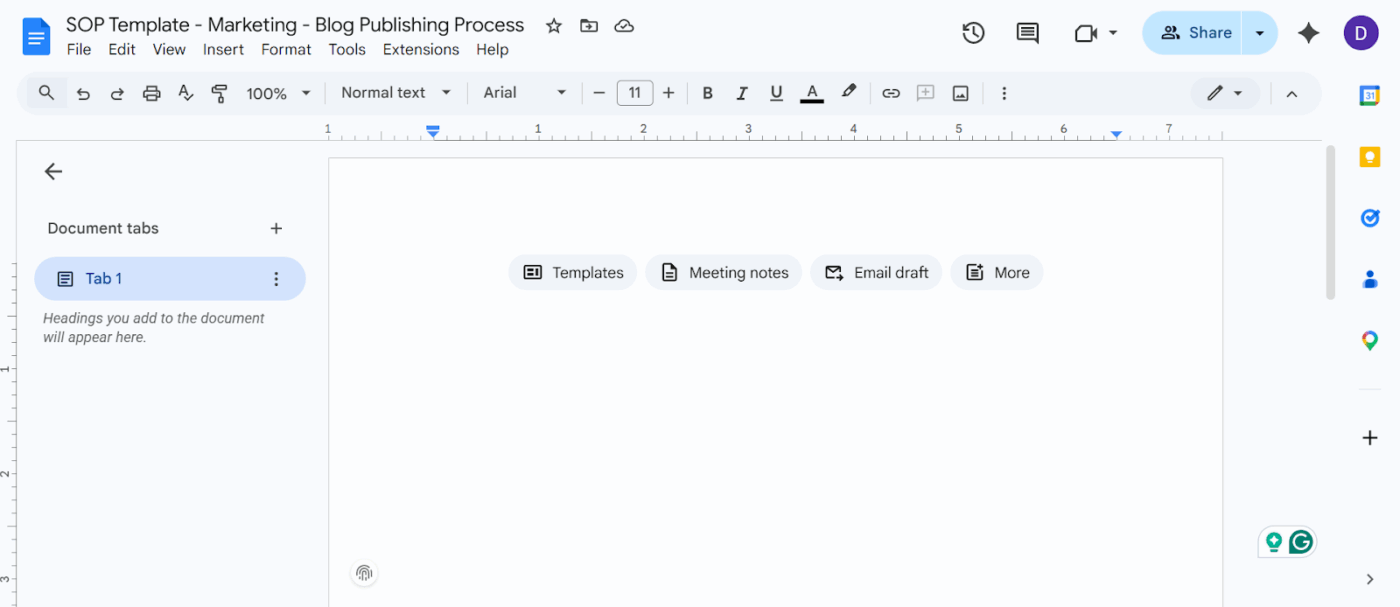
Name the file immediately using a clear convention, so it’s easy to locate later. It’s important to remember that consistent naming is the first layer of your SOP management system in Google Docs.
💡 Pro Tip: Use this naming convention and share it with your team: ‘SOP Template – [Department] – [Process Name]’. For instance, ‘SOP Template – Marketing – Blog Publishing Process.’
Every SOP template in Google Docs needs the same core sections to be effective. Use the built-in heading styles to create a clear visual hierarchy. This automatically generates a clickable document outline in the left sidebar for easy navigation.
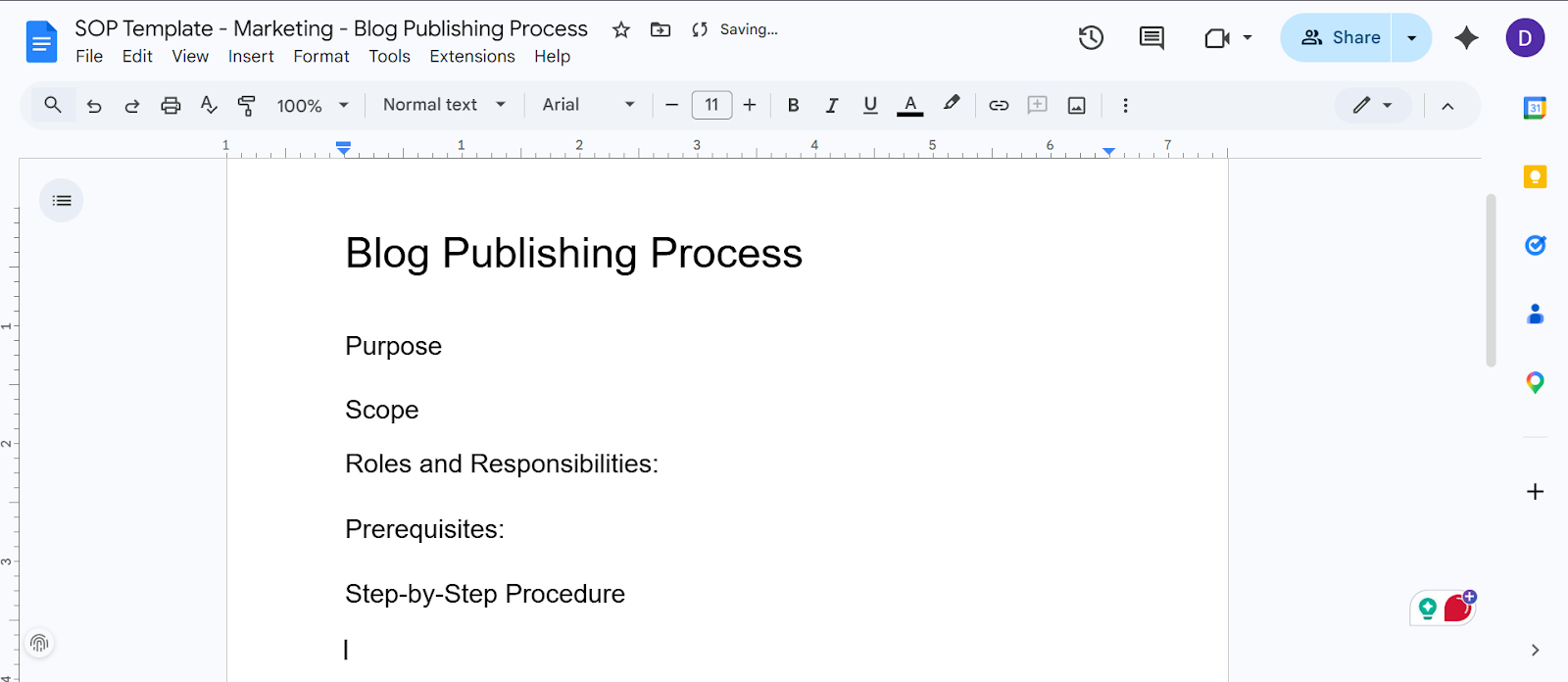
Include these sections in your template:
Fill each section with placeholder text so anyone duplicating the template knows exactly what goes where.
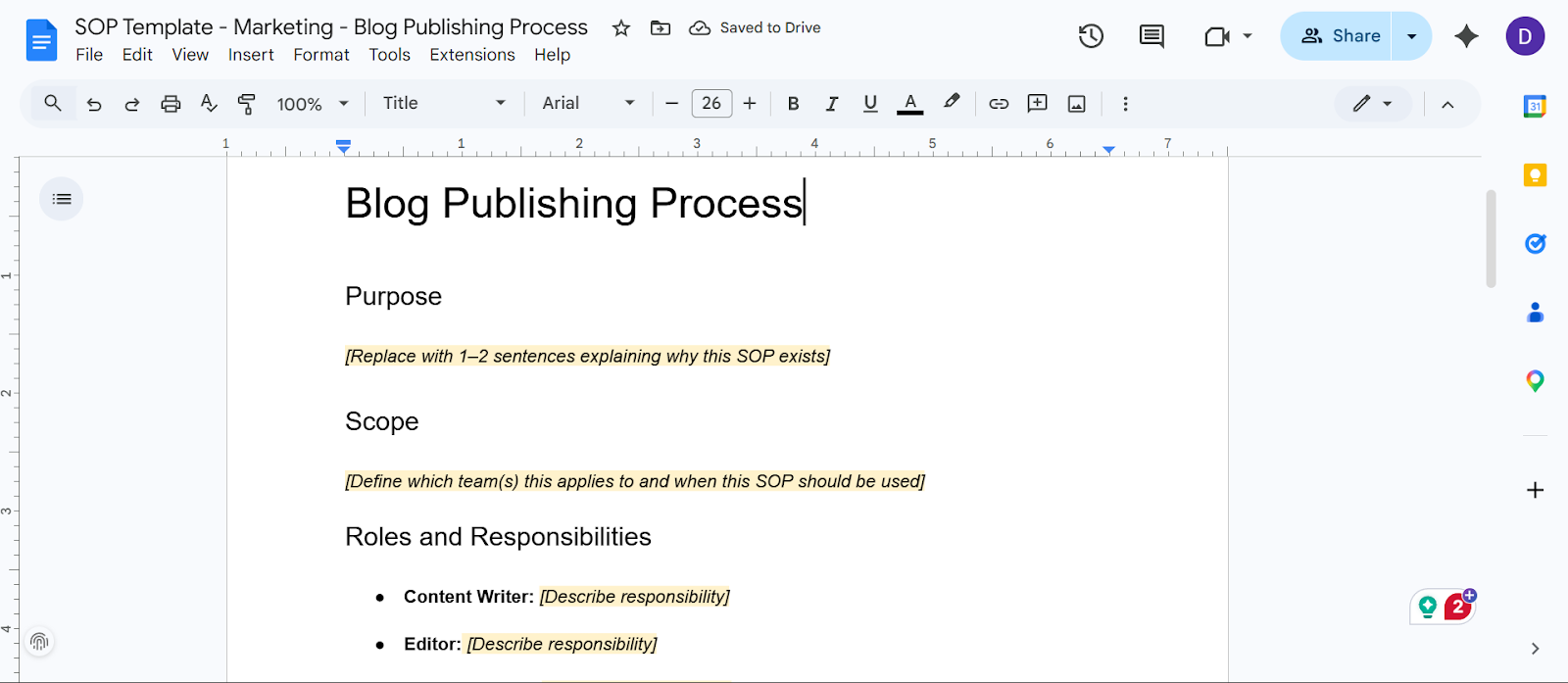
Add highlighted placeholder text and formatting cues to guide teams on how to fill in each section of the SOP template
Use the text highlight feature to mark this placeholder text clearly. A yellow highlight with a note like ‘[Replace this with your process steps]’ works perfectly.
💡 Pro Tip: Turn to numbered lists for sequential procedure steps to keep instructions orderly and bullet points for non-sequential items like required tools or materials. Also, don’t forget to add a horizontal line between major sections to improve visual clarity.
Place your finished template in a dedicated shared Google Drive folder and name this folder something obvious, like ‘SOP Templates – Master Copies.’
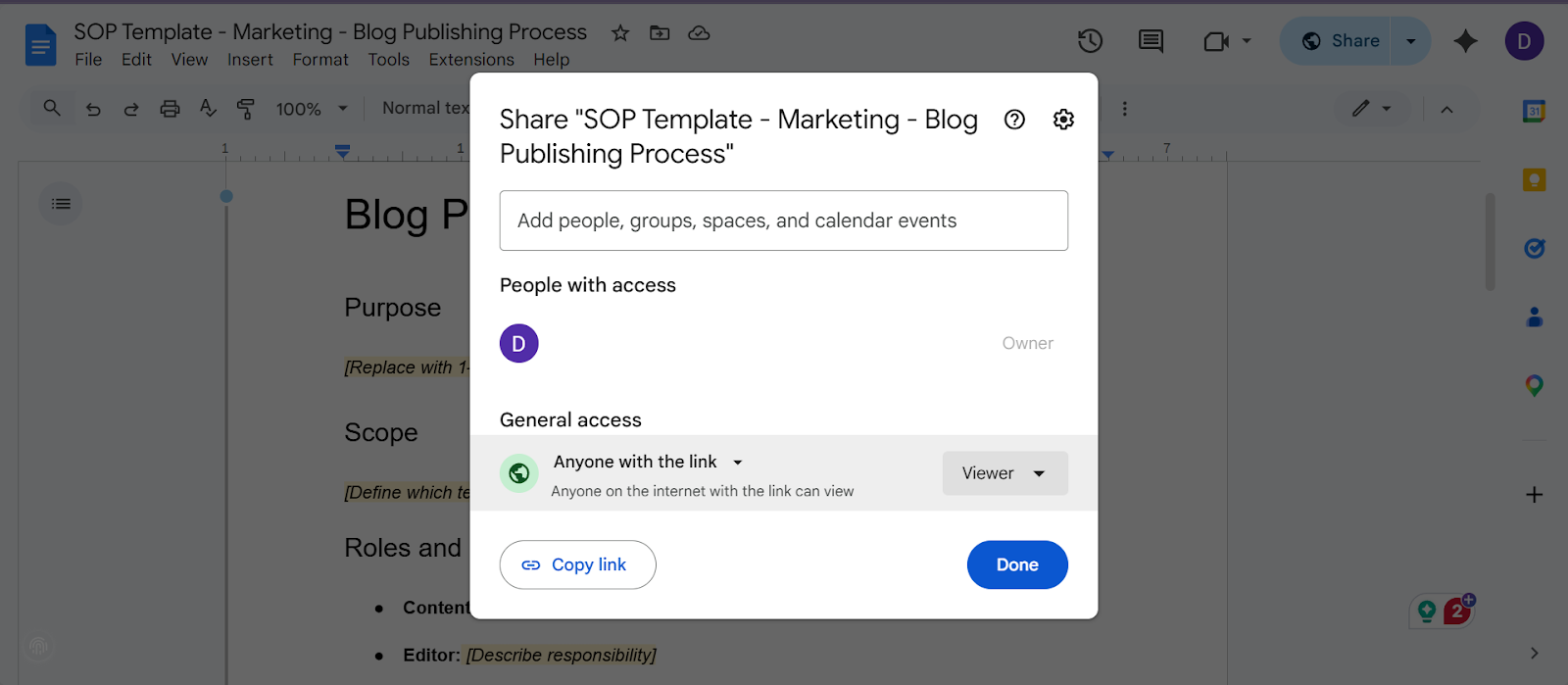
Set the sharing permissions to ‘View only’ for your team. This ensures team members duplicate the template rather than accidentally editing your original file.
💡 Pro Tip: Create a clear folder structure organized by department or function. Google Docs lacks a native team template gallery, so strict folder discipline is your best substitute.
Share the template folder with relevant team members using the standard Google Drive sharing settings.
Send a brief message explaining the exact workflow they should follow and instruct them to duplicate the template, rename it, fill it in, and save the completed SOP back into the appropriate department folder.
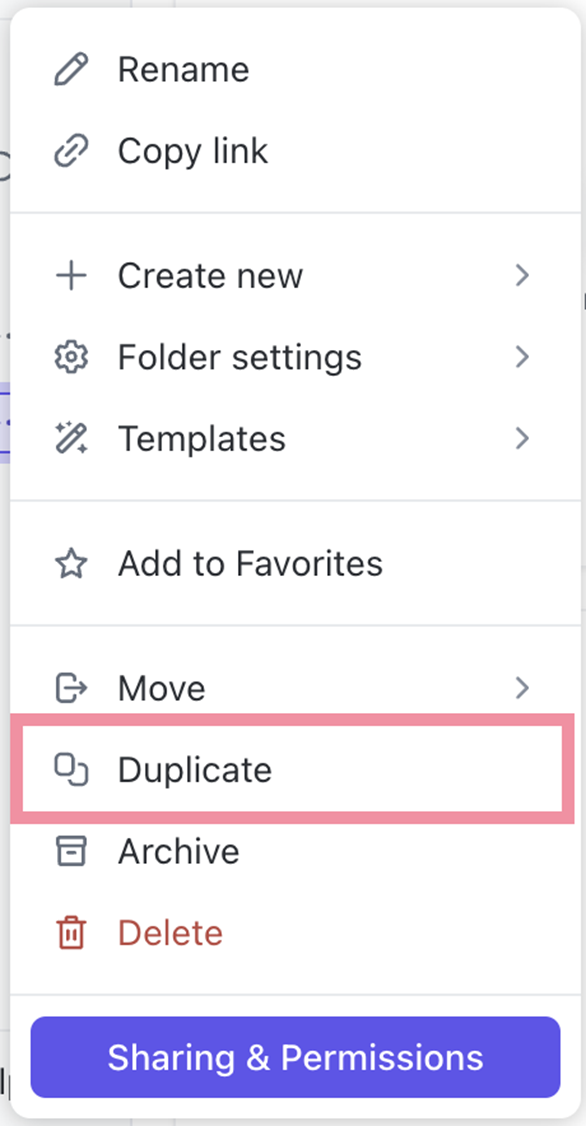
Set a team-wide convention for where completed SOPs live vs. where blank templates live. This prevents the inevitable confusion of someone editing a template when they meant to create a new document.
SOPs quickly go stale and turn into a graveyard of forgotten documents when left unmanaged. When using Google Docs, follow these intentional habits to maintain document hygiene and keep your library useful:
📖 Also Read: Top Google Docs Alternatives
As your team scales, you’ll likely encounter these genuine friction points in Google Docs:
Watch this video for a comprehensive overview of the best Google Docs alternatives available:
Google Docs works fine for your first handful of SOPs, but the moment your team crosses a certain size, you end up with duplicate files, mystery versions, and procedures nobody trusts anymore. That’s because Google Docs is just a storage layer, it doesn’t connect your SOPs to actual work.
This is where ClickUp comes in. Instead of treating SOPs as static documents, ClickUp turns them into a living system, connected to tasks, people, timelines, and updates in one place.
Let’s look at how the SOP management system helps!
Create a centralized knowledge base with SOPs as rich, structured documents that live directly inside your workspace with ClickUp Docs.
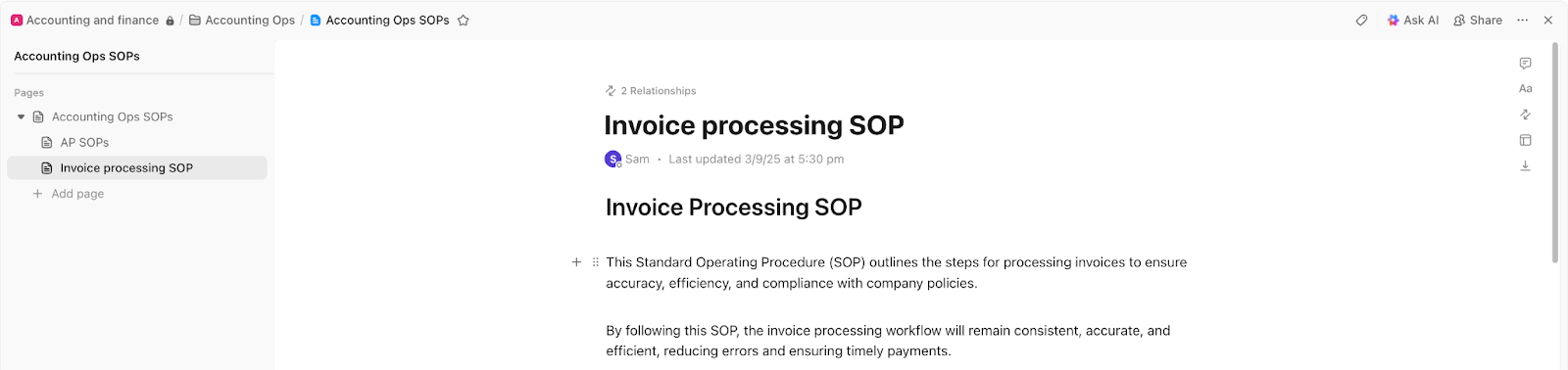
You can:
For instance, your marketing team has a ‘Content SOP’ Doc with nested pages for blog writing, SEO optimization, and publishing. When a writer opens a Task, the SOP is already linked—no need to search Google Drive or ask for the latest version.
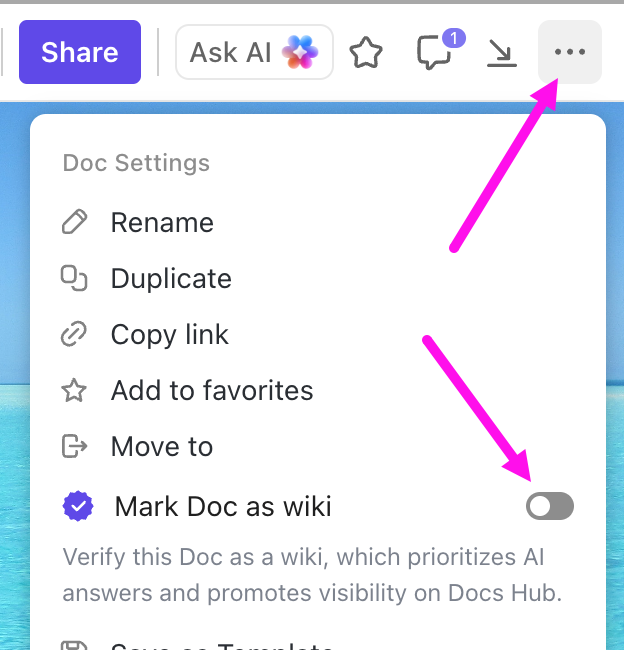
💡 Pro Tip: Turn key SOP Docs into wikis to establish a clear source of truth. This way, your team always knows which version to trust without second-guessing.
ClickUp Brain acts like a workspace-aware assistant that can write, update, and even search your SOPs using real context from your tasks, docs, and workflows.
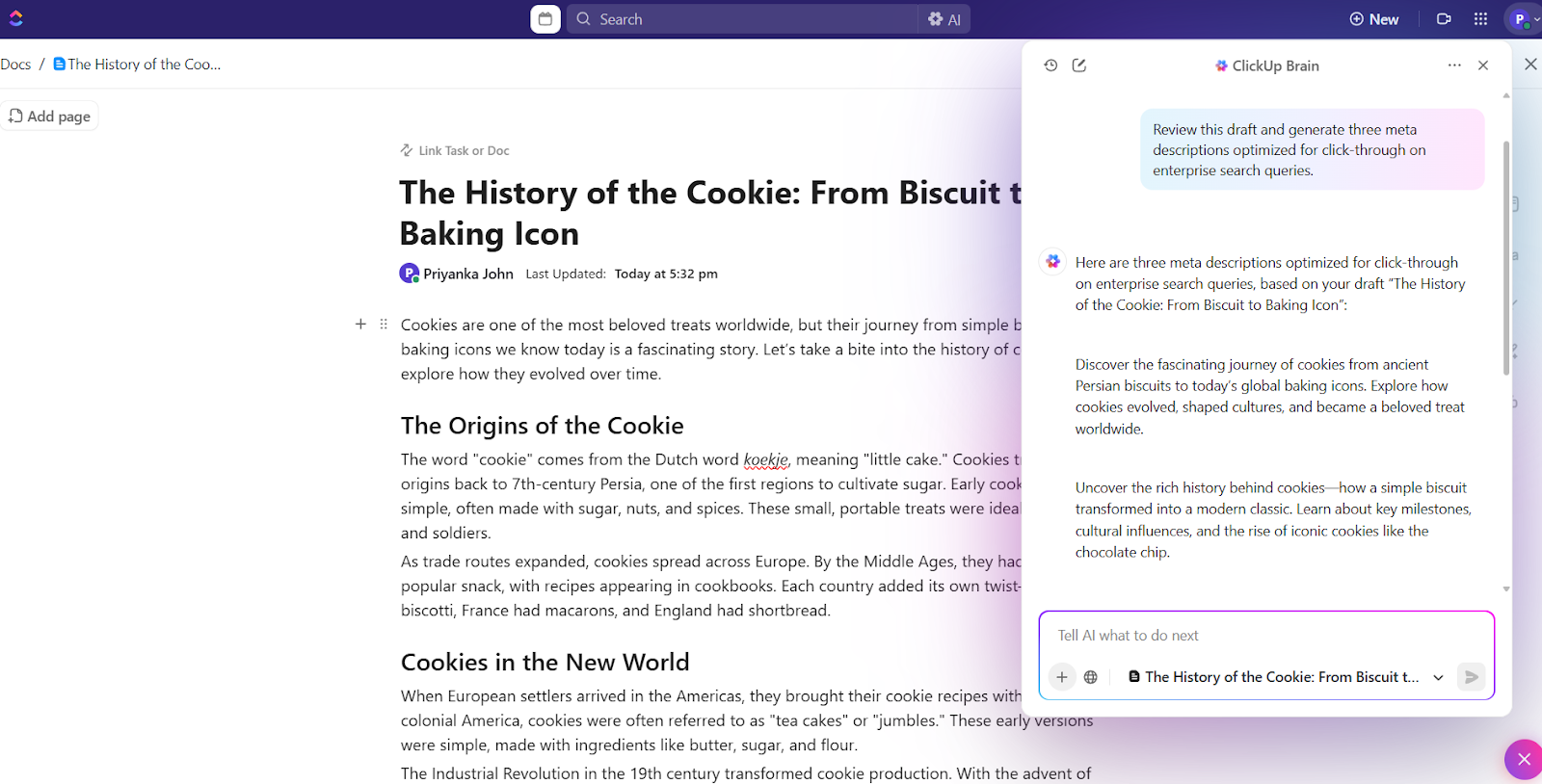
Prompt it to:
For instance, you just set up a new onboarding process. You can just prompt ClickUp Brain: ‘ Create an SOP for client onboarding based on our current tasks and checklist.’ It’ll generate onboarding documentation with steps, roles, and dependencies in seconds right within your ClickUp Doc.
Automate documentation:
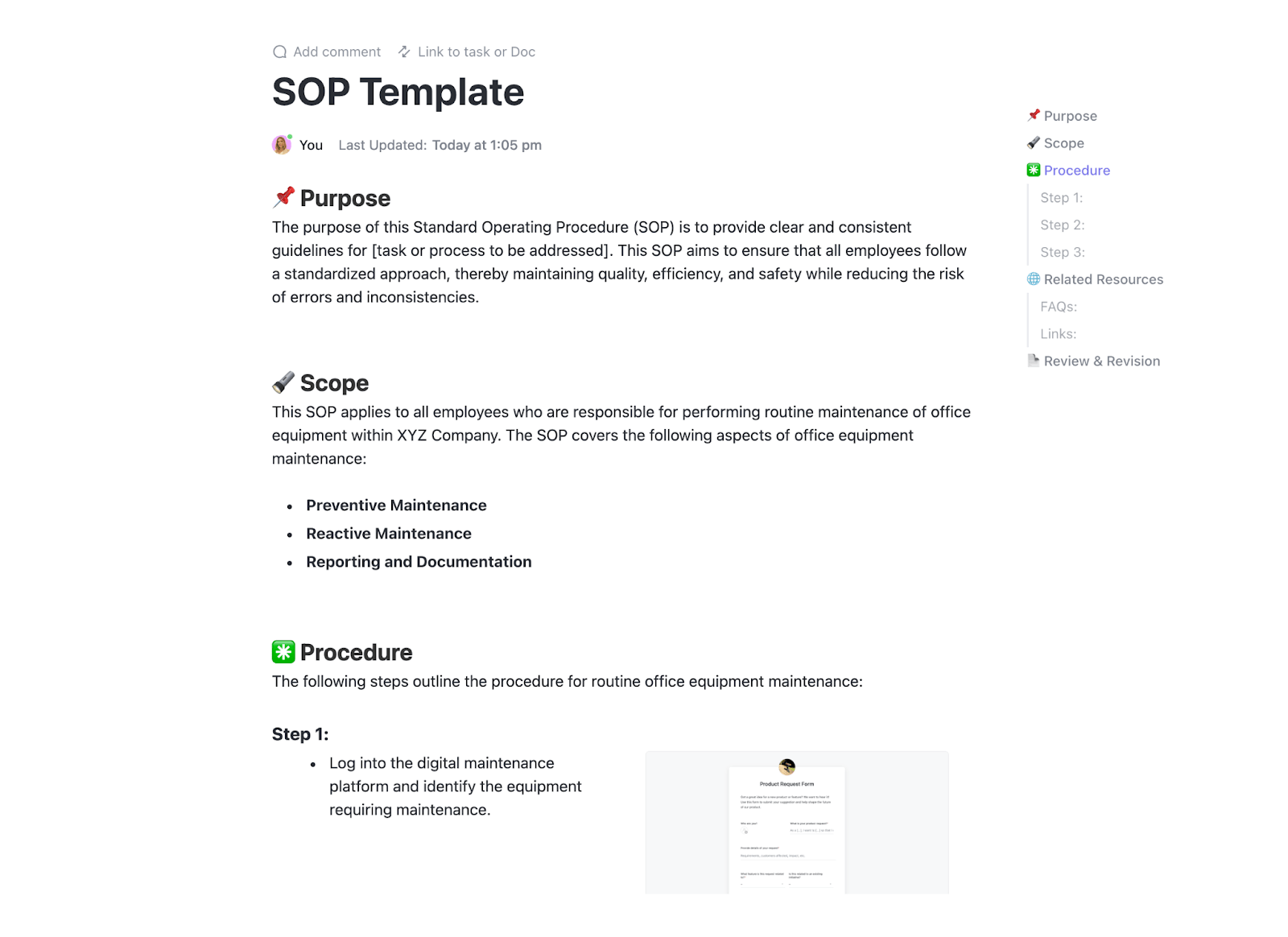
⚡ Template Archive: Standardize document and manage processes in one place with the ClickUp SOP Template.
You get:
SOPs only work if your document lifecycle stays updated.
ClickUp Automations make sure that happens without relying on memory. It lets you set recurring review cycles (monthly, quarterly, etc.) and automatically assigns SOPs to owners for updates.
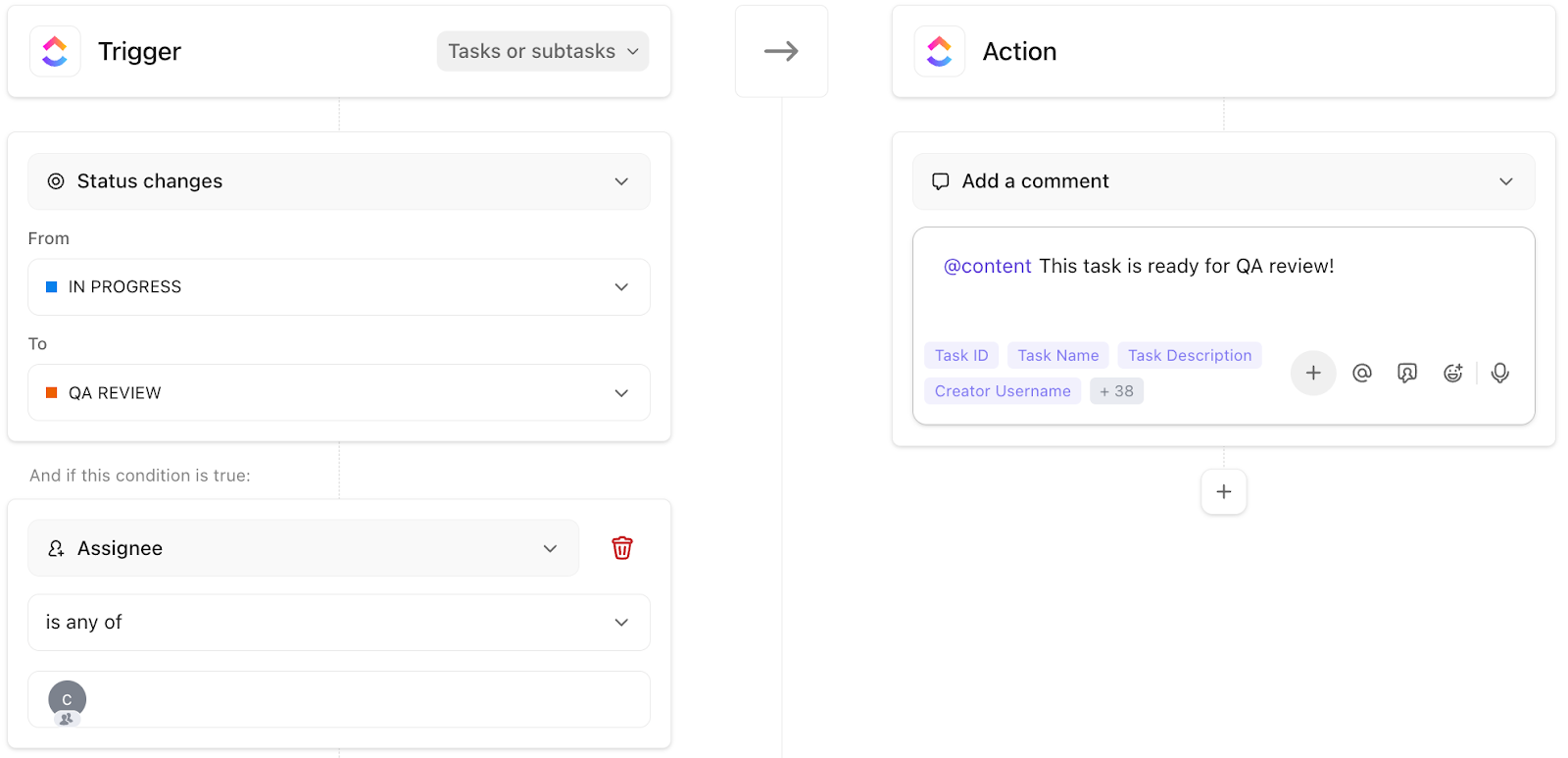
You can also set conditions to allow it to trigger approval workflows before changes go live or notify stakeholders when updates are made.
For example, you can set a workflow automation such that every 30 days, your ‘Client Onboarding SOP’ Task:
💡 Pro Tip: Standardize your ClickUp Custom Fields (like Department, SOP Type, Review Cycle). Plus, use ClickUp Tags for quick context; this makes filtering, reporting, and dashboard views far more reliable as your SOP library grows.
Once you have multiple SOPs, visibility becomes the real problem: Who owns what? What’s outdated? What hasn’t been reviewed?
ClickUp Dashboards solve this by giving you a real-time view of your SOP system. It lets you:
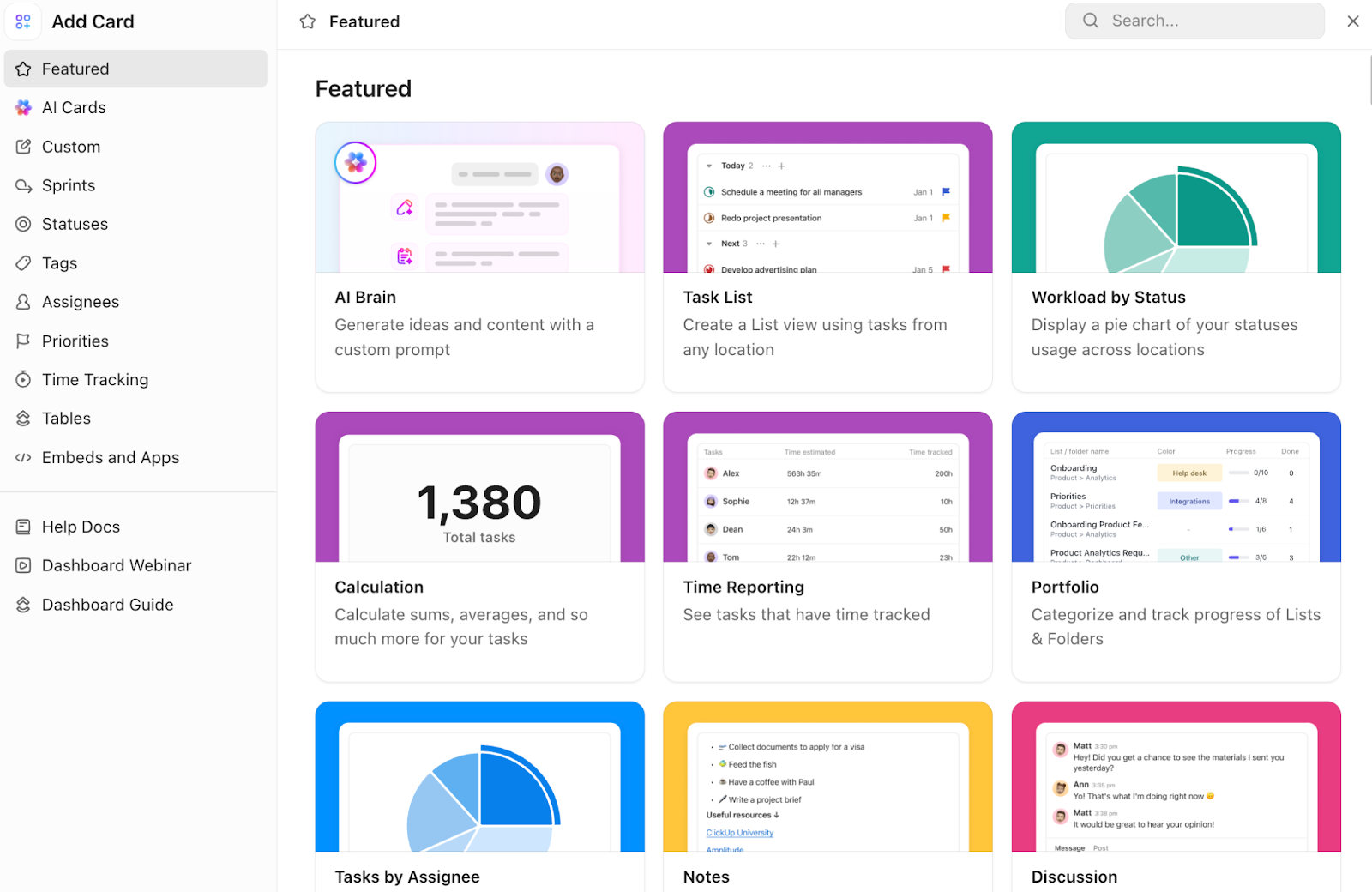
Its power comes from the cards you can add to customize exactly what you want to track. Here are some examples:
When your SOPs, tasks, communication, and AI all live in one workspace, you stop managing documents and start managing processes. This is the difference between a folder of files and an actual SOP management system.
Here’s what Briettny Curtner, Program Manager, Utah Valley University, had to say about ClickUp:
ClickUp centralized our day-to-day operations, SOPs, and promoted collaboration across the department…We loved the dependency feature because our department worked cross-functionally too. This helped with knowing what next steps we were waiting for.
Google Docs is a solid place to start. It’s simple, familiar, and gets your first SOPs out of your head and into a shared space. But as your team grows, the cracks show up fast. SOPs are part of how your team operates every day, and at some point, you need them to be connected to the work itself.
That’s where ClickUp comes in. Instead of managing SOPs alongside your work, you manage them inside it. With Docs, your SOPs live inside your workspace, right next to tasks and projects. ClickUp Brain generates SOP drafts and updates them as workflows, while ClickUp Automations helps you set recurring review cycles.
So, what are you waiting for? Sign up to ClickUp for free today! ✅
Google Docs doesn’t offer a dedicated SOP template in its template gallery. You can build your own by structuring a blank doc with headings for purpose, scope, roles, steps, and revision history, then saving it as a reusable template in a shared folder.
In Google Docs, you’ll need to rely on folder organization, consistent naming conventions, and manual tracking like a spreadsheet index. On the other hand, a dedicated workspace such as ClickUp lets you tag, filter, and dashboard your entire SOP library so nothing goes unnoticed.
Google Docs handles document creation well but lacks workflow automation, approval routing, status tracking, and centralized search. In contrast, a dedicated SOP management system like ClickUp connects your documentation to the actual work it describes while keeping everything searchable in one place.
Yes, Google Docs supports editing in real time, comments, and suggestion mode, which works well for drafting individual SOPs. The limitation shows up at scale when you need structured approval workflows or visibility into who’s working on what across your entire library.

© 2026 ClickUp

There’s an easier way. Try a free AI Agent in ClickUp that actually does the work for you—set up in minutes, save hours every week.