






Still downloading templates?
There’s an easier way. Try a free AI Agent in ClickUp that actually does the work for you—set up in minutes, save hours every week.
Sorry, there were no results found for “”
Sorry, there were no results found for “”
Sorry, there were no results found for “”

If you work with clients, you’re all too familiar with this headache: the work gets done, but the money doesn’t always show up on time.
Of course, it annoys you. But it also quietly disrupts cash flow, business planning, and trust.
According to QuickBooks, 73% of small and medium businesses (SMBs) reported being negatively impacted by late payments.
The worst part is that this can go unnoticed until it’s too late. This is why you need a control system to spot problems early. This is why you need a client payment tracker.
In this guide, we’ll break down why tracking payments matters, what a client payment tracker actually is, and how modern teams move beyond spreadsheets to stay organized and get paid on time.
Late payments rarely come from bad intent. They usually come from broken systems. Invoices get buried in inboxes, payment terms are unclear, or follow-ups fall through when teams are busy delivering work.
For freelancers and small teams, this creates a constant mental tax: Did I send that invoice? Has it been paid? Should I follow up, or wait?
Missed invoices are even worse. They don’t just delay revenue; they erase it. Without a reliable way to track what’s been billed, what’s due, and what’s overdue, revenue leakage becomes surprisingly common—especially when juggling multiple clients or retainers.
It’s one thing to have cash flow problems due to a lack of clients. And another to have them due to timing mismatches between completing work and collecting money. Even a 15-30 day delay can force businesses to dip into reserves, delay hiring, or postpone vendor payments.
There’s also a relationship cost.
A structured tracker lets you follow up with clarity, context, and confidence.
If you think spreadsheets are good enough to manage your payments, we have news for you.
94% of business spreadsheets have critical data errors.
And it’s not surprising when you know that they rely on manual updates and offer no built-in accountability.
As client volume grows, spreadsheets become even more brittle. One missed update, one outdated filter, and your financial picture goes for a toss.
Scaling businesses need payment tracking that connects to real workflows—projects, owners, deadlines, and communication. That’s the difference between tracking payments and actually managing them.
A client payment tracker is a system to monitor invoices sent, payments received, outstanding balances, and due dates across multiple clients in one place. It gives teams real-time visibility into what’s been billed, what’s overdue, and what needs follow-up
At a basic level, this can be done using spreadsheets or templates.
📌 For freelancers, for example, this works when managing two or three clients. However, as retainers, milestones, and partial payments come into play, cracks start to show.
📌 Agencies face a different problem: multiple stakeholders, layered approvals, and revenue tied to project delivery. They need payment tracking connected to projects, accounts, and owners, not just invoices. That’s why you’ll see agencies moving earlier to automated trackers.
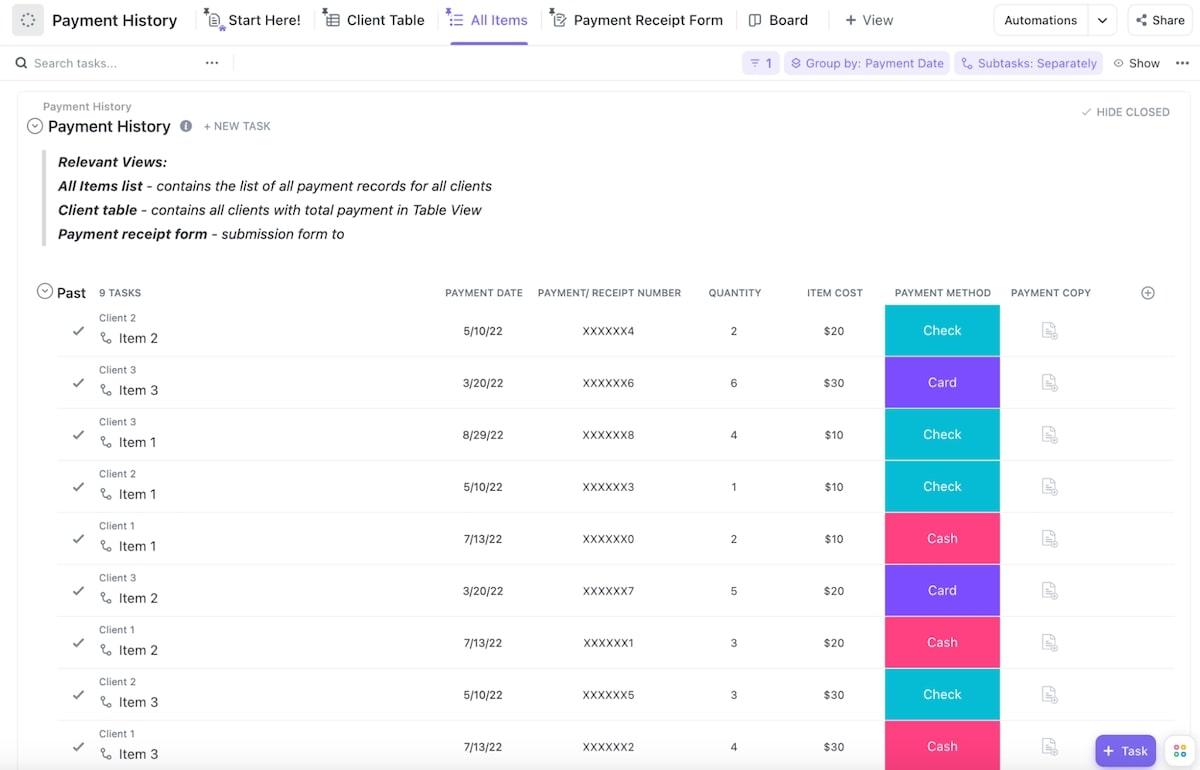
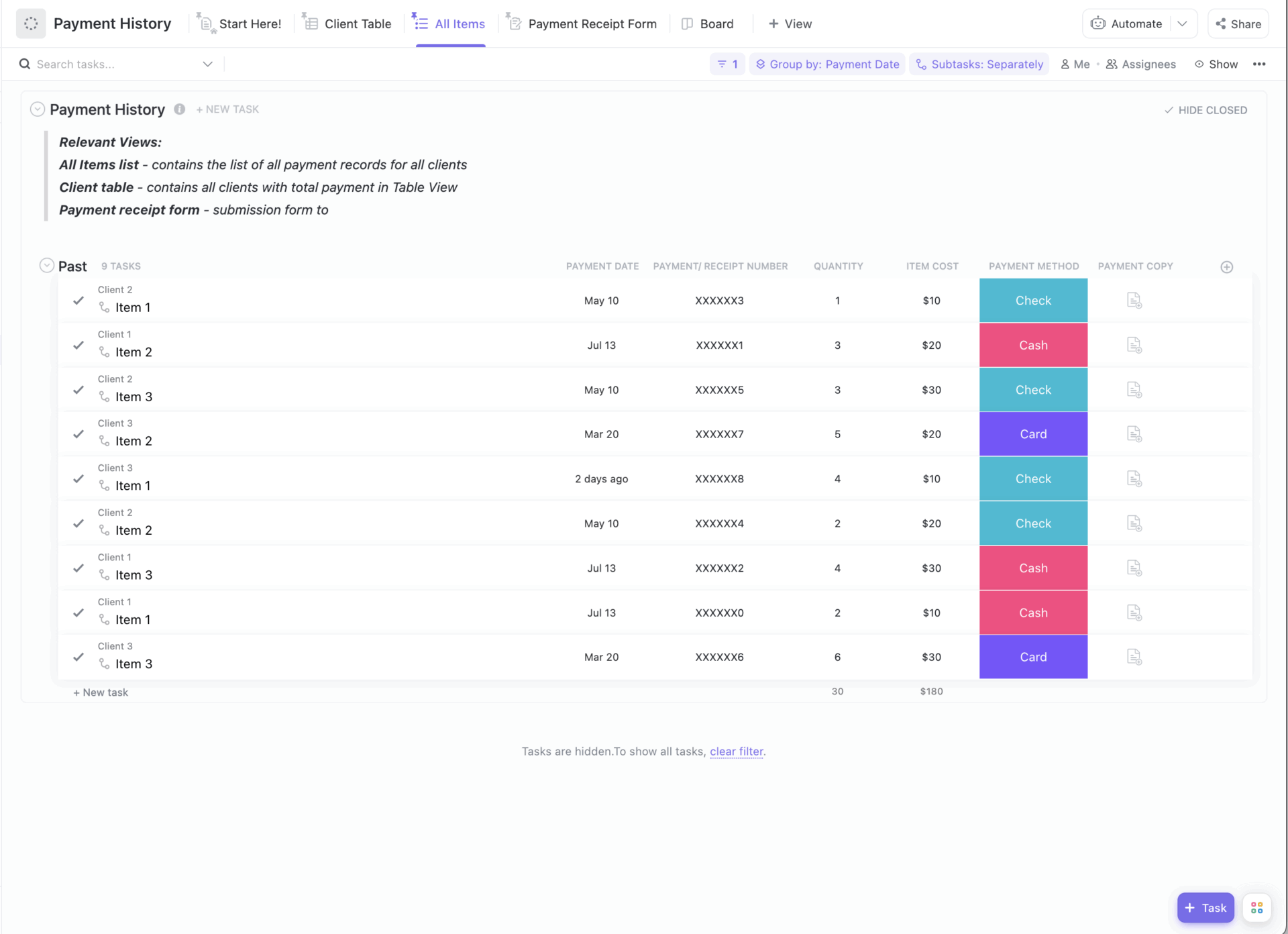
The Payment History Template from ClickUp centralizes all your payment data so you can record, monitor, and organize both client and vendor payments in one place. It shows payment histories over time, helps identify issues early, and eliminates the need for manual entry or scattered spreadsheets.
Here’s why you’ll like it:
Now, you might end up thinking that this is exactly what accounting software does, too, right? So why do I specifically need a client payment tracker?
Well, the short answer is, both tools are different. Here’s how:
| Feature | Client payment tracker | Accounting software |
| Purpose | Track invoice status and follow-ups | Manage books, taxes, and compliance |
| Focus | Operational visibility and cash flow timing | Financial reporting and accounting accuracy |
| User | Freelancers, ops teams, account managers | Finance and accounting teams |
| Automation | Payment reminders, status updates, ownership | Reconciliation, ledgers, tax rules |
| Best used when | You need to stay on top of who owes what—and when | You need audited financial statements |
Accounting software is built for bookkeeping, compliance, and financial reporting. A client payment tracker, on the other hand, is focused on day-to-day visibility and follow-up.
One helps you close the books. The other helps you get paid on time.
You’ll find this simpler to understand when we walk you through creating a client payment tracker for your business.
A client payment tracker is not just a record of invoices. It is a system that answers, at any moment:
If your tracker cannot answer all four clearly, it will eventually fail—regardless of the tool you use to build it.
Here’s how you can create one that works today and doesn’t collapse as volume increases. And yes, it works for freelancers, small businesses, as well as growing teams.
Jumping straight into software without deciding what you’re tracking? Recipe for disaster.
Instead, start by answering three questions:
Ideally, you should track one invoice per row or item, not one client. A single client may have multiple invoices, partial payments, or different due dates. Tracking by the client hides payment risks.
For each invoice, you need to capture the following information at a minimum:
Other details are optional (but recommended):
Write this list down first. Make sure whichever tool you use supports these fields.
If you are starting from zero, using Excel or Google Sheets to understand how tracking works can be a smart idea. Our tip? Structure it like this to keep things simple:
Why are we asking you to try a spreadsheet when we already said it won’t scale?
The answer: this step will make the limitations obvious to you. You must update it manually. The moment updates lag, your tracker stops reflecting reality.
There’s no built-in reminder system or ownership enforcement either.
At scale, these issues can quickly pile up and break the system.
At this point, most people track data but not responsibility. Every unpaid invoice must have one clear owner. Not a department. Not “finance.” A person.
Without ownership, you’ll get the dreaded trifecta of:
This is where task-based systems become more reliable than spreadsheets.
When we talk about moving to a structured system, we mean one that combines tracking, ownership, automation, and visibility in one place.
Many teams worldwide trust ClickUp to be the work management platform that brings these together.
🦄 What ClickUp is:
ClickUp is the world’s first Converged AI Workspace. It’s where your work is organized into tasks, grouped inside Lists, and tailored to your systems and processes using Custom Fields. It also has context-aware AI baked in, so you can work faster and smarter at once.
Think of it like this:

It offers you all the benefits of a spreadsheet, plus AI and automations, so that you don’t have to deal with its limitations.
Once you’ve moved to a structured project management tool like ClickUp, create a new list specifically for payments. Do not mix this with projects or to-dos.
In ClickUp, each task in this List represents one invoice.
Now add Custom Fields that mirror the spreadsheet columns you defined earlier:
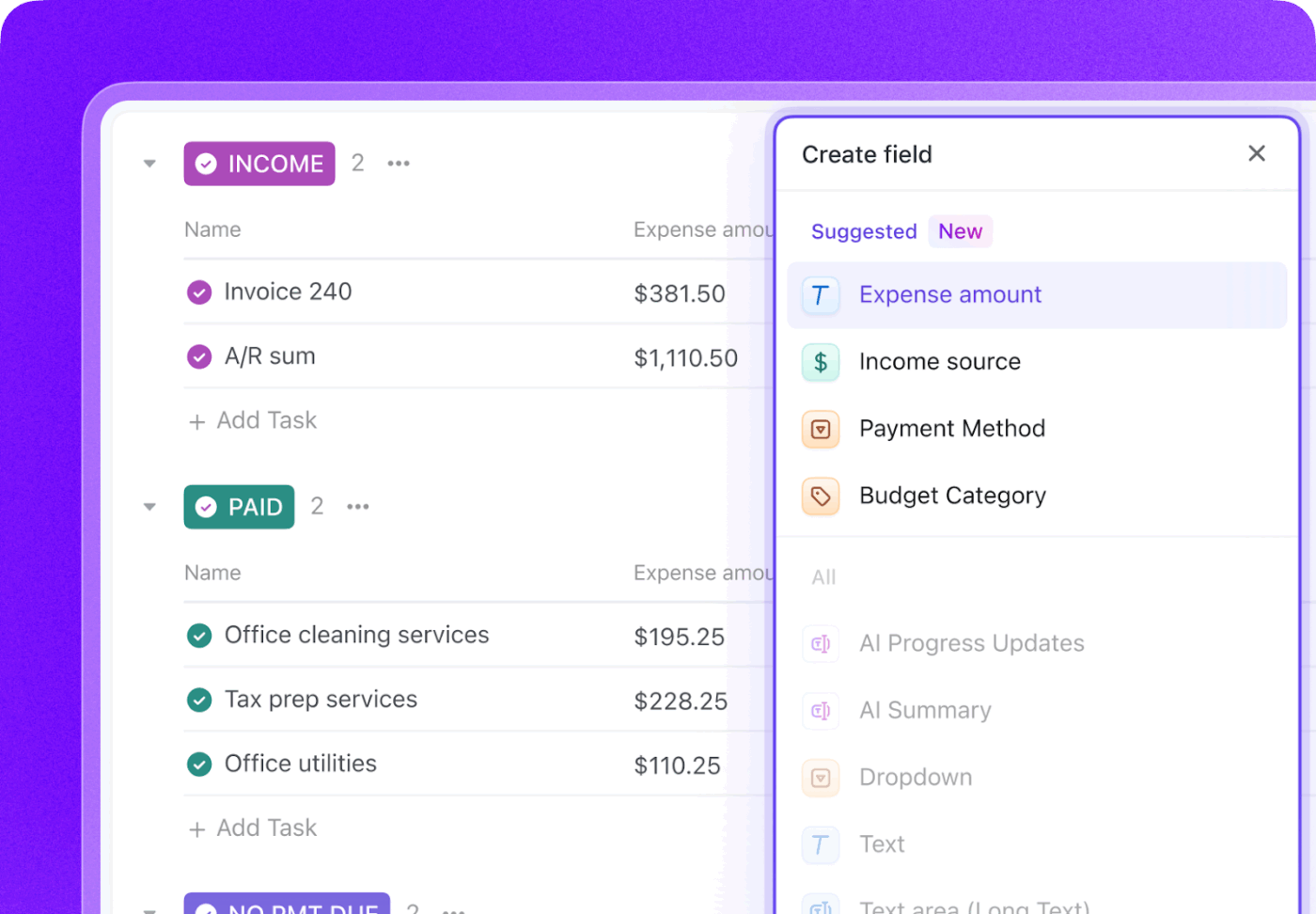
Congratulations! You just turned your payment tracker into a structured, searchable database.
A common blind spot is treating invoicing as the finish line. It’s not. In fact, it’s only the first step in the payment cycle.
The whole of it looks like this:
Make sure to track these items separately, because we all know expected revenue is almost never equal to actual revenue.
Each invoice task should move through these states as events happen. This clarity enables cleaner reporting and targeted follow-ups.
💡 Pro Tip: You can define each stage of the payment cycle as a color-coded Custom Task Status in ClickUp. This will help you track invoices at a glance. You can change Statuses in one click as invoices progress to payments. And you’ll also be able to set up automations that automatically move each invoice to the right status on specified triggers.
Okay, so your tracker is almost in place. But it’s still you who’s manually tracking invoices and updating statuses. And even sending reminders to clients to pay up.
That’s not very convenient, right?
Your tracker should be able to do at least some of it for you, independently. And in ClickUp, it actually can.
You can set up when-this-happens-do-that Automations in ClickUp to handle this routine work. These Automations allow actions to trigger based on changes. For example:
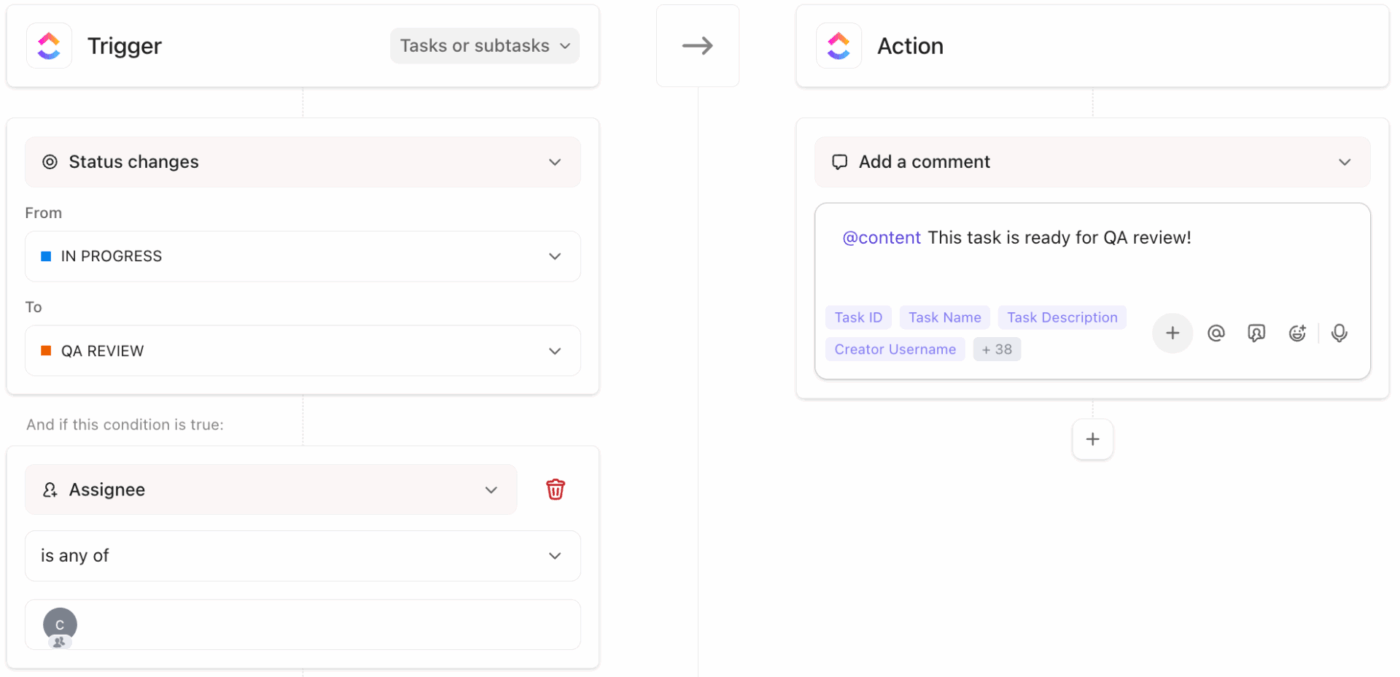
This removes friction while ensuring no invoice is forgotten.
🤝 Best Practice: Consider sending the first payment reminder to your clients before the due date and a second one shortly after the due date has passed. Escalate the issue only if the invoice remains unpaid beyond your agreed threshold.
Now, the next question becomes:
ClickUp supports automation and AI tools that streamline both the mechanics of reminders and the content/context around them.
1. Set up automated reminder triggers with ClickUp Automations
Instead of sending reminders manually, use ClickUp Automations to build rules like:
🔑 You can pull invoice due dates directly from Custom Fields in your Client Payments list as the basis for triggers.
2. Use ClickUp Reminders for personal & team tasks
ClickUp’s native Reminders (different from Automations) allow you to set notifications that remind a specific person to take action:

🔑 This works for team accountability even if the client’s email reminders are automated separately. It keeps everyone aligned on internal tasks supporting client follow-up.
3. Use ClickUp Brain/AI for smart messaging
ClickUp Brain brings context-aware AI into your workflow. With Brain you can:
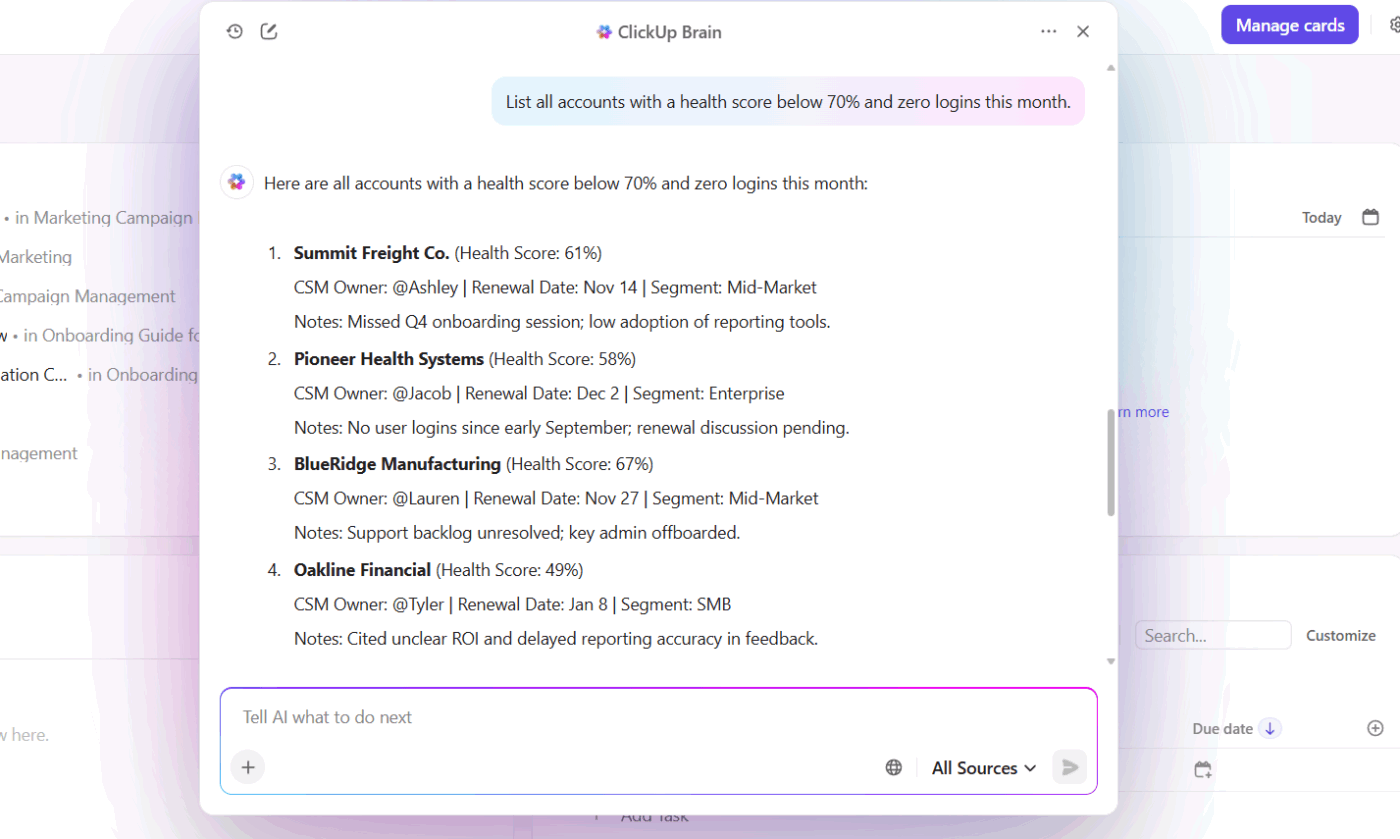
🔑 Because Brain understands your workspace data and patterns, you can remove guesswork from when and how you share reminders.
📌 Example: Set up a Notice task that uses Brain to draft the next outgoing email when a payment is overdue, then let the account owner review and send it, blending automation with a human touch.
4. Deploy ClickUp Super Agents for autonomous follow-up
ClickUp Super Agents are AI teammates that can act abiently inside your workspace rather than just assist you. With their infinite knowledge of your workspace and their powerful memory, they can:
🔑 Super Agents effectively delegate the ongoing monitoring and outreach work, saving hours each week. They’re especially useful if you manage large portfolios of clients or complex billing schedules.
📌 Use case in action:
This turns what used to be reactive collections into a responsive, intelligent process.
🎥 Watch how Super Agents work (and get your work done!) ✔️
Payment confirmation often arrives via email, message, or screenshot—and then gets lost.
If this sounds like something you’re struggling with, your intake needs to change.
ClickUp Forms allow you to collect structured information (e.g., payment reference, date, amount) and log it neatly inside the right ClickUp List. You can then pair Forms and Automations/Agents to automatically update the correct invoice task. This reduces back-and-forth and keeps records clean.
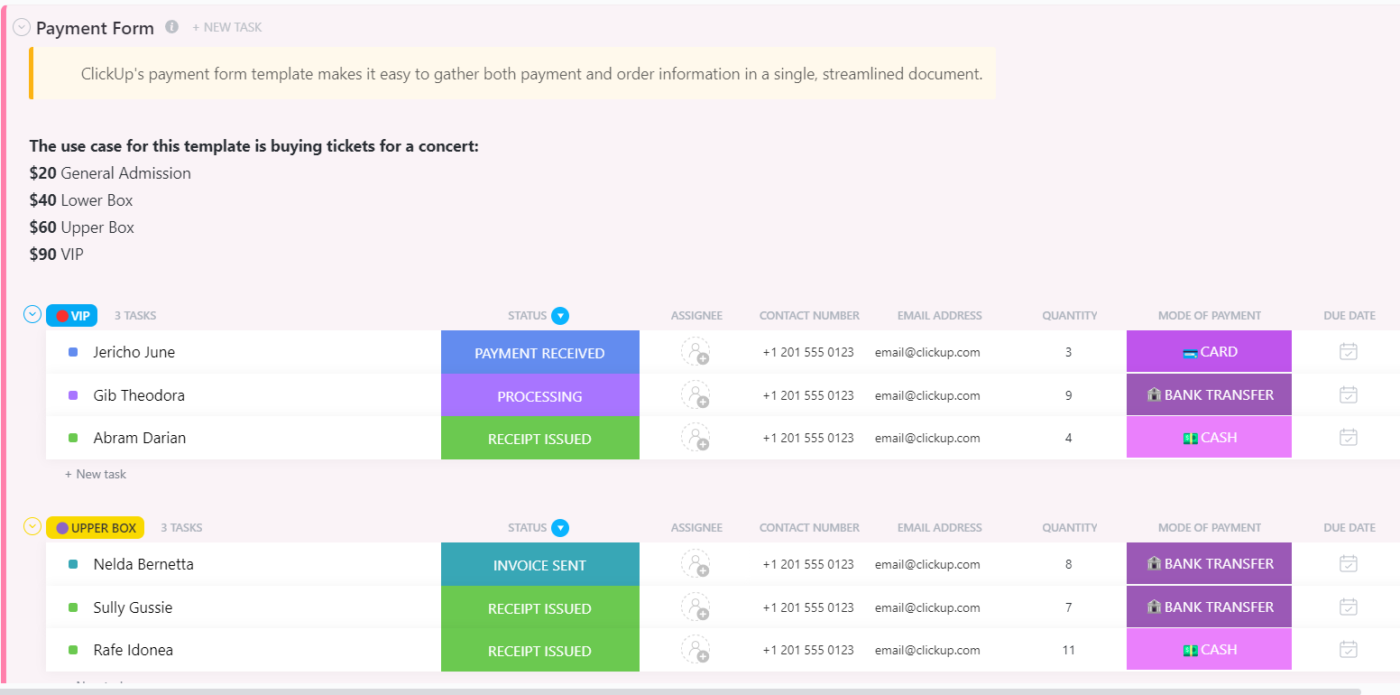
The Payment Form Template in ClickUp lets you build a secure, structured form to collect payment data and process transactions directly into your workspace. It’s ideal for standardizing intake, tracking progress, and keeping payment information unified within your task system.
A tracker earns its keep when it answers questions like:
Static reports can’t do this reliably. You need a view that updates in real time.
If you need something similar to spreadsheets, try the Table View in ClickUp. It helps you manage your invoice and payment data in one place. Sort invoices by due date, filter overdue payments, and even group them by client or status to detect patterns.
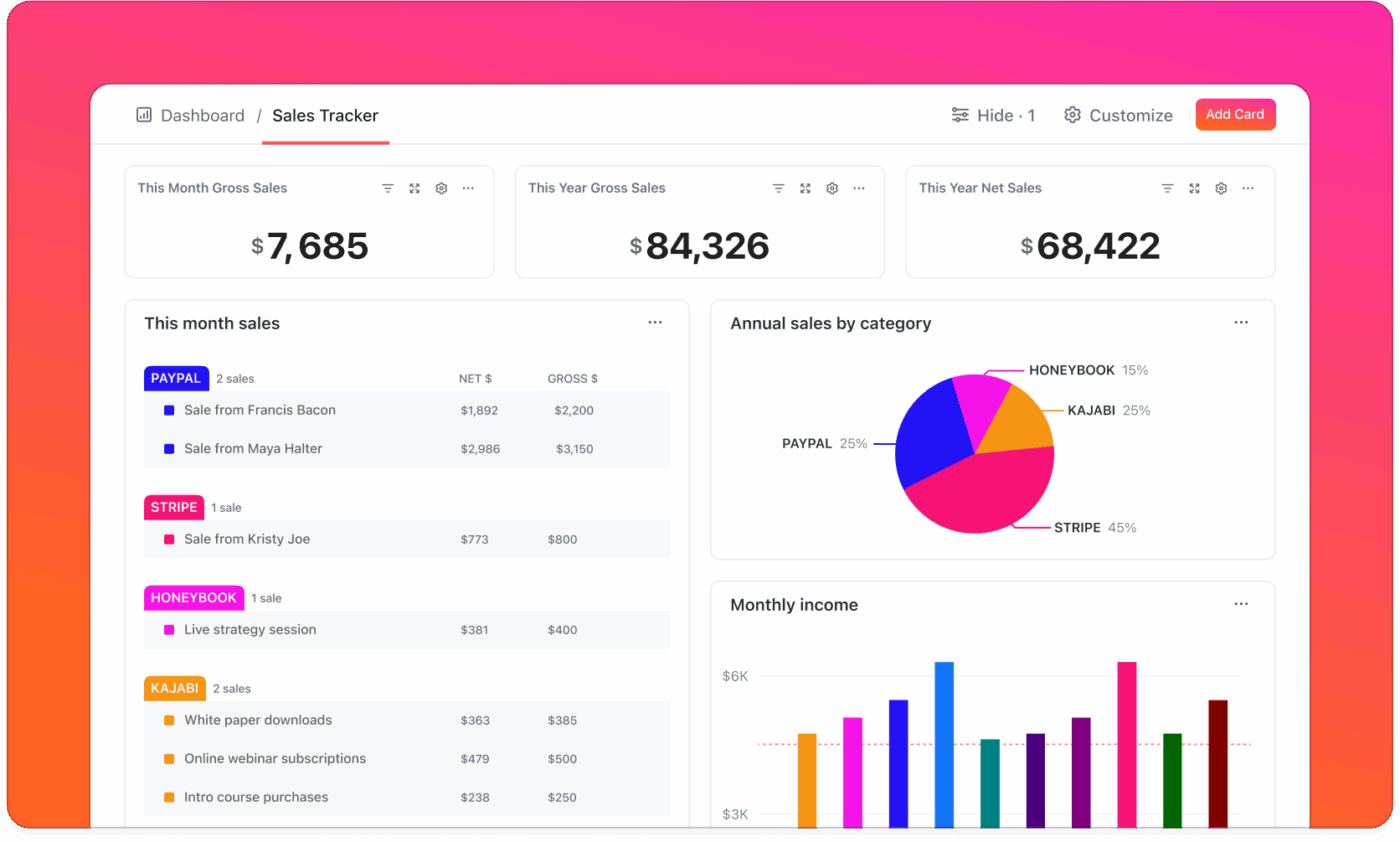
You’ve also got ClickUp Dashboards to track the metrics that matter for your business. Set up custom cards, charts, and graphs that auto-update with total outstanding balance, track overdue invoices by age, or monitor expected payments every week.
This will give you a live pulse on cash flow without waiting for finance updates.
When tracking is disconnected from projects, disputes and delays increase. This is because clients might start questioning the project scope or completion. Without a clear link between what was billed and what was delivered, even legitimate invoices can stall.
Linking invoice tasks to related project tasks creates context:
This reduces disputes and speeds up collections.
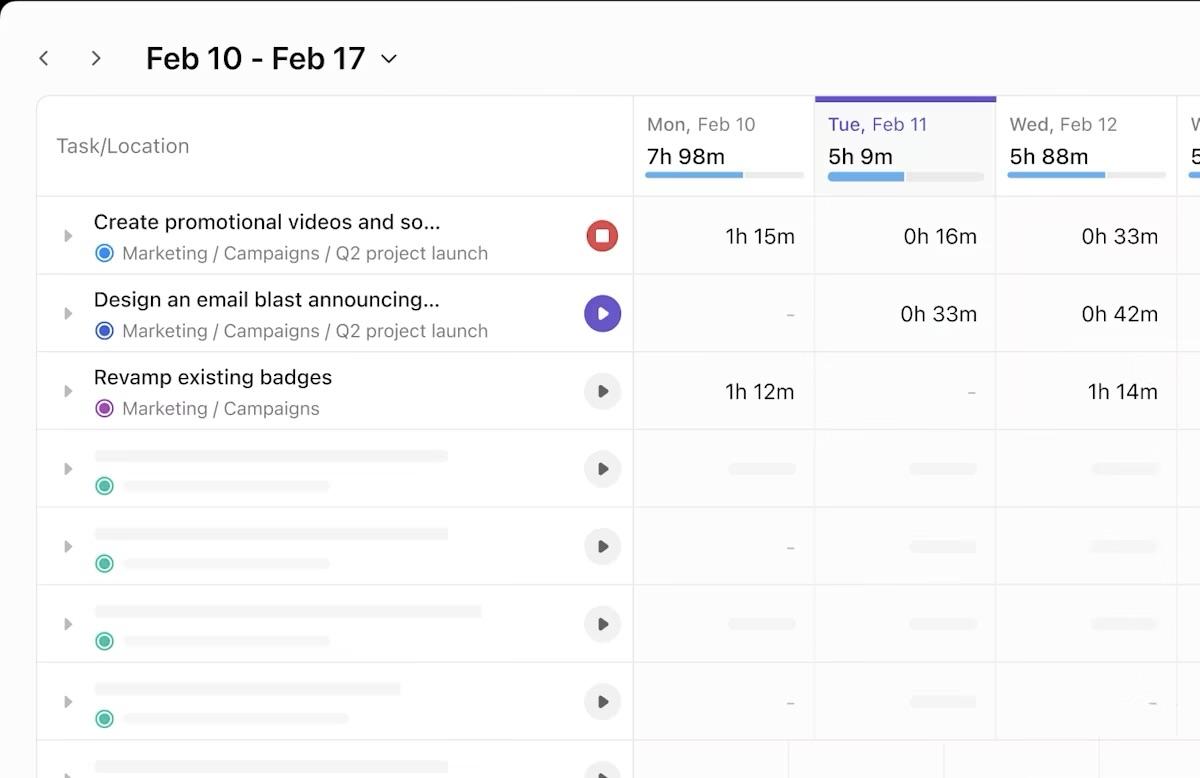
💡 Pro Tip: Use ClickUp Time Tracking and Timesheets to directly connect invoices to delivery. In ClickUp, team members log time against project tasks as work happens. Those entries roll up into Timesheets, showing hours by task, assignee, date, and client. You can clearly show which milestones were completed, and when work occurred. For time-based or retainer billing, this transparency gives clients confidence that invoices are accurate—making on-time payment far more likely.
A client payment tracker remains reliable only if it’s reviewed regularly.
Set aside time each month to look at patterns, not just individual invoices. Pay attention to which clients consistently pay late, how long your average collection cycle has stretched over time, and where follow-ups happen.
These signals help you adjust payment terms, reminder timing, or ownership before small issues become cash-flow problems.
📚 Also Read: Project Profitability
A client payment tracker isn’t just an administrative tool. When implemented correctly, it becomes a cash-flow control system—one that reduces uncertainty, protects margins, and improves client relationships without adding overhead.
Of course, your clients won’t suddenly start paying faster just because a tracker is in place.
But what matters is that you’ll be able to predict when money will arrive. A structured payment tracker makes outstanding revenue visible by due date, amount, and client. This allows you to plan payroll, vendor payments, and hiring decisions.
Businesses that track receivables systematically tend to shorten their collection cycles. Overdue invoices are surfaced early, before they become uncomfortable or forgotten. Visibility changes behavior.
Missed invoices don’t show up as “losses” in your books, they simply never appear.
A proper tracker ensures:
This dramatically reduces revenue leakage, especially for project-based and retainer work where billing can be delayed or fragmented.
Without a tracker, follow-ups are emotional and inconsistent. With one, they’re timely, factual, and calm.
Instead of “Just checking in…”, follow-ups become: “This invoice was due on May 15 and is now five days overdue.”
That clarity protects relationships. Clients are far less likely to feel pressured or surprised when reminders are consistent and data-driven.
Isn’t tracking payments in your head exhausting?
It pulls your attention away from delivery, sales, and strategy.
A centralized tracker removes that cognitive burden by answering questions instantly. If you’re a founder or account manager who already operates at capacity, this is a godsend.
When payment tracking is shared—not siloed—accountability improves. Finance knows what’s outstanding. Account managers know which clients need nudging. Leadership sees risk early.
Tools like ClickUp support this by assigning clear ownership, tying invoices to delivery work, and making status visible without extra meetings or reports.
Ironically enough, structured payment tracking often improves relationships. Clear terms, consistent reminders, and documented history reduce friction and misunderstandings.
Clients know what to expect—and so do you.
📚 Also Read: Client Management
Yes, we already showed you how to build your client payment tracker. We also said you could do it in a simple spreadsheet. Or graduate to ClickUp.
If neither tickles your fancy, here are three more options to choose from:
FreshBooks is a cloud-based accounting and invoicing platform built for service-based businesses and freelancers. It simplifies billing, automates reminders, and combines basic bookkeeping with payments tracking in one app.
Wave is a free, cloud-based accounting and invoicing platform that lets small businesses and solo professionals manage invoicing, payments, and basic accounting without a subscription fee.
Zoho Books is a cloud-based accounting solution that includes invoicing, accounts receivables tracking, banking integrations, automated reminders, client portals, and deep reporting. It all comes together within a broader suite if you’re using other Zoho tools.
Our best tip for choosing the right tool? Start with the free or trial versions and see which one fits best. Then upgrade to a higher tier based on what you need and what you get!
📚 Also Read: Client Portal Examples
Like it or not, you can’t improve payment management by being aggressive or sending endless reminders. Here’s what works instead:
Most payment issues are decided before the first invoice goes out. Agree on clear terms during onboarding, not after delivery. Clients are far more likely to pay on time when expectations around payment timelines, late fees, and billing cadence are explicit and documented.
The longer you wait to invoice, the longer it takes to get paid. Best-run teams invoice immediately after a milestone or on a fixed, recurring schedule. Avoid batching invoices “when you have time.”
Whether you’re a solo freelancer or an agency, all invoices, statuses, and notes should live in one place. Scattered tracking leads to missed follow-ups and duplicate outreach.
This single source of truth ensures:
Every unpaid invoice must have a responsible owner. Without this, reminders become inconsistent and awkward. Ownership also creates accountability without micromanagement.
One thing most people forget: Automation should handle timing, not relationships. Use pre-due and overdue reminders to remove forgetfulness, but keep escalation human-led for high-value clients or long-standing relationships.
We can’t stress this enough. Keep notes on partial payments, agreed extensions, and client conversations alongside the invoice record. Thank us later!
📚 Also Read: Client List Templates
You’ve the toolkit, you’ve the best practices. Now, let’s wrap it up with a word of caution. Don’t get caught up in these common—yet costly—mistakes:
Why’s this a mistake, you ask? Because when you track one row per client instead of one per invoice, overdue risk gets buried. Partial payments, multiple milestones, and overlapping billing periods all disappear into a single number.
Sending an invoice is not a completed action—it’s the start of a collection process. Teams that stop tracking after invoices go out lose visibility into delays, disputes, and missed payments.
“I’ll remember to follow up” works until it doesn’t. Busy weeks, vacations, and handoffs aren’t in your control. Building foolproof systems is.
In tools like ClickUp, Automations and due-date–based reminders remove the risk of human forgetfulness entirely.
When invoices live inside project task lists, they get buried under delivery noise. Financial tracking needs a clean, dedicated space.
Keep payments in a separate Folder or List inside ClickUp, then link invoices to project tasks for context instead of co-locating them.
Late payments are rarely random. They usually cluster around certain clients, terms, or billing structures.
Review payment data monthly. If the same clients are always late, adjust terms, require upfront payments, or rethink the relationship.
One-off payment extensions happen. The mistake is not documenting them.
When exceptions live buried in inboxes or Slack threads, your tracker stops reflecting reality. Every exception should be logged directly against the invoice record so your data stays trustworthy.
📚 Also Read: How to Manage Multiple Clients
At a certain scale, payment tracking stops being about reminders and starts being about operational clarity. When you have a clear view of what’s outstanding, who owns each follow-up, and how payments connect to delivered work, cash flow becomes far more predictable. That predictability supports better planning, steadier client relationships, and fewer awkward conversations about money.
This is where tools like ClickUp fit naturally. By tying payments to real work, real owners, and real timelines, teams gain shared visibility and consistency across tracking and follow-ups. When everything lives in one system, payment collection feels intentional and controlled rather than reactive.
If your current setup feels fragile or overly manual, that’s a sign of a system gap—not a personal shortcoming—and it’s one you can close. How? Sign up and try ClickUp for free today!
A client payment tracker is a system used to record invoices, monitor payment status, and track outstanding balances by due date and client. It shows which invoices have been sent, paid, or are overdue, along with who is responsible for follow-up.
You should use a client payment tracker to prevent late payments, avoid revenue leakage, and maintain predictable cash flow. Without one, invoices are easy to forget and follow-ups become inconsistent.
A client payment tracker should include the client name, invoice number, invoice date, payment due date, invoice amount, amount paid, outstanding balance, payment status, and follow-up owner. Optional fields like payment terms, notes, and payment method add context.
You can track client payments automatically by using software that updates payment status, triggers reminders, and assigns follow-up tasks based on due dates. Automation typically relies on rules like “when an invoice becomes overdue” or “before a due date.” This removes manual tracking, ensures consistent follow-ups, and keeps payment data accurate without constant human intervention.
Yes, you can use Excel or Google Sheets as a client payment tracker, especially for low invoice volume. However, spreadsheets require manual updates, offer no built-in reminders, and don’t enforce ownership. As client volume grows, spreadsheets often fall out of sync, increasing the risk of missed invoices and inconsistent follow-ups.
The best way to remind clients about overdue payments is through a consistent, automated reminder sequence that starts before the due date and escalates gradually. Reminders should be factual, polite, and timely rather than emotional or sporadic. Automating reminder timing while keeping the message professional helps preserve client relationships and improves payment reliability.

© 2026 ClickUp

There’s an easier way. Try a free AI Agent in ClickUp that actually does the work for you—set up in minutes, save hours every week.