






Still downloading templates?
There’s an easier way. Try a free AI Agent in ClickUp that actually does the work for you—set up in minutes, save hours every week.
Sorry, there were no results found for “”
Sorry, there were no results found for “”
Sorry, there were no results found for “”
If your CRM is alive and present, why does it sometimes feel like your team is doing data entry for a living?
That’s the problem CRM automation is supposed to solve. Reps should be selling, support should be closing cases, and ops should be improving the system. Not copying notes into fields, rewriting the same follow-up emails, or chasing updates across records.
This is what Salesforce Einstein Copilot aims to solve.
In this guide, we’ll walk through how to use Salesforce Einstein Copilot for CRM automation, including its use cases and setup.
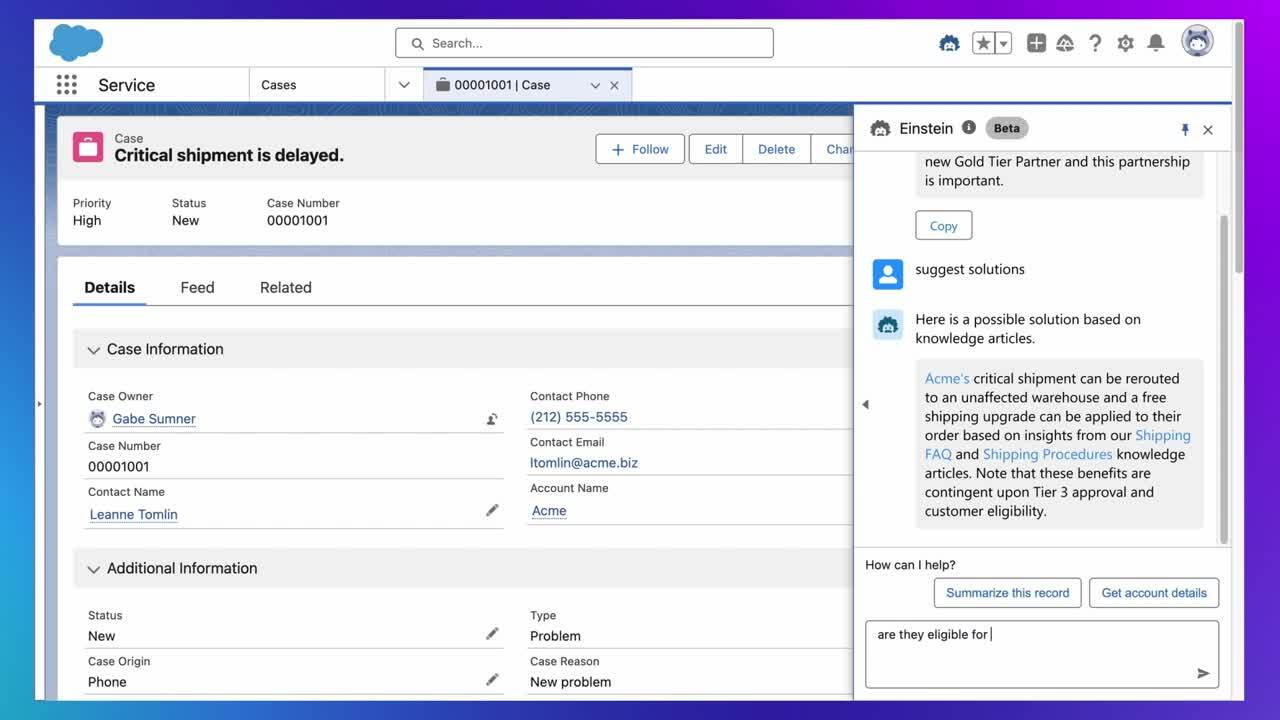
Salesforce Einstein Copilot (now Agentforce) is Salesforce’s conversational AI assistant for CRM work—built to answer questions, generate content, and take actions inside Salesforce apps using natural-language prompts. It’s designed for sales, service, and marketing teams who are tired of spending their days on manual CRM updates.
🌼 Did You Know: Roughly 64% of enterprises that invest in AI for CRM say they see measurable ROI within the first year, which means these tools often pay off fast when they are tied to real workflows like lead scoring, forecasting, and follow-ups.
At a high level, Einstein Copilot works with three steps in mind:
In better light, the two main concepts that make it work are grounding and actions. Meaning:
📖 Read More: Amazon Q Vs. Copilot
Now that you know how it works, let’s look at the specific types of manual work it can take off your plate.
📮ClickUp Insight: 30% of workers believe automation could save them 1–2 hours per week, while 19% estimate it could unlock 3–5 hours for deep, focused work.
Even those small time savings add up: just two hours reclaimed weekly equals over 100 hours annually—time that could be dedicated to creativity, strategic thinking, or personal growth.💯
With ClickUp’s AI Agents and ClickUp Brain, you can automate workflows, generate project updates, and transform your meeting notes into actionable next steps—all within the same platform. No need for extra tools or integrations—ClickUp brings everything you need to automate and optimize your workday in one place.💫
Real Results: RevPartners slashed 50% of their SaaS costs by consolidating three tools into ClickUp—getting a unified platform with more features, tighter collaboration, and a single source of truth that’s easier to manage and scale.
Getting started with a new tool can feel overwhelming, so let us walk you through the setup process for Einstein Copilot.
But first, make sure you have what you need.
🎯 Prerequisites Checklist:
Once you’ve confirmed the prerequisites, begin the setup process.
Step 1: From your Salesforce org, find the ‘Setup’ page
Step 2: Use the Quick Find box to search for ‘Einstein Copilot’ and open its setup page
Step 3: Now, toggle the feature on for your organization. This is the master switch that activates the assistant

Step 4: Decide who gets to use Copilot. You can assign permissions to specific user profiles or create a dedicated permission set to grant access
Step 5: In the prompt builder, you can now customize how Copilot responds. In fact, you get to create custom prompts that use your company’s terminology and align with your specific business processes
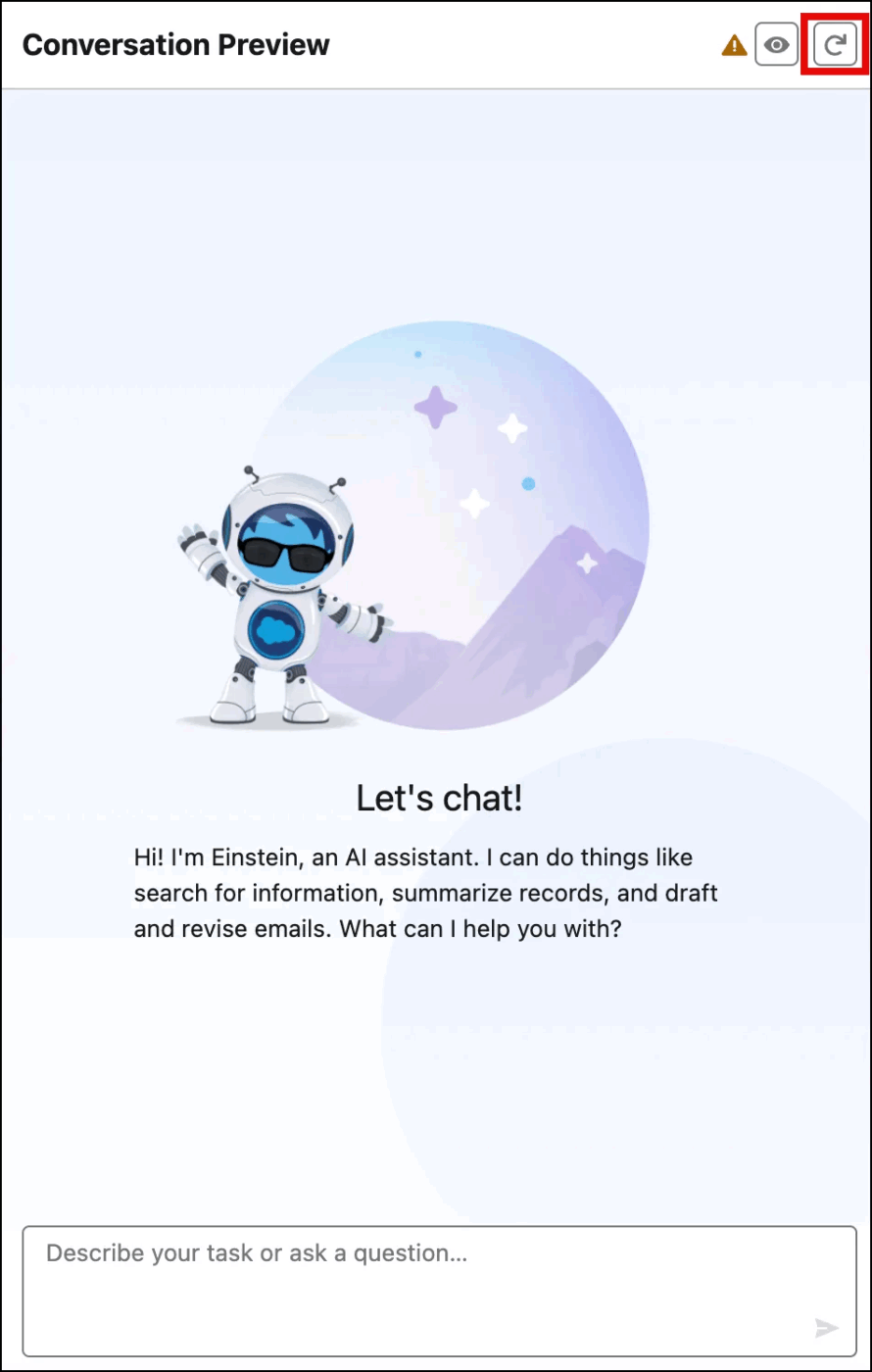
Step 6: Before unleashing Copilot on your entire organization, always test it in a sandbox environment. This lets you work out any kinks and refine your prompts without affecting live data
Step 7: After successful testing, deploy Copilot to your production environment. Gather feedback from your users and continue to add custom actions and refine prompts to make the assistant even more helpful over time
Einstein Copilot delivers the most value when you apply it to your team’s daily workflows.
While the features are impressive on their own, their value is in how they solve the specific, repetitive pains that slow down each department. Different teams can use it in the following ways. 👇
Here, the AI can help reduce the time sales reps spend on CRM upkeep and data entry by summarizing accounts and opportunities, capturing call outcomes, and converting next steps into updates. Plus, it speeds up follow-up emails that reflect the deal context and customer history, so outreach stays relevant.
Einstein Copilot can summarize prospect details from past interactions, identify missing compliance fields, and propose a compliant follow-up path. It can draft outreach that references the client’s stated goals, risk preferences, and product eligibility. For advisors and inside sales, it also recommends the most relevant next action (schedule a suitability call, request documents, or route to a licensed specialist) based on CRM context.
The AI uses signals like cart behavior, service chats, and order history to identify shoppers most likely to convert. With that context in place, follow-ups can reference products viewed, availability, and delivery constraints. On the service side, order timelines and return reasons get summarized before the rep replies. That makes policy-aligned resolutions easier to deliver in fewer messages.
Copilot organizes complaints by extracting booking details and classifying the issue type. With a concise case summary ready, escalation becomes simpler for the front desk and support teams. Recovery recommendations can then align with loyalty tier rules stored in the guest profile. Upsell outreach remains relevant, as add-ons are suggested based on traveler history and trip purpose.
No tool is perfect, and it’s important to understand Einstein Copilot’s limitations to set realistic expectations. Being aware of these constraints helps you plan a more effective implementation and avoid frustration.
A CRM-native AI does help inside Salesforce, but your workflow rarely ends there. When a deal closes, the next steps spill into onboarding, implementation, finance, and support work across other tools.
And that’s where work sprawl starts to accumulate. Teams start switching apps just to find the latest customer details, handoff notes, and owners for the next actions.
Enter ClickUp, a Converged AI Workspace, that solves this by keeping tasks, docs, conversations, reporting, and AI together, so CRM activity can trigger and track the work that happens everywhere else.
For starters, you can use ClickUp CRM Software to build a versatile system for managing contacts, accounts, and deals inside the same workspace where your execution already happens. It is designed to let you store customer data, link it directly to tasks and docs, and automate follow-ups and deal updates—with AI sitting atop.
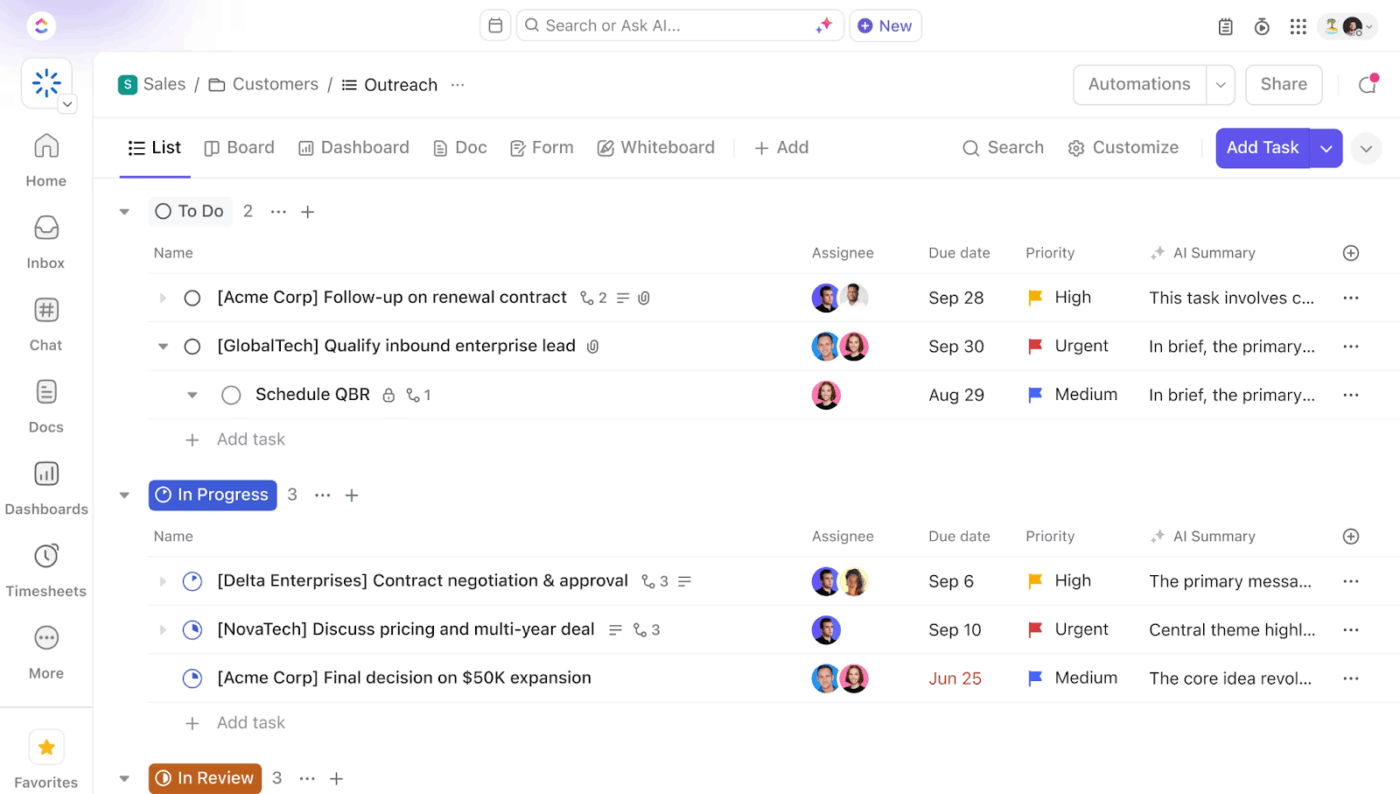
Now, let’s break down what this CRM setup includes in more detail:
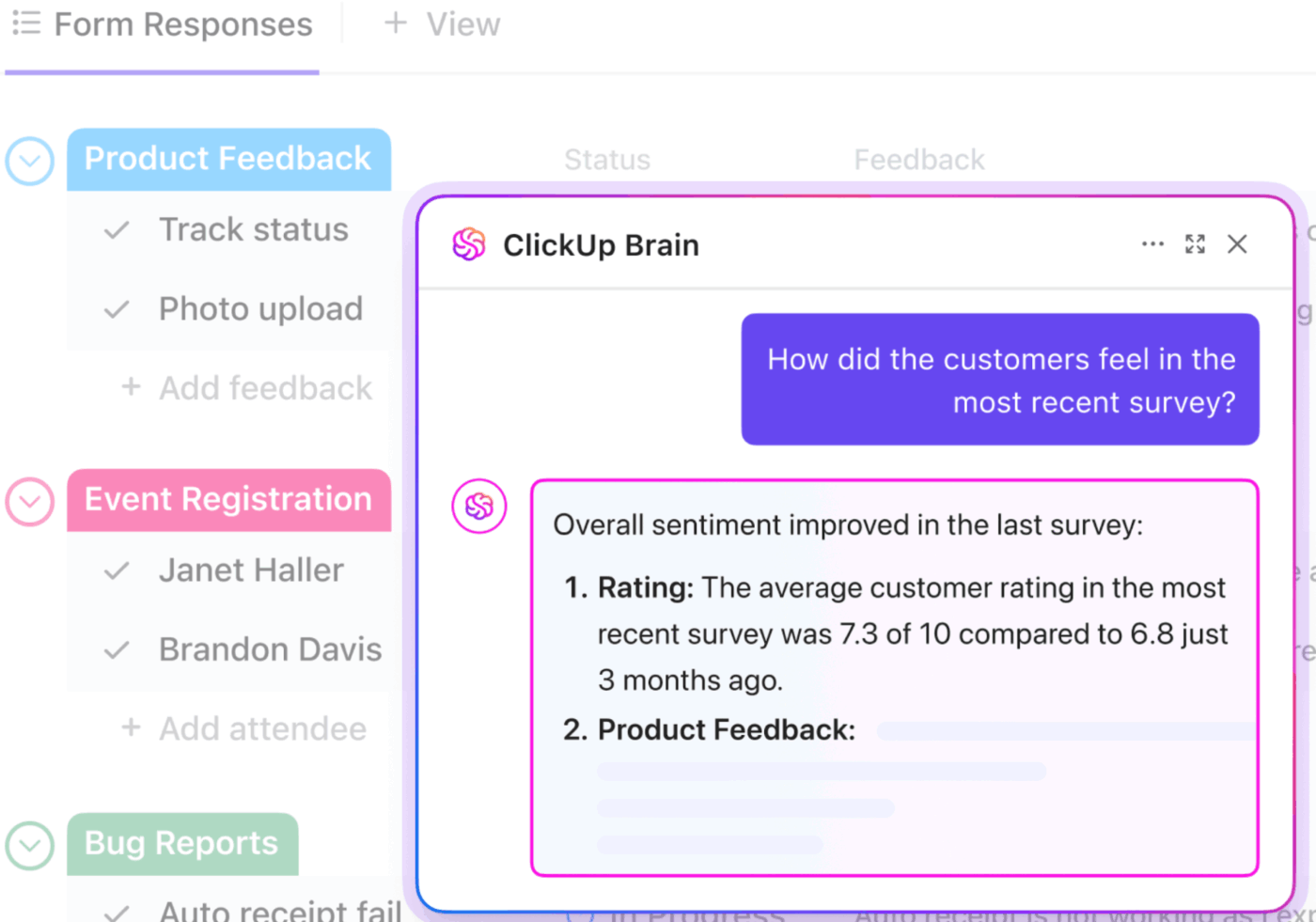
Use ClickUp Brain to convert a win into an onboarding-ready handoff inside your workspace.
Brain works with the context already captured in ClickUp, including Tasks and Docs, and can summarize long threads, draft updates, and help shape next steps without losing any detail.
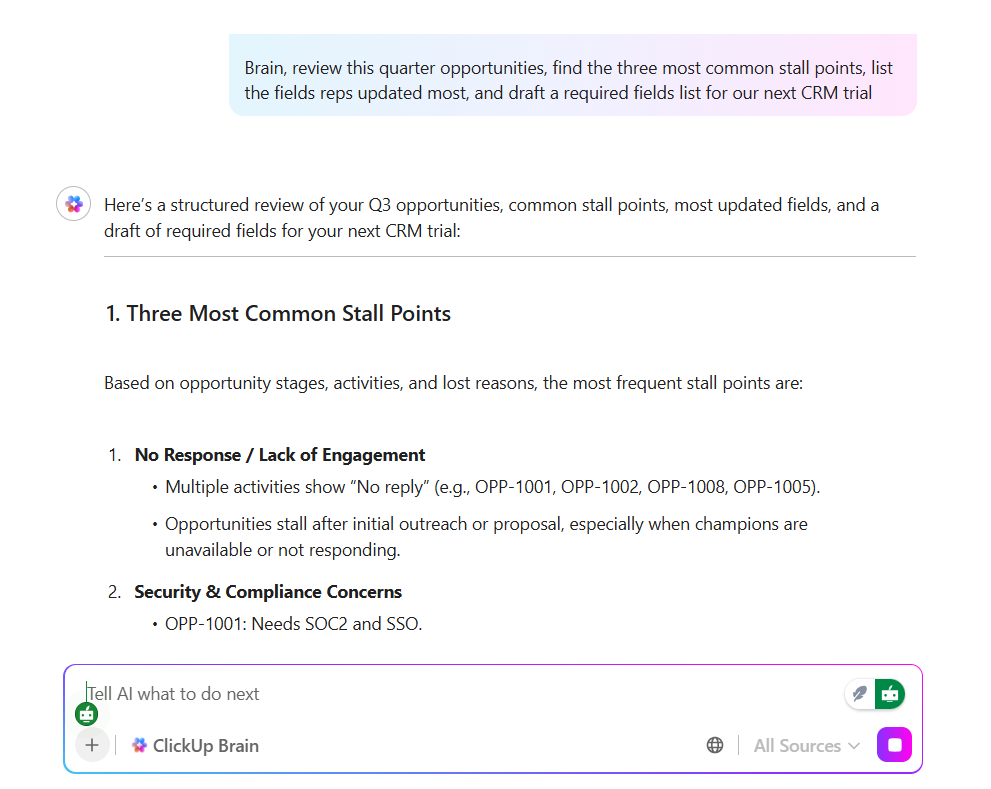
For example, open the handoff task and type @My Brain to generate a private summary of customer context, scope notes, risks, and open questions, then paste it into the thread for the team.
ClickUp Brain also supports creating subtasks directly in ClickUp, helping break a handoff into owned, trackable work the moment the deal is confirmed.
🚀 The ClickUp advantage: Use ClickUp Brain MAX as your AI desktop companion! Open Brain MAX and run a single query that pulls from ClickUp, your connected apps, and the web, then follow with Talk-to-Text to capture next steps as you speak.
If you use the Chrome extension, pin it and keep Brain MAX available in the side panel while you read a CRM record or a help article. That makes it easy to summarize what you are looking at and capture action items without leaving the page.
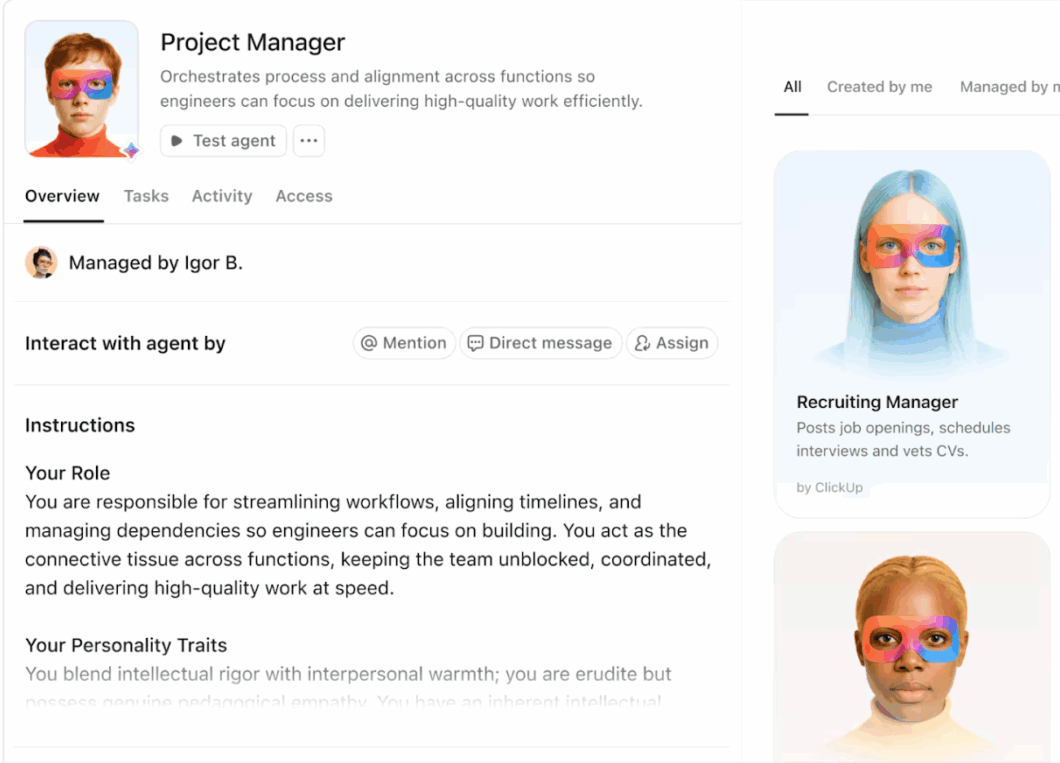
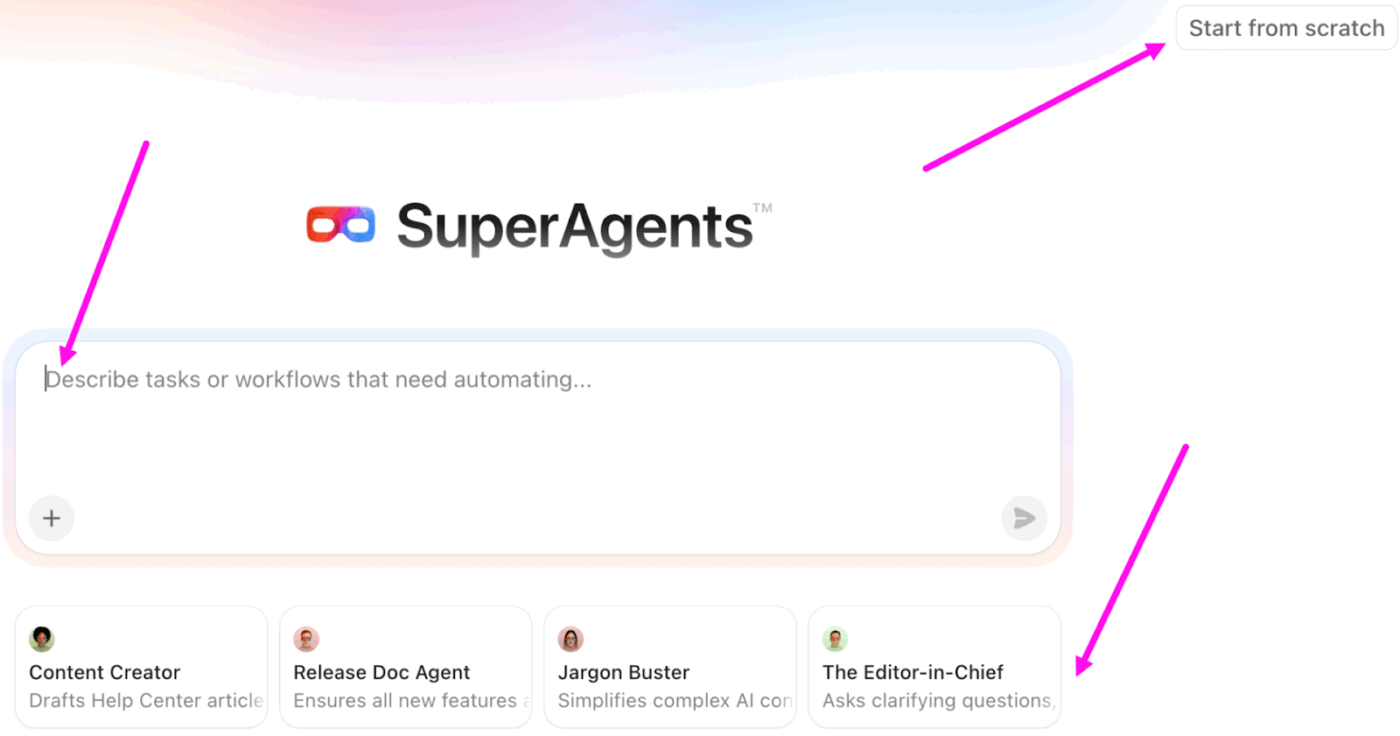
ClickUp Super Agents manage the multi-step process that begins the moment a CRM activity occurs. They are your AI teammates (just like an unusual human coworker) that handle routine follow-ups, incoming requests, and task assignments—all contextually.
And the best part is you can configure these agents according to your needs, with instructions, triggers, tools, and knowledge, to ensure they remain consistent with your processes.
Pair that with ClickUp Automations to make your processes even more seamless. Automations can update statuses, set due dates, and route tasks through the right stages as work progresses.
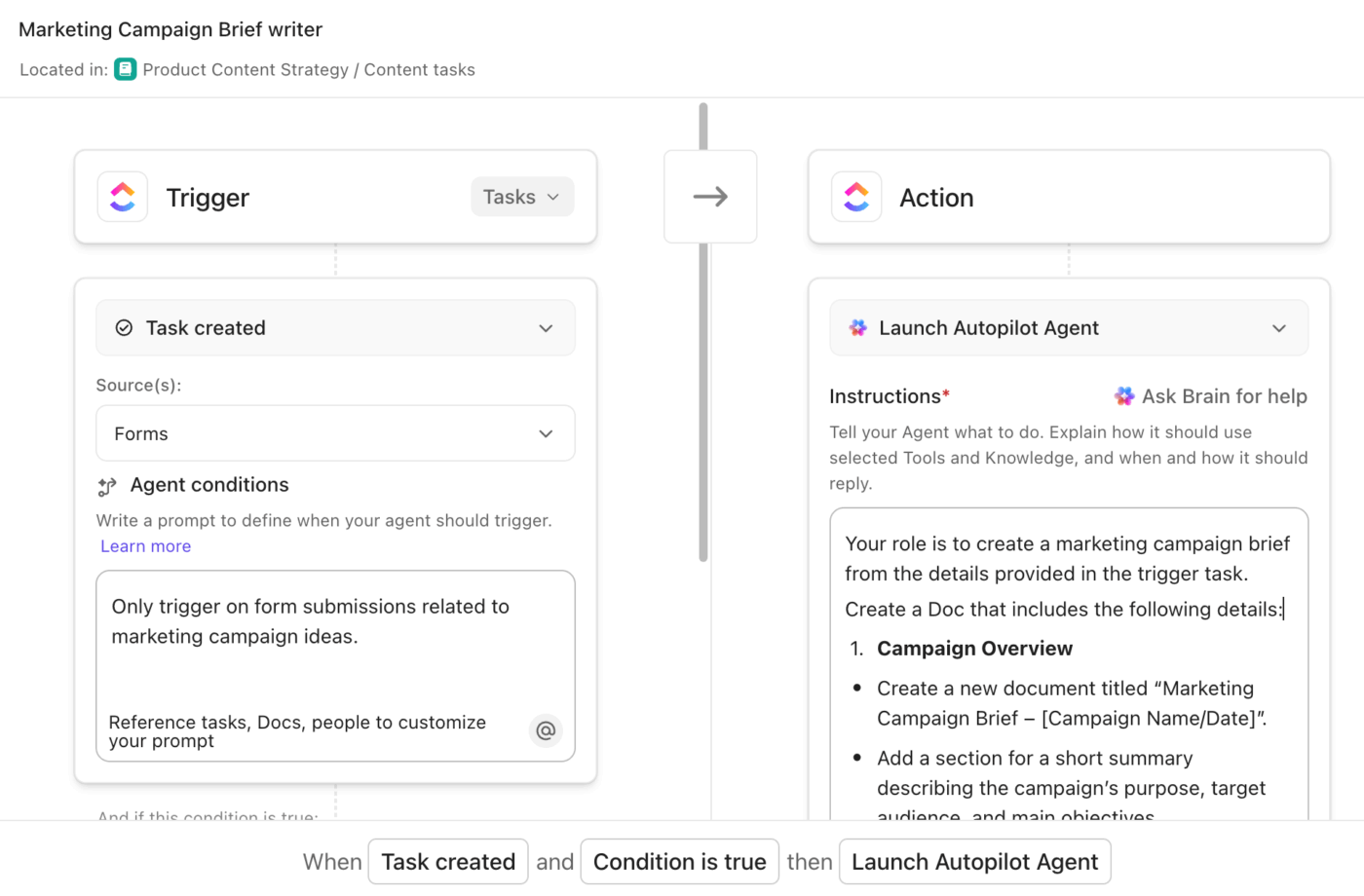
For example, when an onboarding task moves to ‘Ready to Kickoff,’ an Automation can launch a Super Agent.
The agent can compile the latest customer context from Docs and task history, draft the kickoff brief, create the required subtasks for implementation and finance, and tag the right owners for review. That gives you a consistent workflow that scales across every new customer, even when the team is busy.
⚡Template archive: Use the ClickUp Advanced CRM Template if you want complex processes handled for you! Use it to get a full CRM structure out of the box, including 22 ClickUp Custom Statuses and CRM-ready ClickUp Custom Fields like Industry and Job Title. The template stays lightweight in day-to-day use while still supporting deeper segmentation and follow-up workflows when you need more detail.
Use AI Cards to add AI-powered reporting directly to your ClickUp Dashboards. These cards give you a dedicated place to run an AI prompt against the work data in your workspace, then keep the output visible alongside your existing metrics.
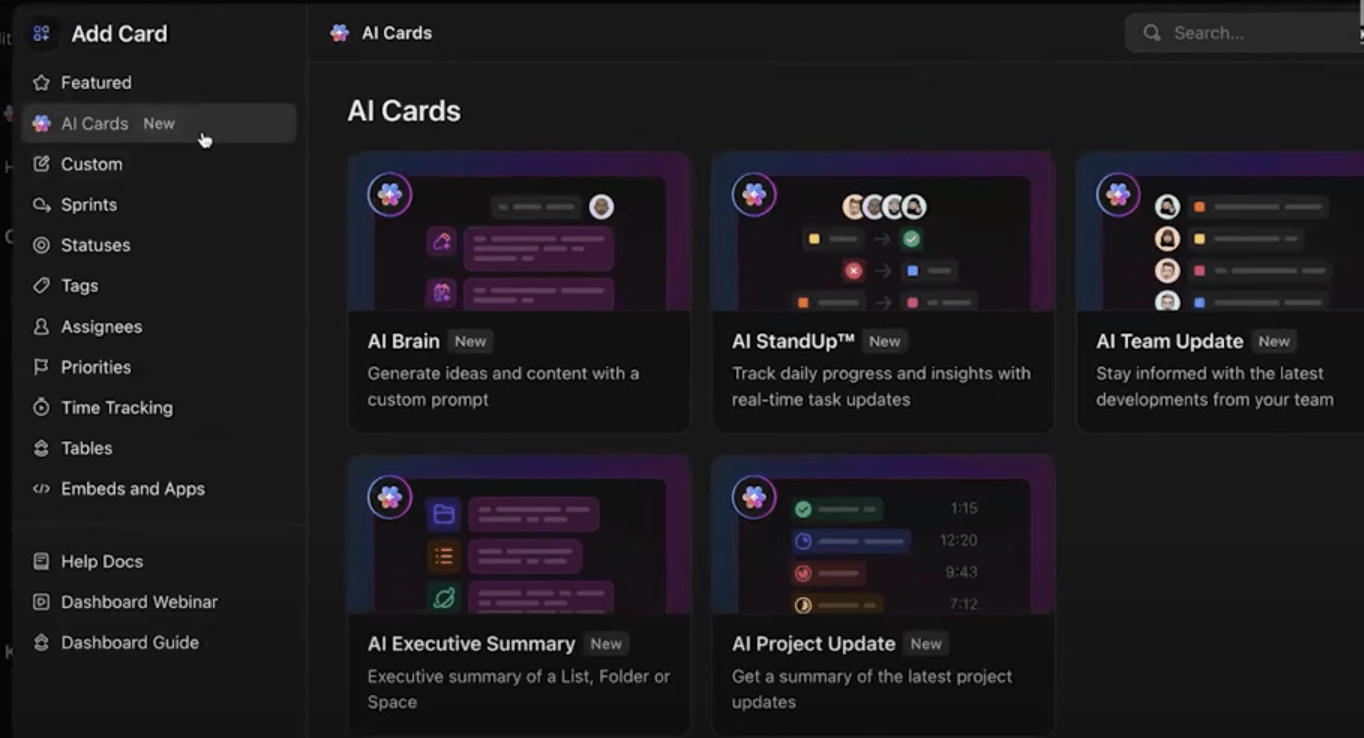
The most flexible option is the AI Brain card, which lets you run a custom prompt. You can frame prompts around CRM operations, like ‘Summarize new deals this week and list next-step tasks by owner,’ or ‘Pull account handoffs that are missing due dates and flag the ones at risk.’
AI assistants like Einstein Copilot can take a real bite out of your CRM chores. But the teams that get the most value do one thing well: they treat automation like a workflow.
That means clean data, clear rules, and consistent prompting habits across the team. Because the goal is not “more AI.” The goal is fewer clicks and more customer time.
When you want automation to reach your CRM and then go beyond, you choose ClickUp. Capture processes and playbooks in docs, track execution in tasks, and use AI to keep an eye on progress. And then, add automations and integrations to the mix too!
Get started for free with ClickUp and turn CRM automation into a system your team can actually run. ✅
Einstein Copilot is built specifically for Salesforce CRM data and workflows, while Microsoft Copilot operates across Microsoft 365 apps like Outlook and Teams.
The right choice depends on where your team’s most critical data and daily work reside.
Einstein Copilot operates within the Salesforce platform, but you can connect Salesforce to project management tools like ClickUp using native integrations. This allows you to sync CRM data with your project workflows, giving teams visibility across both customer records and the work being done.
The cost of Einstein Copilot varies by Salesforce edition and is typically offered as an add-on license. For the most accurate pricing, you should contact Salesforce directly to get a quote based on your organization’s specific configuration and user count.
The key limitations include its dependency on high-quality data within your Salesforce org and the fact that it only works within the Salesforce ecosystem. Additionally, automating unique business processes requires admin configuration of custom actions.

© 2026 ClickUp

There’s an easier way. Try a free AI Agent in ClickUp that actually does the work for you—set up in minutes, save hours every week.