Sorry, there were no results found for “”
Sorry, there were no results found for “”
Sorry, there were no results found for “”
When you want to code faster, what do you reach for?
You reach for AI workflows.
Well, not as a replacement for engineering judgment, but as a way to move through the mundane parts quickly, including scaffolding components, drafting hooks, fixing types, generating tests, and getting a first pass you can shape into production code.
In that universe, the GitHub Copilot coding assistant is one of the names you’ll hear often. It sits inside your editor and helps you turn prompts into working frontend code.
In this guide, we’ll show you how to use Copilot for frontend development to keep it clean, reviewable, and actually shippable.
(⭐ Bonus: We’ll also spill the beans on an AI coding agent and how it can help you run frontend work end-to-end, across the entire dev lifecycle.)
GitHub Copilot is an AI-powered coding assistant from GitHub and OpenAI that gives you real-time code suggestions inside your editor. It’s built for developers who want to spend less time on repetitive tasks and more time focused on complex logic.
For frontend developers, it understands JSX, CSS, TypeScript, and modern framework patterns.
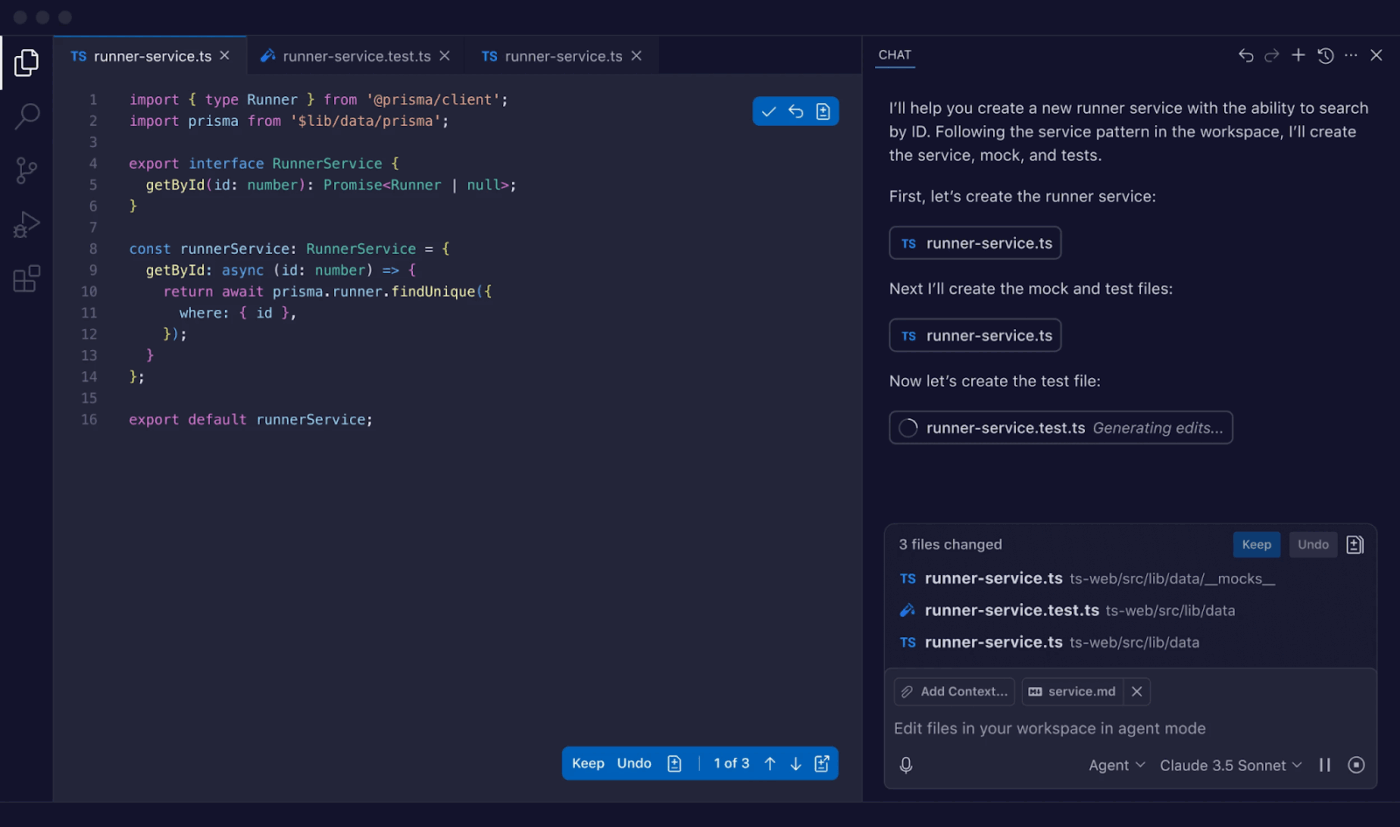
It works by using large language models (LLMs) trained on a massive amount of public code. Copilot analyzes the code you’re currently writing, the files you have open, and your comments to predict what you’ll type next. You can accept, change, or ignore its suggestions with a simple keystroke.
The newest versions offer conversational help and broader project awareness
🧠 Fun Fact: GitHub’s Octoverse report mentioned that a new developer joined GitHub every second, adding 36M+ new developers in a single year.
First, you need a GitHub account and access to Copilot (Free, paid, or via an organization).. Once that’s ready, installing it in your editor is simple and quick.
For VS Code, follow these steps:
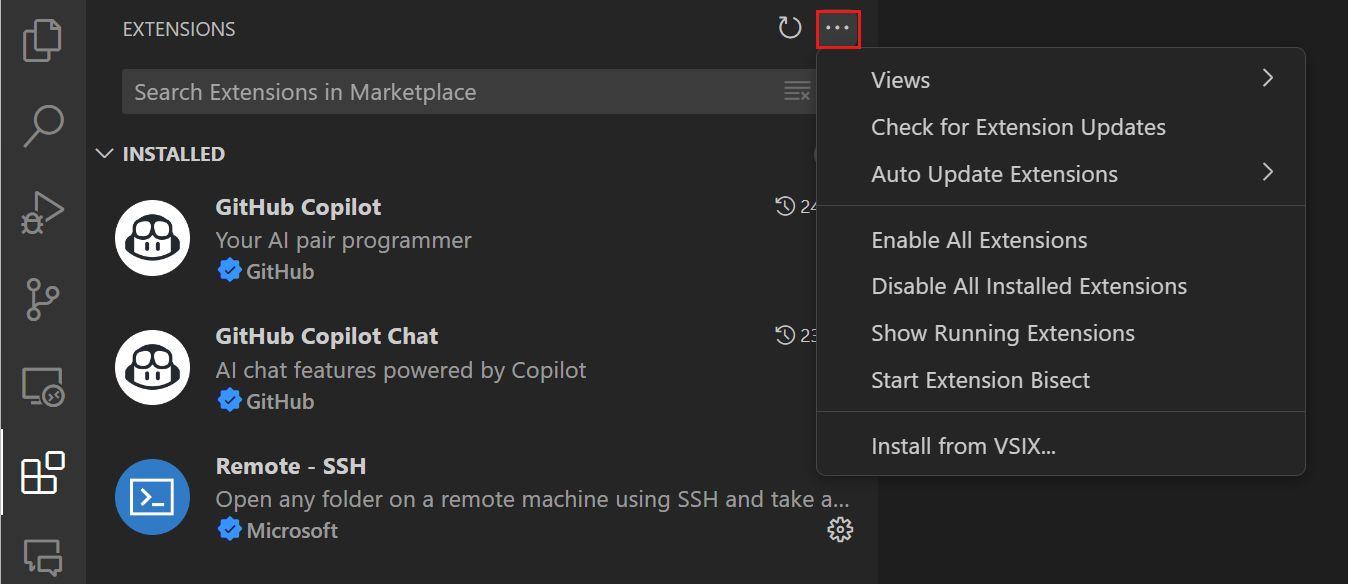
Step 1: Open the Extensions view from the sidebar
Step 2: Search for ‘GitHub Copilot’ and install the official extension from GitHub
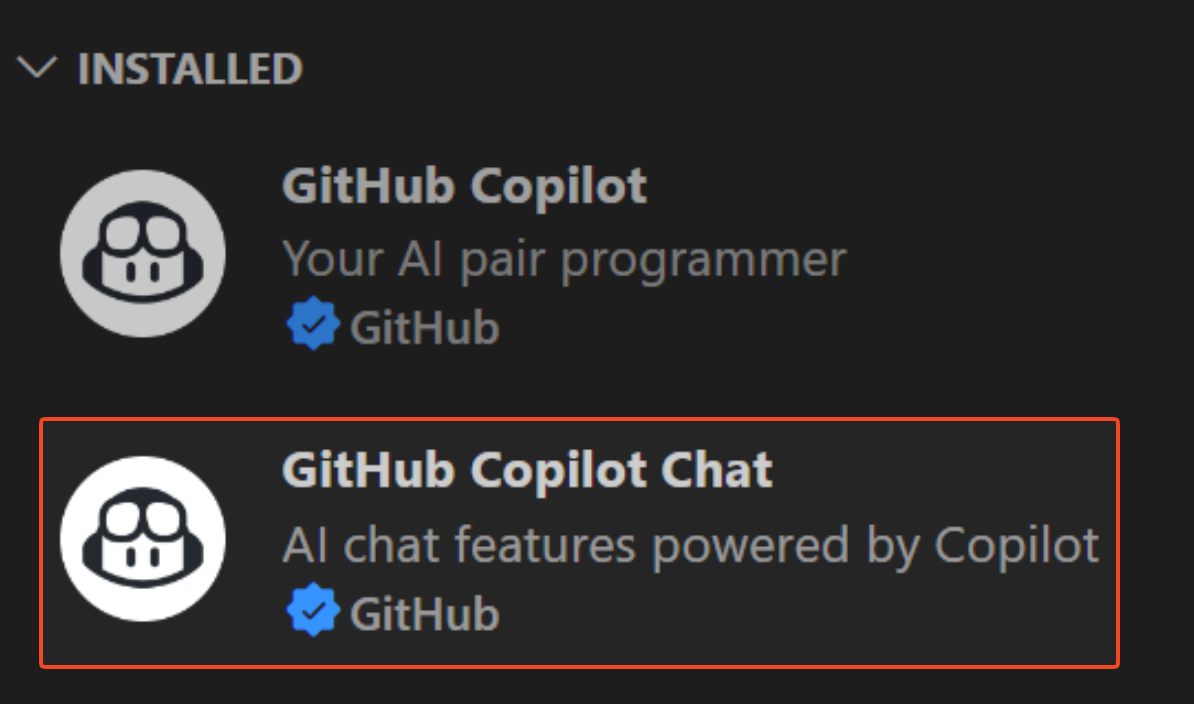
Step 3: Next, search for and install ‘GitHub Copilot Chat’ to enable conversational features
Step 4: You’ll be prompted to sign in with your GitHub account to authorize the extension
How to Use GitHub Copilot for Frontend Development
And you’re done! Once enabled, you’ll see Copilot available in the VS Code UI (placement varies by version). You can always open Copilot Chat from the Command Palette.
However, if you’re a WebStorm user, you can find and install the GitHub Copilot plugin from the JetBrains Marketplace and follow a similar sign-in process.
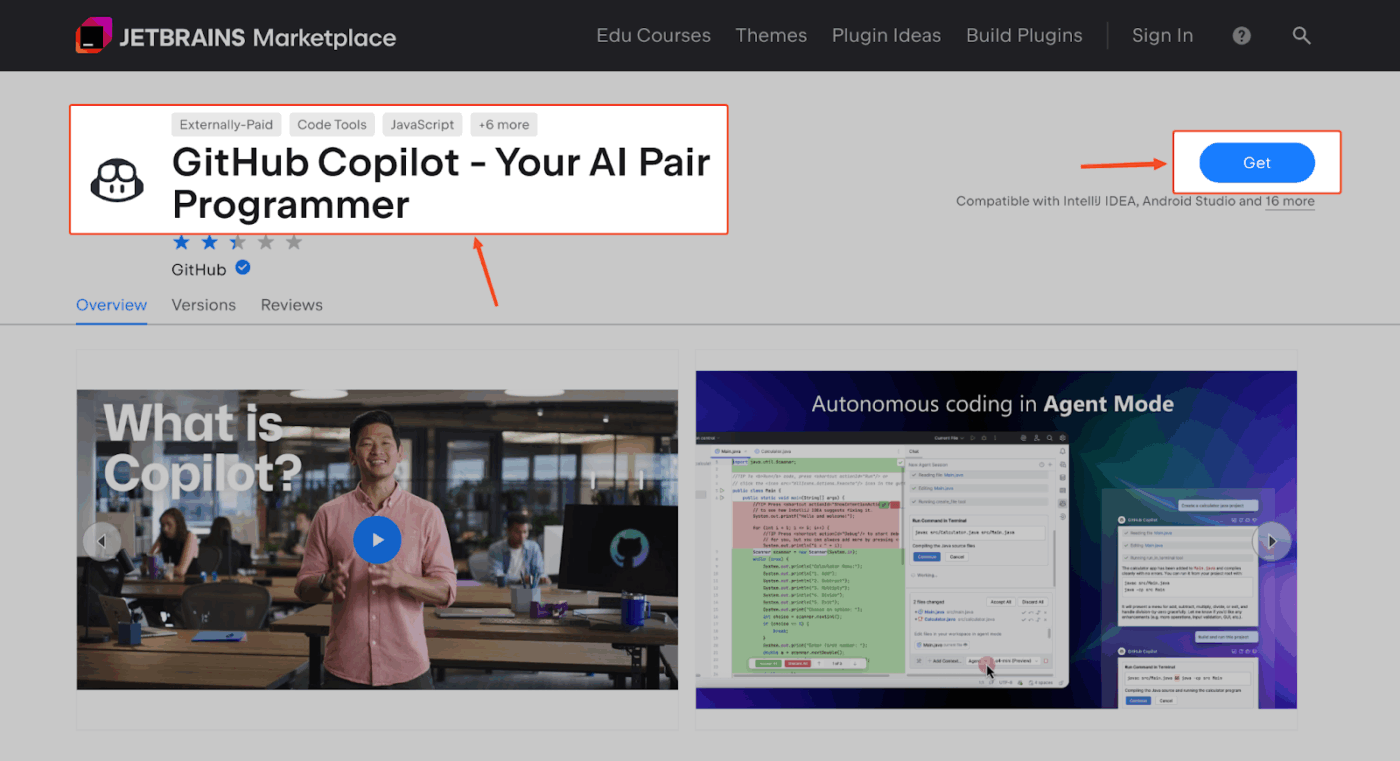
After installation, a few tweaks will optimize Copilot for your frontend workflow.
📮 ClickUp Insight: Our AI maturity survey shows that access to AI at work is still limited—36% of people have no access at all, and only 14% say most employees can actually experiment with it.
When AI sits behind permissions, extra tools, or complicated setups, teams don’t get the chance to even try it in real, everyday work.
ClickUp Brain removes that friction by putting AI directly into the workspace you’re already using.
You can tap into multiple AI models, generate images, write or debug code, search the web, summarize docs, and more—without switching tools or losing focus. It’s your ambient AI partner, easy to use and accessible to everyone on the team.
It may sometimes happen that Copilot just doesn’t understand what you’re trying to build, forcing you to delete more code than you keep. This is largely a consequence of insufficient context.
Unlike a chatbot, you don’t prompt Copilot with long sentences in a separate window. You prompt it through your code, comments, and file structure. For frontend work, this is especially important because you’re dealing with visual components, state, and specific framework patterns that need clear instructions.
That said:
Copilot gives better suggestions when it understands your project’s rules and patterns.
Keep related files open in different tabs, as Copilot uses them to understand the broader context. If you’re building a new component, open an existing, similar component so Copilot can learn its structure. Using TypeScript is also a game-changer—well-defined types act as powerful, implicit prompts that tell Copilot exactly what shape your data has.
Asking Copilot to ‘build a dashboard’ is too broad and will lead to generic code. You’ll get much better results by breaking down the problem into smaller pieces. This guides the AI and helps you think through the architecture.
For example, when building a dashboard, you might break it down like this:
⭐ Bonus: What Is Prompt Chaining
Vague comments like // handle click will give you vague code. A better contrast to this is writing comments that describe the function, behavior, and any constraints.
In a nutshell:
When a comment isn’t enough, use Copilot Chat for a more streamlined operation. It’s useful for complex requests where you need to explain the logic conversationally.
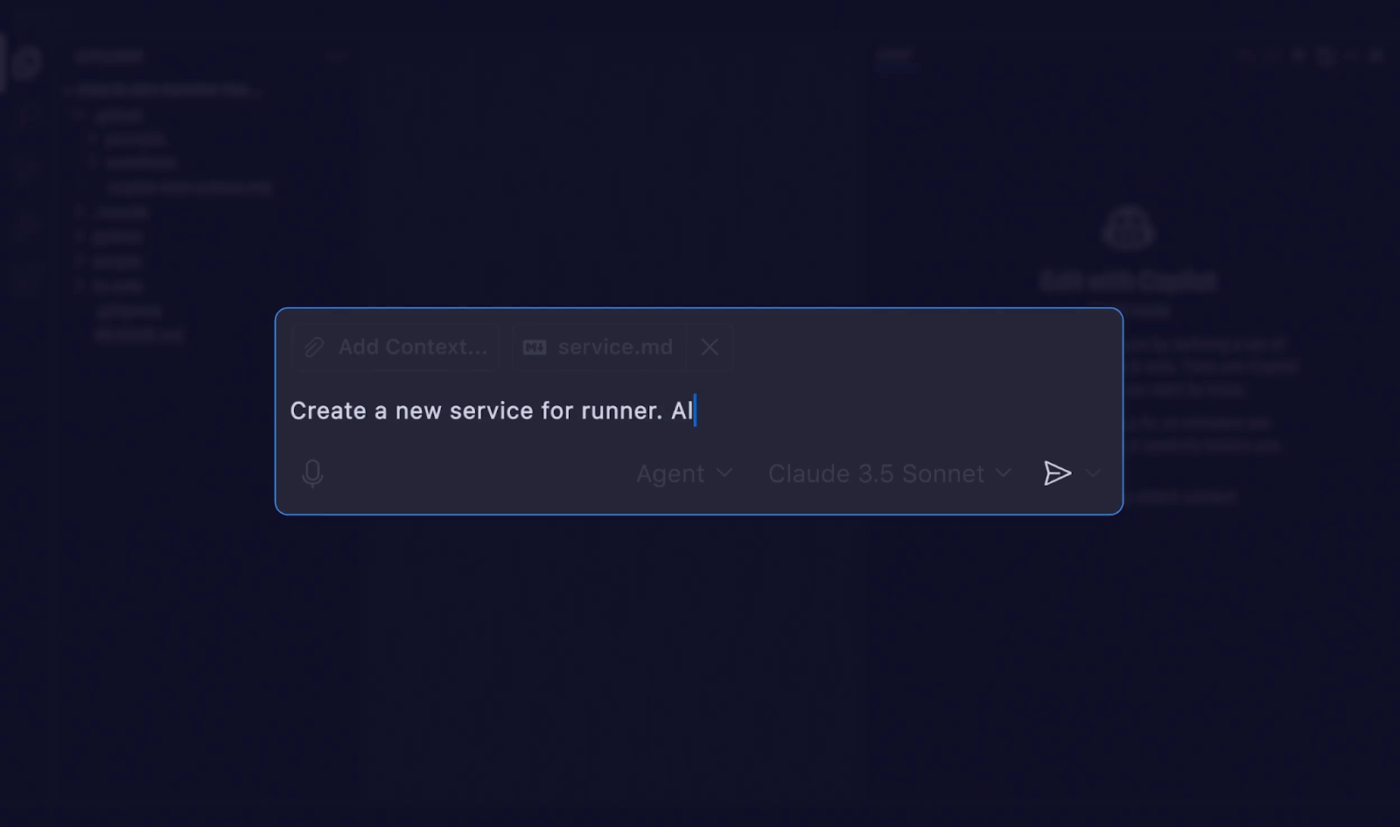
You know Copilot can write code, but where does it actually save you the most time in a real frontend workflow?
Let’s take a look:
Creating React components is one of Copilot’s strengths. Because components follow predictable patterns, Copilot can generate large chunks of quality code for you.
Start by writing a descriptive comment, and let Copilot handle the rest.
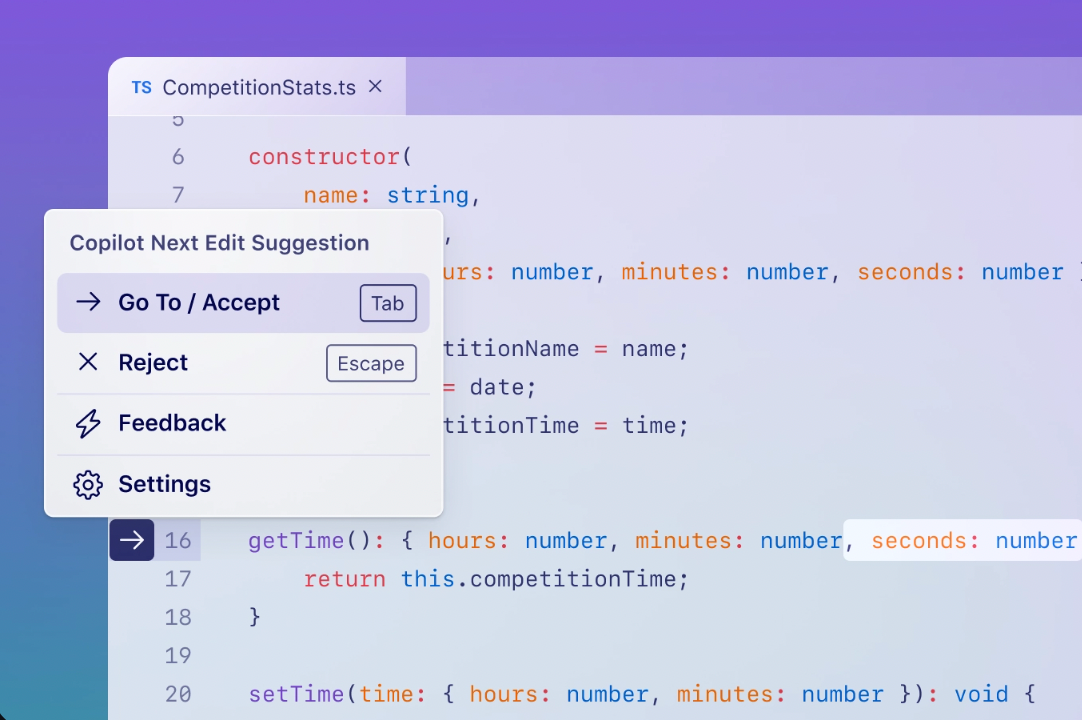
For example, just type export const ProductCard = ({ after a comment explaining what the card does. Copilot will suggest the entire props interface and the basic JSX structure, saving you from typing it all out yourself.
Staring at a CSS bug you can’t fix wastes valuable time. Instead of endlessly tweaking properties, you can use Copilot Chat to diagnose the problem. Highlight the problematic code and ask it what’s wrong.
You can ask questions like:
This works for JavaScript too. If you have a function causing an infinite re-render in React, highlight it and ask Copilot why that might be happening. You can even ask it to add console.log statements to help you trace the data flow or explain a confusing error message.
For a direct fix, use the /fix command in the chat.
Writing tests is critical, but it can be one of the most repetitive parts of frontend development. Copilot is useful for generating unit tests because it follows a structured and predictable format. It understands testing libraries like Jest, React Testing Library, Vitest, and Cypress.
The workflow goes like this:
Copilot is great at creating assertions that check for elements in the DOM, and it can even help mock API calls or context providers. Just remember to review the generated tests—it might miss an important edge case.
Modernizing an old codebase is a common and challenging task. Copilot Chat can accelerate this process, cutting refactoring time by 20-30%.
Use it to:
Before you refactor, use the /explain command in Copilot Chat to get a clear summary of what the old code does. This ensures you don’t miss any subtle logic during the transition.
Good documentation is a must-have for your entire team to decipher and logically understand your codebase. Copilot helps you on that front, generating documentation for your code as you go.
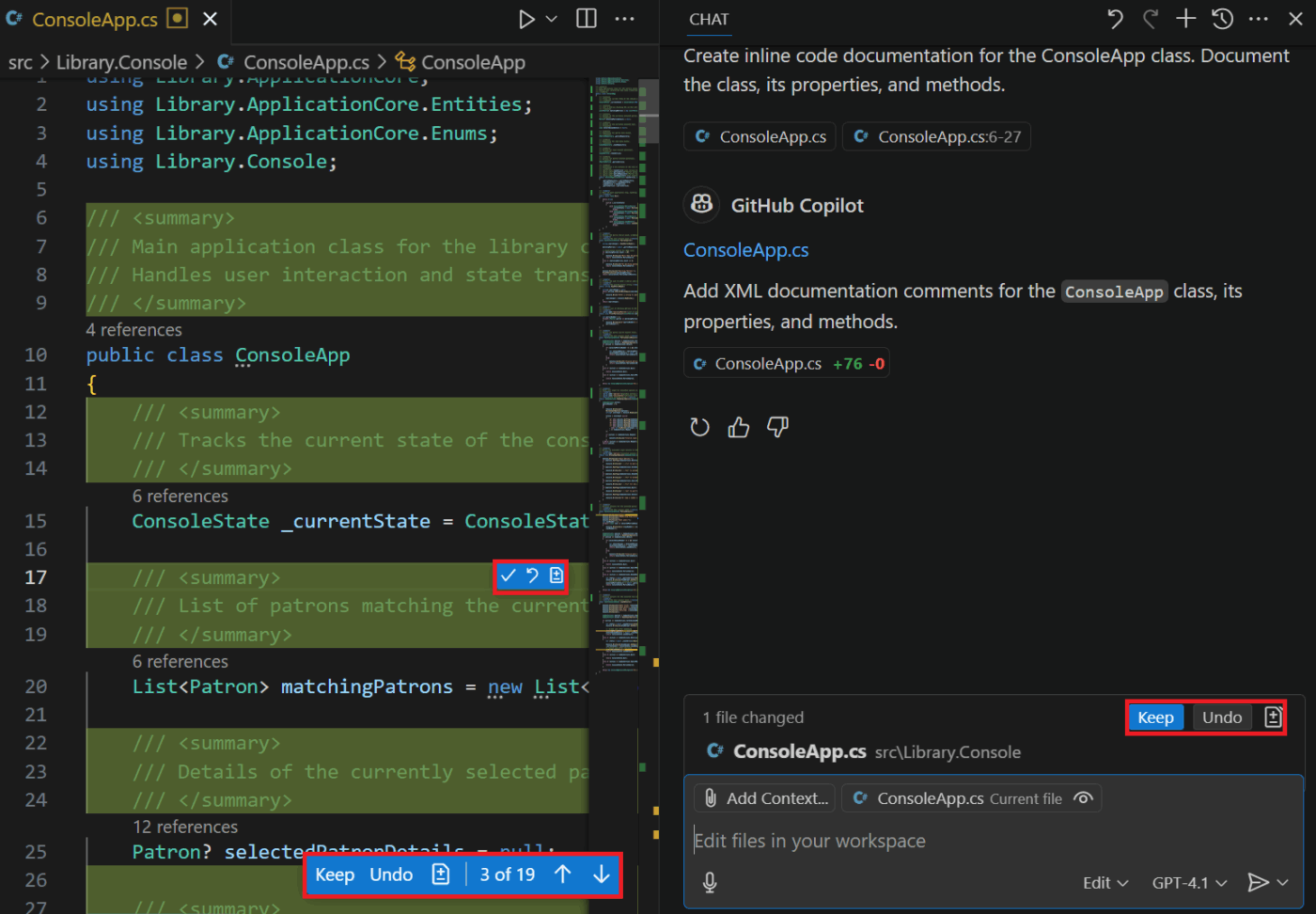
Select a function and run /doc to draft a documentation comment (JSDoc or TSDoc style) describing what it does, its parameters, and return value.
You can also ask Copilot to draft README sections for a component, like a props table and usage examples, and it can help you scaffold supporting docs, such as Storybook stories, when you prompt it with your component API and expected states
⭐ Bonus: How to Write Technical Documentation
Copilot speeds up your coding, but it can also create new problems if you’re not careful, including:
Knowing what Copilot can’t do will give you a better understanding of how to use it while coding:
❌ No visual understanding: Copilot can’t see your screen. It has no idea if the CSS it writes actually looks good, so you always need to visually verify the output
❌ Outdated patterns: Its training data isn’t always up-to-the-minute. It might suggest a deprecated API or an old React pattern, so always double-check against official documentation
❌ Context window limits: In very large files or extremely complex projects, Copilot can lose track of the context and start giving irrelevant suggestions
❌ Hallucinated APIs: Sometimes, Copilot will confidently suggest a function or prop that doesn’t actually exist. If something looks unfamiliar, look it up
❌ Security blind spots: Copilot can generate code with security vulnerabilities, like cross-site scripting (XSS) risks. You are the final line of defense for security
❌ No project-wide refactoring: Copilot works on a file-by-file basis. It can’t perform a large-scale refactor across your entire codebase at once
Even with an AI pair programmer like Copilot speeding up your coding, your team’s overall velocity can still feel slow.
That’s because frontend development goes much beyond just coding. It is planning sprints, refining tickets, aligning with design, writing documentation, coordinating reviews, tracking QA, and keeping stakeholders in the loop.
When those live separately and across tools, what you get is tool sprawl. Decisions get buried in threads, and requirements drift from the code that is supposed to implement them. 😫
To fix that, you need to shift from code-level efficiency to workflow-level efficiency paired with code. This is where you choose ClickUp.
ClickUp is the world’s first Converged AI Workspace, built to pull your entire frontend delivery lifecycle into one place (goodbye to context switching, for good).
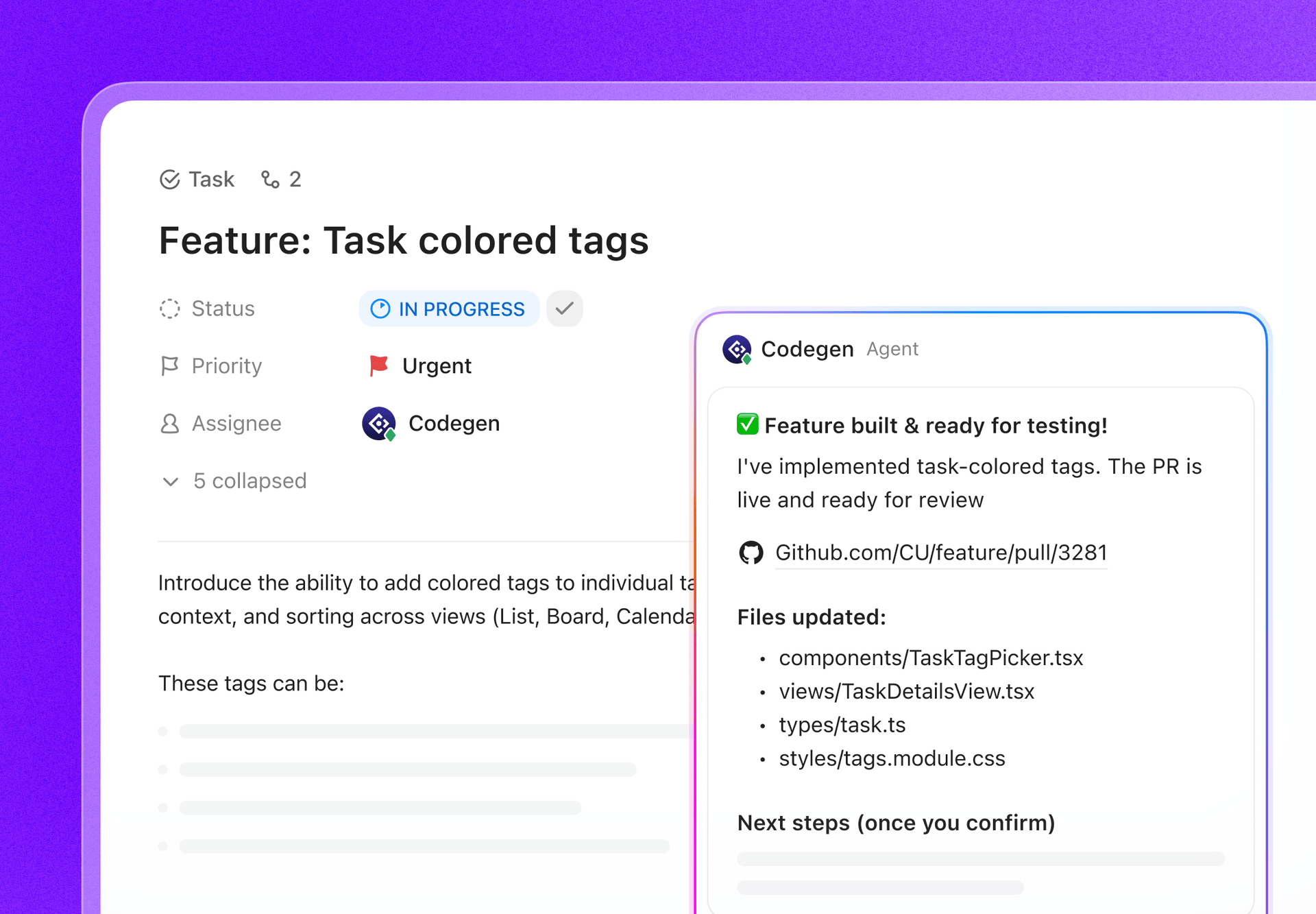
Codegen by ClickUp is ClickUp’s AI developer teammate. It’s an external AI Agent that can complete tasks, build features, and answer code questions using natural language. It’s also designed to help you ship faster by creating production-ready pull requests.
What makes this useful for frontend teams is the handoff pattern. Instead of copying requirements into your IDE, asking Copilot for code, then coming back to update the ticket, Codegen lets the work start from ClickUp Tasks itself.
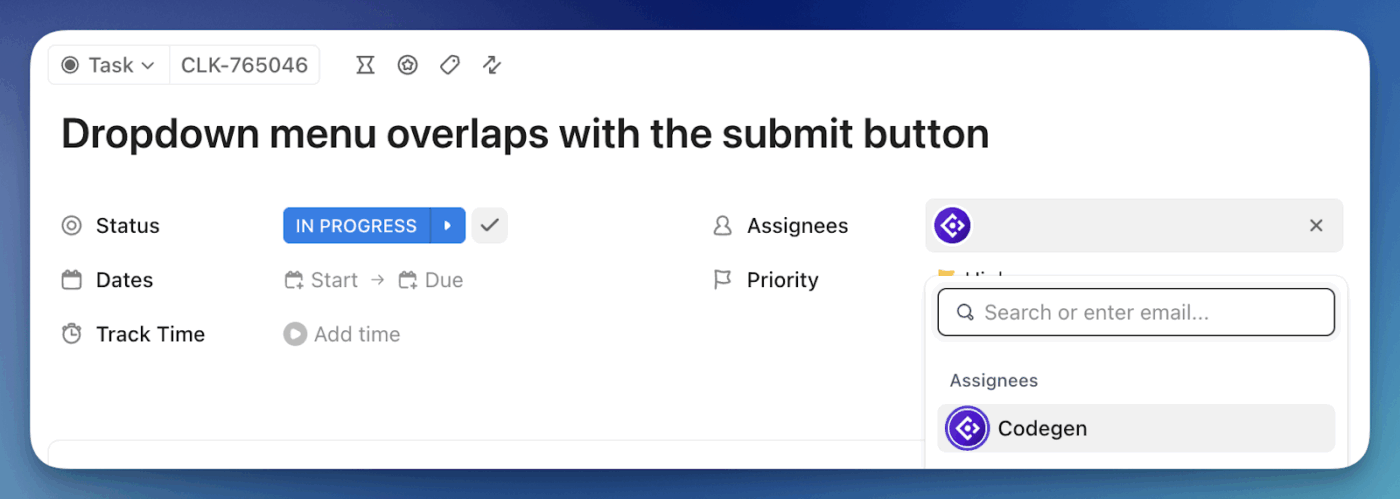
That means you can connect Codegen and interact with it within the same workflow.
For example, say a task is ‘Build a reusable Button component.’ In the task, you already have the acceptance criteria, design notes, and edge cases. You can assign the task to Codegen or @mention it in a comment and ask it to generate the component in TypeScript, include variants, and add basic tests. Then, have it prepare a pull request that matches the task scope.
💡 Pro Tip: You can also integrate GitHub with ClickUp. After you do so, ClickUp will show suggested branch names and commit messages you can copy, plus the task ID.
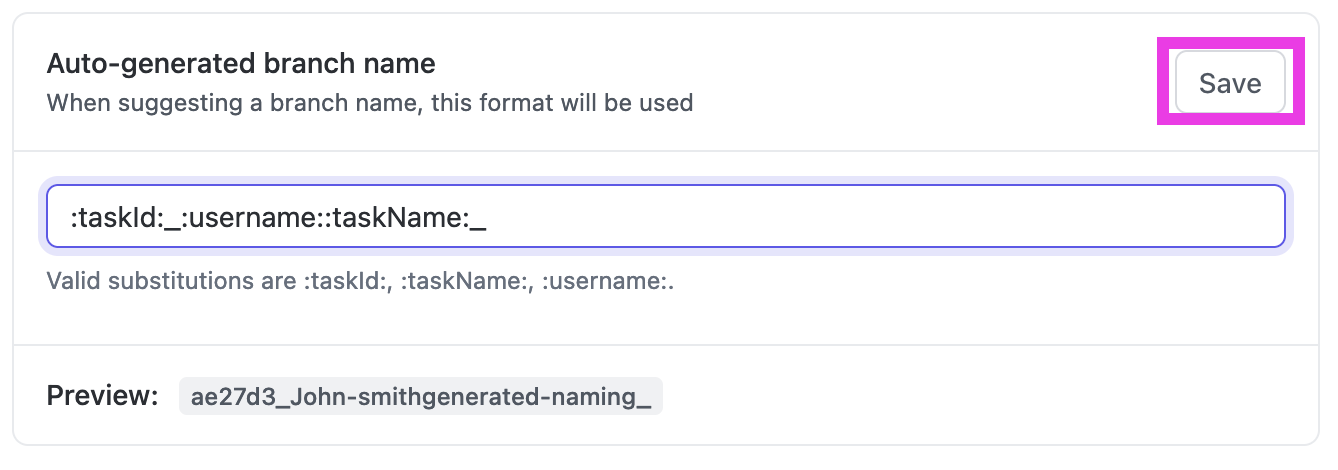
Copy suggested branch names and commit messages using GitHub ClickUp IntegrationThen, you can just reference that task ID in your Git activity (branch, commit, or PR) using formats like:#{task_id}CU-{task_id}{custom_task_id}That one convention auto-links the development activity back to the task, so reviewers and PMs can see commits, branches, and PRs right inside ClickUp without digging.
Leverage ClickUp Super Agents to run the coordination lane end-to-end. Super Agents are AI-powered teammates that work with full Workspace context and can conduct research, provide suggestions, and notify you when projects are behind schedule.
You also control which tools and data sources they can access, and who in your Workspace can trigger and manage them.
And the part that makes it strong for frontend delivery is that they can be launched through ClickUp Automations. That means you can trigger a Super Agent when a task changes status, when a PR link is added, or when a deadline is approaching.
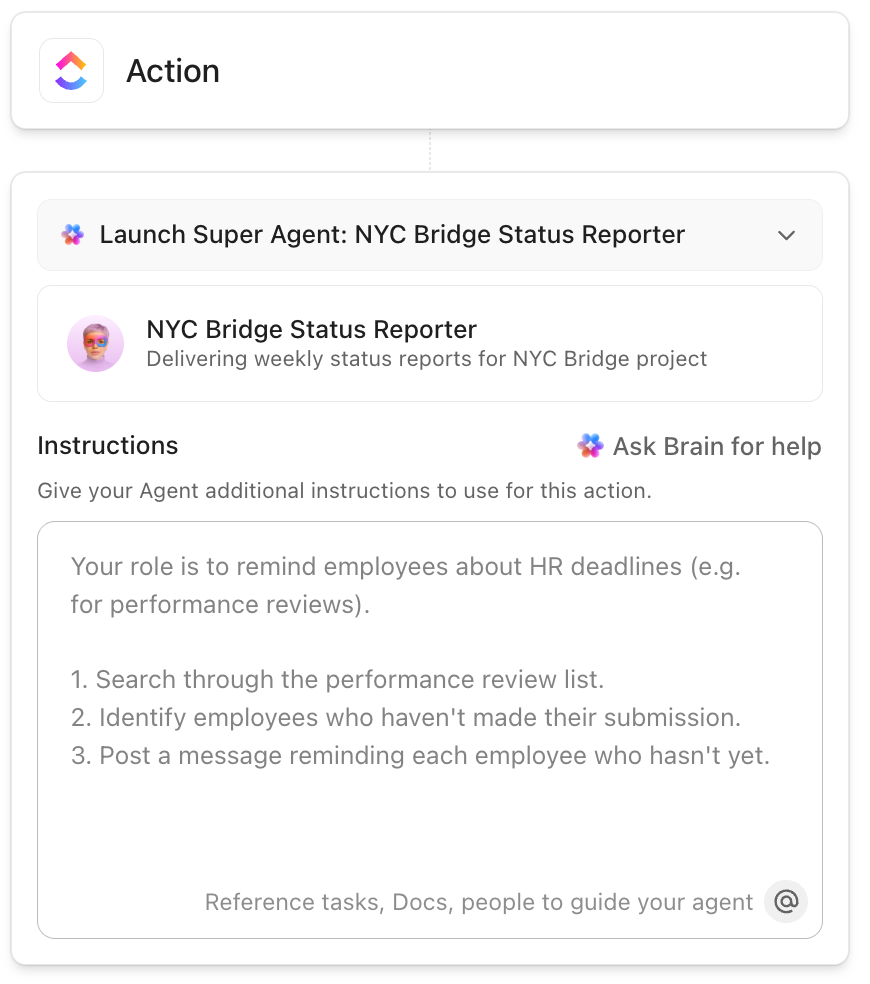
For example, when a task moves to ‘In Review,’ a Super Agent can compile everything a reviewer needs, including the latest acceptance criteria from the Doc, key decision notes from comments, linked designs, and a short checklist of what to verify.
It can then create follow-up subtasks for fixes, tag the right reviewer, and update the task with a clean summary. Even more, you have full liberty to shape how it behaves using instructions, tools, and knowledge, while it retains useful memory over time, becoming more consistent as it runs.
And then use ClickUp Brain MAX to cut down the time you spend hunting for context.
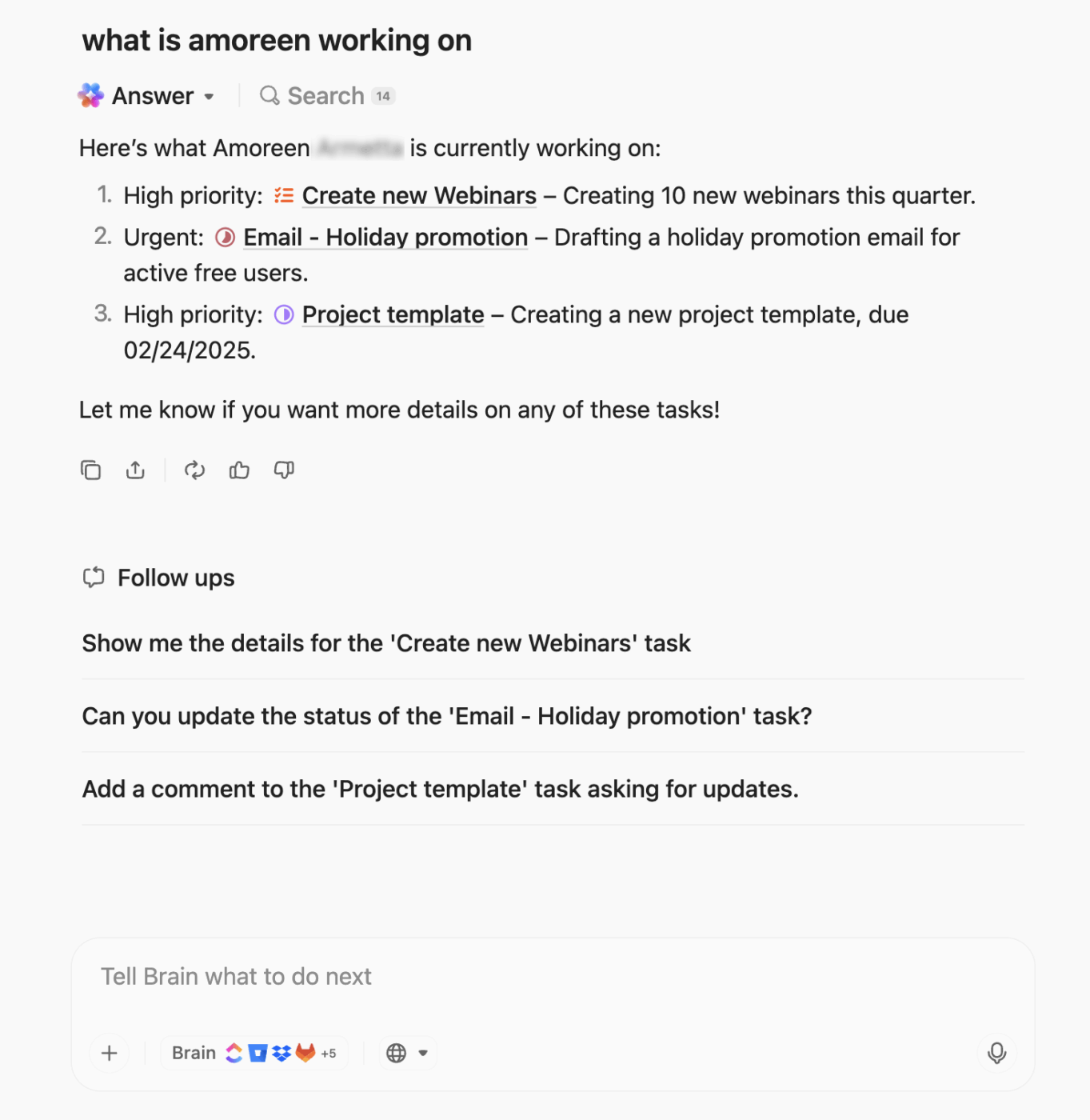
Brain MAX is ClickUp’s AI-powered desktop companion that can search across your work apps and the web, so the information you need is not trapped in one tab or one tool. It also supports Talk-to-Text, which is handy when you want quick answers while you stay in flow.
For frontend teams, this matters because the missing detail is rarely inside the file you have open. One minute, you need the latest acceptance criteria; the next, you are trying to find the right thread that explains a UI decision. Brain MAX makes sure you have all the context you need, from one app.
And if you’re wondering whether software engineers and PMs can get a dedicated environment catering to their needs, then of course, you have ClickUp for Software Teams. This is a whole division workflow that houses your tasks, knowledge, docs, agents, dashboards—you name it.
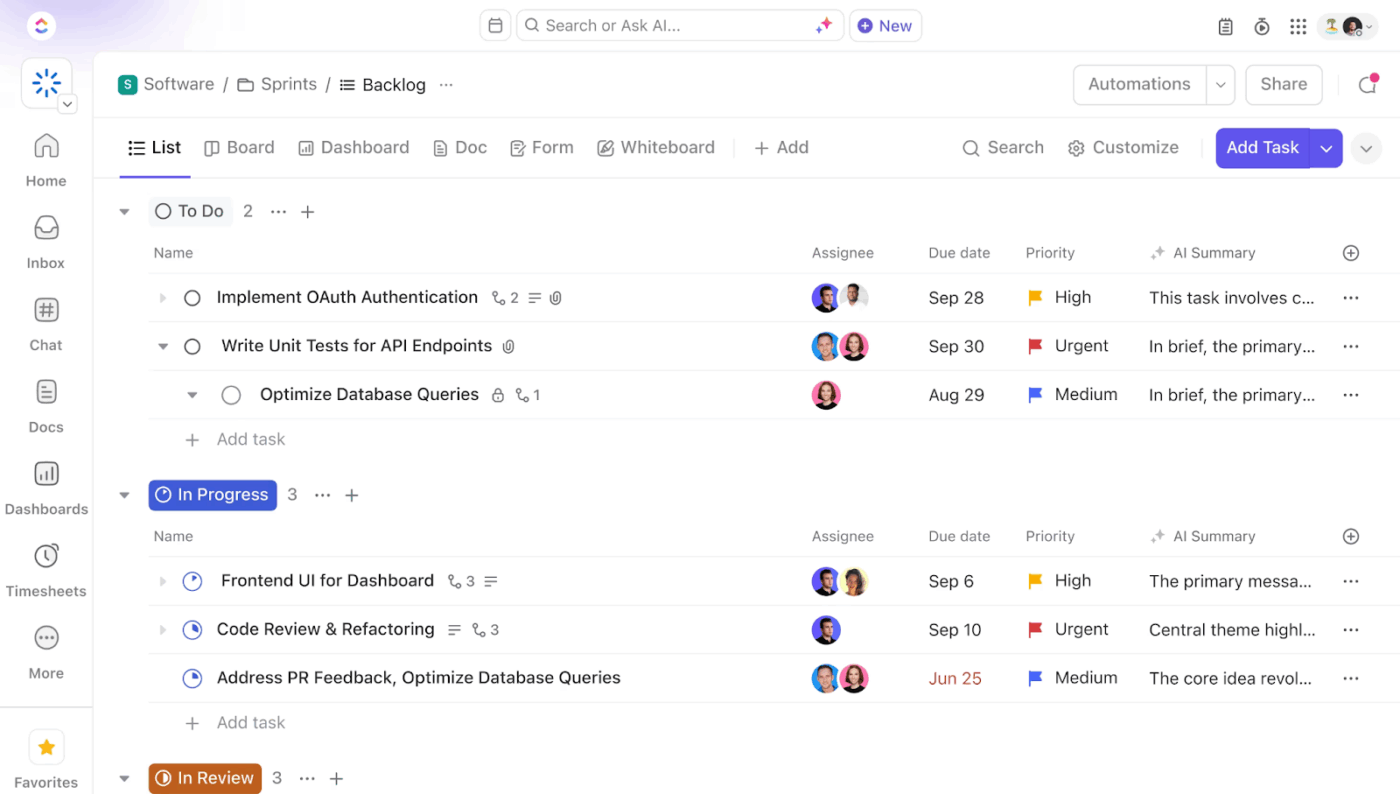
Here’s a glance:
…and so much more.
📌 We’ve conducted a deeper feature comparison of both tools here 👉 Github Copilot vs. ChatGPT: Which Is the Best Tool for Developers?
AI-assisted coding works best when teams integrate it into the entire development workflow.
Meaning, the teams that win align on how work is scoped, code is reviewed, and decisions are captured for the next sprint.
And that takes one place to write and refine specs, one system to track tasks and PRs, and automations that reduce manual updates that slow down frontend teams.
That’s why you have ClickUp—a solution that powers projects from roadmap to release, with AI supporting it all behind the scenes.
Run your AI-powered frontend workflow in ClickUp today. ✅
Copilot is great for in-flow code completion directly in your editor, while ChatGPT is better for high-level discussions, architectural brainstorming, or explaining complex topics conversationally.
Yes, it excels with TypeScript because type definitions provide a clear context for its suggestions. It also recognizes patterns for modern frameworks like React, Vue, Angular, and Svelte.
Copilot Business and Enterprise plans offer team-based features for managing user seats, setting policies, and viewing usage analytics, which help with GitHub Copilot for code review and standardization, along with collaboration.

© 2026 ClickUp