

Sorry, there were no results found for “”
Sorry, there were no results found for “”
Sorry, there were no results found for “”
According to a Stack Overflow survey, 62% of developers now use AI coding tools, but most still treat them as glorified autocomplete rather than as actual development accelerators.
This guide walks you through using GitHub Copilot specifically for backend development—from setup and prompt engineering to integrating it with your team’s workflow in ClickUp.
If you’ve ever groaned while typing out yet another Express route handler or Django model serializer, you know the feeling—boilerplate code is the tax you pay before getting to the interesting problems.
GitHub Copilot is an AI-powered coding assistant that lives inside your code editor, acting as your AI pair programmer. It’s trained on a massive amount of public code, so it understands the patterns and conventions of popular backend frameworks like Express, Django, and Spring Boot.
This means it can generate idiomatic code for your specific stack, handling the repetitive scaffolding so you can focus on building.
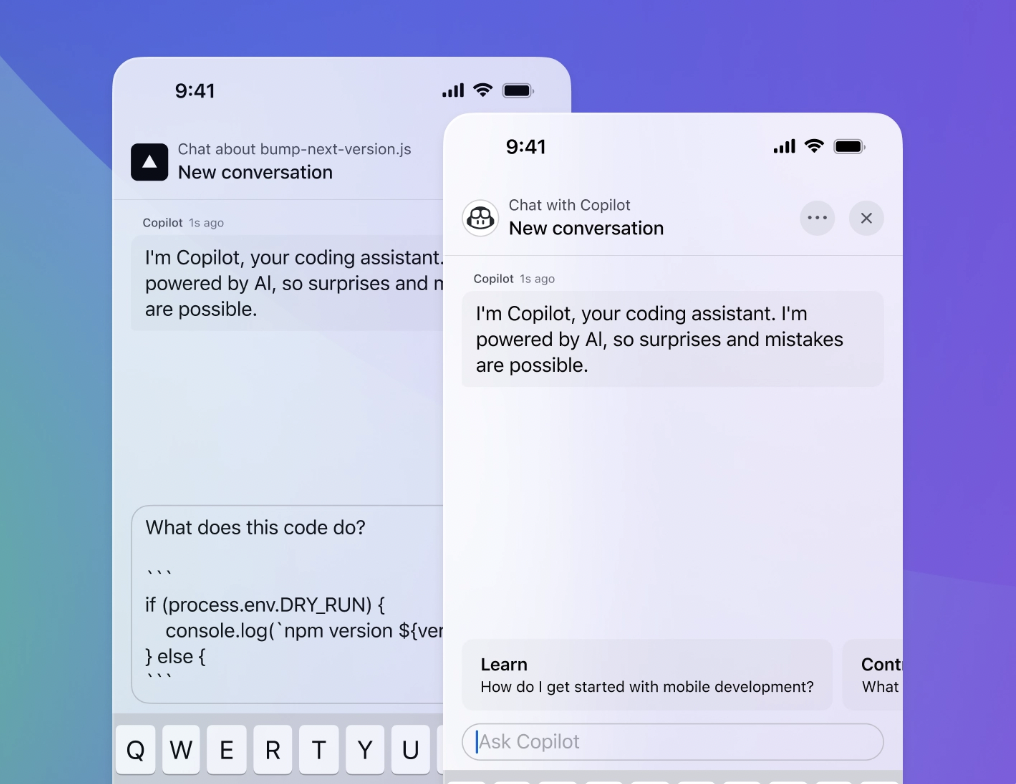
You’ll work with Copilot in two main ways:
It also features an advanced agent mode, which can tackle more complex, multi-file tasks on its own.
📮ClickUp Insight: The average professional spends 30+ minutes a day searching for work-related information—that’s over 120 hours a year lost to digging through emails, Slack threads, and scattered files. An intelligent AI assistant embedded in your workspace can change that. Enter ClickUp Brain. It delivers instant insights and answers by surfacing the right documents, conversations, and task details in seconds—so you can stop searching and start working.
💫 Real Results: Teams like QubicaAMF reclaimed 5+ hours weekly using ClickUp—that’s over 250 hours annually per person—by eliminating outdated knowledge management processes. Imagine what your team could create with an extra week of productivity every quarter!
Setting up Copilot takes only a few minutes and requires minimal configuration.
First, you need to install the Copilot extension for your integrated development environment (IDE). For VS Code, the most common choice, follow these steps:
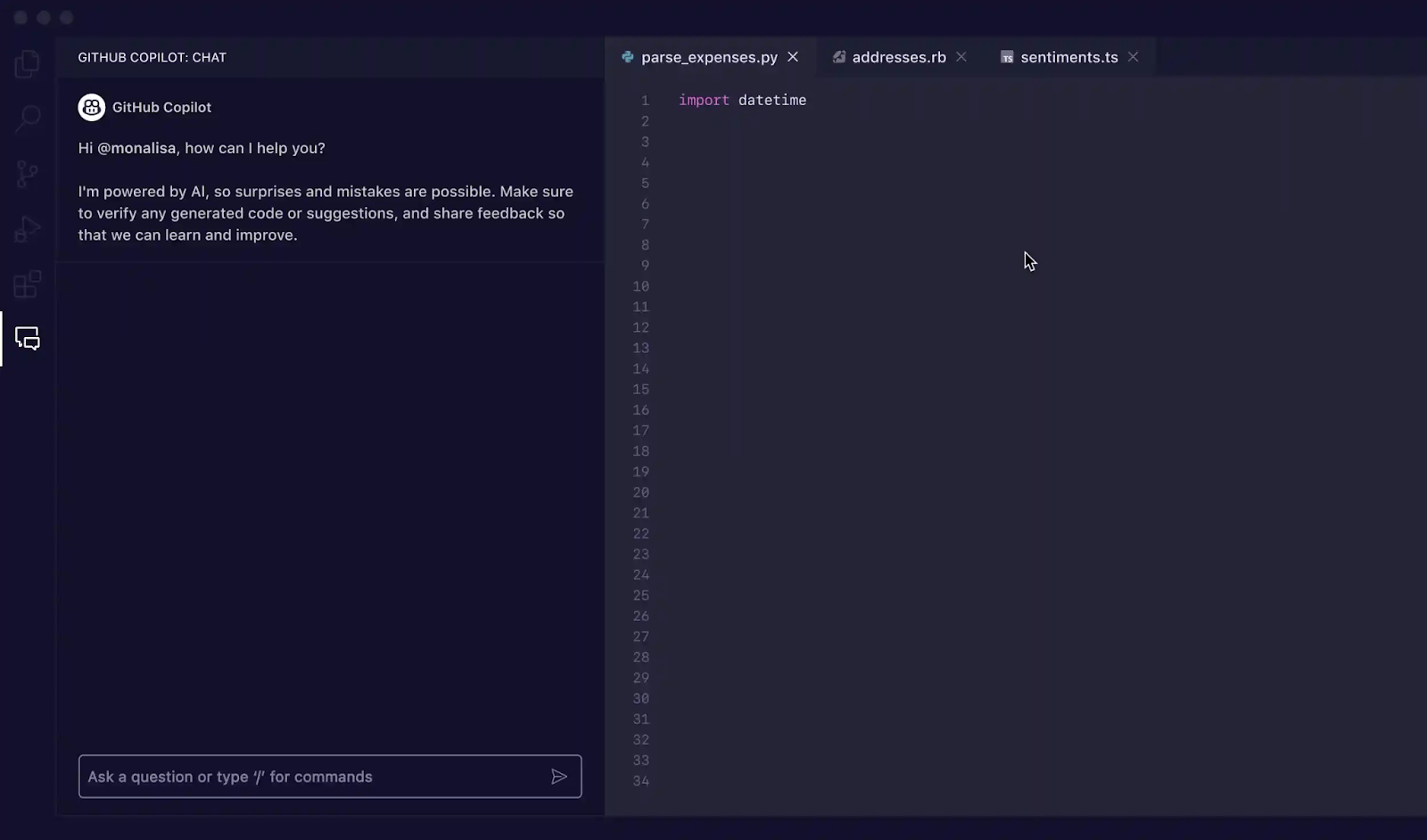
You’ll need an active GitHub Copilot subscription (Individual, Business, or Enterprise) for it to work. The process is similar for other IDEs; in JetBrains, you’ll find it in Settings > Plugins > Marketplace, and for Neovim, you can use a plugin like copilot.vim.
You’ll know the installation was successful when you see the Copilot icon in your editor’s status bar.
Start by creating a .github/copilot-instructions.md file in your project’s root directory. This file tells Copilot about your specific coding standards, frameworks, and preferred patterns.
For a Node.js backend using Express and TypeScript, your instructions might look like this:
This is a Node.js backend using Express, TypeScript, and Prisma ORM.
Follow RESTful conventions for all API endpoints.
Use async/await for all database operations and asynchronous tasks.
All error handling should use a centralized error middleware, not try/catch blocks in controllers.
This simple configuration ensures the suggestions you receive are tailored to your project, saving you significant refactoring time.
Some backend tasks are too big for a single file, like scaffolding a new feature module or refactoring logic across multiple services. Copilot’s agent mode handles these complex, multi-file operations autonomously. 🛠️
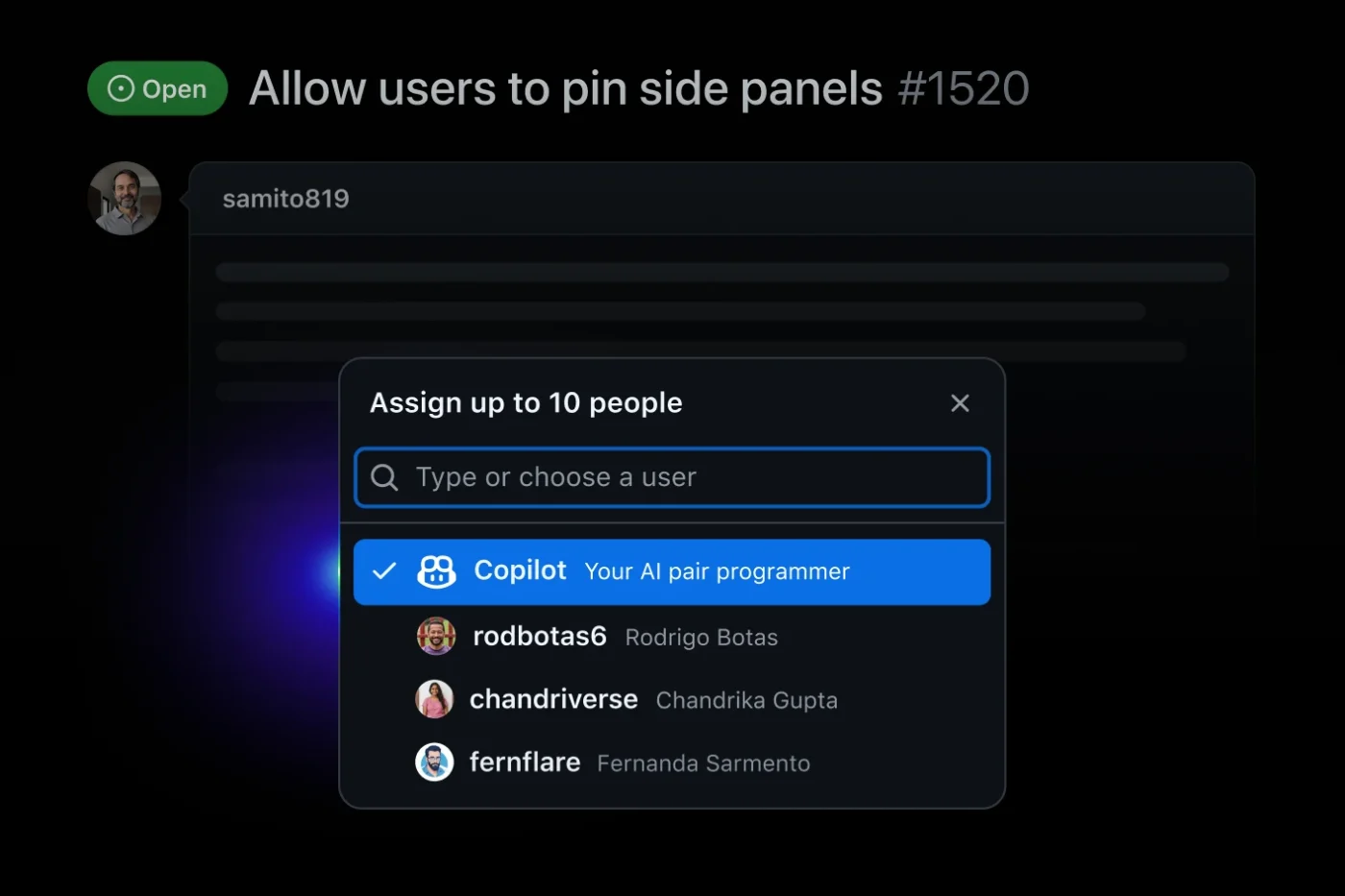
Agent mode is an autonomous mode where Copilot can understand a high-level task, propose a plan, and then execute it by creating and modifying multiple files, running terminal commands, and even verifying its own work.
To use it, open the Copilot Chat panel in VS Code and switch to Agent mode. Then, describe your task in plain English: “Create a user authentication module with JWT tokens, including routes, middleware, and tests.” Copilot will outline its plan and ask for your approval before making changes.
To see how AI agents are transforming the coding workflow and enabling more autonomous development processes, watch this overview of AI agents for coding and their capabilities.
📚 Also Read: Unlocking the Power of ClickUp AI for Software Teams
Vague prompts like “create API” produce generic code, while specific prompts generate framework-specific, production-ready code. Here’s how to write prompts that actually work.
Manually writing Create, Read, Update, and Delete (CRUD) operations for every data model is one of the most repetitive tasks in backend development. You can offload this entirely to Copilot with a well-written comment.
In your router file, write a comment that describes exactly what you need:
// Create a REST API for managing products with GET, POST, PUT, DELETE endpoints
// Use Express router, validate incoming data with Zod, and return proper HTTP status codes
Copilot will read this and generate the corresponding route handlers. For even better results:
Instead of accepting a large block of code at once, use the Tab key to accept suggestions line-by-line. This allows you to review and make small adjustments as you go.
Modern backends often use a layered architecture to separate concerns, but this creates more files and boilerplate. Copilot understands this structure and can help you build each layer.
For example, to create a service method, you could write:
// UserService: Create a method to register a new user.
// It should hash the password with bcrypt, check if an email already exists, and save the new user to the database.
// On success, return the user object without the password field.
Building authentication logic is repetitive work but also security-critical, making it a perfect task for Copilot—as long as you review its work carefully. You can prompt it to generate common authentication patterns.
For example, ask it to: “Create a function to generate JWT tokens containing a user ID and role, set to expire in 24 hours.” Or, “Create an Express middleware to verify a JWT from the Authorization header.”
Important: Never trust AI-generated security code without a thorough review. Copilot might use outdated libraries, insecure defaults, or generate placeholder secrets. Always verify its output against security best practices like the OWASP guidelines before deploying.
Writing tests is crucial, but often feels like a chore, leading to developers skipping them when deadlines are tight. Copilot is exceptionally good at writing tests because it can analyze your existing code and generate test cases that cover its logic—developers using Copilot were 53.2% more likely to pass all unit tests in controlled trials.
Open your service file and a corresponding test file, and Copilot will automatically suggest tests. You can also guide it with comments:
// Test the UserService.register() method
// Cover these cases: successful registration, registration with a duplicate email, and registration with an invalid password.
Copilot will generate the test structure, including mocks and assertions. For backend development, it can handle unit tests with mocked dependencies, integration tests that interact with a database, and API endpoint tests using libraries like supertest.
Backend teams get the biggest gains by embedding Copilot across code review, documentation, refactoring, and debugging—while keeping all related work visible and connected in one place.
Copilot Chat can act as a first-pass reviewer before a pull request is opened.
💡 Pro Tip: When these insights are captured alongside the task or PR context in ClickUp, reviewers don’t have to reconstruct why decisions were made—they can see it directly. Some teams use Copilot to draft PR descriptions or commit messages, then manage reviews and approvals centrally in ClickUp.
Backend documentation often falls behind because it’s time-consuming and not a priority. GitHub Copilot can help to:
💡 Pro Tip: Storing documentation tasks, drafts, and final versions in ClickUp Docs ensures they don’t live in scattered comments or local files—and actually get finished.
Copilot is especially useful when refactoring goals are explicit.
💡 Pro Tip: Linking refactoring discussions, decisions, and code changes in ClickUp helps teams maintain architectural clarity over time. Teams can discuss work in context through dedicated channels in ClickUp Chat.
Copilot can speed up early-stage debugging.
💡 Pro Tip: When debugging notes are documented in ClickUp, knowledge doesn’t disappear after the fix—it becomes reusable context for the team.
Blindly accepting AI suggestions leads to buggy, insecure code that creates technical debt, erasing any initial productivity gains. A study found 70% of Java snippets generated by ChatGPT contained security-API misuses.
To avoid this, treat Copilot like a junior developer—helpful, but in need of supervision.
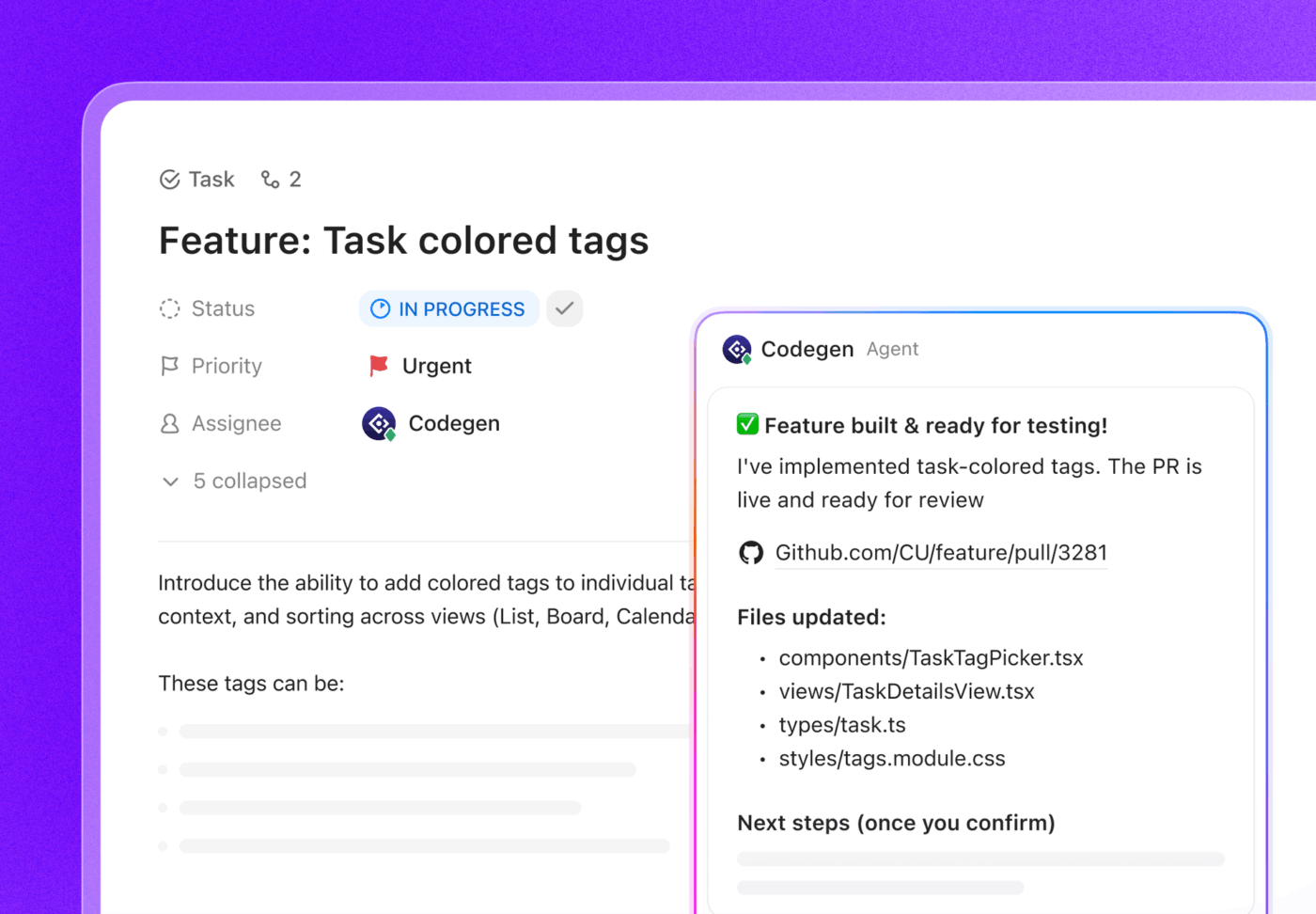
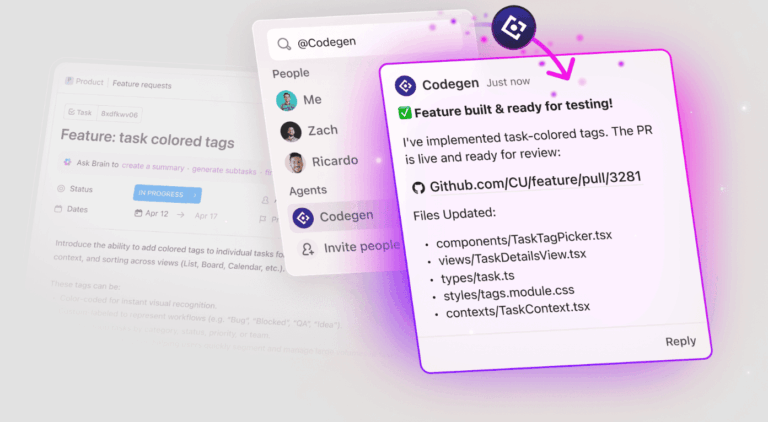
🌟 For backend teams, ClickUp’s Codegen autonomous agent shines as a force multiplier—handling repetitive, cross-cutting work while engineers stay focused on architecture, correctness, and business logic. Used this way, it accelerates delivery without lowering engineering standards.
Use it for:
Here’s a walkthrough of building a simple product management API using Node.js, Express, and TypeScript, with Copilot doing the heavy lifting.
First, in a new project folder, you could ask Copilot Chat: “Generate a package.json for an Express and TypeScript project that uses Jest for testing.”
Step 1: Define the data model
Create a new file, src/product.ts, and type interface Product {. Copilot will likely suggest fields like id, name, price, and description. Accept them.
Step 2: Generate CRUD routes
Create src/routes/products.ts. At the top of the file, add a comment: // Create Express router for products with GET, POST, PUT, and DELETE endpoints. Copilot will generate the complete router.
Step 3: Add the service layer
Create src/services/productService.ts. Add a comment: // Create a product service with an in-memory array to store products. Include methods for getAll, getById, create, update, and delete.
Step 4: Add validation middleware
In a new file, src/middleware/validation.ts, prompt Copilot: // Create Express middleware to validate the request body for creating a new product. Ensure name is a string and price is a number.
Step 5: Generate tests
Finally, create tests/products.test.ts. With your other files open, Copilot will start suggesting tests for your API endpoints using Jest and supertest. You can guide it with a comment like // Write integration tests for the product API endpoints.
You now have a functional, tested API, with Copilot handling almost all of the boilerplate.
📚 Also Read: How to Use GitHub Copilot for Code Documentation
Over-relying on Copilot without understanding its weaknesses introduces critical flaws into your application. Here’s where it falls short. 👀
Know when to write code manually. For security-critical logic, complex database migrations, or performance-sensitive code, it’s often safer and faster to rely on your own expertise.
📚 Also Read: Does GitHub Support MCP (Model Context Protocol)?
Copilot helps you write code faster, but you still need to know what to build. When requirements live in one tool, designs in another, and technical discussions in a third, you waste time context-switching before you can even write a prompt.
Streamlining your entire workflow requires connecting code generation to work management, reducing context switching between your IDE, project management tool, and documentation.
Bring your entire development lifecycle into a single workspace with ClickUp. A Converged AI Workspace is a single platform where projects, documents, conversations, and analytics live together—with contextual AI embedded as the intelligence layer that understands your work and helps move it forward.
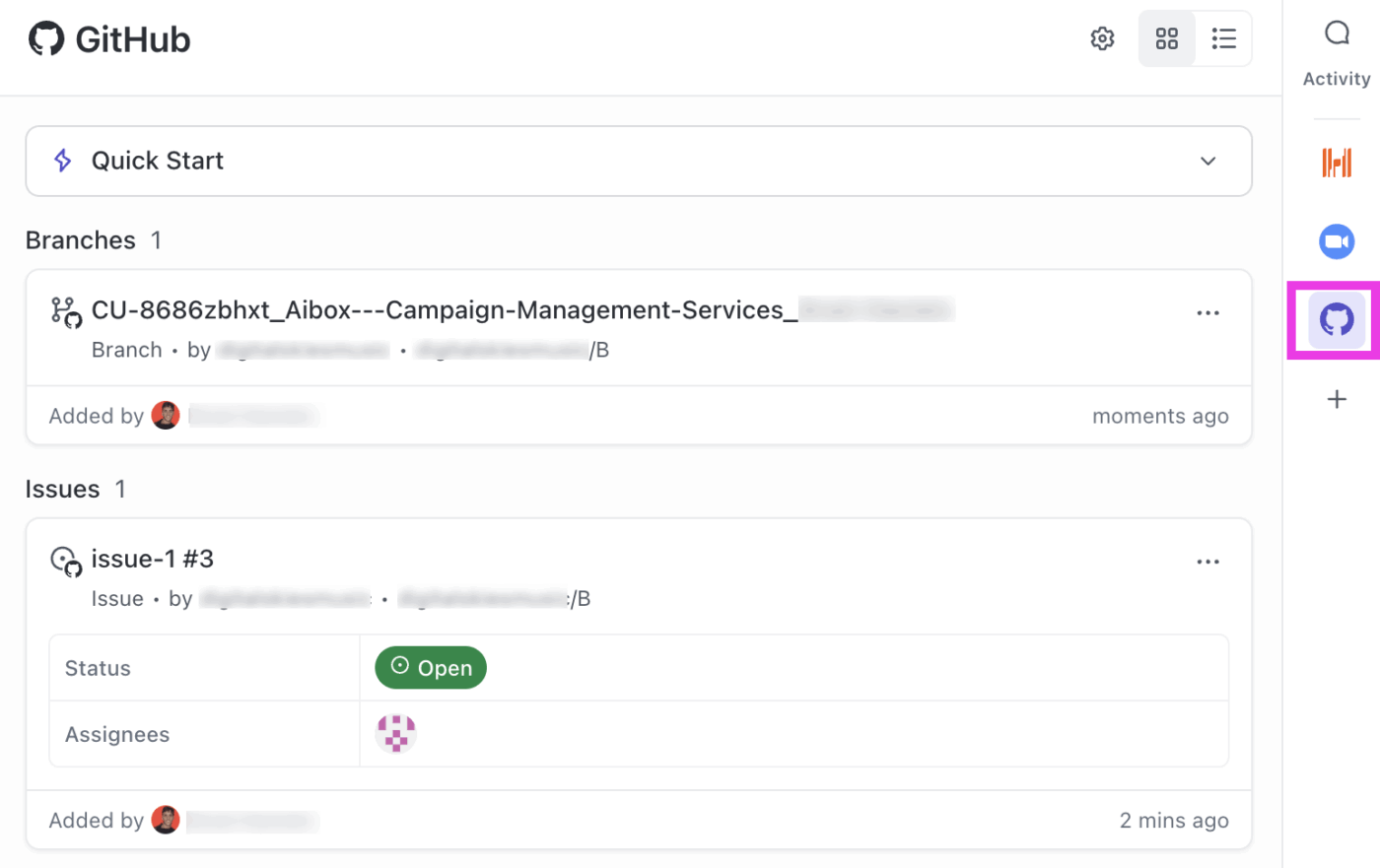
ClickUp connects your code, tasks, and documentation in one workspace, making it easy to manage everything from sprint planning to release notes in one place. Requirements, instead of being scattered across Slack threads, stay organized and accessible.
Code Review when a pull request is created in GitHub, or notify the QA team when a task is ready for testing. This eliminates manual handoffs and keeps your team moving.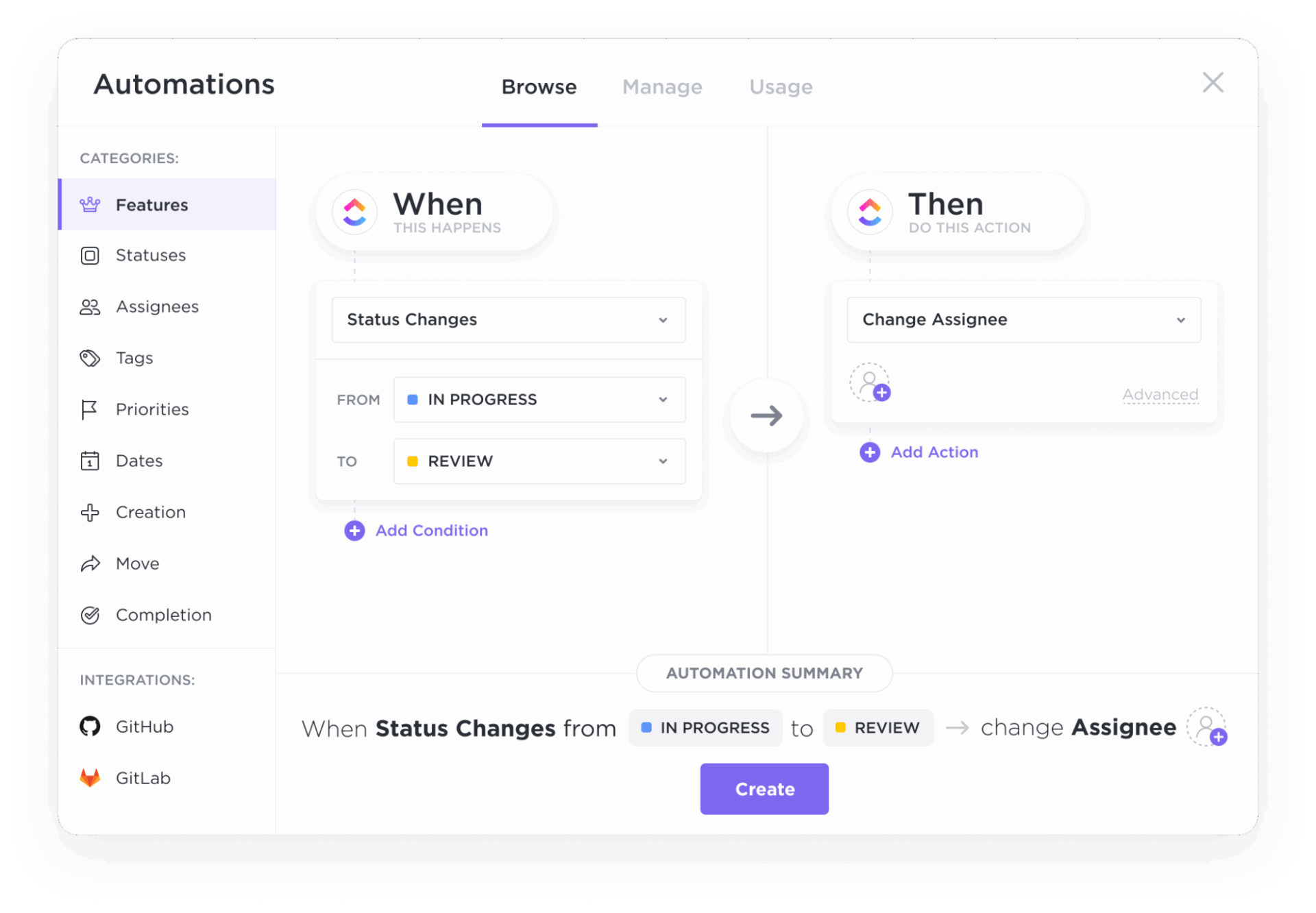
Connecting your code to your workflow gives your team more uninterrupted time to build.
Used together, GitHub Copilot accelerates backend development, while a converged workspace like ClickUp keeps code, conversations, decisions, and delivery aligned—so speed doesn’t come at the cost of clarity.
Get started for free with ClickUp and bring your backend development workflow together. ✨
No, Copilot’s context is primarily limited to the files you have open in your editor. To improve its suggestions, keep related files open in tabs and use a .github/copilot-instructions.md file to provide project-wide conventions.
Copilot is excellent for accelerating repetitive tasks like writing boilerplate and CRUD operations, but it requires careful review. For complex or novel business logic, writing the code manually often gives you more control and better results.
Copilot performs best with popular frameworks that have a large amount of public code for it to learn from. This includes Express, Django, Flask, Spring Boot, Ruby on Rails, and ASP.NET Core.
You should treat all Copilot-generated code as a first draft from a junior developer, not as production-ready code. Always review it for security issues, test it thoroughly, and verify that it uses current, non-deprecated APIs.
GitHub Copilot offers Individual, Business, and Enterprise plans. The team-oriented Business and Enterprise tiers include features for administrative oversight, policy management, and organization-wide custom instructions. For the most current details, check GitHub’s official pricing page.

Holly Peck
Max 12min read

Praburam Srinivasan
Max 31min read

Engineering Team
Max 12min read

© 2026 ClickUp




