







Still downloading templates?
There’s an easier way. Try a free AI Agent in ClickUp that actually does the work for you—set up in minutes, save hours every week.
Sorry, there were no results found for “”
Sorry, there were no results found for “”
Sorry, there were no results found for “”

You’re racing against a tight deadline, juggling a dozen files, and wishing for a way to streamline things.
Enter Cursor AI—a tool that’s like having a brilliant coder by your side. It’s ready to suggest, debug, and even write multiple lines of code from a simple prompt.
If you’re a developer or tech enthusiast tired of slogging through repetitive tasks, this could be your game-changer. Figure out how to use Cursor AI and pair it with ClickUp—you’ve got a streamlined setup to conquer any project.
In this guide, we’ll learn how to leverage Cursor AI to supercharge your coding process, from setup to advanced features, while avoiding common pitfalls that might frustrate you.
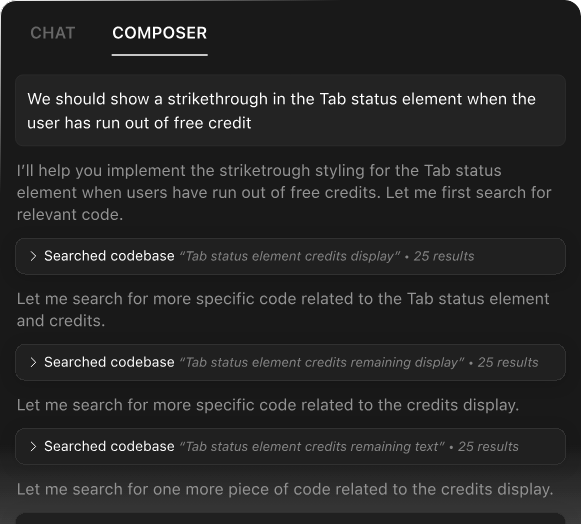
Cursor AI is an intelligent code editor. It harnesses the power of large language models (LLMs) to help developers write, edit, debug, and understand actual code more efficiently.
Built on top of Visual Studio Code, Cursor flaunts AI capabilities that can interpret your intentions and assist with implementation.
👀 Did You Know? In 2024, 82% of developers regularly used ChatGPT, making it the most popular AI tool among developers. GitHub Copilot came in second at 44%, while Google Gemini was ranked third with 22% usage. This showcased ChatGPT’s dominance in the developer ecosystem.
Think of Cursor AI as a pair-programming buddy who never sleeps—one that learns your habits and adapts to your workflow.
This AI-powered code editor uses sophisticated models like GPT-4. This helps it understand your code’s syntax, semantic meaning, project context, and goals.
As a result, a range of powerful features are enabled that traditional code editors simply can’t match:
Cursor AI supports a wide range of programming languages and frameworks, making it versatile enough for nearly any development task. The editor preserves chat history, allowing for continuous context-aware conversations about your code across sessions.
Unlike basic code assistants, Cursor AI generates entire functions, complex algorithms, or complete components while ensuring enterprise-level security.
There is a gulf between Cursor AI and traditional Integrated Development Environments (IDEs). It represents a fundamental shift in our approach to AI code tools.
Conventional IDEs like Visual Studio or Eclipse offer syntax highlighting, debugging, and version control integration. But they lack a true understanding of your code.
Here’s what sets an AI-powered code editor like Cursor AI apart:
1. Context understanding: Traditional IDEs analyze code through predefined rules and patterns. They know syntax but not intention. Cursor AI understands what your code is trying to accomplish and can make intelligent suggestions based on it
2. Natural language interaction: With standard IDEs, you communicate through code alone. Cursor AI enables two-way communication—ask it questions about your code in English, request explanations, or describe what you want
3. Learning capabilities: Traditional IDEs have fixed functionality that improves only with updates. Cursor AI continuously improves as its underlying AI models are enhanced. It also learns from your entire codebase and coding style
4. Problem-solving approach: When you hit a roadblock in a traditional IDE, you can search for solutions online. Cursor AI can suggest solutions to software development challenges directly within your workflow, often eliminating the need to investigate online
5. Productivity multiplier: Standard IDEs are tools that amplify your existing abilities. Cursor AI can take initiative, make suggestions, and handle repetitive tasks while you focus on higher-level problems
This leap from passive tools to active assistance represents a fundamental shift in the developer-tool relationship. We are witnessing a movement from mere code editors to true coding companions.
Here’s a quick comparison highlighting the key differences between traditional IDEs and Cursor AI:
| Feature | Traditional IDEs | Cursor AI |
| Code understanding | Syntax-level analysis based on predefined rules | Semantic understanding of code purpose and context |
| User interaction | Code-based interaction only | Natural language conversations and queries about code |
| Adaptability | Fixed functionality updated with releases | Continuous learning from your code and preferences |
| Problem solving | Requires manual research for solutions | Suggests solutions within the workflow |
| Assistance level | A passive tool that follows commands | An active collaborator who can take initiative |
| Learning curve | Requires learning IDE-specific shortcuts | Can explain itself and respond to questions |
| Task automation | Limited to predefined macros and snippets | Can generate complex code based on descriptions |
| Documentation | Static help files and tooltips | Dynamic, contextual explanations of code |
Getting started with Cursor AI is straightforward, but you’ll want to ensure your system meets the requirements for a smooth experience.
Read on to know what you’ll need.
The system requirements include:
Installation steps include:
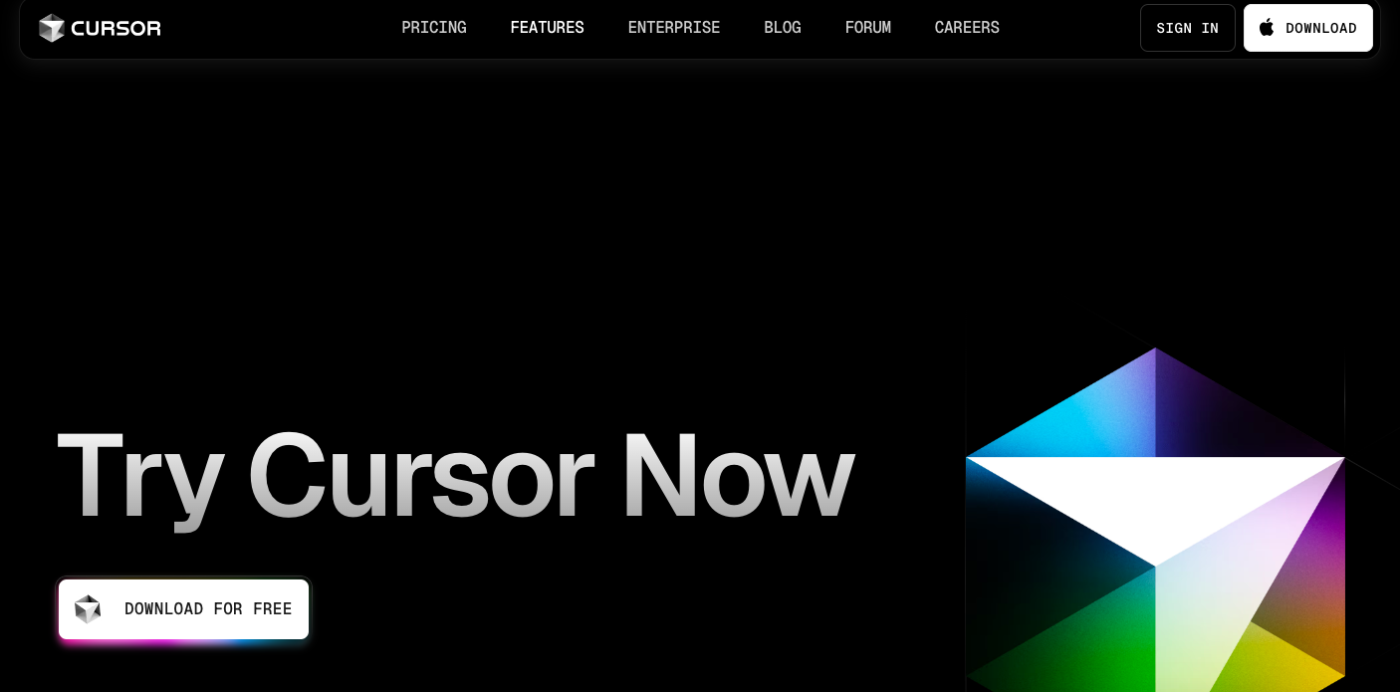
First, you’ll need to get the Cursor installer for your specific operating system. The download process is simple and takes just a few seconds on most internet connections.
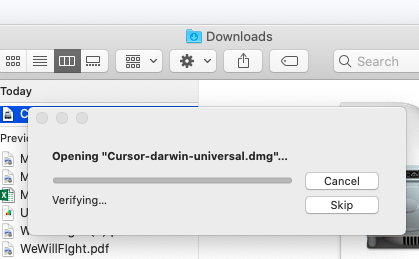
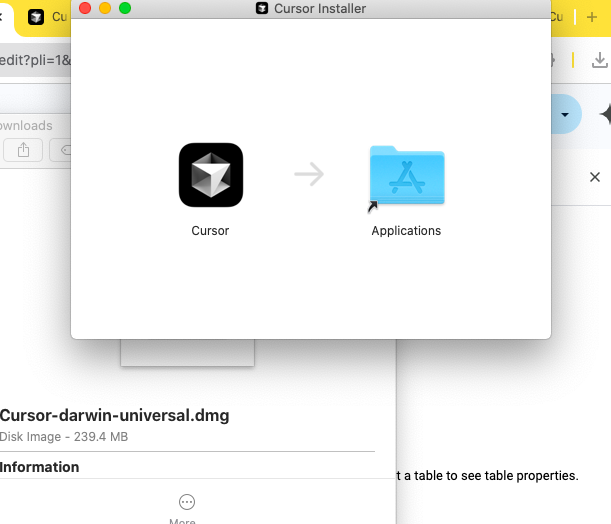
Once you’ve downloaded the installer, you’ll need to run it according to your operating system’s standard procedure. The installation process is similar to other applications you may have installed.
After installation is complete, you’ll need to start Cursor for the first time. Look for the Cursor icon in your applications menu or desktop.
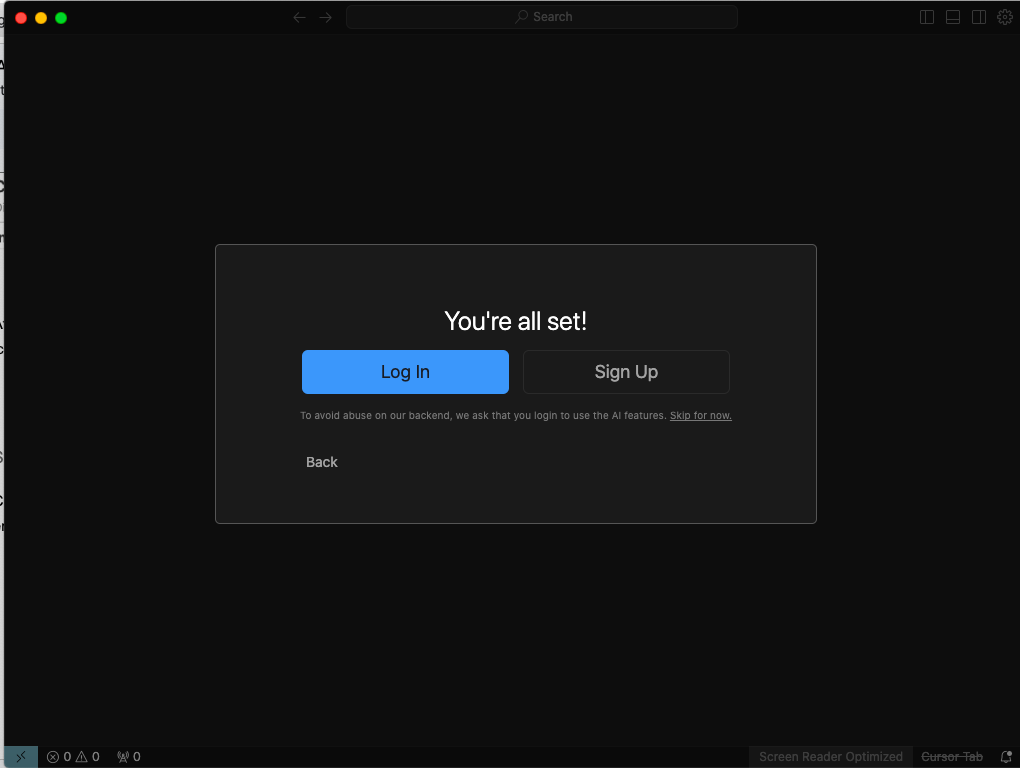
Cursor requires an account for most of its features, especially the AI capabilities. This step ensures you can access all the features available to you.
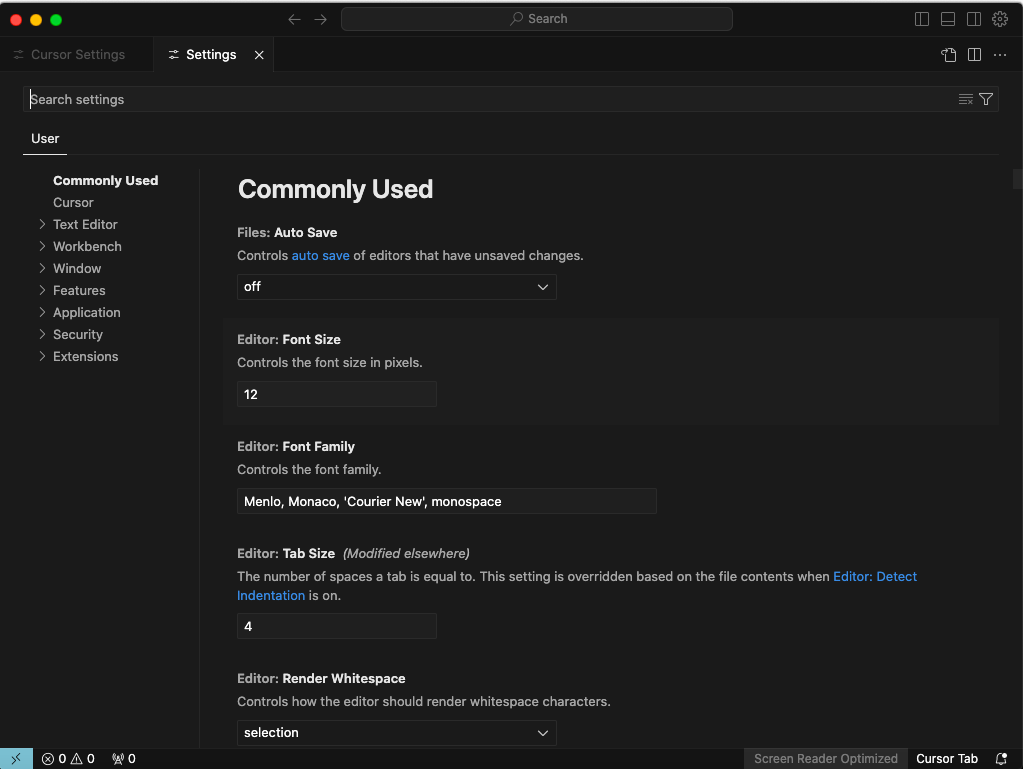
Upon first launch, Cursor will guide you through setting up your preferences. These settings can be changed later, but it’s good to configure them for the best experience.
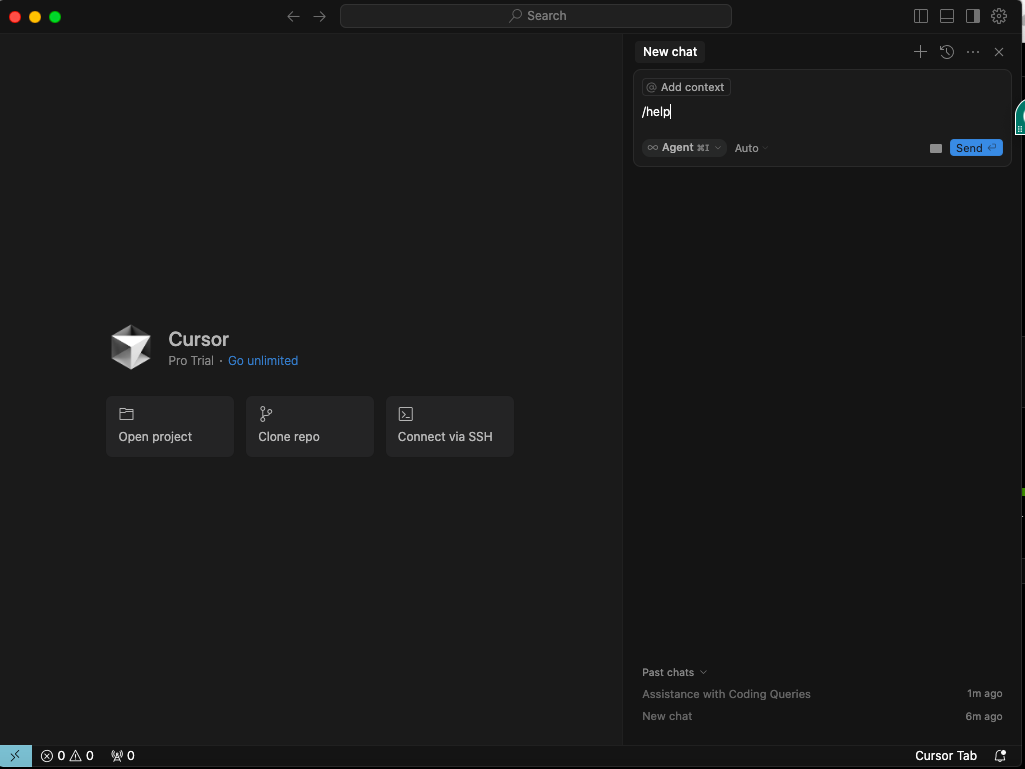
The final step is to ensure that the AI features are working correctly. This quick test will confirm that your installation was successful and that you’re ready to use Cursor AI.
The installation process typically takes less than five minutes, and you’ll be ready to experience AI-enhanced coding immediately.
Adopting a new tool is only worthwhile if it enhances rather than disrupts your existing workflow. Fortunately, Cursor AI is designed to integrate seamlessly with common development setups.
To truly integrate Cursor into your workflow, consider these practical steps:
The most successful adoption approach integrates Cursor AI gradually into existing development practices where it adds the most value. This allows you to experience developer productivity gains without disrupting your established workflow.
Cursor AI’s power comes from its diverse set of intelligent coding features. Here’s how to leverage each one effectively:
1. AI chat in context: The built-in AI chat allows you to have conversations about your code without leaving your editor.
How to use it:
💡 Pro Tip: Be specific in your questions. “How can I make this code faster?” will get generic answers, while “How can I optimize this loop for processing large arrays?” will yield more precise responses.
2. Code generation: Let AI write code based on your descriptions or comments.
How to use it:
💡 Pro Tip: Include expected inputs, outputs, and edge cases in your comments for more accurate generation.
3. Code explanation: Get plain-English explanations of complex code.
How to use it:
💡 Pro Tip: For large code blocks, select smaller sections for more detailed explanations.
4. Bug detection and fixing: Identify and resolve errors in your code with AI assistance.
How to use it:
💡 Pro Tip: Provide the error message if available for more accurate fixes.
5. Code refactoring: Improve existing code structure and readability.
How to use it:
💡 Pro Tip: Start with smaller functions before refactoring entire classes or modules.
6. Documentation generation: Create comprehensive documentation for code.
How to use it:
💡 Pro Tip: Add custom examples or edge cases to make your documentation more comprehensive.
To get the most out of Cursor AI while maintaining code quality and your skills, follow these best practices:
By following these best practices, you can leverage Cursor AI while continuing to become a better programmer.
📖 Also Read: Free Bug Report Templates & Forms for Bug Tracking
While Cursor AI offers impressive capabilities, understanding its limitations is crucial for responsible usage:
Remember that Cursor AI enhances human coding skills rather than replacing them. Understanding these limitations allows you to use Cursor AI more effectively, knowing when and when not to depend on it.
While Cursor AI enhances your coding experience, successful software development requires comprehensive project management.
This is why ClickUp, the everything app for work, can be the perfect companion to your coding workflow.
It’s an AI tool, a software development tool, a project management tool, a sprint planning tool, a business development tool, and a brainstorming tool (with ClickUp Whiteboards) all in one ecosystem.
Whenever I need to review a code on a weekly basis, I have the possibility to recreate the same task from another, even the comments; I can customize the creation from a template as a duplicate or even an automated task to create the same template in a specific space.
This integrated approach saves valuable time and reduces the cognitive load on your development team.
ClickUp Brain takes AI assistance beyond simple code completion by understanding your entire development workflow.
As an intelligent AI companion, it can write code, create documentation, and help solve complex problems within your project management environment.
With hundreds of handcrafted prompts for developers, it understands programming concepts. It adapts to roles, speeds up tasks, and enhances code quality.
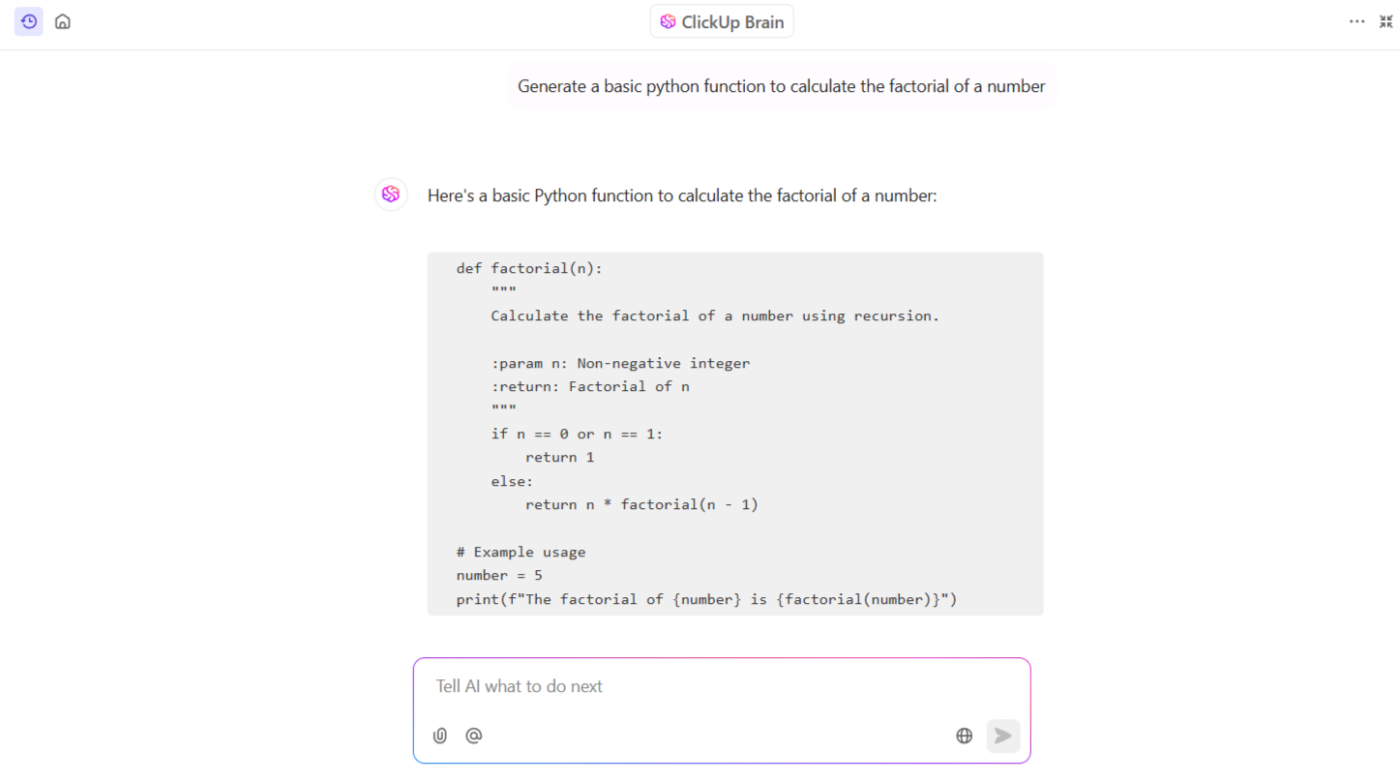
The comprehensive reporting tools built into ClickUp Brain provide crucial insights into project progress and team productivity. This helps leaders make data-driven decisions while managing large-scale coding projects.
That’s not all. ClickUp combines the power of powerful LLMs like Claude, Gemini, and ChatGPT to bring you one AI code buddy that does everything in one place.
📮 ClickUp Insight: 13% of our survey respondents want to use AI to make difficult decisions and solve complex problems. However, only 28% say they use AI regularly at work. A possible reason is security concerns! Users may not want to share sensitive decision-making data with an external AI.
ClickUp solves this by bringing AI-powered problem-solving right to your secure Workspace.
From SOC 2 to ISO standards, ClickUp is compliant with the highest data security standards and helps you securely use generative AI technology across your workspace.
ClickUp Docs reimagines technical documentation with a powerful, collaborative approach. Connect your documentation, tasks, and code seamlessly, keeping specifications and implementation notes organized and accessible.
Use code block formatting to share code snippets with syntax highlighting for 50+ programming languages, making communication clearer and code reviews more efficient.
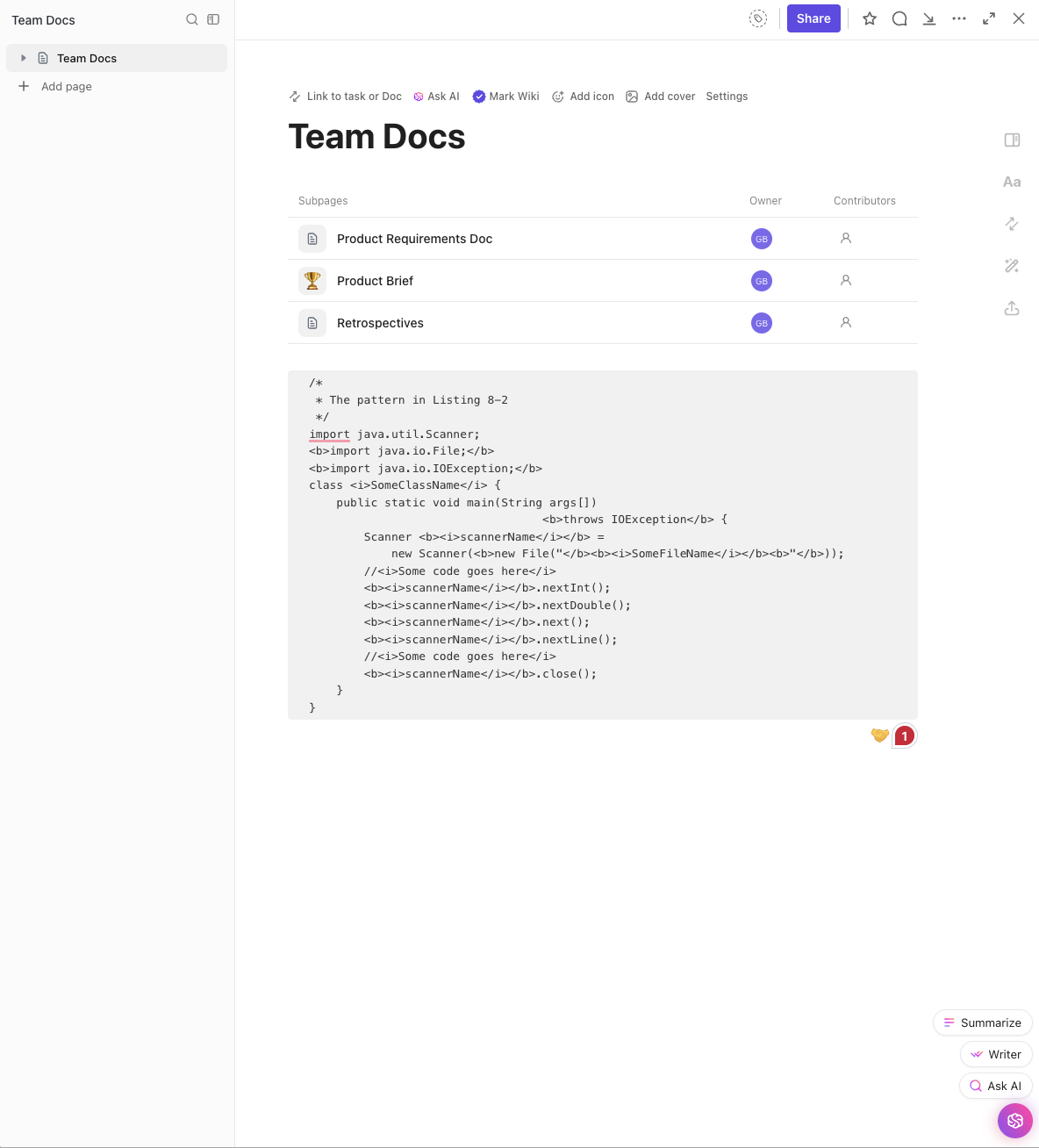
This rich documentation environment supports the entire software development lifecycle while maintaining version control and collaboration capabilities.
ClickUp for Software Teams provides a purpose-built solution that addresses the unique challenges of software development workflows. It connects development activities and project management by creating a single source of truth for your entire product team.
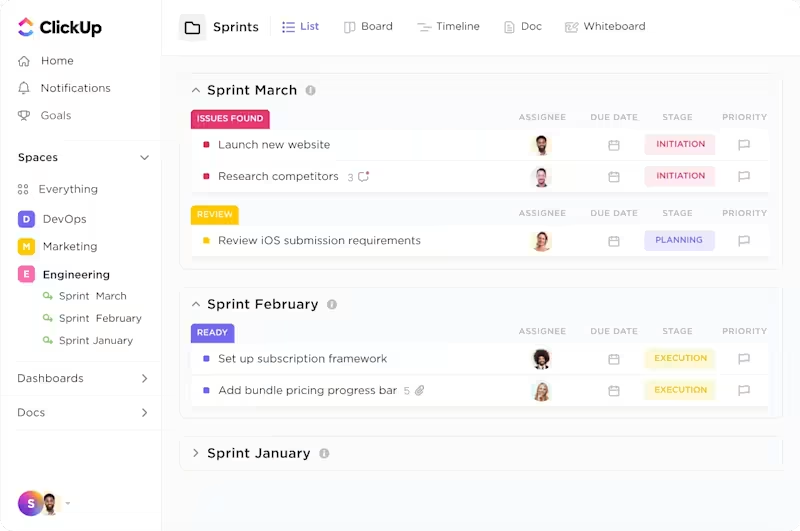
The platform has powerful integration capabilities with GitHub, GitLab, and other repositories. This enables developers to sync commits, branches, and pull requests directly within tasks, eliminating context switching while ensuring complete traceability.
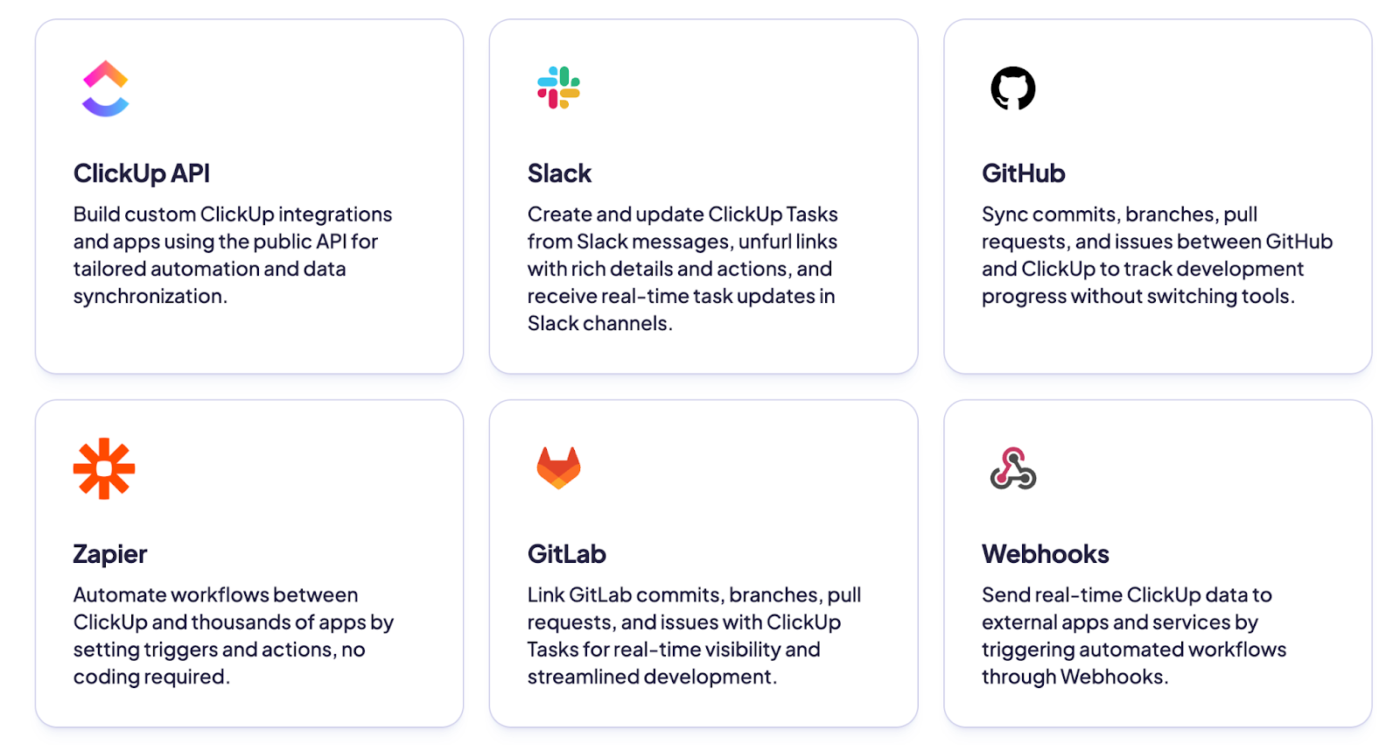
ClickUp’s Agile tools adapt to your specific methodology—whether Scrum, Kanban, or hybrid—reducing administrative overhead. This provides the flexibility engineering teams need to maintain velocity and quality.
Also, you can monitor timelines, dependencies, and milestones with ClickUp Dashboards and ClickUp’s Custom Views, such as Kanban boards, and Gantt charts.
The ClickUp Software Development Template gives software teams a head start with pre-configured workflows based on industry best practices. This template provides a complete framework that’s ready to use, while remaining fully customizable to your specific needs.
📖 Also Read: Free Software Development Plan Templates
By integrating Cursor AI for coding with ClickUp for project management, development teams create a complete ecosystem supporting every aspect of the software development lifecycle—from initial planning to coding, testing, and deployment.
Wait, there’s more!
ClickUp Custom Autopilot Agents can be a powerful asset for software development teams by automating routine project management tasks, surfacing important information, and ensuring smoother collaboration.
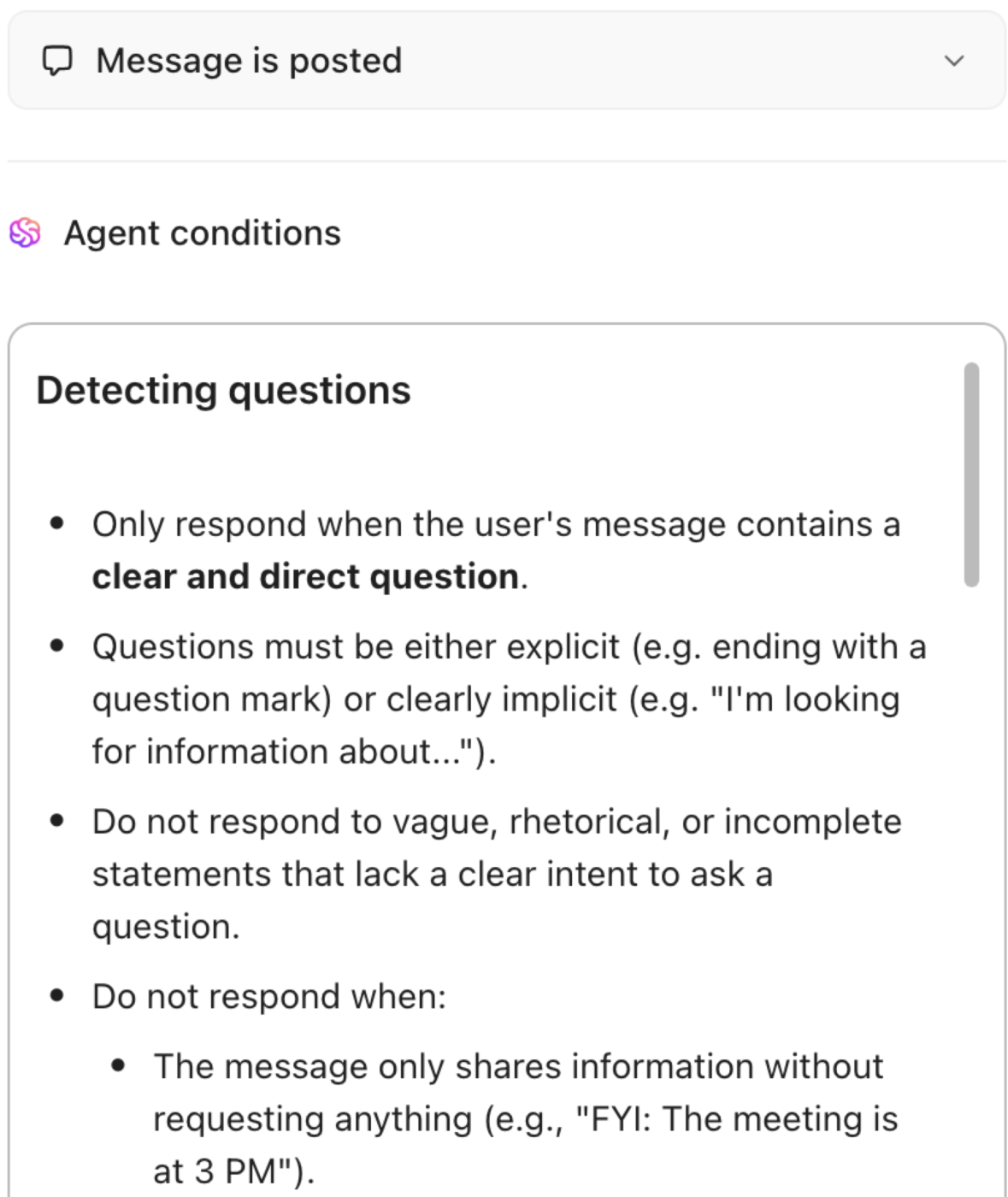
Here are some practical ways you can use Custom Agents for your dev team:
Check out these Cursor AI alternatives!
Cursor AI represents a significant leap forward in how developers interact with their code editor. Integrating advanced language models into your coding environment turns routine tasks into discussions on intent and implementation.
Teams can maximize development efficiency by combining Cursor AI’s coding assistance with ClickUp’s project management. This powerful workflow supports everything from small code snippets to large project architectures.
Ready to transform your development process?
Sign up for ClickUp today and discover how the right tools for developers can elevate your coding experience from functional to exceptional.

© 2026 ClickUp

There’s an easier way. Try a free AI Agent in ClickUp that actually does the work for you—set up in minutes, save hours every week.