






Still downloading templates?
There’s an easier way. Try a free AI Agent in ClickUp that actually does the work for you—set up in minutes, save hours every week.
Sorry, there were no results found for “”
Sorry, there were no results found for “”
Sorry, there were no results found for “”
If every chat with Claude starts with “here’s the background again…,” you’re paying a tax in time and quality.
Claude’s Projects feature gives you persistent context. You upload relevant files, pin decisions, and write custom instructions once, so every follow-up lives inside the same scoped workspace.
Moreover, the high context window allows Claude to process massive documents or multi-turn conversations without losing track.
In this guide, you’ll learn how to use Claude for project management in a practical way and share projects safely with multiple team members. The result is less rework and an AI partner that actually remembers what you’re building.
The ClickUp Project Management Template offers an intuitive, streamlined approach to managing tasks, project timelines, and team collaboration. Each feature helps teams stay aligned, prioritize tasks efficiently, and monitor milestones with live updates.
Claude is a family of advanced AI models and a chatbot developed by Anthropic, known for being helpful and honest. It excels at natural language tasks like writing, coding, summarizing, and reasoning.
Claude emphasizes AI safety and ethical guidelines (Constitutional AI) to deliver reliable, trustworthy outputs for both individuals and businesses. With Projects, instead of one-off chats, you work inside scoped Claude projects with relevant documents and custom instructions, so planning, updates, and decisions stay in one place.
You can use it when you need speed and structure on complex tasks without adding another tool to babysit.
👀 Did You Know? Gartner predicts that by 2030, 80% of project management tasks will be handled by AI. The idea is not to replace humans, but to improve the overall efficiency by streamlining the various aspects of a project.
📖 Also Read: Best AI Tools for Project Management
A little prep makes Claude AI prompts sharper and outputs more trustworthy.
With these basics in place, Claude works like an informed teammate from day one.
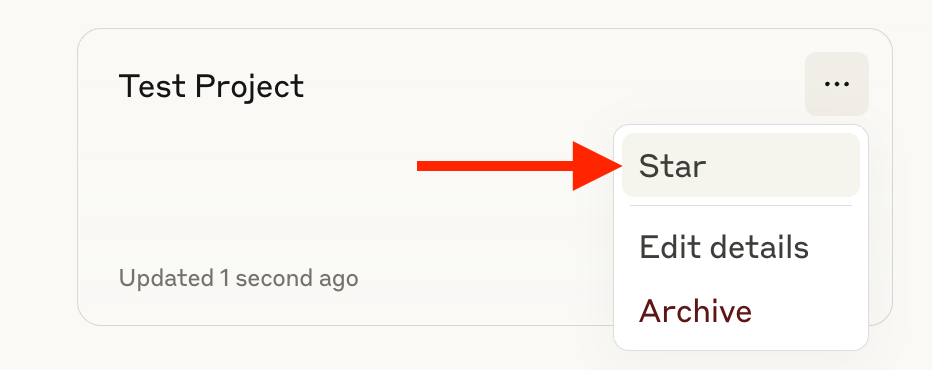
Projects are available to every Claude user, including those on a Free plan. On a Free account, you can create up to five projects.
Note: Context isn’t shared across chats unless content or instructions are added to project knowledge.
📖 Also Read: Project Management Dashboard Examples & Templates
📖 Also Read: Claude AI Review: What You Need to Know
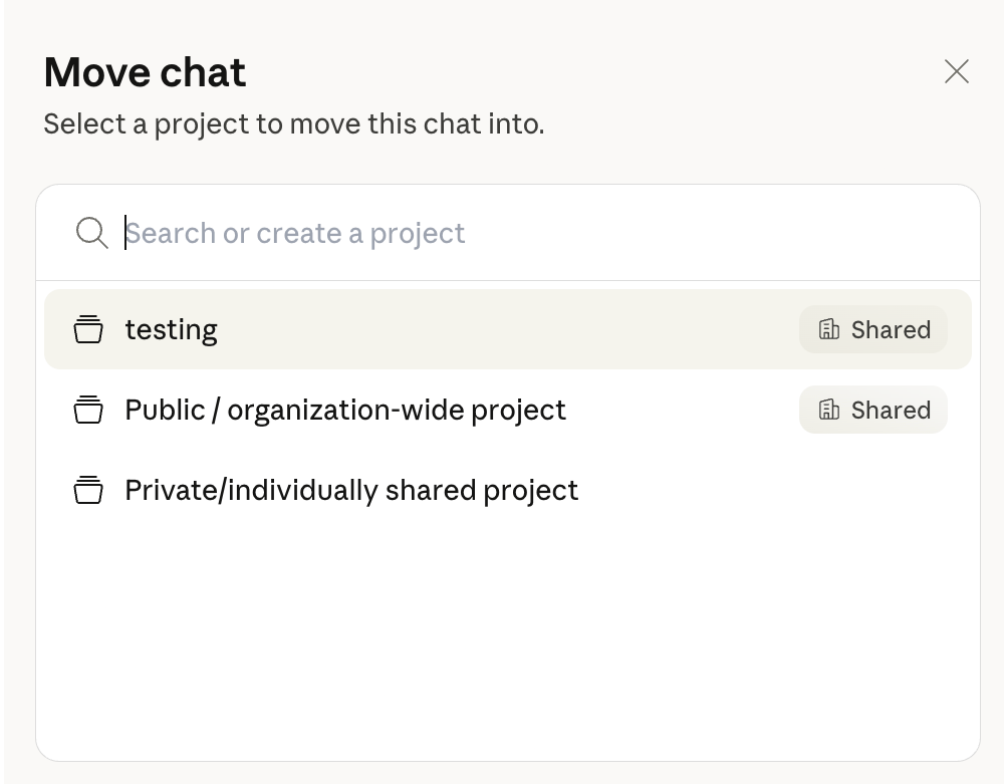
Claude maintains separate memory summaries per project and a global summary for the rest. If a conversation doesn’t belong, remove it from the project so it’s excluded from that project’s memory while remaining in your overall chat history.
Note: Memory is available across Pro, Max, Team, and Enterprise plans on the web, Desktop, and Mobile.
🎥 Get started quickly with these Claude prompts 👇
📮ClickUp Insight: While 34% of users operate with complete confidence in AI systems, a slightly larger group (38%) maintains a “trust but verify” approach. A standalone tool that is unfamiliar with your work context often carries a higher risk of generating inaccurate or unsatisfactory responses.
📖 Also Read: Claude AI Vs. ChatGPT: Which AI Assistant Is Best
Let’s say you have a new project idea, whether it’s a software, a marketing campaign, or a community event. Before developing a project plan or assigning tasks, it’s essential to flesh out the idea first. Here, Claude can serve as your brainstorming partner.
Before you draft a plan, turn Claude into an expert collaborator. Start a new project and kick off a structured brainstorm that clarifies goals, risks, and your target audience.
Try this prompt (tweak to fit your domain):
“Hey Claude, I’m exploring [project in one–two sentences]. Act as a senior project manager and strategist. Ask focused questions one at a time to define scope, stakeholders, constraints, and success criteria. After each answer, add concise suggestions I should consider.”
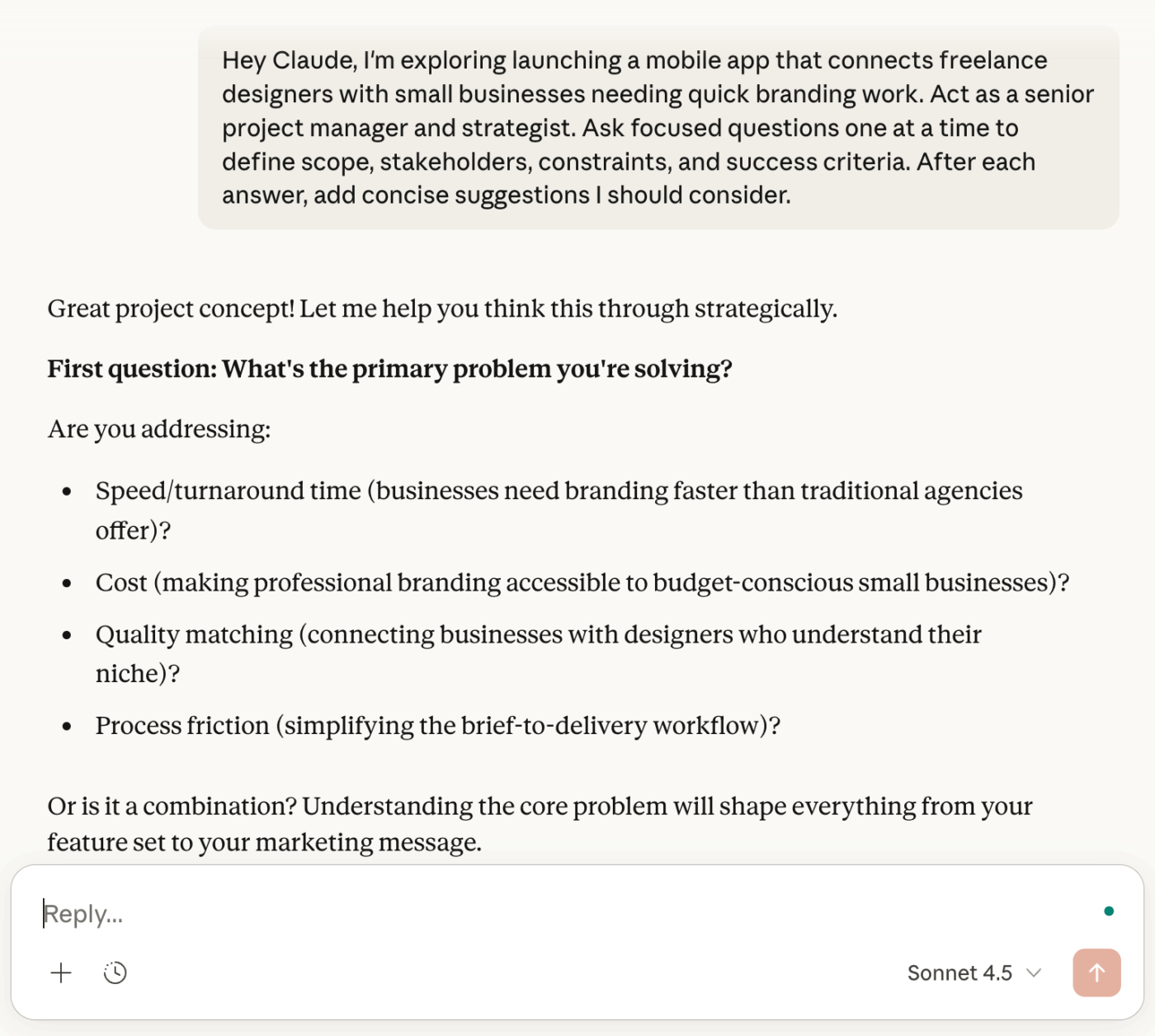
This conversational flow helps you surface blind spots and align on scope before committing to work.
🧠 Fun Fact: Structured prompts improve AI accuracy from 0% to 90% on complex reasoning tasks, according to research on prompt engineering techniques.
Once you’ve aligned on goals, ask Claude to convert insights into a clean scaffold you can share.
Prompt to use:
“Based on our discussion, draft a detailed outline with: summary, objectives, audience, deliverables, and a high-level timeline. Make it scannable and action-oriented.”
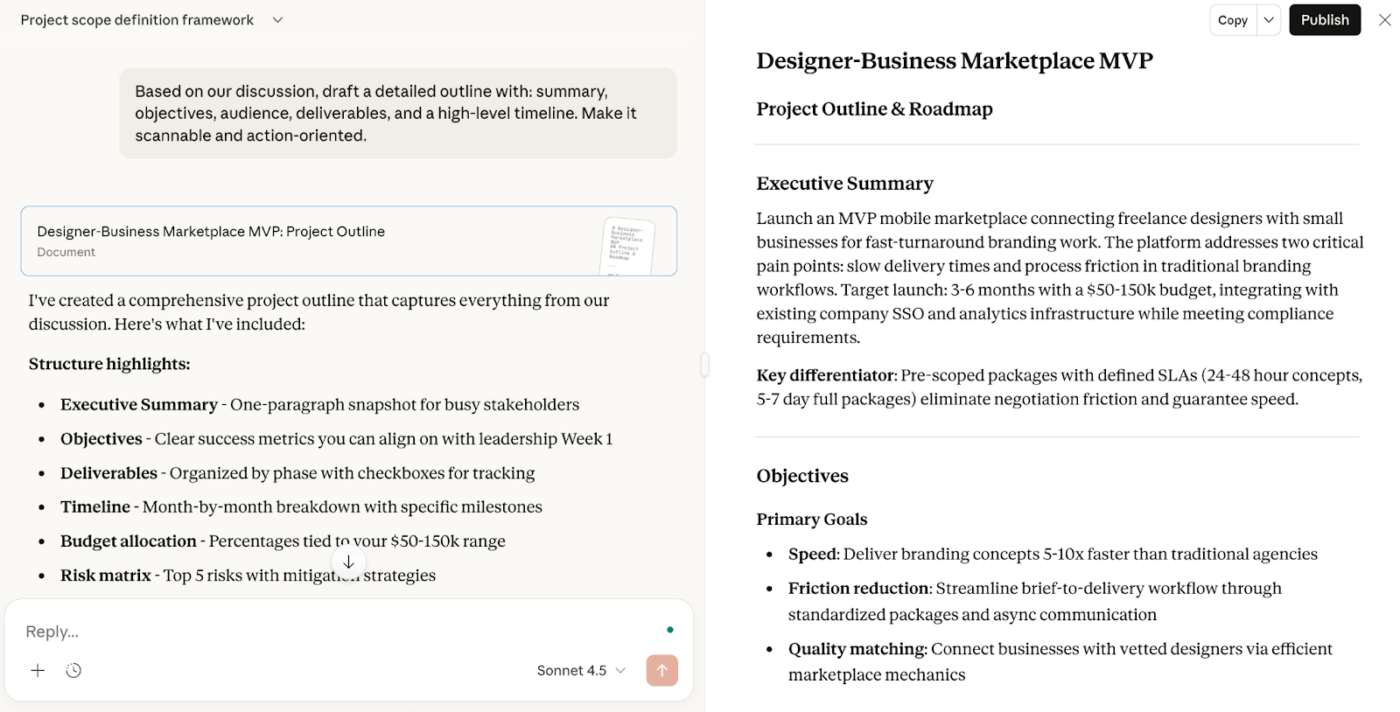
In minutes, you’ll have a structured backbone for planning, ideal for team collaboration, stakeholder review, or publishing as a kickoff blog post or brief.
📖 Also Read: Best Claude AI Alternatives
Create a record in Claude’s projects feature—name it “[Project Name] – Planning”—and upload relevant files (briefs, market research, specs, meeting transcripts, even code snippets).
Add custom instructions like: “You are an expert PM. Outputs must be clear, concise, and actionable.”
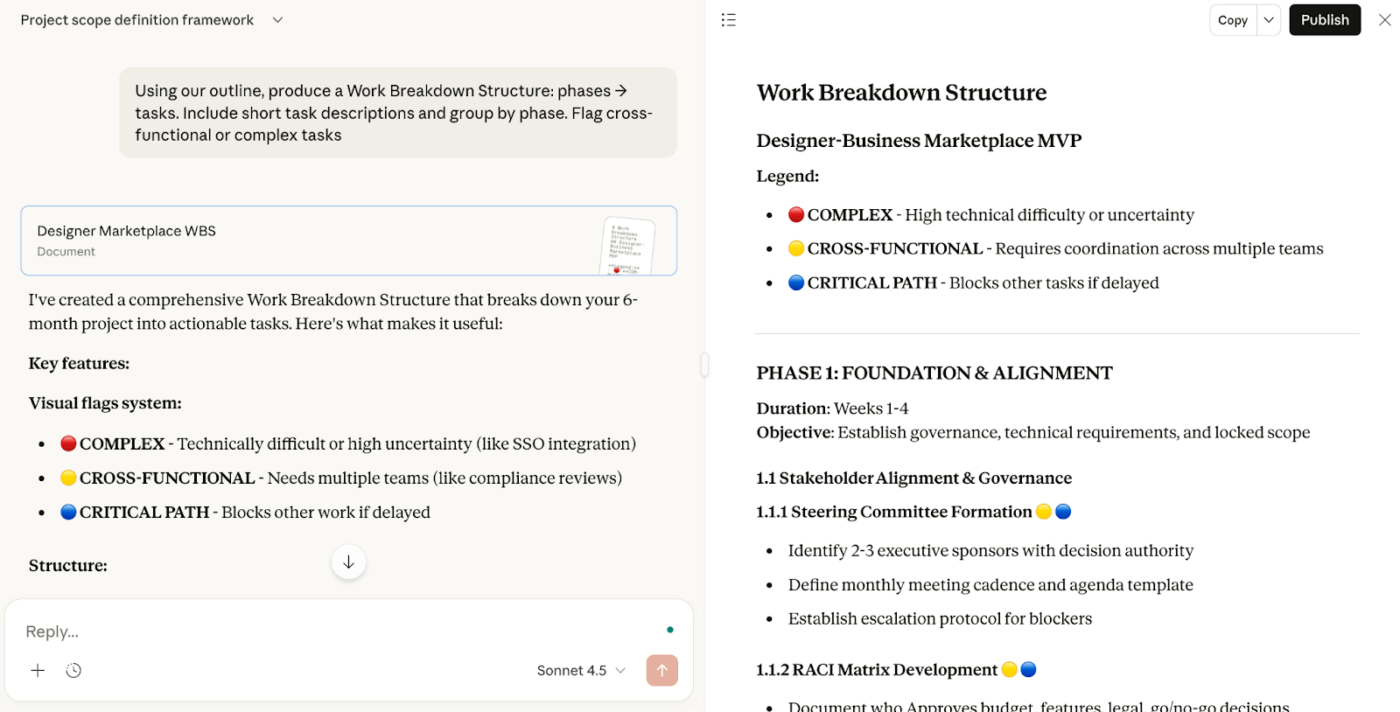
Prompt to build the WBS:
“Using our outline and project files, produce a Work Breakdown Structure: phases → tasks. Include short task descriptions and group by phase. Flag cross-functional or complex tasks.”
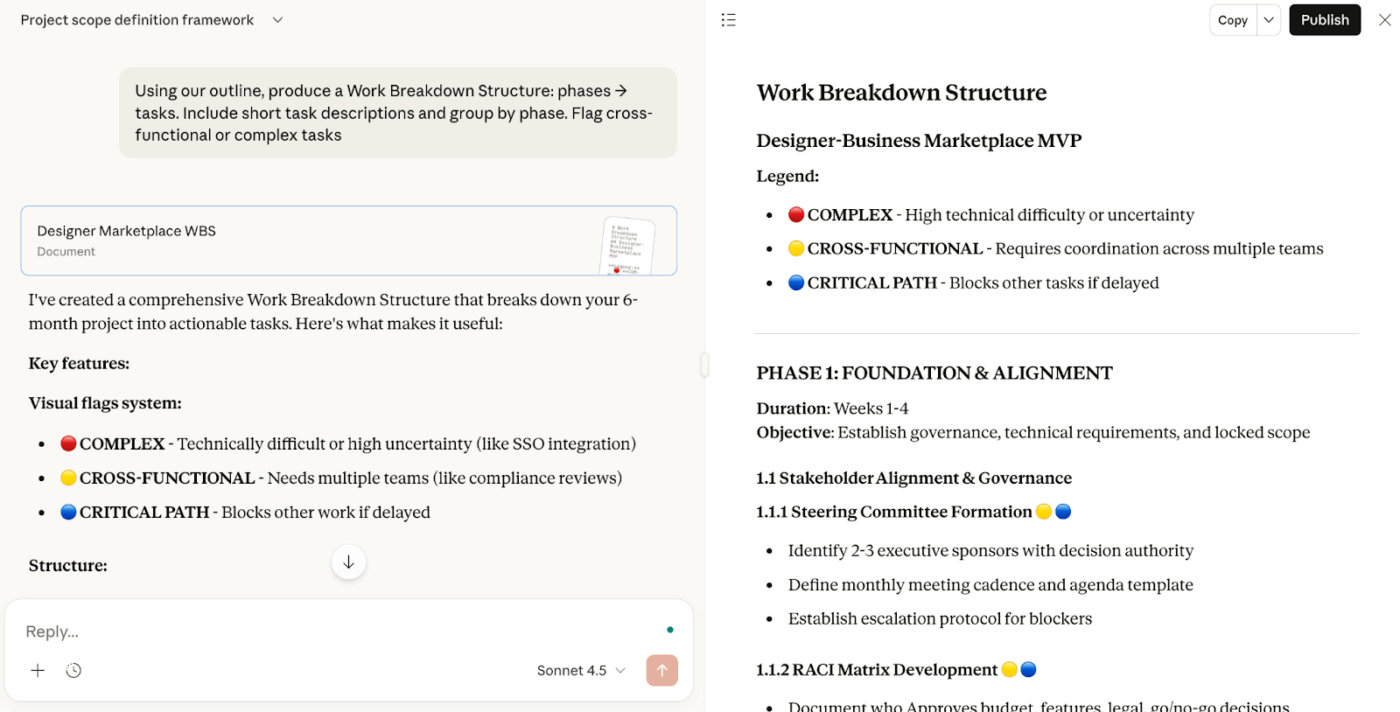
Because the project holds a persistent context, Claude can refine the WBS as more inputs arrive.
📖 Also Read: How to Use Claude AI for Programming Assistance
With a WBS in place, let Claude map the schedule.
Prompt to execute:
“Estimate durations (days) for each task, identify dependencies, and draft a timeline table with start and end dates.”
💡 Pro Tip: Struggling to keep your projects on track? ClickUp’s Project Schedule Template can help you plan, visualize, and stay in control of every project schedule.
Next, generate a file you can drop into any Gantt chart tool:
CSV prompt:
“Format the schedule as CSV with columns: Task Name, Start Date, End Date, Dependencies.”
Paste the output into your tool of choice to visualize the plan immediately. You can also ask Claude to tailor the CSV to your PM platform’s import format or to adjust dates as priorities change iteratively.
🎯Bonus: For larger projects, repeat this flow per workstream. Store each stream in its own Claude project for self-contained workspaces, then share projects with permission levels to keep execution focused while leadership can regularly review progress.
💡 Pro Tip: ClickUp Super Agents are your always-on project teammates, ready to transform the context and decisions you generate with Claude into real, trackable progress:
Running light on headcount? You can still set up Claude like a reliable teammate to move faster without sacrificing quality.
💡 Pro Tip: ClickUp Brain MAX helps you keep all the context you generate with Claude in one place and actually usable in day-to-day delivery.
While you’re reviewing Claude’s suggestions or sitting in a standup, speak your updates in Talk to Text in Brain MAX. It turns them into structured notes or task updates directly inside the right ClickUp List, Doc, or task
Install the ClickUp Brain MAX Chrome extension to keep this project brain beside Claude wherever you work
There’s an ongoing Reddit thread about Claude’s message caps, even for Pro users.
A recent comment sums up the frustration:
Crazy how this is STILL an issue. Why am I paying $20 a month for this?”
📝Key Insight: Usage limits reflect Anthropic’s changing token budgets. The same plan can yield less output week-to-week. This is because quotas are framed as “hours” of Sonnet or Opus versions, not tokens. Since the Sonnet 4.5 release, many report hitting limits sooner—even without heavier use.
If you’re evaluating Claude for project management, keep these limits in view:
If you’ve hit Claude’s usage caps mid-sprint, what do you do next? You still need to ship, so you bounce between AI tools. Work sprawl occurs when you end up using one app for drafting, another for code, and a third for notes.
The problem is that none of them will share context or history. Work scatters across tabs, and repetitive tasks result in AI sprawl as well. Claude is excellent for reasoning, but opaque limits and uneven depth in niche topics make it hard to run an end-to-end project management workflow.
ClickUp solves this challenge by being a converged AI workspace that brings projects, docs, whiteboards, chat, goals, and dashboards together. You centralize project knowledge, plans, updates, and decisions so multiple team members can execute without hunting across tools.
ClickUp’s Project Management platform transforms how teams plan, document, and execute projects.
📽️ Watch a video: Hoping for AI to resolve project management, but not getting the results you hoped for? Introducing ClickUp AI for project management.
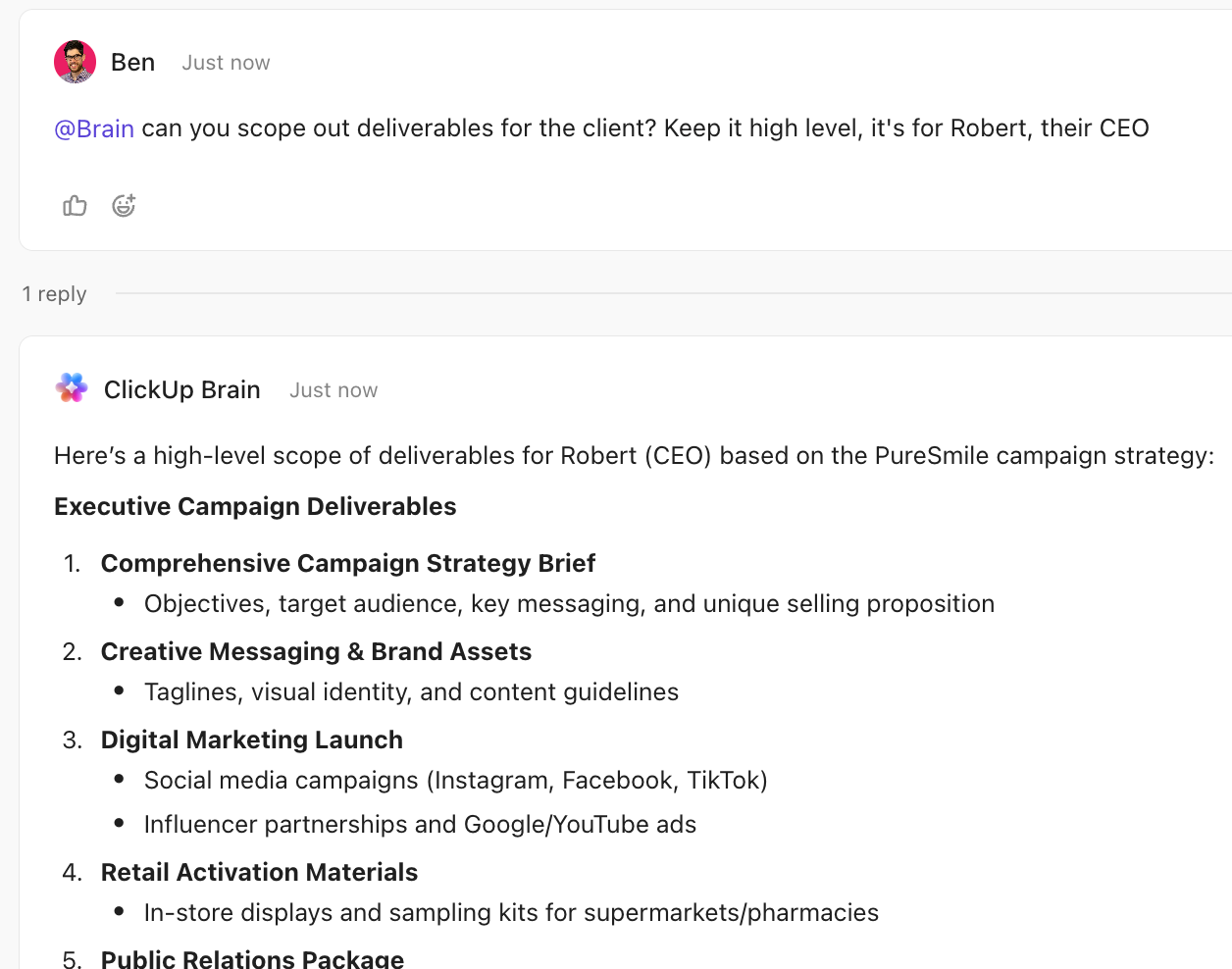
ClickUp Brain is your always-on teammate inside ClickUp. It lives across tasks, ClickUp Docs, and comments, and helps keep project knowledge consistent.
Brain connects your project management, knowledge management, and collaboration across your workspace and integrated third-party tools. You can get contextual responses without the toggle tax and experience a 2–3x increase in work efficiency. Use it to:
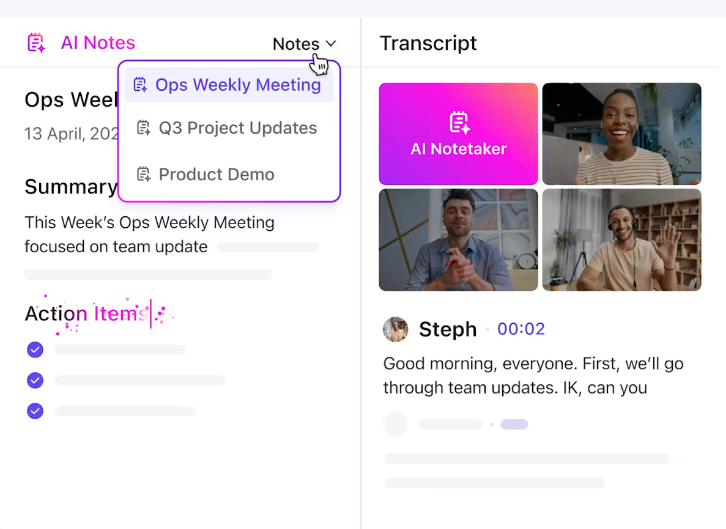
ClickUp AI Notetaker joins your Zoom, Meet, or Teams calls and turns them into searchable transcripts with action-oriented summaries.
It automatically captures meeting details—name, date, and attendees—so you always have full context. You also get recordings (video for meetings up to an hour, audio for longer ones) to revisit or share key moments.
Structured notes give you clarity, with a quick overview, key takeaways, and a checklist of next steps. You can assign tasks, highlight decisions, and share insights in one click, while expandable transcripts make it easy to search or dive deeper.
After the meeting, just ask ClickUp AI to pull insights, clarify action items, or generate summaries. It supports nearly 100 languages and can be customized to match your preferred note style.
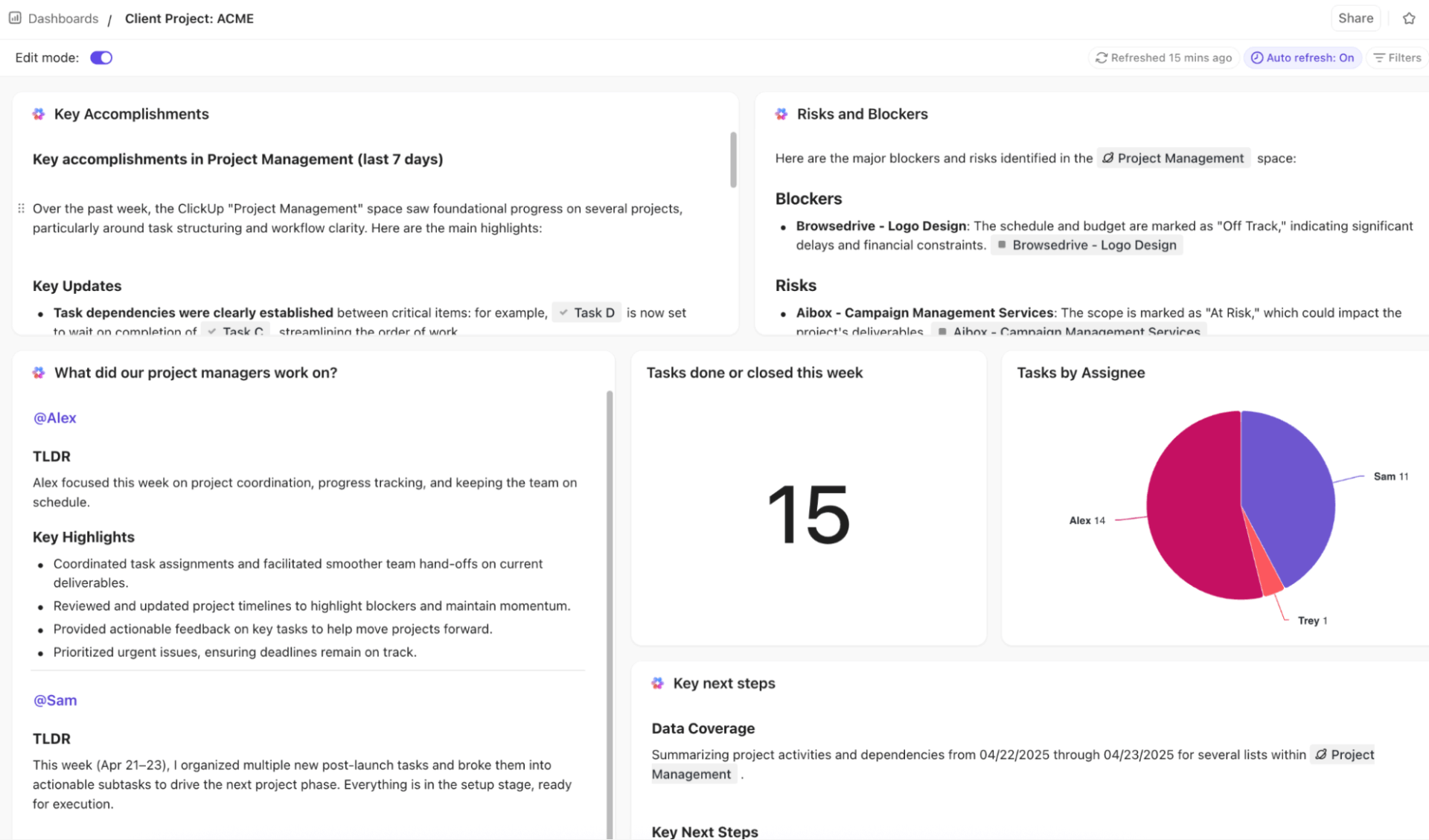
Save hours of manual reporting with ClickUp’s ClickUp Dashboards that track real-time project metrics, team workload, and progress across multiple projects—all in one place, so you always have a live pulse on what matters.
Use filters and widgets to zero in on specific teams, priorities, or statuses, so you can instantly surface blockers or overdue work without digging through tasks. Export or share live views and dashboards with stakeholders so everyone works from the same, up-to-date information without version-control headaches.
In addition, ClickUp’s customizable Views, like the ClickUp Gantt Chart View, or the Timeline view, let you visualize dependencies, milestones, and deadlines to spot schedule risks and adjust timelines proactively.
💡 Pro Tip: Bring ClickUp AI’s power outside the platform into a dedicated AI desktop experience using ClickUp Brain MAX. It unifies search, multiple AI models, and live project directory context across your engineering stack.
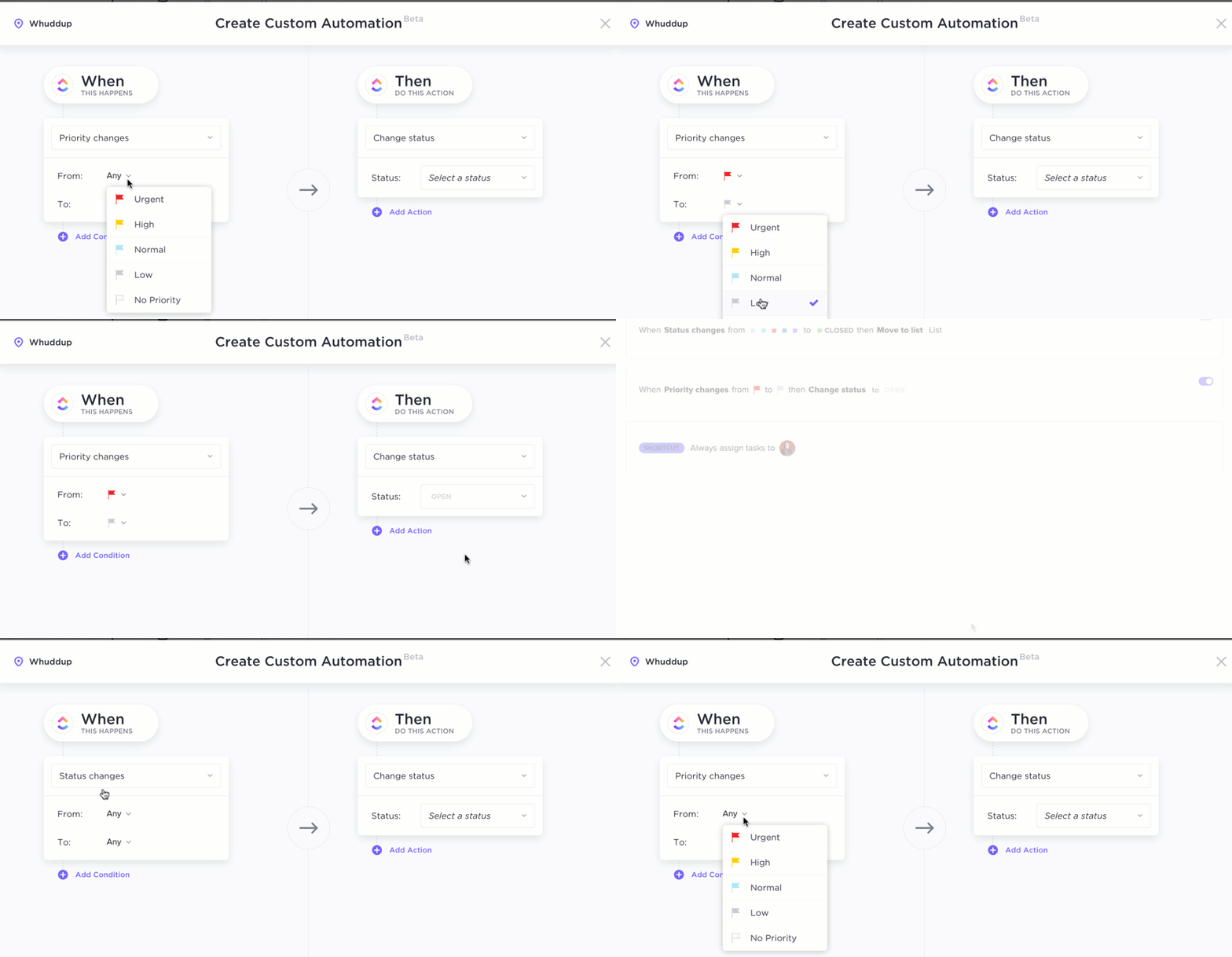
Create no-code automations in natural language with ClickUp Automations. Status changes, assignments, or due-date rules can be automated, so routine work runs itself while your team focuses on bigger problems.
Combine multiple actions (assign, update priority, add comments) into a single automation to streamline complex workflows. You can apply automations at the Space, Folder, or List level to standardize processes or tailor them for specific teams.
🧠 Fun Fact: ClickUp Brain supports multiple AI models—including Claude—so you can prompt the AI to create visual assets or conceptual diagrams without leaving your workspace.
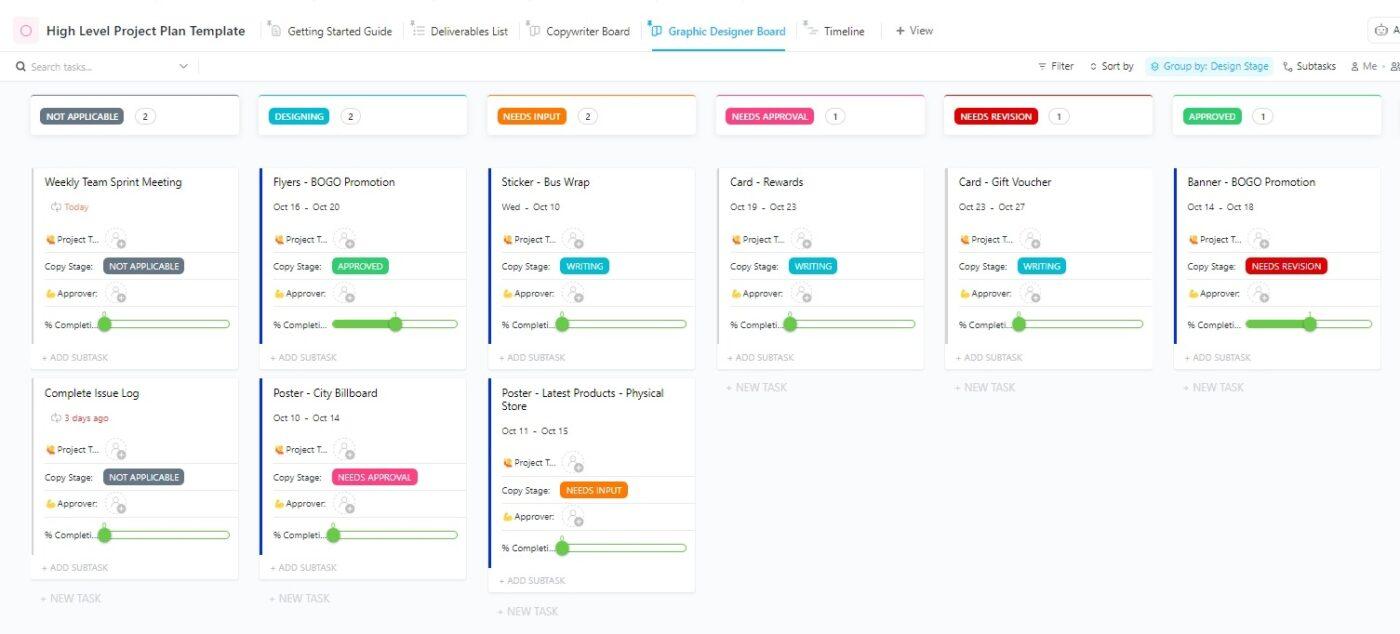
Big projects don’t have to feel big and messy. ClickUp’s High-Level Project Plan Template gives you a clean starting point so a project manager can map the work, align the team, and move fast—without rebuilding structure every time.
Here’s what it helps you do:
Whether it’s a scrappy kickoff or a complex rollout, this template keeps your project management tidy and your project data organized on one project page. Load it, tailor a few fields, and you’re ready to manage the plan.
Here’s what the Account Director at Pontica Solutions, Dayana Mileva, says about ClickUp:
“I was looking for a project management platform, and I found the best. Right away, it felt like ClickUp could solve all of our problems and create out-of-the-box solutions to benefit us in ways that I hadn’t even imagined.”
Claude is powerful, especially with a large context window, but you’ll still need a home for execution. You have to assign owners, track progress, organize project knowledge, and keep decisions visible.
That’s where ClickUp shines. It gives your team one place to plan, run, and review work with clear permission levels and updates tied to tasks.
If you want less tool-hopping and more momentum, make ClickUp the hub and use Claude where it helps. Spin up your next team plan, centralize relevant documents, and move. Try ClickUp for free.
Claude can support project management, but it shouldn’t replace a human PM. Treat it as a smart assistant that summarizes updates, drafts plans, and automates repetitive tasks, while you still own priorities, trade-offs, and stakeholder alignment.
Claude is as accurate as the inputs you give it. Feed it strong project knowledge—goals, constraints, and relevant documents—and it can draft plans. But you need to review assumptions, check dependencies, and confirm feasibility with your team.
Claude can outline timelines, identify milestones, and flag obvious dependencies, especially when you describe the relevant project in detail. However, it doesn’t run schedules itself—you’ll still rely on your project management tool for tracking and resource changes.
Use Claude for thinking and drafting, then let your PM platform handle execution. For example, brainstorm risks or requirements as Claude projects, then turn approved outputs into tasks, owners, and dates in your tool, linking any relevant documents.
It can be safe if you treat it like any other system handling work. Avoid pasting sensitive data unless your plan allows it, restrict access, and pair Claude with secure tools that automate repetitive tasks inside your project management stack

© 2026 ClickUp

There’s an easier way. Try a free AI Agent in ClickUp that actually does the work for you—set up in minutes, save hours every week.