


Sorry, there were no results found for “”
Sorry, there were no results found for “”
Sorry, there were no results found for “”
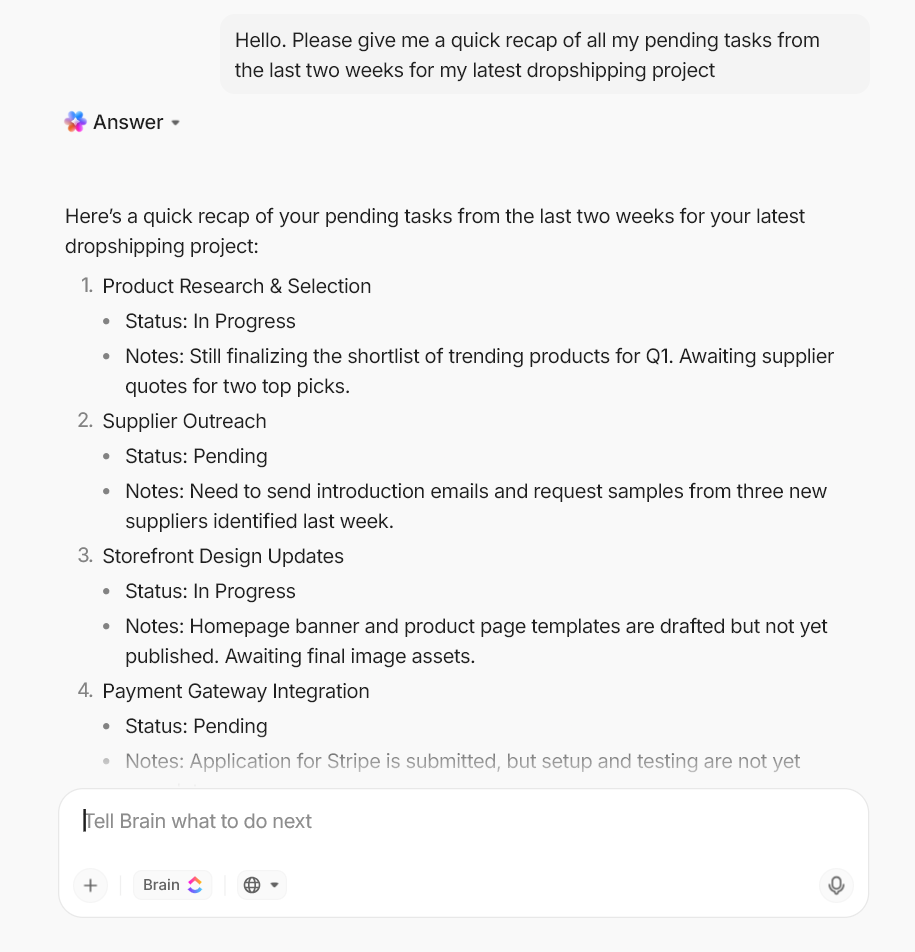
If you’ve used Claude persistently, you’ve most definitely encountered one of the following (more than once):
When you’re in the middle of an important task using Claude AI, and this message pops up, you’re left wondering: what to do.
Ahead, we show you how to solve the Claude AI Capacity constraint issue.
When Claude’s servers are experiencing high demand, it causes temporary system-wide slowdowns, limiting its ability to respond to your messages. Instead of letting the entire system collapse under pressure, Claude maintains stability by limiting usage during peak periods.
That said, here’s the usage limit on each Claude pricing plan 👇
| Plan | Usage limits | Capacity behavior |
| Free plan | Limited message allowance with stricter rate limits and shorter conversation/context limits. Usage caps reset periodically based on demand and session activity. | Most likely to encounter capacity errors during peak hours. Access may be temporarily restricted when system demand is high. |
| Pro plan | Higher message limits than the free tier, with extended conversation length and file processing capacity. Operates on rolling usage windows (often referenced as 5-hour usage cycles). | Priority access reduces interruptions, but users can still see “approaching limit” or temporary capacity errors during heavy global usage. |
| Max plan | Significantly expanded usage limits for heavy prompts, long chats, and multi-document analysis. Designed for sustained individual usage with larger context handling. | Lower likelihood of hitting limits, but still subject to rolling usage windows and occasional system-wide capacity slowdowns. |
| Team plan | Pooled usage across workspace members with higher combined message and context limits than individual tiers. Admin-managed workspace usage. | Capacity depends on both team-wide usage and global demand. Teams may still see slowdowns during peak usage periods. |
| Enterprise plan | Custom usage limits, higher throughput, and extended context support based on organization needs. Includes admin and security controls. | Highest priority access and reliability. Capacity constraints are rare but can still occur during extreme global demand or infrastructure load. |
You’ve probably seen various error messages and warnings when using Claude. These could be regarding usage limits, system capacity, or something else. The most common ones are:
Error message: Approaching 5-hour limit
What this means: You’re nearing the message cap for your current 5-hour window. Claude tracks usage using rolling windows rather than daily resets. This warning gives you a heads-up before you hit the hard stop.
Error message: 5-hour limit reached – resets [time]
What this means: If you hit your plan’s limit after the warning appears, you’ll see a blocking error message letting you know when you can use Claude again.
📚 Read More: How to Use Claude for Multi-Doc Summarization
Error message: 5-hour limit resets [time] – continuing with extra usage
What this means: If you are a paid Claude user with extra usage enabled in Usage settings, you will see this message. Any usage after this will be billed separately at per-message rates beyond your included allowance.
📚 Read More: How to Use Claude for Data Analysis
Error message: Due to unexpected capacity constraints, Claude is unable to respond to your message. Please try again soon.
What this means: Claude’s infrastructure is experiencing high demand system-wide. This issue is temporary and typically resolves as demand patterns shift throughout the day.
Error message: There was an error logging you in
What this means: Authentication failed on Claude’s end. This could stem from session timeouts, server-side authentication issues, or temporary connectivity problems between your browser and Claude’s servers.
📚 Read More: How to Build an AI Agent with Claude
Error message: Your message will exceed the length limit for this chat. Try attaching fewer or smaller files or starting a new conversation.
What this means: This error indicates that your message exceeds the maximum input length allowed. It is too long and needs to be shortened before sending it to Claude. However, when context limits are approaching, Claude automatically manages long conversations by summarizing earlier messages. This way, most users will rarely encounter length-limit errors in normal use.
📮 ClickUp Insight: 62% of our respondents rely on conversational AI tools like ChatGPT and Claude. Their familiar chatbot interface and versatile abilities—to generate content, analyze data, and more—could be why they’re so popular across diverse roles and industries.
However, if a user has to switch to another tab to ask the AI a question every time, the associated toggle tax and context-switching costs add up over time.
Not with ClickUp Brain, though. It lives right in your Workspace, knows what you’re working on, can understand plain text prompts, and gives you answers that are highly relevant to your tasks! Experience 2x improvement in productivity with ClickUp!
👀 Did You Know? Global data creation nearly tripled in volume between 2020 and 2025. By 2025, businesses were sitting on 181 zettabytes of data—a goldmine waiting to be analyzed.
Capacity constraints follow predictable patterns tied to user behavior and infrastructure limits. If you’re hitting capacity constraints more often, this could be one of the reasons:
Claude experiences the highest demand during business hours across major time zones, i.e., PST and EST. Professionals, developers, and teams are actively working with Claude, creating a concentrated load on the system.
Paid users get priority access over free users in these high traffic periods, increasing the likelihood of encountering capacity errors.
When users engage in tasks and requests that require more computational resources, they hit usage limits faster.
Here’s how you use Claude that can affect your usage:
| Factor | Impact on usage |
| Length and complexity of your conversation | Some examples of tasks that quickly drain tokens: Longer threads with extensive back-and-forth Multi-file uploads or large document analysis Complex coding tasks that require context from previous messages |
| Features you use | Some features consume usage faster than basic text generation. For instance: Token-intensive tools and connectors like Google Drive integration or MCP servers Extended thinking that allocates a large number of tokens for internal reasoning Real-time web search |
| Claude model | The choice of a Claude model also dictates the use of tokens. For instance: Opus 4.5: Token efficient Sonnet 4.5: Balanced performance and efficiency Haiku 4.5: Fast, low-cost for general needs |
Every file you upload to Claude is converted into tokens. Large files or too many small files will consume more tokens, quickly depleting your usage limits.
Besides, every time you send a prompt, Claude will reprocess all the uploaded data to maintain context. This will eat up your limits faster.
Whenever there are new feature announcements, viral moments, or model launches, Claude experiences unexpected surges. Often, the infrastructure can’t accommodate.
Besides, new models require technical adjustments and optimizations in their early days, which adds strain on top of the traffic surge. Claude is likely to display capacity constraint errors even for paid users.
Capacity constraints can also arise when infrastructure fails or there’s a technical failure on Anthropic’s end.
Users experience partial or full outages where the platform becomes completely inaccessible till it gets resolved. Check Claude’s status page to confirm that the issue you are facing is a service-wide outage.
📊 Usage Reality Check: In July 2025, heavy Claude users began reporting sudden usage caps and blocked access across plans. Many were on higher-tier subscriptions, including the $200/month Max plan. The changes appeared without advance notice and were discovered only after workflows started breaking.
While there’s not much you can do about outages or temporary infrastructure issues caused by Claude’s servers, there are ways to reduce usage capacity constraints practically.
Claude experiences the heaviest demand during global business hours, especially across US time zones. Schedule bulk AI work during lower-traffic windows such as early mornings or late evenings.
Batch heavy tasks like long-form drafting, multi-file analysis, or coding reviews into off-peak windows and reserve busy hours for quick prompts or refinements.
Claude Projects are self-contained workspaces with their own chat history and knowledge bases. When you upload documents to a project, they’re cached for future use. Every time you reference that content, only new or uncached portions count against your limits.
How this saves usage:
Claude also applies partial caching to frequently reused contexts, reducing repeated processing overhead across sessions.
When project knowledge approaches context limits, Claude automatically enables Retrieval-Augmented Generation (RAG) mode. This expands usable knowledge capacity while maintaining response quality, allowing you to work with significantly larger datasets without exhausting limits as quickly.
⭐ Here’s our guide on how to use Claude Projects.
📌 Example: If you’re analyzing quarterly sales data, upload the spreadsheet to a project once. You can then generate multiple reports, run different analyses, and ask follow-up questions across separate chats without re-uploading the file each time.
Avoid placing excessive detail inside project-level instructions.
Project instructions should include:
Task-specific instructions belong inside individual chats.
Separating these prevents Claude from reprocessing large blocks of repeated context with every message, reducing token consumption across long workflows.
📌 Example of project-specific instruction:
You are a B2B SaaS content strategist for a project management software company.
Write in a clear, direct, non-promotional tone. Avoid jargon and fluff.
Target audience: operations leaders, product managers, and marketing teams.
Always structure responses with clear headings, practical examples, and actionable takeaways.
Use US English. Prioritize clarity over creativity.
(This stays constant across all chats in the project.)
📌 Example of chat-specific instruction:
Create a 1,200-word blog outline on “AI workflow automation for operations teams.”
Include:
Tone: practical and insight-driven.
Format with H2s, bullet points, and examples.
If your tasks don’t require enhanced reasoning, turn off this feature. Extended thinking burns through your usage limits significantly faster than standard processing.
Turn off extended thinking when:
Each enabled integration adds processing overhead. Even when you are not actively using that tool or integration in a query, Claude still allocates resources to check their availability, consuming tokens in the background.
Non-critical tools to disable temporarily include:
Avoid re-uploading documents or re-explaining context in every conversation.
Use references like:
Paid plans can search previous chats and reuse context, reducing repeated token consumption and keeping current sessions lighter.
Stop prolonging conversations that have already served their purpose. Long threads accumulate context that Claude reprocesses with every new message, draining your usage limits faster. Simply start new chats when switching topics or beginning unrelated tasks.
Several factors influence how quickly you hit Claude usage limits:
🔔 Reminder: The heavier these inputs, the faster your usage window gets consumed. A single large prompt with files and extended thinking enabled can use more capacity than dozens of short text prompts.
📮 ClickUp Insight: Our AI maturity survey highlights a clear challenge: 54% of teams work across scattered systems, 49% rarely share context between tools, and 43% struggle to find the information they need.
When work is fragmented, your AI tools can’t access the full context, which means incomplete answers, delayed responses, and outputs that lack depth or accuracy. That’s work sprawl in action, and it costs companies millions in lost productivity and wasted time.
ClickUp Brain overcomes this by operating inside a unified, AI-powered workspace where tasks, docs, chats, and goals are all interconnected. Enterprise Search brings every detail to the surface instantly, while AI Agents operate across the entire platform to gather context, share updates, and move work forward.
The result is AI that’s faster, clearer, and consistently informed, something disconnected tools simply can’t match.
Hitting the “Due to unexpected capacity constraints” error is frustrating, but doing one of these things won’t solve the problem—and might actually make it worse. Here’s what to avoid when Claude shows capacity issues:
👀 Did You Know? In 2024, CrowdStrike caused the largest IT outage in history, which crashed 8.5 million systems globally. All it took was a single faulty section of code in a software update to ground flights, halt surgeries, and cost Fortune 500 companies $5.4 billion.
So what’s the workaround? Here’s how to minimize disruptions and make the most of Claude ⭐
Map out your needs before starting a conversation with Claude. Structured Claude prompts reduce back-and-forth and get you better results faster without extensive token use.
Ask yourself these questions before starting your chat with Claude:
📌 Example: Instead of “Help me with market research,” you can send a well-planned prompt asking: “Analyze these three competitor reports (attached) and identify their pricing strategies, target audiences, and key differentiators in a comparison table.”
💡 Pro Tip: Use ClickUp Docs to refine and experiment with prompts collaboratively in real time. Over time, you’ll build a repository of proven prompts that deliver consistent results. Your team won’t have to craft requests from scratch. They can pull tested templates and adapt as per their use case.
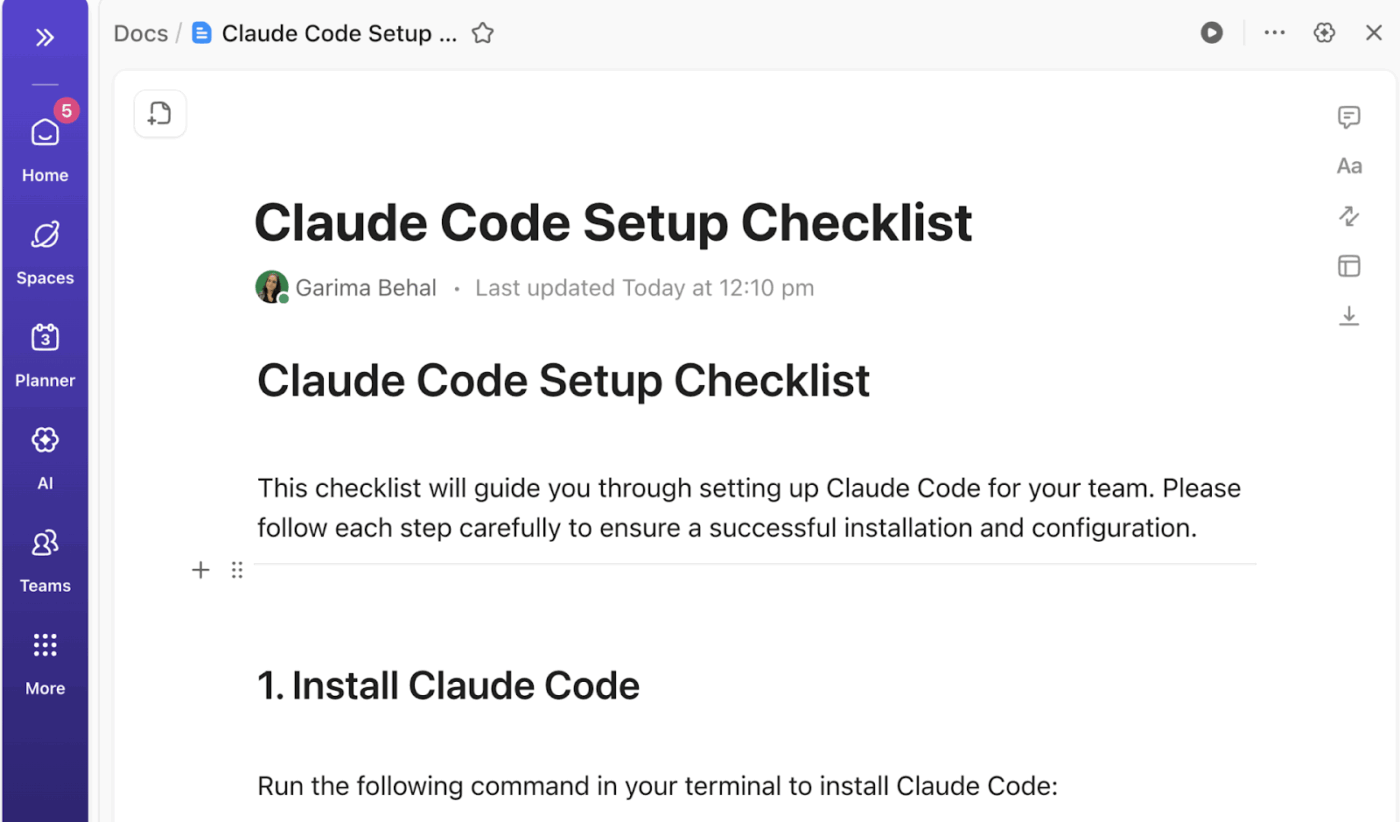
If you have multiple related tasks or questions, group them in a single message.
For instance:
Separate messages force Claude to reload and reprocess shared context repeatedly. Batching them in one consolidated prompt uses fewer tokens and reduces processing overhead.
📚 Read More: AI PDF Summarizers to Save Your Time
Integrate Claude into your workflows and existing tech stack through the Claude API for a more stable and predictable experience. Of course, you need technical expertise to set this up, but the payoff is significant control over how you manage capacity.
Here’s how API integration helps manage Claude constraints:
👀 Did You Know? The cost of AI hallucinations goes beyond bad outputs—it carries legal liability. Air Canada once paid $812.02 in damages and court fees to a customer who booked flights based on chatbot misinformation. The airline’s chatbot hallucinated an answer inconsistent with their actual bereavement fare policy.
Claude’s temporary capacity constraints and usage limits can disrupt critical workflows and delay time-sensitive deliverables. When your team’s productivity hinges on AI availability, a single capacity error can result in missed deadlines and stalled projects.
Claude is exceptionally capable for reasoning-heavy tasks and long-context work, but are there any long-term solutions to their capacity constraints?
Well, shift to different AI models. However, it’s not always the ideal solution.
Let’s see when you should and when you shouldn’t consider backup AI tools:
👀 Did You Know? You can run Anthropic’s Claude models directly through Amazon Bedrock, a fully managed AWS service that lets developers build generative AI applications at enterprise scale with a single, unified API.
AI tools like Claude and ChatGPT are standalone by nature. They excel at the thinking layer of work—analysis, creative writing, coding, research—but they don’t translate that thinking into actual execution. They don’t move projects forward, assign tasks, track deadlines, or keep teams aligned.
ClickUp bridges the gap between thinking and execution by bringing all your work, tasks, communication, and knowledge into one converged AI workspace. AI operates right where you work, not in a separate tool you have to context-switch to.
Here’s how ClickUp unlocks AI potential in the execution layer 👇
ClickUp Brain operates as a contextual AI layer embedded directly in your workspace. It doesn’t require you to rebuild context or upload files repeatedly. It knows how your work is structured. You ask questions, and it surfaces answers by referencing real-time workspace data.
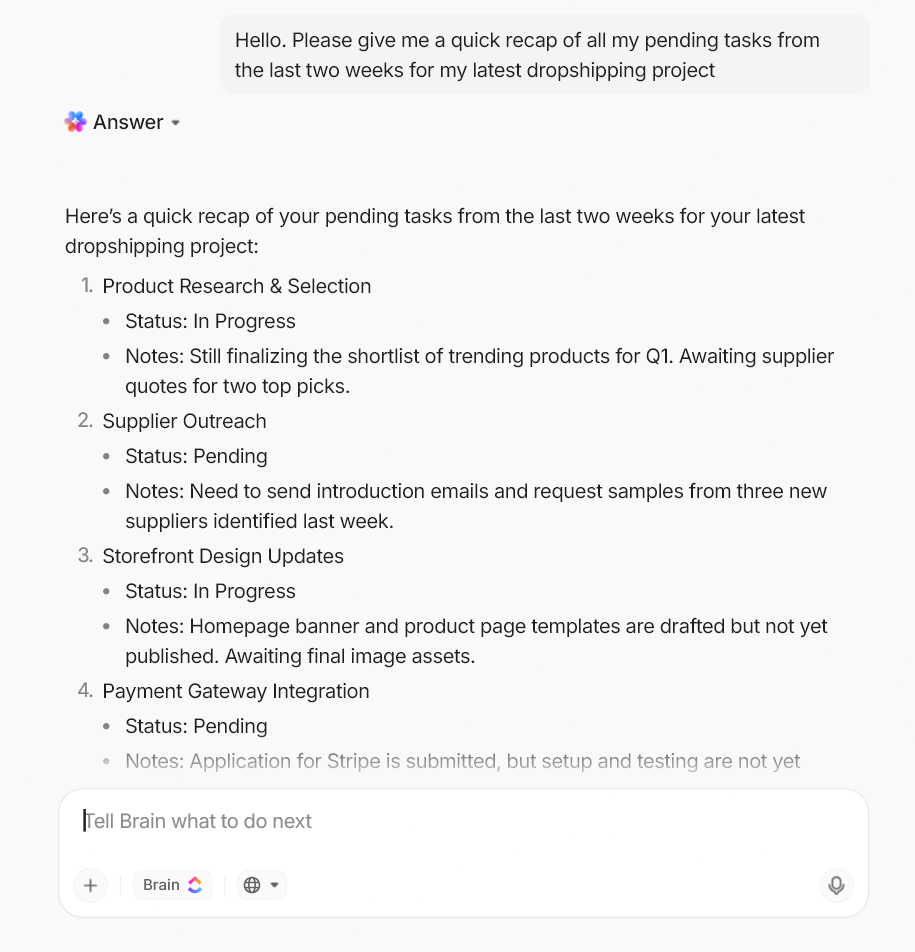
Here’s what ClickUp Brain references:
Because Brain operates within ClickUp’s permission model, it only surfaces information you’re authorized to see. Most importantly, insights don’t stay trapped in static files. Brain reasons over live execution data and returns answers grounded in your current project state.
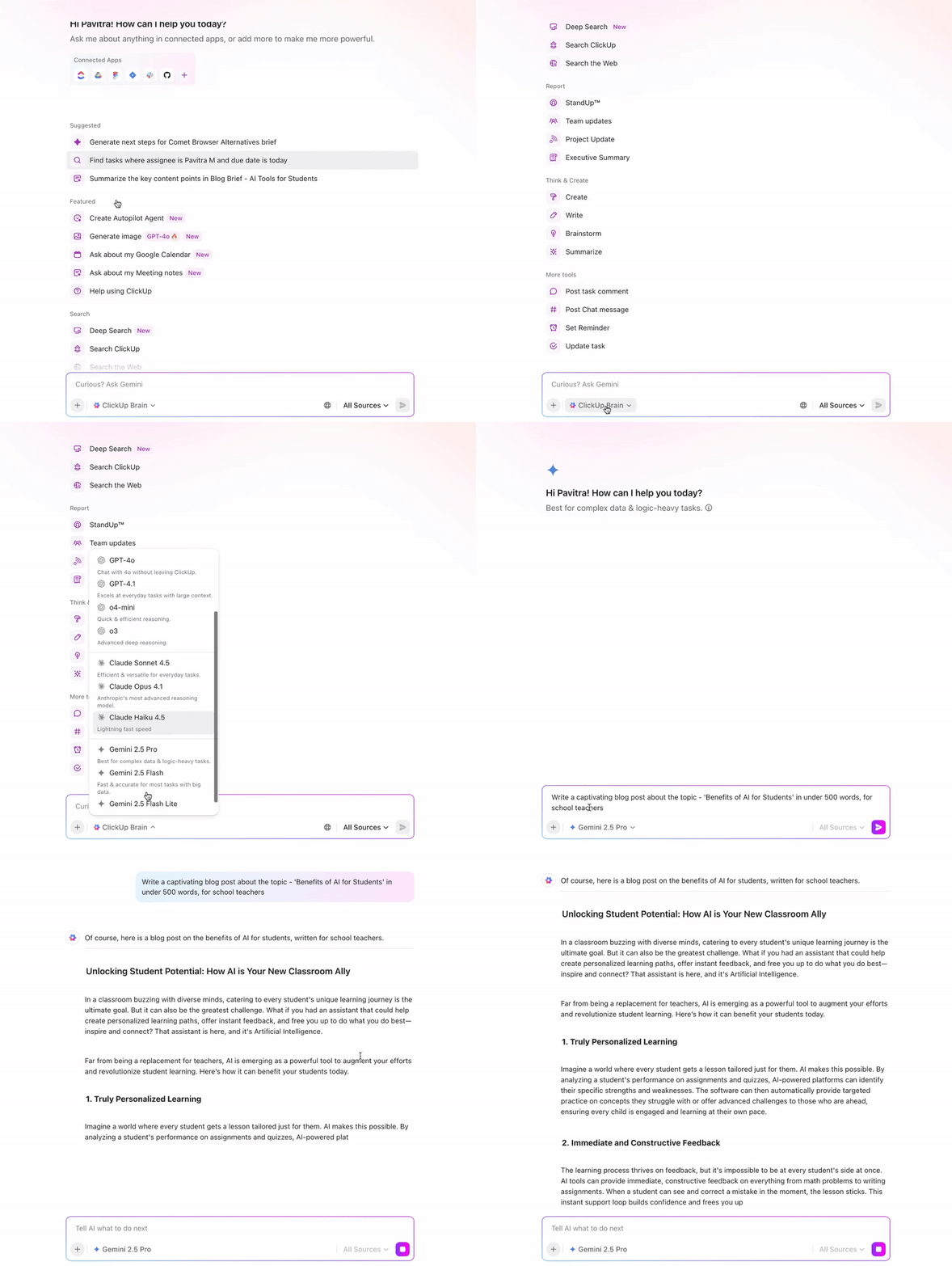
ClickUp offers access to leading AI models—ChatGPT, Claude, and Gemini—directly inside your workspace. This consolidates AI access, reducing subscription sprawl and costs. But more than that, it saves you from rebuilding context every time you switch models.
Your team can choose the large language models best suited to their task and compare responses from top models right from the ClickUp workspace. If Claude remains unoperational for a moment, they can easily switch to ChatGPT or Gemini within the same conversation thread.
ClickUp Enterprise Search lets you search across your entire workspace and connected systems through natural language prompting.
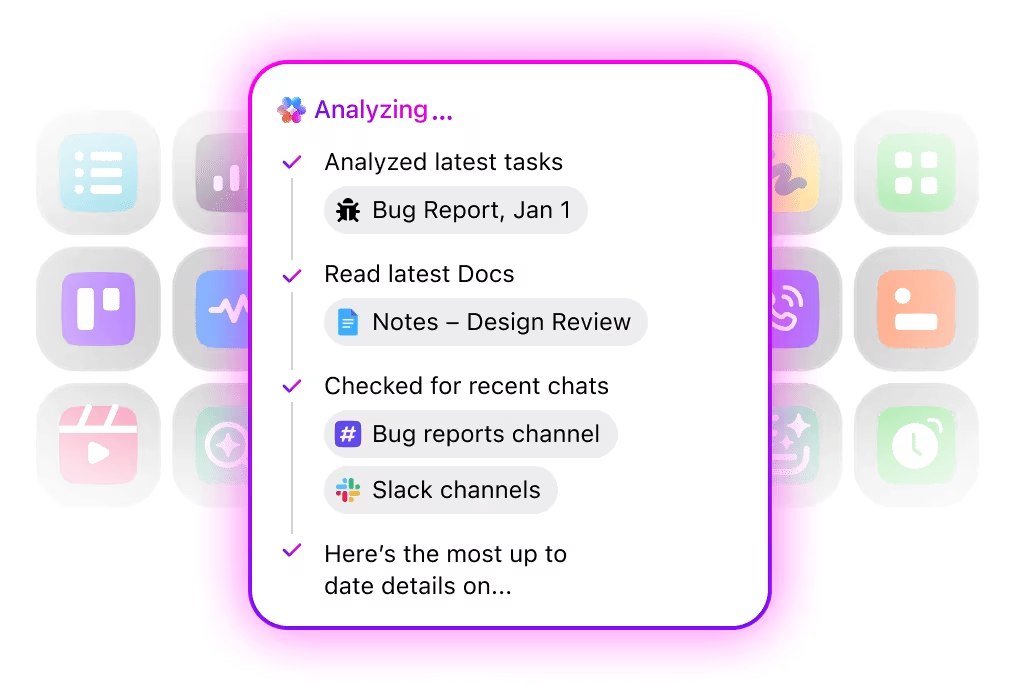
Instead of hunting through folders or dashboards, teams can ask questions like:
BrainGPT will search through and return answers and related files based on how work is organized. This is especially valuable in large workspaces where information is fragmented across projects, teams, and tools.
🔔 Reminder: If you need current information beyond your workspace, ClickUp also supports real-time web search to pull in external data without leaving the platform.
ClickUp’s Talk to Text feature lets teams dictate ideas, updates, or meeting notes and convert them into structured text instantly.
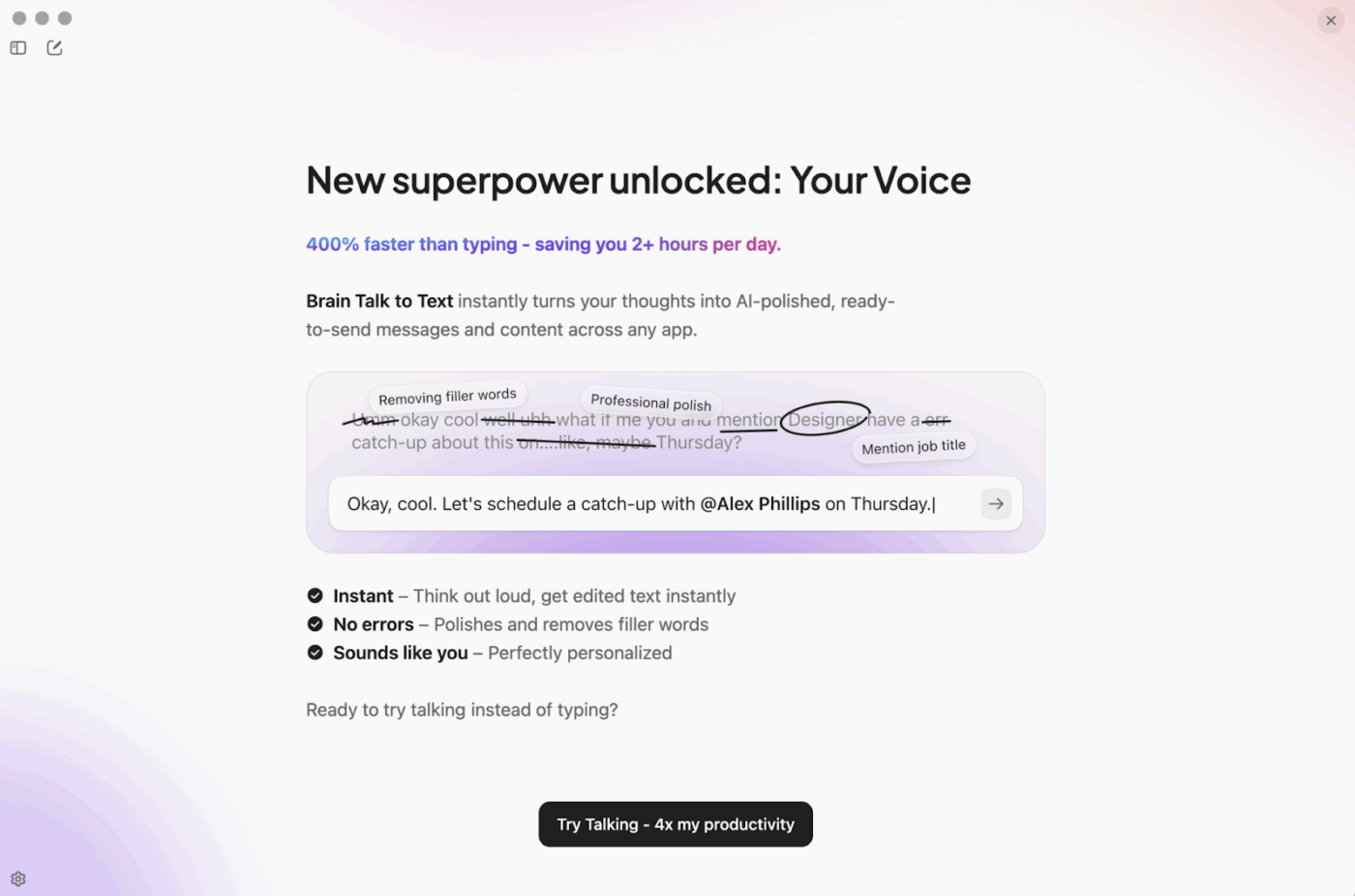
How Talk to Text keeps work moving:
ClickUp’s Super Agents are ambient AI assistants that run continuously in the background, monitoring your workspace and executing multi-step workflows.
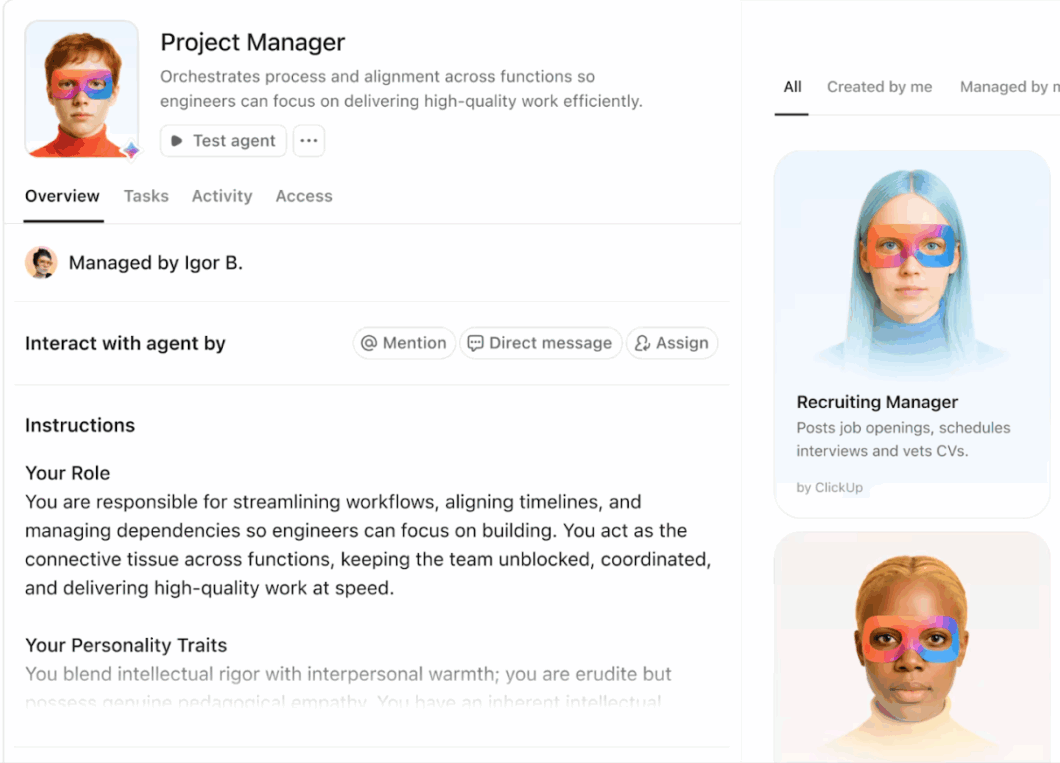
These agents track changes across tasks, timelines, dependencies, and data—catching issues and taking action autonomously while your team focuses on strategic work.
Examples of what Super Agents handle:
To see it in action, watch this video on how ClickUp uses Super Agents 👇
🔐 ClickUp Advantage: Super Agents don’t rely on external AI models to function—they operate within ClickUp’s infrastructure, ensuring critical workflows stay active regardless of third-party AI availability.
📚 Read More: Top AI Agents for Data Analysis for Smarter Insights
Claude’s capacity constraints are real, but they don’t have to stop your team’s productivity. Most AI tools operate in isolation—you get answers, then manually transfer insights into your actual work systems.
ClickUp eliminates that gap. Its convergence offers an edge where:
Ready to build workflows that don’t break when AI tools go down?
Claude displays capacity errors when experiencing demand higher than its infrastructure can handle. The system causes temporary system-wide slowdowns, limiting its ability to respond to your messages.
No. Paid plans give you priority access during high-demand periods, but they don’t eliminate capacity constraints entirely. During severe traffic spikes or infrastructure issues, even Pro and Team users encounter delays or temporary blocks.
Most capacity constraints resolve within minutes to a few hours as demand patterns shift throughout the day. Service-wide outages caused by technical failures can last longer—check Claude’s status page for real-time updates on ongoing issues.
Not completely. You can reduce how often you hit them by timing requests during off-peak hours, using lighter models, batching queries, and managing file uploads strategically. But unexpected demand spikes and infrastructure issues remain outside your control.
Build fallback workflows and maintain documentation so work can continue manually during outages. Keep templates and previous outputs accessible, cross-train team members on critical tasks, and consider backup AI tools for time-sensitive work that can’t wait for capacity to clear.
© 2026 ClickUp



