






Still downloading templates?
There’s an easier way. Try a free AI Agent in ClickUp that actually does the work for you—set up in minutes, save hours every week.
Sorry, there were no results found for “”
Sorry, there were no results found for “”
Sorry, there were no results found for “”
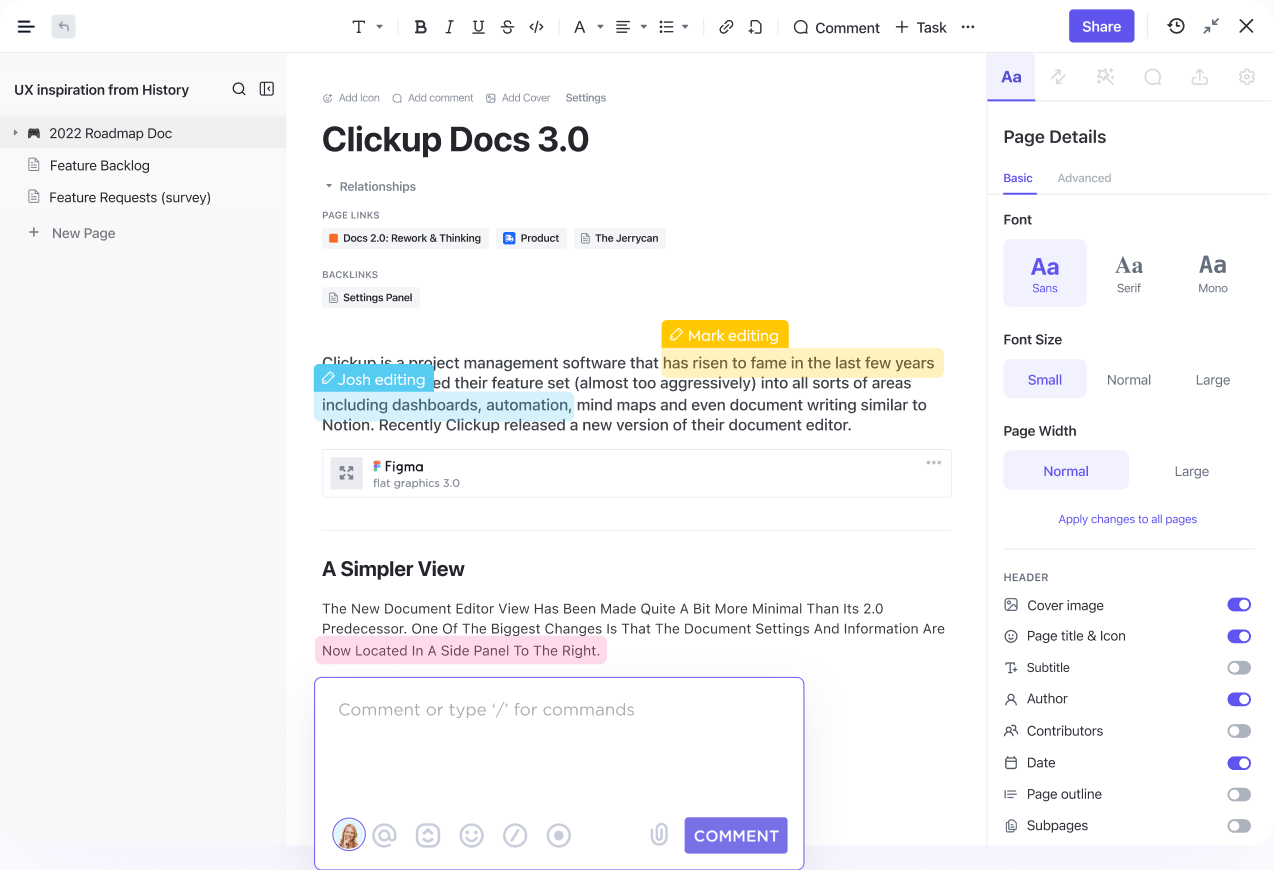

Want to give your Google Docs a polished, professional touch?
Mastering superscripts and subscripts is essential whether you’re writing chemical formulas, mathematical equations, or even just formatting dates correctly.
Google Docs makes it easy to format text in various ways, including adding superscripts and subscripts.
Superscripts, which appear slightly above the main line of text, are commonly used for footnotes, copyright symbols, and ordinal indicators like ‘1st.’
Subscripts appear slightly below the line and are often used in chemical formulas and mathematical variables.
Whether you’re using a computer or mobile device, Google Docs provides the tools to keep your documents precise and professional. With these tips, you’ll enhance your work’s accuracy and presentation effortlessly!
👀Did You Know? Organizations using Google Workspace saw a 30% improvement in employee collaboration.
Here’s a detailed guide outlining the process and methods to format text as superscript or subscript seamlessly:
Here’s how you can use the toolbar in Google Docs to add superscript or subscript:
Step 1: Open the Google Docs document.
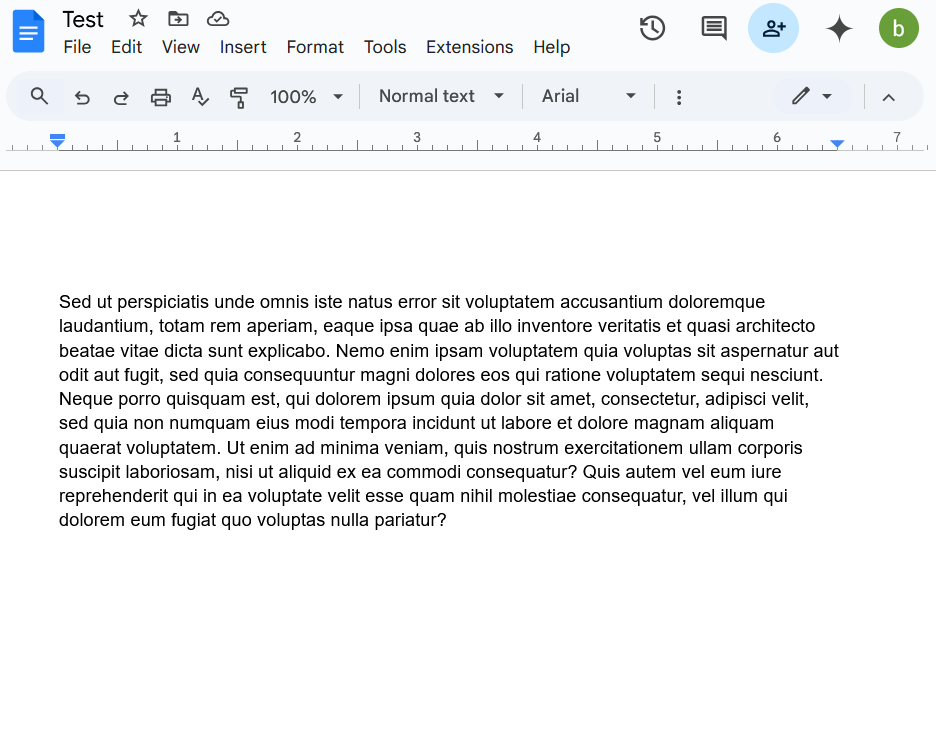
Step 2: Highlight the text you want to format as superscript or subscript in Google Docs.
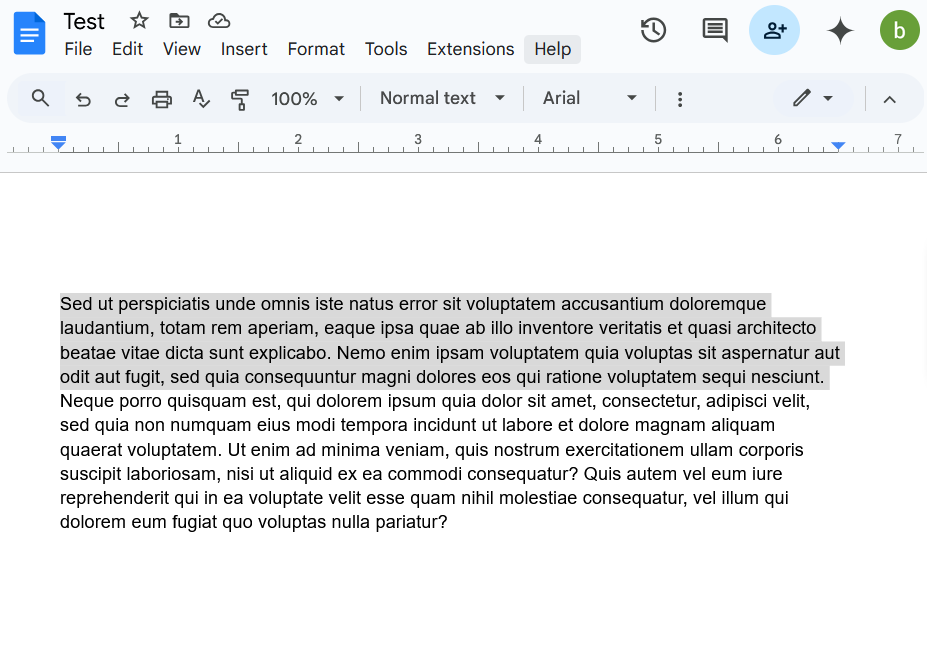
Step 3: Go to Format menu > Text, then select Superscript or Subscript from the drop-down menu options. The superscript or subscript will be added to the selected text.
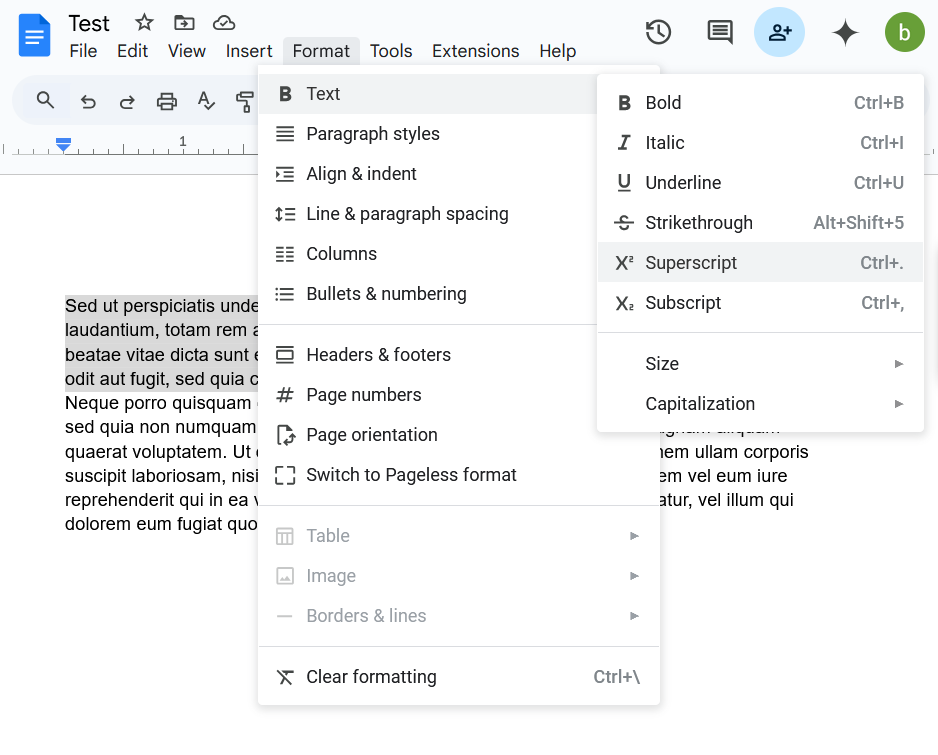
💡Pro Tip: Be mindful of the context. Superscripts are commonly used for exponents, footnotes, and ordinal numbers (like 1st, 2nd, 3rd). Subscripts are often used in chemical formulas, mathematical notation, and labeling elements within a larger set.
To quickly apply superscript or subscript shortcuts in your document, use these keyboard commands:
💡Pro Tip: If you have styled one instance of superscript or subscript character, use the Format Painter (the paint roller icon) to apply the same formatting to other characters quickly. This is especially helpful if you’re doing a lot of math or chemical formulas.
➡️ Also Read: Free Editable Google Docs Templates (+Download)
Inserting special characters in a Google Doc, such as trademark or copyright symbols, is simple.
Step 1: Position your cursor where you want the character to appear.
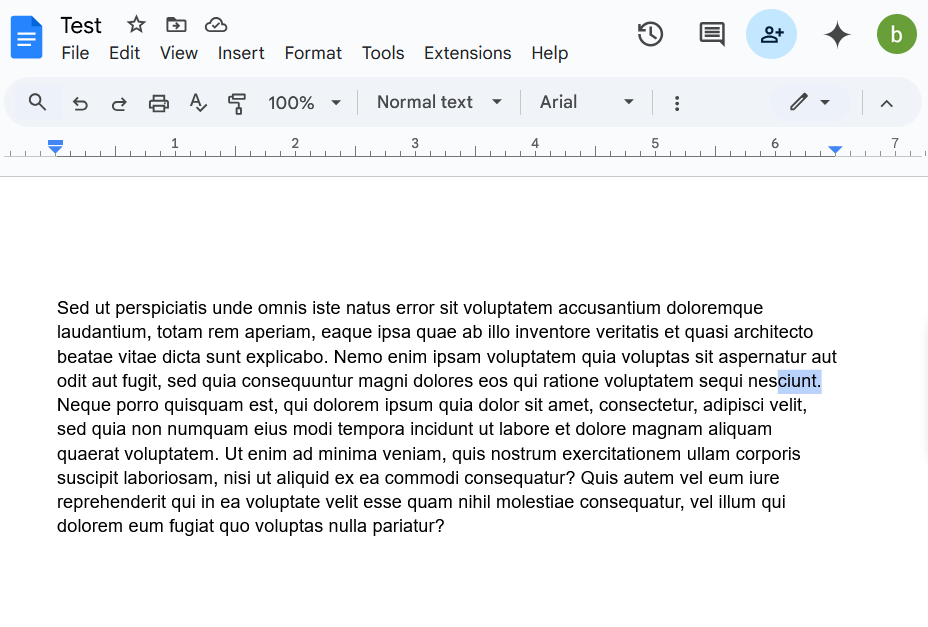
Step 2: Navigate to the Insert menu and select Special characters
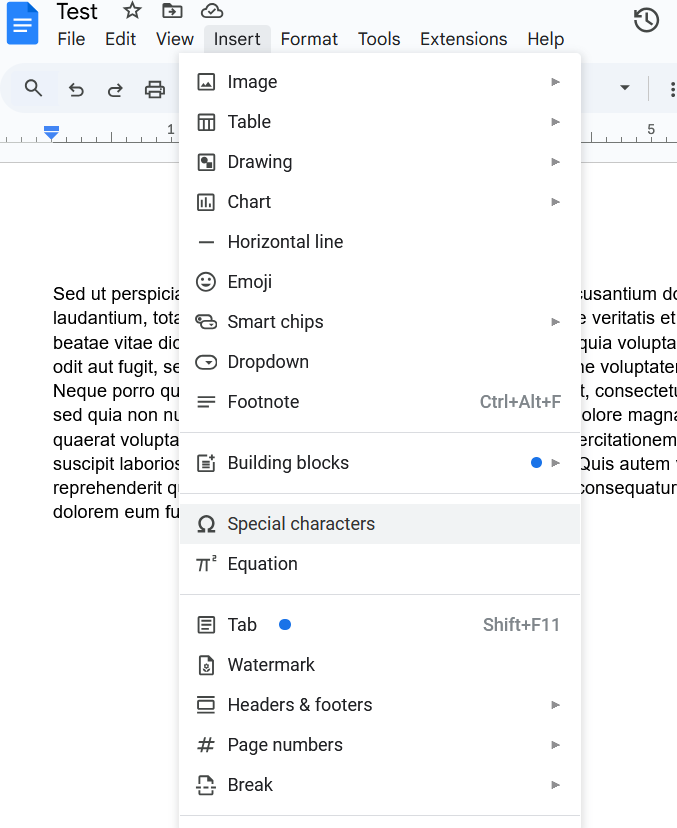
Step 3: Use the rightmost dropdown menu to choose Superscript or Subscript, as needed.
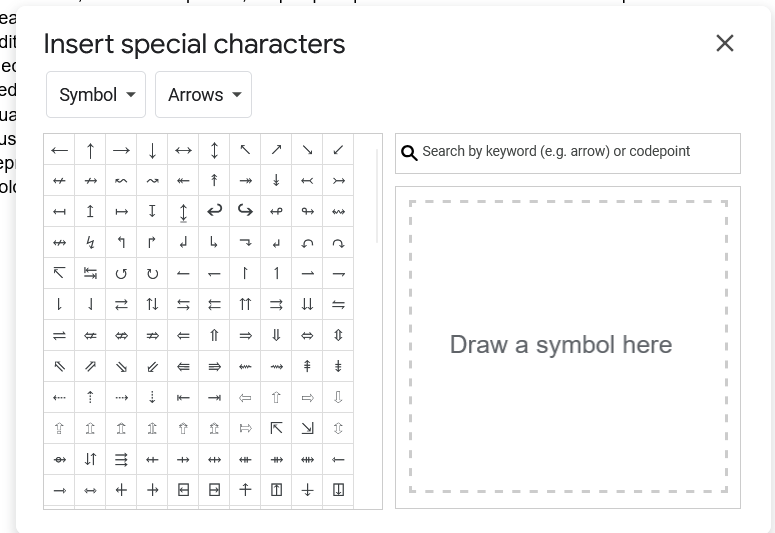
Step 4: Finally, locate the desired symbol in the special characters dialog box and click it to insert it directly into your document.
👀Did You Know? Google Workspace boasts over three billion active users who rely on it to create and edit documents.
While Google Docs is efficient at adding superscripts and subscripts, it’s also essential to acknowledge some of its drawbacks:
🧠 Fun Fact: The use of superscripts has historical roots in early typography, originating in manuscripts. They were initially employed to denote abbreviations, particularly within religious texts. A typical example is the Latin phrase ‘et al.’ (and others), frequently written with ‘a’ in superscript.
➡️ Also Read: How to Strikethrough in Google Docs
Want a better way to work with your pages?
ClickUp, the everything app for work, offers powerful document management. It lets you create customized documents and pages while seamlessly integrating them with your tasks and workflows.
ClickUp has a lot to offer in one place, such as project management, brainstorming options, task management, project planning, documentation management, etc. It has definitely made life comparatively easier as it’s easy to use, UI is well designed, and collaboration within the team and with other teams is easier. We were able to manage work better, track and report work easily, and based on progress daily huddles, future planning was easy.
Unlike Google Docs’ rigid structure and isolated workflow, ClickUp Docs allows you to seamlessly create and organize content, keeping everything connected to your tasks and projects.

Formatting is precise, with banners, tables, and rich-text options enabling polished documents without the complexities of hidden formatting codes. This simplified approach makes adding superscripts and subscripts easier than in Google Docs.
Here’s how you can do it:
To create superscript text, you can use the HTML <sup> tag. For example:
This is a superscript text: H<sup>2</sup>O
This will display as: H²O
To create subscript text, you can use the HTML <sub> tag. For example:
This is a subscript text: CO<sub>2</sub>
This will display as: CO₂
You can incorporate these tags directly into your ClickUp Docs to format your text as needed.
For extensive documentation, ClickUp Docs’ nested pages help maintain organization, regardless of the level of detail. Real-time editing is intuitive, enabling simultaneous collaboration, commenting, teammate tagging, and converting comments into actionable tasks.
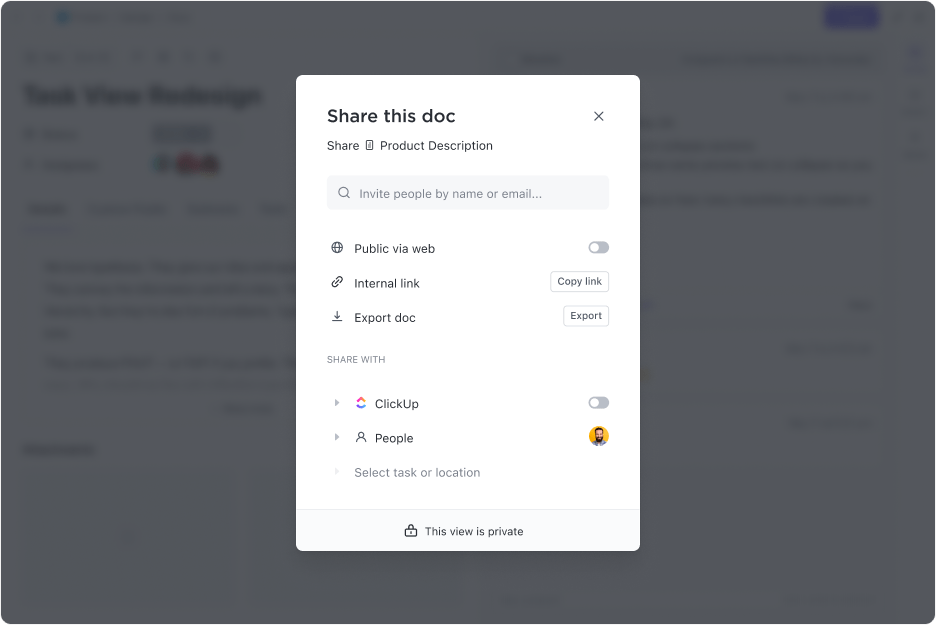
Also, ClickUp Docs simplifies document version control, providing easy change tracking and the option to revert to previous versions.
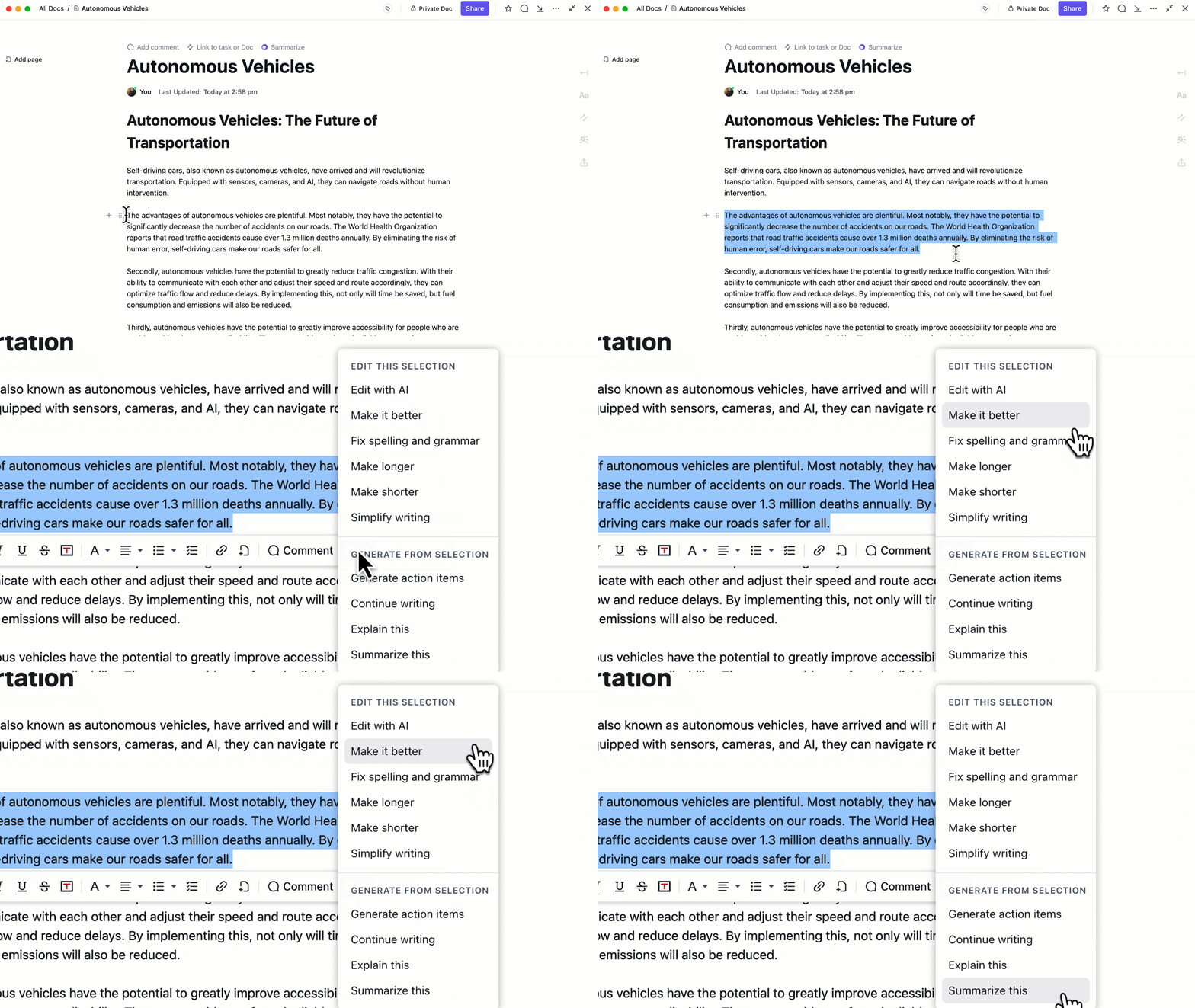
ClickUp Docs leverages AI for documentation with ClickUp Brain, its in-house AI assistant, which doubles up as a writing assistant. This tool assists with everything from generating task descriptions to crafting comprehensive content, offering grammar suggestions, pre-built templates, and even voice note transcription.
These features enable the rapid creation of high-quality, polished content, which is ideal for managing multiple deadlines.
📮ClickUp Insight: Low-performing teams are four times more likely to manage 15+ tools, while high-performing teams maintain efficiency by limiting their toolkit to nine or fewer platforms. But how about using one platform?
ClickUp brings your tasks, projects, docs, wikis, chat, and calls under a single platform with AI-powered workflows. Ready to work smarter? ClickUp works for every team, makes work visible, and allows you to focus on what matters while AI handles the rest.
Let’s explore the advanced usage of superscripts and subscripts, including inserting symbols and formatting mathematical equations and chemical formulas.
Beyond basic characters, you often need to use symbols as superscripts or subscripts. Here’s how to approach this, along with best practices:
Effective use of superscripts and subscripts is crucial for clearly and accurately representing mathematical and chemical notation.
Mathematical equations:
Chemical equations:
ClickUp Formula Fields provides an efficient way to perform advanced calculations and manipulate data directly within tasks, eliminating the need for external spreadsheets.
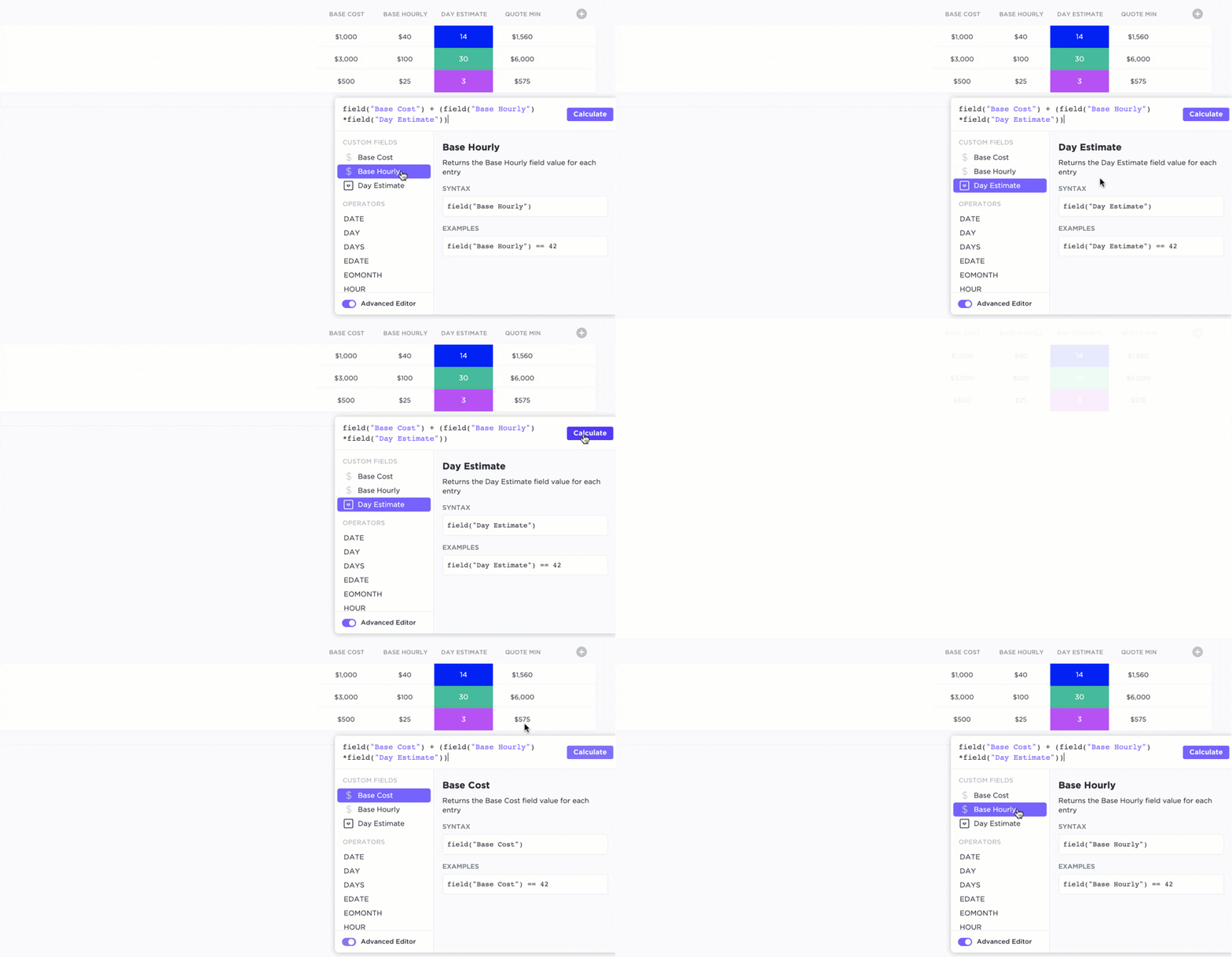
These fields support over 70 functions and allow you to create custom formulas for various calculations. Aggregation functions enable summing values across multiple tasks, simplifying the tracking and analyzing of project metrics such as progress and expenditures.
Superscripts and subscripts are essential tools in Google Docs, widely used for mathematical equations, chemical formulas, and citations.
While Google Docs provides basic functionality for adding these elements, it has limitations, such as a lack of intuitive shortcuts, limited customization, and occasional formatting inconsistencies.
ClickUp offers a more efficient and flexible solution, seamlessly incorporating superscripts and subscripts with enhanced formatting options.
With ClickUp features like ClickUp Docs and ClickUp Brain, you can maintain precision, improve document workflow efficiency, and ensure consistency.
Whether you’re handling technical content, reports, or collaborative projects, ClickUp simplifies document formatting, making the process faster and more reliable.
Sign up to ClickUp today and experience a more innovative way to manage your documents.

© 2026 ClickUp

There’s an easier way. Try a free AI Agent in ClickUp that actually does the work for you—set up in minutes, save hours every week.