Start using ClickUp today

  • Manage all your work in one place
  • Collaborate with your team
  • Use ClickUp for FREE—forever

If you’re privacy-conscious, you probably don’t want your ChatGPT history hanging around. From awkward prompts and secret AI experiments to confidential work, you’d want to clear it all out before it ends up causing a cringe-worthy moment.

Don’t worry, this guide covers how to delete your ChatGPT history and keep your activity private.

Plus, we’ll show how ClickUp acts as an all-in-one alternative, letting you manage AI tasks and access context without constantly switching tabs or apps.

Before you start deleting…

Summarize this article with AI ClickUp Brain not only saves you precious time by instantly summarizing articles, it also leverages AI to connect your tasks, docs, people, and more, streamlining your workflow like never before.
ClickUp Brain
Avatar of person using AI Summarize this article for me please

Why You May Want to Delete Your ChatGPT Chat History

While ChatGPT offers convenience and personalized experiences, there are several reasons why clearing your chat history might be beneficial.

  • Protect privacy: Ensures personal or sensitive information isn’t stored or accessible later
  • Prevent data misuse: Reduces the likelihood of your information being used for unwanted purposes like targeted marketing
  • Enhance security: Prevents others from viewing your conversations when using shared or public devices
  • Reset personalization: Removes past context that could influence future responses and keeps your interface free from clutter
  • Stay compliant: Maintain better control over what OpenAI retains and how your data is handled

🚀 ClickUp Advantage: If you want AI support without sacrificing privacy, ClickUp Brain gives you secure, workspace-connected AI that doesn’t depend on saving chat history.
I’ll walk through this in detail later, but keep it in mind as a safer alternative while you clean up your ChatGPT data.

Summarize this article with AI ClickUp Brain not only saves you precious time by instantly summarizing articles, it also leverages AI to connect your tasks, docs, people, and more, streamlining your workflow like never before.
ClickUp Brain
Avatar of person using AI Summarize this article for me please

ClickUp vs. ChatGPT: Privacy, Permissions, and Productivity

FeatureChatGPTClickUp
Data PrivacyUser-managed, limited controlsEnterprise-grade security, user controls
PermissionsNone (all chats visible to account owner)Granular roles & permissions for all items
Data Retention/DeletionDelete chats/account, 30-day retentionTrash/Recycle Bin, admin controls, permanent deletion
AI Model OptionsChatGPT onlyMultiple LLMs (ChatGPT, Claude, Gemini, etc.)
Workspace IntegrationStandaloneUnified workspace: tasks, docs, AI, calendar
AI ContextChat history onlyWorkspace context + connected apps
CollaborationNot built-inReal-time docs, comments, tasks, chat
Summarize this article with AI ClickUp Brain not only saves you precious time by instantly summarizing articles, it also leverages AI to connect your tasks, docs, people, and more, streamlining your workflow like never before.
ClickUp Brain
Avatar of person using AI Summarize this article for me please

How to Delete Individual Chats in ChatGPT

If you only want to remove specific conversations rather than your entire history, ChatGPT lets you delete chats individually on both desktop and mobile. Just follow the steps below, depending on the device you’re using.
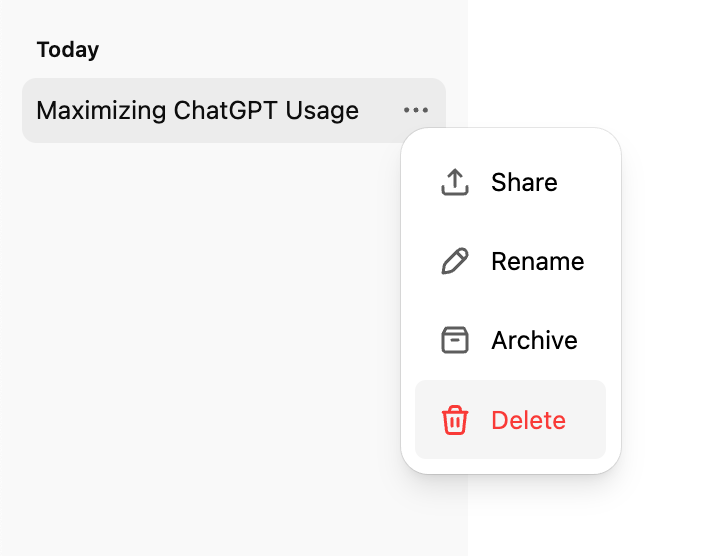
On desktop

  1. Open the ChatGPT app or website and locate your chat history in the left sidebar
  2. Hover over the conversation you want to remove
  3. Click the three dots (⋯) that appear next to the chat title
  4. Select Delete from the menu
How to delete ChatGPT history for users
Confirm the deletion when prompted

On the mobile app

  1. Open the ChatGPT app and tap the menu icon (two lines) in the top-left corner to view your chat history
  2. Find the conversation you want to delete
  3. Tap Delete (displayed in red)
  4. Confirm your selection
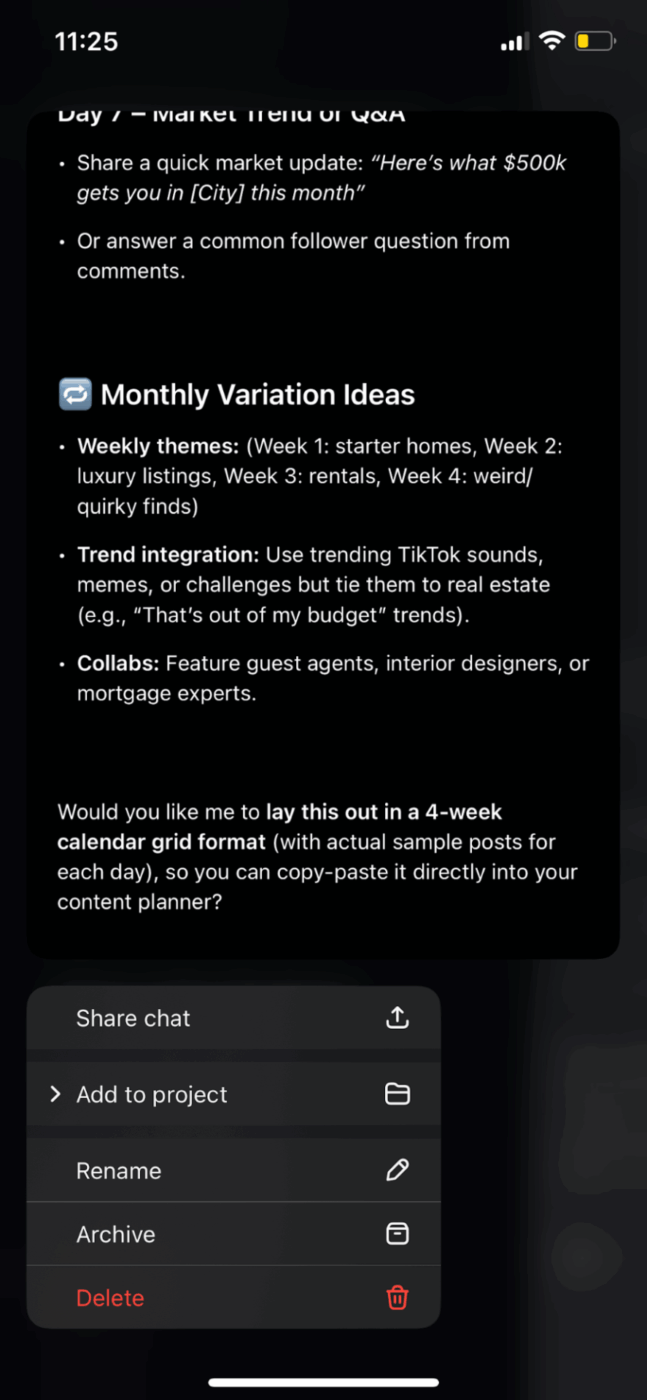
How to delete ChatGPT history and messages
Long-press the chat you want to delete, then select the option from the pop-up menu

🧠 Fun Fact: January 28 is Data Privacy Day—a global reminder (that began in Europe) to take data protection and privacy seriously.

Summarize this article with AI ClickUp Brain not only saves you precious time by instantly summarizing articles, it also leverages AI to connect your tasks, docs, people, and more, streamlining your workflow like never before.
ClickUp Brain
Avatar of person using AI Summarize this article for me please

How to Delete All ChatGPT History at Once

If you want a completely fresh start, ChatGPT allows you to delete your entire conversation history in just a few clicks.
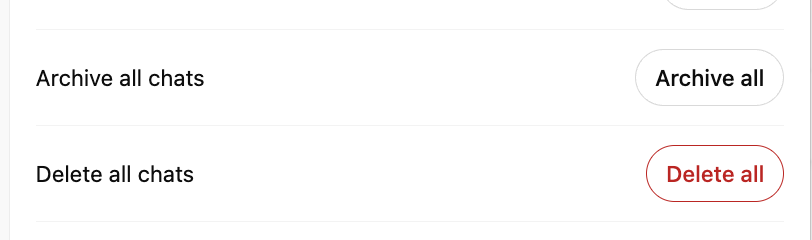
How to delete ChatGPT chat history and previous conversations
Archive all chats instead if you’d rather keep them stored

Here’s how to remove all your chats at once:

  1. Click your profile icon or name in the top corner of ChatGPT
  2. Select the Settings menu
  3. Go to Data controls
  4. Choose Delete all chats
  5. Confirm your selection to permanently erase your entire chat history

🚀 ClickUp Advantage: Stop jumping between apps to write, copy, and paste your docs. With ClickUp Docs, you can create, manage, and collaborate on all your documentation in one spot. The best part is, you can use ClickUp Brain to generate docs, summaries, or ideas right where you’re working.

Need to write a blog post or edit AI content? Just click Ask AI in the upper-right corner of your Doc, type your prompt (like ‘Write a blog post about the most commonly used coding languages’), and hit send.
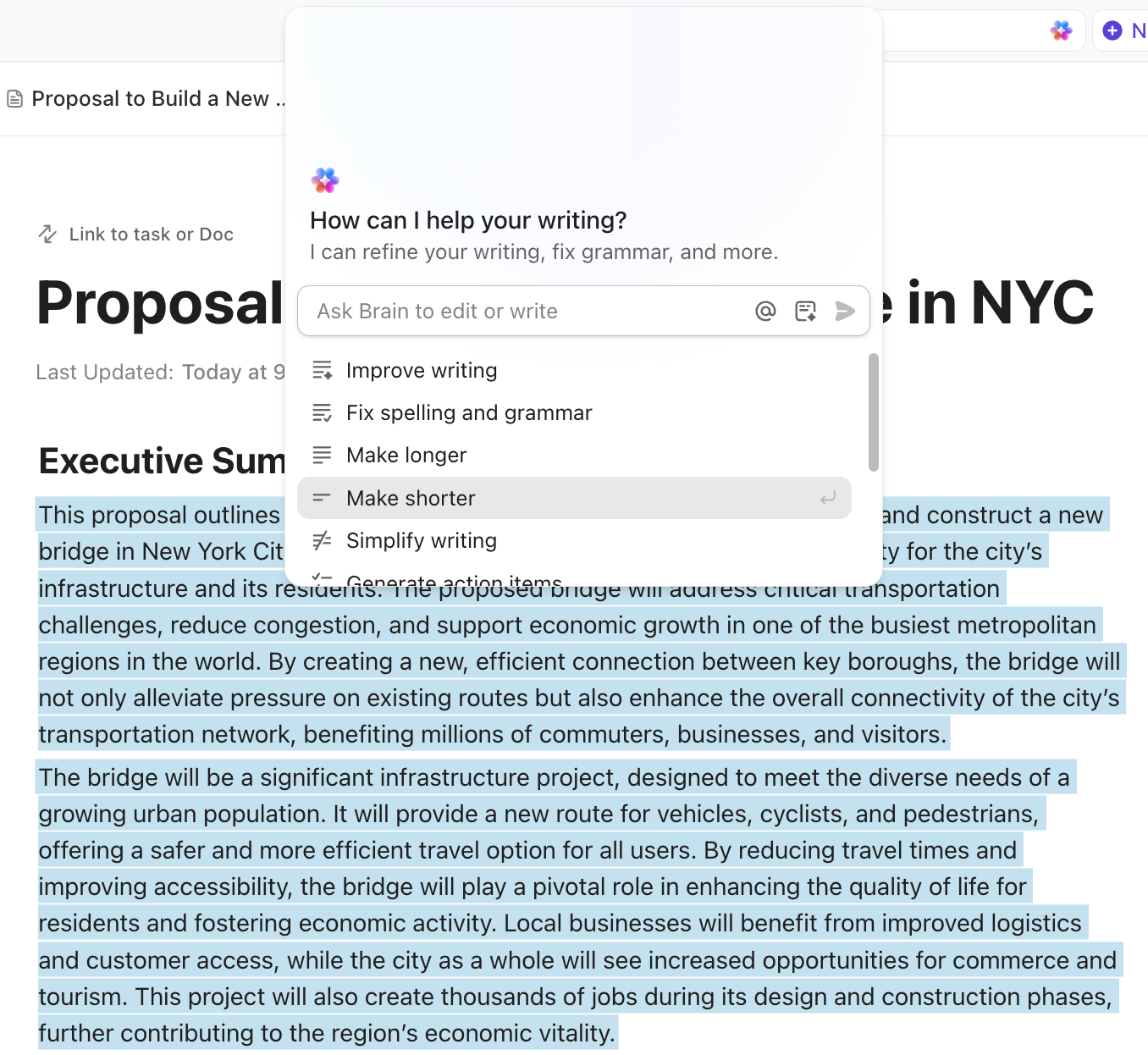
ClickUp Brain: Forget context switching with everything centralized
Keep refining your content with ClickUp Brain in Docs
Summarize this article with AI ClickUp Brain not only saves you precious time by instantly summarizing articles, it also leverages AI to connect your tasks, docs, people, and more, streamlining your workflow like never before.
ClickUp Brain
Avatar of person using AI Summarize this article for me please

How to Turn Off ChatGPT History

ChatGPT offers Temporary Chat, a feature similar to an incognito mode. When enabled, your conversations aren’t saved and won’t influence personalization or training.
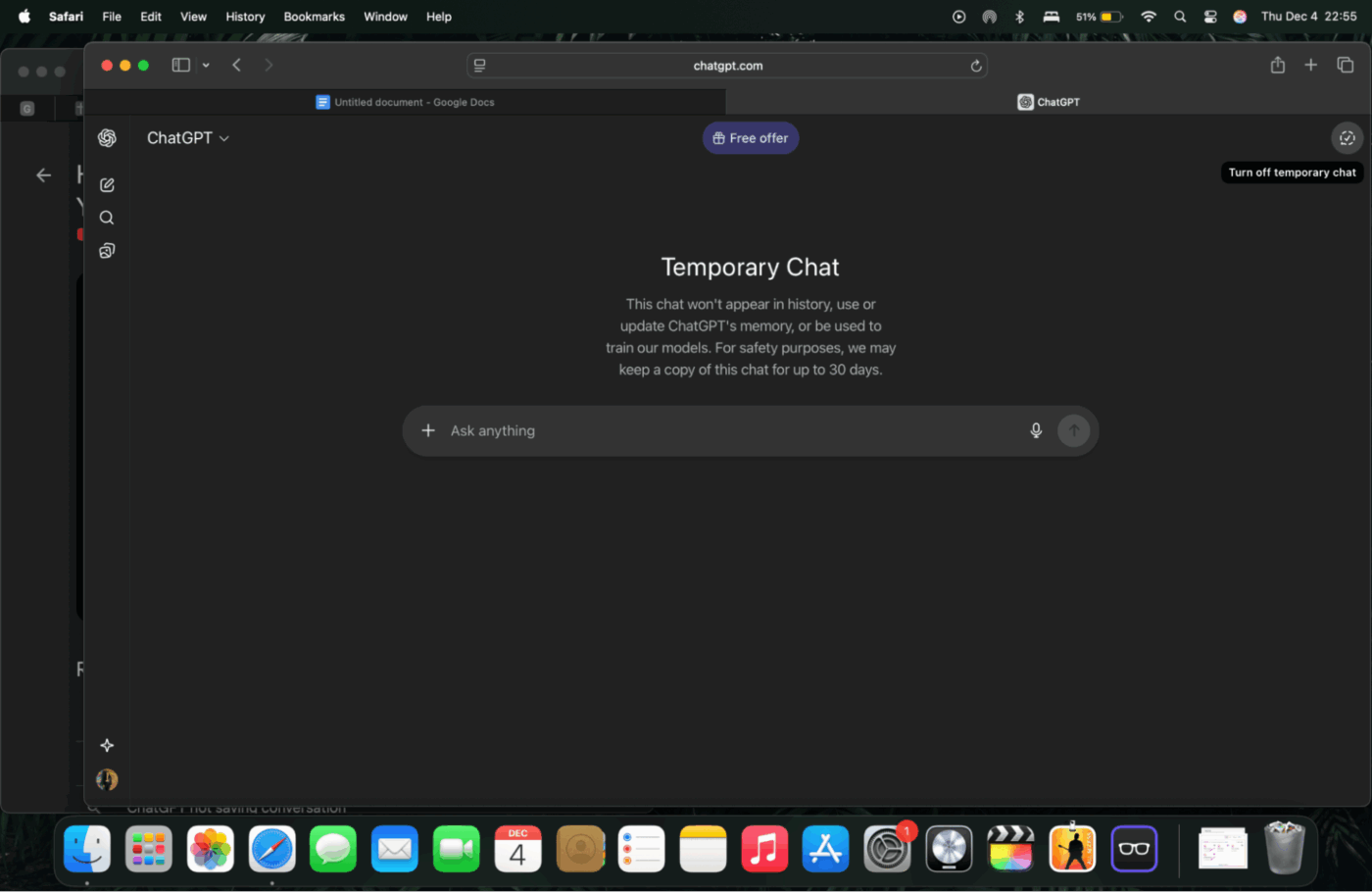
How to delete ChatGPT history and past chats
Keep your activity private with Temporary Chats

Here’s how to activate that:

  1. Start a new chat
  2. Click the model name dropdown at the top (e.g., GPT-5)
  3. Select Temporary Chat

The interface will visually update to show you’re in this mode. You’ll also see a banner confirming that chats won’t be saved.

However, although Temporary Chats aren’t saved to your history, OpenAI may retain brief, de-identified logs for safety monitoring.

🔍 Did You Know? Temporary Chats stay local to your current session. If you switch devices or accounts, those conversations won’t appear elsewhere.

Summarize this article with AI ClickUp Brain not only saves you precious time by instantly summarizing articles, it also leverages AI to connect your tasks, docs, people, and more, streamlining your workflow like never before.
ClickUp Brain
Avatar of person using AI Summarize this article for me please

How to Delete Exported ChatGPT Data Files

When you request a data export from ChatGPT, OpenAI sends you a downloadable file containing your account information and chat history. Once you’ve saved it locally, OpenAI no longer has access to that file; only you can delete it.

If you want to remove this exported data from your devices:

  1. Find the exported file on your computer or phone (usually in Downloads or the folder where you saved it)
  2. Right-click or tap and hold the file
  3. Select Delete or Move to Trash/Bin
  4. Empty your Trash/Bin or permanently delete the file if required

💡 Pro Tip: If the file was also backed up to cloud storage (like Google Drive, iCloud, Dropbox, or OneDrive), make sure you delete it there as well.

Summarize this article with AI ClickUp Brain not only saves you precious time by instantly summarizing articles, it also leverages AI to connect your tasks, docs, people, and more, streamlining your workflow like never before.
ClickUp Brain
Avatar of person using AI Summarize this article for me please

How to Delete Your ChatGPT Account Entirely (Optional)

If you want to completely disconnect from ChatGPT and remove your account, you can permanently delete it. This action cannot be undone, and once deleted, you’ll lose access to OpenAI services like ChatGPT and the API.

When you should consider this

You should consider deleting your account when:

  • You no longer want any of your personal data stored with OpenAI
  • You’re switching platforms and won’t need the account anymore
  • You want to remove all traces of past conversations and usage
  • You want to stop account-based subscriptions and billing
  • You’re uncomfortable with ongoing data retention or privacy practices

Steps to permanently delete the account

You have two main options to delete your ChatGPT account.
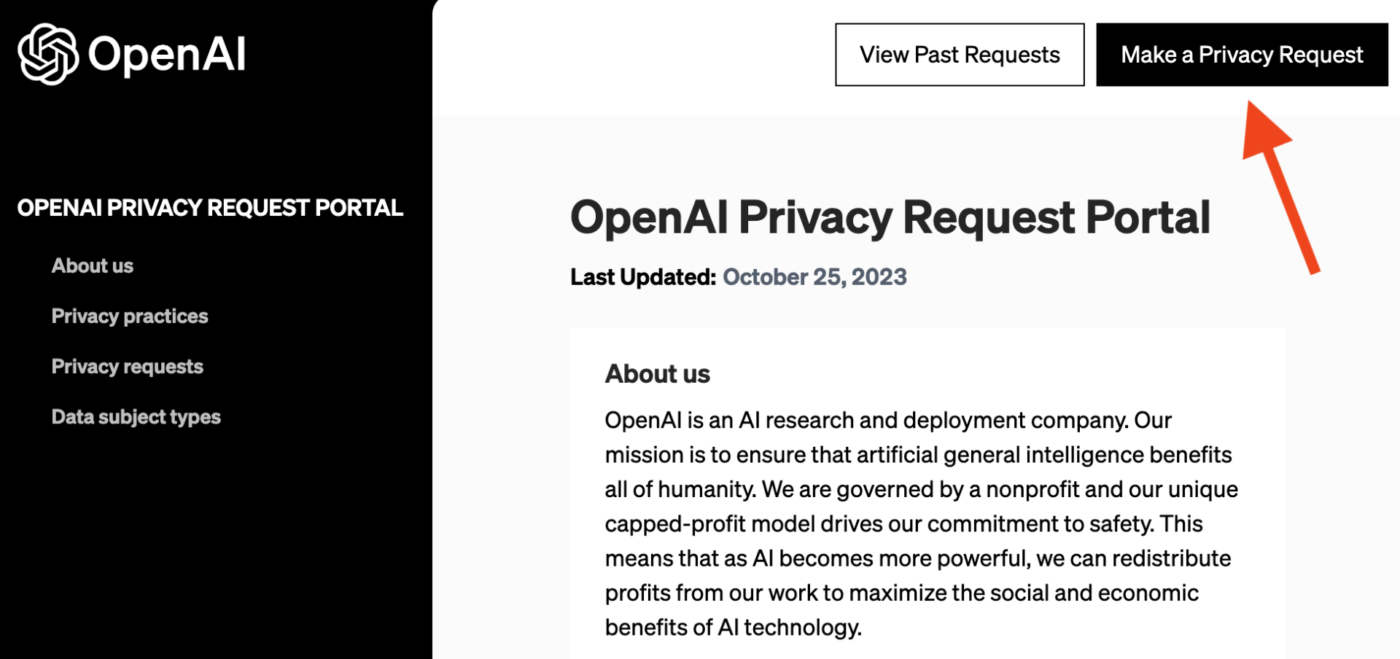
Option A: Submit a request via the Privacy Portal

OpenAI privacy portal to manage ChatGPT conversations
Use the Privacy Portal to permanently erase your account

Step #1: Go to the Privacy Portal

Click Make a Privacy Request in the top-right corner of the Privacy Portal.

Step #2: Choose the Correct Account Option

Select whether you are verifying via:

  • Email Address (if you still have access to the registered email)
  • Phone Number (if you no longer have access to the original email but can receive SMS)
  • I don’t have a ChatGPT account, for other privacy requests (not account deletion)

Step #3: Select ‘Delete my ChatGPT account’

Follow the prompts to verify and submit your deletion request.

✔ For phone number verification, you’ll receive a link via SMS that must be completed. Only then is the deletion request officially submitted.

⚠️ If you have an active Plus subscription but cannot verify your phone number, support assistance may be required to stop billing.

Option B: Self-serve deletion inside ChatGPT

You can delete your account directly in ChatGPT if you logged in within the last 10 minutes.
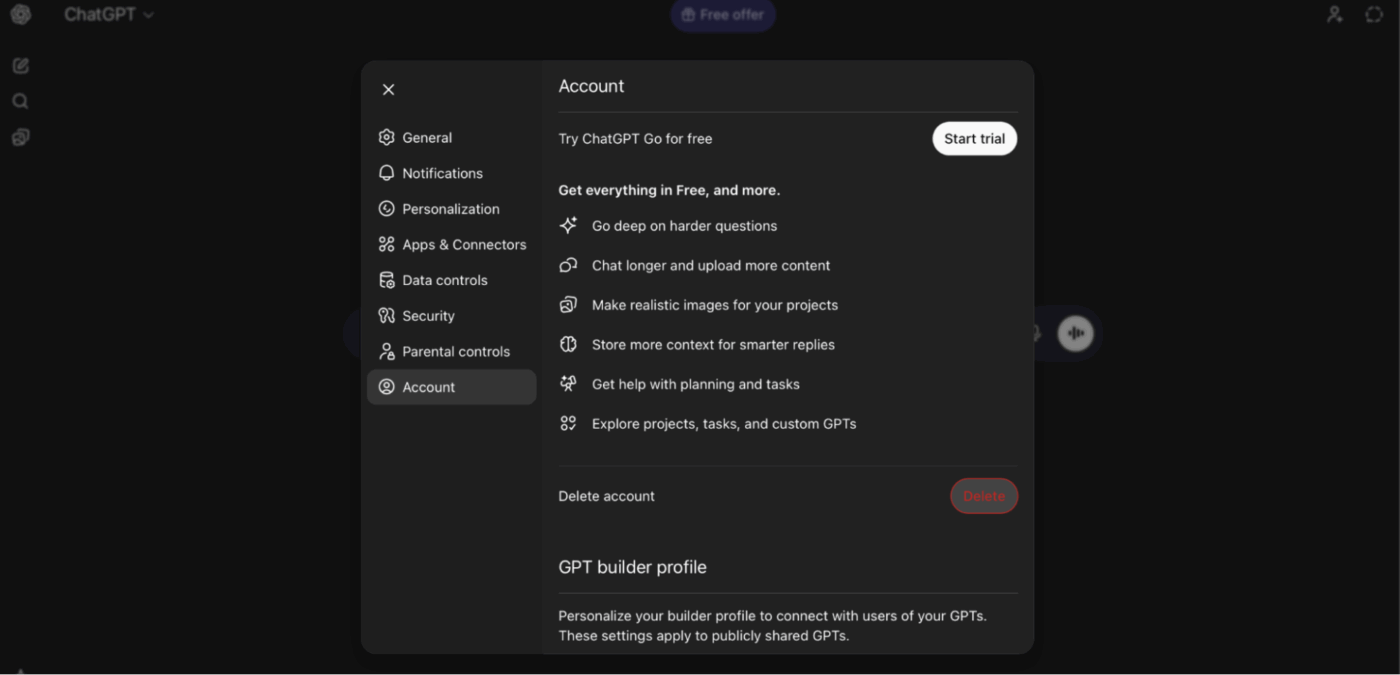
On Desktop/Web

How to delete ChatGPT history for training purposes
Verify your identity before submitting your account deletion request
  1. Sign in to ChatGPT
  2. Click your profile icon (top-right)
  3. Select Settings > Account
  4. Under Delete account, click Delete
  5. Type your account email and DELETE as instructed
  6. Click Permanently delete my account to finalize

On iOS/Android

  1. Open the ChatGPT app
  2. Go to Account Settings
  3. Tap Data Controls
  4. Select Delete Account
  5. Confirm or cancel as needed

❗️ Note: App Store/Play Store subscriptions must be canceled separately.

🔍 Did You Know? 63% of organizations operated without AI governance policies, creating the perfect conditions for shadow AI to spread quietly in the background.

Summarize this article with AI ClickUp Brain not only saves you precious time by instantly summarizing articles, it also leverages AI to connect your tasks, docs, people, and more, streamlining your workflow like never before.
ClickUp Brain
Avatar of person using AI Summarize this article for me please

What Happens to Your ChatGPT History After You Delete It?

Here’s how ChatGPT works when you delete your history:

  • Immediate removal: Deleted conversations disappear right away from your sidebar and can no longer be accessed
  • Permanent deletion: OpenAI deletes the chat data from its systems within 30 days. The same timeline applies if you delete your entire account
  • Limited exceptions: Some de-identified data may be retained temporarily for legal or security reasons, but it’s no longer tied to your account
  • No recovery option: Once deleted, chats cannot be restored
  • Memories stay: If ChatGPT created a “memory” from your conversation, deleting the chat doesn’t remove it—you’ll need to delete those separately under Memory settings
  • Model training note: If model training was enabled, your past conversations may have already been used for training. You can turn this off for future chats under Data Controls
Summarize this article with AI ClickUp Brain not only saves you precious time by instantly summarizing articles, it also leverages AI to connect your tasks, docs, people, and more, streamlining your workflow like never before.
ClickUp Brain
Avatar of person using AI Summarize this article for me please

Troubleshooting: Why Can’t I Delete My ChatGPT History?

If you try to delete chats and it doesn’t work, a few common issues might be the cause.

  • The deletion request didn’t complete properly (e.g., confirmation step skipped)
  • There’s a temporary bug or platform glitch preventing deletion on the web or browser
  • In rare cases, legal or security obligations may require longer retention, which may override deletion requests
  • Even after deletion, some metadata or de-identified data may remain; fully purging all traces might not always be possible

📌 Try these steps if deletion isn’t working:

  1. Refresh the page or app. Sometimes, a UI glitch prevents the deletion confirmation from registering
  2. Re-log in and retry immediately, if you tried deleting right after login on the web
  3. If a specific chat refuses to be deleted, archive it first, then go to Archived Chats and delete it from there
  4. If none of the above work, contact support or use the privacy portal to request deletion

❗️ Note: If a chat has uploaded files (documents, images, etc.), deleting it schedules those files for deletion too (subject to the same retention window).

Summarize this article with AI ClickUp Brain not only saves you precious time by instantly summarizing articles, it also leverages AI to connect your tasks, docs, people, and more, streamlining your workflow like never before.
ClickUp Brain
Avatar of person using AI Summarize this article for me please

Limitations of ChatGPT

Using ChatGPT offers many conveniences across different ChatGPT use cases, but it’s important to understand where it falls short. Below are the main limitations you should keep in mind when relying on it for information, writing, or decision-making.

  • Can deliver inaccurate or misleading information: ChatGPT sometimes produces answers that seem plausible but are factually wrong, outdated, or exaggerated
  • May embed bias or harmful content: Because it learns from large datasets made up of human-generated text, it can reproduce cultural, gender, or social biases
  • Lacks human-level common sense and judgment: Unlike a real person, ChatGPT doesn’t truly ‘understand’ nuance, context, or the unspoken aspects of conversation (humor, tone, ethics). That can lead to responses that miss subtlety or produce technically correct but contextually poor answers
  • Struggles with very long, complex, or structured content: When asked to generate long documents, deeply technical texts, or content requiring complex reasoning, ChatGPT may lose structure, repeat points, or produce unclear output
  • Cannot replace expert judgment in sensitive or high-stakes domains: In areas like medicine, law, or mental health, relying solely on ChatGPT’s outputs is risky. It may misinterpret nuanced details, lack domain insight, and fail to account for real-world consequences
  • Quality depends heavily on prompt clarity: Vague, ambiguous, or poorly framed queries often result in vague or misleading answers
  • May produce repetitive or formulaic writing: While ChatGPT can mimic style and structure, its outputs often lack the depth, creativity, or emotional nuance that a human writer brings

Revisiting ClickUp Advantage;

🔍 Did You Know? The notion of a ‘right to privacy’ as we know it began formally in 1890, when two US lawyers published a paper arguing that people should have a legal claim to ‘be left alone.’

Summarize this article with AI ClickUp Brain not only saves you precious time by instantly summarizing articles, it also leverages AI to connect your tasks, docs, people, and more, streamlining your workflow like never before.
ClickUp Brain
Avatar of person using AI Summarize this article for me please

Best Alternative to ChatGPT

You may be using ChatGPT today to write content, brainstorm ideas, generate summaries, or plan your day. But it still remains a standalone AI tool. You end up juggling other apps to manage tasks, build docs, track projects, collaborate with your team, and keep everything organized. That’s where AI Sprawl begins.

ClickUp is a Converged AI Workspace where work, knowledge, and collaboration come together in one system. Manage projects, document ideas, and coordinate with your team—all inside the same connected workflow.

Instead of relying on multiple disconnected tools, ClickUp helps your team work smarter in a unified workspace. Here’s how ClickUp outperforms as a ChatGPT alternative.

Execute projects and work faster

ClickUp Brain is a built-in AI assistant that connects to everything in your ClickUp workspace. You can use it in docs, tasks, comments, the toolbar, and anywhere work already happens.

⚡ Ask Brain questions directly from where work happens, like:

  • ‘Show me our leave policy’ from a ClickUp Doc
  • ‘Summarize last week’s marketing meeting’ inside a task
  • ‘What’s the status of our product launch tasks?’ while reviewing your board

And if your work spans multiple tools, ClickUp Brain can tap into connected apps like Google Calendar or SharePoint to give you even more context.

The same goes for execution. ClickUp Brain can take meeting notes or a project outline and instantly turn them into tasks with subtasks, owners, and dependencies. If you manage a content calendar, it doubles as an AI content generator and can help plan topics, set publish dates, assign owners, and keep everything moving through the pipeline automatically.
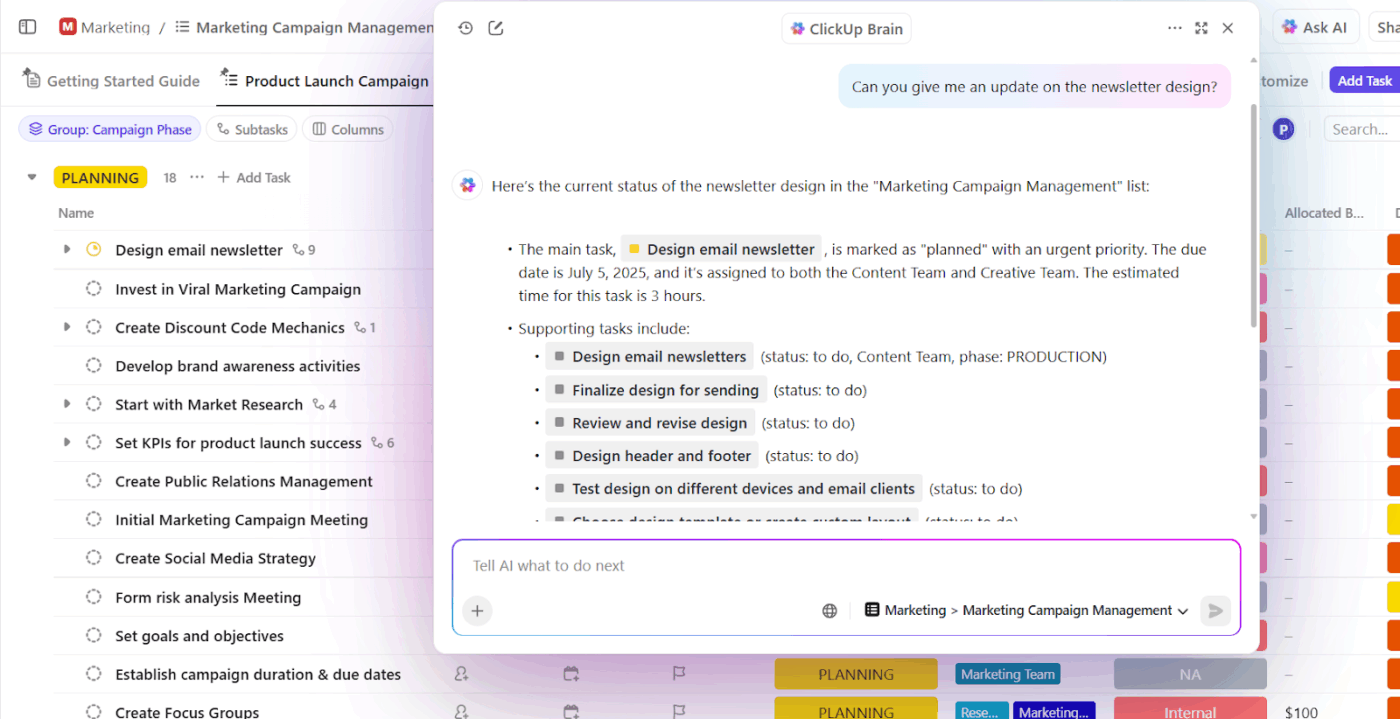
Multiple LLMs

ClickUp Brain: Understand what's the word across projects
Use ClickUp Brain for project updates and AI-driven summaries

When you compare ClickUp and ChatGPT, ClickUp lets you choose from a wide range of LLMs without any extra cost. For instance, you can switch to ChatGPT for reasoning, Claude for speed, or Gemini for data smarts, all inside ClickUp.

ClickUp Brain: Multiple LLMs for users to try
Pick the ideal LLM for every workflow and still work directly inside ClickUp without disrupting focus

📌 Here are a few AI prompt templates for you:

  • Create tasks from [meeting notes/project outline] with owners, due dates, and subtasks
  • Summarize the status of [Project/Board/List] and list any blocked or overdue tasks
  • Convert last week’s client call notes into a ClickUp Doc with sections for action items, insights, and follow-ups

📮 ClickUp Insight: 44% of our survey respondents stick to 1–5 tabs when browsing, but 8% live in “chaos mode” with 31+ tabs. 

While not always intentional, it happens to the best of us: a Miro board for brainstorming, a Google Doc for SOP, a project management tab, and then ChatGPT for extra support. 👀

But every switch between apps or windows adds toggle tax, aka a hidden mental toll that chips away at your mental bandwidth and leaves you feeling scattered.

With ClickUp, you can centralize all your tools: think whiteboards, docs, tasks, web search, AI models like ChatGPT, Gemini, and Claude, and more under one Converged AI Workspace. Time to ban context switching and close those extra tabs down for good!

Get workspace intelligence with ClickUp BrainGPT

ClickUp BrainGPT takes everything great about ClickUp Brain and adds a desktop app + a browser extension that replaces the need to juggle ChatGPT alongside 10 other tools.

For instance, in ChatGPT, you often need to retype prompts from scratch or hunt through old chats and docs to copy-paste them again. And depending on how you phrase the prompt each time, you might get very different results.

ClickUp BrainGPT fixes that problem.

You can save prompts once and use them inside Docs, Tasks, comments, or the toolbar, with a single click. 
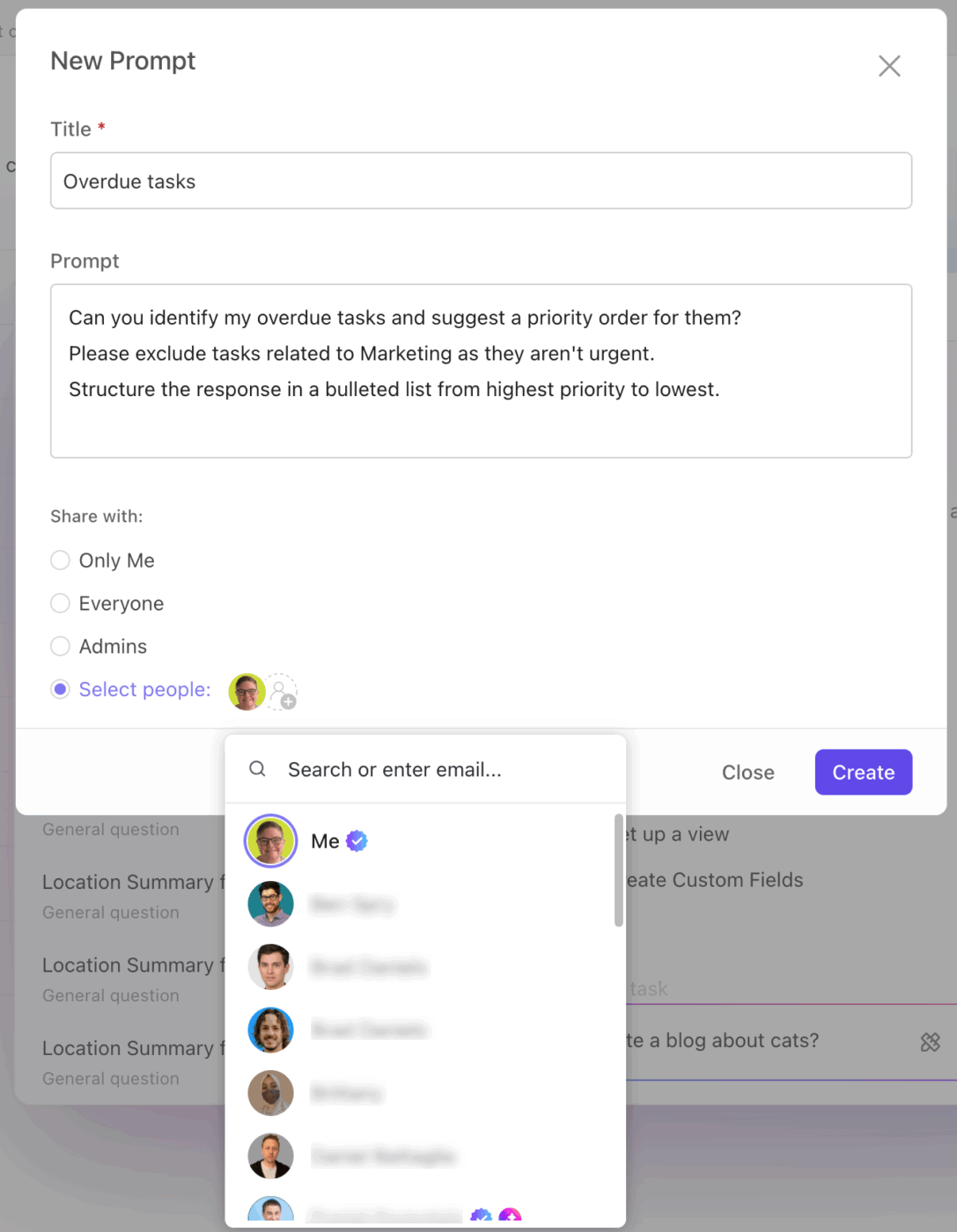
ClickUp Brain: Manage the community with shared prompts
Share prompts with selected people so every department follows the same quality standard

With standard ClickUp Brain, the ‘Brain’ model gives you an internal knowledge assistant, pulling context from your ClickUp workspace.

But with ClickUp BrainGPT, that same model becomes significantly more powerful. Instead of being limited to a workspace-only context, it can also search the web and your connected apps like Google Drive, Slack, GitHub, and Google Calendar.

Talk to Text in ClickUp BrainGPT gives you hands-free dictation across the desktop and Chrome extension, so you can capture work the moment it hits your mind.

📌 Here’s how to use AI for productivity:
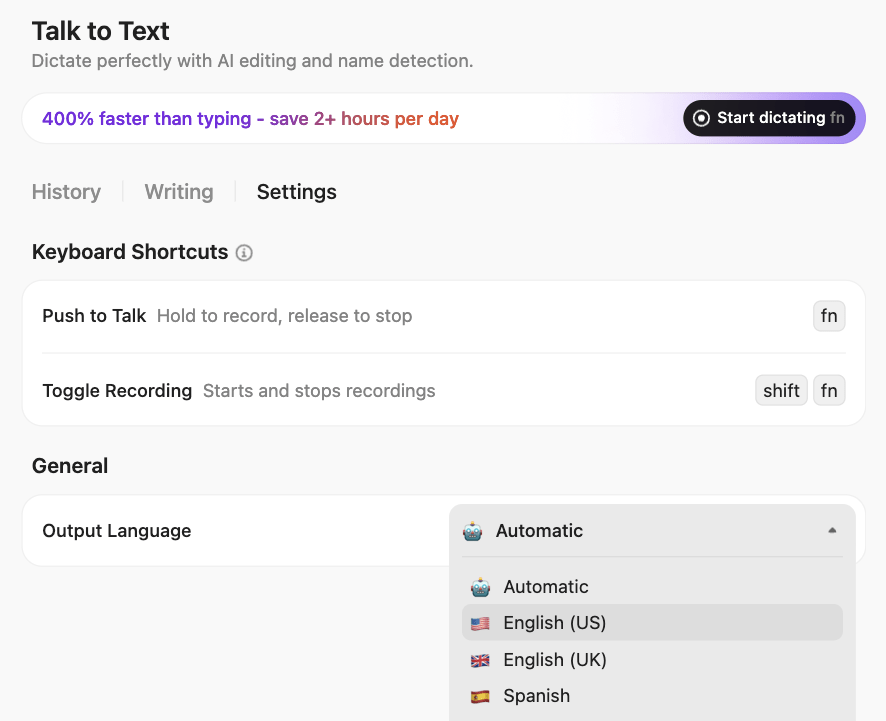
  • Start or stop dictation instantly using keyboard shortcuts
  • Dictate reminders, draft tasks, summarize meetings, and write updates all by voice
  • Trigger AI actions mid-dictation (like ‘Create a task for this’ or ‘Summarize the key points’)
  • Personalize your vocabulary by adding client names or product terms for better accuracy
  • Switch languages or tweak audio settings depending on where you’re working
  • Choose how you want your thoughts to appear, whether it is minimal, smart, or polished
ClickUp Brain MAX: Navigate Talk to Text without taking a break
Convert transcripts directly into Tasks, Docs, summaries, and follow-up lists with ClickUp BrainGPT

📮 ClickUp Insight: 31% believe cutting typing by 40% would unlock faster communication and better documentation.

Imagine what you could do with that time back. ClickUp BrainGPT’s Talk-to-Text lets you capture every detail, every idea, and every action item at 4x the speed of typing. Here’s to never having to sacrifice key details or clarity.

Enterprise-grade security built in

ClickUp Brain runs inside the same secure platform your tasks, docs, and projects live in, no external chat history floating around.

ClickUp ISO for security or legal obligations
Protect your data by working with ClickUp Brain, certified under ISO 42001 for secure management

You get:

  • ISO 42001 certification for AI governance
  • SOC 2, ISO 27001/27017/27018 compliance
  • AES-256 encryption at rest + TLS 1.2+ in transit
  • 24/7 automated security + third-party pen testing

If you’re tightening your ChatGPT data footprint, this matters.

Control who sees what with ClickUp Permissions

ClickUp lets you set granular permissions for tasks, docs, and spaces, so you decide who can view, edit, or share sensitive information. Whether you’re collaborating with your team or external partners, you stay in control of your data at every level.

Data retention & deletion

ClickUp lets you delete tasks, docs, and other items. Deleted items go to the Trash/Recycle Bin, where admins can restore or permanently delete them. You can also request data export or deletion for compliance.

Automate updates and routine tasks

ClickUp Agents act like autonomous teammates that take work off your plate by handling repetitive, time-intensive workflows. Once activated, they monitor activity across your Workspace and enhance AI workflow automation, whether that’s creating tasks from notes, summarizing Docs, drafting status updates, or answering questions inside Channels.
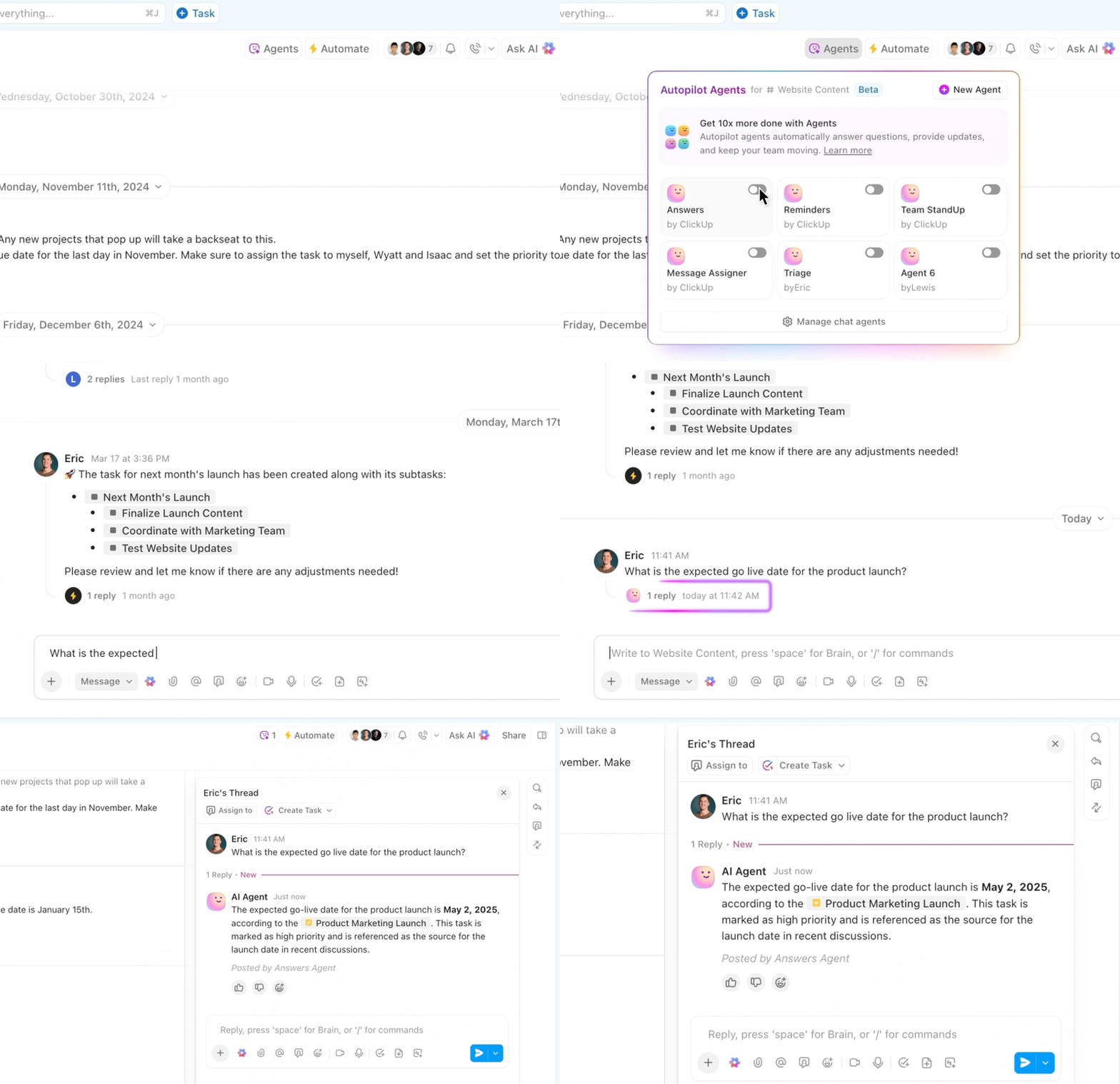
ClickUp Agents: Make AI agents your default way of automating tasks
Deploy ClickUp AI Agents across Spaces, Folders, Lists, or Chat Channels

To get started fast, you can activate Prebuilt Agents designed for everyday workflows and customize their triggers, actions, and knowledge sources to fit your team.

Here’s what you can enable with a single click:

  • Weekly Report Agent: Posts a weekly summary at a chosen time so teams always stay aligned on progress
  • Daily Report Agent: Sends automatic daily updates to keep work moving and blockers visible
  • Team StandUp Agent: Recaps what everyone has been working on each day — perfect for async standups
  • Answers Agent (Auto-Answers Agent): Replies to questions in Channels using verified information from tasks, Docs, and Chats

You can also use AI to automate tasks by building your own no-code Custom Agent for more nuanced processes. For example, an HR team can set an Agent to screen incoming applications, evaluate fit, and summarize qualifications automatically.

Ready to create your personal AI Agent? See it done step by step in just 20 minutes. 👀

ClickUp’s AI privacy controls

ClickUp Brain and BrainGPT process your data within your workspace and do not use your content for external model training. You control what AI features access, and all processing happens under ClickUp’s strict security and compliance standards.

Summarize this article with AI ClickUp Brain not only saves you precious time by instantly summarizing articles, it also leverages AI to connect your tasks, docs, people, and more, streamlining your workflow like never before.
ClickUp Brain
Avatar of person using AI Summarize this article for me please

Delete ChatGPT (Chats) and Switch to ClickUp

More than just tidying up, clearing your ChatGPT history is about keeping your data private, protecting sensitive work, and staying in control of your AI interactions. Whether you’re deleting old chats, turning off history, or permanently deactivating your account, taking these steps ensures your AI use stays secure, organized, and stress-free.

Even though you might continue using ChatGPT for quick answers, managing all your work, projects, and team collaboration across multiple tools can get messy. That’s where ClickUp, the everything app for work, comes in.

Use ClickUp Brain to get instant, context-aware insights from your workspace, ClickUp BrainGPT to extend AI assistance across connected apps, and AI Agents to handle repetitive workflows automatically.

Sign up to ClickUp for free to bring all your work under one roof.

Summarize this article with AI ClickUp Brain not only saves you precious time by instantly summarizing articles, it also leverages AI to connect your tasks, docs, people, and more, streamlining your workflow like never before.
ClickUp Brain
Avatar of person using AI Summarize this article for me please

Frequently Asked Questions (FAQ)

Can I recover deleted ChatGPT chats?

No. Once you delete a chat in ChatGPT, it is permanently removed and cannot be recovered from your account or devices.

Does ChatGPT use my deleted chats to train models?

No, deleted chats are not stored or used to train OpenAI models. Once removed, the content is no longer part of the training data.

How long does ChatGPT store data?

Chats are stored on OpenAI servers until you delete them. Temporary chats are not saved and disappear automatically once the session ends.

Can I delete chats on shared devices only?

Yes. You can remove chats from a specific device, but deleting them from your account ensures they are removed across all devices linked to that account.

Everything you need to stay organized and get work done.
clickup product image
Sign up for FREE and start using ClickUp in seconds!
Please enter valid email address