Sorry, there were no results found for “”
Sorry, there were no results found for “”
Sorry, there were no results found for “”
Remember that project deadline you missed last month? Your sticky-note system failed you, not the other way around.
When you create a work schedule in Google Calendar, you’re building a roadmap that works even when Monday morning chaos strikes.
This blog post shows how to create a work schedule in Google Calendar that keeps your team aligned without overwhelming them with notification fatigue.
Plus, we’ll take a look at how ClickUp can make scheduling even easier.
Google Calendar offers flexible scheduling options without unnecessary complexity. Here are its benefits:
🧠 Fun Fact: Google Calendar has a world clock feature for those working across multiple time zones. This feature allows you to see different time zones and schedule meetings accordingly.
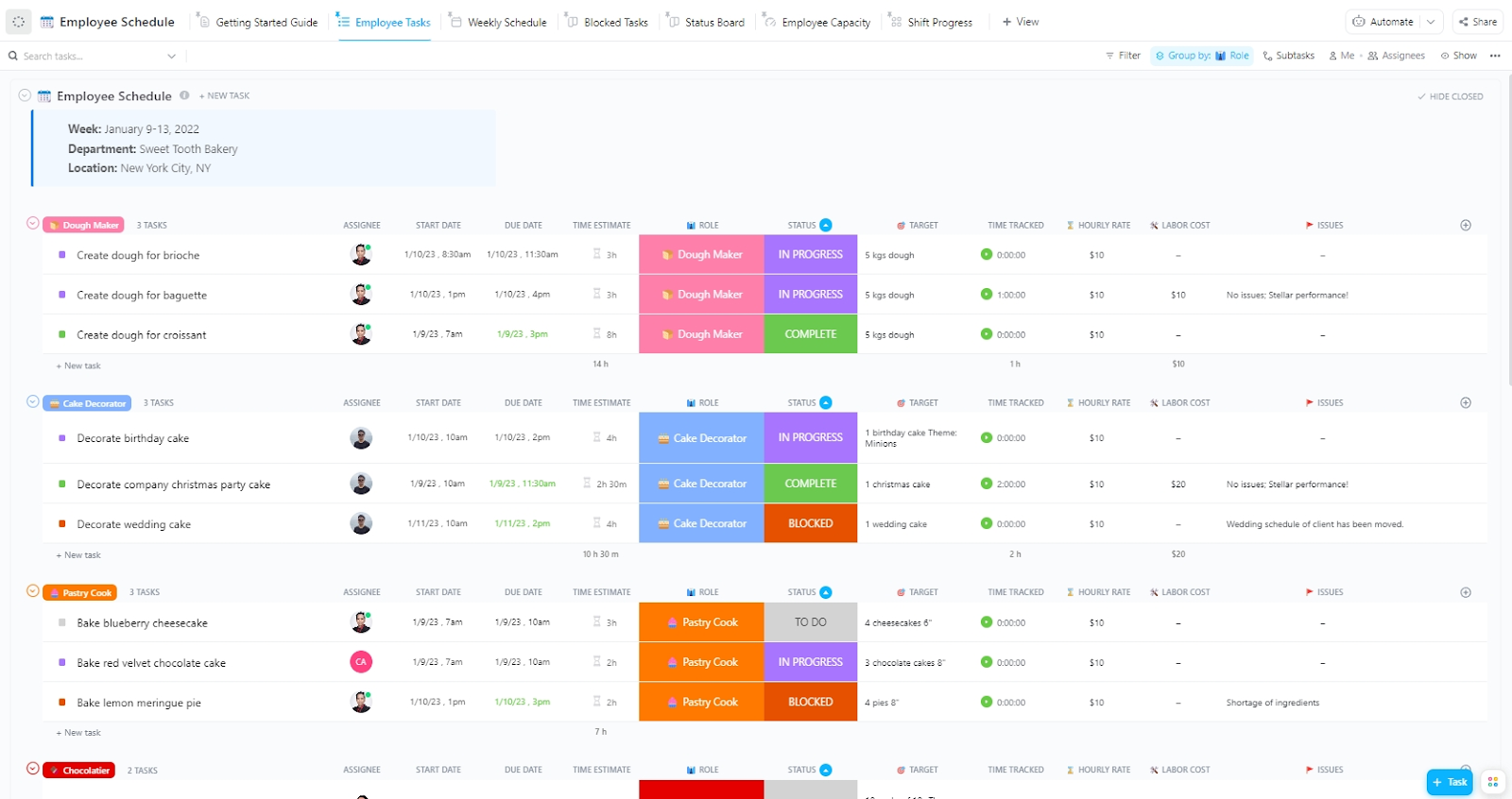
If you’re looking to schedule your work optimally and leverage AI to make smart recommendations and mark out focus time, your search ends here. The ClickUp Employee Schedule Template helps you manage your shifts, optimize your workload, and still make time for rest.
A well-structured schedule helps keep everything in check, and setting one up in Google Calendar takes just a few simple steps.
Here’s how to do it. 🗓️
Go to your web browser and open Google Calendar. Sign in with your Google account if you’re not already logged in. This is your starting point for managing your schedule.
On the left side of the screen, look for the Other calendars section, and click the + button next to it.
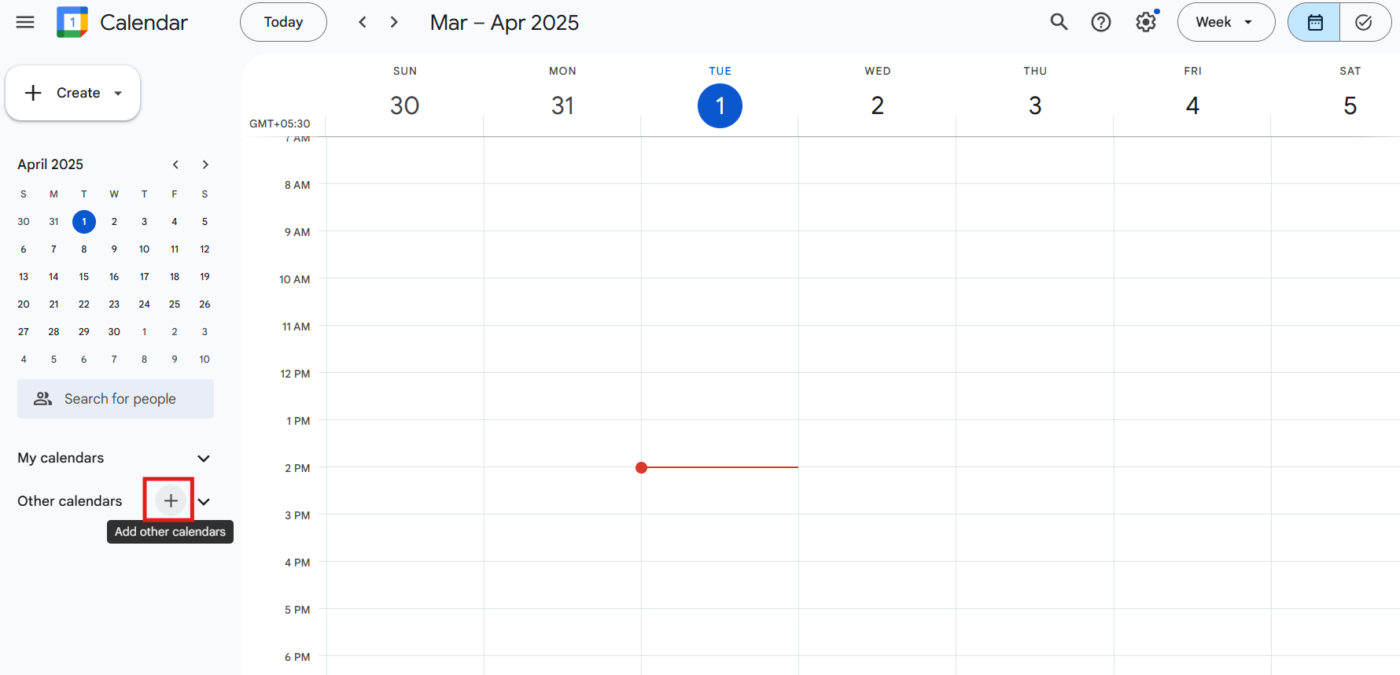
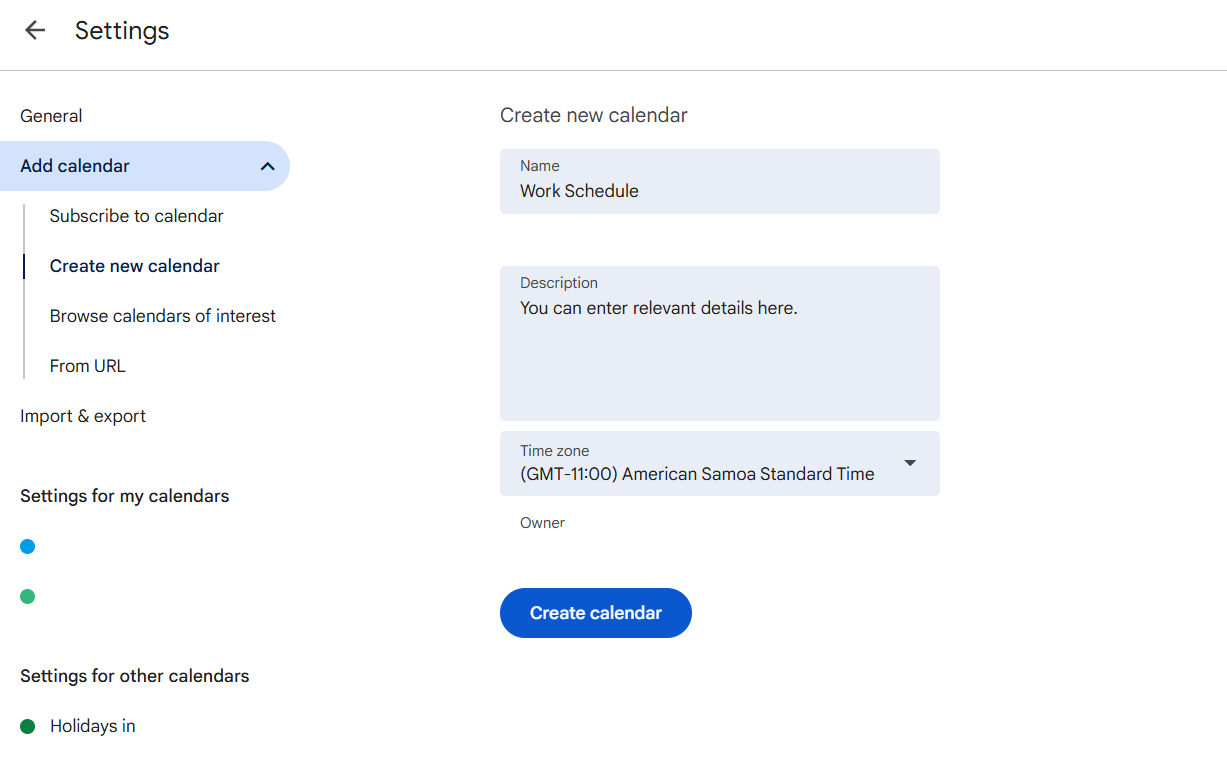
Choose ‘Create new calendar’ from the dropdown menu and give it a clear name, like ‘Work Schedule’. Then, hit’ Create Calendar’ to add it to your list.
📖 Also Read: How to Implement a 2-2-3 Work Schedule
Now that your work calendar is set up, go to the main calendar view and click on a specific date and time you want to schedule employees or a task.
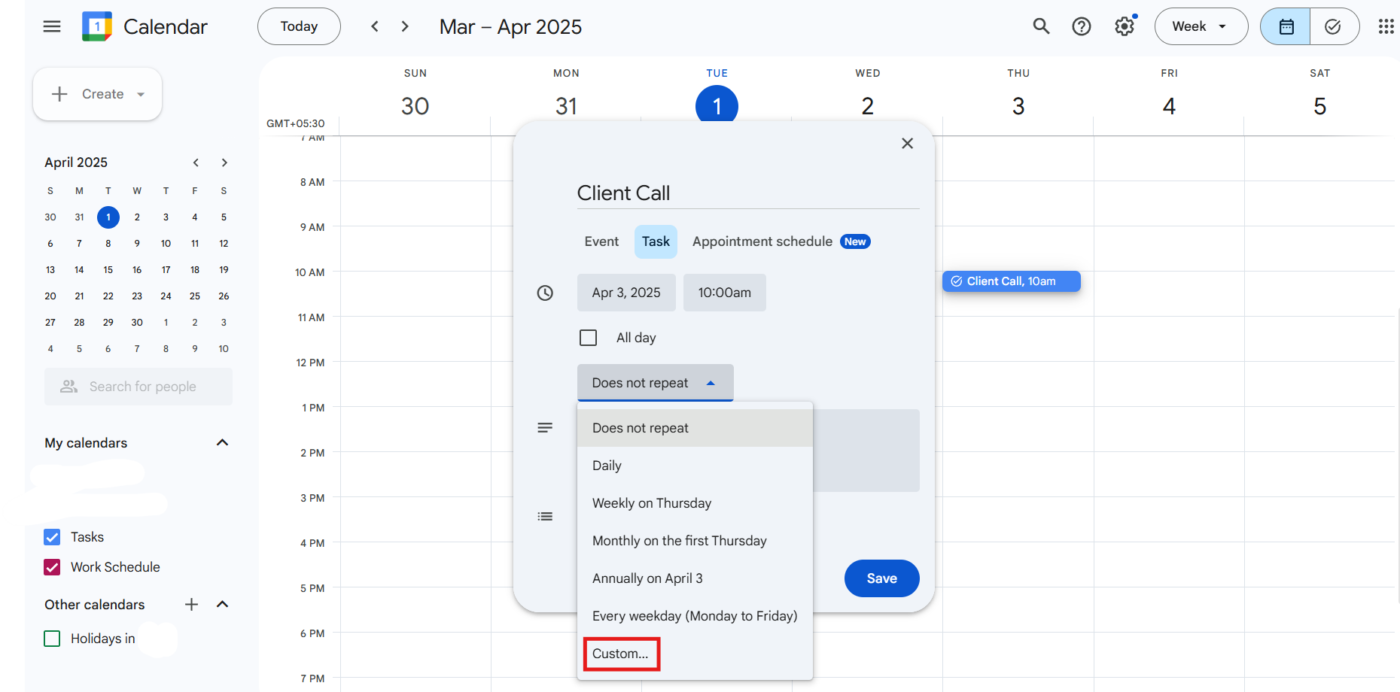
In the pop-up window that appears, type a task name like ‘Client Call’ and adjust the start and end times to fit your needs.
If it’s a recurring task, click the Does not repeat option, select Custom from the dropdown, and set it to repeat every Monday, then hit Done.
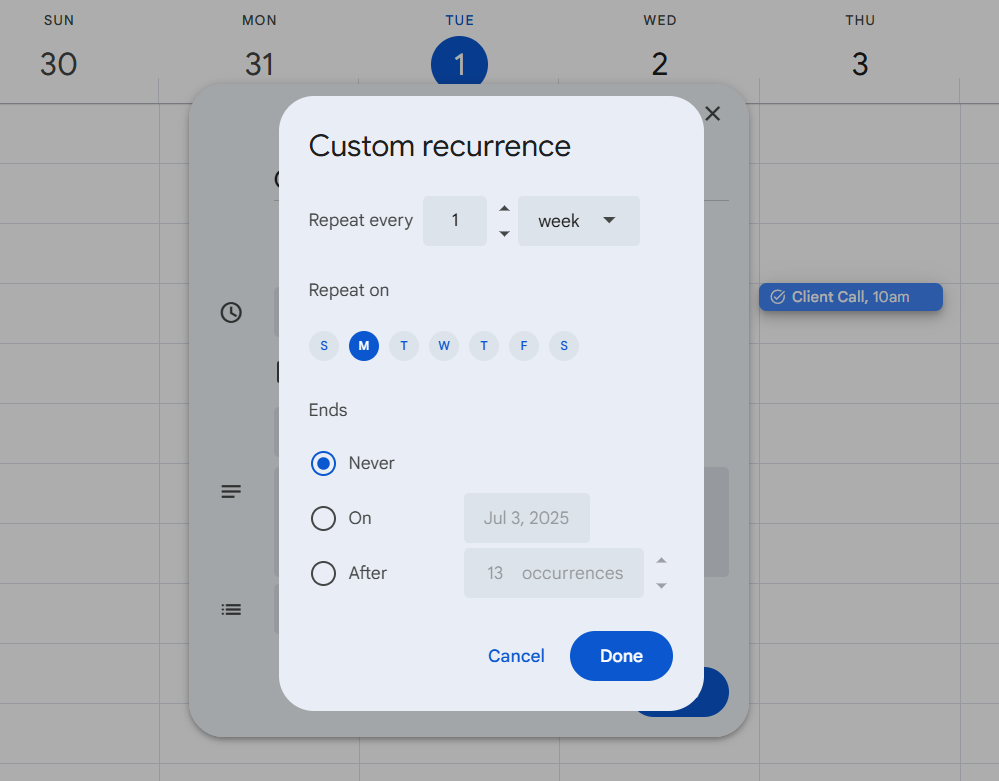
If you’re adding this as an event, remember to select Work Schedule from the calendar dropdown so the event stays in the right place, then click Save to lock it in.
💡 Pro Tip: To create a more organized to-do list in Google Calendar, use the Tasks feature. Add each task as a separate item with due dates and times. You can view tasks directly in your calendar, and Google will send you reminders.
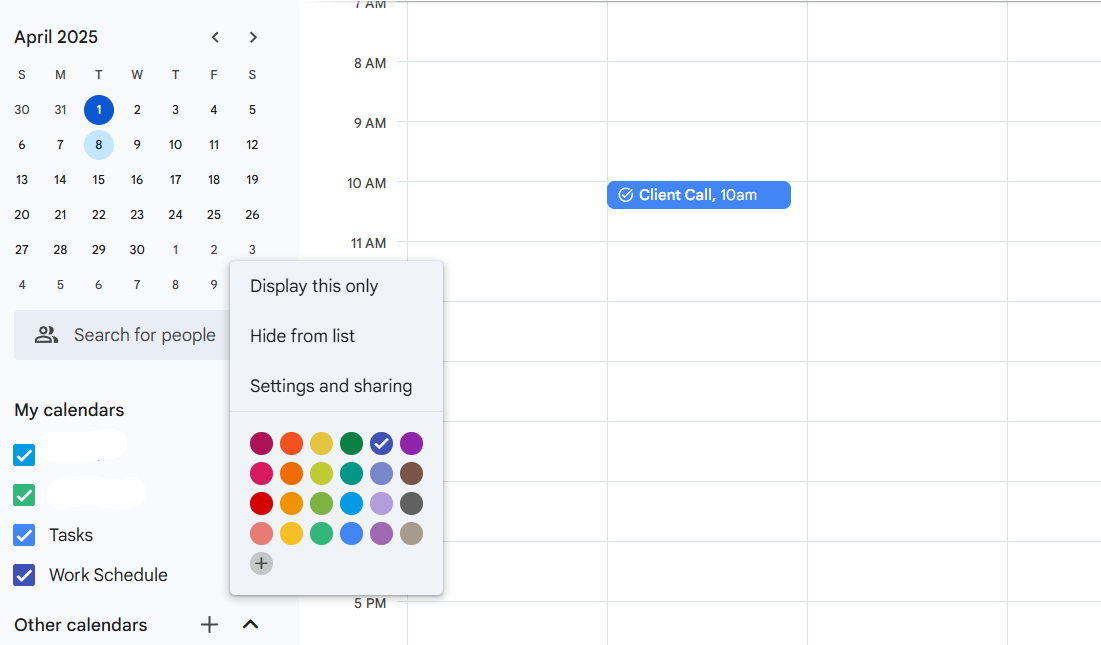
To make your work schedule visually clear, head to the left side of the screen and find your Work Schedule calendar in the list.
Hover over its name, click the three dots that pop up, and choose a color—blue, for example—to assign to it. This color will apply to all events in that calendar, helping you instantly distinguish work tasks from other commitments when you glance at it.
🧠 Fun Fact: Google Calendar can be embedded on websites using an HTML iframe, allowing businesses, organizations, or event planners to share schedules publicly.
Keeping on top of your schedule means staying alert, so open an existing event or create a new one in your Work Schedule calendar.
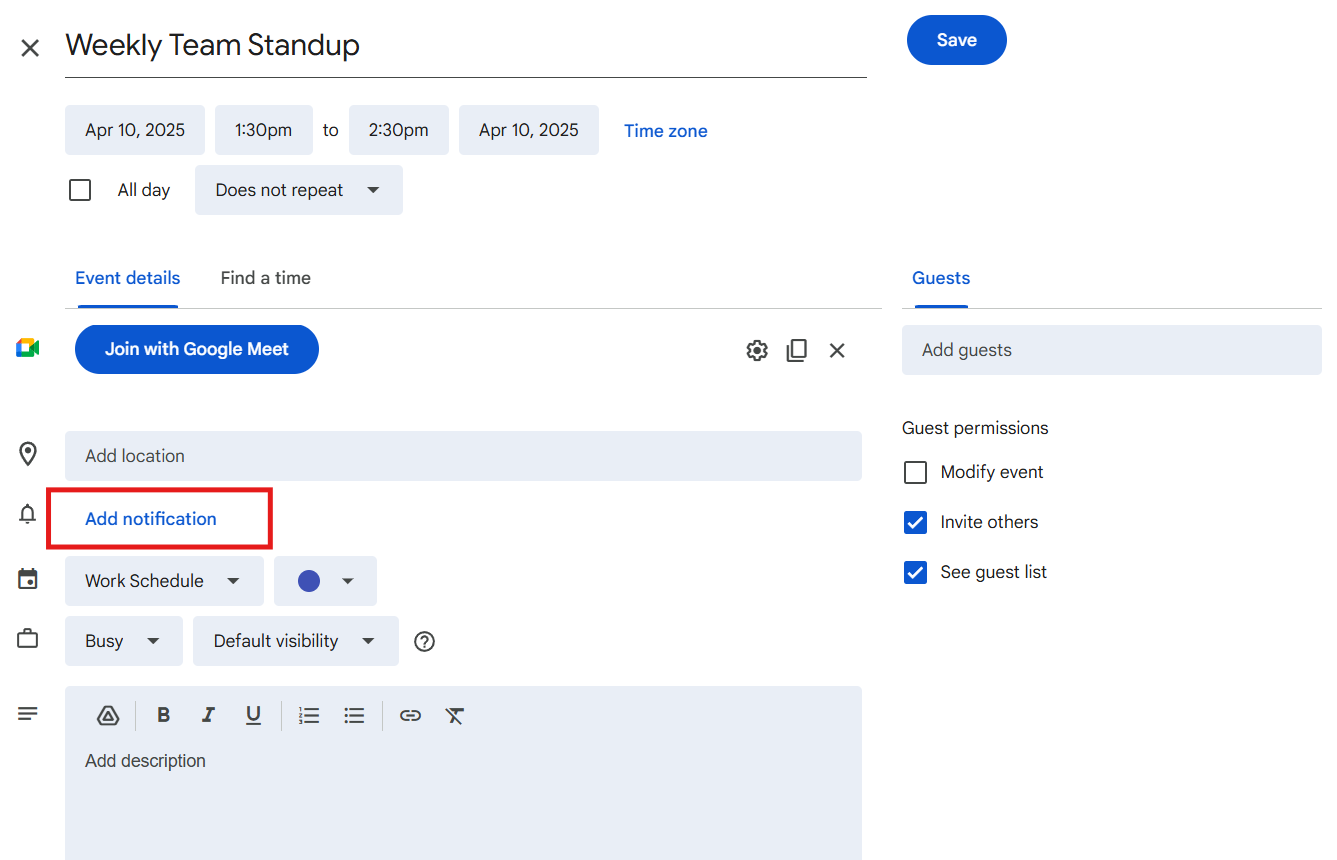
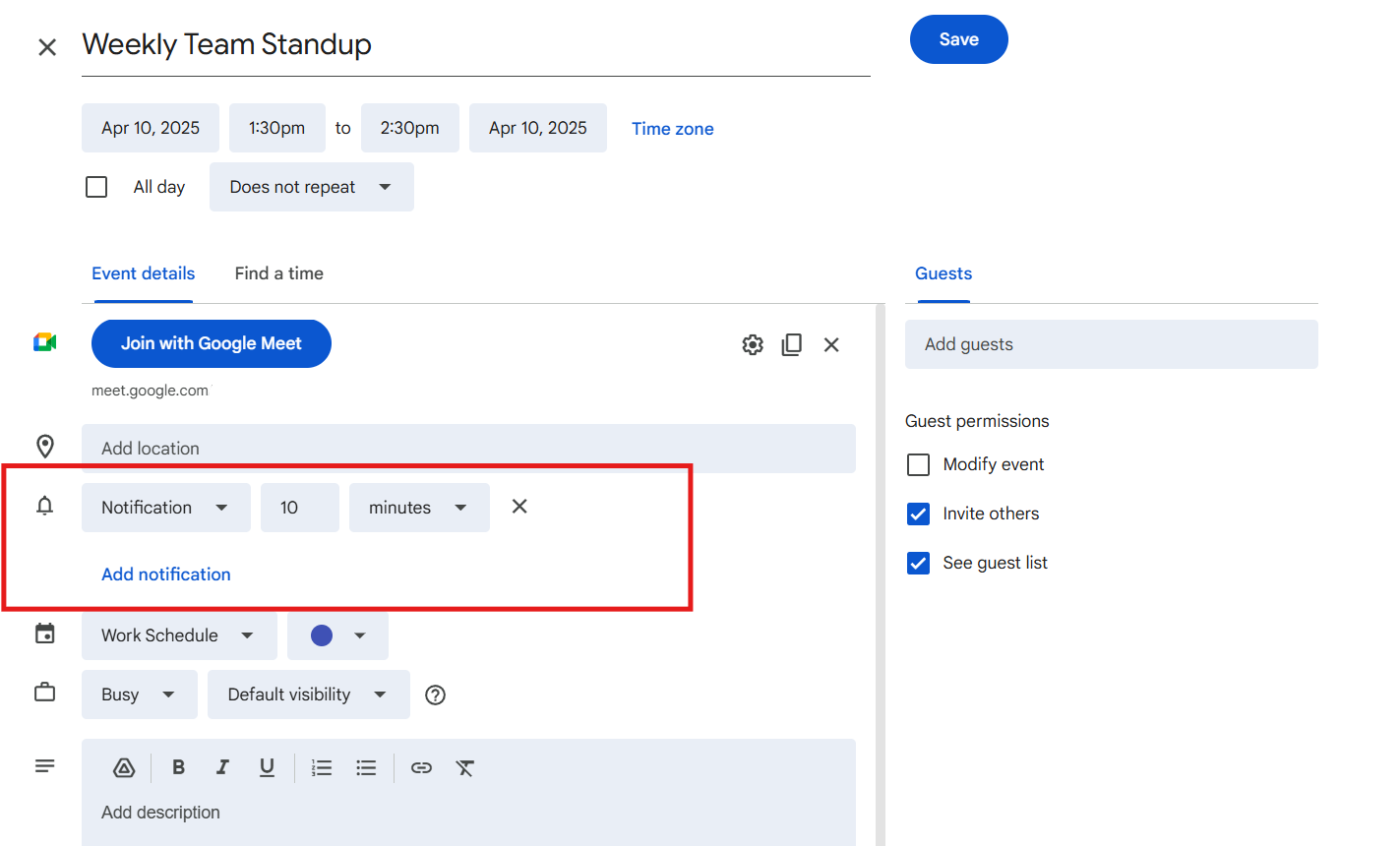
In the event details, click Add notification and set a reminder—maybe 10 minutes before the start—to ensure you’re ready when it’s time. Save the event to apply this.
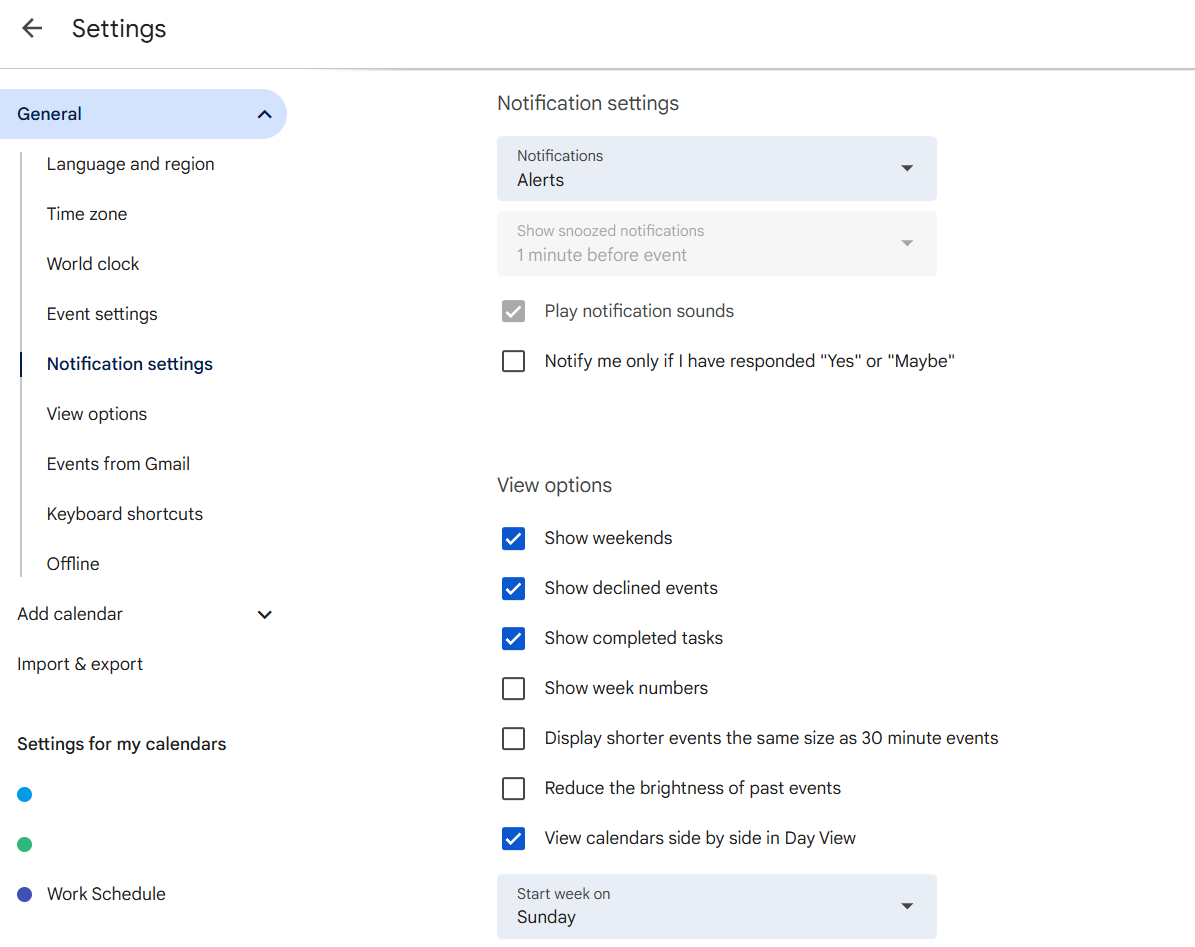
If you want reminders for all work events, go to the top-right gear icon, click Settings, and select your calendar under Settings for my calendars. From there, adjust Event notifications to add a default reminder, like 15 minutes before, so you’re always prepared without setting it manually each time.
🔍 Did You Know? On Android devices, the Google Calendar app lets you set custom notification sounds for different events, helping you differentiate between types of reminders.
If your team needs to see your schedule, go to the left panel, hover over Work Schedule, and click the three dots next to it.
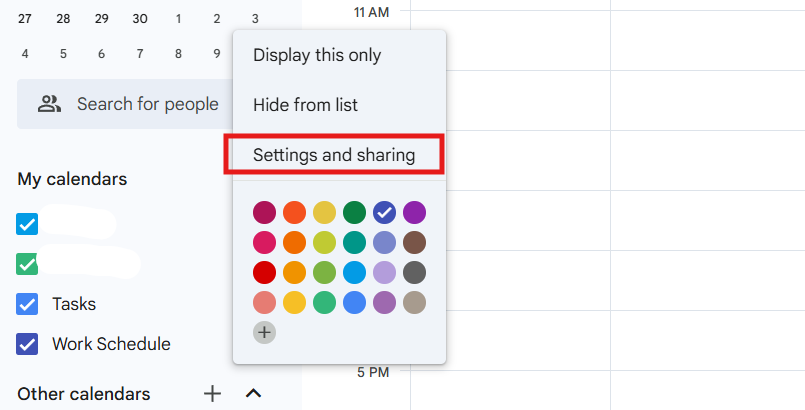
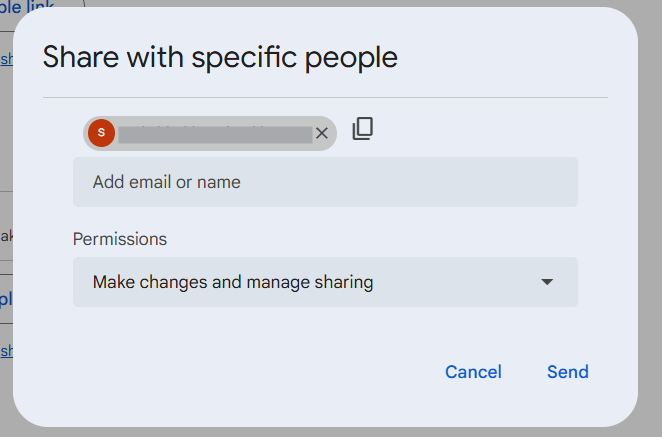
Select Settings and sharing from the menu, then scroll to Share with specific people. Type in your team members’ email addresses, set their permission level and click Send to share it.
With these steps, your Google Calendar has a fully functional work schedule. Please switch to a Week or Month view to review it and ensure everything looks good.
💡 Pro Tip: For better leave management, add a recurring event for personal or vacation time. Set the event as ‘Out of Office’ and mark it as ‘All Day’ so colleagues know you’re unavailable. You can also set a default working location in Google Calendar to show whether you’re in the office or working remotely.
Google Calendar works well for basic scheduling but misses some key features for managing work more efficiently.
Here are some reasons why you may consider Google Calendar alternatives:
🔍 Did You Know? Henry Ford popularized the 8-hour workday in 1926, reducing shifts from 12+ hours to improve worker efficiency and well-being.
A packed schedule isn’t the problem. It’s the constant reshuffling, last-minute changes, and scattered tracking that drain productivity.
ClickUp fixes that. It’s the everything app for work that combines project management, knowledge management, and chat—all powered by AI that helps you work faster and smarter.
Let’s see how this project scheduling software helps. 📝
A calendar should do more than list tasks.
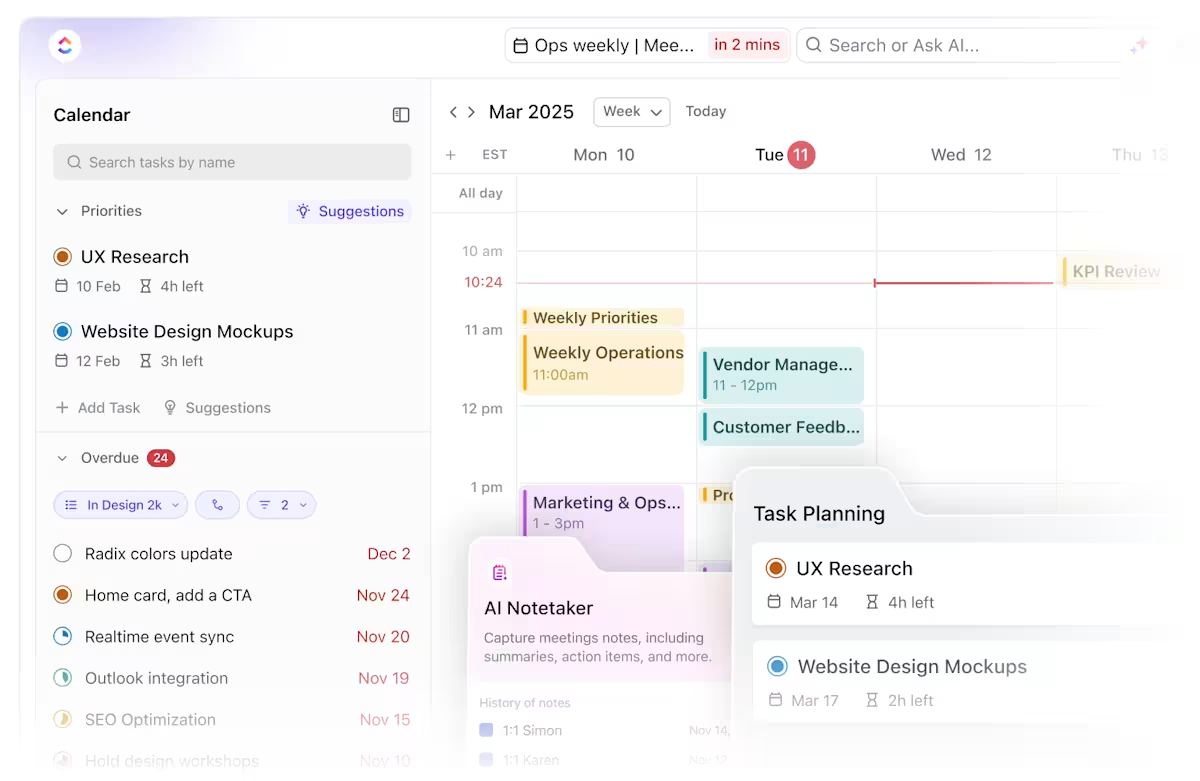
ClickUp Calendar builds a schedule that actually works, one that adapts as priorities shift and prevents work from getting missed.
Too often, time gets wasted deciding what to tackle next. High-priority work gets buried under endless meetings, and the day runs out before the real work begins.
This AI calendar stops that spiral by factoring in deadlines, meetings, and focus time, creating a structured schedule that keeps everything on track.
🧠 Fun Fact: In August 2019, Microsoft Japan experimented with a four-day workweek, resulting in a 40% increase in productivity. Employees worked four days while receiving full pay, and the company also implemented measures like capping meetings to 30 minutes.
ClickUp Brain, the platform’s integrated AI assistant, makes scheduling smarter. It places tasks in a time slot while factoring in workload, urgency, and dependencies to keep workloads balanced.

If a deadline moves or a task takes longer than expected, ClickUp Brain automatically adjusts the schedule to prevent bottlenecks. A project manager handling multiple client deadlines and team meetings sees:
The entire scheduling process happens in the background.
Use of calendars to complete tasks before deadlines is always critical. With ClickUp this is very easy as your deadlines are visible on your calendars along with the tasks so planning your day/week bandwidth is super easy and fast.
📖 Also Read: How Does a 9/80 Work Schedule Work?
To make planning even easier, ClickUp offers pre-built time management templates.
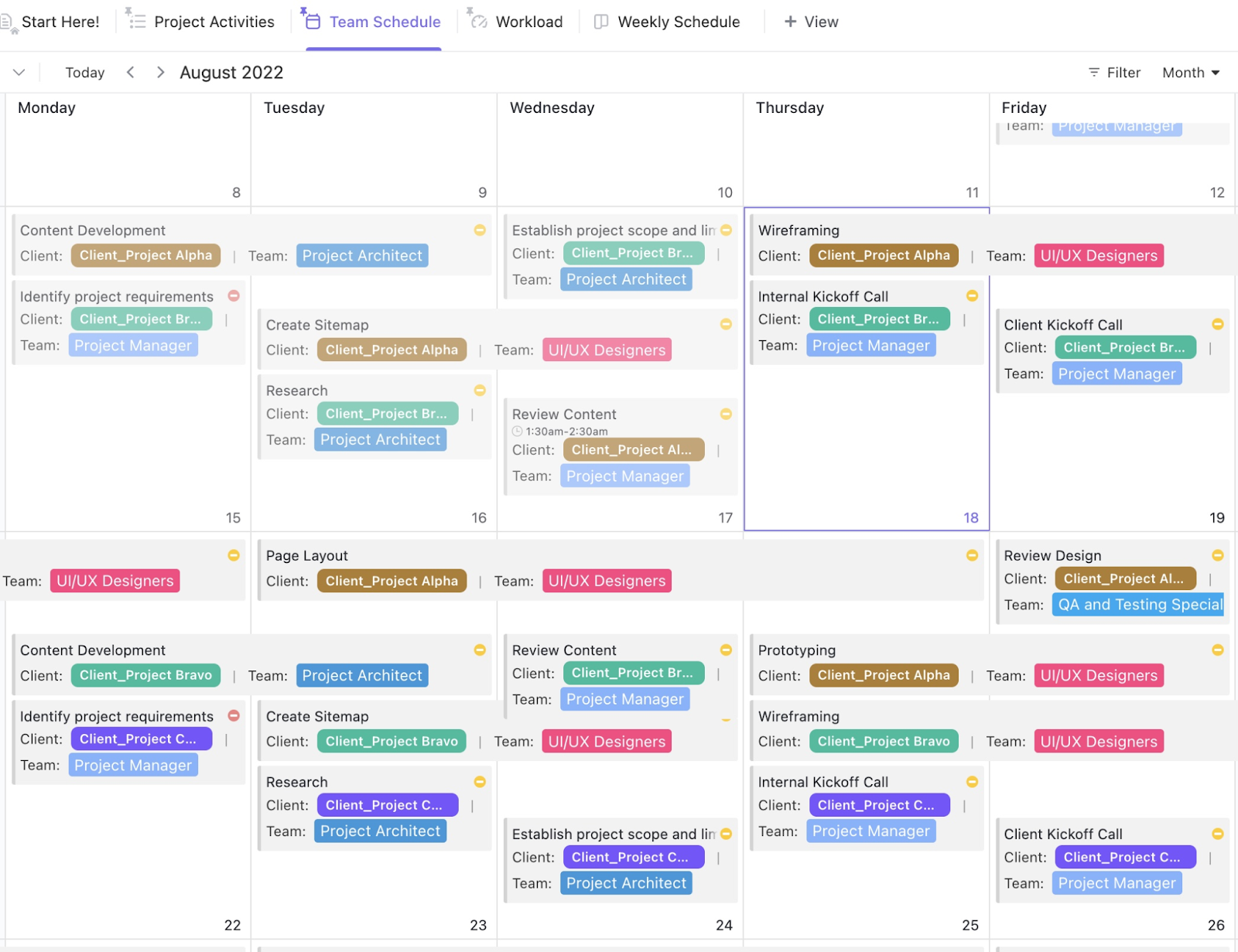
For example, the ClickUp Team Schedule Template helps balance team workloads, while the ClickUp Shift Schedule Template streamlines rotating shifts and handovers.
🔍 Did You Know? Sticking to a consistent work schedule boosts productivity. A study found that keeping the same hours each day increased efficiency by nearly 1%, while working the same days each week gave a 1.63% boost. New hires benefited even more, with up to an 8% productivity jump.
Most scheduling tools require manual updates across different platforms. Move a task in one place; suddenly, everything else needs adjusting separately.
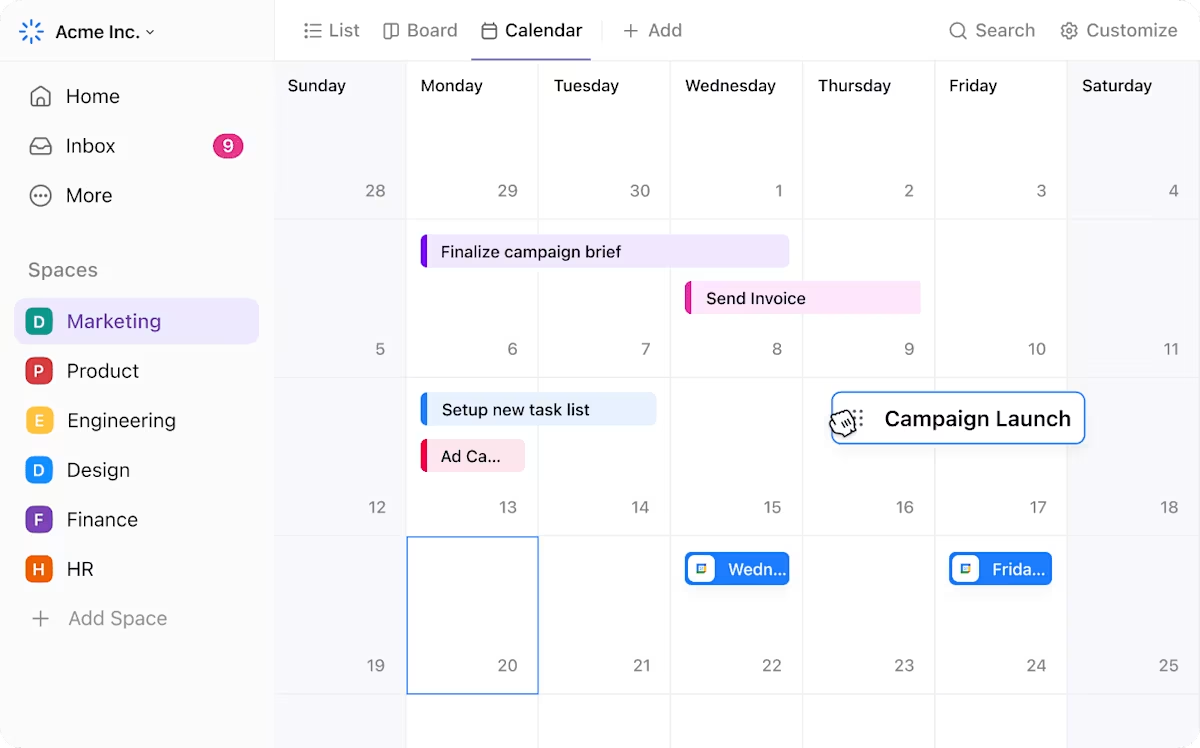
ClickUp Calendar View centralizes everything, letting teams drag and drop tasks while keeping linked dependencies intact.
When a deadline moves, any linked tasks update automatically, ensuring no one is left working with outdated information. If a team lead reschedules a meeting, availability updates instantly so it doesn’t clash with critical focus time.
For instance, a product team preparing for a launch can adjust its entire schedule with a few clicks. If the release date is pushed back, design revisions, marketing content, and development timelines shift accordingly.
📮 ClickUp Insight: 88% of our survey respondents use AI for their personal tasks, yet over 50% shy away from using it at work. What are the three main barriers? Lack of seamless integration, knowledge gaps, or security concerns.
But what if AI is built into your workspace and is already secure?
ClickUp Brain, ClickUp’s built-in AI assistant, makes this a reality. It understands prompts in plain language, solving all three AI adoption concerns while connecting your chat, tasks, docs, and knowledge across the workspace. Find answers and insights with a single click!
A well-structured schedule isn’t enough if tasks are scattered, dependencies are unclear, and time tracking is an afterthought.
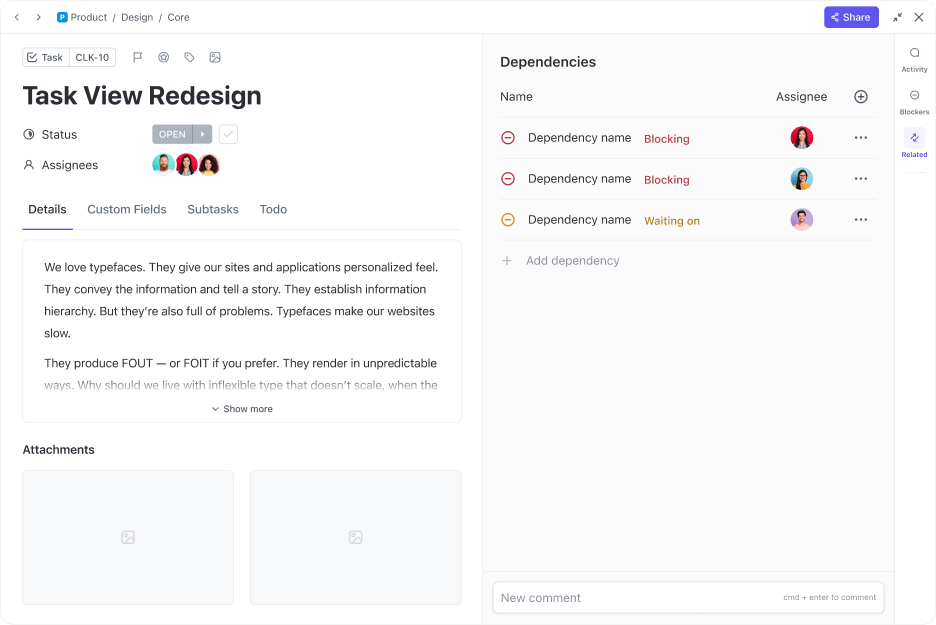
ClickUp Tasks organize assignments, priorities, and deadlines in a single system. Teams don’t have to jump between multiple apps to track progress. Each task includes an owner, due date, priority level, and relevant files, reducing confusion and unnecessary back-and-forth.
⚙️ Bonus: Try task management templates to eliminate the need to start from scratch, keeping everything structured from day one.
ClickUp Task Dependencies prevent bottlenecks by ensuring work moves in the right order. For example, acontent team waiting for design assets doesn’t have to chase updates—if a task depends on another, it stays blocked until the previous one is marked complete.
Once finished, the next team member is notified immediately, keeping everything on schedule.
🔍 Did You Know? Research highlighted in Harvard Business Review indicates that North American employees who take a daily lunch break report higher engagement levels, including increased job satisfaction and efficiency.
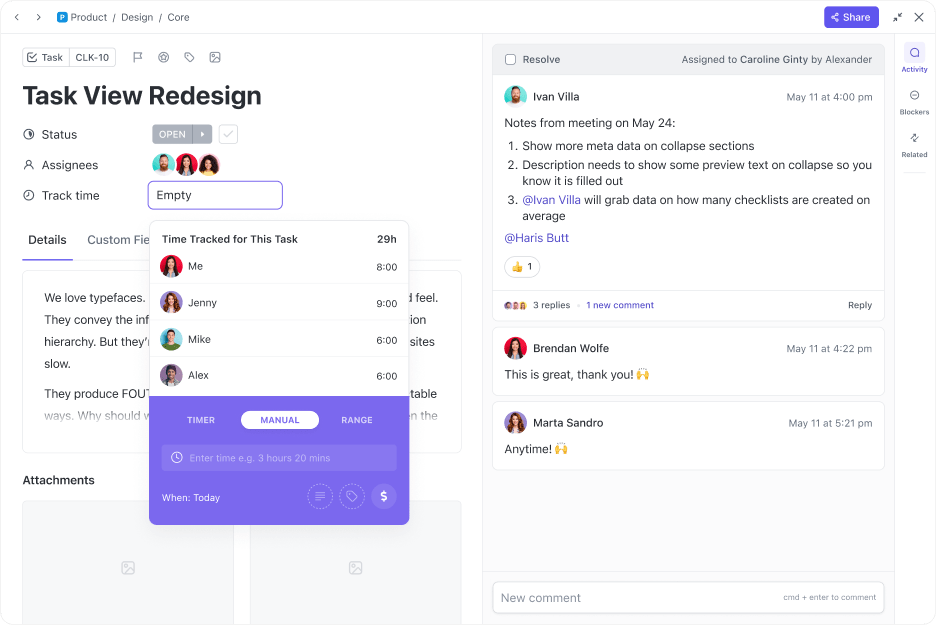
Finally, ClickUp Project Time Tracking keeps everything accountable. Time is logged directly within tasks, providing real-time visibility into work hours. Whether for internal planning or client billing, teams always know exactly where their time is going.
Example: Let’s suppose a marketing team is preparing for a product launch. The writer drafts a blog post, but the design team can’t create visuals until the content is finalized.
In ClickUp, the design Task remains blocked until the writer completes their work. The design team is automatically notified after the draft is approved and can start working immediately. And once visuals are ready, the social media team gets an instant alert to schedule the post.
At the same time, Time Tracking runs in the background. The marketing manager sees exactly how long content creation, design, and scheduling take, helping the team optimize future campaigns.
⚙️ Bonus: Apply timesheet templates to track work hours accurately, streamline payroll, and simplify client billing.
Staying on top of work shouldn’t mean constantly reshuffling schedules, chasing updates, or struggling with scattered tools.
Google Calendar might handle meetings, but it wasn’t built to manage complex scheduling needs, shifting priorities, or team workloads.
ClickUp changes that, and brings everything together under one roof. Tasks, schedules, dependencies, and time tracking all live in one place, so you’re not wasting time switching between tools or manually adjusting timelines.
AI-powered scheduling keeps plans flexible, while built-in templates and automations handle the busywork.
Sign up for ClickUp today! ✅
© 2026 ClickUp