






Still downloading templates?
There’s an easier way. Try a free AI Agent in ClickUp that actually does the work for you—set up in minutes, save hours every week.
Sorry, there were no results found for “”
Sorry, there were no results found for “”
Sorry, there were no results found for “”
Content creation in marketing is no different than having a huge orchestra perform on stage. But while a performance may thrive on gruelling rehearsals, marketing teams need something different: less friction and far more flow.
Ideas should move smoothly from one stage to the next, with all stakeholders working in harmony.
Unfortunately, many teams approach this the wrong way. Their process looks something like this: manual spreadsheet updates → endless email threads → Slack reminders → scattered Google Docs → a rushed attempt to finally get everything live.
But the truth is, the process can only work in the opposite direction.
To achieve this, we’ll show you how to design a smooth, structured content production workflow in Google Drive—where most marketing teams already live.
A content production workflow is a repeatable, predictable sequence of stages that your content moves through, from initial ideation to publication.
Everyone knows what this sequence is, and the right stakeholders (writers, designers, managers, the SEO team, editors, content strategist, etc.) are looped in at the right time. Everything is in one place, well-connected, so you don’t have to scramble for anything ever again.
📮ClickUp Insight: Low-performing teams are 4 times more likely to juggle 15+ tools, while high-performing teams maintain efficiency by limiting their toolkit to 9 or fewer platforms. But how about using one platform?
As the everything app for work, ClickUp brings your tasks, projects, docs, wikis, chat, and calls under a single platform, complete with AI-powered workflows. Ready to work smarter? ClickUp works for every team, makes work visible, and allows you to focus on what matters while AI handles the rest.
👀 Did You Know? Around 6 in 10 businesses spend $5,001 – $10,000 per month on content marketing.
If every time someone needs an update, a file, or a piece of feedback, you sigh and start digging through a maze of stuff, you’re in more trouble than you’d like to admit.
In the short term, you can manage the chaos. You can firefight and somehow keep things moving. But it only ends one way: you burn out.
Most teams rely on what they already have at hand: Google Workspace. As useful as it is, it’s fragmented, and there’s no unifying mechanism to bring everything into one place. So you end up in a loop where no system talks to the others, and you have to update every single one whenever something moves forward.
Your DIY system, using Google Drive’s native features, is built on good logic:
This approach can bring a semblance of order, but it requires a ton of manual work and strict team discipline. It’s a starting point, but it’s a workaround, not a purpose-built solution.
📚 Also Read: How Much Toggle Tax Are You Paying?
👀 Did You Know? 48% of marketers repurpose or slightly adapt content across platforms instead of creating everything from scratch.
Ready to build your own DIY workflow in Google Drive?
This practical, step-by-step guide will walk you through the five key components: folder structure, templates, a content calendar, permissions, and automation to build your own DIY workflow in Google Drive. This is an honest day’s work and would suit small teams.
If you’re planning to scale very soon, or already have a medium to large team, you might face some blockers along the way (we’ll cover those in detail later on)
The way you organize your folder structure is the backbone of your workflow. If it’s messy, files get lost, and people start asking in Slack, “Where’s the latest version?”
The key is consistency. Every team member should know exactly where to find—and save—files at each phase of production. Before you get started, make sure to arrive at a logic for saving files.
Whichever method your people are sure to follow long-term, that’s your storage structure.
💡 Pro Tip: Always use Shared Drives instead of personal “My Drive” folders. This prevents chaos when a team member leaves, as the ownership of the files stays with the team, not the individual.
Here’s a simple, effective structure to start with:
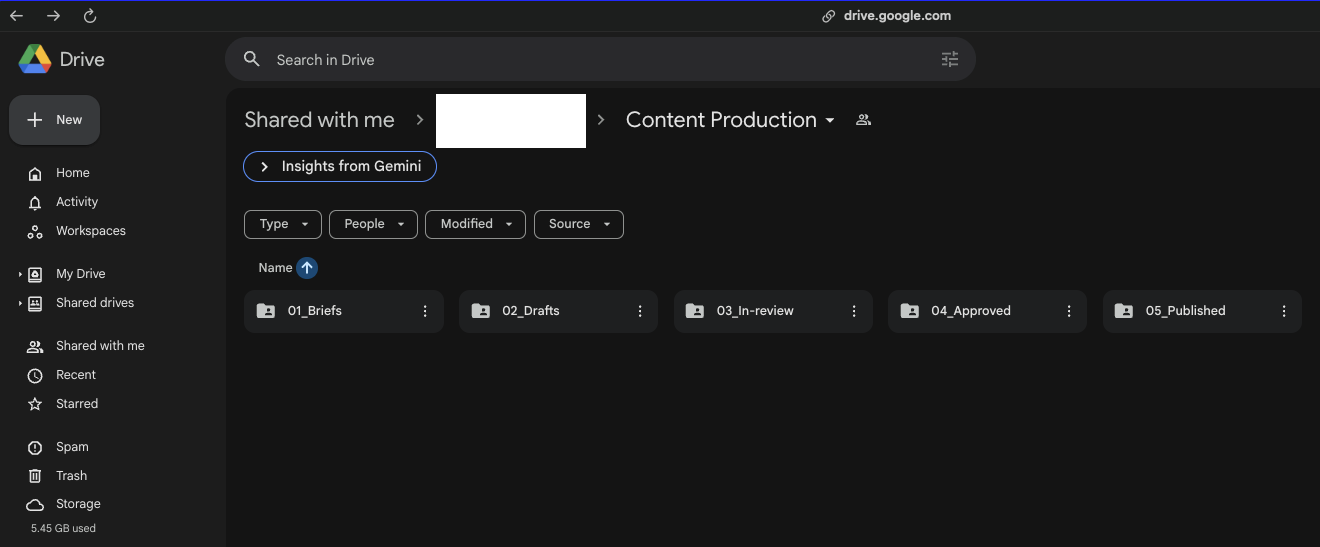
Another quick tip: keep your folder hierarchy shallow. Over-nesting, or creating too many sub-folders, makes files harder to find and slows everyone down.
Templates save you precious hours and are the easiest way to get everyone to follow the same method for a given task. Every team member doesn’t need a unique style of briefs or drafts.
When that happens, key information gets missed, and formatting is all over the place.
Create reusable brief and content draft templates in Google Docs. This ensures every piece of content starts with the same structure and includes all necessary information.
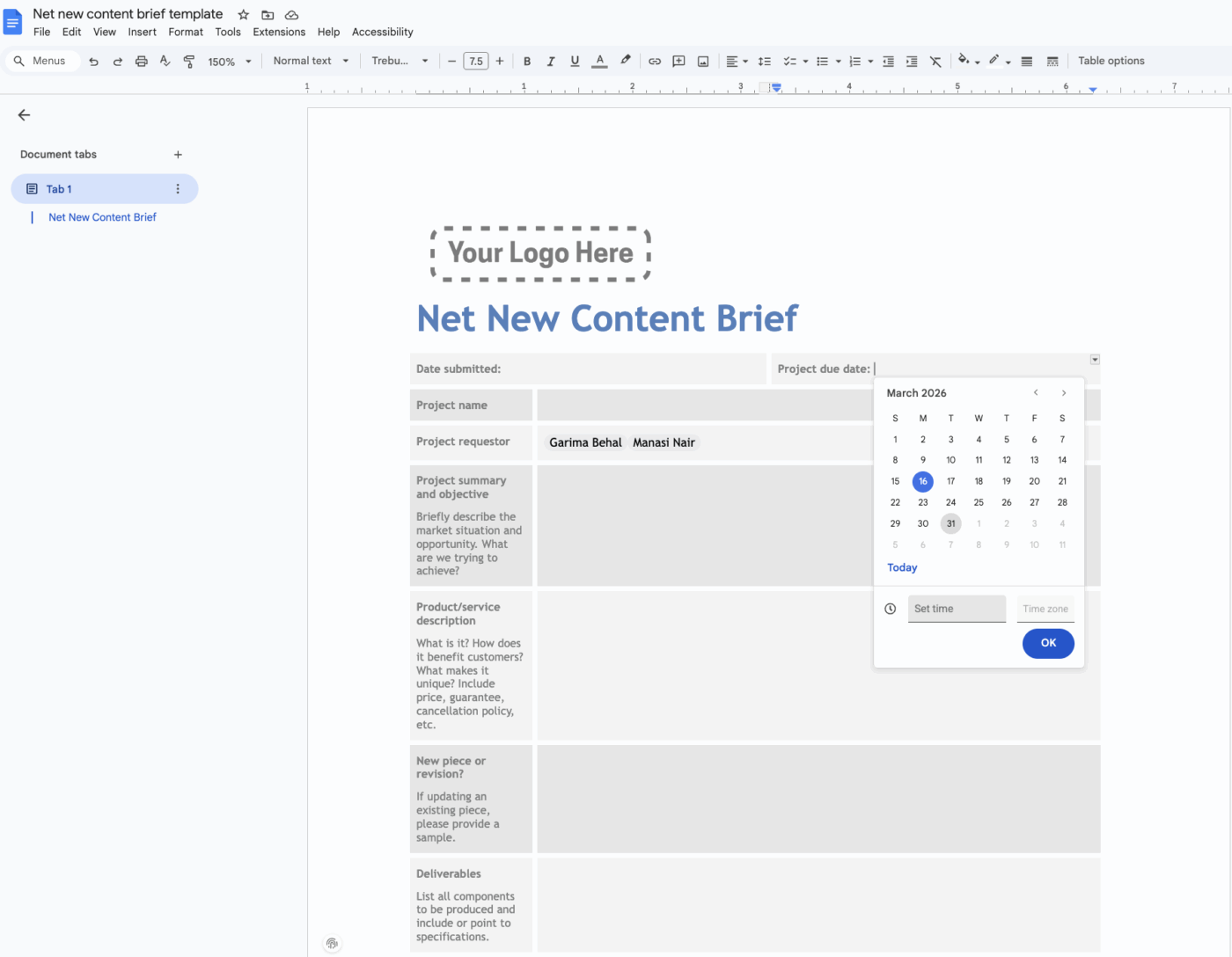
Save these in a dedicated “Templates” folder and instruct your team to make a copy for each new assignment. You can also use Smart Chips to easily add dates, link to other files, or @mention teammates directly in the doc.
A content calendar in Google Sheets can serve as your tracking hub—the one place you can go to see the status of all content at a glance.
Create a sheet with columns for essential information like Content Title, Writer, Status, Due Date, Publish Date, and a Link to the Google Doc. To make it more dynamic:
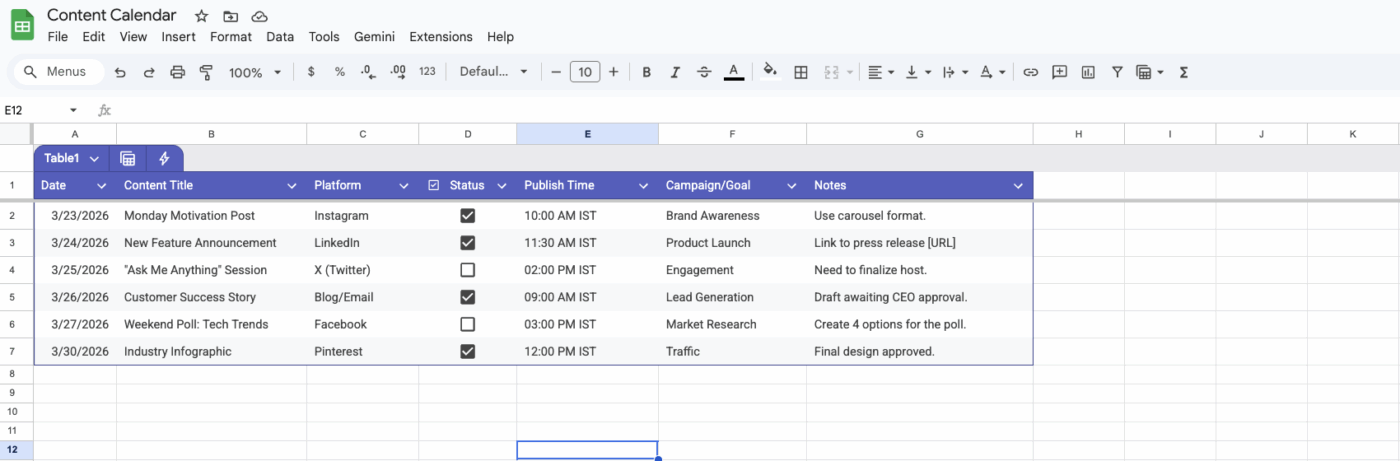
The big limitation here is that it’s all manual. Google Sheets won’t send reminders for due dates or automatically update a status. Someone on your team has to be responsible for keeping it updated, which effectively leaves you right where you started, with the whole process being person-dependent.
📚 Also Read: Google Drive Hacks
Many team members having edit access to a doc is a nightmare.
You don’t have perfect control over the audit trail, and you have to manually go back and check who edited what, especially if it is an approved draft.
Implement a tiered approach to sharing permissions to ensure people only have the access they need:
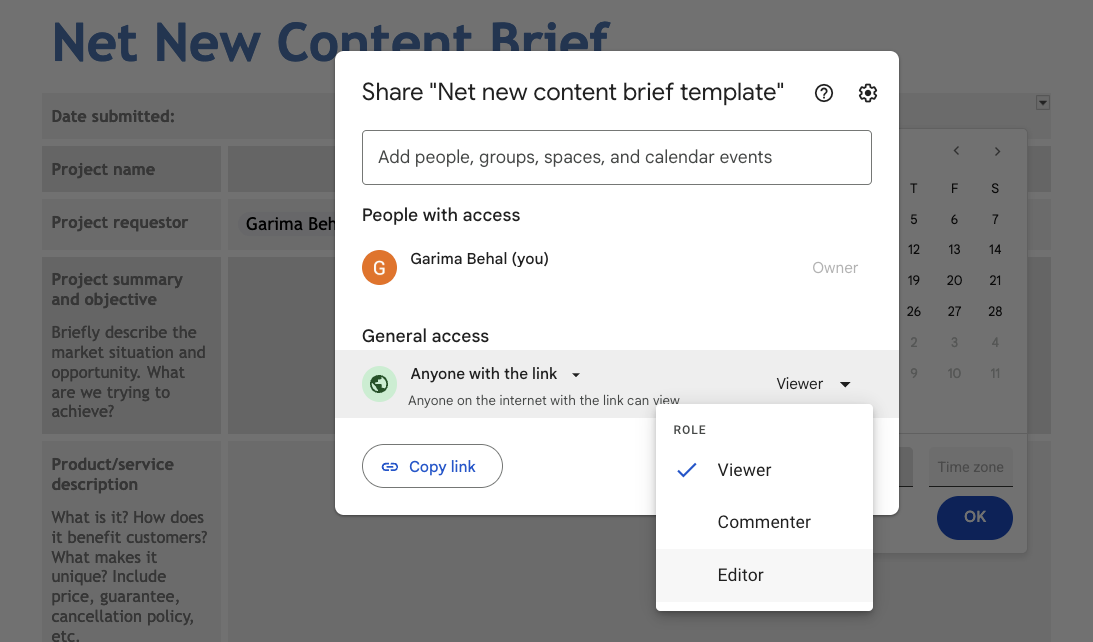
💡 Pro Tip: Set permissions at the folder level whenever possible, as it’s much more efficient than sharing files one by one. And be very careful with the “Anyone with the link can edit” setting. It’s convenient, but incredibly risky for any content that requires a formal approval gate.
The manual work of a Google Drive workflow is a drag. Constantly pinging reviewers in Slack, moving files from the “Drafts” folder to the “In Review” folder, and updating the status spreadsheet is tedious and error-prone.
But you don’t have to struggle alone. You have third-party automation tools as your little helpers to make the process as smooth as possible.
These tools can reduce some of the manual work, but they also add another layer of complexity to your setup. Beware that automations built on folder structures are fragile; if someone renames or moves a folder, the whole automation can break.
🧠 Fun Fact: Google Docs has over 1 billion monthly active users, and the broader Google Workspace ecosystem serves more than 3 billion users worldwide. This scale explains why many marketing teams start their content workflows in shared Google Docs and Drive folders before publishing elsewhere.
Choosing the wrong tool can mean you either have a system that’s too simple to solve your problems or one that’s too complex for your team to adopt.
Each automation tool serves different needs and skill levels. Here’s a quick breakdown to help you choose the right one for your team. 🛠️
| Tool | Best for | Technical skill needed | Cost |
| Zapier | Simple, linear automations | Low | Paid (free tier is limited) |
| Make | Complex, branching workflows | Medium | Paid (free tier available) |
| n8n | Self-hosted control and customization | High | Free (if self-hosted) |
| Apps Script | Custom triggers native to Google | Medium-High | Free |
Even with these tools, remember that your workflow is still file-centric. You’re automating actions around your files, not managing the work itself in a structured way.
🧠 Fun Fact: According to HubSpot’s 2026 State of Marketing Report, 80% of marketers are using AI for content creation, while 75% use it for media production.
Your Google Drive workflow might have worked in the beginning. But as the team grows, the cracks start to show, and the process itself starts demanding more attention than the content you’re trying to produce. This is the natural ceiling of the DIY approach.
Google Drive is a fantastic tool for file storage and workplace collaboration, but it was never designed for content operations.
You’ve hit the limits of what a file storage system can do, and you need a platform built for managing work.
Now that relying on Google Drive to manage your content workflows is proving less than ideal, it’s time to zoom in on the next best option. You need to move from a system of disconnected files to a unified workspace where your entire content production lifecycle lives in one place. That’s where ClickUp comes in. ✨
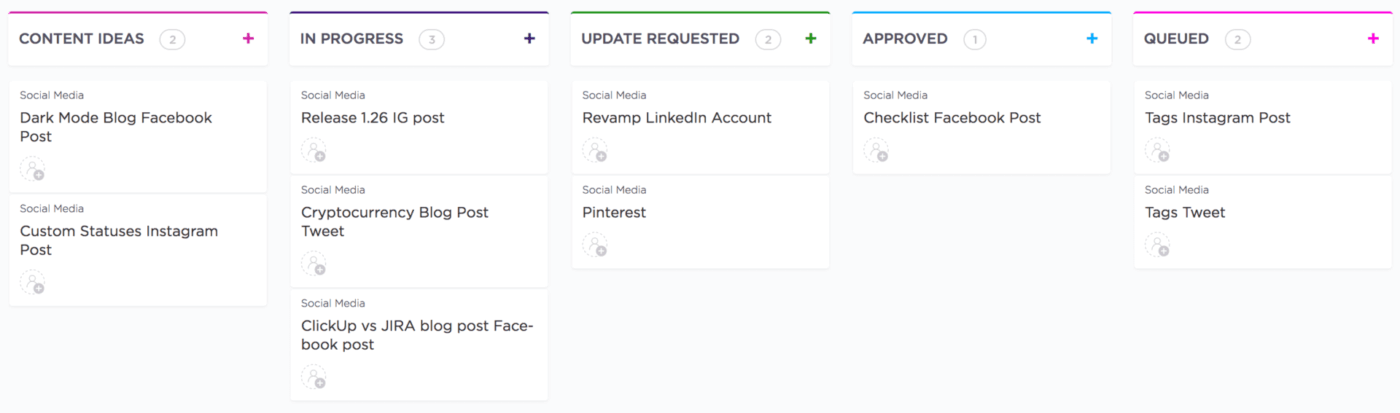
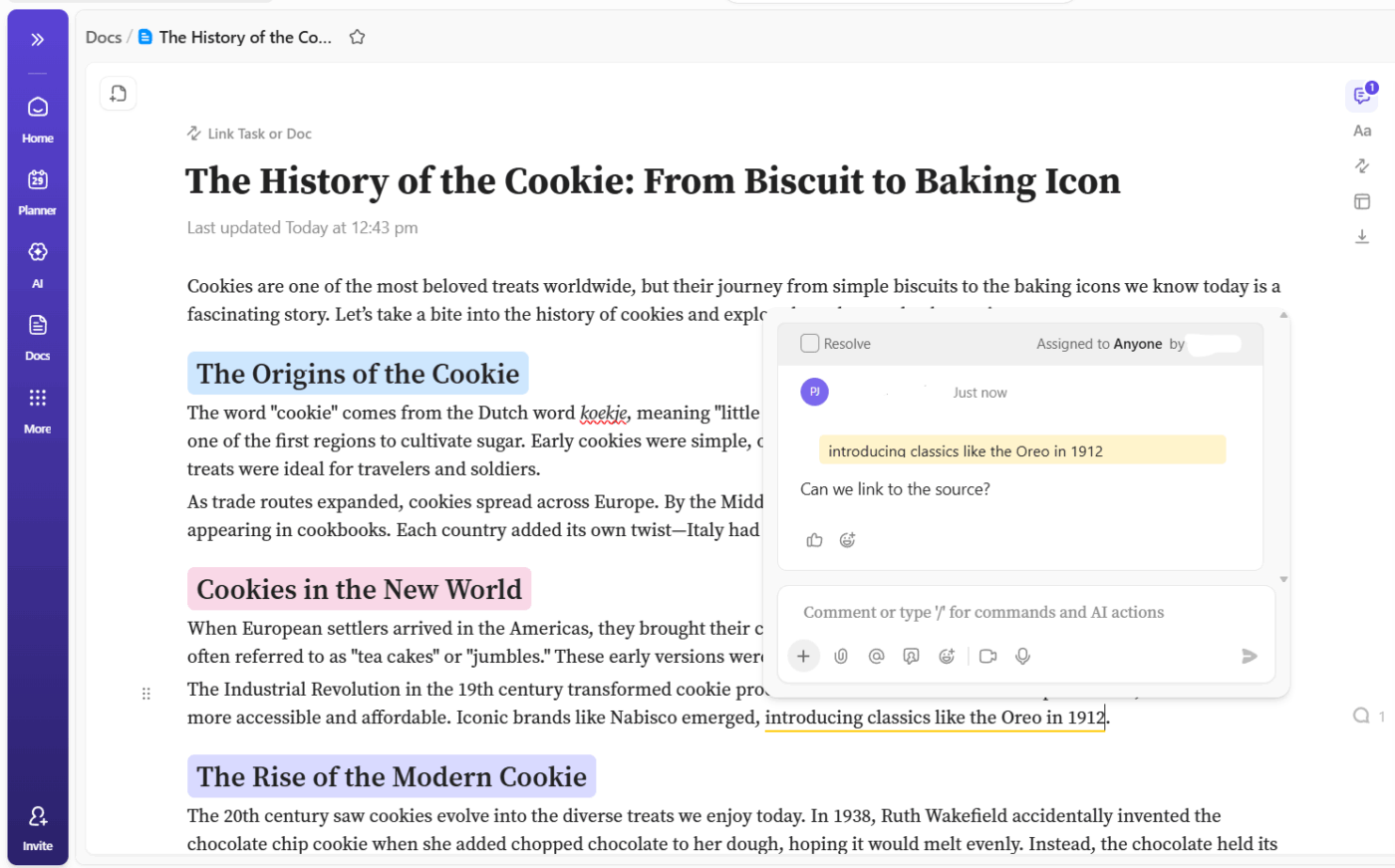
With ClickUp, bring your tasks, docs, and communication together in one place—eliminating the tool sprawl that plagues content teams.

Here’s how ClickUp directly solves the limitations of a Google Drive workflow:
A ClickUp user on G2 shares:
What’s most helpful about ClickUp is that it truly runs our entire agency. We use ClickUp all day long, for task management, Super Agents, internal team communication, content calendars, documentation, campaign tracking, and so much more. It’s not just a project management tool for us, it’s our operating system.
The Super Agents are a huge upside. Because our entire workflow lives inside ClickUp, the agents can support almost anything we need. They help us move faster, think clearer, and execute more efficiently without bouncing between tools.
Ease of implementation is another major win. It’s incredibly easy to set up and onboard both team members and clients. We build out content calendars inside ClickUp and invite even our least tech savvy clients in as guests to review and leave notes. They consistently tell us how intuitive and easy it is to use, which makes collaboration seamless.
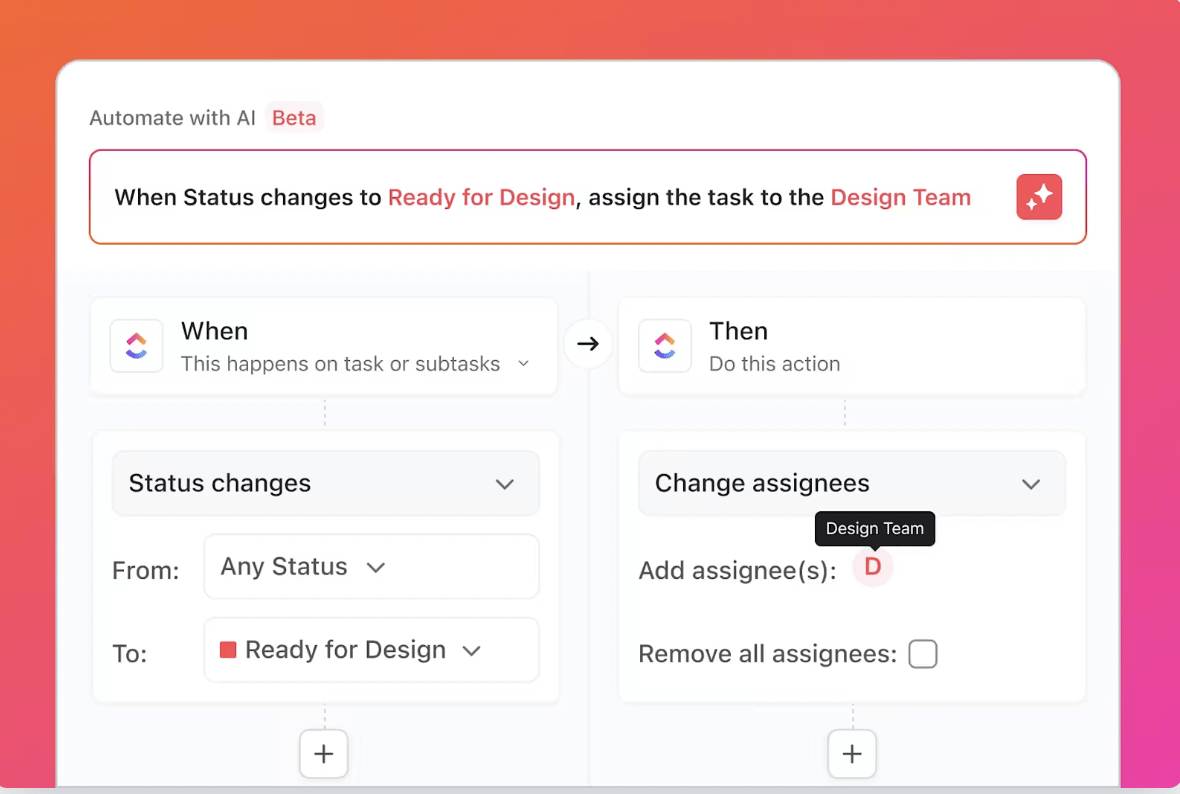
🎥 Watch how we use Super Agents to run our content workflows in ClickUp:
What’s more? You can always attach files to tasks and create new Docs or Sheets from within ClickUp using the Google Drive integration—perfect for teams that aren’t ready to leave Google Drive completely.
When you’re ready to move beyond a DIY system and build a workflow that actually works, try ClickUp for free and experience the difference a truly converged workspace can make.
A content calendar tracks what you plan to publish and when, while a content workflow defines the step-by-step process for creating, reviewing, and approving that content.
A Google Drive workflow is a manual, DIY system you build yourself, whereas a dedicated project management tool provides a purpose-built structure with features like task management and automation to streamline the process.
Most teams use a Google Sheet with a status column that must be updated manually, and approvals are typically handled through comments or separate email threads, with no formal tracking.
While Google Drive can theoretically handle the full content lifecycle, it becomes inefficient and prone to error as teams grow. This often leads to scattered information, missed deadlines, and a lack of visibility that purpose-built tools are designed to solve.

© 2026 ClickUp

There’s an easier way. Try a free AI Agent in ClickUp that actually does the work for you—set up in minutes, save hours every week.