






Still downloading templates?
There’s an easier way. Try a free AI Agent in ClickUp that actually does the work for you—set up in minutes, save hours every week.
Sorry, there were no results found for “”
Sorry, there were no results found for “”
Sorry, there were no results found for “”
Sprint plans generally look clean until the first production question lands.
Someone needs to explain a confusing error, trace business logic across multiple files, and get a fix reviewed without slowing the whole team down. That’s where AI coding assistants can help.
In a controlled Microsoft Research study, developers using GitHub Copilot finished a coding task 55.8% faster than a control group. That’s the difference AI assistants can bring to teams.
But with so many AI tools in the market, the choice usually depends on where your teams already work and what your use cases are.
In this article, we will compare Amazon Q and Microsoft Copilot using criteria like context sources, admin controls, and pricing. You’ll also see where ClickUp can be a practical alternative when you want AI help that stays connected to tasks and delivery.
If you want the quick version before you dive into features, start here. This snapshot shows where each tool fits best and what it’s designed to support.
| Comparison area | Amazon Q | Microsoft Copilot |
| Ideal for | Teams deep in the AWS ecosystem who want AI help for building and operating software on AWS | Microsoft Copilot is strongest in Microsoft 365 apps for “work around code” like recaps, release comms, and status updates; IDE-native coding typically comes from GitHub Copilot, which is licensed separately |
| IDE-native coding help and developer workflow support | Stronger for IDE-native coding with Amazon Q Developer inside common IDEs, plus chat and inline edits | Stronger for “work around code” inside Microsoft 365 apps (summaries, recaps, status updates). For IDE-native coding, most teams add GitHub Copilot separately |
| Company knowledge and enterprise search | Amazon Q Business works well when knowledge is spread across connected systems and you want permission-aware answers | Strongest when knowledge already lives in SharePoint, OneDrive, Teams, Outlook, and other Microsoft 365 sources |
| Workflow automation and specialized assistants | Strong when workflows are already inside AWS services, with service-specific assistance | Stronger for reusable agents across teams with Copilot Agents for repeatable workflows and standardization |
| Security, identity, and data controls | Aligns with AWS governance patterns and AWS IAM-based access models | Aligns with Microsoft 365 governance and permission models (Microsoft Entra + Microsoft 365 controls) |
| Analytics and operational insights | Best fit if your BI stack is QuickSight, especially for “ask and answer” on AWS data | Best fit if teams analyze in Excel and Power BI, especially for summaries and analysis inside Microsoft workflows |
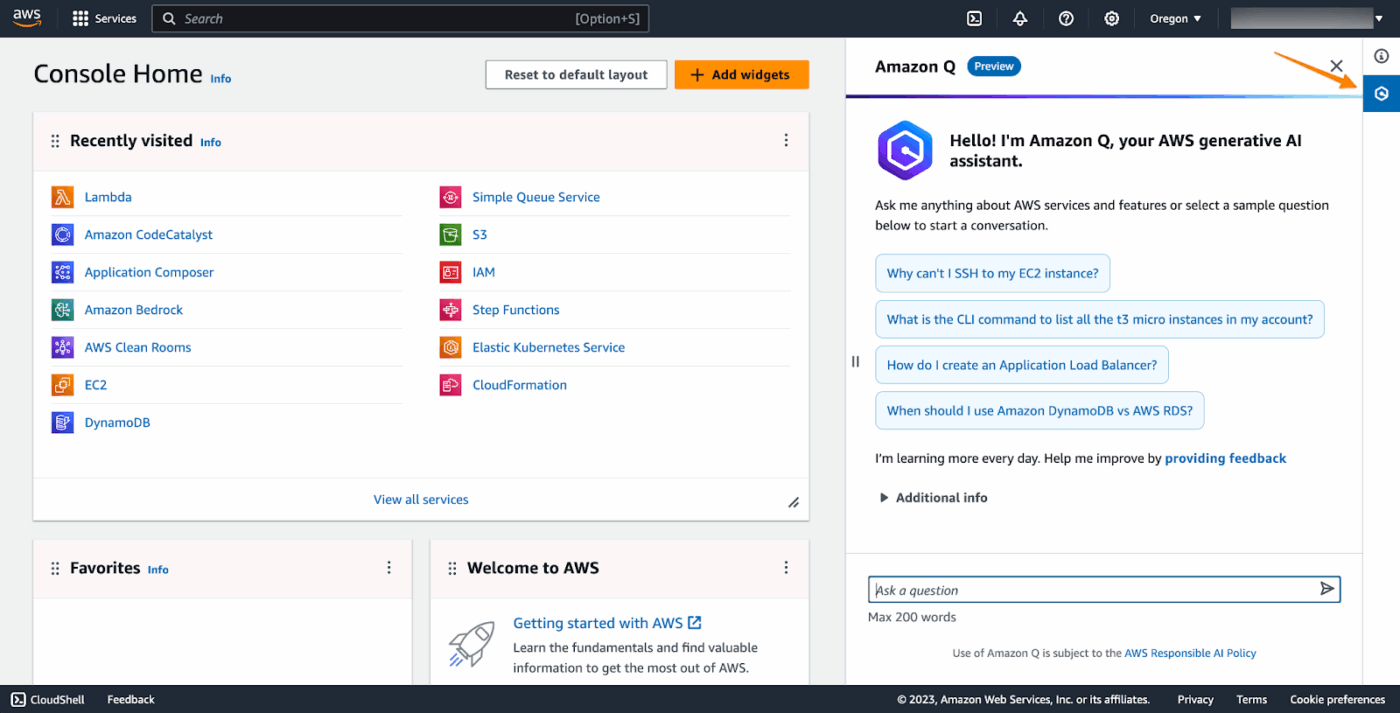
If your team builds and operates inside AWS services, Amazon Q is AWS’s AI assistant for secure support across cloud work, developer tasks, and business workflows.
You can ask questions in plain language, get help with AWS-related development tasks, and pull answers from the same AWS environments your workloads already depend on. The goal is to reduce context switching, especially when the best answer depends on AWS service integration and your AWS setup.
Amazon Q is typically used in two ways:
That split matters for enterprise rollout because it affects governance, permissions, and who uses it most.
For access control, many organizations connect it through AWS IAM and IAM Identity Center. If you just want to try it quickly, AWS Builder ID can help you sign in without setting up a full enterprise AWS account path, though it won’t mirror the same admin controls you’d use in production.
📖 Also Read: How to Become a Better Programmer
Amazon Q’s feature set depends on how you use it. Amazon Q Business focuses on company knowledge and workflows, while Amazon Q Developer focuses on coding and AWS-related development tasks inside your development environments.
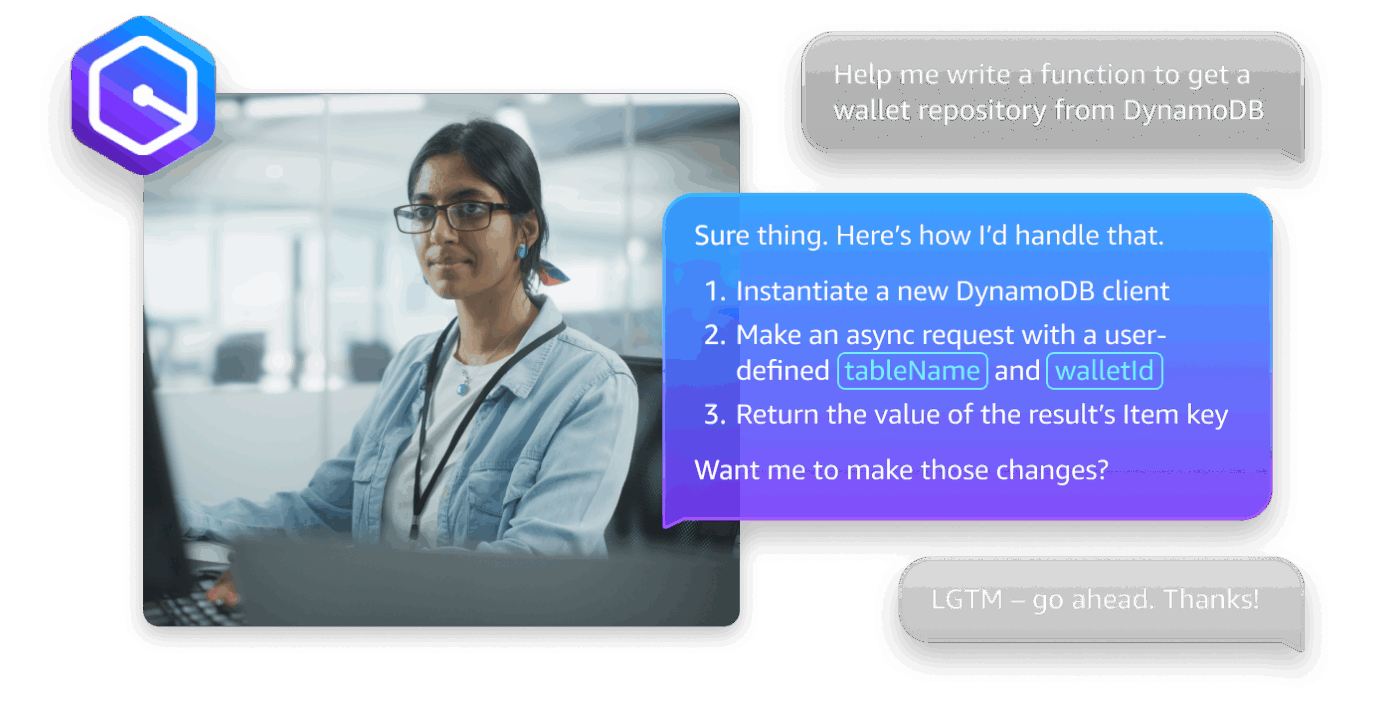
Amazon Q Developer is what most developers interact with day to day. It works inside common development environments like Visual Studio Code, Visual Studio, and JetBrains IDEs, so you can stay in the editor while you work.
You can use a chat interface for questions or an inline chat directly in the editor. Highlight code, give an instruction, and then review the result as a diff so you can accept or reject changes. You’ll also see code suggestions as you type. These can be small edits, and they can also support generating entire functions when the context is clear.
It supports multiple programming languages, which matters if your team ships across multiple stacks.
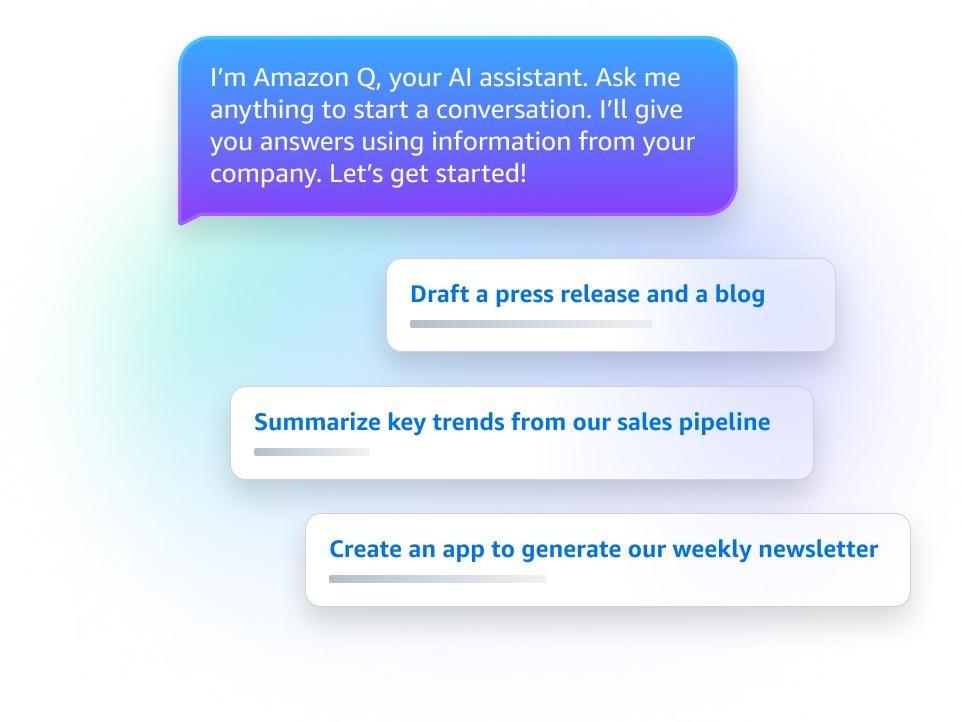
If you’ve ever watched an engineer lose 30 minutes hunting for a runbook or the “current” version of a doc, Amazon Q Business is built for that exact problem.
You connect it to the systems your teams already use, and then they can ask natural-language queries and receive answers from approved sources. This tool is meant to cut down the back-and-forth in chat and the tab-hopping that slows down your development process.
The enterprise-friendly part is access. Amazon Q Business is designed to return permission-aware, context-aware responses, which help users to only see what their identity allows them to see.
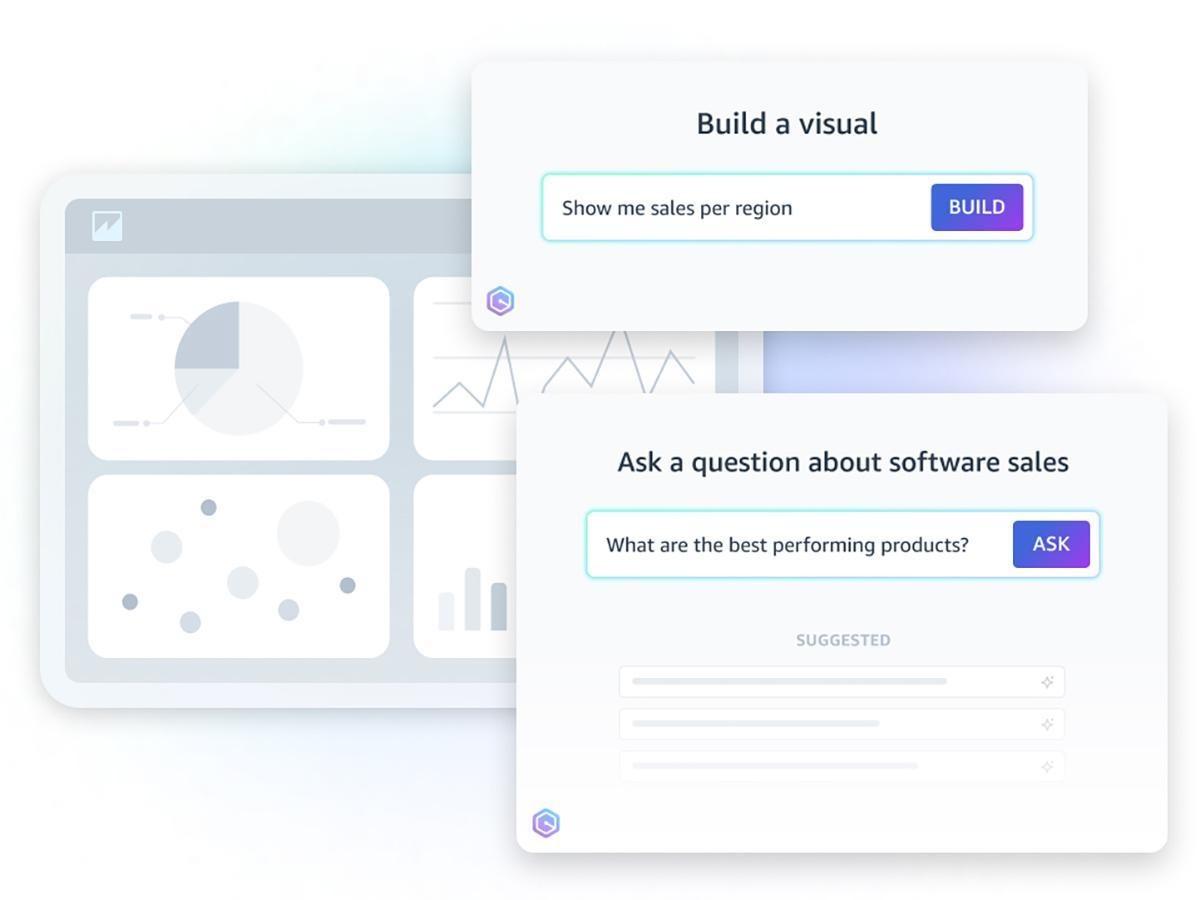
If your BI team spends more time building dashboards than answering questions, Amazon Q in QuickSight can take some of that load off. You ask questions about what you want to understand, and it helps turn that into visuals and explanations you can share with stakeholders.
This aspect is useful when a developer or ops lead needs a quick read on what changed. Instead of waiting for a custom report, you can explore the data, pull key takeaways, and generate a simple narrative that supports decision-making.
Under the hood, it’s powered by Amazon Bedrock, which is also why AWS positions it for enterprise-grade workloads where governance matters.
📮ClickUp Insight: 92% of knowledge workers risk losing important decisions scattered across chat, email, and spreadsheets. Without a unified system to capture and track decisions, digital noise can obscure critical business insights.
With ClickUp’s Task Management capabilities, you never have to worry about this. Create tasks from chat, task comments, docs, and emails with a single click.
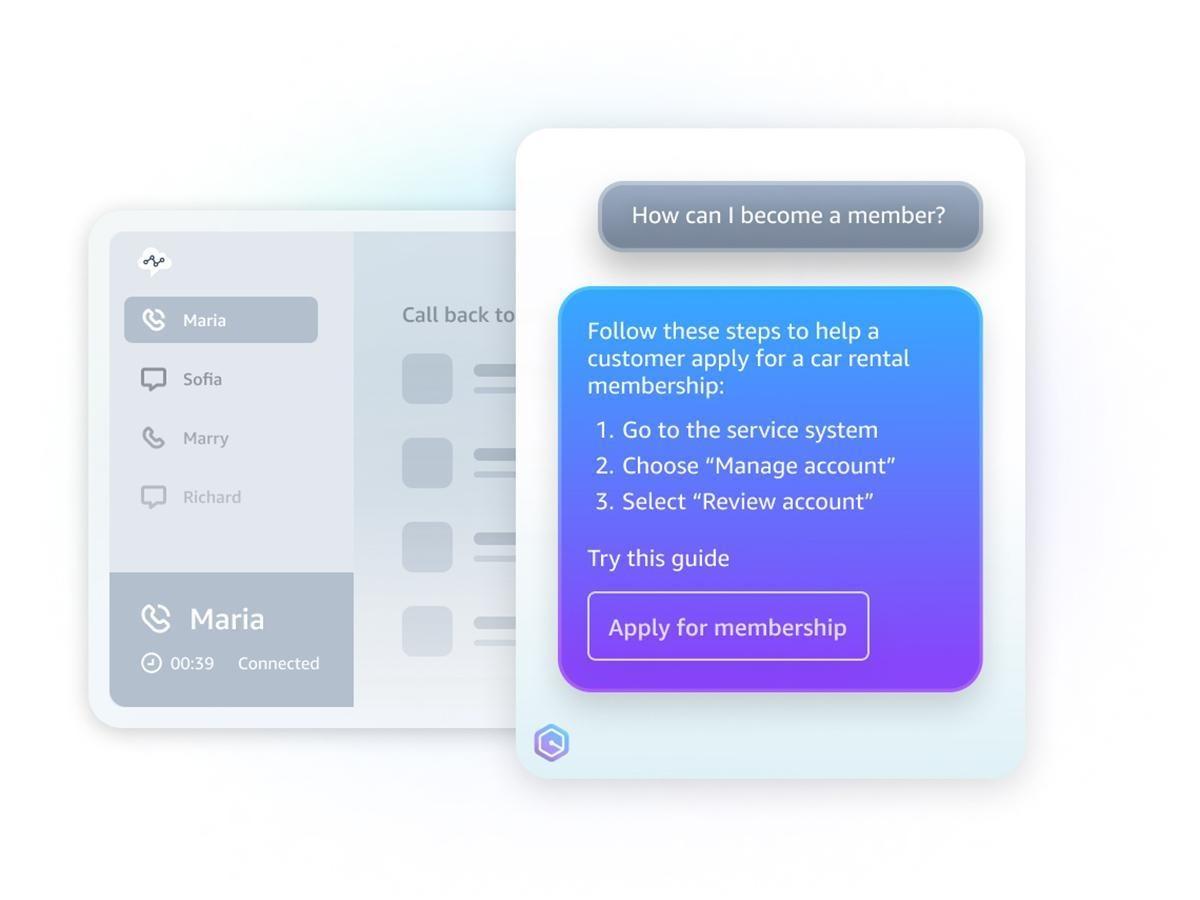
If your ops teams support customers through Amazon Connect, Amazon Q in Connect is the version that matters. It listens to what’s happening on a call, chat, or email, then recommends the next step for the agent. That could be a suggested response, a next step, or the right article to open.
This type of software is useful when your “knowledge base” is spread across internal docs and web pages. Instead of placing customers on hold while someone searches, the agent gets context in the moment.
This also makes it easier to standardize handling across shifts, because recommendations are grounded in the same approved sources.
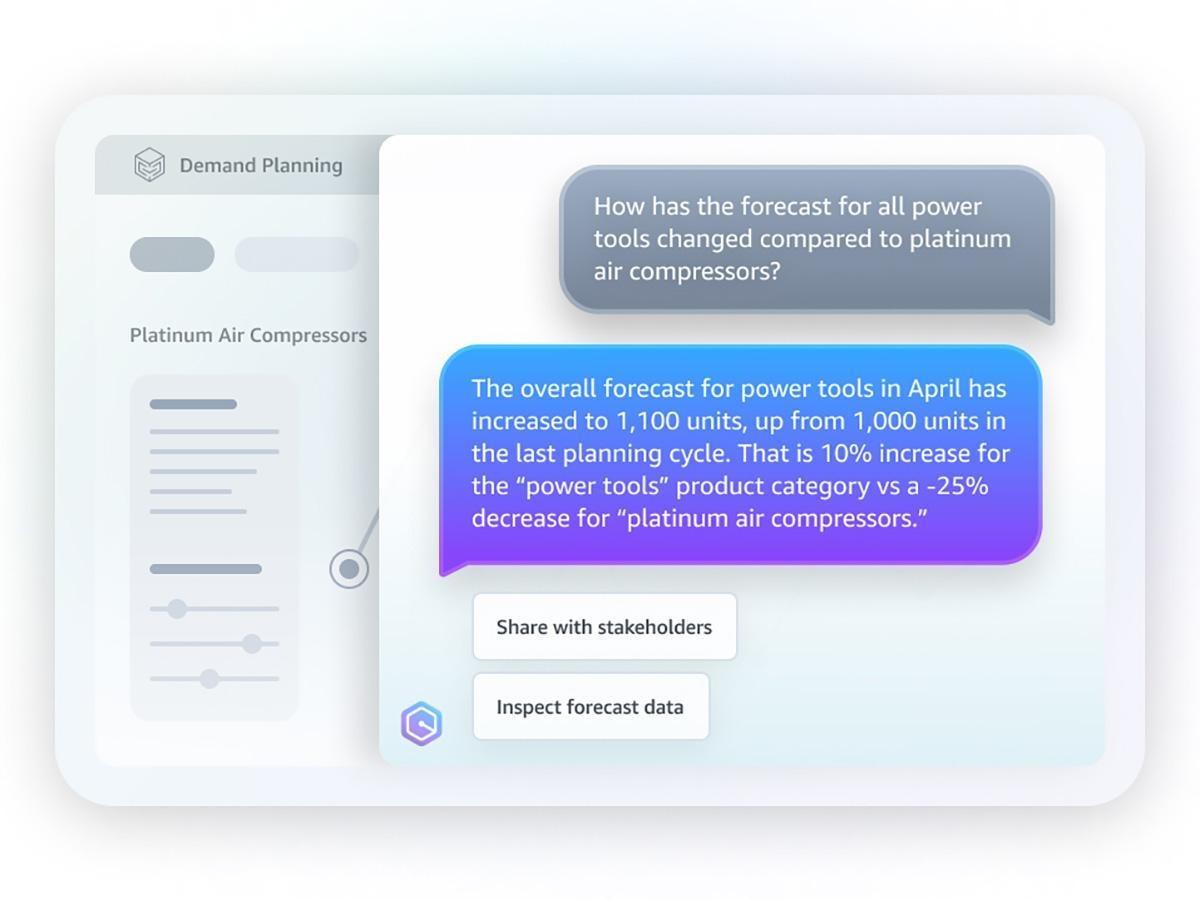
Supply chain teams don’t need another dashboard. They need quick answers when something shifts, like a delayed shipment or a sudden demand spike. Amazon Q in AWS Supply Chain is designed for those moments, so teams can ask natural language queries and get context-aware responses based on their supply chain data.
In practice, it helps you move from “what happened?” to “what should we do next?” faster. That is relevant for enterprise-grade workloads where decisions have downstream costs.
The tool can also reduce manual back-and-forth between operations, procurement, and leadership, as everyone works with the same data and recommended actions.
🤔 Did You Know: Amazon Q Business can enforce permission-based answers all the way down to the connected source? In AWS docs, Amazon notes that retrieving relevant content via Amazon Q can “maintain security and access controls,” so users only see what they’re permitted to access.
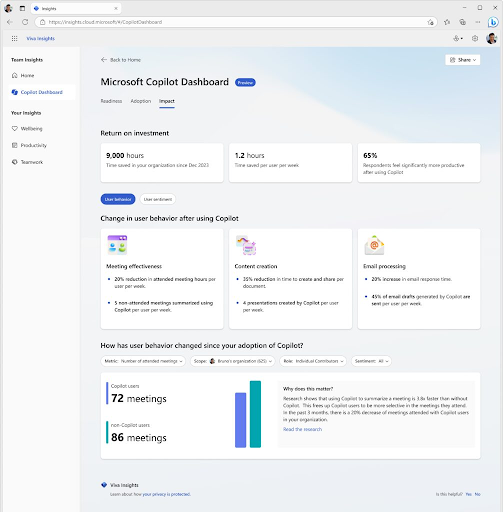
Microsoft Copilot is Microsoft’s umbrella brand for AI assistants across its products and services. In practice, enterprise teams usually encounter it first through Copilot Chat, then expand into Microsoft 365 Copilot when they want the assistant to work inside Microsoft 365 apps using organizational context.
For enterprise IT, this distinction matters. Copilot Chat can be a low-friction starting point. But Microsoft 365 Copilot is where you get deeper workflow integration inside Word, Excel, PowerPoint, Outlook, and Teams. It also changes your governance conversations because it can reach work data and connected systems through approved paths.
Note: For IDE-based coding help, most teams evaluate GitHub Copilot, which is licensed under GitHub’s plans and sits outside Microsoft 365 Copilot pricing.
Microsoft 365 Copilot brings core experiences like chat, search, agents, and notebooks to one entry point. For software teams, the real question is where it helps inside the development workflow and where you still rely on GitHub Copilot for coding tasks.
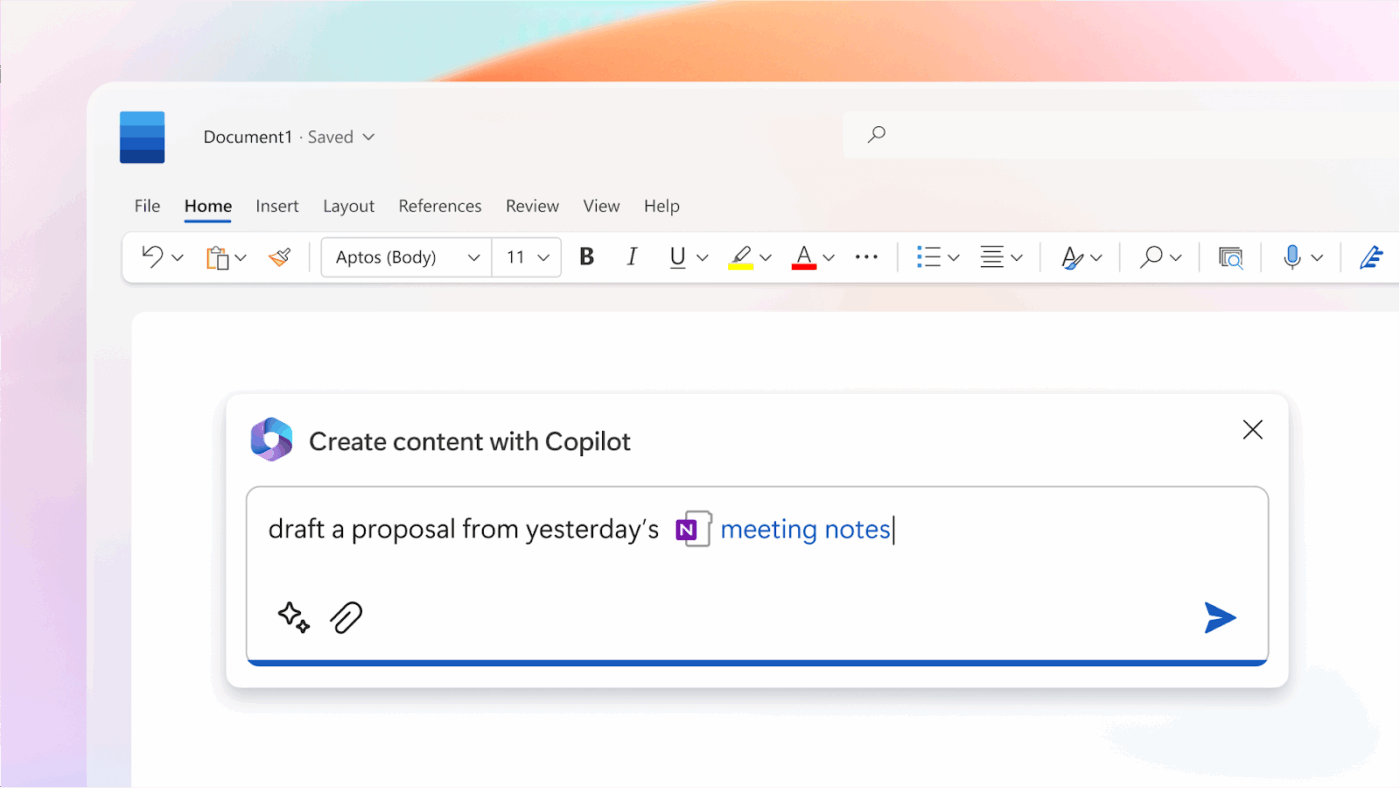
This is the “in the flow” experience. Copilot can work directly inside apps like Teams, Outlook, Word, Excel, PowerPoint, and OneNote, using the content you have open and the work context you already operate in.
Developers and operations teams typically utilize this type of functionality for coordination tasks, not just for writing. Examples of this include incident recaps from Teams threads, change summaries for stakeholders, and status updates that align with what actually happened in the sprint.
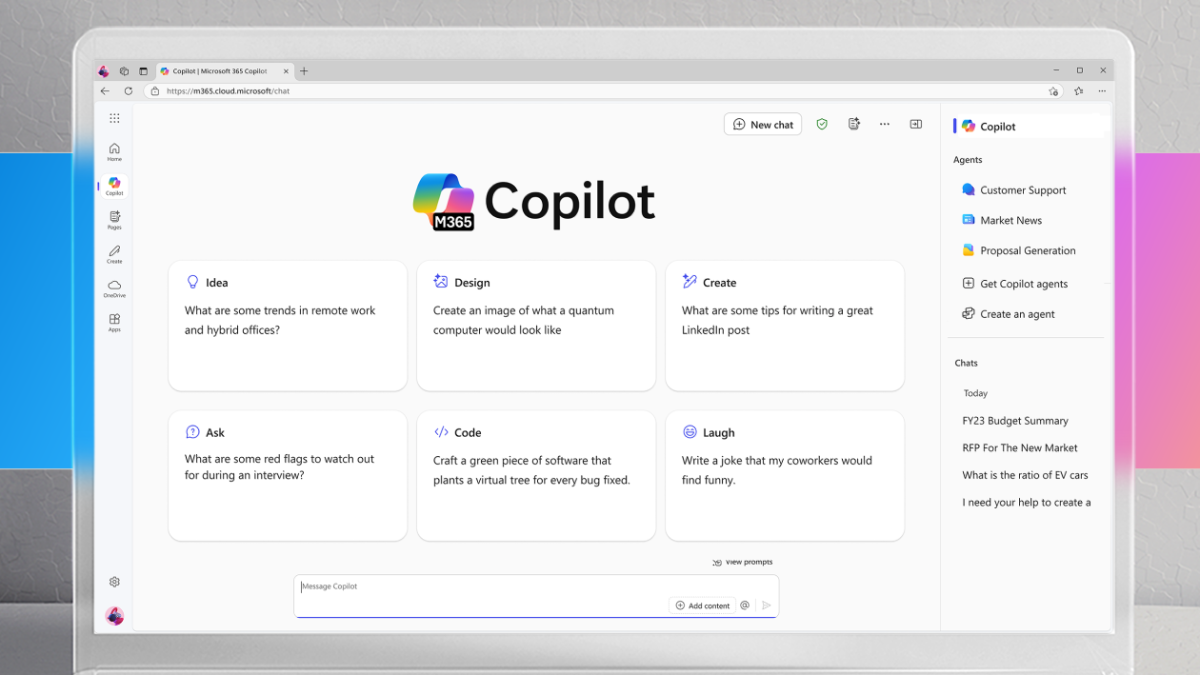
Copilot Chat is often the first thing teams adopt because it feels familiar and it’s easy to access. Microsoft positions it as a secure AI chat for work and notes it can be included for Microsoft Entra account users with an eligible Microsoft 365 subscription.
One important evaluation detail is grounding. By default, Copilot Chat is grounded in the web, not in your organization’s files or chats.
If teams want to use organizational content, Microsoft outlines options such as using it within select Microsoft 365 apps with open content or using agents that have access to work data.
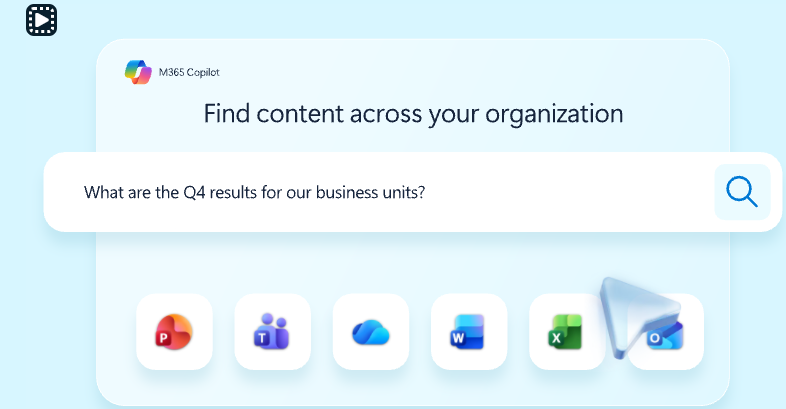
Microsoft’s Copilot Search provides a universal search experience across Microsoft 365 and third-party sources via configured connectors. This becomes more useful when your knowledge is spread across SharePoint, Teams, Outlook, and connected systems.
This is also where Copilot connectors can make a difference. They bring external content into Microsoft Graph and the semantic index, so it’s discoverable in Microsoft 365 experiences that use search.
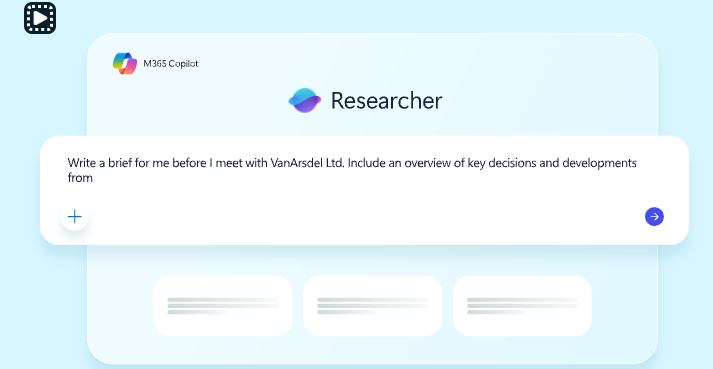
Copilot Agents are meant for work that’s too specific for a general chat prompt. Instead of asking the same questions over and over, you set up an agent to handle a recurring workflow, like answering HR policy questions, guiding IT support steps, or helping sales teams prep account briefs.
You can build custom agents with Copilot Studio, publish them into Microsoft 365 Copilot, and ground them in approved data sources.
From an admin perspective, pricing and enablement can affect rollout. Microsoft notes that an Azure subscription is required to use agents, and Copilot Studio capacity packs may apply.
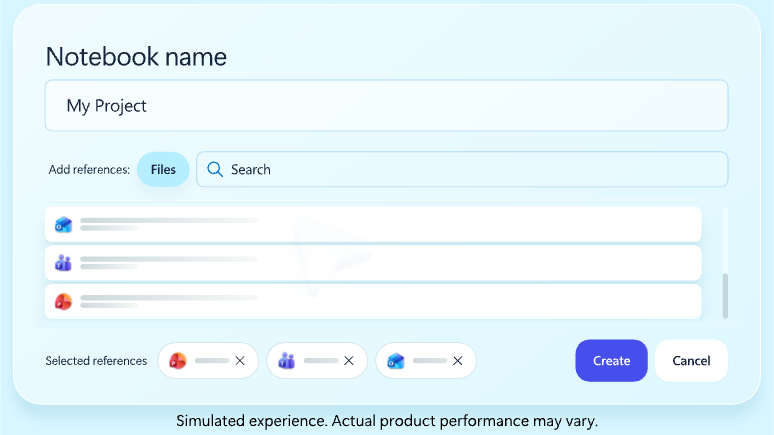
Copilot is easy to use at the moment. The harder part is finding the output from AI for later use or turning it into something your team can reuse. Notebooks are Microsoft’s way of keeping Copilot work in one place, so your chats, notes, and supporting files stay connected.
For software teams, this feature is useful when you want a stable place for things like rollout notes or an internal runbook draft that keeps getting refined.
🤔 Did You Know: Microsoft’s Copilot retrieval layer is built to honor your org’s existing access and governance controls? Microsoft explains that Copilot retrieval works within your organization’s permissions model so users can only access content they’re already allowed to see—which is relevant for enterprise IT teams evaluating “secure AI assistance” rather than just “smart AI answers.”
You’ve seen what each tool focuses on. Amazon Q is built on AWS and AWS users, while Microsoft Copilot is built on Microsoft 365 workflows. Now you’ll compare the M365 Copilot vs. the Amazon Q feature by feature to see the key differences.
If your teams build on AWS cloud infrastructure, Amazon Q Developer is designed to stay close to AWS-related development tasks. It runs inside common development environments and supports both a chat interface and inline chat. Inline chat is especially useful for reviewable edits because it shows changes as a diff that you can accept or reject.
For teams that want to test quickly, Q Developer also supports signing in with an AWS Builder ID for free, without needing an AWS account.
On the AWS side, it also integrates with the broader AWS ecosystem through tools and docs, so engineers can keep context in one place while writing code or troubleshooting.
Microsoft Copilot is designed to work within Microsoft 365 apps such as Word, Excel, PowerPoint, Outlook, and Teams. It helps with drafting, summarizing, analyzing, and communicating work, but it is not positioned as an IDE-native coding assistant like Amazon Q Developer.
For developer teams, this usually means Microsoft Copilot supports the “workaround code,” such as summarizing a long Teams thread about an incident, cleaning up release notes, or drafting stakeholder updates. The actual in-editor code suggestions still come from a separate tool.
🏆 Winner: Amazon Q Developer. If the requirement is true, IDE-native coding help, Amazon Q Developer is the more direct fit.
Quick note for readers who want a Microsoft IDE assistant: Microsoft’s IDE-focused coding assistant is GitHub Copilot, and it is licensed separately from Microsoft 365 Copilot.
📖 Also Read: Best Code Editors for Developers
Amazon Q Business is built for permission-aware enterprise search across connected knowledge sources. The key point for sensitive data is that access controls from source systems still apply, so answers respect what a user is allowed to see.
If you’re rolling this out across many AWS users, that “permission-aware by default” model reduces pressure to build a separate AI-only knowledge base just to make the assistant useful.
Microsoft Copilot is strongest when your internal knowledge is already concentrated in SharePoint, OneDrive, Teams, Outlook, and the rest of the Microsoft ecosystem. Copilot also works within your existing permissions model, so users only see content they already have access to.
For many orgs, Copilot Chat becomes the front door because it gives a familiar “ask and follow up” thread that stays connected to the Microsoft 365 context.
🏆 Winner: Tie. Depends on where your knowledge already lives:
If your organization already runs knowledge work inside Microsoft 365, Microsoft Copilot is usually faster to adopt.
If your knowledge system is AWS-centric or spread across tools, you plan to connect to Q, Amazon Q Business is the cleaner fit.
Amazon Q’s “specialist” value shows up when the work is already inside AWS services. In the IDE, Q Developer supports development workflows such as code generation and refactoring, and presents changes as diffs, which helps with review and control.
For teams building on AWS infrastructure, this style of assistant can feel natural because it stays close to AWS environments and AWS service integration questions.
Microsoft’s approach leans into repeatable assistants via agents, so teams can standardize business logic and reduce prompt engineering sprawl. On the practical side, Microsoft notes that agents can involve Azure metering and may require an Azure subscription depending on what you build, which matters for enterprise rollout planning.
Microsoft is also pushing “multiple foundation models” options in parts of its Copilot experience, which can be helpful when different tasks need different strengths.
🏆 Winner: Microsoft 365 Copilot. Copilot Agents make it easier to standardize workflows across teams. But if your automation needs are tightly tied to AWS services, Amazon Q can still have distinct advantages.
Amazon Q is built around AWS identity and access patterns. For Amazon Q Business, AWS documents that IAM is used to control authentication and authorization for Amazon Q resources, which maps cleanly to how many teams already govern AWS environments.
If you’re concerned about what gets shared from IDE usage, AWS also provides opt-out controls for data sharing in IDE and command-line environments, and it documents how opting out works for service improvement.
Microsoft positions Copilot as working within your existing Microsoft 365 permissions model, so users only see content they already have access to.
Microsoft also notes that Microsoft 365 Copilot uses Azure OpenAI services for processing, not OpenAI’s public services, and that customer content is not used to train the foundation models used by Microsoft 365 Copilot.
🏆 Winner: Tie (depends on your governance home base)
Choose Microsoft Copilot if your governance and access model already runs through Microsoft 365 and Microsoft Entra.
Choose Amazon Q if your identity and controls are centered on AWS environments and AWS IAM.
If your reporting already runs through AWS analytics tooling, Amazon Q in QuickSight is designed for “ask and answer” workflows. AWS documents that QuickSight chat supports generative BI authoring, executive summaries, Q&A on your data, and data stories.
AWS also notes this experience is powered by Amazon Bedrock, which is relevant if your org cares about model governance and enterprise features around AI services.
On the Microsoft side, Copilot in Excel is positioned for day-to-day analysis work and can help create and understand formulas, analyze data for insights, and more.
For orgs that use Power BI or Fabric, Microsoft’s documentation describes Copilot in Power BI as a standalone experience that can help people find and analyze reports and Fabric data they have access to. It also supports narrative summaries for reports.
🏆 Winner: Tie (choose based on your BI stack and where teams already work)
If teams already analyze data inside Excel and Power BI, Microsoft 365 Copilot tends to integrate more naturally into existing patterns across the Microsoft ecosystem.
If your analytics lives in AWS and QuickSight, Amazon Q is the more direct fit for operational insights without leaving the AWS ecosystem.
Redditors don’t talk about these as interchangeable tools.
The pattern is pretty consistent: Amazon Q gets judged on how well it handles AWS work in real AWS environments, while Copilot gets judged on how well it fits the Microsoft ecosystem (and how useful it is once the novelty wears off).
For Amazon Q, some users like the coding features and instant answers:
✅ “I’ve been impressed with Amazon Q Developer, it’s helped write some spot on terraform and cdk code…”
✅ “Rather than just tell you how to do things, it gives answers immediately.”
But a user also pointed out that Amazon Q lacks the ability to perform complex tasks:
🚩 “I was expecting more like a true copilot that has access to your AWS env and can assist with complex tasks. Such a tool would be great but that’s not amazon Q.”
For Copilot, Redditors highlighted the following benefits:
✅ “It’s worth it as a general user GenAI tool that is well integrated with the Office applications.”
✅ “I almost never need to ask someone again about something I missed or forgot, I just ask Copilot.”
However, users also pointed out the following issue with Copilot:
🚩 “At least half of the time it is not following instructions…”
If you’ve ever tried to ship a fix during an incident, you already know the real bottleneck is not “getting an AI answer.” It’s work sprawl. The requirements sit in a doc, the decision lives in chat, the latest status is buried in a ticket comment, and the handoff to review happens in yet another tool.
Then AI sprawl makes it messier. One team uses Amazon Q in AWS. Another uses Copilot inside Microsoft 365. Prompts get rewritten, outputs get copied into tasks, and the rationale behind a change gets harder to trace.
ClickUp is a converged AI workspace built to reduce both. Tasks, docs, and conversations stay connected in one place, and AI sits on top of that shared context. So when AI generates an answer, it is easier to turn it into trackable work and maintain a clean trail for reviews.
📖 Also Read: Unlocking the Power of ClickUp AI for Software Teams
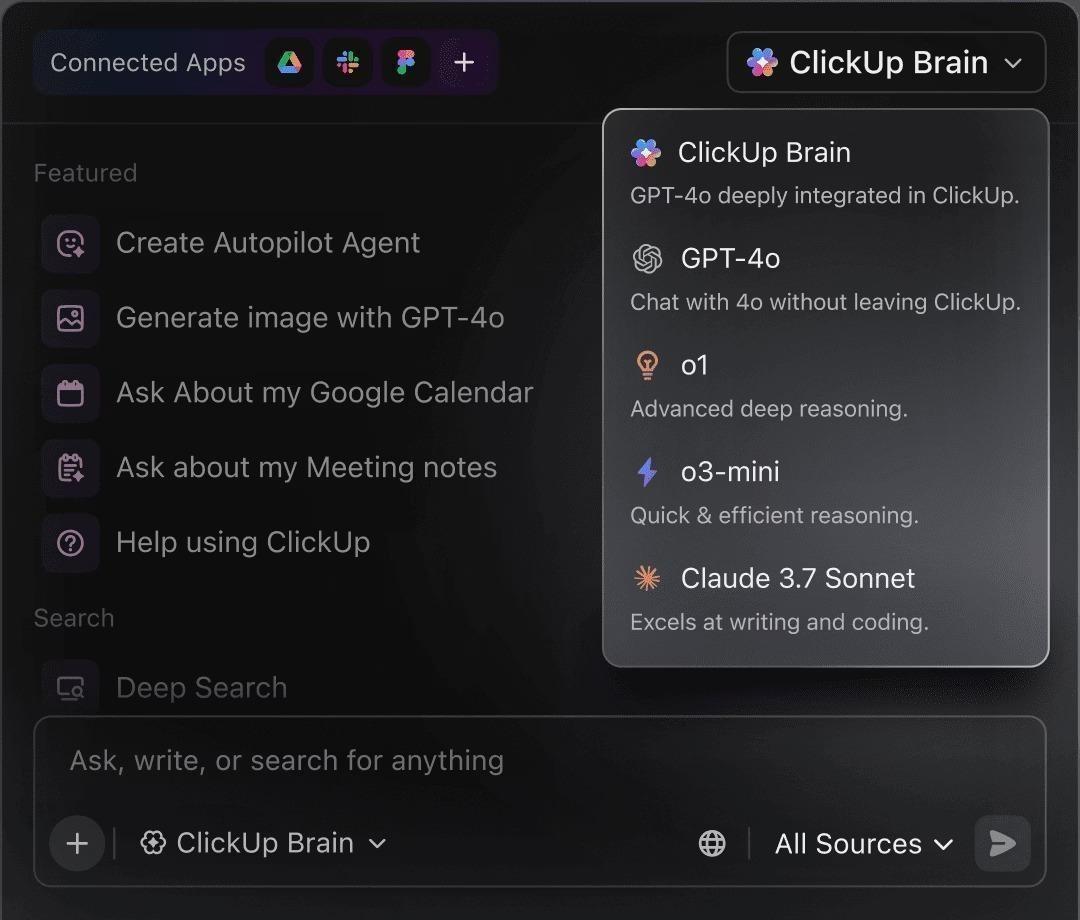
If you’re evaluating enterprise AI, the key question is simple: can the assistant respond with the right context and help teams act on it? ClickUp Brain brings AI support directly into the workspace where software teams plan, document, and execute.
Instead of searching through multiple threads and tabs, teams can ask questions against what already exists in ClickUp, then move directly into next steps. This is especially useful when you need an answer tied to real project context, like scope changes, ownership, or what is blocked.
Where ClickUp Brain helps software teams most:
💡 Pro Tip: Turn AI output into an auditable source of truth with ClickUp Docs and Docs Hub.
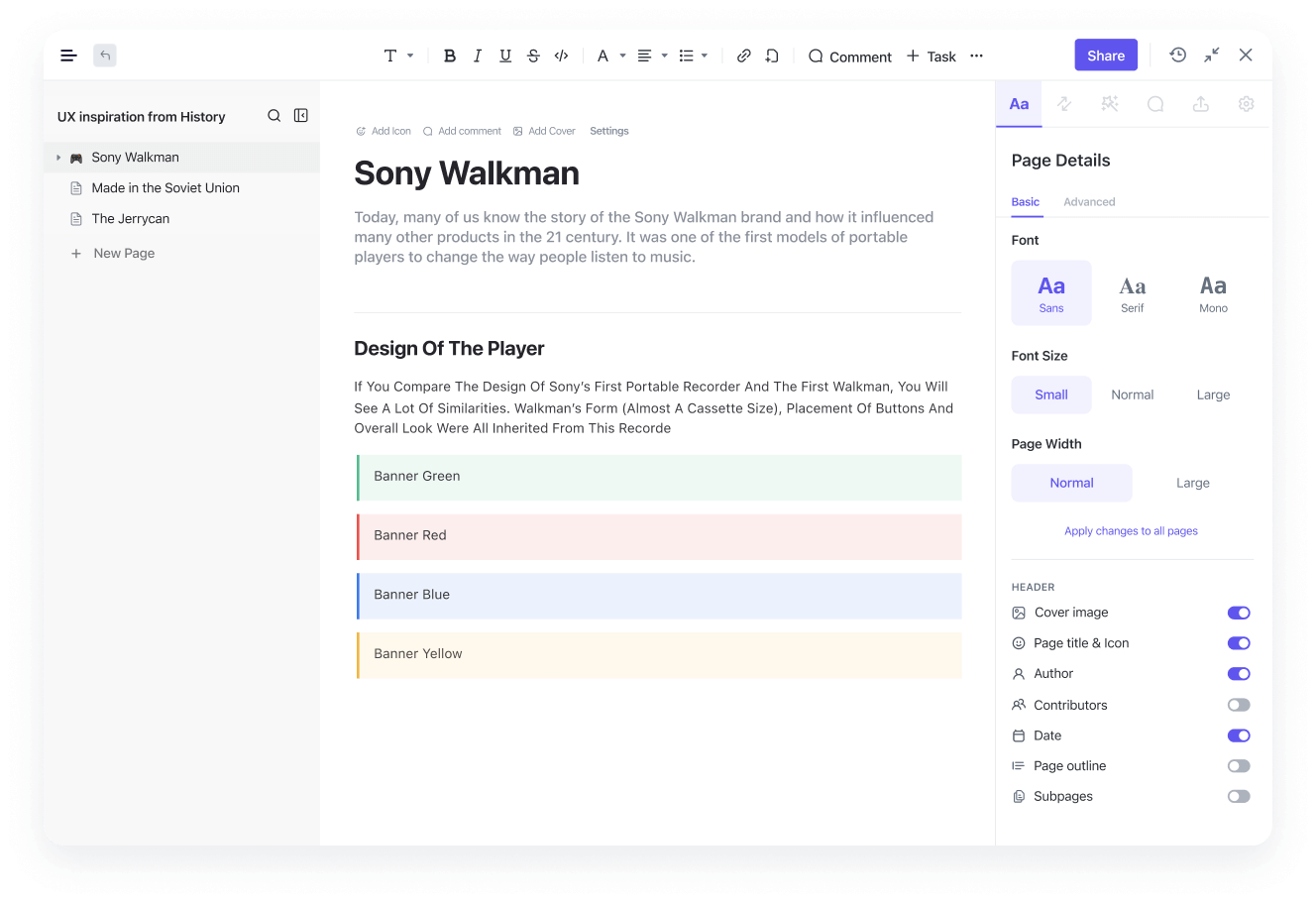
Use ClickUp Docs to capture requirements, decisions, runbooks, and AI-generated summaries in one place. Then link those Docs to the tasks they affect so reviewers can see the “why” next to the “what.”When you need to find that context later, Docs Hub makes it easier to organize and search across Docs and wikis from one centralized location. It’s a practical fix for the “we have it somewhere” problem that slows down incident response and code reviews.
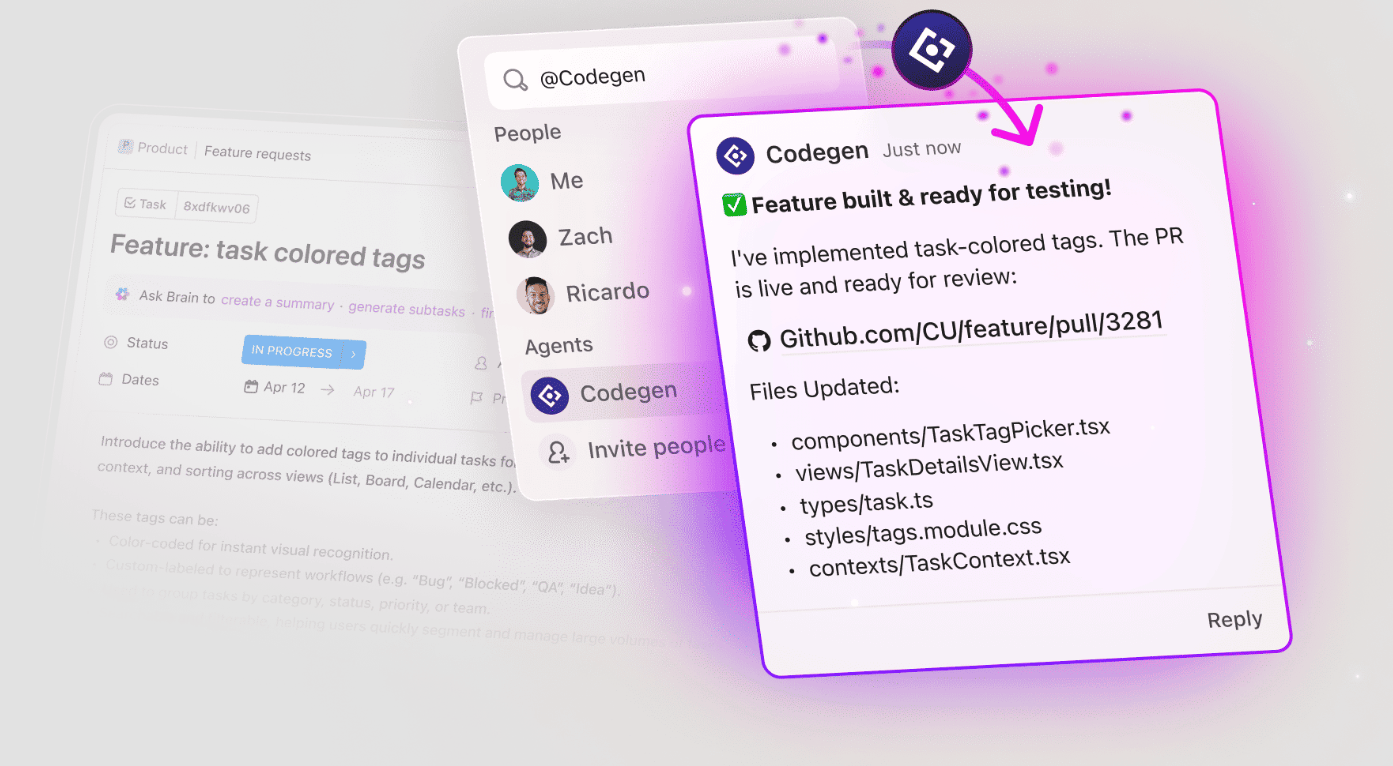
When you use Amazon Q or Copilot, you often get a good answer. The challenging part comes next. Someone still has to turn that answer into tasks, follow-ups, and clean handoffs.
ClickUp Super Agents help teams standardize follow-through inside the same workspace. You can set up agents to take action when work changes, so execution does not depend on someone remembering to copy an AI answer into the right place.
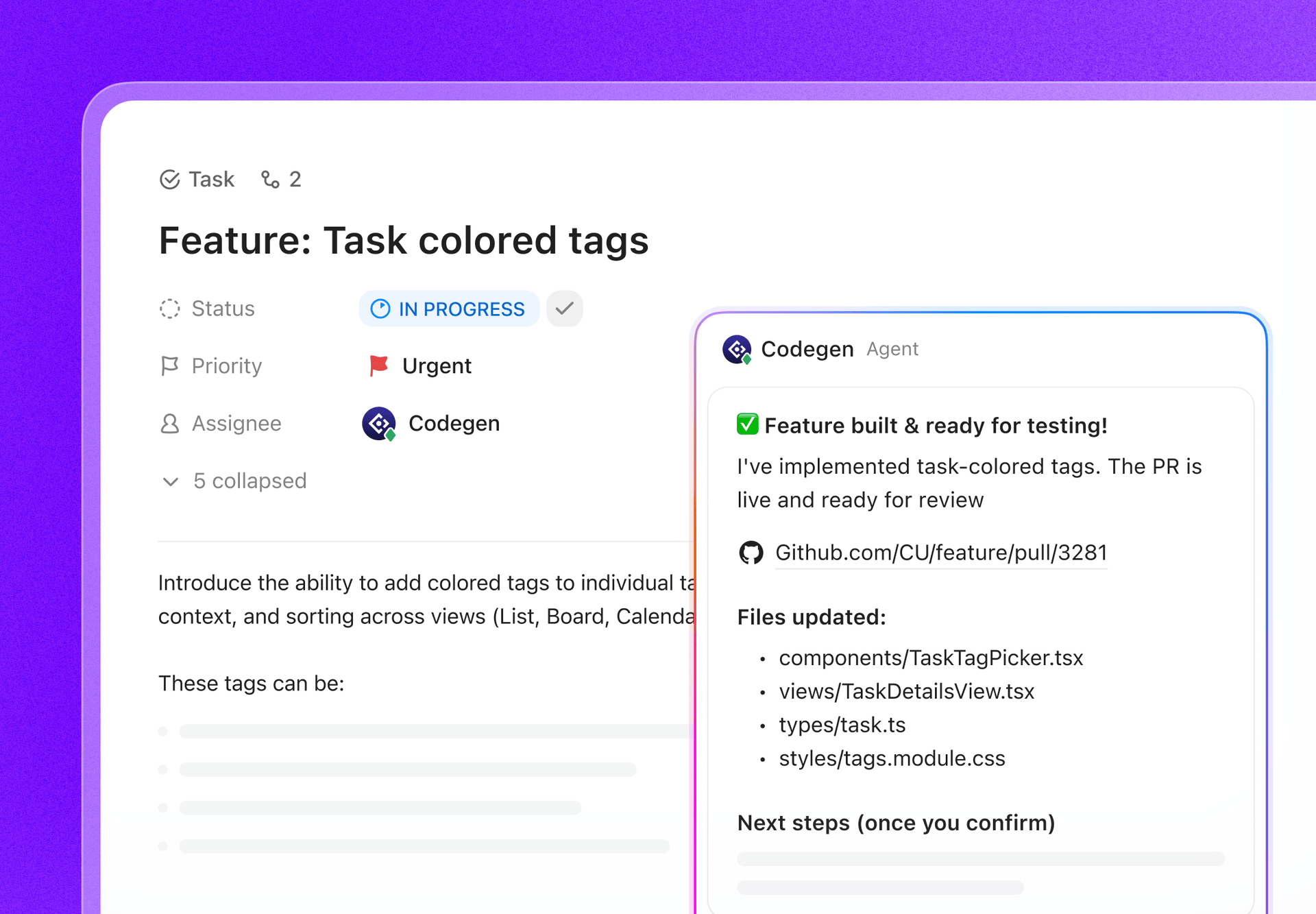
For engineering teams, the standout use case is ClickUp’s Codegen Agent. Codegen is designed to read task context and generate code aligned with acceptance criteria. With the right integrations and workflows, teams can use it to accelerate PR creation and keep execution updates connected to the task.
Where this becomes valuable in real workflows:
💡 Pro Tip: Use ClickUp Brain MAX to speed up triage and keep decisions searchable.
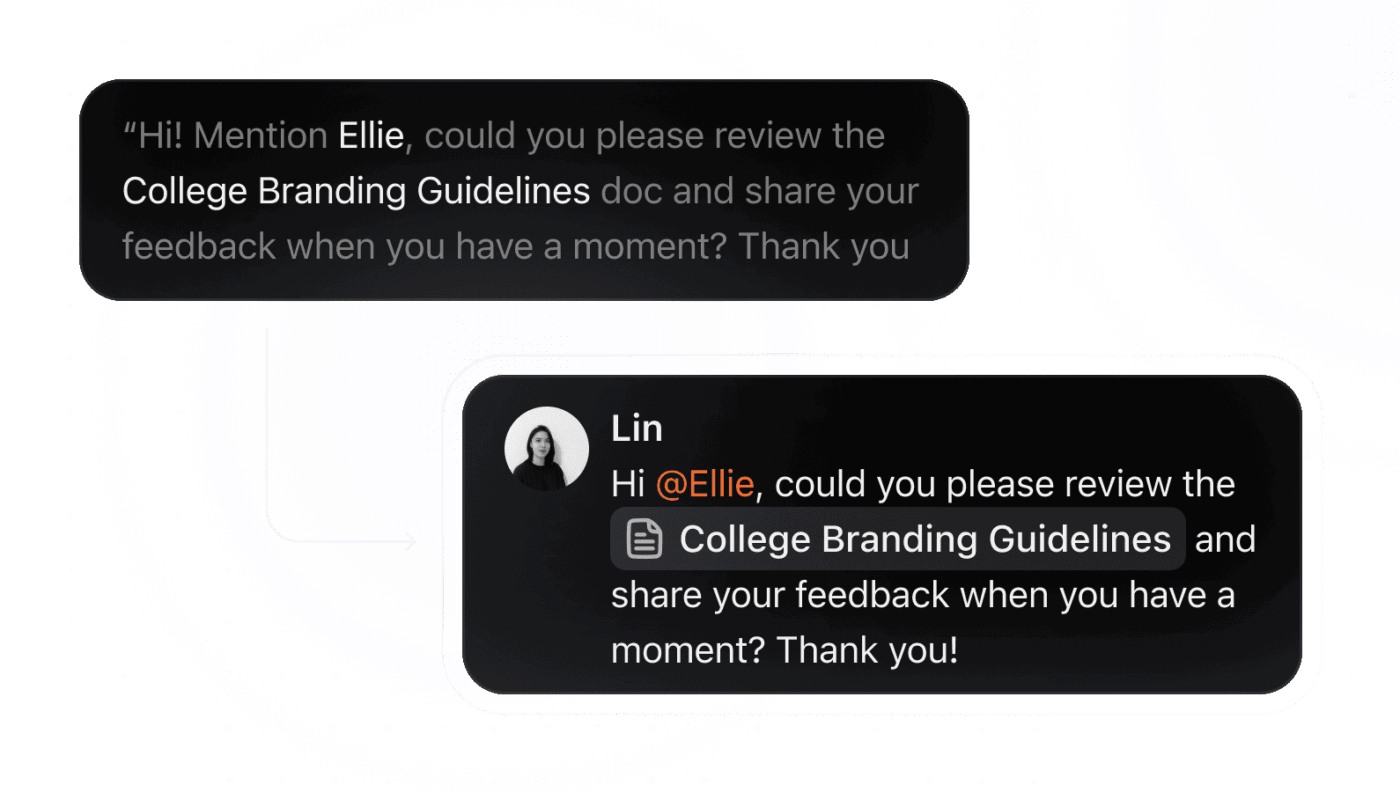
ClickUp Brain MAX gives your dev and ops teams a quick way to capture context, locate the right source, and move work forward without rewriting the same prompts across tools.
Here’s how:
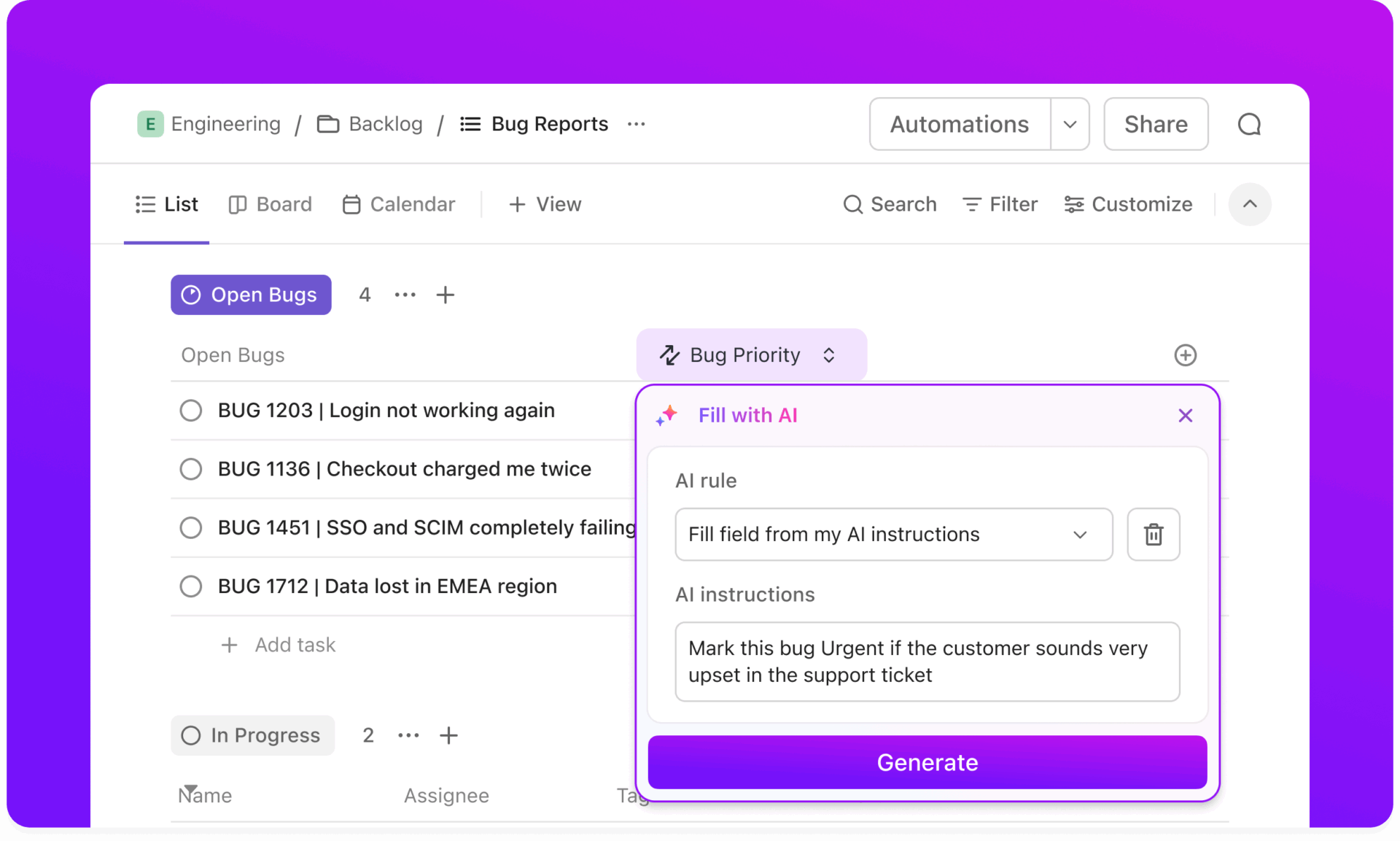
AI helps teams decide faster. ClickUp Automations help teams execute faster.
Automations are useful when your process is consistent but the follow-through is not. You can build rules that trigger when a task changes status, when fields update, or when a priority shifts. From there, ClickUp can assign owners, update statuses, add watchers, post comments, or apply templates.
Examples that map well to software delivery:
📽️ Watch: ClickUp can do much more than just automate your work. If you want to use AI in project management effectively, check this video to understand inside strategies and overlooked hacks to supercharge your workflow:
📖 Also Read: Free Software Development Plan Templates to Use
If your developers spend most of their time in AWS services, Amazon Q will feel like the better fit. It is built around AWS environments and AWS-related development tasks, so the help stays close to the work.
If your day runs inside Microsoft 365, Microsoft Copilot will feel more natural. It fits the Microsoft ecosystem and supports the way teams already write, search, and collaborate.
If your bigger problem is follow-through, focus on what happens after the answer. ClickUp can be the practical alternative when you want AI output to turn into assigned work, linked context, and repeatable workflows in one place.
Sign up for ClickUp and run your dev work, docs, and AI follow-through from one workspace.

© 2026 ClickUp

There’s an easier way. Try a free AI Agent in ClickUp that actually does the work for you—set up in minutes, save hours every week.