
Sorry, there were no results found for “”
Sorry, there were no results found for “”
Sorry, there were no results found for “”
Ever had a WhatsApp call so important you wanted to hit ‘save’ forever?
Maybe it was your boss dropping game-changing feedback, a client agreeing to your dream deal, or your grandma finally sharing that secret family recipe.
Whatever the reason, over 2 billion WhatsApp users have probably felt that same recording FOMO.
But here’s the catch: WhatsApp’s end-to-end encryption blocks native call recording features. So, how do you save those crucial calls without missing a beat?
Let’s explore the world of WhatsApp call recording with a balanced perspective on its benefits and potential challenges.
Before you hit that record button in your WhatsApp call, it’s crucial to understand the legal landscape surrounding call recording, as regulations vary widely across the globe.
The legality of recording calls often hinges on the concept of consent. ⚖️
Understanding these laws is about respecting privacy and maintaining trust. Imagine discussing sensitive business strategies over a WhatsApp call, only to find out later that the conversation was recorded without your knowledge. Such breaches can lead to legal disputes and impact professional relationships.
Ensure you do your research and stay compliant with all applicable laws and regulations.
Since WhatsApp doesn’t offer a built-in recording feature, users need to rely on third-party apps or alternative methods to capture their calls. Below are some of the most effective ways to record WhatsApp calls on Android.
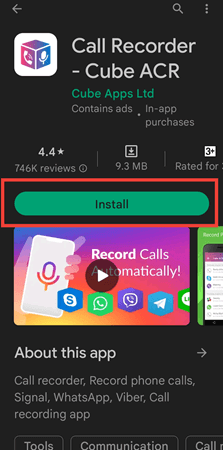
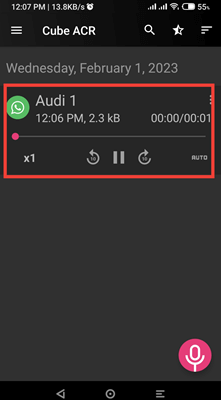
Several apps allow you to record WhatsApp calls, but Cube ACR is one of the most popular and reliable options. You can use any app that is safe, but here are the steps to record WhatsApp calls using Cube ACR
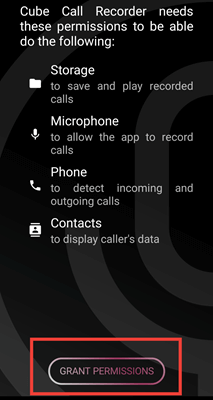
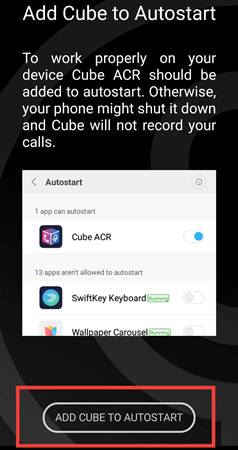
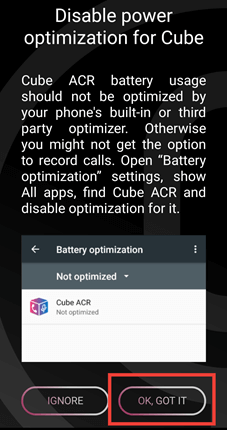
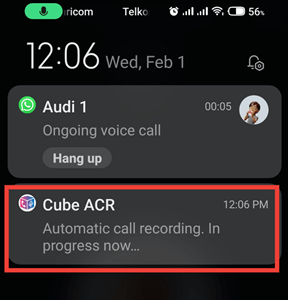
💡 Pro Tip: Looking for an easy way to record messages at work (minus third-party tools)? We’ve got just the solution for you.👇🏼
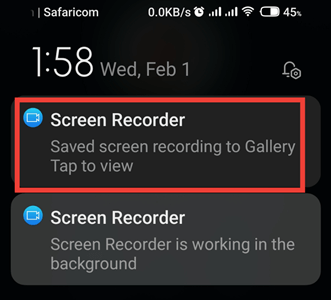
You can use the built-in screen recording feature on Android 10 or later.
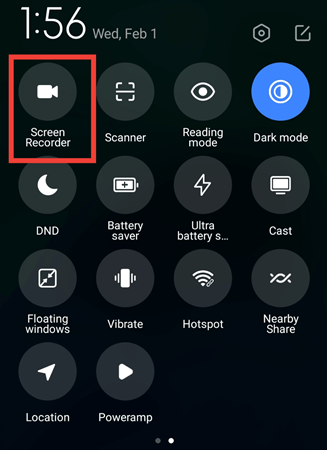
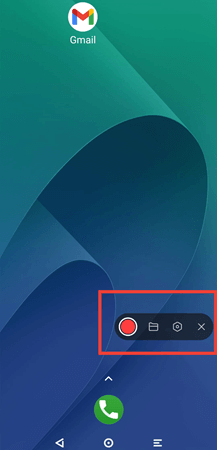
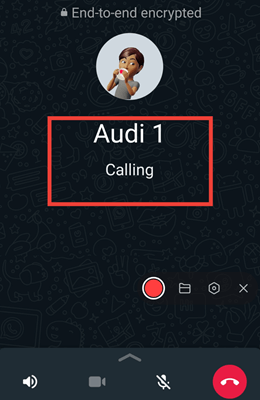
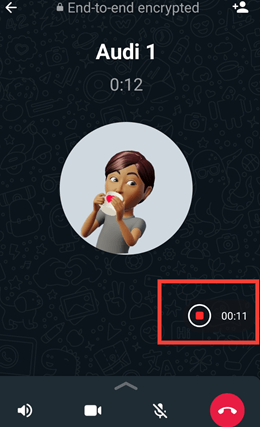
Your video (with new audio recording) gets saved in the Gallery or File Manager.
If the above methods don’t work, the simplest workaround is to use another phone or a recording device.
💡Pro Tip: Place phones on a soft surface (like a mousepad) during speakerphone recordings to reduce vibration noise
📮ClickUp Insight: Context-switching is silently eating away at your team’s productivity. Our research shows that 42% of disruptions at work come from juggling platforms, managing emails, and jumping between meetings. What if you could eliminate these costly interruptions?
ClickUp unites your workflows (and chat) under a single, streamlined platform. Launch and manage your tasks from across chat, docs, whiteboards, and more—while AI-powered features keep the context connected, searchable, and manageable!
Recording WhatsApp calls on an iPhone is trickier than on Android because of Apple’s strict privacy policies. iOS doesn’t allow several third-party apps to access and record audio, so there’s no one-click solution like Android’s Cube call recorder.
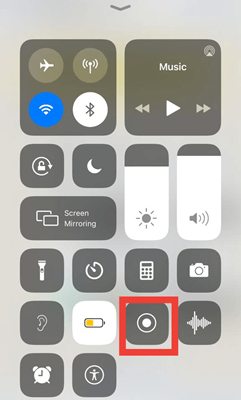
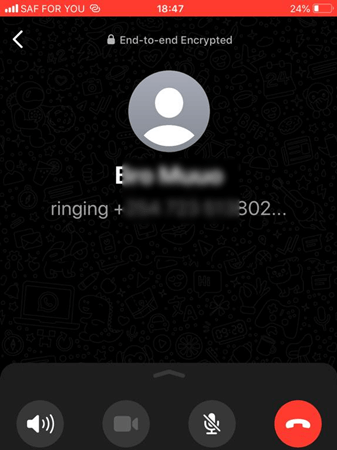
However, iPhones have an inbuilt screen recorder that can record WhatsApp video calls and audio. The only limitation is it records through the speaker, which has a lower mic quality.
Here is the procedure for recording WhatsApp calls on an iPhone:
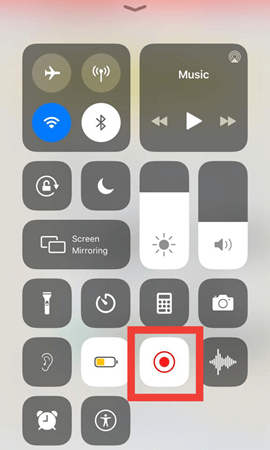
If you often take WhatsApp calls on your computer, you might wonder: Can I record these calls easily? The good news is, yes! Recording WhatsApp calls on Windows and Mac is much more straightforward.
If you’re using Windows 10 or 11, you don’t need third-party apps to record your WhatsApp calls—Windows has a built-in screen recording tool called Xbox Game Bar!
It’s free, easy to use, and works well for WhatsApp voice call recording and also video calls.
Here’s how to use it:

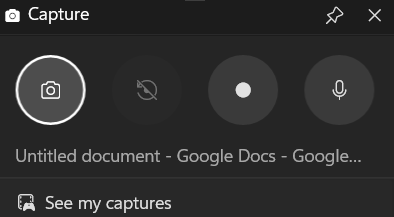
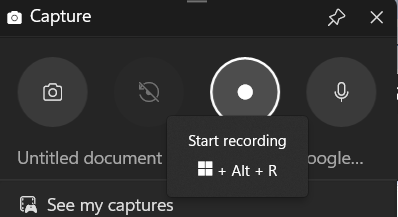
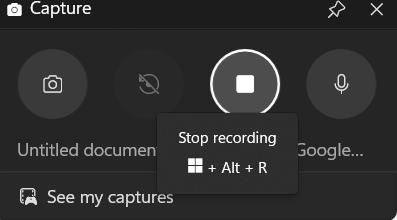
Your recording gets saved in the Videos > Captures folder by default.
If you’re a Mac user, QuickTime Player provides a built-in way to record WhatsApp calls. However, it only captures screen and mic audio, so you might need a secondary device for better clarity.
Here’s how to use it:
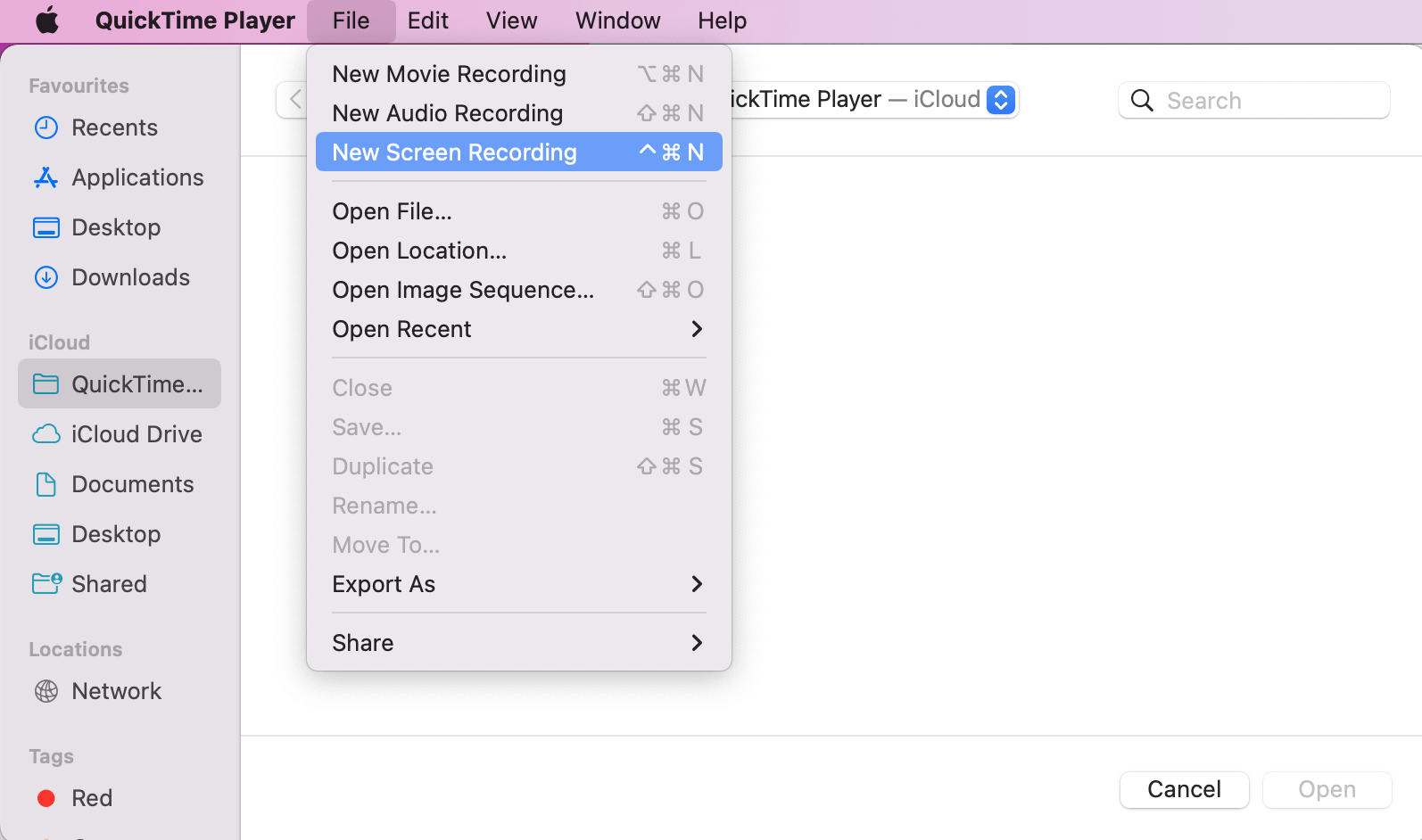
Now that you’ve mastered recording WhatsApp calls across every device, how do you ensure those recordings are safe, legal, and useful?
📖 Read More: How to Screen Record on Mac with Audio Effortlessly
Recording WhatsApp calls can be incredibly useful for business meetings, legal documentation, or personal records. But with rising privacy concerns and data breaches, it’s crucial to follow best practices to ensure security, legality, and ethical compliance.
Let’s break down the key steps to recording WhatsApp calls safely and responsibly.
As we discussed, legal frameworks vary, but ethical standards don’t. Always obtain clear, verbal consent before recording. A simple “Hey, is it okay if I record this conversation?” goes a long way.
📌 Example: Imagine a business call where sensitive financial information is discussed. Recording without consent could lead to serious legal repercussions and reputational damage.
For business calls, you can add consent clauses to contracts (like Zoom’s recording disclaimer).
Cybercrime is on the rise—the global average cost of a data breach in 2024 is 4.88 million dollars. If you’re recording WhatsApp calls for work or legal purposes, confirm they don’t fall into the wrong hands.
Store recordings in encrypted folders, use strong passwords, consider cloud services with robust security measures, and enable two-factor authentication (2FA) on cloud storage.
📌 Example: A leaked recording containing confidential client information could result in significant financial losses and legal battles for a company.
Don’t record voice calls where sensitive or confidential personal data will be discussed, such as:
Laws are constantly evolving. Stay up-to-date on the call recording laws in your region and the regions of everyone you’re communicating with, and consult legal professionals for clarification when needed.
🧠 Did You Know? In Germany, illegally recording a call can land you in prison for up to 3 years.
Not all recording apps are safe or compliant. Some third-party apps collect user data, which could put your privacy at risk. Avoid downloading apps from untrusted sources.
The warning signs of unsafe recording apps:
❗They ask for unnecessary permissions (e.g., contacts, camera, location)
❗They have no privacy policy or security encryption
❗ They are banned in certain countries due to data concerns
Don’t hoard recordings. Regularly review and delete recordings that are no longer needed. This minimizes the risk of data breaches and ensures compliance with data retention policies. Remember that some regulations, like GDPR, have specific data retention requirements.
By adhering to these best practices, you can ensure that your WhatsApp call recordings are handled responsibly, ethically, and securely, protecting both your privacy and the privacy of others.
✨ Fun Fact: The first-ever phone recording device was patented in 1903—imagine recording calls over a century ago!
WhatsApp is one of the most widely used communication platforms, with over 2 billion active users worldwide. However, WhatsApp has several significant limitations in call recording and professional communication.
Let’s consider why WhatsApp may not be the best tool for recording calls and managing phone conversations.
Unlike many business communication tools, WhatsApp does not offer a built-in call recording feature—and there’s a reason for that.
In many countries, recording WhatsApp calls can create legal risks due to strict privacy laws.
WhatsApp calls depend on internet connectivity, which can lead to:
🧠 Did You Know? Studies show that people retain 65% more information from video-based communication than text alone.
Even if you find a workaround to record WhatsApp calls, you may face time restrictions:
A study by McKinsey found that employees spend 19% of their workweek searching for information lost in unstructured messages and calls. This also holds in the case of WhatsApp. It does not offer:
WhatsApp-recorded calls are often difficult to search through, time-consuming to review, and challenging to organize for business documentation.
📖 Read More: WhatsApp Business vs. Personal
WhatsApp’s integration with other productivity tools is limited, making it challenging to incorporate call recordings and related information into broader workflows.
📌 Example: A marketing team using multiple platforms for communication and project management struggles to integrate WhatsApp call recordings into their workflow, leading to information silos
Depending on how you store your recordings, you may run into storage limitations on your phone or computer.
While WhatsApp is great for quick conversations, it’s not reliable, legal, or secure for recording important calls. If you’re looking for a smarter alternative that solves these issues, let’s explore how ClickUp can level up your call recording and documentation process.
Unlike WhatsApp, ClickUp isn’t just a communication tool—it’s the everything app for work that lets you record, transcribe, summarize, and organize calls effortlessly.
ClickUp helps you manage your conversations like a pro, whether you’re a business professional, a remote team member, or a freelancer.
Since WhatsApp doesn’t natively support automatic call recording, why not use a more efficient and secure solution? ClickUp Clips lets you record, transcribe, and manage important conversations—all in one place—for seamless video communication!
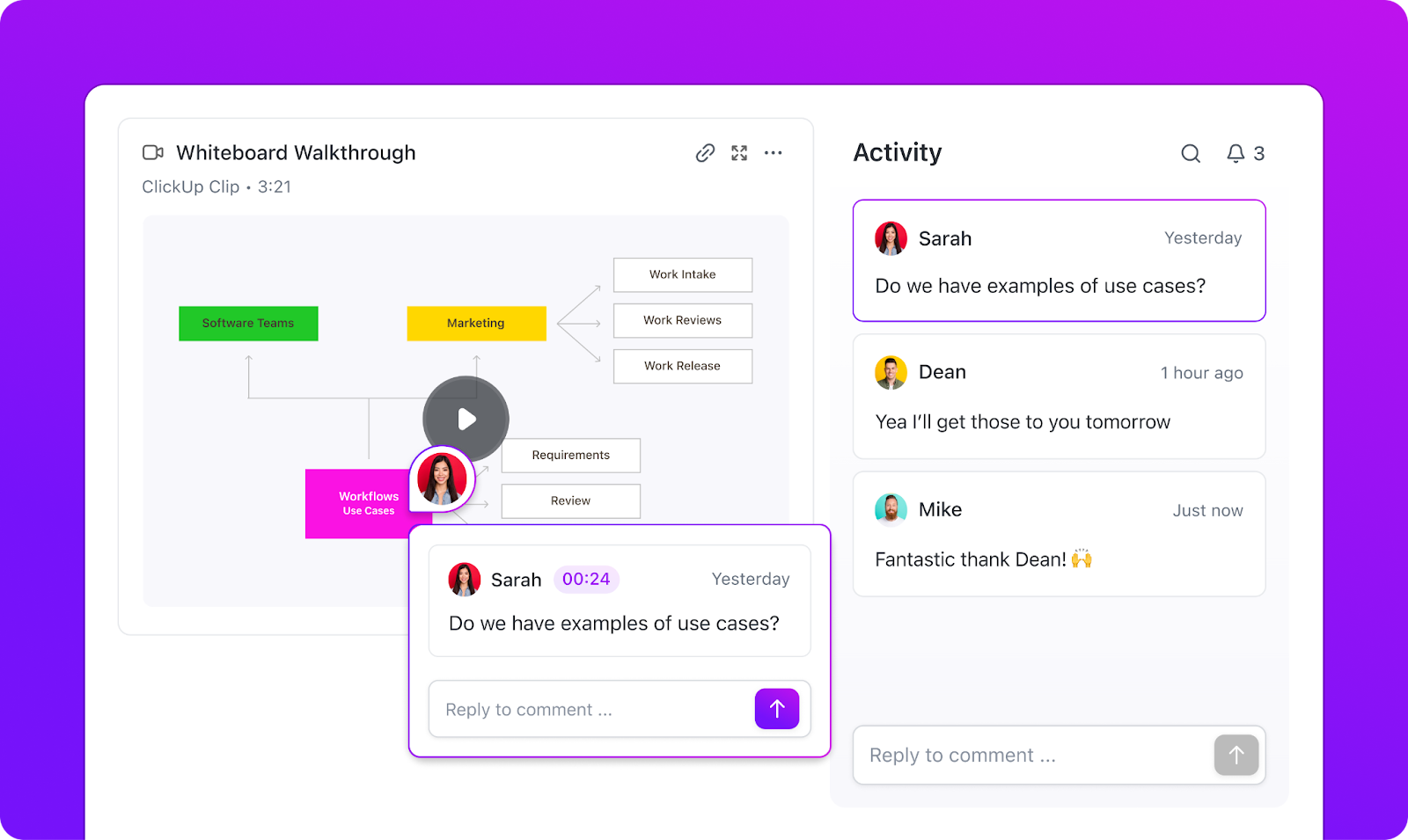
Here’s how you can use ClickUp Clips 🎬:

📌 Example: Instead of struggling to recall a WhatsApp call with a client, record a ClickUp Clip, let AI transcribe it, and instantly create tasks for follow-ups
Here’s how you can record screens on ClickUp:
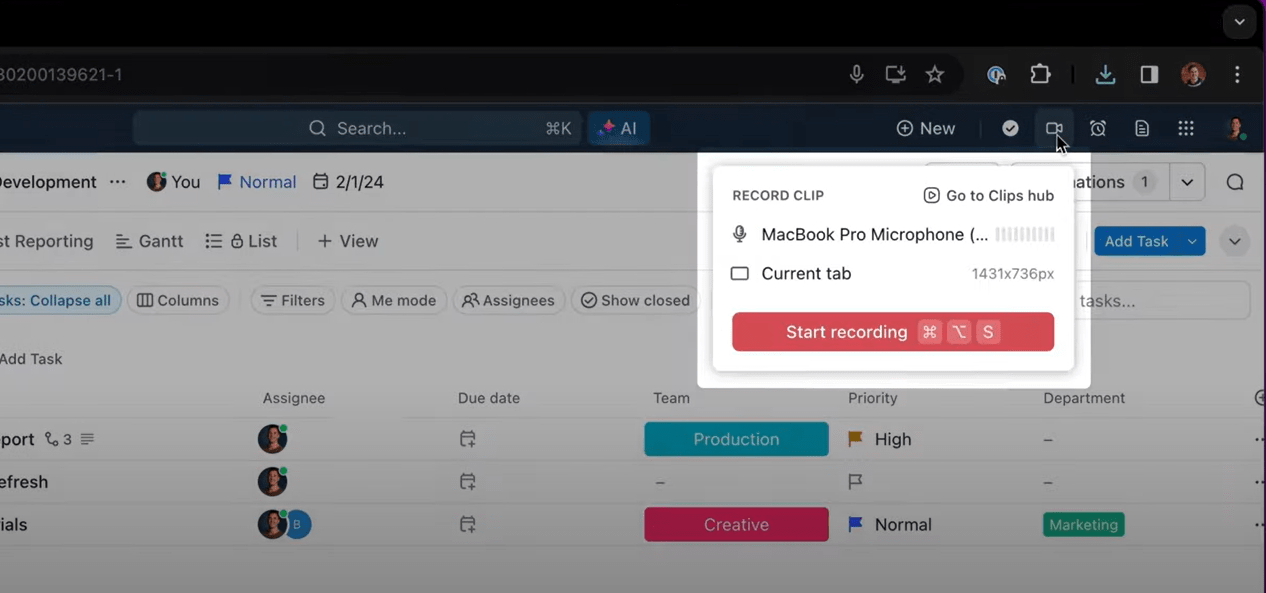
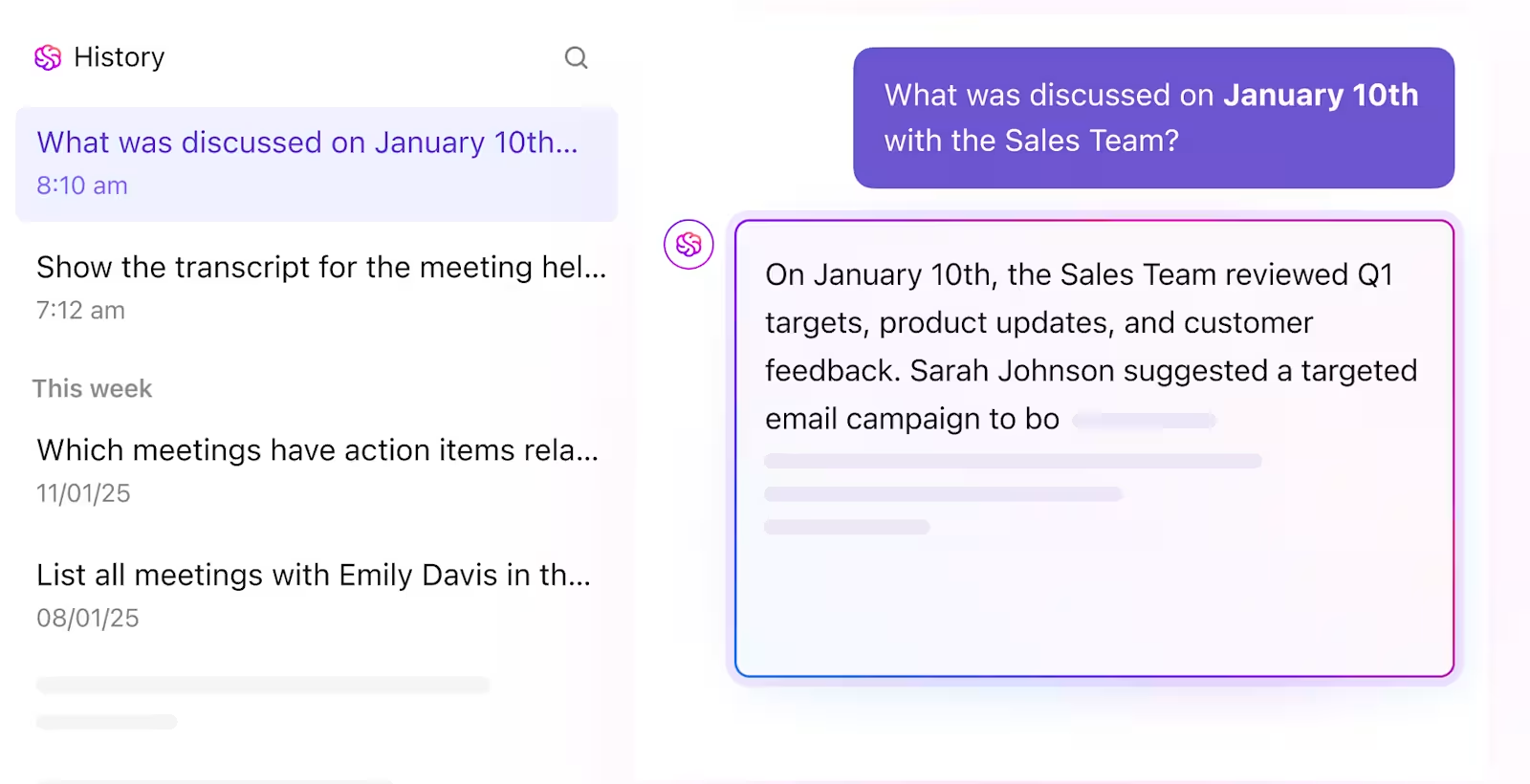
When WhatsApp calls leave you scrambling for notes, ClickUp AI Notetaker comes to your rescue.
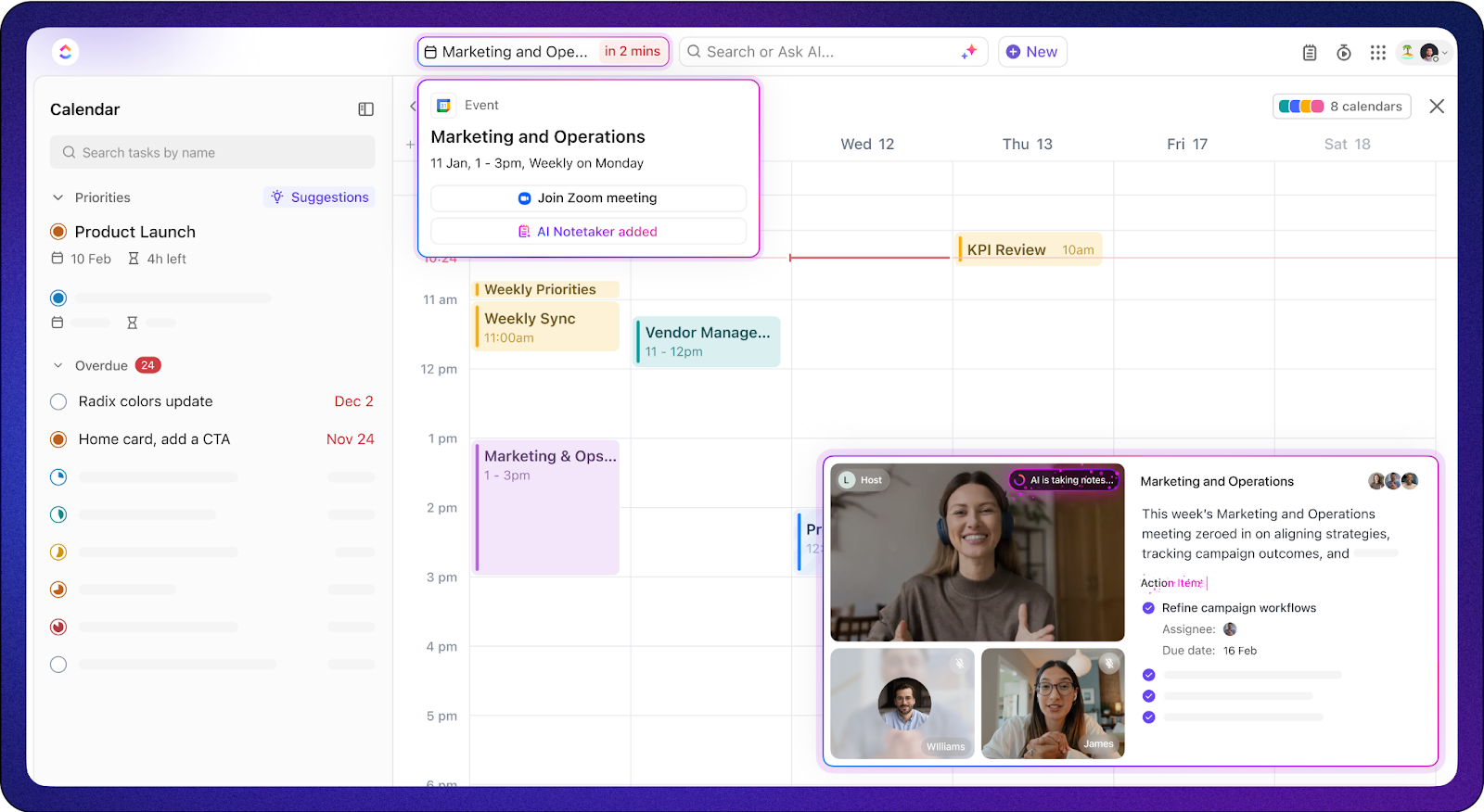
With ClickUp AI Notetaker, you can:
A Reddit user shared his thoughts on ClickUp’s AI Note Taker:
I’m kinda really impressed by this in that I don’t need another tool to do all this. It’s all within the clickup interface. Connects to my Google calendar and is just super seamless.
ClickUp Meetings also takes communication to the next level by integrating with top video conferencing tools, ensuring your calls, notes, and tasks stay connected.
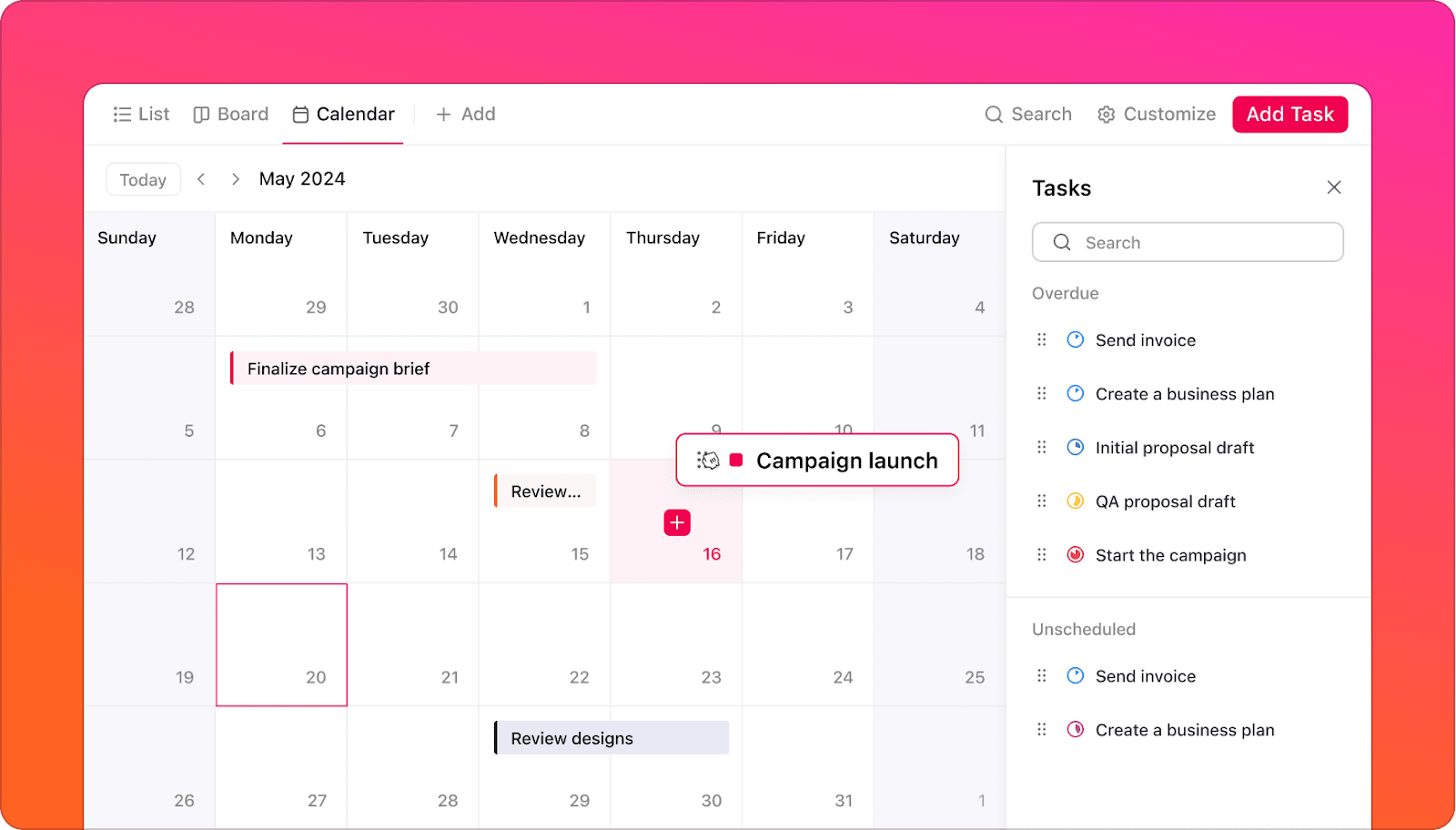
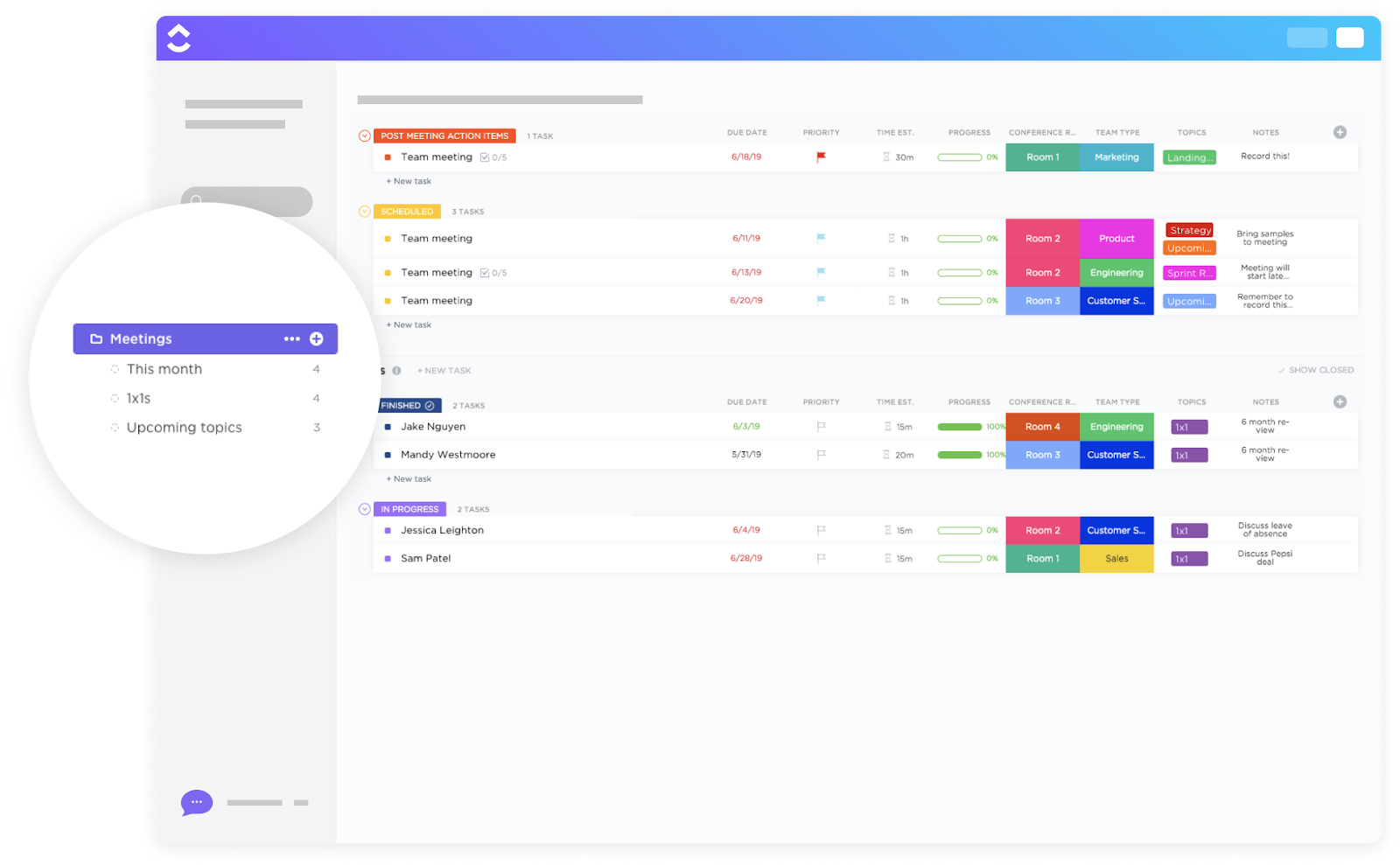
The structure is essential for productive meetings and that’s where the ClickUp Meetings Template comes in, ensuring every discussion stays organized, actionable, and results-driven.
With the ClickUp Meetings Template, you can:
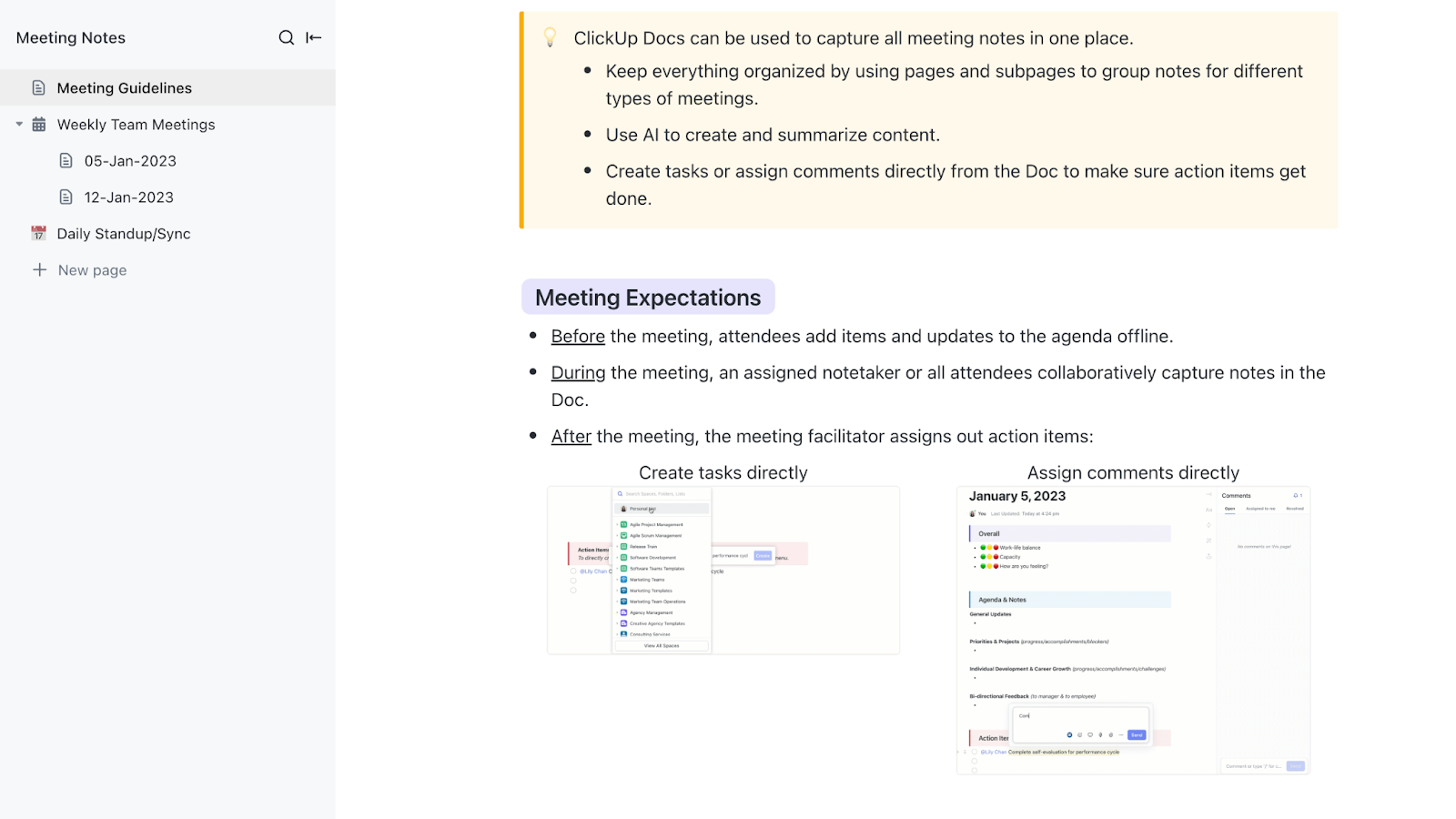
Also, the ClickUp Meeting Notes Template makes capturing clear, concise, and organized meeting notes effortless. It helps you create collaborative and structured notes that keep everyone aligned and drive projects forward. Plus, you can store and reference notes from past meetings, ensuring continuity and informed decision-making.
WhatsApp calls are great for quick chats, but they fall painfully short of recording actionable, crucial conversations. While WhatsApp has limitations, ClickUp offers an all-in-one solution to bridge the gaps.
With built-in recording, AI-powered transcripts, seamless integrations, and enterprise security, ClickUp transforms scattered conversations into organized workflows.
So why juggle multiple tools when you can centralize your call recordings, meeting notes, and action items in ClickUp? Try ClickUp today and transform the way you manage your conversations!
© 2025 ClickUp