


Whether you’re a student exploring research papers, a professional handling extensive reports, or just someone trying to manage daily document loads, you probably deal with PDF documents regularly.
Imagine you need to find a specific phrase or detail buried in a stack of PDFs.
Instead of manually combing through each one, wouldn’t it be better to pinpoint your search quickly?
That’s where knowing how to search a PDF file effectively can save you time and boost your efficiency.
In this guide, we’ll show you the simplest and most effective methods for a PDF search. Get ready to make your digital life a whole lot easier.
How to Search PDF Files Quickly

 Summarize this article for me please
How to Search in a PDF File
Knowing how to search within a PDF file is essential for anyone who regularly interacts with digital documents. Here’s how to streamline your PDF search across different platforms:
1. Using Adobe Acrobat Reader

Adobe Acrobat Reader offers robust search features within PDFs, making it an indispensable tool for efficient document handling. Here’s a step-by-step guide to PDF search using this powerful feature:
- Open the PDF: Launch Adobe Acrobat Reader and open the PDF
- Activate the find function: Press Ctrl+F on Windows or Cmd+F on Mac to open the Find toolbar
- Enter your search term: Type the text you want to search into the text box. Use quotation marks for an exact phrase search
- Check the results: Click the ‘Next’ or ‘Previous’ buttons to navigate through each highlighted instance of the text you would have entered
- Execute advanced search options: Click the gear icon next to the search box to open Advanced Search. You can refine your search criteria with options like “Match exact word or phrase,” “Match any of the words,” and more
💡 Pro Tip: Adobe Acrobat Reader’s search function doesn’t support traditional wildcards like asterisks (*) or question marks (?). However, it compensates by offering partial word searches. By tweaking the settings in Advanced Search, you can tailor your search to include variations of your primary terms, enhancing the thoroughness of your document review.
2. Using browser-based PDF viewers

Many people use internet browsers like Google Chrome and Microsoft Edge to access PDF files directly in their web browsers. These browsers have built-in PDF viewers that offer convenient features for viewing and searching within PDF documents.
Here’s how you can quickly find text within a PDF using these browsers:
- Open your PDF in Chrome or Edge by dragging the file into a new tab or right-clicking the file, selecting ‘Open with,’ and choosing your browser
- Press ‘Ctrl+F’ (or ‘Cmd+F’ on Mac) to open the search box
- Type the word or phrase you need to find
- Hit ‘Enter’ or click the down arrow in the search box to navigate through the occurrences
- Each match will be highlighted in the document as you cycle through
- To end the search, click the ‘x’ in the search box or press ‘Esc’
💡 Pro Tip: Improve your search efficiency by searching PDF indexes, which help you quickly locate specific terms within large documents.
3. Use Preview to search PDF files (For Mac users)
Preview is the default application on Mac computers for opening and interacting with PDF files, among other documents and images. It’s known for its simplicity and effectiveness, especially when quickly searching PDF documents. Here’s how you can use Preview on your Mac to find exactly what you’re looking for:
- Open your PDF with Preview by double-clicking the file or right-clicking and selecting ‘Open With > Preview’
- Once the document is open, press Cmd+F to bring up the search bar
- Type the text or phrase you need to find into the search bar
- Press Enter or use the search interface arrow buttons to navigate the results
- Each occurrence of your search term will be highlighted throughout the document
- You can also use the sidebar to quickly see all the search results listed, which allows you to jump directly to the section of the document where the text appears
4. Using the basic search function
Basic search is the simplest way to find text within a PDF document. This method is available across all standard PDF viewers and browsers, making it universally accessible for anyone searching through PDFs. Here’s how to effectively use basic search:
- Open your PDF in your preferred viewer like Adobe Acrobat, a web browser, or Preview on Mac
- Press Ctrl+F on Windows or Cmd+F on Mac to activate the search bar
- Type the search word or phrase you need to find into the search bar
- Press Enter to highlight the first instance and use the ‘Next’ or ‘Previous’ buttons to navigate through additional occurrences
- Read the surrounding text of each occurrence to check for relevance
- Close the search by clicking the ‘x’ in the search bar or pressing Esc to end the highlight and return to normal view
Summarize this article for me pleaseTips for Effective Searching
Effective searching saves time and increases productivity. Here’s how you can master the art of pinpointing exactly what you need in a sea of information.
1. Use precise keywords to narrow your search
Opt for specific and targeted keywords related to what you’re looking for. This approach helps to filter out irrelevant results and directs you straight to the relevant content.
When you use precise keywords, search engines and databases can more efficiently scan their indexes and return the information that closely matches your inquiry. For example, instead of searching broadly for “health tips,” specify your query with keywords like “heart-healthy diets for seniors” to get more focused results.
2. Incorporate Boolean operators for advanced searches
Leverage Boolean operators such as AND, OR, and NOT to refine your search queries. These operators allow you to combine multiple keywords in ways that focus or expand the search scope as needed.
- AND: Link concepts together to ensure all are included in your search results
- OR: Broaden your results by including either term
- NOT: Exclude PDF files or content that is unwanted
For instance, “cats AND dogs OR parrots NOT food” finds content on pets without references to their food.
3. Check synonyms and related terms
Expand your search effectiveness by including synonyms and related terms. This broadens your search to capture more comprehensive data sets.
For instance, if you’re researching job satisfaction, also search for terms like “workplace happiness” or “employee contentment.”
This technique is especially useful in academic and professional research where different authors might use varying terminology to describe similar concepts.
4. Utilize filters and advanced search tools
Don’t overlook the power of search filters provided by PDF-viewers and databases. These tools allow you to specify dates, authors, titles, keywords, and metadata that help hone in on the most relevant results.
Summarize this article for me pleaseWhy ClickUp for Knowledge Management
ClickUp is a versatile work management platform designed to streamline productivity for teams and individuals. It integrates tasks, documents, and communication tools in one place. ClickUp’s Universal Search revolutionizes how you manage and search through your PDFs and other file formats.
It doesn’t just cover files within ClickUp but extends to connected apps and even your local drive. This means you can search across all your integrated work apps, like Google Drive, Dropbox, and more, all from one place. No more hopping between applications to find your files; everything is searchable from ClickUp’s single search interface.
Whether you’re handling design mockups, legal documents, or video content, ClickUp supports various formats, including PDF, PNG, GIF, JPEG, WEBP, MP4, WEBM, and OGG. With ClickUp, you won’t need an external document collaboration software as well—you’ll find multiple documents related features inbuilt with ClickUp.
No matter the file type, you can efficiently find and work with the documents you need directly within ClickUp. Let’s look at the different ClickUp features in detail:
ClickUp for Proofing
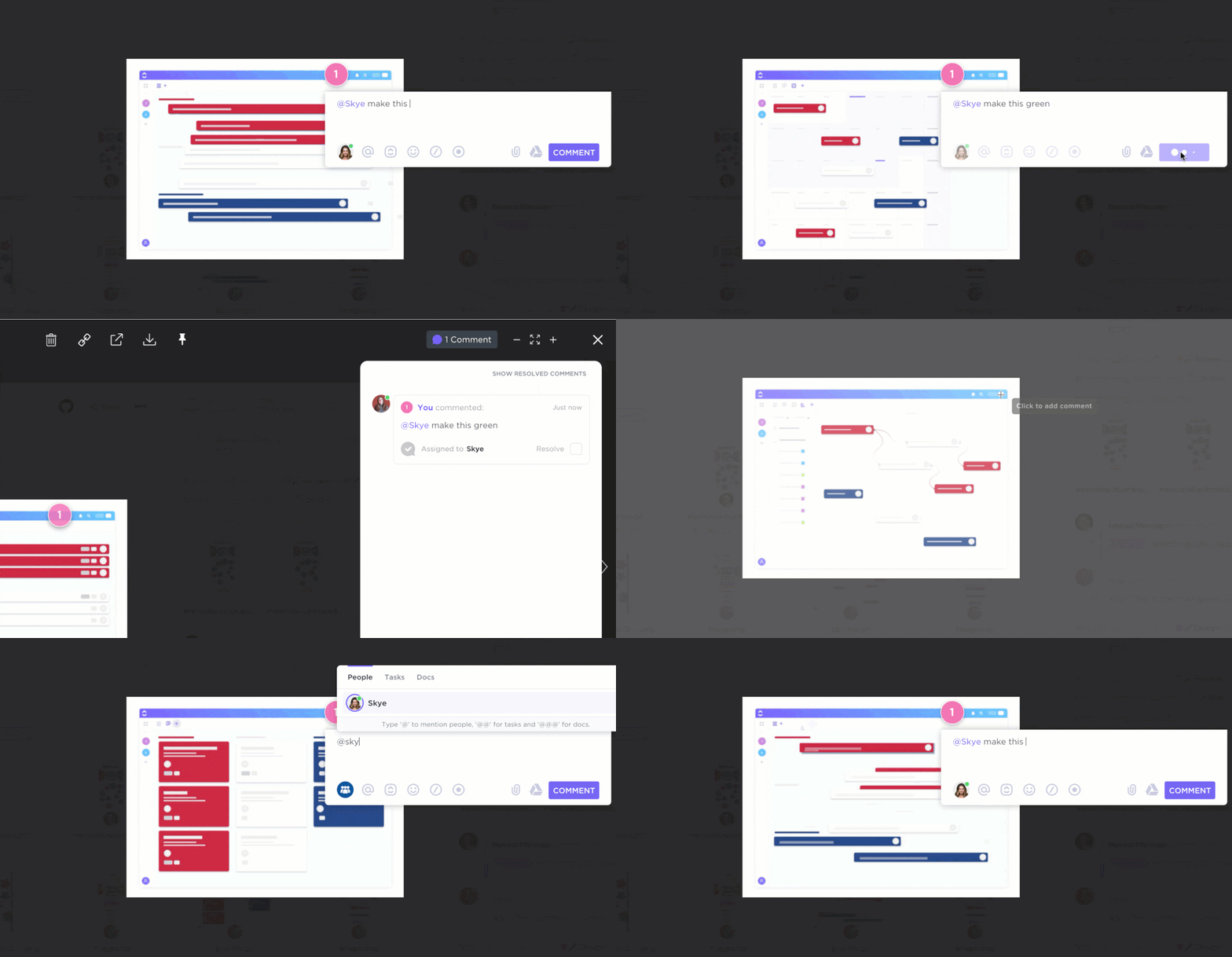
With the proofing and annotation capabilities in ClickUp, you can annotate and collaborate directly on PDFs, images, and videos, making it an invaluable tool for teams, especially in creative and legal fields. Here’s all you can do with the help of ClickUp’s proofing features:
- Add comments to images: Annotate images in PNG, GIF, JPEG, and WEBP directly within tasks
- Add comments to PDFs: Attach comments to specific parts of a PDF document for precise feedback and revisions
- Add comments to videos: Utilize video proofing to add comments at specific timestamps in video files, supporting formats like MP4, WEBM, and OGG
- View proofing comments: Access and manage all comments added to file attachments from a centralized location, allowing for efficient review and follow-up
- Assign comments: Assign comments to specific team members or leave them unassigned for anyone to address, facilitating clear responsibilities and task management
Also read: How to comment on a PDF & AI PDF data extractors!
ClickUp Universal Search
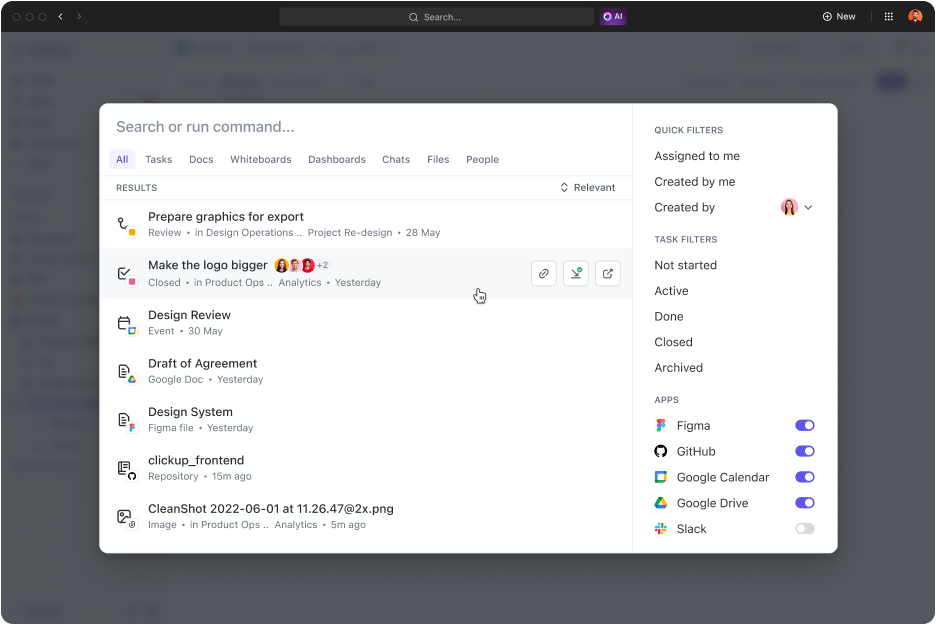
ClickUp’s Universal Search is a powerful tool that allows you to find any file quickly, no matter where it’s stored. Here’s what you can do with ClickUp’s Universal Search:
- Search across multiple platforms: Search for files across ClickUp, connected apps, and your local drive, ensuring you can find everything in one place
- Personalize search results: Universal Search learns your preferences over time, providing more relevant and personalized search results
- Access search anywhere: Initiate searches from the Command Center, Global Action Bar, or your desktop, making it accessible from anywhere
- Integrate with your favorite apps: Extend search capabilities to apps like Google Drive, Dropbox, Slack, and more, allowing seamless file retrieval from all your integrated tools
- Save custom search commands: Create shortcuts to frequently used links, store text for later, and set up other custom search commands to enhance your workflow
ClickUp Workspace and Folder Hierarchy
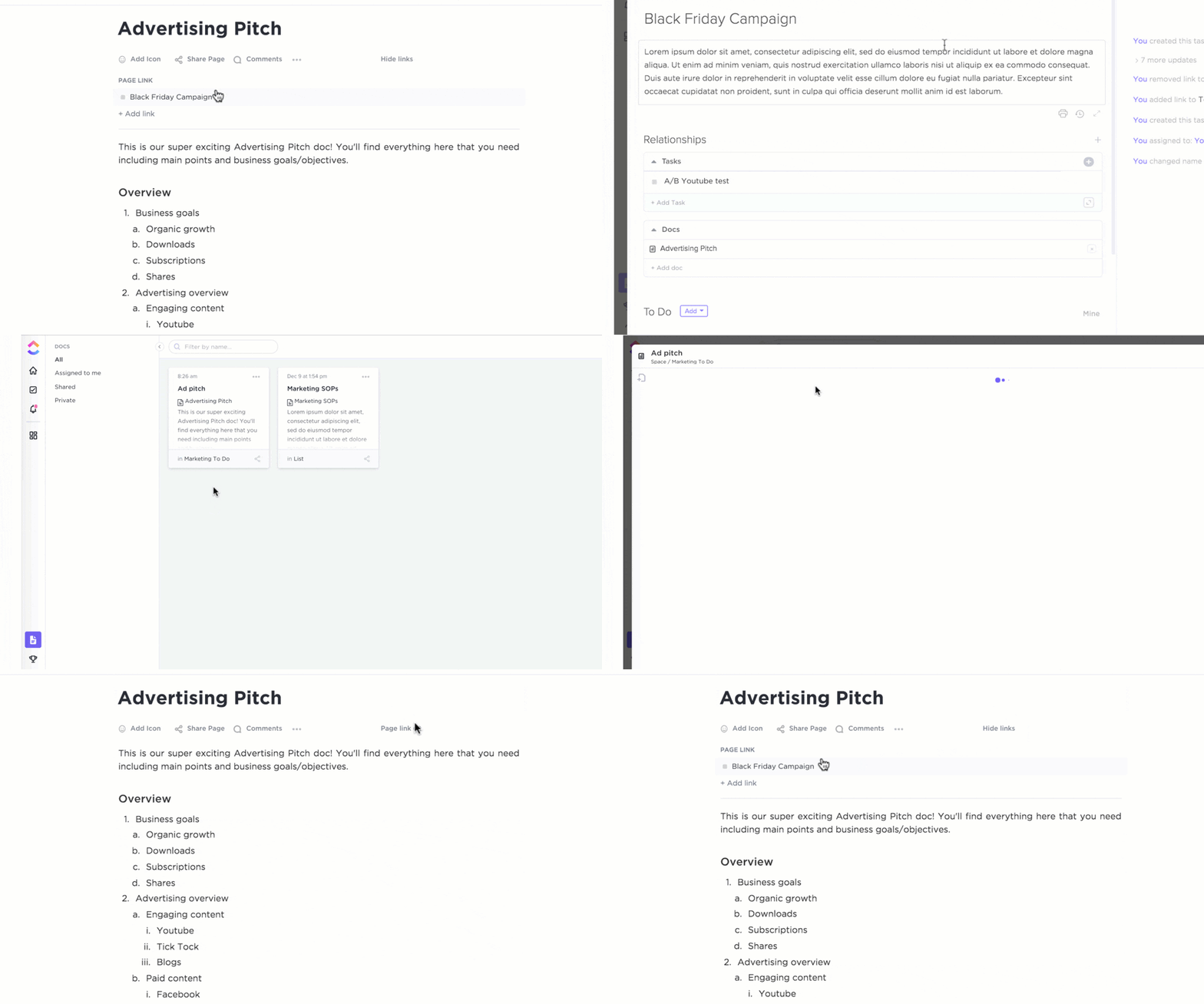
ClickUp Folder Hierarchy and workspace are designed to enhance collaboration and organization. You can set up different spaces for various projects, categorize them into folders, and further break them down into lists and tasks. Here’s how ClickUp’s structure can enhance your productivity:
- Organized workspaces: Create dedicated spaces for different projects or teams, keeping everything compartmentalized and easy to navigate
- Folder hierarchy: Use folders to categorize projects and tasks, providing a clear structure that simplifies project management
- Nested lists: Break down tasks into lists and sublists, offering detailed organization and making it easier to track progress
- Centralized access: Store all project-related files, tasks, and communication within the workspace, ensuring easy access to everything you need in one place
- Customizable views: Tailor the workspace to fit your team’s needs with various view options, including board, list, calendar, and more
Bonus: Learn how to remove highlights in a PDF!
ClickUp Docs

ClickUp Docs provides a powerful platform for project documentation and seamless integration with your tasks and projects. Here’s how ClickUp Docs can enhance your productivity:
- Real-time collaboration: Edit documents simultaneously with team members, allowing for instant feedback and updates
- Task integration: Link documents directly to tasks and projects, ensuring all relevant information is easily accessible
- Rich text editing: Utilize advanced formatting options to create detailed and visually appealing documents
- Comments and mentions: Add comments and use @mentions to communicate directly within the document, making collaboration smooth and efficient
- Version control: Track changes and view document history to keep a record of edits and updates.
- Custom permissions: Set viewing and editing permissions to control document access and maintain confidentiality
Summarize this article for me pleaseMake Your Search Experience Better With ClickUp
Mastering how to search within PDF files is essential for students, professionals, and anyone dealing with extensive document loads. Efficient searching saves time and boosts productivity, whether using Adobe Acrobat Reader, browser-based PDF viewers, or Preview on Mac.
ClickUp is a versatile platform that enhances productivity and facilitates knowledge management with features like Universal Search, Proofing, and a robust workspace organization. Its comprehensive support for various file formats ensures you can easily find and manage all your documents.
Try ClickUp for free and experience a new level of productivity and collaboration.


Everything you need to stay organized and get work done.

Recent Articles
What Is a Tiger Team? Definition, Origin, and When to Use One 
What Is a Tiger Team? Definition, Origin, and When to Use One
Marketing Agency Productivity: Where Your Margin Actually Goes
Marketing Agency Productivity: Where Your Margin Actually Goes
8 Communication Strategies That Actually Fix Team Chaos 
8 Communication Strategies That Actually Fix Team Chaos
