
Sorry, there were no results found for “”
Sorry, there were no results found for “”
Sorry, there were no results found for “”
Have you ever opened a PDF document and felt attacked by neon highlights screaming from the page?
Whether it’s a case of, “Oops, wrong color!” or “Who highlighted this entire document?” knowing how to remove highlights in a PDF can save your sanity—and your eyes.
Fixing highlighted text is often necessary to correct mistakes, clean up a scanned PDF, or make a polished report to your boss shine.
You can easily manage those overly enthusiastic annotations with software like Adobe Acrobat Reader and other annotation tools.
Whether you’re working on a Mac or Windows computer, a few simple steps can help you delete selected highlights, clean up certain sections, or even adjust an entire document. Ready to take control of your PDF? Let’s go!
Here are the steps to remove highlights in a PDF:
Removing highlighted text is more straightforward than adding it—just ensure you’re using the right tools for PDF search, annotation, and more.
📮ClickUp Insight: Low-performing teams are 4 times more likely to juggle 15+ tools, while high-performing teams maintain efficiency by limiting their toolkit to 9 or fewer platforms. But how about using one platform?
As the everything app for work, ClickUp brings your tasks, projects, docs, wikis, chat, and calls under a single platform, complete with AI-powered workflows. Ready to work smarter? ClickUp works for every team, makes work visible, and allows you to focus on what matters while AI handles the rest.
Here are three handy tools you can access to eliminate the selected highlights from your PDF file:
It would be almost criminal to talk about PDFs without mentioning Adobe Acrobat. After all, Adobe is the pioneer behind the very creation of the Portable Document Format! With Acrobat, you can add comments on a PDF, write notes, modify backgrounds, and even edit text to store feedback within documents.
And that’s not all—Acrobat has an AI assistant that lets you interact with PDFs through natural language queries, get quick answers, and generate one-click summaries.
Adobe Acrobat has a desktop application for both Windows and Mac devices, as well as apps for Android and iOS phones.
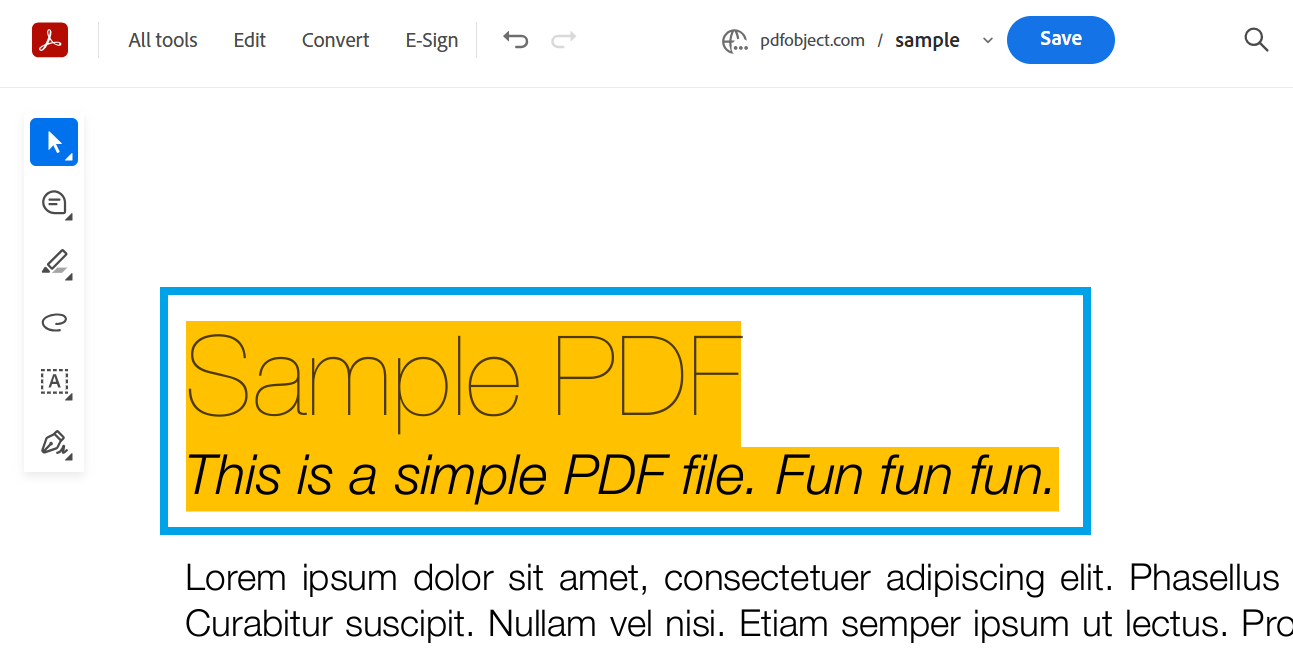
To remove highlighting in a PDF file using Adobe Acrobat, just follow these simple steps:
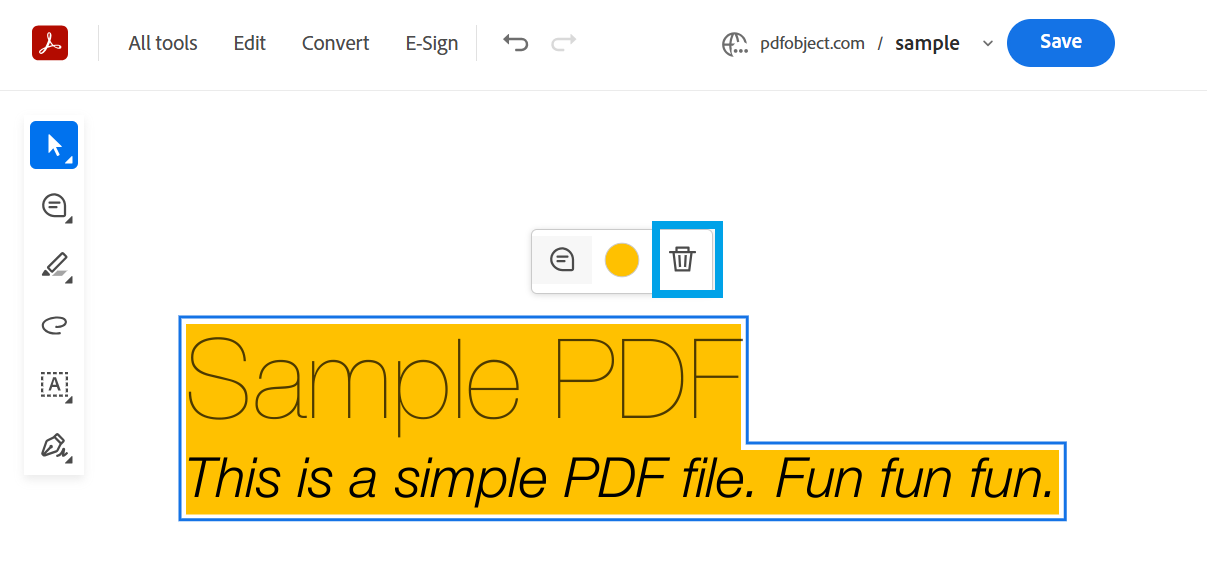
You can also use this toolbar to change the color of the highlighted text (just click the icon in the center) or add a comment (the icon in the left corner of the menu).
The left side panel also offers access to other helpful tools for various actions, making it easier to manage your PDF annotations and edits.
Here’s an alternate method to remove highlights on Adobe Acrobat:
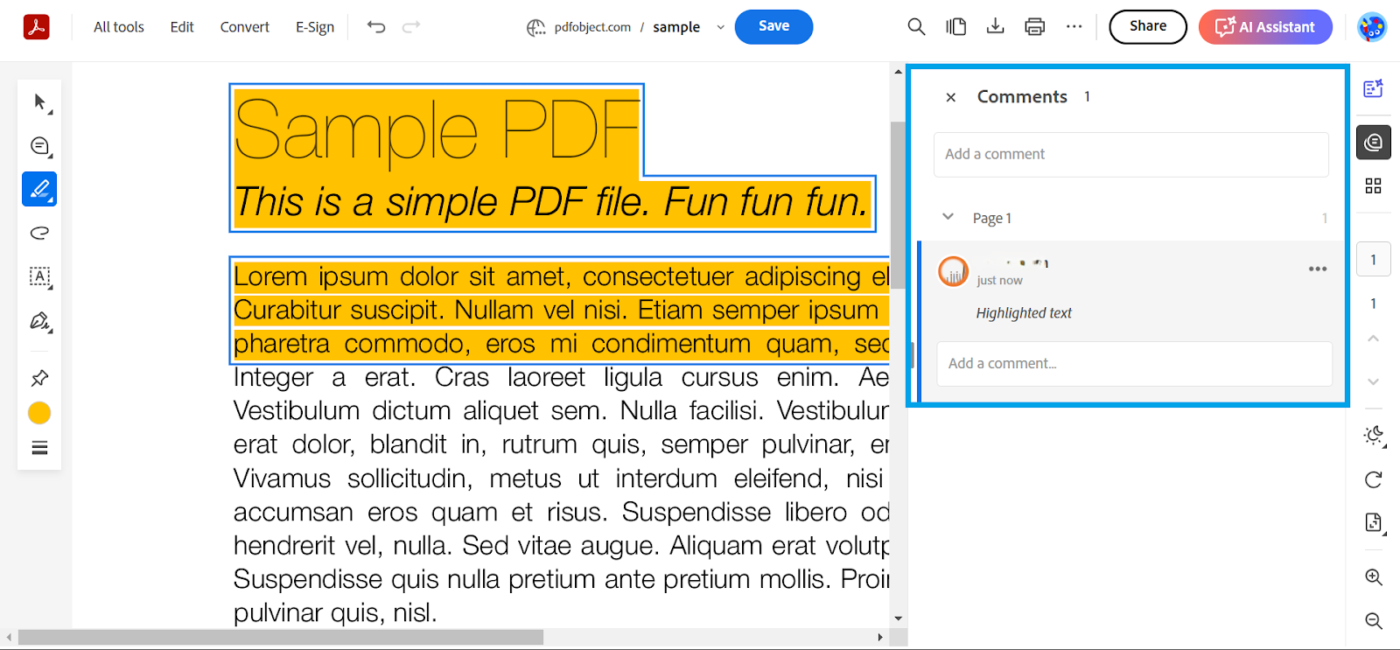
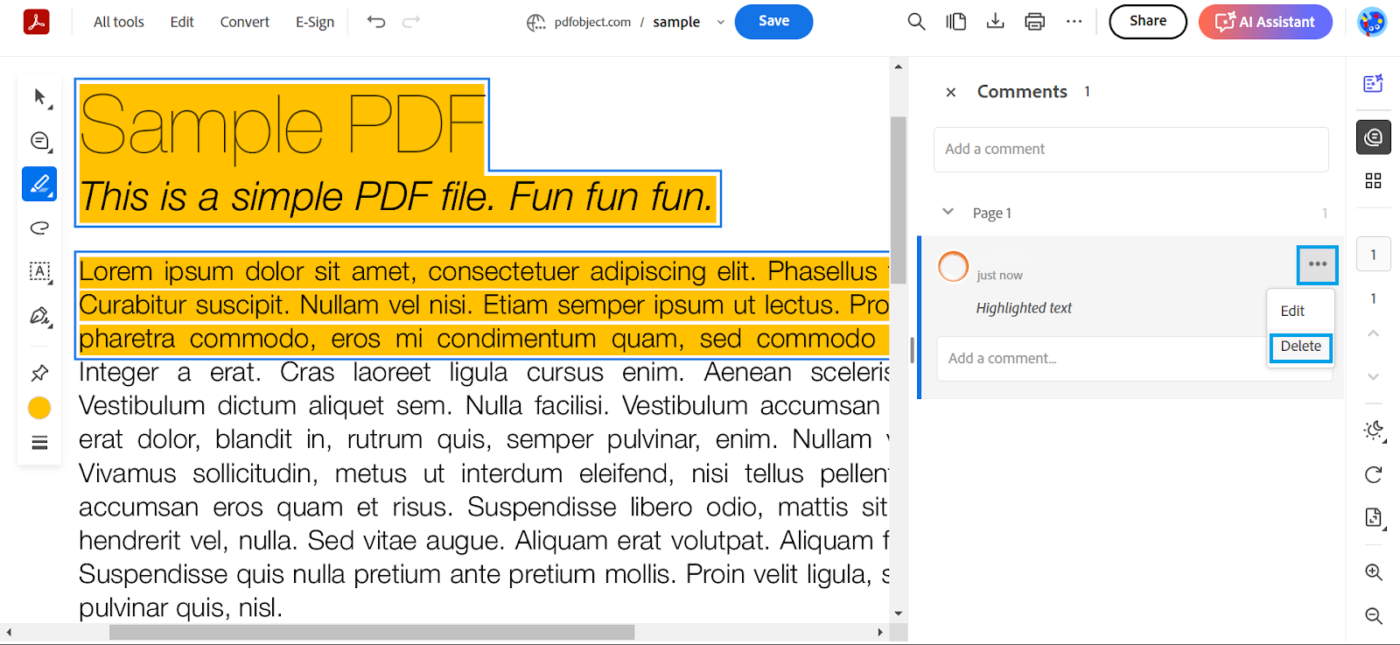
Another nifty way to remove highlighting from the article in Acrobat Software is to select the highlighted text and press Delete on your keyboard.
🧠 Fun Fact: The Liquid Mode in Acrobat uses AI to automatically reformat PDFs for easy reading on smaller screens, like your smartphone! It adjusts text size, reorganizes layouts, and creates collapsible sections—turning even the most dense PDF into a mobile-friendly experience.
Also Read: How to Use AI for Documentation
You can also use other annotation tools, in addition to Adobe Acrobat, to complete the job from your computer!
Smallpdf is a flexible online tool that lets you do all sorts of things with your PDFs—merge files, split them, and add online signatures.
And when it comes to removing highlights from your PDF, it’s just as easy:
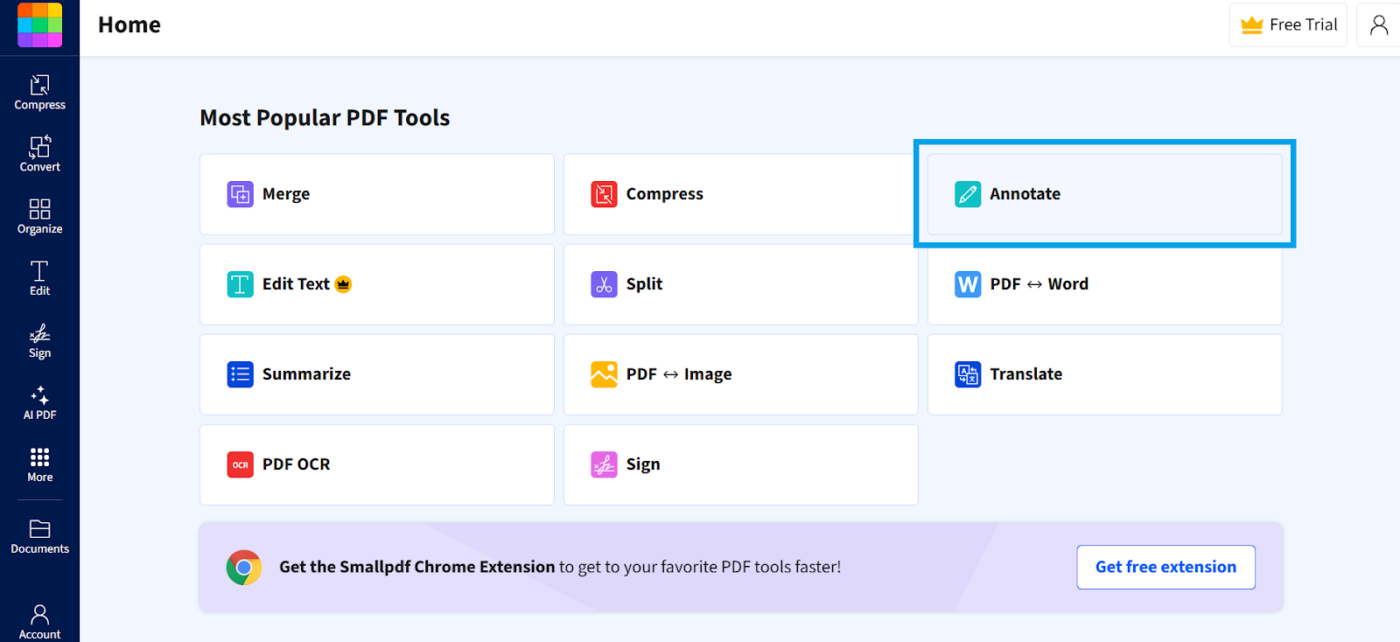
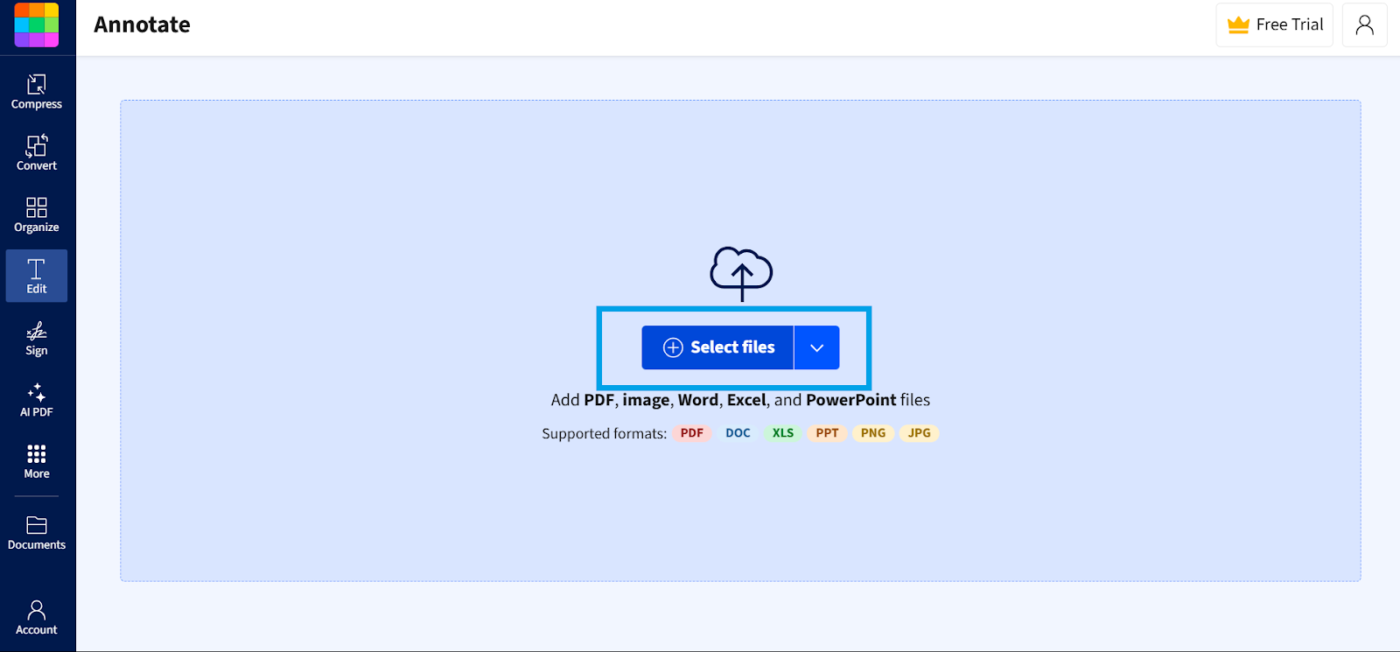
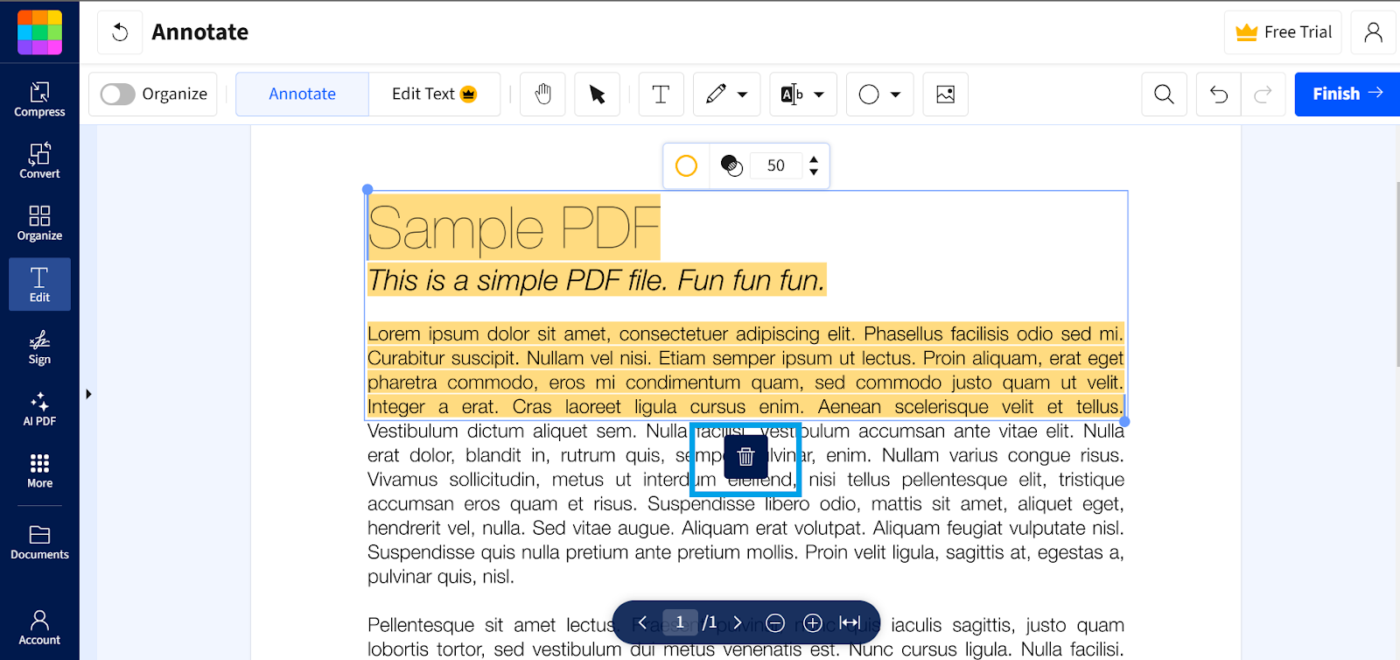
Smallpdf has a feature-rich desktop website and a Windows application. You can also download the app from their respective app stores for your iOS and Android devices.
👀 Did You Know? CommonCrawl data shows that PDF ranks as the third most popular file format on the web, after HTML and XHTML, highlighting its widespread use in digital content distribution.
Xodo is a versatile app that lets you annotate PDFs with text markup (like highlighting and strikethrough), sticky notes, freehand drawings, and more.
Whether reviewing documents, adding comments, or tidying up your PDF, Xodo gives you all the necessary tools. If you’ve accidentally over-highlighted or just want to clean up your PDF, removing highlights in Xodo is a breeze.
Here’s how you can do it:
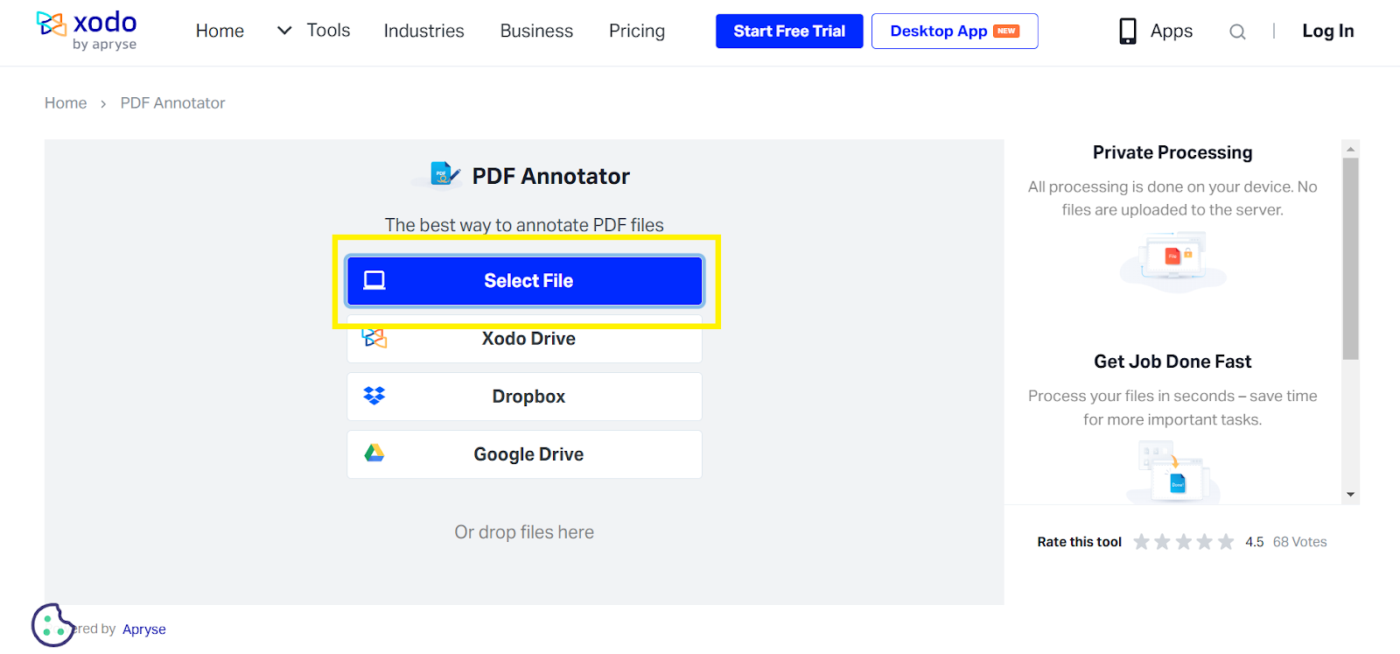
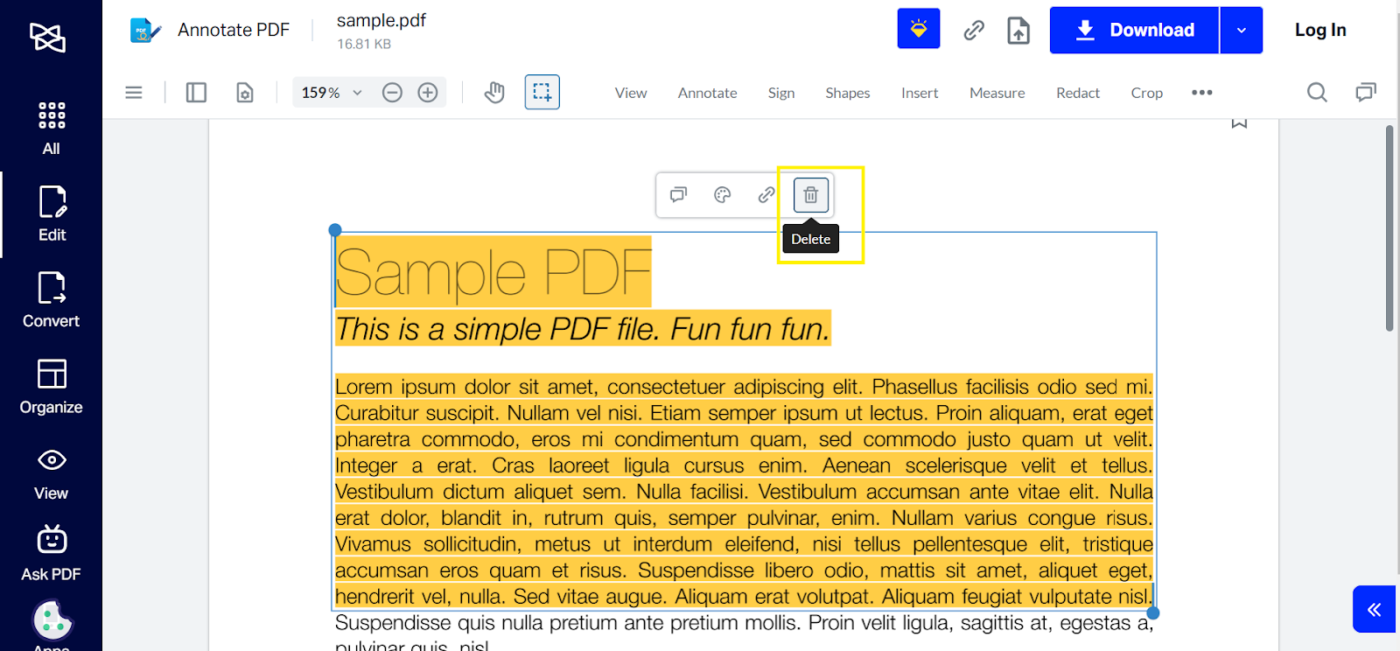
Xodo is a web-based tool with a dedicated app on the Microsoft Store. A fully functional mobile app can be downloaded for Android and iOS devices.
🧠 Remember: You cannot delete the highlighted text in a document if it is part of the original scanned PDF.
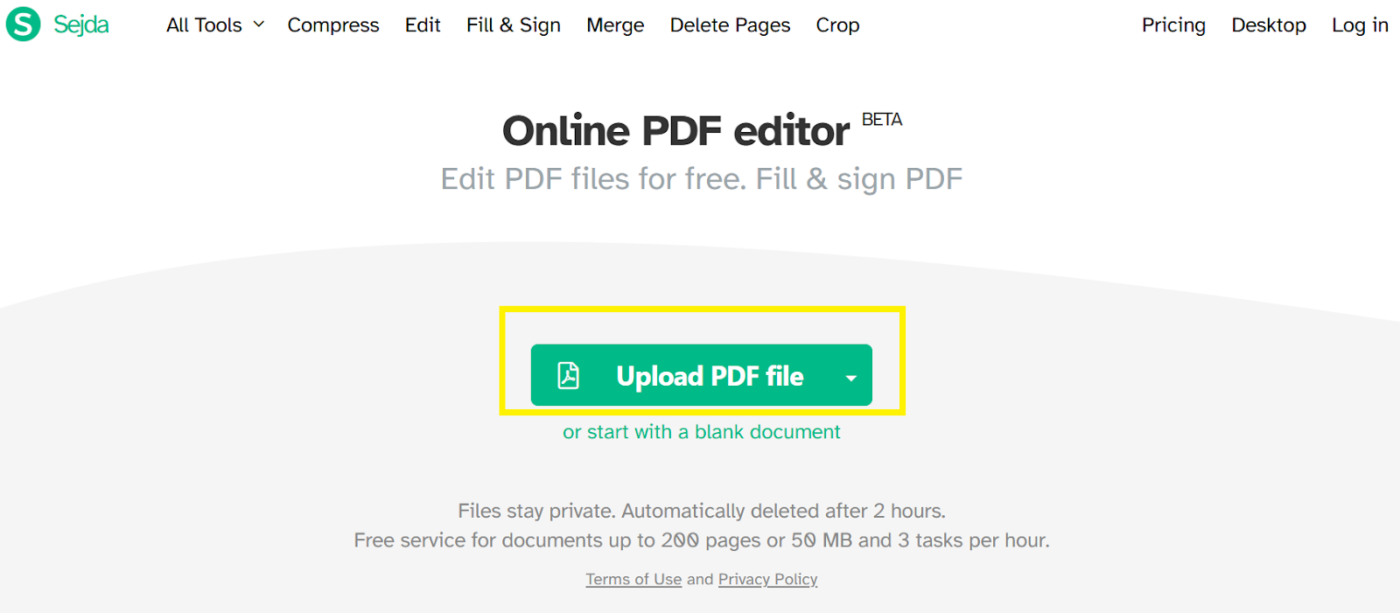
Sejda comes with powerful OCR capabilities, making converting scanned documents into searchable and editable PDFs easy. It’s convenient for extracting text from an image or a scanned PDF, giving you more flexibility to work with your files!
Here’s how you can remove highlights with Sejda:
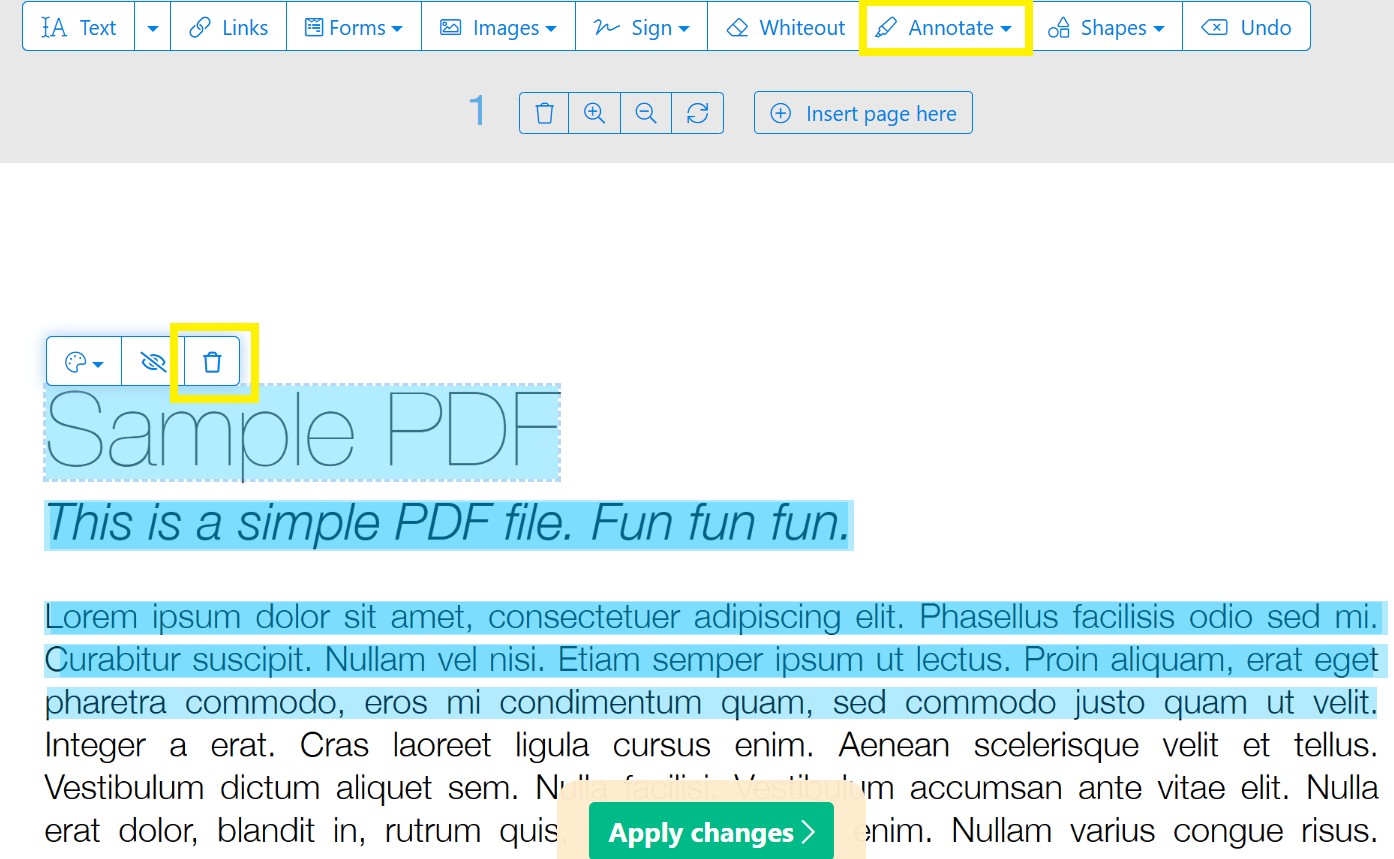
Sejda offers a desktop app that works on both Mac and Windows devices.
However, for Android and iOS users, you’ll need to rely on the web-based platform, as there’s no dedicated mobile app for Sejda just yet.
💡Pro Tip: The Sejda PDF Editor lets you add a watermark or e-signature to your PDFs with playful customization options. You can adjust the watermark’s transparency, rotation, and placement, making it functional and a creative tool for personalizing documents.
If you prefer accessing PDF files on your mobile device, don’t worry—we’ve got a few fantastic apps just for you!
In addition to highlighting, PDFGear lets you fill out PDF forms by adding text, checkmarks, and other symbols. It also supports image-based signatures, keyboard input, and freehand drawings, making it easy to complete and sign documents directly from your mobile device.
Here’s how you can remove a highlight from your PDF on PDFGear:

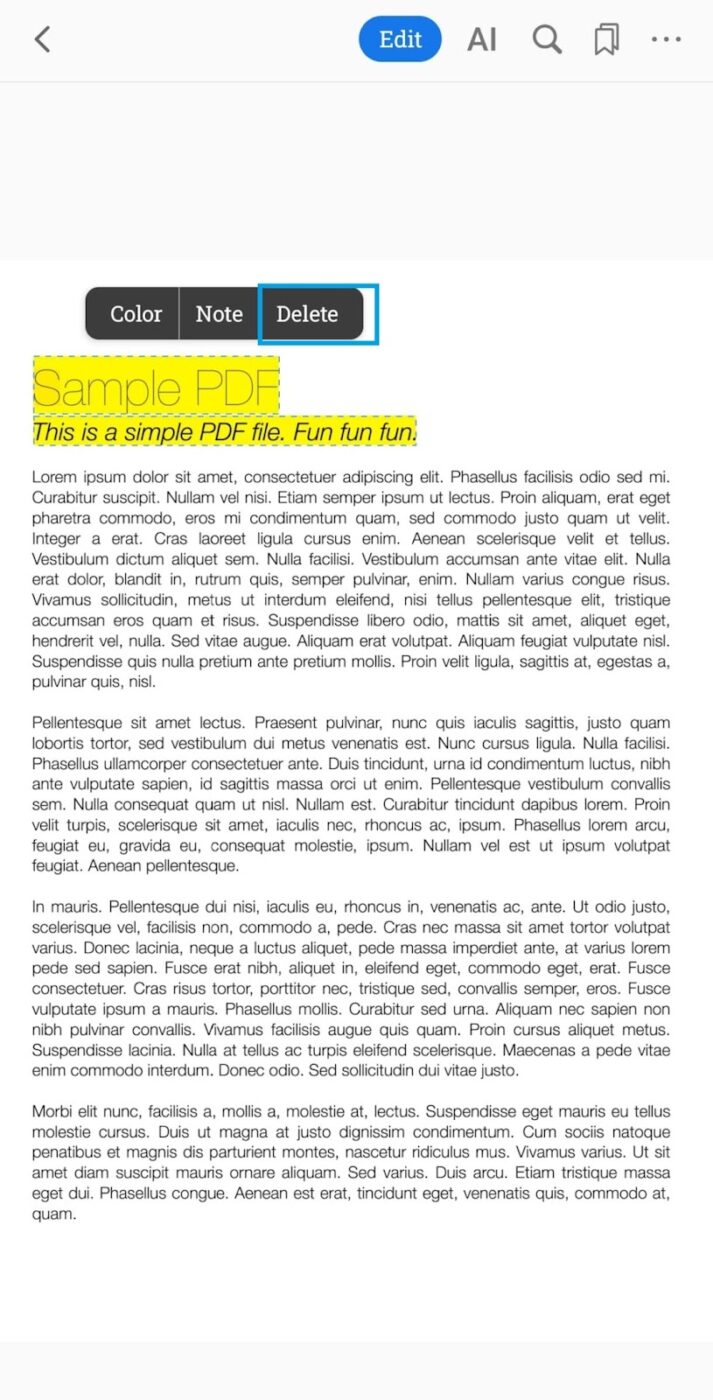
PDFGear is available on both the Google Play and Apple App Store, ensuring compatibility with a wide range of devices.
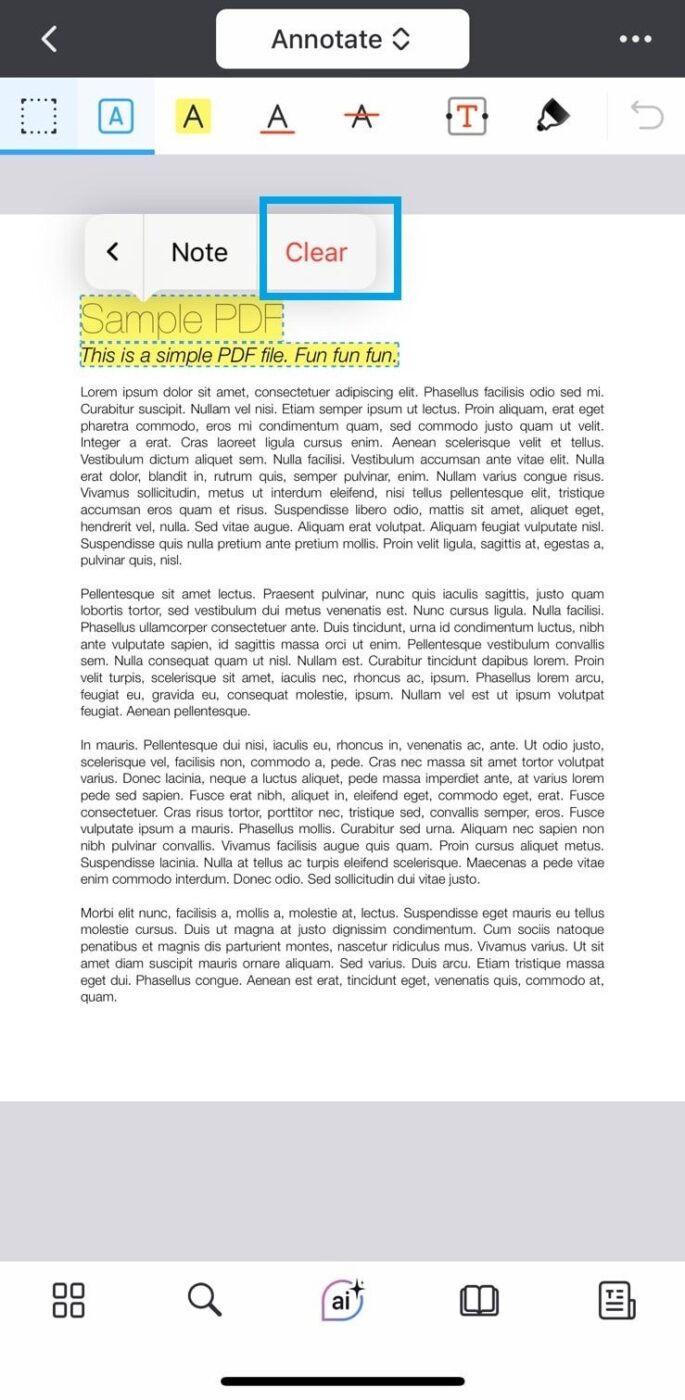
This mobile application combines all the essential annotation tools with powerful AI features to help you transform your PDF document effortlessly. If you’re using an Apple device, you can download PDF Expert from the App Store and use its wide range of tools.
To remove highlighting:
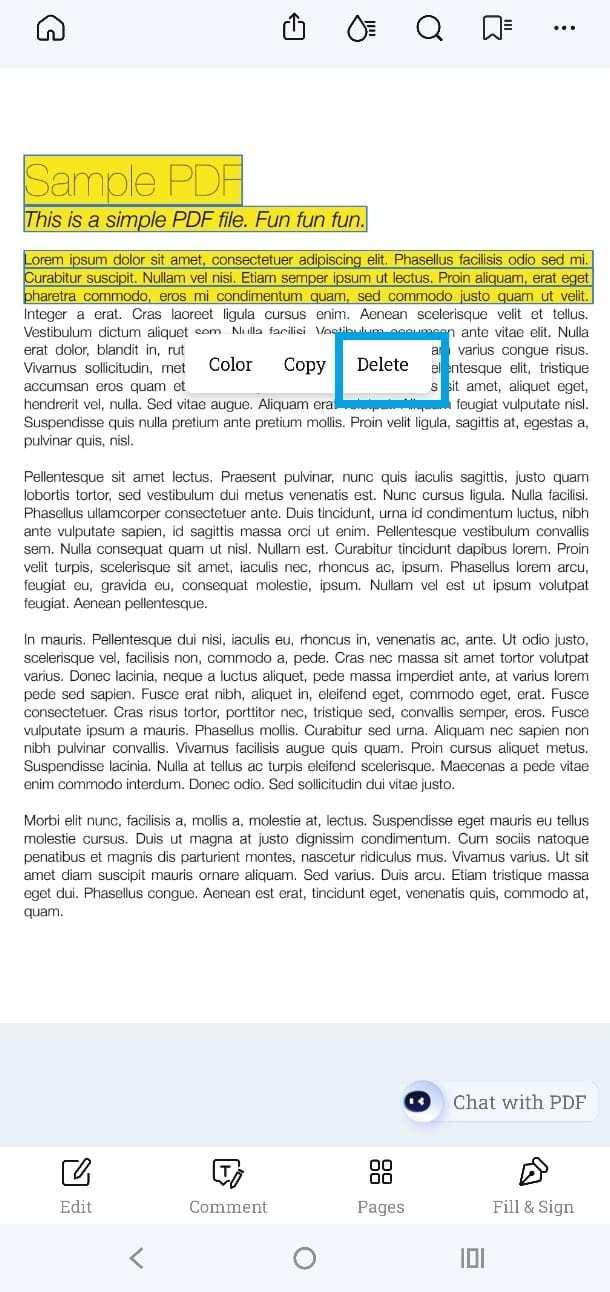
Another AI-powered PDF editor for Android users is PDFelement. The best part? This versatile application works seamlessly on Windows, Mac, and iOS, offering the same robust features across platforms.
To remove highlighting:
While these tools can get the job done, it’s essential to consider their limitations before creating an account or hitting that download button:
Also Read: How to Compare Two Word Documents
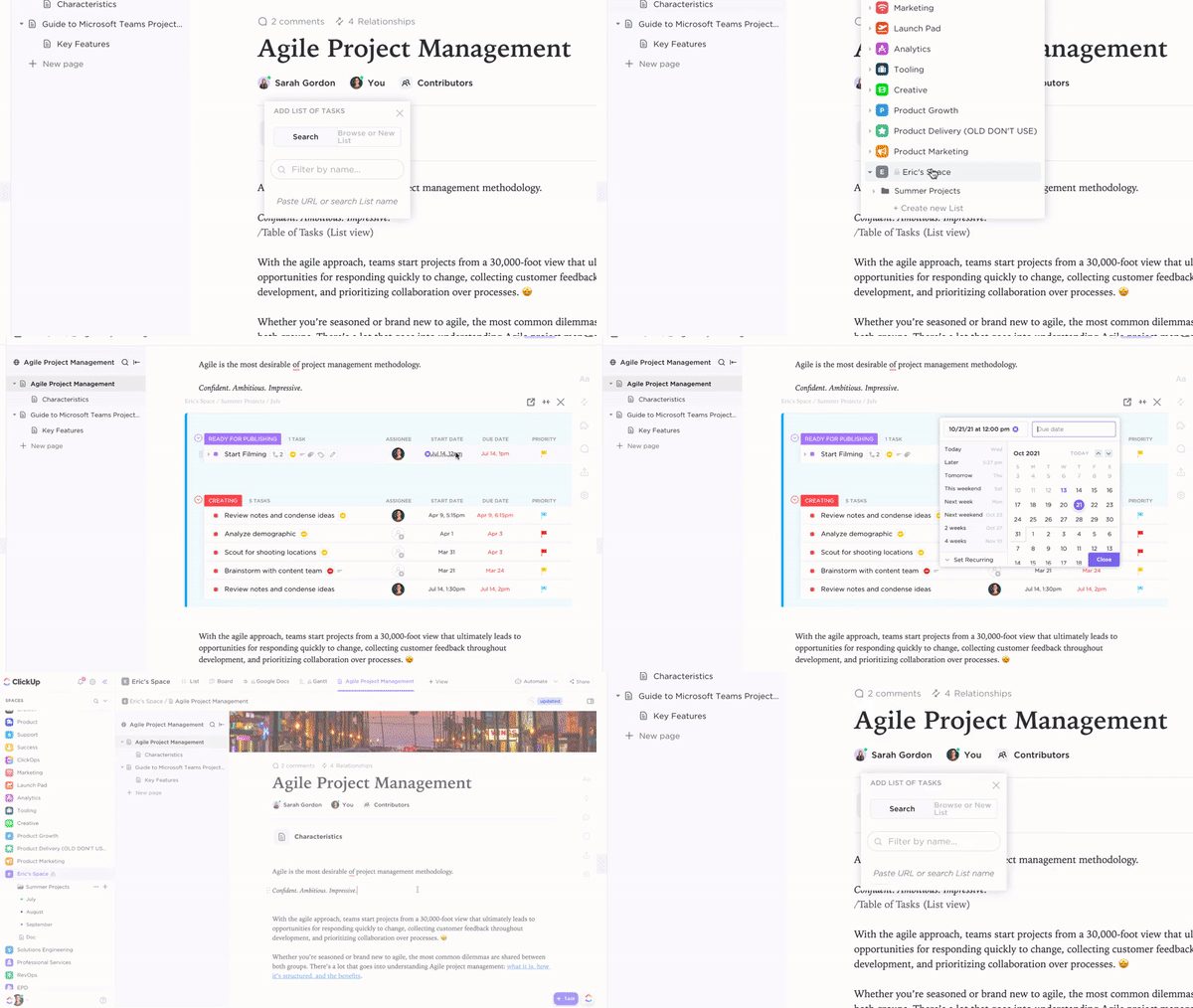
Unlike the other tools, ClickUp does more than just work with PDFs—it’s the everything app for work. From collaborating on projects to maintaining detailed documentation and tracking progress in real time, ClickUp can do all that—and more.
“But how can it manage highlighted text?” you wonder. Let’s talk about ClickUp Docs!
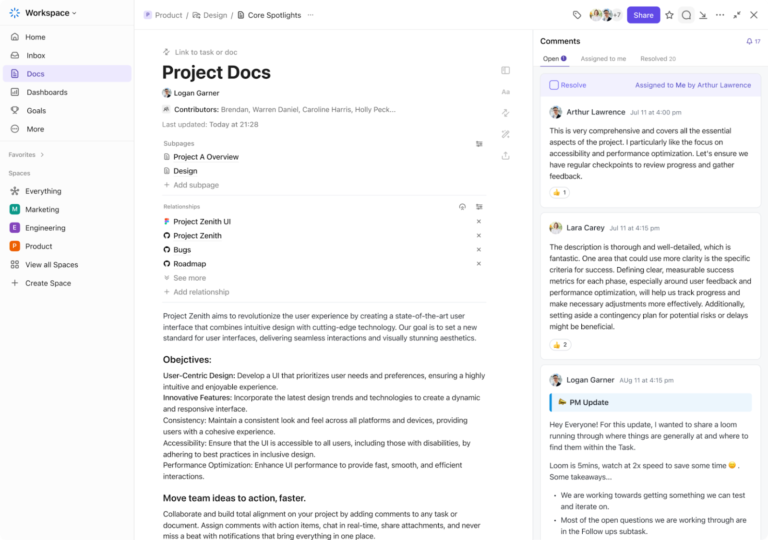
ClickUp Docs is a versatile document collaboration software that can handle all your collaboration needs. Here’s how it helps:

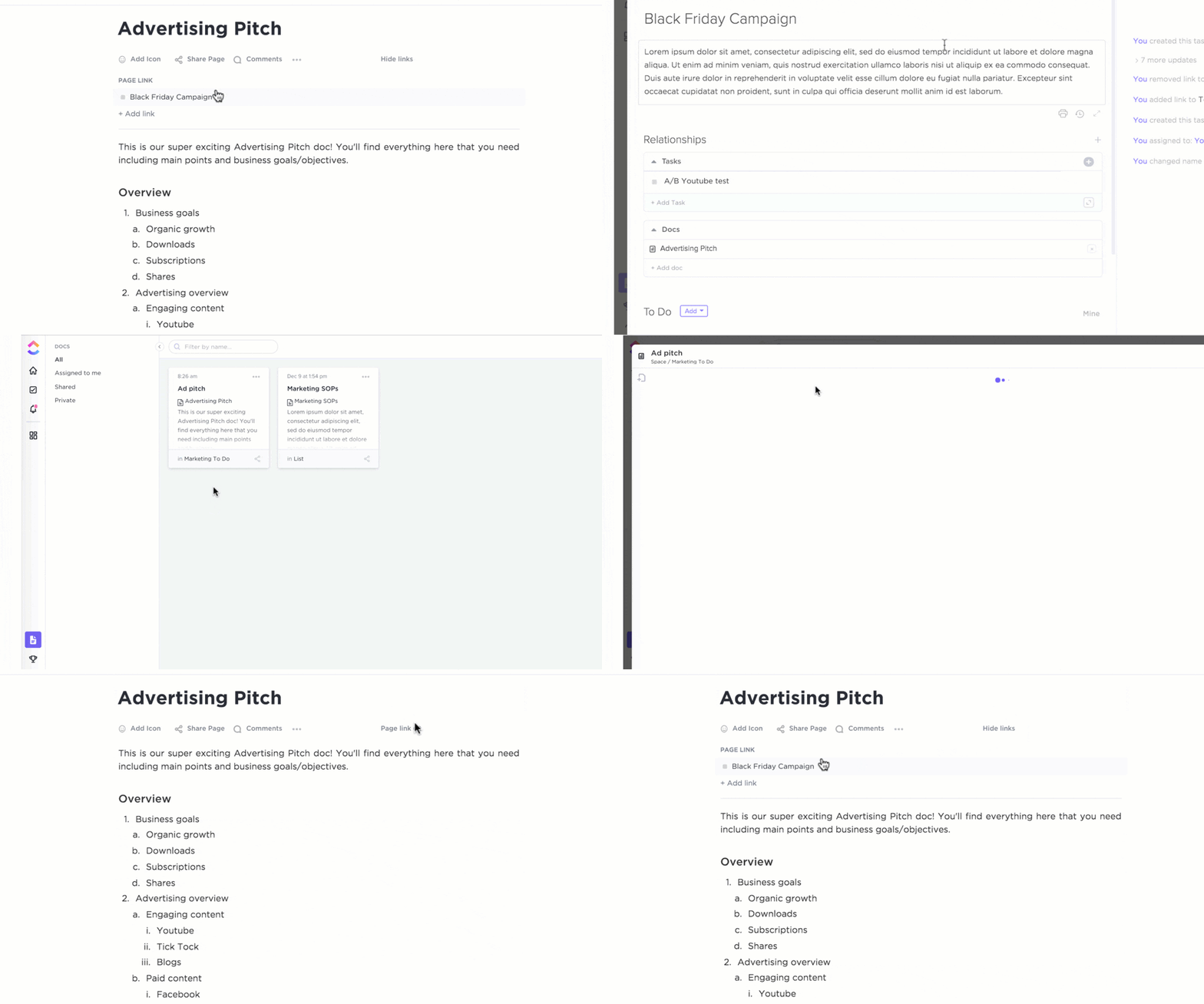
If you’re looking for a place to store, manage, and share your documents without the chaos of rogue highlights, ClickUp Docs might just be the solution you’re looking for.
Need more PDF-centric features? You can also annotate images, videos, and PDFs with ClickUp Proofing.
It can be a lifesaver when managing and perfecting your documents—especially if you’re trying to avoid the chaos of excessive or misplaced highlights. You can even drop annotations directly on the document instead of flooding it with random highlights and cryptic comments.
No guessing, no confusion—just clean, actionable feedback.
Here’s how it comes through:

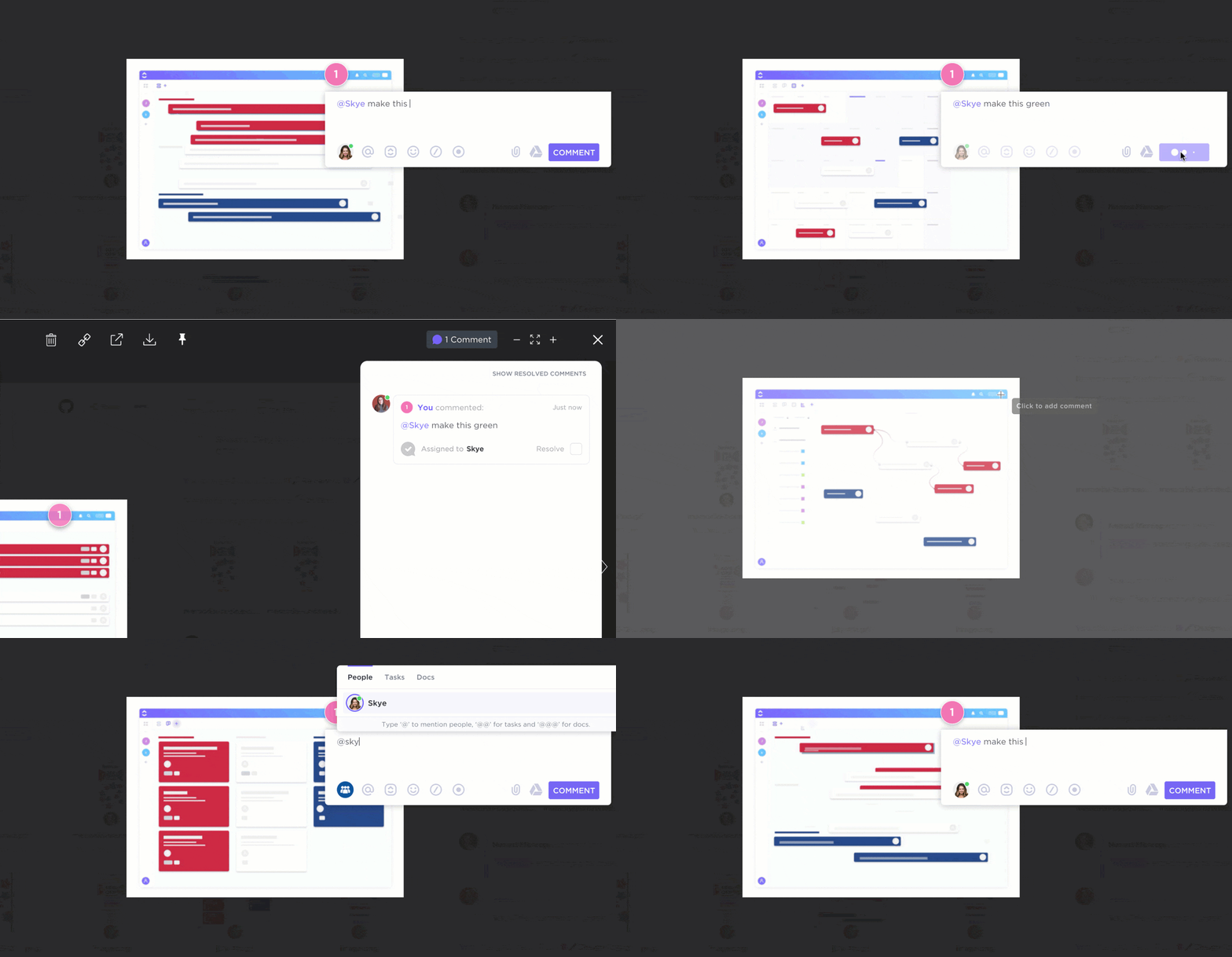
ClickUp’s Proofing feature acts as both an editor and project manager, simplifying PDF reviews, managing edits, and ensuring your documents are polished and professional.
ClickUp customer Michael Holt, CEO (Chief Executive Officer) at EdgeTech, says:
Our most recent appreciation of the collaborative impact of ClickUp was when working on a Content plan for a product launch. We were able to build and maintain a content repository using the Docs tool, that included a hierarchical structure, collaborative editing, and powerful embedding features.
💡Quick Hack: If your team tends to over-highlight PDFs (or debates what deserves a highlight), the ClickUp Proofing tool can help. Assign annotation colors to team members and set a ‘highlight limit’ per page—it’s like budgeting but for highlighters!
I know we’re focused on removing highlights from PDFs, but if you’d rather avoid the hassle of deleting them later, these eight mindful highlighting tips could be just what you need!
Before highlighting multiple pages, ask yourself, “Is this really necessary?” Less is more when it comes to readability.
If you need to highlight multiple sections, assign each color a specific purpose. This keeps your PDF annotations organized and meaningful!
For example:
This makes your document organized and easy to navigate, even when fully annotated.
If you’re using color coding, include a small note or message at the beginning of the document. This will help anyone reviewing the file understand the purpose of each color.
Set a habit of revisiting your highlights.
Keeping your PDFs updated ensures they stay relevant and valuable; otherwise, they can quickly become overwhelming!
Use PDF readers to manage highlights easily. They allow you to edit, move, or delete highlights from PDFs without hassle.
Establish ground rules if multiple people highlight pages in the same document. Use proofing tools for explicit annotations.
Need to do a complete overhaul? Import the PDF into an editable format like Word to make large-scale changes. After cleaning up the content, reconvert it to PDF format.
Before you make significant edits, please save a backup of the original document so that you can return to the untouched version.
👀 Did You Know? The use of tools designed to make PDFs accessible to individuals with disabilities surged by 450% in the last decade, reflecting the growing emphasis on inclusivity.
Removing highlights from PDFs doesn’t have to be a hassle. With the tools, you can clean up your documents, fix errors, and improve readability.
While every tool has strengths and limitations—such as free usage or a learning curve—document management solutions like ClickUp simplify editing, annotating, and collaborating on PDFs.
With Proofing, you can precisely annotate PDFs, turning feedback into actionable tasks without leaving the platform.
Unlike standalone tools that focus solely on editing, ClickUp integrates into your workflow. You can easily link document edits to project timelines, team assignments, and overall goals.
Sign up for ClickUp for free today and give workflow management a shot!

Manasi Nair
Max 24min read
Manasi Nair
Max 30min read
Manasi Nair
Max 28min read

© 2026 ClickUp