


Sorry, there were no results found for “”
Sorry, there were no results found for “”
Sorry, there were no results found for “”
To be fair, Zoom is a pretty straightforward and reliable videoconferencing platform.
But you know what could make it even better? Zoom keyboard shortcuts.
Also known as Zoom hotkeys, they save time and boost productivity—through a quick combination of keys that perform specific tasks, cutting out the need to fumble through menus to even plan a meeting.
We’ve gone down the shortcut rabbit hole to bring you the best Zoom shortcuts out there.
Once you start using them, you’ll wonder how you ever survived those marathon meetings without them.
Here’s a quick overview of what’s covered in this article:
Zoom shortcuts are keyboard combinations that let you move through Zoom’s features quickly without needing to rely on your mouse. They’re designed to save you time and make your Zoom meetings more efficient—whether you’re toggling between views, managing participants, or navigating settings.
✍🏻 Note: To use these Zoom keyboard shortcuts and hotkeys, ensure your Zoom desktop app (Windows, macOS, or Linux) is updated to the latest version. iPad users can also enjoy shortcuts by updating the Zoom mobile app to the required version.
Here are a few instances you can use in a Windows OS for instance:
📌 Example: Here’s how these shortcuts come to the rescue. Imagine you’re leading a large team meeting with over 50 participants. Instead of manually searching for controls to change views or manage screen sharing, using shortcuts like Ctrl + Alt + Shift + H on Windows or Ctrl + Option + Command + H on Mac keeps you focused on the meeting rather than the controls—saving time and reducing distractions.
Zoom keyboard shortcuts are a good way to improve how you navigate meetings. By reducing reliance on the mouse, you can work more efficiently, maintain focus, and even enhance accessibility for a smoother experience with these Zoom tips.
🧠 Did You Know: Research by developer Bruno Michels revealed that switching from a mouse to keyboard shortcuts for common tasks like copying and pasting can save up to five seconds per action. Over a year, this translates to about 134 hours—or 17 full workdays—of time saved.
Here are some (hot)key benefits:
Keyboard shortcuts let you perform essential tasks like muting/unmuting, turning your camera on/off, or raising your hand instantly. These actions, which typically take multiple clicks, are completed in seconds—making your workflow faster and more streamlined.
💡 Pro Tip: Scheduling Zoom meetings is even easier if you integrate your Zoom account with tools like Google Calendar or ClickUp. Here’s a guide on how to schedule a Zoom meeting with ease.
By keeping your hands on the keyboard, you can stay fully engaged in the meeting without interruptions. There’s no need to reach for the mouse, which can distract you from the conversation or task at hand.
For users with accessibility needs, keyboard shortcuts provide an alternative way to interact with Zoom, ensuring that everyone can fully participate in meetings without difficulty.
🍪 Bonus: From muting your mic when not speaking to framing yourself well on camera, small details make a big difference in creating a polished, professional impression. Master Zoom etiquette and best practices with this guide.
Zoom shortcuts are thoughtfully designed to be easy to remember. For example, pressing “Alt + M” mutes your microphone (for Windows); “Command + Shift + A” mutes your microphone (for Mac), and “Alt + V” toggles your video (for Windows); “Command + Shift + V” switches your video on/off (for Mac)—making it simpler to incorporate these shortcuts into your routine.
Using shortcuts to quickly access meeting controls can help you appear more confident and prepared. Whether muting background noise or switching views, these small key combinations contribute to a polished and seamless presentation.
💡 Pro Tip: Avoid the stress of running out of time during crucial Zoom meetings by understanding Zoom’s plan options. Whether you stick with the free plan or upgrade for extended features, here’s a guide on Zoom’s free vs. paid plans.
Zoom makes it easy to view, use, and even customize keyboard shortcuts to suit your preferences. Whether you want to save time or create shortcuts aligned with your workflow, here’s how you can make the most of this feature.

Zoom allows you to personalize shortcuts, giving you flexibility and control over how you navigate the app. Follow these steps:

💡 Pro Tip: Zoom offers two types of keyboard shortcuts: global and local hotkeys. Global hotkeys work across all applications, meaning you can use them even when the Zoom popup window isn’t active—perfect for multitasking during a meeting.
For example, you can mute audio for yourself or toggle video while working on another program. Local hotkeys, on the other hand, are application-specific, like Zoom shortcuts that only work within the Zoom app or Slack shortcuts that stay within Slack.
Zoom prevents shortcut conflicts—situations where two functions share the same key combination. If a conflict arises:
To fix a conflict, edit one of the shortcuts involved and assign a unique key combination.
📮ClickUp Insight: 37% of workers send follow-up notes or meeting minutes to track action items, but 36% still rely on other, fragmented methods.
Without a unified system for capturing decisions, key insights you need may get buried in chats, emails, docs, or spreadsheets. With ClickUp, you can instantly turn conversations into actionable tasks across all your tasks, chats, and docs—ensuring nothing falls through the cracks.
Below is a comprehensive table of essential Zoom keyboard shortcuts for both Windows and macOS.
| Function | Windows Shortcut | macOS Shortcut |
| Mute all microphones except the host | Alt + M | Command ⌘ + Control + M |
| Unmute audio for all microphones | Alt + M | Command ⌘ + Control + U |
| Mute speaker’s microphone | Alt + A | Command ⌘ + Shift ⇧ + A |
| Push to talk when muted | Space bar | Space bar |
| Start or stop screen sharing (toolbar focus only) | Alt + Shift + S | Command ⌘ + Shift ⇧ + S |
| Pause or resume recording | Alt + P | Command ⌘ + Shift ⇧ + P |
| Pause or resume screen sharing (toolbar focus only) | Alt + T | Command ⌘ + Shift ⇧ + T |
| Switch to the active speaker in a meeting | Alt + F1 | Command ⌘ + Shift ⇧ + W |
| Switch to gallery view | Alt + F2 | Command ⌘ + Shift ⇧ + W |
| View previous 25 video streams in gallery view | PageUp | Control + P |
| View next 25 video streams in gallery view | PageDown | Control + N |
| Prompt to end or leave a Zoom meeting | Alt + Q | Command ⌘ + W |
| Gain remote control | Alt + Shift + R | Ctrl + Shift + R |
| Stop remote control | Alt + Shift + G | Ctrl + Shift + G |
| Raise or lower your hand | Alt + Y | Option + Y |
| Display or hide participants panel | Alt + U | Command ⌘ + U |
| Open invite window | Alt + I | Command ⌘ + I |
| Close the current window | Alt + F4 | Command ⌘ + W |
| Start or stop video command | Alt + V | Command ⌘ + Shift ⇧ + V |
| Start or stop cloud recording | Alt + C | Command ⌘ + Shift ⇧ + C |
| Start or stop local recording | Alt + R | Command ⌘ + Shift ⇧ + R |
| Enter or exit fullscreen | Alt + F | Command ⌘ + Shift ⇧ + F |
| Show or hide floating meeting controls | Ctrl + Alt + Shift + H | Ctrl + Option + Command + H |
| Take a screenshot | Alt + Shift + T | Command ⌘ + T |
| Jump to chat with someone | Ctrl + T | Command ⌘ + K |
| Close current chat | Ctrl + W | N/A |
| Go to the previous chat | Ctrl + Up | N/A |
| Search | Ctrl + F | N/A |
| Go to the next chat | Ctrl + Down | N/A |
| Switch to portrait or landscape view | Alt + L | N/A |
While Zoom is a versatile and widely used platform, it can be a nuisance in certain situations.
🧠 Did You Know: Over 45% of executives feel overwhelmed by meeting overload. Here’s your guide on how to have productive meetings and improve team efficiency.
💡 Pro Tip: Effective meetings start with clear goals and agendas. Here’s how to run effective meetings where you get to organize discussion topics, assign action items, and ensure everyone leaves with a sense of accomplishment.
The way we work has changed dramatically, and so have the tools we use to stay productive.
A Harvard Business Review study revealed that workers toggle between tabs around 1,200 times a day, adding up to nearly four hours of lost productivity.
This is why ClickUp is such a great Zoom alternative: it combines real-time communication with task management.
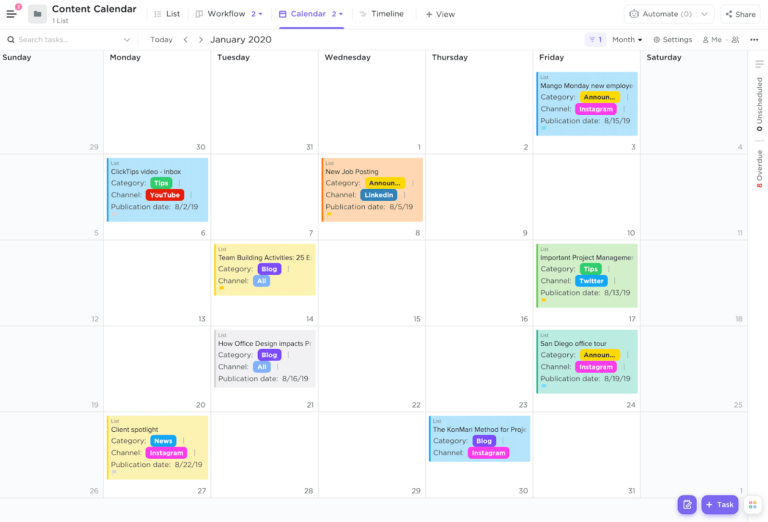
Imagine trying to manage overlapping Google Calendar events, Zoom meetings, and Apple Calendar reminders—keeping track of everything can feel overwhelming. ClickUp’s Calendar View solves this by centralizing all calendars in one place.
📌 Example: If your team has a busy Monday packed with client calls and internal reviews, you can use ClickUp to highlight high-priority tasks while planning pre-meeting preparation and post-meeting follow-ups directly in the Calendar View.
There’s another major challenge with the way we use meeting apps right now: most meetings result in key takeaways or action items, but following up on them can be a challenge.
ClickUp Meetings takes care of this. Keep track of notes, organize agendas, and assign action items to ensure accountability—all on one platform. Documenting your weekly meetings unlocks some of ClickUp’s most powerful capabilities!
Additionally, using ClickUp Assign Comments, you can delegate tasks right from within ClickUp Meetings, ensuring everyone knows what they need to do.
💡 Pro Tip: Use ClickUp Docs to document meeting agendas and take collaborative notes in real time to make virtual meetings more interactive. Everyone can contribute during the meeting, and with ClickUp Brain, discussions are automatically summarized into actionable tasks.
Now, for the best beneficial ClickUp feature for serial meeting attendees: Sometimes, written notes aren’t enough to capture the nuances of a meeting. ClickUp’s Clips feature bridges the gap by enabling users to record and share meeting content effortlessly.

Just like Vida Health’s Event Marketing Manager, Alaina Maracotta, who shared, “It’s been phenomenal to see how much time we’ve saved in meetings since moving to ClickUp. What used to take us three hours per week for event planning and updates now takes us just over an hour.”
How to record with ClickUp Clips:
📌 Example: If you’re leading a training session, you can record the entire session with ClickUp Clips and share bite-sized video updates with team members who couldn’t attend. The recordings are saved automatically, and ready to be shared or attached to relevant tasks.
Need some more ammo? Meet ClickUp’s AI Meeting Notetaker! Let the AI attend meetings in your stead and bring you action items and meeting highlights. Learn more.👇🏼
ClickUp’s keyboard shortcuts are designed to simplify your workflow and minimize unnecessary hand movements. Here’s how you can get started with ClickUp shortcuts:
Enable shortcuts: By default, ClickUp shortcuts are disabled. To enable them:
Access all shortcuts: To view the full list of shortcuts, click on your avatar and select Keyboard shortcuts from the dropdown menu. From there, you can explore various categories of shortcuts.
Here’s a detailed table of some of the most useful ClickUp shortcuts categorized by function:
| ClickUp Function | Shortcut (Mac) | Shortcut (Windows) |
| Global shortcuts | ||
| Close a task or window | Esc | Esc |
| Open Command Center | Cmd + K | Ctrl + K |
| Show/hide Sidebar | Q | Q |
| Create a task | T | T |
| Open Notepad | P | P |
| Notifications | Space | Space |
| Text shortcuts | ||
| Mention a person | @ | @ |
| Mention a task | @@ | @@ |
| Insert an arrow ➝ | -> | -> |
| Create a hyperlink | Cmd + K | Ctrl + K |
| Task shortcuts | ||
| Assign task to yourself | Hover + M | Hover + M |
| Add/remove from Tray | Shift + T | Shift + T |
| Navigate to next task | Cmd + Shift + Arrow | Ctrl + Shift + Arrow |
| Bulk create subtasks | Paste list into subtask | Paste list into subtask |
| View shortcuts | ||
| Calendar view | C | C |
| Board view | B | B |
| List view | L | L |
| Dashboard view | D | D |
| Team view | X | X |
| Doc shortcuts | ||
| Highlight selected text block | Cmd + Shift + H | Ctrl + Shift + H |
| Create a bulleted list | Cmd + Shift + 9 | Ctrl + Shift + 9 |
| Create a checklist | Cmd + Shift + 8 | Ctrl + Shift + 8 |
| Create a numbered list | Cmd + Shift + 7 | Ctrl + Shift + 7 |
| Align text to the center | Cmd + Shift + E | Ctrl + Shift + E |
| Duplicate a text block | Cmd + D | Ctrl + D |
We all love Zoom (at least most of us do). But it is one more platform for us to hop in and out of as we scramble for meeting notes and recordings.
ClickUp users often start their journey looking to save time, but they quickly uncover a treasure trove of features to automate tasks and ease workflows.
From centralized calendar management and real-time task creation to collaborative Docs and Clips for meeting recordings, ClickUp transforms how teams manage work and communication.
Ready to reclaim your time and simplify your workflow? Sign up for ClickUp today and experience the efficiency yourself.

Sudarshan Somanathan
Max 22min read

Manasi Nair
Max 23min read

© 2026 ClickUp





