People pause for pictures and short clips. We all do. A clear image can say more than a long caption. This phenomenon is probably why most YouTube Shorts that land between 50 and 60 seconds tend to earn the most views.
The good news is that you don’t need a complete design bench to keep up. With an AI image generator, your team can turn a simple text prompt into high-quality images, stitch those into short videos, and ship campaigns in hours.
In this article, we will focus on practical text-to-image prompts for marketing team workflows, enabling you to create consistent brand visuals at speed.
We will also learn how to shape art style, color, lighting, and mood using prompts, so your visuals reflect your brand.
Text-to-Image Prompts for Marketing Teams: AI Visual Content Tips
Summarize this article with AI
ClickUp Brain not only saves you precious time by instantly summarizing articles, it also leverages AI to connect your tasks, docs, people, and more, streamlining your workflow like never before.
Summarize this article for me please
What are text-to-image prompts?
Think of a text-to-image prompt as a set of instructions with specific keywords you give to an AI image generator.
You type a few words, maybe a sentence or two, and the tool does its best to create stunning images through AI image generation. The generated output could be as simple as “a dog sleeping on a cozy couch” or as vivid as “a futuristic city skyline glowing under a golden sunset with holographic signs floating in the air.”
You can also use different AI art generators to generate logos based on their unique creative processes and models.
✍🏻 Note: The clearer you are with your words, the closer the AI’s understanding gets to the vision in your mind. If you can factor in additional details about art style, mood, color, or background, the resulting image feels more personal and refined.
There are many text-to-image generators that make this process possible. Adobe Firefly, DALL·E, Midjourney, and Stable Diffusion are some of the better-known tools. Each one has its own personality and strengths.
Here are a few examples of prompts that bring scenes to life:
“A vintage red convertible driving along a coastal road at sunset, waves crashing on the cliffs, seagulls in the sky.”
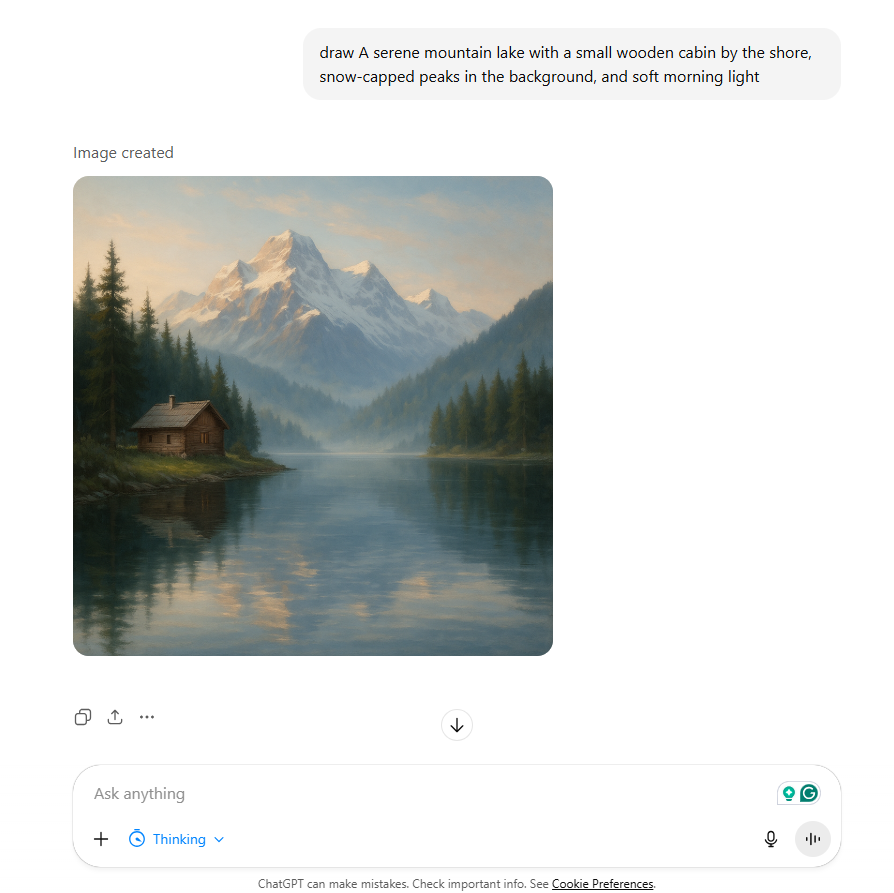
“A serene mountain lake with a small wooden cabin by the shore, snow-capped peaks in the background, and soft morning light.”
“An abstract digital art poster of swirling colors, inspired by art deco design, with glowing gold lines and deep blues.”
Summarize this article with AI
ClickUp Brain not only saves you precious time by instantly summarizing articles, it also leverages AI to connect your tasks, docs, people, and more, streamlining your workflow like never before.
Summarize this article for me please
Why Marketing Teams Should Use AI Text-to-Image Tools
The Bonn Institute affirms that visual stimuli reach the brain faster than words, and different systems help us process each accordingly. The amygdala, which helps us respond to fear and other intense emotions, lights up in response to certain images and can even trigger physical responses, such as a quick pulse or sweaty palms.
Here is the heart of it in plain terms: on social platforms, positive images can attract more attention and raise the chance of a click or a share.
At the same time, a photo placed next to a claim can make that claim feel more believable, even when the photo adds no new facts, which is why careful picture choice matters so much.
If images land faster and linger longer, marketing teams should have an easy way to make them. Here’s how text-to-image prompts help:
Turn quick ideas into on-brand visuals at scale with text-to-image prompts, so small teams can spin up variations for social media graphics, ads, and email headers in minutes
Keep campaigns consistent by reusing a clear prompt structure with art style, color schemes, and lighting conditions, so generated images look and feel unified across every channel
Cut costs by letting marketers move from a simple text description to high-quality images in an AI image generator, while designers focus on the more complex design tasks that genuinely need them
🎥 If you’ve been curious about AI for marketing but unsure how to apply it day-to-day, this beginner-friendly guide walks you through proven use cases and practical tools you can start using immediately.
Save time on content creation
Reuters reported that IBM’s design teams cut campaign turnarounds from about two weeks to roughly two days after adding Adobe’s generative tools to their process.
That is the kind of shift busy teams feel right away. With a clear text-to-image prompt, you can move from brief to high-quality images in the same morning.
Start with one simple text description, then shape the image prompt with subject, art style, lighting, mood, and color. Your AI image generator will return several generated images for you to review side by side, allowing you to keep only what fits the story.
📁 Save the prompts that worked, along with seeds or settings, and you have a library you can reuse next week.
It also helps smaller teams publish social media graphics and email headers without waiting in a long queue. You will still touch the design at the end, but you are no longer starting from zero each time. Over the course of a month, those saved hours add up to better planning, cleaner testing, and steadier output.
Maintain consistent brand visuals across channels
Consistent branding = higher revenue. This is a valuable reminder that steady visuals build trust over time.
When you write an image prompt, include the same background language each time, so images generated feel like they come from one family. If a detail drifts, add a short negative line that says what to avoid.
Ask teammates to use those blocks first, then add details for each scene. Review a grid of generated images together, and check for tone, palette, and composition before you publish. If you need regional versions, change the setting or product color, and keep the lighting conditions and layout steady.
Reuse the same art style, lighting conditions, background, and mood words inside every image prompt, so that, channel by channel, your visuals stay aligned
Keep a short list of negatives, like “avoid harsh neon, avoid crowded backgrounds,” to protect quality without daily policing
👀 Fun Fact: TikTok’s scale keeps growing on the business side, too. Estimates suggest that the platform generated approximately $23 billion in 2024, primarily from advertising. Wherever the ad dollars go, creative norms tend to follow, so expect more AI-first visuals tuned for vertical screens.
Experiment with multiple design variations quickly
At Google Marketing Live 2024, Google showed creative asset generation that helps advertisers spin up and test more image variations inside Performance Max, which is precisely what most teams need when timelines are tight.
You can do a simple version today with any AI image generator.
✅ Write three text-to-image prompts for the same idea, each with a different image style or lighting, and keep the subject and message steady ✅ Generate a dozen options, label them, and choose two or three per channel. For video covers and Shorts, try closer crops and strong focal points ✅ For LinkedIn banners, leave clean space for copy ✅ Track which prompt lines tend to improve attention, like soft volumetric light or golden hour backlight, and promote those lines into your standard prompt structure ✅ When you localize, swap the background or color accents, and keep the core look intact.
This way, you learn from each round instead of starting from scratch.
Reduce dependency on external designers for quick projects
McKinsey estimates that generative AI can lift marketing productivity by roughly 5 to 15% of total spend, which lines up with what many teams feel once they switch to prompt-first workflows.
This protects designers’ time.
Let marketers handle quick items with text-to-image prompts, and ask designers to refine the essential pieces that truly need craft. Start by listing the assets you will create in-house, like social posts, blog headers, simple ads, and webinar cards.
When a request comes in, open the AI image generator, paste the prompt, and create three options in under an hour. Bring in a designer for the final pass or for layouts that need attention.
💡 Pro Tip: Need help in calculating the total ROI of your marketing campaigns? ClickUp’s free tool, Marketing ROI Calculator, lets you track all your campaigns, ROIs, and KPIs in one single place. All you’ve to do is enter your marketing spend and generated revenue from individual campaigns, and the tool instantly calculates your ROI percentage and net profit!
Summarize this article with AI
ClickUp Brain not only saves you precious time by instantly summarizing articles, it also leverages AI to connect your tasks, docs, people, and more, streamlining your workflow like never before.
Summarize this article for me please
How to Craft Effective Text-to-Image Prompts
Before we discuss the use cases of text-to-image prompts, let’s clarify a few key points. AI is brilliant at creating and understanding patterns, yet it is also prone to misunderstanding your intent if the prompt is vague.
Let’s see how you can create text-to-image prompts like a clear map for your AI image generator by naming the outcome you want.
1. Market research
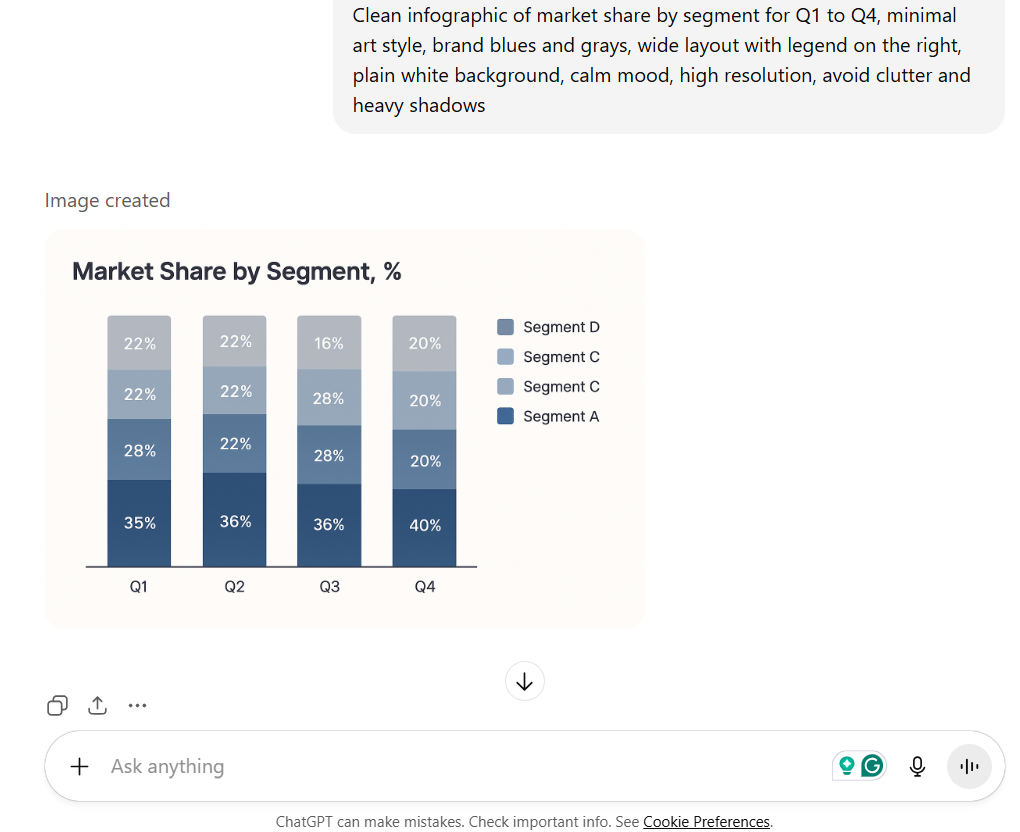
Spreadsheets make it difficult to connect numbers to real business outcomes. Data is often scattered across segments and time frames, leaving teams unsure about what story the metrics are really telling. A clear visual, designed with the right chart style, brand colors, and room for notes, helps surface those insights so discussions stay focused and meaningful.
Prompt
“Clean infographic of market share by segment for Q1 to Q4, minimal art style, brand blues and grays, wide layout with legend on the right, plain white background, calm mood, high resolution, avoid clutter and heavy shadows”
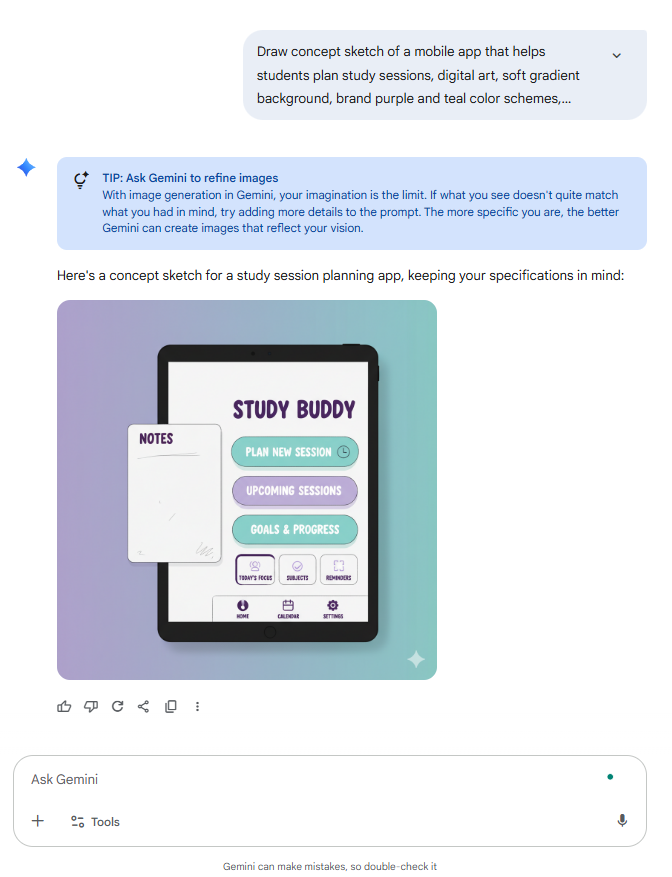
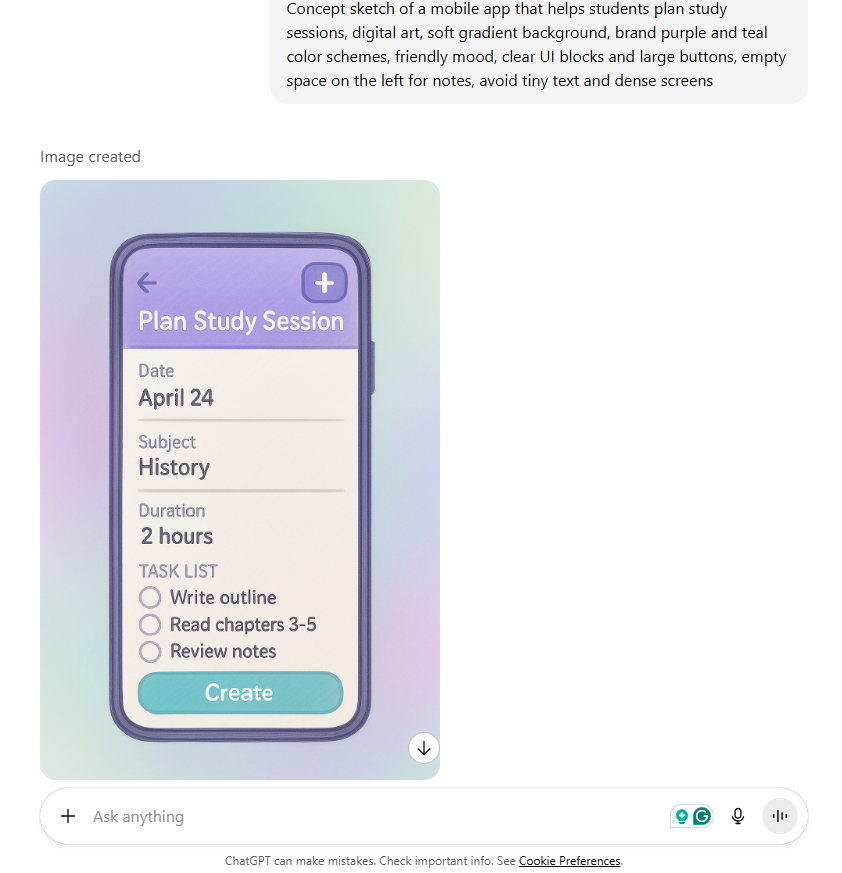
Early ideas often lose momentum when the team cannot visualize them. A clear text-to-image prompt gives everyone a shared picture of the concept, the audience it serves, and the moment in life where it fits. By defining the art style, background, mood, and brand colors, you create a scene that helps the group align on what is being built.
Prompt
“Concept sketch of a mobile app that helps students plan study sessions, digital art, soft gradient background, brand purple and teal color schemes, friendly mood, clear UI blocks and large buttons, empty space on the left for notes, avoid tiny text and dense screens”
💡 Pro Tip:Marketing teams on ClickUp can create a “Prompt Library” Doc with sections for social media graphics, ads, email headers, and blog art. Store your best text-to-image prompts with sample outputs and tag by channel so free users and new teammates can ship consistent, high-quality images without guessing
3. Generating product requirements document (PRD)
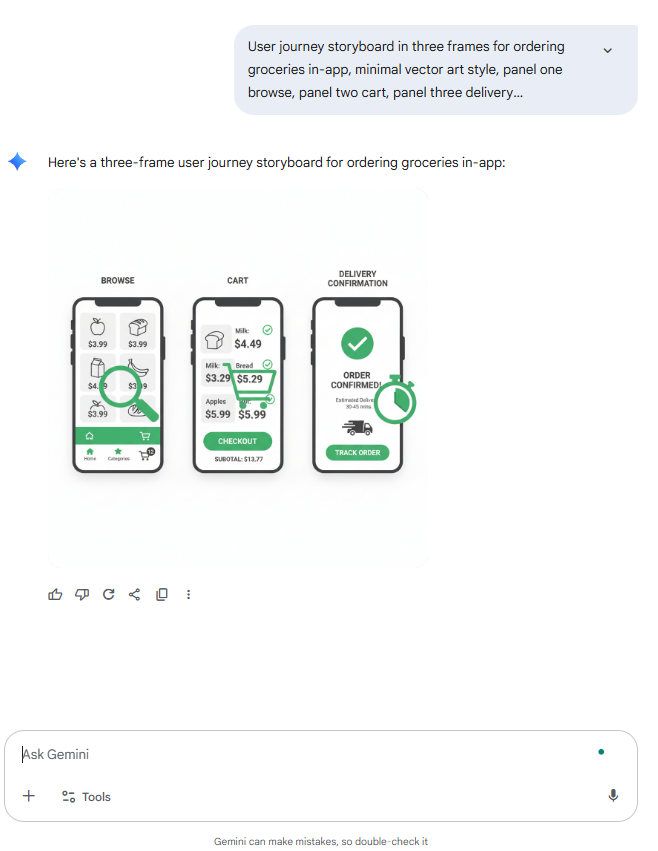
A product requirements document is easier to align on when everyone sees the same picture of the user and the outcome. Small, well-placed visuals help readers scan long pages and remember the core journey, the key objects on screen, and the success state. By also showing potential risks, what to avoid, and keeping a consistent image style and palette, the PRD becomes clearer and more actionable.
Prompt
“User journey storyboard in three frames for ordering groceries in-app, minimal vector art style, panel one browse, panel two cart, panel three delivery confirmation, brand green and charcoal color schemes, clean white background, calm mood, avoid tiny text and gradients”
💡 Pro Tip: Use ClickUp BrainGPT’s Talk to Text to dictate prompt ideas in the moment. Speak the subject, mood, color schemes, and background while the idea is fresh, then edit lightly. It is a kind way to capture prompt writing without breaking the flow.
Capture meeting notes hands-free with ClickUp Talk To Text
4. Bug testing and software testing
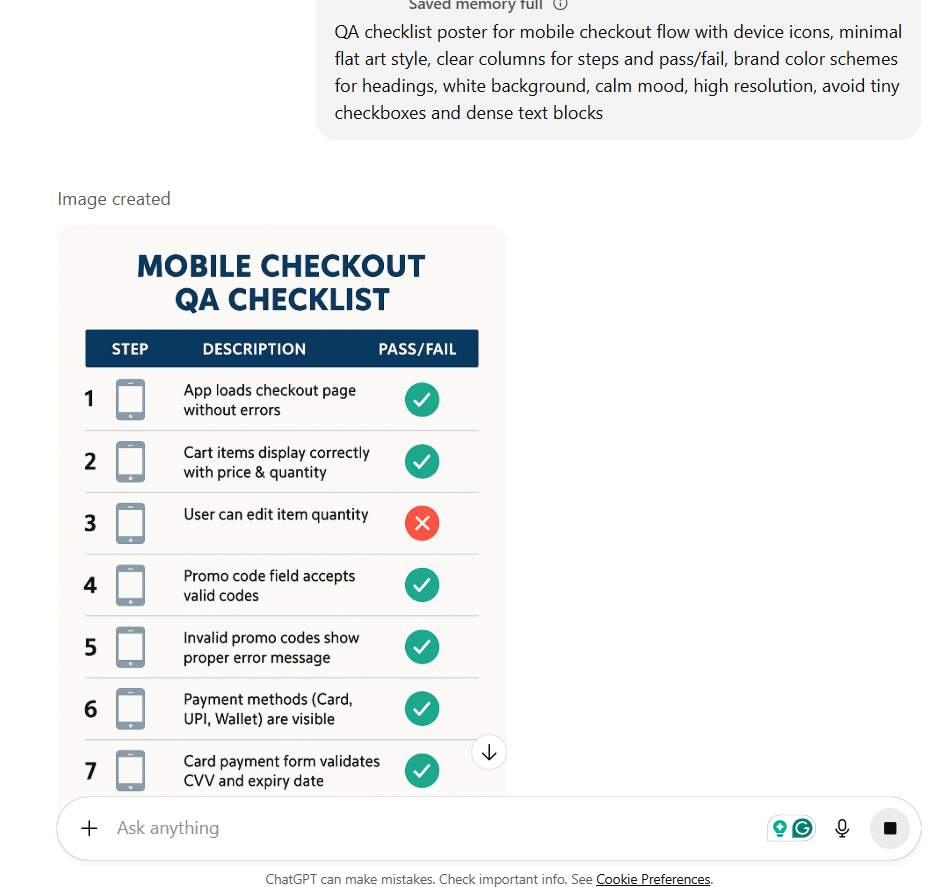
Bugs are easy to miss when testing notes are scattered. A checklist image helps the team stay focused across devices, platforms, and critical states. By including known risk areas and space for pass or fail tags, testing becomes clearer and more reliable.
Prompt
“QA checklist poster for mobile checkout flow with device icons, minimal flat art style, clear columns for steps and pass/fail, brand color schemes for headings, white background, calm mood, high resolution, avoid tiny checkboxes and dense text blocks”
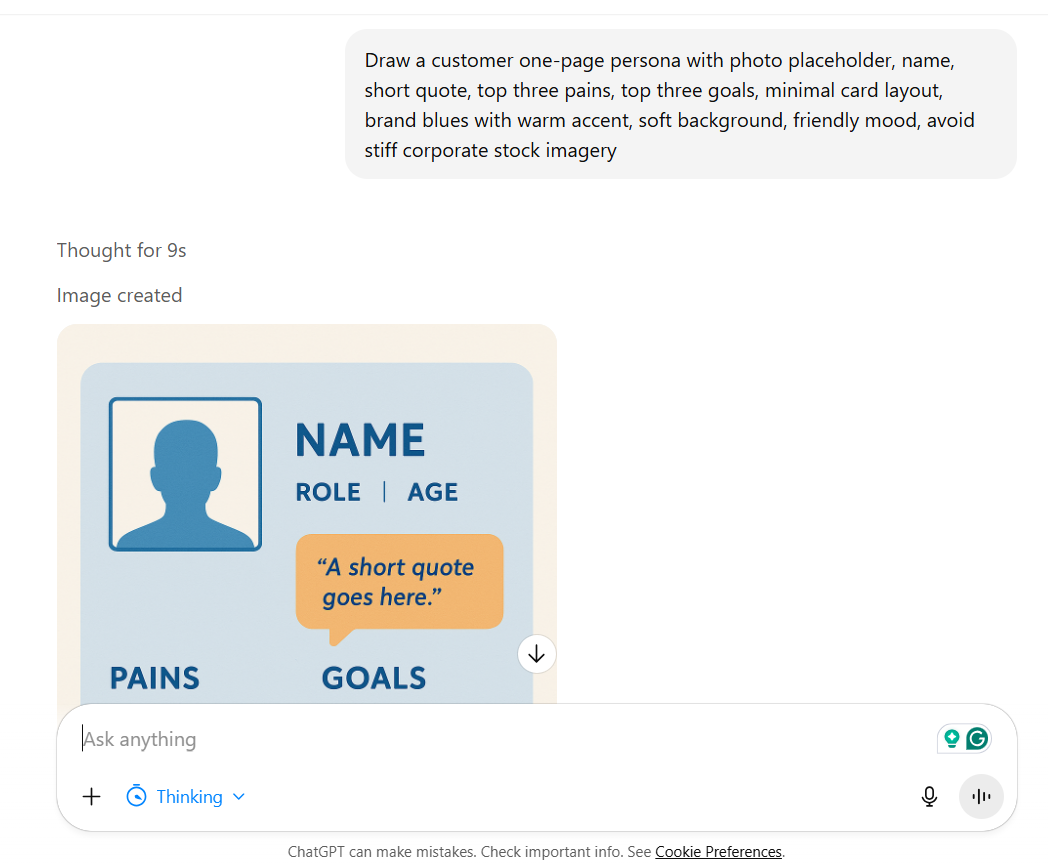
Decisions are stronger when the team connects with the real person behind the data. A simple one-pager makes the persona tangible with a name, a short quote, their main job to be done, and top pains. Adding the context of where the product is used and a warm accent within the brand palette keeps the focus human and relatable.
Prompt
“Customer one-page persona with photo placeholder, name, short quote, top three pains, top three goals, minimal card layout, brand blues with warm accent, soft background, friendly mood, avoid stiff corporate stock imagery”
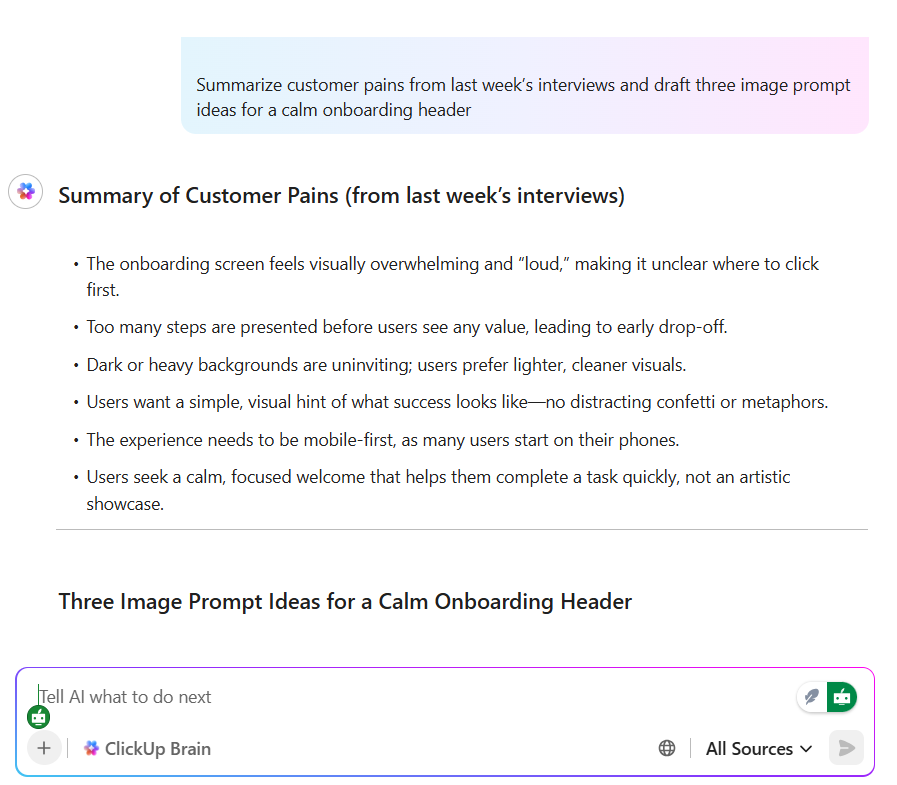
💡 Pro Tip: Ask ClickUp Brain to turn raw notes into prompt starters. Example prompt to ClickUp Brain: “Summarize customer pains from last week’s interviews and draft three image prompt ideas for a calm onboarding header.” This keeps AI’s understanding of your context close to your workflow.
You can use ClickUp Brain in many ways to ease your marketing tasks. Here’s one use case:
Summarize documents and find the files you need faster by asking ClickUp Brain
Pricing discussions are easier when trade-offs are clear. A clean table lays out tier names, core features, and a single highlight that justifies the price of each tier. Adding usage limits or seats where relevant, along with a background that prints well, keeps the comparison simple and useful.
Prompt
“Pricing comparison table with three tiers side by side, minimal design, brand palette with subtle accent on middle tier, clear feature ticks, footnote space, high resolution for web and print, avoid loud gradients and decorative icons”
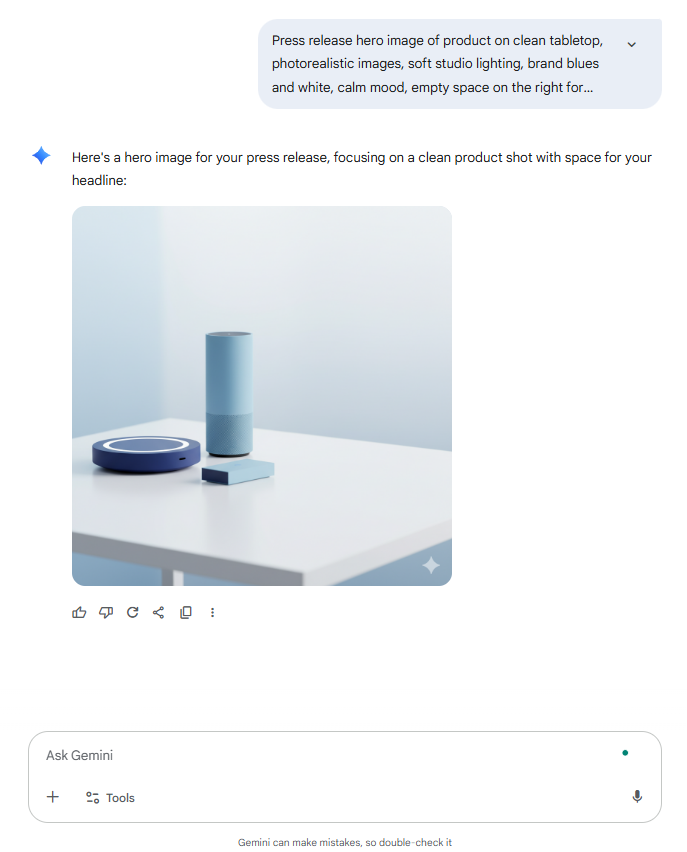
Announcements land better when the proof is visible up front. A clear hero image ties the product name to its key benefit while setting the right style, mood, and color scheme. Leaving space for headline copy and choosing a background that stays legible makes the image work across both news posts and social channels.
Prompt
“Press release hero image of product on clean tabletop, photorealistic images, soft studio lighting, brand blues and white, calm mood, empty space on the right for headline, high-quality images, avoid reflections over the copy area”
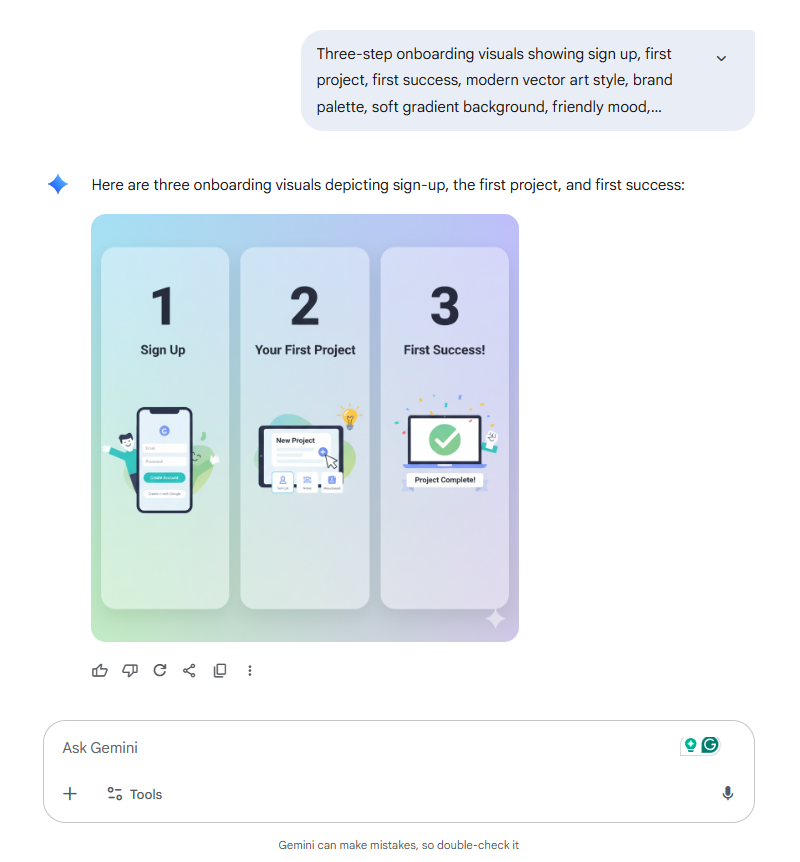
Onboarding works best when the first actions are clear and gentle. A short set of visuals shows the three steps a new user must take and the screens or objects they will see. Set a helpful, human tone and keep the art style and background consistent with the brand so the guide feels calm and easy to follow.
Prompt
“Three-step onboarding visuals showing sign up, first project, first success, modern vector art style, brand palette, soft gradient background, friendly mood, numbered markers, avoid tiny text and busy patterns”
📮 ClickUp Insight: About 33% of knowledge workers ping 1 to 3 people every day just to get context. Imagine if the answers were already written down and simple to find. With ClickUp Brain, you can ask right inside your workspace and get what you need pulled from your ClickUp work and connected apps, so context switching fades into the background.
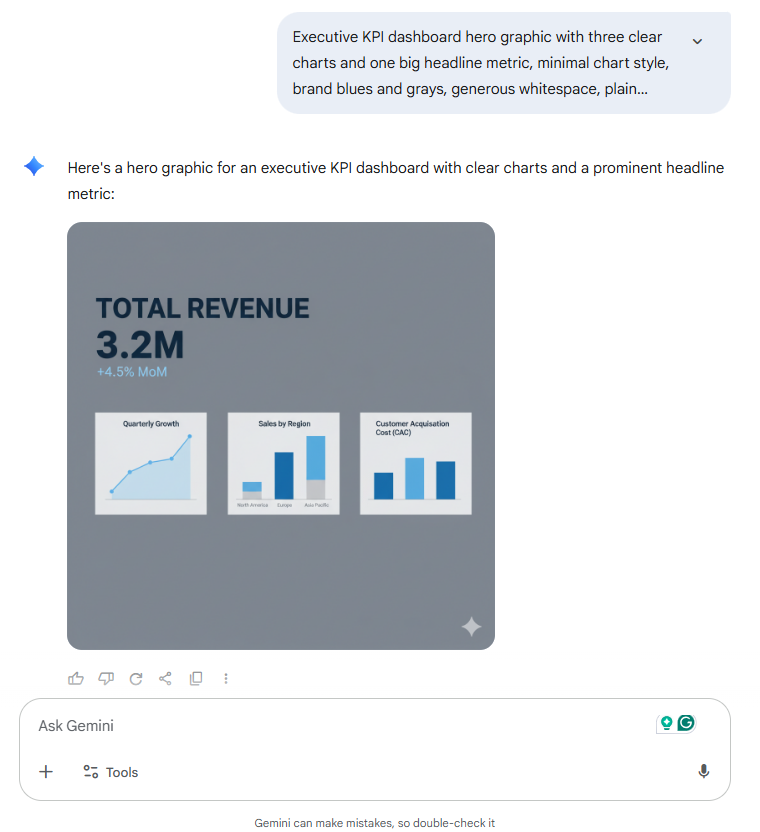
Stakeholders want a simple signal, not a flood of numbers. A focused image highlights the right KPIs within a defined time window and uses the most effective chart types to show the trend. With brand colors, balanced whitespace, and an export size that fits slides or docs, the update stays easy to follow and easy to share.
Prompt
“Executive KPI dashboard hero graphic with three clear charts and one big headline metric, minimal chart style, brand blues and grays, generous whitespace, plain background, serious calm mood, avoid 3D effects and clutter”
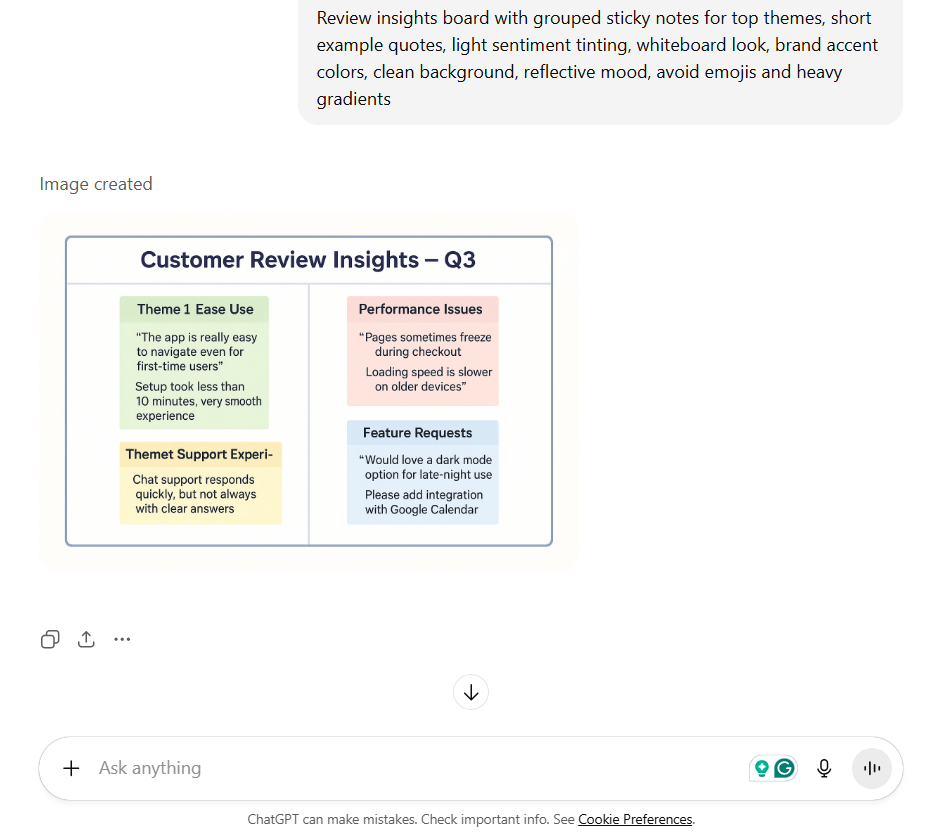
Long feedback threads can blur into noise without a clear way to see patterns. A theme map makes pain points and positive moments visible by grouping top themes with short example phrases and sentiment splits. Adding the source, time frame, and sample size keeps the view grounded and ensures the tone stays neutral and respectful.
Prompt
“Review insights board with grouped sticky notes for top themes, short example quotes, light sentiment tinting, whiteboard look, brand accent colors, clean background, reflective mood, avoid emojis and heavy gradients.”
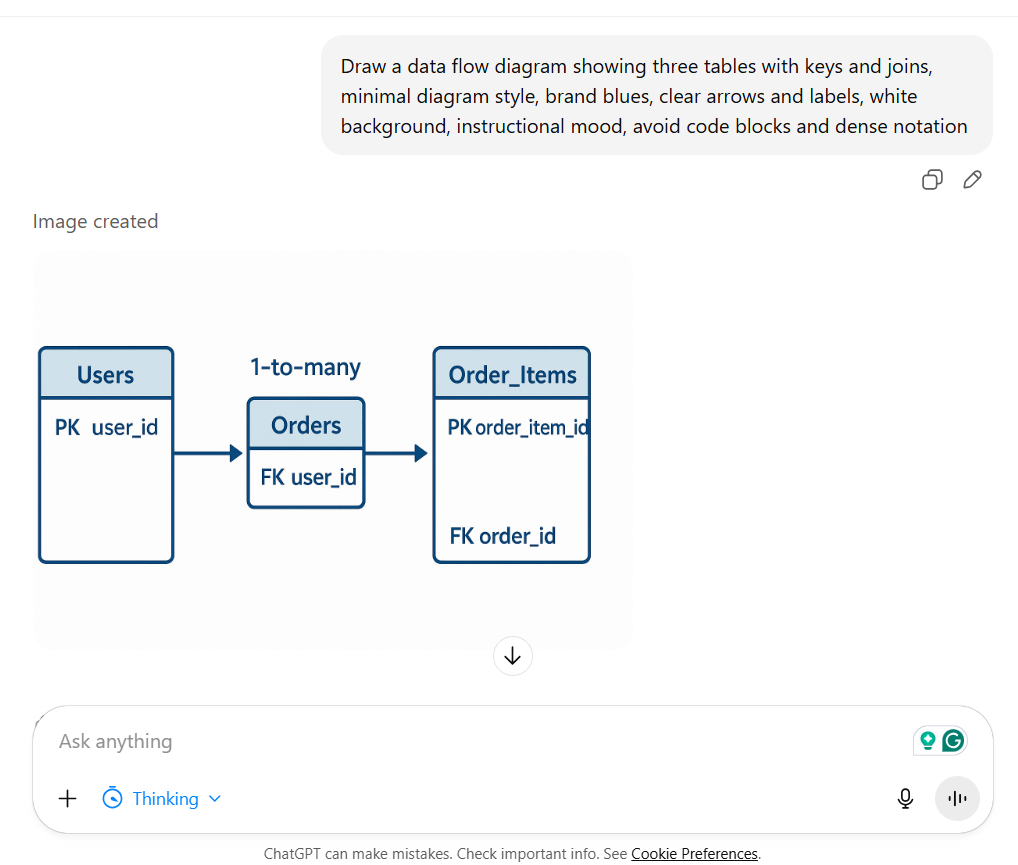
Even in technical work, a small diagram can make data structures easier to understand. Showing the tables, key fields, and expected join types creates clarity before queries are written. Adding filters, the time window, and where the result will be used helps keep the diagram practical and focused.
Prompt
“Data flow diagram showing three tables with keys and joins, minimal diagram style, brand blues, clear arrows and labels, white background, instructional mood, avoid code blocks and dense notation”
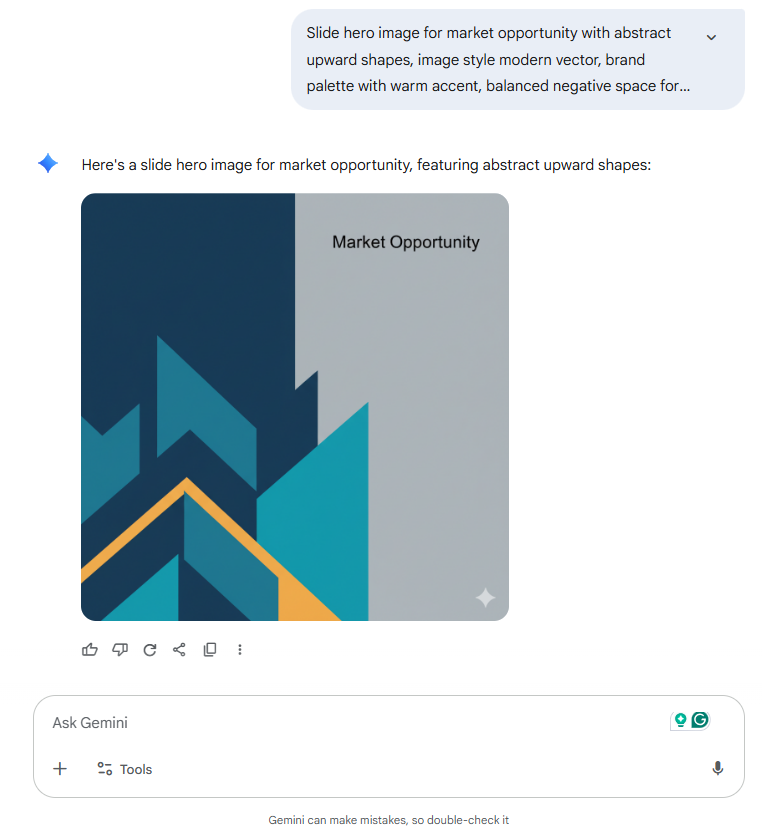
Presentations are easier to follow when each idea has one strong image behind it. A clear visual tied to the audience and goal of the deck makes the message on each slide more memorable. With the right art style, background, and space for short copy, the story stays focused and consistent.
Prompt
“Slide hero image for market opportunity with abstract upward shapes, image style modern vector, brand palette with warm accent, balanced negative space for headline, confident calm mood, avoid stock photos and cheesy icons.”
👀 Fun Fact: Barbie’s world really did run on pink. The movie’s set used so much vivid fuchsia that it helped drain a supplier’s stock during production. That is commitment to a color palette.
13. Identifying features’ limitations
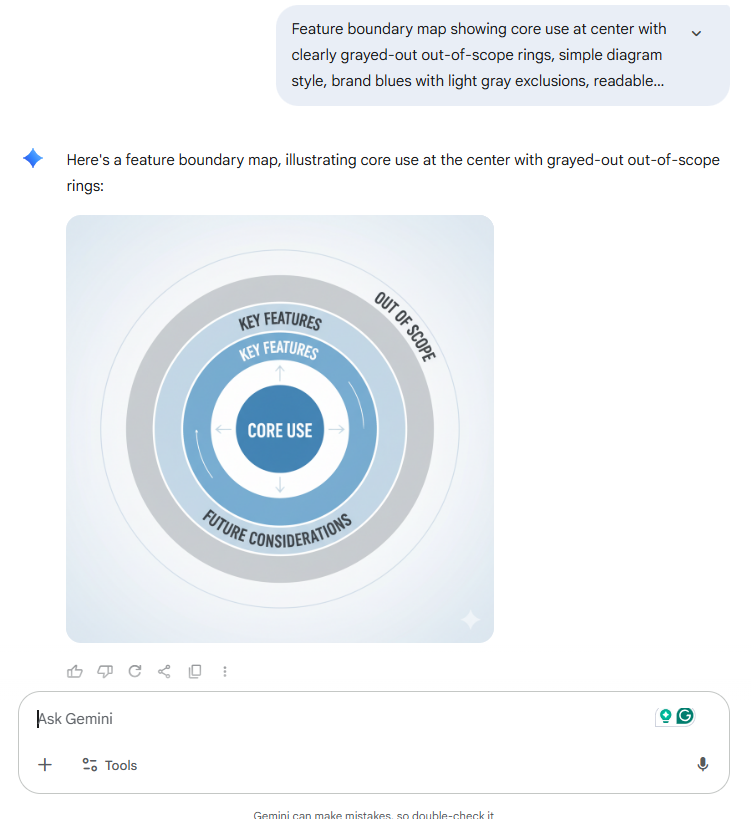
Clear boundaries make feature decisions easier. A boundary map shows the feature name, its main use case, and the constraints that shape what it can and cannot do right now. Calling out out-of-scope scenarios, risks, and technical limits in a neutral, on-brand style helps teams align on the scope with confidence.
Prompt
“Feature boundary map showing core use at center with clearly grayed-out out-of-scope rings, simple diagram style, brand blues with light gray exclusions, readable labels, plain background, instructional mood, avoid warning icons”
💡 Pro Tip: Pin a shared “Brand Visual Tokens” document using ClickUp Docs with your art style terms, image style, approved color schemes, lighting conditions, and a short negative list. Link it inside templates so every image prompt reuses the same language for steady AI-generated images.
14. Simplify communication and collaboration
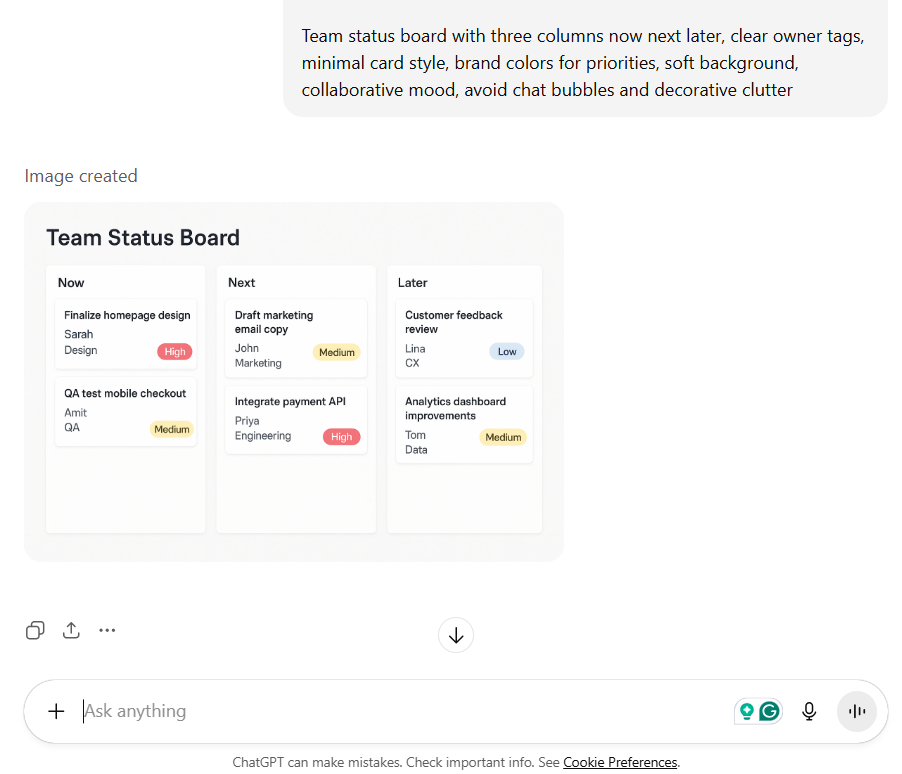
Teams make progress faster when status is visible without needing another meeting. A shared board image displays the project name, its current phase, and the tasks each owner is working on next. Adding risks or blockers alongside brand color schemes makes the update both transparent and easy to scan.
Prompt
“Team status board with three columns now next later, clear owner tags, minimal card style, brand colors for priorities, soft background, collaborative mood, avoid chat bubbles and decorative clutter”
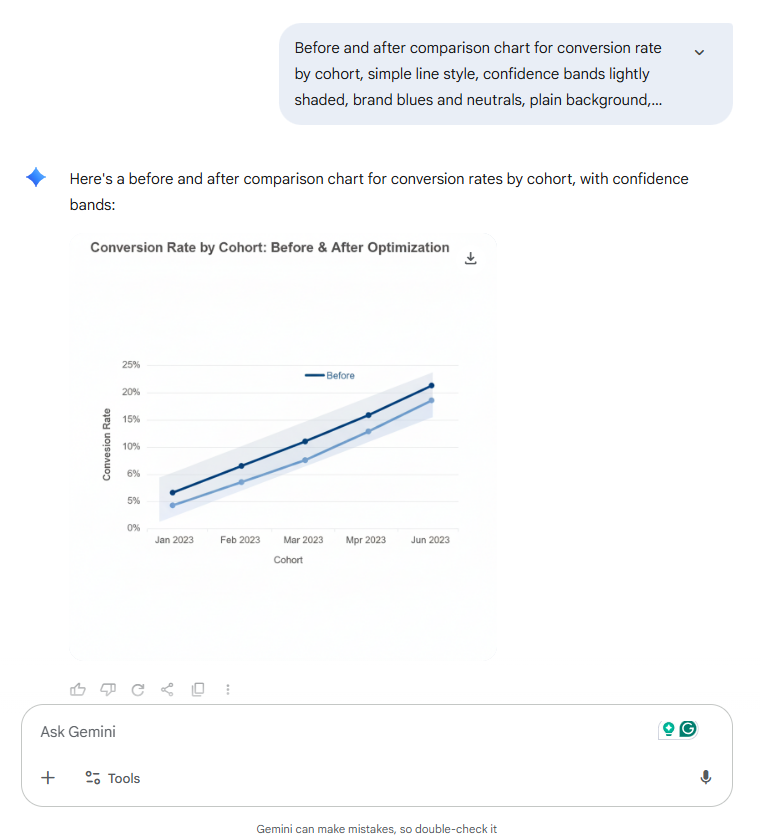
Complex figures often lose people who are not deep in the data. A simple visual that shows the right metric, comparison groups, and time window makes insights accessible to the whole team. Adding the chosen chart type, a cue for confidence or variance, and the right export size keeps the figure useful in any setting.
Prompt
“Before and after comparison chart for conversion rate by cohort, simple line style, confidence bands lightly shaded, brand blues and neutrals, plain background, serious mood, avoid 3D and grid noise”
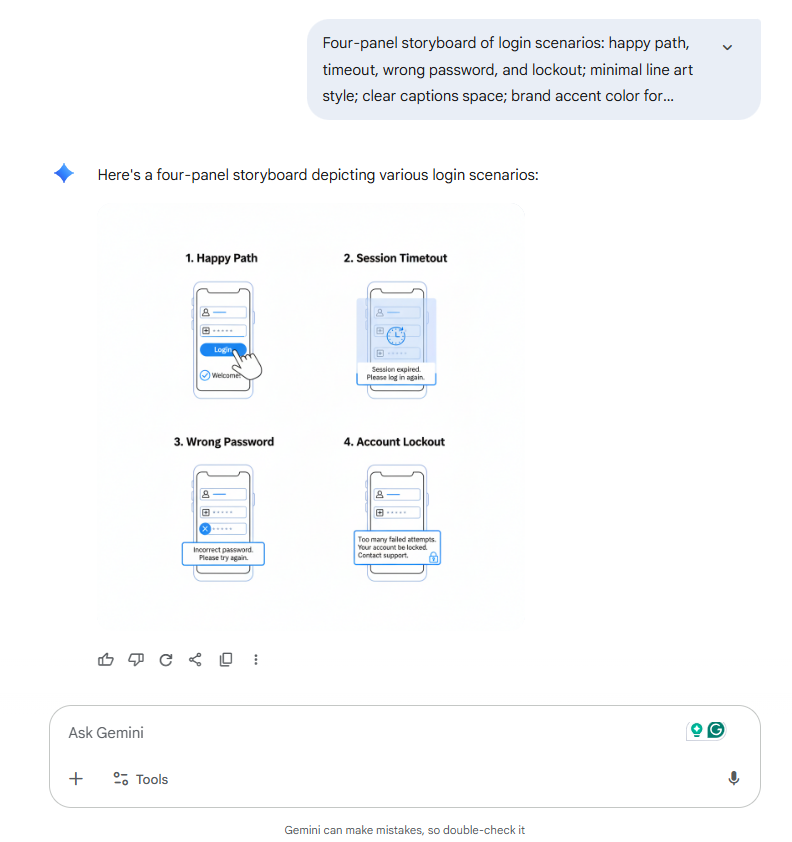
Text descriptions often miss the details of how a feature really works. A small storyboard makes the flow easier to follow by showing the feature, user role, success criteria, and both the happy path and edge cases. Adding the device or browser context and keeping a neutral palette ensures the storyboard stays simple and clear.
Prompt
“Four-panel storyboard of login scenarios: happy path, timeout, wrong password, and lockout; minimal line art style; clear captions space; brand accent color for highlights; white background; calm instructional mood; and avoid alarm colors”
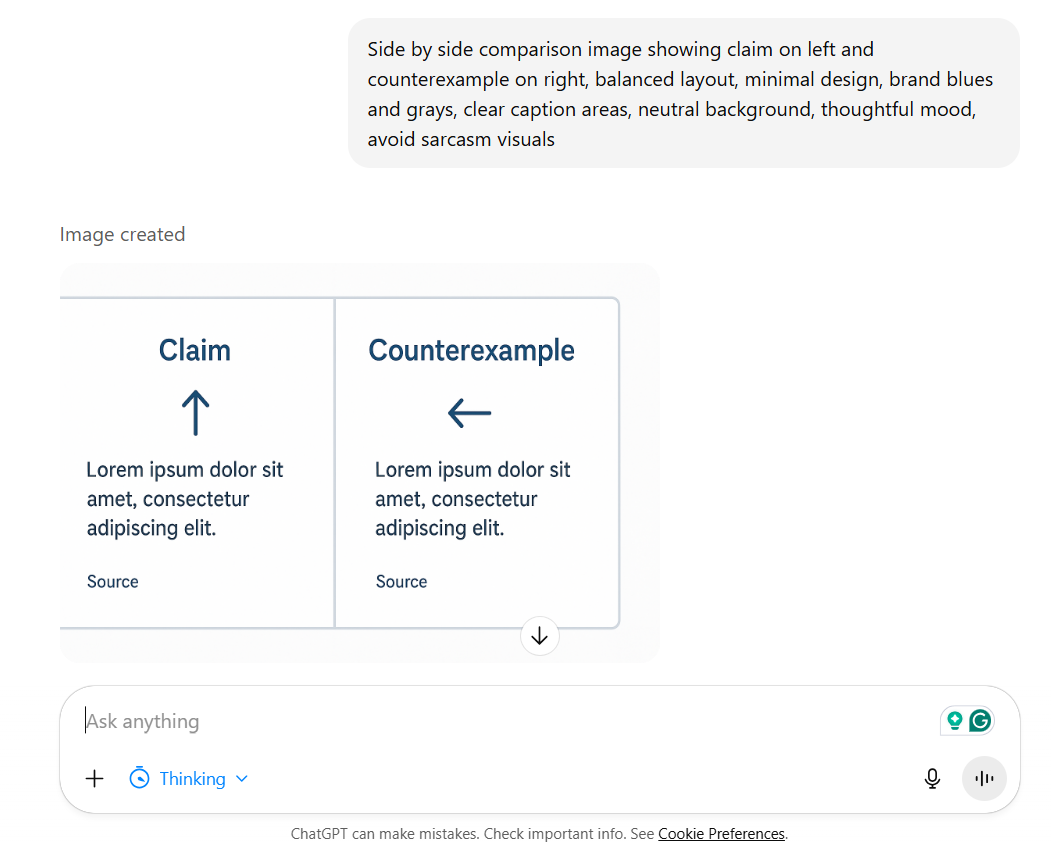
Ideas hold up better when they are tested against alternatives. A balanced comparison image lays out the claim, a counterexample, and the evidence that matters for each side. Keeping the tone neutral and respectful helps the team discuss the trade-offs without losing focus.
Prompt
“Side-by-side comparison image showing claim on left and counterexample on right, balanced layout, minimal design, brand blues and grays, clear caption areas, neutral background, thoughtful mood, avoid sarcasm visuals”
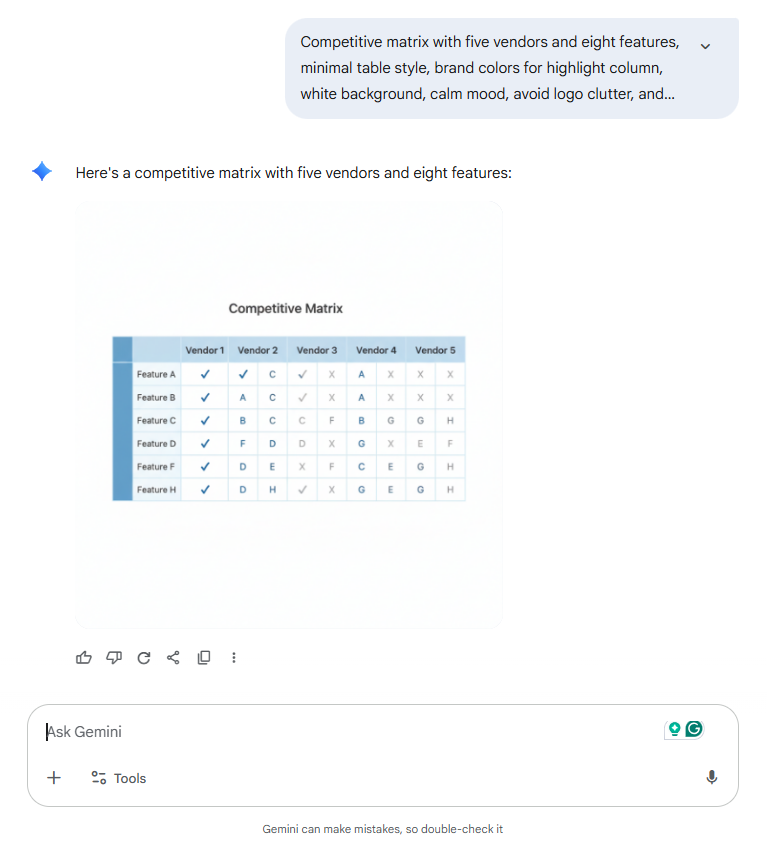
Competitive reviews work best when the view is short and direct. A one-pager highlights the key competitors, the features being compared, and the snapshot date so the context is clear. Using the brand palette keeps the comparison consistent and easy to share.
Prompt
“Competitive matrix with five vendors and eight features, minimal table style, brand colors for highlight column, white background, calm mood, avoid logo clutter, and dense footnotes”
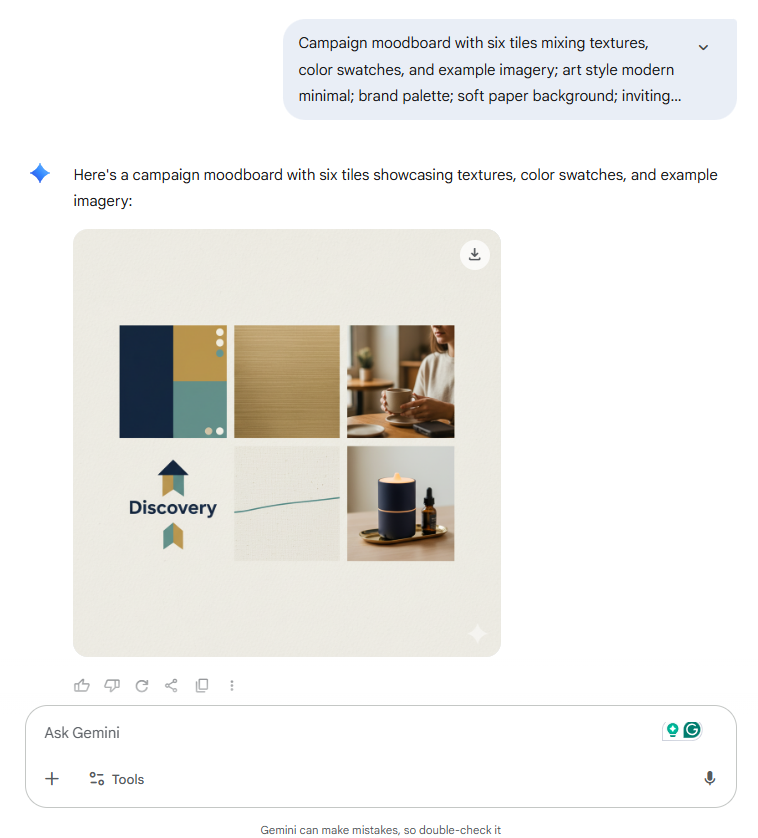
Creative teams align faster when the tone is visible from the start. A moodboard shows the theme, target platform, and color schemes that will guide the work. Adding clear dos and don’ts keeps the style consistent across all creators.
Prompt
“Campaign moodboard with six tiles mixing textures, color swatches, and example imagery; art style modern minimal; brand palette; soft paper background; inviting mood; avoid stock watermarks”
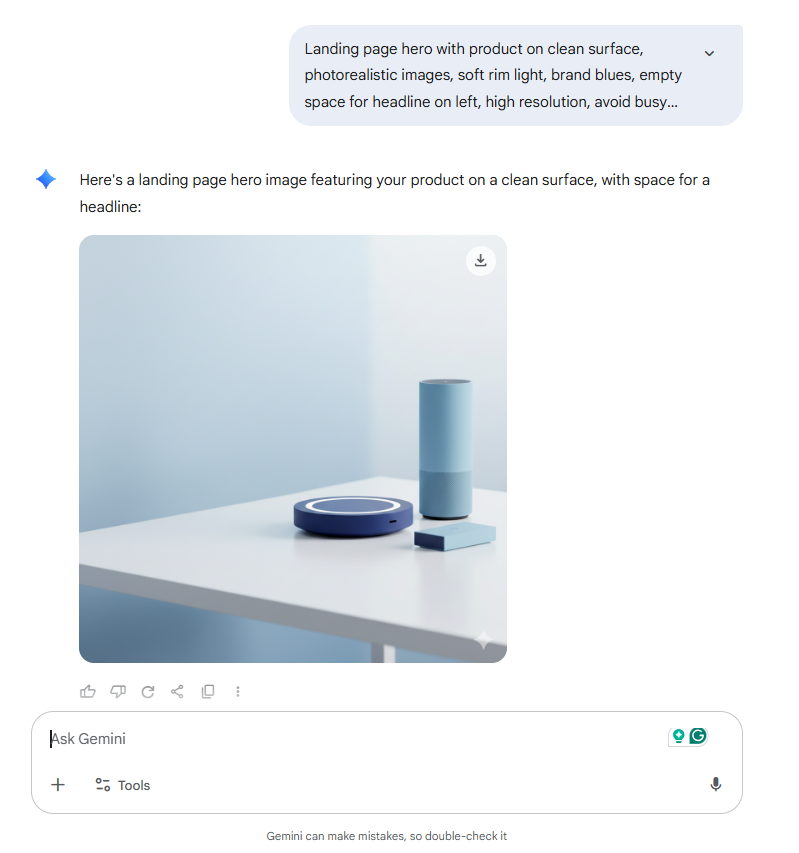
The first screen shapes how people understand the product. Testing three variations helps find the look that best connects with the audience and delivers on the promise. Including a product shot or abstract visual, a clear background, and space for copy makes each option easy to compare.
Prompt
“Landing page hero with product on clean surface, photorealistic images, soft rim light, brand blues, empty space for headline on left, high resolution, avoid busy reflections near copy”
Summarize this article with AI
ClickUp Brain not only saves you precious time by instantly summarizing articles, it also leverages AI to connect your tasks, docs, people, and more, streamlining your workflow like never before.
Summarize this article for me please
Popular AI Tools for Text-to-Image Marketing Content
1. ClickUp BrainGPT + ClickUp Talk to Text
Skip the typing and turn your voice into polished Docs, tasks, and messages instantly with ClickUp’s Talk to Text
If your biggest challenge is not generating images but keeping text-to-image prompts consistent across campaigns, ClickUp BrainGPT gives your marketing team a practical “home base” for prompt writing.
Instead of losing prompt lines across random docs and chats, you can store your best prompt structure in Docs, connect it to campaign-related tasks, and reuse it with approval context intact. ClickUp BrainGPT also supports multiple AI models like ChatGPT and Gemini (so you can switch based on whether you need tighter copy or more detailed image direction), and it is designed to work across your apps, so your team is not copying and pasting all day.
ClickUp BrainGPT’s Talk to Text fits nicely into the same workflow. You can speak a prompt out loud (subject, art style, lighting conditions, color schemes, background, and negatives) and convert it into clean text you can drop into a Doc, task, or your AI image generator. That makes it easier to capture prompt ideas during brainstorms, reviews, or while you are building social media graphics.
Built-in image generation inside ClickUp
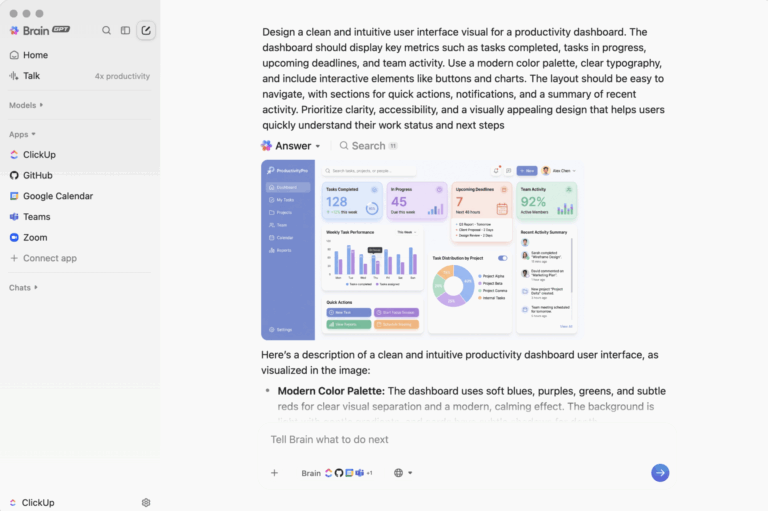
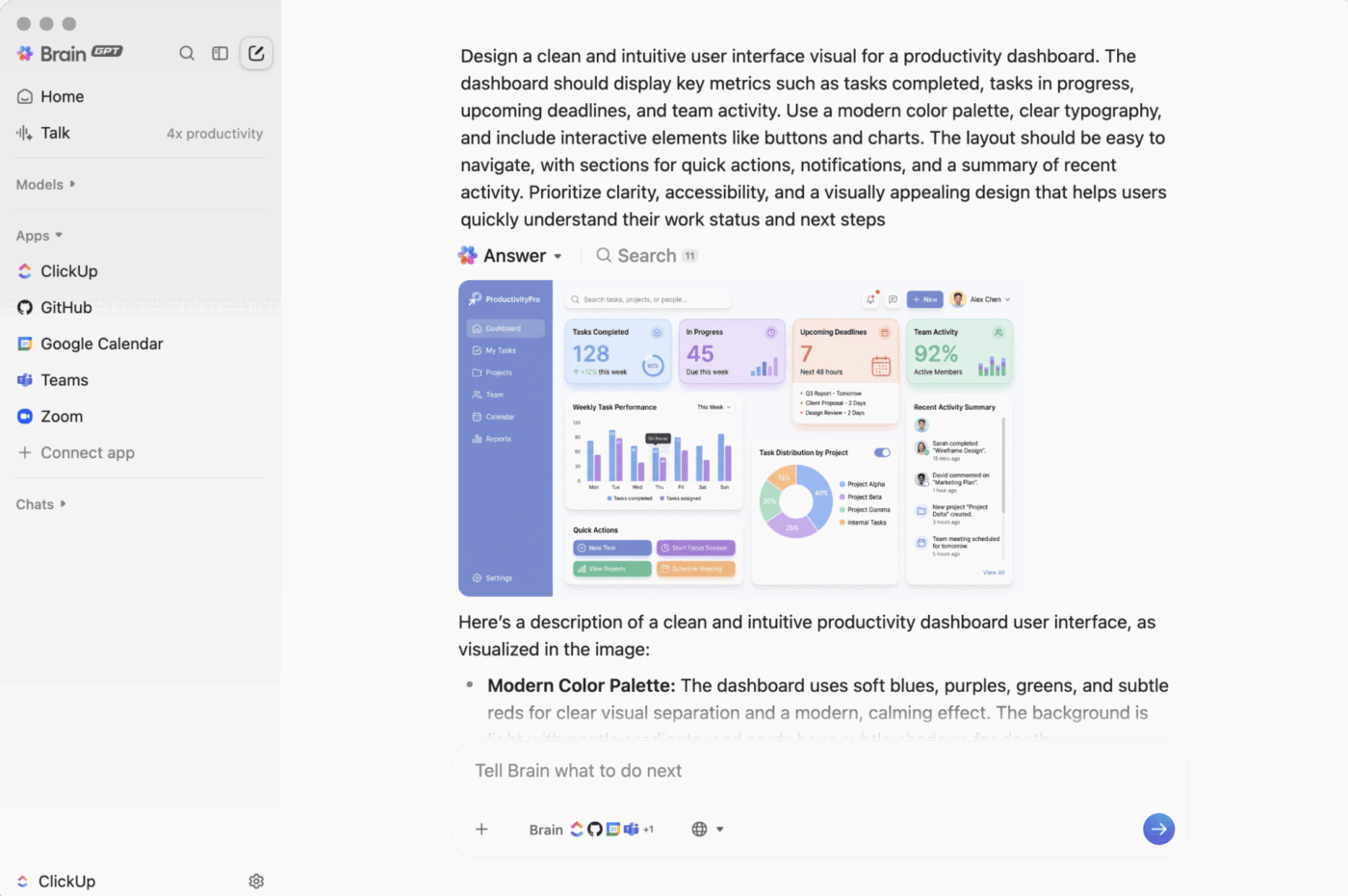
And if your documentation relies heavily on visuals, ClickUp Brain and BrainGPT quietly take that work off your plate too. Whenever you need a diagram, a quick mockup, or a replacement for an outdated screenshot, you can generate it right inside the task or Doc.
Just describe what you need. A flowchart for a new permission model, a simplified UI sketch, or a clean illustration for a walkthrough, and ClickUp Brain creates it instantly. You can even upload your existing graphics and request clearer, updated variations, ensuring your documentation aligns with the current product without requiring manual updates.
This makes visual documentation updates as fast as text edits, especially when features change late in a sprint, or you’re trying to keep guides, FAQs, and internal docs visually consistent.
Visual example: simple vs. extensive prompts
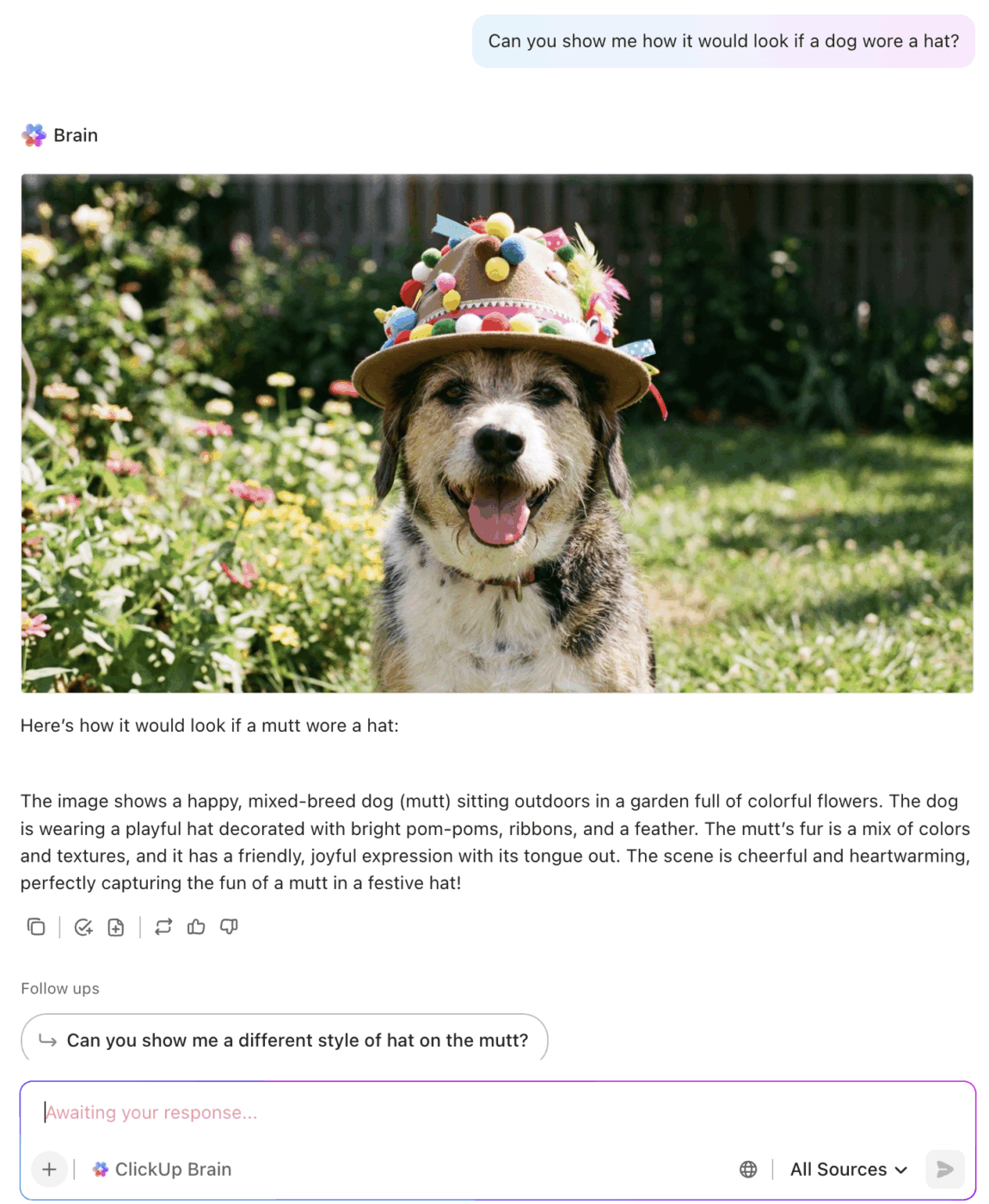
Below, you’ll see two images generated using ClickUp’s built-in tools. The first uses a simple prompt, while the second uses a more extensive, detailed prompt. Both approaches produce high-quality results, but the level of detail and creative direction can be tailored to your needs:
ClickUp BrainGPT for image creation
Or, if you just want to whip up an adorable image for a cute campaign or share a little joy for any occasion, ClickUp Brain has you covered 🐶✨
No matter your approach, ClickUp’s image generation makes visual documentation updates as fast as text edits—especially when features change late in a sprint or you need to keep guides, FAQs, and internal docs visually consistent.
ClickUp BrainGPT best features
Dictate prompt ideas instantly with Talk to Text so you capture details while they are fresh
Rewrite rough text descriptions into a repeatable prompt structure so that generated images stay consistent
Find past prompts and brand references faster with Enterprise Search, so you can reuse what already works
Switch between multiple AI models so you can match the model to the job, such as creative ideation vs. marketing polish
Turn approved prompt blocks into trackable Tasks so reviews, revisions, and final sign-off stay in one place
ClickUp BrainGPT limitations
Requires paid AI tiers and add-ons for full capability, depending on plan and admin settings
Needs a lightweight governance habit, such as updating your prompt library, or teams will drift into one-off prompt styles
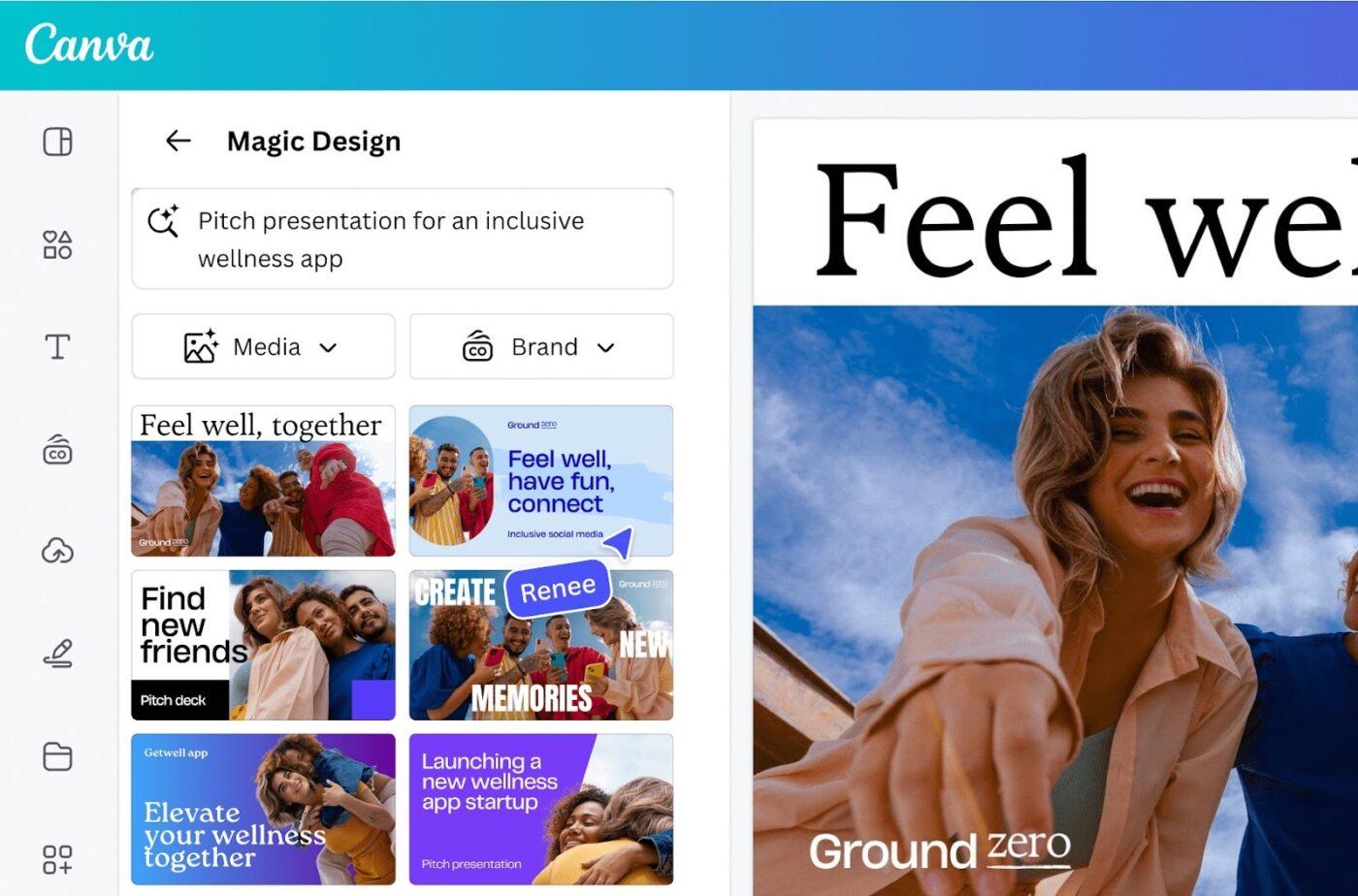
Canva AI is built for the “make it, resize it, ship it” reality of marketing work. With Magic Media, you can generate AI images from a text prompt directly where your team already builds ads, decks, landing page graphics, and social posts. That shortens the gap between image generation and production design, especially when you need multiple formats quickly.
It is also useful when you care about brand consistency but do not want every request to become a design ticket. Canva’s workflow is centered on templates and quick edits, so teams can produce variations while keeping typography and brand elements under control.
Canva AI best features
Generate images from text prompts inside the same editor used for marketing materials
Create quick variations for different channels, sizes, and creative directions
Apply templates and brand controls so visuals stay consistent across social media posts and campaign assets
Combine AI images with production-ready layouts, exports, and collaboration comments
Speed up “draft-to-approval” cycles by generating options that stakeholders can pick from early
Canva AI limitations
Offers limited control compared to specialist art generators when you need highly technical prompt parameters
Requires paid plans for deeper AI usage and higher limits, depending on your team setup
Still needs human review for brand accuracy, product details, and compliance before publishing
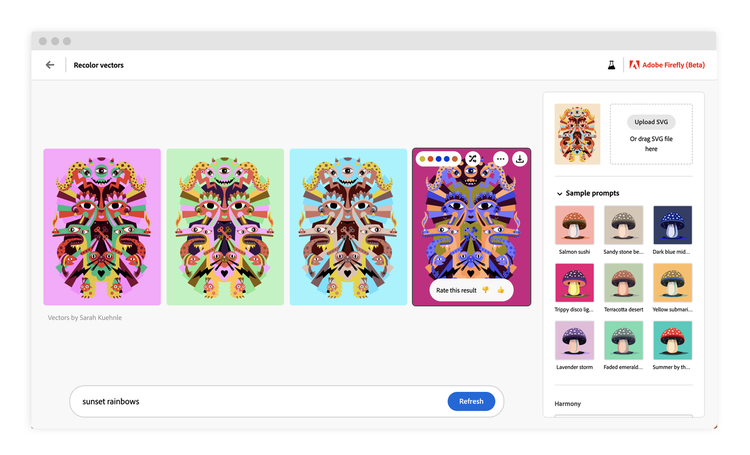
Adobe Firefly is a strong pick when you need AI-generated images that fit into professional creative workflows, plus clearer guardrails for commercial work. Adobe positions Firefly as designed for commercial use, and it integrates well with the broader Adobe ecosystem, which matters if your team is already working in Creative Cloud for final design production.
For marketing teams, Firefly is often used to generate assets quickly, explore art style directions, and iterate on creative concepts before polishing in Adobe tools. It also uses a credit-based system, so you can manage usage predictably across a team.
Adobe Firefly best features
Generate images from text prompts with brand-friendly controls for style and composition
Support commercial workflows with Adobe’s positioning around safer content sourcing
Integrate into Adobe’s broader creative toolchain for final edits and production assets
Use generative credits to manage image generation at team scale
Add provenance signals through Adobe’s content credentialing approach, where available
Adobe Firefly limitations
Consumes credits quickly when you run many variations, especially at higher quality settings
Works best if your team already uses Adobe tools for final design and editing
Still requires review for accuracy, brand claims, and usage rights before publication
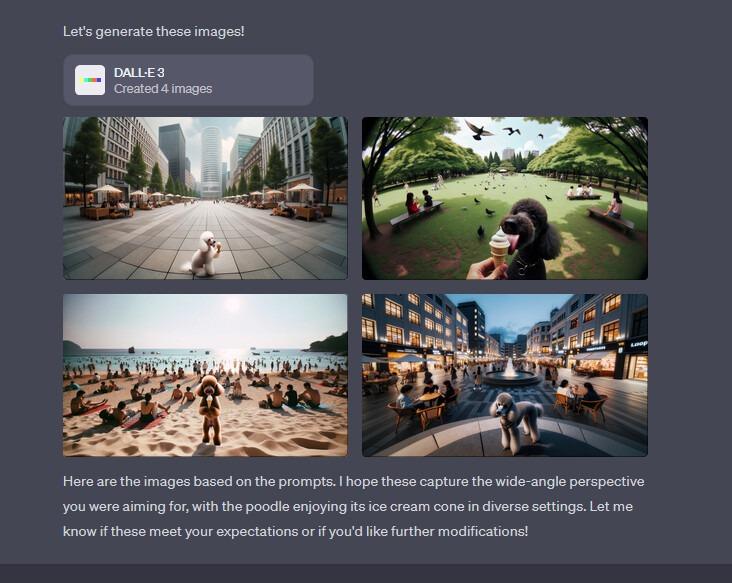
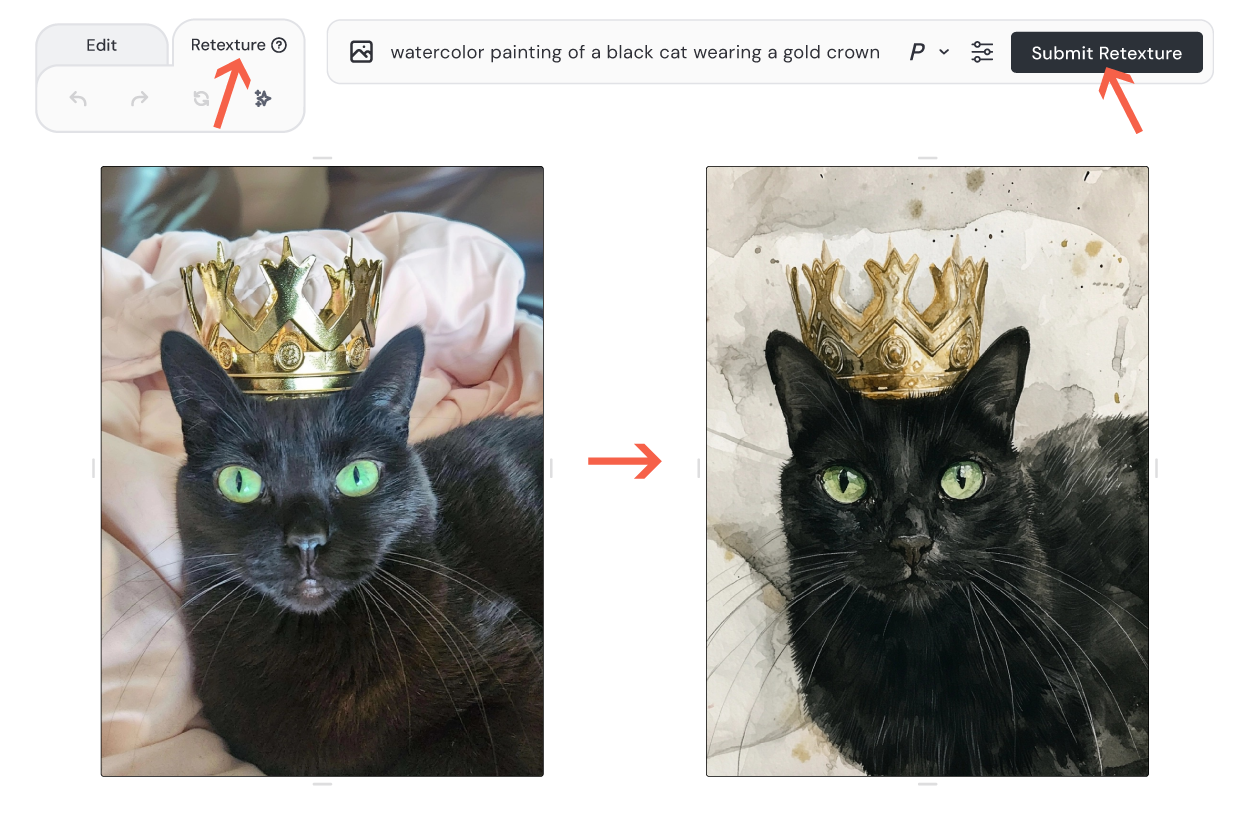
DALL·E is widely used for marketing image generation because it handles iterative prompt writing well, especially when you refine a text description through a few rounds to get closer to the intended mood, lighting, and composition. It is also commonly used when you want fast ideation for social media graphics, blog headers, and campaign concepts.
If your workflow includes ChatGPT, DALL·E-style image generation can also work conversationally, meaning you can request changes like different backgrounds, color schemes, or a new image style without rewriting the entire prompt from scratch.
DALL·E best features
Generate images from a simple text prompt, then refine with iterative follow-ups
Explore multiple visual directions quickly for the same campaign idea
Support a wide range of styles, from photorealistic images to digital art looks
Work well for conceptualizing marketing visuals before final layout design
Offer API access for teams that want to automate image generation workflows
DALL·E limitations
Requires careful prompting and review for brand accuracy, product details, and claims
Includes usage and safety restrictions that affect what can be generated
Can be less predictable for exact typography, tiny details, or strict layout requirements
Midjourney is popular when you want striking, stylized visuals, and you are willing to iterate a bit to get the exact look. Marketing teams often use it for bold concept art, campaign mood boards, and hero visuals where art style matters as much as literal accuracy.
Midjourney’s plan system is built around GPU time and generation modes, so you can choose between faster generations or slower queued work depending on your deadlines.
Midjourney also offers privacy controls through Stealth Mode on higher tiers, which matters if you are working on pre-launch campaigns or client visuals you do not want visible publicly.
Midjourney best features
Produce stylized images with strong aesthetic consistency across variations
Offer multiple generation speeds, including Fast and Relax modes
Support higher-tier privacy through Stealth Mode
Enable large-volume experimentation through unlimited Relax mode on paid tiers
Scale usage with predictable subscription tiers based on your output needs
Midjourney limitations
Requires subscription tiers for most serious marketing use cases
Makes exact text rendering and strict layout control inconsistent, so final design work still needs a layout tool
Limits privacy features to Pro and Mega tiers via Stealth Mode
Midjourney pricing
Basic Plan: $10 per month
Standard Plan: $30 per month
Pro Plan: $60 per month
Mega Plan: $120 per month
Summarize this article with AI
ClickUp Brain not only saves you precious time by instantly summarizing articles, it also leverages AI to connect your tasks, docs, people, and more, streamlining your workflow like never before.
Summarize this article for me please
Integrating AI-Generated Images into Marketing Workflows
When your team has a strong set of text-to-image prompts and a folder full of generated images, the next job is to move those assets through a clear path from idea to publish.
Too often, that work gets lost in work sprawl with tasks scattered across and AI tools that do not talk to each other.
Context sprawl makes it worse when you have to dig across systems just to answer simple questions like what changed or where a file lives.
ClickUp brings everything into one converged AI workspace. Here is a simple, end-to-end flow that uses different ClickUp features in the right order so work stays visible and easy to approve.
Start with a living home in ClickUp Docs
Build your prompt library in plain language with ClickUp Docs
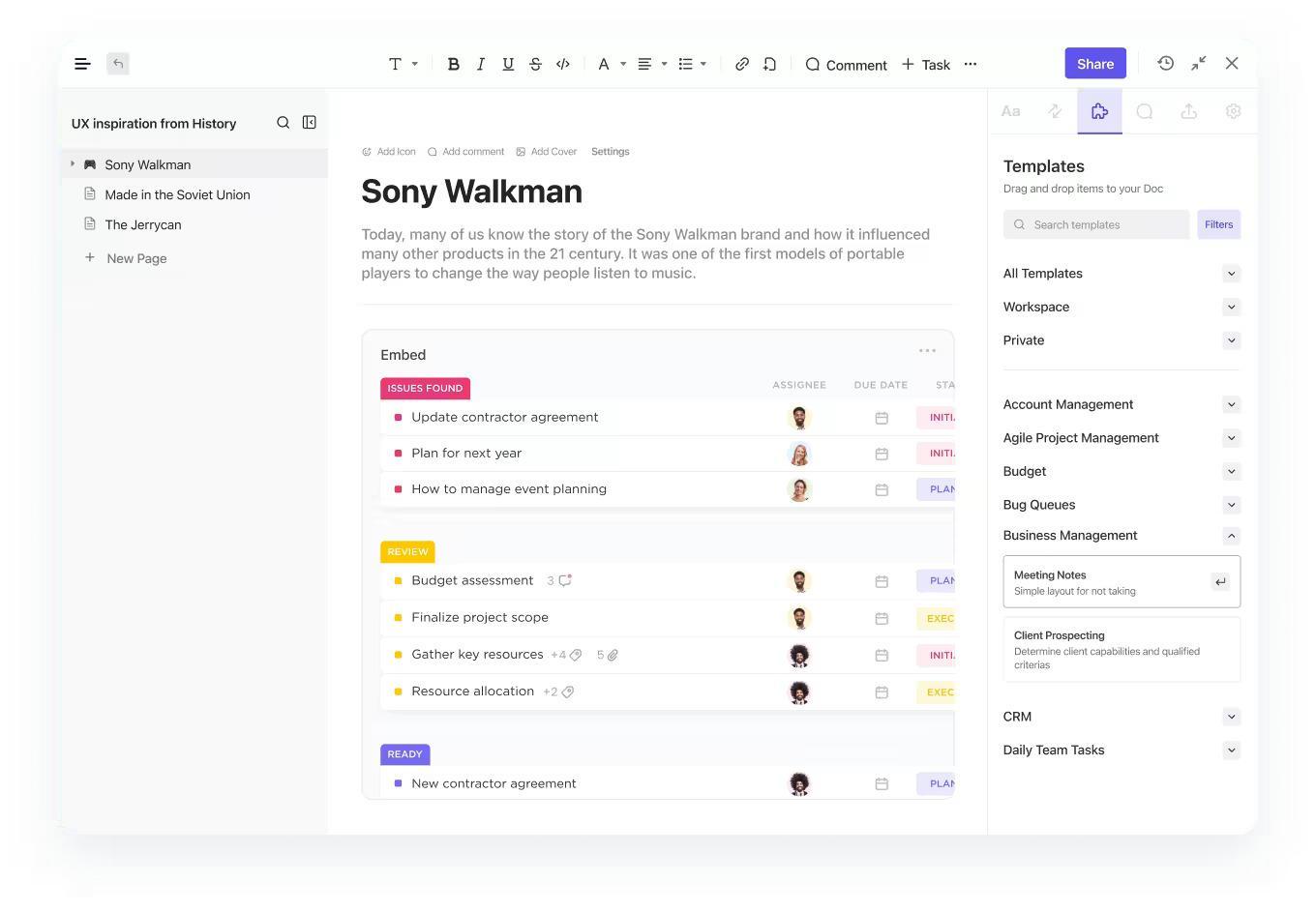
Give your visuals and words a single, welcoming place to live with ClickUp Docs. Create one Doc in ClickUp called “Prompt Library and Brand Visuals.”
Inside, keep the prompts that actually work, small notes on why they worked, and a brand guide that is easy to read. When someone asks for a hero image, they will be able to locate an example, a paste-ready image prompt, and two lines on mood and color. When your brand changes, you edit this doc first so the whole team stays in sync with the updated version.
Here are a few helpful tips to help structure everything in your ClickUp Docs:
Prompt blocks grouped by use case, like social media graphics, email headers, paid ads
A short “brand tokens” section with art style, color schemes, lighting conditions, and a small negative list
👀 Fun Fact:IKEA quietly pioneered “fake” photos that feel real. As far back as 2014, about 75% of its catalog images were computer-generated renders, created to control lighting, color, and layout at scale. It’s an early example of swapping photo shoots for synthetic imagery without losing trust.
Ask in ClickUp Chat, capture as ClickUp Tasks
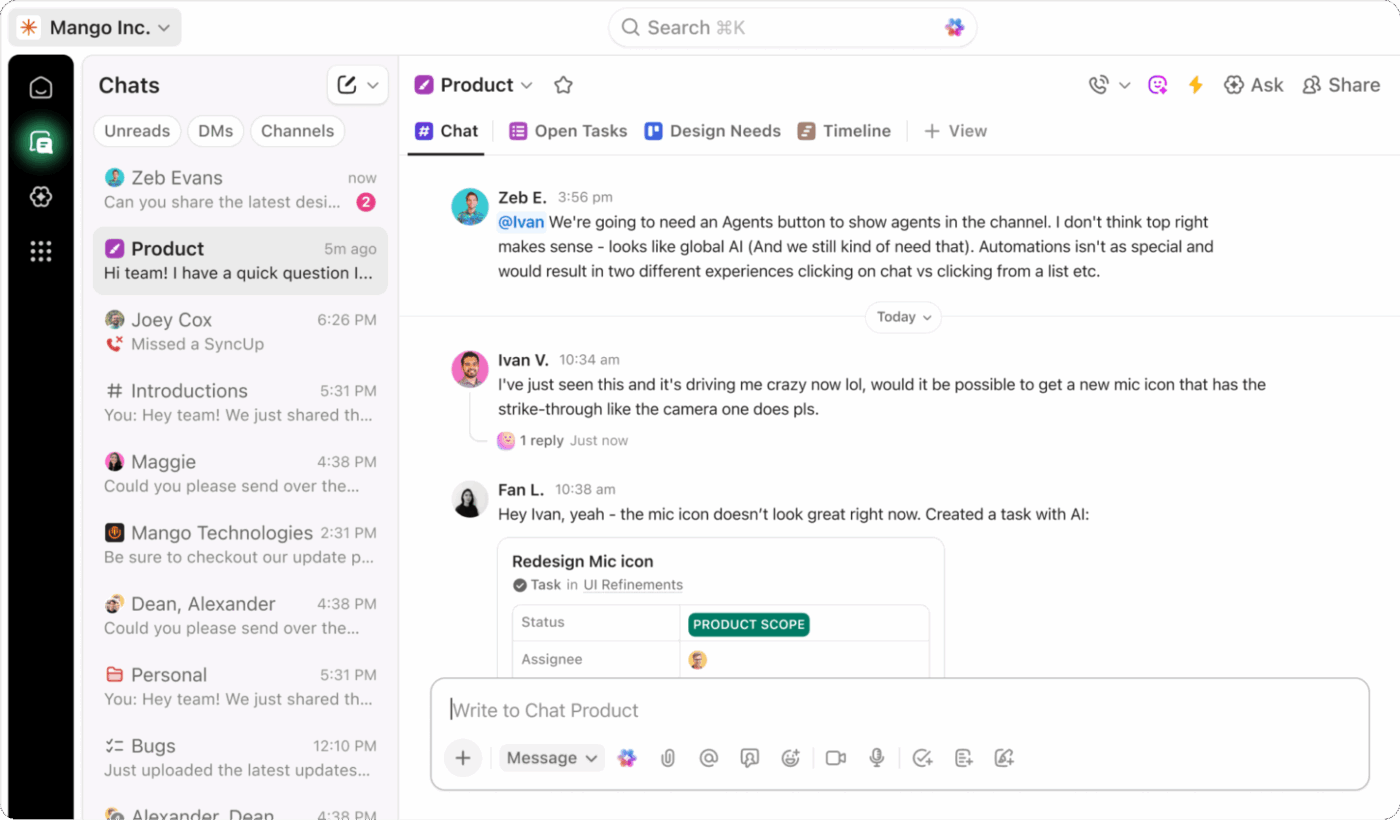
Collect feedback in one place and turn the best message into a task using ClickUp Chat
Most requests begin as a sentence. Keep that spirit. Create a ClickUp Chat channel named “Graphic Requests and Feedback.”
When someone writes, “We need a LinkedIn header by tomorrow, tone, product on the right,” convert that message into a task with ClickUp Tasks in the same window. In the task description, paste the exact prompt from ClickUp Docs and add sizes, due dates, and the reviewer. You move from talk to action in one single move, and nothing is lost in a separate thread.
📌 Example: A product marketer drops a message with the goal and tone. You turn it into a ClickUp task titled “LinkedIn header for case study,” assign it, add the text to the image prompt, and attach two past-generated images that fit the look. The creator now has context, reference, and ownership without a meeting.
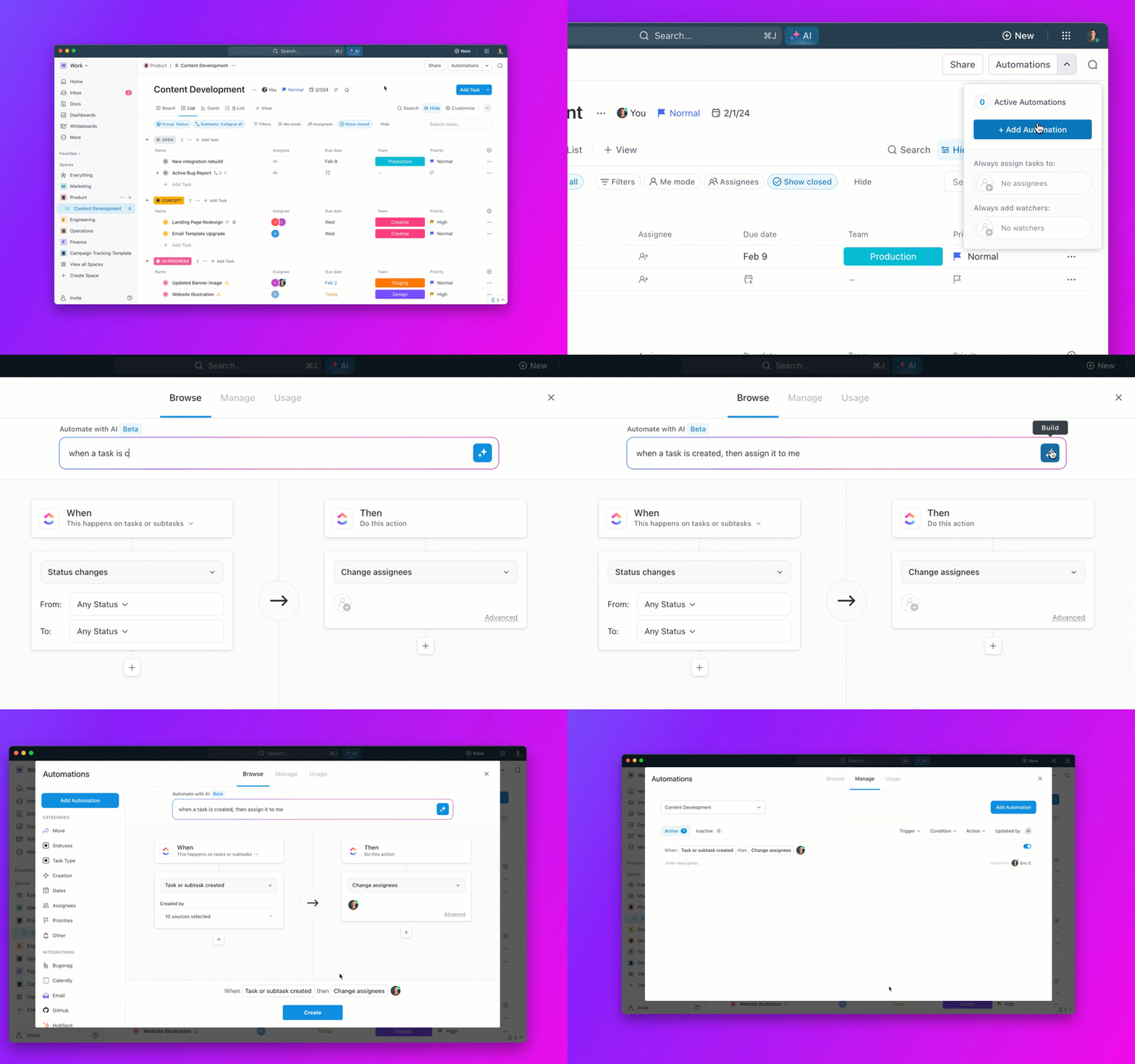
Let ClickUp Automations guide the work, not push people
Move tasks to the right list automatically with ClickUp Automations
A good process feels natural and easy to follow. Set a few ClickUp Automations that move work forward without constant pings. When the status changes to “Ready for review,” post in ClickUp Chat tagging the creative lead and shift the ClickUp task to the Review list.
When a task is due in 24 hours and still in progress, nudge the assignee and the project owner. Create a quarterly reminder to refresh your “Prompt Library and Brand Visuals” ClickUp Doc, so your text-to-image prompts for the marketing team stay current.
💡 Pro Tip: Use ClickUp Agents to keep image requests moving (without chasing approvals).
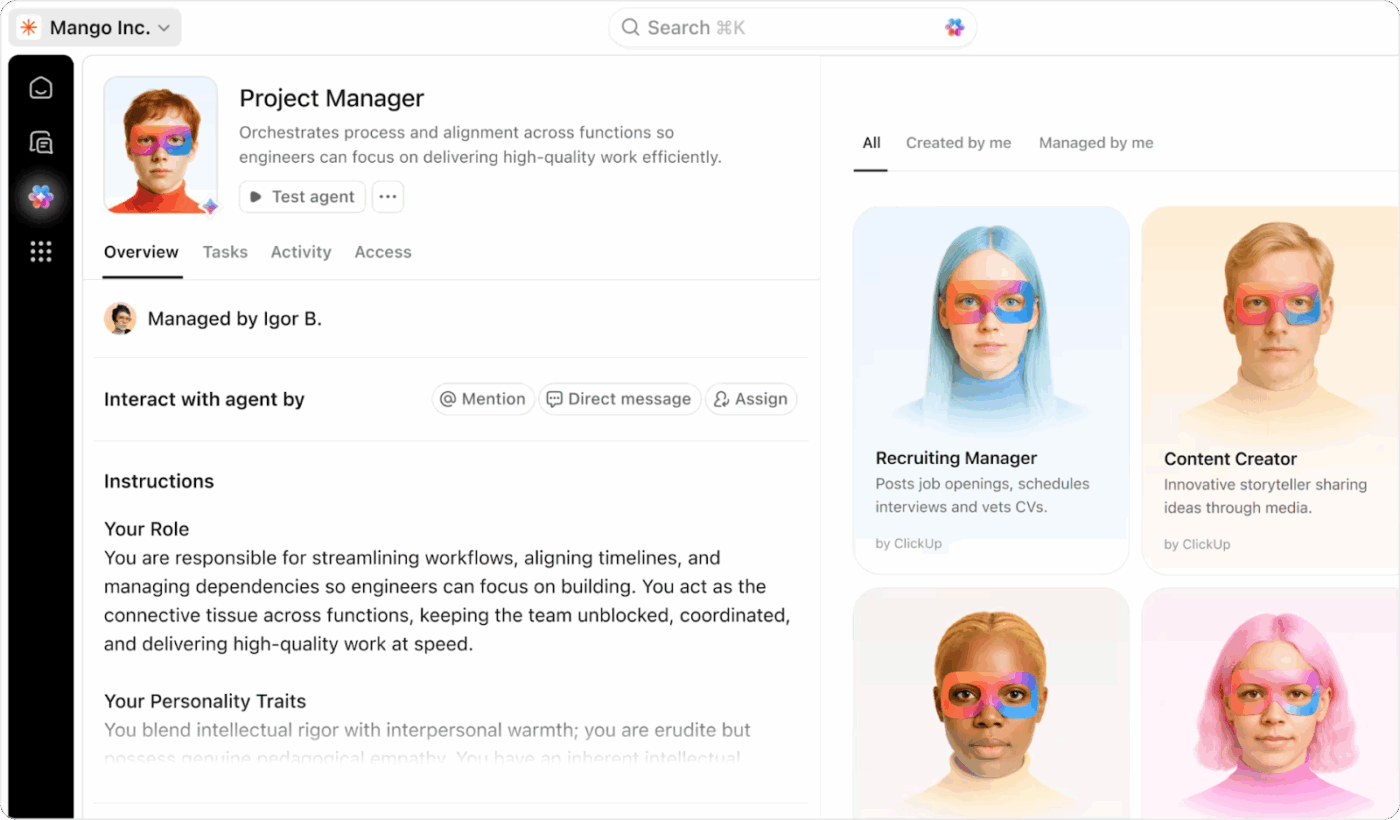
Workflow-aligned creative collaboration powered by ClickUp Agents
Once your team starts using text-to-image prompts at scale, the real slowdown is rarely image generation. It’s the follow-ups: “Where’s the latest version?” or “Which prompt did we approve?” ClickUp AI Agents can handle that coordination work in context, so your workflow stays visible.
Here’s how you can use them for AI-generated images:
Set up a Live Answers Agent for “where is it?” questions: Point the ClickUp Agent at the Space/List where creative tasks live (and the Doc where your prompt library and brand tokens live). When someone asks, “Which prompt are we using for the landing page hero?” or “What color schemes are approved for social posts?”, the AI Agent can respond with the right context
Use a Live Intelligence Agent for status visibility: Configure it to share a weekly update that highlights what’s Approved, what’s in Review, and what’s stuck in Revisions, especially when multiple creators are producing generated images for different channels
Build lightweight agents without coding: Treat it like prompt writing for operations: define what you want the Agent to do, choose the context (specific Docs, Lists, or connected apps), then choose the actions it can take, like summarizing updates or suggesting next steps
Create, review, and approve in one place
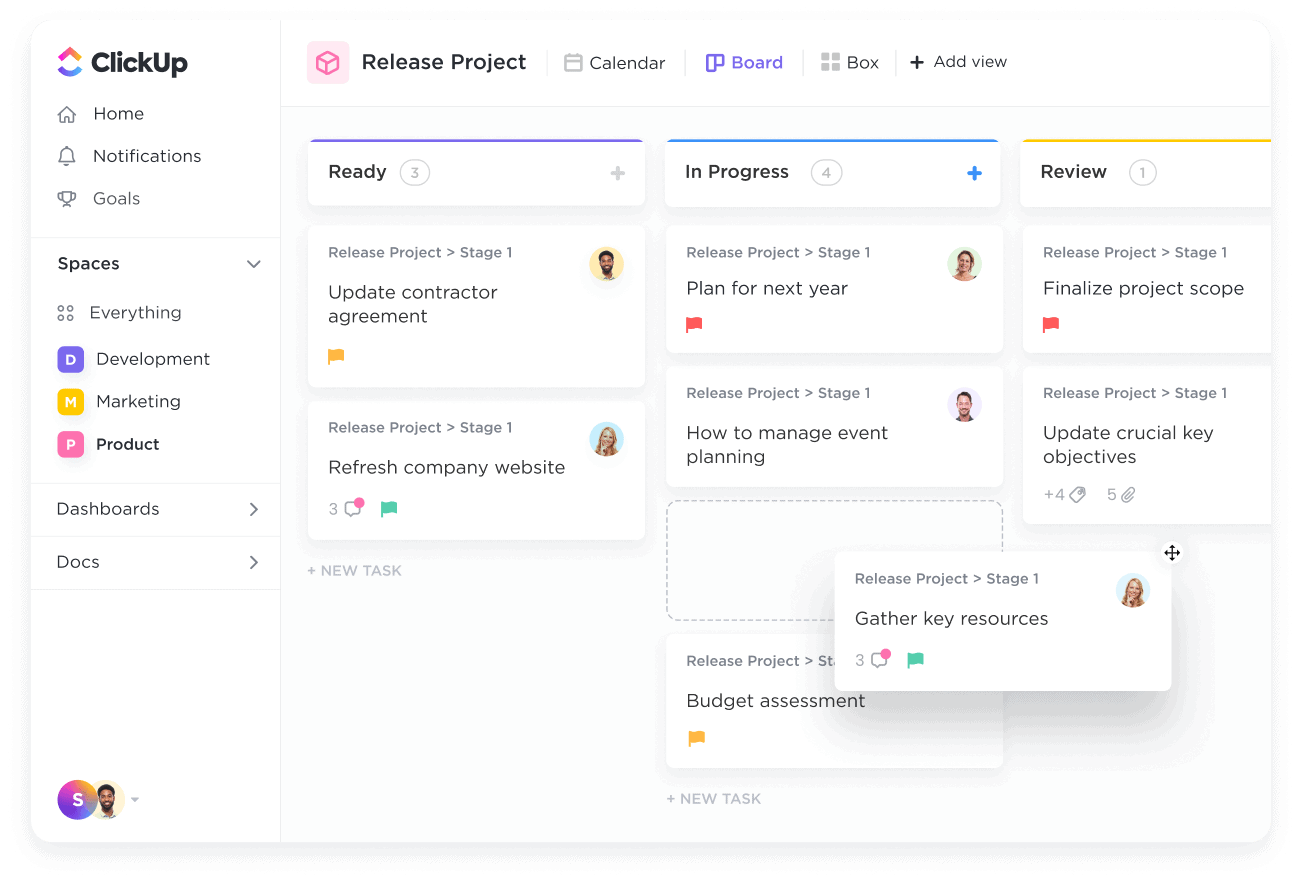
Streamlined creative workflow board in ClickUp Tasks
The creator runs the text-to-image brief in your AI image generator, uploads three generated images to the same ClickUp Task, and adds a one-line note under each. Reviewers are able to leave comments right there.
If a change is needed, set Status to “Revisions needed,” keep the first set attached, and add the updated files under “Round 2.” When it is right, flip to “Approved.”
A final automation can share a short summary in ClickUp Chat with a link to the task and the finished asset. From here, channel owners pull the image for social posts, ads, or email, and you do not chase anyone for files.
A couple of helpful things to keep in mind:
Add “Usage notes” on the task, like “safe for dark backgrounds, leave the right third clear”
Save the winning image prompt back to the ClickUp Doc with a tiny lesson learned
Keep guidelines alive where people actually look
Your brand is not a PDF in a folder. It lives in the ClickUp Doc you opened in step one. When you adopt a new palette or want a softer art style, change the wording in the doc first, then use ClickUp Automations to notify “Design,” “Social,” and “Lifecycle” in ClickUp Chat.
The next image prompt someone copies will carry the update. Over time, this keeps AI-generated images consistent without daily reminders or long approvals.
Summarize this article with AI
ClickUp Brain not only saves you precious time by instantly summarizing articles, it also leverages AI to connect your tasks, docs, people, and more, streamlining your workflow like never before.
Summarize this article for me please
Best Practices for Marketing Teams Using AI Text-to-Image
AI can speed up the process, but it works best when your text-to-image prompts are within clear guardrails that protect trust, access, and brand clarity.
With that spirit in mind, here is a short list you can keep close:
Be open about AI use in ads and claims, and keep proof for what you say, following FTC truth-in-advertising and AI guidance
Write alt text for every image, keep copy out of pictures when you can, and add a short text version for charts so everyone gets the message
Hold brand consistency inside the prompt with steady art style, color, and mood, because consistent branding correlates with stronger growth
Record provenance next to each asset using Content Credentials or a simple log of model, version, and settings, so you can verify how images were made
Follow channel playbooks and test a few prompt-driven variations for each placement, using platform guidance like LinkedIn’s creative specs
Summarize this article with AI
ClickUp Brain not only saves you precious time by instantly summarizing articles, it also leverages AI to connect your tasks, docs, people, and more, streamlining your workflow like never before.
Summarize this article for me please
Text to Image, ClickUp to Success
You made it from idea to image with care. We covered how to shape art style, lighting, mood, and prompt structure so your visuals feel deliberate—not random.
But here’s the part teams really feel: ClickUp brings everything together in one place, so your prompt writing, image generation, reviews, and approvals stop living in scattered tools.
ClickUp Brain and ClickUp BrainGPT give marketers a faster way to work with visuals from the start. Dictate a rough idea with Talk to Text, turn it into a polished prompt with ClickUp BrainGPT, and generate supporting images—moodboards, headers, thumbnails, diagrams—right inside your workspace. No copy-paste routine. No hopping between apps. No lost versions.
ClickUp Docs holds your living prompt library, ClickUp Chat catches the request, ClickUp Tasks carry the work forward, and ClickUp Automations nudge reviews without noise. And when you’re ready to create or refine imagery, ClickUp Brain stays connected to your project context so the results match what you’re actually building.
Other tools can make pictures. ClickUp helps your team make them on time, on brand, and in tune with each other.
If you’re ready to create your own Prompt Library—and generate consistent, AI-ready visuals—sign up on ClickUp now.
Summarize this article with AI
ClickUp Brain not only saves you precious time by instantly summarizing articles, it also leverages AI to connect your tasks, docs, people, and more, streamlining your workflow like never before.
Summarize this article for me please
Frequently Asked Questions (FAQs)
1. What is a text-to-image prompt in marketing?
It is a short, clear instruction you give an AI image generator to turn words into visuals. In marketing, a good prompt names the subject, art style, lighting, color, mood, and any “avoid” notes, so the resulting image fits your brand and purpose.
2. Can AI-generated images maintain brand consistency?
Yes, if your text-to-image prompts repeat the same image style, color schemes, background, and mood across assets. Save winning prompts in a shared library, and your images generated will feel like one family from social posts to ads.
3. Which AI tool is best for marketing visuals?
Pick the tool that fits your needs, not just the hype. If you want photorealistic images, choose a model known for that strength; if you love digital painting or art deco vibes, choose one that handles stylized work well. Test a few, save a small prompt set, and judge by high-quality images you can actually ship.
4. How do marketing teams track AI-generated image approvals?
Keep the work in one place. Store prompts, versions, comments, and approvals in ClickUp tasks, so reviewers can provide feedback and sign off without chasing files.
5. Can ClickUp integrate AI-generated images into campaign workflows?
Yes. Keep a living prompt library in ClickUp Docs, discuss requests in ClickUp Chat, turn messages into ClickUp Tasks, and let ClickUp Automations nudge reviews and handoffs. This makes text-to-image prompts part of a steady, end-to-end process you can trust.
Everything you need to stay organized and get work done.