


10 Best PM Software for Creative Teams with Proofing

PM Software for Creative Teams with Proofing Features featured image

Start using ClickUp today

  • Manage all your work in one place
  • Collaborate with your team
  • Use ClickUp for FREE—forever

Creative work is messy in the best way. Ideas fly in from Slack messages. Feedback hides in long email threads. Version names spiral into “Final_v7_ReallyFinal,” and suddenly your designer is revising the wrong file.

If you’re leading a creative team, you already know the drill. 

Even established teams struggle because so much collaboration still happens outside centralized systems. Forbes reports that 75% of creative collaboration now happens remotely. When reviews, edits, and approvals are scattered across tools, misalignment becomes unavoidable. The workflow itself starts generating delays and costly rework.

You can raise the bar entirely when project management software with built-in proofing becomes the place where every review, comment, and approval actually happens. It helps you give precise, frame-by-frame feedback on designs, videos, landing pages, and PDFs without scattered comments.

In this guide, you’ll find the 10 such project management tools that actually understand how creative teams work. 

Summarize this article with AI ClickUp Brain not only saves you precious time by instantly summarizing articles, it also leverages AI to connect your tasks, docs, people, and more, streamlining your workflow like never before.
ClickUp Brain
Avatar of person using AI Summarize this article for me please

What Is PM Software for Creative Teams (with Proofing Features)?

Project management software for creative teams with proofing features is a type of collaborative work management system that combines task tracking, creative workflow management, and built-in review tools. These platforms let you manage projects from the initial creative brief to the final delivery, all while collecting feedback directly on visual assets. 

It is most useful for creative teams dealing with context sprawl. This happens when information fragments across disconnected tools, forcing teams to search for updates, approvals, and files across systems. 

👀 Did You Know? 82% of enterprises report concern about digital chaos caused by process complexity and disconnected platforms.

📮 ClickUp Insight: 92% of knowledge workers risk losing important decisions scattered across chat, email, and spreadsheets. Without a unified system for capturing and tracking decisions, critical business insights get lost in the digital noise. With ClickUp’s Task Management capabilities, you never have to worry about this. Create tasks from chat, task comments, docs, and emails with a single click!

Summarize this article with AI ClickUp Brain not only saves you precious time by instantly summarizing articles, it also leverages AI to connect your tasks, docs, people, and more, streamlining your workflow like never before.
ClickUp Brain
Avatar of person using AI Summarize this article for me please

PM Software for Creative Teams (with Proofing Features) at a Glance

If you just need the highlights, here are the best project management software for creative teams with proofing features in a nutshell: 

Tool nameBest forBest featuresPricing*
ClickUpAll-in-one creative workflow with AI-powered proofing and task management. 
Team size: Individuals to enterprise
ClickUp Proofing for direct image/PDF/video annotation, ClickUp Brain for AI-powered feedback summaries, ClickUp Automations for approval routingFree plan available; Custom pricing for enterprises
monday.comVisual creative teams that want colorful, intuitive boards. 
Team size: Small to mid-sized teams
Creative asset management, approval automations, workload views for resource planningFree plan available; Paid plans start at $14/user/month; Custom pricing for enterprises
WrikeEnterprise creative operations with advanced proofing. 
Team size: Mid-market to enterprise
Proofing for 30+ file formats, custom approval workflows, AI-powered risk predictionFree plan available; Paid plans start at $10/user/month; Custom pricing for enterprises
AsanaCross-functional teams needing clean task management with basic proofing. 
Team size: Mid-market to enterprise
Proofing integration, AI Studio for workflow automation, portfolio managementFree plan available; Paid plans start at $13.49/user/month; Custom pricing for enterprises
TeamworkClient-facing agencies managing creative projects and billable work. 
Team size: Small to mid-sized agencies
Built-in proofing, time tracking, client permissions, project templatesFree plan available; Paid plans start at $13.99/user/month; Custom pricing for enterprises
ZiflowTeams needing dedicated, enterprise-grade proofing workflows. 
Team size: Mid-sized to enterprise creative teams
Automated review routing, version comparison, compliance-ready audit trailsFree plan available; Paid plans start at $249/ month; Custom pricing for enterprises
FilestageMarketing teams that need a central system for content review and approval. 
Team size: Small to mid-sized marketing teams
Multi-format proofing, automated reminders, external reviewer accessFree plan available; Paid plans start at $ 249/ month; Custom pricing for enterprises
HiveFast-moving creative teams that want flexible views and proofing. Team size: Small to mid-sized teamsNative proofing, action templates, resourcing dashboardsFree plan available; Paid plans start at $1.50/month per user
NotionCreative teams prioritizing documentation alongside lightweight project tracking.
Team size: Startups to mid-sized teams
Flexible databases, Notion AI for content generation, wiki-style knowledge basesFree plan available; Paid plans start at $12/month per user
ProofHubTeams that want straightforward project management with built-in proofing. 
Team size: Small to mid-sized teams
Online proofing tool, markup annotations, discussion threads on filesPaid plans start at $50/month
*Please check the tool website for the latest pricing
Summarize this article with AI ClickUp Brain not only saves you precious time by instantly summarizing articles, it also leverages AI to connect your tasks, docs, people, and more, streamlining your workflow like never before.
ClickUp Brain
Avatar of person using AI Summarize this article for me please

What to Look For in PM Software for Creative Teams with Proofing Features

Creative workflows often struggle inside tools designed for generic task tracking. The difference comes down to three things: 

  • How the software manages visual feedback
  • How it controls versions
  • How it routes approvals

To evaluate this properly, here are the key criteria to focus on:

  • Native proofing and annotation: The ability to mark up images, PDFs, and videos directly within the platform is non-negotiable. You shouldn’t need third-party tools to leave a simple comment on a design
  • Version control and comparison: Look for side-by-side version views. This lets reviewers see exactly what changed between iterations, which prevents them from giving feedback on outdated issues
  • Structured review stages: Your software should automatically route assets through clearly defined approval workflow automation, ensuring every stakeholder knows exactly when their input is required. For example, when a designer marks a task as “Ready for Review,” the right stakeholder is automatically notified
  • External reviewer access: Clients or external stakeholders need to provide feedback without the friction of creating a full account. Guest permissions or shareable links are essential for this
  • AI-powered assistance: Nearly 75% of knowledge workers are already using generative AI on the job to boost their productivity. Capabilities often include summarizing long feedback threads, converting comments into structured tasks, or generating first drafts of creative briefs
  • Integration with creative tools: Your project management software must connect with the design software your team already uses, such as Adobe Creative Cloud and Figma, as well as storage platforms like Google Drive. Strong integrations prevent tool sprawl
  • Asset-linked collaboration: All comments and discussions should live directly alongside the specific assets and tasks they reference, creating centralized communication within the project workspace.  This puts an end to hunting through email chains or Slack channels for that one piece of feedback

📮 ClickUp Insight: The average professional spends 30+ minutes a day searching for work-related information—that’s over 120 hours a year lost to digging through emails, Slack threads, and scattered files. An intelligent AI assistant embedded in your workspace can change that. Enter ClickUp Brain. It delivers instant insights and answers by surfacing the right documents, conversations, and task details in seconds—so you can stop searching and start working.
💫 Real Results: Teams like QubicaAMF reclaimed 5+ hours weekly using ClickUp—that’s over 250 hours annually per person—by eliminating outdated knowledge management processes. Imagine what your team could create with an extra week of productivity every quarter!

Summarize this article with AI ClickUp Brain not only saves you precious time by instantly summarizing articles, it also leverages AI to connect your tasks, docs, people, and more, streamlining your workflow like never before.
ClickUp Brain
Avatar of person using AI Summarize this article for me please

Top 10 PM Software for Creative Teams with Proofing Features

Here’s our curated list of the 10 best software platforms built for creative teams that need strong proofing capabilities: 

How we review software at ClickUp

Our editorial team follows a transparent, research-backed, and vendor-neutral process, so you can trust that our recommendations are based on real product value.

Here’s a detailed rundown of how we review software at ClickUp.

1. ClickUp (Best for bringing design planning, creation, and review into one workspace)

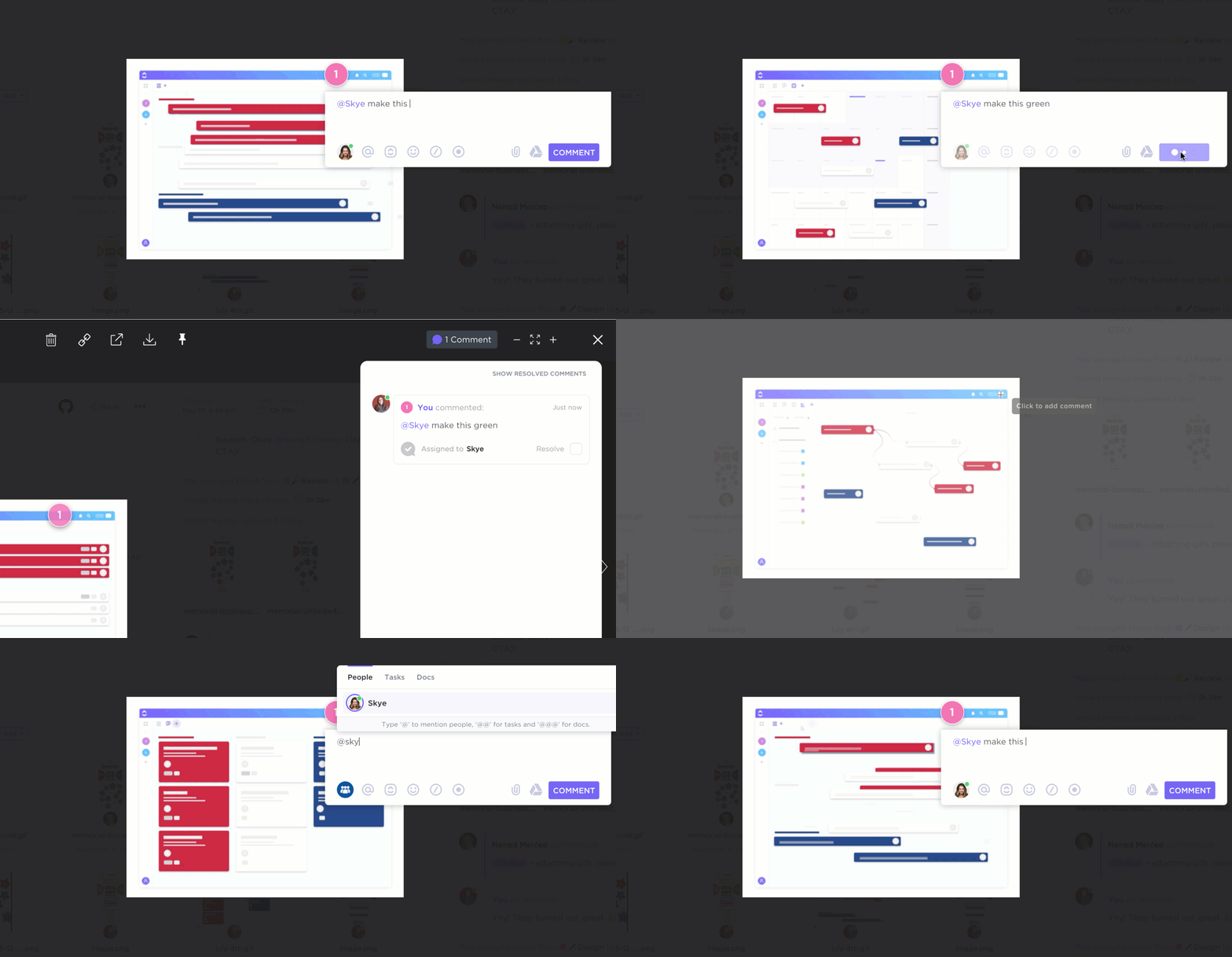
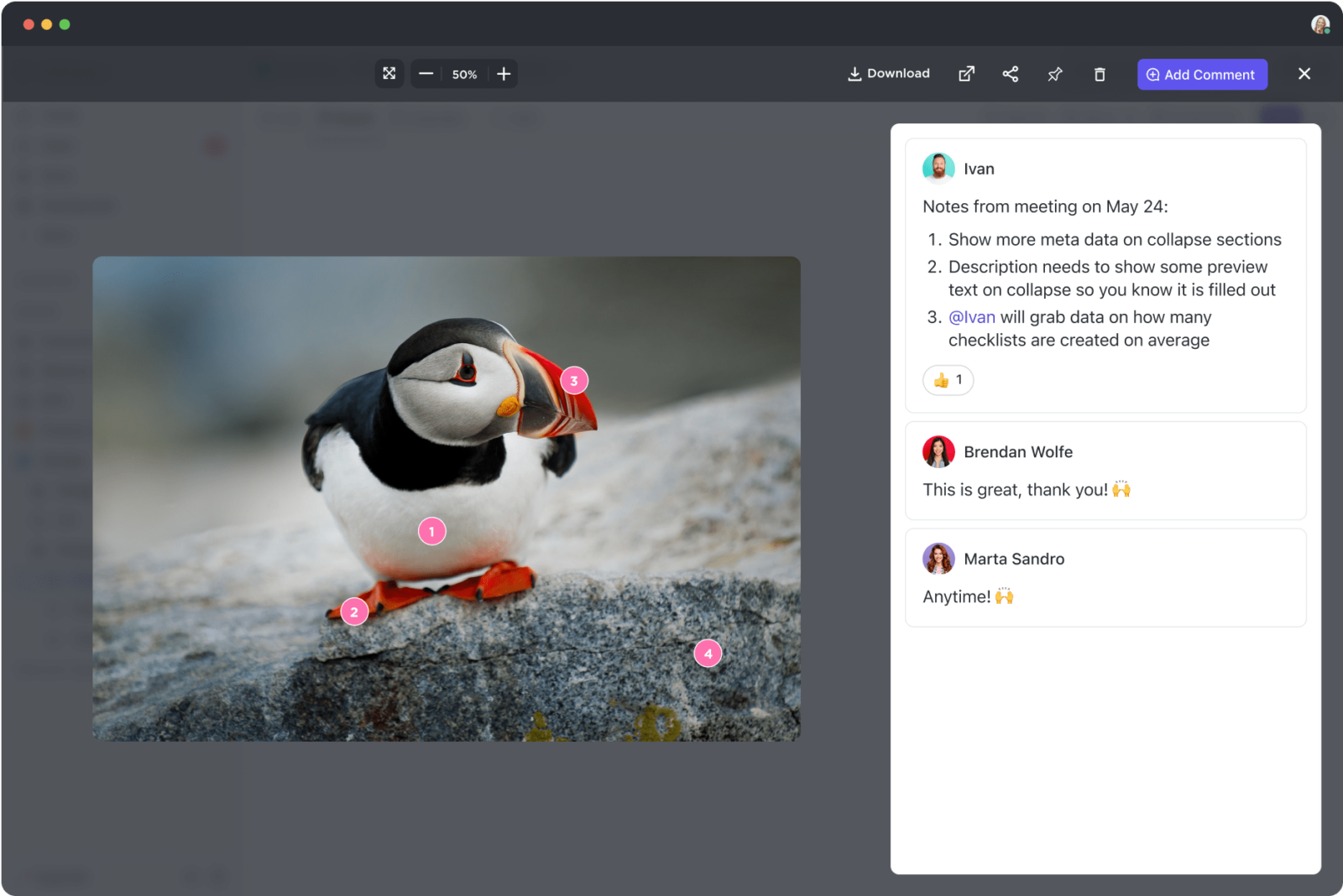
Annotate images, videos, and PDFs directly within tasks to capture precise, version-specific feedback with ClickUp Proofing

Creative work slows down when your team has to jump between separate tools for task management, file storage, and proofing. Every extra tab creates friction. Designers end up chasing the latest comments, stakeholders review outdated versions, and important feedback gets overlooked or buried in long threads.

ClickUp removes that fragmentation by bringing planning, assets, and review into one connected workspace. Annotate directly on images, PDFs, and videos without ever leaving the platform using ClickUp Proofing. Each comment can be instantly converted into an actionable, assigned task, so feedback never gets lost in translation.

Combine this with ClickUp Automations to build powerful approval workflows that automatically route assets through review stages and notify stakeholders when their input is needed. And when feedback gets long or confusing, summarize entire comment threads, generate creative briefs from project requirements, and get suggested next steps with ClickUp Brain.
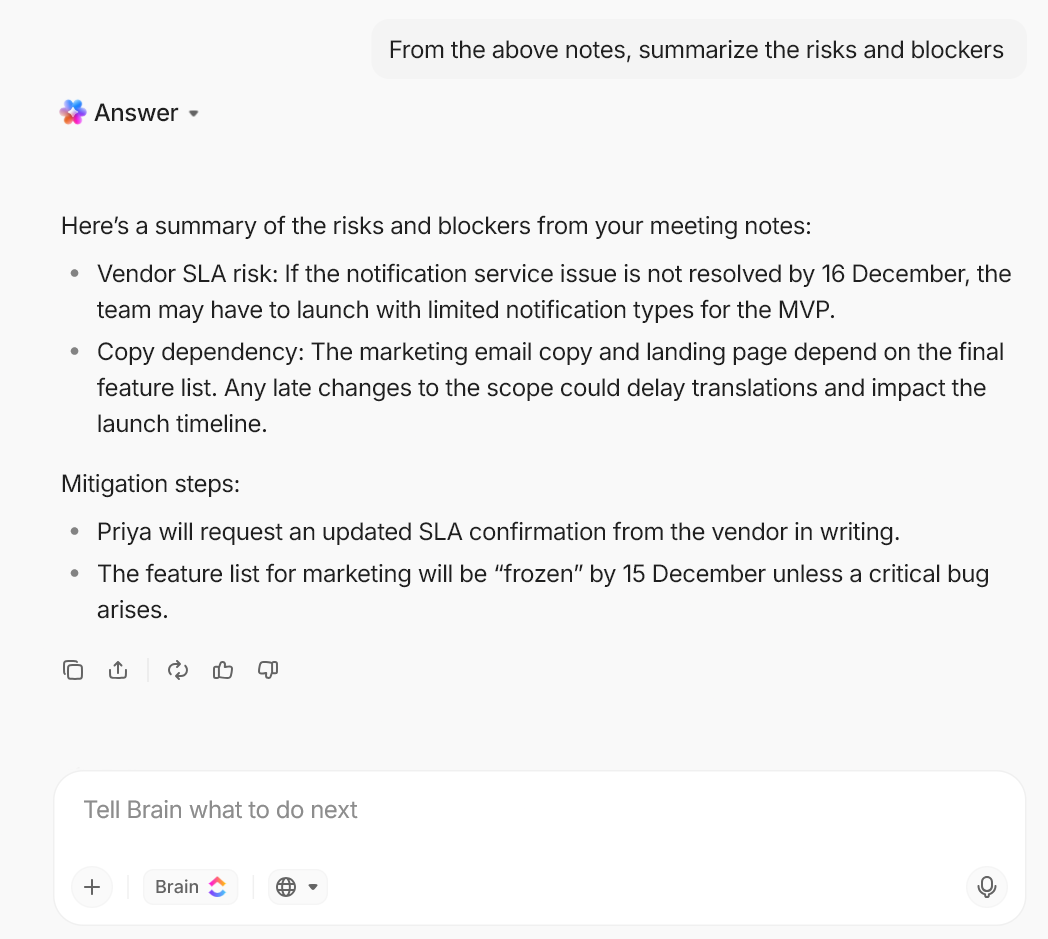
Generate briefs, summarize comment threads, and convert discussions into action items using AI inside your workspace with ClickUp Brain

Instead of forcing your team to sort through scattered comments, AI-powered assistance clarifies feedback instantly, freeing up more time for focused creative work.

ClickUp best features

  • ClickUp Proofing: Annotate images (PNG, GIF, JPEG, WEBP), PDFs, and videos (MP4, WEBM, Ogg) directly within tasks. Stakeholders can click anywhere on a file to add a comment, which is then displayed on the file and posted in the task’s activity section. You can assign these comments to team members to ensure feedback translates into trackable action items
  • ClickUp Brain: Instantly summarize feedback threads when stakeholders leave lengthy or conflicting comments. You can also use it to generate creative briefs from simple project descriptions, suggest task priorities based on deadlines, and surface relevant context from past projects, reducing the mental load of managing multiple campaigns
  • ClickUp Automations: Build custom approval workflows that automatically move tasks through review stages. For example, you can create a trigger so that when a task status changes to “Ready for Review,” it automatically assigns the task to the Creative Director and sets a due date
  • ClickUp Docs: Create and store all your creative briefs, brand guidelines, and project specifications right alongside your tasks. ClickUp Docs support real-time collaboration, nested pages, and embedded media, keeping all project context in one accessible place
  • ClickUp Whiteboards: Brainstorm campaign concepts, map out creative workflows, and collaborate visually with your team and stakeholders. You can convert any object on a ClickUp Whiteboard into a task, turning your ideas into actionable project plans seamlessly

🎥 Bonus: If you’re exploring visual collaboration tools for your creative team, this video showcases how ClickUp compares to popular whiteboarding alternatives, helping you understand which platform best fits your workflow needs.

ClickUp pros and cons

Pros:

  • With tasks, docs, proofing, and communication in one platform, you reduce SaaS sprawl (context switching that fragments creative workflows)
  • Flexible views for different work styles: Switch between ClickUp Kanban boards for visual tracking, ClickUp Gantt charts for timeline planning, and List views for detailed task management
  • AI capabilities embedded throughout: ClickUp Brain assists with content generation and feedback summarization without needing separate AI tools

Cons:

  • New users may need some time to explore the full depth of the platform’s features
  • The mobile app experience differs slightly from the desktop functionality
  • Custom automations require some initial setup time to perfectly match your team’s specific workflows

ClickUp pricing

free forever
Best for individual users
Free Free
Key Features:
60MB Storage
Unlimited Tasks
Unlimited Free Plan Members
unlimited
Best for small teams
$7 $10
per user per month
Everything in Free +
Unlimited Storage
Unlimited Folders and Spaces
Unlimited Integrations
business
Best for mid-sized teams
$12 $19
per user per month
Everything in Unlimited +
Google SSO
Unlimited Message History
Unlimited Mind Maps
enterprise
Best for many large teams
Get a custom demo and see how ClickUp aligns with your goals.
Everything in Business +
White Labeling
Conditional Logic in Forms
Subtasks in Multiple Lists
* Prices when billed annually
The world's most complete work AI, starting at $9 per month
ClickUp Brain is a no Brainer. One AI to manage your work, at a fraction of the cost.
Try for free

ClickUp ratings and reviews

  • G2: 4.7/5 (10,900+ reviews)
  • Capterra: 4.6/5 (4,500+ reviews)

What are real-life users saying about ClickUp?

A user on G2 shares:

ClickUp also offers great collaboration features. Tag mentions, assigning comments, and centralized feedback on images (proofing) makes it super simple to keep all of our comms in one place and see who’s responsible for what.
2. monday.com (Best for visual workflow builders that need structured approval columns and status-driven review tracking)

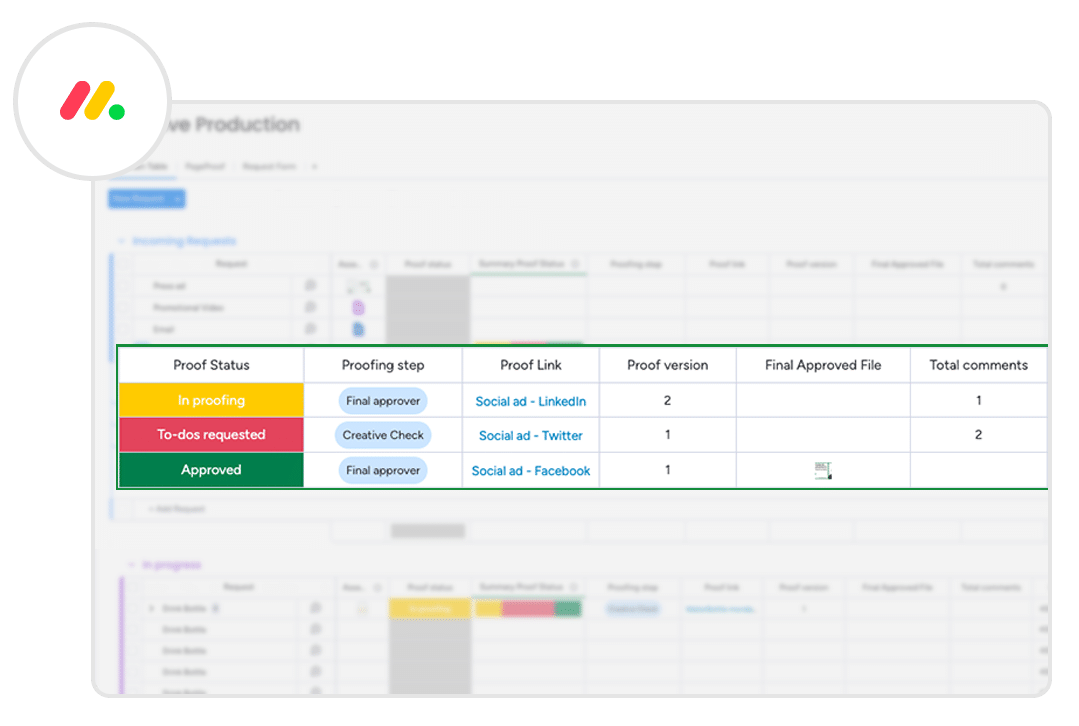
If visibility is your biggest bottleneck, monday.com solves that first. Its color-coded boards surface campaign progress instantly, making it easier to track multiple creative deliverables without chasing status updates.

The platform’s Work OS model allows teams to build structured approval columns, content calendars, and intake pipelines tailored to specific creative workflows. File uploads support commenting, though teams that require advanced on-asset annotation typically connect a dedicated proofing tool.

monday.com best features

  • Visual board customization: Create boards tailored to your creative workflows with custom columns for asset type, review stage, and stakeholder assignments
  • Workload management: Visualize your team’s capacity across projects to prevent over-assignment and burnout
  • Automation builder: Set up “if this, then that” rules to automate status updates, notifications, and task assignments

monday.com pros and cons

Pros:

  • Highly visual interface that’s intuitive for creative teams
  • Extensive template library for common creative workflows
  • Strong integrations with design and communication tools

Cons:

  • Native proofing capabilities are limited; advanced annotation requires third-party tools
  • Team size requirements may not suit all organizations
  • Complex automations can be time-consuming to configure

monday.com pricing

  • Free
  • Standard: $14/user/month
  • Pro: $24/user/month
  • Enterprise: Custom pricing

monday.com ratings and reviews

  • G2: 4.7/5 (10,900+ reviews)
  • Capterra: 4.6/5 (4,500+ reviews)

What are real-life users saying about monday.com?

A user on G2 shares both the pros and the cons:

I love the fact that I have every option possible to stay on top of tasks, assign work to my team and define critical steps in processes…Automation seems to break form time to time. I’d like to see it better perform and maybe have a manager manage each broken connection by being notified when it breaks.
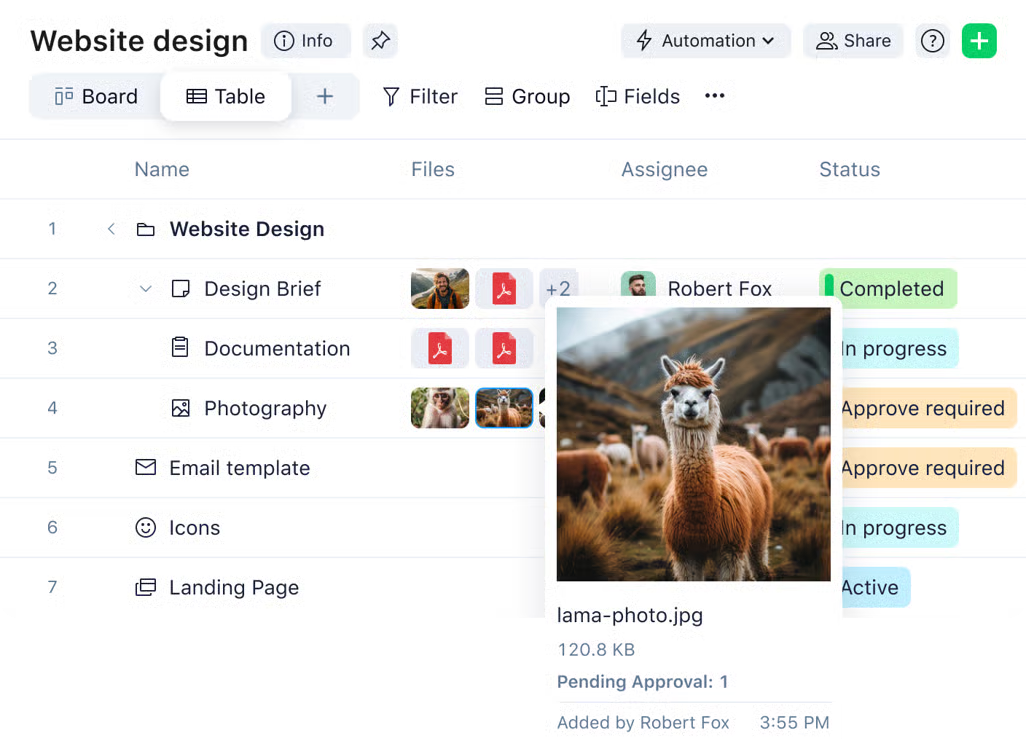
3. Wrike (Best for marketing departments handling complex intake forms, layered approvals, and audit trails)

wrike: PM Software for Creative Teams with Proofing Features
via Wrike

When enterprise creative work passes through legal, compliance, and executive review, Wrike simplifies every step. It’s built for this level of oversight. It combines proofing with structured governance, making it suitable for organizations where documentation and approval tracking are critical.

Its proofing tool supports over 30 file formats, allows detailed annotations, enables side-by-side version comparison, and tracks approval stages through configurable workflows designed for multi-layer sign-off.

Wrike best features

  • Advanced proofing for 30+ file formats: Review and annotate images, videos, PDFs, and even HTML files directly within the platform
  • Custom approval workflows: Build multi-stage approval processes with automatic routing based on project type or stakeholder requirements
  • Work Intelligence AI: Get AI-powered predictions about project risks and timeline delays based on historical data

Wrike pros and cons

Pros:

  • Comprehensive proofing capabilities for almost any file type
  • Enterprise-grade security features satisfy compliance requirements
  • Deep integrations with Adobe Creative Cloud

Cons:

  • Steep learning curve for teams new to enterprise PM tools
  • The interface can feel dense and overwhelming
  • Advanced features often require additional purchases

Wrike pricing

  • Free
  • Team: $10/user/month
  • Business: $25/user/month
  • Enterprise: Custom pricing
  • Pinnacle: Custom pricing

Wrike ratings and reviews

  • G2: 4.2/5 (4,400+ reviews)
  • Capterra: 4.4/5 (2,800+ reviews)

What are real-life users saying about Wrike?

This is what a Capterra reviewer had to say:

Overall, my experience with Wrike is a solid 3 stars. It’s powerful and clearly capable but using it feels heavier than it needs to be. The learning curve is steep, and even once you understand it, the day-to-day still isn’t as intuitive as other platforms might be.
4. Asana (Best for campaign-driven teams coordinating creative tasks across cross-functional stakeholders)

via Asana

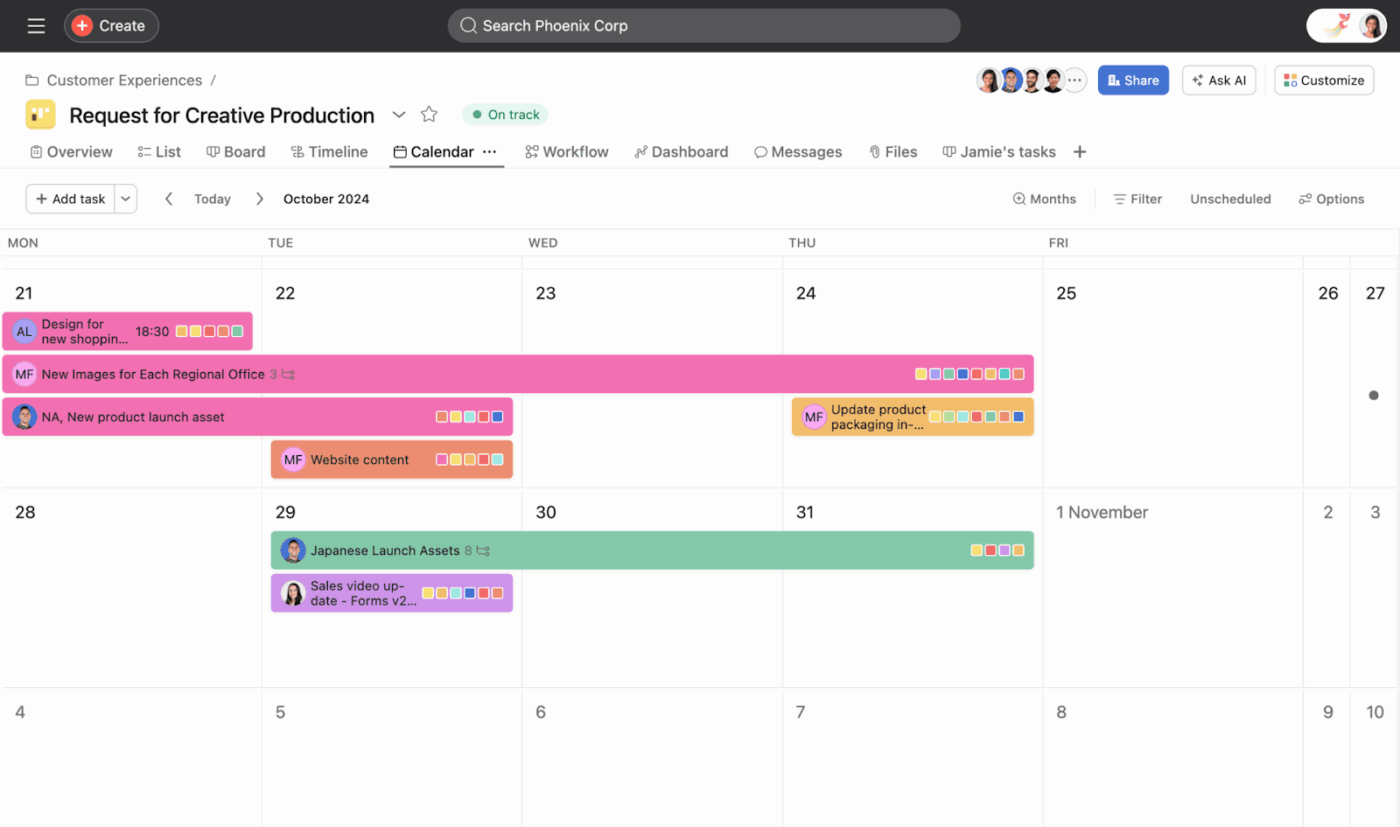
Asana shines when cross-functional creative production needs to stay aligned with broader campaign goals. It connects individual tasks to company-wide initiatives, giving stakeholders clarity on how each asset contributes to larger objectives.

Images and PDFs can be uploaded for review with feedback left directly on files. While annotation features cover core needs, Asana’s strength lies in workflow automation, allowing teams to build structured approval flows without technical complexity.

Asana best features

  • Proofing for images and PDFs: Collect feedback with pinned comments on specific areas of your creative assets
  • AI Studio workflow builder: Create custom automations for tasks like approval routing without needing to code
  • Portfolio management: Track multiple creative campaigns in a single view to see status, deadlines, and resource allocation

Asana pros and cons

Pros:

  • Clean, intuitive interface that’s easy for new team members to learn
  • Strong goal-tracking features connect tasks to company objectives
  • Robust reporting and dashboard capabilities

Cons:

  • Proofing features are basic and lack video annotation
  • Team size requirements may not suit smaller organizations
  • Setting up advanced workflows can be complex

Asana pricing

  • Free
  • Starter: $13.49/user/month
  • Advanced: $30.49/user/month
  • Enterprise: Custom pricing
  • Enterprise+: Custom pricing

Asana ratings and reviews

  • G2: 4.4/5 (12,800+ reviews)
  • Capterra: 4.5/5 (13,500+ reviews)

What are real-life users saying about Asana?

According to a G2 reviewer:

The various visual views—such as list, board, and timeline—make it easier to see priorities and deadlines at a glance. Additionally, the automations and integrations help minimize manual effort and ensure everything stays in sync….Many advanced tools, like timelines, goals, and reporting, are only available in more expensive plans, which may lead to higher costs as your team grows.
5. Teamwork (Best for client-facing agencies that need billable tracking alongside asset feedback cycles)

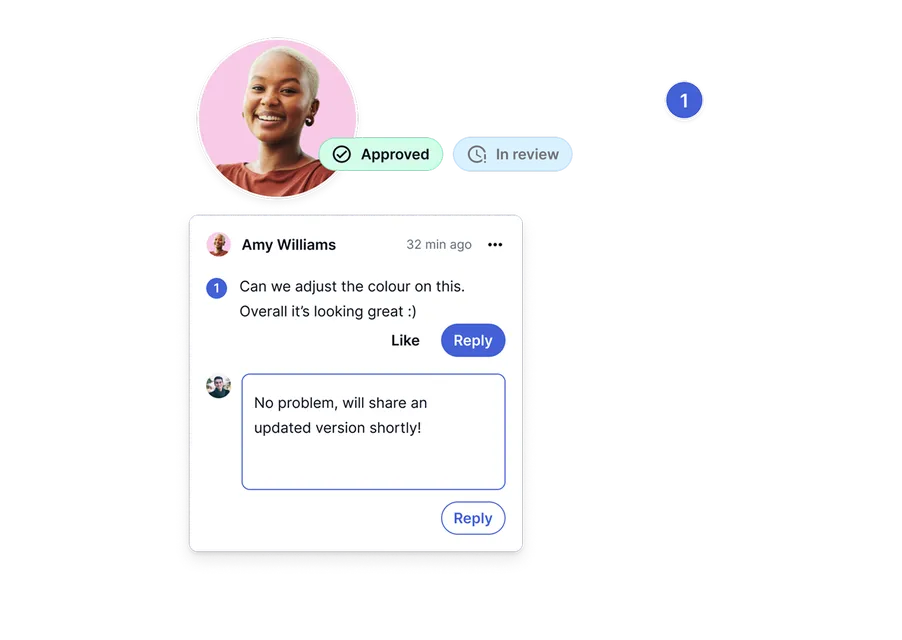
For agencies balancing creative delivery with client billing, Teamwork integrates operational control with feedback management. It combines proofing, time tracking, and permission settings in one system designed for client service environments.

Clients can annotate files without full backend access, keeping collaboration simple. Time entries connect directly to tasks, making billable hour tracking part of the production workflow rather than a separate process.

Teamwork best features

  • Built-in proofing with client access: Invite clients to review and approve assets with a simple link, keeping all feedback centralized
  • Integrated time tracking: Track time against specific tasks and projects for accurate invoicing and profitability analysis
  • Project templates: Create standardized workflows for common creative projects like brand campaigns or website redesigns

Teamwork pros and cons

Pros:

  • Purpose-built for agencies with features for client management and billing
  • Proofing capabilities handle common creative file types
  • Milestone tracking helps manage deliverable-based projects

Cons:

  • The interface can feel dated compared to more modern tools
  • Advanced reporting features require upgraded access
  • Limited native integrations with some design tools

Teamwork pricing

  • Free
  • Deliver: $13.99/user/month
  • Grow: $25.99/user/month
  • Scale: Custom pricing

Teamwork ratings and reviews

  • G2: 4.4/5 (1,200+ reviews)
  • Capterra: 4.5/5 (900+ reviews)

What are real-life users saying about Teamwork?

A G2 reviewer mentions:

Teamwork.com is rich in packaging the most important things in managing projects, from the budget, tracking, proofing, among others. We have customizable templates that assist us adjust roles and create new objectives to make the business more sustainable and productive.

💡 Pro Tip: In The Forrester Wave™: Collaborative Work Management Tools, Q2 2025, top-performing platforms are evaluated on how well they coordinate cross-functional execution and reduce operational drag. That distinction is especially important in creative ops, where delays rarely come from design work itself but from approvals, visibility gaps, and misaligned priorities.

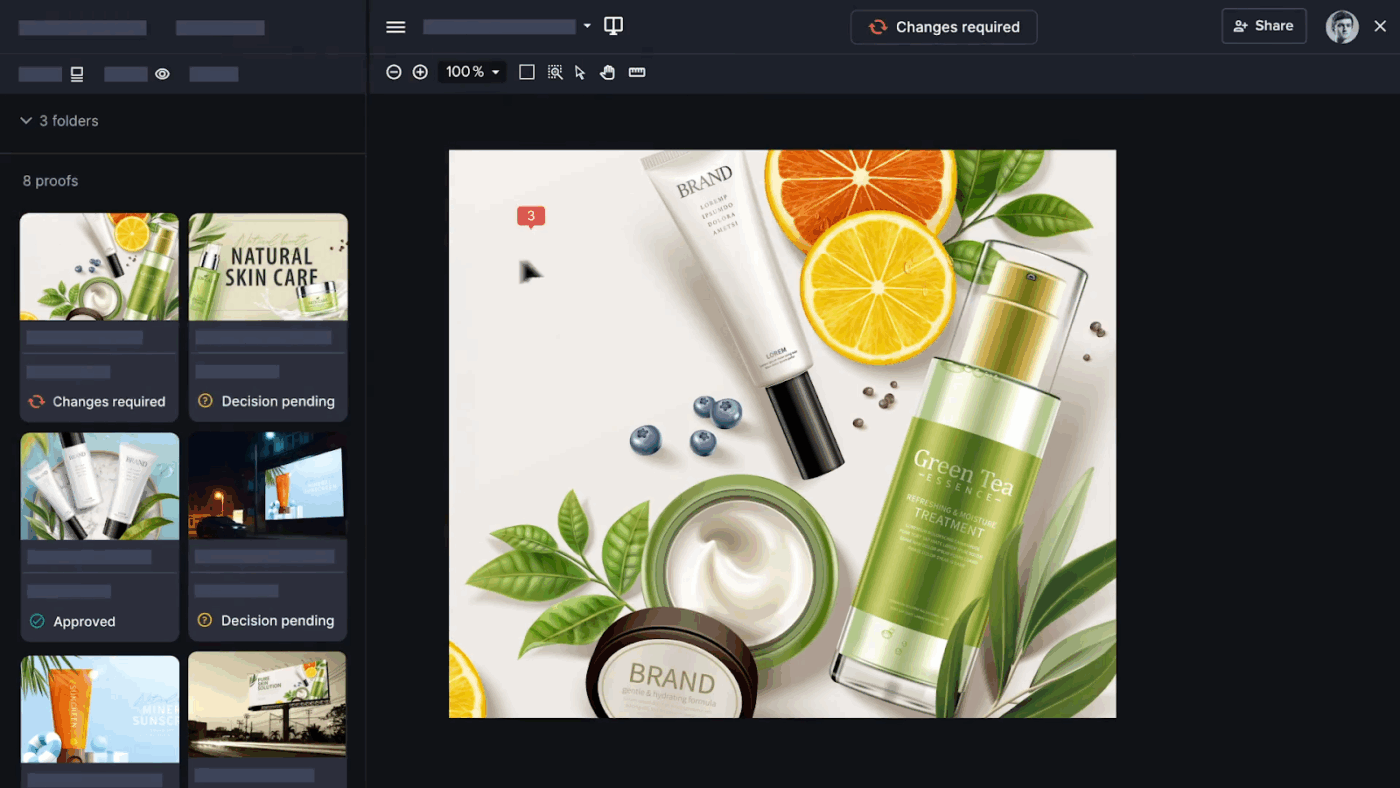
When assessing proofing and project management tools, look for platforms that:
  • Tie every campaign, asset, or launch to revenue, pipeline, and growth KPIs so creative work isn’t isolated from business performance
  • Provide shared, real-time status views across marketing, design, legal, and leadership to eliminate “where does this stand?” check-ins
  • Structure approvals with predefined workflows, version control, and automated routing to cut revision loops and prevent stakeholder rework

6. Ziflow (Best for teams running formal multi-stage proofing with side-by-side version comparison)

via Ziflow
via Ziflow

Ziflow is purpose-built for structured proofing environments. Rather than functioning as a broad project management system, it focuses deeply on review precision and compliance documentation.

The platform supports a wide range of file types, offers advanced markup tools, and routes assets through predefined review stages automatically. Version comparison and audit trails make it particularly useful for regulated industries or large-scale marketing op

Ziflow best features

  • Automated review workflows: Configure multi-stage approval processes that automatically route assets to the correct reviewers
  • Advanced version comparison: Compare versions side-by-side or overlaid to see exactly what changed between iterations
  • Compliance-ready audit trails: Every review action is logged with timestamps and user attribution for accountability

Ziflow pros and cons

Pros:

  • Deep proofing capabilities that exceed most general PM tools
  • Automated workflows reduce manual routing and follow-up
  • Audit trails satisfy compliance requirements for regulated industries

Cons:

  • It’s focused on proofing, so you’ll need a separate PM tool for task management
  • It may be overkill for small creative teams with simple needs

Ziflow pricing

  • Free
  • Standard: $249/month
  • Pro: $399/month
  • Enterprise: Custom pricing 

Ziflow ratings and reviews

  • G2: 4.5/5 (9300+ reviews)
  • Capterra: 4.8/5 (400+ reviews)

What are real-life users saying about Ziflow?

According to a Capterra reviewer:

I have good experience with Ziflow. I could simply and securely exchange suggestions with users, visitors, and groups while managing feedback from any browser. Ziflow offers real-time, team-based, and user-friendly tools for marking up and commenting.
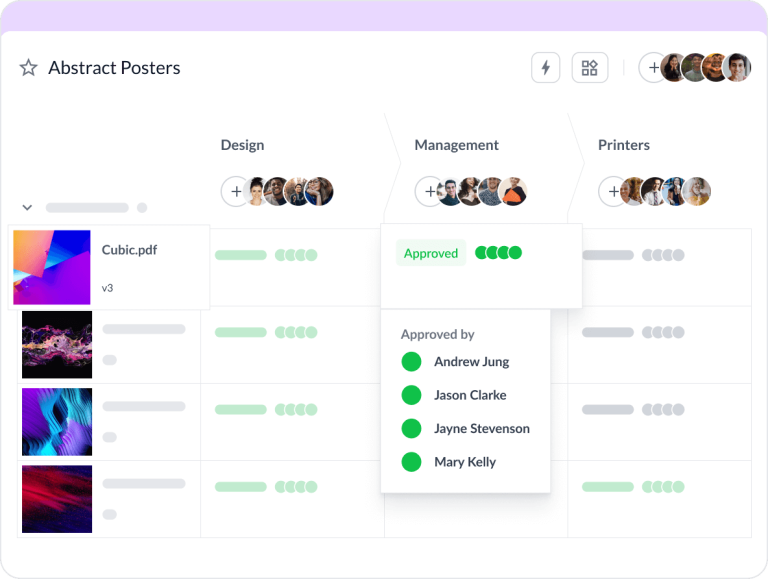
7. Filestage (Best for external stakeholder reviews where non-technical clients need frictionless commenting)

If you regularly chase clients or external stakeholders for feedback, Filestage makes the review process almost frictionless for them.

You can share a simple link that lets reviewers comment directly on images, videos, and PDFs without creating an account or learning a new system. That low barrier to entry speeds up approvals and reduces delays caused by login issues or tool confusion, making it especially useful when feedback comes from people outside your core team

Filestage best features

  • Multi-format proofing: Review images, videos, and documents with consistent annotation tools across all file types
  • External reviewer access: Share review links with clients who can provide feedback without creating an account
  • Automated review reminders: Set deadlines for feedback and let the platform automatically remind stakeholders who are late

Filestage pros and cons

Pros:

  • Extremely easy for external reviewers to use
  • Automated reminders reduce manual follow-up
  • Clean interface focused on proofing

Cons:

  • Limited project management capabilities; you’ll need a separate tool for task planning
  • Fewer integrations with design tools compared to full PM platforms

Filestage pricing

  • Free
  • Starter: $249/month
  • Business: $399/month
  • Enterprise: Custom pricing

Filestage ratings and reviews

  • G2: 4.6/5 (240+ reviews)
  • Capterra: 4.7/5 (100+ reviews)

What are real-life users saying about Filestage?

One reviewer on G2 described their experience with Filestage:

What I particularly like about Filestage.io is the ability to leave comments directly at specific points in videos. This significantly simplifies the revision process, as I, as an editor, can work step by step from one point to the next without losing track. The visual highlighting of the marked spots ensures that no comment is overlooked.
8. Hive (Best for teams that want collaborative task views paired with native markup on files)

via Hive
via Hive

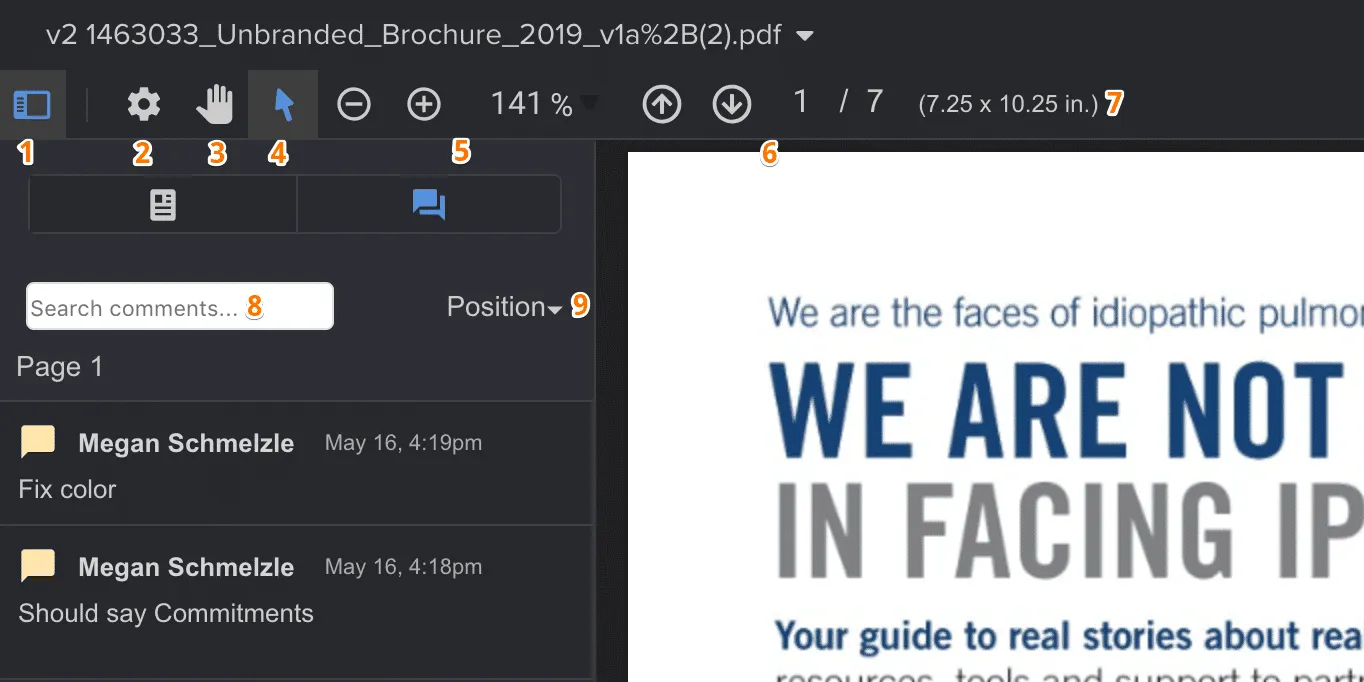
Your team doesn’t have to commit to a single way of viewing work in Hive. You can switch between Kanban boards, Gantt charts, calendar views, and tables depending on what the project demands.

Annotations on images and PDFs live directly inside tasks, so feedback stays tied to the actual deliverable instead of drifting into separate tools. It suits teams that want flexibility in visualization without sacrificing integrated proofing.

Hive best features

  • Native proofing: Annotate images and PDFs directly within tasks, with comments pinned to specific locations
  • Flexible project views: Switch between Kanban boards, Gantt charts, and calendar views to accommodate different work styles
  • Action templates: Create standardized workflows for common creative projects that you can deploy with a few clicks

Hive pros and cons

Pros:

  • Combines solid PM features with native proofing in a streamlined package
  • Flexible views accommodate different work styles
  • Resourcing features help prevent designer burnout

Cons:

  • Proofing capabilities are less advanced than dedicated tools and lack video annotation
  • A smaller user community means fewer available templates

Hive pricing

  • Free
  • Starter: $1.50/month/user
  • Teams: $5/month/user
  • Enterprise: Custom pricing

Hive ratings and reviews

  • G2: 4.6/5 (650+ reviews)
  • Capterra: 4.5/5 (200+ reviews)

What are real-life users saying about Hive?

A G2 reviewer mentions:

It is highly automated which promotes a great workflow through auto-assigning of tasks and projects templates which has promoted great productivity. It creates excellent team collaboration through real-time chats comments and much more.
9. Notion (Best for creative operations teams managing briefs, guidelines, and lightweight feedback in one workspace)

via Notion
via Notion

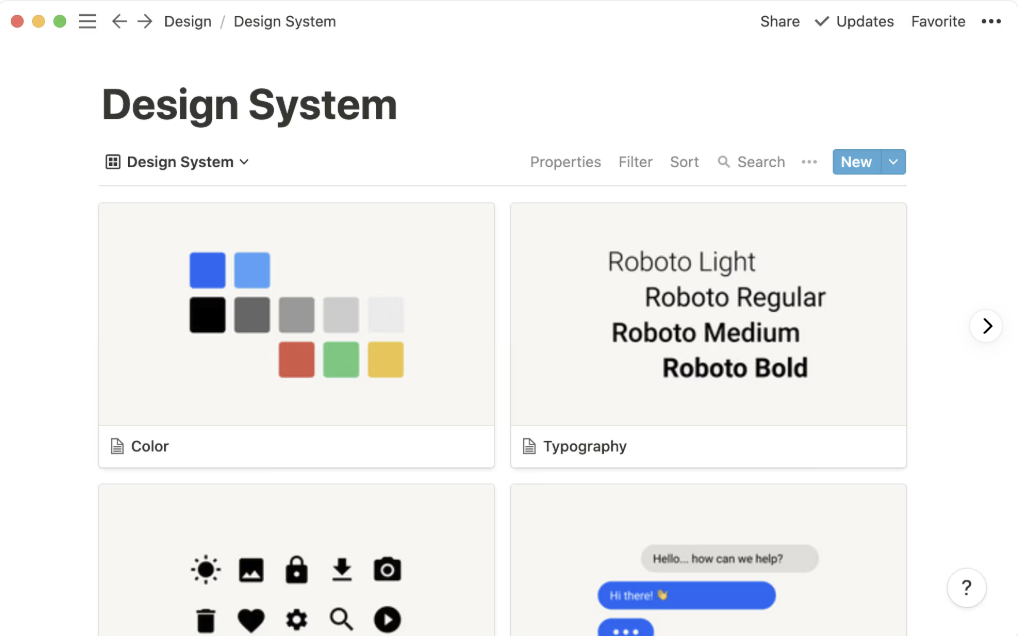
For teams that treat documentation as part of the creative process, Notion gives you a highly customizable workspace to connect briefs, brand systems, campaign plans, and project trackers.

You can build relational databases that reflect your exact workflow, link related projects, and embed files within pages for contextual comments. While it does not offer advanced annotation tools, it stands out for organizing knowledge and execution in one structured environment.

Notion best features

  • Flexible databases: Build custom project trackers with properties tailored to creative workflows, like asset type or review status
  • Notion AI: Generate creative briefs, summarize meeting notes, and draft project documentation with AI assistance
  • Wiki-style knowledge bases: Create interconnected documentation for brand guidelines and process workflows

Notion pros and cons

Pros:

  • Extreme flexibility lets you build the exact workspace you need
  • Strong documentation and knowledge management capabilities

Cons:

  • No native proofing or annotation features; you’ll need third-party tools
  • Steep learning curve for complex workspace setups
  • Performance can slow down with very large databases

Notion pricing

  • Free
  • Plus: $12/user/month
  • Business: $24/user/month
  • Enterprise: Custom pricing

Notion ratings and reviews

  • G2: 4.7/5 (9,200+ reviews)
  • Capterra: 4.7/5 (2,600+ reviews)

What are real-life users saying about Notion?

A user on Capterra shares:

I have been able to save campaign ideas, client notes and schedules in one place, eliminating spreadsheet documents and last minute confusion…I don’t like the fact that complicated pages may scare off novices, and onboarding requires more discussion in comparison with less complicated tools.
10. ProofHub (Best for teams that need flat-fee project management with integrated file proofing and approvals)

via ProofHub
via ProofHub

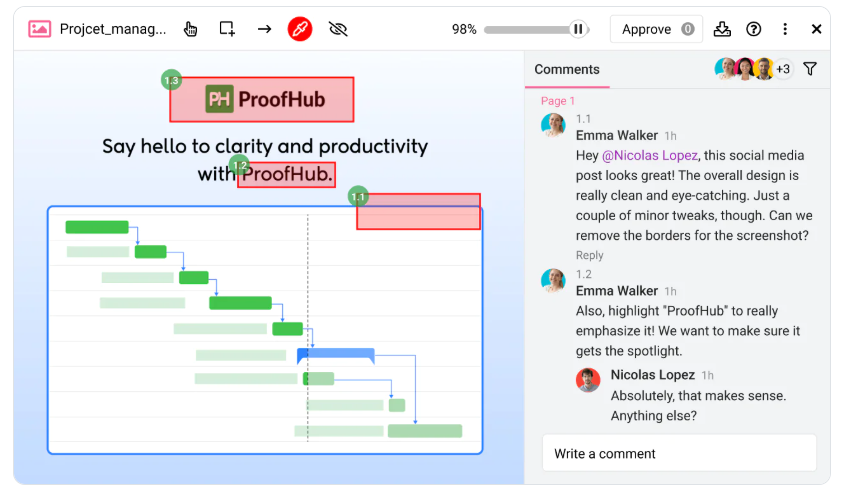
Cost control can shape your software decisions as much as features. ProofHub’s flat-fee pricing removes per-user scaling concerns, making budgeting more predictable as your team grows.

You can upload images and PDFs for markup, manage threaded discussions around each asset, and track approvals inside the same system. It fits teams that want straightforward project oversight with built-in proofing, without enterprise-level configuration complexity

ProofHub best features

  • Online proofing tool: Upload images and PDFs for review with markup tools that keep comments attached to the exact location they reference
  • Discussion threads: Keep feedback conversations organized within the context of specific files or tasks
  • Scalable team access: Add team members as your organization grows without workflow disruptions

ProofHub pros and cons

Pros:

  • A straightforward pricing structure works well for teams of various sizes
  • Built-in proofing covers basic annotation needs
  • The user-friendly interface reduces onboarding time

Cons:

  • Proofing features are less advanced than dedicated tools and lack video annotation
  • Fewer integrations with design tools compared to larger platforms

ProofHub pricing

  • Essential: $50/month
  • Ultimate Control: $99/month

ProofHub ratings and reviews

  • G2: 4.6/5 (110+ reviews)
  • Capterra: 4.6/5 (140+ reviews)

What are real-life users saying about ProofHub?

A G2 reviewer notes:

Before ProofHub, important information was spread across emails and chats. Now everything is centralized, searchable, and easy to access when needed.

Summarize this article with AI ClickUp Brain not only saves you precious time by instantly summarizing articles, it also leverages AI to connect your tasks, docs, people, and more, streamlining your workflow like never before.
ClickUp Brain
Avatar of person using AI Summarize this article for me please

Stop Chasing Feedback and Start Creating Smartly ✨

At the end of the day, creative teams don’t need more project management or proofing tools. Instead, you need an all-in-one workplace tool that helps you organize tasks and keeps feedback visible and actionable. 

As you review the options on this list, don’t just look at features. Ask yourself:

  • Will this reduce friction?
  • Will this make approvals faster?
  • Will this help my team stay in flow instead of being stuck in feedback limbo?

And if you want a platform that brings tasks, timelines, comments, approvals, and creative proofing into one connected workspace, ClickUp is built to do exactly that. 

You can attach designs directly to tasks, collect feedback on the exact version being reviewed, assign clear approval stages, and see who’s holding things up without awkward follow-ups. As a result, instead of chasing updates across tools, your team works in one shared space where everything is visible, accountable, and moving forward.

Get started for free with ClickUp and see how much time your creative team can reclaim.

Summarize this article with AI ClickUp Brain not only saves you precious time by instantly summarizing articles, it also leverages AI to connect your tasks, docs, people, and more, streamlining your workflow like never before.
ClickUp Brain
Avatar of person using AI Summarize this article for me please

Frequently Asked Questions (FAQs)

What is the difference between proofing and annotation in creative project management software?

Proofing is the entire review and approval workflow, while annotation is the specific act of marking up a file with comments.

How do approval workflow features reduce revision cycles for creative teams?

Approval workflows automate the routing of assets through review stages, which eliminates manual handoffs and catches feedback earlier in the process.

Can PM software for creative teams replace dedicated proofing tools?

For many teams, built-in proofing is enough. However, teams with complex compliance or high-volume video needs may still benefit from a dedicated tool integrated with their PM platform.

What makes proofing features essential for managing creative reviews with clients?

Proofing features centralize client feedback directly on creative assets, which eliminates the confusion of scattered email threads and ensures feedback is tied to the correct file version.

Everything you need to stay organized and get work done.
clickup product image