






Still downloading templates?
There’s an easier way. Try a free AI Agent in ClickUp that actually does the work for you—set up in minutes, save hours every week.
Sorry, there were no results found for “”
Sorry, there were no results found for “”
Sorry, there were no results found for “”
According to empirical studies, 58%-70% of developers’ working time is spent reading and understanding existing code rather than writing it. Yet, most codebases have documentation that’s either outdated, incomplete, or nonexistent.
In this article, we’ll show you how to streamline your documentation process and keep your team aligned by using GitHub Copilot’s AI-powered suggestions. You’ll see how you can generate docstrings, inline comments, and README files directly in your IDE, and then integrate those docs into a sustainable workflow with ClickUp.
The main problems with code documentation can be broken down into these simple points:
Using GitHub Copilot for code documentation can be a game-changer for developers, engineering teams, and anyone maintaining codebases who struggle to keep documentation current.
📮 ClickUp Insight: The average professional spends 30+ minutes a day searching for work-related information—that’s over 120 hours a year lost to digging through emails, Slack threads, and scattered files.
An intelligent AI assistant embedded in your workspace can change that. Enter ClickUp Brain. It delivers instant insights and answers by surfacing the right documents, conversations, and task details in seconds—so you can stop searching and start working.
💫 Real Results: Teams like QubicaAMF reclaimed 5+ hours weekly using ClickUp—that’s over 250 hours annually per person—by eliminating outdated knowledge management processes. Imagine what your team could create with an extra week of productivity every quarter!
Jumping into a new tool without the right setup is a recipe for frustration. Before you start generating documentation, quickly run through this checklist to make sure your workspace is ready. This will save you from hitting roadblocks later.
Think of GitHub Copilot as a coding assistant that understands the context of your code. It doesn’t just guess; it reads your function signatures, variable names, and surrounding logic to generate relevant documentation.
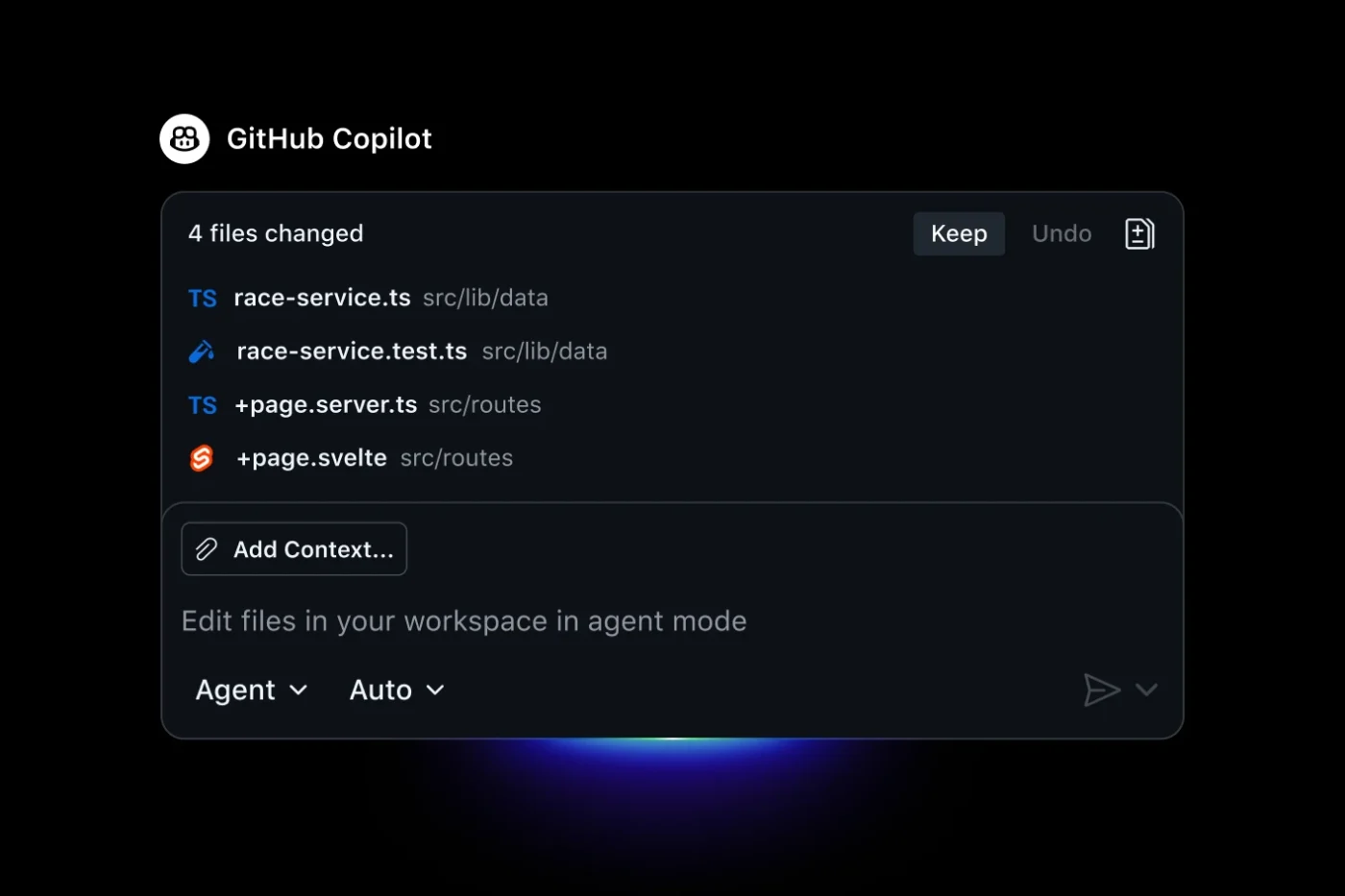
Using GitHub Copilot for code documentation streamlines a tedious process into a few simple actions.
Here’s how it works in practice:
// or #) or docstring syntax (like """), Copilot anticipates your intent and auto-completes with context-aware documentation| Approach | Speed | Accuracy | Consistency |
|---|---|---|---|
| Manual documentation | Slow | High (if done well) | Varies by author |
| GitHub Copilot suggestions | Fast | Medium-high | Consistent style |
| Copilot Chat prompts | Fast | High (with good prompts) | Very consistent |
To see how AI agents are transforming coding workflows beyond just documentation, watch this video.
This workflow is your GitHub Copilot tutorial for turning an unfamiliar or undocumented codebase into a well-documented asset. By following these steps, you can systematically create comprehensive documentation with AI. 🛠️
You can’t document what you don’t understand. When you’re faced with a new or complex project, your first step is to get a high-level overview. Instead of spending hours manually tracing connections, use Copilot Chat as your guide.
Open the main project folder in your IDE and ask Copilot Chat broad questions to get oriented.
A practical tip is to start with the application’s entry points, like main.py, index.js, or the primary API routes file. Understanding where the program begins helps you follow the flow of logic and dependencies outward.
This is where you’ll feel Copilot’s immediate impact. Generating docstrings—the summaries that explain what a function or class does—is incredibly fast. The workflow is simple: place your cursor, type the starting syntax for a docstring, and let Copilot handle the rest.
""". Copilot will instantly suggest a complete docstring, including descriptions for parameters (Args), return values (Returns), and any exceptions the function might raise (Raises)/**. Copilot will generate JSDoc-style comments, which are standard for documenting JavaScript codebasesYou can also use Copilot Chat for more control. Highlight an entire function or class and ask it directly: “Document this function, including parameters and return type.”
While docstrings explain the what, inline comments explain the why. Your goal here isn’t to restate what the code does, but to clarify the intent behind non-obvious decisions. This is crucial for future maintainability.
Focus on the trickiest parts of your code. Highlight a complex block and ask Copilot Chat, “Explain this logic step by step.” Then, take its explanation and distill it into a concise inline comment.
Good places to add inline comments include:
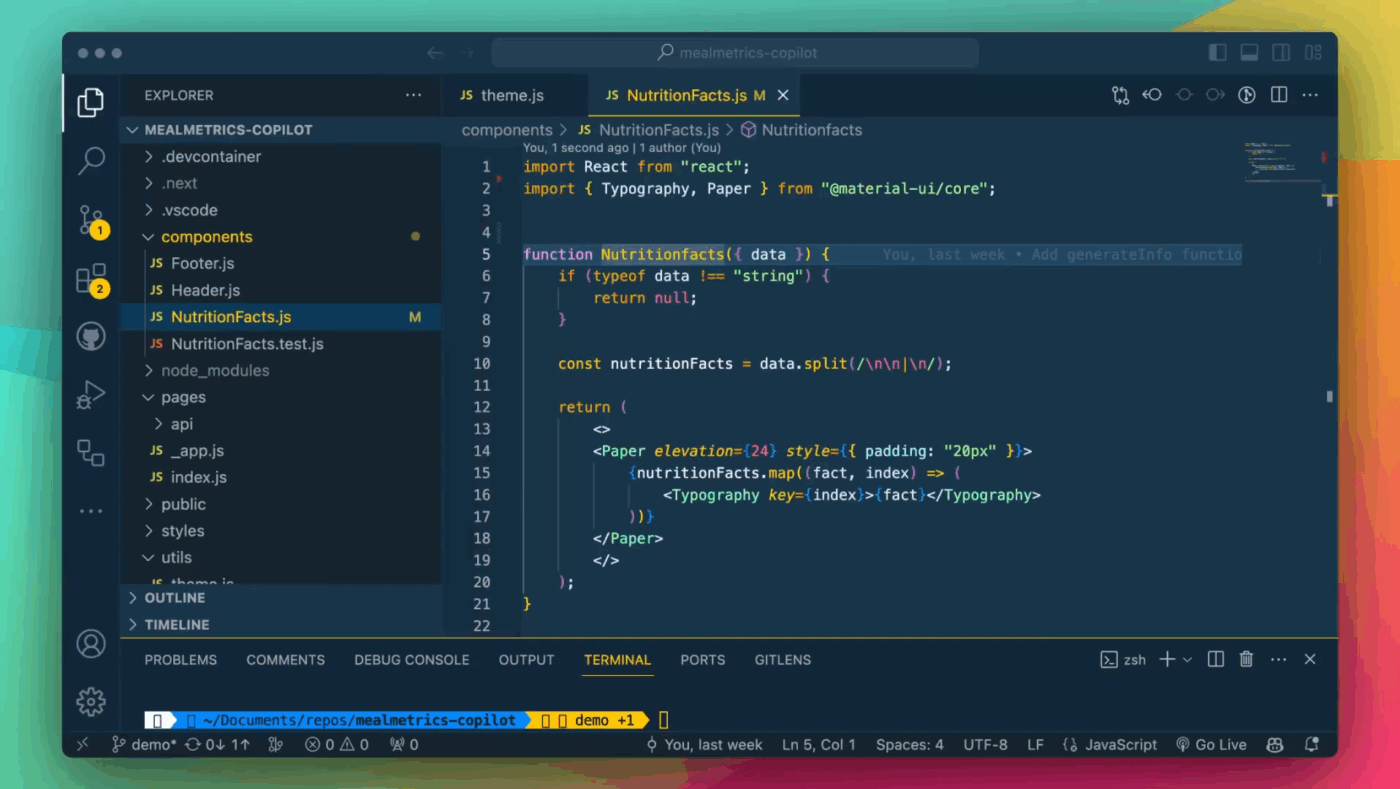
Once you’ve handled the code-level documentation, it’s time to zoom out to the project level. A good README file is the front door to your project, and Copilot can help you build one that stands out, much like the best API documentation.
Here’s how to proceed:
README.md file in your project’s root directorypackage.json or requirements.txt) to create accurate installation instructions and usage examplesCONTRIBUTING.md or other high-level project documentsThis is the most important step. AI-generated documentation is a powerful starting point, but it is not a finished product. Always treat it as a first draft that requires human review and refinement.
Use this checklist to guide your review:
Let’s look at a concrete example. Imagine you encounter this undocumented Python function in a legacy codebase:
def process_user_data(user_dict, validate=True):
    if validate and not user_dict.get('email'):
        raise ValueError("Email required")
    cleaned = {k: v.strip() if isinstance(v, str) else v for k, v in user_dict.items()}
    cleaned['processed_at'] = datetime.now()
    return cleaned
It’s not immediately clear what it does or why. You can highlight the function and ask Copilot Chat: “Document this function including parameters, return type, and exceptions.”
Within seconds, Copilot provides the following:
def process_user_data(user_dict, validate=True):
    """
    Process and clean user data dictionary.

    This function takes a dictionary of user data, strips leading/trailing
    whitespace from all string values, and adds a processing timestamp.
    It can optionally validate that an email address is present.

    Args:
        user_dict (dict): A dictionary containing user information.
        validate (bool): If True, validates that the 'email' key exists.
                         Defaults to True.

    Returns:
        dict: A new dictionary with cleaned user data and an added
              'processed_at' timestamp.

    Raises:
        ValueError: If 'validate' is True and the 'email' key is missing
                    from the user_dict.
    """
    # Raise an error if validation is on and the email is missing.
    if validate and not user_dict.get('email'):
        raise ValueError("Email required")

    # Clean the dictionary by stripping whitespace from string values.
    cleaned = {k: v.strip() if isinstance(v, str) else v for k, v in user_dict.items()}

    # Add a timestamp to record when the processing occurred.
    cleaned['processed_at'] = datetime.now()
    return cleaned
This example shows GitHub Copilot documentation generation for a single function. For larger codebases, you can repeat this process systematically, starting with public APIs and working toward internal utilities.
Generating documentation is only half the battle. The real challenge is keeping it useful and up-to-date. This is where you need to move beyond the IDE and integrate documentation into your team’s core workflows.
Centralize your documentation and development tasks to eliminate chaos and keep your team aligned. Combine GitHub Copilot with project management tools like ClickUp to create specific, assignable work items for documentation, link them directly to code changes, and build a centralized knowledge base that integrates with your workflow—empowering your team to take action faster.
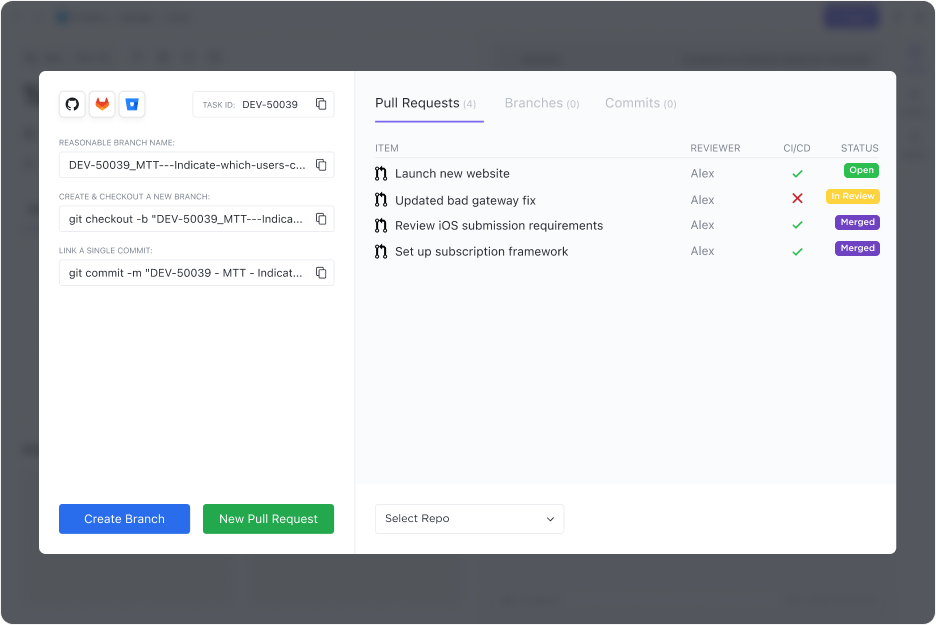
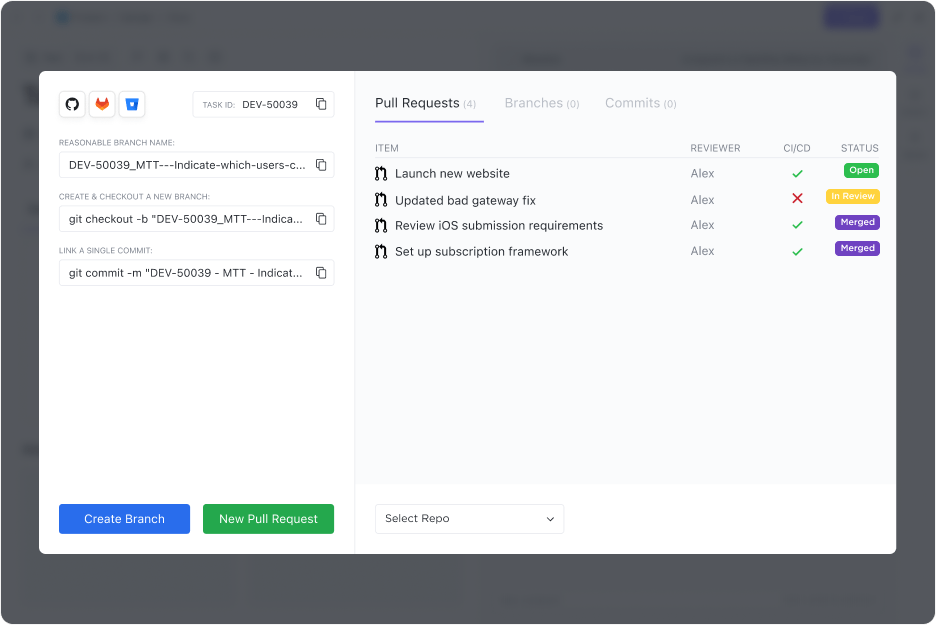
ClickUp makes it easy to do this with the native GitHub integration. This is particularly handy when multiple Git repositories feed into the same product area, and you still want a single source of truth for status and context.
The moment code changes, documentation starts to decay. This “documentation drift” is what makes most team wikis unreliable. You can fight back by building a process that keeps your docs in sync with your code.

Make documentation updates seamless and trackable by automating review tasks with ClickUp Automations whenever a GitHub pull request is merged. By linking GitHub PRs directly to ClickUp Tasks, you ensure documentation is always visible and part of every code change.
Inconsistent documentation is confusing. When developers use slightly different styles, the codebase becomes harder to read, and new team members struggle to get up to speed. AI can help enforce consistency across the board.
Start by creating a clear documentation style guide. Then, you can reference it directly in your Copilot prompts, like “Document this function following our team’s JSDoc standards.”
You can also use Copilot to audit existing documentation, asking it to “Review this file for any functions missing docstrings.”
💡Pro Tip: In ClickUp, you can create documentation guidelines and templates in seconds with ClickUp Brain, the integrated AI assistant.
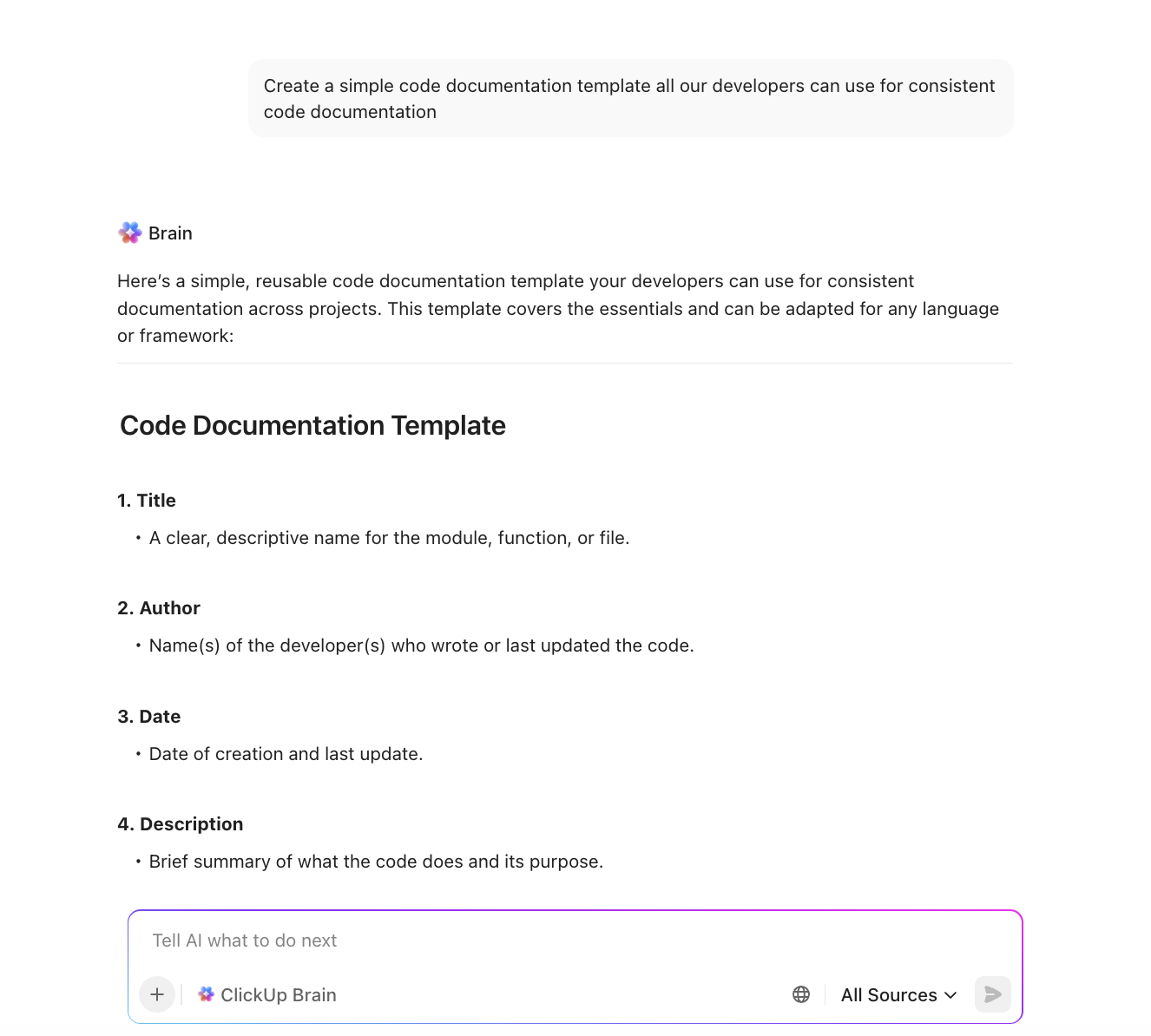
To make this process scalable, store your official documentation style guide in ClickUp Docs. This creates a shared knowledge management system that everyone on the team can access.
When a new developer has a question about standards, they can ask ClickUp Brain, which uses your Docs as a knowledge source to provide instant, accurate answers without interrupting a senior engineer.
While Copilot is a powerful ally, it’s important to be aware of its limitations. Treating it as a magic wand can lead to problems down the road.
These limitations don’t make Copilot unsuitable for documentation. They simply highlight why combining AI assistance with robust workflow tools creates a far better outcome than relying on any single tool alone.
Teams that treat documentation as an integral part of their workflow—not an afterthought—ship features faster and build a more resilient, maintainable codebase. While GitHub Copilot is fantastic for generating documentation inside your IDE, it doesn’t solve the larger problem.
How do you organize, track, and maintain that documentation as a collaborative team asset? This is where a converged workspace becomes essential.
While Copilot helps you write the docs, ClickUp helps you manage the entire documentation lifecycle. Eliminate context sprawl with ClickUp—a Converged AI Workspace that brings all your work, data, and workflows into a single platform.
The team at DISH Business unlocked 30% more team capacity with ClickUp.
“Every release that we’ve done from 2025 happened on schedule due to the visibility ClickUp gives us into problems that might pop up. It lets teams from multiple parts of the world come together, interact, and just communicate async about the work we’re doing.”
Here are just some of the reasons to try ClickUp today:
GitHub Copilot helps you write documentation. ClickUp helps you manage it. Together, they solve the full documentation challenge. ✨
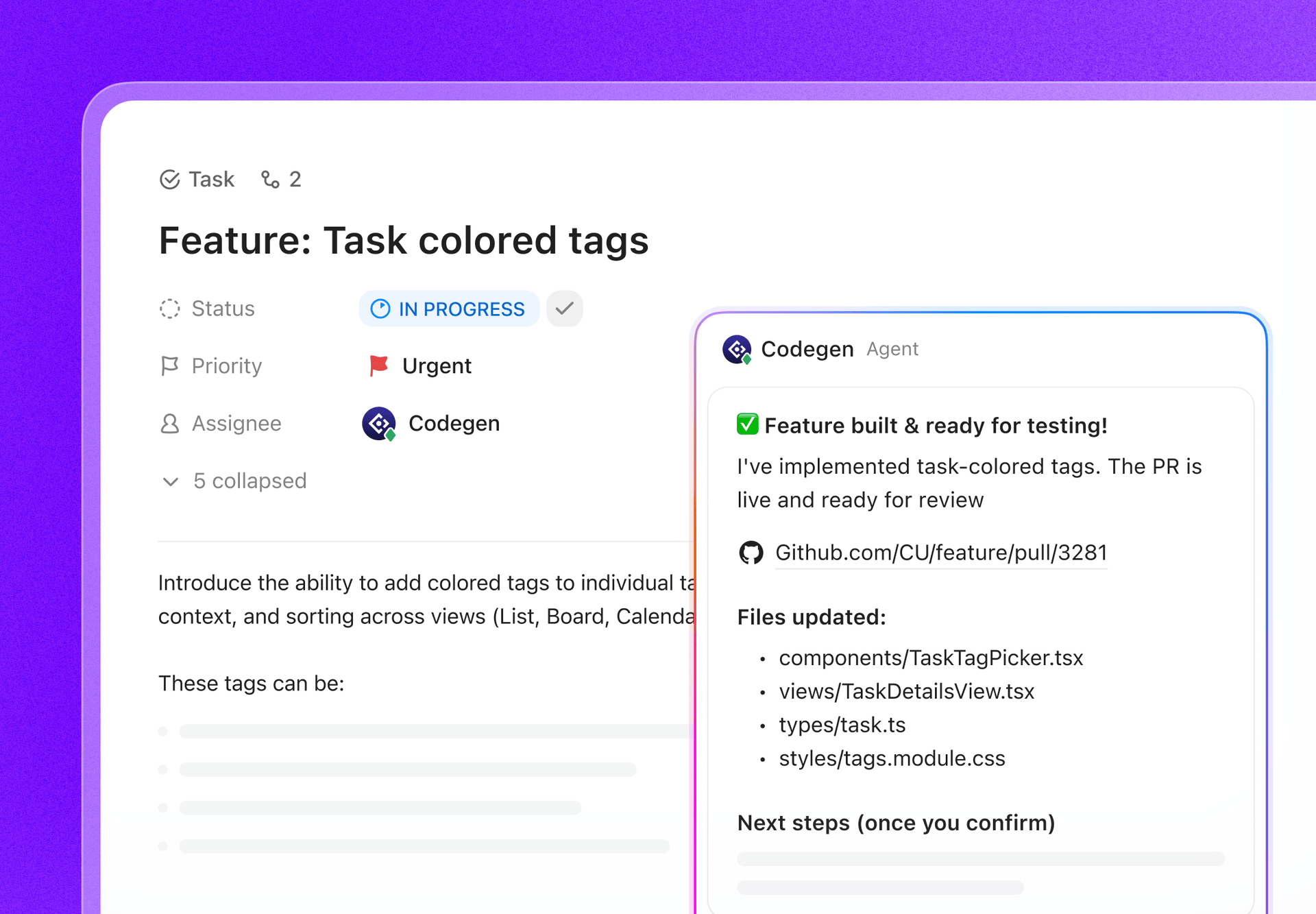
💡Pro Tip: The Codegen AI Agent in ClickUp is your autonomous AI assistant that takes care of:
Learn more about Codegen in our video
Outdated documentation slows teams down, creates knowledge silos, and makes onboarding a nightmare. GitHub Copilot transforms code documentation from a dreaded chore into an efficient, AI-assisted workflow.
However, the key to success is combining that AI-generated content with human review and a sustainable team process. Documentation that stays current and trustworthy requires both good tools and good habits.
With ClickUp and its GitHub integration, code documentation and its consistent management become a breeze. By using AI for the heavy lifting, you free up your developers to focus on what matters most: ensuring accuracy, completeness, and clarity.
Ready to bring your documentation workflow together with your development tasks? Get started for free with ClickUp and start streamlining your process today.
GitHub Copilot can generate several types of documentation, including function and class docstrings, inline comments explaining complex logic, and project-level documents like README files. It supports a wide range of programming languages, such as Python, JavaScript, and Java.
Copilot is significantly faster for creating initial drafts, turning minutes of work into seconds. However, manual documentation may still be more accurate for highly complex or nuanced business logic, which is why human review of AI-generated content is essential.
Because it operates within a coding environment like VS Code, GitHub Copilot is primarily designed for developers. However, the documentation it generates can be easily exported or stored in a central tool like ClickUp Docs to be shared with non-technical team members.
The main limitations include a limited context window, which can affect accuracy in large projects, and a lack of institutional knowledge about why certain code exists. All AI-generated content should be verified by a human for correctness and completeness./

© 2026 ClickUp

There’s an easier way. Try a free AI Agent in ClickUp that actually does the work for you—set up in minutes, save hours every week.