






Still downloading templates?
There’s an easier way. Try a free AI Agent in ClickUp that actually does the work for you—set up in minutes, save hours every week.
Sorry, there were no results found for “”
Sorry, there were no results found for “”
Sorry, there were no results found for “”
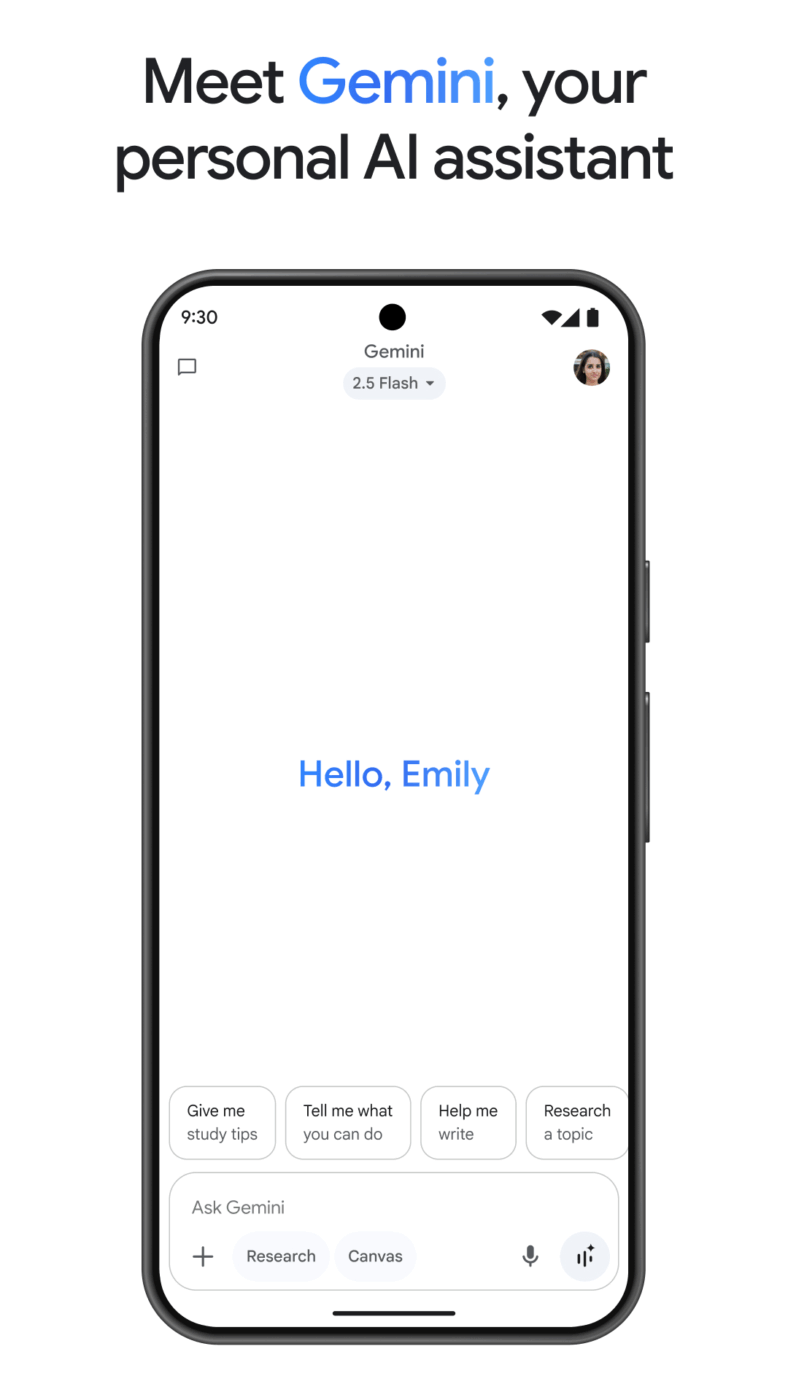
A perfect idea pops into your head mid-walk or mid-commute…and you think, I should ask AI to help with this. But then you remember you’ll have to type out a whole mini-essay of a prompt, and you think, “I’ll get to it some other time”.
Typing long, detailed prompts can be a drag for so many of us. It’s slow, it breaks our flow, and if you’re on the move, it’s honestly kind of a pain.
And that little bit of friction matters more than we think. It’s often enough to make you abandon a great idea before you even get it out of your brain and into the tool.
That’s where Gemini voice to text comes in.
In this guide, we’ll walk through how to use Gemini voice to text on both desktop and mobile, plus what it can (and can’t) do—so you can capture thoughts faster, stay in the zone, and spend less time typing prompts like it’s a homework assignment.
Gemini voice to text is a feature within Google’s Gemini AI assistant that converts your spoken words directly into text prompts. Instead of typing the whole text out, you just speak it out loud. Gemini’s speech recognition processes your voice in real time, displaying the transcribed text in the input field for you to review and send. It’s available on both your desktop browser and through the Gemini mobile app for Android and iOS.
While Gemini voice to text helps you “dictate a prompt” for Gemini, Gemini Live is designed for continuous, back-and-forth voice conversations with the AI.
Here’s a summary of differences:
| Feature | Gemini voice to text | Gemini Live |
|---|---|---|
| What it is | Voice input that gets converted into a typed prompt | Real-time, back-and-forth voice conversation |
| How it feels | Like dictating a message to Gemini | Like talking on a call with Gemini |
| Main purpose | Faster prompt creation without typing | Natural, continuous conversation and collaboration |
| Interaction style | Speak → it turns into text → Gemini replies | Speak ↔ Gemini responds instantly (live dialogue) |
| Best for | Brain dumps, long prompts, quick requests while multitasking | Brainstorming, coaching, planning out loud, refining ideas in real time |
| Speed & flow | Faster than typing, but still “prompt-based” | Fastest + most fluid since it’s fully conversational |
You’re deep in your workflow at your desk and need a quick answer from your AI. Stopping to type out a long question pulls you out of the zone. And that context switch costs you valuable focus and time—particularly damaging when sustained attention has fallen to 40 seconds.
Using Gemini voice to text on your desktop keeps you in the flow by letting you ask questions without breaking your stride.
Here’s how to get it working in just a few clicks.
First, you’ll need to open the Gemini interface. Navigate to gemini.google.com in a supported browser, such as Chrome, Edge, Firefox, or Safari. If you aren’t already logged in, you’ll be prompted to sign in with your Google account.
Once you’re in, you should see the main chat screen where you can start interacting with the AI.
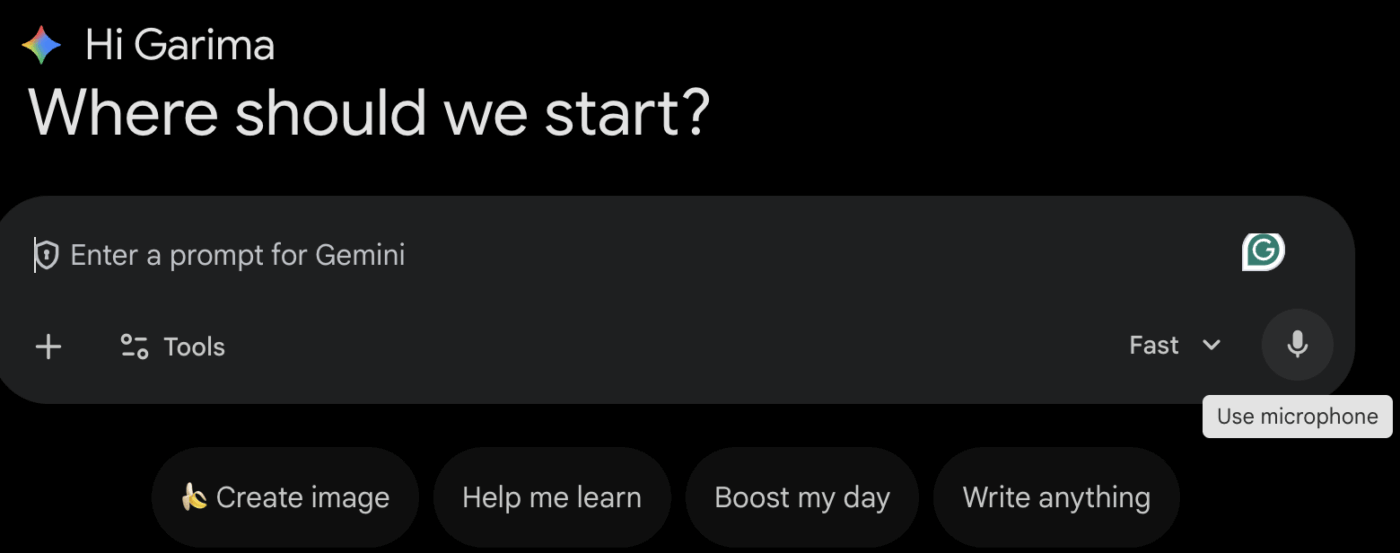
To use voice input, Gemini needs permission to access your computer’s microphone. The first time you click the microphone icon, your browser will show a pop-up asking for permission. Simply click “Allow” to grant access.

If you’ve previously blocked it by mistake, you can easily re-enable it. In most browsers, you can go to your browser’s settings, find the privacy or site settings section, and locate the microphone permissions to allow access for Gemini.
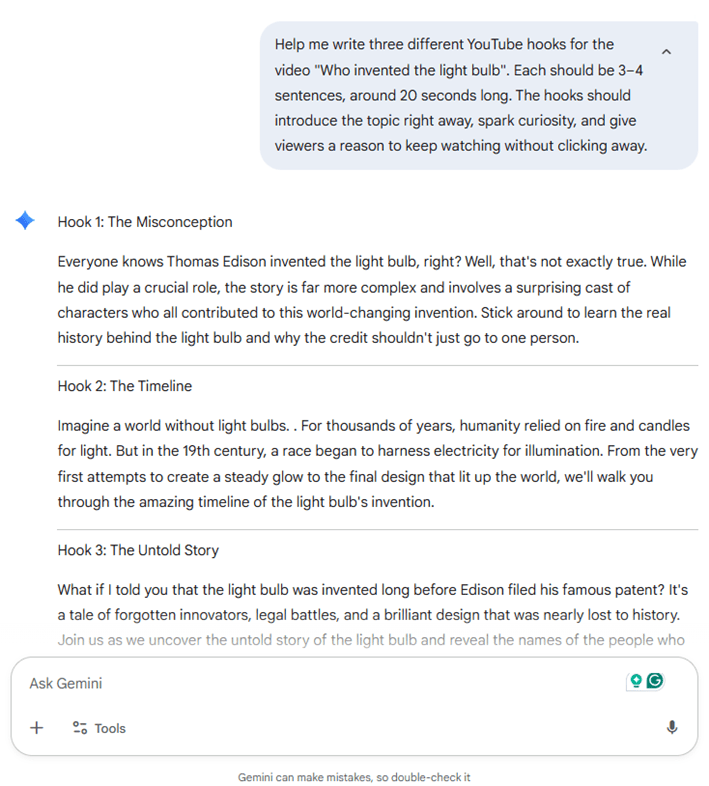
With permissions granted, you’re ready to go. Look for the microphone icon located in the text input field at the bottom of the Gemini chat window. Click it to start recording.
Speak your prompt clearly and at a natural pace. You’ll see Gemini perform a real-time transcription of your speech, turning your words into text right in the input box.
Once you’re done speaking, the recording stops, and your transcribed text sits in the input field. Take a moment to read through it and check for any errors, especially with names or technical terms. You can click into the text box and make any corrections with your keyboard.
When you’re happy with the prompt, just press Enter or click the send button to submit it to Gemini.
🧠 Fun Fact: Google began rolling out Voice Search on Google.com for Chrome back in 2011. It’s kind of wild how quickly voice went from “cool demo” to “default behavior,” especially now that people dictate messages, search queries, and even full emails without thinking twice.
Inspiration rarely strikes when you’re sitting perfectly at your desk. It happens when you’re walking, commuting, or in the middle of a workout. Fumbling to type out a brilliant idea on your phone is a surefire way to forget it.
The Gemini mobile app brings the same voice to text functionality to your phone, making it easy to capture ideas the moment they occur. It’s available for both Android and iOS.
Start using it with these simple steps:
Head to the Google Play Store on your Android device or the Apple App Store on your iPhone and search for the Gemini app. Once you find it, download and install it.
On Android, you have the option to set Gemini as your default AI personal assistant, replacing Google Assistant. This results in even tighter integration and hands-free activation. After installing the app, open it to begin the setup process.
🎥 Watch this video to explore more AI assistants for everyday work!
The app will prompt you to sign in with your Google account. After signing in, you’ll need to grant it microphone access. This permission is essential for the voice input feature to work, so be sure to approve it. You can also choose to enable notifications if you want to be alerted when Gemini has a response for you.
Using voice input on the mobile app is just as simple as on the desktop. Tap the microphone icon, which you’ll find in the chat input area. The app will immediately start listening.
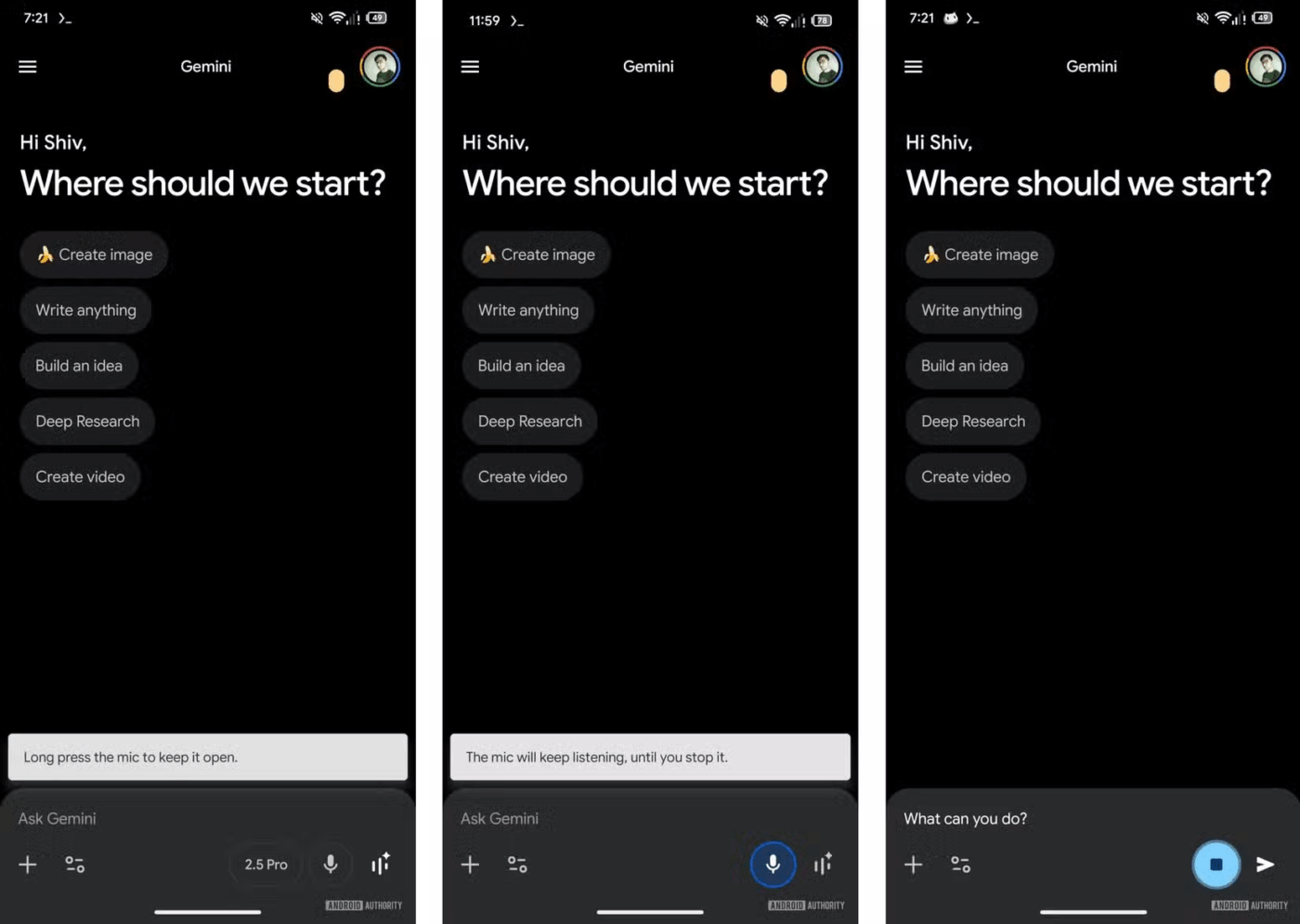
Speak your prompt, and you’ll see your words transcribed on the screen. On some devices, you can also press and hold the microphone button to keep the recording going for longer, more detailed prompts.
If you’re on an Android device and have set Gemini as your default assistant, you can go completely hands-free. Simply say “Hey Google” to activate Gemini without touching your phone.
From there, you can use follow-up voice commands to continue the conversation. It’s extremely handy for true multitasking situations, like when you’re driving, cooking, or exercising and can’t spare a hand.
🧠 Fun Fact: In the early 1960s, IBM built a speech recognition device called the IBM Shoebox. It could recognize a total of 16 spoken words, including the digits 0–9.
A single voice prompt is great for asking quick questions, but what if you need to explore an idea more deeply? Starting a new prompt for every follow-up question feels clunky and unnatural, breaking the flow of a creative brainstorming session. This fragmented process makes it hard to build on ideas conversationally.
Enter Gemini Live. It’s a feature within the Gemini app that enables a real-time, back-and-forth voice conversation with the AI.
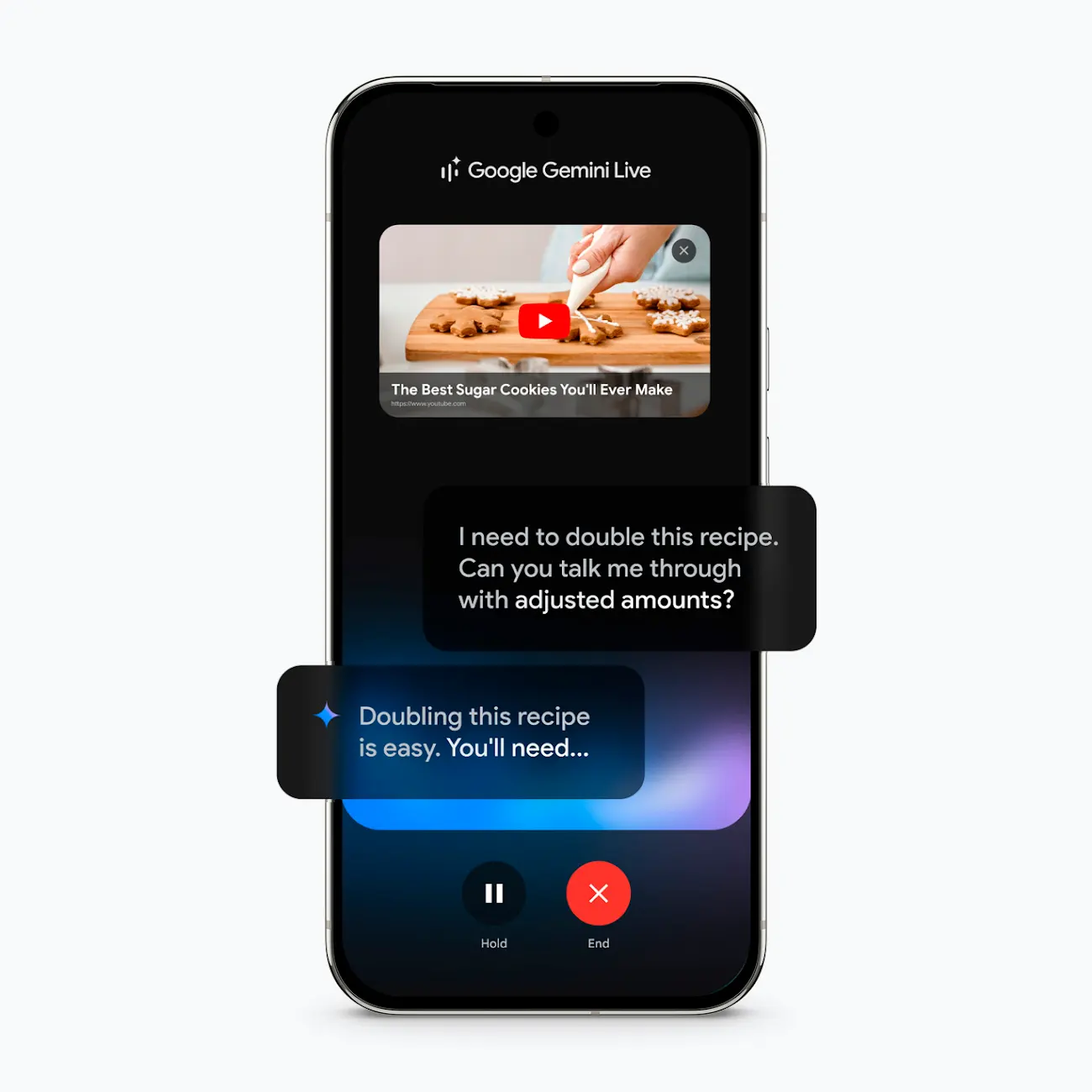
Curious how it works? Check out this video from Google!
Not every default AI voice is pleasant to listen to. If you find the voice jarring or just not to your liking, it can make the entire experience feel less helpful. Obviously, you’re far less likely to use a voice feature if you can’t stand the sound of it. 🤷🏻♀️
Luckily, you can customize the voice Gemini uses when it speaks back to you. This allows you to choose a tone and style that you find more engaging.
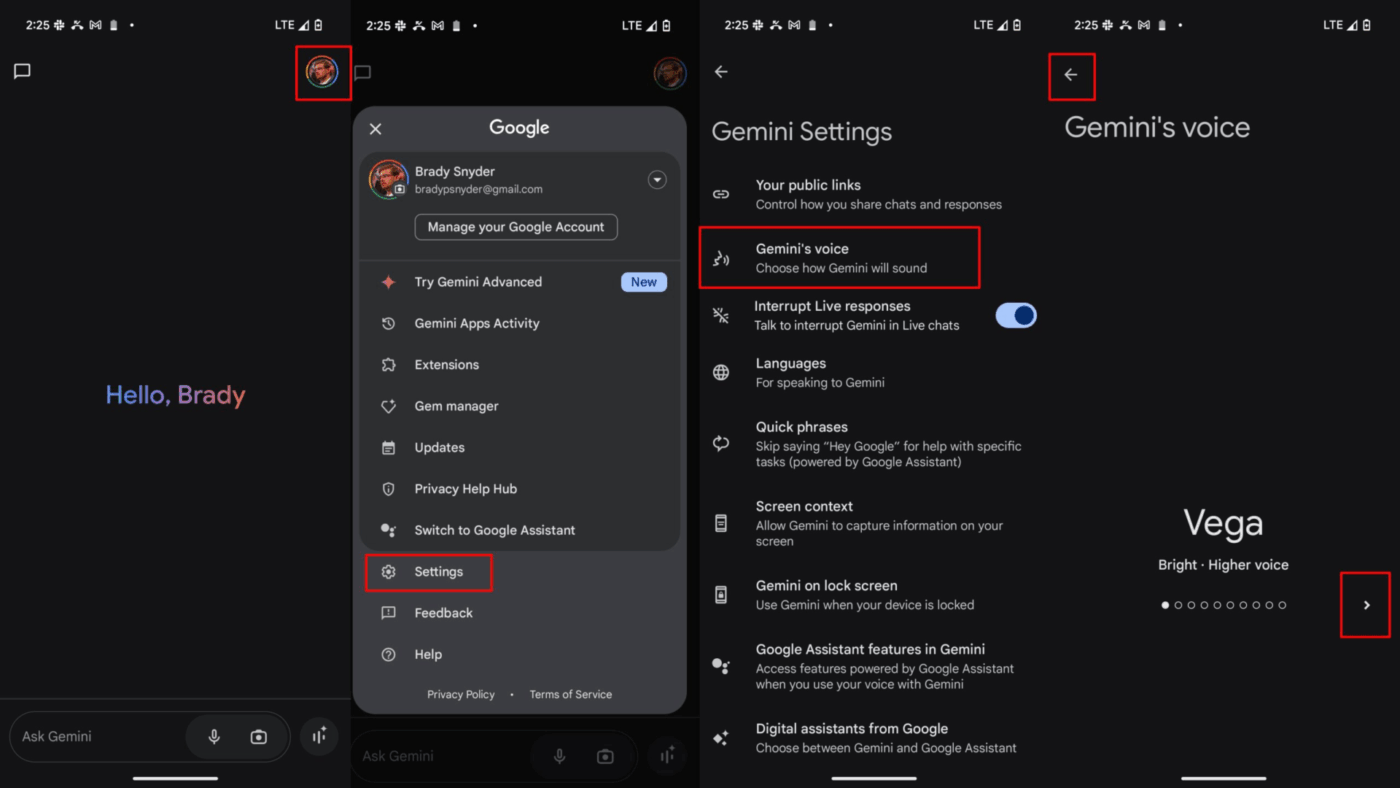
To change the voice, open the Gemini app and navigate to your settings. From there, find the “Gemini’s voice” option and tap it. You’ll see a selection of different voices you can choose from. You can preview each one before making your final selection.
Okay, now you know how to use Gemini speech to text. And asking Gemini simple questions seems easy enough, maybe even a fun gimmick to pass your time.
But what if you could also apply it to actually be more productive? Let’s show you some major efficiency gains you can unlock using Gemini voice to text, without putting in major effort. 🛠️
If you write four long emails a day and each one takes you six minutes to type, you are already spending 24 minutes a day just pushing words into a textbox. Is formatting, backspacing, and rewriting sentences really a good use of that time?
Now imagine you use voice to text in Gemini. You can dictate drafts for messages, follow-ups, and announcements.
📌 For example, you can say, “Write a polite but firm follow-up email to the design team about the overdue assets for the Q4 campaign.” Gemini will generate the draft, and you can quickly review and edit it before sending.
Let’s say you cut time down to three minutes per email. You just saved 12 minutes a day without working faster, multitasking harder, or sacrificing quality.
That adds up quickly. You save one hour every week. That’s four hours every month. And 48 hours a year. You get back an entire work week just by speaking instead of typing! 🤯
🎥 Want more tips on using AI for productivity? Check out this video:
Your best ideas often come when you’re talking, not typing. Use Gemini as a brainstorming partner. Speak your thoughts freely and let the AI capture everything.
After you’re done, you can ask it to organize your scattered ideas into a structured outline, identify key themes, or even suggest next steps.
📌 For instance: “I’m brainstorming taglines for our new eco-friendly product line. Here are some rough ideas… now, can you refine these and suggest five more options?”
When you need to get up to speed on a topic fast, use voice prompts to ask research questions. It’s much quicker than typing complex queries, especially when you’re juggling other tasks.
📌 Try asking, “What are the top three market trends in the renewable energy sector for this year?” Gemini can pull together summaries, compare concepts, and deliver key information on the fly, saving you hours of manual research.
💡 Pro Tip: If you’re handing work to someone else, typing a detailed brief can feel like… a lot.
Speaking it out loud is usually faster and more natural.
Try dictating:
Then let your teammate execute without 18 follow-up questions.
It’s genuinely annoying when you try voice to text, and it turns your perfectly normal sentence into a chaotic word salad. 😅 Suddenly you’re backspacing, fixing weird punctuation, and replacing random words it confidently made up… and you realize you could’ve typed the whole thing faster yourself.
After a couple of those experiences, it’s pretty easy to give up on the feature entirely and think, “Okay, this just isn’t reliable enough to use.”
The good news? With a few simple habits, you can significantly improve the accuracy of your Gemini transcription.
👀 Did You Know? One MIT CSAIL paper reports a ~20% increase in error rate for noisy speech in its evaluation (jumping from 49.1% to 59.0%).
Picture this: you’ve got a recording from an important meeting—maybe a client call, a team sync, or something you really don’t want to re-listen to twice. You think, “Perfect, I’ll just upload it to Gemini and get a transcript in minutes.”
And then… it doesn’t work. 🙃
It’s not your fault. You just weren’t told what the tool can (and can’t) do upfront.
Once you understand Gemini’s limitations, you can save yourself a ton of time (and avoid that why is this not working spiral):
Even if Gemini voice-to-text works perfectly, there’s another issue waiting around the corner: AI Sprawl. AI Sprawl is what happens when your team keeps adding “just one more” AI tool to solve “just one more” problem…and suddenly your workflow looks like this:
You search for the final version of everything across five places
…and somehow you’re still behind. 😭 It’s not surprising that companies today run 101 SaaS apps on average.
The irony is brutal: AI was supposed to reduce work, but AI Sprawl can actually create more of it—because now you’re not just managing your tasks, you’re managing your tools.
This is exactly where ClickUp becomes the better alternative than adding yet another AI tool or model to your stack.
📮ClickUp Insight: Context-switching is silently eating away at your team’s productivity. Our research shows that 42% of disruptions at work come from juggling platforms, managing emails, and jumping between meetings. What if you could eliminate these costly interruptions?
ClickUp unites your workflows (and chat) under a single, streamlined platform. Launch and manage your tasks from across chat, docs, whiteboards, and more—while AI-powered features keep the context connected, searchable, and manageable!
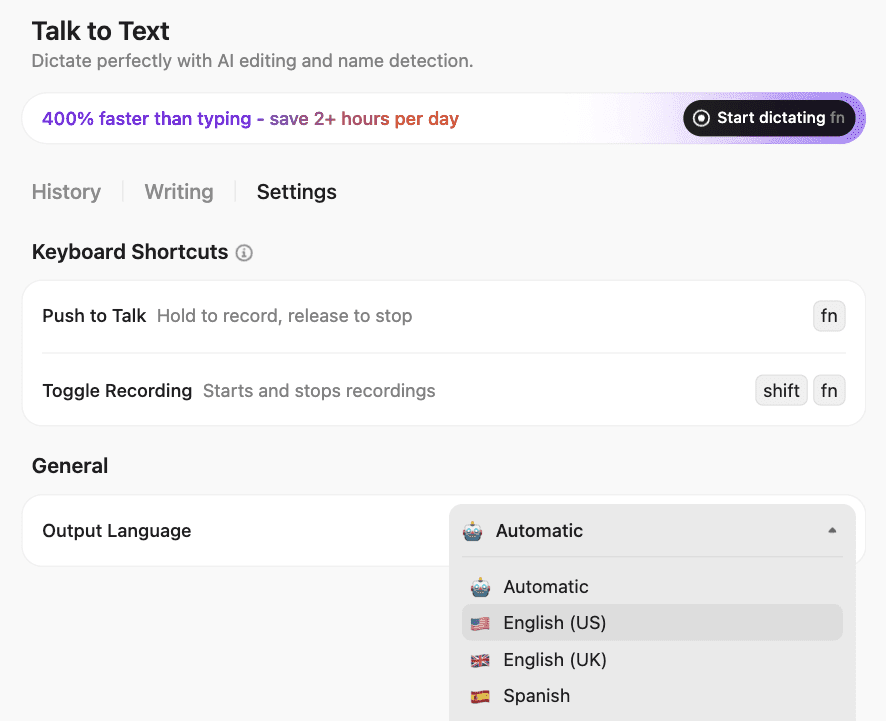
Eliminate this frustrating handoff with ClickUp’s Talk to Text feature.
As the world’s first Converged AI Workspace—a single platform where projects, documents, conversations, and contextual AI work together—ClickUp brings your work and your AI together. Instead of just transcribing your words, it turns them into actionable work instantly, all in one place.
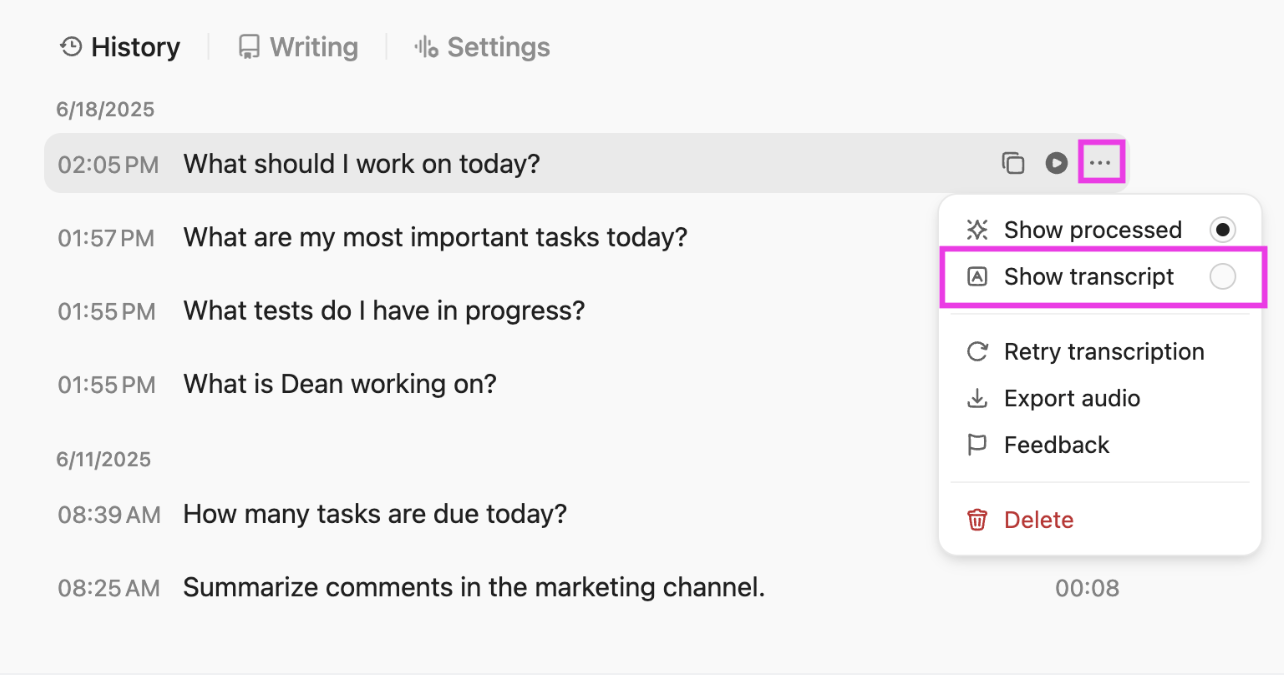
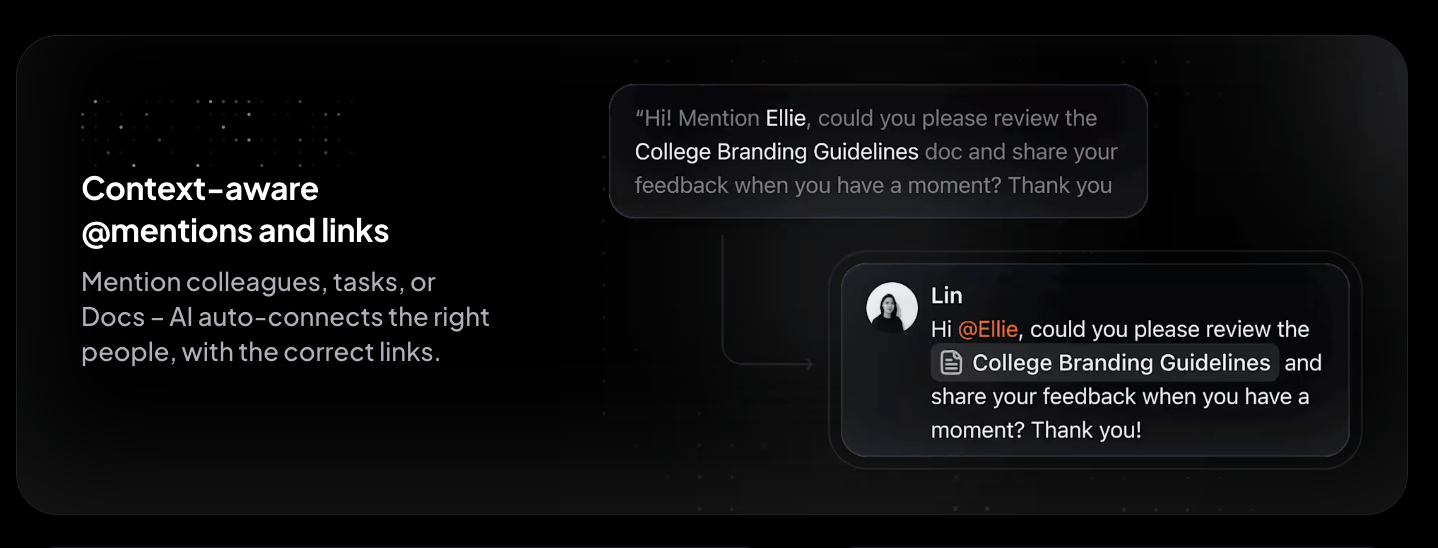
Stop letting your voice memos die in a random app. With ClickUp’s Talk to Text, you can speak an idea and have it instantly become a ClickUp Task or a page in a ClickUp Doc. Your spoken words are converted directly into structured work items, complete with assignees and due dates.
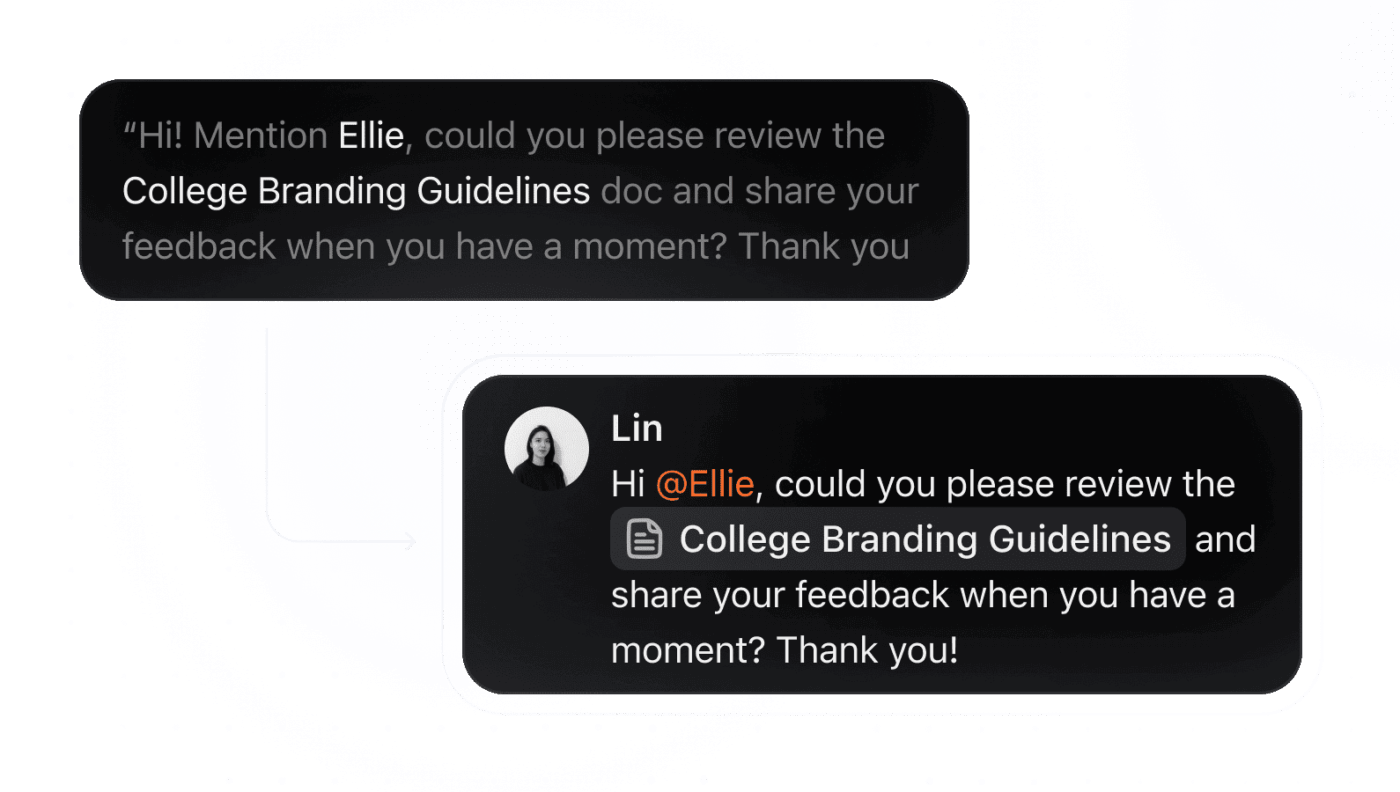
And it’s 4x faster than typing them out by hand!
For example, you can say, “Create a task to draft the Q3 performance report, assign it to Sarah, and set the due date for next Friday.” That task appears in your workflow, ready to be worked on—no copy-pasting required. This closes the gap between capturing an idea and acting on it.
Note: To use ClickUp’s Talk to Text on desktop, you’ll either need
The voice-to-text option isn’t currently available in the browser version of ClickUp, so make sure you’re using the desktop app if you want to dictate prompts, tasks, or notes hands-free.
Here’s a real Reddit review for ClickUp Talk to Text:
Voice to text is second to none. They did such a good job with it and it saves a lot of time. It’s not ideal, I find it struggles with list names and some specific names. I end up spelling things like this but it might be my accent as well lol. But honestly, it’s a time saver.
Sitting in a meeting and trying to furiously type notes? Chances are you’re not fully engaged in the conversation. But if you don’t take meeting notes, critical decisions and action items get forgotten as soon as the meeting ends. The ClickUp AI Notetaker solves this dilemma by acting as your team’s dedicated scribe.
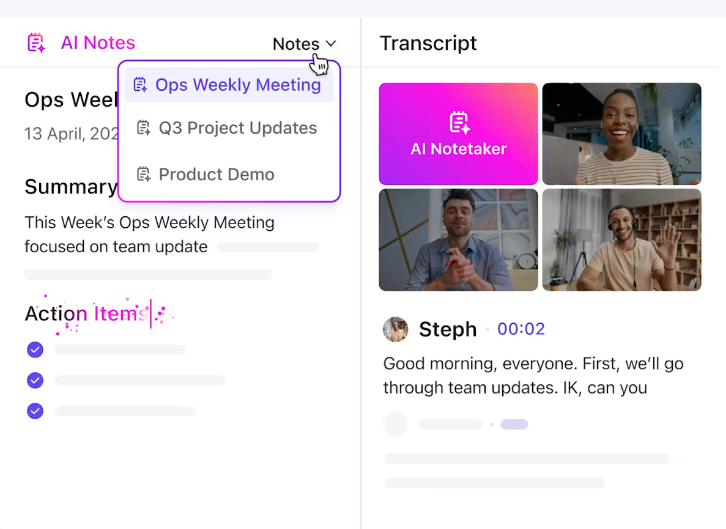
The AI Notetaker can join your virtual meetings, provide a complete transcription, and even generate a summary with highlighted action items. Because it’s integrated into your workspace, the meeting notes are automatically linked to the relevant projects and tasks.
The best part? Each transcript is 100% searchable. Just ask ClickUp Brain, ClickUp’s native and contextual AI assistant, to surface answers in natural language. And you’ll have all the key takeaways, decisions, and next steps at your fingertips!
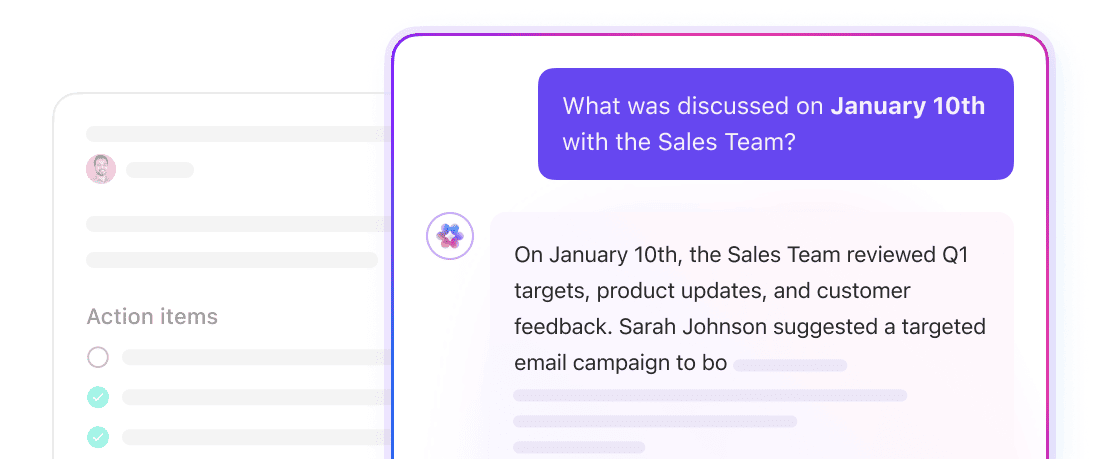
Not just your meeting transcripts, ClickUp Brain can also help search through transcriptions of your screen recordings and voice notes in ClickUp. These are recorded as ClickUp Clips.
You no longer have to worry about disconnected information. ClickUp Brain creates a searchable knowledge base out of all your work, right where you work.
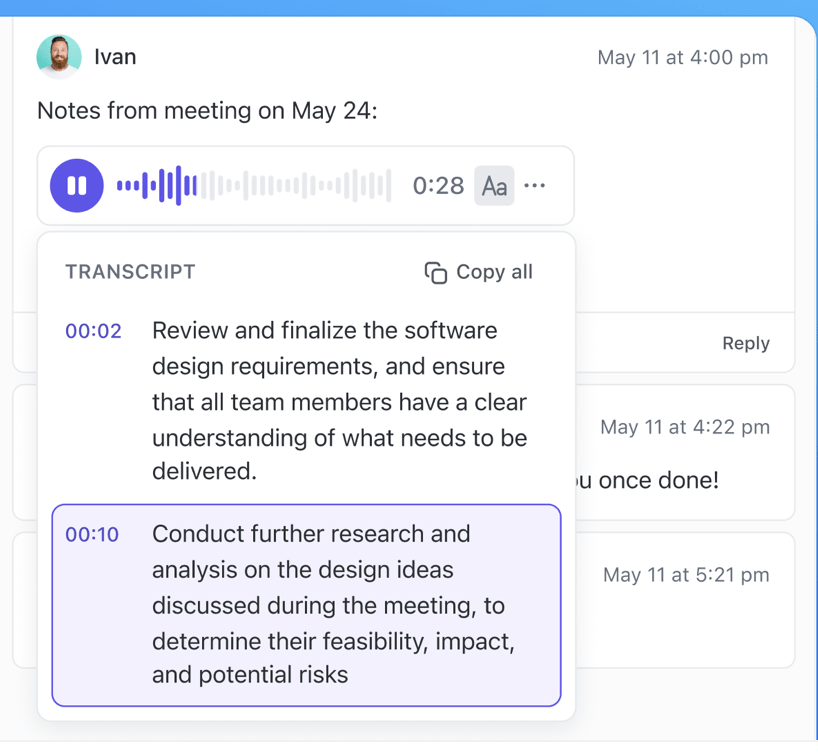
Gemini voice to text is a great tool for personal productivity, allowing you to quickly capture ideas and ask questions without typing.
However, for teams, the real power of voice comes from integrating it directly into your workflow. When your spoken words can instantly become tasks, update projects, and contribute to a shared knowledge base, you move beyond simple transcription and into true productivity.
Ready to stop the copy-paste spiral and turn your voice into action? Get started for free with ClickUp. ✨
If you are using the free version, you are generally limited to live microphone input. However, Gemini Advanced users can now upload existing audio files (MP3, WAV, AAC, etc.) directly into the chat. Gemini can “listen” to these files to provide summaries or full transcriptions
Gemini voice input transcribes a single spoken prompt into text. Gemini Live, on the other hand, enables a continuous, back-and-forth voice conversation with the AI.
Teams can use voice to text to draft messages, brainstorm ideas, and capture meeting notes. Integrated tools like ClickUp’s Talk to Text take it a step further by turning those voice inputs directly into actionable tasks and searchable documents
Yes, Gemini supports voice input in many different languages. The specific languages available may vary depending on your device and region.
You can use Gemini voice to text on most desktop browsers by visiting gemini.google.com, as well as on the Gemini mobile app for both Android and iOS devices.

© 2026 ClickUp

There’s an easier way. Try a free AI Agent in ClickUp that actually does the work for you—set up in minutes, save hours every week.