


Sorry, there were no results found for “”
Sorry, there were no results found for “”
Sorry, there were no results found for “”
Imagine hiring a new team member who’s brilliant but clueless about your business. They’ve got the skills, but without the right context, their advice is hit-or-miss.
ChatGPT is the same. Straight out of the box, it’s knowledgeable but lacks context. Without training, it gives surface-level responses that don’t quite fit your needs. But when you train it on your own data, it becomes an industry-savvy expert who speaks your language, remembers key details, and delivers insights that actually matter.
The best part? You don’t need to be an AI expert. With the right approach, you can make ChatGPT work your way. No need to get frazzled by big words like “API key’ and ‘data source.’ 🫣
Ready? Let’s learn how to train ChatGPT on your own data!
ChatGPT is trained on 570 GB of data obtained from books, web texts, articles, Wikipedia, and other online sources—approximately 300 billion words. These ChatGPT statistics highlight its vast knowledge across business, technology, history, sports, and any general topic.
But to make it an expert on your company or product, you need to train it with the right information, such as:
📌 Example: You run a SaaS company offering accounting software for freelancers. ChatGPT understands general accounting but doesn’t know your software’s features, workflows, or tax tools.
❌ Without training:
If a user asks, ‘How do I generate a quarterly tax report?’, ChatGPT gives a generic answer about tax reports but doesn’t mention your software’s specific steps or automation features.
✅ With training:
You feed it user manuals, FAQs, and past support interactions. Now, when a user asks the same question, it provides a step-by-step guide including:
People often say they want to ‘train ChatGPT.’ But it’s already pre-trained on extensive data, so you can’t re-train it.
What you can do is either fine-tune it or train it with your own data. Both terms might sound familiar, so knowing the difference can save you time, effort, and money.
| Aspect | Training | Fine-tuning |
| Meaning | Feeding ChatGPT relevant data in real-time to shape responses | Working with OpenAI to modify ChatGPT’s core model with your data |
| Complexity | Low – No coding or technical expertise needed | High – Requires OpenAI’s involvement, technical setup, and computing power |
| Cost & Effort | Quick, cost-effective, and flexible | Expensive & time-consuming |
| Best for | Companies requiring real-time, adaptable AI responses | Companies with highly specialized and unchanging knowledge |
| Example | A SaaS company feeds ChatGPT product updates before answering customer queries | A medical research firm fine-tunes ChatGPT with thousands of case studies to improve disease analysis |
Instead of learning from past conversations, the ChatGPT chatbot works within a single session and processes prompts in real time. Here’s how:
➡️ Read More: ChatGPT Cheat Sheet (with Prompt Examples)
Curious how developers are leveraging ChatGPT to build sophisticated custom bots? It’s a truly dynamic process! They effectively transform ChatGPT into a versatile code editor, rapidly generating and refining bot logic within the conversational interface.
To provide context, developers upload files, such as CSVs or JSONs, enabling ChatGPT to process and utilize that data for tailored responses. For granular control and advanced customization, they may integrate their own API key with the OpenAI API key, which helps them build bots with highly specialized functionalities.
Here are two ways to train ChatGPT with custom data, each offering different levels of complexity and customization:
Tired of repeating yourself? Custom instructions allow you to give ChatGPT a quick rundown of your business and preferred style up front. That way, it responds the way you want, consistently and effortlessly.
Here’s a simple guide to adding custom instructions to ChatGPT:
1. Sign in to your ChatGPT account and click the profile icon. Then, click Customize ChatGPT

2. Enter details on what ChatGPT should know and how you’d like it to respond.

3. If not already enabled, click the toggle next to Enable for new chats.
4. Click Save.
📌 Example: Let’s say you ask ChatGPT for activity ideas for toddlers using the prompt “Give me activity ideas for toddlers.”
❌ Without custom Instructions enabled:

✅ With custom Instructions enabled:

⚠️Heads up! ChatGPT can only follow one set of custom instructions at a time. Need to switch? You’ll have to update or replace the existing ones first.
Think of Custom GPTs as your mini ChatGPTs, built on your own training data. With OpenAI’s GPT builder, you can customize behavior, tone, and knowledge (no coding knowledge required)
So, instead of a generic AI agent, you create your own AI chatbot that gets your industry, business, or workflow.
Need different AI assistants for different tasks? You can build and switch between multiple GPTs to get the right AI support for different ChatGPT use cases.
🎯Also Read: How to Use ChatGPT Tasks
⚠️ Note: Custom GPTs are only available for ChatGPT Plus and Enterprise users.
Here’s how to get started:
1. On the left side panel, click Explore GPTs.

2. Next, go to Create to build your custom GPT. Or, navigate to My GPTs > Create a GPT.

3. The GPT builder has a split-screen setup: the Create panel is where you enter prompts to build your chatbot, while the Preview panel lets you test and refine it in real time.
Simply type your instructions in the message bar on the Create page and hit Enter to apply changes.

4. The GPT Builder will then generate suggestions based on your instructions, including a chatbot name, profile picture, and default conversation starters.
For example, let’s create a customer support AI for an eCommerce store. Provide the GPT builder with a clear prompt defining the GPT’s role, tasks, and interaction style.
📌 Example prompt: Act as an e-commerce customer support assistant, helping users with order tracking, product recommendations, and store policies. Provide quick, accurate, and friendly responses while guiding customers toward solutions that enhance their shopping experience and drive sales.

You can either accept the initial suggestions or ask the GPT builder to tweak them.
💡 Pro Tip: Level up your prompts with prompt engineering courses to get your chatbot delivering spot-on, high-quality responses every time.
5. The GPT Builder walks you through a few questions to fine-tune your chatbot’s behavior. You can also add extra details to make sure it fully understands your needs.

If you’re unsure how to refine your chatbot’s behavior, try testing it in the Preview panel first.
6. Keep refining your prompts until your chatbot delivers responses that match your expectations.
Now that the basics are set up, you can dive into advanced settings to customize your GPT even further.
1. On the Create page, click Configure.

2. You can change your chatbot’s name and description as needed. Here’s how to modify other advanced settings:


1. Once you’re satisfied with your chatbot, click Create.
2. Then, choose how you want to share your custom GPT: via only me, with anyone who has the link, or publicly in the GPT store.

3. Next, click Save.
4. Finally, click View GPT to start interacting with your trained model.

Your ChatGPT, along with any custom GPTs you create, will appear in the side panel on the ChatGPT home page.

5. Click your custom GPT and start chatting. Ask it a question related to your setup to see how well it responds.

🚨 AI chatbots often hallucinate, so always verify your custom GPT’s responses. Keep it accurate by checking and tweaking as needed.
Once your custom GPT is set up, here’s how to make it a key part of your daily business operations:
Control access with these settings:

Once your custom chatbot is live, actively monitor the trained model’s final performance in real-world scenarios. Here’s how:
Bonus: Browse these ChatGPT memes for a good laugh!
Keep your GPT updated with product changes, process tweaks, and industry shifts.
How to edit:
1. Open the side panel and select your GPT.
2. Click its name in the top-left corner.
3. Hit Edit GPT to make updates.

4. Make any necessary changes to your GPT settings.
5. Click Update to save your changes.

Get your team to use the chatbot for faster support, smoother planning, and better workflows. Keep the feedback flowing so that you can fine-tune it over time.
📮 ClickUp Insight: We recently discovered that about 33% of knowledge workers message 1 to 3 people daily to get the context they need.
But what if you had all the information documented and readily available? With ClickUp Brain’s AI Knowledge Manager by your side, context switching becomes a thing of the past. Simply ask the question right from your workspace, and ClickUp Brain will pull up the information from your workspace and/or connected third-party apps!
Want to take your custom GPT to the next level? Follow these tips:
➡️ Read More: ChatGPT Hacks to Transform How You Work
Using the training data, you can have a custom AI chatbot up and running in minutes. But there are a few limitations of ChatGPT to consider:
If you’re looking for more robust solutions with better customization and greater control, considering ChatGPT alternatives might be the perfect fit for your business.
If you’re trying to build a custom GPT at work, ChatGPT can help, but its accuracy can be hit or miss. It often ‘hallucinates’ random, incorrect information, especially with specific scenarios. Plus, there’s a data security risk—your training data might be used in ways you don’t control.
That’s where ClickUp Brain stands out as a smarter ChatGPT alternative. With it, your workflows, documentation, chat, and search get the ultimate AI-powered upgrade. Here’s how!
ClickUp Brain is a powerful AI assistant integrated into the ClickUp platform that keeps your docs, people, and knowledge connected in one place. It consists of three key features:
Here’s why ClickUP Brain beats ChatGPT:
ClickUp Brain combines the best of both worlds: automated project management with an AI assistant. It speeds up workflows, boosts productivity, and makes work feel a whole lot easier.
Here’s how you can make the most of it:
ClickUp Brain helps you create content tailored to your role by using real-time data and task insights from your workspace. For example:
📌 Example prompts:

ClickUp Brain helps you create content specific to your work context, making staying on track and consistent easier. Here’s how it works:

📌 Example prompts:
Using ClickUp’s Knowledge Manager, ClickUp Brain automatically categorizes, tags, and organizes documents, tasks, PDF files, wikis, and comments across your entire workspace. This makes your knowledge easily accessible and well-structured without any manual effort.
📌 Example: During a product launch, ClickUp Brain can help you organize product specs, timelines, and team notes in the Docs Hub. Need the feature list? It gets the data directly from the project doc—without you needing to sift through multiple files.

For example, a task related to collecting data for the launch might automatically be tagged with ‘Product Launch’ and linked to related docs like marketing plans, sales decks, and meeting notes. This ensures all information connected to that task is easily accessible.
With ClickUp AI Agents, you can automate repetitive tasks, streamline processes, and delegate routine work across your workspace.
ClickUp AI Agents act as digital teammates, handling everything from updating statuses to sending reminders and generating reports—freeing up your team to focus on high-impact work. Whether you want to summarize reports from ClickUp Lists or find answers from ClickUp Chat threads, they can do it all.
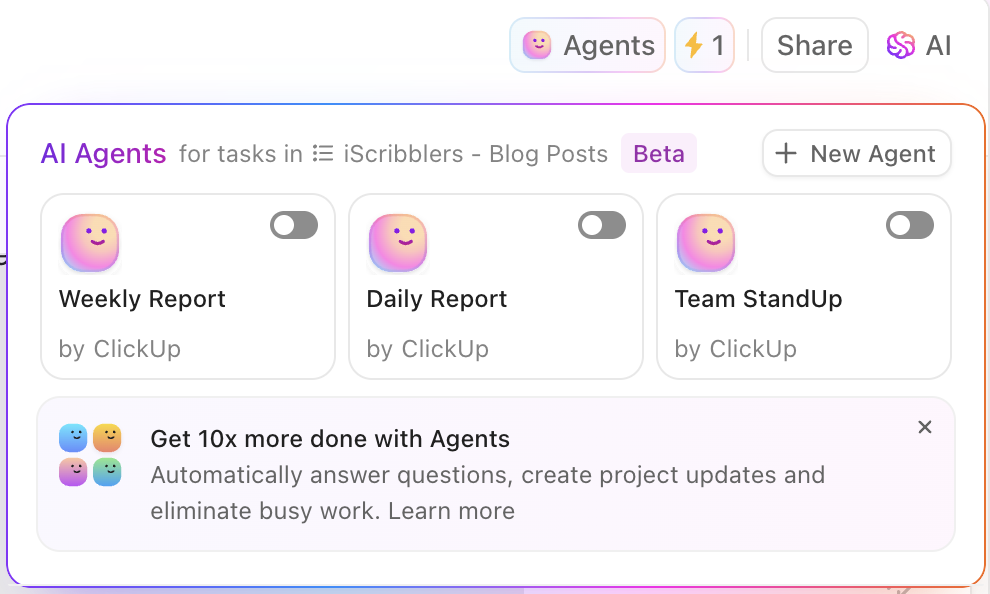
📌 Example: During a sprint, a ClickUp AI Agent can automatically assign tasks based on team availability, send daily standup reminders, and generate progress summaries for your review. Need a follow-up email drafted after a meeting? The AI Agent can create it and attach it to the relevant task, so nothing falls through the cracks.
Let AI Agents handle routine updates, notifications, and documentation so your team can stay focused on what matters most.
Using ClickUp’s Web Search and support for multiple LLMs (Large Language Models), you can instantly access, analyze, and integrate real-time information from the web, powered by the smartest AI engines available. ClickUp Brain leverages multiple LLMs to ensure you get the most accurate, relevant, and nuanced insights, summarizing key findings and linking them directly to your tasks and docs.
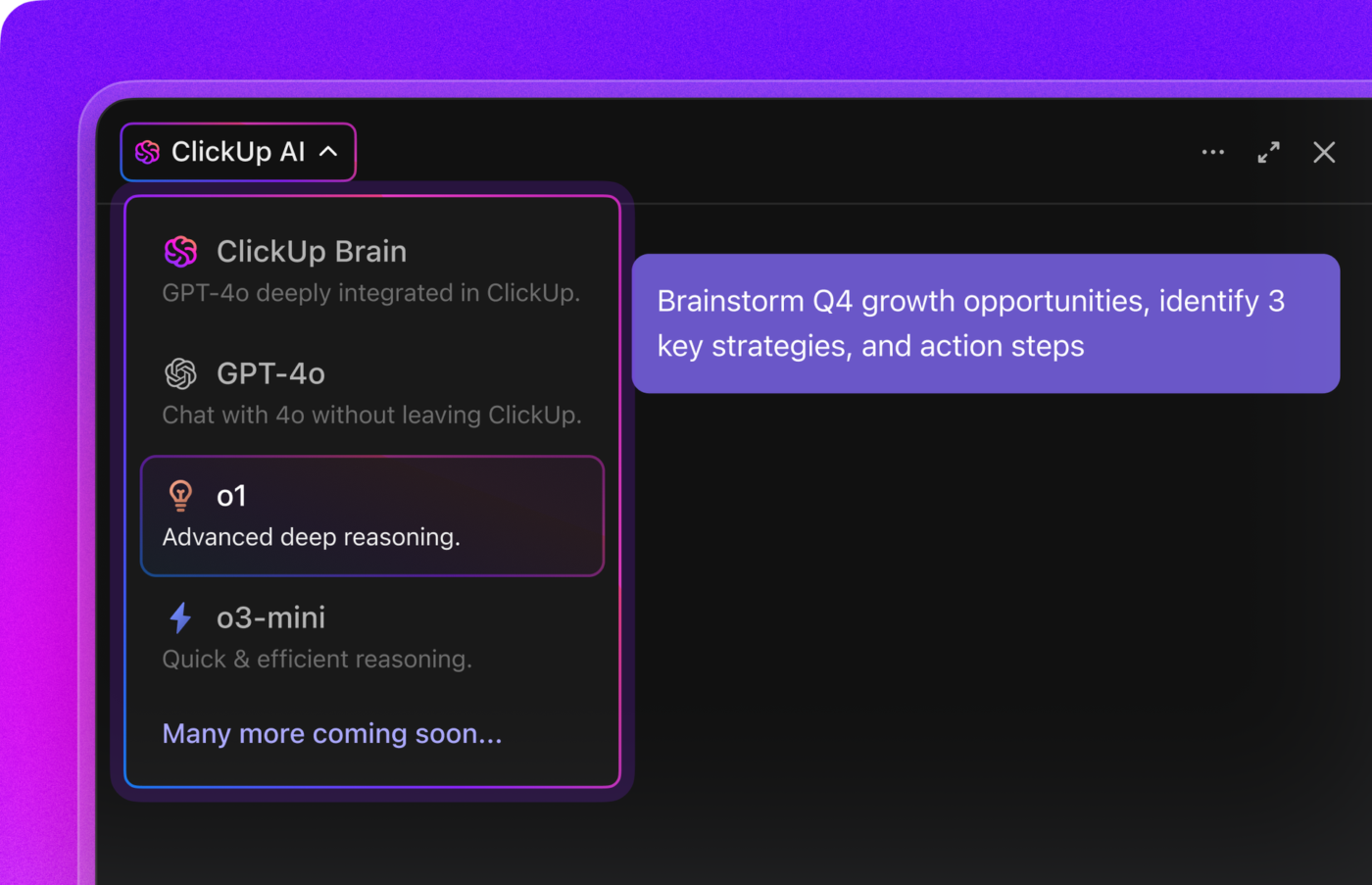
📌 Example: Working on a competitor analysis? ClickUp Web Search pulls the latest news, product updates, and reviews from across the internet. Multiple LLMs then analyze and summarize this information, providing you with clear, actionable insights attached to your project doc. Need market statistics or industry trends for a presentation? Just ask, and ClickUp Brain delivers the most up-to-date data, curated and explained by advanced AI models.
While ChatGPT can give general answers, it lacks the context that is crucial for your business, leading to generic or irrelevant responses. Training it on your data helps, but it still struggles with real-time, context-driven insights.
This is where ClickUp Brain comes in. Whether it’s creating marketing content, tracking projects, managing workflows, or answering customer queries, ClickUp Brain gets your business, delivering tailored, on-point responses every time.
Plus, it optimizes your knowledge base, organizing your company’s documents, tasks, and data to keep everything you need easily accessible and up-to-date.
Want to elevate your AI experience? Sign up for ClickUp today! 🙌

Sean Hardy
Max 26min read

Manasi Nair
Max 19min read
Manasi Nair
Max 19min read

© 2026 ClickUp




