
Sorry, there were no results found for “”
Sorry, there were no results found for “”
Sorry, there were no results found for “”
Collaboration is at the heart of successful projects, and Google Slides has become a go-to tool for teams working together on presentations.
However, as multiple people edit slides simultaneously, things can quickly become confusing. Who changed that title? What happened to that chart? Questions like these arise when edits start piling up, and keeping track of who did what can feel like trying to solve a puzzle with missing pieces.
Google Slides automatically tracks changes, allowing teams to work together in real time. Instead of playing detective, you can quickly see who made which edits and when, making collaboration a whole lot smoother.
In this step-by-step guide, we’ll walk you through different methods to track changes in Google Slides so you’re never left guessing again.
Monitoring edits in Google Slides is as straightforward as tracking changes in Google Docs or Microsoft Word. Let’s take a look at some effective techniques you can use to review how your presentation has evolved over time.
Like Google Docs, tracking modifications in a Google Slides presentation is easy with version history—one of the simplest and most commonly used methods.
Here is how you can go about it:
Step 1: Open the presentation
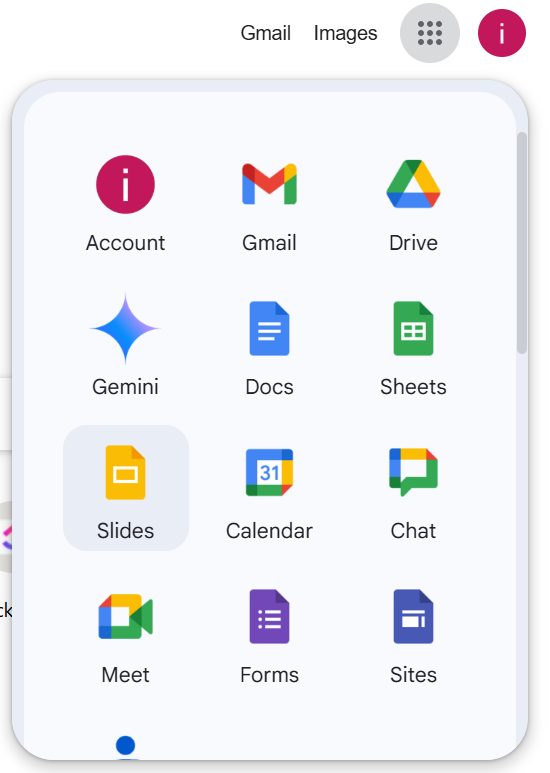
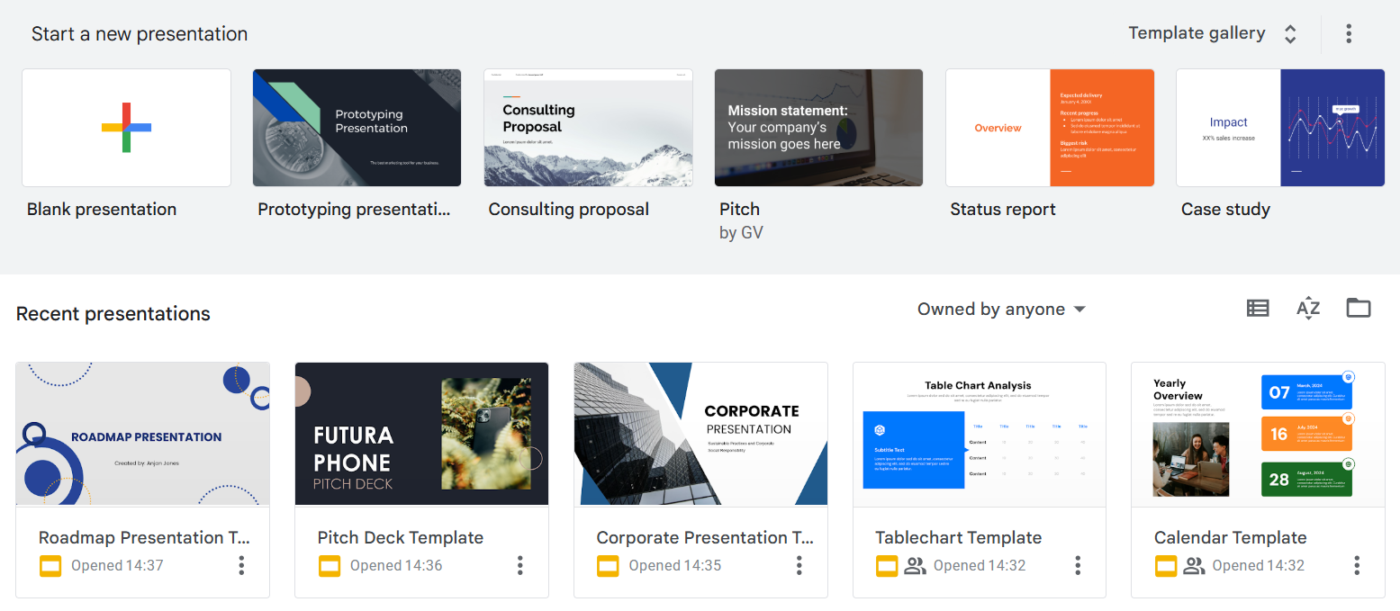
Step 2: Access the version history
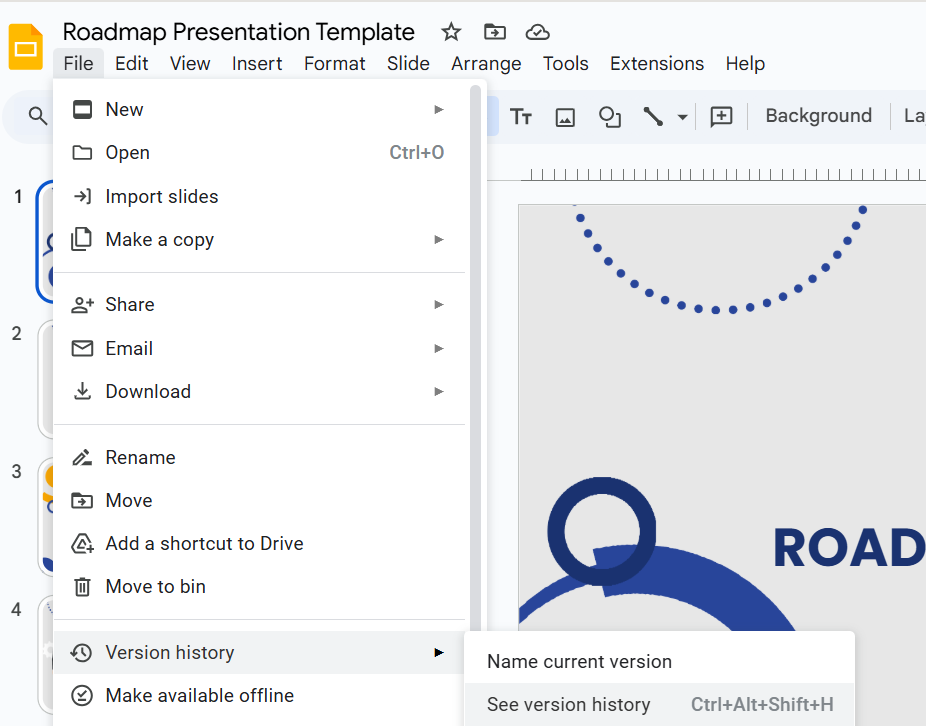
Step 3: Review changes by timestamp
Step 4: Restore your desired version

➡️ Also Read: How to Track Changes in Word?
🔍Did You Know? By enabling offline mode, you can work on your slides even when you don’t have an internet connection. Once you’re back online, all your changes will automatically sync!
📮ClickUp Insight: A typical knowledge worker has to connect with 6 people on average to get work done.
This means reaching out to 6 core connections on a daily basis to gather essential context, align on priorities, and move projects forward. The struggle is real—constant follow-ups, version confusion, and visibility black holes erode team productivity. A centralized platform like ClickUp, with Connected Search and AI Knowledge Manager, tackles this by making context instantly available at your fingertips.
Another simple yet impactful way to track changes is through comments. This approach works particularly well when multiple team members share feedback and leave actionable notes directly on the presentation. It’s a simple way to ensure smooth communication and keep everyone on the same page throughout the editing process.
Here’s how you can use this method to track changes:
Step 1: Open the presentation and locate the Show all comments icon in the menu bar at the top.

Step 2: View the full comment thread with all the feedback and suggestions made by your team members.

Step 3: Resolve comments after completing action items. This ensures that resolved comments are marked as completed and moved down, keeping unresolved comments at the top for a clear and focused view of what still needs attention.
Quick Hack: Track changes with comment tags and replies
Use the @ symbol to tag team members in comments and notify them of changes. Click the three dots next to a comment to reply, ask questions, or share feedback. This helps you stay updated on edits and track revisions more easily.
Another effective method to track changes is through notifications. Google Slides sends email alerts when a team member adds a comment to your presentation. This feature helps you stay informed about modifications without constantly checking the presentation.

💡 Pro Tip: To monitor changes more effectively, grant editing rights only to trusted team members. This ensures you retain control over the modifications and minimizes the risk of unwanted changes.
While Google Slides offers a variety of useful features to monitor changes, its tracking mechanisms are not always as robust or transparent as some users might expect.
Let’s take a closer look at the limitations of tracking changes in Google Slides.
Collaboration conflicts: Though Google Slides facilitates real-time collaboration, it can lead to loss of work, formatting issues, and confusion when multiple users try to edit the same slide simultaneously. Plus, it doesn’t have advanced tracking tools, such as highlighting changes or comparing versions.
Solution:
🧩 Consider using a tool designed specifically for team project management, where changes can be tracked in real time with clear version control.
Performance issues: Larger presentations with lots of edits, suggestions, and changes may lead to slow performance or lagging, especially on devices and systems with less processing power.
Solution:
🧩 Look for tools specifically designed to manage large files and complex revisions more efficiently, ensuring smoother real-time collaboration.
No detailed version history for slides: Google Slides doesn’t offer a detailed, slide-by-slide version history. You can view the overall presentation history but not see exactly what was changed on each slide.
Solution:
🧩 Pick a more robust tool with a detailed, granular version history for easy tracking of every change, whether it’s a slide, object, or text update.
If the tracking limitations in Google Slides are hindering your workflow, it may be time to explore presentation tools designed for advanced collaboration and version control.
We’ve got just the right fit for you: ⬇️
ClickUp is an all-in-one productivity platform that simplifies team collaboration, project management, and document sharing. It provides an efficient way to create and manage presentations with real-time collaboration and robust version-tracking features.
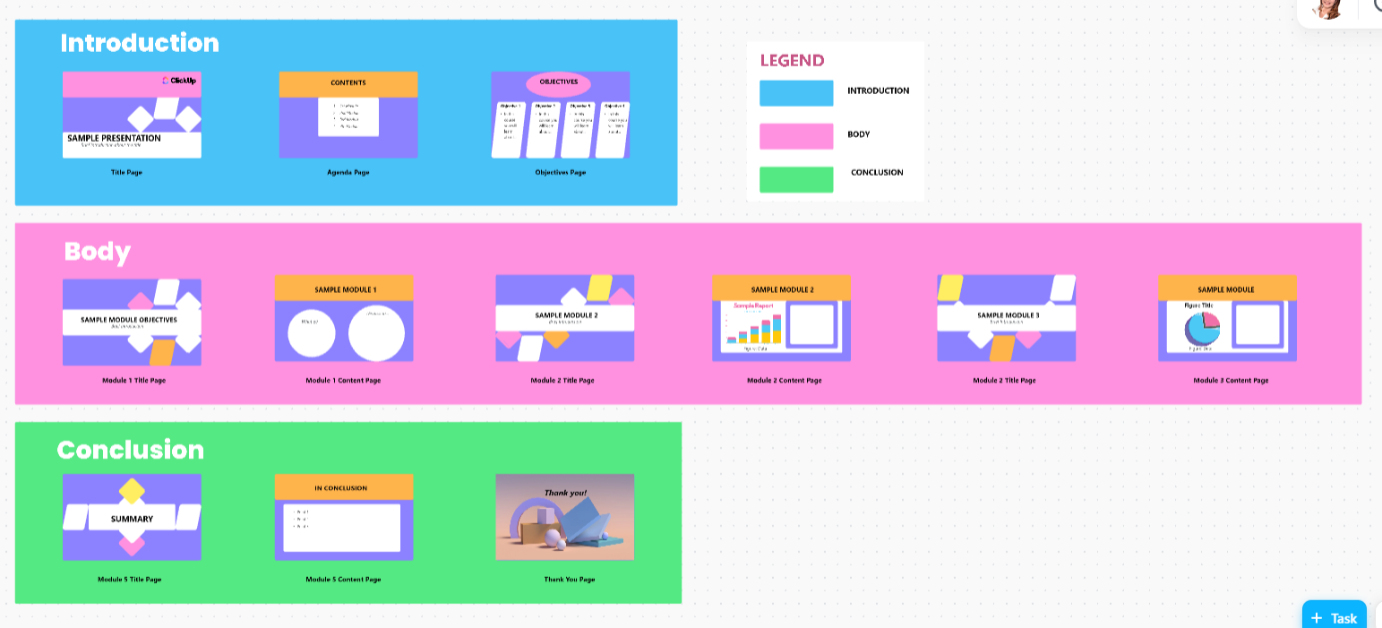
For example, the ClickUp Presentation Template is a ready-to-use framework you can use to bring structure and clarity to any presentation.
As you work through each stage of your presentation—brainstorming, organizing ideas, designing, and gathering feedback—this template helps you maintain consistency and streamline revisions.
With this template, you can:
ClickUp Docs, another powerful tool for streamlining your presentation workflow, helps create, organize, and refine content that will eventually become part of your slide deck.
Here’s how ClickUp Docs can help you manage presentations better:
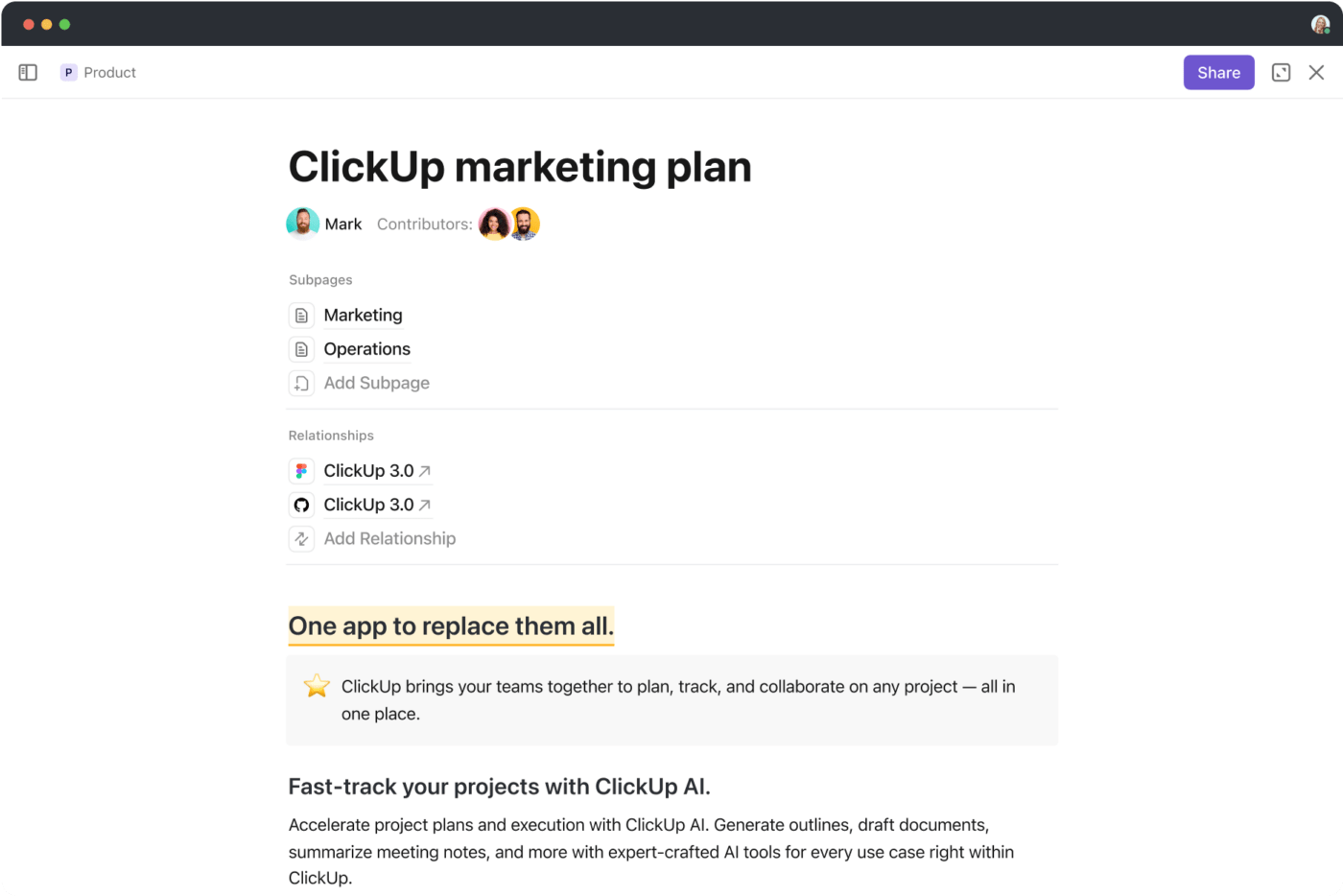
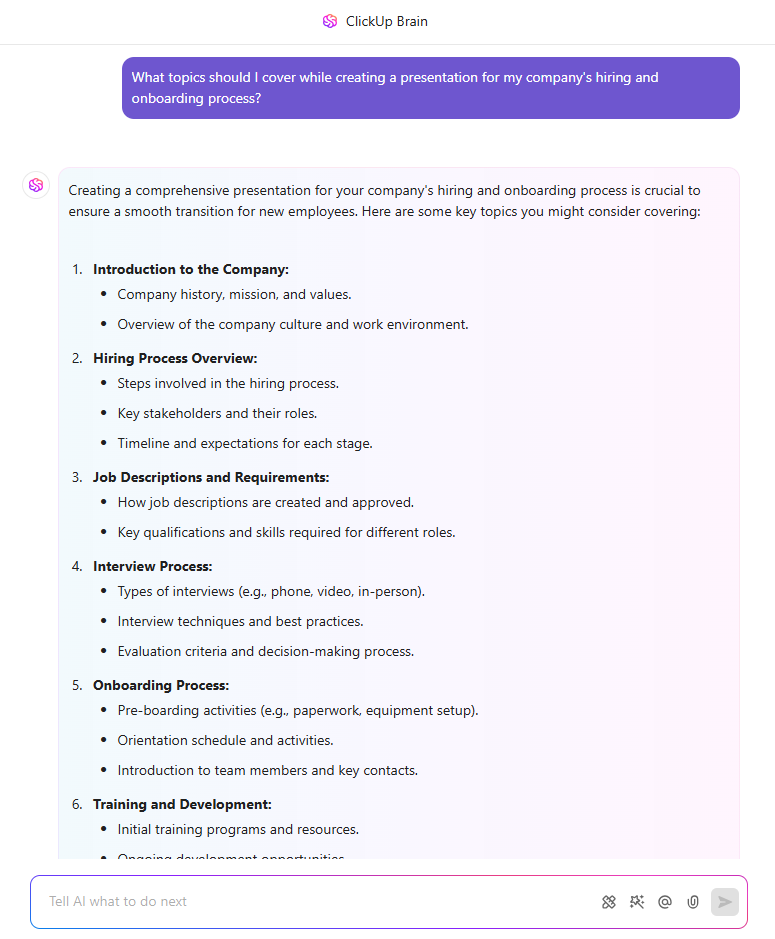
Productivity Booster: Use ClickUp Brain, the in-built AI assistant, to accelerate your presentation workflow. Simply provide natural language prompts or inputs to generate slide-specific content directly within your Doc.
Whether you need key points for each slide, a detailed explanation, or a summary, ClickUp Brain can help you create and refine slide-wise content effortlessly, saving you time and ensuring consistency across your presentation.
ClickUp Docs also offers robust document version control to help you track progress and restore previous versions if needed.
Step 1: In your ClickUp Doc, click on the ellipsis icon and select Page history from the dropdown menu.

Step 2: View the revision history—date, time, person name, and description.
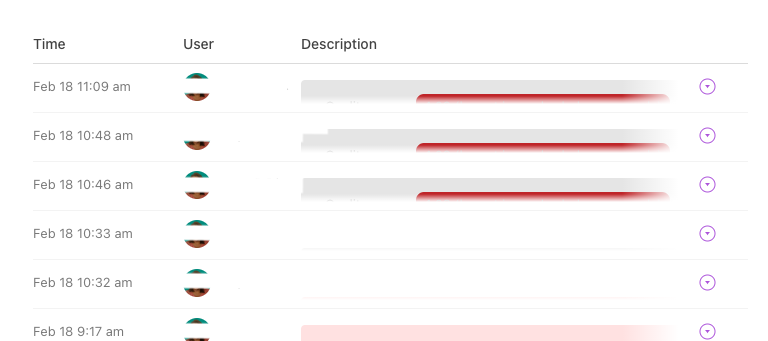
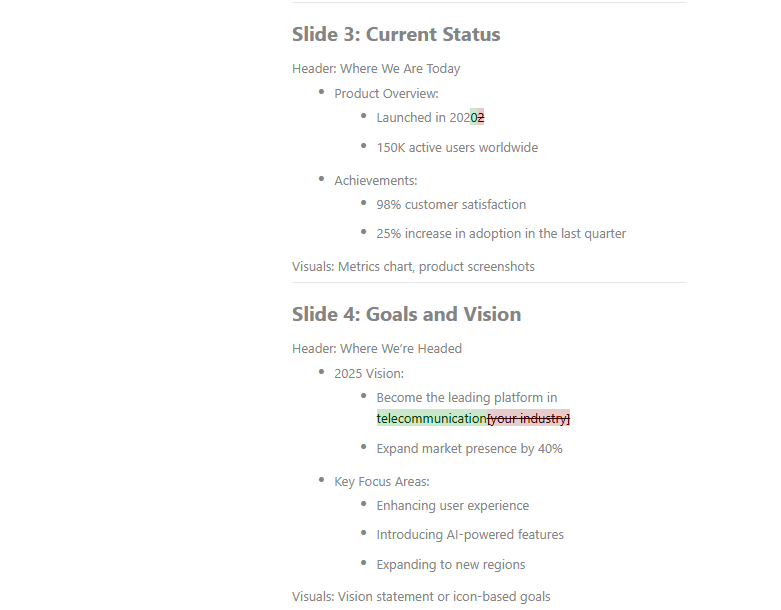
Step 3: Expand a version to view changes highlighted in a different color. Review significant changes to see who has done what and how your document has evolved from when it was created to the current version.
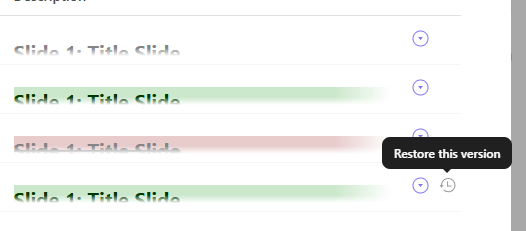
Step 4: Revert changes or restore any version by clicking the clock icon
Once you have the final version of your presentation content, the next challenge is designing a visually compelling and engaging presentation.
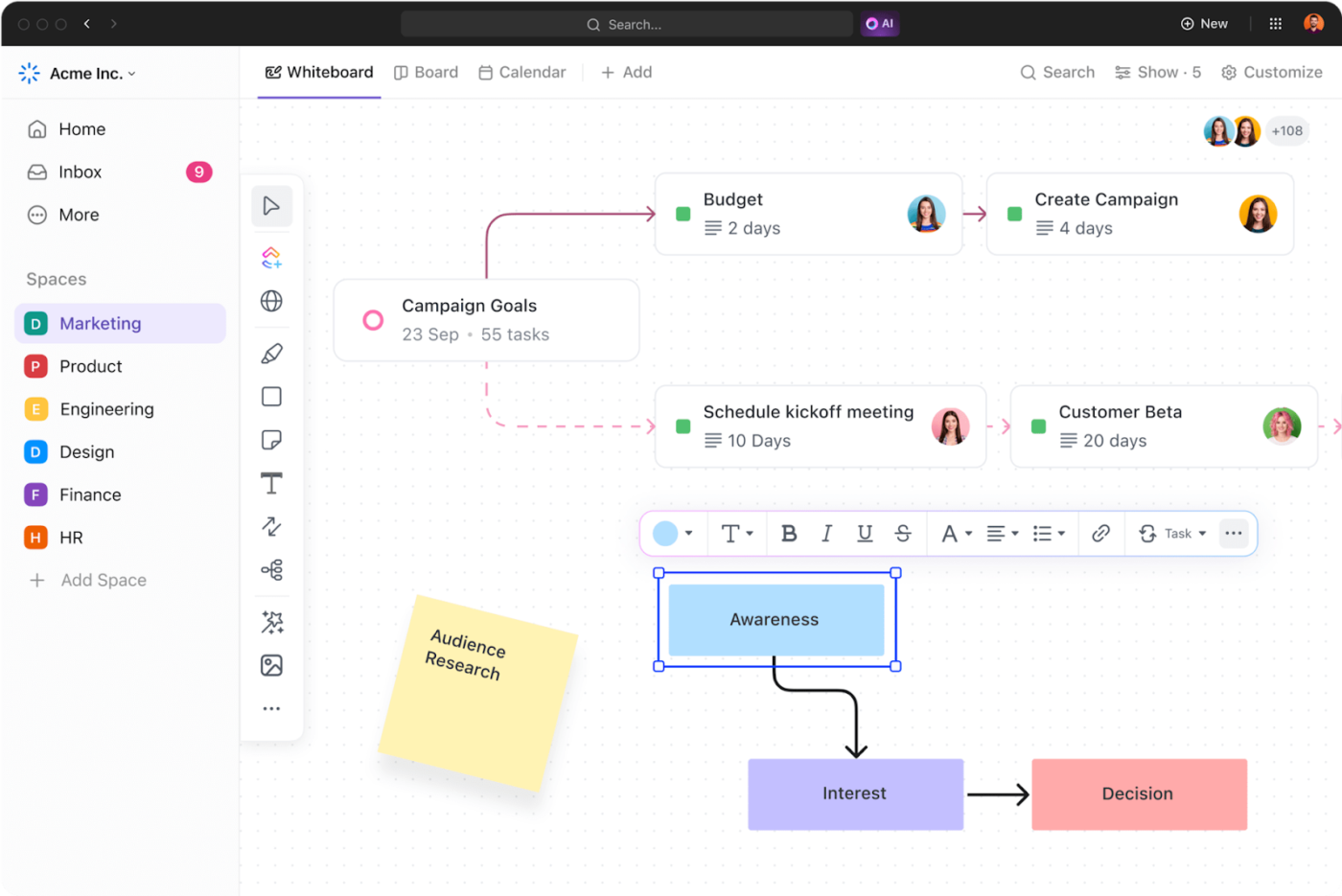
ClickUp Whiteboards are an ideal tool for visualizing and collaborating on presentation ideas, concepts, and structures. Whether you’re brainstorming design themes or organizing the flow of your presentation, ClickUp Whiteboards provides a dynamic and interactive space for all the big ideas.
Here’s how it helps:
Google Slides offers useful features like version history, comments, and notifications, allowing teams to collaborate and track modifications.
However, managing changes in Google Slides can become complicated due to limitations like real-time collaboration challenges, performance issues, and the lack of detailed tracking for individual slide changes.
ClickUp simplifies presentation workflows and makes them more efficient. With ClickUp Docs, you can seamlessly create, organize, and refine content for your slide deck. ClickUp Whiteboards further streamline the process by allowing teams to visualize and track progress on a virtual canvas.
Moreover, the ClickUp Presentation Template is a ready-to-use framework that brings the team together, reduces the need for back-and-forth edits, and ensures smooth, cohesive presentations.
Sign up on ClickUp for free and streamline your presentation process from start to finish!

Manasi Nair
Max 24min read

Praburam Srinivasan
Max 22min read
Praburam Srinivasan
Max 13min read

© 2026 ClickUp