






Still downloading templates?
There’s an easier way. Try a free AI Agent in ClickUp that actually does the work for you—set up in minutes, save hours every week.
Sorry, there were no results found for “”
Sorry, there were no results found for “”
Sorry, there were no results found for “”

You’re in the middle of a Microsoft Teams meeting, presenting a critical report, when someone says, “Wait, we can’t hear you.”
You scramble to figure out how to share your computer’s audio, clicking through settings as the awkward silence stretches on.
Teams is great for presenting and sharing demos, but it tends to face technical hiccups when it comes to audio sharing. Today, we’ll walk you through the quickest and easiest ways to share audio on Teams so you can have smooth and productive meetings.
We’ll also share an alternative virtual meeting and audio-sharing tool that will make it easier to sync up with your team and won’t leave you scrambling during a client call! Yes, that’ll be ClickUp—the everything app for work!
Want to make sure your team members can hear everything loud and clear during your next meeting? Here’s what you need to know about sharing your computer’s audio output on Teams.
Picking the right audio-sharing option can make or break team communication. Microsoft Teams provides two options for sharing audio during meetings:
Choose system audio to share crystal-clear sound—perfect for music, videos, or presentations. Need to chat live? Switch to microphone audio to keep your voice front and center for real-time conversations.
💡 Pro Tip: If you need to switch between system audio and microphone audio during a presentation, adjust your Teams audio output settings beforehand to prevent disruptions.
Here’s a quick overview of which one you should use when.
| Scenario | System Audio | Microphone Audio |
| Playing a video with sound | ✅ | ❌ |
| Giving a live speech or presentation | ❌ | ✅ |
| Demonstrating software with in-app sounds | ✅ | ❌ |
| Conducting a team discussion or Q&A | ❌ | ✅ |
| Hosting a webinar with interactive media | ✅ | ✅ |
| Providing real-time commentary on a video | ✅ | ✅ |
| Explaining a document or report live | ❌ | ✅ |
Sharing audio in Teams is easy—unless you miss a setting and leave everyone wondering what they’re supposed to be hearing. Whether you’re playing a video, demo-ing software, or sharing a podcast, here’s how to share audio on Teams and make sure your audio comes through loud and clear.
Step 1: Once in a meeting, switch on your mic to start sharing sound. This will enable your microphone audio. You’ll get a notification on your screen confirming everyone in the meeting can hear you.
Step 2: In the meeting controls, click the ‘Share’ icon (a rectangle with an upward arrow).
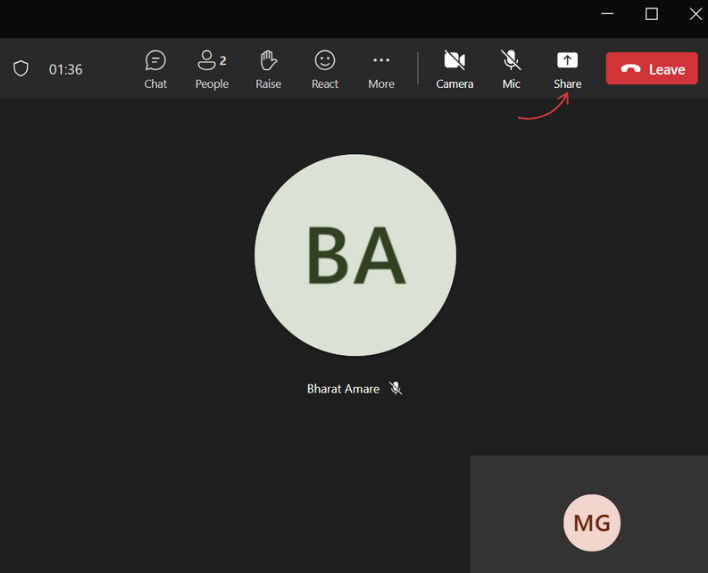
Step 3: To share computer audio, check the box for ‘Include sound,’ then select the screen or window you want to share. When you share a tab, only the audio from that tab is shared.
If you’re using the web browser for Teams, note that you won’t be able to share the computer sound for the entire window. For audio sharing in a tab, follow the same steps as the desktop app.
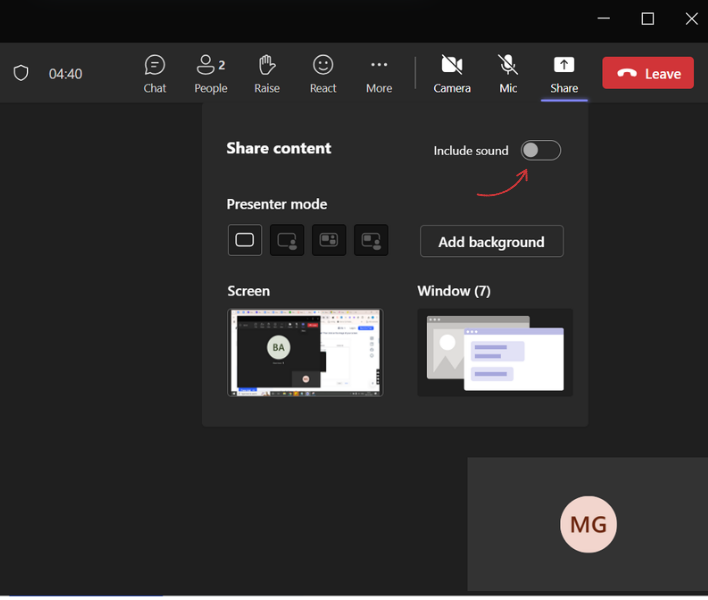
Step 4: Click ‘Share’ to start sharing your entire computer screen along with the audio.
Step 5: When done, click ‘Stop Sharing’ to turn off audio and screen sharing controls.
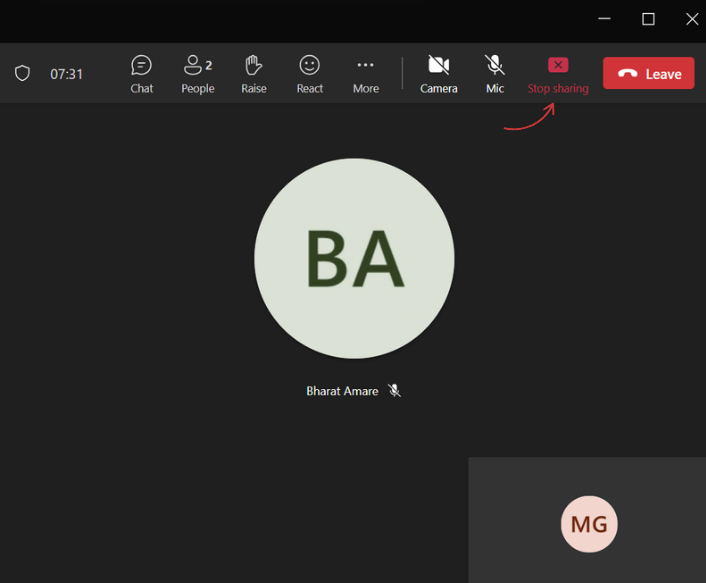
💡 Pro Tip: If you’re sharing a video, use ‘entire screen’ mode instead of a window to avoid audio sync issues.
The Teams mobile app allows screen sharing but doesn’t support system audio sharing. Instead, you’ll need to:
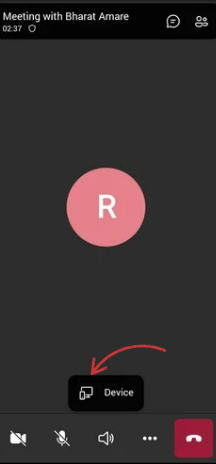
Step 1: Tap the speaker icon at the bottom of the screen.
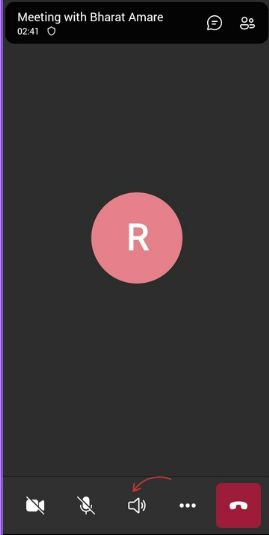
Step 2: Select ‘Device’ from the menu.
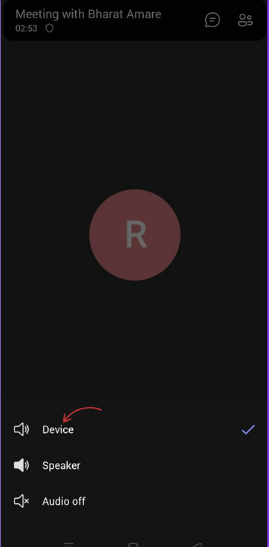
Step 3: A notification will appear, confirming that the meeting audio is playing from your mobile device.
💡 Pro Tip: Many users experience low volume or poor audio quality when playing computer sound over a microphone instead of using the system sound feature. Always use the built-in computer audio-sharing option for the best experience!
If you encounter issues while sharing system audio in Teams, consider these troubleshooting steps:
1. Check the system’s sound settings
2. Verify device settings
3. Resolve poor audio quality
4. Check audio drivers
5. Stop sharing computer sound
To ensure high-quality audio sharing during Teams meetings, follow these best practices:
With these simple steps, you can ensure that your Teams meetings go smoothly—whether you’re sharing system audio for a presentation, using your mic for a discussion, or both!
While Microsoft Teams lets you share audio during meetings, it stops short when it comes to organizing, storing, or turning those conversations into action.
That’s where ClickUp comes in.
Whether you’re capturing brainstorming sessions, feedback discussions, or status updates, ClickUp gives you one place to manage it all—recordings, transcripts, tasks, and follow-ups. It’s not just audio sharing; it’s audio with context, connected to your projects, docs, and knowledge base.
ClickUp is the one and only platform you need for productivity, project management, and streamlined communication, the everything app for work.
Let’s walk you through the key ClickUp features that make it all possible:
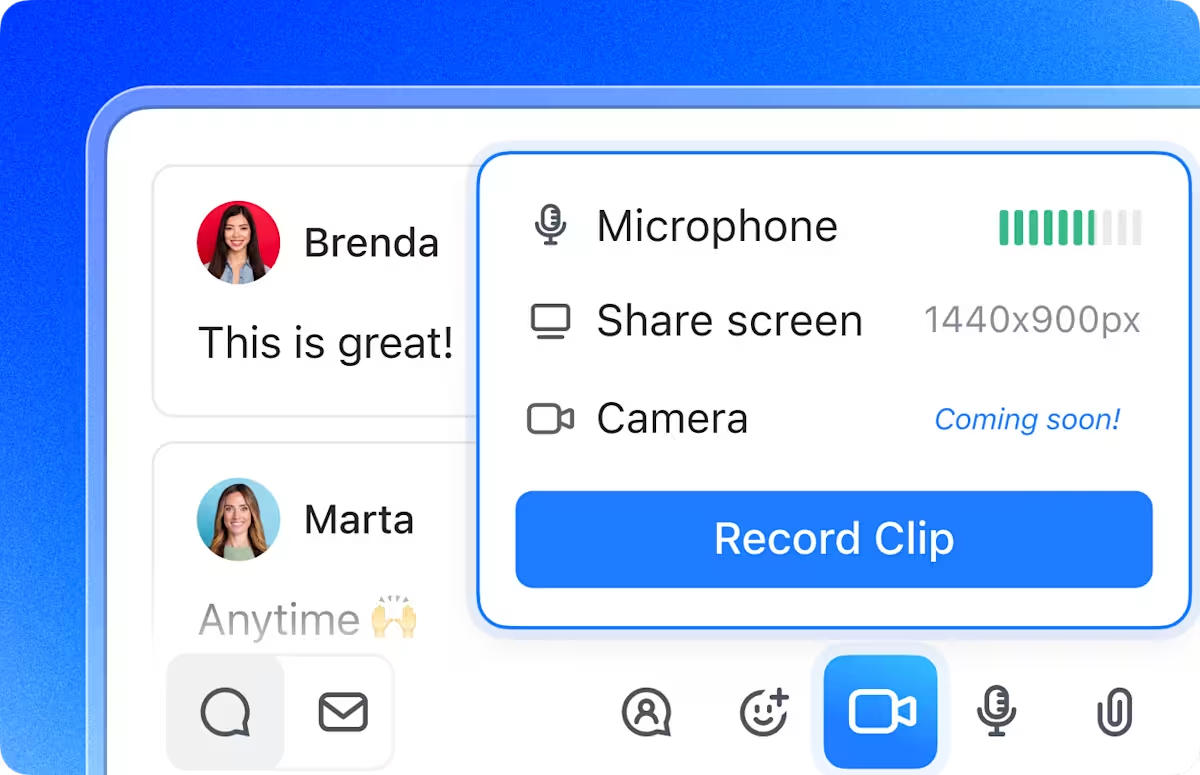
ClickUp Clips is a free screen recorder built right into ClickUp.
It lets you create and share screen recordings effortlessly, with and without accompanying webcam footage and audio. You can:
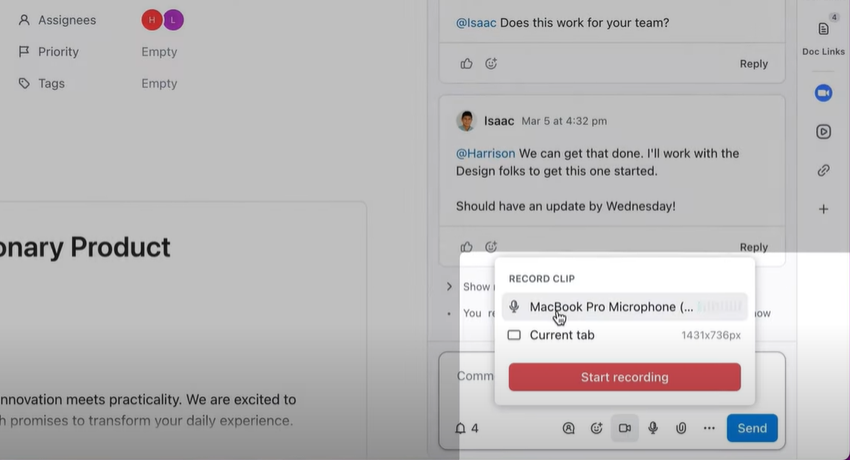
Admins can enable ClickUp Clips from ClickApps, allowing teams to record and share screen recordings with audio effortlessly. Whether you’re capturing a training session, a project update, or quick feedback, ClickUp keeps everything organized and accessible.
It [ClickUp] has a vast array of features that are suitable and can be used by virtually anyone – for me, I have only used what’s useful for me. The in-built screen recorder is brilliant – especially for creating short tutorials if needed. From task management and time tracking to goal setting, document sharing, and automation, it has everything you need. Plus, the platform regularly updates and adds new features based on user feedback so it’s good to keep track of their roadmap or subscribe for updates.
💡 Pro Tip: Use ClickUp Clips to provide verbal feedback on projects instead of writing long comments. It saves time and improves clarity!
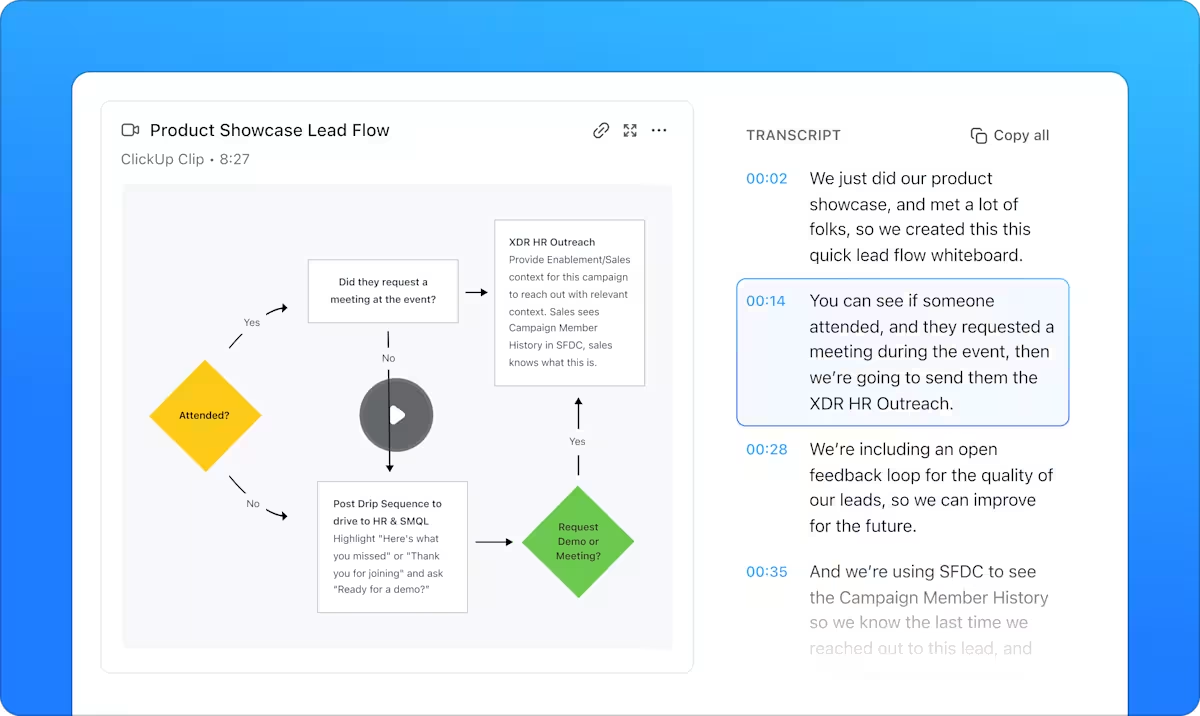
Imagine having a work assistant that connects all your tasks, documents, and team knowledge and automatically transcribes and organizes your meeting audio. That’s ClickUp Brain for you.
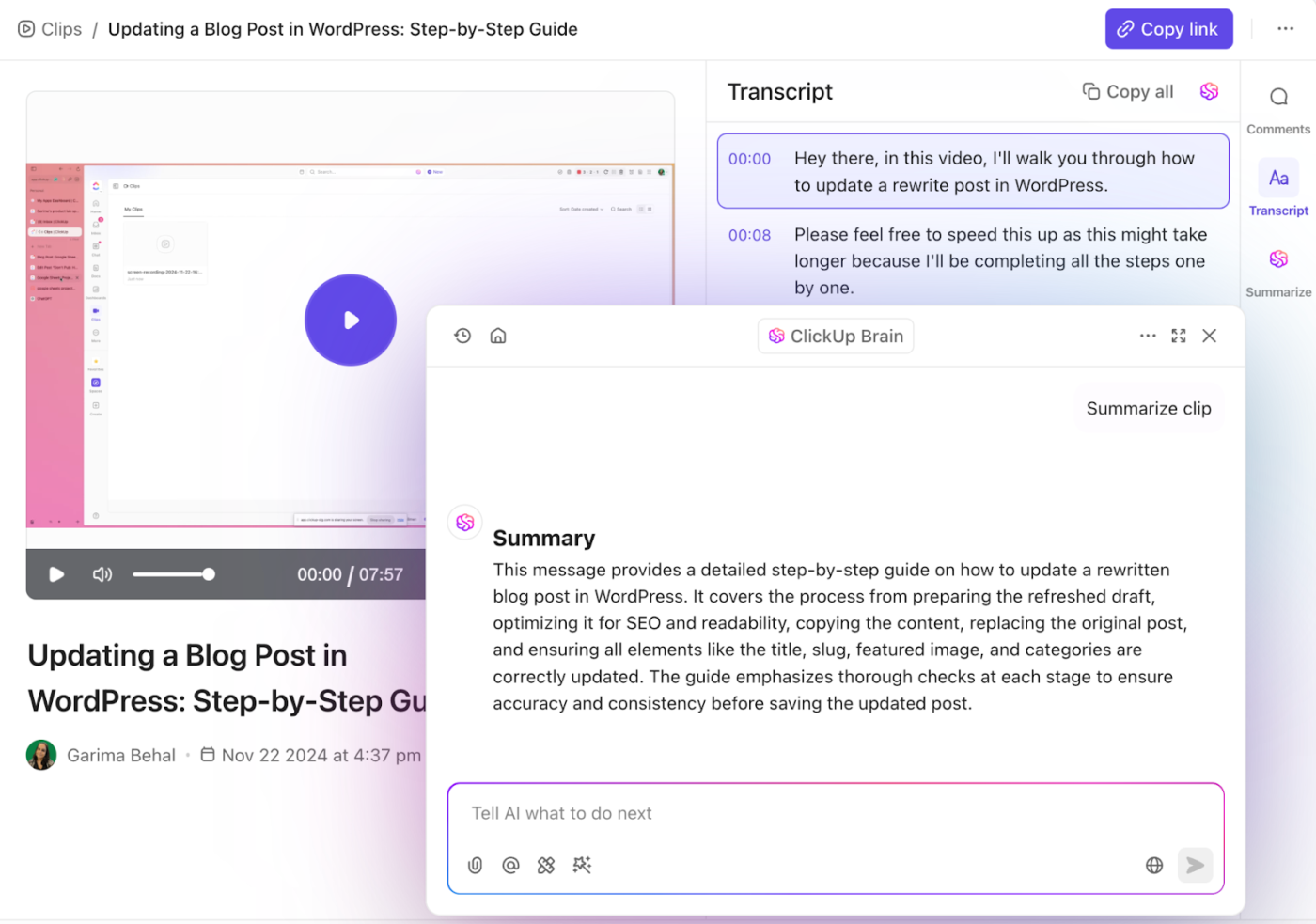
ClickUp Brain ensures that every discussion, voice note, and meeting recording is converted into searchable text. With its real-time AI-powered transcription, you never miss a detail. It also transcribes your ClickUp Clips and can summarize them on cue, so you needn’t sit through long demos, walkthroughs, or call recordings.
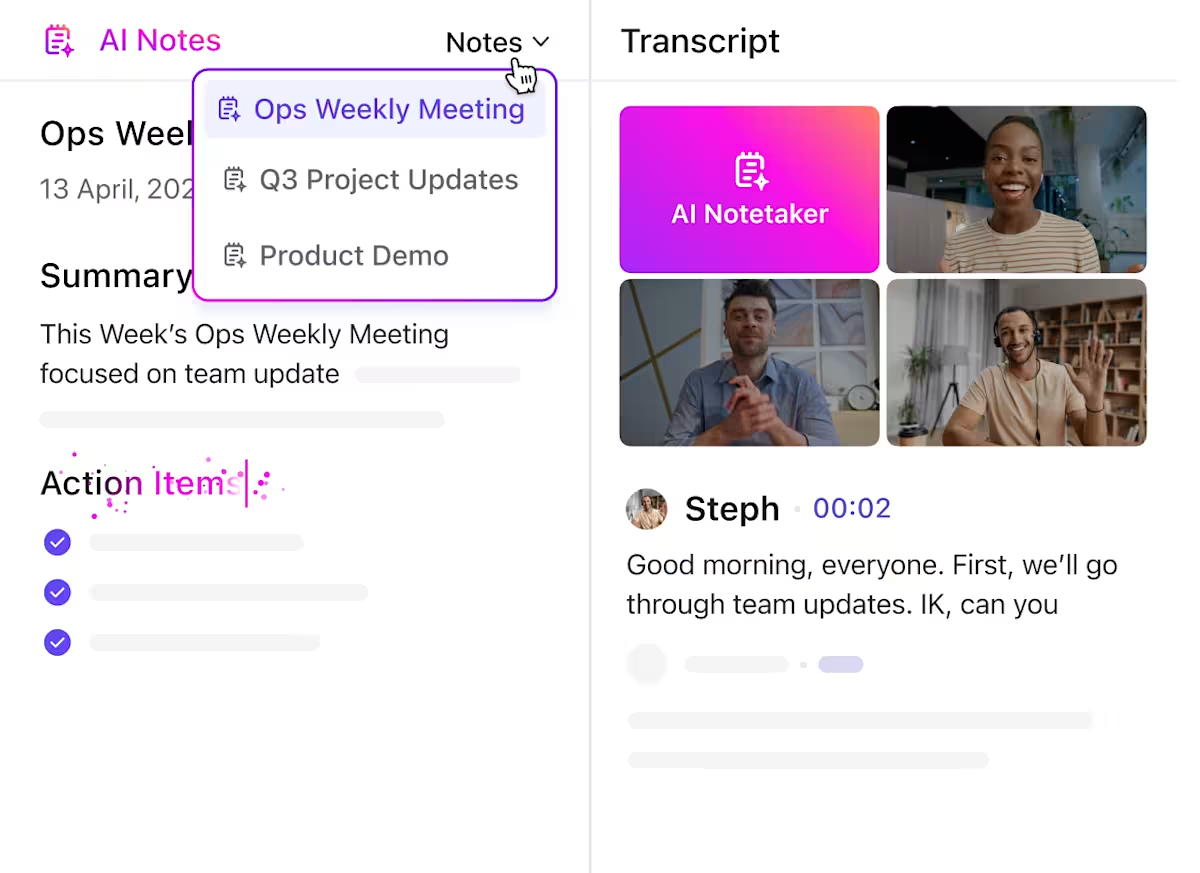
While Brain can transcribe and summarize existing recordings, it’s ClickUp’s AI Notetaker that you’ll need to accompany you to capture discussions from a live meeting.
Forget manual note-taking as the AI captures a voice recording, an overview, a searchable transcript, a summary, and key takeaways for your meeting automatically. With clear labels, you can also identify whether two dialogues come from the same speaker or different ones.
The best part? You can make the captured key takeaways actionable by turning them into ClickUp Tasks with assigned owners.
📮 ClickUp Insight: Around 92% of knowledge workers risk losing important decisions due to scattered documentation, while only 8% use project management tools to track action items.
This gap between discussion and action leads to major inefficiencies in how teams track and execute work. With ClickUp AI Notetaker, you can centralize meeting notes, action items, and decisions in one place—ensuring nothing falls through the cracks.
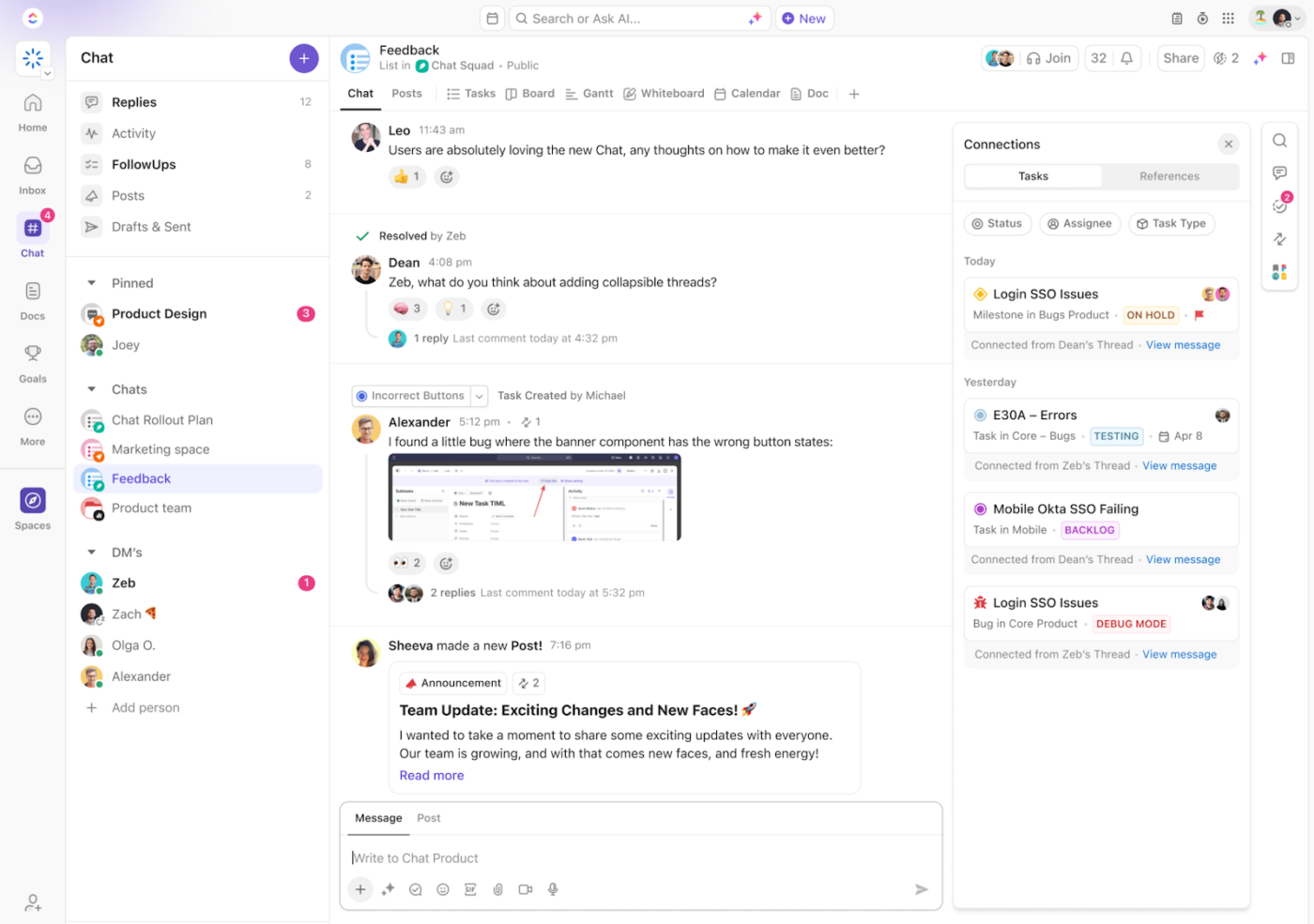
ClickUp makes for great file-sharing software without the chaos of juggling multiple tools. All data—from audio files to meeting notes—is stored centrally within ClickUp’s workspace. With ClickUp Chat, you can share content on the spot.
This nifty little feature keeps conversations clear and actionable. Whether it’s a quick voice note, a recorded meeting snippet, or an important discussion, you can share audio files directly in chat so nothing is lost in translation.
👀 Did You Know? You can start an impromptu audio-visual meeting with a colleague (or a whole channel) from within ClickUp Chat using SyncUps! SyncUps allow you to share a tab, a window…even your entire screen!
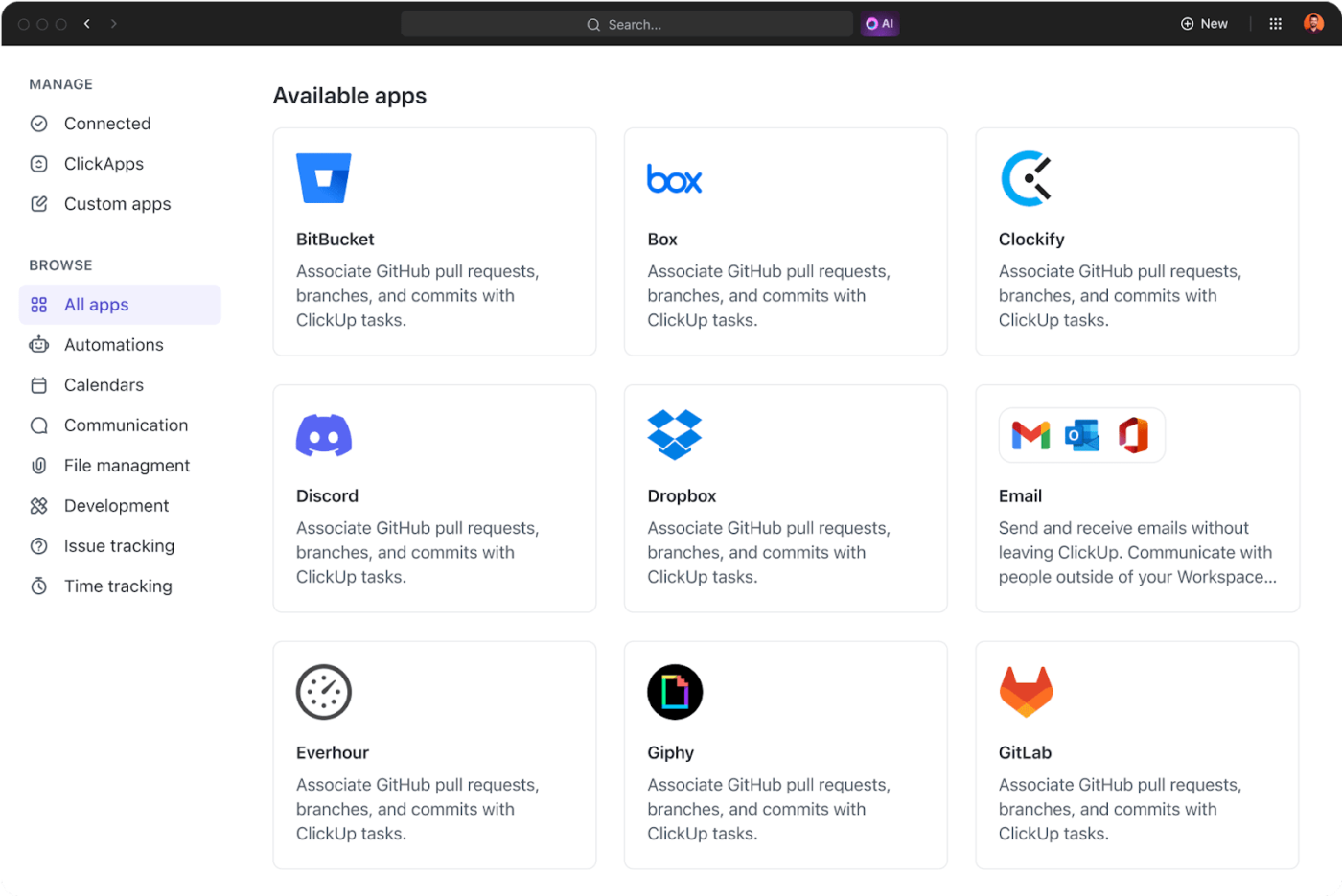
Traditional tools like Microsoft Teams often lack extensive integration capabilities for automating workflows across apps. ClickUp is great meeting management software that integrates seamlessly with tools like Zoom, Slack, Teams, and Google Meet, ensuring compatibility with existing workflows.
Thanks to these ClickUp Integrations, you can join your meetings without ever leaving ClickUp. Plus, all your meeting audio and transcripts are delivered straight to your ClickUp Inbox.
ClickUp goes beyond sharing audio or taking notes in meetings. It’s where you plan the meeting, capture the discussion, and turn every takeaway into action—without jumping between tools.
With meeting recordings, transcripts, and tasks in one place, ClickUp isn’t just for managing meetings. It is for running and owning them—from your own customized meeting hub.
Whether you’re presenting a video, walking your team through a demo, or sharing an important discussion, smooth audio sharing is necessary.
Microsoft Teams covers the basics, but it falls short when it comes to turning conversations into real progress. That’s where ClickUp takes over.
Record meetings, share clips, auto-transcribe discussions, and instantly turn key moments into tasks—all in one place. There’s no switching tabs, no lost action items, just streamlined, end-to-end meeting management that actually drives results.
Make meetings glitch-free and 10x more productive. Sign up for ClickUp for free today!

© 2026 ClickUp

There’s an easier way. Try a free AI Agent in ClickUp that actually does the work for you—set up in minutes, save hours every week.