

Sorry, there were no results found for “”
Sorry, there were no results found for “”
Sorry, there were no results found for “”
Ever feel like your Google Docs document has a mind of its own?
You know—those moments when you’re cruising through your essay or report, and suddenly, an unwanted page break appears, ruining your layout and flow.
These page breaks might be accidental or inserted due to an image, a table, or other formatting quirks. Either way, they turn an otherwise seamless document into a formatting nightmare.
Fortunately, knowing how to remove a page break in Google Docs is pretty straightforward. Let’s go step by step and bring your formatting back to life with simple Google Docs hacks.
The next time your formatting goes haywire on Google Docs, take a deep breath, calm those frayed nerves, and follow these simple solutions:
This is the easiest way to get rid of difficult page breaks, especially when you’re in a hurry.
This merges the pages into one page but leaves a dotted line indicating where the break was.

But what if you want to eliminate the unnecessary dotted line? You’ve got an option for that, too!
👀 Did You Know? Before Google Docs became the powerhouse of document collaboration software, it started as a humble tool called Writely. In 2006, Google acquired Writerly, a web-based word processor developed by Upstartle, a small startup.
At the time, Writely was a revolutionary concept. It allowed users to create, edit, and share documents entirely online. When Google took over, it merged Writely’s innovative features with its ecosystem, laying the foundation for what we now know as Google Docs.
Pageless mode eliminates the constraints of traditional pages by providing a customizable and uninterrupted layout. You can switch to pageless mode in two ways.


Go to Format and click Switch to Pageless Format.

You can also adjust the width of your pageless document.
Go to View, click Text width, and choose between Narrow, Medium, Wide, and Full.

If you’ve ever tried cramming large tables, images, or detailed outlines into a traditional layout, you know how frustrating it can be. Pageless mode provides a broader space, allowing horizontal scrolling for better data visualization.

However, if you have a table stretched across the document in pageless mode, it will be cut shorter when you switch back to pages mode.

While the pageless mode offers flexibility, certain elements like headers, footers, columns, watermarks, and footnotes disappear. But there’s nothing to worry about. Switching back to the page format restores them.
💡Pro Tip: Before switching from Pageless to Pages mode, assess whether the table will be printed or shared in PDF format. Pageless mode is perfect if it’s meant for online collaboration or viewing. But if the document is to be printed, adjust the width and margins accordingly.
Switching back to the pages format is just as easy.
Option 1

Option 2

Once you’ve switched back, review all your tables and images again for any lost content.
Page breaks in Google Docs can sometimes be challenging to navigate or eliminate. Here are some solutions for these pesky lingering troublemakers:
Has your cat ever stepped on your keyboard, and the words are suddenly six pages apart? In such cases, use the View menu to enable the option to ‘Show non-printing characters.’ This displays paragraph marks, breaks, and other hidden formatting elements.
Excessive line spacing or paragraph spacing can push text to the next page. Select the paragraph, go to Format, click Line & Paragraph Spacing, and set it to a standard value like 1.15.
Misaligned margins can cause breaks. To avoid formatting issues, go to File, click Page setup, and adjust the top, bottom, left, and right margins.
A section break on the same page or in the next section can mimic a page break. Scroll to the break, click on it, and press the backspace or delete keys.
Sometimes, the issue is only visible in particular views. Switch between print layout and pageless view to identify and resolve formatting issues.
💡Pro Tip: Check your document outline a few times for any unexpected breaks that might disrupt your flow.
Google Docs is widely appreciated for being a simple team collaboration tool. However, like any tool, it has limitations that may not suit every use case. Let’s explore some of these shortcomings.
Google Docs is great for drafting simple text documents but falls short regarding advanced formatting tools. For example, while you can change margins and apply basic text styles, options like custom text wrapping or dynamic headers and footers are either limited or non-existent.
Tables in Google Docs are minimal. They have restricted options for customizing cell space or applying complex styles. This can be frustrating for users handling larger datasets or intricate table layouts.
While real-time editing is a highlight, it can also lead to accidental overwrites or confusion when multiple users work simultaneously. For instance, two team members might edit the same paragraph, leading to confusion or the loss of important information.
While Google Docs supports importing and exporting common formats like Microsoft Word and PDF, its compatibility isn’t always seamless. Converting documents can lead to formatting errors, such as misplaced tables, broken images, or inconsistent font styles.
Being cloud-based, Google Docs relies heavily on internet security. Unauthorized access, phishing attempts, or weak passwords can expose sensitive documents, especially in shared environments
Google Docs might be perfect for you if you are looking for simplicity and small-scale collaboration. However, these drawbacks highlight the need for a Google Docs alternative for businesses and teams managing complex projects—a more versatile tool like ClickUp.
ClickUp is the everything app for work, designed to revolutionize content creation, management, and collaboration. Its assorted features make it highly versatile, especially for creating and managing content of all kinds.
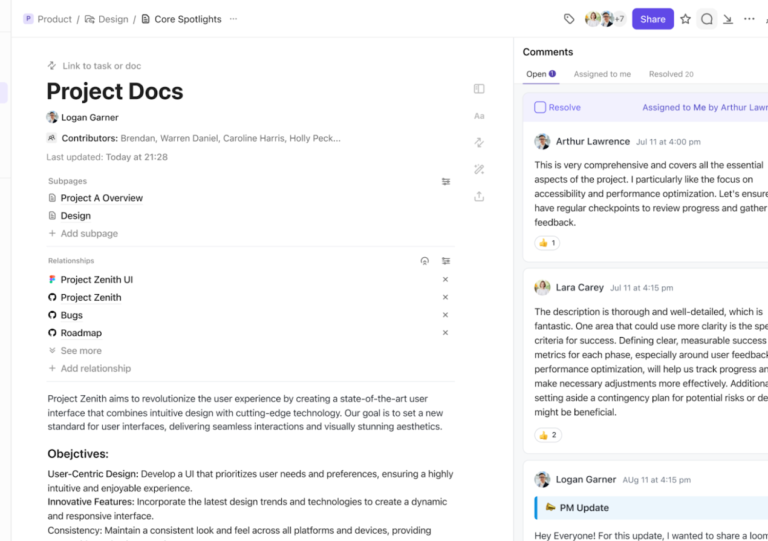
ClickUp Docs makes creating visually appealing documents—such as wikis, knowledge bases, or detailed project plans—a breeze.
And the kicker? You can connect your docs directly to your workflows. That means no more switching between tools. Brainstorm, document ideas, and assign tasks, all in one place.
ClickUp Docs allows you to add pages, formatting, and documents to your content workflow in a few clicks. Want to boost your productivity even further? With ClickUp Docs, you can:

Sharing your documents shouldn’t feel like a security gamble, right? ClickUp Docs makes it easy to share your docs securely and with full control over who can see or edit them.
The feature is great for:

Whether it’s a confidential proposal or a collaborative project, ClickUp ensures your data stays safe while keeping everyone in the loop.
📮 ClickUp Insight: 74% of employees use two or more tools just to find the information they need—while jumping between emails, chat, notes, project management tools, and documentation. This constant context-switching wastes time and slows down productivity. As the everything app for work, ClickUp unifies all your work—email, chat, docs, tasks, and notes—into a single, searchable workspace, so everything is exactly where you need it.
Say hello to ClickUp Brain, your personal AI writing assistant, editor, and idea generator.
This nifty little feature brings the power of AI into your content workflow, opening up a huge vista of possibilities to make content creation and management easier.

By using AI for documentation and organizing your workflows, ClickUp lets you focus on what you do best—creating content!
If you are a professional, student, or small business looking for a basic, easy-to-use word processor, Google Docs might be the right choice for you.
But if you’re looking for an all-in-one solution to simplify your complex documentation and overall task management, ClickUp is the tool you need.
ClickUp is a one-stop solution for all your documentation needs. It can integrate content creation, project management, and collaboration while maintaining privacy.
Overcome the limitations of traditional document editors with ClickUp. Don’t just create documents, but integrate them into your systems effortlessly. Make the smart choice—sign up for a free ClickUp account today!

Manasi Nair
Max 26min read
Manasi Nair
Max 26min read
Manasi Nair
Max 20min read

© 2026 ClickUp





