






Still downloading templates?
There’s an easier way. Try a free AI Agent in ClickUp that actually does the work for you—set up in minutes, save hours every week.
Sorry, there were no results found for “”
Sorry, there were no results found for “”
Sorry, there were no results found for “”
Most people treat OneNote like a digital notebook. Write something down, forget where it is, never find it again. That’s not a knowledge base, that’s a graveyard for good ideas.
A real knowledge base works differently. It connects what you learn, surfaces what you need, and grows more useful over time. OneNote has everything you need to build one, if you know how to set it up right.
This guide provides a clear, step-by-step system and explains how to build a knowledge base in OneNote. We’ll also cover ClickUp as a powerful alternative for those who want to take their knowledge management even further.

A OneNote knowledge base is a structured, searchable system built inside OneNote where you store, organize, and connect everything worth keeping.
Think of it as your personal Wikipedia, one that’s built around your work, your thinking, and your life. Unlike random note dumps, a OneNote knowledge base has intention behind it. Your notes link together, follow a consistent structure, and are organized so you can find things easily. It’s the difference between a library and a pile of books.
A OneNote knowledge base can hold anything: meeting notes, research, SOPs, project references, learning logs, ideas, and more.
📮 ClickUp Insight: The average professional spends 30+ minutes a day searching for work-related information—that’s over 120 hours a year lost to digging through emails, Slack threads, and scattered files. An intelligent AI assistant embedded in your workspace can change that.
Enter ClickUp Brain. It delivers instant insights and answers by surfacing the right documents, conversations, and task details in seconds—so you can stop searching and start working.
💫 Real Results: Teams like QubicaAMF reclaimed 5+ hours weekly using ClickUp—that’s over 250 hours annually per person—by eliminating outdated knowledge management processes. Imagine what your team could create with an extra week of productivity every quarter!
Before diving into the specifics of OneNote, watch this overview to understand the fundamental principles and best practices for creating any internal knowledge base that your team will use.
OneNote offers a low-friction way to get started with knowledge management. Here are the key advantages:
🧠 Fun Fact: One of the earliest examples of a user manual is the Antikythera Mechanism, an ancient Greek analog computer from 100 BC. It actually had instructions inscribed directly onto its bronze plates. These manuals explained how to use the gears to predict eclipses and planetary paths, making it the world’s first documented UI.
Creating a functional OneNote wiki is straightforward and takes less than an hour for the initial setup. The following steps work across OneNote for Windows, Mac, and the web, though the interface may have slight variations.
We’ll keep these instructions direct and to the point. 🛠️
First, open OneNote and select New. Give your notebook a clear, descriptive name that everyone will understand, like ‘Company Knowledge Base’ or ‘[Department] Wiki.’

Next, you’ll choose where to save it. This choice is important for sharing:
🔍 Did You Know? Before wood-pulp paper became cheap, high-end documentation was done on vellum. This was literally stretched calfskin. Because it was so expensive, scribes would often scrape off old text to write new things on top. These ‘recycled’ documents are called palimpsests.
Now, create sections to act as the main categories for your knowledge base. Think of these as the primary chapters of your wiki.
If you have a lot of topics, you can group related sections into a Section Group. For example, a ‘Departments’ group could contain sections for Marketing, Sales, and Engineering.
Start with five to eight core sections to avoid overwhelming users. You can always add more later. Use clear, action-oriented names. For instance, ‘Onboarding Process’ is much better than a generic title like ‘New Hires.’
Here’s a simple structure to get you started:
💡 Pro Tip: Get in the habit of putting a Last Updated date at the top of every page. This small detail gives readers confidence that the information is current and trustworthy.
Within each section, create pages for individual articles, guides, or topics.
To build a logical structure, you can turn pages into subpages. Just right-click a page in the navigation pane and select Make Subpage. This indents the page and visually connects it to the parent page above it.

A consistent naming convention is key to keeping your knowledge base navigable. It’s also a good practice to create a Table of Contents page at the top of each section. This can contain links to the most important articles within that category, acting as a quick-start guide for that topic.


When writing your content, prioritize clarity and scannability. No one wants to read a wall of text. Use OneNote’s built-in formatting tools to make your information easy to digest.
You can also create a page template from an existing page, which is useful for recurring document types like meeting notes or project summaries. It ensures every entry has a consistent layout.
🔍 Did You Know? During the Apollo 11 mission, a 1202 alarm went off because the lunar module’s computer was being overloaded with data. The mission was almost aborted. However, a young engineer named Jack Garman had documented every possible error code on a ‘cheat sheet’ at his desk. He recognized the code instantly and told the team it was safe to proceed, saving the mission.
Internal linking is what turns a simple notebook into a true, interconnected OneNote wiki. It helps users discover related information without having to search for it.
To create a link, right-click the name of any page or section and select Copy Link to Page/Section. Then, highlight the text you want to turn into a link and paste it. For a faster workflow, type two square brackets [[ followed by the name of the page you want to link to, and OneNote will suggest pages to connect.

Create a master index page at the very beginning of your notebook with links to each major section. This gives you a central starting point to navigate the entire knowledge base.
How you share and collaborate with your team depends on where you saved your knowledge base. If your notebook is stored in SharePoint, you can manage access through your SharePoint site or the associated Microsoft Teams channel.
If it’s in OneDrive, click the Share button in OneNote and invite team members by email. You can set permissions to either Can Edit for contributors or Can View for read-only access.
| Storage location | Best for | Sharing method |
| OneDrive | Personal or small team use | Share via email invitation |
| SharePoint | Department or company-wide | Share via SharePoint site or Teams |
Remember OneNote’s biggest sharing limitation: permissions are set at the notebook level. You can’t restrict access to a specific page or section, so plan your notebook structure accordingly.
🧠 Fun Fact: The word ‘file’ comes from the Latin word filum, which means ‘thread.’ Before we had folders or digital clouds, clerks would keep track of documents by literally poking a hole in the corner of the paper and stringing them together with a piece of twine.
You’ve built your OneNote knowledge base, but the work isn’t over. Without ongoing maintenance, even the most organized wiki can become a digital junkyard. This leads to team members reverting to old habits, like asking colleagues for information they can’t find, which defeats the entire purpose of having a central repository.
To prevent this, you need to establish a solid project governance framework from the start. These habits will keep your knowledge base a living, reliable resource.
💡 Pro Tip: Schedule a recurring task every three months to audit the knowledge base. This is your chance to update stale content, fix broken links, and identify any information gaps.
Your OneNote knowledge base was a great start, but now your team is growing. The notebook is getting slow, new hires can’t find anything, and you’re worried about sensitive information being too accessible. The tool that was once a solution is becoming part of the problem.
This is a common journey. While OneNote is reliable as you’re getting started, its limitations become more apparent as your team and knowledge base scale.
🔍 Did You Know? The Great Library of Alexandria was the first attempt to document everything in the known world. They were so serious about it that any ship docking in the harbor had to hand over their scrolls. The library would copy them, keep the originals, and give the copies back to the owners.

Teams often adopt note-taking tools to store ideas, research, and internal documentation. Over time, those notes disconnect from the actual work they support. People search multiple apps, copy links into chats, and lose context during everyday tasks.
ClickUp solves that problem through a Converged AI Workspace where documentation lives alongside projects, tasks, and discussions. Knowledge stays connected to execution, which reduces SaaS Sprawl and eliminates constant context switching.

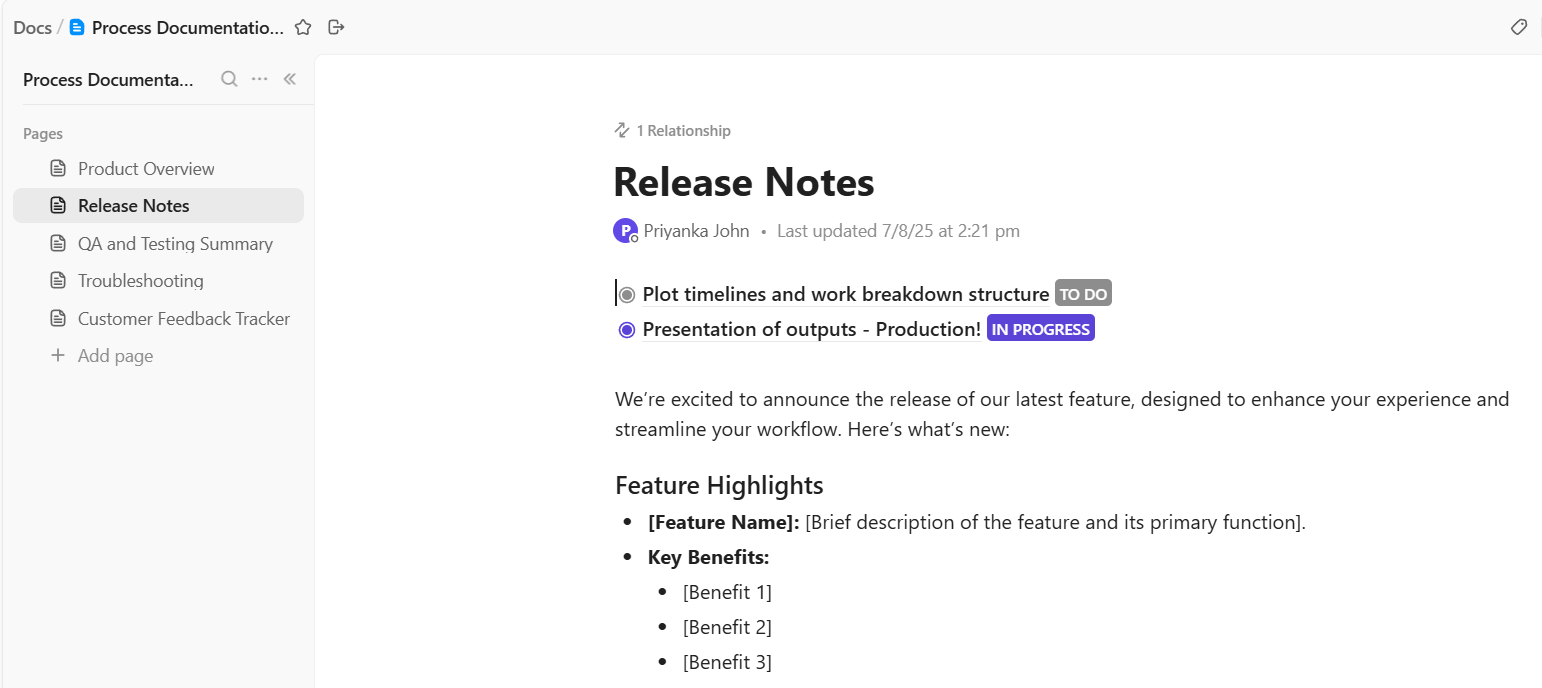
ClickUp Docs serve as the foundation for knowledge management inside the workspace. Teams organize documentation alongside the work it supports, so information remains relevant and easy to locate.
Suppose a product team maintains a knowledge base for onboarding new engineers. They create a Doc titled ‘Developer onboarding guide’ that includes setup instructions, coding standards, and links to internal tools. The same Doc connects directly to onboarding Tasks in ClickUp, so each new hire sees the documentation while completing required steps.
Rich text editing tools inside Docs make that documentation easy to structure and scan. Teams format information clearly through:
For instance, a developer handbook may include a table that lists staging and production environments, while code blocks store sample API requests engineers copy during setup.
As documentation grows, structure becomes critical. ClickUp Docs support nested subpages that create clear knowledge hierarchies.

For example, a marketing team builds a central ‘Brand knowledge base’ doc. Subpages break the content into sections such as brand voice guidelines, social media templates, campaign planning frameworks, and content review checklists.
Each subpage focuses on one topic, which makes navigation simple even when documentation expands.
Documentation often requires clarification or updates. ClickUp Docs support comments and mentions that keep those conversations tied to the content.

Suppose a product manager reviews a roadmap Doc and notices outdated feature details.
They highlight the section, tag the engineering lead, and request updated timelines. The engineer responds in the same comment thread and edits the doc immediately. Teams resolve questions without opening separate workplace communication tools.
Hear it from an actual user of the app:
I use ClickUp all over. It is core to my daily workflow, project plan and knowledge base. I love how everything is on one place. I have used many tools over the years to help me keep track of work and clickup solves all the problems for me. I like the flexibility that clickup offers – I have made so many lists from tasks management, renovations, project management, software projects, property investing, meeting minutes and tracking info,. I feel that it is a must-have for any business- from one man shows to more corpotartes [sic].
As documentation expands, search becomes essential. ClickUp Brain helps teams retrieve answers from across docs, tasks, and conversations.

Suppose a customer success manager needs the current escalation policy for enterprise accounts. Instead of scanning multiple documents, they ask ClickUp Brain a question directly.
📌 Try this prompt: Summarize the enterprise escalation process and list responsible teams.
ClickUp Brain analyzes existing Docs and returns a concise explanation along with links to the relevant documentation.
Many teams rely on separate AI tools for writing, searching, and summarizing information. ClickUp Brain MAX centralizes those capabilities inside the workspace.
For example, a research lead dictates meeting notes using Talk to Text. Brain MAX converts the spoken input into structured documentation inside a doc.
Later, the same system searches across tasks, Docs, and project discussions to surface relevant context. Teams reduce tool fragmentation and maintain one intelligent knowledge layer across the workspace.

ClickUp also supports mobile access that keeps knowledge available beyond the desktop environment. The mobile app allows offline doc access, so teams review documentation during travel, field work, or limited connectivity.
Once the device reconnects, updates sync automatically and maintain alignment across the workspace.
OneNote is a practical starting point for a knowledge base, especially for teams already in the Microsoft ecosystem. Its success depends more on establishing clear structure, consistent maintenance, and clear ownership; principles that are critical for any key process, from knowledge management to setting onboarding goals.
But as your team grows, so do your knowledge management needs.
This is where ClickUp stands out as a more scalable alternative. Instead of keeping documentation separate from execution, ClickUp connects knowledge directly to work. With Docs, teams build structured, nested documentation that lives alongside projects and tasks.
As documentation expands, ClickUp Brain transforms how teams search and retrieve information. Add built-in comments, mentions, version history, templates, and task-linked documentation, and you have an intelligent system that evolves with your workflow.
Sign up for ClickUp today.
Yes, OneNote supports real-time co-authoring, which means multiple people can edit the same page simultaneously and see each other’s changes as they happen
OneNote is great for basic needs but lacks advanced features like granular permissions, approval workflows, and analytics that dedicated knowledge base tools provide for better governance and scalability
It can work for smaller organizations, but larger companies often run into issues with permissions, performance, and content management that make a dedicated solution a more practical choice
If the notebook is stored in a shared SharePoint site, it remains accessible. However, if it was stored in a departing employee’s personal OneDrive, an admin will need to transfer ownership before the account is deactivated to prevent data loss.

© 2026 ClickUp

There’s an easier way. Try a free AI Agent in ClickUp that actually does the work for you—set up in minutes, save hours every week.