






Still downloading templates?
There’s an easier way. Try a free AI Agent in ClickUp that actually does the work for you—set up in minutes, save hours every week.
Sorry, there were no results found for “”
Sorry, there were no results found for “”
Sorry, there were no results found for “”

If your team has ever tried using a standalone AI tool to build a social media calendar, you’ve probably run into one or more of these problems.
What started as a ‘free’ AI setup quickly turned into scattered tabs, missing files, and version confusion that slowed the whole team down.
This guide breaks down how to build a functional social media calendar using Gemini in Google Sheets—without dealing with some of these headaches.
And more importantly, you’ll see what changes when you move from AI-assisted planning to using a free all-in-one project workspace like ClickUp, where ideas, assets, schedules, and execution actually live together.
Let’s get started!
A social media calendar is a planning document that organizes your upcoming social media posts, transforming your workflow from reactive to strategic. It provides a single source of truth for your entire content plan.
A well-structured social media calendar would usually contain some of these as its core components:
Creating a social media content calendar from scratch is incredibly time-consuming, and, if we’re being honest, many teams don’t have the budget for premium AI platforms.
But guess what? Gemini is free and also embedded directly into Google Workspace.
For small teams already using Google Workspace, Gemini offers an accessible entry point into AI-assisted content planning and collaboration.
It helps with initial ideation and drafting, and since its chat interface can be enabled in Google Sheets, it makes the manual grind of copying and pasting AI outputs a little easier to handle compared to standalone AI tools.
Google Sheets also has native collaboration features, such as multiple editors, comments, and version history, that let your team work on the calendar at the same time.
But it’s also important to have realistic expectations about its limitations for full-scale calendar management. It’s a really great start, but a lot of teams can quickly outgrow a spreadsheet-based solution. We’ll discuss those limitations in a later section of this blog.
📮ClickUp Insight: 37% of our respondents use AI for content creation, including writing, editing, and emails. However, this process usually involves switching between different tools, such as a content generation tool and your workspace.
With ClickUp, you get AI-powered writing assistance across the workspace, including emails, comments, chats, Docs, and more—all while maintaining context from your entire workspace.
📚 Also Read: How to Create a Content Marketing Management Plan
It’s very easy to get overwhelmed by vague instructions or overly technical guides, so if you want a clear, simple process for building your calendar, this method is a great starting point.
Start by creating a new Google Sheet. The first step is to build the framework for your calendar by adding columns for all the essential information you need to track for each post.
Create columns for each of the following: Date, Platform, Content Type, Topic/Theme, Caption, Hashtags, Visual Notes, Status, and a link to the final post. This structure ensures you capture everything needed to plan, write, and track your content from start to finish.

To keep things organized, you can create a separate tab for each month or use filters to sort your content by platform or status. Color-coding your rows by platform can also make the calendar easier to scan.
Just keep in mind that this entire setup is manual and will need to be rebuilt for each new planning period.
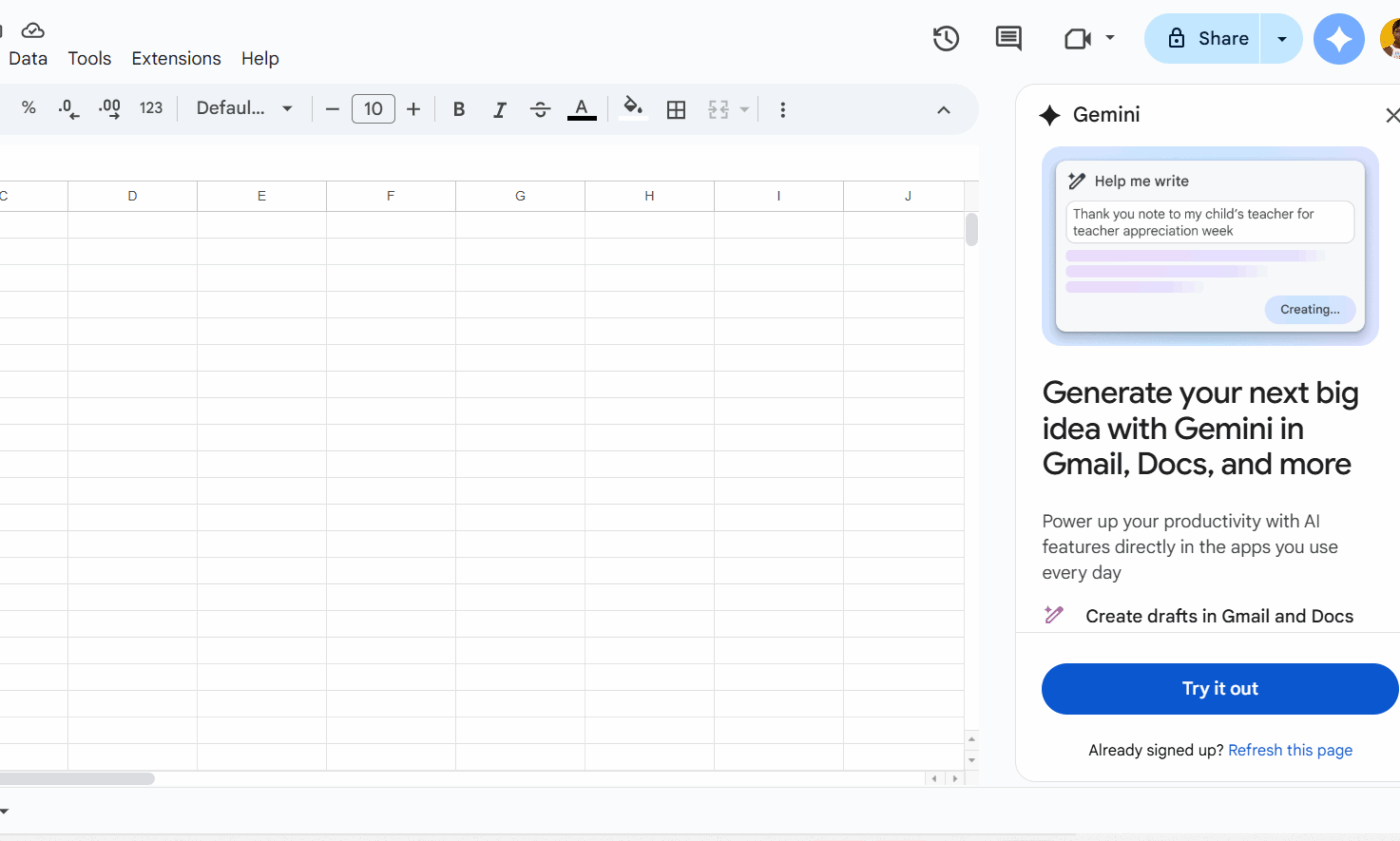
Next, you need to activate Gemini within your Google Sheet. You can typically access it through the Help menu by looking for Gemini features, or by finding the Gemini icon in the side panel.
Keep in mind that Gemini’s availability depends on your specific Google Workspace plan and your organization’s admin settings. Some users may need to request access from their IT department before the features appear.
Also, Gemini in Sheets is designed to assist with spreadsheet tasks, unlike the standalone Gemini chat interface.
With your sheet set up, open the Gemini panel and start brainstorming. Use specific prompts to get relevant ideas. For example, you could ask: “Generate 10 Instagram post ideas for a sustainable fashion brand focusing on our summer collection.”
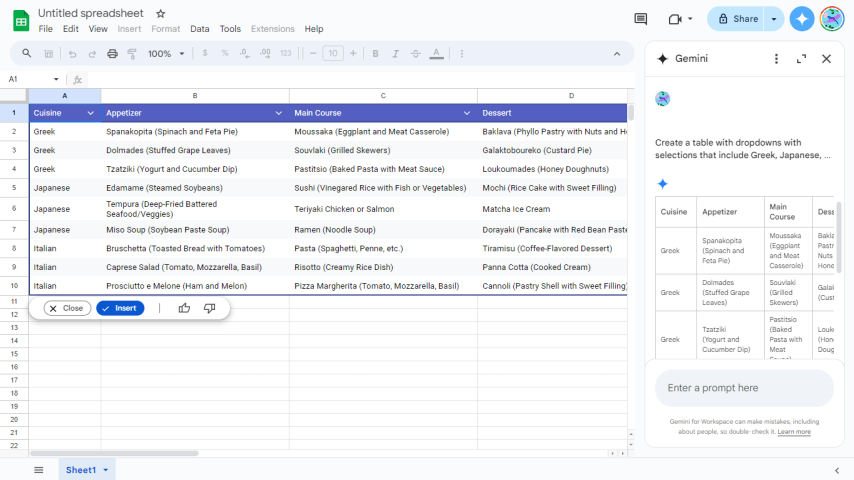
Once Gemini provides suggestions, copy and paste them into the appropriate cells in your calendar. You can then iterate on your prompts to refine the ideas further.
A key limitation to note is that Gemini doesn’t remember your past content, so it might suggest topics you’ve already covered.
Now it’s time to assign dates and times to your content ideas. Your posting schedule should be based on when your target audience is most active on each platform. If you’re not sure, check your social media analytics for insights into peak engagement times.
Space your content out evenly throughout the week and month to maintain a consistent presence without overwhelming your followers.
But wait, you’ve hit a roadblock, right? This step highlights a major point of friction: scheduling in a spreadsheet is entirely manual. There’s no way to automate publishing or set up reminders without a separate tool.
Use Gemini to help you write compelling, platform-specific copy. For instance, you could prompt it: “Write a professional but conversational LinkedIn caption under 150 words about the future of remote work.”
For hashtag research, try something like: “Suggest 10 relevant hashtags for a post about home organization on Instagram, mixing popular and niche tags.”
Before you finalize anything, a human review is essential, as AI can hallucinate. You can do this by:
At this point, you can share the Google Sheet with your team members and use the comment feature to gather feedback.
This is also another step where you’ll feel a limitation with Google spreadsheets.
Managing approval workflows feels clunky, and with no clear way to track a post’s status or get automatic notifications when a review is complete, collaboration will feel slow.
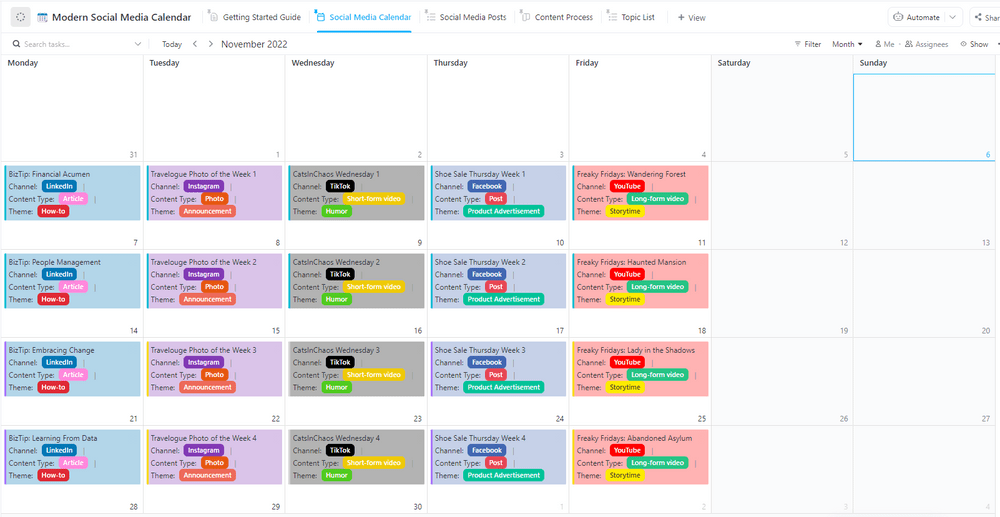
💡 Pro Tip: Instead of creating a social media calendar structure in Google Sheets from scratch, you can use ClickUp’s Modern Social Media Calendar Template.
It’s ready to use out of the box, with statuses, timelines, task owners, space for assets, etc., so you’re not recreating structure manually or working around spreadsheet limitations. It’s a pretty fast way to get a usable calendar, while still keeping your planning structured and flexible.
If you’re already using AI for other daily tasks, then you know getting generic and unhelpful results from it is a common experience. That doesn’t change when you use it for social media calendars, too.
So, how can you get genuinely helpful, high-quality outputs from it? It’s simple. Use highly specific and curated prompts. Gemini’s output will only be as good as the prompt you feed it, so think of it as a car: you’re the driver at the wheel. Whichever direction you steer it, it follows.
The following prompts are a good place to start. You can tweak and reiterate according to your needs:
Pro Tip💡: Use a context-aware AI like ClickUp Brain to generate prompts when ideating. Why? It’s embedded right into your workspace, so it understands your tasks, docs, comments, and timelines, and its responses are grounded in what your team is actively working on, not just what you ask in isolation.
So you’ve invested time in building your spreadsheet calendar, and it works… for a while. As your team grows and your content strategy becomes more complex, you begin to notice that an AI-assisted spreadsheet isn’t cutting it anymore. Why?
You probably don’t know the word to define your reason yet, but we’ll answer for you. It’s called work sprawl—the fragmentation of work activities across multiple disconnected tools that don’t talk to each other
Your planning lives in Sheets, your visual assets are in Google Drive, your team discussions are in email or Sheets comments, and your actual scheduling and publishing happen in YET another tool.
With companies now deploying 101 different applications on average, this disconnected system forces constant context switching and makes it impossible for your team to maintain a chaos-free social media content strategy. That’s the major limitation of using Gemini and Google Sheets for social media calendars. These are some of the reasons below:
📮 ClickUp Insight: 1 in 4 employees uses four or more tools just to build context at work. A key detail might be buried in an email, expanded in a Slack thread, and documented in a separate tool, forcing teams to waste time hunting for information instead of getting work done.
ClickUp consolidates your entire workflow into a single platform. With features like ClickUp Email Project Management, ClickUp Chat, ClickUp Docs, and ClickUp Brain, everything stays connected, synced, and instantly accessible. Say goodbye to “work about work” and reclaim your productive time.
💫 Real Results: Teams are able to reclaim 5+ hours every week using ClickUp—that’s over 250 hours annually per person—by eliminating outdated knowledge management processes. Imagine what your team could create with an extra week of productivity every quarter!
ClickUp’s converged workspace makes it easier to create a social media calendar by uniting ideation, creation, and execution with your entire workflow in one platform.
Instead of:
📌 Gemini → Google Spreadsheet → Google Drive → Email → Publishing tool
You get:
📌 One space where AI, sheets, calendars, chats, docs, scheduling, images, tasks, and workflows live together.
So your social media calendar is directly connected to actual work. This is the natural evolution for teams that have outgrown spreadsheets. ✨
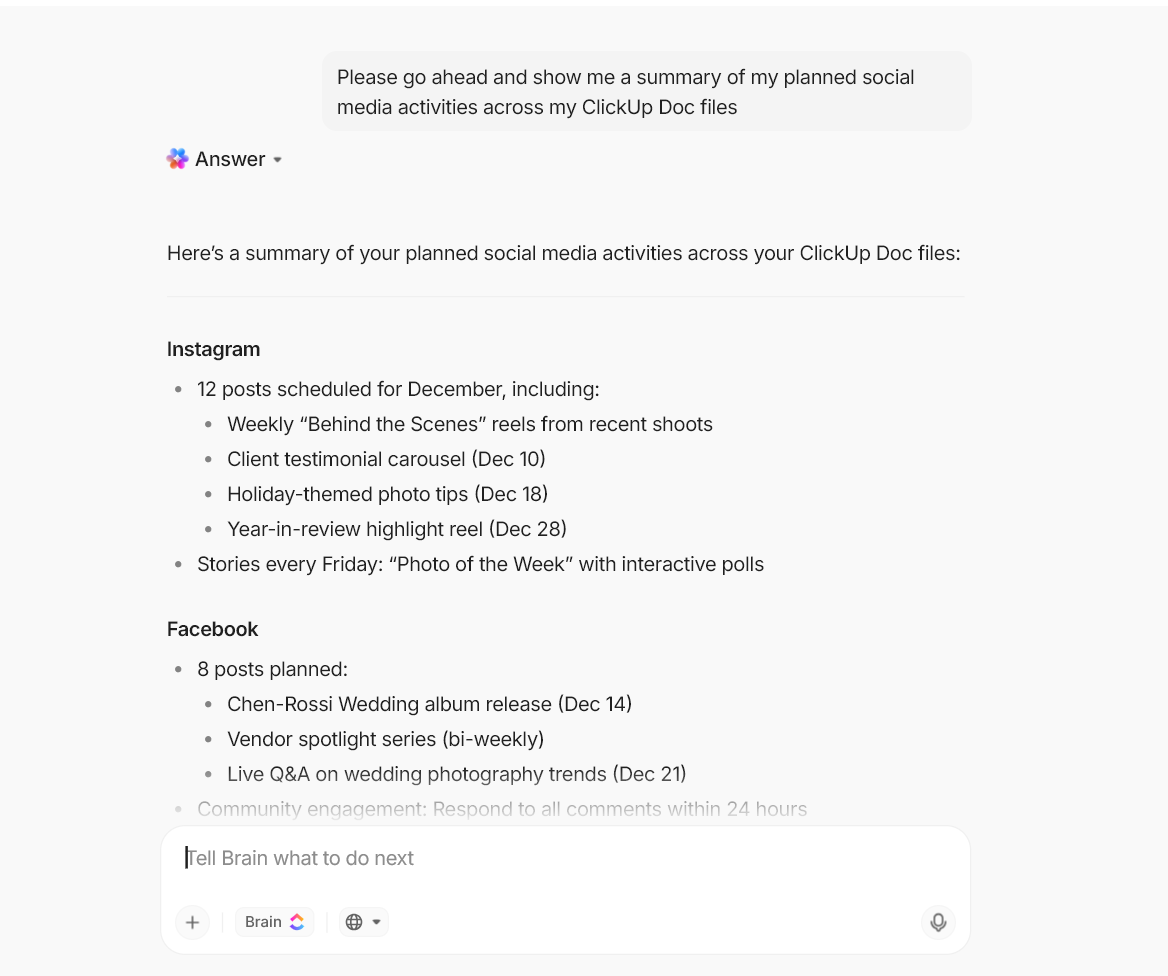
Stop the endless copy-pasting between your AI tool and your calendar. With ClickUp Brain, the context-aware AI that’s built directly into your workspace, you can ideate and generate your social media calendar right where you plan and create content.
Not only can ClickUp Brain and ClickUp Brain MAX (the desktop AI assistant) help you create content ideas and execute them, but because it has the context of all your work, it can even help you stay organized without having to keep 10 tabs open.
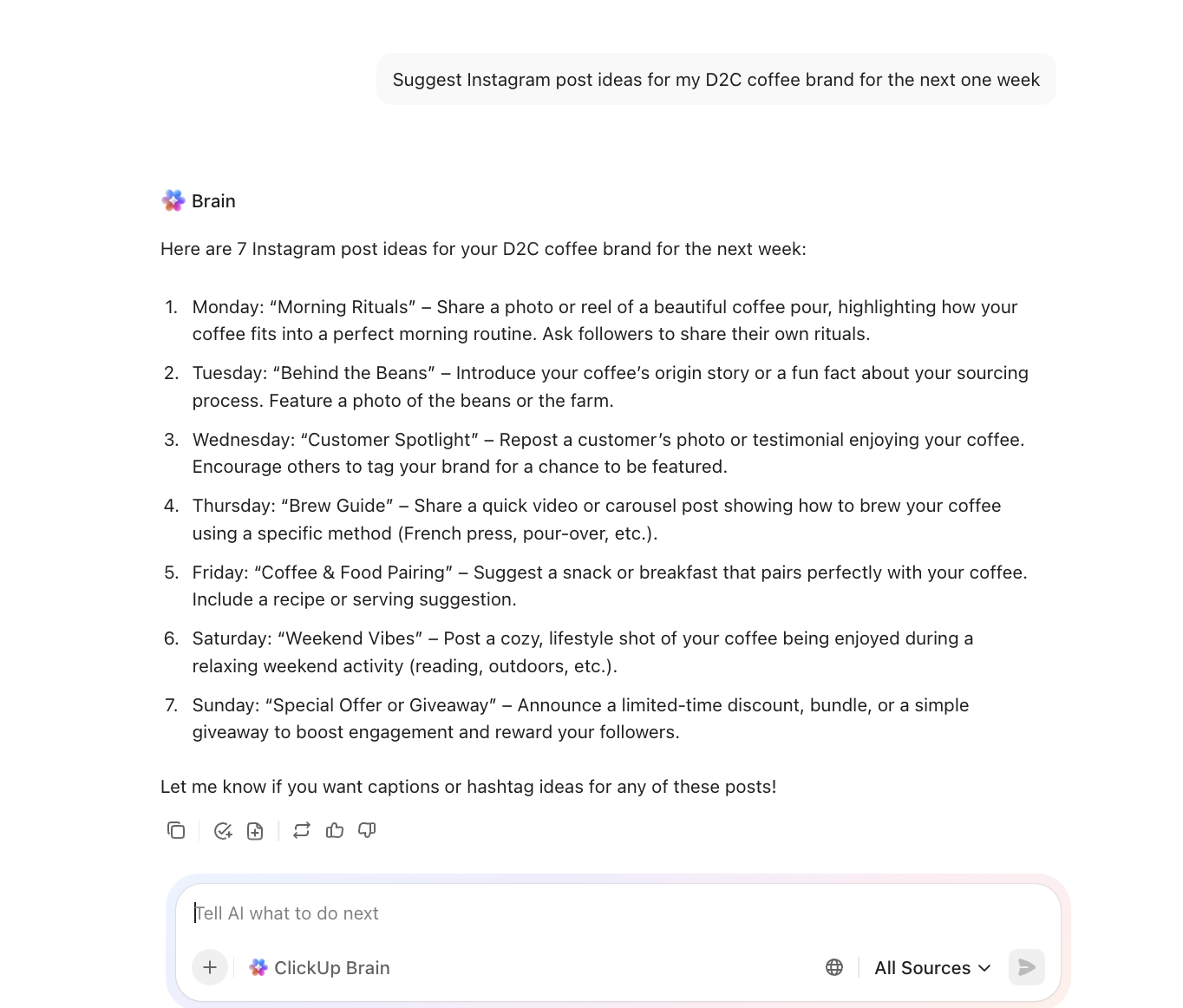
It references your existing tasks and projects for context, then generates ideas that are directly relevant to your brand and current initiatives, all within ClickUp Docs without you having to re-explain your brand or goals in every prompt.
That’s not all, it links your generated calendar in Docs to ClickUp Calendar View so you can see your entire content plan at a glance, with each post represented as a task.
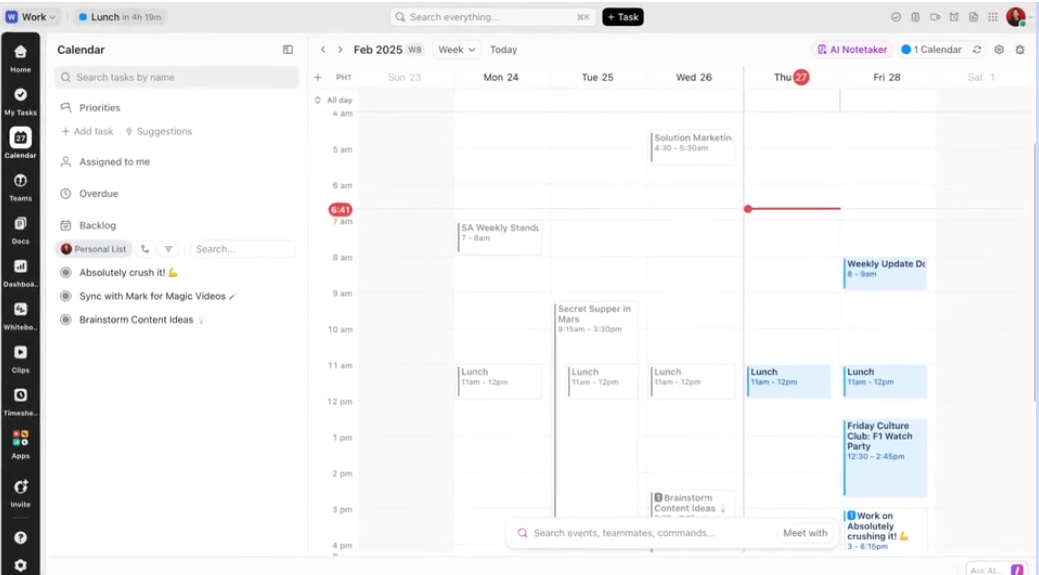
These aren’t just static entries. Each task can hold all the necessary details:
From Assignees, to clearly designate who is responsible for writing, designing, and publishing each post; to Due Dates, to set deadlines for each stage of the content creation process; to attachments, to keep visual assets directly attached to the corresponding post, eliminating version control issues.
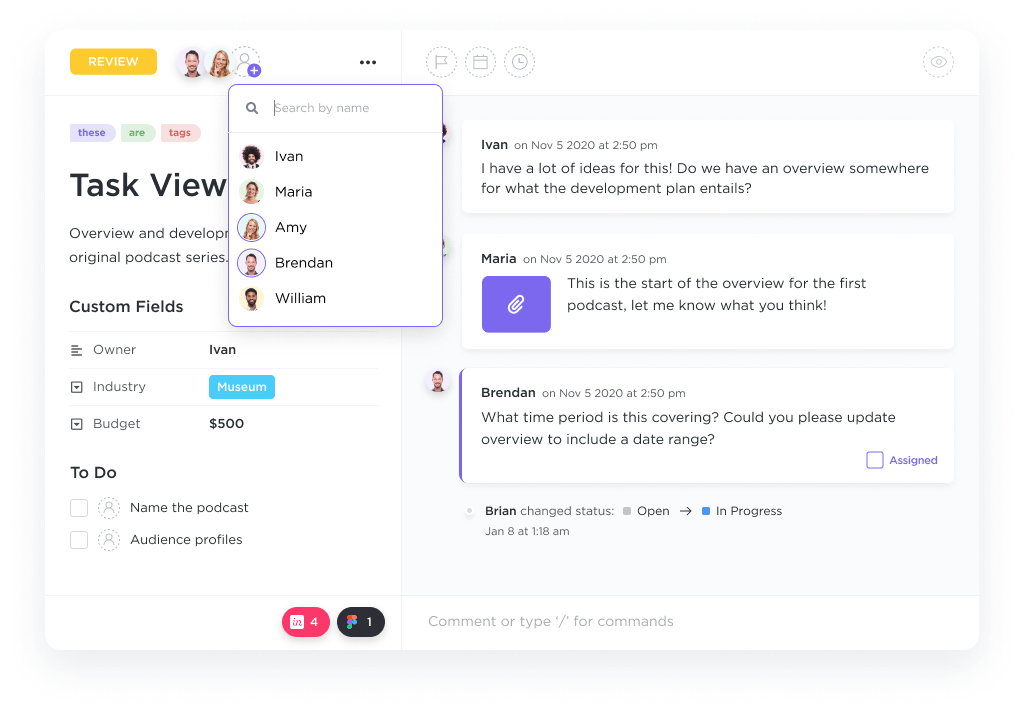
Need to make a change? Simply use the ClickUp drag-and-drop rescheduling feature to move a task to a new date. You can even use the ClickUp calendar sync to maintain visibility with your personal Google Calendar while keeping ClickUp as your team’s single source of truth.
🎥This video shows you many more ways to use AI in marketing👇🏽
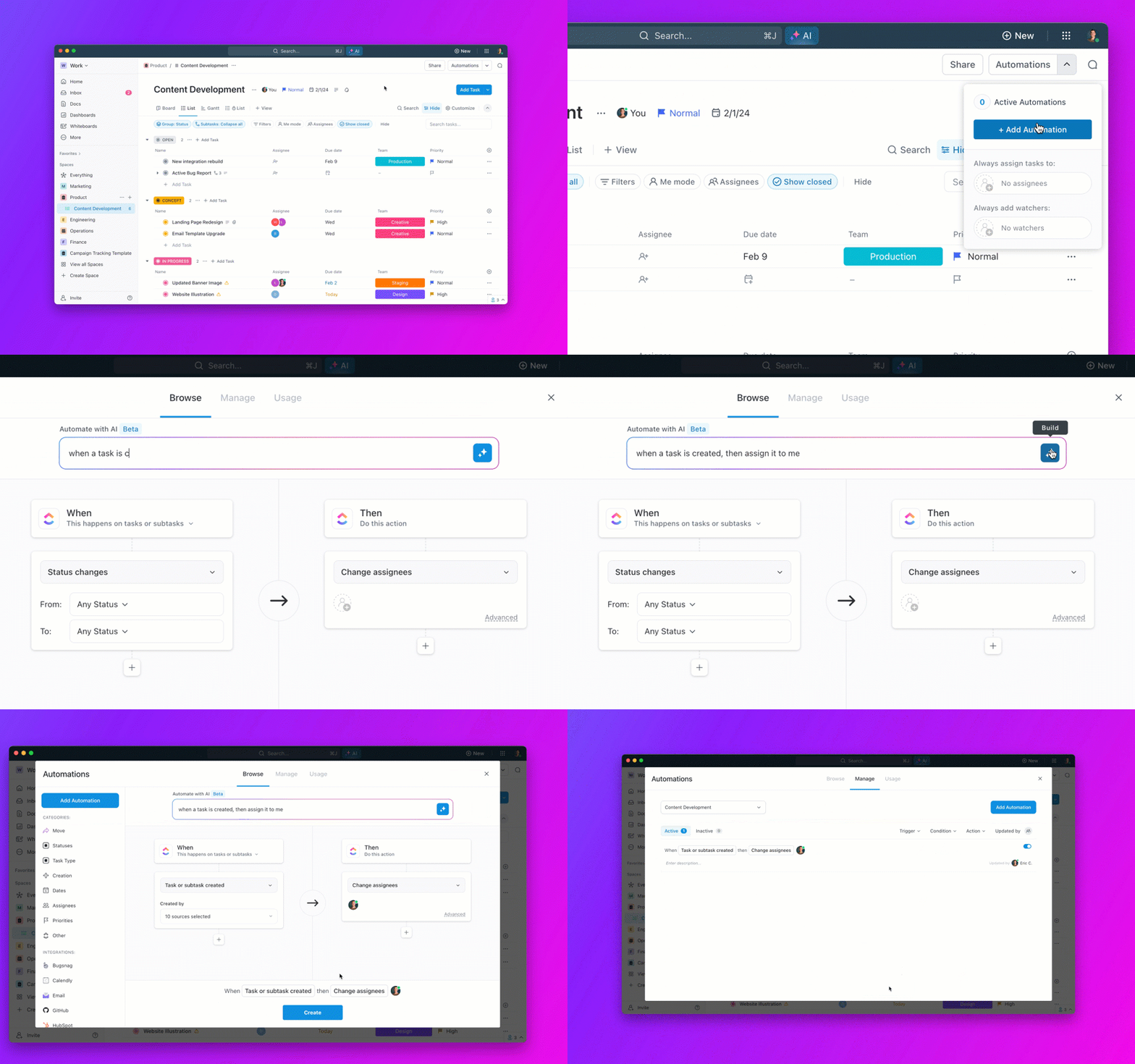
And to tie it all together, ClickUp Automations automatically trigger next actions based on certain actions.
For instance, automation can help you notify your graphic designer as soon as a writer finishes a draft, get real-time updates when a task’s status changes, or know instantly when a post is ready for review—keeping your content pipeline moving seamlessly without any manual follow-ups.
Spreadsheets and standalone AI tools can get you started, but they’ll never take your content workflow all the way. With Gemini in Google Sheets, you can ideate, draft, and organize—but execution still lives somewhere else.
ClickUp changes the game. By bringing AI-powered ideation, content planning and creation, attachments, scheduling, collaboration, and execution into a single workspace.
So, your social media calendar isn’t just a plan—it becomes actionable work.
Stop moving content between disconnected tools and start making your calendar work for you instead.
Ready to move beyond spreadsheets and bring your entire social media workflow into one place? Get started for free with ClickUp ✨and see how a converged workspace can transform your team’s social media content planning. 🙌
Gemini can help you generate text for your posts, but it cannot directly create or manage events in Google Calendar. You would need to do that manually or use a tool with direct integration.
A Google Sheets calendar is a free starting point for basic planning, but it lacks the publishing, asset management, and integrated analytics features that dedicated social media tools provide.
The best prompts are highly specific. Include your industry, target audience, key themes, and desired post count, such as: “Generate 30 social media post ideas for a B2C skincare brand targeting women ages 25-40, organized by week and content type.”
Gemini cannot automatically schedule or publish posts, store your visual assets, track post performance, remember your brand guidelines between sessions, or manage structured approval workflows.

© 2026 ClickUp

There’s an easier way. Try a free AI Agent in ClickUp that actually does the work for you—set up in minutes, save hours every week.